reset Acura RLX 2015 Owner's Guide
[x] Cancel search | Manufacturer: ACURA, Model Year: 2015, Model line: RLX, Model: Acura RLX 2015Pages: 521, PDF Size: 22.24 MB
Page 204 of 521
203
uuAudio System Basic Operation uAudio/Information Screen
Continued
Features
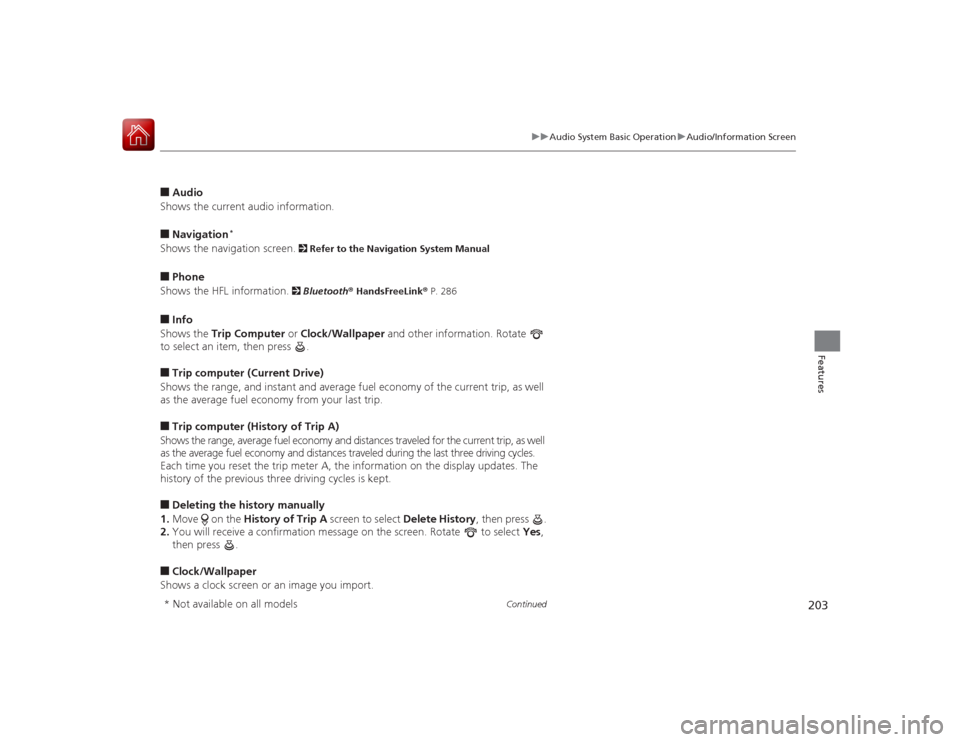
■Audio
Shows the current audio information.■Navigation
*
Shows the navigation screen.
2 Refer to the Navigation System Manual
■Phone
Shows the HFL information.
2 Bluetooth ® HandsFreeLink ® P. 286
■Info
Shows the Trip Computer or Clock/Wallpaper and other information. Rotate
to select an item, then press .■Trip computer (Current Drive)
Shows the range, and instant and average fuel economy of the current trip, as well
as the average fuel economy from your last trip.■Trip computer (History of Trip A)
Shows the range, average fuel economy and distance s traveled for the current trip, as well
as the average fuel economy and distances traveled during the last three driving cycles.
Each time you reset the trip meter A, the information on the display updates. The
history of the previous three driving cycles is kept.■Deleting the history manually
1. Move on the History of Trip A screen to select Delete History , then press .
2. You will receive a confirmation message on the screen. Rotate to select Yes,
then press .■Clock/Wallpaper
Shows a clock screen or an image you import.* Not available on all models
Page 212 of 521
211
uuAudio System Basic Operation uVoice Control Operation
Continued
Features
■HDD commands
• Hard Disc Drive play
• Hard Disc Drive play track # (#: 1 to 30)
• Hard Disc Drive skip forward
• Hard Disc Drive skip back
• Hard Disc Drive album up
*2
•Hard Disc Drive album down
*2
•Hard Disc Drive track up
• Hard Disc Drive track down
• Hard Disc Drive playlist up
*2
•Hard Disc Drive playlist down
*2
•Hard Disc Drive track random
*1
•Hard Disc Drive track repeat
*1
•Hard Disc Drive track scan
*1
•Hard Disc Drive normal play
• What am I listening to?
• Who am I listening to?
• Who is this?
• What’s playing?
• Who’s playing?
• What album is this?
*1: These commands toggle the function
on and off, so the command may not match
your intended action.
*2: These commands are available only in
the corresponding playback mode.
For example, “Artist” commands are
available only in “Artist” mode.
■Radio commands
• Audio on
*1
•Audio off
*1
•Radio on
*1
•Radio off
*1
•Radio select FM
• Radio select AM
• Radio tune to # FM
(#: frequency from 87.7 to 107.9)
• Radio tune to # AM
(#: frequency from 530 [five thirty] to
1710 [seventeen ten])
• Radio seek up
• Radio seek down
• Radio next station
• Radio preset # (#: 1 to 12)
• Radio FM preset # (#: 1 to 12)
• Radio AM preset # (#: 1 to 6)
• Radio scan
*1
•Radio select XM
• XM channel #
(#: 0 to 255 [two fifty five])
• XM channel down
• XM category up
• XM category down
• XM preset # (#: 1 to 12)
• XM scan
*1
•XM category mode
• XM channel mode *1: These commands toggle the function
on and off, so the command may not match
your intended action.
NOTE:
Radio volume levels cannot be controlled
using voice control.
■Disc commands
• Disc play
• Disc play track # (#: 1 to 30)
• Disc skip forward
• Disc skip back
• Disc track random
*1
•Disc track repeat
*1
•Disc track scan
*1
•Disc folder up
• Disc folder down
• Disc folder random
*1
•Disc folder repeat
*1
•Disc folder scan
*1
•Disc normal play
*1: These commands toggle the function
on and off, so the command may not match
your intended action.
Page 217 of 521
216
uuAudio System Basic Operation uPlaying AM/FM Radio
Features
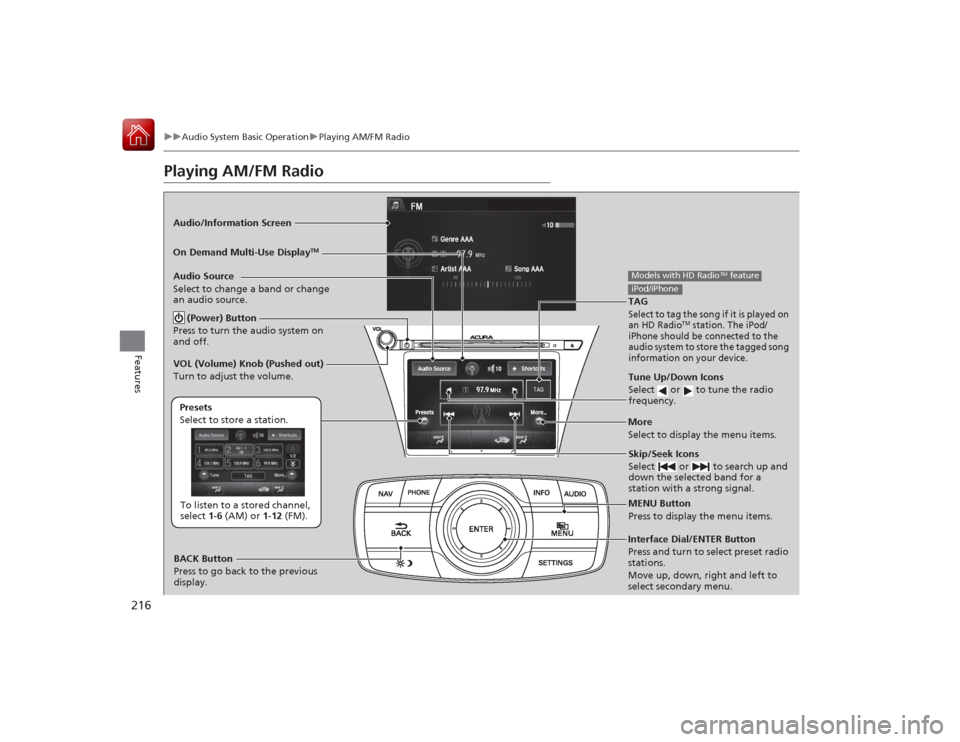
Playing AM/FM RadioAudio/Information Screen
On Demand Multi-Use Display
TM
Tune Up/Down Icons
Select or to tune the radio
frequency.MENU Button
Press to display the menu items.
(Power) Button
Press to turn the audio system on
and off.Audio Source
Select to change a band or change
an audio source.To listen to a stored channel,
select 1-6 (AM) or 1- 12 (FM).
Presets
Select to store a station.
Skip/Seek Icons
Select or to search up and
down the selected band for a
station with a strong signal.
More
Select to display the menu items.
BACK Button
Press to go back to the previous
display.
VOL (Volume) Knob (Pushed out)
Turn to adjust the volume.Interface Dial/ENTER Button
Press and turn to select preset radio
stations.
Move up, down, right and left to
select secondary menu.TAGSelect to tag the song if it is played on
an HD Radio
TM station. The iPod/
iPhone should be connected to the
audio system to store the tagged song
information on your device.
Models with HD Radio
TM feature
iPod/iPhone
Page 218 of 521
Continued
217
uuAudio System Basic Operation uPlaying AM/FM Radio
Features
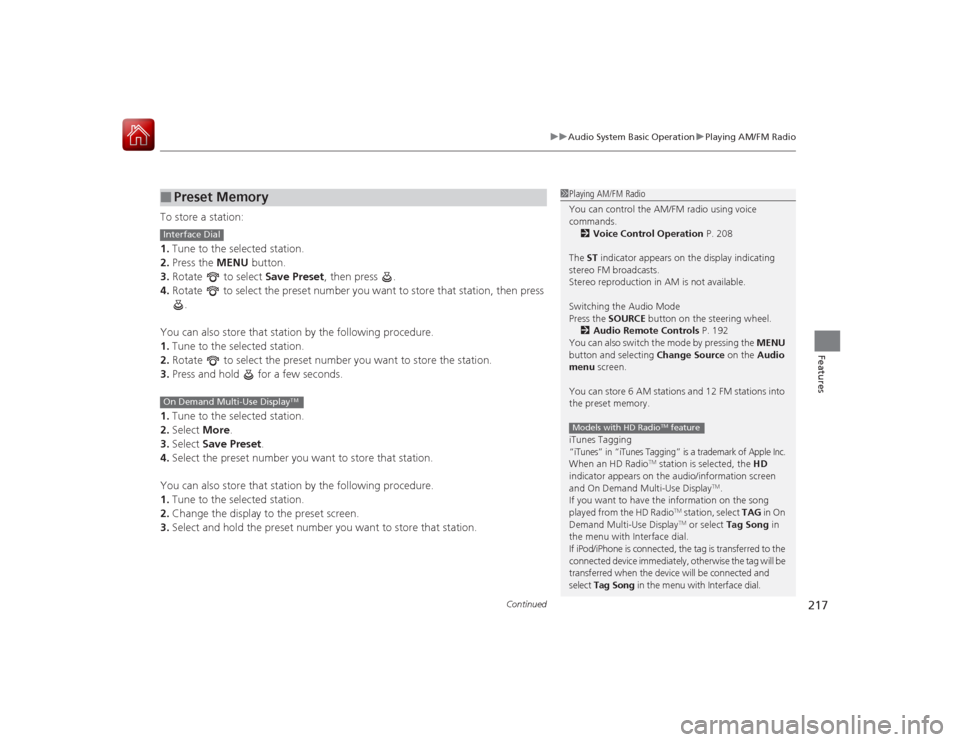
To store a station:
1. Tune to the selected station.
2. Press the MENU button.
3. Rotate to select Save Preset, then press .
4. Rotate to select the preset number you want to store that station, then press
.
You can also store that station by the following procedure.
1. Tune to the selected station.
2. Rotate to select the preset number you want to store the station.
3. Press and hold for a few seconds.
1. Tune to the selected station.
2. Select More.
3. Select Save Preset .
4. Select the preset number you want to store that station.
You can also store that station by the following procedure.
1. Tune to the selected station.
2. Change the display to the preset screen.
3. Select and hold the preset number you want to store that station.■
Preset Memory
1Playing AM/FM Radio
You can control the AM/FM radio using voice
commands.
2 Voice Control Operation P. 208
The ST indicator appears on the display indicating
stereo FM broadcasts.
Stereo reproduction in AM is not available.
Switching the Audio Mode
Press the SOURCE button on the steering wheel.
2 Audio Remote Controls P. 192
You can also switch the mode by pressing the MENU
button and selecting Change Source on the Audio
menu screen.
You can store 6 AM stations and 12 FM stations into
the preset memory.
iTunes Tagging“iTunes” in “iTunes Tagging” is a trademark of Apple Inc.When an HD Radio
TM station is selected, the HD
indicator appears on the audio/information screen
and On Demand Multi-Use Display
TM.
If you want to have the information on the song
played from the HD Radio
TM station, select TAG in On
Demand Multi-Use DisplayTM or select Tag Song in
the menu with Interface dial.
If iPod/iPhone is connected, the tag is transferred to the
connected device immediately, otherwise the tag will be
transferred when the device will be connected and
select Tag Song in the menu with Interface dial.
Models with HD Radio
TM feature
Interface DialOn Demand Multi-Use Display
TM
Page 222 of 521
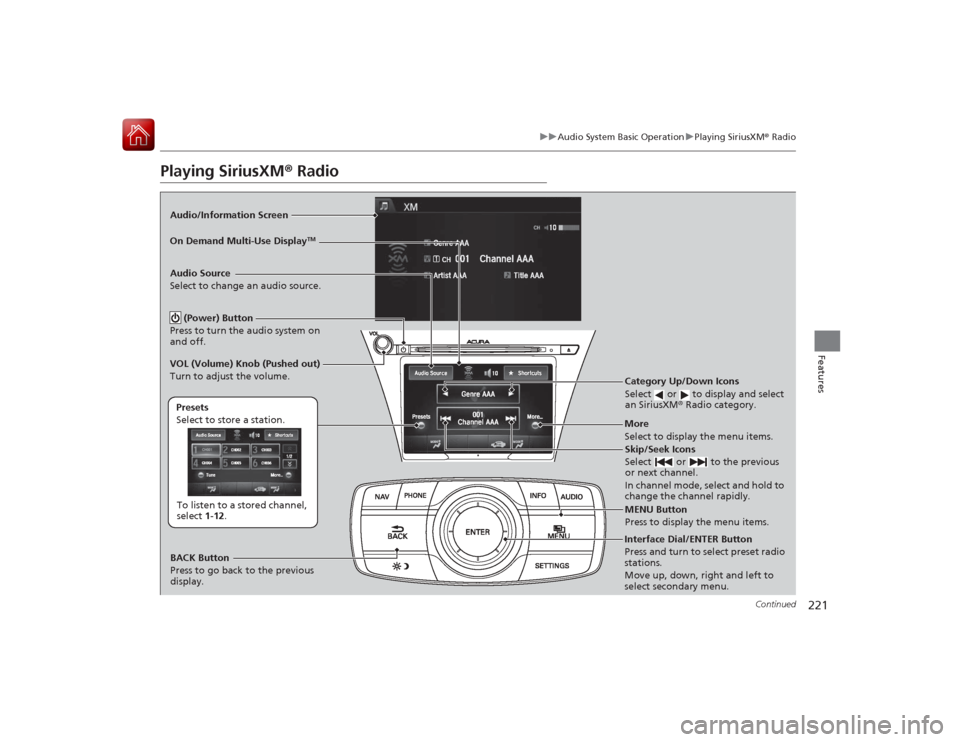
221
uuAudio System Basic Operation uPlaying SiriusXM ® Radio
Continued
Features
Playing SiriusXM ® RadioAudio/Information Screen
On Demand Multi-Use Display
TM
Category Up/Down Icons
Select or to display and select
an SiriusXM ® Radio category.MENU Button
Press to display the menu items.
(Power) Button
Press to turn the audio system on
and off.Audio Source
Select to change an audio source.To listen to a stored channel,
select 1-12.
Presets
Select to store a station.
Skip/Seek Icons
Select or to the previous
or next channel.
In channel mode, select and hold to
change the channel rapidly.
More
Select to display the menu items.
BACK Button
Press to go back to the previous
display.
VOL (Volume) Knob (Pushed out)
Turn to adjust the volume.Interface Dial/ENTER Button
Press and turn to select preset radio
stations.
Move up, down, right and left to
select secondary menu.
Page 223 of 521
uuAudio System Basic Operation uPlaying SiriusXM ® Radio
222Features
1. Select the SiriusXM® mode.
2 Audio Remote Controls P. 192
2 On Demand Multi-Use Display
TM P. 194
2.Press the MENU button.
3. Rotate to select Channel List, then press .
4. Rotate to select a channel from a list, then press .
2. Select a channel using the , , , icons on the tune mode screen or
the preset numbers ( 1-12) on the preset mode screen.
To change the tune mode:
1. Press the MENU button.
2. Rotate to select XM Tune Mode, then press .
3. Rotate to select Channel Mode or Category Mode , then press .
1. Select More.
2. Select XM Tune Mode .
3. Select Channel Mode or Category Mode .■
To Play the SiriusXM® Radio
1Playing SiriusXM ® Radio
You can control the SiriusXM ® radio using voice
commands.
2 Voice Control Operation P. 208
In the channel mode, all available channels are
selectable. In the category mode, you can select a
channel within a category (Jazz, Rock, Classical, etc.).
There may be instances when SiriusXM ® Radio does
not broadcast all the data fields (artist name, title).
This does not indicate a problem with your audio
system.
SiriusXM ® Radio stations load in ascending order,
which can take about a minute. Once they have
loaded you will be able to scroll up or down to make
your selections.
Interface DialOn Demand Multi-Use Display
TM
Interface DialOn Demand Multi-Use Display
TM
Page 224 of 521
223
uuAudio System Basic Operation uPlaying SiriusXM ® Radio
Features
To store a station:
1. Tune to the selected station.
2. Press the MENU button.
3. Rotate to select Save Preset, then press .
4. Rotate to select the preset number you want to store that station, then press
.
You can also store that station by the following procedure.
1. Tune to the selected station.
2. Rotate to select the preset number you want to store the station.
3. Press and hold for a few seconds.
1. Tune to the selected station.
2. Select More.
3. Select Save Preset .
4. Select the preset number you want to store that station.
You can also store that station by the following procedure.
1. Tune to the selected station.
2. Change the display to the preset screen.
3. Select and hold the preset number you want to store that station.■
Preset Memory
1Playing SiriusXM ® Radio
You can store 12 SiriusXM ® stations into the preset
memory.
Interface DialOn Demand Multi-Use Display
TM
Page 266 of 521
265
uuCustomized Features u
Continued
Features
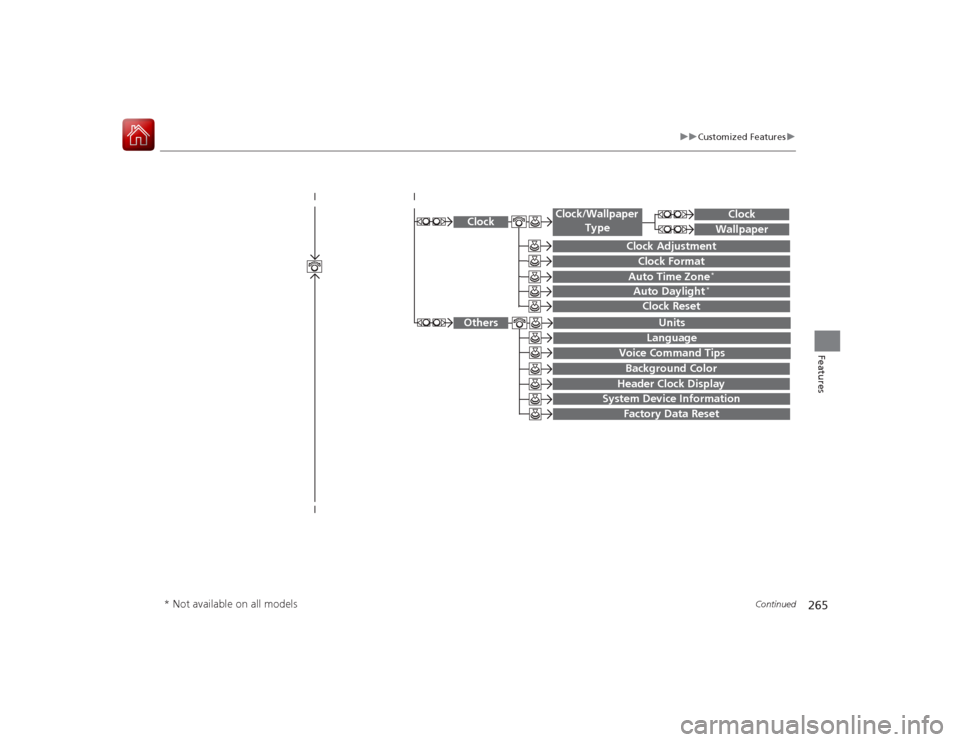
System Device Information
Factory Data Reset
Background ColorHeader Clock Display
Clock Reset
Auto Time Zone
*
Auto Daylight
*
Clock
Clock AdjustmentClock Format
Clock
UnitsLanguage
Voice Command Tips
Others
Wallpaper
Clock/Wallpaper
Type
* Not available on all models
Page 267 of 521
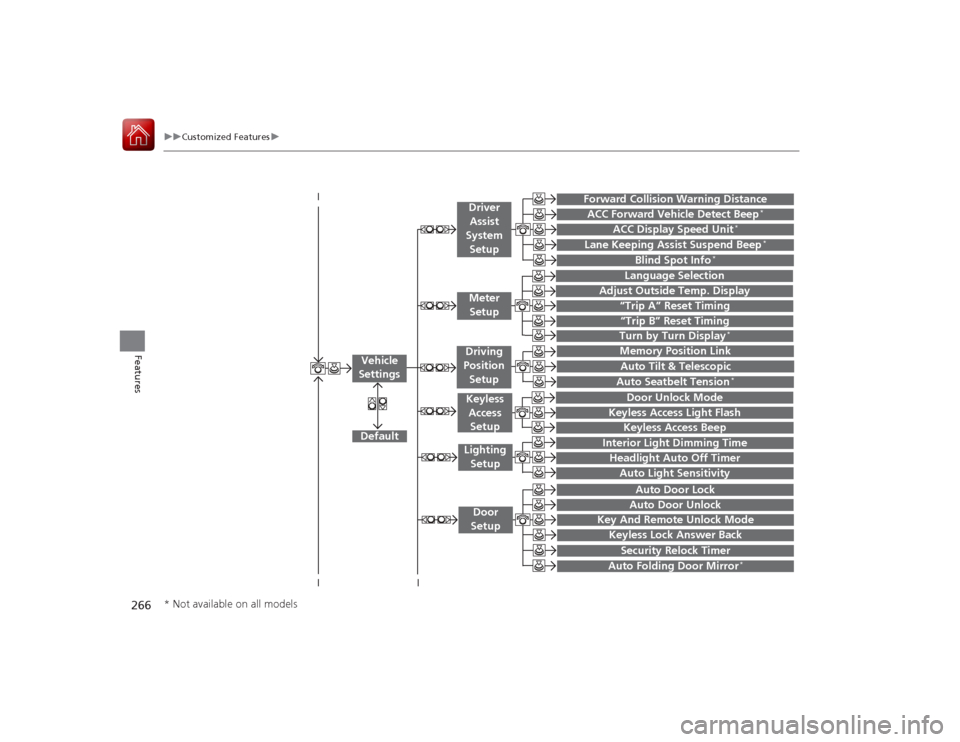
266
uuCustomized Features u
Features
“Trip A” Reset Timing“Trip B” Reset Timing
Language Selection
Adjust Outside Temp. Display
Forward Collision Warning DistanceACC Forward Vehicle Detect Beep
*
ACC Display Speed Unit
*
Turn by Turn Display
*
Default
Memory Position Link
Door Unlock Mode
Keyless Access Light Flash
Interior Light Dimming TimeHeadlight Auto Off TimerAuto Light Sensitivity
Key And Remote Unlock ModeKeyless Lock Answer BackSecurity Relock Timer
Auto Door LockAuto Door Unlock
Vehicle
Settings
Meter
SetupDriver Assist
System SetupKeyless Access SetupLighting
SetupDoor
Setup
Keyless Access Beep
Lane Keeping Assist Suspend Beep
*
Blind Spot Info
*
Auto Tilt & TelescopicAuto Seatbelt Tension
*
Auto Folding Door Mirror
*
Driving
Position
Setup
* Not available on all models
Page 268 of 521
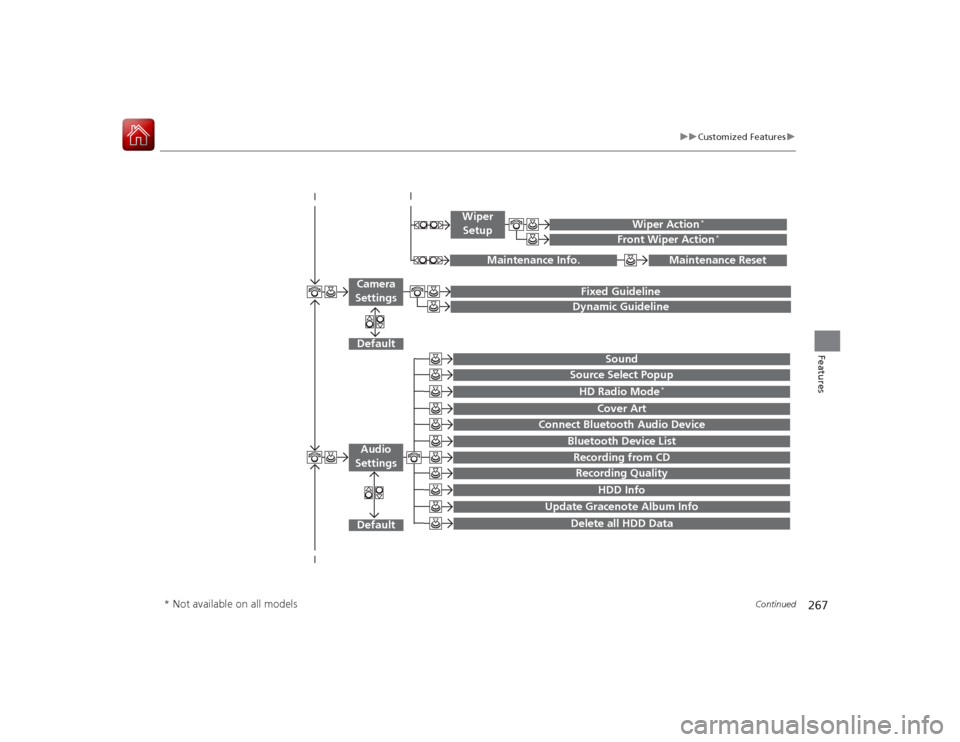
267
uuCustomized Features u
Continued
Features
Default
Fixed GuidelineDynamic Guideline
Default
Sound
Source Select PopupHD Radio Mode
*
Cover Art
Connect Bluetooth Audio Device
Bluetooth Device ListRecording from CDRecording Quality
HDD Info
Update Gracenote Album Info
Delete all HDD Data
Audio
Settings
Maintenance Reset
Maintenance Info.
Wiper Action
*
Front Wiper Action
*
Wiper Setup
Camera
Settings
* Not available on all models