Audio Acura TLX 2015 Workshop Manual
[x] Cancel search | Manufacturer: ACURA, Model Year: 2015, Model line: TLX, Model: Acura TLX 2015Pages: 545, PDF Size: 19.64 MB
Page 247 of 545
uuAudio System Basic Operation uPlaying a USB Flash Drive
246Features
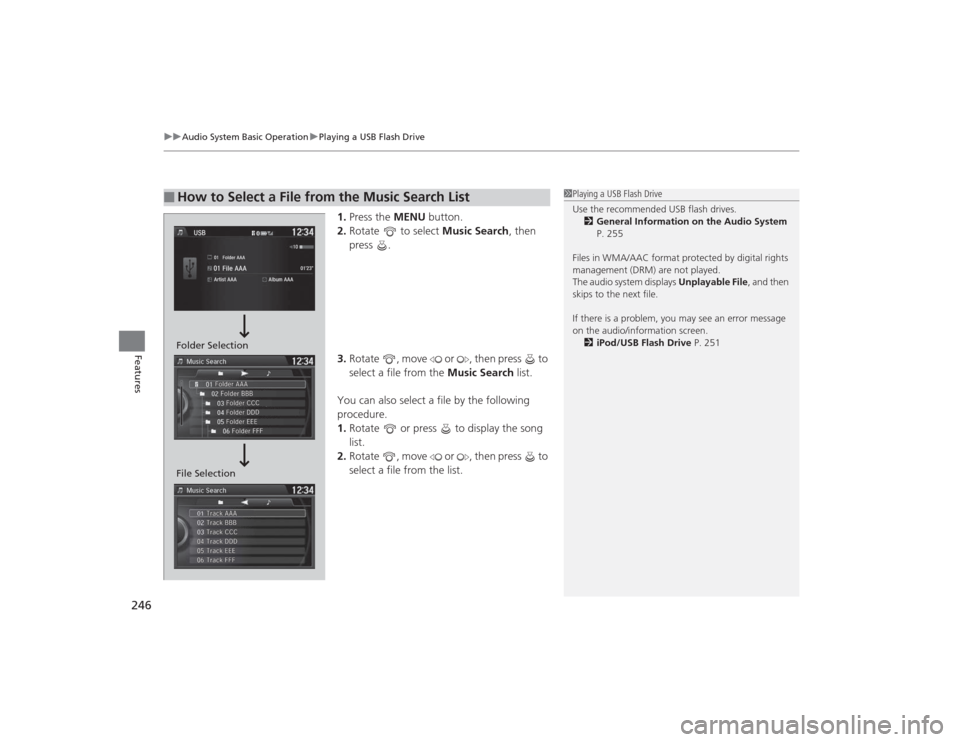
1. Press the MENU button.
2. Rotate to select Music Search, then
press .
3. Rotate , move or , then press to
select a file from the Music Search list.
You can also select a file by the following
procedure.
1. Rotate or press to display the song
list.
2. Rotate , move or , then press to
select a file from the list.
■
How to Select a File from the Music Search List
1Playing a USB Flash Drive
Use the recommended USB flash drives.
2 General Information on the Audio System
P. 255
Files in WMA/AAC format protected by digital rights
management (DRM) are not played.
The audio system displays Unplayable File, and then
skips to the next file.
If there is a problem, you may see an error message
on the audio/information screen.
2 iPod/USB Flash Drive P. 251
Folder Selection
File Selection
Page 248 of 545

247
uuAudio System Basic Operation uPlaying a USB Flash Drive
Features
You can select scan, repeat, and random modes when playing a file.
1.Press the MENU button.
2. Rotate to select Scan or Random/
Repeat , then press .
3. Rotate to select a mode, then press .
1. Select More.
2. Select Scan or Random/Repeat .
3. Select a mode.■To turn off a play mode
1. Press the MENU button.
2. Rotate to select the mode you want to turn off, then press .
1. Select More.
2. Select the mode you want to turn off.■
How to Select a Play Mode
1How to Select a Play Mode
Play Mode Menu Items
Scan
Scan Folders : Provides a 10-second sampling of the
first file in each of the main folders.
Scan Tracks: Provides a 10-second sampling of all
files in the current folder.
Random/Repeat
Repeat Folder : Repeats all files in the current folder.
Repeat Track: Repeats the current file.
Random in Folder : Plays all files in the current folder
in random order.
Random All Tracks : Plays all files in random order.
Random/Repeat is selected.
Interface Dial
Random/Repeat is selected.
On Demand Multi-Use Display
TM
Interface DialOn Demand Multi-Use Display
TM
Page 249 of 545
248
uuAudio System Basic Operation uPlaying Bluetooth ® Audio
Features
Playing Bluetooth ® AudioYour audio system allows you to listen to music from your Bluetooth-compatible
phone.
This function is available when the phone is paired and connected to the vehicle’s
Bluetooth ® HandsFreeLink ® (HFL) system.2 Phone Setup P. 286
1Playing Bluetooth ® Audio
Not all Bluetooth -enabled phones with streaming
audio capabilities are compatible with the system.
For a list of compatible phones:•U.S.: Visit www.acura.com/handsfreelink , or call 1-
888-528-7876.•Canada: Visit www.handsfreelink.ca , or call 1-888-
528-7876.
In some states, it may be illegal to perform some data
device functions while driving.
If more than one phone is paired to the HFL system,
there will be a delay before the system begins to play.
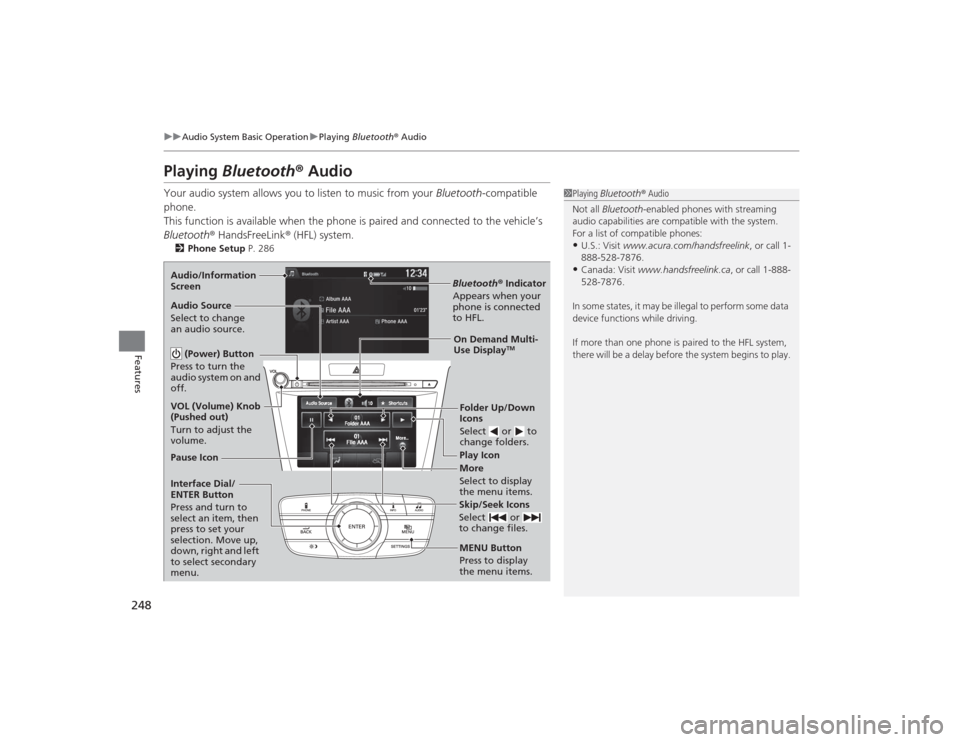
Bluetooth ® Indicator
Appears when your
phone is connected
to HFL.Play Icon
Pause Icon
More
Select to display
the menu items.
Audio Source
Select to change
an audio source.
(Power) Button
Press to turn the
audio system on and
off.Interface Dial/
ENTER Button
Press and turn to
select an item, then
press to set your
selection. Move up,
down, right and left
to select secondary
menu.
Skip/Seek Icons
Select or
to change files.MENU Button
Press to display
the menu items. Folder Up/Down
Icons
Select or to
change folders.On Demand Multi-
Use Display
TM
VOL (Volume) Knob
(Pushed out)
Turn to adjust the
volume. Audio/Information
Screen
Page 250 of 545
249
uuAudio System Basic Operation uPlaying Bluetooth ® Audio
Features
1. Make sure that your phone is paired and
connected to HFL.
2. Select the Bluetooth® Audio mode.
If the phone is not recognized, another HFL-
compatible phone, which is not compatible
for Bluetooth ® Audio, may already be
connected.
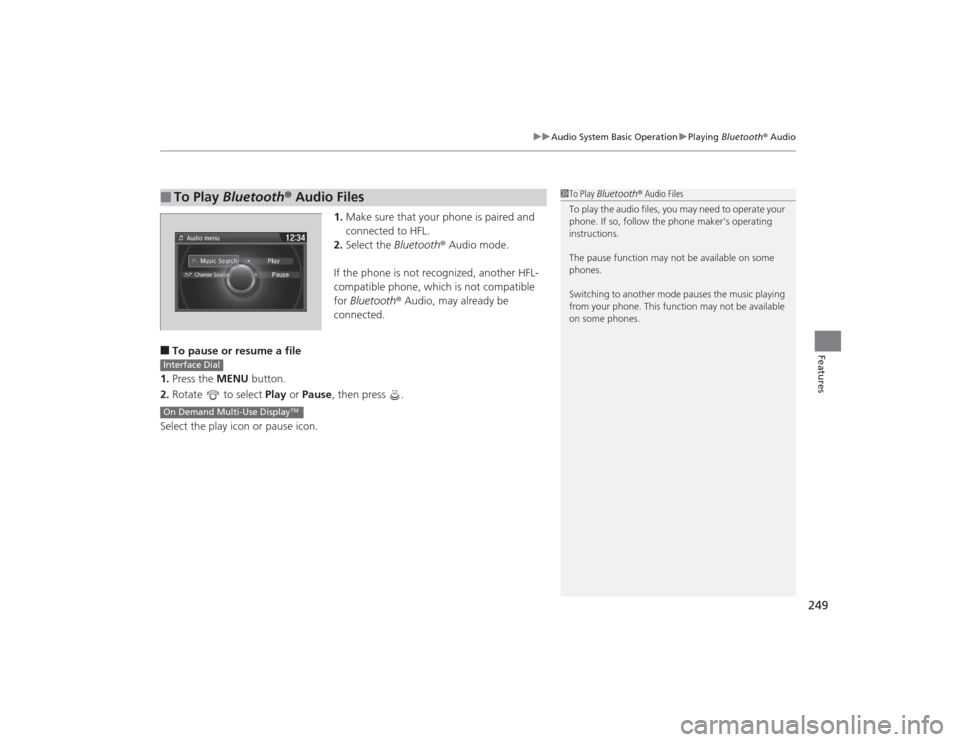
■To pause or resume a file
1. Press the MENU button.
2. Rotate to select Play or Pause , then press .
Select the play icon or pause icon.■
To Play Bluetooth ® Audio Files
1 To Play Bluetooth ® Audio Files
To play the audio files, you may need to operate your
phone. If so, follow the phone maker’s operating
instructions.
The pause function may not be available on some
phones.
Switching to another mode pauses the music playing
from your phone. This function may not be available
on some phones.
Interface DialOn Demand Multi-Use Display
TM
Page 251 of 545

250Features
Audio Error MessagesCD PlayerIf a disc error occurs, you may see the following error messages.
Error Message
Cause
Solution
Unplayable File
Track/file format not supported
●Current track/file will be skipped. The next supported track/file
plays automatically.
Bad Disc
Please Check Owner’s
Manual
Push Eject
Mechanical error
●Press the (eject) button and remove the disc, and check that the
error message is cleared.●Check that the disc is not damaged or deformed, and insert the
disc again.
2Protecting CDs P. 257
●If the error message reappears, press the button, and pull out
the disc.●Insert a different disc.
If the new disc plays, there is a problem with the first disc.●If the error message repeats, or the disc cannot be removed,
contact a dealer.
Do not try to force the disc out of the player.
Mecha ErrorBad Disc
Please Check Owner’s
Manual
Servo error
Check Disc
Disc error
●Check that the disc is not damaged or deformed.
2Protecting CDs P. 257
Heat Error
High temperature
●Turn the audio system off and allow the player to cool down until
the error message is cleared.
Page 252 of 545
251
uuAudio Error Messages uiPod/USB Flash Drive
Features
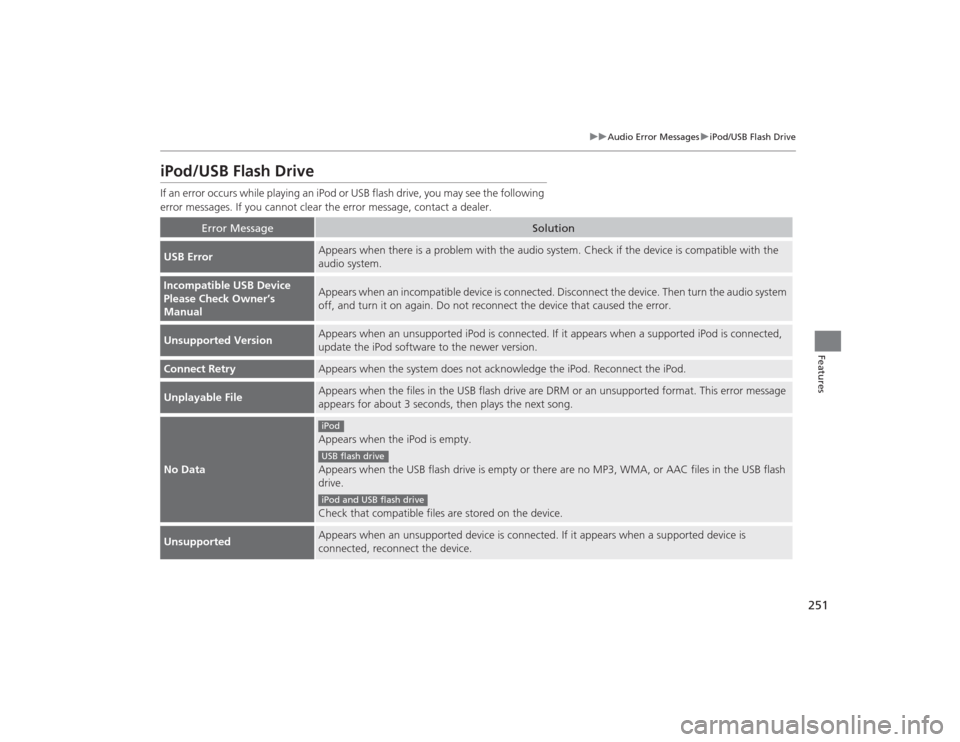
iPod/USB Flash DriveIf an error occurs while playing an iPod or USB flash drive, you may see the following
error messages. If you cannot clear the error message, contact a dealer.
Error Message
Solution
USB Error
Appears when there is a problem with the audio system. Check if the device is compatible with the
audio system.
Incompatible USB Device
Please Check Owner’s
Manual
Appears when an incompatible device is connected. Disconnect the device. Then turn the audio system
off, and turn it on again. Do not reconnect the device that caused the error.
Unsupported Version
Appears when an unsupported iPod is connected. If it appears when a supported iPod is connected,
update the iPod software to the newer version.
Connect Retry
Appears when the system does not acknowledge the iPod. Reconnect the iPod.
Unplayable File
Appears when the files in the USB flash drive are DRM or an unsupported format. This error message
appears for about 3 seconds, then plays the next song.
No Data
Appears when the iPod is empty.
Appears when the USB flash drive is empty or there are no MP3, WMA, or AAC files in the USB flash
drive.
Check that compatible files are stored on the device.
Unsupported
Appears when an unsupported device is connected. If it appears when a supported device is
connected, reconnect the device.iPodUSB flash driveiPod and USB flash drive
Page 253 of 545
252
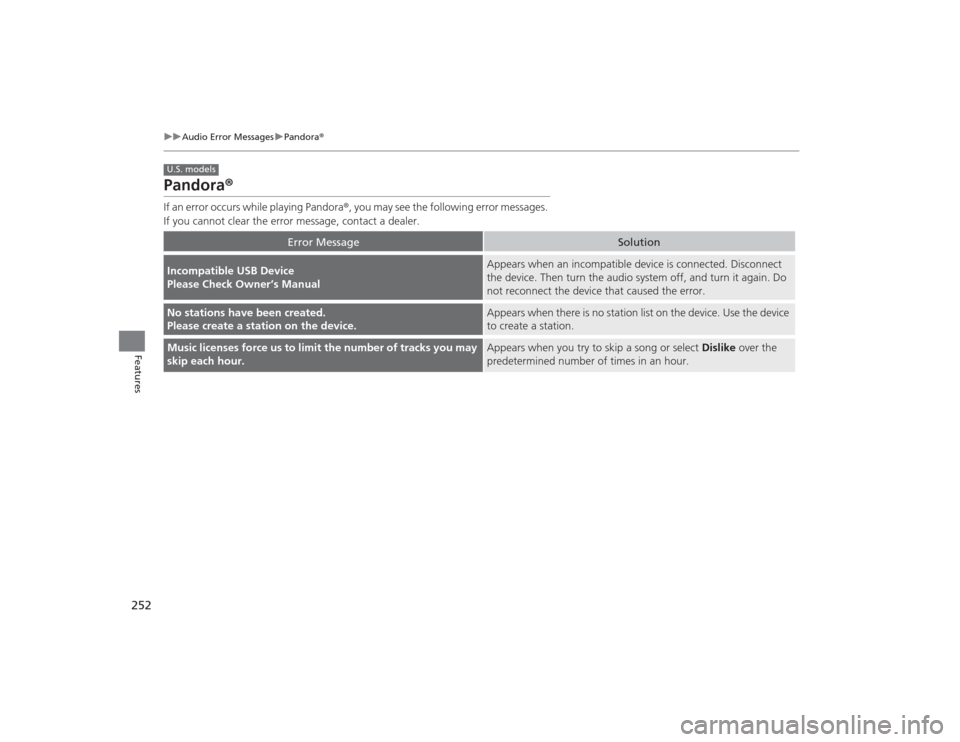
uuAudio Error Messages uPandora®
Features
Pandora ®If an error occurs while playing Pandora ®, you may see the following error messages.
If you cannot clear the error message, contact a dealer.
Error Message
Solution
Incompatible USB Device
Please Check Owner’s Manual
Appears when an incompatible device is c onnected. Disconnect
the device. Then turn the audio system off, and turn it again. Do
not reconnect the device that caused the error.
No stations have been created.
Please create a station on the device.
Appears when there is no station list on the device. Use the device
to create a station.
Music licenses force us to limit the number of tracks you may
skip each hour.
Appears when you try to skip a song or select Dislike over the
predetermined number of times in an hour.
U.S. models
Page 254 of 545
253
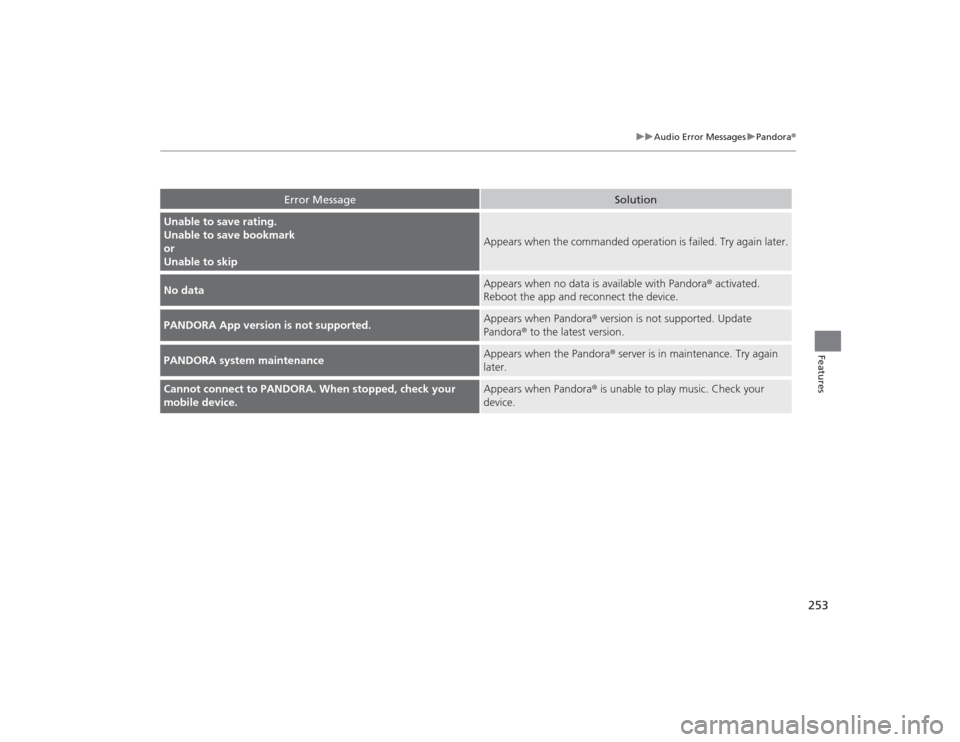
uuAudio Error Messages uPandora ®
Features
Error Message
Solution
Unable to save rating.
Unable to save bookmark
or
Unable to skip
Appears when the commanded operation is failed. Try again later.
No data
Appears when no data is available with Pandora ® activated.
Reboot the app and reconnect the device.
PANDORA App version is not supported.
Appears when Pandora® version is not supported. Update
Pandora ® to the latest version.
PANDORA system maintenance
Appears when the Pandora ® server is in maintenance. Try again
later.
Cannot connect to PANDORA. When stopped, check your
mobile device.
Appears when Pandora® is unable to play music. Check your
device.
Page 255 of 545
254
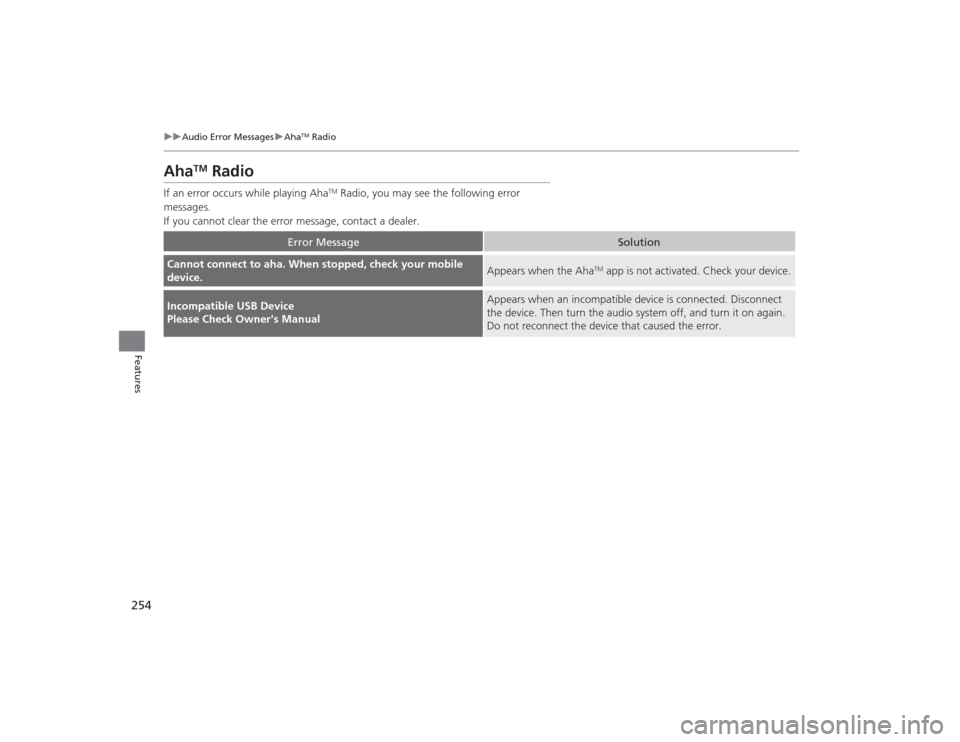
uuAudio Error Messages uAha
TM Radio
Features
Aha
TM
Radio
If an error occurs while playing Aha
TM Radio, you may see the following error
messages.
If you cannot clear the error message, contact a dealer.
Error Message
Solution
Cannot connect to aha. When stopped, check your mobile
device.
Appears when the Aha
TM app is not activated. Check your device.
Incompatible USB Device
Please Check Owner’s Manual
Appears when an incompatible device is c onnected. Disconnect
the device. Then turn the audio system off, and turn it on again.
Do not reconnect the device that caused the error.
Page 256 of 545
255Features
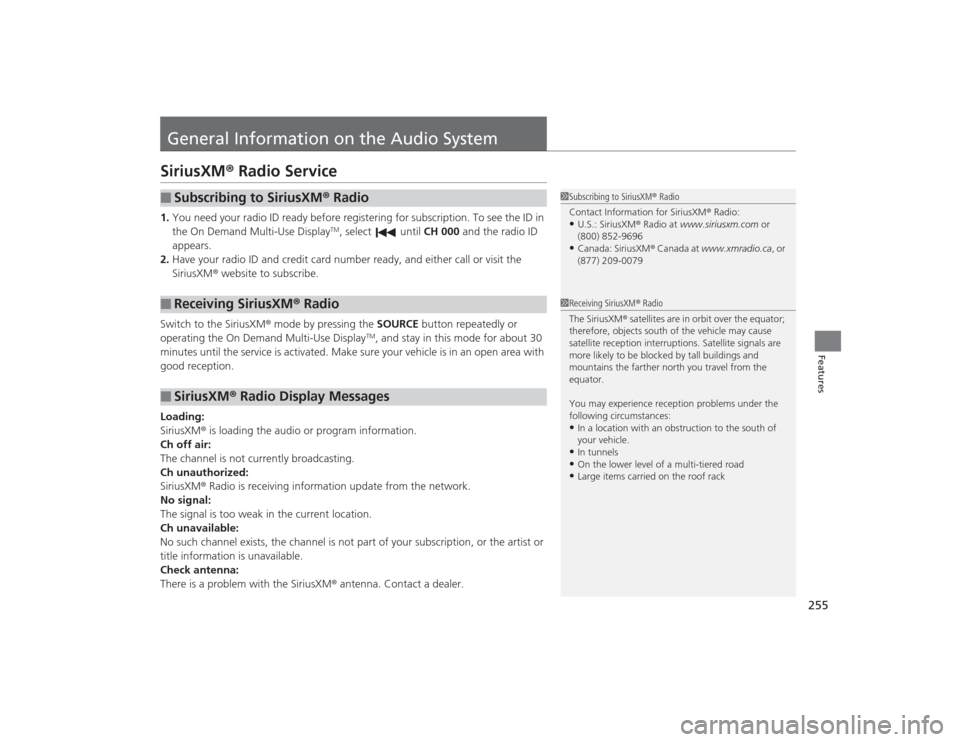
General Information on the Audio SystemSiriusXM® Radio Service1.You need your radio ID ready before registering for subscription. To see the ID in
the On Demand Multi-Use Display
TM, select until CH 000 and the radio ID
appears.
2. Have your radio ID and credit card number ready, and either call or visit the
SiriusXM ® website to subscribe.
Switch to the SiriusXM ® mode by pressing the SOURCE button repeatedly or
operating the On Demand Multi-Use Display
TM, and stay in this mode for about 30
minutes until the service is activated. Make sure your vehicle is in an open area with
good reception.
Loading:
SiriusXM ® is loading the audio or program information.
Ch off air:
The channel is not currently broadcasting.
Ch unauthorized:
SiriusXM ® Radio is receiving information update from the network.
No signal:
The signal is too weak in the current location.
Ch unavailable:
No such channel exists, the channel is not part of your subscription, or the artist or
title information is unavailable.
Check antenna:
There is a problem with the SiriusXM ® antenna. Contact a dealer.
■
Subscribing to SiriusXM® Radio
■
Receiving SiriusXM ® Radio
■
SiriusXM ® Radio Display Messages
1 Subscribing to SiriusXM ® Radio
Contact Information for SiriusXM ® Radio:•U.S.: SiriusXM ® Radio at www.siriusxm.com or
(800) 852-9696•Canada: SiriusXM ® Canada at www.xmradio.ca, or
(877) 209-0079
1 Receiving SiriusXM ® Radio
The SiriusXM ® satellites are in orbit over the equator;
therefore, objects south of the vehicle may cause
satellite reception interruptions. Satellite signals are
more likely to be blocked by tall buildings and
mountains the farther north you travel from the
equator.
You may experience reception problems under the
following circumstances:•In a location with an obstruction to the south of
your vehicle.•In tunnels•On the lower level of a multi-tiered road•Large items carried on the roof rack