buttons Acura TLX 2015 Owner's Manual
[x] Cancel search | Manufacturer: ACURA, Model Year: 2015, Model line: TLX, Model: Acura TLX 2015Pages: 545, PDF Size: 19.64 MB
Page 6 of 545
5Quick Reference Guide
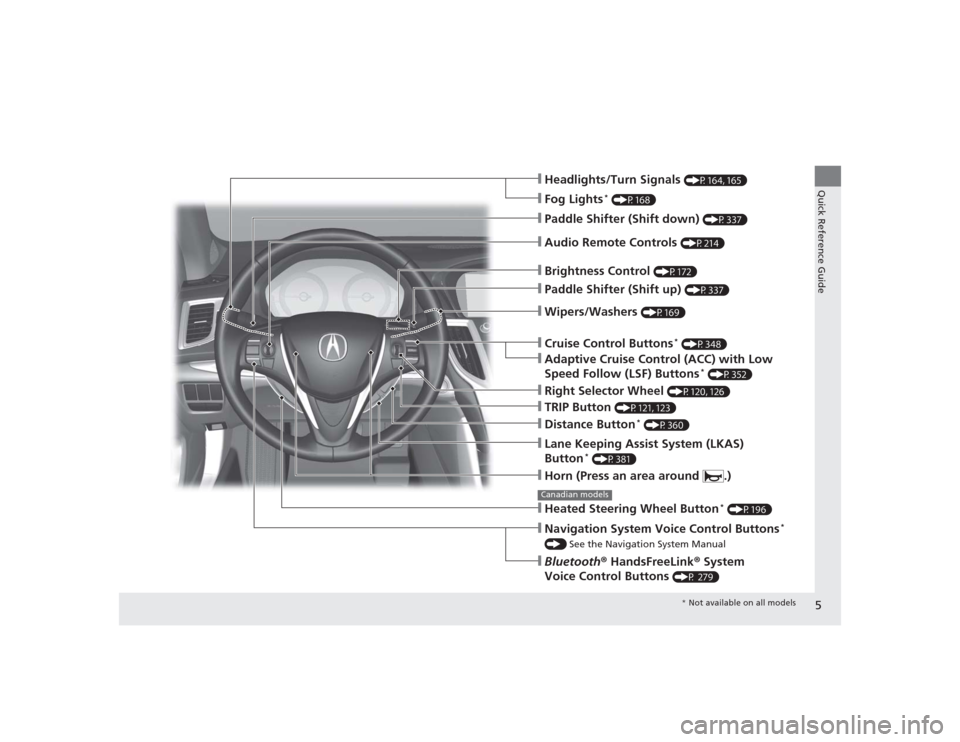
❙Wipers/Washers
(P169)
❙Headlights/Turn Signals
(P164, 165)
❙Paddle Shifter (Shift down)
(P337)
❙Paddle Shifter (Shift up)
(P337)
❙Horn (Press an area around .)❙Navigation System Voice Control Buttons
*
() See the Navigation System Manual❙Bluetooth® HandsFreeLink ® System
Voice Control Buttons
(P 279)
❙Brightness Control
(P172)
❙Cruise Control Buttons
* (P348)
❙Adaptive Cruise Control (ACC) with Low
Speed Follow (LSF) Buttons
* (P352)
❙TRIP Button
(P121, 123)
❙Distance Button
* (P360)
❙Lane Keeping Assist System (LKAS)
Button
* (P381)
❙Right Selector Wheel
(P120, 126)
❙Heated Steering Wheel Button
* (P196)
Canadian models❙Audio Remote Controls
(P214)
❙Fog Lights
* (P168)
* Not available on all models
Page 7 of 545
Visual Index
6Quick Reference Guide
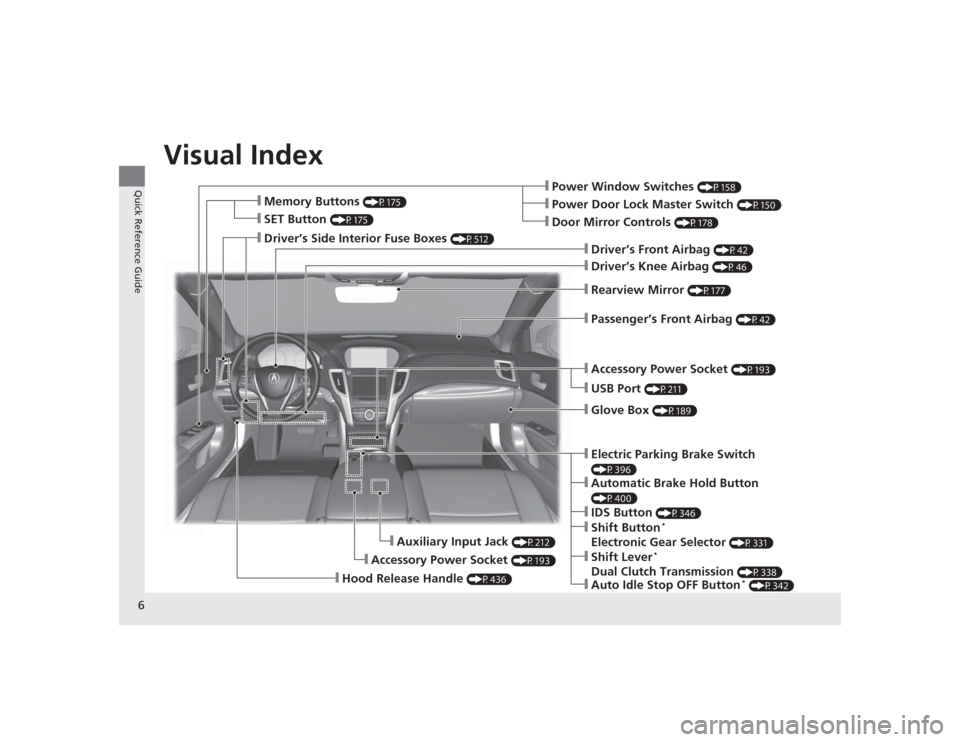
❙Power Window Switches
(P158)
❙Driver’s Front Airbag
(P42)
❙Driver’s Knee Airbag
(P46)
❙Door Mirror Controls
(P178)
❙Power Door Lock Master Switch
(P150)
❙Accessory Power Socket
(P193)
❙Auxiliary Input Jack
(P212)
❙Accessory Power Socket
(P193)
❙USB Port
(P211)
❙Rearview Mirror
(P177)
❙Hood Release Handle
(P436)
❙Memory Buttons
(P175)
❙SET Button
(P175)
❙Glove Box
(P189)
❙Passenger’s Front Airbag
(P42)
❙Driver’s Side Interior Fuse Boxes
(P512)
❙Electric Parking Brake Switch (P396)❙IDS Button
(P346)
❙Shift Button
*
Electronic Gear Selector
(P331)
❙Automatic Brake Hold Button (P400)❙Shift Lever
*
Dual Clutch Transmission
(P338)
❙Auto Idle Stop OFF Button
* (P342)
Page 17 of 545
16Quick Reference Guide
Features
(P209)
Audio System
(P215)
For navigation system operation
() See the Navigation System Manual
*1:Icons that appear on the screen vary by the source selected.
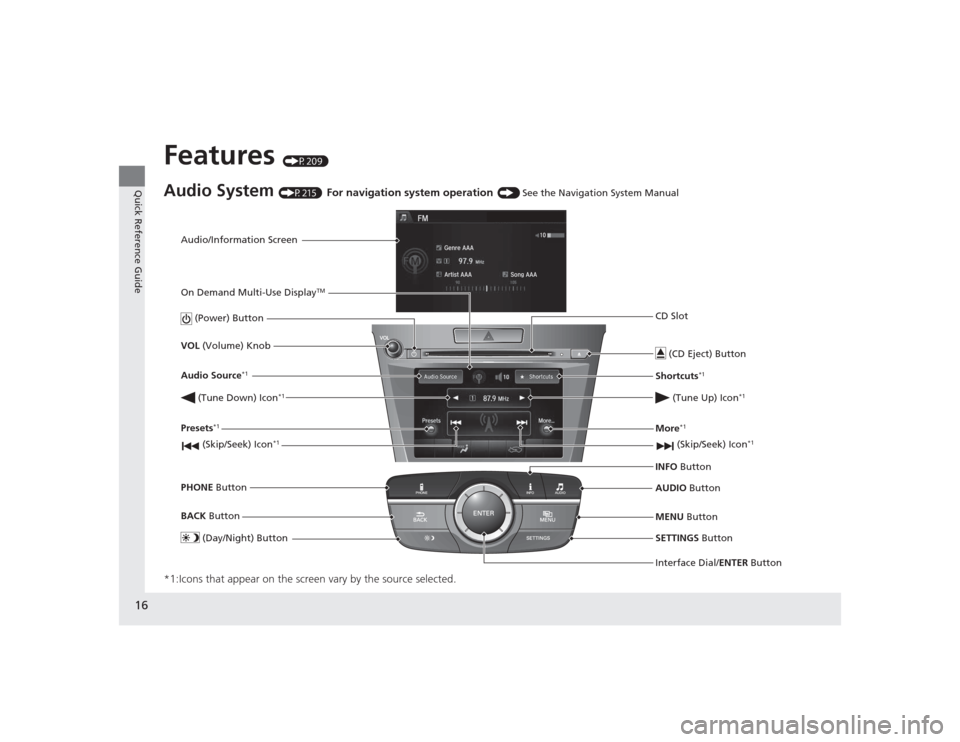
Audio/Information Screen
Interface Dial/ENTER Button
(Power) Button
CD Slot
(CD Eject) ButtonSETTINGS Button
VOL
(Volume) Knob
BACK Button
MENU Button
AUDIO
Button
INFO
Button
On Demand Multi-Use Display
TM
PHONE
Button
(Tune Down) Icon
*1
(Skip/Seek) Icon
*1
Audio Source
*1
(Skip/Seek) Icon
*1
Presets
*1
(Tune Up) Icon
*1
More
*1
(Day/Night) Button
Shortcuts
*1
Page 70 of 545

69
Instrument Panel
This chapter describes the buttons, indicators, and gauges that are used while driving.
Indicators............................................ 70
Multi-Information Display Warning and Information Messages ...................... 95Gauges and Multi-Information Display .. 117Gauges ............................................ 117
Multi-Information Display ................ 118
Page 176 of 545
175
uuOperating the Switches Around the Steering Wheel uDriving Position Memory System
Controls
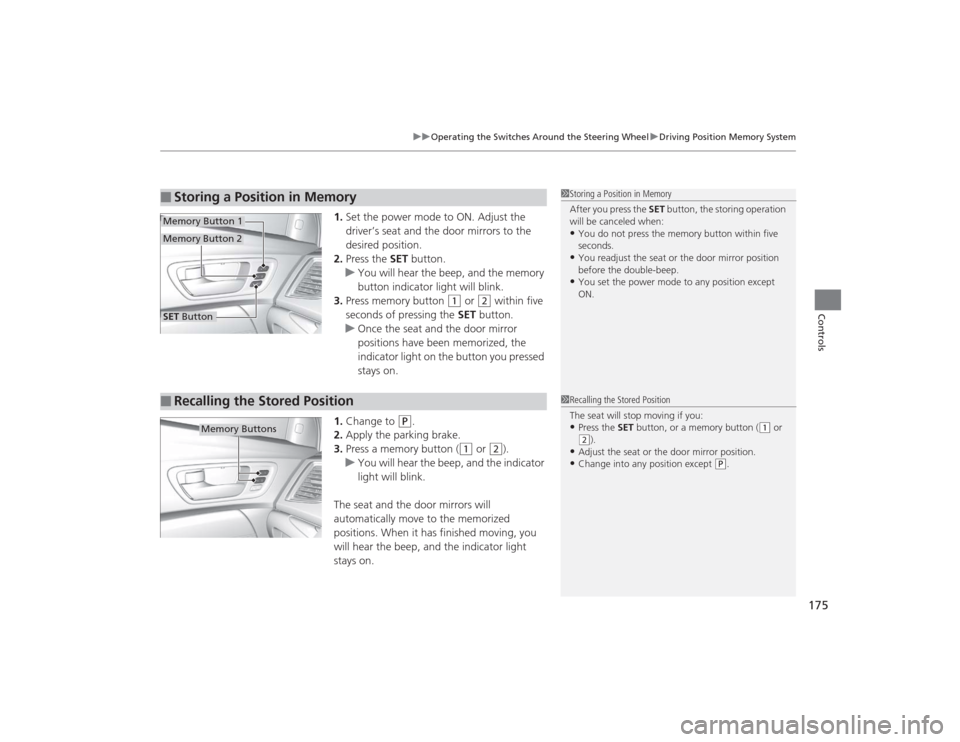
1. Set the power mode to ON. Adjust the
driver’s seat and the door mirrors to the
desired position.
2. Press the SET button.
u You will hear the beep, and the memory
button indicator light will blink.
3. Press memory button
(1
or
(2
within five
seconds of pressing the SET button.
u Once the seat and the door mirror
positions have been memorized, the
indicator light on the button you pressed
stays on.
1. Change to
(P
.
2. Apply the parking brake.
3. Press a memory button (
(1
or
(2
).
u You will hear the beep, and the indicator
light will blink.
The seat and the door mirrors will
automatically move to the memorized
positions. When it has finished moving, you
will hear the beep, and the indicator light
stays on.
■
Storing a Position in Memory
1 Storing a Position in Memory
After you press the SET button, the storing operation
will be canceled when:•You do not press the memory button within five
seconds.•You readjust the seat or the door mirror position
before the double-beep.•You set the power mode to any position except
ON.
SET ButtonMemory Button 1Memory Button 2■
Recalling the Stored Position
1 Recalling the Stored Position
The seat will stop moving if you:•Press the SET button, or a memory button (
(1 or
(2).
•Adjust the seat or the door mirror position.•Change into any position except
(P.
Memory Buttons
Page 200 of 545

199
Continued
Controls
Climate Control SystemUsing Automatic Climate ControlThe automatic climate control system maintains the interior temperature you select.
The system also selects the proper mix of heated or cooled air that raises or lowers
the interior temperature to your preference as quickly as possible.
Use the system when the engine is running.
1.Press the AUTO button.
2. Adjust the interior temperature using the driver’s side or passenger’s side
temperature control switch.
3. Press the (On/off) button to cancel.
1Using Automatic Climate Control
If any buttons/icons on the touch screen are pressed
while using the climate control system in AUTO, the
function of the button/icon that was pressed will take
priority.
The AUTO indicator will go off, but functions
unrelated to the button/icon that was pressed will be
controlled automatically.
During the Auto Idle Stop, the air conditioning
system will be turned off.
To prevent cold air from blowing in from outside, the
fan may operate at low speed for a while after the
AUTO button has been pressed.
If the interior is very warm, you can cool it down
more rapidly by partially opening the windows,
turning the system on auto, and setting the
temperature to low. Change the fresh mode to
recirculation mode until the temperature cools down.
When you set the temperature to the lower or upper
limit, Lo or Hi is displayed.
Pressing the button switches the climate control
system between on and off. When turned on, the
system returns to your last selection.Models with Auto Idle StopAll models
(On/off) Button
AUTO Button
On Demand Multi-Use Display
TM
Driver’s Side
Temperature
Control Switch
Passenger’s
Side
Temperature
Control Switch Passenger’s
Side
Temperature
Driver’s Side
Temperature
Page 211 of 545
210Features
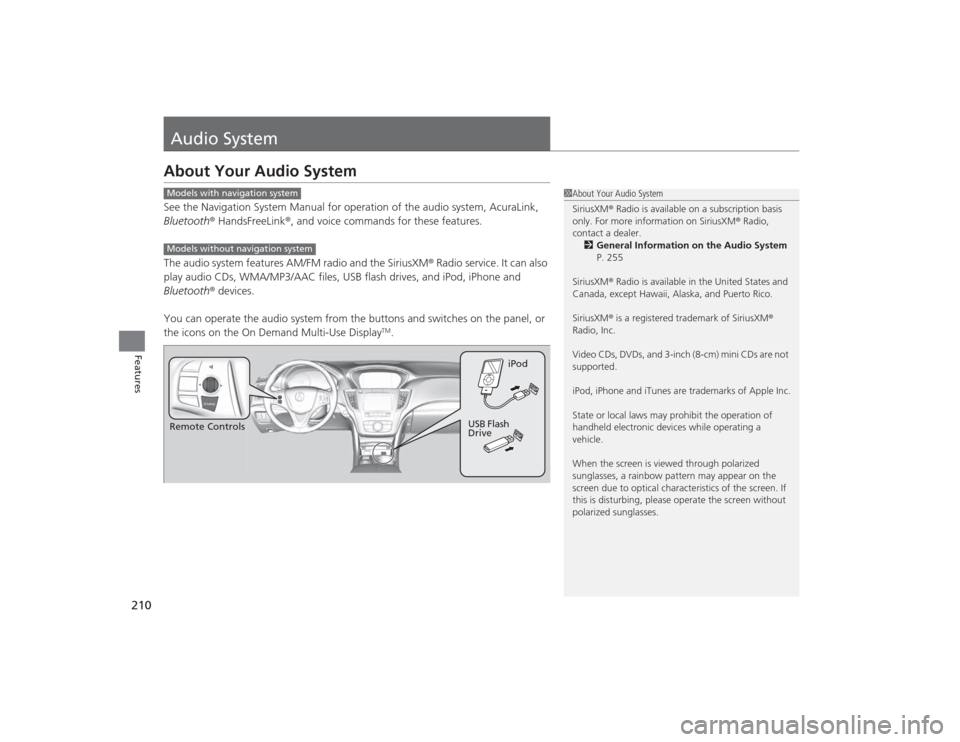
Audio SystemAbout Your Audio SystemSee the Navigation System Manual for operation of the audio system, AcuraLink,
Bluetooth® HandsFreeLink ®, and voice commands for these features.
The audio system features AM/FM radio and the SiriusXM ® Radio service. It can also
play audio CDs, WMA/MP3/AAC files, USB flash drives, and iPod, iPhone and
Bluetooth ® devices.
You can operate the audio system from the buttons and switches on the panel, or
the icons on the On Demand Multi-Use Display
TM.
1 About Your Audio System
SiriusXM ® Radio is available on a subscription basis
only. For more information on SiriusXM ® Radio,
contact a dealer.
2 General Information on the Audio System
P. 255
SiriusXM ® Radio is available in the United States and
Canada, except Hawaii, Alaska, and Puerto Rico.
SiriusXM ® is a registered trademark of SiriusXM ®
Radio, Inc.
Video CDs, DVDs, and 3-inch (8-cm) mini CDs are not
supported.
iPod, iPhone and iTunes are trademarks of Apple Inc.
State or local laws may prohibit the operation of
handheld electronic devices while operating a
vehicle.
When the screen is viewed through polarized
sunglasses, a rainbow pattern may appear on the
screen due to optical character istics of the screen. If
this is disturbing, please operate the screen without
polarized sunglasses.
Models with navigation systemModels without navigation systemRemote Controls iPod
USB Flash
Drive
Page 223 of 545
222
uuAudio System Basic Operation uAudio/Information Screen
Features
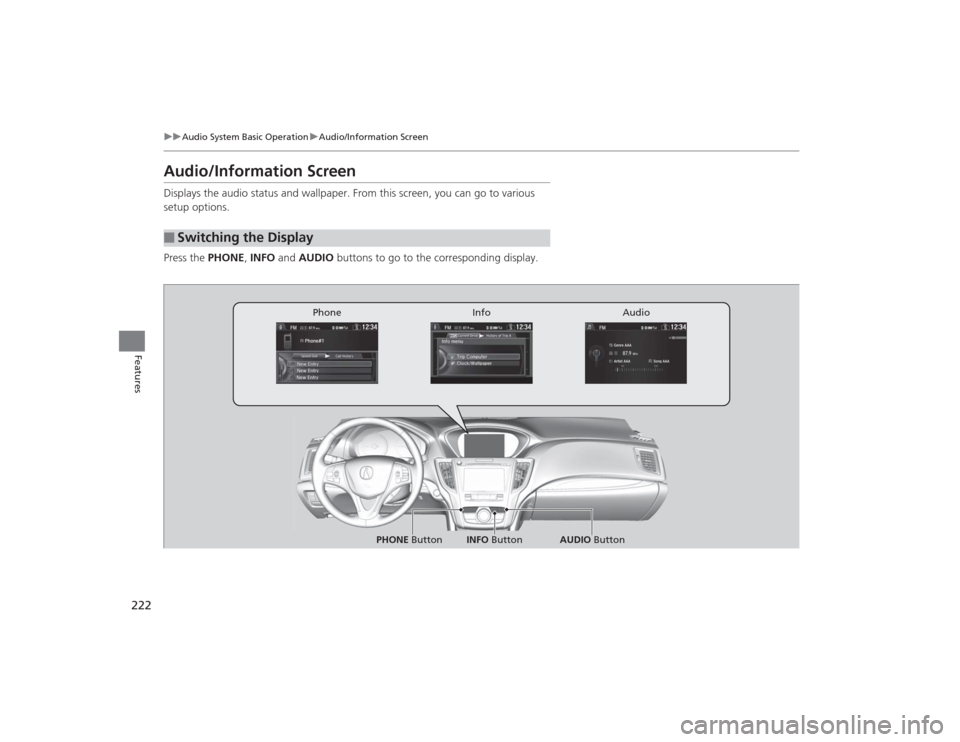
Audio/Information ScreenDisplays the audio status and wallpaper. From this screen, you can go to various
setup options.
Press the PHONE, INFO and AUDIO buttons to go to the corresponding display.■
Switching the Display
Audio
Info
Phone
AUDIO Button
PHONE Button INFO Button
Page 278 of 545

277
Continued
Features
HomeLink® Universal TransceiverThe HomeLink ® Universal Transceiver can be programmed to operate up to three
remote controlled devices around your home, such as garage doors, lighting, or
home security systems.
Refer to the safety information that came with your garage door opener to test that
the safety features are functioning properly. If you do not have the safety
information, contact the manufacturer.
Before programming HomeLink, make sure that people and objects are out of the
way of the garage or gate to prevent potential injury or damage.
When programming a garage door opener, park just outside the garage door’s
path.Training HomeLink
If you have not trained any of the buttons in
HomeLink before, you should erase any
previously learned codes. To do this:
• Press and hold the two outside buttons for
about 10 seconds, until the red indicator
blinks. Release the buttons, and proceed to
step 1.
• If you are training the second or third
button, go directly to step 1.
■
Important Safety Precautions
1HomeLink ® Universal Transceiver
HomeLink® is a registered trademark of Johnson
Controls., Inc.
Before programming HomeLink to operate a garage
door opener, confirm that the opener has an external
entrapment protection system, such as an “electronic
eye,” or other safety and reverse stop features. If it
does not, HomeLink may not be able to operate it.
Red Indicator
Page 279 of 545
uuHomeLink ® Universal Transceiver uTraining HomeLink
278Features
■
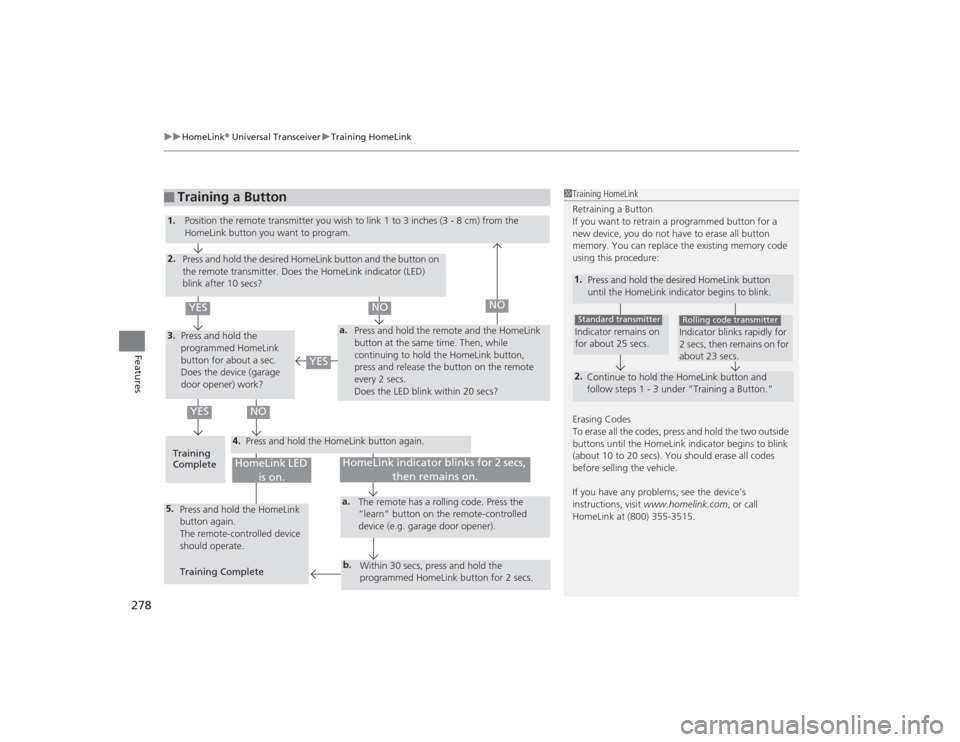
Training a Button
1Training HomeLink
Retraining a Button
If you want to retrain a programmed button for a
new device, you do not have to erase all button
memory. You can replace the existing memory code
using this procedure:1.
Press and hold the desired HomeLink button
until the HomeLink indicator begins to blink.2.
Continue to hold the HomeLink button and
follow steps 1 - 3 under “Training a Button.”Indicator remains on
for about 25 secs.Standard transmitter
Indicator blinks rapidly for
2 secs, then remains on for
about 23 secs.Rolling code transmitter
Erasing Codes
To erase all the codes, press and hold the two outside
buttons until the HomeLink indicator begins to blink
(about 10 to 20 secs). You should erase all codes
before selling the vehicle.
If you have any problems, see the device’s
instructions, visit www.homelink.com , or call
HomeLink at (800) 355-3515.
4.
a.
3.2.5.
a.b.
1. Position the remote transmit ter you wish to link 1 to 3 inches (3 - 8 cm) from the
HomeLink button you want to program.
Press and hold the desired HomeLink button and the button on
the remote transmitter. Does the HomeLink indicator (LED)
blink after 10 secs?
Press and hold the
programmed HomeLink
button for about a sec.
Does the device (garage
door opener) work? Press and hold the remote and the HomeLink
button at the same time. Then, while
continuing to hold the HomeLink button,
press and release the button on the remote
every 2 secs.
Does the LED blink within 20 secs?
Training
Complete Press and hold the HomeLink button again.
Press and hold the HomeLink
button again.
The remote-controlled device
should operate.
Training Complete The remote has a rolling code. Press the
“learn” button on the remote-controlled
device (e.g. garage door opener).
Within 30 secs, press and hold the
programmed HomeLink button for 2 secs.
HomeLink indicator blinks for 2 secs, then remains on.
HomeLink LED is on.
YES
NO
YES
YES
NO
NO