phone Acura TLX 2016 User Guide
[x] Cancel search | Manufacturer: ACURA, Model Year: 2016, Model line: TLX, Model: Acura TLX 2016Pages: 553, PDF Size: 31.29 MB
Page 243 of 553
242
uuAudio System Basic Operation uPlaying Internet Radio
Features
Playing Internet Radio
Connect a compatible phone through Bluetooth®.
You can also connect the phone using your dock connector to the USB port.
Select Audio Source to select Pandora or Aha mode.
Compatible phones only
1Playing Internet Radio
See the Navigation System Manual for the operation
of the audio system.
Images shown are for m odels without navigation
system.
Models with navigation system
iPhone
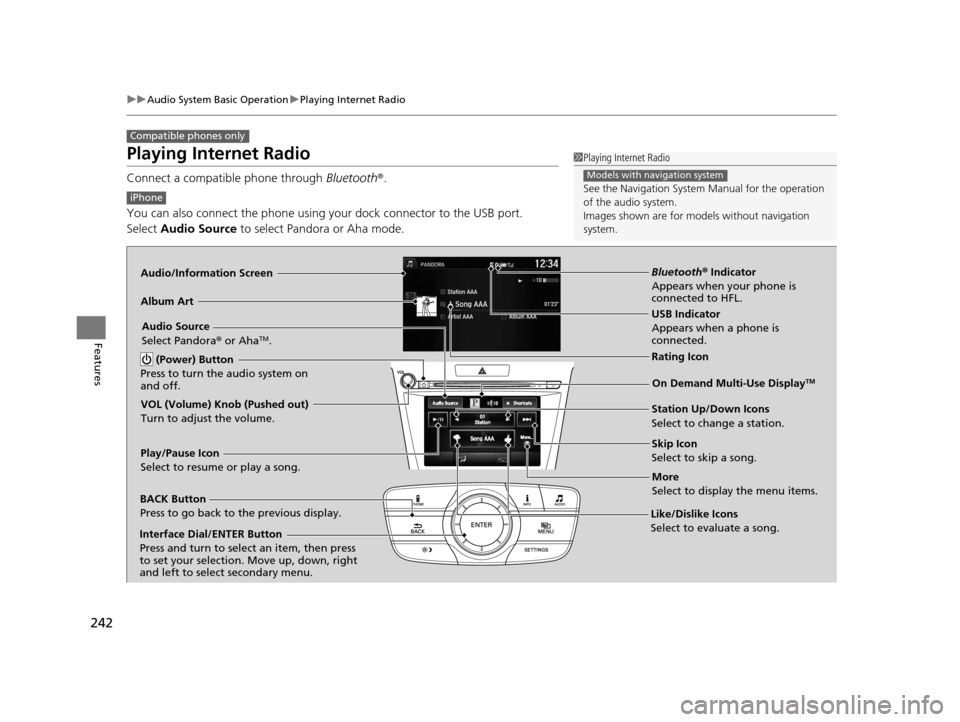
Audio/Information Screen
Album ArtUSB Indicator
Appears when a phone is
connected.
Rating Icon
BACK Button
Press to go back to the previous display.
Skip Icon
Select to skip a song.
More
Select to display the menu items.
Station Up/Down Icons
Select to change a station.
Audio Source
Select Pandora
® or Aha
TM.
Play/Pause Icon
Select to resume or play a song.
Like/Dislike Icons
Select to evaluate a song.
(Power) Button
Press to turn the audio system on
and off.
Interface Dial/ENTER Button
Press and turn to select an item, then press
to set your selection. Move up, down, right
and left to select secondary menu.
On Demand Multi-Use DisplayTM
VOL (Volume) Knob (Pushed out)
Turn to adjust the volume.
Bluetooth ® Indicator
Appears when your phone is
connected to HFL.
16 ACURA TLX-31TZ36100.book 242 ページ 2015年8月26日 水曜日 午後1時54分
Page 244 of 553
Continued243
uuAudio System Basic Operation uPlaying Internet Radio
Features
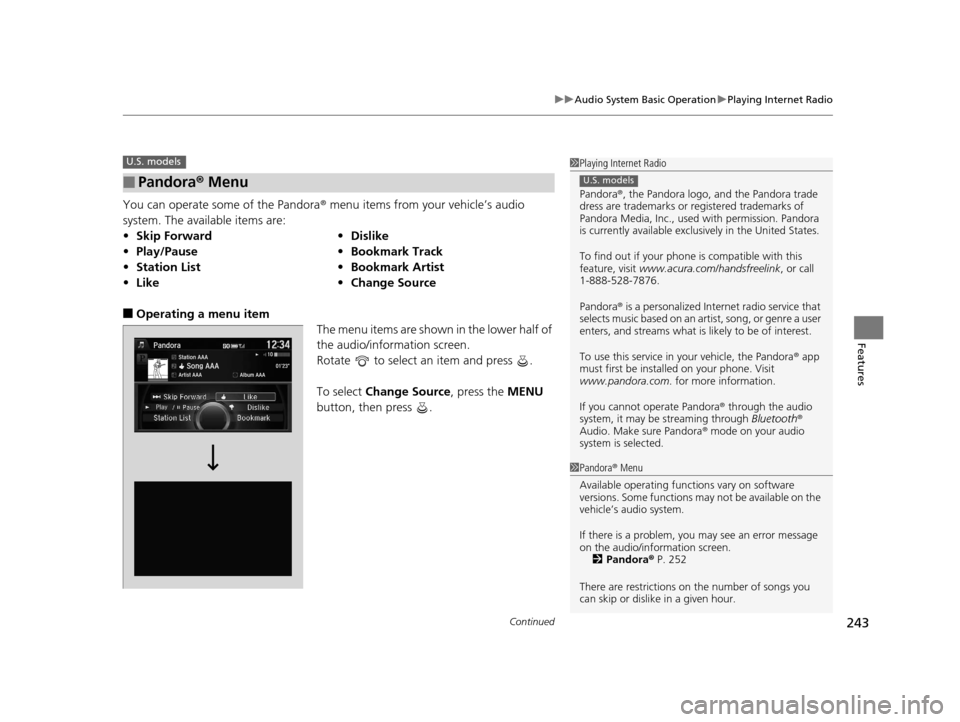
You can operate some of the Pandora ® menu items from your vehicle’s audio
system. The available items are:
■Operating a menu item The menu items are shown in the lower half of
the audio/information screen.
Rotate to select an item and press .
To select Change Source , press the MENU
button, then press .
■Pandora ® Menu
• Skip Forward •Dislike
• Play/Pause •Bookmark Track
• Station List •Bookmark Artist
• Like •Change Source
U.S. models1Playing Internet Radio
Pandora ®, the Pandora logo, and the Pandora trade
dress are trademarks or registered trademarks of
Pandora Media, Inc., used with permission. Pandora
is currently available exclusively in the United States.
To find out if your phone is compatible with this
feature, visit www.acura.com/handsfreelink , or call
1-888-528-7876.
Pandora ® is a personalized Internet radio service that
selects music based on an artist, song, or genre a user
enters, and streams what is likely to be of interest.
To use this service in your vehicle, the Pandora ® app
must first be installed on your phone. Visit
www.pandora.com. for more information.
If you cannot operate Pandora ® through the audio
system, it may be streaming through Bluetooth®
Audio. Make sure Pandora ® mode on your audio
system is selected.
U.S. models
1 Pandora ® Menu
Available operating functi ons vary on software
versions. Some functions ma y not be available on the
vehicle’s audio system.
If there is a problem, you may see an error message
on the audio/information screen. 2 Pandora ® P. 252
There are restrictions on the number of songs you
can skip or dislike in a given hour.
16 ACURA TLX-31TZ36100.book 243 ページ 2015年8月26日 水曜日 午後1時54分
Page 245 of 553
uuAudio System Basic Operation uPlaying Internet Radio
244
Features
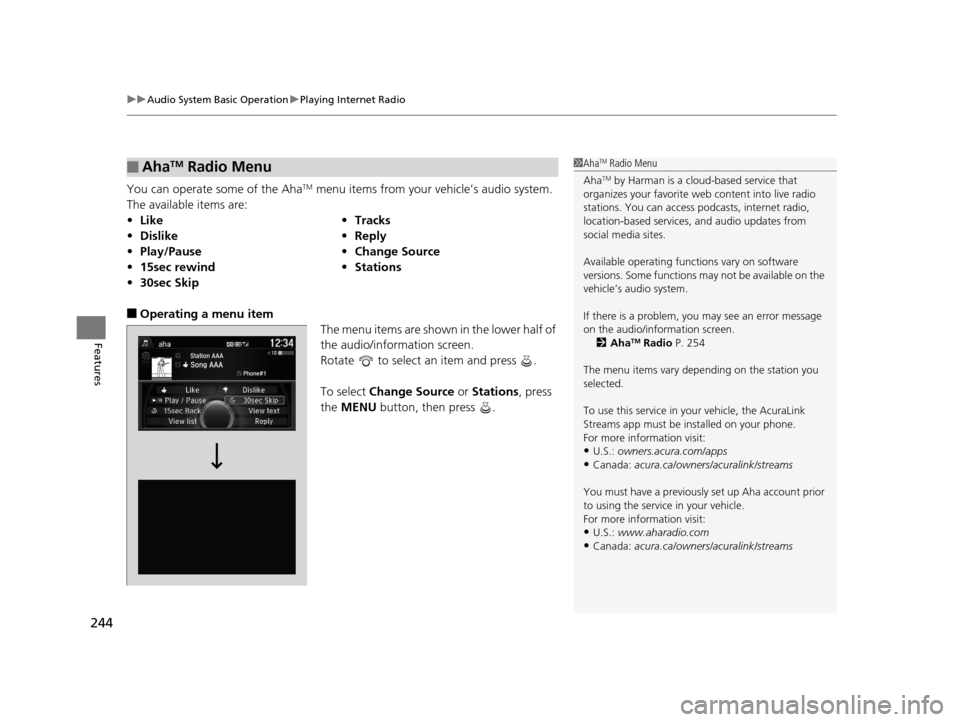
You can operate some of the AhaTM menu items from your vehicle’s audio system.
The available items are:
■Operating a menu item The menu items are shown in the lower half of
the audio/information screen.
Rotate to select an item and press .
To select Change Source or Stations , press
the MENU button, then press .
■AhaTM Radio Menu
•Like •Tracks
• Dislike •Reply
• Play/Pause •Change Source
• 15sec rewind •Stations
• 30sec Skip
1AhaTM Radio Menu
Aha
TM by Harman is a clou d-based service that
organizes your favorite we b content into live radio
stations. You can access podcasts, internet radio,
location-based services , and audio updates from
social media sites.
Available operating functi ons vary on software
versions. Some functions ma y not be available on the
vehicle’s audio system.
If there is a problem, you may see an error message
on the audio/information screen. 2 Aha
TM Radio P. 254
The menu items vary depending on the station you
selected.
To use this service in y our vehicle, the AcuraLink
Streams app must be installed on your phone.
For more information visit:
•U.S.: owners.acura.com/apps
•Canada: acura.ca/owners/acuralink/streams
You must have a previously set up Aha account prior
to using the service in your vehicle.
For more information visit:
•U.S.: www.aharadio.com
•Canada: acura.ca/owners/acuralink/streams
16 ACURA TLX-31TZ36100.book 244 ページ 2015年8月26日 水曜日 午後1時54分
Page 249 of 553
248
uuAudio System Basic Operation uPlaying Bluetooth ® Audio
Features
Playing Bluetooth® Audio
Your audio system allows you to listen to music from your Bluetooth-compatible
phone.
This function is available when the phone is paired and connected to the vehicle’s
Bluetooth ® HandsFreeLink ® (HFL) system.
2 Phone Setup P. 287
1Playing Bluetooth ® Audio
See the Navigation System Manual for the operation
of the audio system.
Images shown are for m odels without navigation
system.
Not all Bluetooth -enabled phones with streaming
audio capabilities are compatible with the system.
For a list of compatible phones:
•U.S.: Visit www.acura.com/handsfreelink , or call 1-
888-528-7876.
•Canada: Visit www.handsfreelink.ca , or call 1-888-
528-7876.
In some states, it may be il legal to perform some data
device functions while driving.
If more than one phone is paired to the HFL system,
there will be a delay before the system begins to play.
Models with navigation system
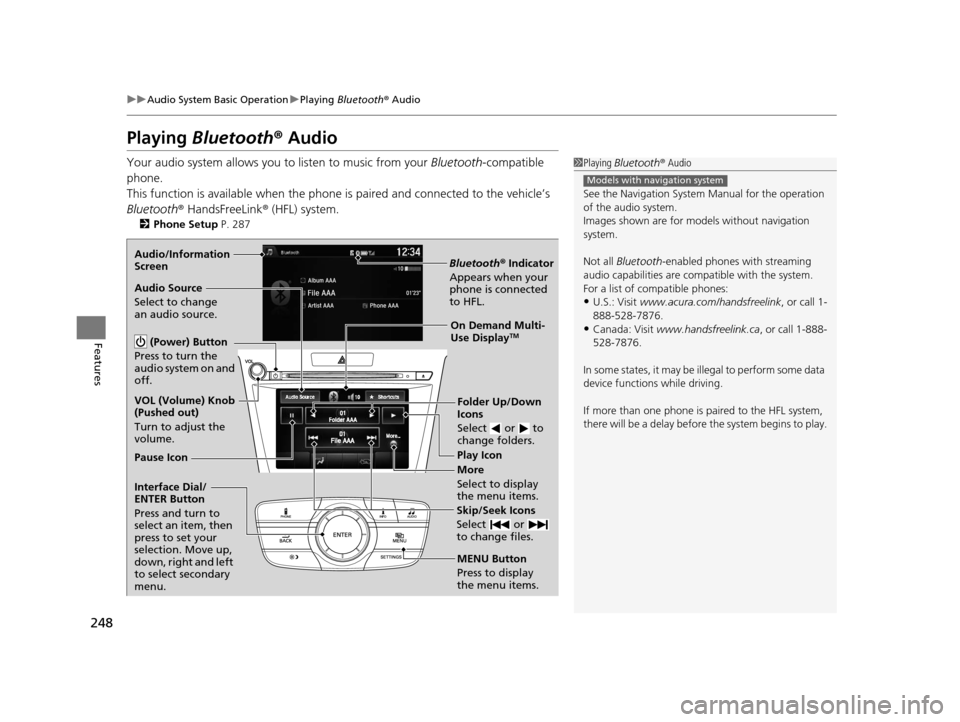
Bluetooth® Indicator
Appears when your
phone is connected
to HFL.
Play Icon
Pause Icon
More
Select to display
the menu items.
Audio Source
Select to change
an audio source.
(Power) Button
Press to turn the
audio system on and
off.
Interface Dial/
ENTER Button
Press and turn to
select an item, then
press to set your
selection. Move up,
down, right and left
to select secondary
menu.
Skip/Seek Icons
Select or
to change files.
MENU Button
Press to display
the menu items. Folder Up/Down
Icons
Select or to
change folders.
On Demand Multi-
Use DisplayTM
VOL (Volume) Knob
(Pushed out)
Turn to adjust the
volume. Audio/Information
Screen
16 ACURA TLX-31TZ36100.book 248 ページ 2015年8月26日 水曜日 午後1時54分
Page 250 of 553
249
uuAudio System Basic Operation uPlaying Bluetooth ® Audio
Features
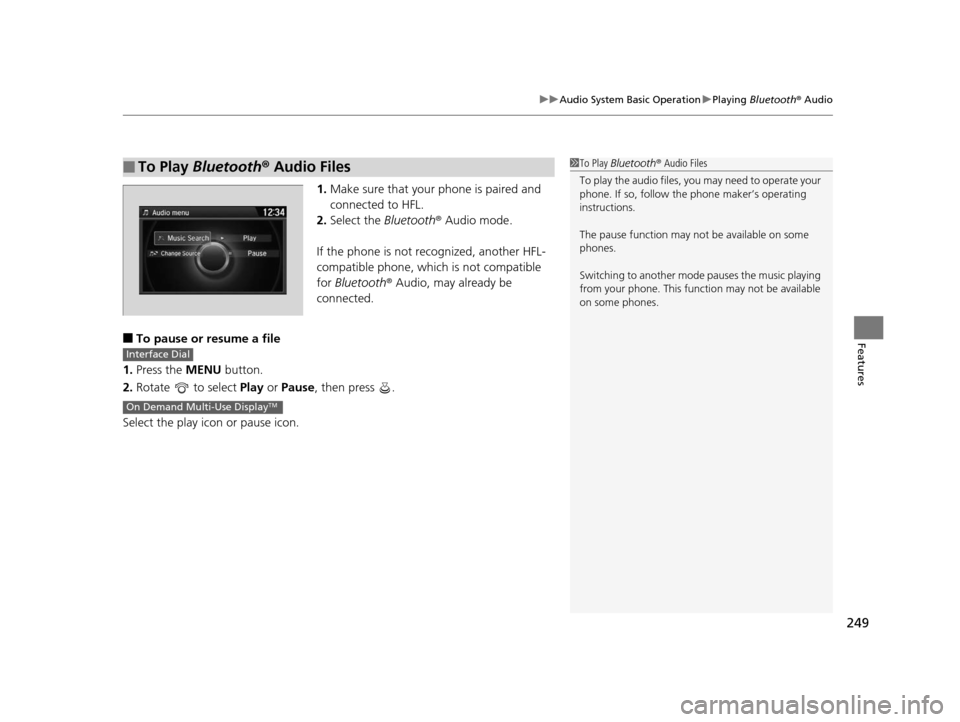
1. Make sure that your phone is paired and
connected to HFL.
2. Select the Bluetooth® Audio mode.
If the phone is not recognized, another HFL-
compatible phone, which is not compatible
for Bluetooth ® Audio, may already be
connected.
■To pause or resume a file
1. Press the MENU button.
2. Rotate to select Play or Pause , then press .
Select the play icon or pause icon.
■To Play Bluetooth ® Audio Files1 To Play Bluetooth ® Audio Files
To play the audio files, y ou may need to operate your
phone. If so, follow the phone maker’s operating
instructions.
The pause function may no t be available on some
phones.
Switching to another mode pauses the music playing
from your phone. This functi on may not be available
on some phones.
Interface Dial
On Demand Multi-Use DisplayTM
16 ACURA TLX-31TZ36100.book 249 ページ 2015年8月26日 水曜日 午後1時54分
Page 259 of 553

258
uuGeneral Information on the Audio System uCompatible iPod, iPhone, and USB Flash Drives
Features
Compatible iPod, iPhone, and USB Flash Drives
• Use a recommended USB flash drive of 256 MB or higher.
• Some digital audio players may not be compatible.
• Some USB flash drives (e.g., a device with security lockout) may not work.
• Some software files may not allow for audio play or text data display.
• Some versions of MP3, WMA, or AAC formats may be unsupported.
■iPod and iPhone Model Compatibility
Model
iPod (5th generation)
iPod classic 80GB/160GB (launch in 2007)
iPod classic 120GB (launch in 2008)
iPod classic 160GB (launch in 2009)
iPod nano (1st to 7th generation) launch in 2012
iPod touch (1st to 7th generation) launch in 2012
iPhone 3G/iPhone 3GS/iPhone 4/iPhone 4s/iPhone 5/iPhone 5c/iPhone 5s
■USB Flash Drives
1iPod and iPhone Model Compatibility
This system may not work with all software versions
of these devices.
1USB Flash Drives
Files on the USB flash drive are played in their stored
order. This order may be different from the order
displayed on your PC or device.
16 ACURA TLX-31TZ36100.book 258 ページ 2015年8月26日 水曜日 午後1時54分
Page 264 of 553

263
uuCustomized Features u
Continued
Features
Add Bluetooth
Device
Disconnect
Default
PhoneConnect Phone
Edit Bluetooth Device
Add Bluetooth Device
Bluetooth Device
List
Edit Speed Dial
Auto Transfer
Auto Answer
Ring Tone
Automatic Phone Sync
Use Contact Photo
Default
Default
Enable Text/Email
Select Account
New Text/Email Alert
Text/Email
Phone
Settings
Message Auto Reading
Info Screen Preference
Clock/Wallpaper Type
Clock Adjustment
Clock
DefaultOther
Info
Settings
Clock Format
16 ACURA TLX-31TZ36100.book 263 ページ 2015年8月26日 水曜日 午後1時54分
Page 265 of 553
264
uuCustomized Features u
Features
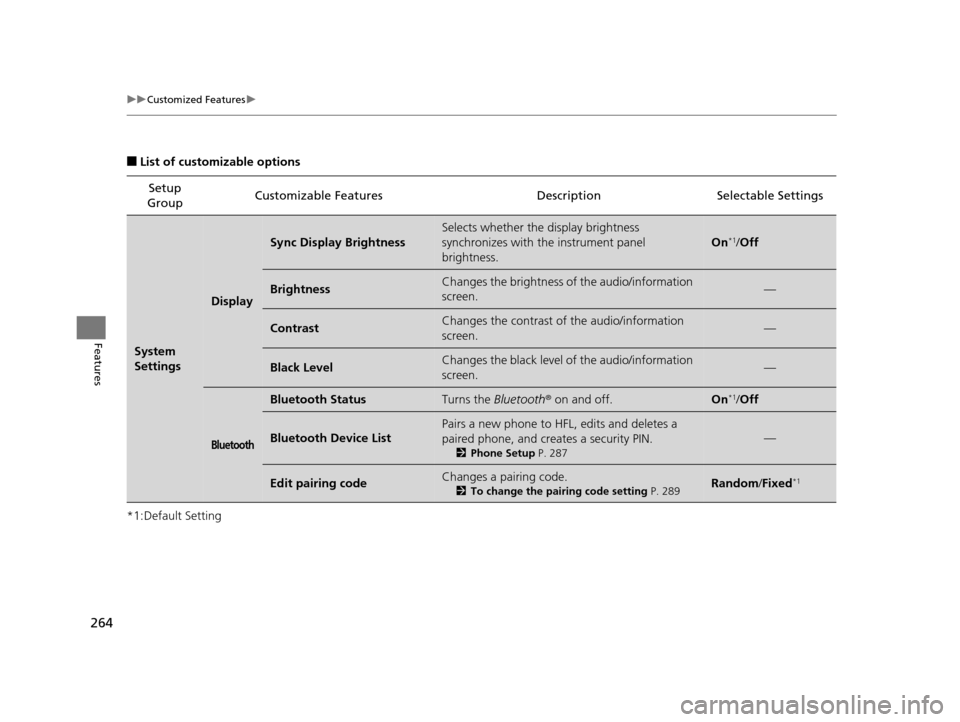
■List of customizable options
*1:Default Setting Setup
Group Customizable Features Descri
ption Selectable Settings
System
Settings
Display
Sync Display Brightness
Selects whether the display brightness
synchronizes with the instrument panel
brightness.
On*1/Off
BrightnessChanges the brightness of the audio/information
screen.—
ContrastChanges the contrast of the audio/information
screen.—
Black LevelChanges the black level of the audio/information
screen.—
Bluetooth
Bluetooth StatusTurns the Bluetooth ® on and off.On*1/Off
Bluetooth Device List
Pairs a new phone to HFL, edits and deletes a
paired phone, and creates a security PIN.
2 Phone Setup P. 287
—
Edit pairing codeChanges a pairing code.
2To change the pairing code setting P. 289Random/Fixed*1
16 ACURA TLX-31TZ36100.book 264 ページ 2015年8月26日 水曜日 午後1時54分
Page 274 of 553
273
uuCustomized Features u
Continued
Features
*1:Default SettingSetup
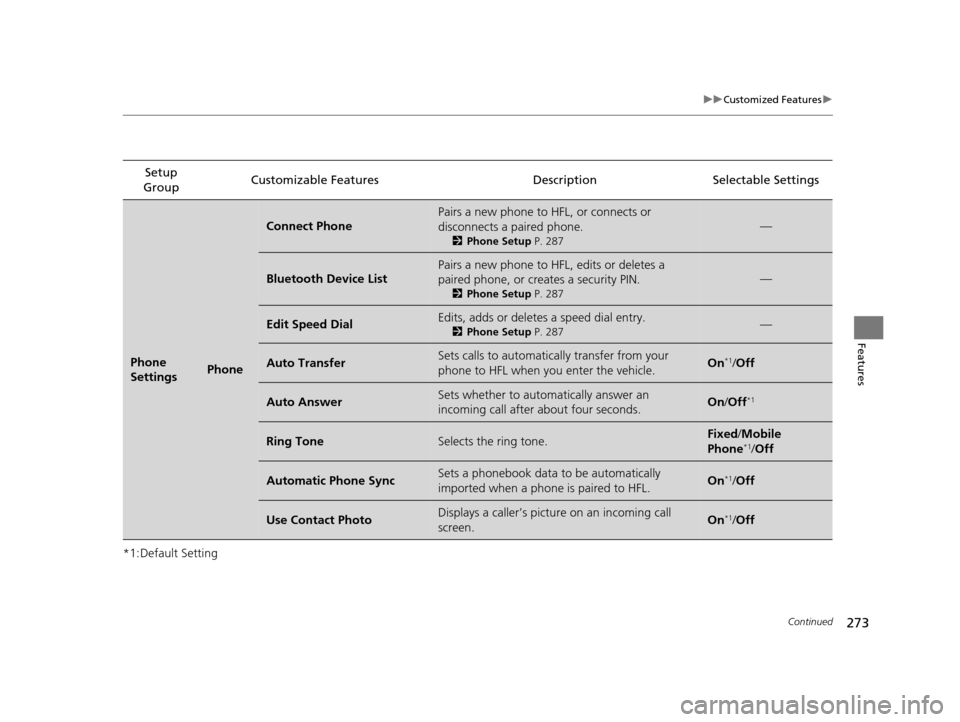
Group Customizable Features Description Selectable Settings
Phone
SettingsPhone
Connect Phone
Pairs a new phone to HFL, or connects or
disconnects a paired phone.
2
Phone Setup P. 287
—
Bluetooth Device List
Pairs a new phone to HFL, edits or deletes a
paired phone, or creates a security PIN.
2Phone Setup P. 287
—
Edit Speed DialEdits, adds or deletes a speed dial entry.
2Phone Setup P. 287—
Auto TransferSets calls to automatically transfer from your
phone to HFL when you enter the vehicle.On*1/Off
Auto AnswerSets whether to automatically answer an
incoming call after about four seconds.On /Off*1
Ring ToneSelects the ring tone.Fixed /Mobile
Phone*1/ Off
Automatic Phone SyncSets a phonebook data to be automatically
imported when a phone is paired to HFL.On*1/Off
Use Contact PhotoDisplays a caller’s picture on an incoming call
screen.On*1/Off
16 ACURA TLX-31TZ36100.book 273 ページ 2015年8月26日 水曜日 午後1時54分
Page 275 of 553
274
uuCustomized Features u
Features
*1:Default SettingSetup
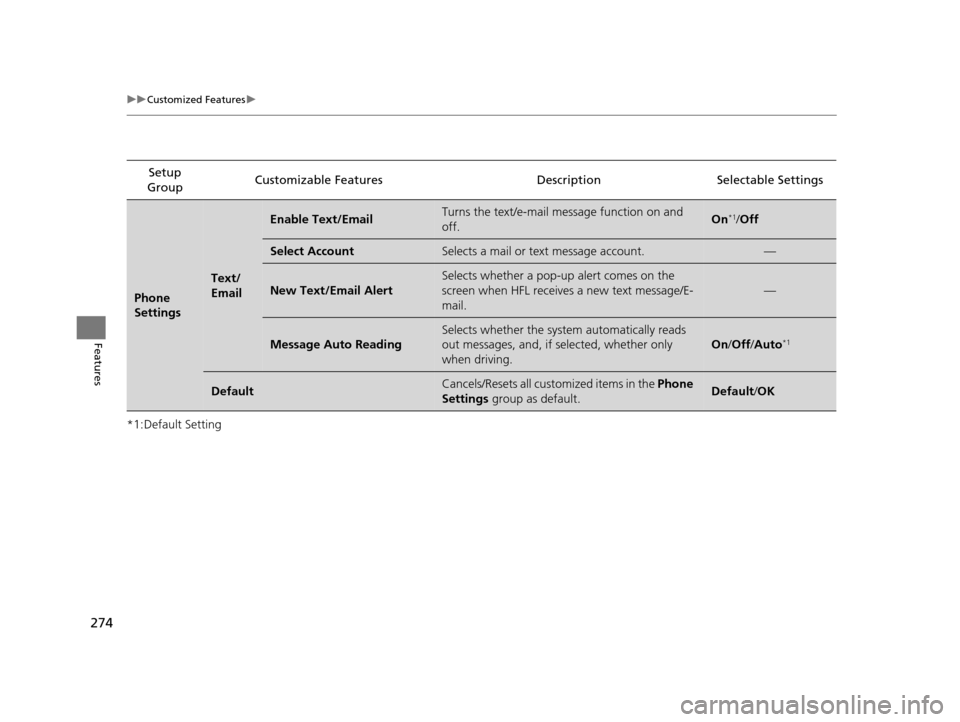
Group Customizable Features Descri
ption Selectable Settings
Phone
Settings
Text/
Email
Enable Text/EmailTurns the text/e-mail message function on and
off.On*1/ Off
Select AccountSelects a mail or text message account.—
New Text/Email Alert
Selects whether a pop-up alert comes on the
screen when HFL receives a new text message/E-
mail.
—
Message Auto Reading
Selects whether the system automatically reads
out messages, and, if selected, whether only
when driving.
On /Off /Auto*1
DefaultCancels/Resets all customized items in the Phone
Settings group as default.Default/OK
16 ACURA TLX-31TZ36100.book 274 ページ 2015年8月26日 水曜日 午後1時54分