econ Acura TLX 2016 Repair Manual
[x] Cancel search | Manufacturer: ACURA, Model Year: 2016, Model line: TLX, Model: Acura TLX 2016Pages: 553, PDF Size: 31.29 MB
Page 170 of 553
169
uuOperating the Switches Around the Steering Wheel uWipers and Washers
Continued
Controls
Wipers and Washers
The windshield wipers and washers can be
used when the power mode is in ON.
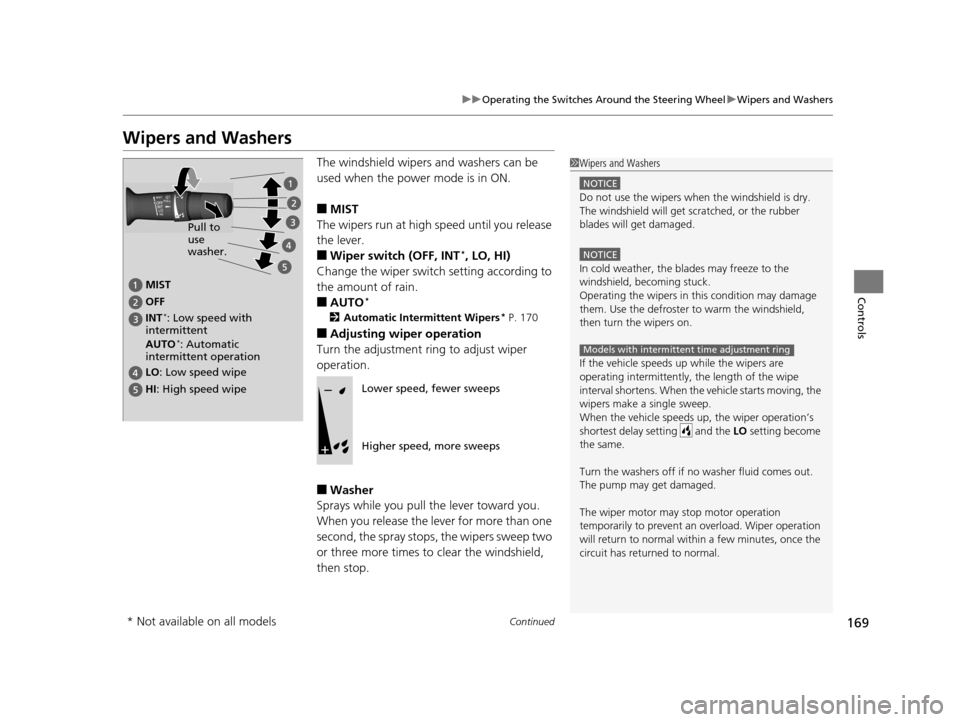
■MIST
The wipers run at high speed until you release
the lever.
■Wiper switch (OFF, INT*, LO, HI)
Change the wiper switch setting according to
the amount of rain.
■AUTO*
2 Automatic Intermittent Wipers* P. 170
■Adjusting wiper operation
Turn the adjustment ring to adjust wiper
operation.
■Washer
Sprays while you pull the lever toward you.
When you release the le ver for more than one
second, the spray stops, the wipers sweep two
or three more times to clear the windshield,
then stop.
1 Wipers and Washers
NOTICE
Do not use the wipers when the windshield is dry.
The windshield will get sc ratched, or the rubber
blades will get damaged.
NOTICE
In cold weather, the blades may freeze to the
windshield, becoming stuck.
Operating the wipers in th is condition may damage
them. Use the defroster to warm the windshield,
then turn the wipers on.
If the vehicle speeds up while the wipers are
operating intermittently, the length of the wipe
interval shortens. When the vehicle starts moving, the
wipers make a single sweep.
When the vehicle speeds up, the wiper operation’s
shortest delay setting and the LO setting become
the same.
Turn the washers off if no washer fluid comes out.
The pump may get damaged.
The wiper motor may stop motor operation
temporarily to prevent an overload. Wiper operation
will return to normal within a few minutes, once the
circuit has returned to normal.
Models with intermittent time adjustment ring
MIST
OFF
LO : Low speed wipe
HI: High speed wipe Pull to
use
washer.
INT
*: Low speed with
intermittent
AUTO
*: Automatic
intermittent operation
Lower speed, fewer sweeps
Higher speed, more sweeps
* Not available on all models
16 ACURA TLX-31TZ36100.book 169 ページ 2015年8月26日 水曜日 午後1時54分
Page 173 of 553
172
uuOperating the Switches Around the Steering Wheel uBrightness Control
Controls
Brightness Control
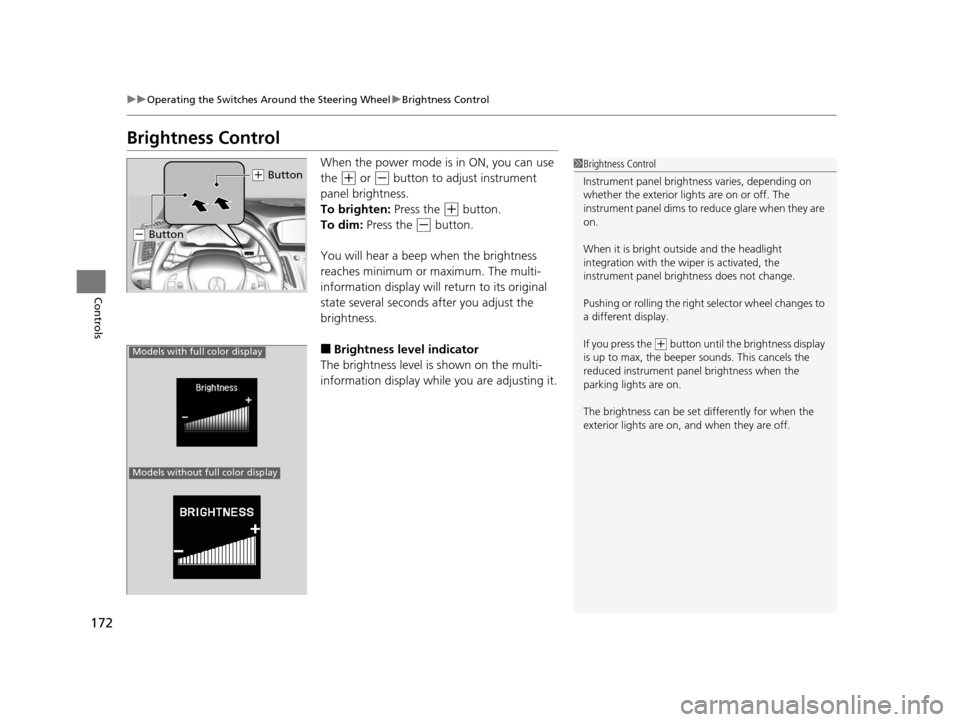
When the power mode is in ON, you can use
the
(+ or (- button to adjust instrument
panel brightness.
To brighten: Press the
(+ button.
To dim: Press the
(- button.
You will hear a beep when the brightness
reaches minimum or maximum. The multi-
information display will return to its original
state several seconds after you adjust the
brightness.
■Brightness level indicator
The brightness level is shown on the multi-
information display while you are adjusting it.
1 Brightness Control
Instrument panel brightne ss varies, depending on
whether the exterior lights are on or off. The
instrument panel dims to reduce glare when they are
on.
When it is bright out side and the headlight
integration with the wi per is activated, the
instrument panel bri ghtness does not change.
Pushing or rolling the right selector wheel changes to
a different display.
If you press the
( + button until the brightness display
is up to max, the beeper sounds. This cancels the
reduced instrument panel brightness when the
parking lights are on.
The brightness can be set differently for when the
exterior lights are on, and when they are off.
( + Button
(- Button
Models with full color display
Models without full color display
16 ACURA TLX-31TZ36100.book 172 ページ 2015年8月26日 水曜日 午後1時54分
Page 176 of 553
175
uuOperating the Switches Around the Steering Wheel uDriving Position Memory System
Controls
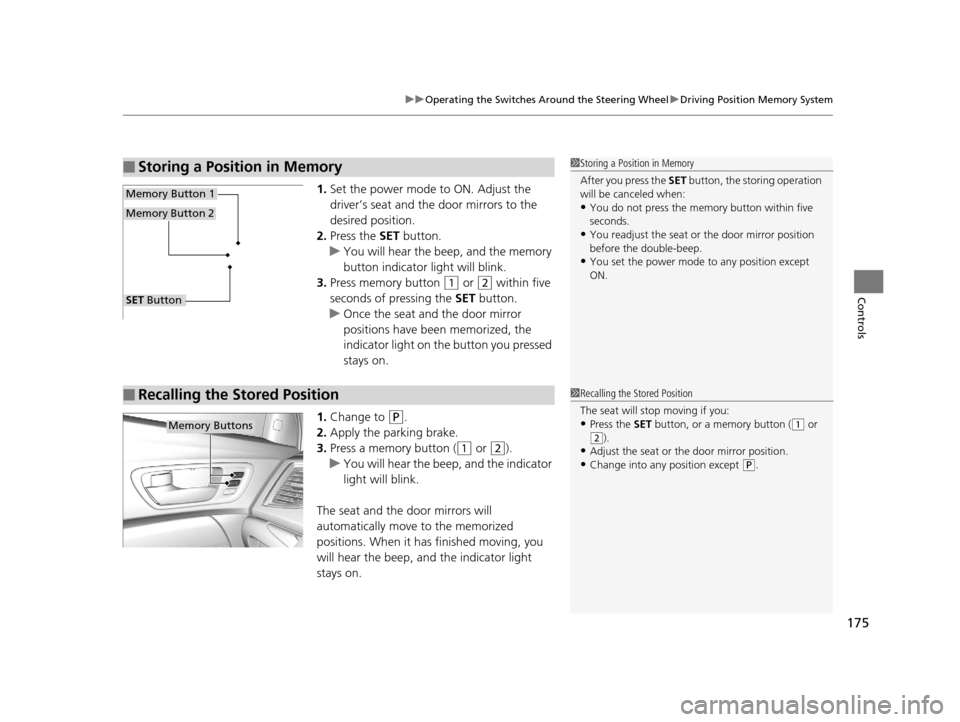
1. Set the power mode to ON. Adjust the
driver’s seat and the door mirrors to the
desired position.
2. Press the SET button.
u You will hear the beep, and the memory
button indicator light will blink.
3. Press memory button
(1 or (2 within five
seconds of pressing the SET button.
u Once the seat and the door mirror
positions have been memorized, the
indicator light on the button you pressed
stays on.
1. Change to
(P.
2. Apply the parking brake.
3. Press a memory button (
(1 or (2).
u You will hear the beep, and the indicator
light will blink.
The seat and the door mirrors will
automatically move to the memorized
positions. When it has finished moving, you
will hear the beep, and the indicator light
stays on.
■Storing a Position in Memory1 Storing a Position in Memory
After you press the SET button, the storing operation
will be canceled when:
•You do not press the memory button within five
seconds.
•You readjust the seat or the door mirror position
before the double-beep.
•You set the power mode to any position except
ON.
SET Button
Memory Button 1
Memory Button 2
■Recalling the Stored Position1 Recalling the Stored Position
The seat will st op moving if you:
•Press the SET button, or a memory button ((1 or
(2).
•Adjust the seat or the door mirror position.•Change into any position except (P.
Memory Buttons
16 ACURA TLX-31TZ36100.book 175 ページ 2015年8月26日 水曜日 午後1時54分
Page 188 of 553
187Continued
Controls
Interior Lights/Interior Convenience Items
Interior Lights
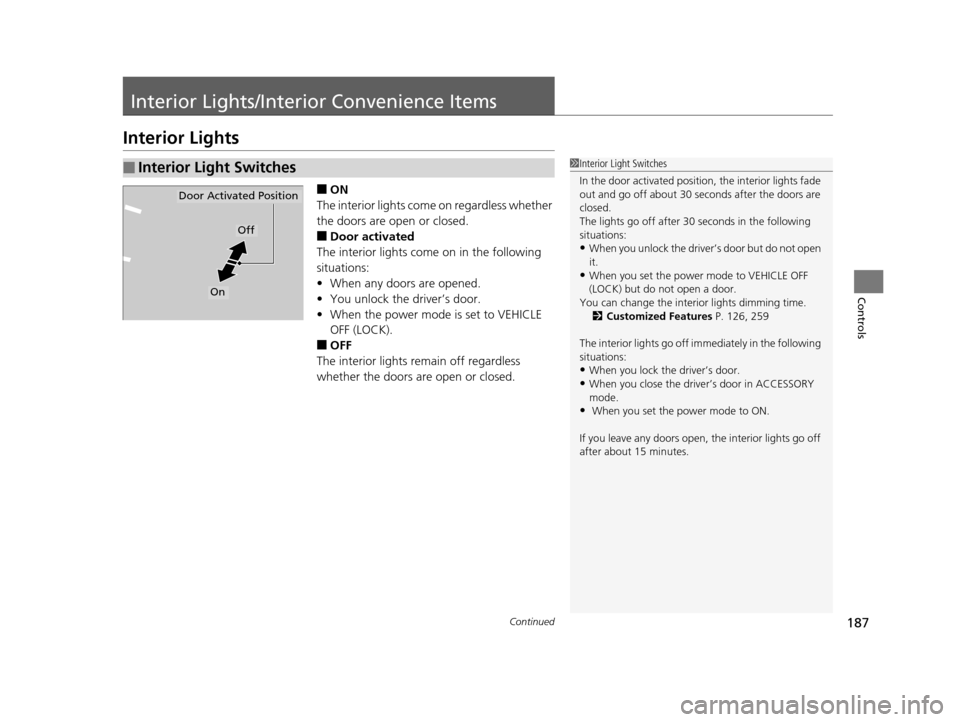
■ON
The interior lights come on regardless whether
the doors are open or closed.
■Door activated
The interior lights come on in the following
situations:
• When any doors are opened.
• You unlock the driver’s door.
• When the power mode is set to VEHICLE
OFF (LOCK).
■OFF
The interior lights remain off regardless
whether the doors are open or closed.
■Interior Light Switches1 Interior Light Switches
In the door activated position, the interior lights fade
out and go off about 30 se conds after the doors are
closed.
The lights go off after 30 seconds in the following
situations:
•When you unlock the driver’s door but do not open
it.
•When you set the power mode to VEHICLE OFF
(LOCK) but do not open a door.
You can change the interi or lights dimming time.
2 Customized Features P. 126, 259
The interior lights go off i mmediately in the following
situations:
•When you lock the driver’s door.
•When you close the driver’s door in ACCESSORY
mode.
• When you set the power mode to ON.
If you leave any doors open, the interior lights go off
after about 15 minutes.
Door Activated Position
Off
On
16 ACURA TLX-31TZ36100.book 187 ページ 2015年8月26日 水曜日 午後1時54分
Page 212 of 553
211
uuAudio System uUSB Port
Features
USB Port
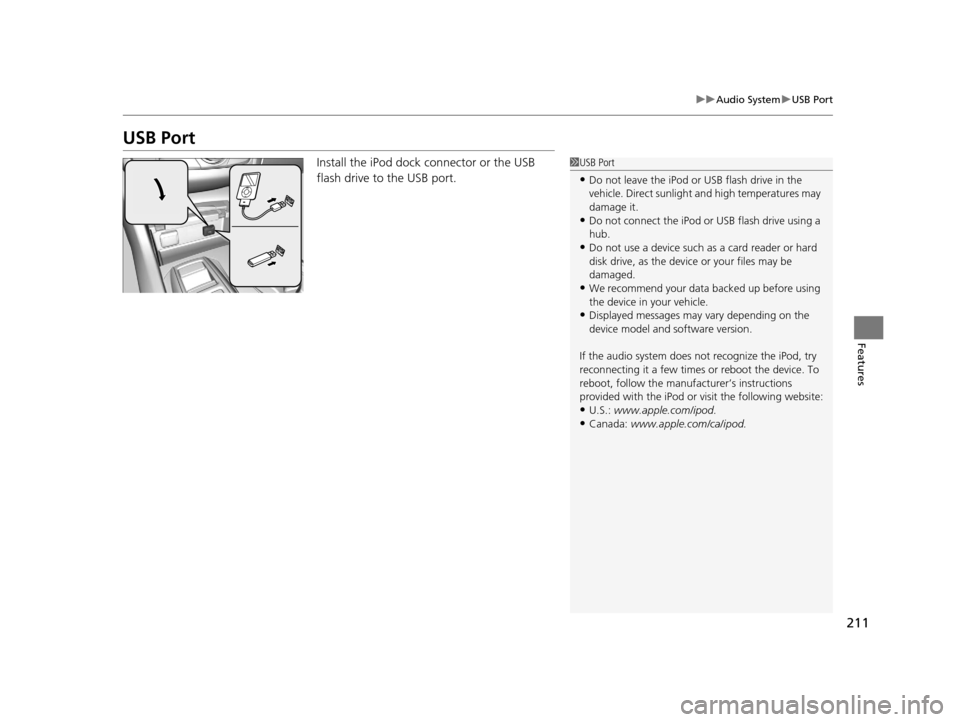
Install the iPod dock connector or the USB
flash drive to the USB port.1USB Port
•Do not leave the iPod or USB flash drive in the
vehicle. Direct sunlight and high temperatures may
damage it.
•Do not connect the iPod or USB flash drive using a
hub.
•Do not use a device such as a card reader or hard
disk drive, as the device or your files may be
damaged.
•We recommend your data backed up before using
the device in your vehicle.
•Displayed messages may vary depending on the
device model and software version.
If the audio system does not recognize the iPod, try
reconnecting it a few times or reboot the device. To
reboot, follow the manufac turer’s instructions
provided with the iPod or visit the following website:
•U.S.: www.apple.com/ipod.
•Canada: www.apple.com/ca/ipod.
16 ACURA TLX-31TZ36100.book 211 ページ 2015年8月26日 水曜日 午後1時54分
Page 214 of 553
213
uuAudio System uAudio System Theft Protection
Features
Audio System Theft Protection
The audio system is disabled when it is disconnected from the power source, such as
when the battery is disconnected or goes dead. In certain conditions, the system
may display Enter code. If this occurs, reacti vate the audio system.
■Reactivating the audio system
1. Set the power mode to ON.
2. Turn on the audio system.
3. Press and hold the audio system powe r button for more than two seconds.
u The audio system is reac tivated when the audio co ntrol unit establishes a
connection with the vehicl e control unit. If the control unit fails to recognize
the audio unit, you must go to a deal er and have the audio unit checked.
16 ACURA TLX-31TZ36100.book 213 ページ 2015年8月26日 水曜日 午後1時54分
Page 216 of 553
215
Features
Audio System Basic Operation
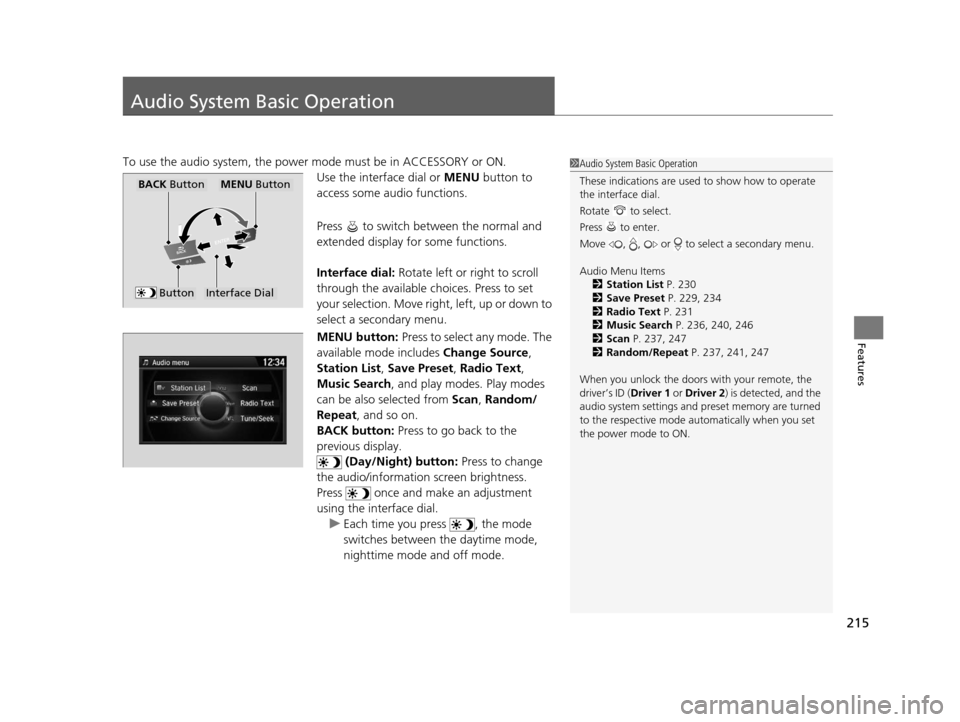
To use the audio system, the power mode must be in ACCESSORY or ON.Use the interface dial or MENU button to
access some audio functions.
Press to switch between the normal and
extended display fo r some functions.
Interface dial: Rotate left or right to scroll
through the available ch oices. Press to set
your selection. Move right, left, up or down to
select a secondary menu.
MENU button: Press to select any mode. The
available mode includes Change Source,
Station List , Save Preset , Radio Text,
Music Search , and play mode s. Play modes
can be also selected from Scan, Random/
Repeat , and so on.
BACK button: Press to go back to the
previous display. (Day/Night) button: Press to change
the audio/information screen brightness.
Press once and make an adjustment
using the interface dial. u Each time you press , the mode
switches between the daytime mode,
nighttime mode and off mode.1Audio System Basic Operation
These indications are used to show how to operate
the interface dial.
Rotate to select.
Press to enter.
Move , , or to se lect a secondary menu.
Audio Menu Items 2 Station List P. 230
2 Save Preset P. 229, 234
2 Radio Text P. 231
2 Music Search P. 236, 240, 246
2 Scan P. 237, 247
2 Random/Repeat P. 237, 241, 247
When you unlock the doors with your remote, the
driver’s ID ( Driver 1 or Driver 2) is detected, and the
audio system settings and pr eset memory are turned
to the respective mode automatically when you set
the power mode to ON.
Interface Dial
MENU ButtonBACK Button
Button
16 ACURA TLX-31TZ36100.book 215 ページ 2015年8月26日 水曜日 午後1時54分
Page 224 of 553

223
uuAudio System Basic Operation uAudio/Information Screen
Continued
Features
■Audio
Shows the current audio information.
■Phone
Shows the HFL information.
2 Bluetooth ® HandsFreeLink® P. 280
■Info
Shows the Trip Computer or Clock/Wallpaper and other information. Rotate
to select an item, then press .
■Trip computer (Current Drive)
Shows the range and instant and average fu el economy of the current trip, as well
as the average fuel economy from your last trip.
■Trip computer (History of Trip A)
Shows the range, average fuel economy and distances traveled for the current trip,
as well as the average fuel economy and distances traveled during the last three
driving cycles.
Each time you reset the trip meter A, th e information on the display updates. The
history of the previous three driving cycles is kept.
■Deleting the history manually
1. Move on the History of Trip A screen to select Delete History , then press .
2. A confirmation message appears on the screen. Rotate to select Yes, then
press .
■Clock/Wallpaper
Shows a clock screen or an image you import.
16 ACURA TLX-31TZ36100.book 223 ページ 2015年8月26日 水曜日 午後1時54分
Page 229 of 553
228
uuAudio System Basic Operation uPlaying AM/FM Radio
Features
Playing AM/FM Radio
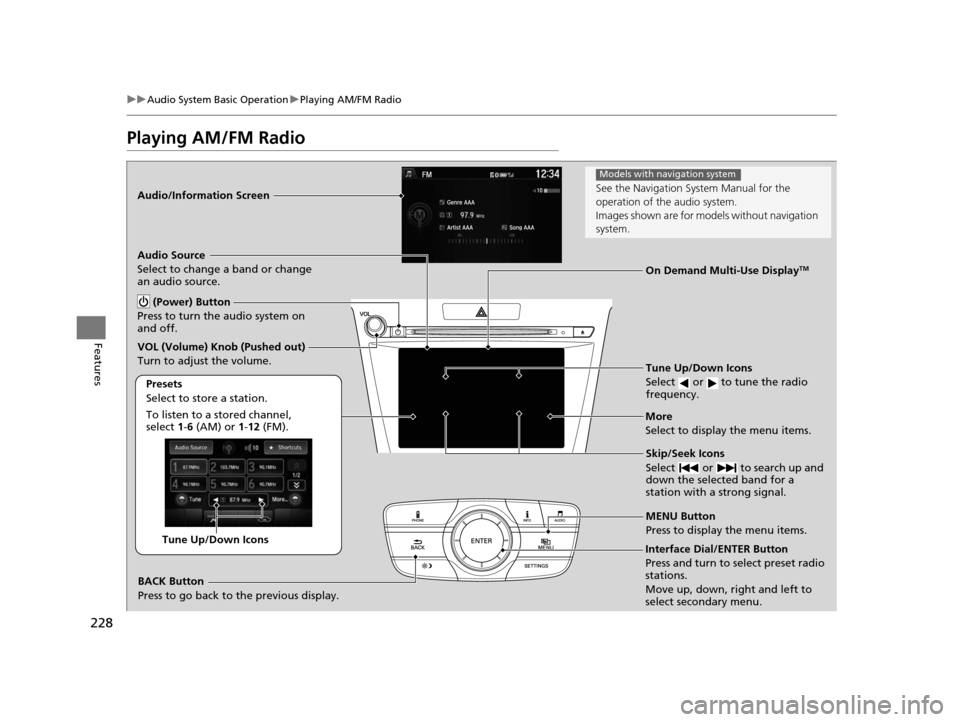
Audio/Information Screen
On Demand Multi-Use Display
TM
Tune Up/Down Icons
Select or to tune the radio
frequency.
MENU Button
Press to display the menu items.
(Power) Button
Press to turn the audio system on
and off.
Audio Source
Select to change a band or change
an audio source.
To listen to a stored channel,
select 1-6 (AM) or 1- 12 (FM).
Presets
Select to store a station.
Skip/Seek Icons
Select or to search up and
down the selected band for a
station with a strong signal.More
Select to display the menu items.
BACK Button
Press to go back to the previous display.
VOL (Volume) Knob (Pushed out)
Turn to adjust the volume.
Interface Dial/ENTER Button
Press and turn to select preset radio
stations.
Move up, down, right and left to
select secondary menu.Tune Up/Down Icons
See the Navigation Sy
stem Manual for the
operation of the audio system.
Images shown are for mode ls without navigation
system.
Models with navigation system
16 ACURA TLX-31TZ36100.book 228 ページ 2015年8月26日 水曜日 午後1時54分
Page 230 of 553
Continued229
uuAudio System Basic Operation uPlaying AM/FM Radio
Features
To store a station:
1. Tune to the selected station.
2. Press the MENU button.
3. Rotate to select Save Preset, then press .
4. Rotate to select the preset number you want to store that station, then press
.
You can also store that station by the following procedure.
1. Tune to the selected station.
2. Rotate to select the preset number you want to store the station.
3. Press and hold for a few seconds.
1. Tune to the selected station.
2. Select More.
3. Select Save Preset .
4. Select the preset number you want to store that station.
You can also store that station by the following procedure.
1. Tune to the selected station.
2. Change the display to the preset screen.
3. Select and hold the preset number you want to store that station.
■Preset Memory1Playing AM/FM Radio
The ST indicator appears on the display indicating
stereo FM broadcasts.
Stereo reproduction in AM is not available.
Switching the Audio Mode
Press the SOURCE button on the steering wheel.
2 Audio Remote Controls P. 214
You can also switch the mode by pressing the MENU
button and selecting Change Source on the Audio
menu screen.
You can store 6 AM stations and 12 FM stations into
the preset memory.
Interface Dial
On Demand Multi-Use DisplayTM
16 ACURA TLX-31TZ36100.book 229 ページ 2015年8月26日 水曜日 午後1時54分