audio Acura TLX 2018 Repair Manual
[x] Cancel search | Manufacturer: ACURA, Model Year: 2018, Model line: TLX, Model: Acura TLX 2018Pages: 589, PDF Size: 35.45 MB
Page 266 of 589
Continued265
uuAudio System Basic Operation uAndroid Auto
Features
When you connect an Android phone to the unit via the 2.5A USB port, Android
Auto is automatically initiated.
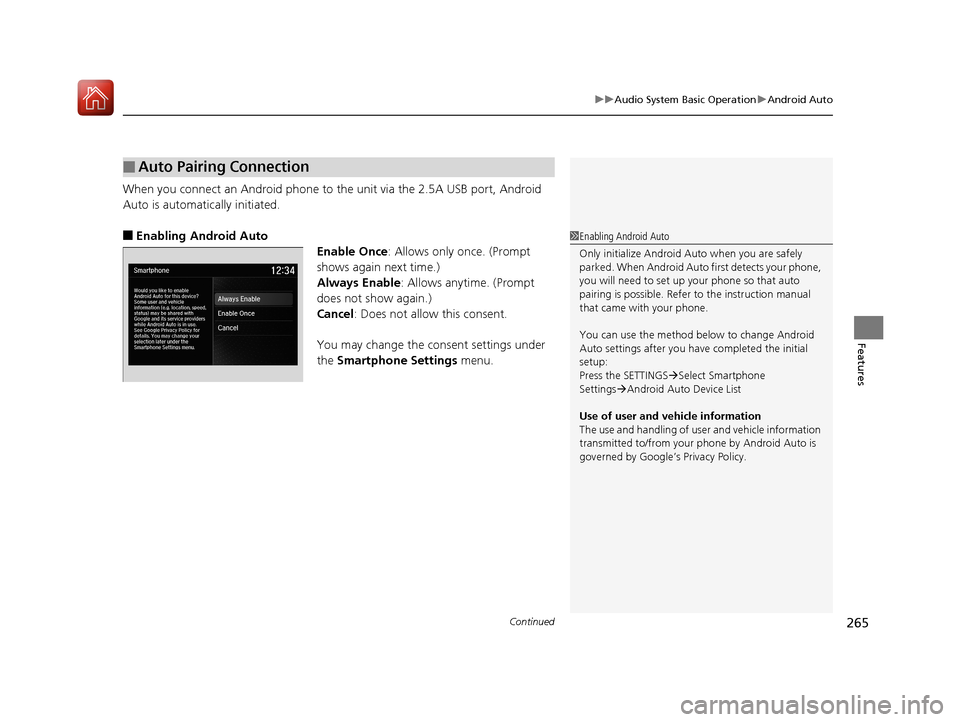
■Enabling Android Auto
Enable Once: Allows only once. (Prompt
shows again next time.)
Always Enable: Allows anytime. (Prompt
does not show again.)
Cancel: Does not allow this consent.
You may change the consent settings under
the Smartphone Settings menu.
■Auto Pairing Connection
1Enabling Android Auto
Only initialize Android Au to when you are safely
parked. When Android Auto first detects your phone,
you will need to set up your phone so that auto
pairing is possibl e. Refer to the instruction manual
that came with your phone.
You can use the method below to change Android
Auto settings after you have completed the initial
setup:
Press the SETTINGS Select Smartphone
Settings Android Auto Device List
Use of user and vehicle information
The use and handling of user and vehicle information
transmitted to/from your phone by Android Auto is
governed by Google’s Privacy Policy.
18 ACURA TLX-31TZ36300.book 265 ページ 2017年2月21日 火曜日 午後2時32分
Page 267 of 589
uuAudio System Basic Operation uAndroid Auto
266
Features
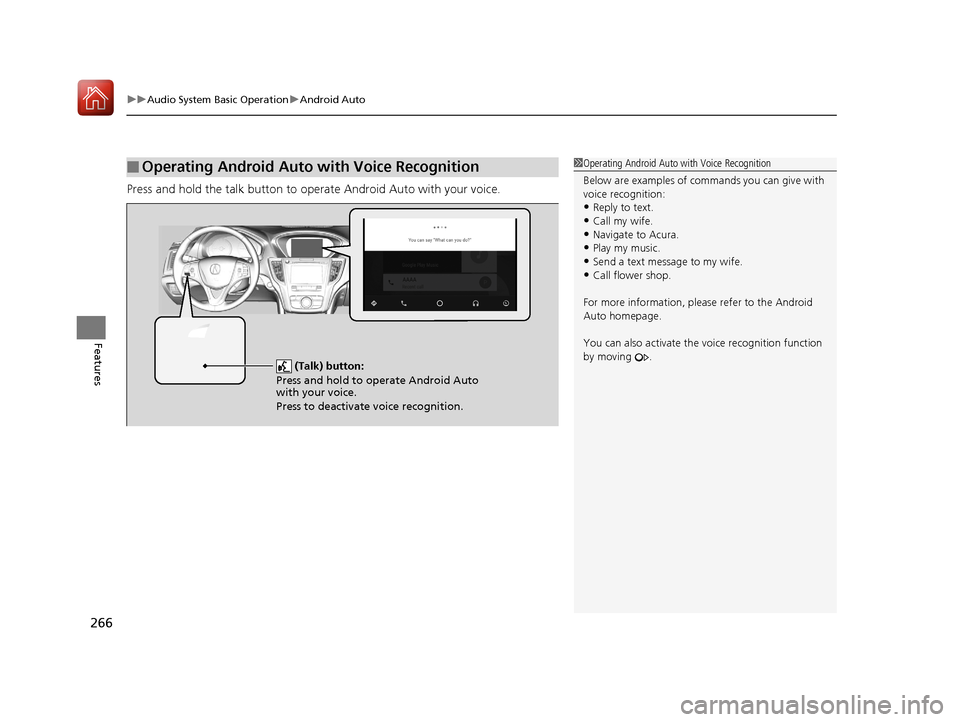
Press and hold the talk button to op erate Android Auto with your voice.
■Operating Android Auto with Voice Recognition1Operating Android Auto with Voice Recognition
Below are examples of co mmands you can give with
voice recognition:
•Reply to text.
•Call my wife.•Navigate to Acura.
•Play my music.
•Send a text message to my wife.•Call flower shop.
For more information, please refer to the Android
Auto homepage.
You can also activate the voice recognition function
by moving .
(Talk) button:
Press and hold to operate Android Auto
with your voice.
Press to deactivate voice recognition.
18 ACURA TLX-31TZ36300.book 266 ページ 2017年2月21日 火曜日 午後2時32分
Page 268 of 589
267
Features
Audio Error Messages
CD Player
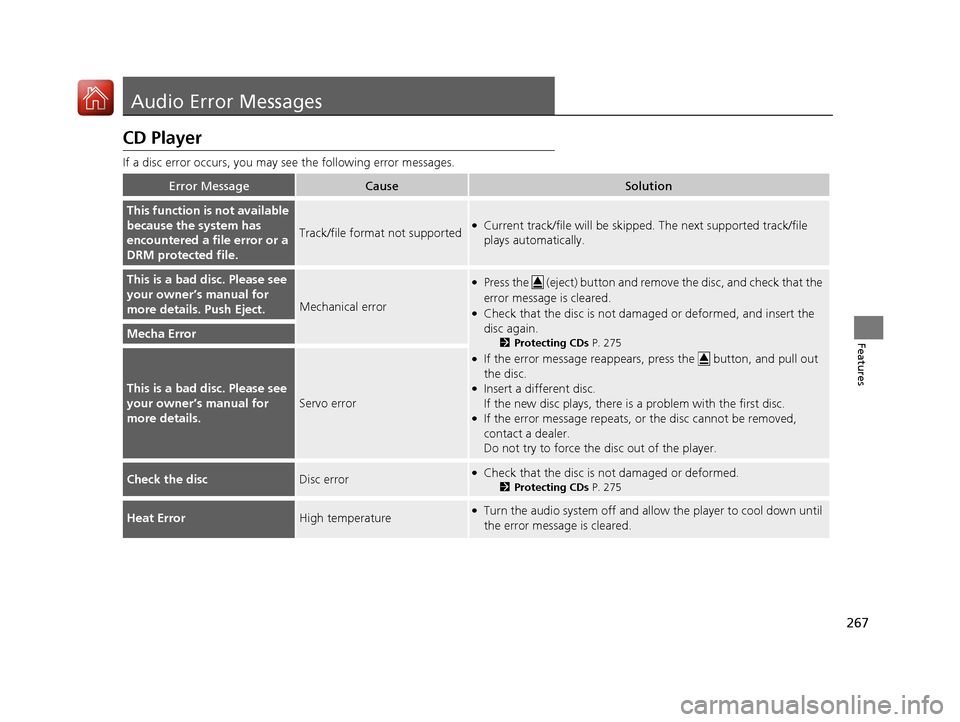
If a disc error occurs, you may see the following error messages.
Error MessageCauseSolution
This function is not available
because the system has
encountered a file error or a
DRM protected file.
Track/file format not supported●Current track/file will be skipped. The next supported track/file
plays automatically.
This is a bad disc. Please see
your owner’s manual for
more details. Push Eject.
Mechanical error
●Press the (eject) button and remo ve the disc, and check that the
error message is cleared.
●Check that the disc is not dama ged or deformed, and insert the
disc again.
2 Protecting CDs P. 275
●If the error message reappears, press the button, and pull out
the disc.
●Insert a different disc.
If the new disc plays, there is a problem with the first disc.
●If the error message repeats, or the disc cannot be removed,
contact a dealer.
Do not try to force the disc out of the player.
Mecha Error
This is a bad disc. Please see
your owner’s manual for
more details.
Servo error
Check the discDisc error●Check that the disc is not damaged or deformed.
2Protecting CDs P. 275
Heat ErrorHigh temperature●Turn the audio system off and allo w the player to cool down until
the error message is cleared.
18 ACURA TLX-31TZ36300.book 267 ページ 2017年2月21日 火曜日 午後2時32分
Page 269 of 589
268
uuAudio Error Messages uiPod/USB Flash Drive
Features
iPod/USB Flash Drive
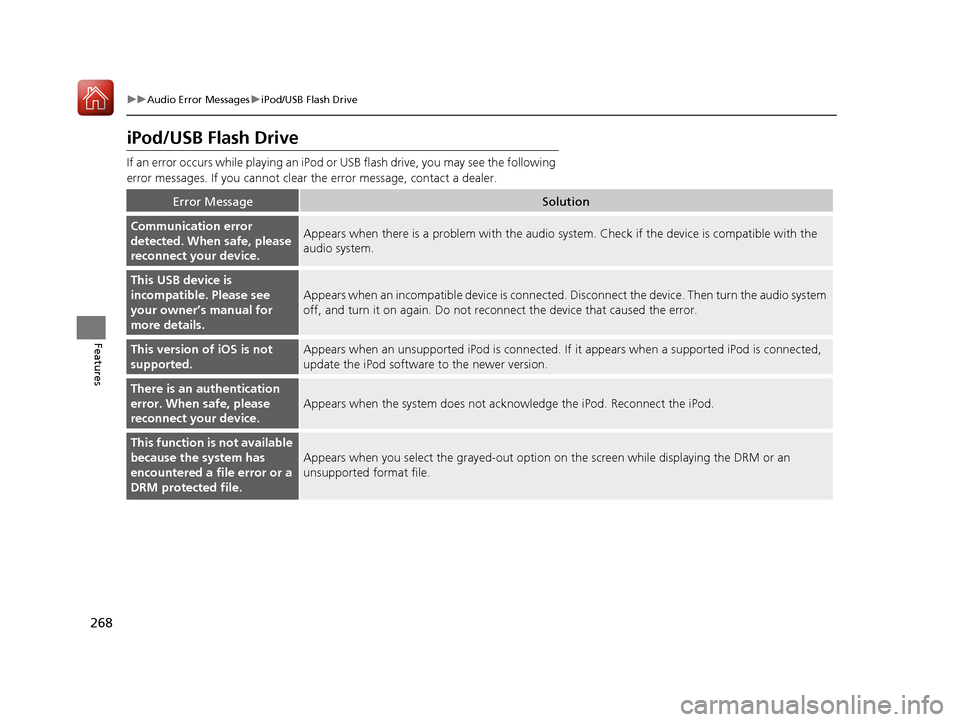
If an error occurs while play ing an iPod or USB flash driv e, you may see the following
error messages. If you cannot clear the error message, contact a dealer.
Error MessageSolution
Communication error
detected. When safe, please
reconnect your device.Appears when there is a problem with the audio system. Check if the device is compatible with the
audio system.
This USB device is
incompatible. Please see
your owner’s manual for
more details.
Appears when an incompatible device is connected. Disconnect the device. Then turn the audio system
off, and turn it on again. Do not reco nnect the device that caused the error.
This version of iOS is not
supported.Appears when an unsupported iPod is connected. If it appears when a supported iPod is connected,
update the iPod software to the newer version.
There is an authentication
error. When safe, please
reconnect your device.
Appears when the system does not acknowledge the iPod. Reconnect the iPod.
This function is not available
because the system has
encountered a file error or a
DRM protected file.
Appears when you select the grayed-out option on the screen while displaying the DRM or an
unsupported format file.
18 ACURA TLX-31TZ36300.book 268 ページ 2017年2月21日 火曜日 午後2時32分
Page 270 of 589
269
uuAudio Error Messages uiPod/USB Flash Drive
Features
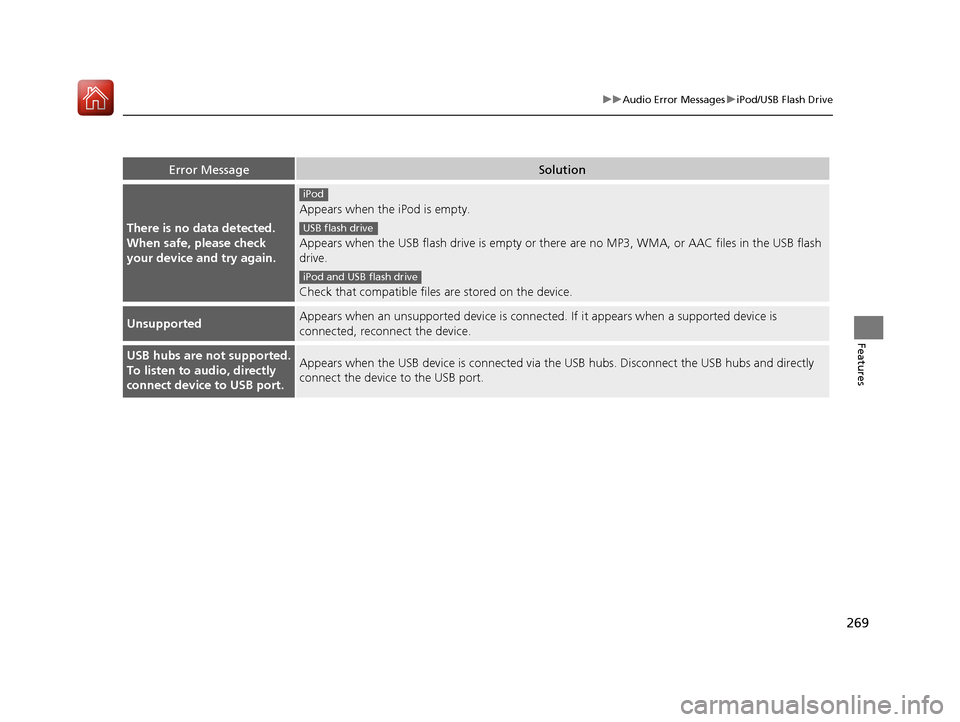
Error MessageSolution
There is no data detected.
When safe, please check
your device and try again.
Appears when the iPod is empty.
Appears when the USB flash drive is empty or there are no MP3, WMA, or AAC files in the USB flash
drive.
Check that compatible files are stored on the device.
UnsupportedAppears when an unsupported device is connected . If it appears when a supported device is
connected, reconnect the device.
USB hubs are not supported.
To listen to audio, directly
connect device to USB port.Appears when the USB device is connected via the USB hubs. Disconnect the USB hubs and directly
connect the device to the USB port.
iPod
USB flash drive
iPod and USB flash drive
18 ACURA TLX-31TZ36300.book 269 ページ 2017年2月21日 火曜日 午後2時32分
Page 271 of 589
270
uuAudio Error Messages uPandora®
Features
Pandora ®
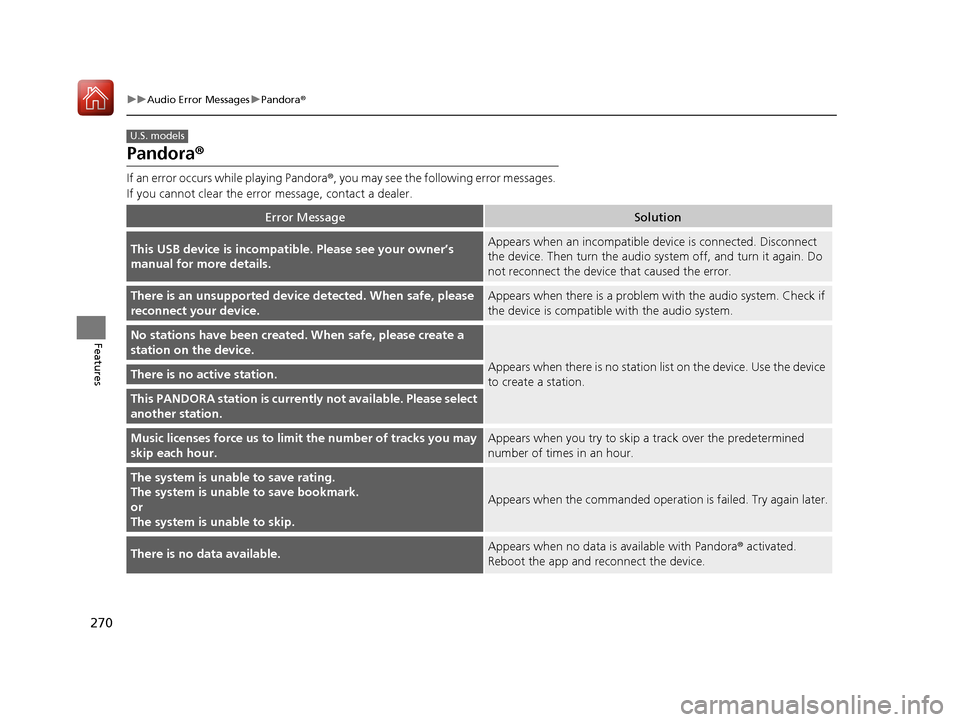
If an error occurs while playing Pandora ®, you may see the following error messages.
If you cannot clear the error message, contact a dealer.
Error MessageSolution
This USB device is incompatib le. Please see your owner’s
manual for more details.Appears when an incompatible device is connected. Disconnect
the device. Then turn the audio system off, and turn it again. Do
not reconnect the device that caused the error.
There is an unsupported device detected. When safe, please
reconnect your device.Appears when there is a problem with the audio system. Check if
the device is compatible with the audio system.
No stations have been created. When safe, please create a
station on the device.
Appears when there is no station list on the device. Use the device
to create a station.There is no active station.
This PANDORA station is currently not available. Please select
another station.
Music licenses force us to limi t the number of tracks you may
skip each hour.Appears when you try to skip a track over the predetermined
number of times in an hour.
The system is unable to save rating.
The system is unable to save bookmark.
or
The system is unable to skip.
Appears when the commanded operation is failed. Try again later.
There is no data available.Appears when no data is available with Pandora® activated.
Reboot the app and reconnect the device.
U.S. models
18 ACURA TLX-31TZ36300.book 270 ページ 2017年2月21日 火曜日 午後2時32分
Page 272 of 589
271
uuAudio Error Messages uPandora ®
Features
Error MessageSolution
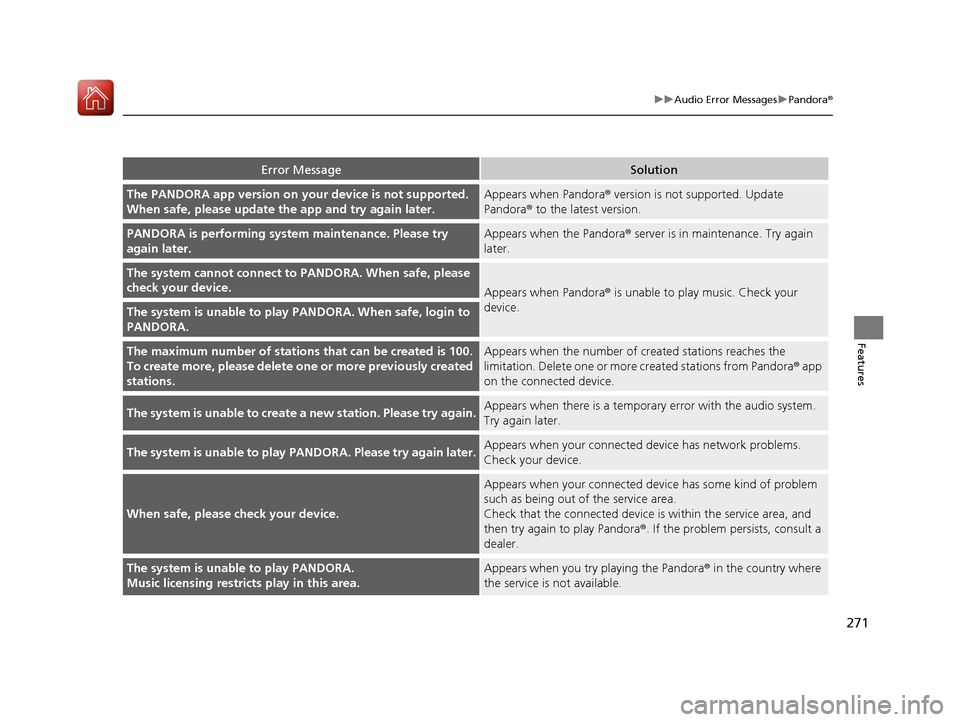
The PANDORA app version on your device is not supported.
When safe, please update the app and try again later.Appears when Pandora® version is not supported. Update
Pandora ® to the latest version.
PANDORA is performing system maintenance. Please try
again later.Appears when the Pandora ® server is in maintenance. Try again
later.
The system cannot connect to PANDORA. When safe, please
check your device.
Appears when Pandora® is unable to play music. Check your
device.
The system is unable to play PANDORA. When safe, login to
PANDORA.
The maximum number of stations that can be created is 100.
To create more, please delete on e or more previously created
stations.Appears when the number of created stations reaches the
limitation. Delete one or more created stations from Pandora ® app
on the connected device.
The system is unable to create a new station. Please try again.Appears when there is a temporar y error with the audio system.
Try again later.
The system is unable to play PANDORA. Please try again later.Appears when your connected device has network problems.
Check your device.
When safe, please check your device.
Appears when your connected device has some kind of problem
such as being out of the service area.
Check that the connected device is within the service area, and
then try again to play Pandora ®. If the problem persists, consult a
dealer.
The system is unable to play PANDORA.
Music licensing restricts play in this area.Appears when you try playing the Pandora ® in the country where
the service is not available.
18 ACURA TLX-31TZ36300.book 271 ページ 2017年2月21日 火曜日 午後2時32分
Page 273 of 589
272
uuAudio Error Messages uApple CarPlay/Android Auto
Features
Apple CarPlay/Android Auto
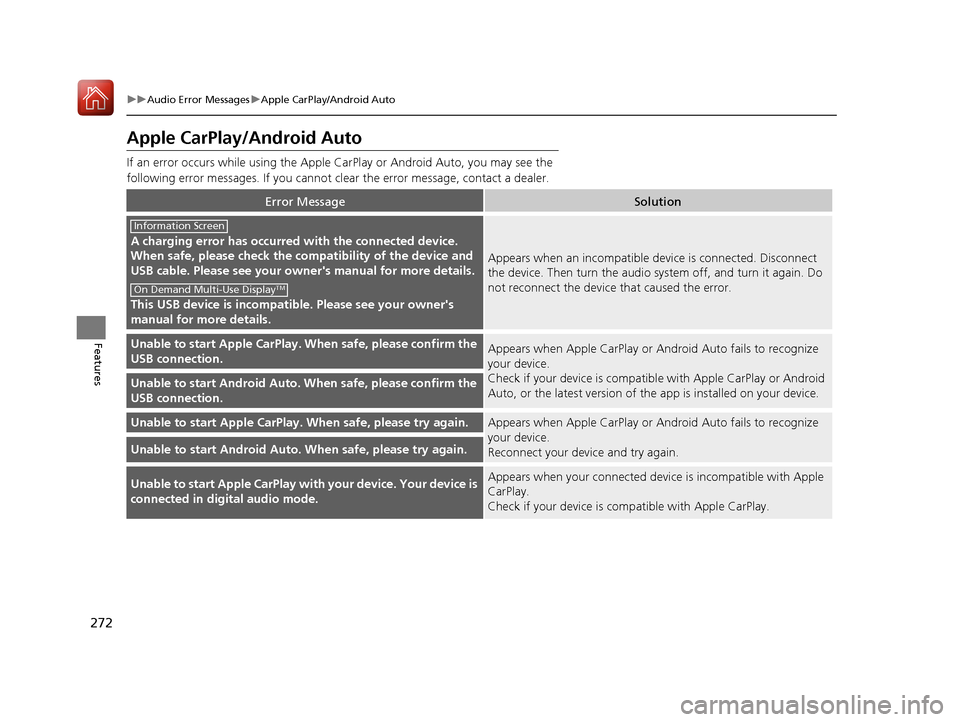
If an error occurs while using the Apple CarPlay or Android Auto, you may see the
following error messages. If you cannot clear the error message, contact a dealer.
Error MessageSolution
A charging error has occurred with the connected device.
When safe, please check the compatibility of the device and
USB cable. Please see your ow ner's manual for more details.
This USB device is incompatib le. Please see your owner's
manual for more details.
Appears when an incompatible device is connected. Disconnect
the device. Then turn the audio system off, and turn it again. Do
not reconnect the device that caused the error.
Unable to start Appl e CarPlay. When safe, please confirm the
USB connection.Appears when Apple CarPlay or A ndroid Auto fails to recognize
your device.
Check if your device is compatib le with Apple CarPlay or Android
Auto, or the latest version of the app is installed on your device.
Unable to start Andr oid Auto. When safe, please confirm the
USB connection.
Unable to start Appl e CarPlay. When safe, please try again.Appears when Apple CarPlay or A ndroid Auto fails to recognize
your device.
Reconnect your device and try again.
Unable to start Android Auto. When safe, please try again.
Unable to start Apple CarPlay with your device. Your device is
connected in digital audio mode.Appears when your connected device is incompatible with Apple
CarPlay.
Check if your device is comp atible with Apple CarPlay.
Information Screen
On Demand Multi-Use DisplayTM
18 ACURA TLX-31TZ36300.book 272 ページ 2017年2月21日 火曜日 午後2時32分
Page 274 of 589

273
uuAudio Error Messages uApple CarPlay/Android Auto
Features
Error MessageSolution
This device is not compatible with Android Auto.
Appears when your connected de vice is incompatible with
Android Auto.
Check if your device is compatible with Android Auto or the latest
version of the app is installed on your device.
Please update to the latest version of Android Auto.Appears when your version of the Android Auto is not supported.
Update Android Auto to the latest version.
Connection failed. Please confirm Bluetooth connection
status and try again.Appears when Bluetooth® connection is failed.
Check the Bluetooth ® connection of this audio system and your
connected device.
18 ACURA TLX-31TZ36300.book 273 ページ 2017年2月21日 火曜日 午後2時32分
Page 275 of 589
274
Features
General Information on the Audio System
SiriusXM® Radio Service
1. You need your radio ID ready before regist ering for subscription. To see the ID in
the On Demand Multi-Use DisplayTM, select channel up/down icons until CH000
and the radio ID appears.
2. Have your radio ID and credit card num ber ready, and either call or visit the
SiriusXM ® website to subscribe.
Switch to the SiriusXM ® mode by pressing the SOURCE button on the steering
wheel, or through the On Demand Multi-Use Display
TM, and stay in this mode for
about 30 minutes until the service is activated. Make sure your vehicle is in an open
area with good reception.
Loading...:
SiriusXM ® is loading the audio or program information.
No Signal:
The signal is too weak in the current location.
Unsubscribed channel:
You are not subscribed to the channel selected.
Unavailable channel:
No such channel exists, the channel is not pa rt of your subscription, or the artist or
title information is unavailable.
Check the antenna, Disconnect ed antenna, Shorted antenna:
There is a problem with the SiriusXM ® antenna. Contact a dealer.
■Subscribing to SiriusXM® Radio
■Receiving SiriusXM® Radio
■SiriusXM® Radio Display Messages
1 Subscribing to SiriusXM ® Radio
Contact Information for SiriusXM ® Radio:
•U.S.: SiriusXM ® Radio at www.siriusxm.com or 1-
800-852-9696
•Canada: SiriusXM ® Canada at www.siriusxm.ca or
1-877-438-9677
1 Receiving SiriusXM ® Radio
The SiriusXM ® satellites are in orbit over the equator;
therefore, objects south of the vehicle may cause
satellite reception interruptions. Sa tellite signals are
more likely to be blocked by tall buildings and
mountains the farther north you travel from the
equator.
You may experience rece ption problems under the
following circumstances:
•In a location with an obstruction to the south of
your vehicle.
•In tunnels
•On the lower level of a multi-tiered road•Large items carried on the roof rack
18 ACURA TLX-31TZ36300.book 274 ページ 2017年2月21日 火曜日 午後2時32分