phone ACURA TLX 2022 User Guide
[x] Cancel search | Manufacturer: ACURA, Model Year: 2022, Model line: TLX, Model: ACURA TLX 2022Pages: 656, PDF Size: 26.43 MB
Page 227 of 656

225
uuAudio System Basic Operation uAudio/Information Screen
Continued
Features
You can edit, show, or hide the audio, phone and navigation* contents on the multi-
information display or the head-up display*.
■To add or remove an items 1.Press the APPS button on the steering
wheel.
2. Roll down the left selector wheel to select
Customize Apps .
3. Move the left selector wheel left to select
Add/Remove.
4. Select an item then press the left selector
wheel.
u The checked items are displayed on the
multi-information display or the head-up
display
*.
■Customizing the Meter or Head-Up Display*
On Multi-Information Display
On Head-Up Display
*
* Not available on all models
22 ACURA TLX-31TGV6100.book 225 \b
Page 237 of 656
235
uuAudio System Basic Operation uVoice Control Operation
Continued
Features
Voice Control Operation
Your vehicle has a voice control syst em that allows hands-free operation.
The voice control system uses the (tal k) and (back) buttons on the steering
wheel and a microphone near the map lights on the ceiling.
To achieve optimum voice recognition when using the voice control system:
• The system recognizes natural language and accepts free-form voice commands.
An example of voice commands:
2 Voice Recognition Screen P. 236
•Close the windows and moonroof.
• Adjust the dashboard and side vents so air does not blow onto the microphone
on the ceiling.
• Speak clearly in a clear, natural speaking voice without pausing between words.
• Reduce any background noise if possible. The system may misinterpret your
command if more than one person is speaking at the same time.
■Voice Recognition
1Voice Control Operation
When you press the button, the system beeps and
the display changes to the voice recognition screen.
Press the (home) button, (back) button on
the True Touchpad Interface or APPS button on the
steering wheel to cancel a voice recognition function.
22 ACURA TLX-31TGV6100.book 235 \b
Page 238 of 656
236
uuAudio System Basic Operation uVoice Control Operation
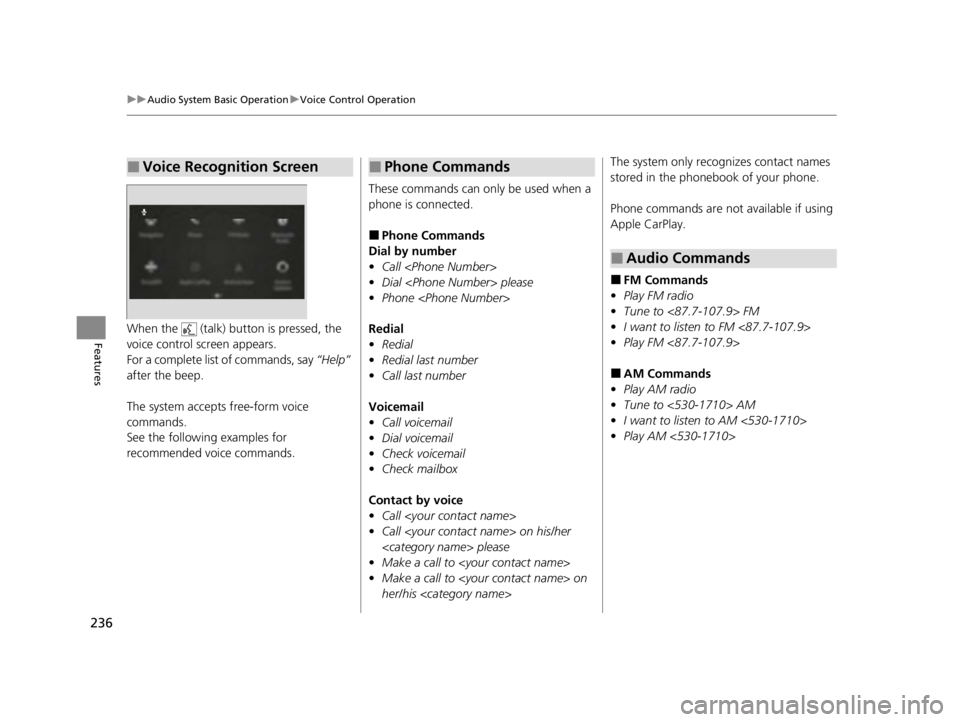
FeaturesWhen the (talk) button is pressed, the
voice control sc reen appears.
For a complete list of commands, say “Help”
after the beep.
The system accepts free-form voice
commands.
See the following examples for
recommended voice commands.
■Voice Recognition Screen
These commands can only be used when a
phone is connected.
■Phone Commands
Dial by number
• Call
• Dial
• Phone
Redial
• Redial
• Redial last number
• Call last number
Voicemail
• Call voicemail
• Dial voicemail
• Check voicemail
• Check mailbox
Contact by voice
• Call
• Call
• Make a call to
• Make a call to
her/his
■Phone CommandsThe system only recognizes contact names
stored in the phonebook of your phone.
Phone commands are not available if using
Apple CarPlay.
■FM Commands
• Play FM radio
• Tune to <87.7-107.9> FM
• I want to listen to FM <87.7-107.9>
• Play FM <87.7-107.9>
■AM Commands
• Play AM radio
• Tune to <530-1710> AM
• I want to listen to AM <530-1710>
• Play AM <530-1710>
■Audio Commands
22 ACURA TLX-31TGV6100.book 236 \b
Page 258 of 656
uuAudio System Basic Operation uPlaying an iPod
256
Features
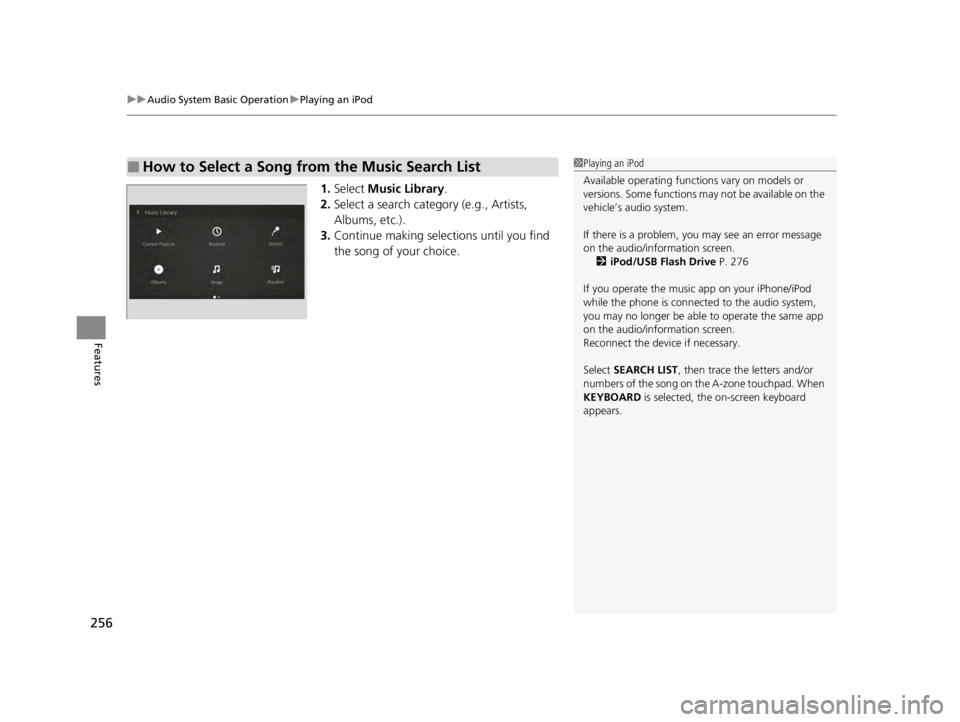
1. Select Music Library.
2. Select a search catego ry (e.g., Artists,
Albums, etc.).
3. Continue making selections until you find
the song of your choice.
■How to Select a Song from the Music Search List1Playing an iPod
Available operating functi ons vary on models or
versions. Some functions ma y not be available on the
vehicle’s audio system.
If there is a problem, you may see an error message
on the audio/information screen. 2 iPod/USB Flash Drive P. 276
If you operate the musi c app on your iPhone/iPod
while the phone is connected to the audio system,
you may no longer be able to operate the same app
on the audio/information screen.
Reconnect the devi ce if necessary.
Select SEARCH LIST , then trace the letters and/or
numbers of the song on the A-zone touchpad. When
KEYBOARD is selected, the on-screen keyboard
appears.
22 ACURA TLX-31TGV6100.book 256 \b
Page 263 of 656
261
uuAudio System Basic Operation uPlaying Bluetooth ® Audio
Continued
Features
Playing Bluetooth ® Audio
Your audio system allows you to listen to music from your Bluetooth-compatible
phone.
This function is available when the phone is paired and connected to the vehicle’s
Bluetooth ® HandsFreeLink ® (HFL) system.
2Phone Setup P. 335
1Playing Bluetooth ® Audio
Not all Bluetooth-enabled phones with streaming
audio capabilities are compatible with the system. For
a list of compatible phones:
•U.S.: Visit www.handsfreelink.com/Acura or call 1-
888-528-7876.
•Canada: For more info rmation on smartphone
compatibility, call 1-855-490-7351.
It may be illegal to perform some data device
functions while driving.
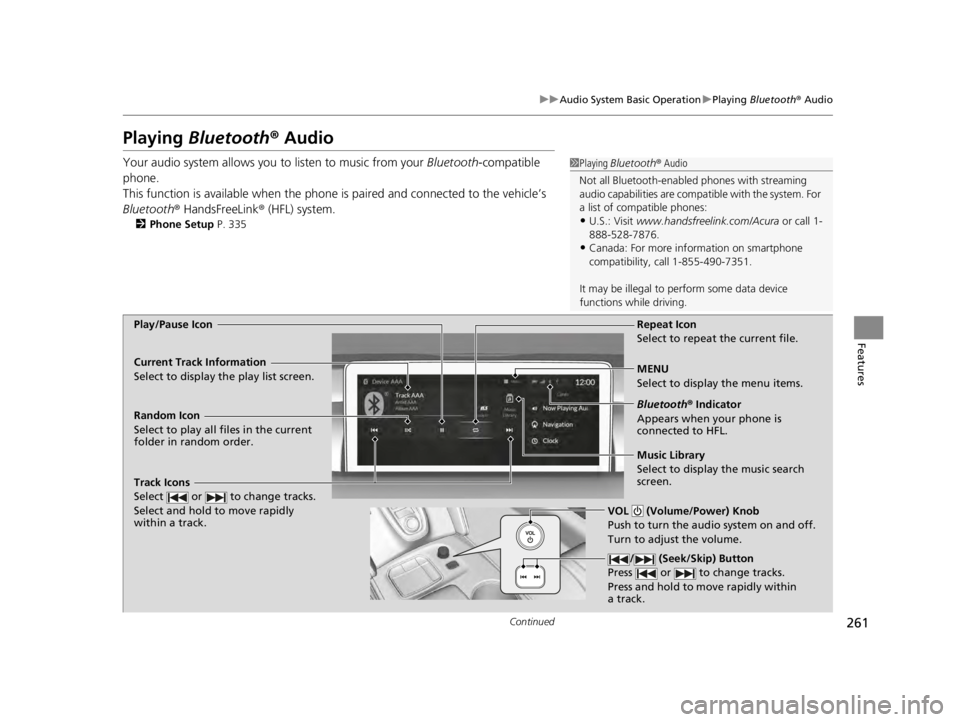
Random Icon
Select to play all files in the current
folder in random order. Music Library
Select to display the music search
screen.
Track Icons
Select or to change tracks.
Select and hold to move rapidly
within a track.
Repeat Icon
Select to repeat the current file.
VOL (Volume/Power) Knob
Push to turn the au dio system on and off.
Turn to adjust the volume.
/ (Seek/Skip) Button
Press or to change tracks.
Press and hold to move rapidly within
a track.
Play/Pause Icon
MENU
Select to display the menu items.
Bluetooth® Indicator
Appears when your phone is
connected to HFL.
Current Track Information
Select to display the p
l
ay list screen.
22 ACURA TLX-31TGV6100.book 261 \b
Page 264 of 656
uuAudio System Basic Operation uPlaying Bluetooth ® Audio
262
Features
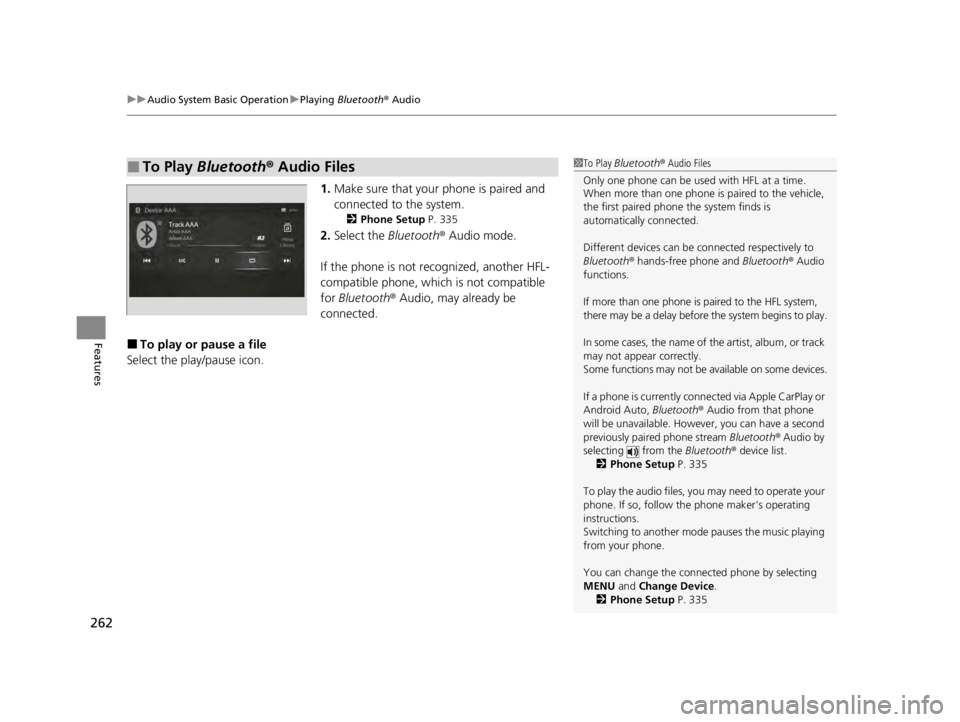
1. Make sure that your phone is paired and
connected to the system.
2 Phone Setup P. 335
2.Select the Bluetooth® Audio mode.
If the phone is not recognized, another HFL-
compatible phone, which is not compatible
for Bluetooth ® Audio, may already be
connected.
■To play or pause a file
Select the play/pause icon.
■To Play Bluetooth ® Audio Files1 To Play Bluetooth ® Audio Files
Only one phone can be used with HFL at a time.
When more than one phone is paired to the vehicle,
the first paired phone the system finds is
automatically connected.
Different devices can be co nnected respectively to
Bluetooth ® hands-free phone and Bluetooth® Audio
functions.
If more than one phone is paired to the HFL system,
there may be a delay before the system begins to play.
In some cases, the name of the artist, album, or track
may not appear correctly.
Some functions may not be available on some devices.
If a phone is currently conne cted via Apple CarPlay or
Android Auto, Bluetooth® Audio from that phone
will be unavailable. Howe ver, you can have a second
previously paired phone stream Bluetooth® Audio by
selecting from the Bluetooth® device list.
2 Phone Setup P. 335
To play the audio files, y ou may need to operate your
phone. If so, follow the phone maker’s operating
instructions.
Switching to another mode pauses the music playing
from your phone.
You can change the connected phone by selecting
MENU and Change Device.
2 Phone Setup P. 335
22 ACURA TLX-31TGV6100.book 262 \b
Page 266 of 656
264
uuAudio System Basic Operation uWi-Fi Connection
Features
Wi-Fi Connection
This vehicle is equipped with Wi-Fi connec tivity. You can connect to an external Wi-
Fi hotspot or communication device. In addition, the vehicle can be used by other
communication devices as a Wi-Fi hots pot via the telematics unit (TCU).
• Connect the vehicle to a Wi-Fi hotspot
• Use Wi-Fi inside the vehicle
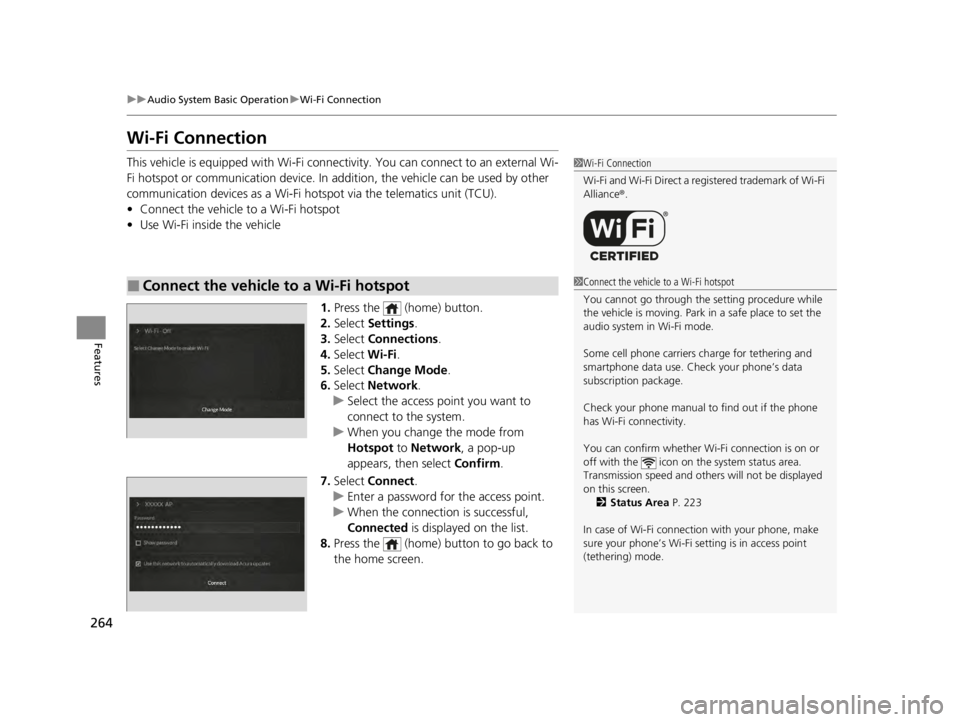
1.Press the (home) button.
2. Select Settings .
3. Select Connections .
4. Select Wi-Fi.
5. Select Change Mode .
6. Select Network.
u Select the access point you want to
connect to the system.
u When you change the mode from
Hotspot to Network, a pop-up
appears, then select Confirm.
7. Select Connect .
u Enter a password for the access point.
u When the connection is successful,
Connected is displayed on the list.
8. Press the (home) button to go back to
the home screen.
■Connect the vehicle to a Wi-Fi hotspot
1Wi-Fi Connection
Wi-Fi and Wi-Fi Direct a registered trademark of Wi-Fi
Alliance® .
1Connect the vehicle to a Wi-Fi hotspot
You cannot go through the setting procedure while
the vehicle is moving. Park in a safe place to set the
audio system in Wi-Fi mode.
Some cell phone carriers charge for tethering and
smartphone data use. Check your phone’s data
subscription package.
Check your phone manual to find out if the phone
has Wi-Fi connectivity.
You can confirm whether Wi -Fi connection is on or
off with the icon on the system status area.
Transmission speed and others will not be displayed
on this screen. 2 Status Area P. 223
In case of Wi-Fi connect ion with your phone, make
sure your phone’s Wi-Fi se tting is in access point
(tethering) mode.
22 ACURA TLX-31TGV6100.book 264 \b
Page 269 of 656
267
uuAudio System Basic Operation uSiri Eyes Free
Features
Siri Eyes Free
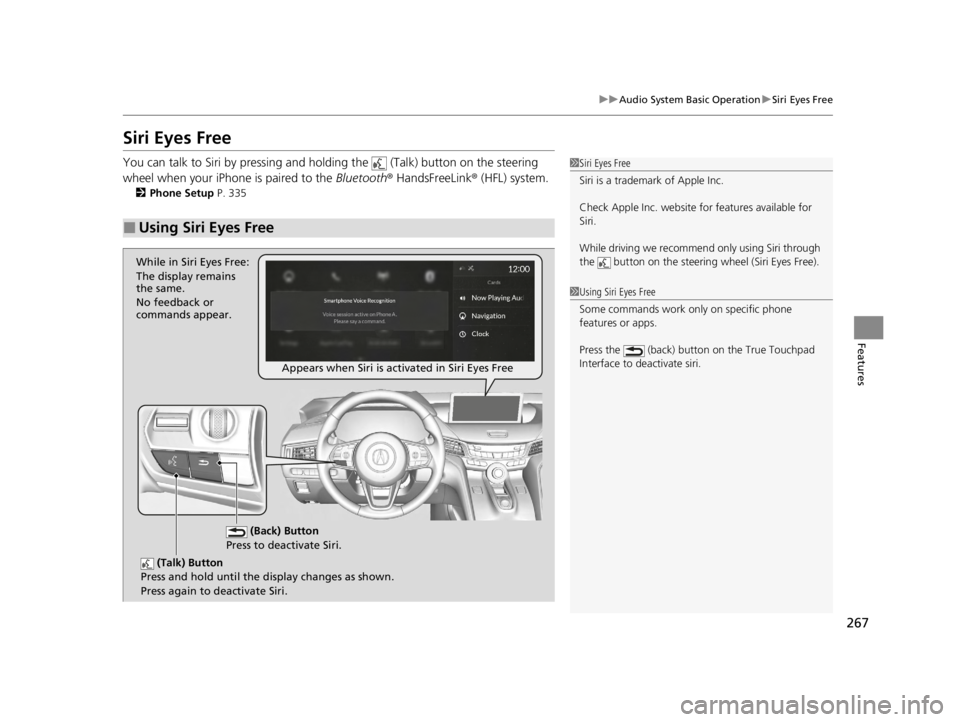
You can talk to Siri by pressing and holding the (Talk) button on the steering
wheel when your iPhone is paired to the Bluetooth® HandsFreeLink ® (HFL) system.
2 Phone Setup P. 335
■Using Siri Eyes Free
1Siri Eyes Free
Siri is a trademark of Apple Inc.
Check Apple Inc. website for features available for
Siri.
While driving we recomme nd only using Siri through
the button on the steering wheel (Siri Eyes Free).
1Using Siri Eyes Free
Some commands work only on specific phone
features or apps.
Press the (back) button on the True Touchpad
Interface to deactivate siri.
(Talk) Button
Press and hold until the display changes as shown.
Press again to deactivate Siri.
(Back) Button
Press to deactivate Siri.
While in Siri Eyes Free:
The display remains
the same.
No feedback or
commands appear.
Appears when Siri is activated in Siri Eyes Free
22 ACURA TLX-31TGV6100.book 267 \b
Page 270 of 656
268
uuAudio System Basic Operation uApple CarPlay
Features
Apple CarPlay
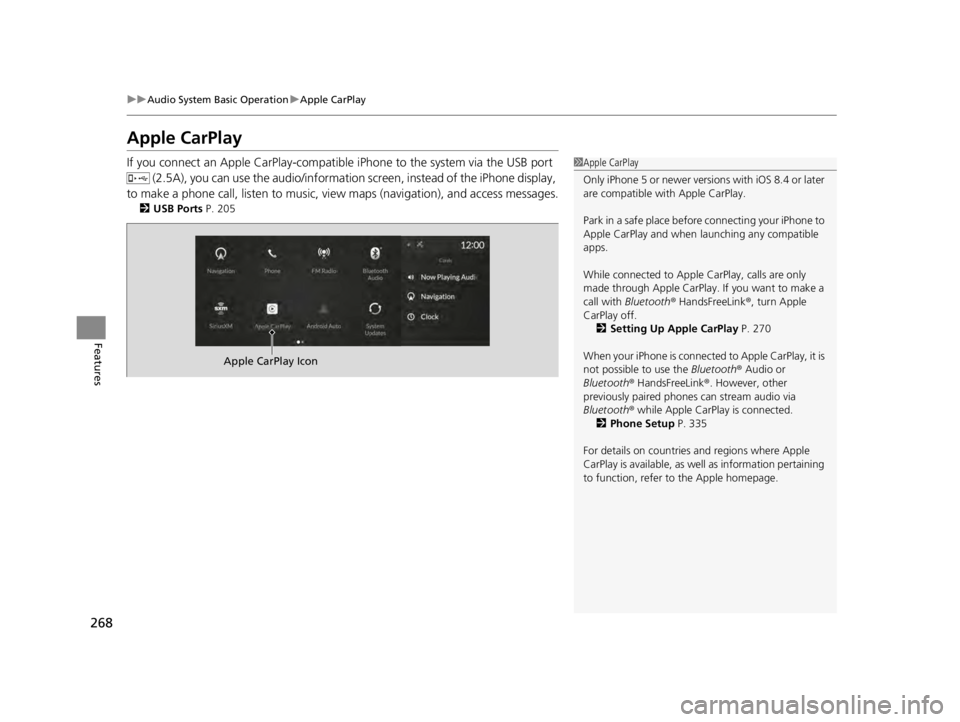
If you connect an Apple CarPlay-compatible iPhone to the system via the USB port
(2.5A), you can use the audio/informatio n screen, instead of the iPhone display,
to make a phone call, listen to music, view maps (navigation), and access messages.
2 USB Ports P. 205
1Apple CarPlay
Only iPhone 5 or newer versi ons with iOS 8.4 or later
are compatible with Apple CarPlay.
Park in a safe place before connecting your iPhone to
Apple CarPlay and when launching any compatible
apps.
While connected to Apple CarPlay, calls are only
made through Apple CarPlay. If you want to make a
call with Bluetooth ® HandsFreeLink ®, turn Apple
CarPlay off. 2 Setting Up Apple CarPlay P. 270
When your iPhone is connected to Apple CarPlay, it is
not possible to use the Bluetooth® Audio or
Bluetooth ® HandsFreeLink ®. However, other
previously paired phones can stream audio via
Bluetooth ® while Apple CarPlay is connected.
2 Phone Setup P. 335
For details on c ountries and regions where Apple
CarPlay is available, as well as information pertaining
to function, refer to the Apple homepage.
Apple CarPlay Icon
22 ACURA TLX-31TGV6100.book 268 \b
Page 271 of 656
Continued269
uuAudio System Basic Operation uApple CarPlay
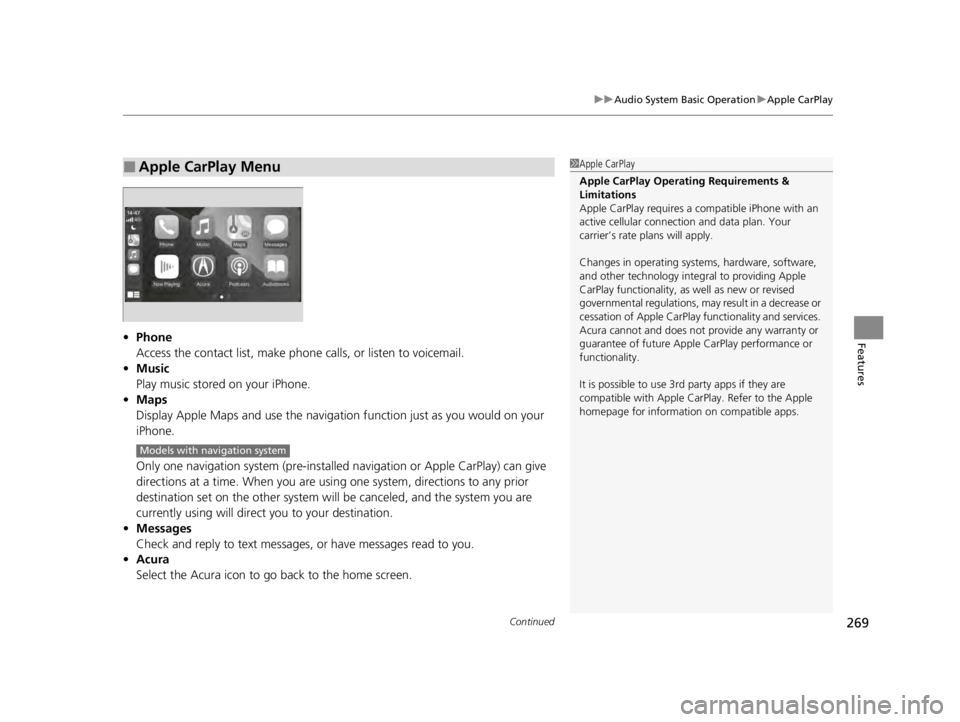
Features• Phone
Access the contact list, make phone calls, or listen to voicemail.
• Music
Play music stored on your iPhone.
• Maps
Display Apple Maps and use the navigation function just as you would on your
iPhone.
Only one navigation system (pre-installed navigation or Apple CarPlay) can give
directions at a time. When you are usin g one system, directions to any prior
destination set on the other system will be canceled, and the system you are
currently using will direct you to your destination.
• Messages
Check and reply to text messages, or have messages read to you.
• Acura
Select the Acura icon to go back to the home screen.
■Apple CarPlay Menu1Apple CarPlay
Apple CarPlay Operating Requirements &
Limitations
Apple CarPlay requi res a compatible iPhone with an
active cellular connecti on and data plan. Your
carrier’s rate plans will apply.
Changes in operating systems, hardware, software,
and other technology integral to providing Apple
CarPlay functionality, as well as new or revised
governmental regulations, may result in a decrease or
cessation of Apple CarPlay functionality and services.
Acura cannot and does not provide any warranty or
guarantee of future Appl e CarPlay performance or
functionality.
It is possible to use 3r d party apps if they are
compatible with Apple CarPlay. Refer to the Apple
homepage for information on compatible apps.
Models with navigation system
22 ACURA TLX-31TGV6100.book 269 \b