wheel ACURA TLX 2022 User Guide
[x] Cancel search | Manufacturer: ACURA, Model Year: 2022, Model line: TLX, Model: ACURA TLX 2022Pages: 656, PDF Size: 26.43 MB
Page 51 of 656
Continued49
uuAirbags uFront Airbags (SRS)
Safe DrivingThe airbags have advanced features to he lp reduce the likelihood of airbag related
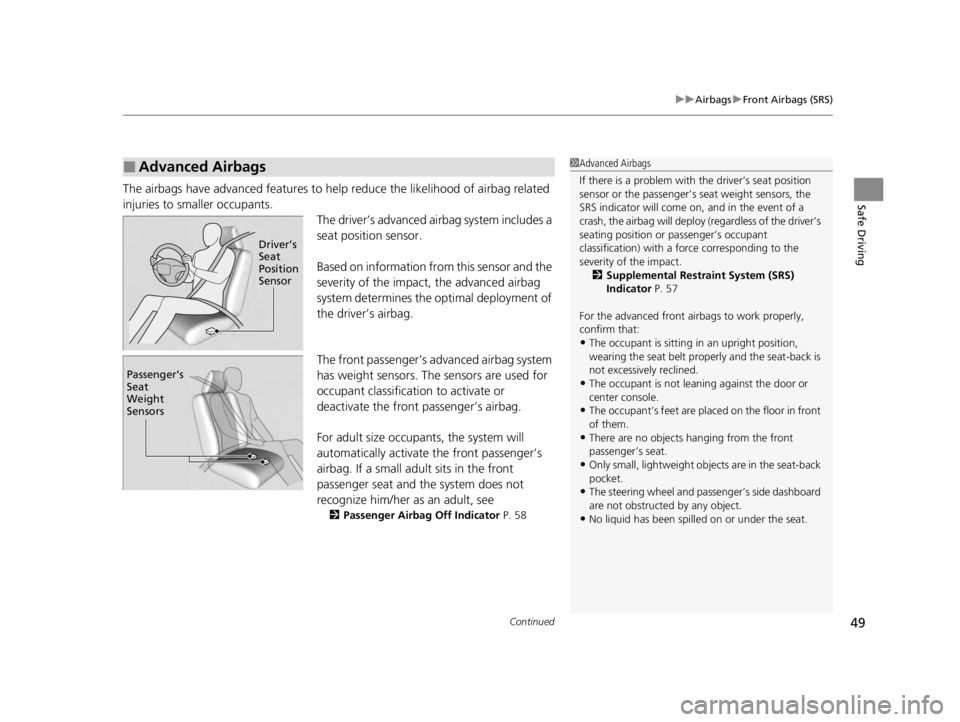
injuries to smaller occupants. The driver’s advanced airbag system includes a
seat position sensor.
Based on information from this sensor and the
severity of the impact, the advanced airbag
system determines the optimal deployment of
the driver’s airbag.
The front passenger’s ad vanced airbag system
has weight sensors. The sensors are used for
occupant classification to activate or
deactivate the front passenger’s airbag.
For adult size occupant s, the system will
automatically activate the front passenger’s
airbag. If a small adult sits in the front
passenger seat and the system does not
recognize him/her as an adult, see
2 Passenger Airbag Off Indicator P. 58
■Advanced Airbags1Advanced Airbags
If there is a problem with the driver’s seat position
sensor or the passenger’s s eat weight sensors, the
SRS indicator will come on, and in the event of a
crash, the airbag will deploy (regardless of the driver’s
seating position or passenger’s occupant
classification) with a force corresponding to the
severity of the impact. 2 Supplemental Restraint System (SRS)
Indicator P. 57
For the advanced front airbags to work properly,
confirm that:
•The occupant is sitting in an upright position,
wearing the seat belt prope rly and the seat-back is
not excessively reclined.
•The occupant is not leaning against the door or
center console.
•The occupant’s feet are plac ed on the floor in front
of them.
•There are no objects ha nging from the front
passenger’s seat.
•Only small, lightweight objects are in the seat-back
pocket.
•The steering wheel and passenger’s side dashboard
are not obstructed by any object.
•No liquid has been spille d on or under the seat.
Driver\bT
Seat
Position
Sensor
Passenger\bT
Seat
Weight
Sensors
22 ACURA TLX-31TGV6100.book 49 \b
Page 81 of 656
79
uuIndicators u
Continued
Instrument Panel
M (sequential mode)
Indicator/Gear
Selection Indicator P. 83
Parking Brake and
Brake System
Indicator (Red)
Parking Brake and
Brake System
Indicator (Amber)
U.S.
Canada
U.S.
Canada Automatic Brake
Hold System Indicator
Automatic Brake Hold
IndicatorU.S.
Canada
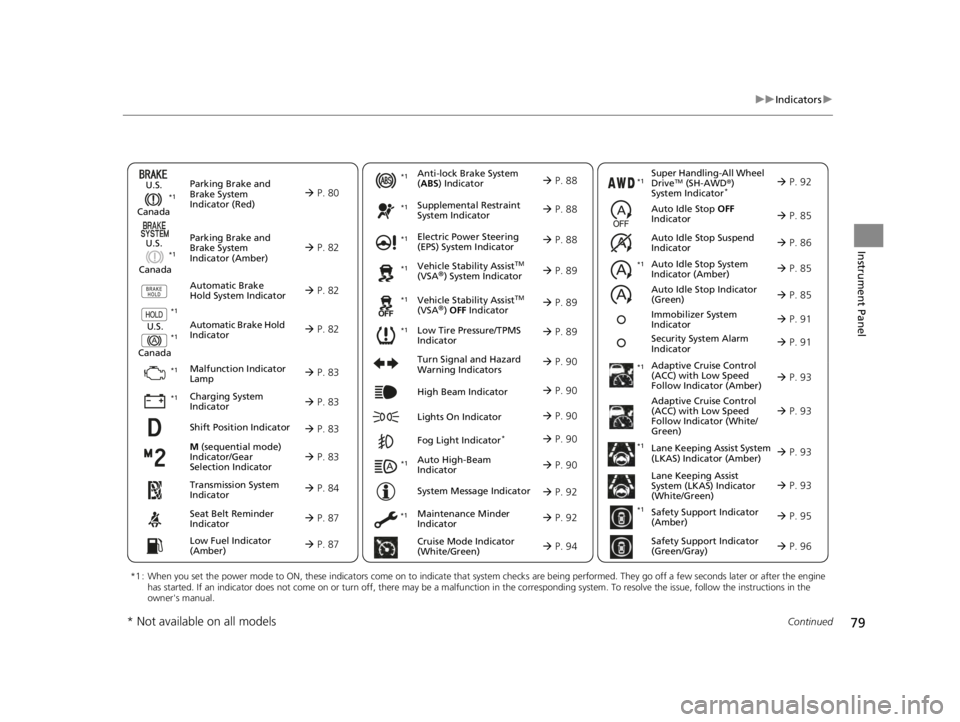
*1 : When you set the power mode to ON, these indicators come on to indicate that system checks are being performed. They go off a few seconds later or after the engine
has started. If an indicator does not come on or turn off, ther e may be a malfunction in the corresponding system. To resolve the issue, follow the instructions in the
owner's manual.
P. 80*1
Malfunction Indicator
Lamp
Charging System
Indicator
Anti-lock Brake System
(ABS ) Indicator
Seat Belt Reminder
Indicator
Low Fuel Indicator
(Amber)
Vehicle Stability AssistTM
(VSA®) System Indicator
Vehicle Stability Assist
TM
(VSA®) OFF Indicator
Supplemental Restraint
System Indicator
Auto High-Beam
Indicator
Low Tire Pressure/TPMS
Indicator Electric Power Steering
(EPS) System Indicator
Turn Signal and Hazard
Warning Indicators
Lights On Indicator High Beam Indicator
Fog Light Indicator*
Maintenance Minder
Indicator
System Message Indicator
Super Handling-All Wheel
DriveTM (SH-AWD
®)
System Indicator*
Adaptive Cruise Control
(ACC) with Low Speed
Follow Indicator (Amber)
Lane Keeping Assist System
(LKAS) Indicator (Amber)
Safety Support Indicator
(Green/Gray)
P. 82
P. 82
P. 82
P. 83
P. 83*1 *1
P. 89
*1
*1
Shift Position Indicator P. 83
Transmission System
Indicator P. 84
Auto Idle Stop System
Indicator (Amber)
P. 85
P. 87
P. 87
P. 88
P. 88
P. 90
P. 89
*1
*1
*1
P. 89
*1 P. 88
P. 90
P. 93
*1
P. 90
P. 90
P. 92
P. 90
Immobilizer System
Indicator P. 91
Security System Alarm
Indicator P. 91
P. 92
P. 92
P. 93
P. 96
*1
Adaptive Cruise Control
(ACC) with Low Speed
Follow Indicator (White/
Green) P. 93
*1
Lane Keeping Assist
System (LKAS) Indicator
(White/Green) P. 93
*1 *1
*1 *1
Safety Support Indicator
(Amber)
P. 95
*1
Cruise Mode Indicator
(White/Green) P. 94
Auto Idle Stop OFF
Indicator P. 85
Auto Idle Stop Suspend
Indicator P. 86
*1
*1
Auto Idle Stop Indicator
(Green)
P. 85
* Not available on all models
22 ACURA TLX-31TGV6100.book 79 \b
Page 94 of 656
92
uuIndicators u
Instrument Panel
IndicatorNameOn/BlinkingExplanation
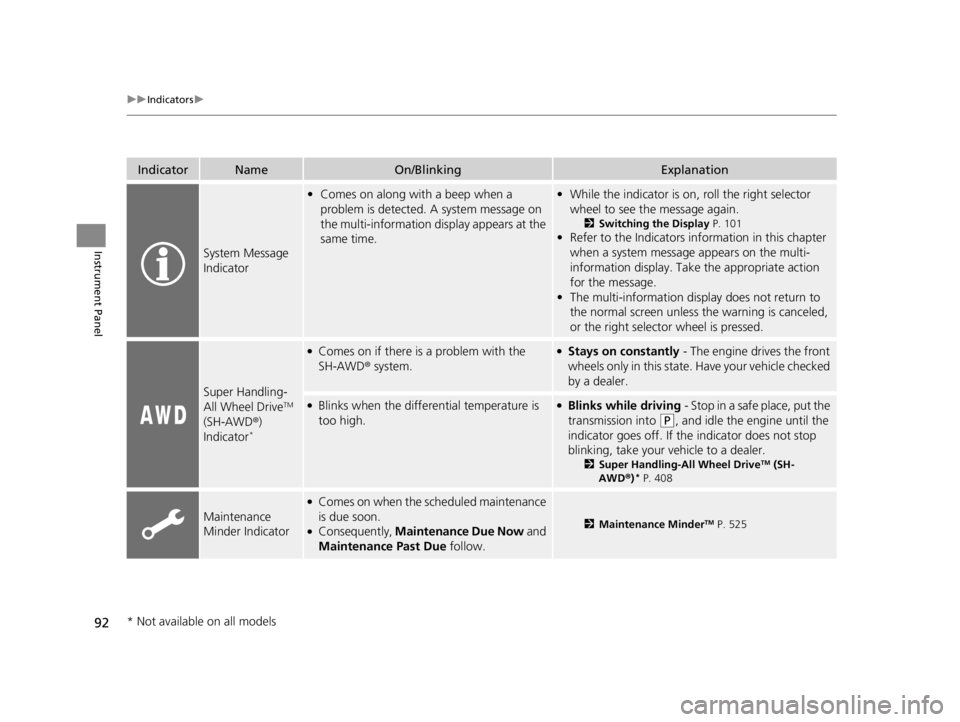
System Message
Indicator
•Comes on along with a beep when a
problem is detected. A system message on
the multi-information display appears at the
same time.•While the indicator is on, roll the right selector
wheel to see the message again.
2 Switching the Display P. 101
•Refer to the Indicators in formation in this chapter
when a system message appears on the multi-
information display. Take the appropriate action
for the message.
• The multi-information display does not return to
the normal screen unless the warning is canceled,
or the right selector wheel is pressed.
Super Handling-
All Wheel DriveTM
(SH-AWD ®)
Indicator
*
●Comes on if there is a problem with the
SH-AWD ® system.●Stays on constantly - The engine drives the front
wheels only in this state. Have your vehicle checked
by a dealer.
●Blinks when the differential temperature is
too high.●Blinks while driving - Stop in a safe place, put the
transmission into
(P, and idle the engine until the
indicator goes off. If the indicator does not stop
blinking, take your ve hicle to a dealer.
2Super Handling-All Wheel DriveTM (SH-
AWD® )* P. 408
Maintenance
Minder Indicator
●Comes on when the scheduled maintenance
is due soon.
●Consequently, Maintenance Due Now and
Maintenance Past Due follow.2Maintenance MinderTM P. 525
* Not available on all models
22 ACURA TLX-31TGV6100.book 92 \b
Page 103 of 656
101
uuGauges and Multi-Information Display uMulti-Information Display
Continued
Instrument Panel
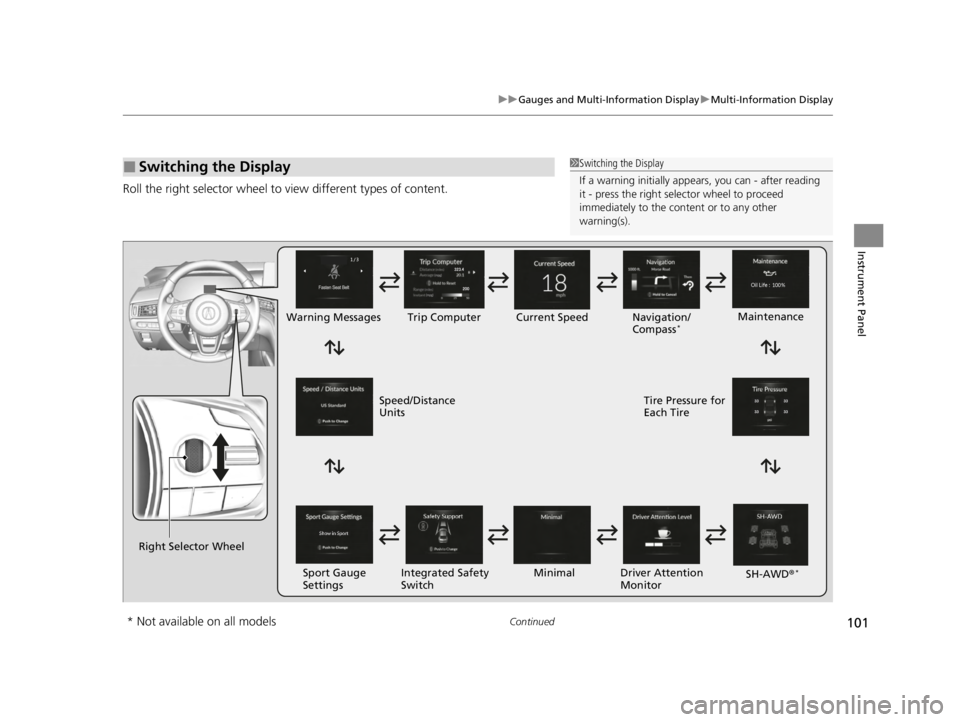
Roll the right selector wheel to view different types of content.
■Switching the Display1Switching the Display
If a warning initially appear s, you can - after reading
it - press the right sele ctor wheel to proceed
immediately to the cont ent or to any other
warning(s).
Right Selector Wheel Warning Messages Trip Computer
Sport Gauge
Settings Maintenance
Navigation/
Compass
*Current Speed
Integrated Safety
Switch Driver Attention
Monitor
Minimal
Speed/Distance
Units Tire Pressure for
Each Tire
SH-AWD®
*
* Not available on all models
22 ACURA TLX-31TGV6100.book 101 \b
Page 104 of 656
102
uuGauges and Multi-Information Display uMulti-Information Display
Instrument Panel
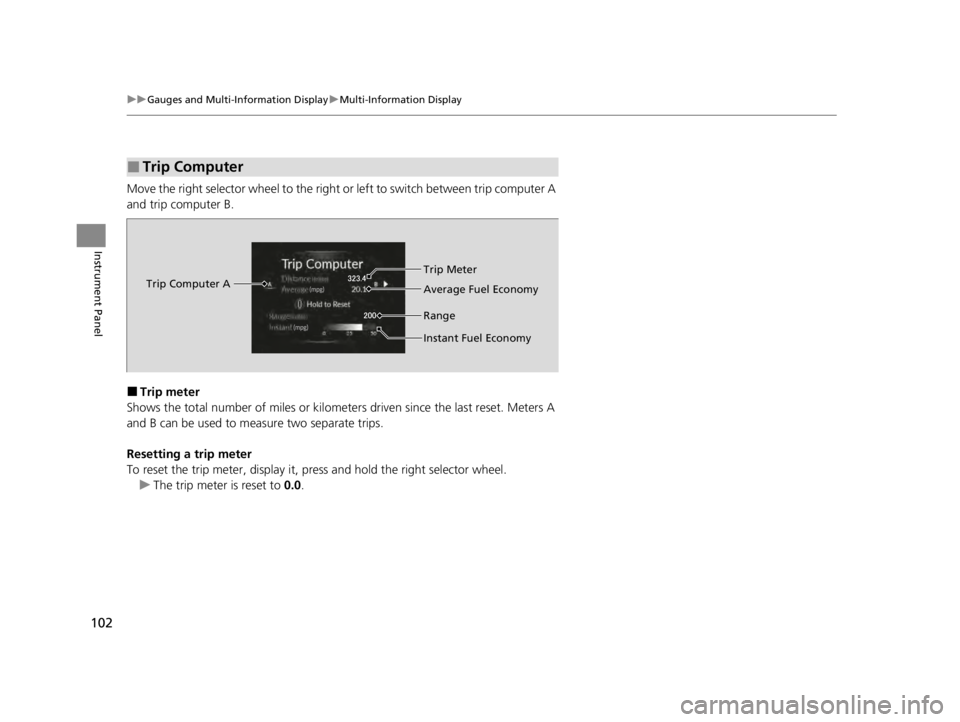
Move the right selector wheel to the right or left to switch between trip computer A
and trip computer B.
■Trip meter
Shows the total number of miles or kilomete rs driven since the last reset. Meters A
and B can be used to measure two separate trips.
Resetting a trip meter
To reset the trip meter, display it, pr ess and hold the right selector wheel.
u The trip meter is reset to 0.0.
■Trip Computer
Trip Computer A Trip Meter
Range Average Fuel Economy
Instant Fuel Economy
22 ACURA TLX-31TGV6100.book 102 \b
Page 105 of 656
Continued103
uuGauges and Multi-Information Display uMulti-Information Display
Instrument Panel
■Average fuel economy
Shows the estimated average fuel economy of each trip meter in mpg or l/100 km.
The display is updated at set intervals. Wh en a trip meter is reset, the average fuel
economy is also reset.
■Instant fuel economy
Shows the instant fuel economy as a bar graph in mpg or l/100 km.
■Range
Shows the estimated distance you can trave l on the remaining fuel. This estimated
distance is based on the vehicle’s current fuel economy.
■Compass*
Shows the compass screen.
■Turn-by-Turn Directions
When driving guidance is provided by the navigation system* or Android Auto, turn-
by-turn directions to your destination appear.
2 Refer to the Navigation System Manual
2 Android Auto P. 272
■Navigation
1Average fuel economy
You can change when to reset the average fuel
economy.
2 Customized Features P. 302
1Navigation
You can cancel the drivin g guidance by pressing and
holding the right selector wheel.
A confirmation screen appe ars when Apple CarPlay
navigation route is active.
You can select whether to have the turn-by-turn
display come on or not dur ing the route guidance.
2 Customized Features P. 302
2 To Change Head-Up Display Content P. 114
Turn-by-turn directions may not be available for all
apps.
* Not available on all models
22 ACURA TLX-31TGV6100.book 103 \b
Page 106 of 656
uuGauges and Multi-Information Display uMulti-Information Display
104
Instrument Panel
You can check if there are any active warning messages.
Shows the remaining oil life and Maintenance Minder
TM.
2 Maintenance MinderTM P. 525
Shows each tire’s pressure.
2Tire Pressure Monitoring System (TPMS) with Tire Fill Assist P. 409
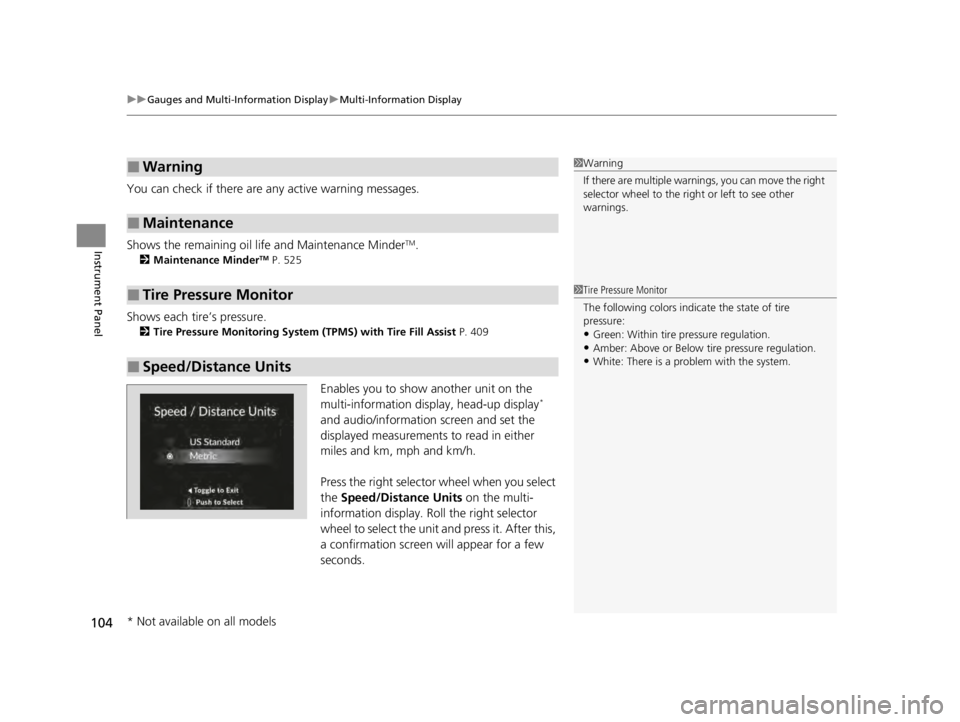
Enables you to show another unit on the
multi-information display, head-up display*
and audio/information screen and set the
displayed measurements to read in either
miles and km, mph and km/h.
Press the right selector wheel when you select
the Speed/Distance Units on the multi-
information display. Roll the right selector
wheel to select the unit and press it. After this,
a confirmation screen will appear for a few
seconds.
■Warning
■Maintenance
■Tire Pressure Monitor
■Speed/Distance Units
1 Warning
If there are multiple warnings, you can move the right
selector wheel to the right or left to see other
warnings.
1 Tire Pressure Monitor
The following colors indicate the state of tire
pressure:
•Green: Within tire pressure regulation.
•Amber: Above or Below tire pressure regulation.•White: There is a problem with the system.
* Not available on all models
22 ACURA TLX-31TGV6100.book 104 \b
Page 107 of 656
105
uuGauges and Multi-Information Display uMulti-Information Display
Continued
Instrument Panel
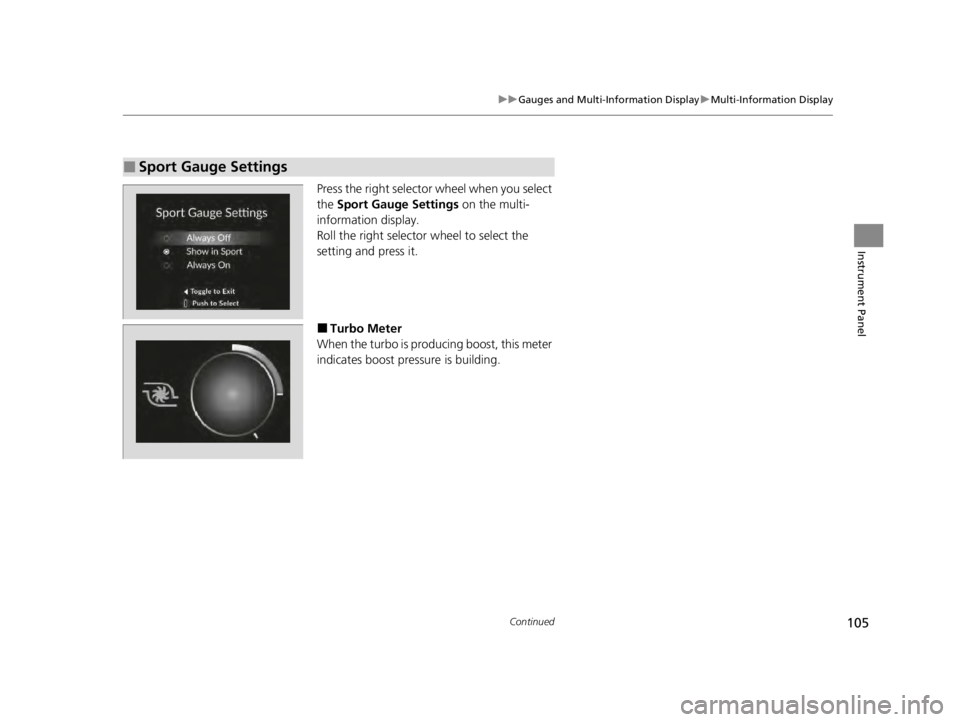
Press the right selector wheel when you select
the Sport Gauge Settings on the multi-
information display.
Roll the right selector wheel to select the
setting and press it.
■Turbo Meter
When the turbo is producing boost, this meter
indicates boost pressure is building.
■Sport Gauge Settings
22 ACURA TLX-31TGV6100.book 105 \b
Page 109 of 656
107
uuGauges and Multi-Information Display uMulti-Information Display
Continued
Instrument Panel
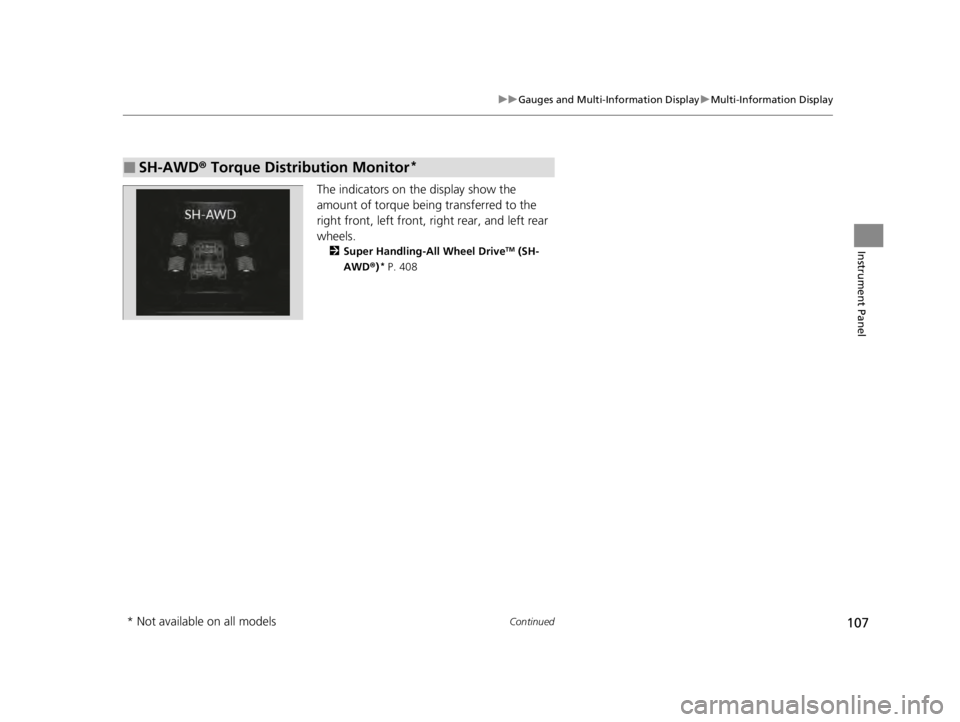
The indicators on the display show the
amount of torque being transferred to the
right front, left front, right rear, and left rear
wheels.
2 Super Handling-All Wheel DriveTM (SH-
AWD ®)* P. 408
■SH-AWD ® Torque Distribution Monitor*
* Not available on all models
22 ACURA TLX-31TGV6100.book 107 \b
Page 110 of 656
uuGauges and Multi-Information Display uMulti-Information Display
108
Instrument Panel
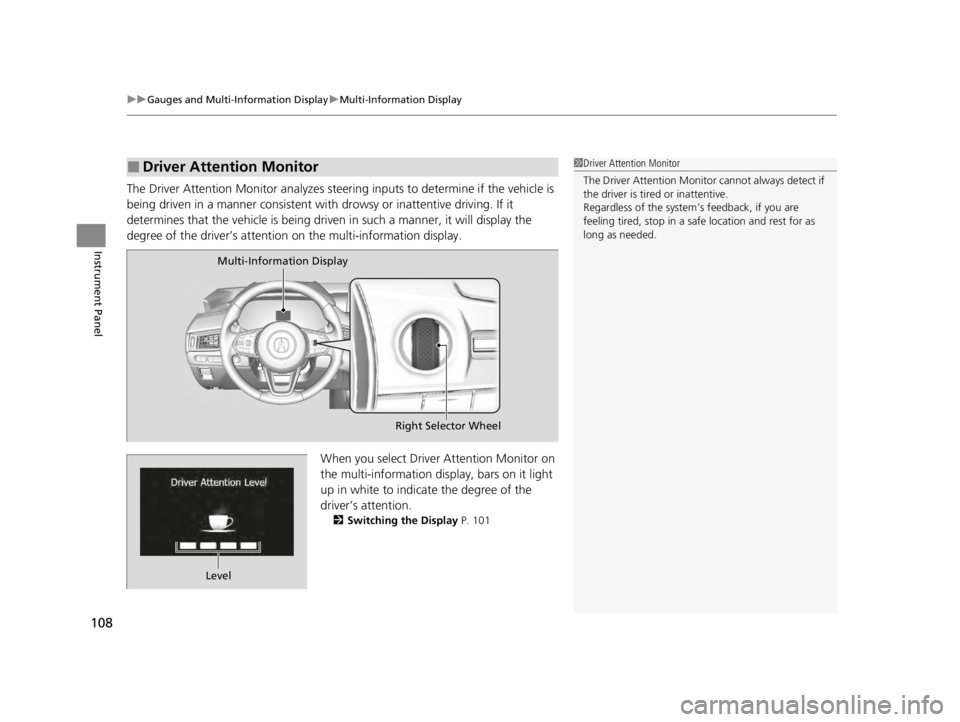
The Driver Attention Monitor analyzes steer ing inputs to determine if the vehicle is
being driven in a manner consistent with drowsy or inattentive driving. If it
determines that the vehicle is being driven in such a manner, it will display the
degree of the driver’s attention on the multi-information display.
When you select Driver Attention Monitor on
the multi-information display, bars on it light
up in white to indicate the degree of the
driver’s attention.
2Switching the Display P. 101
■Driver Attention Monitor1Driver Attention Monitor
The Driver Attenti on Monitor cannot always detect if
the driver is tired or inattentive.
Regardless of the system’s feedback, if you are
feeling tired, stop in a safe location and rest for as
long as needed.
Multi-Information Display
Right Selector Wheel
Level
22 ACURA TLX-31TGV6100.book 108 \b