steering Alfa Romeo Giulietta 2018 Owner's Guide
[x] Cancel search | Manufacturer: ALFA ROMEO, Model Year: 2018, Model line: Giulietta, Model: Alfa Romeo Giulietta 2018Pages: 216, PDF Size: 3.39 MB
Page 183 of 216
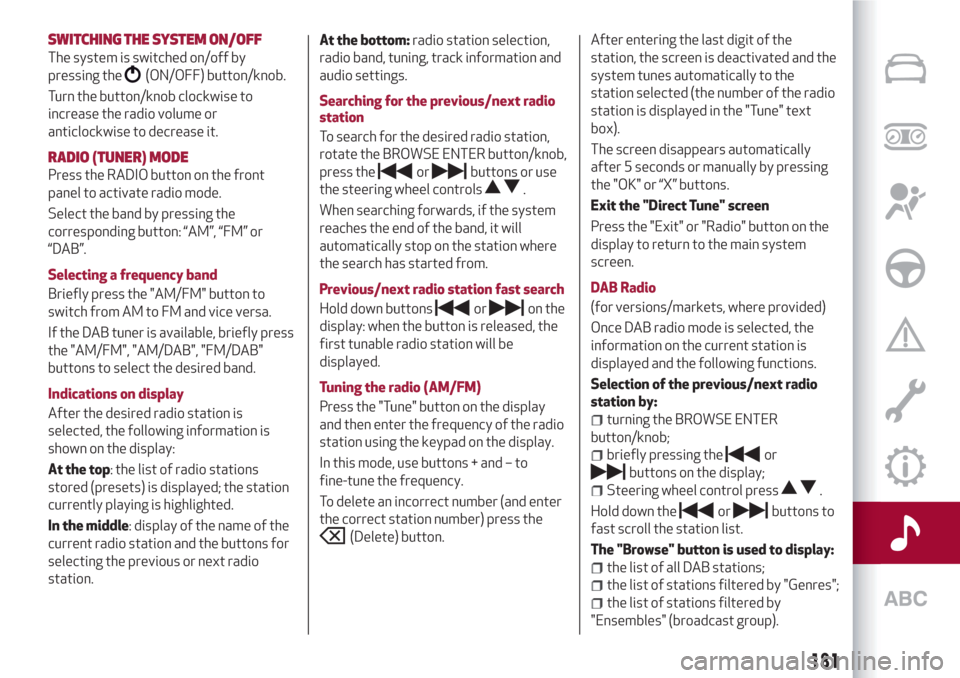
SWITCHING THESYSTEM ON/OFF
The system is switched on/off by
pressing the
(ON/OFF) button/knob.
Turn the button/knob clockwise to
increase the radio volume or
anticlockwise to decrease it.
RADIO (TUNER) MODE
Press the RADIO button on the front
panel to activate radio mode.
Select the band by pressing the
corresponding button: “AM”, “FM” or
“DAB”.
Selecting a frequency band
Briefly press the "AM/FM" button to
switch from AM to FM and vice versa.
If the DAB tuner is available, briefly press
the "AM/FM", "AM/DAB", "FM/DAB"
buttons to select the desired band.
Indications on display
After the desired radio station is
selected, the following information is
shown on the display:
At the top: the list of radio stations
stored (presets) is displayed; the station
currently playing is highlighted.
In the middle: display of the name of the
current radio station and the buttons for
selecting the previous or next radio
station.At the bottom:radio station selection,
radio band, tuning, track information and
audio settings.
Searching for the previous/next radio
station
To search for the desired radio station,
rotate the BROWSE ENTER button/knob,
press theorbuttons or use
the steering wheel controls
.
When searching forwards, if the system
reaches the end of the band, it will
automatically stop on the station where
the search has started from.
Previous/next radio station fast search
Hold down buttons
oron the
display: when the button is released, the
first tunable radio station will be
displayed.
Tuning the radio (AM/FM)
Press the "Tune" button on the display
and then enter the frequency of the radio
station using the keypad on the display.
In this mode, use buttons + and – to
fine-tune the frequency.
To delete an incorrect number (and enter
the correct station number) press the
(Delete) button.After entering the last digit of the
station, the screen is deactivated and the
system tunes automatically to the
station selected (the number of the radio
station is displayed in the "Tune" text
box).
The screen disappears automatically
after 5 seconds or manually by pressing
the "OK" or “X” buttons.
Exit the "Direct Tune" screen
Press the "Exit" or "Radio" button on the
display to return to the main system
screen.
DAB Radio
(for versions/markets, where provided)
Once DAB radio mode is selected, the
information on the current station is
displayed and the following functions.
Selection of the previous/next radio
station by:
turning the BROWSE ENTER
button/knob;
briefly pressing theor
buttons on the display;
Steering wheel control press.
Hold down the
orbuttons to
fast scroll the station list.
The "Browse" button is used to display:
the list of all DAB stations;
the list of stations filtered by "Genres";
the list of stations filtered by
"Ensembles" (broadcast group).
181
Page 184 of 216
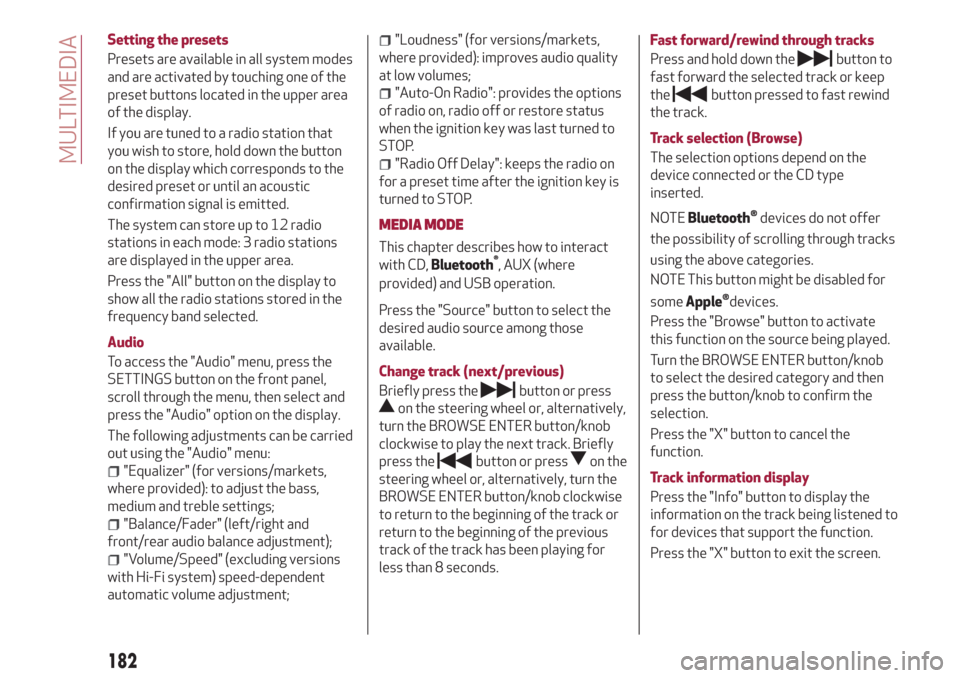
Setting the presets
Presets are available in all system modes
and are activated by touching one of the
preset buttons located in the upper area
of the display.
If you are tuned to a radio station that
you wish to store, hold down the button
on the display which corresponds to the
desired preset or until an acoustic
confirmation signal is emitted.
The system can store up to 12 radio
stations in each mode: 3 radio stations
are displayed in the upper area.
Press the "All" button on the display to
show all the radio stations stored in the
frequency band selected.
Audio
To access the "Audio" menu, press the
SETTINGS button on the front panel,
scroll through the menu, then select and
press the "Audio" option on the display.
The following adjustments can be carried
out using the "Audio" menu:
"Equalizer" (for versions/markets,
where provided): to adjust the bass,
medium and treble settings;
"Balance/Fader" (left/right and
front/rear audio balance adjustment);
"Volume/Speed" (excluding versions
with Hi-Fi system) speed-dependent
automatic volume adjustment;
"Loudness" (for versions/markets,
where provided): improves audio quality
at low volumes;
"Auto-On Radio": provides the options
of radio on, radio off or restore status
when the ignition key was last turned to
STOP.
"Radio Off Delay": keeps the radio on
for a preset time after the ignition key is
turned to STOP.
MEDIA MODE
Press the "Source" button to select the
desired audio source among those
available.
Change track (next/previous)
Briefly press the
button or press
on the steering wheel or, alternatively,
turn the BROWSE ENTER button/knob
clockwise to play the next track. Briefly
press the
button or presson the
steering wheel or, alternatively, turn the
BROWSE ENTER button/knob clockwise
to return to the beginning of the track or
return to the beginning of the previous
track of the track has been playing for
less than 8 seconds.Fast forward/rewind through tracks
Press and hold down the
button to
fast forward the selected track or keep
the
button pressed to fast rewind
the track.
Track selection (Browse)
The selection options depend on the
device connected or the CD type
inserted.
NOTE
Bluetooth®devices do not offer
the possibility of scrolling through tracks
using the above categories.
NOTE This button might be disabled for
some
Apple®devices.
Press the "Browse" button to activate
this function on the source being played.
Turn the BROWSE ENTER button/knob
to select the desired category and then
press the button/knob to confirm the
selection.
Press the "X" button to cancel the
function.
Track information display
Press the "Info" button to display the
information on the track being listened to
for devices that support the function.
Press the "X" button to exit the screen.
182
MULTIMEDIA
This chapter describes how to interact
with CD,
Bluetooth®
, AUX (where
provided) and USB operation.
Page 187 of 216
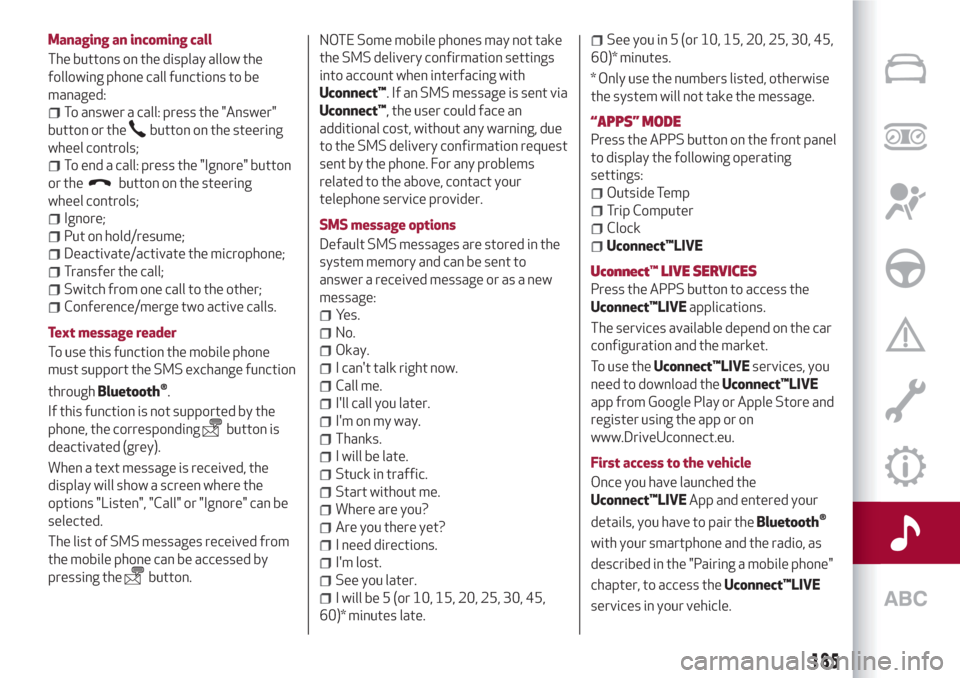
Managing an incoming call
The buttons on the display allow the
following phone call functions to be
managed:
To answer a call: press the "Answer"
button or the
button on the steering
wheel controls;
To end a call: press the "Ignore" button
or the
button on the steering
wheel controls;
Ignore;
Put on hold/resume;
Deactivate/activate the microphone;
Transfer the call;
Switch from one call to the other;
Conference/merge two active calls.
Text message reader
To use this function the mobile phone
must support the SMS exchange function
through
Bluetooth®.
If this function is not supported by the
phone, the corresponding
button is
deactivated (grey).
When a text message is received, the
display will show a screen where the
options "Listen", "Call" or "Ignore" can be
selected.
The list of SMS messages received from
the mobile phone can be accessed by
pressing the
button.NOTE Some mobile phones may not take
the SMS delivery confirmation settings
into account when interfacing with
Uconnect™. If an SMS message is sent via
Uconnect™, the user could face an
additional cost, without any warning, due
to the SMS delivery confirmation request
sent by the phone. For any problems
related to the above, contact your
telephone service provider.
SMS message options
Default SMS messages are stored in the
system memory and can be sent to
answer a received message or as a new
message:
Yes.
No.
Okay.
I can't talk right now.
Call me.
I'll call you later.
I'm on my way.
Thanks.
I will be late.
Stuck in traffic.
Start without me.
Where are you?
Are you there yet?
I need directions.
I'm lost.
See you later.
I will be 5 (or 10, 15, 20, 25, 30, 45,
60)* minutes late.
See you in 5 (or 10, 15, 20, 25, 30, 45,
60)* minutes.
* Only use the numbers listed, otherwise
the system will not take the message.
“APPS” MODE
Press the APPS button on the front panel
to display the following operating
settings:
Outside Temp
Trip Computer
Clock
Uconnect™LIVE
Uconnect™LIVE SERVICES
Press the APPS button to access the
Uconnect™LIVEapplications.
The services available depend on the car
configuration and the market.
To use theUconnect™LIVEservices, you
need to download theUconnect™LIVE
app from Google Play or Apple Store and
register using the app or on
www.DriveUconnect.eu.
First access to the vehicle
Once you have launched the
Uconnect™LIVEApp and entered your
details, you have to pair the
Bluetooth®
with your smartphone and the radio, as
described in the "Pairing a mobile phone"
chapter, to access theUconnect™LIVE
services in your vehicle.
185
Page 189 of 216
Radio
Restore Default Settings.
DRIVING MODE (DNA) INFORMATION
ACTIVATION
This function can be used to select
whether to show Alfa DNA messages
("ON") or not ("OFF") on the display.
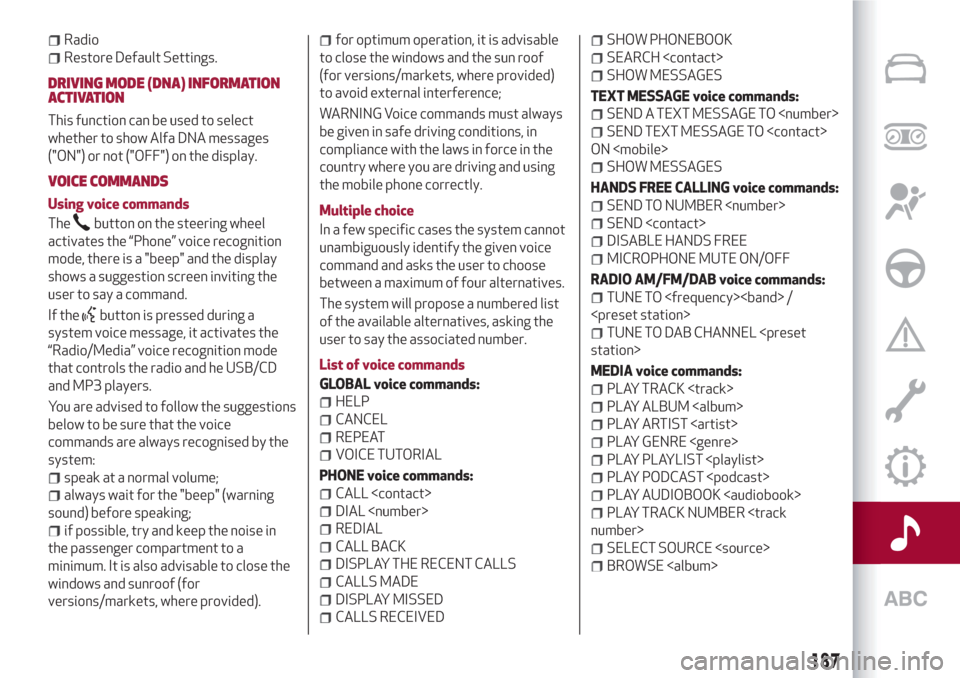
VOICE COMMANDS
Using voice commands
The
button on the steering wheel
activates the “Phone” voice recognition
mode, there is a "beep" and the display
shows a suggestion screen inviting the
user to say a command.
If the
button is pressed during a
system voice message, it activates the
“Radio/Media” voice recognition mode
that controls the radio and he USB/CD
and MP3 players.
You are advised to follow the suggestions
below to be sure that the voice
commands are always recognised by the
system:
speak at a normal volume;
always wait for the "beep" (warning
sound) before speaking;
if possible, try and keep the noise in
the passenger compartment to a
minimum. It is also advisable to close the
windows and sunroof (for
versions/markets, where provided).
for optimum operation, it is advisable
to close the windows and the sun roof
(for versions/markets, where provided)
to avoid external interference;
WARNING Voice commands must always
be given in safe driving conditions, in
compliance with the laws in force in the
country where you are driving and using
the mobile phone correctly.
Multiple choice
In a few specific cases the system cannot
unambiguously identify the given voice
command and asks the user to choose
between a maximum of four alternatives.
The system will propose a numbered list
of the available alternatives, asking the
user to say the associated number.
List of voice commands
GLOBAL voice commands:
HELP
CANCEL
REPEAT
VOICE TUTORIAL
PHONE voice commands:
CALL
DIAL
REDIAL
CALL BACK
DISPLAY THE RECENT CALLS
CALLS MADE
DISPLAY MISSED
CALLS RECEIVED
SHOW PHONEBOOK
SEARCH
SHOW MESSAGES
TEXT MESSAGE voice commands:
SEND A TEXT MESSAGE TO
SEND TEXT MESSAGE TO
ON
SHOW MESSAGES
HANDS FREE CALLING voice commands:
SEND TO NUMBER
SEND
DISABLE HANDS FREE
MICROPHONE MUTE ON/OFF
RADIO AM/FM/DAB voice commands:
TUNE TO
TUNE TO DAB CHANNEL
MEDIA voice commands:
PLAY TRACK
Page 193 of 216
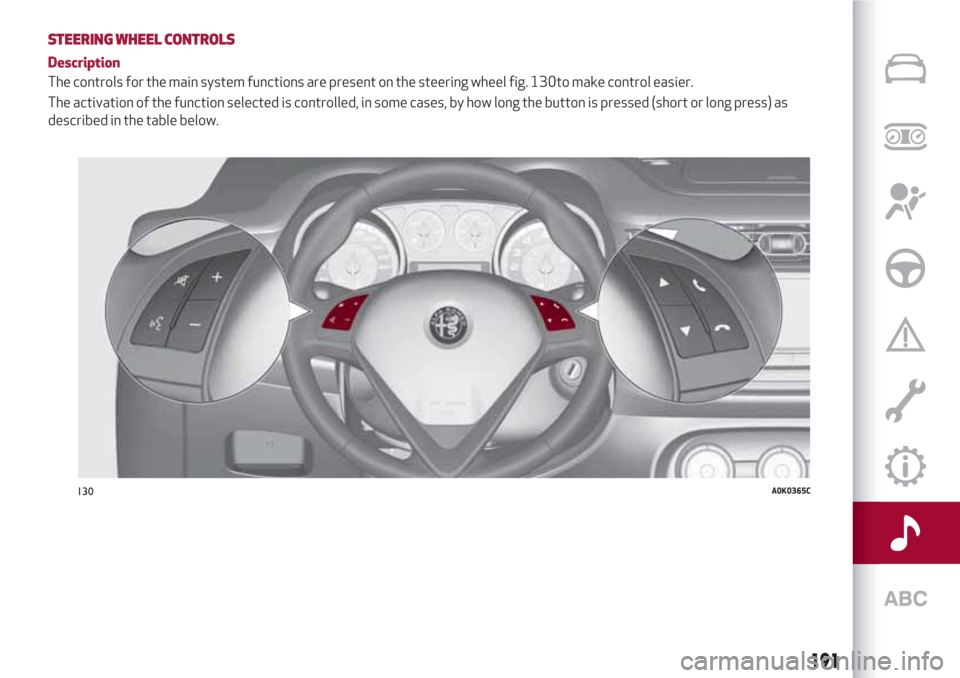
STEERING WHEEL CONTROLS
Description
The controls for the main system functions are present on the steering wheel fig. 130to make control easier.
The activation of the function selected is controlled, in some cases, by how long the button is pressed (short or long press) as
described in the table below.
130A0K0365C
191
Page 194 of 216
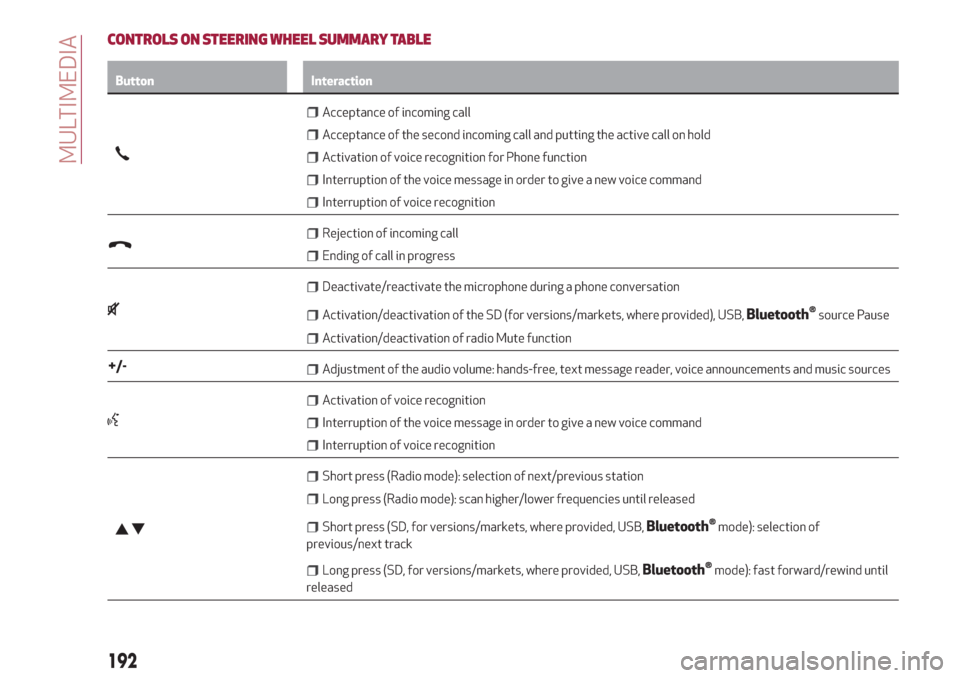
CONTROLS ON STEERING WHEEL SUMMARY TABLE
Button Interaction
Acceptance of incoming call
Acceptance of the second incoming call and putting the active call on hold
Activation of voice recognition for Phone function
Interruption of the voice message in order to give a new voice command
Interruption of voice recognition
Rejection of incoming call
Ending of call in progress
Deactivate/reactivate the microphone during a phone conversation
Activation/deactivation of the SD (for versions/markets, where provided), USB,Bluetooth®source Pause
Activation/deactivation of radio Mute function
+/-Adjustment of the audio volume: hands-free, text message reader, voice announcements and music sources
Activation of voice recognition
Interruption of the voice message in order to give a new voice command
Interruption of voice recognition
Short press (Radio mode): selection of next/previous station
Long press (Radio mode): scan higher/lower frequencies until released
Short press (SD, for versions/markets, where provided, USB,Bluetooth®mode): selection of
previous/next track
Long press (SD, for versions/markets, where provided, USB,Bluetooth®mode): fast forward/rewind until
released
192
MULTIMEDIA
Page 195 of 216
SWITCHING THESYSTEM ON/OFF
The system is switched on/off by
pressing the
(ON/OFF) button/knob.
Turn the button/knob clockwise to
increase the radio volume or
anticlockwise to decrease it.
RADIO (TUNER) MODE
Press the RADIO button on the front
panel to activate radio mode.
Selecting a frequency band
The various tuning modes can be
selected by touching the “AM”, “FM” and
“DAB” (for versions/markets where
provided) on the display.
Indications on display
After the desired radio station is
selected, the following information is
shown on the display:
At the top:display of the stored radio
station (preset) list. The station being
listened to is highlighted.
In the middle:display of the current
radio station’s name and the buttons for
selecting the band.
At the bottom:radio station selection,
tuning and audio settings.Searching for the previous/next radio
station
To search for the desired radio station,
rotate the BROWSE ENTER button/knob,
press the
orbuttons or use
the steering wheel controls
.
Previous/next radio station fast search
Hold down buttons
oron the
display: when the button is released, the
first tunable radio station will be
displayed.
Tuning the radio (AM/FM)
Press the “tune” button on the display and
then enter the frequency of the radio
station on the keyboard on the display.
In this mode, use buttons
andto
fine-tune the frequency.
To delete an incorrect number (and enter
the correct station number) press the
(Delete) button.
After the last digit of the station is
entered, the screen is deactivated and
the system tunes to the selected station
automatically.
The screen disappears automatically
after 5 seconds or manually by pressing
the "OK" or "X" (Delete) button.
Exit the "Direct Tune" screen
Press the “Exit” or “Radio” button on the
display to return to the system’s main
screen.DAB Radio
(for versions/markets, where provided)
Once DAB radio mode is selected, the
information on the current station is
displayed and the following functions.
Within each list, the "ABC" button allows
the user to skip to the desired letter in
the list.
The "Browse" button is used to display:
the list of all DAB stations;
the list of stations filtered by "Genres";
the list of stations filtered by
"Ensembles" (broadcast group).
Within each list, the "ABC" button allows
the user to skip to the desired letter in
the list.
Setting the presets
Presets are available in all system modes
and are activated by touching one of the
preset buttons located in the upper area
of the display.
If you are tuned to a radio station that
you wish to store, hold down the button
on the display which corresponds to the
desired preset or until an acoustic
confirmation signal is emitted.
The system can store up to 12 radio
stations in each mode: 4 radio stations
are displayed in the upper area.
Press the "browse" button on the display
to show all the radio stations stored in
the selected frequency band.
193
Page 198 of 216
NOTE After updating the phone software,
for proper operation, it is recommended
to remove the phone from the list of
devices linked to the radio, delete the
previous system pairing also from the list
of Bluetooth devices on the phone and
make a new pairing.
Transferring phone data (phonebook
and recent calls)
If your mobile phone has a function for
sending the phonebook via
Bluetooth®
technology.
Answer "Yes" when asked to copy the
phonebook to the system.
Answer "No" to carry out the operation
later on.
Making a phone call
The operations described below can only
be accessed if supported by the mobile
phone in use.
A call can be made by:
selecting theicon (mobile phone
phonebook);
selecting "Recent Calls";
selecting the icon(Keypad);
pressing the "Redial" button.Handling an incoming call
The buttons on the display allow the
following phone call functions to be
managed:
To answer a call: press the "Answer"
button or the
button on the steering
wheel controls;
To end a call: press the "Ignore" button
or the
button on the steering
wheel controls;
Ignore;
Put on hold/resume;
Deactivate/activate the microphone;
Transfer the call;
Switch from one call to the other;
Conference/merge two active calls.
Text message reader
To use this function the mobile phone
must support the SMS exchange function
throughBluetooth™.
If this function is not supported by the
phone, the corresponding
button is
deactivated (grey).
When a text message is received, the
display will show a screen where the
options "Listen", "Call" or "Ignore" can be
selected.
The list of SMS messages received from
the mobile phone can be accessed by
pressing the
button.NOTE Some mobile phones may not take
the SMS delivery confirmation settings
into account when interfacing with
Uconnect™. If an SMS message is sent via
Uconnect™, the user could face an
additional cost, without any warning, due
to the SMS delivery confirmation request
sent by the phone. For any problems
related to the above, contact your
telephone service provider.
Siri Eyes Free
Siri allows you to use your voice to send
text message, manage media sources,
phone calls and much more. You can keep
your eyes on the road and your hands on
the steering wheel, while using Siri to
perform other useful operations.
Press the
button on the steering wheel
(long press) to activate Siri. When you
hear a double beep you can begin to
interact with Siri.
NOTE the Siri enabled device must be
paired with theUconnect™system using
the pairing procedure (see the related
paragraph).
Speak clearly with a normal rhythm and
volume.
Siri is available on the iPhone 4S and
subsequent versions.
196
MULTIMEDIA
Page 202 of 216
my:Car
my:Car allows you to keep the "health" of
your vehicle always under control.
my:Car can detect malfunction in real
time and inform the user about the expiry
of the servicing interval. Press the
"my:Car" button to interact with the
application.
The display will show a screen with the
"care:Index" section, which provides all
the detailed information about the status
of the vehicle. Press the "Active
warnings" button to show (if present) the
details of the vehicle's faults which
caused a warning light to switch on.
SETTINGS
Press thebutton on the front panel to
display the main "Settings" menu
NOTE The menu items displayed vary
according to the versions.
Display;
DNA messages;
Clock
Safety & Driving Assist.
Lights;
Doors and Door lock;
Vehicle Shutdown Vehicle;
Audio;
Phone/Bluetooth;
Radio Setup;
System Information.
Restore Default Settings;
Clear personal data;
DRIVING MODE (DNA) INFORMATION
ACTIVATION
This function can be used to select
whether to show Alfa DNA messages
("ON") or not ("OFF") on the display.
VOICE COMMANDS
Using voice commands
The
button on the steering wheel
activates the “Phone” voice recognition
mode, there is a "beep" and the display
shows a suggestion screen inviting the
user to say a command.
If the
button is pressed during a
system voice message, it activates the
“Radio/Media” voice recognition mode
that controls the radio and the USB/SD
players (for versions/markets, where
provided).
You are advised to follow the suggestions
below to be sure that the voice
commands are always recognised by the
system:
speak at a normal volume;
always wait for the "beep" (warning
sound) before speaking;
if possible, try and keep the noise in
the passenger compartment to a
minimum. It is also advisable to close the
windows and sunroof (for
versions/markets, where provided).
for optimum operation, it is advisable
to close the windows and the sun roof
(for versions/markets, where provided)
to avoid external interference;
WARNING Voice commands must always
be given in safe driving conditions, in
compliance with the laws in force in the
country where you are driving and using
the mobile phone correctly.
Multiple choice
In a few specific cases the system cannot
unambiguously identify the given voice
command and asks the user to choose
between a maximum of four alternatives.
The system will propose a numbered list
of the available alternatives, asking the
user to say the associated number.
List of voice commands
GLOBAL voice commands:
HELP
CANCEL
REPEAT
VOICE TUTORIAL
PHONE voice commands:
CALL
DIAL
REDIAL
CALL BACK
DISPLAY THE RECENT CALLS
CALLS MADE
DISPLAY MISSED
CALLS RECEIVED
200
MULTIMEDIA
Page 211 of 216
INDEX
ABS system................60
Active safety systems...........60
AFS adaptive lights (Adaptive
Frontlight System)...........19
Air cleaner.................141
Alarm system................11
Alfa DNA system..............32
Alfa Romeo Code system.........10
ALFATCT..................85
Key removal..............121
ASR (AntiSlip Regulation) system....60
Automatic dual-zone climate
control system.............24
AUX source.............183 ,195
Battery..................142
Battery (recharging)...........140
Bluetooth®..............183 ,194
Bodywork
Boot.....................30
Brakes
brake fluid level............139
Carrying children safely.........68
CBC (Cornering Brake Control)
system..................61
Changing a wheel.............114Checking levels..............135
Cleaning and maintenance
Climate control system..........22
CO
2emissions..............172
Control buttons...............40
Control panel and on-board
instruments...............38
Reconfigurable multifunction
display..................38
Controlli
Front panel control summary
table..................190
Courtesy lights
Front ceiling light............20
Cruise Control...............91
Daytime running lights (DRL)......17
Diesel filter................141
Dimensions................158
Dipped headlights
Direction indicators............19
“Lane change” function........19Display....................40
Doors.....................11
Child safety device...........12
Door central locking/unlocking....11
DST system (Dynamic Steering
Torque)..................60
Dusk sensor . . ...............17
EBD system ................60
Electric sunroof..............28
Electric windows..............26
Controls.................26
Electronic Q2 system ("E-Q2") . .....61
Engine...................150
Engine bonnet . . .............29
Closing..................30
Opening.................29
Engine compartment
Engine oil
ESC (Electronic Stability Control)
system..................60
External courtesy lights..........19
External lights . . .............17
Advice for extending its life.....142
Replacement..............142
Maintenance..............144Bodywork...............144
Car interior...............145
Front headlights ............144
Leather parts..............145
Leather seats..............145
Plastic and coated parts.......145
Seats and fabric parts........145
Bulb replacement...........104Bulb replacement........104 ,105
Engine coolant level.........139
Marking . . ...............149
Washing . . ...............144
Consumption..............139
Level check...............139