Multimedia Alfa Romeo Stelvio 2019 Owner's Manual
[x] Cancel search | Manufacturer: ALFA ROMEO, Model Year: 2019, Model line: Stelvio, Model: Alfa Romeo Stelvio 2019Pages: 244, PDF Size: 4.95 MB
Page 9 of 244
KNOWING YOUR CAR
KNOWING THE INSTRUMENT PANEL
SAFETY
STARTING AND DRIVING
IN AN EMERGENCY
SERVICING AND CARE
TECHNICAL DATA
MULTIMEDIA
INDEX
Page 213 of 244
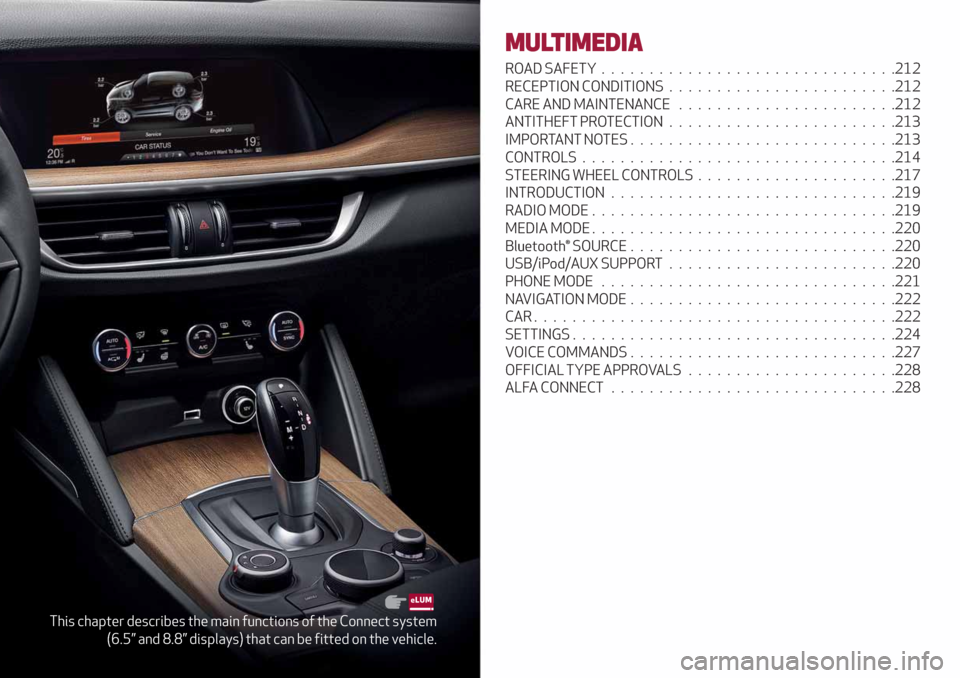
This chapter describes the main functions of the Connect system
(6.5” and 8.8” displays) that can be fitted on the vehicle.
MULTIMEDIA
ROAD SAFETY...............................212
RECEPTION CONDITIONS........................212
CARE AND MAINTENANCE.......................212
ANTITHEFT PROTECTION........................213
IMPORTANT NOTES............................213
CONTROLS.................................214
STEERING WHEEL CONTROLS.....................217
INTRODUCTION..............................219
RADIO MODE................................219
MEDIA MODE................................220
Bluetooth® SOURCE ............................220
USB/iPod/AUX SUPPORT........................220
PHONE MODE . ..............................221
NAVIGATION MODE............................222
CAR......................................222
SETTINGS..................................224
VOICE COMMANDS . . ..........................227
OFFICIAL TYPE APPROVALS......................228
ALFA CONNECT..............................228
Page 214 of 244
ROAD SAFETY
184) 185)
Learn how to use the various system
functions before setting off.
Read the instructions for the system
carefully before setting off.
RECEPTION CONDITIONS
(where provided)
Reception conditions change constantly
while driving. Reception may be
interfered with by the presence of
mountains, buildings or bridges,
especially when you are far away from
the broadcaster.
IMPORTANT The volume may be
adjusted when receiving traffic
information and news.
CARE AND MAINTENANCE
83) 84)
Observe the following precautions to
ensure the system is fully operational:
avoid hitting the display lens with
pointed or hard objects that could
damage its surface;
clean with a damp cloth (microfibre if
possible). If necessary, you can use a
delicate mild soap and water solution,
then dry with a soft, dry cloth. Do not
apply pressure to the display lens while
cleaning;
do not use alcohol, benzines and their
derivatives, ammonia, solvents or other
surfactants to clean the display lens;
prevent any liquid from entering the
system: this could damage it beyond
repair.
212
MULTIMEDIA
Page 216 of 244
CONTROLS
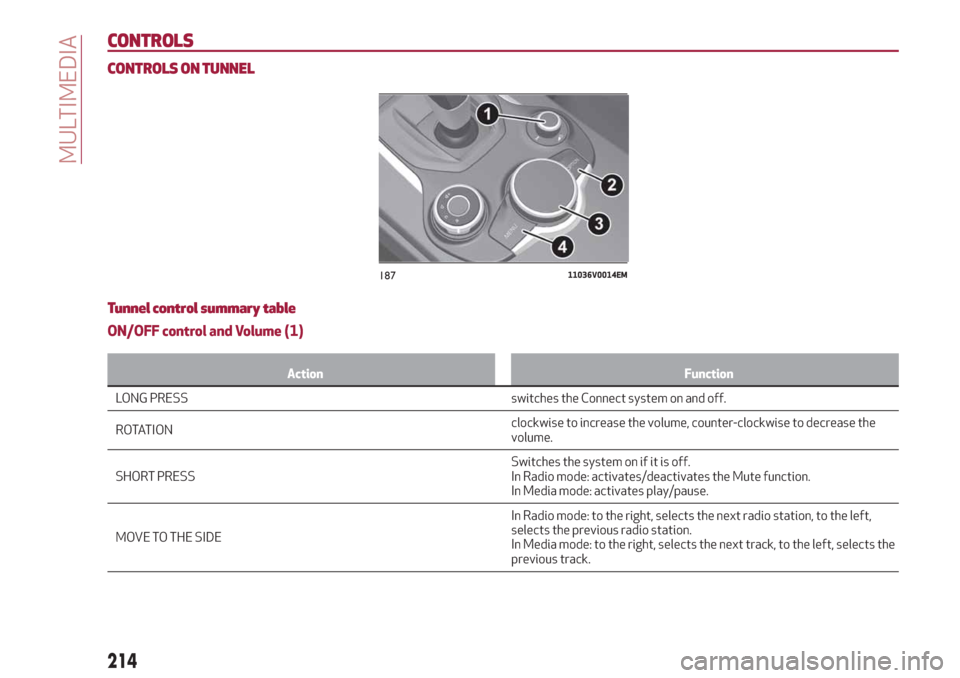
CONTROLS ON TUNNEL
Tunnel control summary table
ON/OFF control and Volume (1)
Action Function
LONG PRESS switches the Connect system on and off.
RO
TATIONclockwise to increase the volume, counter-clockwise to decrease the
volume.
SHORT PRESSSwitches the system on if it is off.
In Radio mode: activates/deactivates the Mute function.
In Media mode: activates play/pause.
MOVE TO THE SIDEIn Radio mode: to the right, selects the next radio station, to the left,
selects the previous radio station.
In Media mode: to the right, selects the next track, to the left, selects the
previous track.
18711036V0014EM
214
MULTIMEDIA
Page 218 of 244
TOUCHPAD controls
(where provided)
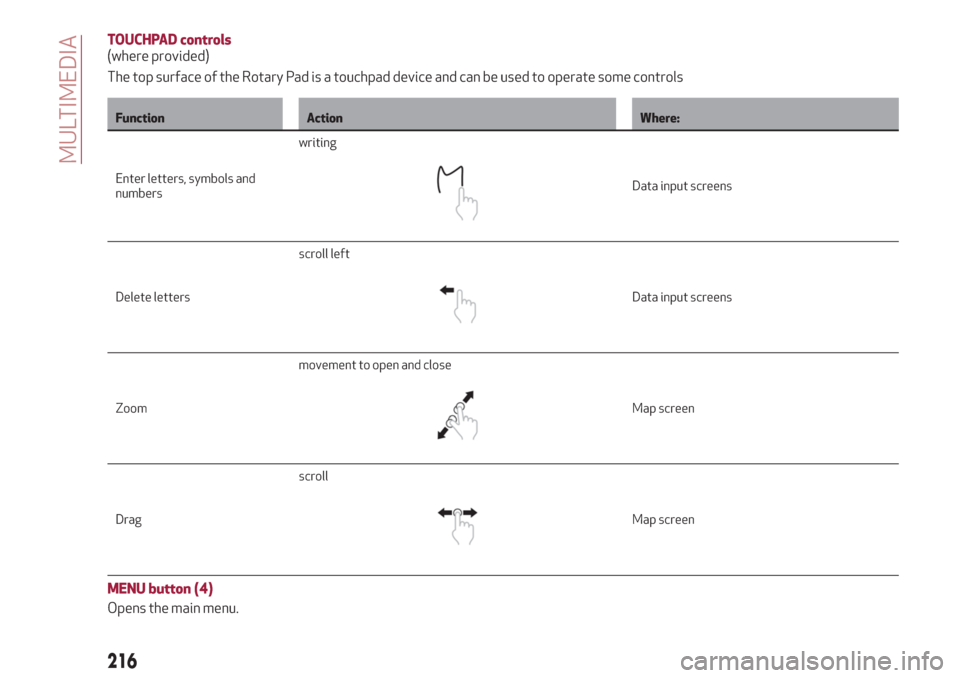
The top surface of the Rotary Pad is a touchpad device and can be used to operate some controls
Function Action Where:
Enter letters, symbols and
numberswriting
Data input screens
Delete lettersscroll left
Data input screens
Zoommovement to open and close
Map screen
Dragscroll
Map screen
MENU button (4)
Opens the main menu.
216
MULTIMEDIA
Page 220 of 244
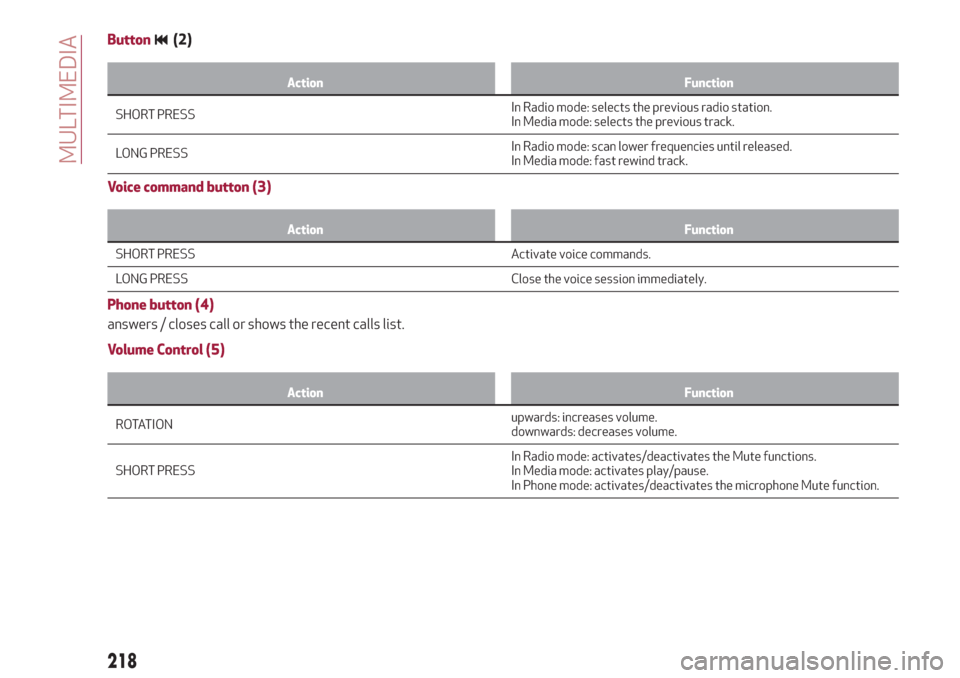
Button(2)
Action Function
SHORT PRESSInRadio mode: selects the previous radio station.
In Media mode: selects the previous track.
LONG PRESSIn Radio mode: scan lower frequencies until released.
In Media mode: fast rewind track.
Voice command button (3)
Action Function
SHORT PRESS Activate voice commands.
L
ONG PRESS Close the voice session immediately.
Phone button (4)
answers / closes call or shows the recent calls list.
Volume Control (5)
Action Function
ROTATIONupwards:increases volume.
downwards: decreases volume.
SHORT PRESSIn Radio mode: activates/deactivates the Mute functions.
In Media mode: activates play/pause.
In Phone mode: activates/deactivates the microphone Mute function.
218
MULTIMEDIA
Page 222 of 244
MEDIA MODE
IMPORTANT Applications used on
portable devices may be not compatible
with the Connect system.
Track selection (Browse)
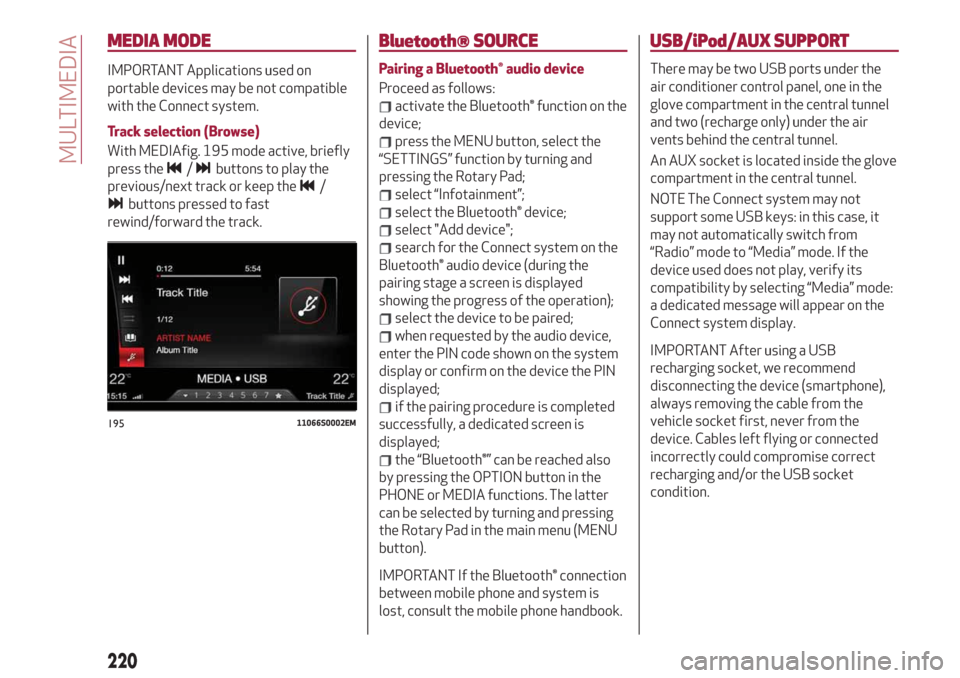
With MEDIAfig. 195 mode active, briefly
press the
/buttons to play the
previous/next track or keep the
/
buttons pressed to fast
rewind/forward the track.
Bluetooth® SOURCE
Pairing a Bluetooth® audio device
Proceed as follows:
activate the Bluetooth® function on the
device;
press the MENU button, select the
“SETTINGS” function by turning and
pressing the Rotary Pad;
select “Infotainment”;
select the Bluetooth® device;
select "Add device";
search for the Connect system on the
Bluetooth® audio device (during the
pairing stage a screen is displayed
showing the progress of the operation);
select the device to be paired;
when requested by the audio device,
enter the PIN code shown on the system
display or confirm on the device the PIN
displayed;
if the pairing procedure is completed
successfully, a dedicated screen is
displayed;
the “Bluetooth®” can be reached also
by pressing the OPTION button in the
PHONE or MEDIA functions. The latter
can be selected by turning and pressing
the Rotary Pad in the main menu (MENU
button).
IMPORTANT If the Bluetooth® connection
between mobile phone and system is
lost, consult the mobile phone handbook.
USB/iPod/AUX SUPPORT
There may be two USB ports under the
air conditioner control panel, one in the
glove compartment in the central tunnel
and two (recharge only) under the air
vents behind the central tunnel.
An AUX socket is located inside the glove
compartment in the central tunnel.
NOTE The Connect system may not
support some USB keys: in this case, it
may not automatically switch from
“Radio” mode to “Media” mode. If the
device used does not play, verify its
compatibility by selecting “Media” mode:
a dedicated message will appear on the
Connect system display.
IMPORTANT After using a USB
recharging socket, we recommend
disconnecting the device (smartphone),
always removing the cable from the
vehicle socket first, never from the
device. Cables left flying or connected
incorrectly could compromise correct
recharging and/or the USB socket
condition.
19511066S0002EM
220
MULTIMEDIA
Page 224 of 244
NAVIGATION MODE
(where provided)
IMPORTANT In the interest of safety and
to reduce distractions while you are
driving, you should always plan a route
before you start driving.
To plan a route, do the following:
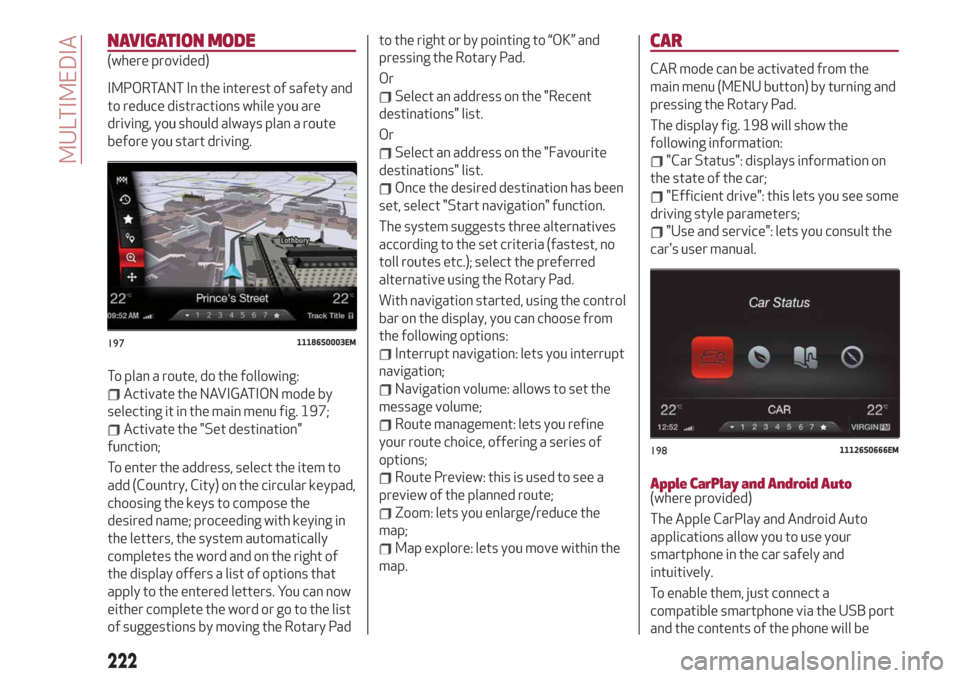
Activate the NAVIGATION mode by
selecting it in the main menu fig. 197;
Activate the "Set destination"
function;
To enter the address, select the item to
add (Country, City) on the circular keypad,
choosing the keys to compose the
desired name; proceeding with keying in
the letters, the system automatically
completes the word and on the right of
the display offers a list of options that
apply to the entered letters. You can now
either complete the word or go to the list
of suggestions by moving the Rotary Padto the right or by pointing to “OK” and
pressing the Rotary Pad.
Or
Select an address on the "Recent
destinations" list.
Or
Select an address on the "Favourite
destinations" list.
Once the desired destination has been
set, select "Start navigation" function.
The system suggests three alternatives
according to the set criteria (fastest, no
toll routes etc.); select the preferred
alternative using the Rotary Pad.
With navigation started, using the control
bar on the display, you can choose from
the following options:
Interrupt navigation: lets you interrupt
navigation;
Navigation volume: allows to set the
message volume;
Route management: lets you refine
your route choice, offering a series of
options;
Route Preview: this is used to see a
preview of the planned route;
Zoom: lets you enlarge/reduce the
map;
Map explore: lets you move within the
map.
CAR
CAR mode can be activated from the
main menu (MENU button) by turning and
pressing the Rotary Pad.
The display fig. 198 will show the
following information:
"Car Status": displays information on
the state of the car;
"Efficient drive": this lets you see some
driving style parameters;
"Use and service": lets you consult the
car's user manual.
Apple CarPlay and Android Auto(where provided)
The Apple CarPlay and Android Auto
applications allow you to use your
smartphone in the car safely and
intuitively.
To enable them, just connect a
compatible smartphone via the USB port
and the contents of the phone will be
19711186S0003EM
19811126S0666EM
222
MULTIMEDIA
Page 225 of 244
automatically shown on the Connect
system display.
To check the compatibility of your
smartphone, see the indications on the
websites:
https://www.android.com/intl/it_it/auto/
and http://www.apple.com/it/ios/
carplay/.
If the smartphone is connected correctly
to the car via the USB port, the Apple
CarPlay or Android Auto icon will be
displayed in the main menu.
NOTE Interaction with the smartphone
may be needed to enable Apple
Carplay/Android Auto and some other
functions. Complete the action on your
device (smartphone) as needed.
To use Apple CarPlay, connect your
iPhone to the car using a MFI (made for
iPhone) certified USB cable. To use
Android Auto, connect your smartphone
to the car using a USB for Android phones
having appropriate features. Using
unsuitable cables may prevent correct
system operation.Apple CarPlay App Setup
Apple CarPlay is compatible with the
iPhone 5 or more recent models, with the
iOS 7.1 operating system or later
versions.
Before using Apple CarPlay, enable Siri
from the settings on your smartphone.
To use Apple CarPlay, the smartphone
must be connected to the car with a USB
cable.
Android Auto APP Setup
Before use, download the Android Auto
application to your smartphone from
Google Play Store.
The application is compatible with
Android 5.0 (Lollipop) and later versions.
To use Android Auto, the smartphone
must be connected to the car with a USB
cable.
Interaction
After the setup procedure, on connecting
your smartphone to the car's USB port,
the application will automatically run on
the Connect system.
The Rotary Pad can be used to select and
confirm the available smartphone
functions.
You can interact with the Apple CarPlay
and Android Auto voice assistants using
the control on the steering wheel (long
press of the
button to start theinteraction and short press to close the
voice assistant).
The Telephone application of the
smartphone can be accessed directly
using the control on the steering wheel
.
Multimedia contents on the smartphone
can be accessed directly via “MEDIA”
mode of Connect.
Navigation
With the Apple CarPlay and Android Auto
applications, the user can choose to use
the navigation system on their
smartphone.
Exiting from the Apple CarPlay and
Android Auto apps
To end the Apple CarPlay or Android Auto
session, physically disconnect the
smartphone from the USB port.
223
Page 226 of 244
SETTINGS
To access the user-programmable
functions, open the main menu by
pressing the MENU button, then select
SETTINGS by turning and pressing the
Rotary Pad.
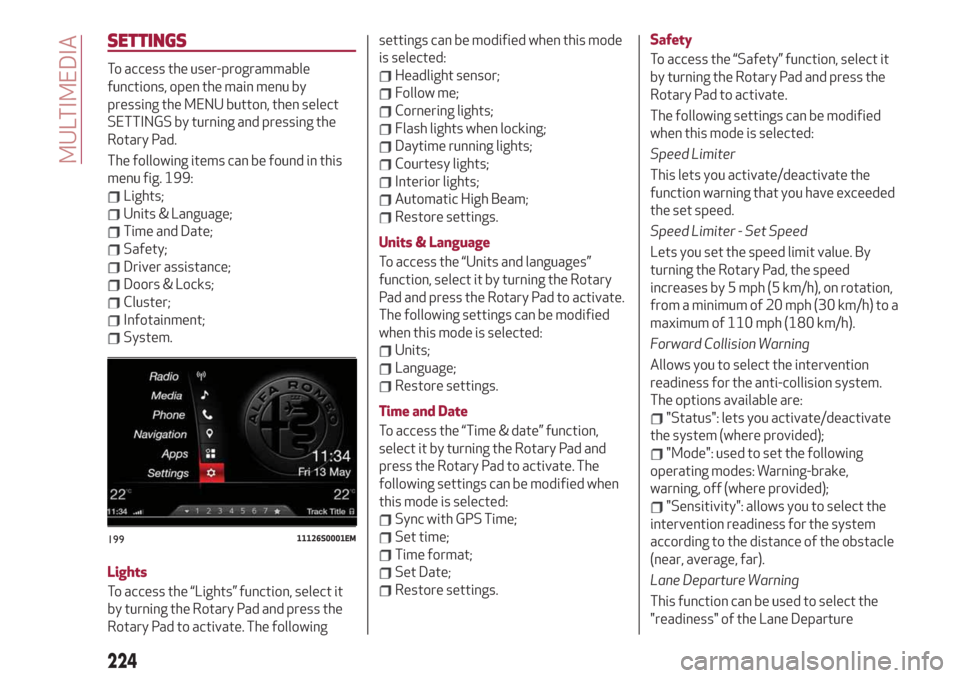
The following items can be found in this
menu fig. 199:
Lights;
Units & Language;
Time and Date;
Safety;
Driver assistance;
Doors & Locks;
Cluster;
Infotainment;
System.
Lights
To access the “Lights” function, select it
by turning the Rotary Pad and press the
Rotary Pad to activate. The followingsettings can be modified when this mode
is selected:
Headlight sensor;
Follow me;
Cornering lights;
Flash lights when locking;
Daytime running lights;
Courtesy lights;
Interior lights;
Automatic High Beam;
Restore settings.
Units & Language
To access the “Units and languages”
function, select it by turning the Rotary
Pad and press the Rotary Pad to activate.
The following settings can be modified
when this mode is selected:
Units;
Language;
Restore settings.
Time and Date
To access the “Time & date” function,
select it by turning the Rotary Pad and
press the Rotary Pad to activate. The
following settings can be modified when
this mode is selected:
Sync with GPS Time;
Set time;
Time format;
Set Date;
Restore settings.Safety
To access the “Safety” function, select it
by turning the Rotary Pad and press the
Rotary Pad to activate.
The following settings can be modified
when this mode is selected:
Speed Limiter
This lets you activate/deactivate the
function warning that you have exceeded
the set speed.
Speed Limiter - Set Speed
Lets you set the speed limit value. By
turning the Rotary Pad, the speed
increases by 5 mph (5 km/h), on rotation,
from a minimum of 20 mph (30 km/h) to a
maximum of 110 mph (180 km/h).
Forward Collision Warning
Allows you to select the intervention
readiness for the anti-collision system.
The options available are:
"Status": lets you activate/deactivate
the system (where provided);
"Mode": used to set the following
operating modes: Warning-brake,
warning, off (where provided);
"Sensitivity": allows you to select the
intervention readiness for the system
according to the distance of the obstacle
(near, average, far).
Lane Departure Warning
This function can be used to select the
"readiness" of the Lane Departure
19911126S0001EM
224
MULTIMEDIA