radio AUDI A3 2020 Owner´s Manual
[x] Cancel search | Manufacturer: AUDI, Model Year: 2020, Model line: A3, Model: AUDI A3 2020Pages: 400, PDF Size: 107.47 MB
Page 212 of 400

Radio
Station names (FM)
Variable: scrolling text transmitted by the FM
stations is shown in the Infotainment system dis-
play.
Fixed: scrolling text transmitted by the FM sta-
tions is not shown in the Infotainment system
display. Only the current section of the scrolling
text is displayed.
FM/AM HD Radio*
You can switch HD Radio reception on or off.
Channel sorting (SiriusXM*)
You can set the channel sorting for SiriusXM sta-
tion lists* by:
— Channel number: the channels are sorted in as-
cending order according to their channel num-
ber.
— Channel name: the channels are listed in alpha-
betical order.
— First category, then channel number: the chan-
nels are sorted by their category and then by
their channel numbers.
— First category, then channel name: the sta-
tions are sorted by their category and then by
their channel names.
Category filter (SiriusXM*)
The stations shown in the station list can be fil-
tered by your personal preferences and by pro-
gram type. The program categories that you can
select depend on what is offered by your provid-
er. Select the All categories option to deactivate
all filter options and display all available stations
in the satellite station list.
Troubleshooting
Show "Now Playing" screen
When the function is switched on ¥ and the sta-
tions or presets list is open, the display will
switch to the Show "Now Playing" screen view
after approximately five seconds > page 208. De-
pending on availability, information about the set
station (such as station name, artist and station
logo) may be displayed in this view.
Preferred picture view*
You can set your preferred screen view for the
Show "Now Playing" screen > page 208.
— Station logo: the station logo is displayed, de-
pending on availability.
— Cover art: the album cover is displayed if availa-
ble.
Gracenote online database*
Requirement: the MMI must be connected to the
Internet. The Cover art option must be selected
= page 210, Preferred picture view*.
When the function is switched on (¥, the album
cover or genre cover for the song that is playing is
loaded from the Gracenote online database, de-
pending on availability.
Subscription status (SiriusXM)*
This option is available when your subscription is
about to expire or has already expired. The expi-
ration date for your license is displayed.
Call to SiriusXM”*: the contact information for
your satellite radio provider is displayed. To call
your satellite radio provider using the MMI, press
Call to SiriusXM”*.
Problem Solution
A station with poor reception is no longer
displayed in the station list once you
switch to a different station.
Store the station as a preset in advance. Access the pre-
sets using the presets list > page 209.
210
Page 217 of 400

8V2012721BK
Media
Requirement: the Wi-Fi function on your media
player must be switched on. The myAudi app or a
UPnP server app is installed on your media play-
er, or your media player has an integrated UPnP/
DLNA server.
— Connecting a media player: press the [MEDIA
button. Press the left control button until the
sources overview > page 219 is displayed. Se-
lect and confirm Wi-Fi audio player 7)
=> page 219, fig. 192.
— If necessary, select and confirm Wi-Fi turned
off > Turn on Wi-Fi to activate Wi-Fi in the
MMI. Select Wi-Fi settings, if necessary. Select
the same settings on the wireless media player
that are used for the Wi-Fi hotspot.
— Starting the Wi-Fi audio player: start the
myAudi app or a UPnP server app, or set media
permissions on your media player.
Operating the media player: the media player is
operated through the MMI.
— Press the left control button repeatedly until
the Folders menu item appears. Select and con-
firm
Folders.
— Playing music from the media player: select
and confirm Media center.
Web radio: see > page 215.
ZA\ WARNING
— As the driver, do not allow usage of the Wi-
Fi hotspot to distract you from driving, as
this could increase the risk of an accident.
—To reduce the risk of an accident, only use
Audi connect services and the Wi-Fi hotspot
only if the traffic situation permits it. Read
and follow the guidelines provided in
=> page 146, Traffic safety information.
— It is only safe to use tablets, laptops, mobile
devices and other similar devices when the
vehicle is stationary because, like all loose
objects, they could be thrown around the in-
side of the vehicle in a crash and cause seri-
ous injuries. Store these types of devices se-
curely while driving. Also read the warnings
in the chapter > page 257, Front airbags.
CG) Note
Always follow the information found in >@ in
General information on page 182.
@) Tips
— Always read the chapter > page 182, Audi
connect.
— Please note that a Wi-Fi connection does
not automatically make it possible to use
the Internet. For additional information,
see > page 182.
—To avoid interruptions during playback, de-
activate the power saving function on the
media player or connect it to a charger.
—The loading times for the audio data depend
on the media player used and the number of
files
that it contains.
—A maximum of 2,000 entries per directory
are displayed in the MMI.
— Songs downloaded for offline use using mu-
sic streaming services are stored on your
mobile device (such as a smartphone) and
may be DRM protected. The Wi-Fi audio
player will not play DRM protected files.
— Contact an authorized Audi dealer or au-
thorized Audi Service Facility for additional
information on the Wi-Fi audio player.
Online media and
Internet radio
Applies to: vehicles with Audi connect Infotainment
sh
Fig. 189 Infotainment system: online media
You can playback and operate various online me-
dia services and Internet radio using the MMI.
> Press the [MEDIA] button. Press the left control
button until the sources overview > fig. 189 is
displayed.
215
>
Page 218 of 400
Media
Applies to: online media and Internet radio usage
Requirement:
— The myAudi app must be installed and open on
your mobile device.
— You must be logged in to your myAudi account
in the myAudi app and you must have selected
your vehicle.
— The Wi-Fi function on the mobile device and on
the MMI must be switched on.
— If necessary, check in the connection manager
=> page 231 if the mobile device you connected
is selected under the MMI connect app (™).
—The MMI must be connected to the network.
— The symbol for the Online media source (@ is
shown in the MMI.
Applies to: online media usage
Additional requirement:
— A supported online media service must be avail-
able in the country where the vehicle is being
operated.
— You must have an account with a supported on-
line media service.
— Depending on the online media service, you
may need to install and open an app on your
mobile device.
Starting Online media
— Press the [MEDIA] button. Press the left control
button until the sources overview > page 219 is
displayed.
— Select and confirm an online media service.
Starting Internet radio
— Press the [MEDIA] button. Press the left control
button until the sources overview > page 219 is
displayed.
— Select and confirm Internet radio. The Internet
radio browser or the last station that was play-
ing is shown.
— Selecting the station: if necessary, select and
confirm a category in the Internet radio Brows-
er > a station.
Online media and Internet radio: additional op-
tions
— Press the right control button.
216
The following options may be available, depend-
ing on the information shown (such as the sta-
tion/track that is currently playing):
— Sound settings: see > page 234.
— Wi-Fi settings: see > page 187, Wi-Fi settings.
— Connection manager: see > page 231.
— Additional options may be available, depending
on the active online media service or Internet
radio.
ZA WARNING
—To reduce the risk of an accident, only use
Audi connect services and the Wi-Fi hotspot
only if the traffic situation permits it. Read
and follow the guidelines provided in
=> page 146, Traffic safety information.
— It is only safe to use tablets, laptops, mobile
devices and other similar devices when the
vehicle is stationary because, like all loose
objects, they could be thrown around the in-
side of the vehicle in a crash and cause seri-
ous injuries. Store these types of devices se-
curely while driving. Also read the warnings
in the chapter > page 257, Front airbags.
@) Note
— Always follow the information found in >®
in General information on page 182.
— There generally are additional costs when
using an online media service account, espe
cially when it is used internationally.
(i) Tips
— Depending on the Internet connection and
network traffic, the connection may discon-
nected when online media sources are play-
ing.
— Online media and Internet radio usage de-
pends on the service availability of the third
party provider.
— Audi AG simply makes the access to online
media services possible through the MMI
and does not take any responsibility for the
contents of the online media services.
— Always read the chapter > page 182, Audi
connect.
Page 222 of 400

Media
© Bluetooth audio player* ........ 214
@ Wi-Fi audio player* ............ 214
Online media* and Internet radio” . 215
— Playing audio/video files: select a source in the
Media menu > category (such as artists > al-
bum > track).
— Moving one level up in the folder structure:
press the [BACK] button, or select and confirm
Folder up.
— Selecting the previous or next track/chap-
ter*)): press the On/Off knob on the MMI con-
trol panel briefly to the left Kd or right Pe.
— Fast-forwarding and rewinding audio/video*
files: press and hold the On/Off knob on the
MMI control panel to the left Kd or right Pol for
a longer time.
— Pausing or resuming playback: press the
On/Off knob on the MMI control panel briefly.
@ Tips
— You can scroll through long lists quickly by
turning the control knob quickly. The scroll-
ing speed depends on the number of list en-
tries.
— For safety reasons, the video image is only
displayed when the vehicle is stationary. On-
ly the sound from the video plays while driv-
ing.
Fig. 193 Infotainment system: USB flash drive categories
)) Depending on the DVD, this may not be possible during
playback.
220
Track
Folders Oa
Se aaeytses
Videos
Fig. 194 Infotainment system: USB flash drive categories
Various categories for selecting audio/video” files
are available in the media center.
> Press the [MEDIA] button. Press the left control
button until the sources overview is displayed.
Select and confirm the desired source.
@ Active source
The active source is highlighted. The active
source symbol @) may change depending on the
connected device, the online media service* or
Internet radio*. The device name may be dis-
played (for example: myPhone). As an example, a
USB stick is shown > fig. 193 connected to the
Audi music interface*.
Depending on the active source, you can select
audio/video files* from the following categories
and add them to the playlist:
@ Favorites
The Favorites category appears if at least one en-
try is stored in the favorites list. > page 222.
@ Artists
All available artists are displayed. Select and con-
firm
an artist, an album and then a track.
@ Albums
All available albums are displayed. Select and
confirm an album and then a track.
© Genres
All available genres are displayed. Select and con-
firm
a genre (such as Pop), an artist, an album
and then a song.
Page 229 of 400
8V2012721BK
Media
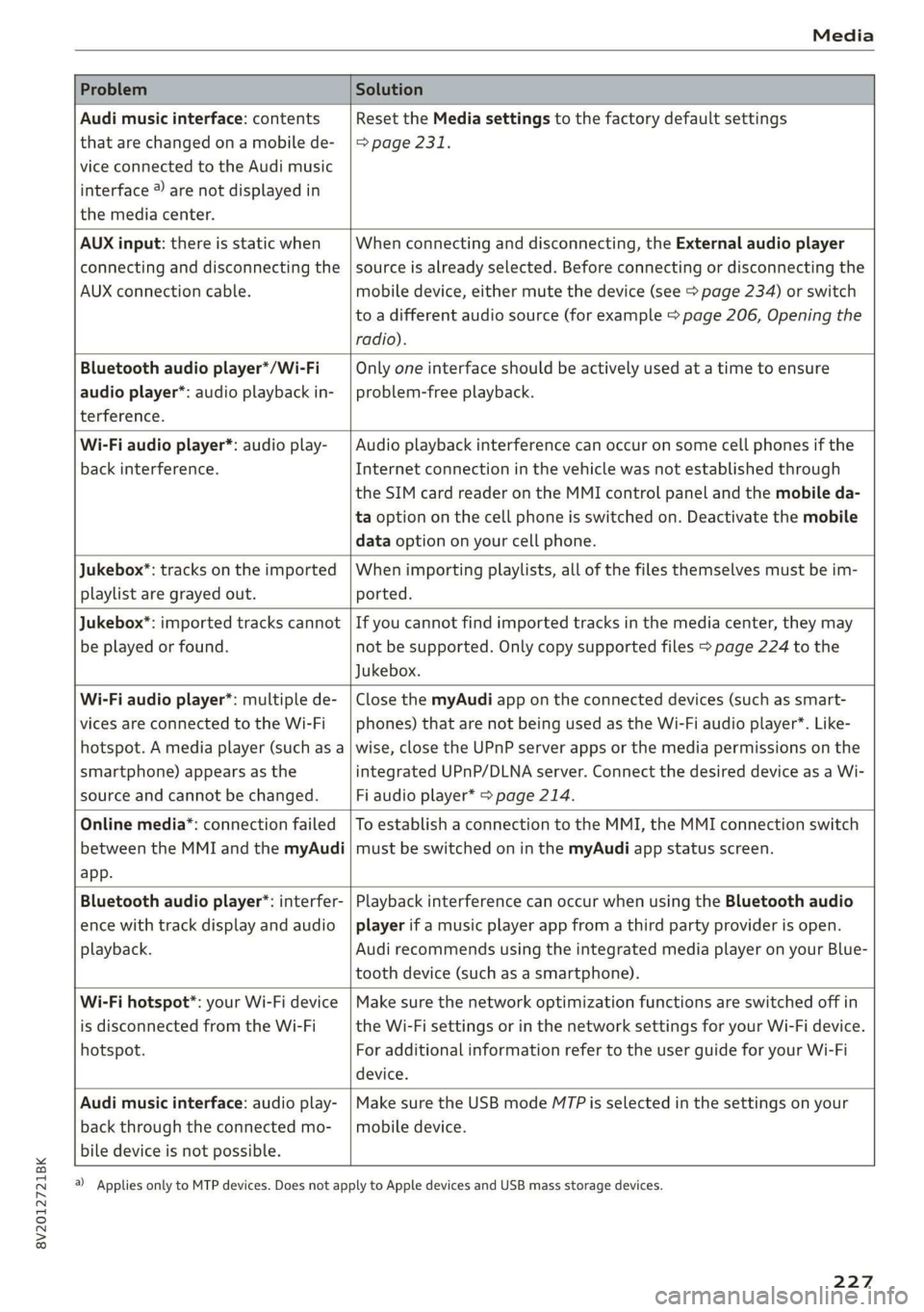
Problem Solution
Audi music interface: contents
that are changed on a mobile de-
vice connected to the Audi music
interface ®) are not displayed in
the media center.
Reset the Media settings to the factory default settings
=> page 231.
AUX input: there is static when
connecting and disconnecting the
AUX connection cable.
When connecting and disconnecting, the External audio player
source is already selected. Before connecting or disconnecting the
mobile device, either mute the device (see > page 234) or switch
to a different audio source (for example > page 206, Opening the
radio).
Bluetooth audio player*/Wi-Fi
audio player*: audio playback in-
terference.
Only one interface should be actively used at a time to ensure
problem-free playback.
Wi-Fi audio player*: audio play-
back interference.
Audio playback interference can occur on some cell phones if the
Internet connection in the vehicle was not established through
the SIM card reader on the MMI control panel and the mobile da-
ta option on the cell phone is switched on. Deactivate the mobile
data option on your cell phone.
Jukebox”: tracks on the imported
playlist are grayed out.
When importing playlists, all of the files themselves must be im-
ported.
Jukebox*: imported tracks cannot
be played or found.
If you cannot find imported tracks in the media center, they may
not be supported. Only copy supported files > page 224 to the
Jukebox.
Wi-Fi audio player*: multiple de-
vices are connected to the Wi-Fi
hotspot. A media player (such as a
smartphone) appears as the
source and cannot be changed.
Close the myAudi app on the connected devices (such as smart-
phones) that are not being used as the Wi-Fi audio player*. Like-
wise, close the UPnP server apps or the media permissions on the
integrated UPnP/DLNA server. Connect the desired device as a Wi-
Fi audio player* > page 214.
Online media*: connection failed
between the MMI and the myAudi
app.
To establish a connection to the MMI, the MMI connection switch
must be switched on in the myAudi app status screen.
Bluetooth audio player*: interfer-
ence with track display and audio
playback.
Playback interference can occur when using the Bluetooth audio
player if a music player app from a third party provider is open.
Audi recommends using the integrated media player on your Blue-
tooth device (such as a smartphone).
Wi-Fi hotspot*: your Wi-Fi device
is disconnected from the Wi-Fi
hotspot.
Make sure the network optimization functions are switched off in
the Wi-Fi settings or in the network settings for your Wi-Fi device.
For additional information refer to the user guide for your Wi-Fi
device.
Audi music interface: audio play-
back through the connected mo-
bile device is not possible.
Make sure the USB mode MTP is selected in the settings on your
mobile device.
a) Applies only to MTP devices. Does not apply to Apple devices and USB mass storage devices.
227
Page 233 of 400

8V2012721BK
System settings
Switch off pop-up: when the function is switched
on [M, the messages in the Infotainment system
display regarding the charging status of your cell
phone in the Audi phone box are hidden. The re-
minder not to forget your cell phone when leav-
ing the vehicle is also switched off.
Tool tips
When this function is switched on M, your MMI
shows you tips for input. The frequency of how
often it displays decreases with time.
Speech dialog system
Applies to: vehicles with voice recognition system
Depending on vehicle equipment, the following
functions
may be available:
Command display: when this function is switch-
ed on [M, the MMI will show you the possible
commands for voice input in the respective
menu.
Short dialog: when this function is switched on
, a shorter form of the prompts is used.
Command during voice output: this function is
switched on at the factory. When this function is
switched on M, you can say new commands dur-
ing announcements. You do not need to wait for
the signal tone (beep) during an announcement.
When the function is switched off (J, you need to
wait for the signal tone (beep) to say a new com-
mand.
Volume: you can adjust the volume of the
prompts by turning the control knob.
Individual speech training (only when the vehi-
cle is stationary): you can adapt the voice recog-
nition system to your voice or pronunciation in or-
der to improve the system's ability to recognize
your speech. Individual speech training is com-
prised of 20 speech entries that consist of com-
mands and sequences of numbers. You can de-
lete the programmed voice training with the Re-
set individual speech training function.
Display brightness
You can adjust the brightness of the Infotain-
ment system display by turning the control knob.
Factory settings
Depending on the vehicle equipment, the follow-
ing functions can be reset to factory settings:
— Sound settings
— Radio
— Media settings
— Jukebox
— Directory
— Telephone
— Bluetooth and Wi-Fi
— Navigation settings
— Navigation and online memory
— Speech dialog system
— Message settings
— Apps
—Tool tips
— Audi connect
— Audi smartphone interface
You can select the desired functions individually
or all at once with the option Select all entries.
Select and confirm Restore factory settings.
@ Tips
Make sure that not only the settings were de-
leted but also the stored data, if necessary.
Connection manager
Introduction
The connection manager provides an overview of
your connected devices and their network status:
> Select: [MENU] button > Settings > left control
button > MMI settings > Connection manager.
> Select and confirm a menu item.
If a mobile device was already connected and you
select
and confirm the corresponding menu item,
the device name and connection status are dis-
played under the menu item.
You can individually connect () or disconnect
(L)) a paired device.
Requirement: the vehicle must be stationary and
the ignition must be switched on. The Bluetooth
settings will open on your mobile device during
the connection setup. The Bluetooth function and >
231
Page 270 of 400
Airbag system
fore and aft adjustment range, as far away
from the airbag as possible. The backrest
must be adjusted to an upright position.
Make sure that the PASSENGER AIR BAG
OFF light comes on and stays on all the time
whenever the ignition is switched on.
ZA WARNING
— If the PASSENGER AIR BAG OFF light does
not go out when an adult is sitting on the
front passenger seat after taking the steps
described above, make sure the adult is
properly seated and restrained at one of the
rear seating positions.
— Have the airbag system inspected by your
Audi dealer before transporting anyone on
the front passenger seat.
@) Tips
If the capacitive passenger detection system
determines that the front passenger seat is
empty, the frontal airbag on the passenger
side will be turned off, and the PASSENGER
AIR BAG OFF light will stay on.
Repair, care and disposal of the airbags
Parts of the airbag system are installed at many
different places on your Audi. Installing, remov-
ing, servicing or repairing a part in an area of the
vehicle can damage a part of an airbag system
and prevent that system from working properly
in a collision.
There are some important things you have to
know to make sure that the effectiveness of the
system will not be impaired and that discarded
components do not cause injury or pollute the
environment.
ZA WARNING
Improper care, servicing and repair proce-
dures can increase the risk of personal injury
and death by preventing an airbag from de-
ploying when needed or deploying an airbag
unexpectedly:
268
— Never cover, obstruct, or change the steer-
ing wheel horn pad or airbag cover or the in-
strument panel or modify them in any way.
— Never attach any objects such as cup holders
or telephone mountings to the surfaces cov-
ering the airbag units.
— For cleaning the horn pad or instrument
panel, use only a soft, dry cloth or one mois-
tened with plain water. Solvents or cleaners
could damage the airbag cover or change
the stiffness or strength of the material so
that the airbag cannot deploy and protect
properly.
— Never repair, adjust, or change any parts of
the airbag system.
— All work on the steering wheel, instrument
panel, front seats or electrical system (in-
cluding the installation of audio equipment,
cellular telephones and CB radios, etc.)
must be performed by a qualified technician
who has the training and special equipment
necessary.
— For any work on the airbag system, we
strongly recommend that you see your au-
thorized Audi dealer or qualified workshop.
— Never modify the front bumper or parts of
the vehicle body.
— Always make sure that the side airbag can
inflate
without interference:
— Never install seat covers or replacement
upholstery over the front seatbacks that
have not been specifically approved by
Audi.
— Never use additional seat cushions that
cover the areas where the side airbags in-
flate.
— Damage to the original seat covers or to
the seam in the area of the side airbag
module must always be repaired immedi-
ately by an authorized Audi dealer.
— The airbag system can deploy only once. Af-
ter an airbag has been deployed, it must be
replaced with new replacement parts de-
signed and approved especially for your Audi
model version. Replacement of complete
airbag systems or airbag components must
be performed by qualified workshops only.
Make sure that any airbag service action is
Page 302 of 400

Checking and Filling
> After the fuel pump has switched off, wait five
seconds before removing the nozzle to allow
the rest of the fuel to finish dripping into the
fuel tank.
> Turn the fuel cap clockwise until it clicks into
place.
> Close the fuel filler door and then press on the
left side until it latches.
The correct fuel type for your vehicle can be
found ona label located on the inside of the fuel
filler door. For additional information on fuel, see
=> page 298.
For the tank capacity in your vehicle, refer to the
Technical Data > page 380.
To reduce the risk of fuel leaking out or vapors
escaping, make sure that the fuel tank is closed
correctly. Otherwise the Ey indicator light will
turn on.
If the central locking system malfunctions, there
is a fuel filler door emergency release
= page 301.
Messages
Plug-in hybrid drive: for additional information
on refueling, see > page 302.
| Tank system: malfunction! Please contact
Service
There is a malfunction in the fuel tank system.
Drive to an authorized Audi dealer or authorized
Audi Service Facility immediately to have the
malfunction corrected.
— If you do not insert the fuel pump nozzle all
the way into the filler tube, then fuel can
leak out. Spilled fuel can ignite and start a
fire.
— Never get into the vehicle when refueling. If
there is an exceptional situation where you
must enter the vehicle, close the door and
touch a metal surface before touching the
fuel pump nozzle again. This will reduce the
risk of electrostatic discharge that can cause
flying sparks. Sparks can start a fire when
refueling.
ZA\ WARNING
Improper fueling procedures and improper
handling of fuel can lead to explosions, fires,
severe burns, and other injuries.
— Do not smoke. Keep away from open flames.
— The ignition must be switched off when re-
fueling.
— Mobile devices, radio devices, and other ra-
dio equipment should always be switched
off when refueling. Electromagnetic rays
ZA WARNING
Transporting fuel containers inside the vehicle
is not recommended. Fuel could leak out of
the container and ignite, especially during an
accident. This can cause explosions, fires, and
injuries.
— If you must transport fuel in a fuel contain-
er, note the following:
— Always place the fuel container on the
ground before filling. Never fill the fuel
container with fuel while it is inside or on
the vehicle. Electrostatic discharge can oc-
cur while refueling and the fuel vapors
could ignite.
— When using fuel containers made of met-
al, the fuel pump nozzle must always re-
main in contact with the container to re-
duce the risk of static charge.
— Insert the fuel pump nozzle as far as pos-
sible into the filler opening while refuel-
ing.
— Follow the applicable legal regulations in
the country where you are driving when
using, storing and transporting fuel con-
tainers.
— Make sure that the fuel container meets
the industry standards, for example ANSI
or ASTM F852-86.
could cause sparks and start a fire.
1) Depending on the engine and country
300
Page 324 of 400
Wheels
Glossary of tire and loading
terminology
Accessory weight
means the combined weight (in
excess of those standard items
which may be replaced) of auto-
matic transmission, power steer-
ing, power brakes, power win-
dows, power seats, radio, and
heater, to the extent that these
items are available as factory-in-
stalled equipment (whether in-
stalled or not).
Aspect ratio
means the ratio of the height to
the width of the tire in percent.
Numbers of 55 or lower indicate a
low sidewall for improved steer-
ing response and better overall
handling on dry pavement.
Bead
means the part of the tire that is
made of steel wires, wrapped or
reinforced by ply cords and that is
shaped to fit the rim.
Bead separation
means a breakdown of the bond
between components in the bead.
322
Cord
means the strands forming the
plies in the tire.
Cold tire inflation pressure
means the tire pressure recom-
mended by the vehicle manufac-
turer for a tire of a designated
size that has not been driven for
more than a couple of miles (kilo-
meters) at low speeds in the three
hour period before the tire pres-
sure is measured or adjusted.
Curb weight
means the weight of a motor ve-
hicle with standard equipment in-
cluding the maximum capacity of
fuel, oil, and coolant, air condi-
tioning and additional weight of
optional equipment.
Extra load tire
means a tire designed to operate
at higher loads and at higher in-
flation pressures than the corre-
sponding standard tire. Extra load
tires may be identified as “XL”,
“xl”, “EXTRA LOAD”, or “RF” on
the sidewall.
Page 341 of 400
8V2012721BK
Wheels
Tire pressure monitoring
system
(1) General notes
Each tire, including the spare (if provided),
should be checked monthly when cold and inflat-
ed to the inflation pressure recommended by the
vehicle manufacturer on the vehicle placard or
tire
inflation pressure label. (If your vehicle has
tires of a different size than the size indicated on
the vehicle placard or tire inflation pressure la-
bel, you should determine the proper tire infla-
tion pressure for those tires).
As an added safety feature, your vehicle has been
equipped with a tire pressure monitoring system
(TPMS) that illuminates a Low tire pressure tell-
tale when one or more of your tires is significant-
ly under-inflated. Accordingly, when the low tire
pressure telltale illuminates, you should stop and
check your tires as soon as possible, and inflate
them to the proper pressure. Driving ona signifi-
cantly under-inflated tire causes the tire to over-
heat and can lead to tire failure. Under-inflation
also reduces fuel efficiency and tire tread life,
and may affect the vehicle's handling and stop-
ping ability.
Please note that the TPMS is not a substitute for
proper tire maintenance, and it is the driver's re-
sponsibility to maintain correct tire pressure,
even if under-inflation has not reached the level
to trigger illumination of the TPMS low tire pres-
sure telltale.
Your vehicle has also been equipped with a TPMS
malfunction indicator to indicate when the sys-
tem is not operating properly. The TPMS mal-
function indicator is combined with the low tire
pressure telltale. When the system detects a
malfunction, the telltale will flash for approxi-
mately one minute and then remain continuously
illuminated. This sequence will continue upon
subsequent vehicle start-ups as long as the mal-
function exists.
When the malfunction indicator is illuminated,
the system may not be able to detect or signal
low tire pressure as intended. TPMS malfunctions
may occur for a variety of reasons, including the
installation of replacement or alternate tires or
wheels on the vehicle that prevent the TPMS
from functioning properly. Always check the
TPMS malfunction telltale after replacing one or
more tires or wheels on your vehicle to ensure
that the replacement or alternate tires and
wheels allow the TPMS to continue to function
properly.
Applies to: vehicles with tire pressure monitoring system
The tire pressure monitoring system monitors
the pressure in the four tires when driving.
The system uses sensors that measure the tem-
perature and pressure in the tires. The data is
sent from these sensors to the control module by
radio frequency.
The tire pressure monitoring system shows the
current pressures and temperatures of the tires
in the Infotainment system while driving
= page 340. It also compares the current tire
pressures with the stored tire pressures and gives
a warning if the tire pressure is different from
what is stored > page 340.
The system does not detect if the stored tire
pressures match the recommended tire pres-
sures. You must store the tire pressures again in
each of the following situations > page 341:
— Each time the tire pressures change, for exam-
ple when the load in the vehicle changes
— After replacing a tire
— If wheels with new wheel sensors are used
Z\ WARNING
—The tire pressure monitoring system assists
the driver in monitoring tire pressures. The
driver is responsible for having the tires in-
flated to the correct pressure.
— Do not change the tire pressure when the
temperature of the tire is extremely high.
This could result in serious damage to the
tire and even cause the tire to burst, increas-
ing the risk of an accident.
— A tire with low pressure flexes more. This
heats the tire up too much. This could cause |>
339