ESP AUDI A3 2020 Owner´s Manual
[x] Cancel search | Manufacturer: AUDI, Model Year: 2020, Model line: A3, Model: AUDI A3 2020Pages: 400, PDF Size: 107.47 MB
Page 194 of 400
Navigation
directly along or in the immediate vicinity of the
calculated route. The points of interest can like-
wise be selected from various categories. For ex-
ample, you can search for a hotel or parking lot
along the route.
Near destination/Near stopover: points of inter-
est near a destination or a stopover can only be
selected during active route guidance. The points
of interest can likewise be selected from various
categories. For example, you can search for a ho-
tel or parking lot at the destination.
In a new city: select a country/state or search in
a new city. Enter the name of the desired city.
Points of interest can be selected from various
categories. This function allows you to search for
points of interest in any city regardless of the ac-
tive route guidance or the vehicle position.
Searching for the name of a point of interest
in the selected search area
> Select: Find entry > Enter POI.
> Enter the name of the point of interest.
Searching for a point of interest in a specific
category
> Select Select category.
> Select and confirm a category, such as Restau-
rants.
G) Tips
— Distances to points of interest are displayed
as a straight-line distance from your current
location. The actual distance from your cur-
rent location to the point of interest is up-
dated automatically. The list of points of in-
terest that were found is not resorted when
this happens.
— There may be entries in the list that cannot
be displayed completely due to their length.
Select the corresponding entry from the list.
Select: right control button > Show destina-
tion details. Detailed information for the se-
lected entry in the list is then displayed.
192
Point of interest search (charging station)
Applies to: vehicles with navigation system and plug-in hybrid
drive
aurea
BB Los Angeles Law Library
Py n
J &}) BROOKEIELD WEST / WFC HILL ST O...
roe) J r
SHARED / 43 (24h
rs ea
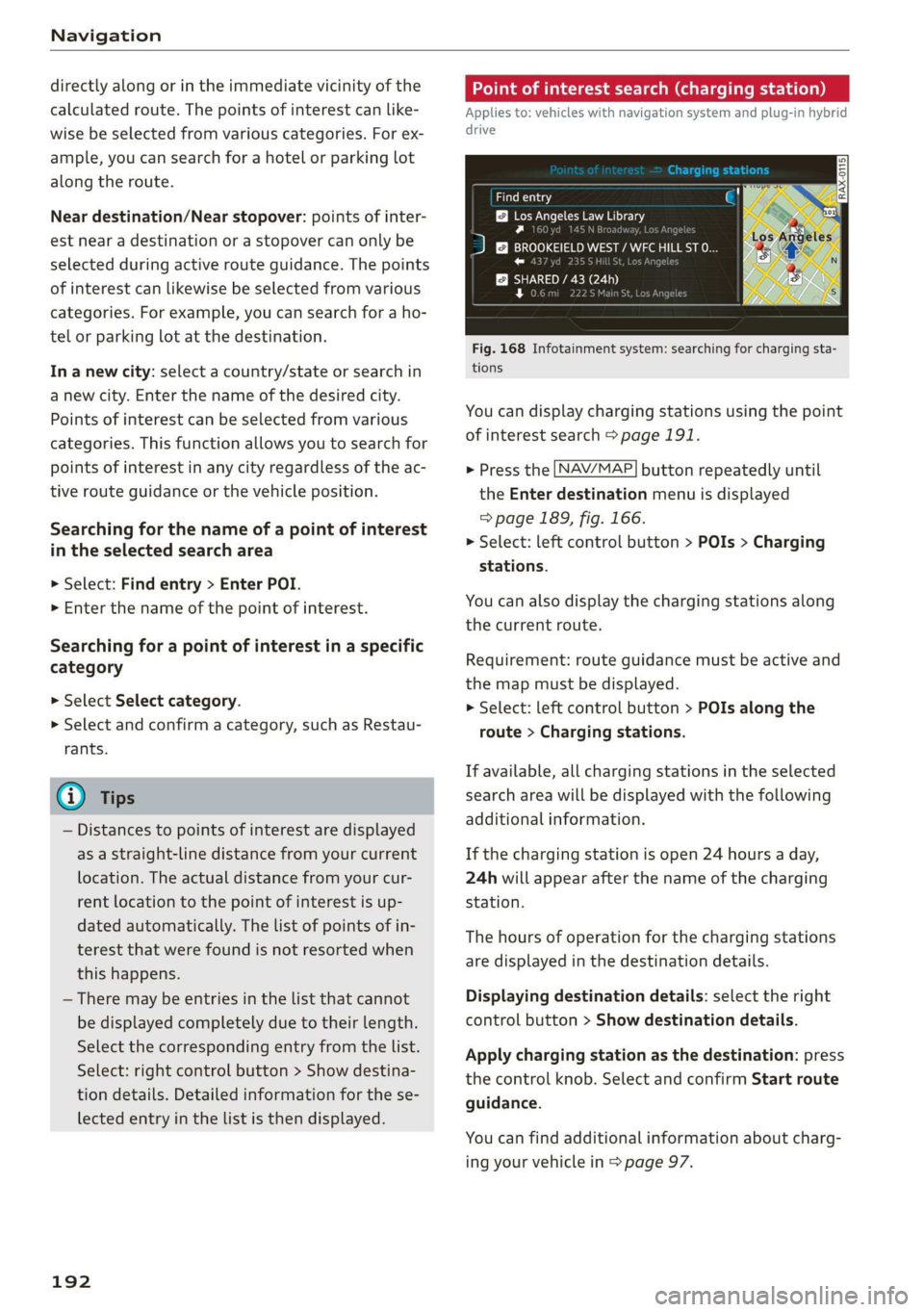
Fig. 168 Infotainment system: searching for charging sta-
tions
You can display charging stations using the point
of interest search > page 191.
> Press the [NAV/MAP] button repeatedly until
the Enter destination menu is displayed
> page 189, fig. 166.
> Select: left control button > POIs > Charging
stations.
You can also display the charging stations along
the current route.
Requirement: route guidance must be active and
the map must be displayed.
> Select: left control button > POIs along the
route > Charging stations.
If available, all charging stations in the selected
search area will be displayed with the following
additional information.
If the charging station is open 24 hours a day,
24h will appear after the name of the charging
station.
The hours of operation for the charging stations
are displayed in the destination details.
Displaying destination details: select the right
control button > Show destination details.
Apply charging station as the destination: press
the control knob. Select and confirm Start route
guidance.
You can find additional information about charg-
ing your vehicle in > page 97.
Page 201 of 400

8V2012721BK
Navigation
Map
Applies to: vehicles with navigation system
Fig. 174 Infotainment system: 3D map with the crosshairs
switched off
enna’
Los Angeles
RAH-8632|
Fig. 175 Infotainment system: standard map with the
crosshairs switched on
Opening the map
> Press the [NAV/MAP] button repeatedly until
the map is displayed > fig. 174.
Zooming in/out on the map
> Turn the control knob to the left or to the right.
Alternatively, you can also zoom in/out on the
map using the MMI touch control pad*
=> page 150 if the crosshairs are switched on,
or:
> Turn the left thumbwheel on the multifunction
steering wheel* > page 17, fig. 9.
Turning the crosshairs on
> Press the control knob in the map view
> fig. 174.
Turning the crosshairs off
BACK] button.
> Press the
When the crosshairs are switched off > fig. 174:
D_ Only applies to vehicles without camera-based speed limit
display.
@ Orientation: the map is either displayed as a
2D north-up map or as a 2D heading-up
map.
Distance to the destination
When the trailer mode function is switched
on, the corresponding symbol is displayed
next to the arrival time.
@ Scale: turn the control knob to the left or
right to decrease or increase the scale. When
the Automatic zoom [¥ function is switched
on, an “A” for “Automatic” is displayed in the
magnifying glass.
Altitude
Vehicle location
©®
CoO®@ Route information: various information will
be displayed during active route guidance
(for example, the upcoming maneuver in-
cluding calculated distance and street
names). The display also provides traffic in-
formation or points of interest on the current
route.
Street being driven on: displayed here as “off-
road” when the vehicle is stationary.
When the crosshairs are switched on > fig. 175:
© Crosshairs: move the crosshairs in the desired
direction using the MMI touch control pad*
or the control knob and set a point on the
map as the destination or have information
about the focal point displayed.
@ Speed limit display)”: display of the maxi-
mum permitted speed on the expressways
and highways.
Entertainment sliding menu *: > page 151.
©®® Additional information on the crosshairs po-
sition: if you move the crosshairs to a loca-
tion on the map, available information for
the current crosshairs position is displayed.
Press the control knob to open destination
details or to start route guidance. When the
crosshairs are turned off, the road being cur-
rently driven on is shown.
@ Map content (points of interest, favorites): if
there are multiple POIs in the immediate
199
>
Page 213 of 400

8V2012721BK
Media
Media
Introduction
There are various media drives and connections
available in the MMI. For example, you can play
audio/video* files from the Jukebox* or connect
your mobile device to the Audi music interface*
and operate it through the MMI.
Notes
Media and format restrictions: the MMI (includ-
ing the SD card reader and the USB storage de-
vice connection*) was tested with a variety of
products and media available in the market.
However, there may be cases where individual de-
vices or media and audio/video* files may not be
recognized, may play only with restrictions or
may not play at all.
Digital Rights Management: please note that
the audio/video* files are subject to copyright
protection.
The media drives do not play files that are pro-
tected by DRM and that are identified with the
symbol fi.
Data security: never store important data on SD
cards, the Jukebox*, CDs/DVDs or mobile devices.
Audi AG is not responsible for damaged or lost
files and media.
Loading times: the more files/folders/playlists
that are on a storage medium, the longer it will
take to load the audio/video* files. Audi recom-
mends using storage media that only contain au-
dio/video files*. To decrease the time it takes to
load audio/video files*, create subfolders (for ex-
ample, for the artist or album). The loading time
will also increase when importing files.
Additional information: when playing, audio
files are automatically displayed with any addi-
tional information that is stored (such as the ar-
tist, track and album cover). If this information is
not available on the storage medium, the MMI
will check the Gracenote metadata database.
However, in some cases, the additional informa-
tion may not be displayed.
Restricted functionality: reset the Media set-
tings to the factory default settings if functional-
ity is restricted > page 231.
If functionality is restricted, reset the Jukebox*
to the factory default settings > page 231.
For information about the properties of support-
ed media and file formats, see > page 224.
CG) Note
Always follow the information found in © in
General information on page 182.
CD/DVD operation
CD/DVD and format restrictions: the functionali-
ty of individual storage media may be limited due
to the variety of blank CDs/DVDs available and
the various capacities. Audio CDs or video DVDs
with copy protection, CDs/DVDs that do not con-
form to the standard, and multisession CDs may
have limited playback or may not play at all. Audi
recommends finalizing the recording process
when creating multisession CDs. Multisession
DVDs are not supported.
Using CDs/DVDs, the CD drive or the DVD drive:
to ensure correct, high-quality playback and to
prevent damage to the drive or disc reading er-
rors, always store CDs/DVDs in a protective
sleeve and do not expose them to direct sunlight.
Do not use:
— Damaged, dirty or scratched CDs/DVDs
— Single CDs/DVDs with 3 in (8 cm) diameter
— CD/DVDs that are not round
— CDs/DVDs with labels
— Protective rings
— Cleaning CDs
Thermal protection switch: CD/DVD playback
may be temporarily unavailable if outside tem-
peratures
are extremely hot or cold. A thermal
protection switch is installed to protect the
CD/DVD and the laser.
Laser devices: laser devices are divided into safe-
ty classes 1 to 4 in accordance with DIN IEC 76
211
>
Page 218 of 400
Media
Applies to: online media and Internet radio usage
Requirement:
— The myAudi app must be installed and open on
your mobile device.
— You must be logged in to your myAudi account
in the myAudi app and you must have selected
your vehicle.
— The Wi-Fi function on the mobile device and on
the MMI must be switched on.
— If necessary, check in the connection manager
=> page 231 if the mobile device you connected
is selected under the MMI connect app (™).
—The MMI must be connected to the network.
— The symbol for the Online media source (@ is
shown in the MMI.
Applies to: online media usage
Additional requirement:
— A supported online media service must be avail-
able in the country where the vehicle is being
operated.
— You must have an account with a supported on-
line media service.
— Depending on the online media service, you
may need to install and open an app on your
mobile device.
Starting Online media
— Press the [MEDIA] button. Press the left control
button until the sources overview > page 219 is
displayed.
— Select and confirm an online media service.
Starting Internet radio
— Press the [MEDIA] button. Press the left control
button until the sources overview > page 219 is
displayed.
— Select and confirm Internet radio. The Internet
radio browser or the last station that was play-
ing is shown.
— Selecting the station: if necessary, select and
confirm a category in the Internet radio Brows-
er > a station.
Online media and Internet radio: additional op-
tions
— Press the right control button.
216
The following options may be available, depend-
ing on the information shown (such as the sta-
tion/track that is currently playing):
— Sound settings: see > page 234.
— Wi-Fi settings: see > page 187, Wi-Fi settings.
— Connection manager: see > page 231.
— Additional options may be available, depending
on the active online media service or Internet
radio.
ZA WARNING
—To reduce the risk of an accident, only use
Audi connect services and the Wi-Fi hotspot
only if the traffic situation permits it. Read
and follow the guidelines provided in
=> page 146, Traffic safety information.
— It is only safe to use tablets, laptops, mobile
devices and other similar devices when the
vehicle is stationary because, like all loose
objects, they could be thrown around the in-
side of the vehicle in a crash and cause seri-
ous injuries. Store these types of devices se-
curely while driving. Also read the warnings
in the chapter > page 257, Front airbags.
@) Note
— Always follow the information found in >®
in General information on page 182.
— There generally are additional costs when
using an online media service account, espe
cially when it is used internationally.
(i) Tips
— Depending on the Internet connection and
network traffic, the connection may discon-
nected when online media sources are play-
ing.
— Online media and Internet radio usage de-
pends on the service availability of the third
party provider.
— Audi AG simply makes the access to online
media services possible through the MMI
and does not take any responsibility for the
contents of the online media services.
— Always read the chapter > page 182, Audi
connect.
Page 219 of 400
8V2012721BK
Media
— Depending on the mobile device being used,
there may be interruptions during media
playback and when using the myAudi app.
To prevent interruptions when using a mo-
bile device, do not lock the screen on your
mobile device and keep the myAudi app in
the foreground.
— Contact an authorized Audi dealer or au-
thorized Audi Service Facility for additional
information about online media.
Multimedia connections
USB adapter for Audi music interface
oe ®
S2
<&
7
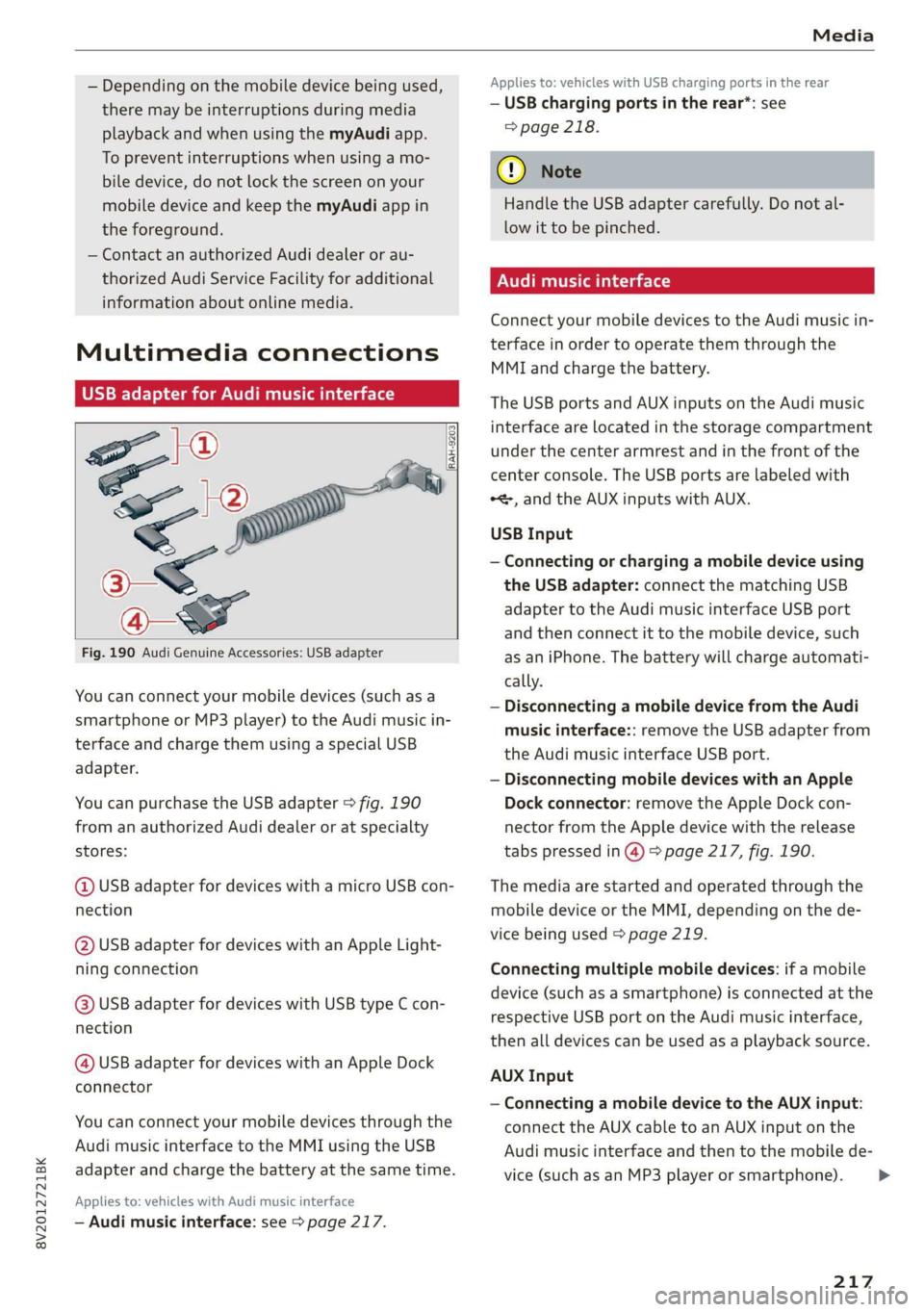
Fig. 190 Audi Genuine Accessories: USB adapter
[RAH-9203]
You can connect your mobile devices (such as a
smartphone or MP3 player) to the Audi music in-
terface and charge them using a special USB
adapter.
You can purchase the USB adapter > fig. 190
from an authorized Audi dealer or at specialty
stores:
@ USB adapter for devices with a micro USB con-
nection
@ USB adapter for devices with an Apple Light-
ning connection
@ USB adapter for devices with USB type C con-
nection
@ USB adapter for devices with an Apple Dock
connector
You can connect your mobile devices through the
Audi music interface to the MMI using the USB
adapter and charge the battery at the same time.
Applies to: vehicles with Audi music interface
— Audi music interface: see > page 217.
Applies to: vehicles with USB charging ports in the rear
— USB charging ports in the rear*: see
=> page 218.
@) Note
Handle the USB adapter carefully. Do not al-
low it to be pinched.
Audi music interface
Connect your mobile devices to the Audi music in-
terface in order to operate them through the
MMI and charge the battery.
The USB ports and AUX inputs on the Audi music
interface are located in the storage compartment
under the center armrest and in the front of the
center console. The USB ports are labeled with
*<, and the AUX inputs with AUX.
USB Input
— Connecting or charging a mobile device using
the USB adapter: connect the matching USB
adapter to the Audi music interface USB port
and then connect it to the mobile device, such
as an iPhone. The battery will charge automati-
cally.
— Disconnecting a mobile device from the Audi
music interface:: remove the USB adapter from
the Audi music interface USB port.
— Disconnecting mobile devices with an Apple
Dock connector: remove the Apple Dock con-
nector from the Apple device with the release
tabs pressed in @) > page 217, fig. 190.
The media are started and operated through the
mobile device or the MMI, depending on the de-
vice being used > page 219.
Connecting multiple mobile devices: if a mobile
device (such as a smartphone) is connected at the
respective USB port on the Audi music interface,
then all devices can be used as a playback source.
AUX Input
— Connecting a mobile device to the AUX input:
connect the AUX cable to an AUX input on the
Audi music interface and then to the mobile de-
vice (such as an MP3 player or smartphone).
217
Page 232 of 400
![AUDI A3 2020 Owner´s Manual System settings
System settings
Setting the date and
time
You can set the clock time manually or using the
GPS*.
> Select: [MENU] button > Settings > left control
button > MMI settings](/img/6/40265/w960_40265-231.png "AUDI A3 2020 Owner´s Manual System settings
System settings
Setting the date and
time
You can set the clock time manually or using the
GPS*.
> Select: [MENU] button > Settings > left control
button > MMI settings")
System settings
System settings
Setting the date and
time
You can set the clock time manually or using the
GPS*.
> Select: [MENU] button > Settings > left control
button > MMI settings > Date & time, or:
> Select: [MENU] button > Vehicle > left control
button > Vehicle settings > Date & time.
Automatic setting
When this function is switched on ¥, the time
and date are automatically set.
Time
Requirement: the Automatic setting must be
switched off.
Press the control knob. You can set the Time
manually by turning and pressing the control
knob.
Date
Requirement: the Automatic setting must be
switched off.
Press the control knob. You can set the Date
manually by turning and pressing the control
knob.
Time zone
When selecting the appropriate time zone, a
sampling of countries in this zone will be listed.
Automatic time zone*
When this function is switched on ¥, the time
will automatically adjust to the corresponding
time zone.
Automatic daylight saving time*
When this function is switched on M, the time
will automatically switch to daylight saving time.
) The Qi standard makes it possible to charge your mobile
device wirelessly.
230
Time format
If you select 24h, the clock will display, for exam-
ple, 13:00. If you select AM/PM, the clock will
display, for example, 1:00 PM.
Date format
If you select DD.MM.YYYY, the date display will
show, for example, 31.03.2019. If you select
MM/DD/YYYY, the date display will show, for ex-
ample, 03/31/2019. If you select YYYY-MM-DD,
the date display will show, for example,
2019-03-31.
MMI settings
> Select: [MENU] button > Settings > left control
button > MMI settings.
Language
You can change the display language as well as
the language for the voice guidance* and voice
recognition system*.
The number of languages available depends on
the country.
Measurement units
The following measurement units can be set de-
pending on availability: Speed, Distance, Tem-
perature, Fuel consumption, Volume, Pressure.
Mobile device reminder signal
Applies to: vehicles with Audi phone box
Requirement: your cell phone must be Qi-capa-
ble ) or connected to the Audi music interface @
with a USB adapter cable > page 171, fig. 162.
When the device reminder signal is switched on,
you will be notified that your mobile device is still
in the Audi phone box when you leave the vehicle.
You can select between Spoken cue, Signal tone
and Off.
Mobile device reminder signal volume: you can
adjust the reminder signal volume by turning the
control knob.
Page 233 of 400

8V2012721BK
System settings
Switch off pop-up: when the function is switched
on [M, the messages in the Infotainment system
display regarding the charging status of your cell
phone in the Audi phone box are hidden. The re-
minder not to forget your cell phone when leav-
ing the vehicle is also switched off.
Tool tips
When this function is switched on M, your MMI
shows you tips for input. The frequency of how
often it displays decreases with time.
Speech dialog system
Applies to: vehicles with voice recognition system
Depending on vehicle equipment, the following
functions
may be available:
Command display: when this function is switch-
ed on [M, the MMI will show you the possible
commands for voice input in the respective
menu.
Short dialog: when this function is switched on
, a shorter form of the prompts is used.
Command during voice output: this function is
switched on at the factory. When this function is
switched on M, you can say new commands dur-
ing announcements. You do not need to wait for
the signal tone (beep) during an announcement.
When the function is switched off (J, you need to
wait for the signal tone (beep) to say a new com-
mand.
Volume: you can adjust the volume of the
prompts by turning the control knob.
Individual speech training (only when the vehi-
cle is stationary): you can adapt the voice recog-
nition system to your voice or pronunciation in or-
der to improve the system's ability to recognize
your speech. Individual speech training is com-
prised of 20 speech entries that consist of com-
mands and sequences of numbers. You can de-
lete the programmed voice training with the Re-
set individual speech training function.
Display brightness
You can adjust the brightness of the Infotain-
ment system display by turning the control knob.
Factory settings
Depending on the vehicle equipment, the follow-
ing functions can be reset to factory settings:
— Sound settings
— Radio
— Media settings
— Jukebox
— Directory
— Telephone
— Bluetooth and Wi-Fi
— Navigation settings
— Navigation and online memory
— Speech dialog system
— Message settings
— Apps
—Tool tips
— Audi connect
— Audi smartphone interface
You can select the desired functions individually
or all at once with the option Select all entries.
Select and confirm Restore factory settings.
@ Tips
Make sure that not only the settings were de-
leted but also the stored data, if necessary.
Connection manager
Introduction
The connection manager provides an overview of
your connected devices and their network status:
> Select: [MENU] button > Settings > left control
button > MMI settings > Connection manager.
> Select and confirm a menu item.
If a mobile device was already connected and you
select
and confirm the corresponding menu item,
the device name and connection status are dis-
played under the menu item.
You can individually connect () or disconnect
(L)) a paired device.
Requirement: the vehicle must be stationary and
the ignition must be switched on. The Bluetooth
settings will open on your mobile device during
the connection setup. The Bluetooth function and >
231
Page 239 of 400
8V2012721BK
Driving safety
Driving safety
Basics
SER Nails mali
Please remember - safety first!
The individual safety features of your vehicle can
work together as a system to help protect you
and
your passengers in a wide range of accidents.
These features cannot work as a system if they
are not always correctly adjusted and correctly
used.
This chapter contains important information,
tips, instructions and warnings that you need to
read and observe for your own safety, the safety
of your passengers and others. We have summar-
ized here what you need to know about safety
belts, airbags, child restraints as well as child
safety. Your safety is for us priority number 1. Al-
ways observe the information and warnings in
this section - for your own safety as well as that
of your passengers.
The information in this section applies to all
model versions of your vehicle. Some of the fea-
tures described in this sections may be standard
equipment on some models, or may be optional
equipment on others. If you are not sure, ask
your authorized Audi dealer.
ZA WARNING
— Always make sure that you follow the in-
structions and heed the WARNINGS in this
Manual. It is in your interest and in the in-
terest of your passengers.
— Always keep the complete Owner's Litera-
ture in your Audi when you lend or sell your
vehicle so that this important information
will always be available to the driver and
passengers.
— Always keep the Owner's literature handy so
that you can find it easily if you have ques-
tions.
Important things to do before driving
Safety is everybody's job! Vehicle and occupant
safety always depends on the informed and care-
ful driver.
For
your safety and the safety of your passen-
gers, before driving always:
> Make sure that all lights and signals are operat-
ing correctly.
> Make sure that the tire pressure is correct.
> Make sure that all windows are clean and afford
good visibility to the outside.
> Secure all luggage and other items carefully
= page 60, > page 60.
> Make sure that nothing can interfere with the
pedals.
> Adjust front seat, head restraint and mirrors
correctly for your height.
> Instruct passengers to adjust the head re-
straints according to their height.
> Make sure to use the right child restraint cor-
rectly to protect children > page 278, Child
safety.
» Sit properly in your seat and make sure that
your passengers do the same > page 54, Front
seats.
> Fasten your safety belt and wear it properly. Al-
so instruct your passengers to fasten their safe-
ty belts properly > page 245.
What impairs driving safety?
Safe driving is directly related to the condition of
the vehicle, the driver as well as the driver’s abili-
ty to concentrate on the road without being dis-
tracted.
The driver is responsible for the safety of the ve-
hicle and all of its occupants. If your ability to
drive is impaired, safety risks for everybody in the
vehicle increase and you also become a hazard to
everyone else on the road > /\. Therefore:
> Do not let yourself be distracted by passengers
or by using a cellular telephone.
> NEVER drive when your driving ability is im-
paired (by medications, alcohol, drugs, etc.).
> Observe all traffic laws, rules of the road and
speed limits and plain common sense.
237
Page 242 of 400
Driving safety
— Passengers who are unbelted, out of posi-
tion or too close to the airbag can be seri-
ously injured by an airbag as it unfolds with
great force in the blink of an eye.
— Always make sure that there are at least
10 inches (25 cm) between the front pas-
senger‘s breastbone and the instrument
panel.
— Always make sure that there are at least
4 inches (10 cm) between the front passen-
ger‘s knees and the lower part of the instru-
ment panel.
— Each passenger must always sit on a seat of
their own and properly fasten and wear the
safety belt belonging to that seat.
— Before driving, always adjust the front pas-
senger seat properly.
— For adjustable head restraints: before driv-
ing, always also adjust the head restraints
properly.
— Always keep your feet on the floor in front of
the seat. Never rest them on the seat, in-
strument panel, out of the window, etc. The
airbag system and safety belt will not be
able to protect you properly and can even in-
crease the risk of injury in a crash.
— Never drive with the backrest reclined or tilt-
ed far back! The farther the backrests are
tilted
back, the greater the risk of injury due
to incorrect positioning of the safety belt
and improper seating position.
— Children must always ride in child seats
= page 278. Special precautions apply when
installing a child seat on the front passenger
seat > page 253.
Proper seating positions for passengers in
israel -r- 1}
Rear seat passengers must sit upright with both
feet on the floor consistent with their physical
size and be properly restrained whenever the ve-
hicle is in use.
To reduce the risk of injury caused by an incorrect
seating position in the event of a sudden braking
maneuver or an accident, your passengers on the
rear bench seat must always observe the follow-
ing:
240
> For adjustable head restraints: adjust the head
restraint so the upper edge is as even as possi-
ble with the top of your head. If that is not pos-
sible, try to adjust the head restraint so that it
is as close to this position as possible
=> page 57.
> Keep both feet flat in the footwell in front of
the rear seat.
> Fasten and wear safety belts properly
=> page 248.
> Make sure that children are always properly re-
strained in a child restraint that is appropriate
for their size and age > page 278.
ZA WARNING
Passengers who are improperly seated on the
rear seat can be seriously injured in a crash.
— Each passenger must always sit on a seat of
their own and properly fasten and wear the
safety belt belonging to that seat.
— Safety belts only offer maximum protection
when the safety belts are properly posi-
tioned on the body and securely latched. By
not sitting upright, a rear seat passenger in-
creases the risk of personal injury from im-
properly positioned safety belts!
— For adjustable head restraints: always adjust
the head restraint properly so that it can
give maximum protection.
Examples of improper seating positions
The occupant restraint system can only reduce
the risk of injury if vehicle occupants are properly
seated.
Improper seating positions can cause serious in-
jury or death. Safety belts can only work when
they are properly positioned on the body. Im-
proper seating positions reduce the effectiveness
of safety belts and will even increase the risk of
injury and death by moving the safety belt to crit-
ical areas of the body. Improper seating positions
also increase the risk of serious injury and death
when an airbag deploys and strikes an occupant
who is not in the proper seating position. A driver
is responsible for the safety of all vehicle occu-
pants and especially for children. Therefore: >
Page 247 of 400
8V2012721BK
Safety belts
Safety belts
General notes
OCEANS Lae 15 aes
Wearing safety belts correctly saves lives!
This chapter explains why safety belts are neces-
sary, how they work and how to adjust and wear
them correctly.
> Read all the information that follows and heed
all of the instructions and WARNINGS.
ZA WARNING
Not wearing safety belts or wearing them im-
properly increases the risk of serious personal
injury and death.
— Safety belts are the single most effective
means available to reduce the risk of serious
injury and death in automobile accidents.
For your protection and that of your passen-
gers, always correctly wear safety belts
when the vehicle is moving.
— Pregnant women, injured, or physically im-
paired persons must also use safety belts.
Like all vehicle occupants, they are more
likely to be seriously injured if they do not
wear Safety belts. The best way to protect a
fetus is to protect the mother - throughout
the entire pregnancy.
NT Tae met)
Applies to: vehicles without power top: Your Audi
has a total of five seating positions: two in the
front and three in the rear. Each seating position
has a safety belt.
Applies to: vehicles with power top: Your Audi
has a total of four seating positions: two in the
front and two in the rear. Each seating position
has a safety belt.
ZA WARNING
Not wearing safety belts or wearing them im-
properly increases the risk of serious personal
injury and death.
— Never strap more than one person, including
small children, into any belt. It is especially
dangerous to place a safety belt over a child
sitting on your lap.
— Never let more people ride in the vehicle
than there are safety belts available.
— Be sure everyone riding in the vehicle is
properly restrained with a separate safety
belt or child restraint.
Safety belt warning light
Your vehicle has a warning system for the driver
and front seat passenger to remind you about
the importance of buckling-up.
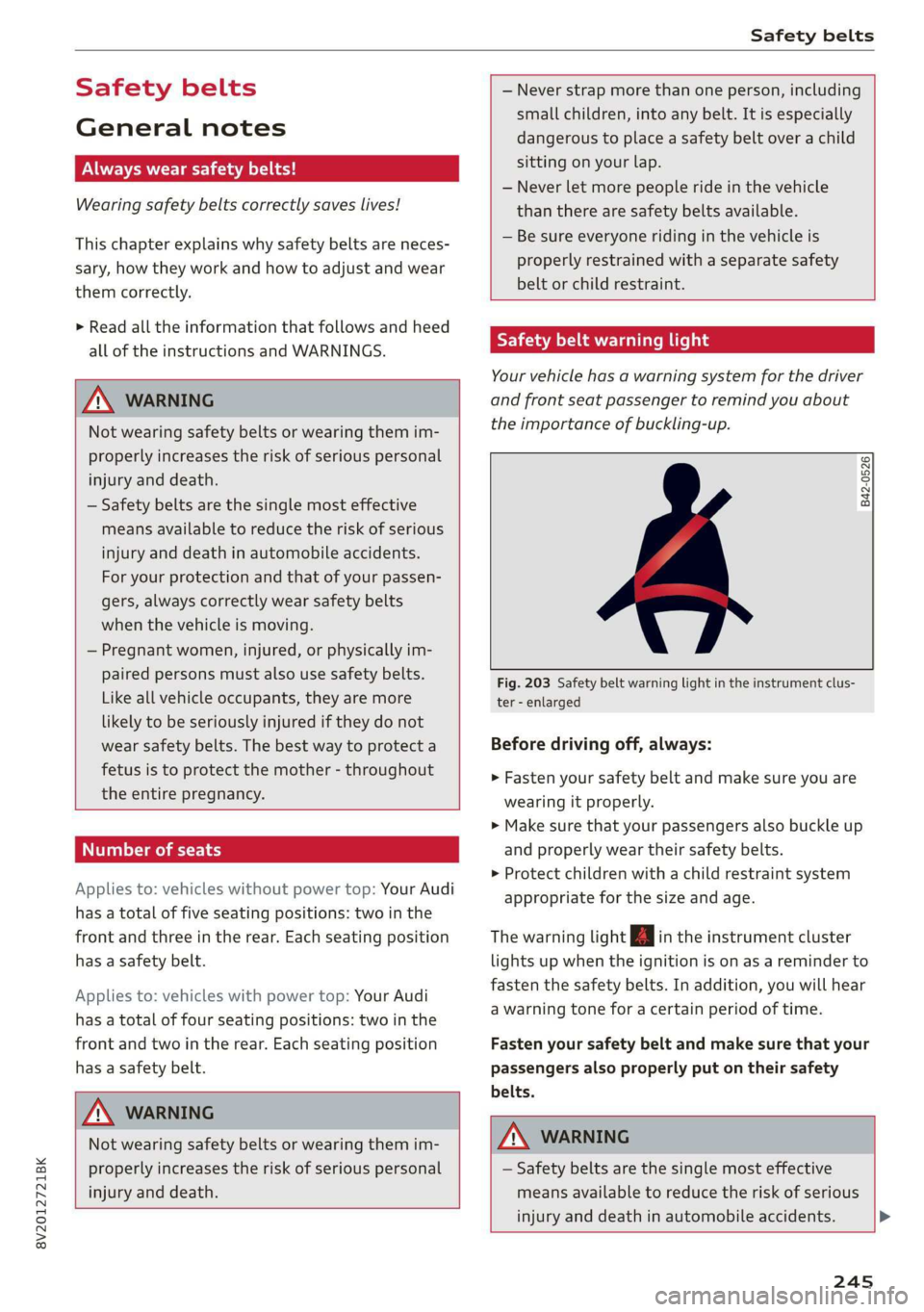
B42-0526
Fig. 203 Safety belt warning light in the instrument clus-
ter - enlarged
Before driving off, always:
> Fasten your safety belt and make sure you are
wearing it properly.
> Make sure that your passengers also buckle up
and properly wear their safety belts.
> Protect children with a child restraint system
appropriate for the size and age.
The warning light in the instrument cluster
lights up when the ignition is on as a reminder to
fasten the safety belts. In addition, you will hear
a warning tone for a certain period of time.
Fasten your safety belt and make sure that your
passengers also properly put on their safety
belts.
Z\ WARNING
— Safety belts are the single most effective
means available to reduce the risk of serious
injury and death in automobile accidents. >
245