lock AUDI A3 2020 Owner´s Manual
[x] Cancel search | Manufacturer: AUDI, Model Year: 2020, Model line: A3, Model: AUDI A3 2020Pages: 400, PDF Size: 107.47 MB
Page 119 of 400

8V2012721BK
Assist systems
Switching the system off
Applies to: vehicles with cruise control system
When you switch the system off completely, the
cruise control speed will be deleted.
Requirement: the system must be switched on.
> To switch the system off, press the lever toward
@ (locked into place) > page 116, fig. 107, or
> Switch the ignition off.
Applies to: vehicles with cruise control system
ICRUISE| / 3) Speed control system: currently un-
available. See owner's manual
If the indicator light turns on and this message
appears, the cruise control system has been deac-
tivated. There is a temporary malfunction, for ex-
ample the brakes are overheating. Switch the
cruise control system on again later.
Lap timer
Applies to: vehicles with lap timer
You can measure and analyze lap times with the
lap timer in the display.
Opening the lap timer
> Open the first Vehicle tab (trip computer) using
the |<>] button on the multifunction steering
wheel.
> Applies to: vehicles with analog instrument
cluster: Press the [=] button on the multifunc-
tion steering wheel and select Lap timer in the
menu.
> Applies to: vehicles with Audi virtual cockpit:
On the multifunction steering wheel, select:
left control button > Lap times.
Operating the lap timer
> On the multifunction steering wheel, turn the
left thumbwheel @) > page 17 or @ > page 20
until the desired menu item is displayed in the
instrument cluster.
> Press the left thumbwheel to confirm the selec-
tion.
ZX WARNING
Your focus should always be on driving your
vehicle safely. As the driver, you have com-
plete responsibility for safety in traffic. Only
use the functions such as the lap timer in such
a way that you always maintain complete con-
trol over your vehicle in all traffic situations.
(i) Tips
You can retrieve information from the trip
computer while the lap timer stopwatch is
running.
times and timing
Applies to: vehicles with lap timer
Requirement: the lap timer must be open
=> page 117.
Timing laps
> To start timing, select Lap 1 - press OK or Start
lap 1 in the menu.
> Applies to: vehicles with Audi virtual cockpit: To
start timing automatically when you start driv-
ing, select Start lap 1 by driving off or Start by
driving off in the menu.
> To measure the lap time, select New lap - press
OK or New lap in the menu. This starts timing
the next lap at the same time.
After completing, the difference between the last
lap and the previous best lap time will be indicat-
ed witha “—"@ or “"/.
Pausing timing and displaying a split time
> To insert a pause i select Pause in the menu.
> To continue timing, select Press OK to resume
or Resume in the menu.
> To display a split time, select Split time in the
menu. The split time {@] appears for approxi-
mately 10 seconds in the instrument cluster.
The timing of the current lap continues.
Resetting timing
> Using the multifunction steering wheel, select
Reset or Reset times in the menu. >
117
Page 141 of 400

8V2012721BK
Parking aid
The rearview camera is located above the rear li-
cense plate bracket. Make sure that the lens for
the parking system > fig. 135 is not covered by
deposits or any other obstructions because this
can affect the function of the parking system. For
information on cleaning, see > page 342.
The rearview camera coverage area includes ()
> fig. 134. Only this area is shown in the Info-
tainment display. Objects that are in area Q),
which is not covered, are not displayed.
Z\ WARNING
— Always read and follow the applicable warn-
ings > A\ in General information on
page 136.
— If the position and the installation angle of
the rearview camera was changed, for exam-
ple after a collision, do not continue to use
the system for safety reasons. Have it
checked by an authorized Audi dealer or au-
thorized Audi Service Facility.
— Only use the rearview camera to assist you if
it shows a good, clear picture. For example,
the image may be affected by the sun shin-
ing into the lens, dirt on the lens, or if there
is a malfunction.
— Use the rearview camera only if the luggage
compartment lid is completely closed. If the
luggage compartment lid is open the orien-
tation lines and blue surfaces are hidden.
Make sure any objects you may have mount-
ed on the luggage compartment lid do not
block the rearview camera.
— The camera lens enlarges and distorts the
field of vision. The object appears both al-
tered and inaccurate on the screen.
—Incertain situations, people or objects in
the display appear closer or farther away:
— For objects that do not touch the ground,
such as the bumper of a parked vehicle, a
trailer hitch or the rear of a truck. Do not
use the
orientation lines in this case.
—If driven from a level surface onto an in-
cline, or a downward slope.
— If driven toward protruding objects.
— If the vehicle is carrying too much load in
the rear.
CG) Note
— Always read and follow the applicable warn-
ings >@ in General information on
page 136.
— The orange-colored orientation lines in the
Infotainment display show the vehicle path
based on the steering wheel angle. The
front of the vehicle swings out more than
the rear of the vehicle. Maintain plenty of
distance so that an exterior mirror or a cor-
ner of the vehicle does not collide with any
obstacles.
Sct Remo
Applies to: vehicles with rearview camera
Switching on and off
Requirement: the vehicle speed must be under
approximately 6 mph (10 km/h).
> Press the Pv button in the center console. A
short confirmation tone sounds and the LED in
the button turns on.
Switching on automatically
The system switches on automatically when re-
verse gear is engaged while the engine is run-
ning.
Switching off automatically
The system switches off automatically when driv-
ing forward faster than 6 mph (10 km/h).
@) Tips
— The visual display* in the right section of the
display should help you detect the critical
vehicle area.
— You can change the volume of the signals
and the display > page 144.
139
Page 163 of 400
8V2012721BK
Voice recognition system
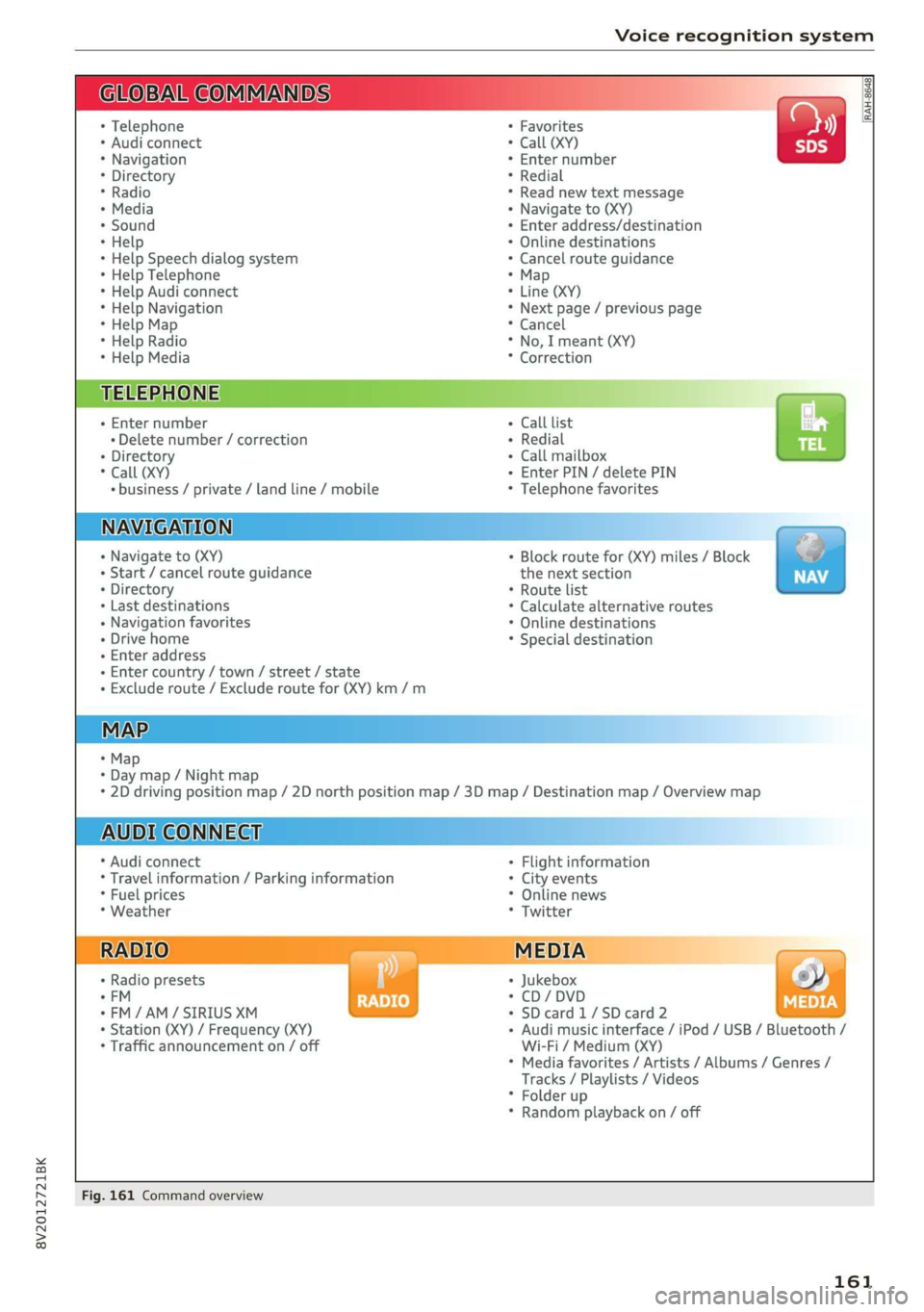
BAR COMMANDS
* Telephone
* Audi connect
* Navigation
* Directory
* Radio
+ Media
* Sound
* Help
+ Help Speech dialog system
* Help Telephone
* Help Audi connect
* Help Navigation
* Help Map
* Help Radio
* Help Media
TELEPHONE
+ Enter number
* Delete number / correction
+ Directory
* Call (XY)
* business / private / land line / mobile
NAVIGATION
+ Navigate to (XY)
+ Start / cancel route guidance
+ Directory
+ Last destinations
+ Navigation favorites
+ Drive home
- Enter address
+ Enter country / town / street / state
+ Exclude route / Exclude route for (XY) km /m
+ Map
* Day map / Night map
AUDI CONNECT
* Audi connect
* Travel information / Parking information
* Fuel prices
* Weather
+ Radio presets
“FM
*FM/AM/ SIRIUS XM tlle,
* Station (XY) / Frequency (XY)
* Traffic announcement on / off
* 2D driving position map / 2D north position map / 3D map / Destination map / Overview map
+ Favorites a »)
+ Call (XY) sDS
* Enter number
* Redial
* Read new text message
+ Navigate to (XY)
+ Enter address/destination
* Online destinations
* Cancel route guidance
* Map
+ Line (XY)
* Next page / previous page
* Cancel
* No, I meant (XY)
* Correction
Call list _ a.
Redial
Call mailbox we
Enter PIN / delete PIN
Telephone favorites
+ Block route for (XY) miles / Block
the next section
* Route list
* Calculate alternative routes
* Online destinations
* Special destination
Flight information
City events
Online news
Twitter
MEDIA
Jukebox s))
+ CD/DVD MEDIA
SD card 1/ SD card 2
Audi music interface / iPod / USB / Bluetooth /
Wi-Fi / Medium (XY)
* Media favorites / Artists / Albums / Genres /
Tracks / Playlists / Videos
* Folder up
* Random playback on / off
Fig. 161 Command overview
161
Page 168 of 400
Voice recognition system
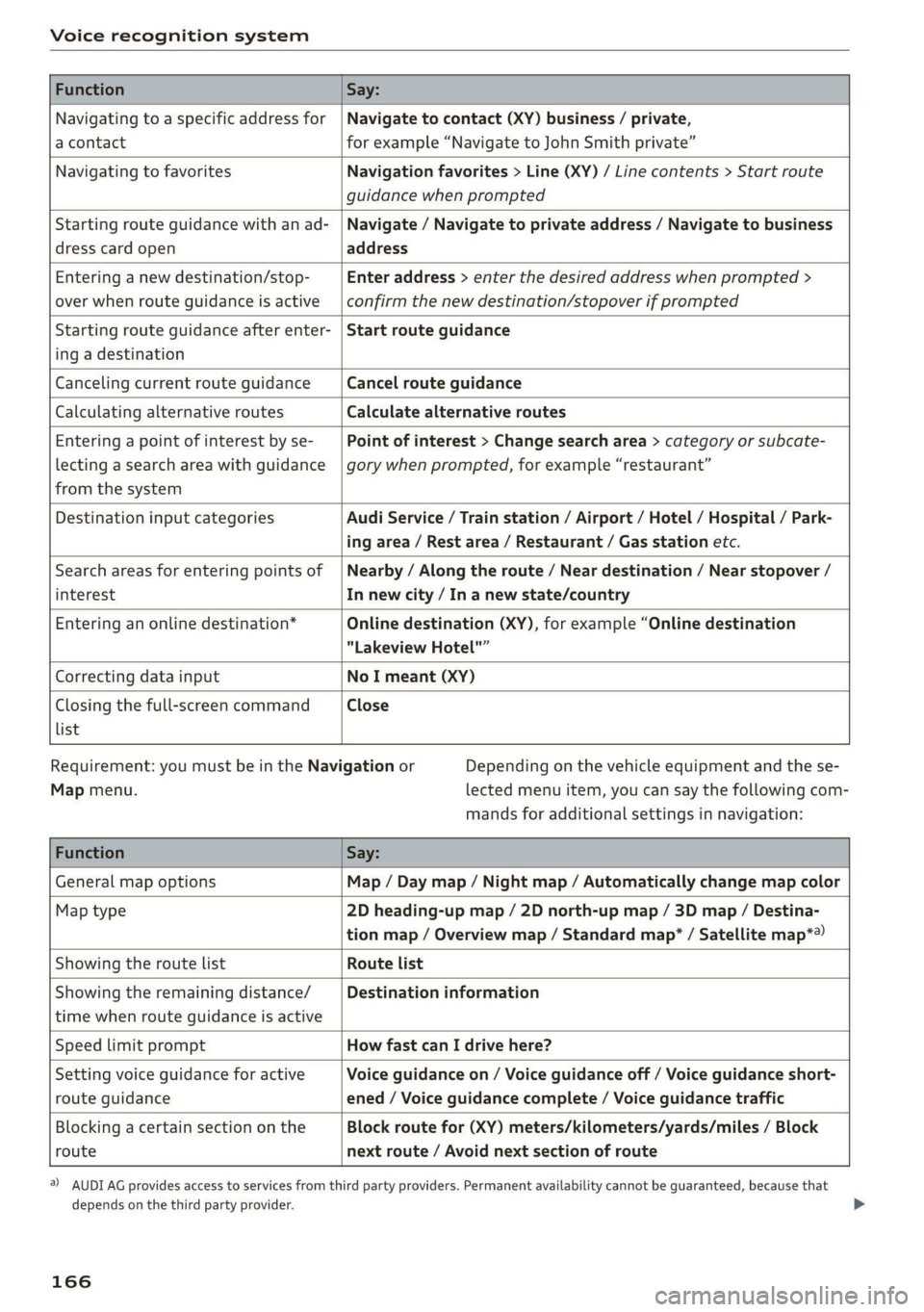
Function Say:
Navigating to a specific address for
a contact
Navigate to contact (XY) business / private,
for example “Navigate to John Smith private”
Navigating to favorites Navigation favorites > Line (XY) / Line contents > Start route
guidance when prompted
Starting route guidance with an ad-
dress card open
Navigate / Navigate to private address / Navigate to business
address
Entering a new destination/stop-
over when route guidance is active
Enter address > enter the desired address when prompted >
confirm the new destination/stopover if prompted
Starting route guidance after enter-
ing a destination
Start route guidance
Canceling current route guidance Cancel route guidance
Calculating alternative routes Calculate alternative routes
Entering a point of interest by se-
lecting a search area with guidance
from the system
Point of interest > Change search area > category or subcate-
gory when prompted, for example “restaurant”
Destination input categories Audi Service / Train station / Airport / Hotel / Hospital / Park-
ing area / Rest area / Restaurant / Gas station etc.
Search areas for entering points of
interest
Nearby / Along the route / Near destination / Near stopover /
In new city / In a new state/country
Entering an online destination* Online destination (XY), for example “Online destination
"Lakeview Hotel"”
Correcting data input No I meant (XY)
Closing the full-screen command
list
Close
Requirement: you must be in the Navigation or
Map menu.
Depending on the vehicle equipment and the se-
lected menu item, you can say the following com-
mands for additional settings in navigation:
Function Say:
General map options Map / Day map / Night map / Automatically change map color
Map type 2D heading-up map / 2D north-up map / 3D map / Destina-
tion map / Overview map / Standard map* / Satellite map*®)
Showing the route list Route list
Showing the remaining distance/
time when route guidance is active
Destination information
Speed limit prompt How fast can I drive here?
Setting voice guidance for active
route guidance
Voice guidance on / Voice guidance off / Voice guidance short-
ened / Voice guidance complete / Voice guidance traffic
Blocking a certain section on the
route
Block route for (XY) meters/kilometers/yards/miles / Block
next route / Avoid next section of route
) AUDI AG provides access to services from third party providers. Permanent availability cannot be guaranteed, because that
depends on the third party provider.
166
Page 174 of 400

Telephone
— The mobile device may become hot during
wireless charging. Pay attention to the tem-
perature of your mobile device and be care-
ful when removing it from the Audi phone
box.
—An alternating magnetic field is used for
wireless charging. Maintain a minimum dis-
tance of approximately 2.4 in (6 cm) to the
Audi phone box charging plate. The thresh-
olds for prolonged exposure at this distance
comply with ICNIRP1998. Therefore, inter-
actions such as irritation of sensory organs,
malfunctions of active implants (such as
pacemakers, infusion pumps, or neurosti-
mulators) or effects on passive implants
(such as prosthetic limbs) is highly unlikely.
If you have an implant, consult a medical
specialist if you have any questions.
@) Note
Applicable to U.S.A.
Operation of the Audi phone box is subject to
the following requirements of the Federal
Communications Commission:
— This is a CONSUMER device.
— BEFORE USE, you MUST REGISTER THIS DE-
VICE with your wireless provider and have
your provider’s consent. Most wireless pro-
viders consent to the use of signal boosters.
Some providers may not consent to the use
of this device on their network. If you are
unsure, contact your service provider.
— You MUST operate this device with approved
antennas and cables as specified by the
manufacturer. Antennas MUST be installed
at least 20 cm (8 inches) from any person.
— You MUST cease operating this device im-
mediately if requested by the FCC or a li-
censed wireless service provider.
— WARNING: E911 location information may
not be provided or may be inaccurate for
calls served by using this device.
@) Note
Applicable to Canada
In Canada, operation of a Zone Enhancer,
such as an Audi Phone Box, is subject to the
following requirements of the Innovation,
172
Science and Economic Development Canada
(ISED):
—This is a CONSUMER device.
— BEFORE USE, you MUST meet all require-
ments set out in CPC-2-1-05.
— You MUST operate this device with approved
antennas and cables as specified by the
manufacturer. Antennas MUST NOT be in-
stalled within 20 cm of any person.
— You MUST cease operating this device im-
mediately if requested by ISED or a licensed
wireless service provider.
— WARNING: £911 location information may
not be provided or may be inaccurate for
calls served by using this device.
G) Tips
— Placing the mobile device in a bag or protec-
tive sleeve inside the Audi phone box can in-
terfere with the connection to the external
antenna”.
— Metallic objects in the Audi phone box block
the wireless charging of your mobile device
and calls made using the exterior antenna”*.
—The charging time and temperature will vary
depending on the mobile device being used.
— Your mobile device can only be charged in
the Audi phone box when the ignition is
switched on.
— To reduce the risk of malfunctions, make
sure the mobile device is positioned correct-
ly in the Audi phone box.
—The maximum charging output is 5 W.
— Strong transmission quality* cannot be
guaranteed if more than one mobile device
is in the box.
— Only one mobile device at a time can be
charged wirelessly in the Audi phone box.
— Audi recommends using Audi Genuine Ac-
cessories. Audi has verified their reliability,
safety, and suitability.
— You can purchase a USB adapter from an au-
thorized Audi dealer or authorized Audi
Service Facility, or at specialty stores.
— If you place your remote control key togeth-
er with your mobile device in the Audi phone
box, it may cause your mobile device to stop
charging if wireless charging is active.
Page 219 of 400
8V2012721BK
Media
— Depending on the mobile device being used,
there may be interruptions during media
playback and when using the myAudi app.
To prevent interruptions when using a mo-
bile device, do not lock the screen on your
mobile device and keep the myAudi app in
the foreground.
— Contact an authorized Audi dealer or au-
thorized Audi Service Facility for additional
information about online media.
Multimedia connections
USB adapter for Audi music interface
oe ®
S2
<&
7
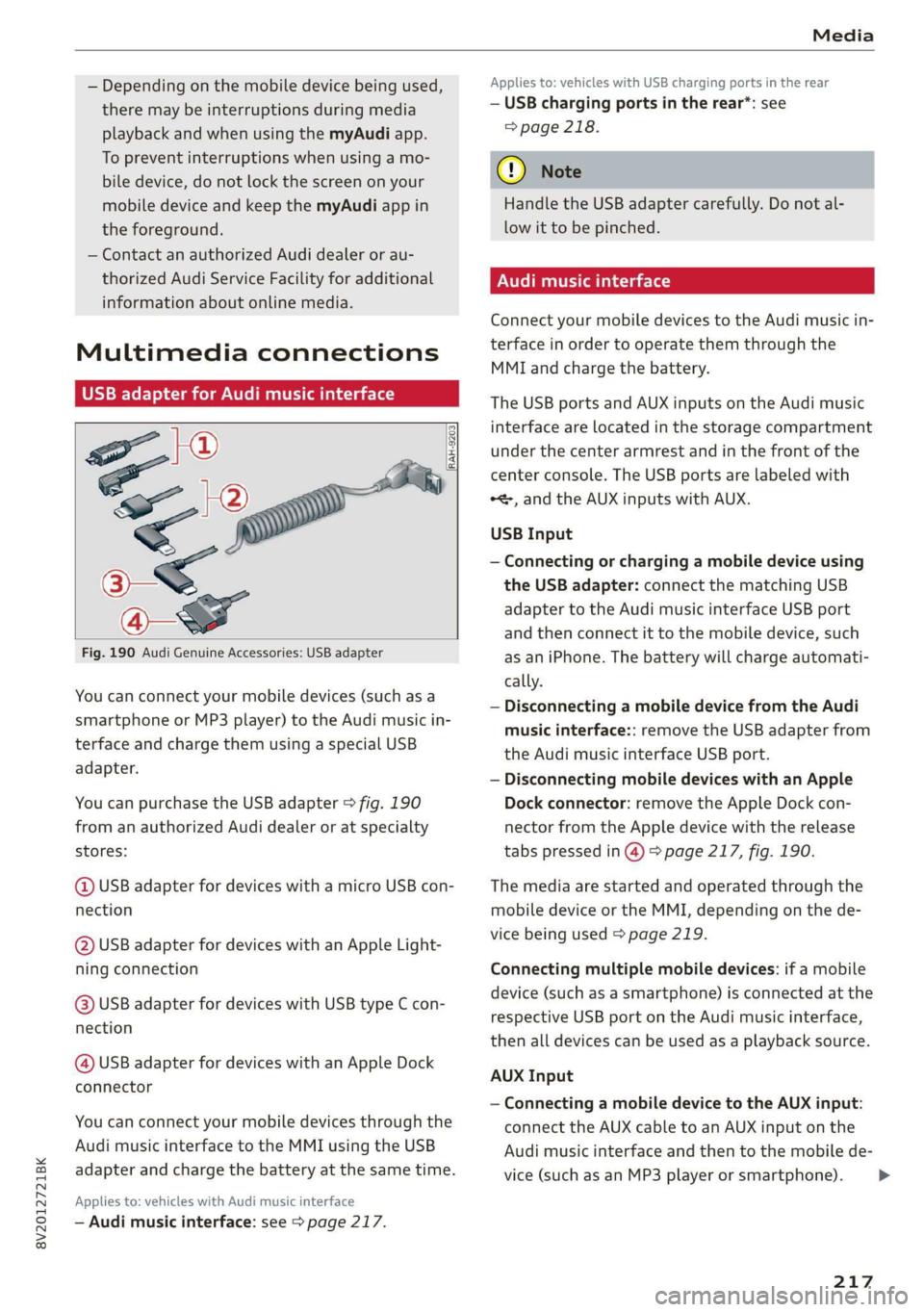
Fig. 190 Audi Genuine Accessories: USB adapter
[RAH-9203]
You can connect your mobile devices (such as a
smartphone or MP3 player) to the Audi music in-
terface and charge them using a special USB
adapter.
You can purchase the USB adapter > fig. 190
from an authorized Audi dealer or at specialty
stores:
@ USB adapter for devices with a micro USB con-
nection
@ USB adapter for devices with an Apple Light-
ning connection
@ USB adapter for devices with USB type C con-
nection
@ USB adapter for devices with an Apple Dock
connector
You can connect your mobile devices through the
Audi music interface to the MMI using the USB
adapter and charge the battery at the same time.
Applies to: vehicles with Audi music interface
— Audi music interface: see > page 217.
Applies to: vehicles with USB charging ports in the rear
— USB charging ports in the rear*: see
=> page 218.
@) Note
Handle the USB adapter carefully. Do not al-
low it to be pinched.
Audi music interface
Connect your mobile devices to the Audi music in-
terface in order to operate them through the
MMI and charge the battery.
The USB ports and AUX inputs on the Audi music
interface are located in the storage compartment
under the center armrest and in the front of the
center console. The USB ports are labeled with
*<, and the AUX inputs with AUX.
USB Input
— Connecting or charging a mobile device using
the USB adapter: connect the matching USB
adapter to the Audi music interface USB port
and then connect it to the mobile device, such
as an iPhone. The battery will charge automati-
cally.
— Disconnecting a mobile device from the Audi
music interface:: remove the USB adapter from
the Audi music interface USB port.
— Disconnecting mobile devices with an Apple
Dock connector: remove the Apple Dock con-
nector from the Apple device with the release
tabs pressed in @) > page 217, fig. 190.
The media are started and operated through the
mobile device or the MMI, depending on the de-
vice being used > page 219.
Connecting multiple mobile devices: if a mobile
device (such as a smartphone) is connected at the
respective USB port on the Audi music interface,
then all devices can be used as a playback source.
AUX Input
— Connecting a mobile device to the AUX input:
connect the AUX cable to an AUX input on the
Audi music interface and then to the mobile de-
vice (such as an MP3 player or smartphone).
217
Page 226 of 400
Media
— Selecting a menu item: select and confirm a
menu item, or move your finger on the MMI
touch control pad* and press the control knob.
Audio track!)
You can manually set the audio track (language
and audio format). The language and audio for-
mat options depend on the video DVD.
Subtitles»)
You can manually select subtitles for playback.
The languages available depend on the DVD.
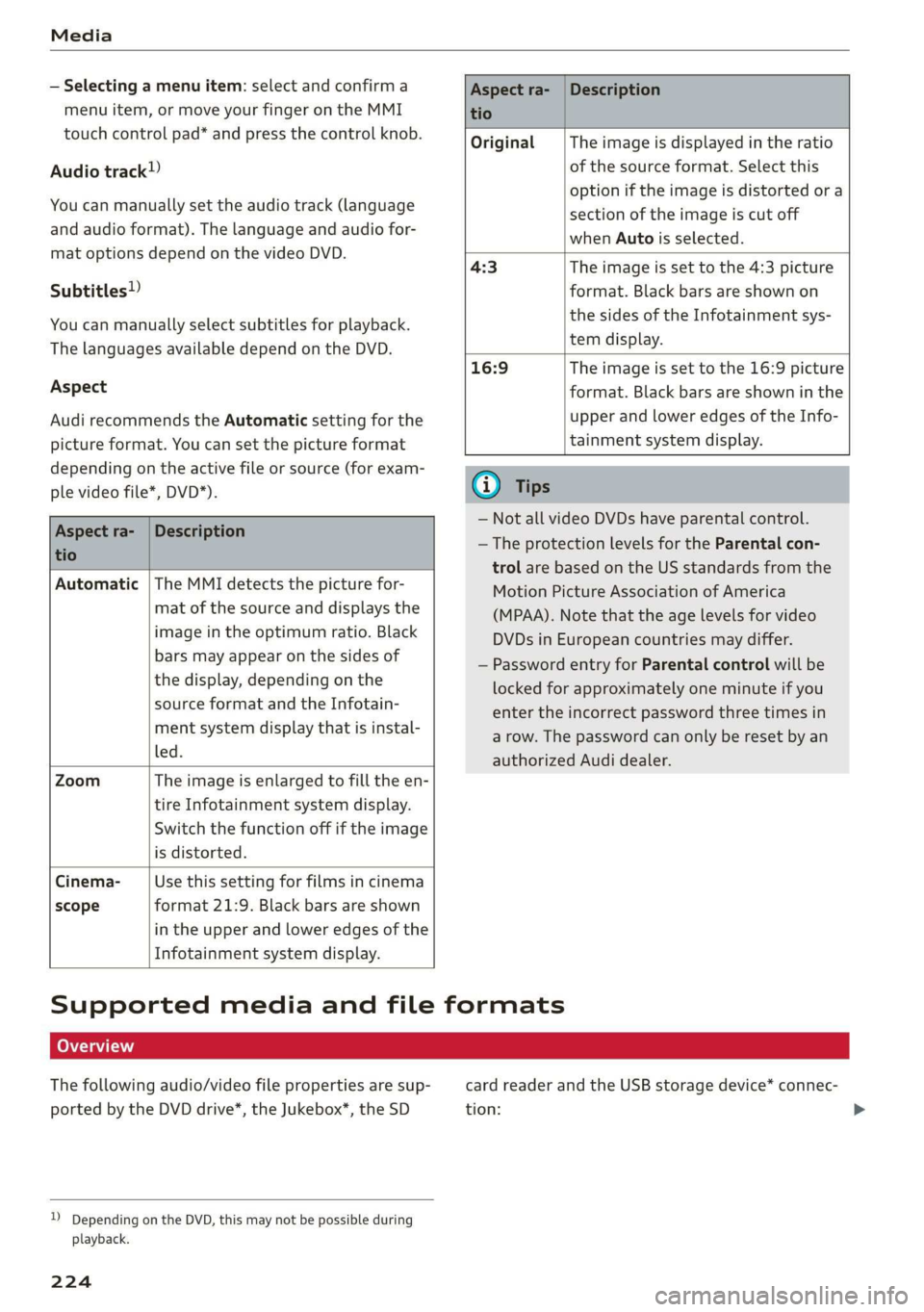
Aspect
Audi recommends the Automatic setting for the
picture format. You can set the picture format
depending on the active file or source (for exam-
ple video file*, DVD*).
Aspect ra-
tio
Description
Original The image is displayed in the ratio
of the source format. Select this
option if the image is distorted or a
section of the image is cut off
when Auto is selected.
4:3 The image is set to the 4:3 picture
format. Black bars are shown on
the sides of the Infotainment sys-
tem display.
16:9 The image is set to the 16:9 picture
format. Black bars are shown in the
upper and lower edges of the Info-
tainment system display.
Aspect ra- |Description
tio
Automatic |The MMI detects the picture for-
mat of the source and displays the
image in the optimum ratio. Black
bars may appear on the sides of
the display, depending on the
source format and the Infotain-
ment system display that is instal-
led.
Zoom The image is enlarged to fill the en-
tire Infotainment system display.
Switch the function off if the image
is distorted.
Cinema- Use this setting for films in cinema
scope format 21:9. Black bars are shown
in the upper and lower edges of the
Infotainment system display.
@) Tips
— Not all video DVDs have parental control.
— The protection levels for the Parental con-
trol are based on the US standards from the
Motion Picture Association of America
(MPAA). Note that the age levels for video
DVDs in European countries may differ.
— Password entry for Parental control will be
locked for approximately one minute if you
enter the incorrect password three times in
a row. The password can only be reset by an
authorized Audi dealer.
Supported media and file formats
LO TaV TN]
The following audio/video file properties are sup-
ported by the DVD drive*, the Jukebox”, the SD
)) Depending on the DVD, this may not be possible during
playback.
224
card reader and the USB storage device* connec-
tion:
Page 232 of 400
![AUDI A3 2020 Owner´s Manual System settings
System settings
Setting the date and
time
You can set the clock time manually or using the
GPS*.
> Select: [MENU] button > Settings > left control
button > MMI settings](/img/6/40265/w960_40265-231.png "AUDI A3 2020 Owner´s Manual System settings
System settings
Setting the date and
time
You can set the clock time manually or using the
GPS*.
> Select: [MENU] button > Settings > left control
button > MMI settings")
System settings
System settings
Setting the date and
time
You can set the clock time manually or using the
GPS*.
> Select: [MENU] button > Settings > left control
button > MMI settings > Date & time, or:
> Select: [MENU] button > Vehicle > left control
button > Vehicle settings > Date & time.
Automatic setting
When this function is switched on ¥, the time
and date are automatically set.
Time
Requirement: the Automatic setting must be
switched off.
Press the control knob. You can set the Time
manually by turning and pressing the control
knob.
Date
Requirement: the Automatic setting must be
switched off.
Press the control knob. You can set the Date
manually by turning and pressing the control
knob.
Time zone
When selecting the appropriate time zone, a
sampling of countries in this zone will be listed.
Automatic time zone*
When this function is switched on ¥, the time
will automatically adjust to the corresponding
time zone.
Automatic daylight saving time*
When this function is switched on M, the time
will automatically switch to daylight saving time.
) The Qi standard makes it possible to charge your mobile
device wirelessly.
230
Time format
If you select 24h, the clock will display, for exam-
ple, 13:00. If you select AM/PM, the clock will
display, for example, 1:00 PM.
Date format
If you select DD.MM.YYYY, the date display will
show, for example, 31.03.2019. If you select
MM/DD/YYYY, the date display will show, for ex-
ample, 03/31/2019. If you select YYYY-MM-DD,
the date display will show, for example,
2019-03-31.
MMI settings
> Select: [MENU] button > Settings > left control
button > MMI settings.
Language
You can change the display language as well as
the language for the voice guidance* and voice
recognition system*.
The number of languages available depends on
the country.
Measurement units
The following measurement units can be set de-
pending on availability: Speed, Distance, Tem-
perature, Fuel consumption, Volume, Pressure.
Mobile device reminder signal
Applies to: vehicles with Audi phone box
Requirement: your cell phone must be Qi-capa-
ble ) or connected to the Audi music interface @
with a USB adapter cable > page 171, fig. 162.
When the device reminder signal is switched on,
you will be notified that your mobile device is still
in the Audi phone box when you leave the vehicle.
You can select between Spoken cue, Signal tone
and Off.
Mobile device reminder signal volume: you can
adjust the reminder signal volume by turning the
control knob.
Page 241 of 400

8V2012721BK
Driving safety
> Always keep both feet in the footwell so that
you are in control of the vehicle at all times.
For detailed information on how to adjust the
driver's seat, see > page 54.
ZA WARNING
Drivers who are unbelted, out of position or
too close to the airbag can be seriously injured
by an airbag as it unfolds. To help reduce the
risk of serious personal injury:
— Always adjust the driver's seat and the
steering wheel so that there are at least
10 inches (25 cm) between your breastbone
and the steering wheel.
— Always adjust the driver's seat and the
steering wheel so that there are at least
4 inches (10 cm) between the knees and the
lower part of the instrument panel.
— Always hold the steering wheel on the out-
side of the steering wheel rim with your
hands at the 9 o'clock and 3 o'clock posi-
tions to help reduce the risk of personal in-
jury if the driver's airbag inflates.
— Never hold the steering wheel at the
12 o'clock position or with your hands at
other positions inside the steering wheel
rim or on the steering wheel hub. Holding
the steering wheel the wrong way can cause
serious injuries to the hands, arms and head
if the driver's airbag inflates.
— Pointing the steering wheel toward your
face decreases the ability of the supplemen-
tal driver's airbag to protect you in a colli-
sion.
— Always sit in an upright position and never
lean against or place any part of your body
too close to the area where the airbags are
located.
— Before driving, always adjust the front seats
properly and make sure that all passengers
are properly restrained.
— For adjustable head restraints: before driv-
ing, always also adjust the head restraints
properly.
— Never adjust the seats while the vehicle is
moving. Your seat may move unexpectedly
and you could lose control of the vehicle.
— Never drive with the backrest reclined or tilt-
ed far back! The farther the backrests are
tilted
back, the greater the risk of injury due
to incorrect positioning of the safety belt
and improper seating position.
— Children must always ride in child seats
=> page 278. Special precautions apply when
installing a child seat on the front passenger
seat > page 253.
Proper seating position for the front
passenger
The proper front passenger seating position is
important for safe, relaxed driving.
For your own safety and to reduce the risk of in-
jury in the event of an accident, we recommend
that you adjust the seat for the front passenger
to the following position:
> Adjust the angle of the seatback so that it is in
an upright position and your back comes in full
contact with it whenever the vehicle is moving.
> For adjustable head restraints: adjust the head
restraint so the upper edge is as even as possi-
ble with the top of your head. If that is not pos-
sible, try to adjust the head restraint so that it
is as close to this position as possible
=> page 57. Move the head restraint so that it is
as close to the back of the head as possible.
> Keep both feet flat on the floor in front of the
front passenger seat.
> Fasten and wear safety belts correctly
=> page 248.
For detailed information on how to adjust the
front passenger's seat, see > page 54.
ZA\ WARNING
Front seat passengers who are unbelted, out
of position or too close to the airbag can be
seriously injured or killed by the airbag as it
unfolds. To help reduce the risk of serious per-
sonal injury:
— Passengers must always sit in an upright po-
sition and never lean against or place any
part of their body too close to the area
where the airbags are located. >
239
Page 251 of 400
8V2012721BK
Safety belts
> Make sure the seatback of the rear seat bench is
in an upright position and securely latched in
place before using the belt > /\.
> Pull the safety belt evenly across the chest and
pelvis > fig. 209, > A\.
> Insert the tongue into the correct buckle of
your seat until you hear it latch securely.
> Pull on the belt to make sure that it is securely
latched in the buckle.
Automatic safety belt retractors
Every safety belt is equipped with an automatic
belt retractor on the shoulder belt. This feature
locks the belt when the belt is pulled out fast,
during hard braking and in an accident. The belt
may also lock when you drive up or down a steep
hill or through a sharp curve. During normal driv-
ing the belt lets you move freely.
Safety belt pretensioners
Safety belts with pretensioners help to tighten
the safety belt and remove slack when the pre-
tensioners are activated > page 252. The func-
tion of the pretensioner is monitored by a warn-
ing light > page 238.
Convertible locking retractor
Every safety belt except the one on the driver
seat is equipped with a convertible locking retrac-
tor that must be used when the safety belt is
used to attach a child seat. Be sure to read the
important information about this feature
=> page 289.
ZA WARNING
Improperly positioned safety belts can cause
serious injury in an accident > page 249,
Safety belt position.
— Safety belts offer optimum protection only
when the seatback is upright and belts are
properly positioned on the body.
— Always make sure that the rear seat backrest
to which the center rear safety belt* is at-
tached is securely latched whenever the rear
center safety belt is being used. If the back-
rest is not securely latched, the passenger
will move forward with the backrest during
sudden braking, in a sudden maneuver and
especially in a crash.
— Never attach the safety belt to the buckle
for another seat. Attaching the belt to the
wrong buckle will reduce safety belt effec-
tiveness and can cause serious personal in-
jury.
— A passenger who is not properly restrained
can be seriously injured by the safety belt it-
self when it moves from the stronger parts
of the body into critical areas like the abdo-
men.
— Always lock the convertible locking retractor
when you are securing a child seat in the ve-
hicle > page 290.
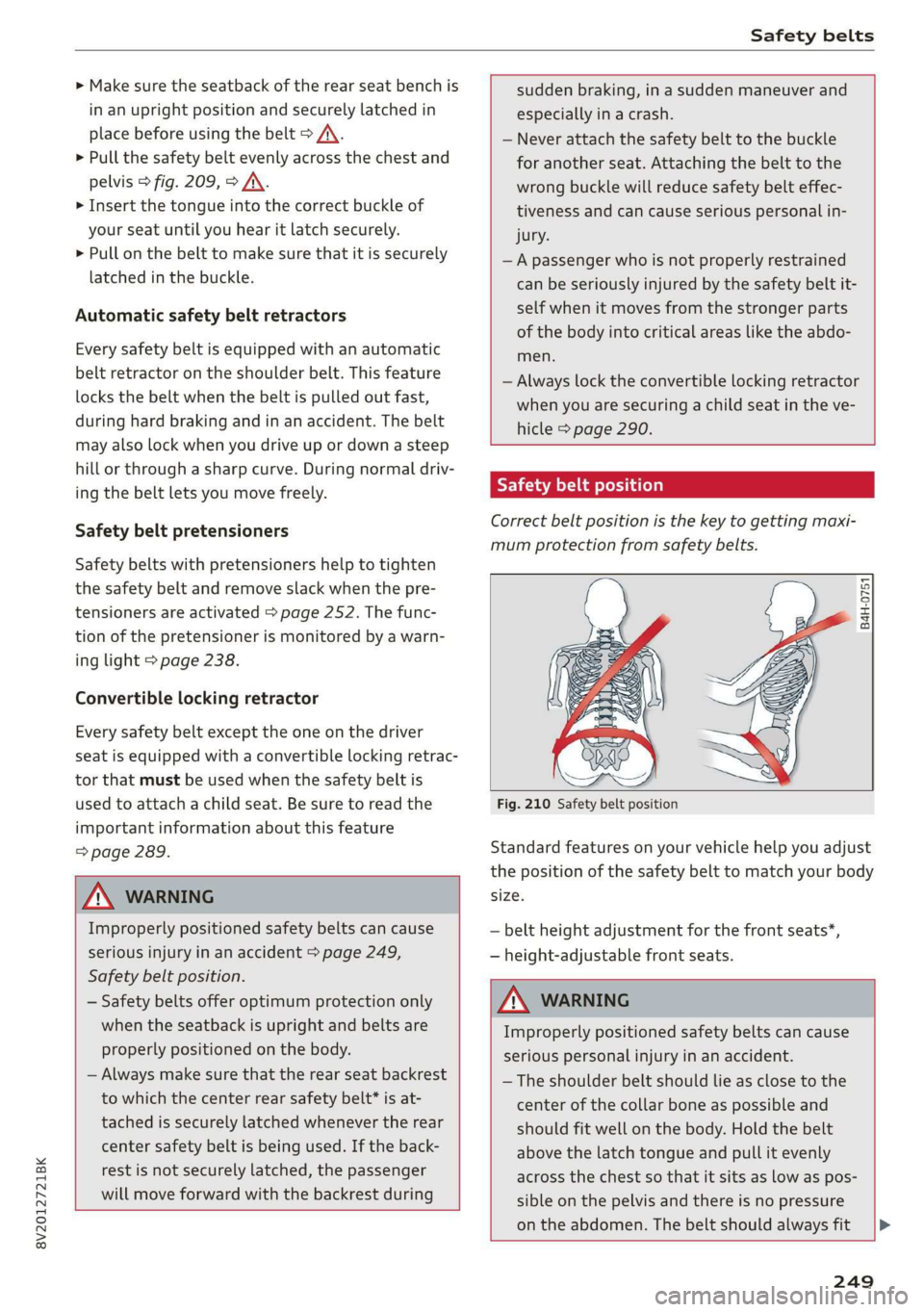
Safety belt position
Correct belt position is the key to getting maxi-
mum protection from safety belts.
B4H-0751
Fig. 210 Safety belt position
Standard features on your vehicle help you adjust
the position of the safety belt to match your body
size.
— belt height adjustment for the front seats*,
— height-adjustable front seats.
ZX WARNING
Improperly positioned safety belts can cause
serious personal injury in an accident.
—The shoulder belt should lie as close to the
center of the collar bone as possible and
should fit well on the body. Hold the belt
above the latch tongue and pull it evenly
across the chest so that it sits as low as pos-
sible on the pelvis and there is no pressure
on the abdomen. The belt should always fit
249