Bluetooth audio player AUDI A3 2020 Owner´s Manual
[x] Cancel search | Manufacturer: AUDI, Model Year: 2020, Model line: A3, Model: AUDI A3 2020Pages: 400, PDF Size: 107.47 MB
Page 5 of 400
8V2012721BK
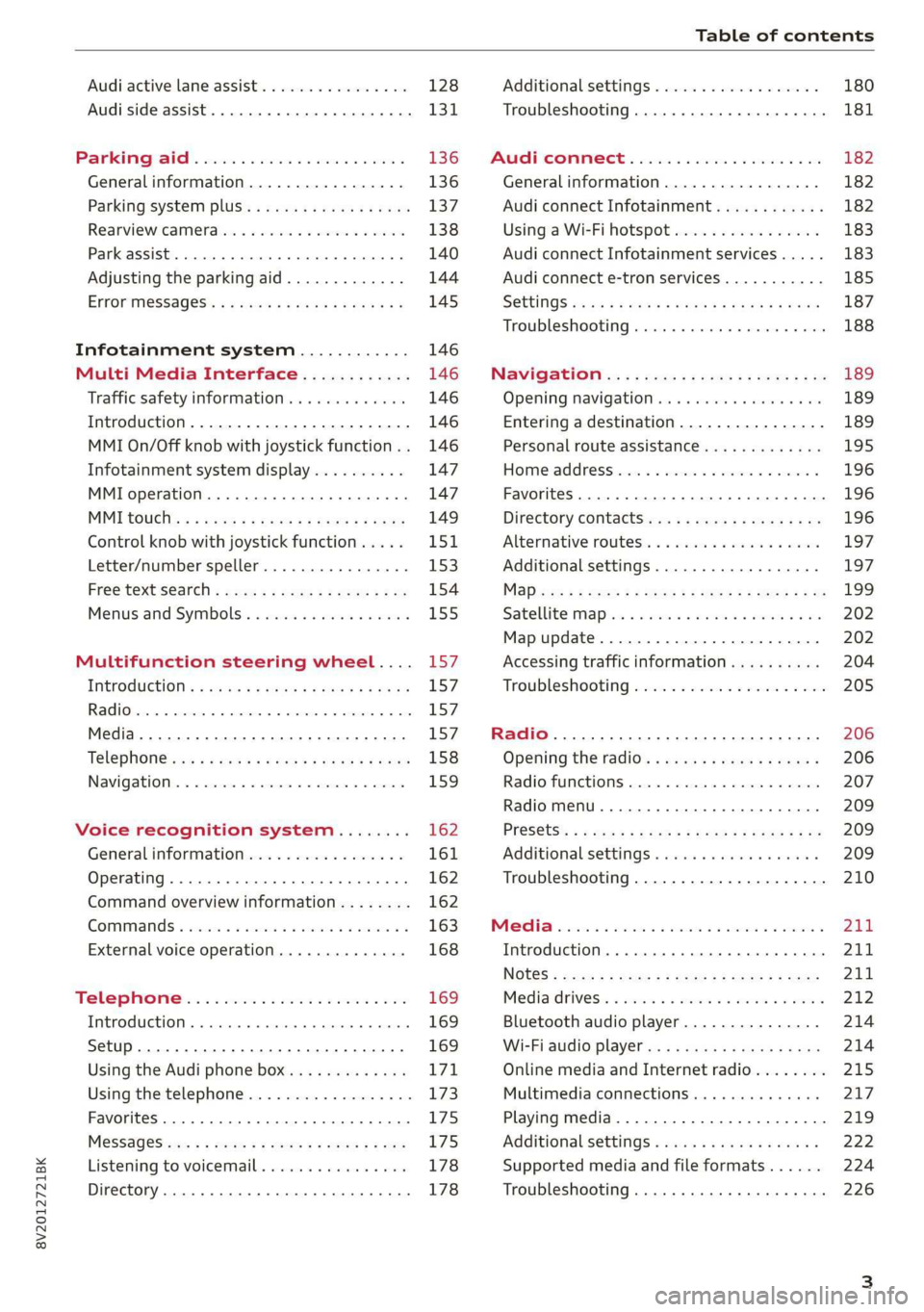
Table of contents
Audi active lane assist. .............65 128
Audi side assist... 2... 0.00.00. 131
PRB CAIG, scsi: 3 6 nose 28 wow swan « 136
Generalinformation................. 136
Parking system plus...........000000 137
Rearview Cametaiics « + icon so ese vo aoa 138
Park assist........ 0.00.00. c eee eee 140
Adjusting the parking aid............. 144
ErrOrimessages’: ¢ « wea = v news 2s new 6 2 145
Infotainment system............ 146
Multi Media Interface............ 146
Traffic safety information............. 146
Introduction ............. eee eee eee 146
MMI On/Off knob with joystick function.. 146
Infotainment system display.......... 147
MMI operation.............-.0000005 147
MMI tOUEh: « sams ay moe a 2 seers + ¢ eons 149
Control
knob with joystick function..... 151,
Letter/number speller................ 153
PREG textisearch = xc « x saves » y wom 2 eee 154
Menus and Symbols ..........0...0005 155
Multifunction steering wheel.... 157
INtrOduCtion « » sass x & ears s & ewe + & RES 157
Radio... 2... ee eee ee 157
Media... ... ccc eee eee eee 157
Telephone ssc « cays ¢ gees & x eerey & x eee 158
Nawigations. « + cscs 6 + same ao annene #0 ann 159
Voice recognition system........ 162
General information 161
Operating ......... 0.0 cece eee eee eee 162
Command overview information........ 162
Gommands « wisi sv wie 6 2 wenn oe eer a 2 163
External voice operation.............. 168
TALS POR 5 6 cece ss ees0n oo ems 2 wow 169
Introduction. ...... 20... 0. e cee eee eee 169
Setup. ..... 2... eee eee eee eee 169
Using the Audi phone box............. 171
Using the telephone.................. 173
Favorites... 0... 0... cece eee eee 175
MESSAQCS cra, « : ews ¢ ¢ sete x © sees os cee 175
Listening to voicemail................ 178
Directory... ... 00.0... cece ee ee eee 178
Additional settings................0. 180
Troubleshooting. ..............0e0 eee 181
MUA CONMECE « oss65 5 6 60% oe Owe 6 6 or 182
General information................. 182
Audi connect Infotainment............ 182
Using a Wi-Fi hotspot................ 183
Audi connect Infotainment services..... 183
Audi connect e-tron services........... 185
SCHINGS mows 4 » new 2 eee « ¢ wes 4s ee 187
Troubleshooting............0.. eee eee 188
NavigatiOn’.« « » soc: ss acca y seen sees 189
Opening navigation...............00. 189
Entering a destination................ 189
Personal route assistance............. 195
Home address wisi se sceie ee eae ve eee 196
Favorites... 0.0... eee eee eee 196
Directory CONntaACtS wu 5 sensu 5 4 wees 8 8 ee 196
Alternative routes............0000 ee 197
Additional settings...............005 197
Mapizess x = seus g 9 ees Fo eS go Be Ey me 199
Satellite Mapieic ss same s wom a 6 eee 0 owe 202
Map update...............0 2.00000 202
Accessing traffic information.......... 204
Troubleshooting weiss 2 weve so wwe oo wow 205
Radio... ... cece 206
Opening the radio................4.. 206
Radio fumetioms crise « scscese oo eves oo siemens 207
Radio menu......... 0... eee eee eee ee 209
PROSCESS: = s aes 2 soem & s gla & x Hew ED HE 209
Additional settings ..............00 ee 209
Troubleshooting..............-.0000- 210
PROS wesc as soaen 6 3 sonweme 3 7 meen 6 eo 211,
Introduction. ....... 2... cee eee ee 211
Notes = scan « ¢ same © 7 eam og Some tS ee 211
Media drives.: « sissies + «seen 3 2 were sv wen 212
Bluetooth audio player............... 214
Wi-Fi audio player 214
Online media and Internet radio........ 215
Multimedia connections............-. 217
Playing media...............0--00005 219
Additional Settings « wows « s aswa a news 4 222
Supported media and file formats...... 224
Troubleshooting............0-seee eee 226
Page 169 of 400
8V2012721BK
Voice recognition system
@) Note
Read the information about Audi connect, and
be sure to note the connectivity costs section
=@ in General information on page 182.
@) Tips
Destinations may have to be spelled when en-
tered, depending on which region you are in
and which menu language you have selected.
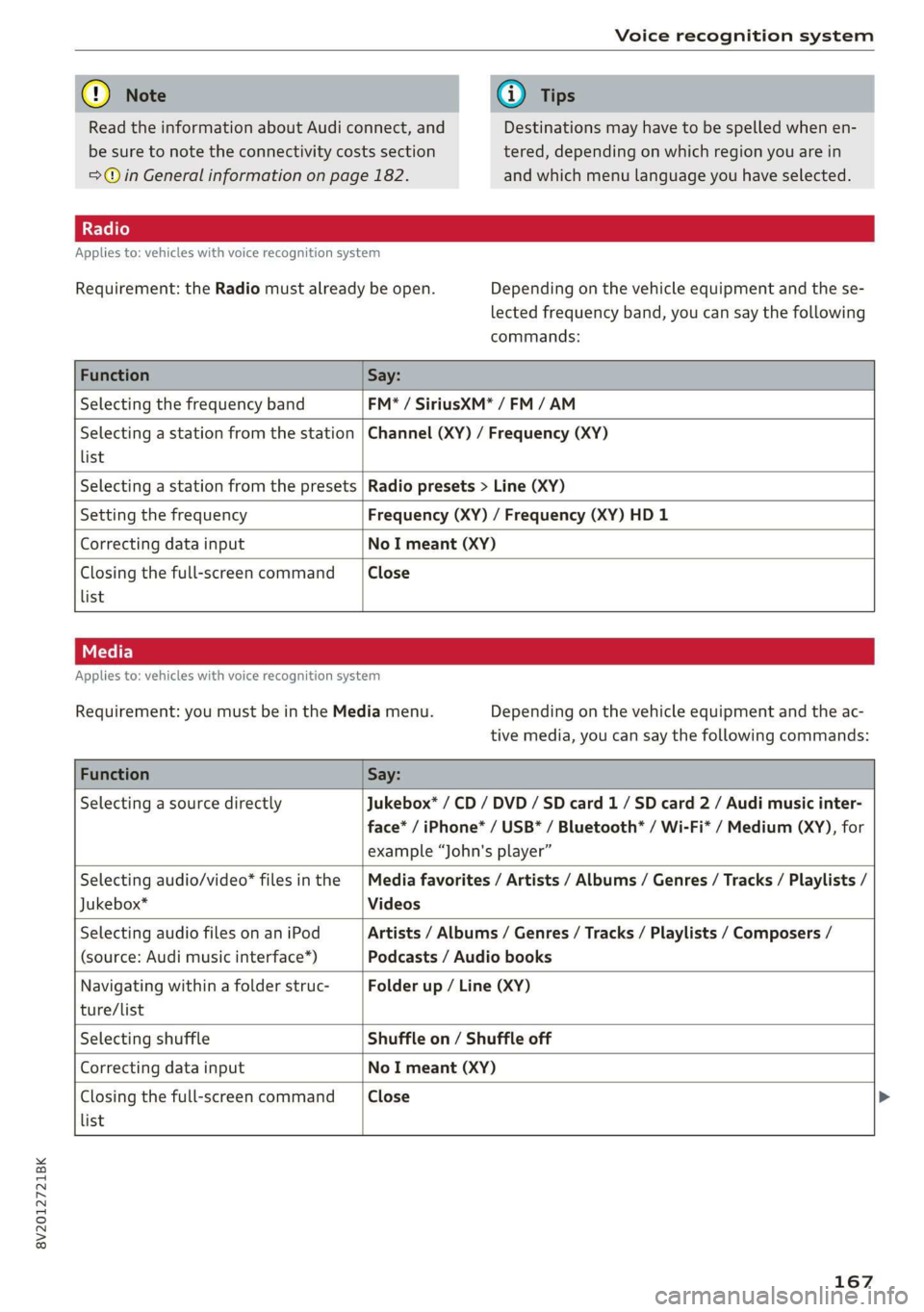
Applies to: vehicles with voice recognition system
Requirement: the Radio must already be open. Depending on the vehicle equipment and the se-
lected frequency band, you can say the following
commands:
Function Say:
Selecting the frequency band FM* / SiriusXM* / FM / AM
Selecting a station from the station
list
Channel (XY) / Frequency (XY)
Selecting a station from the presets Radio presets > Line (XY)
Setting the frequency Frequency (XY) / Frequency (XY) HD 1
Correcting data input No I meant (XY)
Closing the full-screen command
list
Close
Applies to: vehicles with voice recognition system
Requirement: you must be in the Media menu. Depending on the vehicle equipment and the ac-
tive media, you can say the following commands:
Function Say:
Selecting a source directly Jukebox* / CD / DVD / SD card 1 / SD card 2 / Audi music inter-
face* / iPhone* / USB* / Bluetooth® / Wi-Fi* / Medium (XY), for
example “John's player”
Selecting audio/video* files in the
Jukebox*
Media favorites / Artists / Albums / Genres / Tracks / Playlists /
Videos
Selecting audio files on an iPod
(source: Audi music interface*)
Artists / Albums / Genres / Tracks / Playlists / Composers /
Podcasts / Audio books
Navigating within a folder struc-
ture/list
Folder up / Line (XY)
list
Selecting shuffle Shuffle on / Shuffle off
Correcting data input No I meant (XY)
Closing the full-screen command Close >
167
Page 216 of 400
Media
— The status of the deleting process is shown in
the MMI. Jukebox playback stops during the de-
leting process and starts again automatically
once the deletion is complete.
@) Note
Do not import audio/video files when the en-
gine is turned off because this will drain the
vehicle battery.
@ Tips
— Tracks from audio CDs cannot be imported
to the Jukebox for legal reasons.
— Files that have already been imported are
automatically recognized and cannot be
copied to the Jukebox again.
— It is not possible to play audio/video* files
in the CD/DVD* drive while importing them.
— The Jukebox does not provide an export
function due to legal reasons.
— Files or tracks without additional stored in-
formation are listed as Unknown. Audi rec-
ommends adding additional information
(such as ID3 tags) to audio files.
— Reset the Jukebox to the factory default set-
tings when selling your vehicle > page 231.
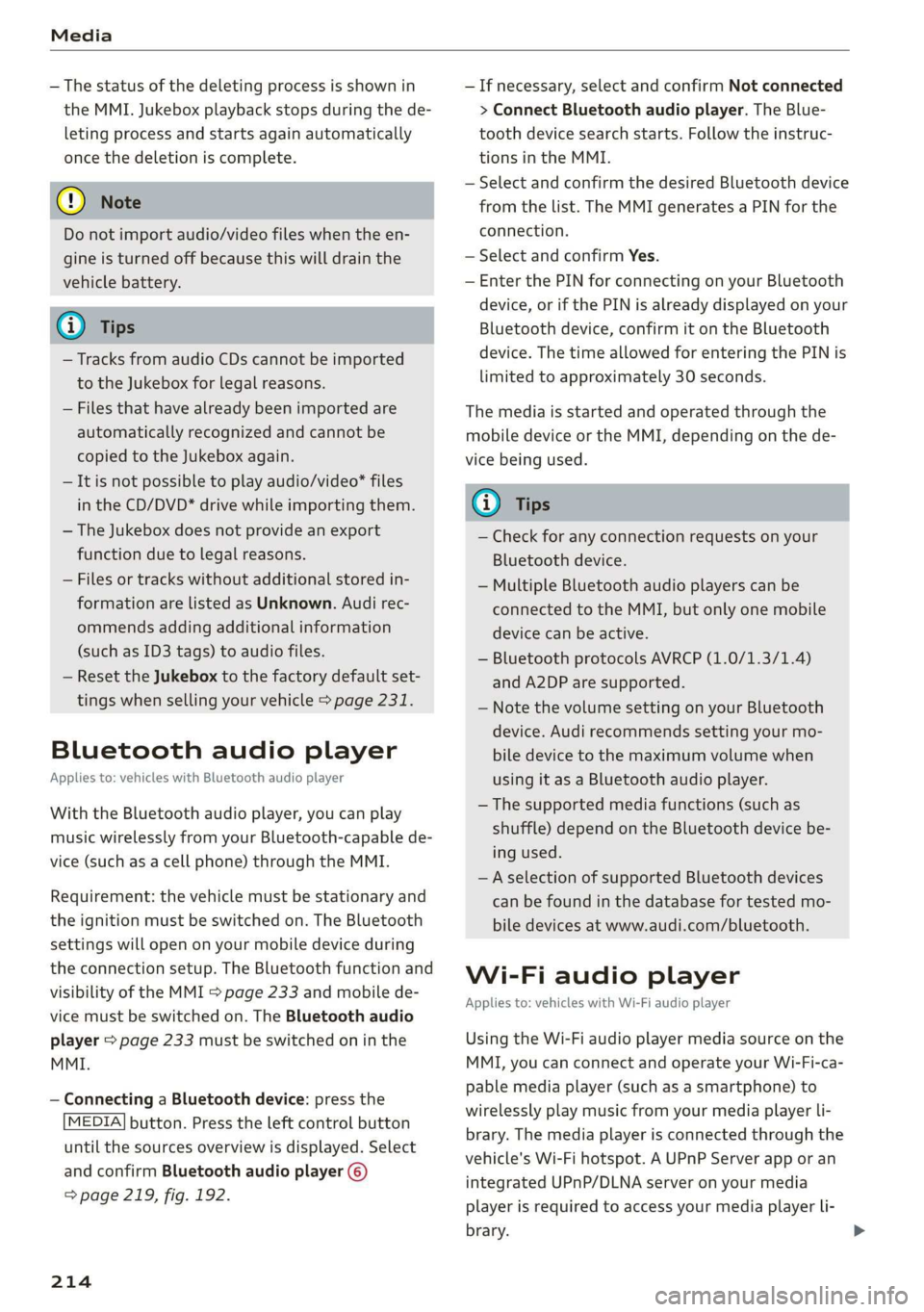
Bluetooth audio player
Applies to: vehicles with Bluetooth audio player
With the Bluetooth audio player, you can play
music wirelessly from your Bluetooth-capable de-
vice (such as a cell phone) through the MMI.
Requirement: the vehicle must be stationary and
the ignition must be switched on. The Bluetooth
settings will open on your mobile device during
the connection setup. The Bluetooth function and
visibility of the MMI S page 233 and mobile de-
vice must be switched on. The Bluetooth audio
player > page 233 must be switched on in the
MMI.
— Connecting a Bluetooth device: press the
[MEDIA] button. Press the left control button
until the sources overview is displayed. Select
and confirm Bluetooth audio player @)
=> page 219, fig. 192.
214
— If necessary, select and confirm Not connected
> Connect Bluetooth audio player. The Blue-
tooth device search starts. Follow the instruc-
tions in the MMI.
— Select and confirm the desired Bluetooth device
from the list. The MMI generates a PIN for the
connection.
— Select and confirm Yes.
— Enter the PIN for connecting on your Bluetooth
device, or if the PIN is already displayed on your
Bluetooth device, confirm it on the Bluetooth
device. The time allowed for entering the PIN is
limited to approximately 30 seconds.
The media is started and operated through the
mobile device or the MMI, depending on the de-
vice being used.
G) Tips
— Check for any connection requests on your
Bluetooth device.
— Multiple Bluetooth audio players can be
connected to the MMI, but only one mobile
device can be active.
— Bluetooth protocols AVRCP (1.0/1.3/1.4)
and A2DP are supported.
— Note the volume setting on your Bluetooth
device. Audi recommends setting your mo-
bile device to the maximum volume when
using it as a Bluetooth audio player.
— The supported media functions (such as
shuffle) depend on the Bluetooth device be-
ing used.
—Aselection of supported Bluetooth devices
can be found in the database for tested mo-
bile devices at www.audi.com/bluetooth.
Wi-Fi audio player
Applies to: vehicles with Wi-Fi audio player
Using the Wi-Fi audio player media source on the
MMI, you can connect and operate your Wi-Fi-ca-
pable media player (such as a smartphone) to
wirelessly play music from your media player Li-
brary. The media player is connected through the
vehicle's Wi-Fi hotspot. A UPnP Server app or an
integrated UPnP/DLNA server on your media
player is required to access your media player Li-
brary.
Page 222 of 400

Media
© Bluetooth audio player* ........ 214
@ Wi-Fi audio player* ............ 214
Online media* and Internet radio” . 215
— Playing audio/video files: select a source in the
Media menu > category (such as artists > al-
bum > track).
— Moving one level up in the folder structure:
press the [BACK] button, or select and confirm
Folder up.
— Selecting the previous or next track/chap-
ter*)): press the On/Off knob on the MMI con-
trol panel briefly to the left Kd or right Pe.
— Fast-forwarding and rewinding audio/video*
files: press and hold the On/Off knob on the
MMI control panel to the left Kd or right Pol for
a longer time.
— Pausing or resuming playback: press the
On/Off knob on the MMI control panel briefly.
@ Tips
— You can scroll through long lists quickly by
turning the control knob quickly. The scroll-
ing speed depends on the number of list en-
tries.
— For safety reasons, the video image is only
displayed when the vehicle is stationary. On-
ly the sound from the video plays while driv-
ing.
Fig. 193 Infotainment system: USB flash drive categories
)) Depending on the DVD, this may not be possible during
playback.
220
Track
Folders Oa
Se aaeytses
Videos
Fig. 194 Infotainment system: USB flash drive categories
Various categories for selecting audio/video” files
are available in the media center.
> Press the [MEDIA] button. Press the left control
button until the sources overview is displayed.
Select and confirm the desired source.
@ Active source
The active source is highlighted. The active
source symbol @) may change depending on the
connected device, the online media service* or
Internet radio*. The device name may be dis-
played (for example: myPhone). As an example, a
USB stick is shown > fig. 193 connected to the
Audi music interface*.
Depending on the active source, you can select
audio/video files* from the following categories
and add them to the playlist:
@ Favorites
The Favorites category appears if at least one en-
try is stored in the favorites list. > page 222.
@ Artists
All available artists are displayed. Select and con-
firm
an artist, an album and then a track.
@ Albums
All available albums are displayed. Select and
confirm an album and then a track.
© Genres
All available genres are displayed. Select and con-
firm
a genre (such as Pop), an artist, an album
and then a song.
Page 228 of 400
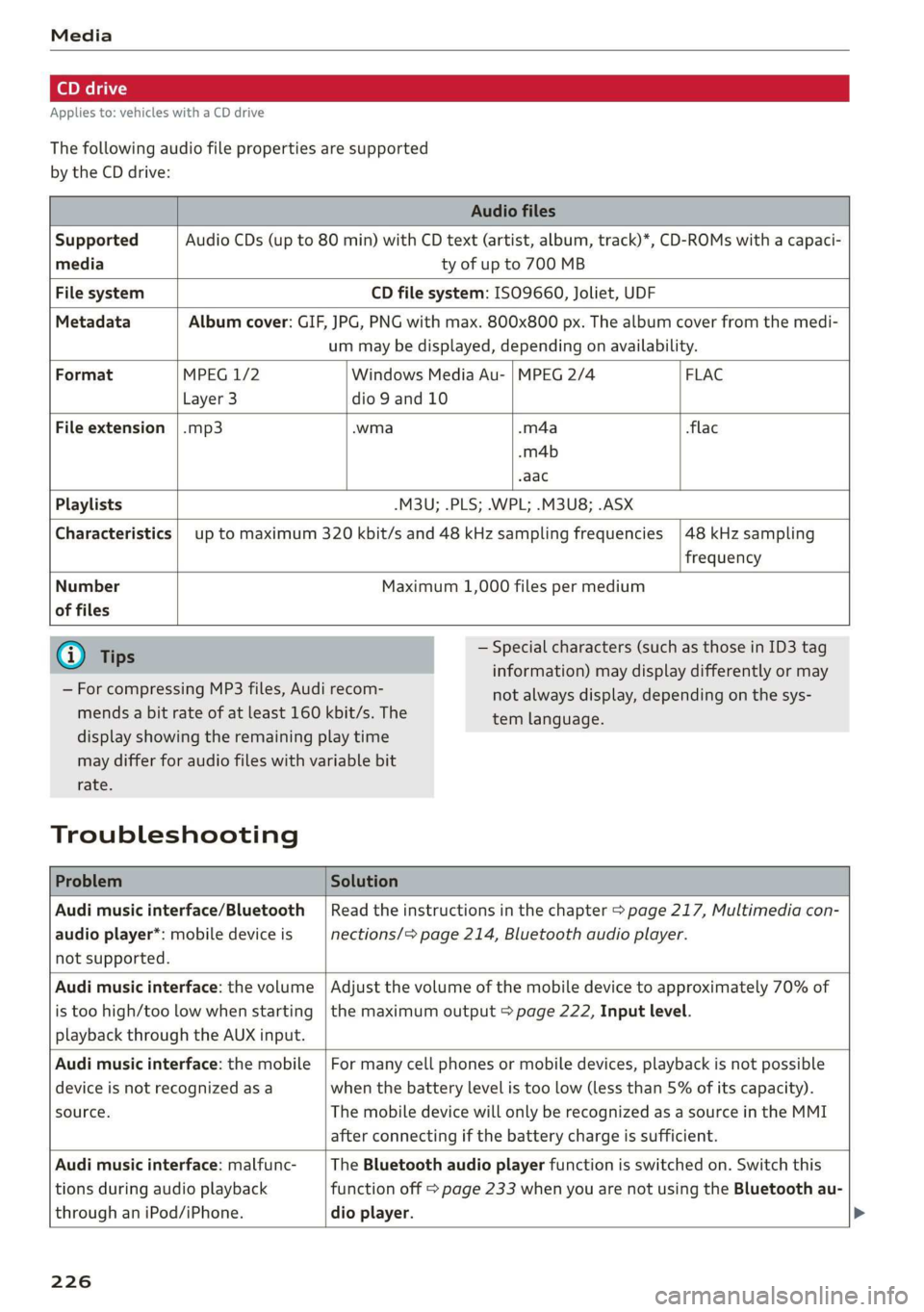
Applies to: vehicles with a CD drive
The following audio file properties are supported
by the CD drive:
Audio files
Supported Audio CDs (up to 80 min) with CD text (artist, album, track)*, CD-ROMs with a capaci-
media ty of up to 700 MB
File system CD file system: ISO9660, Joliet, UDF
Metadata Album cover: GIF, JPG, PNG with max. 800x800 px. The album cover from the medi-
um may be displayed, depending on availability.
Format MPEG 1/2 Windows Media Au- | MPEG 2/4 FLAC
Layer 3 dio 9 and 10
File extension |.mp3 -wma -m4a flac
-m4b
aac
Playlists -M3U; .PLS; .WPL; .M3U8; .ASX
Characteristics up to maximum 320 kbit/s and 48 kHz sampling frequencies 48 kHz sampling
frequency
Number
of files
Maximum 1,000 files per medium
@ Tips
— For compressing MP3 files, Audi recom-
mends a bit rate of at least 160 kbit/s. The
— Special characters (such as those in ID3 tag
information) may display differently or may
not always display, depending on the sys-
tem language.
display showing the remaining play time
may differ for audio files with variable bit
rate.
Troubleshooting
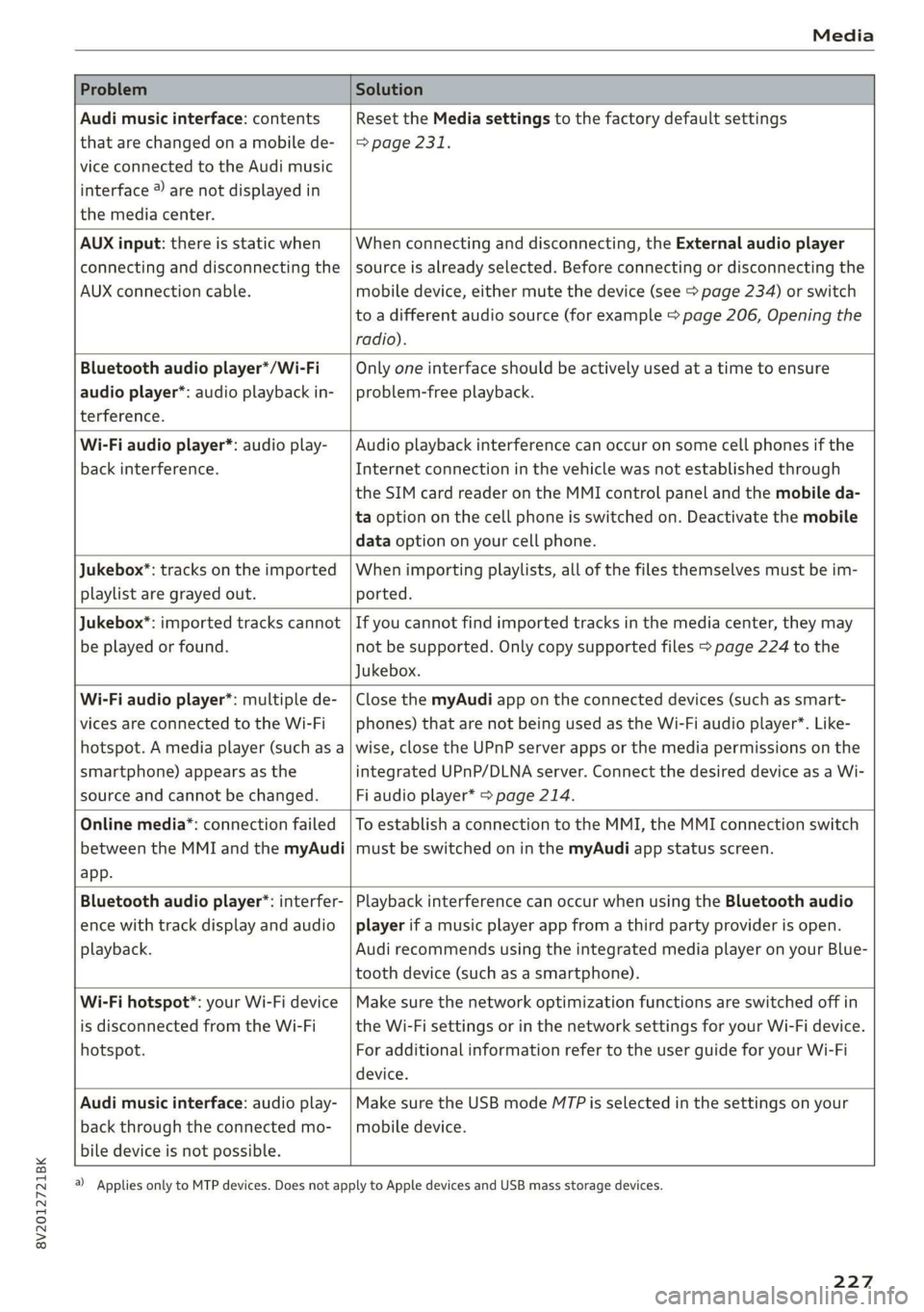
Problem Solution
Audi music interface/Bluetooth
audio player*: mobile device is
not supported.
Read the instructions in the chapter > page 217, Multimedia con-
nections/> page 214, Bluetooth audio player.
Audi music interface: the volume
is too high/too low when starting
playback through the AUX input.
Adjust the volume of the mobile device to approximately 70% of
the maximum output > page 222, Input level.
Audi music interface: the mobile
device is not recognized asa
source.
For many cell phones or mobile devices, playback is not possible
when the battery level is too low (less than 5% of its capacity).
The mobile device will only be recognized as a source in the MMI
after connecting if the battery charge is sufficient.
Audi music interface: malfunc-
tions during audio playback
through an iPod/iPhone.
The Bluetooth audio player function is switched on. Switch this
function off > page 233 when you are not using the Bluetooth au-
dio
player.
226
Page 229 of 400
8V2012721BK
Media
Problem Solution
Audi music interface: contents
that are changed on a mobile de-
vice connected to the Audi music
interface ®) are not displayed in
the media center.
Reset the Media settings to the factory default settings
=> page 231.
AUX input: there is static when
connecting and disconnecting the
AUX connection cable.
When connecting and disconnecting, the External audio player
source is already selected. Before connecting or disconnecting the
mobile device, either mute the device (see > page 234) or switch
to a different audio source (for example > page 206, Opening the
radio).
Bluetooth audio player*/Wi-Fi
audio player*: audio playback in-
terference.
Only one interface should be actively used at a time to ensure
problem-free playback.
Wi-Fi audio player*: audio play-
back interference.
Audio playback interference can occur on some cell phones if the
Internet connection in the vehicle was not established through
the SIM card reader on the MMI control panel and the mobile da-
ta option on the cell phone is switched on. Deactivate the mobile
data option on your cell phone.
Jukebox”: tracks on the imported
playlist are grayed out.
When importing playlists, all of the files themselves must be im-
ported.
Jukebox*: imported tracks cannot
be played or found.
If you cannot find imported tracks in the media center, they may
not be supported. Only copy supported files > page 224 to the
Jukebox.
Wi-Fi audio player*: multiple de-
vices are connected to the Wi-Fi
hotspot. A media player (such as a
smartphone) appears as the
source and cannot be changed.
Close the myAudi app on the connected devices (such as smart-
phones) that are not being used as the Wi-Fi audio player*. Like-
wise, close the UPnP server apps or the media permissions on the
integrated UPnP/DLNA server. Connect the desired device as a Wi-
Fi audio player* > page 214.
Online media*: connection failed
between the MMI and the myAudi
app.
To establish a connection to the MMI, the MMI connection switch
must be switched on in the myAudi app status screen.
Bluetooth audio player*: interfer-
ence with track display and audio
playback.
Playback interference can occur when using the Bluetooth audio
player if a music player app from a third party provider is open.
Audi recommends using the integrated media player on your Blue-
tooth device (such as a smartphone).
Wi-Fi hotspot*: your Wi-Fi device
is disconnected from the Wi-Fi
hotspot.
Make sure the network optimization functions are switched off in
the Wi-Fi settings or in the network settings for your Wi-Fi device.
For additional information refer to the user guide for your Wi-Fi
device.
Audi music interface: audio play-
back through the connected mo-
bile device is not possible.
Make sure the USB mode MTP is selected in the settings on your
mobile device.
a) Applies only to MTP devices. Does not apply to Apple devices and USB mass storage devices.
227
Page 234 of 400
System settings
visibility of the MMI > page 233 and mobile de-
vice must be switched on. The mobile device to
be connected must not be connected to any other
Bluetooth device.
aeluatleva daeyit
Applies to: vehicles with telephone
> Connect new device: search for and connect a
cell phone.
> List of devices already paired: select your cell
phone from the list of all the devices that are
already paired.
Toate Tava en
Applies to: vehicles with telephone, and Audi phone box
> Connect new device: search for and connect a
cell phone.
> List of devices already paired: select your cell
phone from the list of all the devices that are
already paired.
PELE Mel a-Vaaleya)
Applies to: vehicles with Audi connect Infotainment
The data connection is made using the embedded
SIM card ) > page 183. You do not need to ad-
just any additional settings.
@) Note
Always follow the information found in 9@ in
General information on page 182.
myAudi app
Applies to: vehicles with Audi connect Infotainment
Requirement: the myAudi app must be installed
and open on your mobile device.
> Connect new device: search for and connect a
mobile device (such as a smartphone).
> List of devices already paired: select your mo-
bile device from the list of all the devices that
are already paired.
D_ SIM card installed in the vehicle at the factory.
232
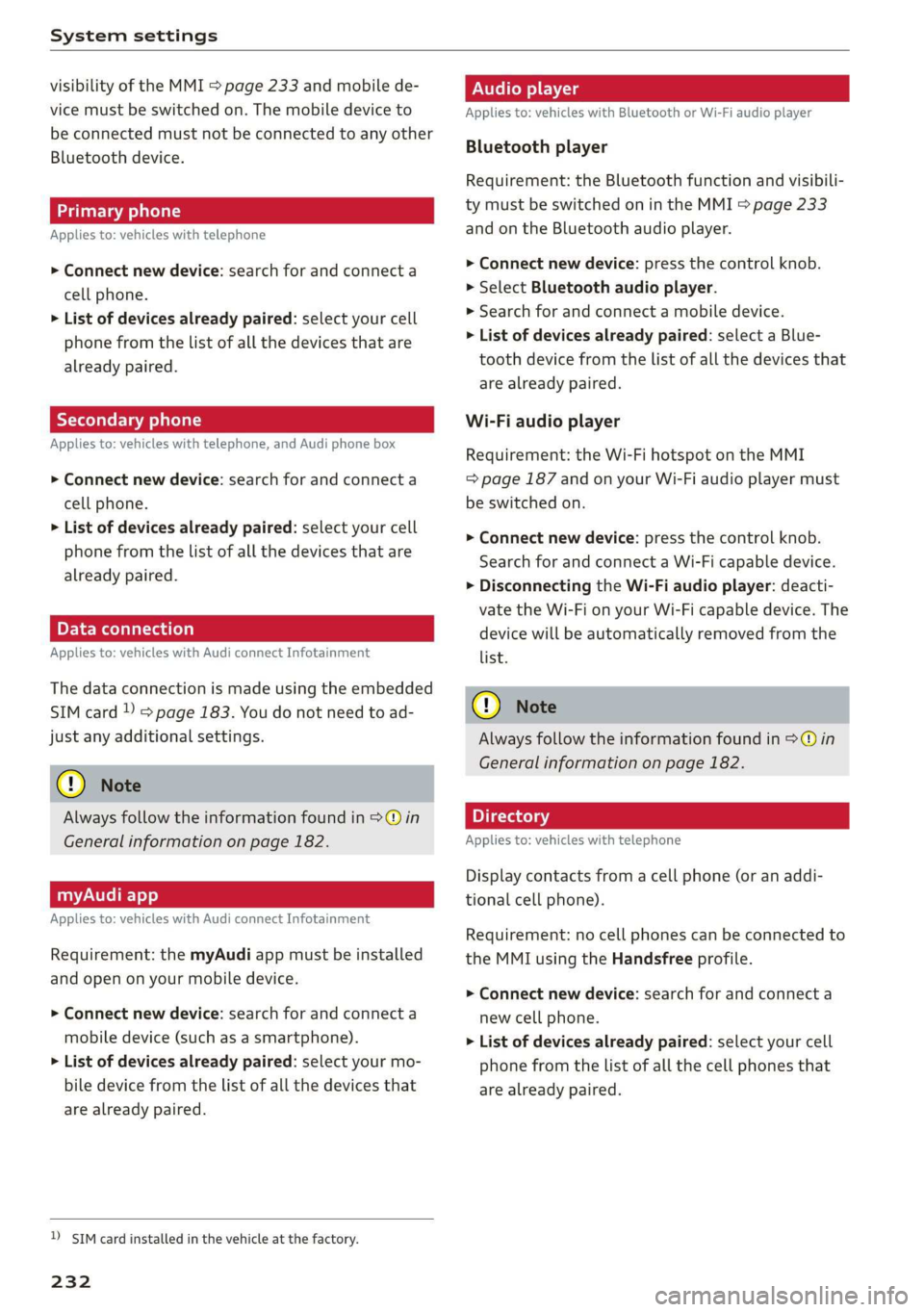
Audio player
Applies to: vehicles with Bluetooth or Wi-Fi audio player
Bluetooth player
Requirement: the Bluetooth function and visibili-
ty must be switched on in the MMI > page 233
and on the Bluetooth audio player.
> Connect new device: press the control knob.
> Select Bluetooth audio player.
» Search for and connect a mobile device.
> List of devices already paired: select a Blue-
tooth device from the list of all the devices that
are already paired.
Wi-Fi audio player
Requirement: the Wi-Fi hotspot on the MMI
=> page 187 and on your Wi-Fi audio player must
be switched on.
> Connect new device: press the control knob.
Search for and connect a Wi-Fi capable device.
> Disconnecting the Wi-Fi audio player: deacti-
vate the Wi-Fi on your Wi-Fi capable device. The
device will be automatically removed from the
list.
() Note
Always follow the information found in S@ in
General information on page 182.
Applies to: vehicles with telephone
Display contacts from a cell phone (or an addi-
tional cell phone).
Requirement: no cell phones can be connected to
the MMI using the Handsfree profile.
> Connect new device: search for and connect a
new cell phone.
> List of devices already paired: select your cell
phone from the list of all the cell phones that
are already paired.
Page 235 of 400
8V2012721BK
System settings
Audi smartphone interface
Applies to: vehicles with Audi smartphone interface
> Connect your cell phone to the Audi music in-
terface > page 217 using a USB adapter
=> page 217, fig. 190.
> Select your cell phone from the list of cell
phones that have already been connected.
Additional options
Depending on the selected function, you can use
the right control button to access the available
additional options in the connection manager.
Delete Bluetooth device*
The selected cell phone/mobile device is discon-
nected from the MMI and is removed from the
list of all devices that are already paired.
Show Bluetooth profiles*
You can individually Connect or Disconnect the
Handsfree, Messages*, Directory/contacts and
Bluetooth audio player profiles.
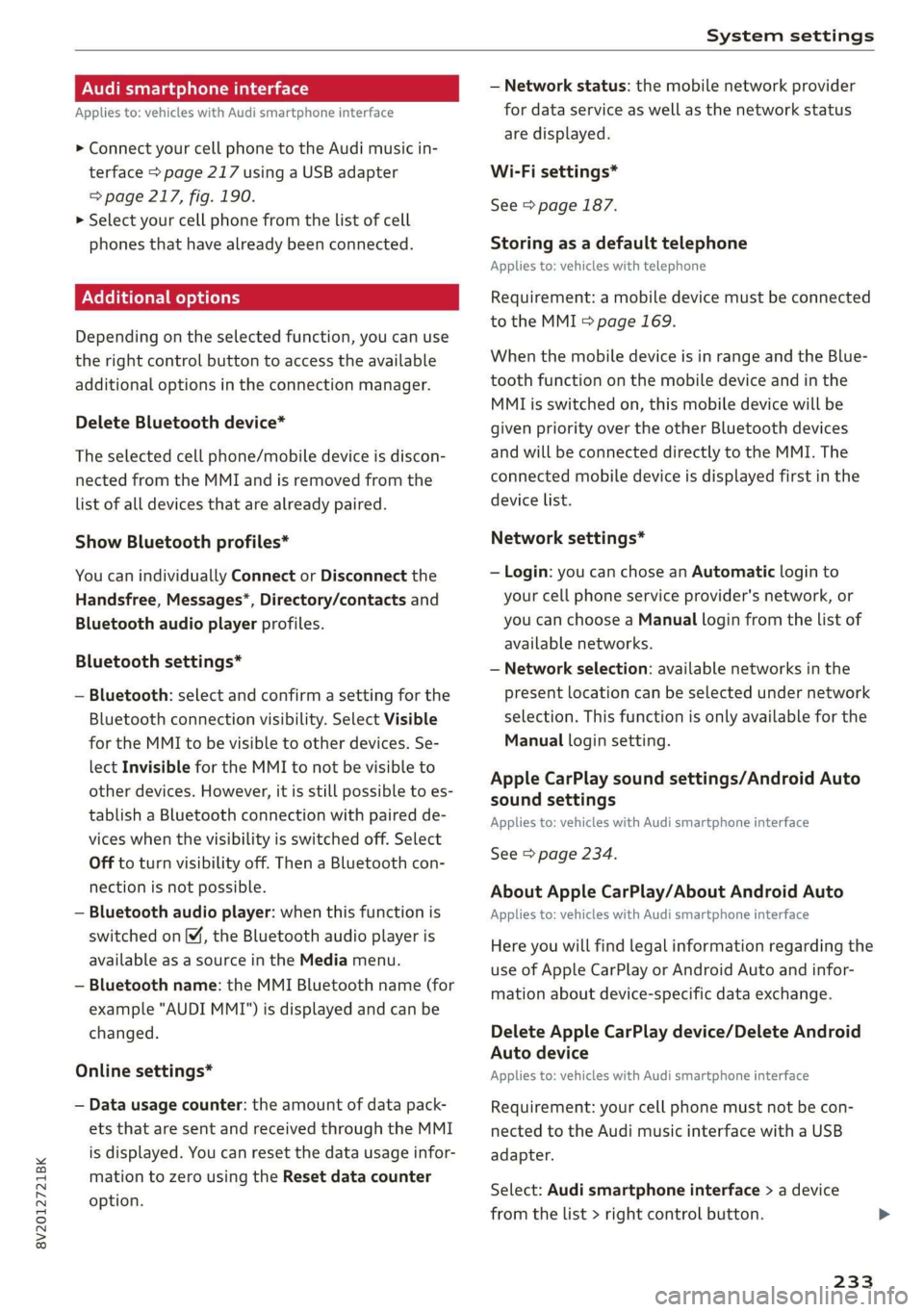
Bluetooth settings*
— Bluetooth: select and confirm a setting for the
Bluetooth connection visibility. Select Visible
for the MMI to be visible to other devices. Se-
lect Invisible for the MMI to not be visible to
other devices. However, it is still possible to es-
tablish a Bluetooth connection with paired de-
vices when the visibility is switched off. Select
Off to turn visibility off. Then a Bluetooth con-
nection is not possible.
— Bluetooth audio player: when this function is
switched on [M, the Bluetooth audio player is
available as a source in the Media menu.
— Bluetooth name: the MMI Bluetooth name (for
example "AUDI MMI") is displayed and can be
changed.
Online settings*
— Data usage counter: the amount of data pack-
ets that are sent and received through the MMI
is displayed. You can reset the data usage infor-
mation to zero using the Reset data counter
option.
— Network status: the mobile network provider
for data service as well as the network status
are displayed.
Wi-Fi settings*
See > page 187.
Storing as a default telephone
Applies to: vehicles with telephone
Requirement: a mobile device must be connected
to the MMI > page 169.
When the mobile device is in range and the Blue-
tooth function on the mobile device and in the
MML is switched on, this mobile device will be
given priority over the other Bluetooth devices
and will be connected directly to the MMI. The
connected mobile device is displayed first in the
device list.
Network settings*
— Login: you can chose an Automatic login to
your cell phone service provider's network, or
you can choose a Manual login from the list of
available networks.
— Network selection: available networks in the
present location can be selected under network
selection. This function is only available for the
Manual login setting.
Apple CarPlay sound settings/Android Auto
sound settings
Applies to: vehicles with Audi smartphone interface
See > page 234.
About Apple CarPlay/About Android Auto
Applies to: vehicles with Audi smartphone interface
Here you will find legal information regarding the
use of Apple CarPlay or Android Auto and infor-
mation about device-specific data exchange.
Delete Apple CarPlay device/Delete Android
Auto device
Applies to: vehicles with Audi smartphone interface
Requirement: your cell phone must not be con-
nected to the Audi music interface with a USB
adapter.
Select: Audi smartphone interface > a device
from the list > right control button.
233
Page 384 of 400
Index
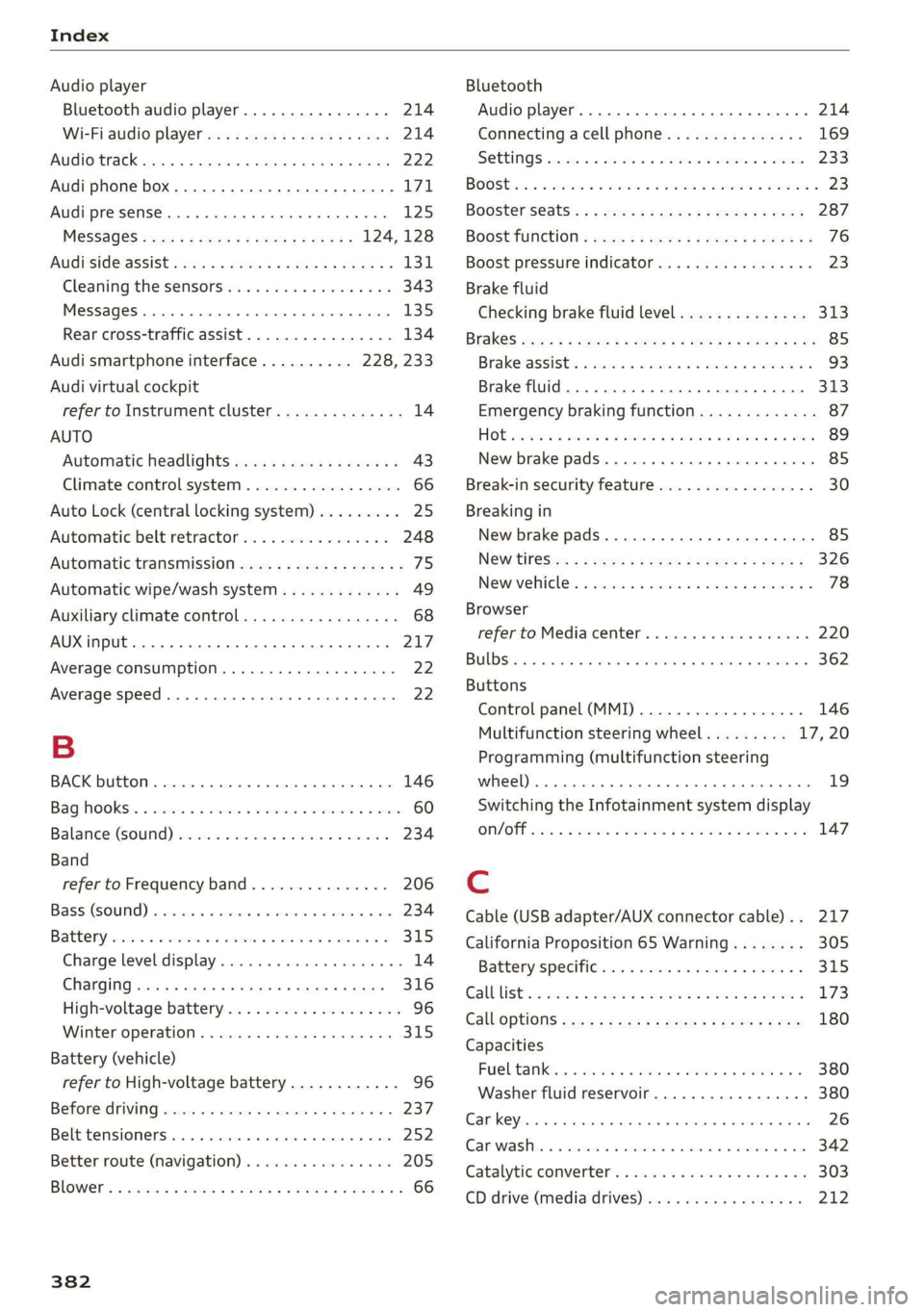
Audio player
Bluetooth audio player................ 214
Wi-Fi audio player...............00005 214
AUGIOTISCK san 4 2 wees 2 a wea.8 2 Aas a ¢ 222
Audi phone box......... 0. ce eee eee eee 171
Audi presense......... 0.00. c eee eee 125
MESSAGES saree 5 x sens 5 x seme 5 e ewe = 124,128
AUGISIGGIASSISE sivas ¢ < wacom 3 § suas 4 § Sac & 131
Cleaning the sensors...............004 343
MGSSAGES caszass » « annsoice & 0: cones @ 0 ornare « 6 cnene 135
Rear cross-traffic assist................ 134
Audi smartphone interface.......... 228, 233
Audi virtual cockpit
refer to Instrument cluster.............. 14
AUTO
Automatic headlights .................. 43
Climate control system ...........-.000. 66
Auto Lock (central locking system) ......... 25
Automatic belt retractor... .......0...05 248
Automatic transmission............-...0- 75
Automatic wipe/wash system............. 49
Auxiliary climate control................. 68
AUX input... 06. eee eee 217
Average consumption................005 22
Average speed... 1... cece eee eee 22
B
BACKIBUTEOM « seseins
Bag hOoks®. « csssiecs «a seams ve connate vm eevee © # sees 60
Balance:(SOund) aii os weve av owe va neues « 234
Band
refer to Frequency band............... 206
Bassi(SOunG) «axes wo swivius 0 a awaweie w stamens oY nae 234
Battery, scorn so sccm 6 2 serene © x aor 6 MEER oo 315
Charge level display.................00. 14
CHANGING scx ¢ < sacs x § anes & ¢ Same Fk eR 316
High-voltage battery...............008. 96
Winter operation.............2.00 eee 315
Battery (vehicle)
refer to High-voltage battery............ 96
Before driving............-.0 eee eens 237
Belt temsiomensten «+ serene a axnuoe a 0 acme 0 0 ae 252
Better route (navigation)................ 205
BOWED. i seiiss a somunse a & anosans & % wwe Ho omemaun & 8 66
382
Bluetooth
Audio player... ..... cece eee eee eee 214
Connecting acell phone............... 169
SOEIAGS wines sx sesame vo arene cee a a comes 233
BOOStiis «een oo eer oo sore os ee ©» eee Y 23
Boosterséats.. « « can 2 ¢ ees os eeu ee ees 287
BOOSETUNGtION = wee < 2 seme 2 2 eee 2 e sees 76
Boost pressure indicator................. 23
Brake fluid
Checking brake fluid level
BRAKES cyecy: 2 aqme 2 ¢ atone go tem ye eee ye
Brake assist
Brake fluid
Emergency braking function
HOE ssicoes + a avo 3 orem oa Ta oe Ra BTR
New brake pads
Break-in security feature................. 30
Breaking in
New brake pads........... 00. c ee eee eee 85
NEW TIRES sc « = cows « 2 cares & eee ¢ v een 326
Newevelicles. « css: sv wns se wesc a 2 amenes 3 6 78
Browser
refer to Media center...............00. 220
BUDS: a i cconine 2 os cesnors & awanawe so avai 8 ans He 362
Buttons
Control panel (MMI)................-. 146
Multifunction steering wheel......... 17,20
Programming (multifunction steering
wheel)... 0.0.0... cece eee eee eee eens 19
Switching the Infotainment system display
ON/OFF iccen xo meron oo ee ae Se oo poe © 8 147
Cable (USB adapter/AUX connector cable).. 217
California Proposition 65 Warning........ 305
Battery specitt@inss + sccmss ux suas a 6 onawents x a 315
Galblists s secs 2 2 semen 2 waew v anor ee eR 173
Calloptions ess s seca ss pen & x dees 5 eee 180
Capacities
Fureltanke: « 2 wc 2s wise + meni os mie a oo 380
Washer fluid reservoir...............-5 380
Car key... cece eee eee eee 26
Care washes x sass i a seesiice 6 0 arovacs 6 w waneane 0 ane 342
Catalytic Converters « sesci ss wave a 8 eres 6 6 303
CD drive (media drives)................. 212