steering wheel AUDI A3 CABRIOLET 2016 User Guide
[x] Cancel search | Manufacturer: AUDI, Model Year: 2016, Model line: A3 CABRIOLET, Model: AUDI A3 CABRIOLET 2016Pages: 272, PDF Size: 67.88 MB
Page 82 of 272
<( co ..... N
" N ..... 0 r--. > 00
Shifting manually (tiptronic mode)
Applies to: vehicles with automatic transmissions
The tiptronic allows the driver to shift the gears
manually.
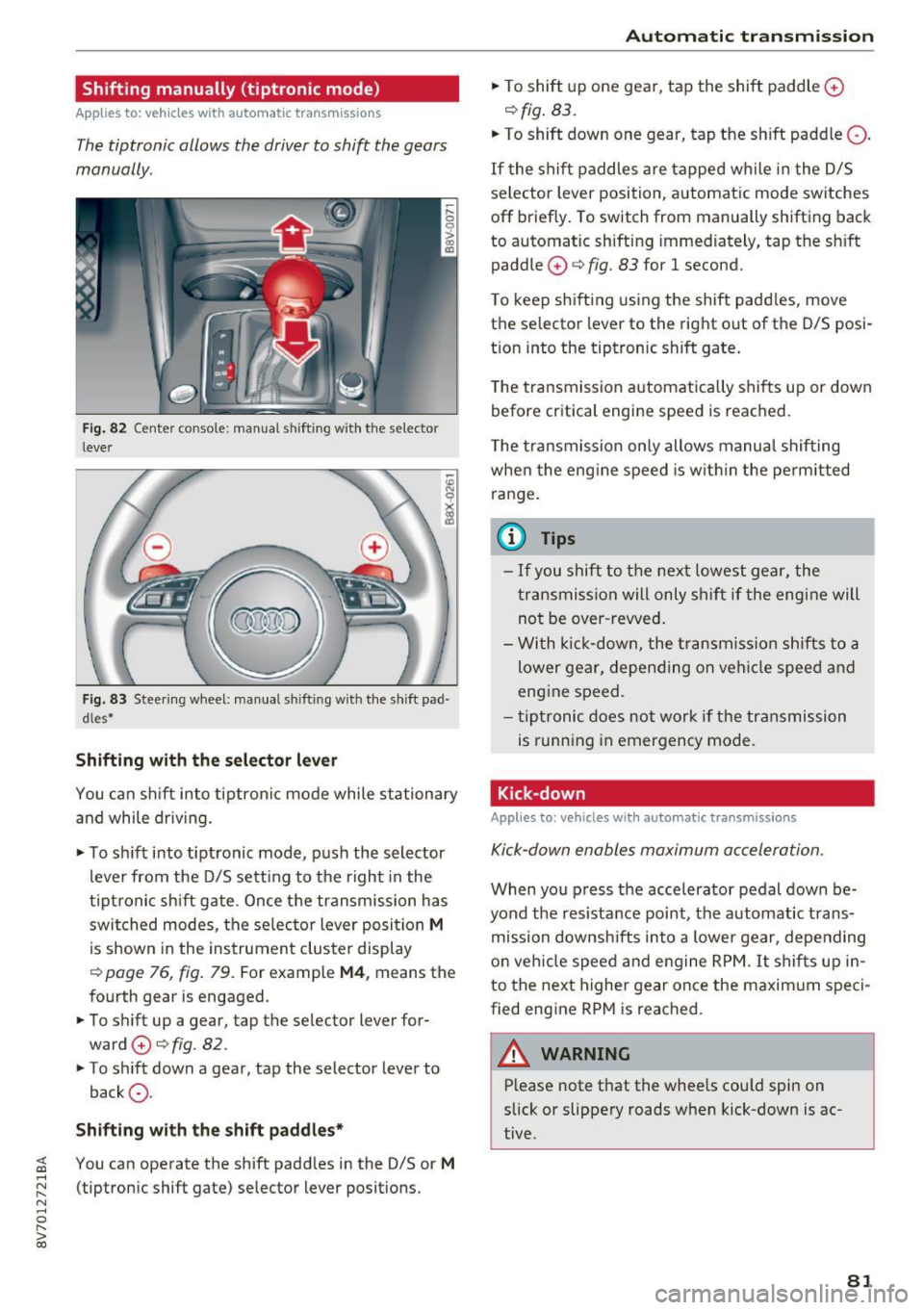
Fig . 82 Center conso le: manua l shifting with the selector
lever
Fig. 83 Steering wheel: manual sh ifting with the shift pad·
dles*
Shifting with th e select or lever
You can sh ift into tiptron ic mode while stationary
and while driv ing.
• To sh ift into tiptronic mode, push the selector
lever from the D/S sett ing to the right in the
tiptronic shift gate. Once the transmission has
switched modes, the se lector lever posi tion
M
is shown in the instrument cluster display
r:::>page 76, fig. 79. For example M4, means the
fourth gear is engaged.
• To shift up a gear, tap the selector lever for
ward
0 r:::> fig. 82.
• To shift down a gear, tap the selector lever to
back
a .
Shifting with the sh ift padd le s*
You can operate the shift padd les in the D/S or M
(tiptronic shift gate) selector lever positions.
Aut oma tic tr ansm iss ion
• To shift up one gear, tap the shift paddle 0
r:::> fig. 83.
• To shift down one gear, tap the shift paddle Q.
If the shift paddles are tapped while in the D/S
selector lever position, automatic mode switches
off briefly. To switch from manually shifting back
to automatic shifting immed iately, tap the sh ift
paddle
0 ¢ fig. 83 for 1 second.
T o keep shifting using the shift padd les, move
the selector lever to the rig ht out of the D/S posi
t ion into the tiptronic shift gate .
T he transmission automatically shifts up or down
before critica l engine speed is reached.
T he transmission only allows manua l shifting
whe n the eng ine speed is w it hi n the pe rmitted
ra nge.
(0 Tips
- If you shift to the next lowest gear, the
transmission will only shift if the eng ine will
not be over -revved .
- With k ick-down, the t ransmiss ion shifts to a
lower gear, depending on vehi cle speed and
engine speed.
- tiptronic does not work if the transmission
is running in emergency mode.
Kick-down
Applies to: vehicles with automatic transmissions
Kick-down enables maximum acceleration.
When you press the accelerator pedal down be
yond the res istance point, the automatic trans
mission downsh ifts into a lower gear, depending
o n veh icle speed and engine RPM.
It shifts up in
to the next higher gear once the maxim um speci
fied eng ine RPM is reached.
A WARNING ~
P lease note that the wheels cou ld spin on
slick or slippery roads when kick-down is ac
tive.
-
81
Page 94 of 272

Switching adaptive crui se control on
"' Pull the lever toward you into position @
¢
fig. 91. A CC: s tandby appea rs in the instru
ment cluster disp lay .
Saving the speed and activating regulati on
"'T o save the c urrent speed , press the ISETI
¢ fig. 91 button . The stored speed is shown in
t h e tachomete r LED line @and appears briefly
in the information line ®¢
fig. 92 .
"' To activate the regulation whi le stationary, you
must press the brake pedal.
Sw itching adaptiv e cruise control off
"' Push the lever away from you into position @
until it clicks i nto place ¢
fig. 91 . The message
AC C: off appears.
The stored speed in the LED line is e rased.
@ Indicato r lights
II -adaptive cruise control is switched on. No
objects are detected ahead. The stored speed is
maintained.
• -An object a head was detected . The adaptive
cruise control system regulates the speed and
d istance to the object ahead and brakes/acce ler
ates automatica lly.
fij -adaptive cru ise control is switched on. An
object ahead was detected. Your vehicle remains
stopped and w ill not start driving automatica lly.
• -T he automatic bra king is no t enough to
maintain a sufficient distance to a n object ahead.
You must intervene ¢
page 96, Request for
driver intervention.
© Instrument cluster display
I f adaptive cruise control is not shown in the in
s trument cluster disp lay, yo u can call it up using
the mu ltifunction steering wheel b uttons
¢ page 24.
Based on the g raph ics in the d isp lay, you can de
termine if the system is m ainta ining a distance to
;;!; a vehicle ahead and what that distance to this ve-....
~ hide is: N ....
R No vehi cle -No object ahead was detected.
> 00
Assist
White vehicl e -An object ahead was de tected .
Red vehicl e -Request for the dr iver to take action
¢page 96.
Both
arrows on t he scal e@ indicate the d istance
to the object ahead . No arrow appears when the
vehicle is on an open road and t here is no object
ahead. If an object is detec ted ahead, the a rrow
moves on the sca le.
T he green zone o n the scale indicates the store
distance. For informat ion on changing the dis
t a nce, refer to ¢
page 95. If the dis tance se
l ected is exceeded or not reached, the arrow
moves into the red zone on the scale.
A WARNING
- Using adaptive cruise control incorrectly can
cause collisions, other accidents and ser ious
in ju ries.
- If you press the
!SET ! button w hen driving at
speeds be low 20 mph (30 km/h), the vehi
cle acce lerates automatically up to 20 mph
(30 km/h), wh ich is the minimum speed
that can be set.
{!) Tips
- If you switch the ignit ion or the adaptive
cruise control system off, the set speed is
erased for safety reason.
- The Elect ronic Stabilization Control (ESC)
and Anti-S lip Regulat ion (ASR) both sw itch
on when the adaptive cruise control is
switched on . ESC and ASR ca nnot be switch
ed off when adapt ive cruise control is
switched on.
- With the adaptive cruise control act ivated
t he ESC spo rt mode cannot be activated.
93
Page 100 of 272

Assist
can prevent undesired warnings from the
pre sense system.
Driver messages
App lies to: ve hicles w ith Audi p re se nse or Aud i adap tive
cr uise cont rol
Audi pre sense currently unavailable. No sensor
vision
This message appears if the sensor view is ob
structed, for example by leaves, snow, heavy
spray or d irt. C lean the sensor¢
page 91, fig. 88.
Audi pre sense: off
This message appears when the ESC is switched
to sport mode, for example ¢
page 117 .
Audi pre sense: system fault!
This message appears when the pre sense func
tion is affected. For examp le, this could be
caused by a faulty sensor.
If the message stays on, drive to an authorized
Aud i deale r or authorized Aud i Serv ice Facility to
have the ma lfunction corrected.
Audi active lane assist
Description
Appl ies to: ve hicles w ith Audi active lane assist
Active lane assist detects lane marker lines with
in the limits of the system using a camera in the
windshield. If you are approaching a detected lane marker line and it appears likely that you
will leave the lane, the system will warn you with
correct ive steering . You can override this steer ing
at any time . If you pass over a line, the steer ing
wheel will vibrate lightly. In order for this warn
ing vibration to occur, it must first be switched
on in the MMI. Active lane assist is operable
when the lane marker line is detected on at least
one side of the vehicle.
The system will not warn you before crossing a lane marker line if you have activated the turn
signal. In this case, it assumes that you are
changing lanes intentionally.
l) Thi s fun ctio n is not availab le in all c ount ries.
100
The system is designed for driving on express
ways and highways and therefore on ly activates
at speeds above approximately 40 mph (65 km/
h).
A WARNING
-
-The system warns the driver that the vehicle
is leaving the lane using correct ive steering.
The driver is always responsible for keeping
the vehicle within the lane .
- The system can help you keep the vehicle in the lane, but it does not drive by itself. Al
ways keep your hands on the steering wheel.
- Corrective steering may not occur in certain
situations, such as during heavy braking.
- There may be cases where the camera does
not recognize all lane marker lines. Correc
tive steering can only take place on the side
of the vehicle where lane marker lines are
detected.
- Other road structures or objects could possi
bly be identified un intent ionally as lane
marker lines . As a result, corrective steering
may be unexpected or may not occur.
- The camera view can be restricted, for ex
ample by vehicles driving ahead or by rain,
snow, heavy spray light shining into the
camera or by dirt on the window. This can result in active lane assist not detecting the
lane marker lines or detect ing them incor
rectly .
- In certain situations where visibility is low,
the vehicle may switch from "early" to "late"
corrective steer ing
1>.
- Under certain cond itions such as ruts in the
road, an inclined roadway or crosswinds, the
corrective steer ing alone may not be enough
to keep the vehicle in the m iddle of the lane.
- For safety reasons, act ive lane assist must
not be used when there are poor road and/
or weather conditions such as slippery
roads, fog, gravel, heavy rain, snow and the
potential for hydrop laning . Using active lane
assist under these conditions may increase
the risk of a crash.
Page 101 of 272
<( co ..... N
" N ..... 0 r--. > 00
Switching on and off
App lies to: ve hicles with Audi active lane assist
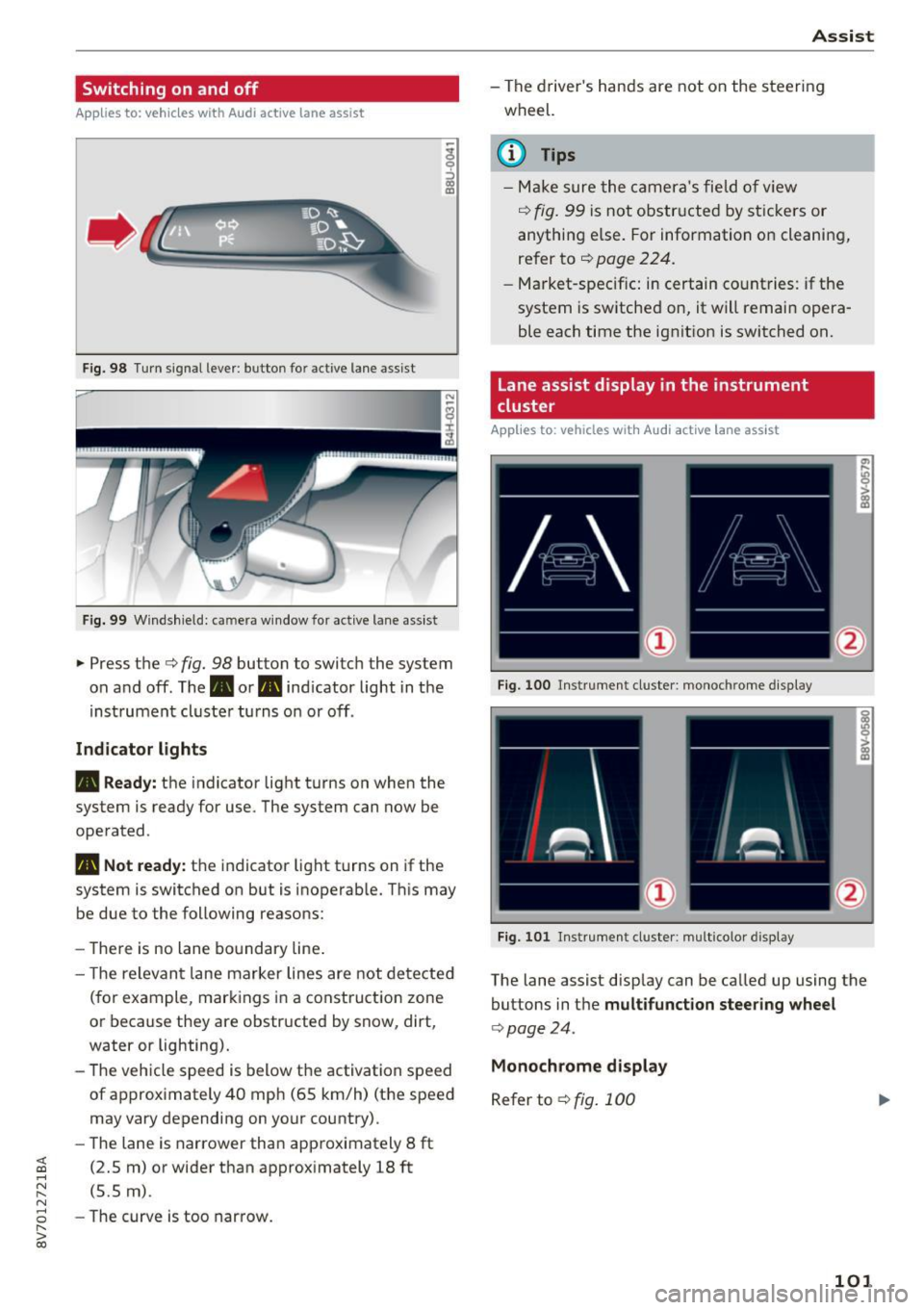
Fig . 98 Turn signal lever: button for act ive lane assist
Fig. 99 Windshield: camera wind ow for active lane assist
... Press the c:> fig. 98 button to switch the system
on and off. The . or
Pl1 indicator light in the
instrument cluster turns on or off.
Indicator lights
• Ready: the indicator light turns on when the
system is ready for use. The system can now be
operated .
Pl1 Not ready: the indicator light turns on if the
system is switched on but is inoperable. This may
be due to the following reasons:
- There is no lane boundary line.
- Th e relevant lane marker lines are not detected
(for example, markings in a construction zone
or because they are obstructed by snow, dirt,
water or lighting).
- The vehicle speed is below the activation speed
of approximately 40 mph (65 km/h) (the speed
may vary depending on your country).
- The lane is narrower than approximately 8
ft
(2.5 m) or wider than approximately 18 ft
(5.5 m).
- The curve is too narrow.
Assist
-The driver's hands are not on the steering
wheel.
(D Tips
- Make sure the camera's field of view
¢ fig. 99 is not obstructed by stickers or
anything els e. For information on cleaning,
refer to
c:> page 224.
-Market-specific: in certain countries: if the
system is sw itched on, it will remain opera
ble each time the ignition is switched on.
Lane assist display in the instrument
cluster
Applies to : vehicles wit h Audi act ive la ne ass ist
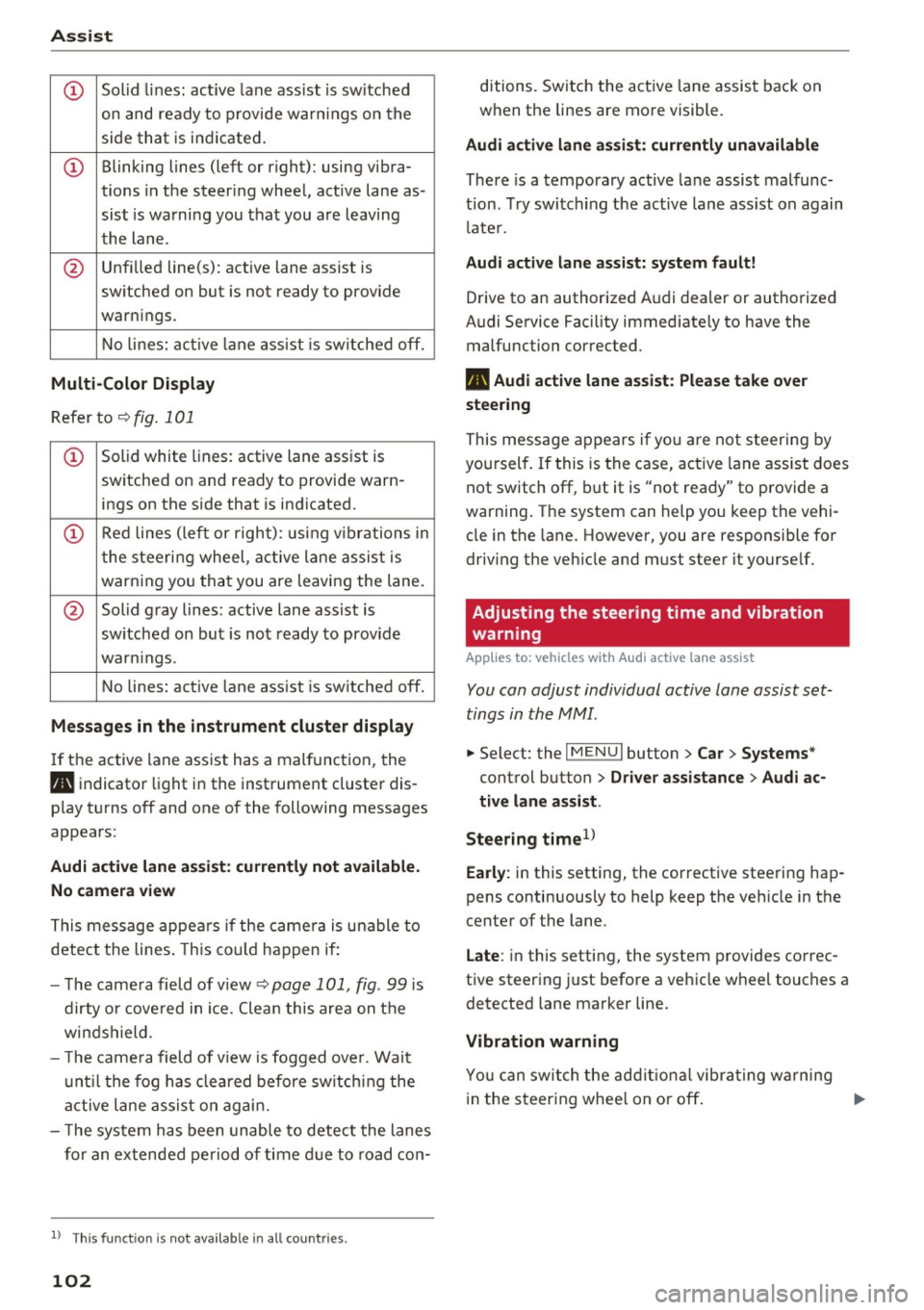
Fig. 100 Instrument cluster: monoc hrome disp lay
Fig. 101 Instrument cl uster : mult icolor displ ay
The lane assist disp lay can be called up using the
buttons in the
multifunction steering wheel
c:>poge 24.
Monochrome display
Refer to c:> fig. 100
101
Page 102 of 272
Assist
CD Solid lines: active lane assist is sw itched
on and ready to provide warnings on the
side that is ind icated.
CD Blinking lines (left or right): using vibra-
tions in the steer ing wheel, active lane as -
sist is warning you that you are leaving
the lane .
@ Unfilled line(s): active lane assist is
sw itched on but is not ready to prov ide
warn ings.
No lines: active lane assist is sw itched off.
Multi-Color Display
Refer to c;, fig. 101
CD Solid white lines: active lane assist is
switched on and ready to provide warn- ings on the side that is indicated.
CD Red lines (left or right): using vib rations in
the steering wheel, active lane assist is
warning you that you are leaving the lane.
@ Solid gray lines: active lane assist is
sw itched on but is not ready to prov ide
war nings.
No lines: active lane assist is sw itched off.
Messages in the instrument cluster display
If the active lane assist has a malfunction, the
Pl1 indicator light in the instrument cluster dis
p lay turns off and one of the following messages
appears:
Audi active lane assist : currently not available.
No camera view
This message appears if the camera is unable to
detect the lines. This could happen if :
- The came ra field of view ¢
page 101, fig. 99 is
dirty or covered in ice. C lea n this area on the
winds hield.
- T he camera field of view is fogged over. Wait
until the fog has cleared before switching the
active lane assist on again.
- T he system has been unable to detect the lanes
for an extended period of time due to road con-
l) Thi s fun ctio n is not avai lab le in all count ries.
102
ditions. Switch the active lane assist back on
when the lines are more visible.
Audi active lane assist: currently unavailable
There is a temporary active lane assist malfunc
tion. Try switc hing the active lane ass ist on again
l ate r.
Audi active lane assist: system fault!
Drive to an authorized Audi dealer or authorized
Audi Service Facility immediately to have the malfunction corrected .
Pl1 Audi active lane assist: Please take over
steering
This message appears if you are not steering by
you rself. If this is the case, active lane assist does
not switch off, but it is "not ready" to provide a
warning. The system can help you keep the vehi
cle in the lane. However, you are responsible for
driv ing the veh icle and must steer it yourself.
Adjusting the steering time and vibration
warning
Applies to: vehicles with Audi active lane assist
You can adjust individual active lane assist set
tings in the MMI.
.,. Select: the I MENU I button> Car> Systems*
control button > Driver assistance > Audi ac
tive lane assist .
Steering time
1 )
Early: in this setting, the corrective steering hap
pens continuously to help keep the veh icle in the
center of the lane.
Late : in this setting, the system provides correc
tive steering just before a vehicle wheel touches a
detected lane marker line.
Vibration warning
You can switch the additional vibrating warning
in the s teering whee l on or off . ..,.
Page 106 of 272

Ass is t
- Your settings are automatically stored and
assigned to the remote control key being
used .
Driver messages
Applies to: ve hicles w ith Audi side assist
If the side assist switches off automatically, a
message appears in the instrument cluster dis
play.
(ij Audi side a ssi st : cur rentl y un ava ilable No
s en so r v isi on
The radar sensors' vision is affected. Do not cover
the area in front of the sensors with bike wheels,
stickers, dirt or other objects . Clean the area in
front of the sensors, if necessary~
page 104,
fig. 105.
@j Audi side assist : cur rently un available
Side assist cannot be switched on temporar ily be
cause there is a malfunction (for example, the
battery charge level may be too low).
@j Audi side a ssi st : S ystem fau lt!
The system cannot guarantee that it will detect
veh icles correctly and it is switched off. The sen
sors have been d isplaced or are faulty . Have the
system checked by an authorized Audi dealer or
author ized Audi Service Facility soon .
Audi drive select (drive
settings)
Introduction
App lies to: vehicles with Aud i drive select
Audi drive select makes it possible to experience
d ifferent types of vehicle settings in o ne veh icle .
The drive r can select from three
Comfort , Auto
and D ynam ic modes us ing the te'i:.1 button in the
center console or the MMI to switch between a
sporty and a comfortable driving mode, for ex
ample. In the
Ind ividu al* mode, the settings can
be adjusted to your personal preferences. This
makes it poss ible to combine settings such as a
sporty eng ine setting w ith smooth steering.
106
A WARNING ,_
Using Aud i drive select incorrectly can lead to
coll is ions, other accidents and serious inju
ries.
Description
App lies to: vehicles with Aud i drive se lect
The vehicle setup in each mode depends on the
vehicle's features. However, the engine a nd
steering are a lways affected.
Engine and automatic tr ansmiss ion
Depending on the mode, the engine and auto
matic transmission* respond more qu ickly or in a
more ba lanced manner to accelerator pedal
movements.
Adapt ive damper s (Audi magneti c ride )*
The adaptive dampers use sensors to record in
format ion regarding steering movements, brak
i ng and acceleration operations by the driver,
road surface, driving speed, and load . W ith Aud i
drive select you can adjust the adaptive dampers
spo rty (dynamic), comfortable (comfort) o r bal
anced (auto).
Ste ering
The steering adapts in terms of steering ass is
tance. There are d ifferent modes
~page 107.
Ind irect steering that moves easi ly as in comfort
mode is espec ially suited to long d rives on a h igh
way. The dynamic mode provides sporty, direct
steering.
Fo r vehicles with p rogress ive steering* the steer
i ng perfo rmance is more agile.
Corn ering light*
The cornering light adjusts when driv ing on
curves at speeds between 6 mph (10 km/h) and 68 mp h (1 10 km/h) . The pivoting act ion and the
li ght ing are also adapted to the mode.
Adapt ive cruise cont rol*
The behavior whe n accelerating can be adjusted
from comfortable to sporty, depending on the
Audi drive select mode . Adaptive cruise control ..,.
Page 112 of 272
Parking system s
General information
Applies to: ve hicles w ith park ing system p lus with rearv iew
camera
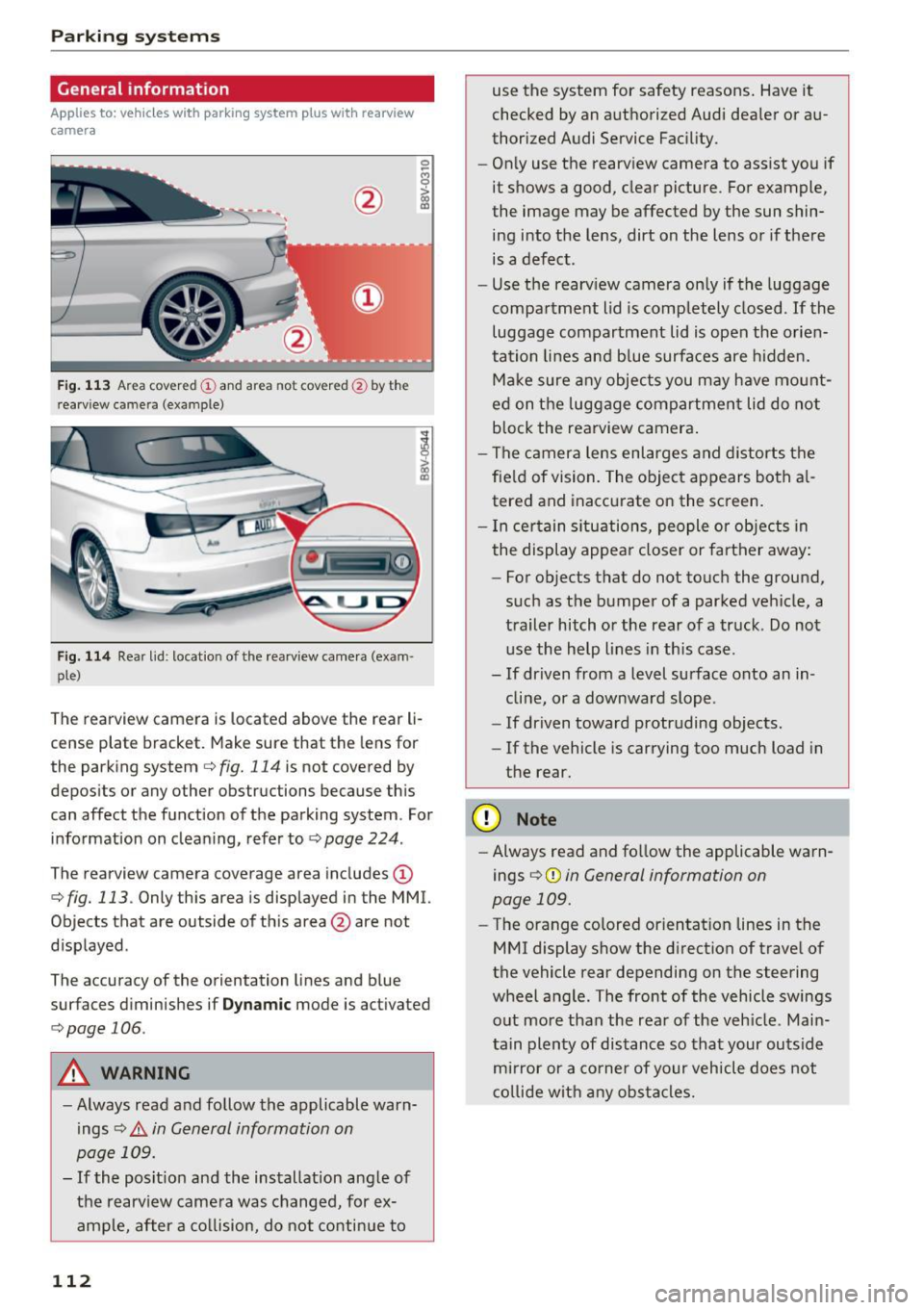
F ig . 1 13 Area covered © and area not covered @by the
r earv iew came ra (example)
Fig. 114 Rear lid : locat io n of the rearview camera (exam ·
ple)
0
-8
>
lll
The rearview camera is located above the rear li
cense plate bracket. Make sure that the lens for
the parking system
c.:> fig. 114 is not covered by
depos its or any other obstructions because th is
can affect the function of the parking system . For
information on cleaning, refer to
c.:> page 224 .
The rearview camera coverage area includes(!)
c.:> fig. 113. Only this area is displayed in the MMI.
Objects that are outside of th is area @are not
displayed .
The accuracy of the orientation lines and b lue
surfaces d iminishes if
D ynamic mode is activated
¢ page 106.
A WARNING
-Always read and follow the applicable warn
ings
c.:> .&. in General information on
page 109.
- If the posit ion and the installation ang le of
the rearv iew camera was changed, for ex
ample, after a co llision, do not continue to
112
use the system for safety reasons . Have it
checked by an a uthorized Audi dea ler or au
thorized Audi Service Fac ility.
- Only use the rearview camera to assist you if
it shows a good, clear picture . For example,
the image may be affected by the sun shin
ing into the lens, dirt on the lens or if there is a defect.
- Use the rearv iew camera on ly if the luggage
compa rtment lid is completely closed.
If the
luggage compartment lid is open the orien
tation lines and b lue surfaces are hidden.
Ma ke sure a ny objects you may h ave mo unt
ed on t he luggage compartment lid do not
b lock the rearview camera .
- The camera lens enlarges and distorts the
fie ld of vision. The object appears both a l
tered and inaccurate on the screen .
- I n cer tain s itu ations, people or objects in
the display appea r closer or farther away:
- For objects that do not touch the ground,
such as the bumper of a parked vehicle, a
trailer hitch or the rear of a truck . Do not
use the help lines in th is case.
- If driven from a level surface onto an in cline, or a downward slope .
- If driven toward protruding objects.
- If the vehicle is carrying too much load in
the rear .
(D Note
-Always read and fo llow the applicable warn
ings
c.:> (D in General information on
page 109.
- The orange colored orientat ion lines in the
MMI display show the direction of trave l of
the vehicle rear depending on the steering
wheel angle . The front of the vehicle swings
out more than the rear of the veh icle. Main
tain plen ty of dis tance so tha t your outside
mi rror or a co rne r of your veh icle does not
c o llide wit h any obs tacle s.
Page 113 of 272
<( co ..... N
" N ..... 0 r--. > 00
Switching on/off
App lies to: vehicles with parking system plus with rearv iew
camera
S wi tc hing on
• Shift into reverse, or
• Press the
Pw.A button in the center console
¢ page 111, fig . 109 . A short conf irmat ion
tone sounds and the LED in the button turns
on.
S wi tching betwe en th e re ar view came ra and
optical displa y
• Press the Gr aphic control button ®
r::!.> page 113, fig . 115 to see the optica l display .
• Press the
Rear view control button to see the
rea rview camera image .
Switching off
• Drive faster than 6 mph (10 km/h), or
• Press the
P•1A button, or
• Switch the ign ition off .
@ Tips
The visual display in the left part of the d is
play should help you detect the c ritical ve hicle
areas.
Cross parking
Appl ies to: vehicles with parking system plus with rearview
camera
This view may be used when parking in a garage
or in a parking space .
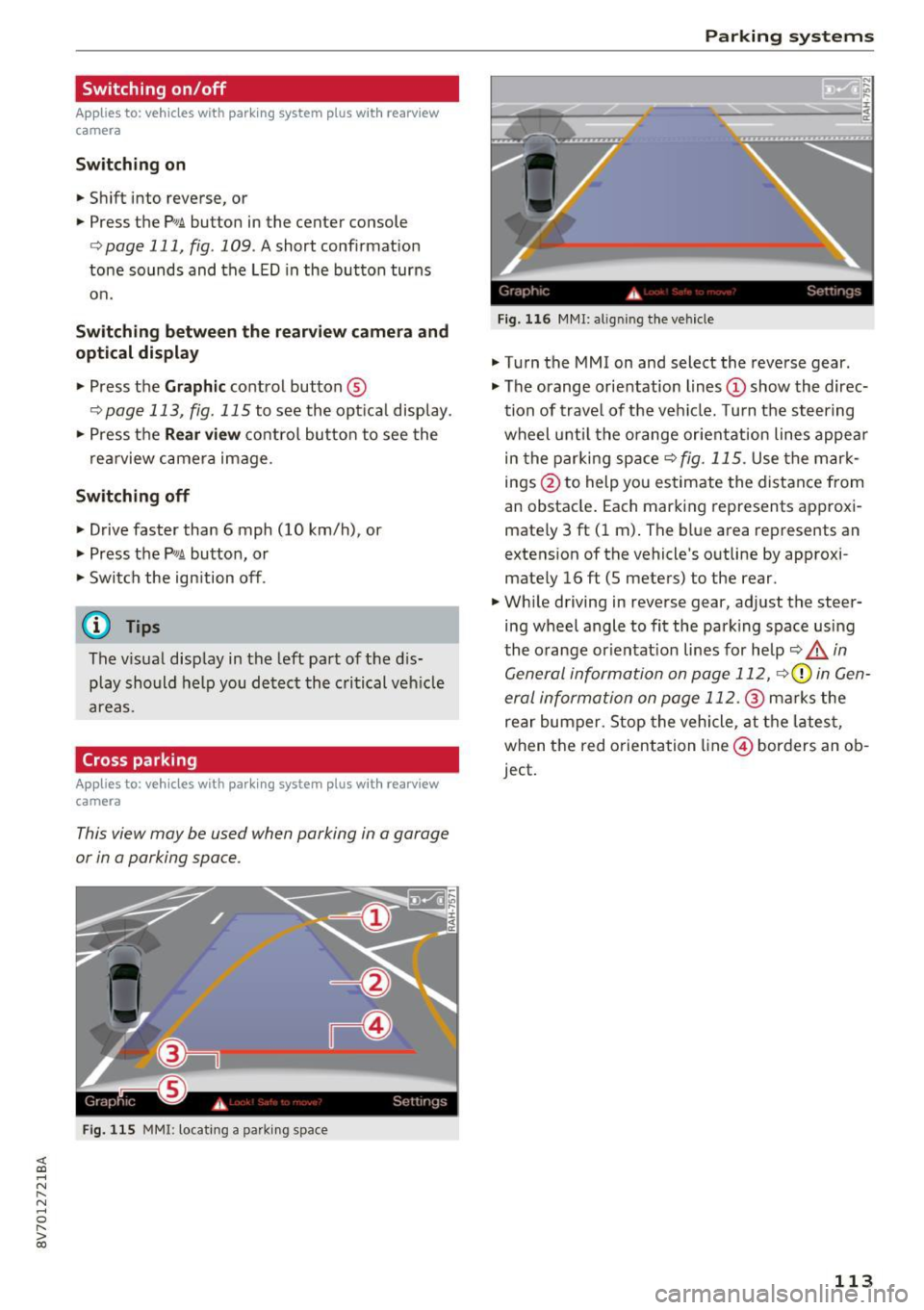
Fig. 115 MMI: locating a park ing space
Parking systems
Gr,11;t I( i._ S,·T .. 1',lJ',
Fig. 11 6 MMI: a lig nin g the vehicle
• Turn the MMI on and select the reverse gear .
• The orange orientation lines
(D show the direc
tion of trave l of the vehicle. Turn the steering
wheel until the orange orientation lines appea r
in the parki ng space
r:!) fig. 115 . Use the mark
ings @to help you estimate the distance from
an obstacle . Each marking represents approxi
mately 3 ft (1 m) . The blue area represents an
extens ion of the vehicle 's outline by approxi
mate ly 16
ft (5 meters) to the rear .
• Wh ile driving in reverse gear, adjust the steer
ing wheel angle to fit the park ing space using
the o range or ientat ion lines for help
r:!) A in
General information on page 112,
r::> 0 in Gen
eral information on page 112.@
marks the
rear bumper. Stop the vehicle, at the lates t,
when the red o rientation line @) borders an ob
ject.
113
Page 114 of 272

Parking systems
Parallel parking
Applies to: ve hicles w ith pa rk ing system p lus with rearv iew
camera
This view may be used when parallel parking
along the side of a street.
Fig. 117 MMI: bl ue s urfaces aligned in the parki ng space
Fig. 118 MMI: contact of the blue curved l ine w ith the curb
Parking on the right is described here . It is iden
tical when park ing on the left .
If there is an obstacle next to the parking space
(such as a wall), refer to "Information for park ing
next to obstacles"
c:.> page 114 .
.,. Turn on the right turn signal.
.,. Position your vehicle next to a parked vehicle in
front of the desired parking space. The distance
to this veh icle should be approximately 3 ft (1
m) .
.,. Turn the MMI on and select the reverse gear .
The park ing system is turned on and the
cross
parking view is d ispla yed.
.,. Press the control button on the MMI-controls
to select @
c:.> fig. 117. The parallel parking
view is displayed .
.,. Back up and align your vehicle so the blue area
@ borders on the rear end of the vehicle be
hind you or on the parking space line
c:.> A in
114
General information on page 112, c:.> (D in Gen
eral information on page 112.
The blue area
represents an extension of the veh icle's outline
by approximate ly 16 ft (5 meters) to the rear.
The long side of the blue area shou ld be on the
curb. The ent ire blue area must fit into the
parking space .
.,. With the vehicle stopped, t urn the steering
wheel to the right as far as it will go .
.,. Bac k into the pa rking space unt il t he blue curve
c:.> fig. 118 touches the curb c:.> A in General in
formation on page
112, c:.>(D in General infor
mation on page
112. Stop the vehicle .
.,. With the vehicle stopped, turn the steering
wheel to the left as far as it will go .
.,. Continue to back into the parking space until
the vehicle is parked parallel to the curb
c:> A
in General information on page 112, c:.>(D in
General information on page 112 .
@ marks
the rear bumper . Stop the vehicle, at the latest,
when the red orientation line@) borders an ob
ject . Keep an eye on the front of your vehicle
while doing this.
Parking next to obstacles
If there is an obstacle (such as a wall) next to the
parking space, position the vehicle so there is
more space on that side. Position the long side of
the b lue surface so that there is sufficient space
from the obstacle. The surface must not be
touching . You will a lso need to start turning the
steering wheel earlier. The blue curve
c:.> fig. 118
must not touch the obstacle and should have suf
ficient room .
(D Note
Keep enough distance from the curb to avo id
damage to the rims.
¢j) Tips
The left or right orientation lines and surfaces
will be d isp layed, depending on the turn s ig
nal being used.
Page 116 of 272
Intelligent Technology
Intelligent Technology
Electronic stabilization
control (ESC)
Description
The Electronic Stabilization Control (ESC) rein for
ces driver safety . It reduces the risk of slipping
and improves driving stability. ESC detects crit i
cal s ituations such as the vehicle oversteering
and understeering or the wheels are spinning.
The vehicle is stabilized by applying the brakes or reducing eng ine torq ue. When the ESC engages,
the
D1 ind icator light blinks in the instrument
cluste r.
The fo llow ing systems are integrated in the ESC :
Ant i-loc k braking system (ABS)
ABS p revents the whee ls from locking whe n brak
ing. The vehicle can sti ll be steered even during
hard brak ing. Apply steady press ure to the brake
pedal. Do not pump the pedal. A puls ing in t he
b rake pedal indicates that the system is acting to
s tabilize the vehicle .
Brake assist system
The brake assist system can decrease brak ing dis
tance . It increases braking power when the d river
presses the brake pedal quick ly in emergency sit
uations . You must press and hold t he b rake pedal
until the dangerous situat io n is over . In veh icles
with adapt ive c ruise control*, the bra ke as sist
sy stem is more sensitive if t he di sta nce detec ted
t o the vehicle ahea d is too sm all.
Anti-slip regulation (ASR)
ASR reduces eng ine power when the drive wheels
beg in sp inning a nd adapts the force to the road
conditions . This makes it easie r to start, acceler
a te and dr ive u p in clines.
Electronic differential lock (EDL )
The EDL brakes w heels that a re spinning and
transfers the drive power to the other drive
wheel or whee ls if t he ve hicle is equipped with a ll
wheel drive*) . T his funct ion is not av ailable at
h igher speeds.
116 I
n extreme cases, ED L automat ically swi tches off
to keep the brake on the braked whee l from over
heating. The veh icle is still working correct ly. ED L
will switc h on again automatically when condi
tions have returned to normal.
Steering recommendation
The ESC he lps to stabili ze the vehicle by cha nging
the steering torque.
Selective wheel torque control
Se lective w hee l to rque cont rol is used when d riv
i ng o n curves. The fron t whee l on the inside of
the curve or bo th whee ls on the inside of the
cu rve are braked se lective ly as needed. This al
l ows mo re precise driving in cu rves.
Automatic post-collision braking system
The "A utomat ic pos t-coll is io n braking sy stem"
c a n hel p to reduce t he risk of sliding and o f othe r
collisions after an accident . If the a irbag cont rol
module detects a collision a bove a certain vehicle
speed, the vehicle is bra ked by the ESC.
The vehicle does not bra ke automatically if:
- the dr ive r presses the acce lerator pedal, or
- the braking force generated by the pressed
brake pedal is grea ter than the braking force
that wo uld be i nitiated by the system, or
- the ESC, the brake system o r the ve hicle elect ri
cal system are not func tioning .
A WARNING
- The ESC and its integ rated syste ms can not
o vercome the lim its posed by natural physi
c a l la ws. Thi s is espe cial ly import ant on sli p
pe ry o r we t roads. If the systems beg in act
ing to stabilize your ve hicle, yo u should im
mediately a lter your speed to matc h the
road and traffic condit ions. Do not let the
increased safety pr ovided tempt you into
taking risks . This cou ld increase your risk of
a co llision .
- Please note the r isk of a collis ion increases
when dr iv ing fast, especia lly t hrough c urves
and on slippery or wet roads, and when dr iv
ing too close to objects ahead. The ESC and
i t s in tegr ated systems cannot always .,..