audio AUDI A3 SEDAN 2017 Owner's Manual
[x] Cancel search | Manufacturer: AUDI, Model Year: 2017, Model line: A3 SEDAN, Model: AUDI A3 SEDAN 2017Pages: 400, PDF Size: 67.32 MB
Page 229 of 400
a, a, ..... N
" N ..... 0 N > 00
-The loading times for the audio data depend
on the media player used and the number of
files that it contains.
- A maximum of 2,000 entries per directory
are displayed in the MMI.
-Songs downloaded for offline use using mu
sic streaming services are stored on your mobile device (such as a smartphone) and
may be ORM protected. The Wi-Fi audio
player will not play ORM protected files.
-Contact an authorized Audi dealer or au
thorized Audi Service Facility for additional information on the Wi-Fi audio player .
Online media and
Internet radio
Applies to: vehicles with Audi connect (Infotainment)
You can playback and operate various online me
dia services and Internet radio using the MMI .
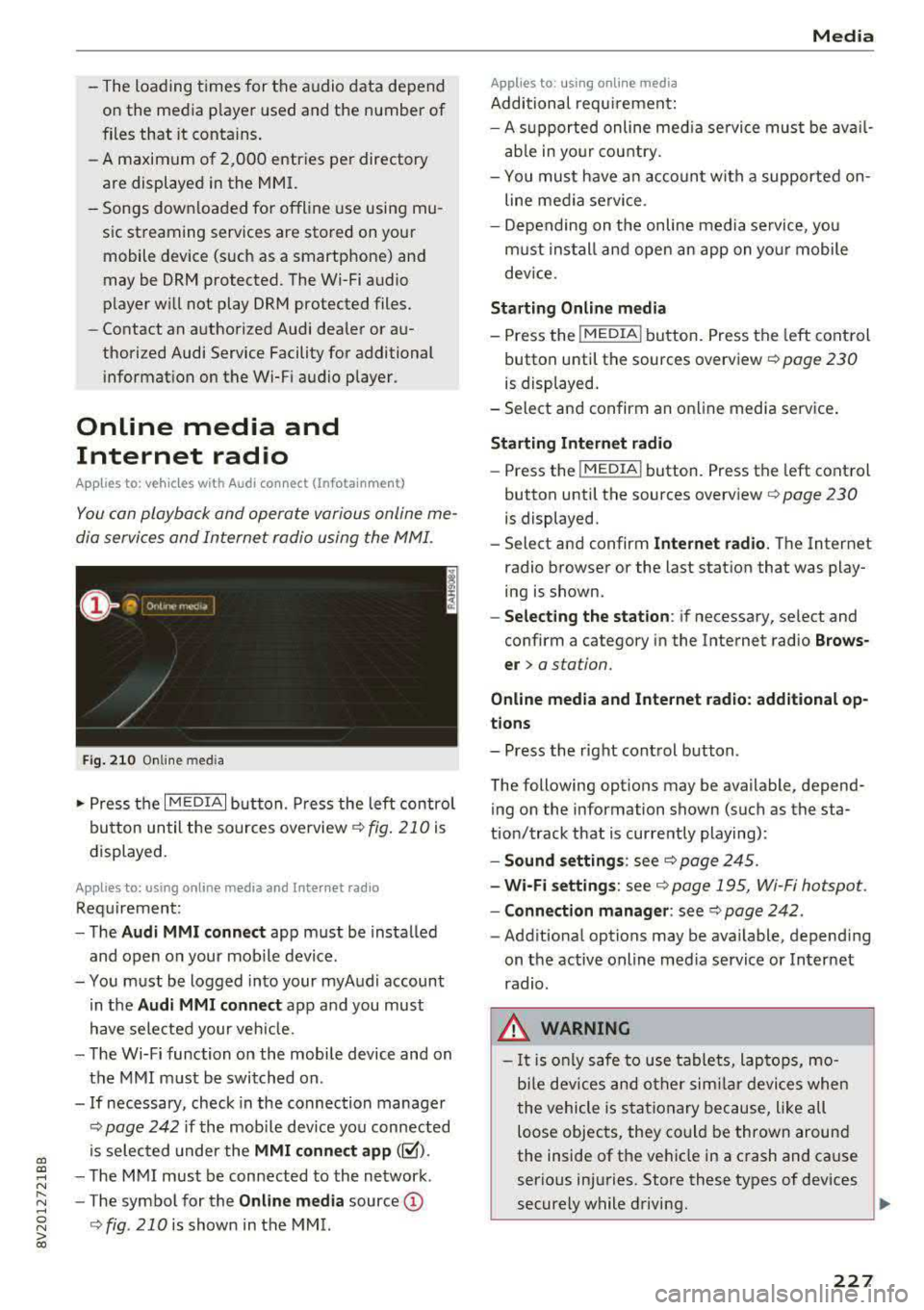
Fig. 210 Online med ia
... Press the I MEDIAi button. Press the left contro l
button until the sources overview
c:> fig. 210 is
displayed.
Applies to: using online media and Internet radio
Requirement:
-The Audi MMI connect app must be installed
and open on your mobile device.
-You must be logged into your myAudi account in the
Audi MMI connect app and you must
have selected your veh icle.
-The Wi-Fi function on the mobile device and on
the MMI must be switched on .
-If necessary, check in the connection manager
c:> page 242 if the mobile dev ice you connected
is selected under the
MMI connect app (~).
-The MMI must be connected to the network .
-The symbol for the Online media source@
<::>fig . 210 is shown in the MMI.
Applies to: using online media
Additional requirement:
Media
-A supported online med ia service must be avail
able in your country.
-You mus t have an account with a supported on
line media service .
-Depending on the on line media service, you
must install and open an app on your mobile
dev ice.
Starting Online media
-Press the I MEDIA i button. Press the left control
button until the sources overview
c:> page 230
is displayed.
-Select and confirm an online media service .
Starting Internet radio
-Press the I MEDIAi button. Press the left control
button until the sources overview
c:> page 230
is displayed.
-Select and confirm Internet radio. The Internet
radio browser or the last station that was play
ing is shown.
-Selecting the station: if necessary, select and
confirm a category in the Internet radio
Brows
er>
a station.
Online media and Internet radio: additional op
tions
-Press the right control button.
The following options may be available, depend ing on the information shown (such as the sta
tion/track that is currently playing):
-Sound settings: see c:> page 245.
-Wi-Fi settings: see c:> page 195, Wi-Fi hotspot.
-Connection manager: see c:> page 242.
-Additional options may be available, depending
on the active online media service or Internet
radio.
_& WARNING
-It is only safe to use tablets, laptops, mo
b ile devices and other similar devices when
the vehicle is stationary because, like all
loose objects, they could be thrown around
the inside of the vehicle in a crash and cause
serious injuries. Store these types of devices
securely while driving.
~
227
Page 232 of 400
Media
-Changed content on a mobile device l) that
is connect ed to the Audi music interface
may not be disp layed in the med ia center .
In this case, reset t he
Med ia settings back
to
Factory settings ¢ page 242.
- Video p layback through the Audi music in
terface is only supported if the connected
device is recog nized as a USB storage device
(fo r example a USB s tic k). Apple devices and
M TP devices (s uch as smartphones) a re not
r e cogni ze d as US B storage devices .
- i Pod/iPhone malfunct io ns also affect the
ope ration of the MMI. Reset your iPod/
iPhone if th is happens.
- For importa nt information on operating
your iPod/iPhone, ref er to th e user guide for
the dev ice. Audi re comme nds up dat ing the
i Po d/i Pho ne so ftwa re to t he lates t ve rsion .
- Fo r more information about the Audi music
i nte rfa ce and supporte d device s, check the
A ud i d ata base fo r mobile devices at
www.audiusa.com/bluetooth or contact an
authorized Audi dea le r or a uthorized Audi
Service Fac ility.
Playing media
Accessing media
You can start and operate various media
through th e
MMI control panel.
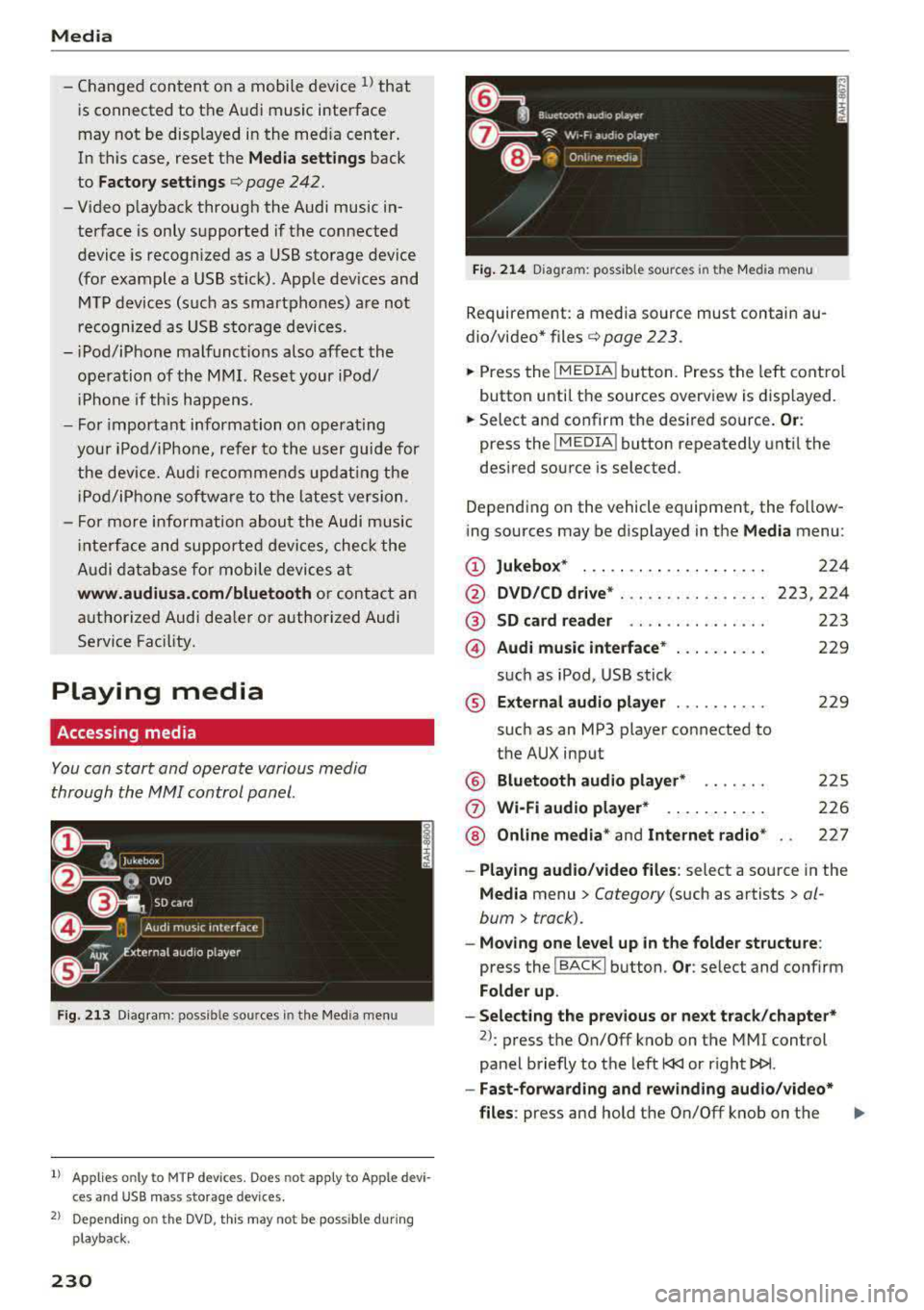
Fig . 2 13 Diag ra m : p ossibl e sources i n the Med ia m enu
1> A pplies only t o MTP dev ices . Do es not app ly to Ap ple d evi
c e s a nd U SB ma ss sto ra ge de vice s.
2> Depe ndin g o n the DVD , thi s m ay not be pos sib le d urin g
p la y ba ck.
230
Fi g. 214 D ia gram: possible sour ces i n the Media m en u
Requir ement : a media source must contain au
dio/video*
files ¢ page 2 23 .
.,.. Press the IM EDIA ! button. Press the left cont rol
button unti l t h e sources overview is displayed.
.,.. Select and confirm th e desired source. Or:
press the I MEDIA ! button repeatedly unt il the
desired source is selected .
Depend ing o n the vehicle equipment , the follow
ing sources may be d isplayed in the
Media menu :
(D Jukebo x* ... .. .. .. .. .. .. .... .
@ DVD/CD drive * ... .. .. .. .. .... .
@ SD card re ader ....... ....... .
@ Audi music interface * .. .. . .... .
su ch as iPod , USB st ick
® Extern al audio player ... .. .... .
su ch as an MP3 player connected to
the AUX inp ut
@ Bluetooth audio player* ...... .
(J) Wi-Fi audio player* .... .. .... .
@ Online media * and Internet radio *
224
223,224
223
229
22 9
2 25
226
227
-Playing audio/ video files : select a sourc e in the
Media menu > Category (such as artists > al
bum
> t rack).
-Moving one level up in the folder structu re :
press the I BACK ! button . Or: select and confirm
Fo lder up .
-Selecting the pre vious or ne xt track /chapter*
2>: press t he On/Off knob on the MMI cont rol
panel briefly to the left
l
- Fast-forwarding and rew inding audio /video *
files :
press and hold the On/Off knob on the ..,.
Page 233 of 400
a, a, ..... N
" N ..... 0 N > 00
MMI control panel to the left l
a longer time.
-Pausing or resuming playback: press the On/
Off knob on the MMI control panel briefly.
@ Tips
- You can scroll through long lists quickly by
turning the control knob quickly. The
scroll
ing speed depends on the number of list en
tries.
- For safety reasons, the video image is only
displayed when the vehicle is stationary.
On·
Ly the sound from the video plays while driv
ing.
Media center
Various cat egori es for s electing audio/vid eo*
files ore available in the media center .
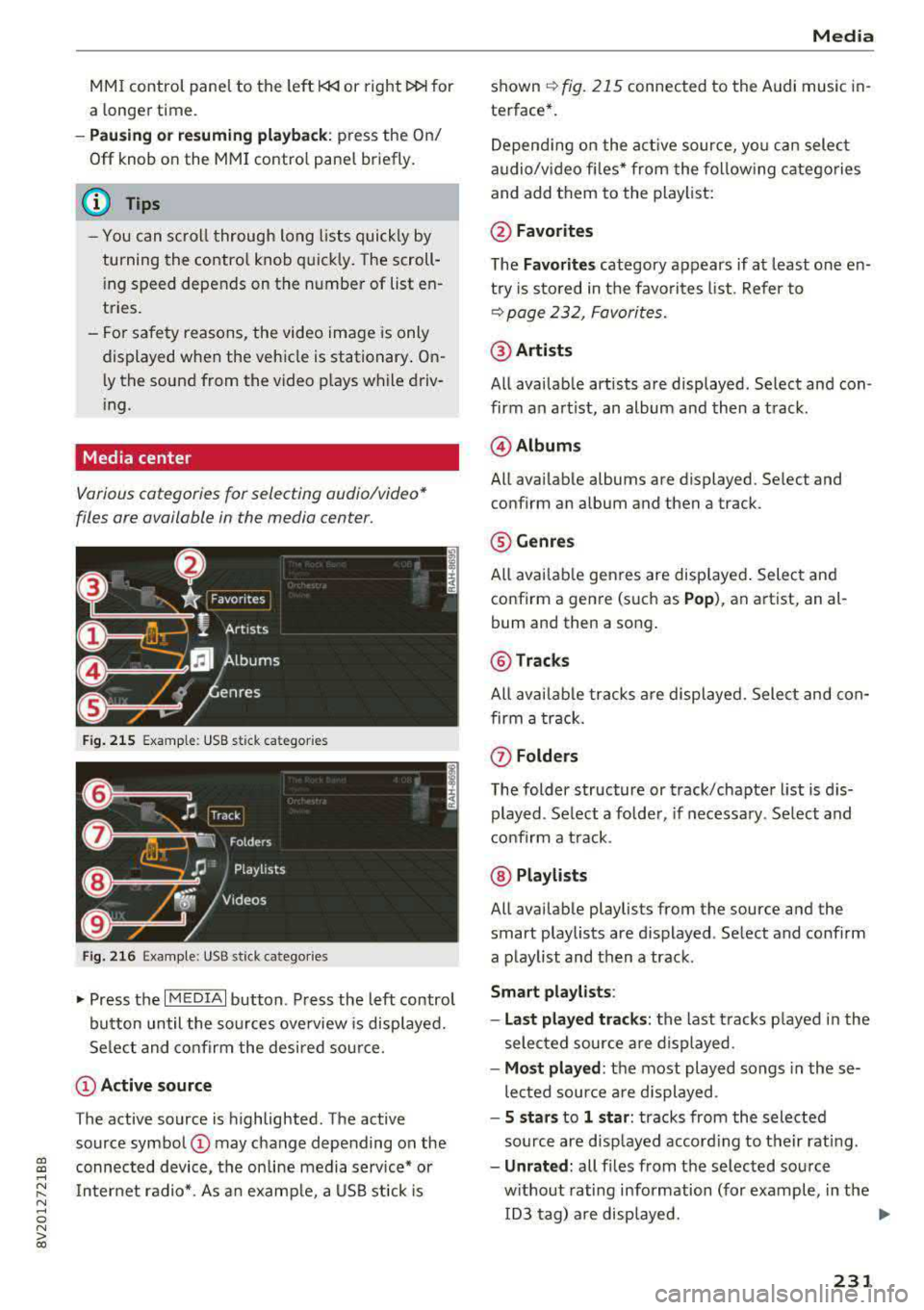
Fig. 215 Example: USB stick ca te gori es
Fig. 216 Example: USB stick ca tegorie s
"'Press the I MEDIAi button . Press the left control
button until the sources overview is displayed.
Select and confirm the desired source.
(D Active source
The active source is highlighted. The active
source symbol
(D may change depending on the
connected device, the on line media service* or
Internet radio*. As an example, a USB stick is
Media
shown ~ fig. 215 connected to th e Audi music in·
terfac e*.
Depending on the active source , you can select
audio/video files* from the following categories
and add them to the playlist:
@Favorites
The Favorites category appears if at least one en·
try is stored in the favorites list. Refer to
~ page 232, Favorites.
@Artists
All available artists are displayed . Select and con ·
firm an artist, an album and then a track.
@ Albums
All available albums are displ ayed . Select and
c onfirm an album and then a tra ck .
® Genres
All available genres are displayed. Select and
confirm a genre (such as
Pop), an artist, an al·
bum and th en a song.
@ Tracks
All available tracks are displayed. Select and con
firm a track.
(f) Folders
The folder structure or track/chapter list is dis
played . Select a folder, if necessary. Select and
confirm a track .
@ Playlists
All available playlists from the source and the
smart playlists are di splayed . Select and confirm
a playlist and then a track .
Smart playlists :
- Last played tracks:
the last tracks played in the
selected source are displayed .
-Most played : the most played songs in these
lected source are displayed .
-5 stars to 1 star: tracks from the selected
source are displayed according to their rating.
- Unrated: all files from the selected source
without rating information (for example, in the ID3 tag) are displayed.
.,.
231
Page 234 of 400
Media
@Vid eos*
All available video files are displayed . Select and
confirm a video file .
(D Tips
-Only the categories supported by the med i
um are available. For example, CD/DVD
ROM tracks cannot be selected with catego
ries such as
A rtists , Album s or Genre s.
With an iPod (source: Audi music interface
c:;, page 228), the Podcast s, Audio book s
and Composers categories are also availa
ble.
- For safety reasons, the video image is only
displayed when the vehicle is stationary. On
ly the sound from the v ideo plays while driv
i ng.
- When synchronizing a portable device with
"Cloud" services, playlists may display incor
rect ly in the MMI. Use the media center in
the dev ice.
Free text search
Applies to : vehicles wi th free text sea rc h
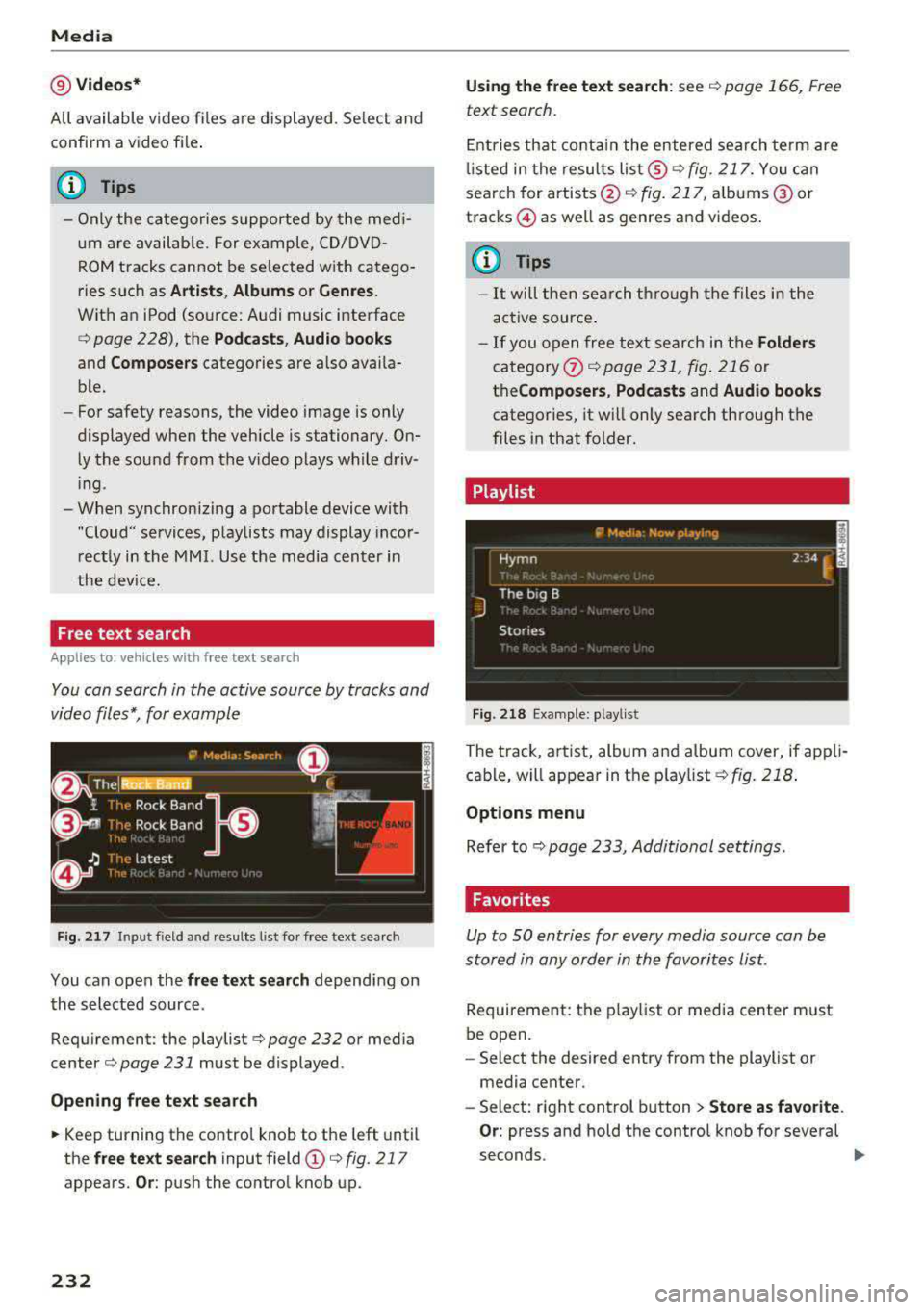
You con search in the active source by tracks and
video files*, for example
Fig. 2 17 Input field and r esults list for free text search
You can open the free te xt search depending on
the selected source.
Requirement: the playlist
c::;, page 232 or media
center
c:;, page 231 must be displayed.
Open ing free te xt search
~ Keep turning the contro l knob to the left until
the
free t ext sea rch input field (D c::;, fig. 217
appears. Or : push the control knob up.
232
Us ing th e free text sea rch: see c::;, page 166, Free
text search .
Entries that conta in the entered search te rm are
li sted in the results
lis t@ c:;,fig. 217. You can
search for artists @
c:;, fig. 217, alb ums @ or
tracks © as well as genres and videos.
{!) Tips
-It will then search th rough the files in the
active source .
-If you open free text search in the Folders
category (i) c:;,poge 231, fig. 216 or
the Compo ser s, Po dca sts and Audio books
categories, it will only search through the
files in that folder.
Playlist
-------------- ~ -~•d•a -~ow _playi~ ------------E
~yrnn . _. . 2 34 ~ ~
J
The big B
Stories
Fig. 218 Example: playlist
The track, artist, album and album cover, if appli
cable, will appear in the playlist
¢fig. 218 .
Options m enu
Refer to c:;, page 233, Additional settings.
Favorites
Up to SO entries for every media source can be
stored in any order in the favorites List.
Requirement: the p lay list or media center must
be open.
- Select the desired entry from the playlist or
media center.
- Select: right control b utton
> Store as f avorite .
Or:
press and hold the control knob for several
seconds.
..,_
Page 236 of 400
Media
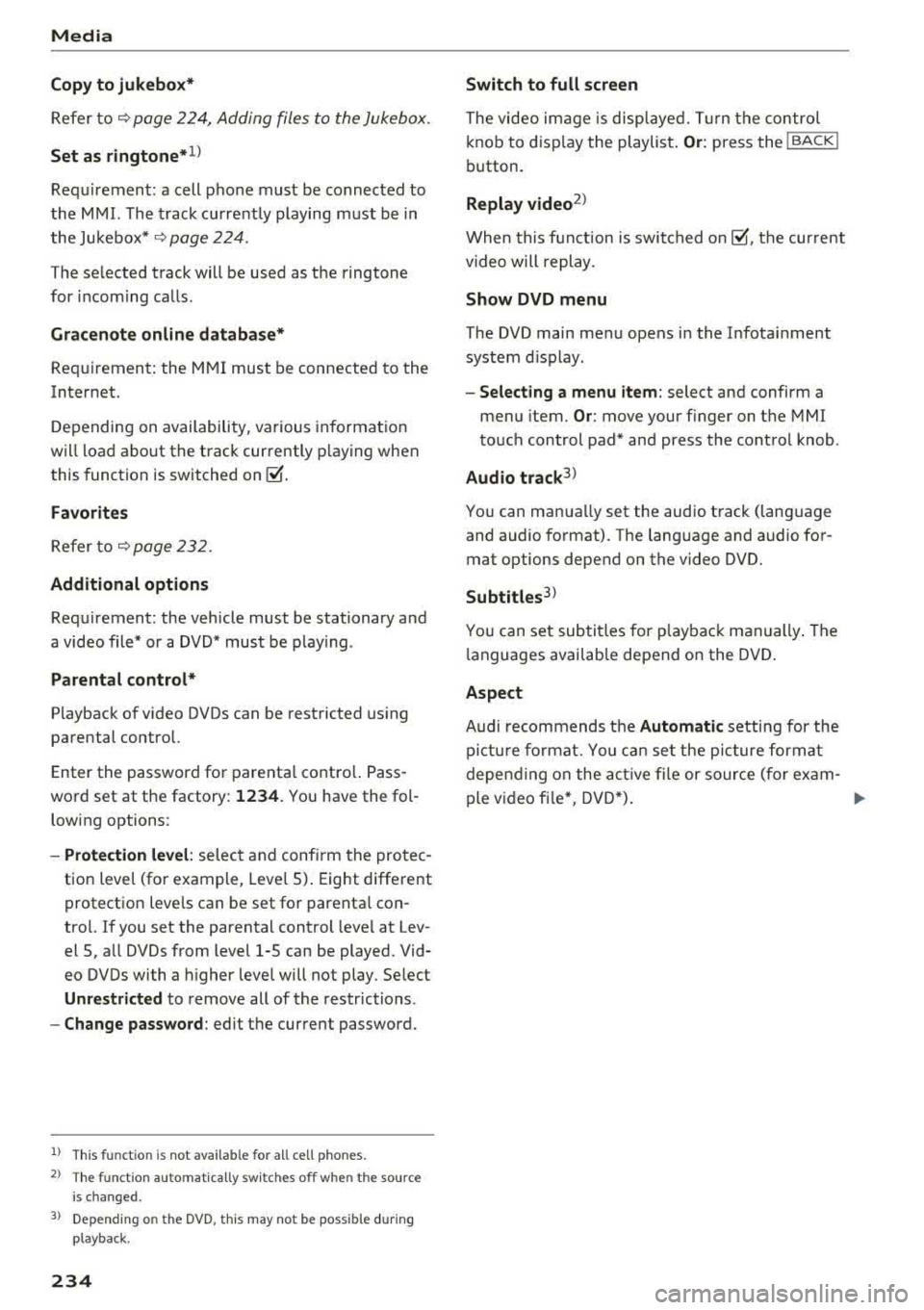
Copy to jukebo x*
Refer to¢ page 224, Adding files to the Jukebox .
Set as ringtone*1
)
Requ irement: a cell phone must be connected to
the MMI. The track current ly playing must be in
the Jukebox* ¢
page 224.
The selected track will be used as the ringtone
for incoming calls .
Gracenote online d atab ase*
Req uirem ent: the M MI must b e connected to the
Internet.
Depending on availability, various in format ion
will load abo ut the track currently playing when
this function is switched
on~ -
Favorites
Refer to ¢ page 232 .
Additional options
Requirement: the vehicle must be stationary and
a
video file* or a DVD* must be p lay ing .
Parental control*
Playback of v ideo DVDs can be restricted us ing
parental control.
Enter the password fo r parenta l contro l. Pass
word set at the factory:
1234. You have the fol
lowing options :
-Protection level: select an d conf irm the pro tec
tion level (for example, Leve l 5). Eight different
protect ion leve ls can
be set fo r parenta l con
trol. If you set the pa rental control leve l at Lev
el 5, a ll DVDs from level 1-5 can be played. Vid
eo DVDs with a higher leve l will not play . Se lect
Unrestri cted to remove all of the restr ictions.
- Change password : edit the current password.
l ) Thi s fun ctio n is not ava ilabl e for all ce ll phone s.
2> Th e fun ctio n au to m at ic a lly sw it ch es o ff when the s ource
i s c ha ng ed .
3> Depe nding o n th e DVD , thi s may not be poss ible d uring
p layba ck.
234
Switch to full screen
The video im age is disp laye d. T urn the contro l
k nob to d is play the playlist .
Or: press the I BACK I
button.
Replay video2
)
When this f unct ion is switched o n ~. th e cur rent
v ideo will replay .
Show DVD menu
The DVD main menu opens i n the Infotai nment
system d is p lay .
-Select ing a menu item : select and confirm a
menu item.
Or : move your finger on the MMI
to uch control pad* and press the control knob .
Audio track3>
You can manually set the aud io t rack (lang uage
and audio fo rmat). The lang uage and audio fo r
mat options depend on the video DVD.
Subtitles3l
You can set subti tles for p lay ba ck manually . The
la nguages availab le depend o n the DVD .
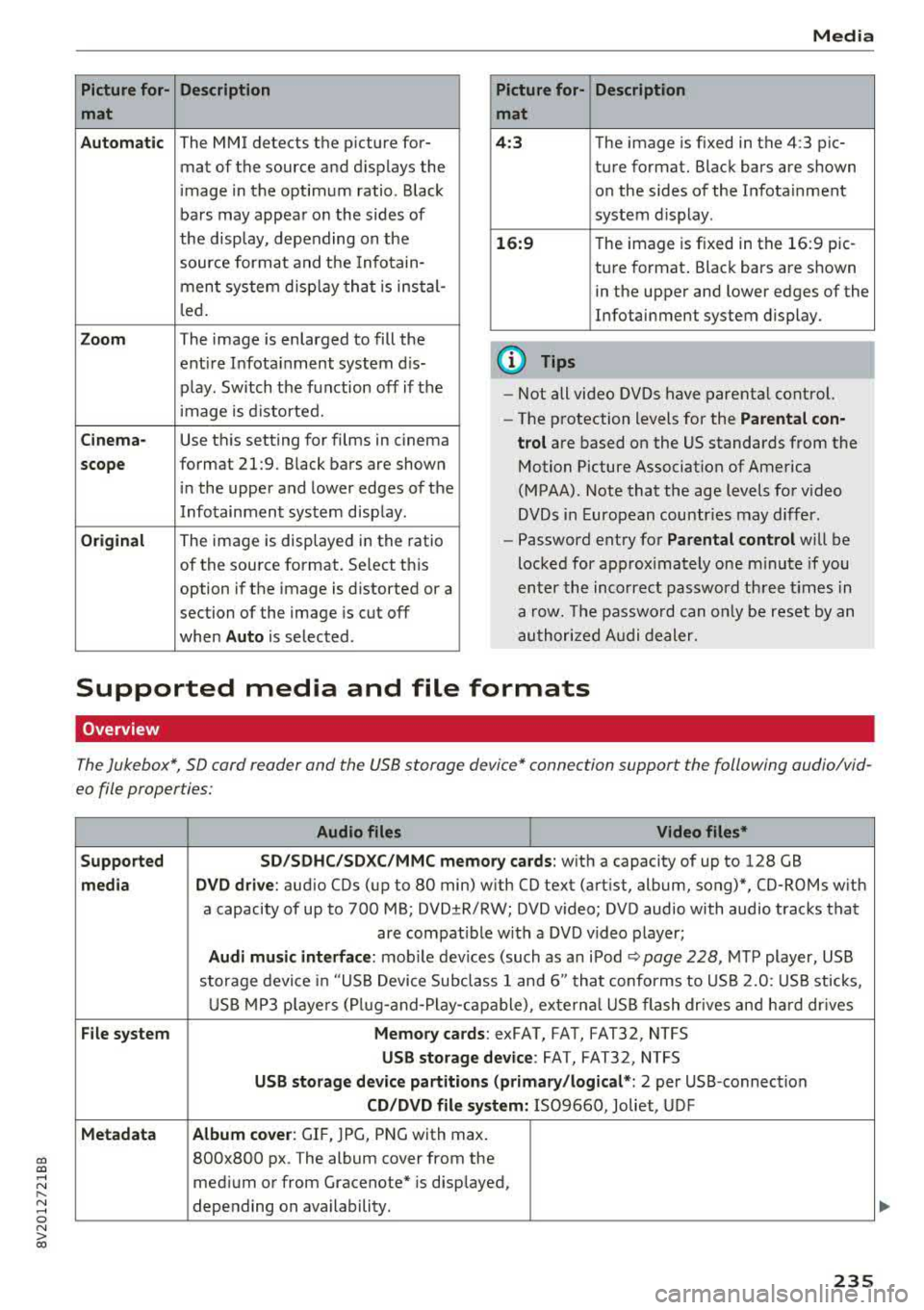
Aspect
Audi recommends the Automatic setting for the
pi ctu re fo rmat. Yo u ca n se t the p icture forma t
depe nding on the a ctive file or source ( for exam -
ple v ideo fi le *, D VD*).
..,
Page 237 of 400
CXl CXl .... N ,.__
N .... 0 N > 00
Picture for- Description
mat
Automatic
The MMI detects the picture for- mat of the source and displays the
image in the optimum ratio . Black
bars may appear on the sides of
the display, depending on the
source format and the Infotain-
ment system d isp lay that is instal-
led.
Zoom The image is enlarged to fill the
ent ire Infotainment system d is-
p lay . Switch the function off if the
image is distorted.
Cinema-Use this setting for films in cinema
scope format 21:9. Black bars are shown
in the upper and lower edges of the
Infotainment system display.
Original The image is displayed in the ratio
of the source format. Se lect th is
option if the image is distorted or a
section of the image is cut off
when
Auto is selected . Media
Picture for- Description
mat
4 :3 The image is fixed in the 4:3 pie-
ture format. Black bars are shown on the sides of the Infotainment
system display.
16:9 T he image is f ixed in the 16:9 pie-
ture format . Black bars are shown
in the upper and lower edges of the
Infotainment system display.
(D Tips
- Not all video DVDs have parenta l control.
- The protection levels for the
Parental con-
trol
are based on the US standards from the
Motion Picture Association of America
(MPAA). Note that the age levels for v ideo
DVDs in European countries may differ.
- Password entry for
Parental control will be
locked for approx imately one m inute if you
enter the incorrect password three times in
a row. The password can o nly be reset by an
authorized Audi dealer.
Supported media and file formats
Overview
The Jukebox*, SD card reader and the USB storage device* connection support the following audio/vid
eo file properties:
Audio files Video files*
Supported SD/SDHC/SDXC/MMC
memory cards:
with a capacity of up to 128 GB
media DVD drive : audio CDs (up to 80 min) w ith CO text (artist, album, song)*, CO-ROMs with
a capacity of up to 700 MB; DVD±R/RW; DVD v ideo; DVD audio with audio tracks that
are compatible with a DVD video player;
Audi music interface: mobile devices (such as an iPod ¢ page 228 , MTP player, USB
storage device in "USB Device Subclass 1 and 6" that conforms to USB 2.0: USB sticks,
USB MP3 players (Plug-a nd-Play-capable), exte rna l USB flash drives and hard dr ives
File system Memory cards: exFAT, FAT, FAT32, NTFS
USB storage device: FAT, FAT32, NTFS
USB storage device partitions (primary /logical* : 2 per USB-connection
CD/DVD file system: IS09660, Joliet, UDF
Metadata Album cover
: GIF, )PG, PNG with max.
800x800 px . The album cover from the
medium or from Gracenote* is disp layed,
depending on availability.
235
Page 238 of 400
Media
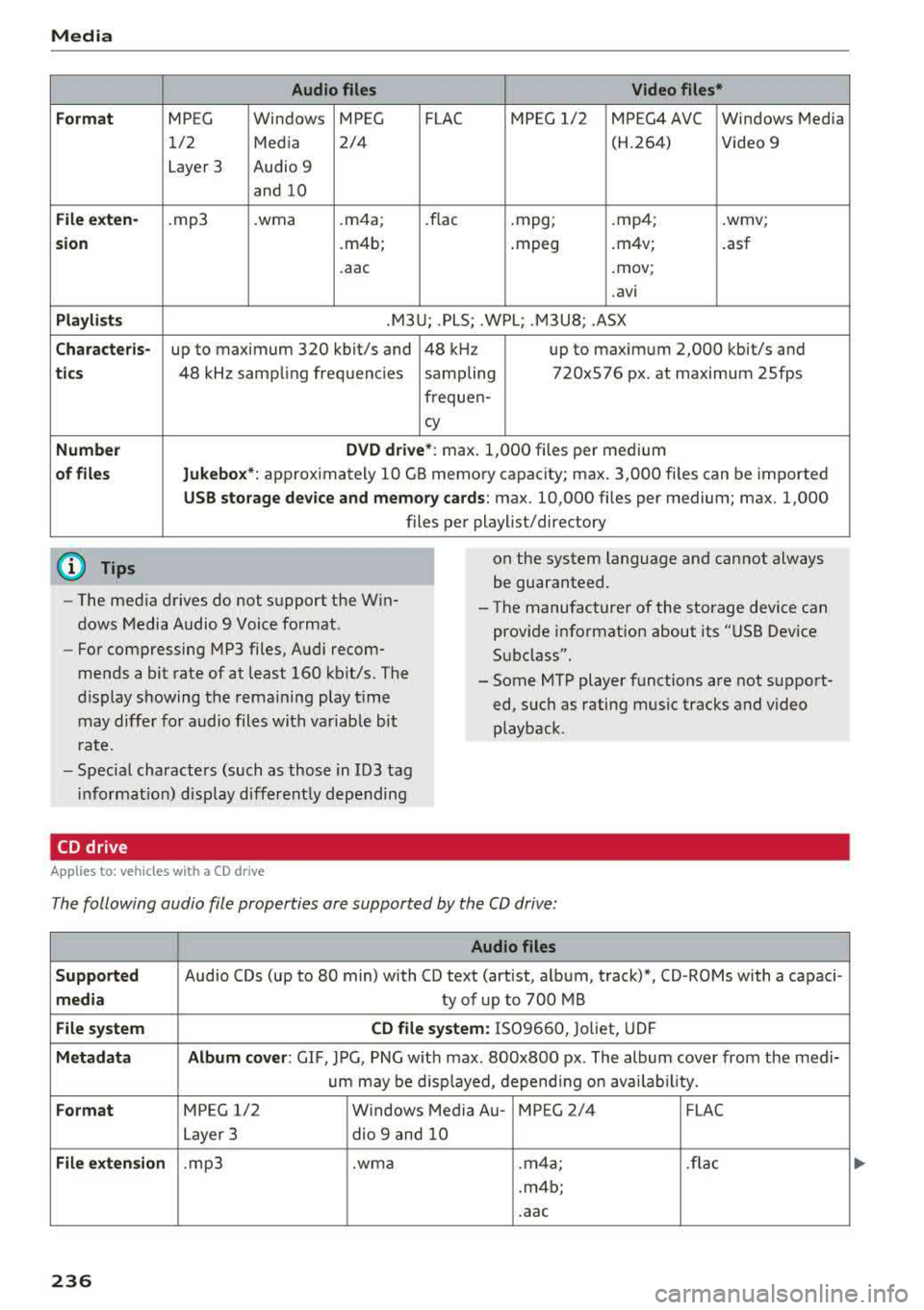
Form at
Fil e ex te n-
s ion
Pla ylists
C ha ra cteri s-
ti cs
Number
of fil es
(D Tips Audio files
Video files*
MPEG Windows MPEG FLAC MPEG 1/2 MPEG4 AVC Windows Media
1/2 Media 2/4 (H.264) Video 9
Layer 3 Audio 9
and 10
. mp3 .wma .m4a; .flac .mpg; .mp4; .wmv;
.m4b; .mpeg .m4v;
.asf
.aac .mov;
.avi
.M3U; .PLS; .WPL; .M3U8; .ASX
up to maximum 320 kbit/s and 48 kHz up to maximum 2,000 kbit/s and
48 kHz sampling frequencies sampling 720x576 px. at maximum 25fps
freq uen-
cy
D VD d riv e* : max . 1,000 files per medium
Jukebo x*: approximately 10 GB memory capacity; max. 3,000 files can be imported
USB stor age de vice a nd m emor y cards : max. 10,000 files per medium; max. 1,000
files per playlist/directory
on the system language and cannot always
be guaranteed.
- The med ia drives do not support the Win
dows Media Audio 9 Voice format. - The
manufacturer of the storage device can
prov ide information about its "USB Dev ice
Subclass".
-
For compressing MP3 files, Audi recom
mends a bit rate of at least 160 kb it/s. The
display showing the remaining play t ime
may differ for audio files with variable bit
r a te. -
Some MTP player functions are not support
ed, such as rating mus ic tracks and video
playback.
- Special characters (such as those in 103 tag
i nformat ion) disp lay different ly depending
CD drive
A pp lies to: ve hicles w ith a CD drive
The following audio file properties are supported by the CD drive:
Audio files
S upported
Audio CDs (up to 80 min) with CD text (artist, album, track)*, CD-ROMs with a capaci-
medi a ty of up to 700 MB
File system CD file syste m: IS09660, Joliet, UDF
Metadat a A lbum co ver : GIF , JPG, PNG w ith max. 800x800 px . The album cover from the medi-
um may be d isp layed, depend ing on avai lab ility.
Form at MPEG 1/2 Windows Media Au- MPEG 2/4 FLAC
Layer 3 dio
9 and 10
File exten sion .mp3 .wma .m4a; .flac
.m4b;
.aac
236
Page 239 of 400
CXl CXl .... N r--N .... 0 N > 00
Media
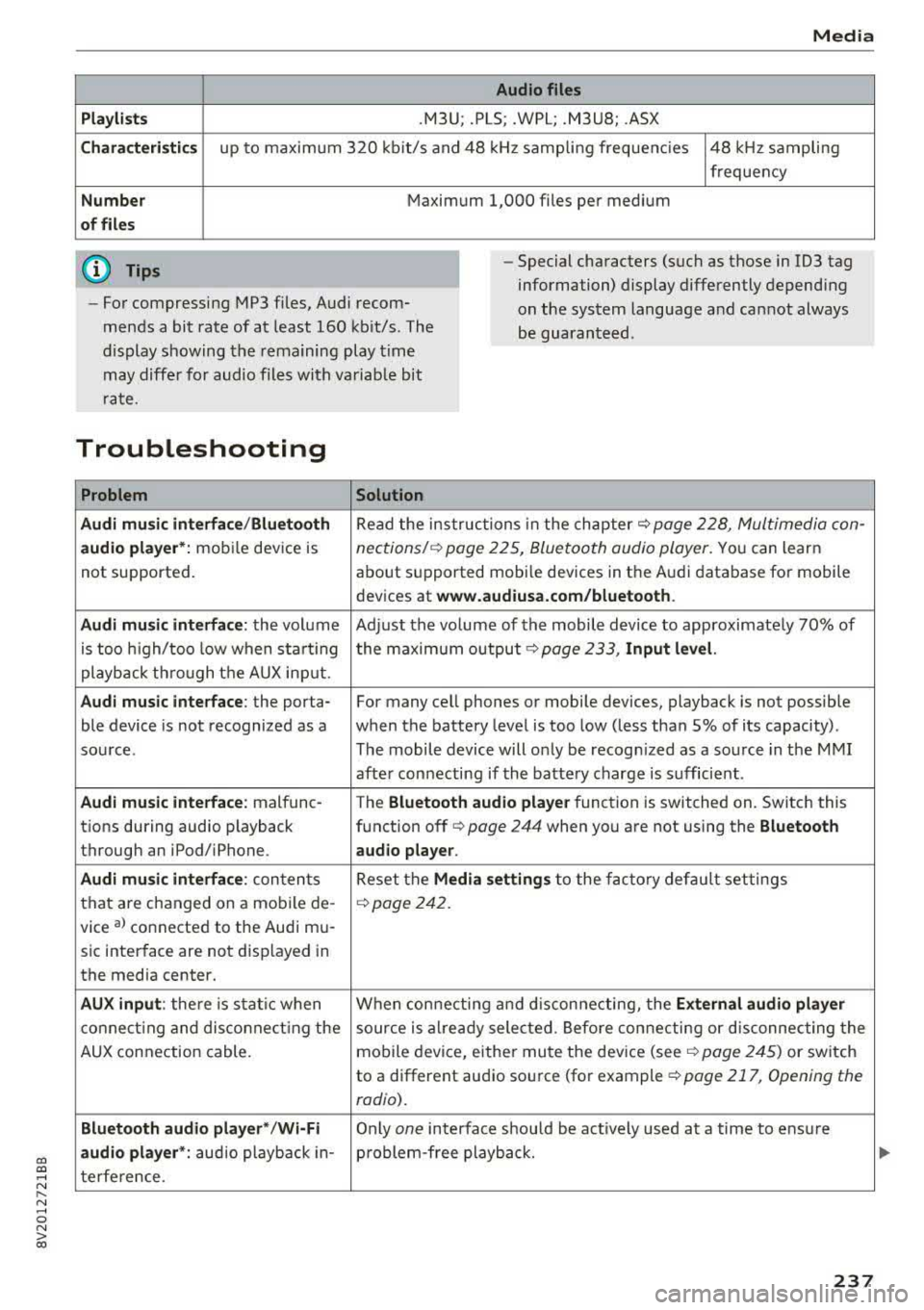
Audio files
Pla ylists
.M3U; .PLS; .WPL; .M3U8; .ASX
Chara cter istic s up to maxim um 320 kb it/s and 48 kHz samp ling freque ncies 48 kHz sampling
frequency
N umber Maximum 1,000 files per medium
of fil es
(D Tips
- For compressing MP3 files, Audi recom
mends a bit rate of at least 160 kb it/s. The
display s howing the remaining play t ime
may diffe r for audio files with va riab le bit
r ate. -
Special characters (such as those in 1D3 tag
information) display differently depend ing
on the system language a nd can not always
be guaran teed .
Troubleshooting
Problem Solution
Audi music interface /Bluetooth
Read the in struc tions in the chapter c::> page 228, Multimedia con-
audio player* :
mobile dev ice is nections/ c::> page 225, Bluetoo th audio player. Yo u can learn
not supported . about s
upported mobi le devices in the A udi database fo r mobile
devices at
www.audiusa.com /bluetooth .
Audi music interface :
the volum e Adjust the volume of the mobile device to approximate ly 70% of
is too high/too low when sta rt ing the maximu m output
9 page 233, Input level.
playb ack th rough t he AUX inp ut.
Audi music interface : the porta- For many cell phones or mobile devices, playback is not possible
ble device is not recognized as a when the battery level is too low (less than 5% of its capacity) .
sou rce. The mobile de·vice will o nly be recogn ized as a so urce in the M MI
afte r con necting if the batte ry charge is sufficient .
Audi music interface : malfunc-
The Bluetooth audio playe r function is switched on. Switch this
t ions during audio playback function off
c> page 244 when you are not using the Bluetooth
through an iPod/ iPhone. audio player .
Audi music interface :
conten ts Reset the M edia setting s to the f acto ry de fau lt set tings
that are changed on a mobile de -
c::>page 242.
vice al connected to the Aud i m u-
sic inter face are not d isplayed in
the media center.
AUX input : there is s tat ic when W hen con necting and disconnec ting, the External audio player
co nne ct ing and dis co nne ct ing the source is alr e a dy sele cted. Befo re con necting or d isconnecting the
AUX connection cable. mo
bile device, either mu te the dev ice (see
c::> page 245) or switch
to a different audio so urce (fo r example
c::> page 217, Opening the
radio) .
Bluetooth audio player* /Wi-Fi
Only on e interface s hou ld be act ively used at a time to ens ure
audio player *: audio playback in- p roblem-free playback.
t e rfe re n ce .
237
Page 240 of 400
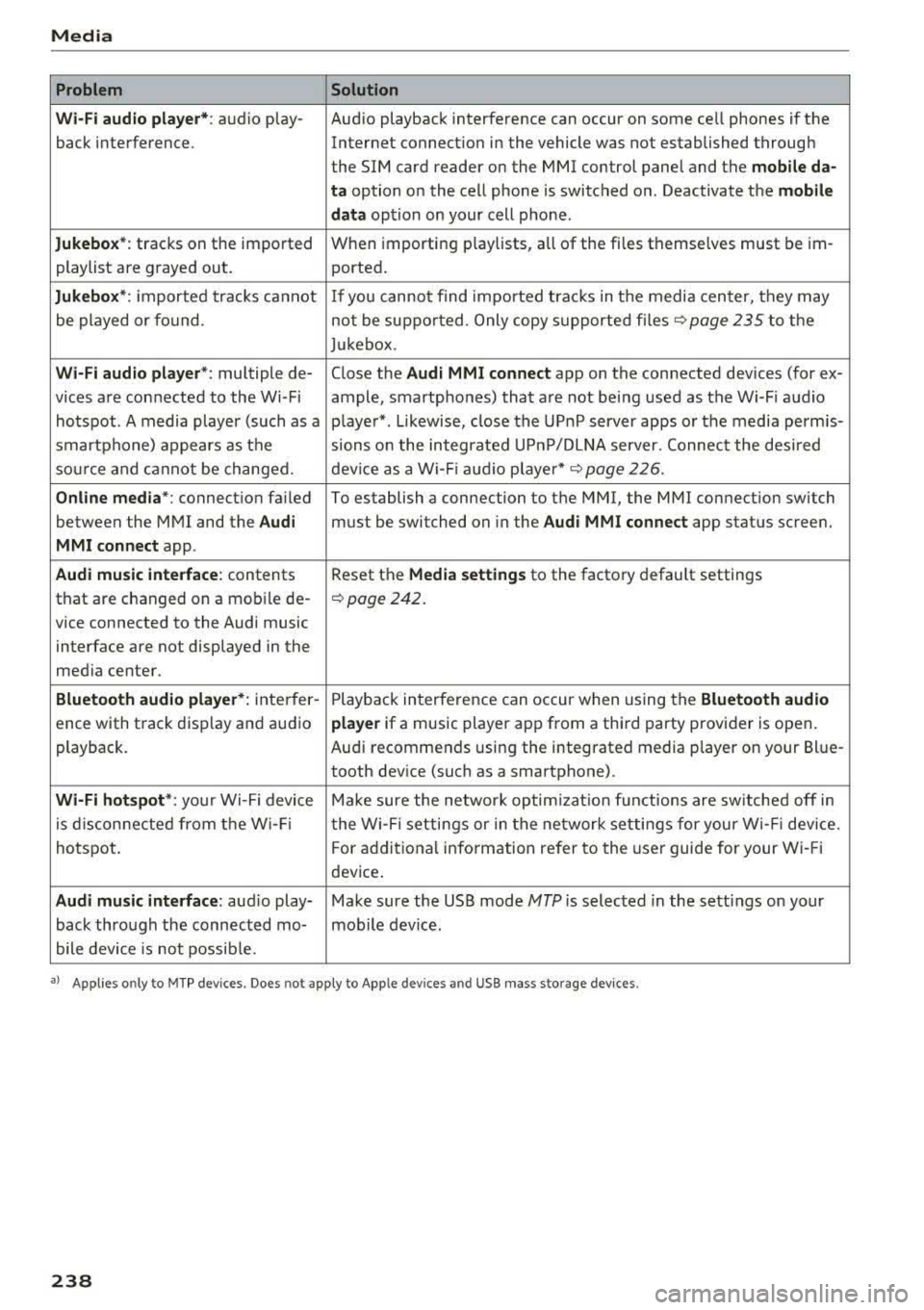
Media
Problem Solution
Wi -Fi audio pl ayer* :
audio play- Aud io playback interference can occur on some ce ll phones if the
back interference . Internet connectilon in the vehicle was not established through
the SIM card reader on the MMI control panel and the
mob ile da-
ta
option on the cell phone is switched o n. Deactivate the mobile
dat a
option on your cell phone.
Jukebox *: tracks on the imported When importing
play lists, a ll of the files themse lves must be im-
playlist are g rayed out . ported.
Jukebox *: imported tracks ca nnot If you canno t find impo rted trac ks in t he media center, they may
be played o r fo und . not be supported . Only copy s upported fi les
~ page 235 to the
Juk eb ox .
Wi-Fi aud io pl ay e r*: multiple de- Close the Audi MMI connect app on the connected dev ices (for ex-
vices a re connected to the Wi-Fi ample, smartphones) that a re not being used as the Wi -F i audio
hotspot . A media player (such as a p laye r*. L ikewise, close the UP nP server apps or the media perm is-
smartphone) appears as the sions o n the integrated U PnP/DLNA server. Connec t the desi red
sou rce and cannot be change d. dev ice as a Wi -Fi
:aud io playe r* c::> page 226 .
Online med ia *: connect io n fa iled To establish a connection to the MMI, the MMI connection switch
between the M MI and the
Audi must be switched on in the Audi MMI connect app status scree n.
MMI conn ect app .
Audi music inte rface: contents Reset the Media settings to the factory default settings
that are changed on a mob ile de-
c::> page 242.
vice connected to the Audi music
interface are not displayed in the
med ia ce nter.
Bluetooth audio player *: inte rfer- Playb ack in terference can occur when us ing the Bluetooth audio
ence with track disp lay and au dio player if a music player app from a thi rd party provider is open .
playback. Au
di recommends using the integrated media p layer on your Bl ue-
tooth dev ice (suc h as a smartphone).
Wi-Fi hotspot *: your Wi-Fi device M ake sure the network optim izati on fun ctions are sw itched off in
is d iscon necte d from t he W i- Fi t he Wi-Fi setti ngs or in t he network setti ngs for your W i- Fi dev ice.
hotspot . For add itional info rm ation refer to the user guide for your Wi- Fi
dev ice .
Audi music interface : audio play- Make sure the USB mode MTP is selected in the sett ings on your
back thro ugh the connec ted mo- mob ile device .
bile device is not possib le.
• > A pp lies o nly to M TP dev ices . Doe s no t app ly to Ap ple dev ices and USB mass storage devices .
238
Page 245 of 400
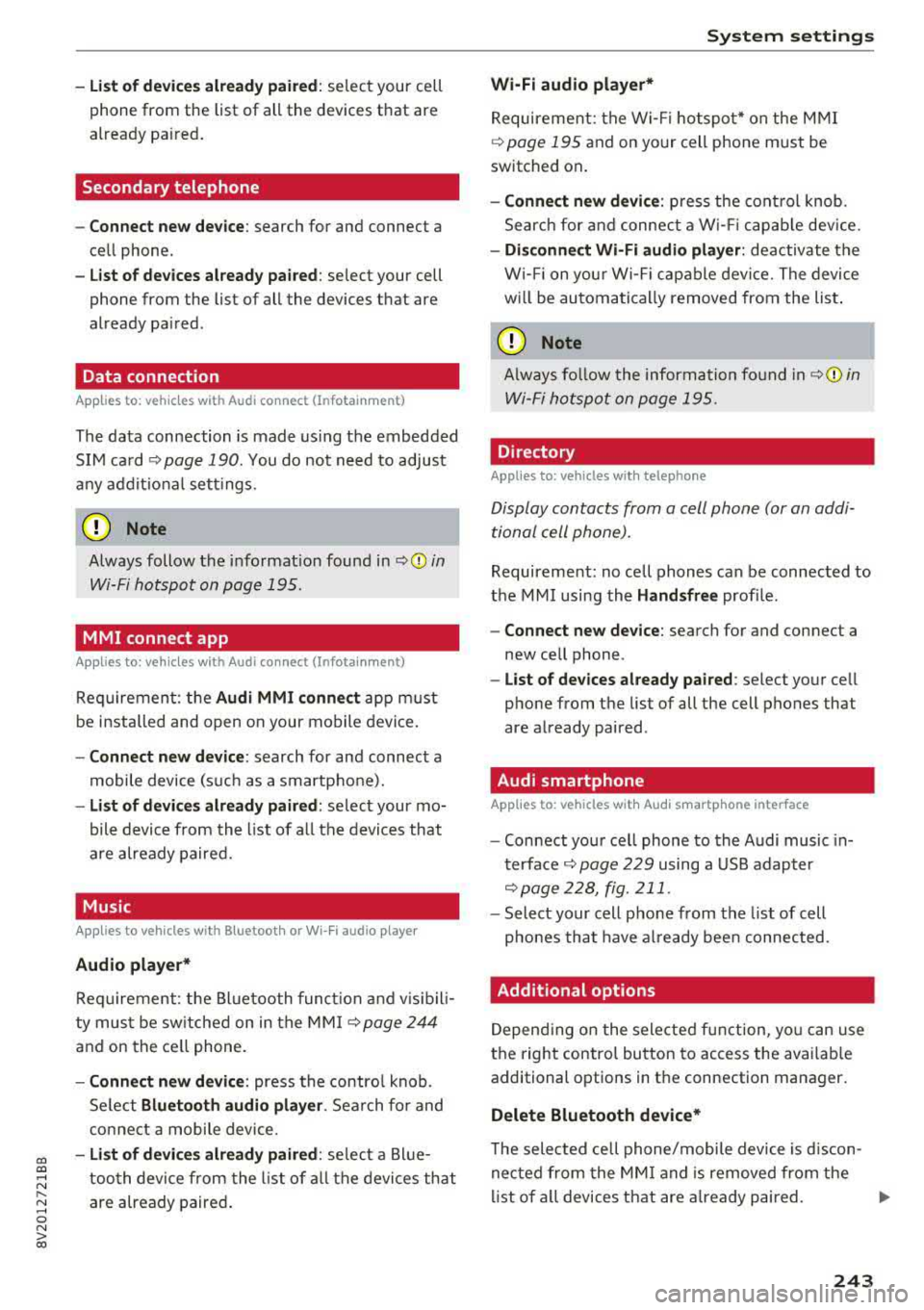
CXl CXl .... N ,.__
N .... 0 N > 00
-List of dev ice s already pa ired : select your cell
phone from the list of all the devices that are
already pa ired .
Secondary telephone
-Connect ne w de vic e: search for and connect a
cell phone.
-Lis t of dev ice s alread y pa ired : select your cell
phone from the list of all the devices that are
already pa ired.
Data connection
App lies to: vehicles with Audi connect (Infotainment)
The data connection is made us ing the embedded
SIM ca rd
~ page 190. You do not need to adjust
any add it ional se ttings .
(D Note
Always follow the i nformat ion found inc:> @ in
Wi-Fi hotspot on page 195.
MMI connect app
Applies to: vehicles with Audi connect (Infotainment)
Requiremen t: the Audi MMI connect app m ust
be i nstalled and open on your mobile device .
-Connect new d evice: search for and connect a
mobile device (s uch as a smartp ho ne).
-Li st of device s already pa ir e d : select your mo
bile device from the list of a ll the devices that
are already paired.
Music
Applies to vehicles with B luetooth or Wi -Fi audio playe r
Audio player *
Requirement: the Bluetooth func tion and v is ib il i
ty must be sw itched on in the MMI
c:> page 244
and on the ce ll phone.
-Connect n ew de vice : press the contro l knob.
Se lect
Bl uetooth audio pla yer . Search for and
connect a mobile device .
-List of devic es alrea dy pa ired : selec t a Blue
too th device from the l ist of a ll the devi ces that
are already paired .
Sys te m set ting s
Wi-Fi audio playe r*
Re quirement: the Wi- Fi hotspot* on the M MI
c:>
page 195 and on yo ur cell phone m ust be
switched on .
-Connect new device : press the cont rol knob .
Search for and connect a W i- Fi capab le dev ice.
-Disconn ect Wi-Fi audio player : deactivate the
Wi- Fi on you r Wi-Fi capable device. The device
w ill be automati cally removed from the list .
(Q) Note
Always fo llow the information found in ~ © in
Wi-Fi hotspo t on page 195.
Directory
Applies to: vehicles with telephone
Display contacts from a cell phone (or an addi
tional cell phone).
Requirement: no cell phones can be connected to
the MMI using the
Hand sfr ee profile.
-Connect new de vice : search for and connect a
new cell phone .
-List of devices alre ad y paired : select your ce ll
phone from the list of all the cell phones that
are already paired .
Audi smartphone
Applies to: vehicles with Aud i smartphone interface
-Connect your ce ll phone to the Audi music in
terface ~ page 229 using a USB adapter
c:> page228, fig. 211 .
-Select your cell phone from the list of cell
p hones that have a lready bee n connected .
Additional options
Depending on the selected function, yo u can use
the right control button to access the availab le
additional options in the connection manager.
Delete Bluetooth device*
T he selected cell phone/mobile device is d iscon
nected from the MM I and is removed from the
list of a ll devices that are a lready paired.
..,.
243