navigation system AUDI A3 SEDAN 2018 Owner's Manual
[x] Cancel search | Manufacturer: AUDI, Model Year: 2018, Model line: A3 SEDAN, Model: AUDI A3 SEDAN 2018Pages: 404, PDF Size: 62.3 MB
Page 211 of 404
u. 00 .-< N l' N .-< 0 N > 00
- Traffic congestion along the ro ute including
time delays
The route that was calcu lated acco rding to the
ro ute criter ia you sele cted is shown on the over
view map . The special propert ies of the route are
a lso
displayed @~ fig. 187 and given as a spo
k en message.
Using the contro l knob , you can se lect t he possi
b le routing for the alternative routes and show
them on map Select and confirm the desired ro ute that you would like to use for route guid
ance.
Additional settings
Navigation settings
Applies to: vehicles with navigation system
.,. Press the I NAV /MAPI but ton repe ated ly un til
the
Enter de stination menu is displayed
¢ page 201, fig.182 .
.,. Select : rig ht contro l button > Navigation set-
tings .
Depending on the se lected function, the follow ·
ing settings can be se lected :
Show alternative routes
Up to three suggested ro utes are shown on the
map whe n this funct ion is switched
on~
~ page 208, Alternative routes.
Low fuel warning
A message is disp layed if the fuel gauge goes be
l ow the reserve mar king when this funct ion is
sw itched
on~-Co nfirm ing th is m essage displays
a lis t of gas stations in the area. When a gas sta
t ion is selec ted, route g uidance from the c urren t
ve hicl e position is calc ulated .
Trailer mode*
Tra iler mode is sw itched off at the factory .
When the function is switched
on~. the maxi
mum permitted speed for vehicles with trailers is
i ncorporated into the route guidance and the cal
culated arr ival time is adjusted acco rding ly . T rail
e r mode is d isp layed using symbols
-Pe' in the side
menu on the m ap .
Na vigation
Personal route as sistance*
Persona l rou te ass istance is swi tched off at the
f actory.
You r trips a re recorded and dest inations a re s ug
gested by the M MI w hen th is fu nction is sw itched
o n ~¢ page 206.
Notification when nearby*
The not ification when nearby is switched off at
the factory .
The MM I not ifies you when you are approaching
selected points of interest when t his function is
switched
on~ -You can also have a Notification
tone .
Presentation mode
The Presentation mode he lps you to effectively
plan a tr ip and fo llow the planned route without
moving the vehicle . You can use
Select starting
point
when you wou ld like to calculate a ro ute
sta rt ing from a location othe r than the ve hicle
pos it ion, for examp le. Sta rt
Presentation mode
to s imula te rou te g uidance .
Route criteria
Applies to: vehicles with navigation system
Jl
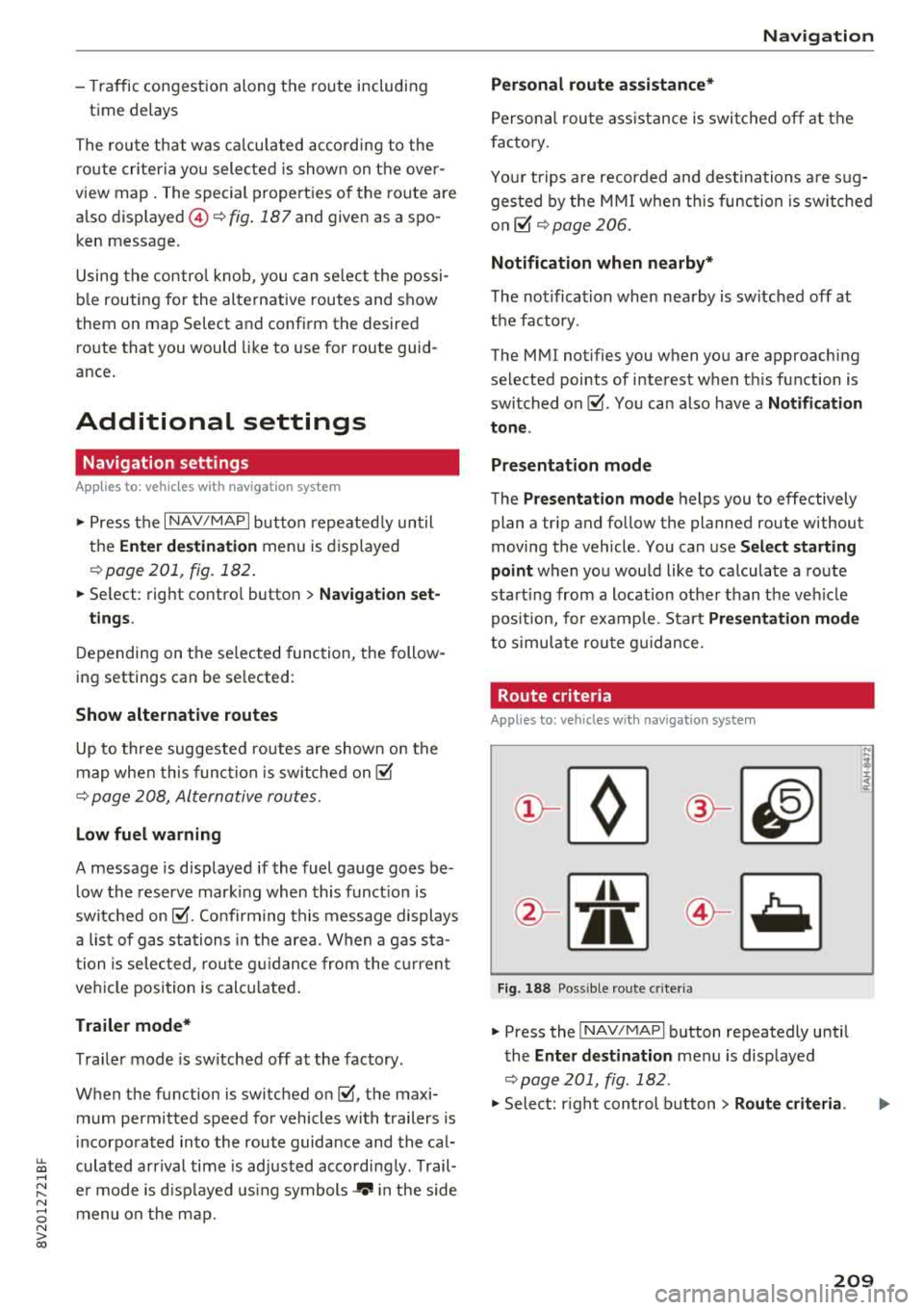
Fig. 18 8 Possible ro ute c rit e ri a
.,. Press the INAV/MAPI button repeatedly unti l
the
Enter destination men u is displayed
¢page 201, fig . 182 .
.,. Select: r ight cont rol b utton> Route criteria .
209
Page 212 of 404
Navigation
CD HOV/carpool lanes 1): with the Avoid fu nc
tion, HOV lanes are excluded when calculating
ro utes . When
Allow is se lected, t he MMI will
ro ute you thro ugh HOV lanes and show them on
the map.
@Highways /@ Toll roads /@ Ferries : if the nav
igation system sho uld not incl ude highways, to ll
roads or ferr ies
-if possib le -when calcu lating
routes, yo u can select the
Avoid function .
Voice guidance
Applies to: ve hicles with navigation system
• Press the I N AV/MAPI button repeated ly until
the
Enter destination menu is d isplayed
¢ pag e 201, fig. 182.
• Se lect: rig ht cont rol butto n > Voice guidance .
Voice guidance :
voice guidance can be Complete
or Shortened. With the Traffic function, voice
gu idance p romp ts are only given when the re are
traffic inc iden ts o n yo ur route. When
Off is se
lec ted, no voice g uidance is given .
Voice guidance during phone call: voice guid
a nce du ring a phone c all can be swi tc h ed o n or
off.
Enterta inment fader : see ¢ page 248.
Voice guidance volume : you can adjust the vo l
ume during voice guidance using the On/Off knob
¢ page 154 Yo u can also find additional informa
tion
u nder¢page248 .
ll High occupancy ve hicle
210
Map
Map operation
App lies to: vehicles with navigation system
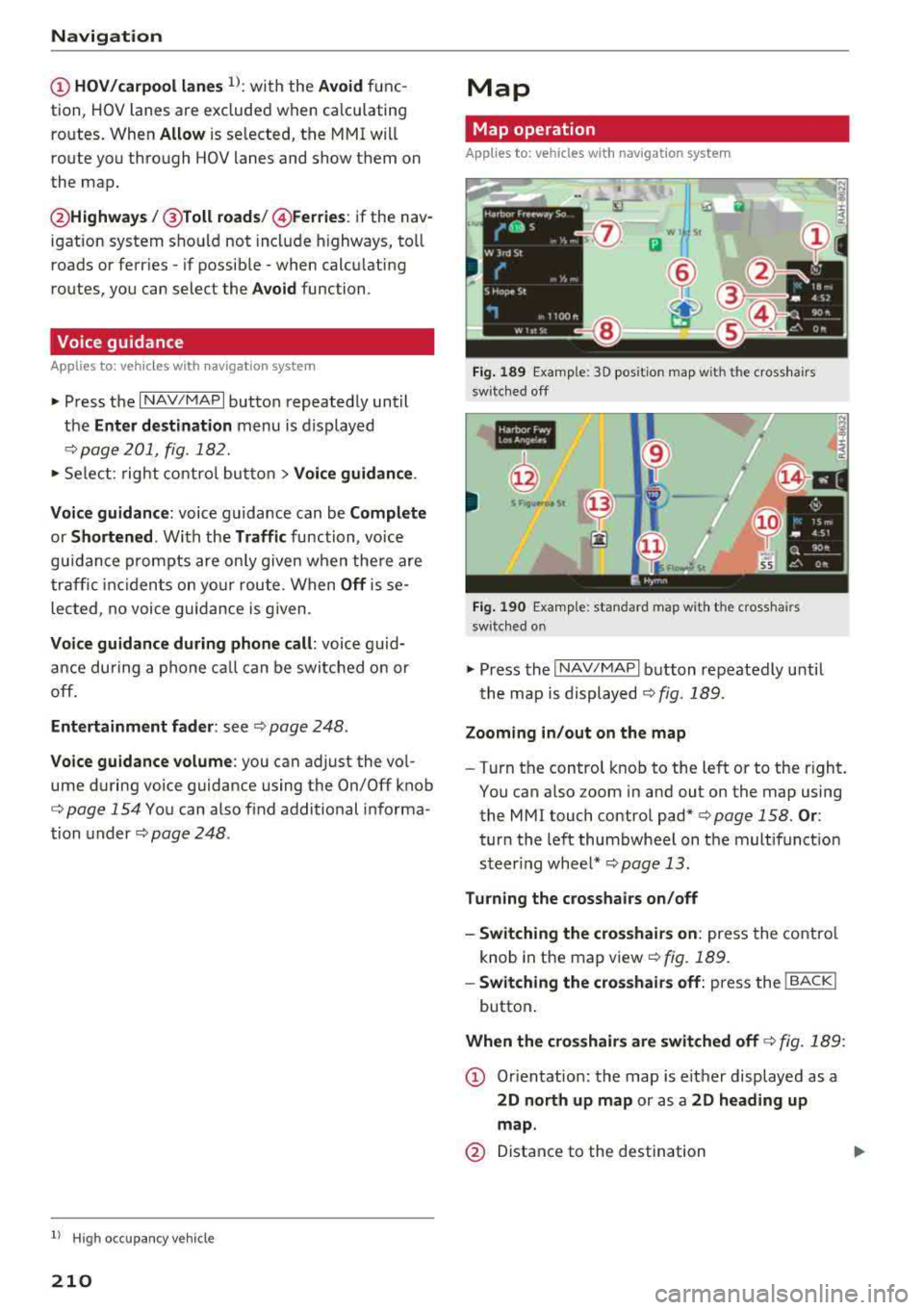
Fig. 189 Examp le: 3D pos ition map w ith the cross hairs
switc hed off
•IN
@
Fig. 190 Examp le: standard map with the crosshairs
switc hed on
~ Press the I NAV/MAPI b utton repeatedly until
t he map is
d isplayed¢ fig . 189.
Zooming in /out on the map
-T ur n the control knob to the left or to the right.
You can also zoom in and out on the map using
the MMI touch control
pad*¢ page 158. Or:
turn the left thumbwheel on the mult ifunct ion
s t eer ing whee l*
¢page 13 .
Turning the crosshairs on/off
-Switching the cro sshairs on : press the contro l
knob in the map v iew
¢fig. 189 .
-Swit ching the crosshairs off: p ress the ! BACKI
button .
When the crosshairs are switched off¢ fig. 189:
CD Orien tation: the map is e it h er displayed as a
2D north up map or as a 2D heading up
map .
@ Distance to the destination
Page 213 of 404
u. co .-< N l' N
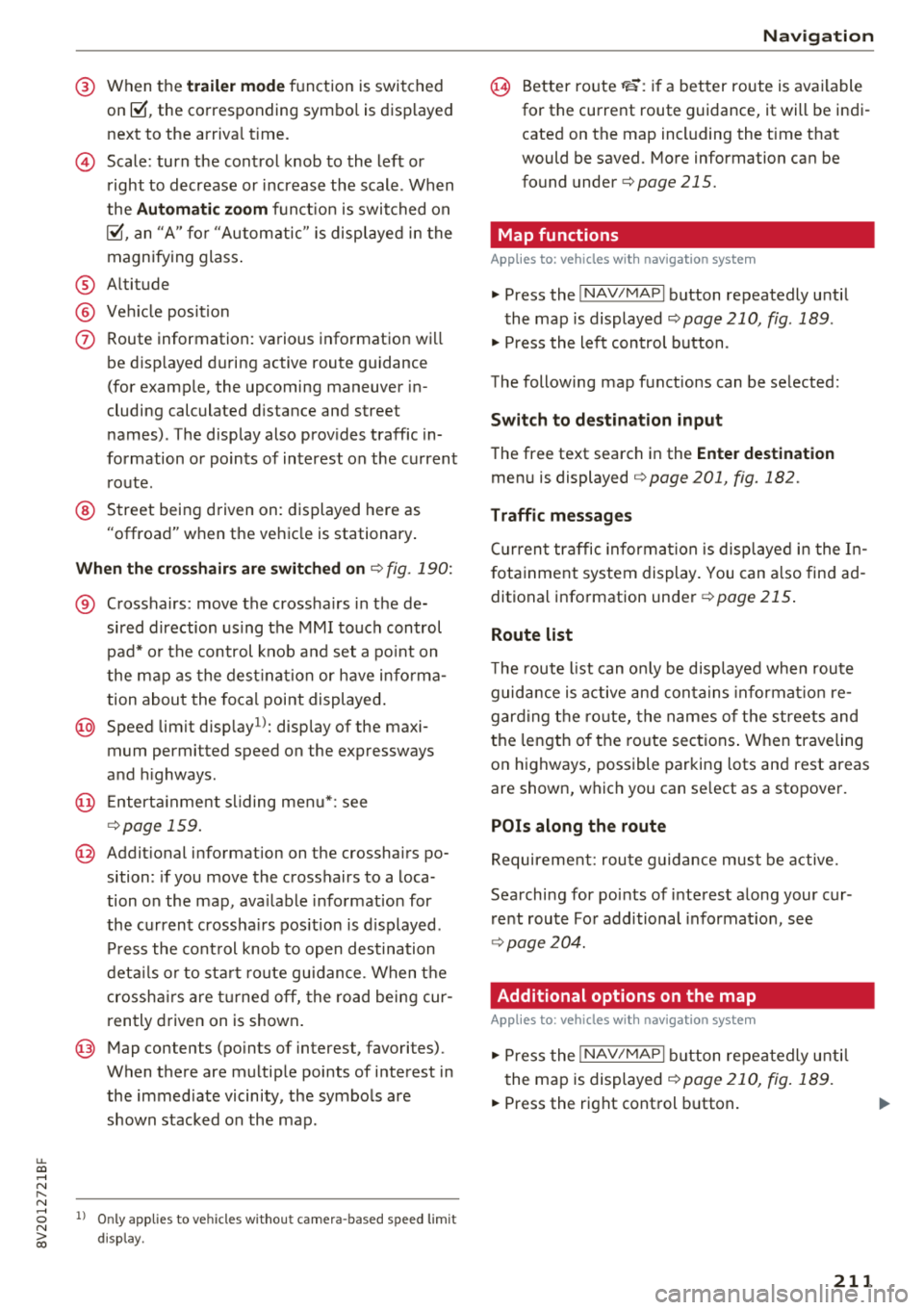
@ When the trailer m ode fu nction is switched
on~' the corresponding symbo l is displayed
next to the arriva l time.
© Scale: turn the cont rol knob to the left or
right to decrease or increase the scale . When
the
Automa tic zoom fu nct ion is swit ched on
~' an "A" fo r "Automatic" is displayed in the
magnifying glass .
® Altitude
@ Ve hicle posit ion
(J) Route information: various information wi ll
be disp layed during active route guidance
(for example, the upcoming maneuver in
cluding calculated d istance and street
names) . The disp lay also prov ides traffic in
formation or po ints of interest on the current
route.
@ Street being driven on: displayed here as
"offroad" w hen the vehicle is stationary .
When th e crosshair s ar e swit ch ed on ¢ fig. 190:
® Crosshairs: move the cross ha irs in t he de
sired direction us ing the MMI touch control
pad* o r the control knob and set a po int on
the map as the dest inat ion or have i nfo rma
tion about the foca l point displayed .
@) Speed limit disp lay1>: display of the maxi
mum permitted speed on the expressways
and highways .
@ Enterta inme nt s liding men u*: see
¢ page 159.
@ Addit ional information on the crosshairs po
sition: if you move the crosshairs to a loca
tion on the map, ava ilable information for
the current crossha irs pos ition is displayed .
Pr ess the cont rol knob to open destination
det ails o r to sta rt ro ute gu idance. When the
crossh airs a re tur ned off, the road being cur
ren tly driven on is shown .
@ Map contents (points of interest, favorites).
When there are multip le points of i nterest in
the immed iate vicinity, the symbols are
shown stacked on the map.
8 l ) O nly applies to vehicles without camera-based speed limit N
ii; display.
Na vigation
@ Better route~: if a better route is available
for the current route guidance, it will be indi
cated on the map including the t ime t hat
would be saved. Mo re information can be
found
under¢page215.
Map functions
Applies to: vehicles with navigation system
"Press the !NAV/MAPI button repeatedly until
the map is displayed
¢page 210, fig . 189 .
" Press the left control button .
The following map functions can be se lected:
Switch to de stination input
T he free text search in the Enter destination
men u is displayed ¢ page 201, fig. 182.
Traffic messages
Cu rren t traffic informa tion is disp layed i n the In
f ota inment system display. You can a lso find ad
ditional information under
¢ page 215 .
Route list
The route list can o nly be disp layed when route
guidance is a ctive and con ta ins informat io n re
gard ing the ro ute, the names of t he s treets and
the lengt h of the ro ute sec tions . W hen traveling
on highways, possible parking lots and rest areas
are shown, which you can se lect as a stopover.
POis along the route
Requirement: rou te g uid ance must be active.
Searching for po ints of inte rest a long your cur
r e nt route Fo r additional informat ion, see
¢ page 20 4.
Additional options on the map
Applies to: vehicles with navigation system
"Press the !NAV/MAPI button repeatedly u nti l
the map is displayed
¢page 210, fig . 189.
" Press the right control button.
211
Page 214 of 404
Navigation
Depending on the function selected, the follow
ing options can a lso be selected under the
Map
menu :
Cancel route guidance : see c:;, page 206.
Adjust position : you can manually move the veh i
cle position on the map to change the route.
Map settings: see c:;,page 212 .
Route criteria: see c:;, page 209.
Voice guidance: see c:;,page 210.
Navigation settings: see c:;, page 209.
Show alternative routes: see c:;, page 208.
Parking along the route*: parking options near
the vehicle are displayed.
Save current position* : you can save your current
vehicle position as a favorite
c:;, page 208 or save
it as a contact in th e directory
¢ page 208 .
Audi connect at this location *: allows you to
sea rch for
Travel information at the entered lo
cation (events, weather at the destination, etc.).
Online traffic data *: you can switch the on lin e
traffic data on or
off~.
Country information: see c:;, page 206 .
Avoid route* : when route guidance is act ive, the
calculated route w ill avoid the area you have
specified (max imum : 12 mi (20 km)), if possible .
The navigation system calculates an alternat ive
ro ute . The route to be avoided that you have en
tered applies only to the current route and must
be set again, if needed. The areas you have se
lected to avoid will appear with red and wh ite
shading on the map .
Move route *: move your finge r over the MMI
touch control pad* or use the con trol knob to ad
just the ro ute on the overview map .
ll AUDI AG pr ovide s access to se rvices from third part y p ro
v ider s. Pe rma ne nt ava ilabil ity c ann ot be g uara nteed , be
c a use that depen ds on the th ird party p ro vide r.
212
Map settings
Applies to: vehicles with navigation system
.,. Press the I NAV /MAPI button repeatedly unti l
the map is displayed.
.,. Select: r ight control button> Map settings.
Depend ing on the selected fu nction, the follow
in g settings can be selected:
Map colors
Day /Night :
the map is displayed wit h a light/
dark background .
Automatic: the map display adapts to the light
i ng condit ions (for examp le, changing from
Day
to Night when dr iving through a tunnel).
Map display
Standard :
see c:;, page 210, fig. 190.
Satellite map1>: see c:;, page 213.
Electric range : see c:;, page 217.
Map orientation
Destination :
the map indicates the destination
and is oriented to the north.
2D heading up map /2D north up map : the cur
rent vehicle position is displayed. The map is ori
ented in the direction of trave l or to the north.
3D position map *: the cur rent veh icle position is
shown on a three-dimensional map and is aligned
to the direction of travel. At a scale of 62 mi
(100 km) and larger, the map orientation is to
the north.
Overview map : the entire route from the vehicle
position to the destination or the next stopover is
displayed on the map. The map scale depends on
the length of the route and adapts automatically.
The map is oriented to the north.
Route information
The disp lay o f route information, such as the cur
rent street being driven on or points of interest
a long the current route, can be switched on/off
..,.
Page 215 of 404
LL co .... N
" N .... 0 N > co
or can be minimized on the display of upcoming maneuvers.
Automatic zo om
On : the map scale is adapted a utomat ica lly de
pending on the type of road being trave led (ex
pressway, hig hway, other roads) so that you al
ways have an optimal overview o f the road ahead.
The sca le is also automatica lly adapted when
there are upcoming maneuvers to provide a bet ter detailed view.
Inter section : when route guidance is active, the
map temporarily zooms in to a detailed scale
when there are upcom ing maneuvers so that you
can see the street or turn better.
Off: the map sca le you have chosen is main
tained.
M ap content
Map content such as weathe r, traff ic information
or favorites can be displayed or hidden .
The weather forecast* is d isplayed o n a 3 m i (5
km) scale on the map ¢
page 208, fig. 187.
Satellite map
Appl ies to: ve hicles with a nav igatio n system an d Audi con
nect (I nfotainment)
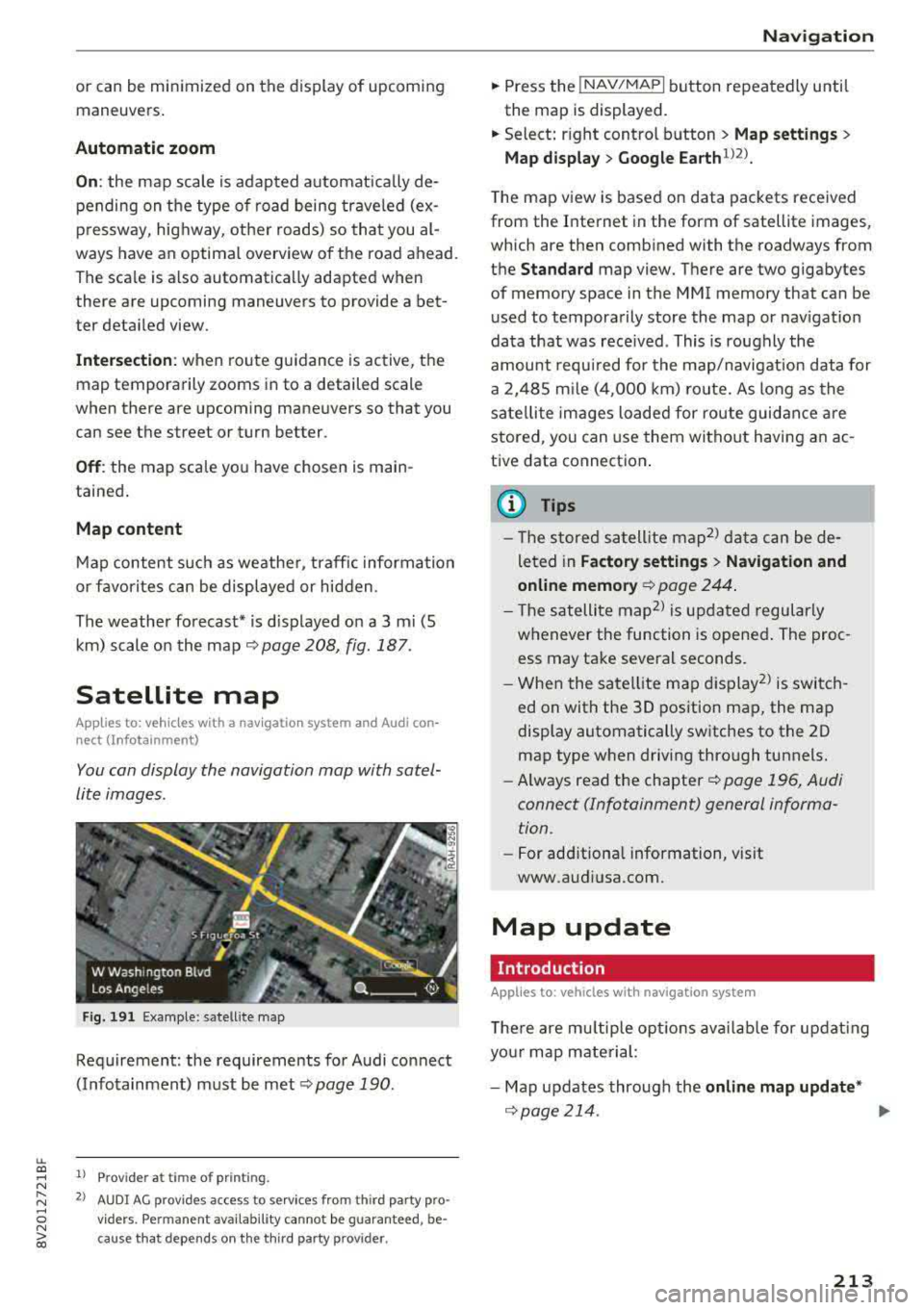
You can display the navigation map with satel
lite images .
Fig. 191 Example: satellite map
Requirement: the requirements for Audi connect
(Infotainment) must be met
¢ page 190.
1> Prov ider at time of printing .
2> AUDI AG provides access to se rvices from th ird party pro ·
v iders . Pe rman ent ava ilability cannot be guaran teed , be
c ause that depe nds on th e th ird party provider.
Na viga tion
.. Press the !NAV/MAPI button repeatedly until
the map is displayed.
.. Select: r ight control b utton > M ap settings >
Map displa y> Google Earth ll2l_
T he map v iew is based on data packets received
from the Internet in the form of satellite images,
which are then combined with the roadways from
the
Standard map view. There are two gigabytes
of memory space in the MMI memory that can be
u sed to temporarily store the map or nav igat io n
data that was received . This is roughly the
amount requ ired for the map/navigation data for
a 2, 485 m ile ( 4,000 km) ro ute. As long as the
sate llite images loaded for route guidance are
stored, you can use them witho ut having a n ac
tive data connection .
(D Tips
- The sto red sa tell ite map2> d ata can be de
leted in
Factory setting s> Navigation and
online memory ¢
page 244.
- The s atellite map2> is updated regularly
whenever the function is opened . The proc
ess may take several seconds.
- When the satellite map d isplay
2> is switch
ed on with the 30 position map, the map
display automatically sw itches to the 20
map type when driving through tunnels.
- Always read the chapter¢
page 196, Audi
connect (Infotainment) general informa tion .
-For add itiona l information, v is it
www.audiusa.com.
Map update
Introduction
Applies to: vehicles wi th navigat ion syste m
The re are mu ltip le opt io ns avai lab le for updat ing
yo ur map mate rial:
- Map updates through the
online map upd ate *
¢page 214 . ..,_
213
Page 216 of 404
Navigation
-Import map updates from the SO card* to your
MMI. You can find additional information on
li ne at www.audiusa.com/myaudi.
-Map update at an authorized Audi dealer or au
thorized Audi Service Facility. This can result in
additional costs.
Online map update
Applies to: vehicles with a navigation system and Audi con
nect (Infotainment)
Using the online map update, you can update
the map material in your navigation system di
rectly from your vehicle.
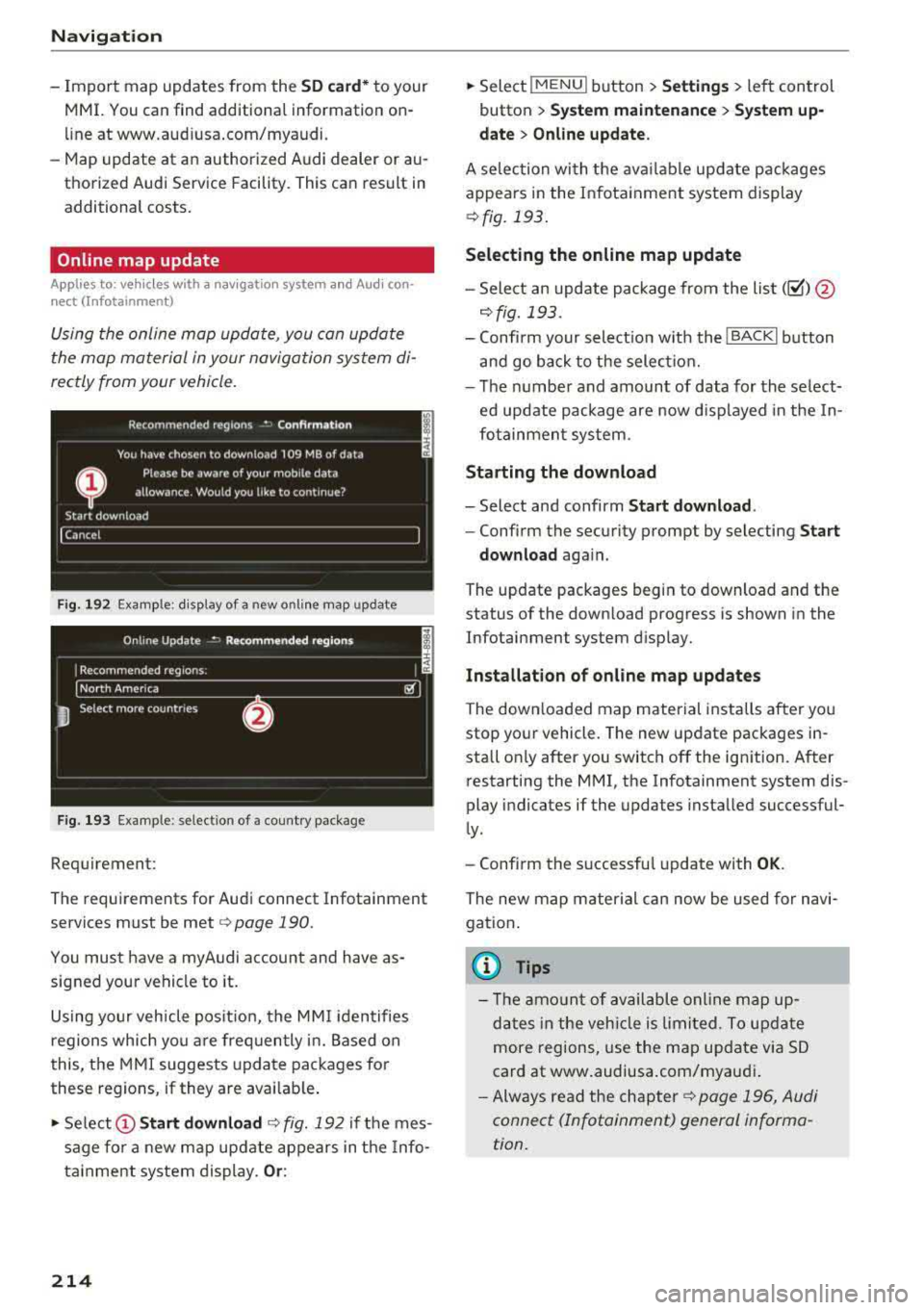
Fig. 192 Exa mple: disp lay of a new onl ine map update
Fig. 193 Example : select ion of a country package
Requirement:
The requirements for Audi connect Infotainment
services must be met
r=> page 190.
You must have a myAudi account and have as
signed your vehicle to it.
Using your vehicle position, the MMI identifies
regions which you are frequently in. Based on
this, the MMI suggests update packages for
these regions, if they are avai lable .
• Select @Start download c> fig. 192 if the mes
sage for a new map update appears in the Info
tainment system display.
Or :
214
.. Select !MENUI button> Settings> left control
button >
System maintenance > System up
date > Online update.
A selec tion with the available update packages
appears in the Infotainment system display
¢fig. 193.
Selecting the online map update
-Sele ct an update package from the list(~) @
r=>fig. 193.
-Confirm your select ion w ith the ! BACK I button
and go back to the select ion.
-The number and amount of data for the se lect
ed update package are now displayed in the In
fotainment system.
Starting the download
-Select and confirm Start download .
-Confirm the security prompt by selecting Start
download
again.
The update packages begin to download and the
status of the down load progress is shown in the
Infotainment system display.
Installation of online map updates
The downloaded map material installs after you
stop your vehicle. The new update packages in
stall on ly after you switch
off the ign ition. After
restarting the MMI, the Infotainment system dis
play indicates if the updates installed successful
ly.
-Confirm the successful update with OK.
The new map material can now be used for navi
gation.
{i) Tips
-Th e amount of available on line map up
dates in the vehicle is limited. To update
more regions, use the map update via SD
card at www.audiusa.com/myaudi .
-Always read the chapter c> page 196, Audi
connect (Infotainment) general informa
tion.
Page 217 of 404
Accessing traffic information
Traffic information (TMC)
Appl ies to: vehicles with navigation system
.,. Press the I NAV /MAPI button repeatedly until
the map is displayed .
.,. Select : left control button > Traffic messages .
An overview of all the traffic messages is dis
p layed in the Infotainment system. Traffic inci
dents on your route are shown in the upper sec
tion of the list, sorted according to distance.
-Displaying all traffic messages for a street/
highway :
select and confirm the[] symbo l. A
li st of a ll the traffic messages for the selected
street/h ighway is displayed.
-Opening a detailed view of traffic information :
select and confirm the traffic information from
the list.
-Displaying the selected traffic information on
the map :
select the right control button >
Show on map . The shaded line shows the
street and the length of the traffic jam.
-Displaying the next traffic message on the
map:
press the control knob.
Traffic information display
Colored warning symbols:
traffic incidents on
your route are shown in the upper section of the
list and are sorted according to distance.
Warning symbols with~: avoided traffic inci
dents.
Grayed out warning symbols: traffic incidents
that are not on yo ur route. They are sorted ac
cording to road type (expressway, hig hway, othe r
road), country and name.
(D Tips
-Critical traffic informa tion, such as warn
ings about wrong- way drivers, is automati
ca lly displayed . To hide the traffic informa
tion, press the
I BACK I button or the control
u. knob. 00 .-< ~ -TMC traffic reports are not avai lab le in Can -
~ ada. For more information, please contact 0
~ Sirius Canada. 00
Navigation
Better route
Applies to: vehicles with navigation system
By receiving traffic information through TMC,
your MMI calculates a better route -if available -
and the possible time saved for the current route
guidance. You can decide yourself which route
you would like to use.
.,. Press the INAV/MAPI button repeatedly until
the map is displayed.
Requirement: route guidance must be active.
If your MMI has ca lculated a better route than
the current route guidance, the message
A better
route is available.
appears for several seconds
along with the time that may be saved . A better
route is ind icated in the map view by the symbol
rS ~page 210, fig. 190 .
Apply better route
-Press the right control button.
-Select and confirm the better route. Or: select
and confirm
Details to display details about the
optimized route. You can zoom in or out on the
map using the MMI touch control pad. Require
ment : there must be more than one opt im ized
route calculated. Press the control knob to
sw itch to the next route in the detailed view.
Closing the detailed view: press the I BACKI
button.
-The better route is used for the remaining
route guidance and the route is recalcu lated.
215
Page 219 of 404
LL co ..... N
" N ..... 0 N > co
e-tron navigation
functions
Electric range
Applies to: vehicles with plug- in hybrid drive
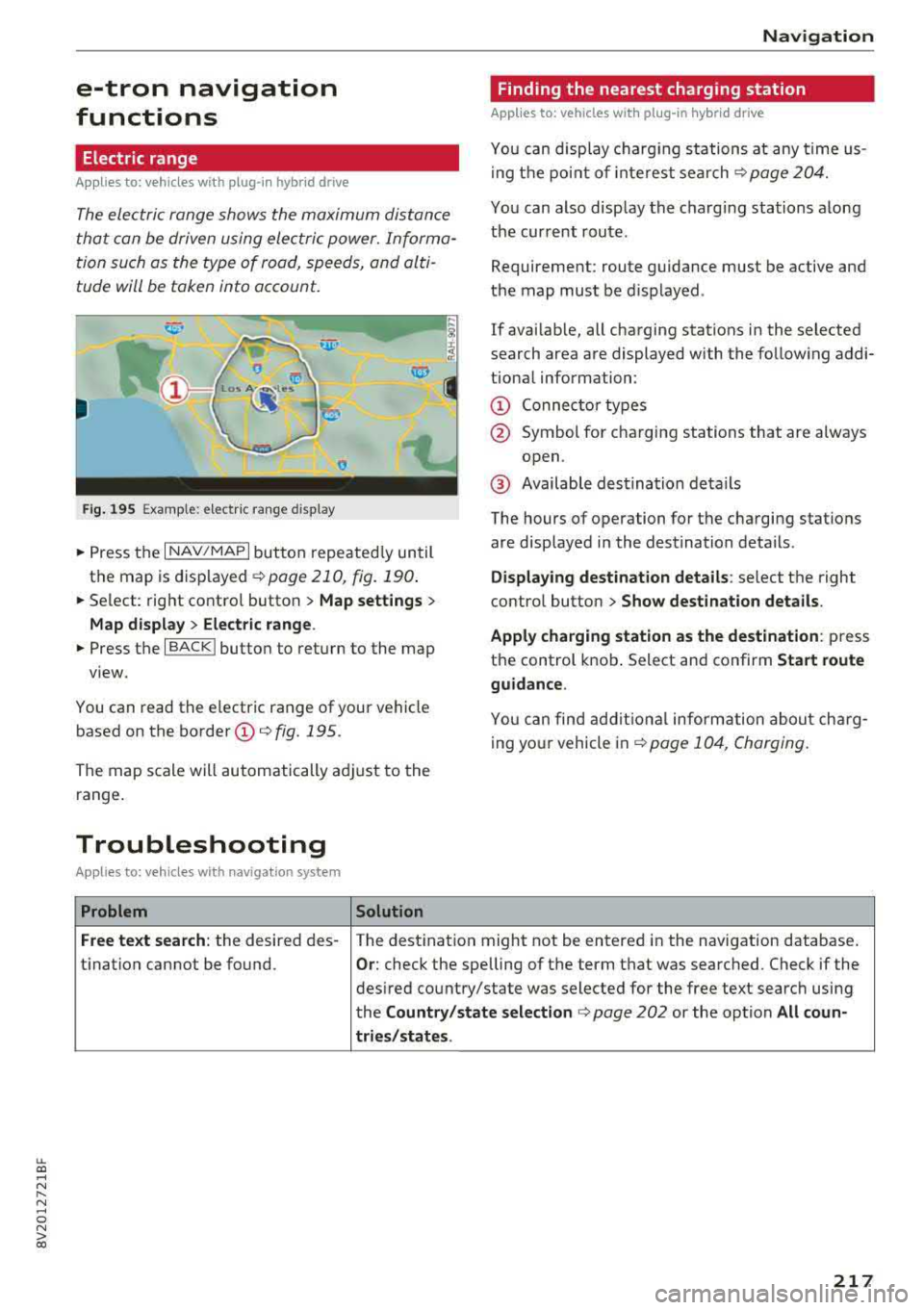
The electric range shows the maximum distance
that con be driven using electric power. Informa tion such as the type of rood, speeds, and alti
tude will be token into account.
Fig. 195 Example: e lectric range display
• Press the I NAV/MAPI button repeated ly un til
the map is displayed ¢
page 210, fig. 190 .
• Select: right contro l button > Map set tings >
Map display > Elect ric range .
• Press the I BACK I button to return to the map
view.
You can read the electric range of your vehicle
based on the border
(D ¢ fig. 195.
The map scale will automatically adjust to the
range .
Troubleshooting
Applies to: vehicles with navigation system
Problem Solution Na
viga tion
Finding the nearest charging station
Applies to: vehicles with plug -in hybrid drive
You can display charg ing stations at any time us
i ng t he po int of interest search
¢page 204.
You can also display the charging stations along
the cur rent route.
Requirement: route guidance must be active and
the map must be d isplayed .
If avai lab le, all charging stations in the selected
search area are displayed with the fo llow ing addi
tiona l information:
(D Connec to r types
@ Symbol for charging stations that are always
open.
@ Available destination deta ils
The hours of operation for the charging stations
are displayed in the destination details .
Displa ying destination detail s: se lect th e right
contro l button
> S how destination details .
Apply charging station a s the destinat ion:
p ress
the control knob. Select and confirm
Sta rt route
guidance .
You can find add it iona l information about charg
ing yo ur vehicle in
~ page 104, Charging.
Free te xt sear ch : the desired des- The destination might not be entered in the navigation database .
t i nation cannot be found .
Or: check the spelling of the term that was searched. Check if the
des ired country/state was selected for the free text search using
the
Count ry /s tate select ion ¢ page 202 or the option All coun-
tries /state s.
217
Page 246 of 404
System settings
wait for the sig nal t one (bee p) to say a new
command.
Volume : you can a djust th e vol ume of th e
p romp ts by turning the con tro l k no b.
Individual speech training (on ly when the v ehi
cle is s ta ti onary): yo u ca n ad apt the vo ice recog
ni tion sy ste m to your voic e or pro nunciati on in
or der to im prove the sys tem's a bili ty to re co gni ze
your speec h. Indivi dua l speech train ing is com
p rised of 20 s peech ent ries t hat consist o f com
mands and sequences of numbers . You can de
lete the p rogrammed voice t rain ing with the
Re
set individual speech training
function.
Display brightness
You can a djust the brigh tness o f the Info tain
ment system disp lay by t urning the cont ro l knob.
Factory settings
D epe ndi ng on t he ve hicle eq uipme nt, th e fo llow
i ng fu nctio ns ca n b e rese t to factory se ttings :
-Sound settings
- Radio
- Media settings
- Jukebox *
- Directory
-Telephone
- Bluetooth and Wi-Fi*
- Navigation settings*
- Navigation and online memory *
- Speech dialog system*
- Message settings *
-Apps*
- Tool tips
- Audi connect*
- Audi smartphone interface *
You can select the des ired functions individually
or all at once with the option
Select all entries .
Select and confirm Restore factory settings .
(D Tips
-Make s ure that n ot on ly t he settings we re
d eleted but also the stored data, if ap plica
b le.
- Pleas e note t hat the vo ice reco gnit io n sys
te m* is not availab le in Cabr io lets .
244
Connection manager
Introduction
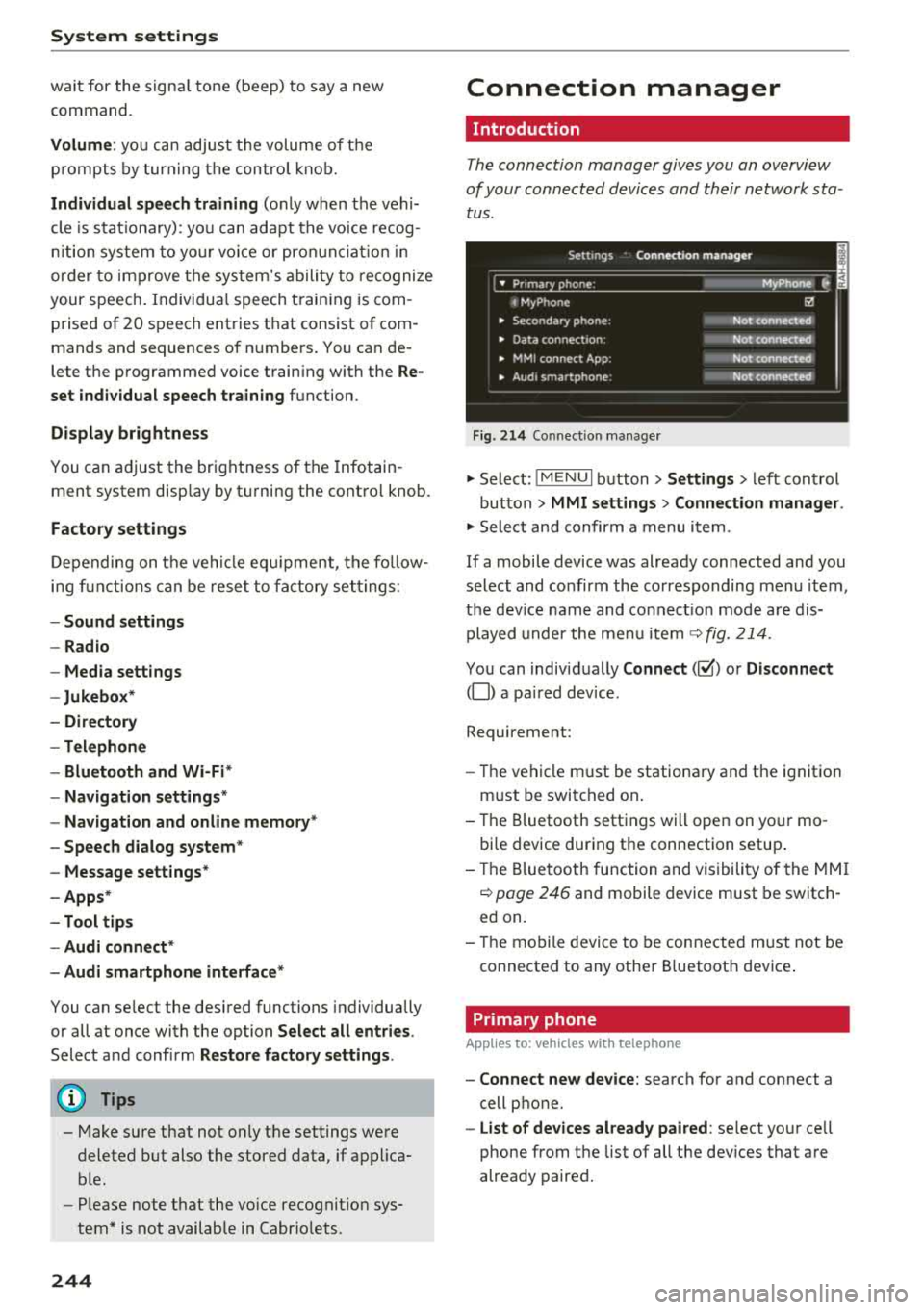
The connection manager gives you an overview
of your conn ected devic es and th eir network sta
tus .
Settings Conne -ction manager I
-====- ,.· • Prima hone: MyPhone .,.
c M yPhone
• Second ary phone :
• Data conn ection :
• MM I connect App :
• Audi smartphone:
Fig. 214 Co nnec tion man ag er
Ii'!
Not connected
Not
conn.,ct.,d
Not connected
Not
conn..cted
"' Select : !ME NUI bu tton> Settings > left con trol
bu tton >
MMI settings > Connection manager .
"'Sele ct a nd confirm a menu item.
If a mobile device was already connected and you
select and co nfirm the co rresponding menu item,
t h e dev ice name and co nnect ion mode a re dis
p layed under the menu i tem
r:!;> fig. 214 .
You can indiv id ually Connect (~ ) or Disconnect
(0) a pa ired device .
Requirement:
- The ve hicl e m ust be statio na ry and the ignit io n
m ust be switc hed on .
- Th e Bluetooth sett ings will open on yo ur mo
bi le device dur ing the connection setup .
- T he Blue tooth func tion and v is ibili ty of the MMI
c:!;> page 24 6 and mobile device must be switc h
ed on.
- T he mo bile device to be con nected m ust not be
connected to any othe r Bluetoot h dev ice .
Primary phone
App lies to: vehicles wit h telepho ne
- Connect new device: search for and connect a
cell p hone.
- List of devices already paired : select yo ur cell
phone from the list of all the dev ices that a re
already paired.
Page 249 of 404
-Ver sio n inf ormation : information on the MMI
software version and the navigation database*
software vers ion is displayed . T he
Softwa re in
form atio n
function a lso provides information
on the softwa re con tained in the MMI and the
l icensing agreement .
Sound settings
The sound distribution and volume of the MMI
can be adjusted individually . The settings depend
on vehicle equipment.
---- 1
J .-.6 . ·,
I
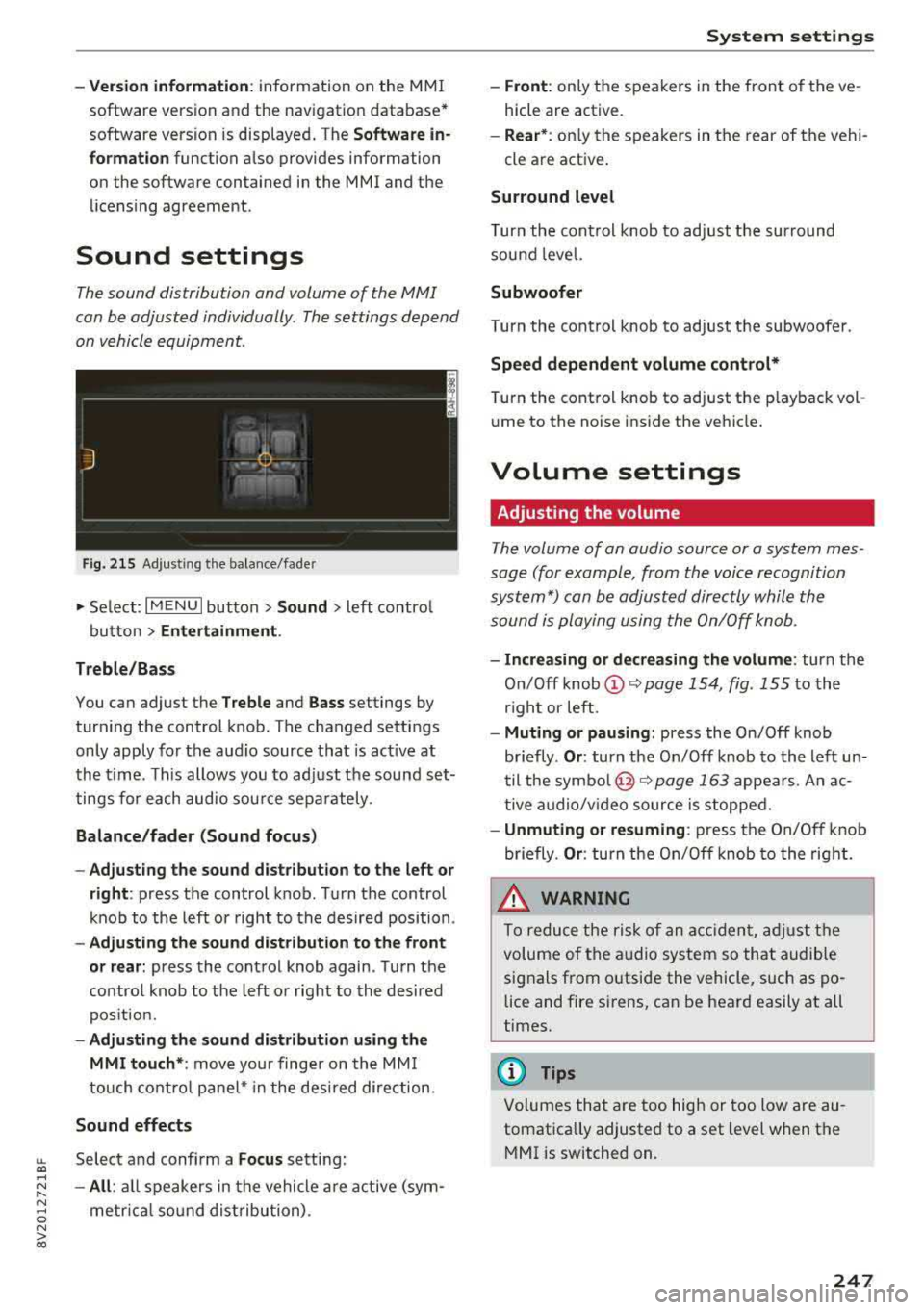
Fi g. 215 Adju sting the balan ce /fade r
.,. Select: I M ENU I button> Sound > left contro l
button
> Ent ertainm ent .
Treb le /Ba ss
You can adjust the Treble and Ba ss settings by
turning the control knob . The changed settings
only apply for the audio source that is act ive at
the t ime. This allows you to ad just the sound set
tings for each audio source separately .
Bal ance /fader (Sound focu s)
- Ad justing th e sou nd d ist ribut ion to the l eft or
right :
press the control k nob . Turn the control
knob to the left or right to the desired position .
-Adju sting t he sou nd d istribution to the fron t
or rear :
press the control knob again . T urn the
contro l knob to the left or right to the desired
pos ition.
- Adju sting the sound d istribution u sing th e
MMI t ouch* :
move your finger on the MM I
touch cont ro l panel* in the desi red direction.
Sound effects
LL Select and confirm a Fo cus setting: co ....
~ - All : all speakers in the vehicle a re a ctive (sym-
~ metr ica l sound dist ribution) . 0 N > co
Sys tem settings
-Front : only the speakers in the front of the ve
hicle are active.
- Rear *: on ly the speakers in the rear of the vehi
cle are active .
Surround level
Turn the cont rol knob to adjust the surround
sound level.
Subwoofer
Turn the control knob to adjust the subwoofer .
Speed dep end ent v olum e cont rol *
Turn the control knob to adjust the p layback vol
u me to the noise ins ide the veh icle.
Volume settings
Adjusting the volume
T he volume of an audio source or a system mes
sage (for example, from the voice recognition
system*) can be adjusted directly while the
sound is playing using the On/Off knob .
-Incr easing or decreas ing the volume : turn the
On/Off
knob @~ page 154, fig . 155 to the
r ight or left .
-Mu ting or pau sin g: press the On/Off knob
briefly .
Or: turn the On/Off knob to the left un
til the
symbo l@ ~ page 163 appea rs . An ac
tive a udio/v ideo source is stopped.
- Unmuting or re suming : press the On/Off knob
briefly .
Or: turn the On/Off knob to the rig ht.
.&_ WARNING
To reduce the risk of an accident, adj ust the
volume of the audio system so that audible
signals from o utside the vehicle, such as po
lice and fire sirens, can be heard easily at all
times.
(D Tips
Volumes that are too high or too low are au
tomatically adjusted to a set level when the
MMI is switched on.
.
247