display AUDI A4 2016 User Guide
[x] Cancel search | Manufacturer: AUDI, Model Year: 2016, Model line: A4, Model: AUDI A4 2016Pages: 278, PDF Size: 70.26 MB
Page 26 of 278
Driver information system
Trip computer
Introduction
Applies to vehicles: with trip computer
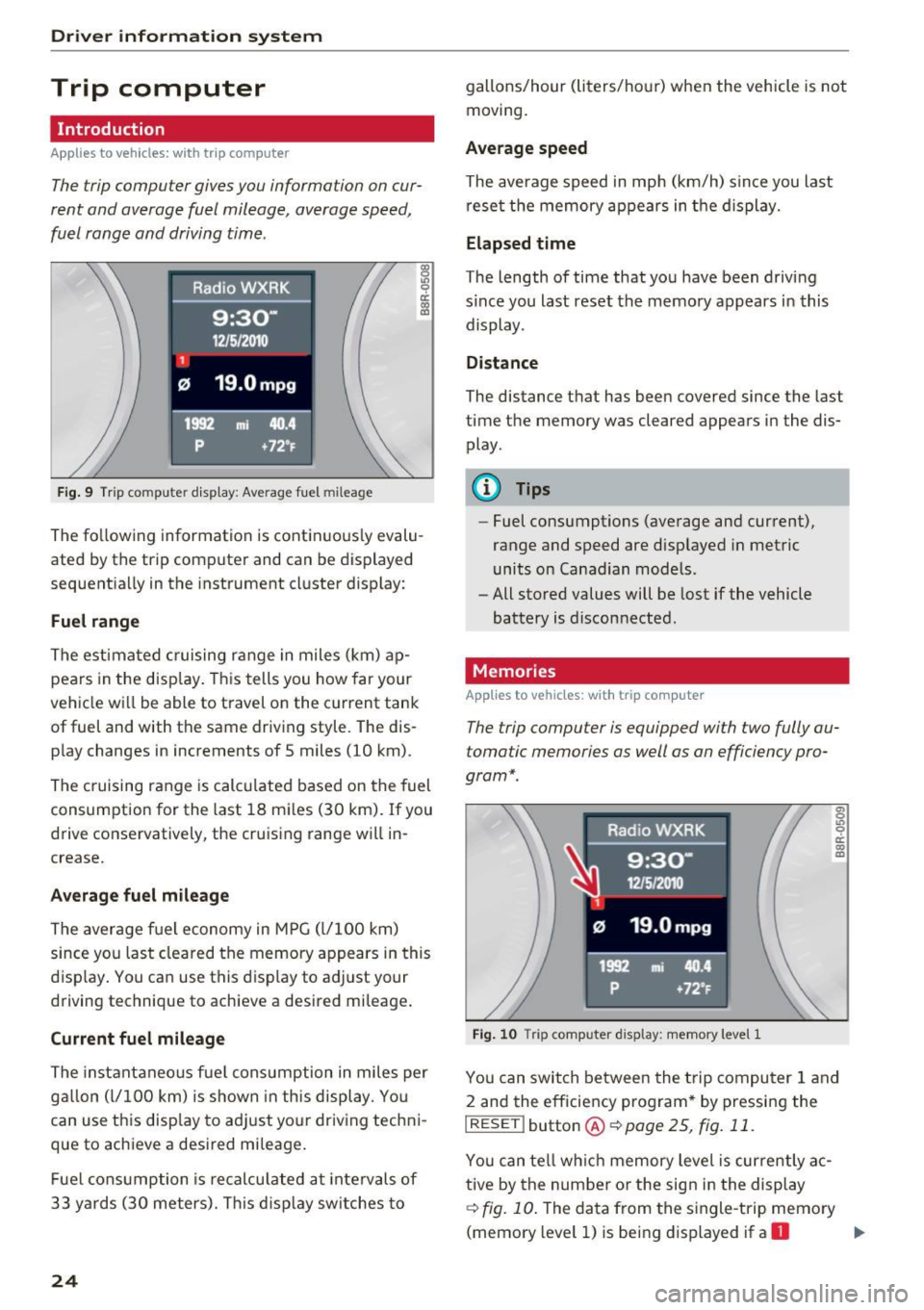
The trip computer gives you information on cur
rent and average fuel mileage, average speed ,
fuel range and driving tim e.
F ig. 9 Tri p computer display: Average fuel mileage
~ 9 a: co a,
The fo llow ing information is cont in uously evalu
ated by the trip comp uter and can be displayed
sequent ia lly in the instrument cl uster display:
Fuel range
T he est ima ted c ruising range in miles ( km) ap
pears in the d isp lay. Thi s tells you how far your
veh icle w ill be able to t ravel o n the cu rrent tank
of fuel and with the same driv ing style . The dis
p lay changes in increments of 5 miles (10 km).
T he cruising r ange is calc ulated based on the fuel
consumption for the last 18 m iles (30 km). If you
drive conse rvatively, the cruis ing range will in
crease.
Average fuel mileage
T he aver age f uel economy in MPG (l/ 100 km)
since you last cleared the memo ry appears in this
disp lay . You ca n use this display to a djust your
d riving technique to achieve a desired mi leage .
Current fuel mileage
T he inst antaneo us f ue l cons umption in miles per
g all on ( l/ 10 0 km) i s show n in th is display . Yo u
can use t his disp lay to ad just yo ur driv ing tech ni
que to ach ieve a desi red mileage .
Fue l cons umption is re cal culat ed a t inte rv a ls of
33 y ards (30 meters). T his d isp lay sw itches to
24
gallons/hour (liters/ho ur) when the vehicle is not
moving .
Average speed
The average s peed in mp h (km/h) s in ce you last
re se t t he memory ap pears in t he di sp lay.
Elapsed time
The length of time that yo u have been drivi ng
s ince you last reset the me mory a ppears in this
display .
Distance
The distance th at has been covered since the last
time the memory was cleared appears in the dis
play .
(D Tips
- Fu el consumptions (ave rage and cur rent),
range and speed are d isp layed in metric
units on Canadian mod els.
- All stored values will be lost if the vehicle
battery is disconnected.
Memories
Applies to vehicles: with trip computer
The trip computer is equipped with two fully au
tomatic memories as well as an efficiency pro
gram* .
Fig. 1 0 Trip compute r display: mem ory level 1
"' 0 .,, 0 ci: co a,
Yo u c an swit ch between the t rip compu ter 1 a nd
2 and the efficiency pro gram * by pressing the
I RESET I butto n® ~ page 25, fig. 11 .
You can tell w hich memory level is currently a c
tive by the number o r th e sig n in t he display
~fig. 10. The da ta from the single -trip memory
(memory level 1) is bei ng d isplayed if a
D ..,.
Page 27 of 278
..... N
0 ::..:: co .....
data from the tota l-trip memory is being dis
p layed (memory level 2). The fuel pump nozzle
ii indicates the efficiency program*
¢page 26.
Single-trip memory (Trip computer 1)
The single-trip memory stores the trip informa
tion from the time the ignition is turned on until
it is turned off.
If the trip is continued within 2
hours
from the time the ignition was turned off,
the new data w ill be included in the calculat ion of
the current tr ip inf ormat ion . If the trip is inter
rupted fo r
more than 2 hours the memory is re
set automat ica lly.
Total-trip memory (Trip computer 2)
Unlike the single-trip memory, the total-trip
memory is not reset automatically. This permits
you to evaluate your driving data for the entire period between manual resets.
Efficiency program*
The efficiency program can help you to use less
fuel¢
page 26.
Operation
App lies to vehicles: with trip computer
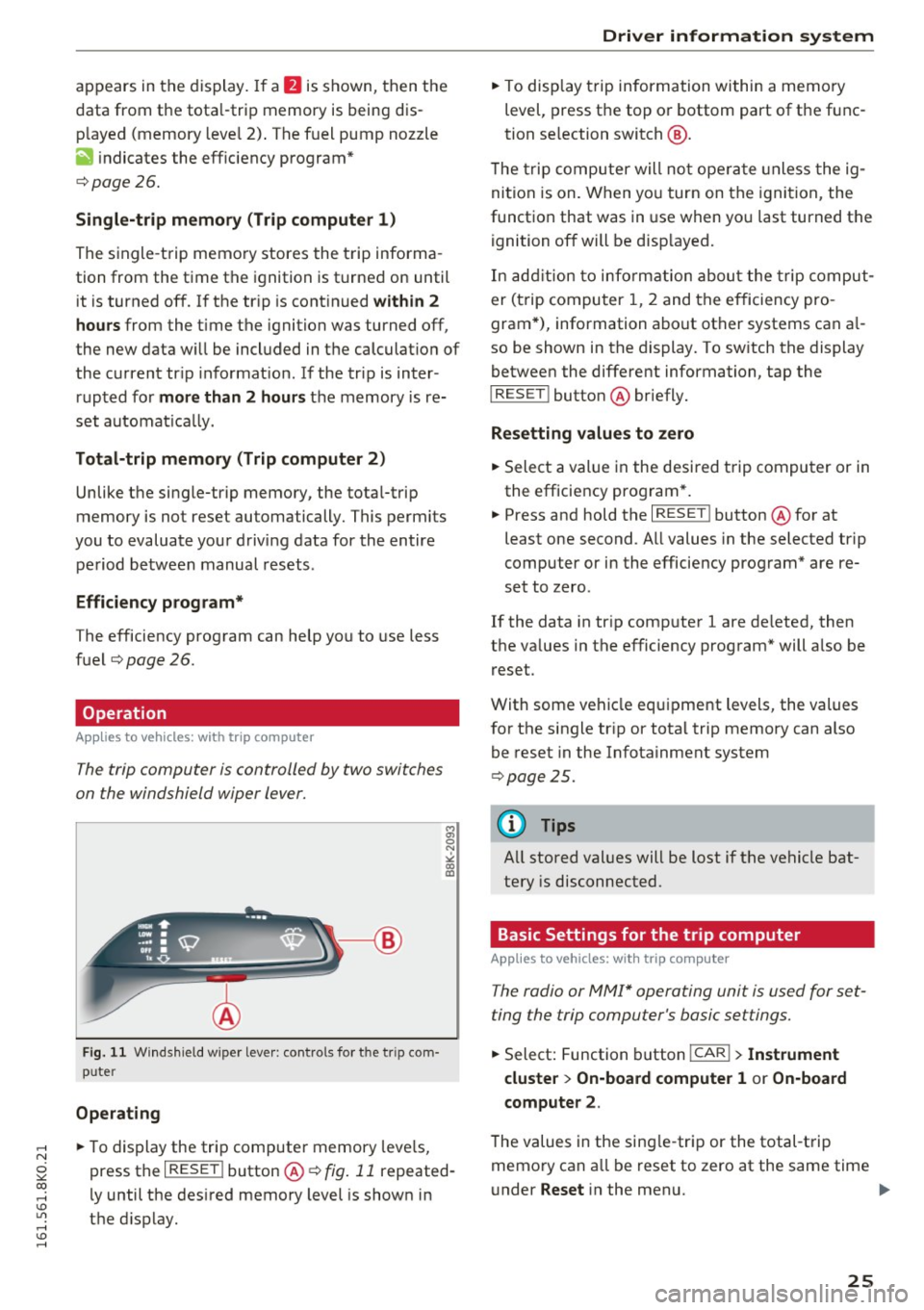
The trip computer is controlled by two switches
on the windshield wiper lever.
F ig. 11 W indsh ield w iper lever: controls for t he tr ip com·
puter
Operating
• To display the trip computer memory levels,
press the
I RESET ! button@¢ fig. 11 repeated
ly until the desired memory level is shown in
the display.
Driver information system
• To display trip information within a memory
level, press the top or bottom part of the func
tion se lection switch @.
T he trip computer will not ope rate un less the ig
nition is on. When you turn on the ignition, the
function that was in use when you last turned the
ignition off will be disp layed.
In addition to information about the trip comput
er (trip computer 1, 2 and the efficiency pro
gram*), information about other systems can a l
so be shown in the display. To sw itch the display
between the different information, tap the
I RESET I button @ briefly.
Resetting values to zero
• Select a value in the desired trip computer or in
the efficiency program *.
• Press and hold the
I RESET ! button @for at
least one second . All values in the selected trip
computer or in the efficiency program* are re
set to zero.
If the data in trip computer 1 are de leted, then
the va lues in the efficiency program* will a lso be
reset.
With some vehicle equipment levels, the values
for the single trip or total trip memory can also
be reset in the Infotainment system
¢ page 25.
(0 Tips
All stored values will be lost if the vehicle bat
tery is disconnected.
Basic Settings for the trip computer
Applies to vehicles: with trip computer
The radio or MMI* operating unit is used for set
ting the trip computer 's basic settings.
• Select: Function button !CAR !> Instrument
cluster
> On-board computer 1 or On-board
computer 2.
The values in the sing le-trip or the total-trip
memory can a ll be reset to zero at the same time
under
Reset in the menu. .,..
25
Page 28 of 278
Driver information system
In addition, you can determine what information
from the trip computer should be shown in the instrument cluster disp lay . If one of the pieces of
driver information is turned
Off , that driver infor
mation will not be shown in the display. The in
formation will continue to be calculated by the
tr ip computer and can be turned back
On at any
time .
(D Tips
-This function is not available on all veh icles.
- The driving information in the efficiency
program is also reset to zero with the sin
gle-trip memory .
Gearshift Indicator
Appl ies to ve hicles: w ith manu al transmiss ion an d ge arshi ft
i n di cato r
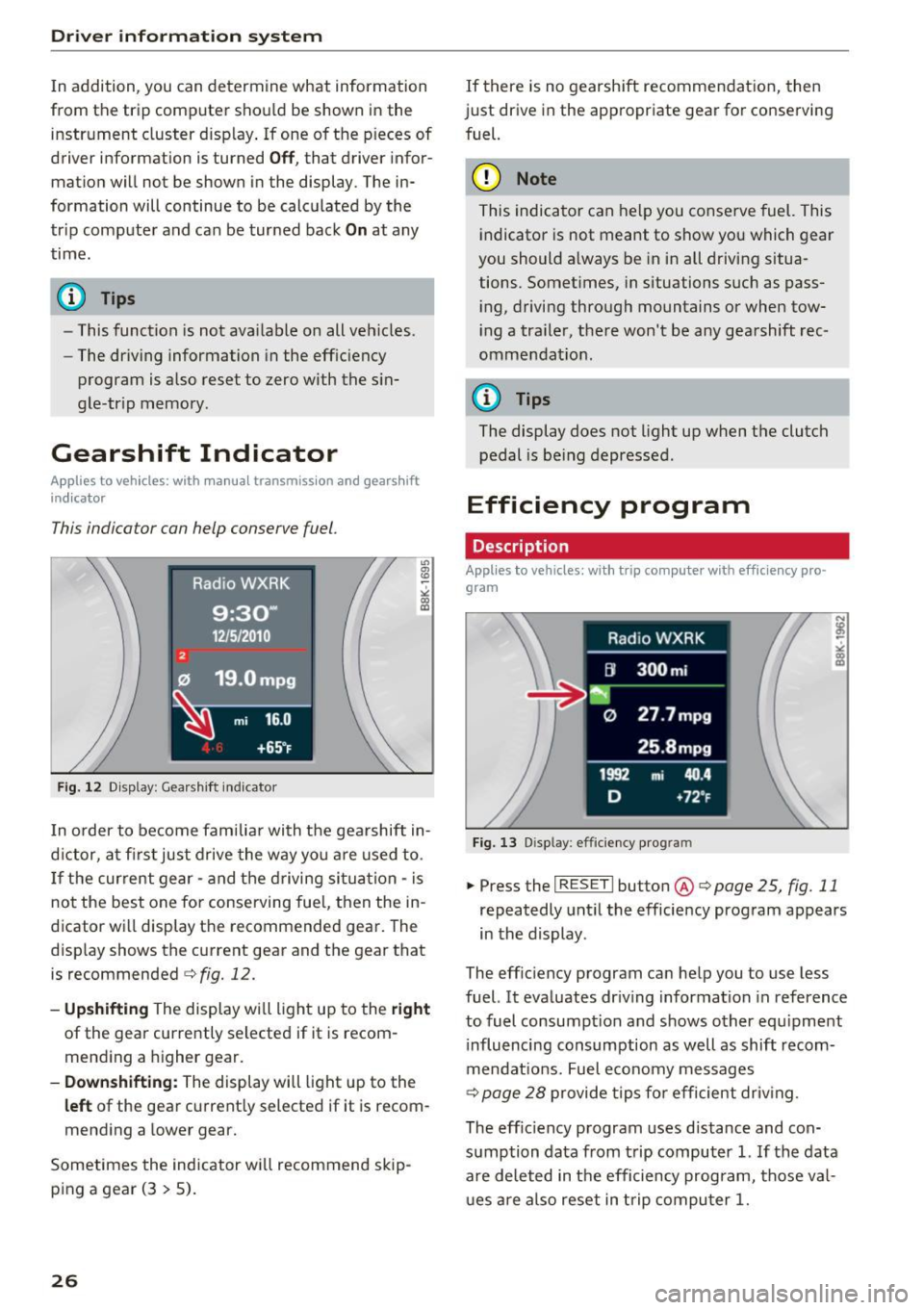
This indicator can help conserve fuel.
Fig. 12 Display: Gearshift indicator
In order to become familiar with the gearshift in
d ictor, at firs t just drive the way you are used to.
If the current gear - and the driving situation -is
not the best one for conserving fuel, then the in
d icator will display the recommended gear. The
display shows the current gear and the gear that
is recommended
c>fig. 12.
-Upshifting The display will light up to the right
of the gear currently selected if it is recom
mending a higher gear.
-Downshifting: The display will light up to the
left of the gear current ly selected if it is recom
mending a lower gear.
Sometimes the indicator will recommend skip
ping a gear (3
> 5).
26
If there is no gearshift recommendation, then
just drive in the appropriate gear for conserving
fuel.
(D Note
This indicator can help you conserve fuel. This
indicator is not meant to show you which gear
you should a lways be in in all driving situa
tions. Somet imes, in situations such as pass
i ng, driving through mountains or when tow
i ng a tra iler, there won't be any gearshift rec
ommendat ion.
@ Tips
The display does not light up when the clutch
pedal is be ing depressed .
Efficiency program
Description
Applies to vehicles : wi th trip co mpute r with eff ic ie n cy pro
gram
Fig. 13 Disp lay: efficiency program
.. PressthelRESETlbutton @c>poge25, fig.11
repeatedly until the efficiency program appears
in the display .
The efficiency program can help you to use less
fuel. It evaluates driving information in reference
to fuel consumpt ion and shows other equipment
i nfluencing consumption as well as shift recom
mendat ions. Fuel economy messages
c>
page 28 provide tips for efficient driv ing.
The eff ic iency program uses distance and con
sumption data from trip computer
1. If the data
are deleted in the efficiency program, those val
ues are also reset in trip computer
1.
Page 29 of 278
,....,
N
0
""' CX) ,....,
I.Cl U"I ,....,
I.Cl ,....,
Enhanced shift indicator
Applies to vehicles: with manual transmiss ion and tr ip com
p uter with eff iciency program
F ig. 14 Display: enhanced s hift i ndicator
• In the efficiency program, press the function
selection switch¢
page 25, fig. 11@ repeat
edly until the enhanced shift indicator appears
in the display.
The efficiency program also has an enhanced
shift ind icator. This enhanced shift indicator fol
lows the same concept as the "standard" shift in
dicator¢
page 26. The selected and the recom
mended gears are highlighted in colors like a
traffic light .
The color of the circle indicates if the most suita b le gear is engaged or if you should shift up or
down.
Green circle w ithout or No gear or the most
with a gear suitable gear is engag-
ed
Yellow circle¢
fig. 14 Shift up or down one
gear
Red circle Shift up two gears
(D Note
This enhanced shift indicator can help you
conserve fuel. It is not designed to recom
mend the correct gear in all dr iving situa
tions . Only the dr iver can decide which gear is
correct in certain dr iving situations such as
when passing another veh icle, dr iving on hill s
or towing a trailer.
Driver in forma tion system
(D Tips
-The enhanced shift indicator display is dif
ferent in vehicles with a monochrome dis
play.
- The "standard" shift indicator* disappears
when the enhanced shift indicator is dis
played.
Other equipment
Applies to vehicles: with trip computer with eff ic ie n cy pro
gram
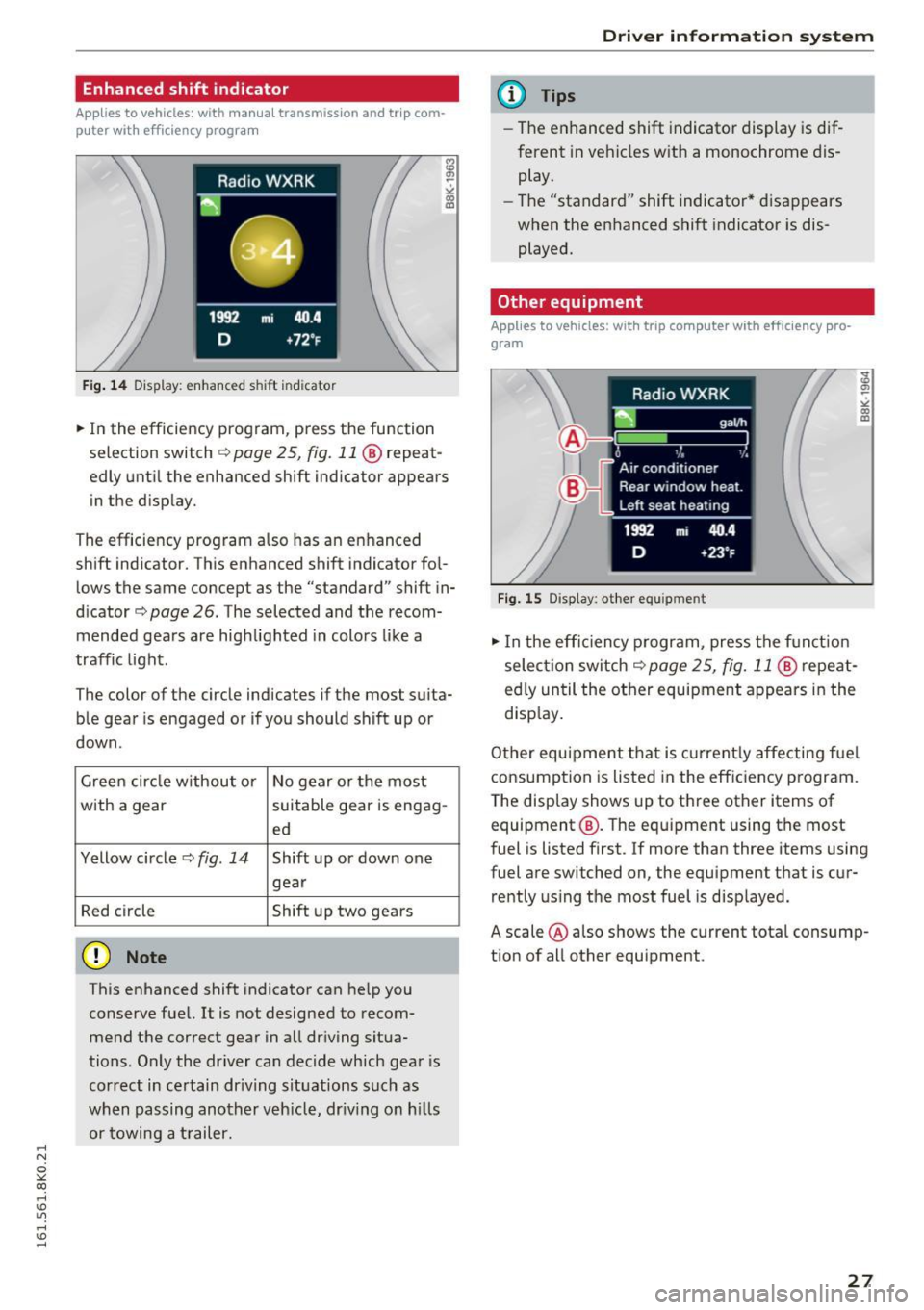
Fig. 15 Display : other equ ipment
• In the effic iency program, press the funct ion
select ion switch ¢
page 25, fig. 11 @ repeat
ed ly until the other equipment appears in the
disp lay.
Other equipment that is currently affecting fuel
consumption is listed in the eff ic iency program.
T he display shows up to three other items of
equipment @. T he equipment using the most
fuel is listed first. If more than three items using
fuel are switched on, the equipment that is cur rently using the most fuel is displayed.
A scale @also shows the current total consump
tion of all other equipment .
27
Page 30 of 278
Driver information s ystem
Fuel economy messages
Applies to vehicles: with trip computer with efficiency pro
gram
F ig. 16 D isplay: fuel eco nomy message
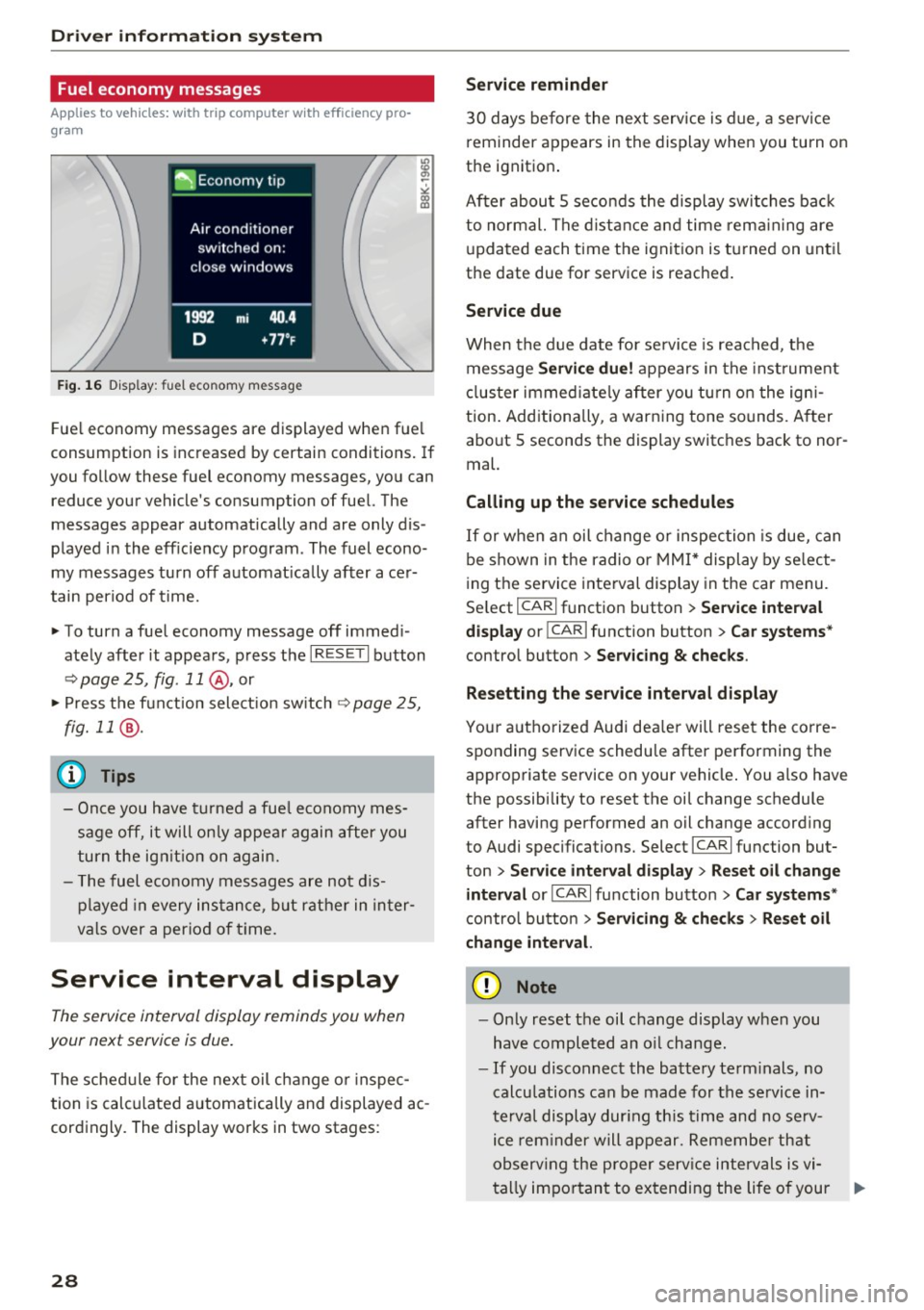
Fue l economy messages are displayed when fue l
consumption is inc reased by certain conditions. If
you follow these fuel economy messages, you can reduce your vehicle's consumption of fuel. The
messages appear automatically and are only dis
p layed in the eff iciency program . The fuel econo
my messages turn off automat ica lly afte r ace r
tain period of t ime.
"' To turn a fuel economy message off immed i
ate ly after it appears , press t he I R ESE T I button
¢ page 25, fig. 11 @ , or
"' Press t he f unct ion sele ct io n sw itch
~ page 2 5,
fig. 11
® ·
(D Tips
- Once you have t urned a fue l economy mes
sage off, it will on ly appea r again after you
turn the ig nition on ag ain.
- T he fuel economy messages a re not d is
p layed in every ins tance, but rather in in ter
v al s over a per io d of t ime.
Service interval display
The service interval display reminds you when
your next service is due .
The schedule for the next oil change o r inspec
tion is calc ulated a utomatically and displayed ac
cord ingly. The display works in two stages:
28
Service reminder
3 0 days before the next service is due , a servi ce
r eminder appears in the display when you turn on
the ignition .
After abou t
5 seconds the display swit ches bac k
to normal. The dist ance a nd time rem aining are
u pda ted each time the ignit ion is turned on unt il
the date due for service is reached.
Service due
Whe n the d ue date for se rvice is rea ched, the
message
Service due! appears in the inst rument
cl uster immed iate ly after you tu rn o n the igni
tion . Add itiona lly, a warn ing tone sounds. A fter
about
5 seconds the display switches back to nor
mal.
Calling up the service schedules
I f or w hen an oil change o r inspec tion is due, can
be shown in the radio or MMI * display by se lect
i ng the service interval display in the car menu.
Se lect
I CAR I fu nction button > Se rvice interval
display
or ! CAR I function button > Car systems *
control button > Ser vicing & checks .
Resetting the s ervice interval display
Yo ur a utho rized Aud i dea ler will rese t the corre
sponding service schedu le after performing the
approp riate service on your vehicle . You also have
the possibility to reset t he oi l change schedule
after having pe rformed an oil change accord ing
to Audi specifications. Select
I CA R I fu nction but
ton
> Service interval display > Re set oil change
interval
or ICA RI fu nction button > Car systems *
control button > Servicing & check s > Reset oil
change interval.
(D Note
- Only reset the oil c hange display when you
h ave completed an o il change.
- If you disconnect the battery term inals, no
calcu lations can be made for the se rvice in
te rv al display dur ing th is time and no se rv
i c e rem inder will appear. Remembe r th at
ob serv ing the pro per serv ice intervals is vi-
ta lly im po rt an t to extending the life o f your .,.
Page 31 of 278
,....,
N
0
""' CX) ,....,
I.Cl U"I ,....,
I.Cl ,....,
vehicle, particularly the engine, and main
taining its value. Even if the mileage driven
is low, the maximum period of one year
from one service to the next must not be ex
ceeded.
@ Tips
The informat ion in the Service Rem inder re
mains stored even when the vehicle battery is
disconnected.
On Board Diagnostic
System (OBD)
Malfunction Indicator Lamp (MIL)
The Malfunction Indicator Lamp (MIL) ¢..ift in the
instrument cluster is part of the On-Board Diag
nostic (OBD II) system .
The warning/indicator light illuminates when the
ignition is switched on and goes out after the en
gine starts and the idle has stabilized. This indi
cates that the MIL is working properly .
If the light does not go out after the engine is
started, or illuminates while you are driving, a malfunction may exist in the engine system.
If
the light illuminates, the catalytic converter
could be damaged.
Continue driving
with reduced power (avoiding
sustained high speeds and/or rapid accelera
tions) and have the condition corrected. Contact
your authorized Audi dealer.
If the light illuminates, the electronic speed limiter may also be malfunctioning. For more infor
mation
¢ page 29, Electronic speed limiter.
An improperly closed fuel filler cap may also
cause the MIL light to illuminate ¢
page 200.
Driver in forma tion system
On-Board Diagnostics
Fig. 17 Loca tion of Data Link Connector (DLC)
On-Board Diagnostics monitors the components
of your emission control system. Each monitored
component in your engine system has been as
s igned a code. In case of a malfunction, the com
ponent will be identified and the fault stored as a
code in the control module memory.
The MIL light may also illuminate if there is a
leak in the on-board fuel vapor recovery system.
If the light illuminates after a refueling, stop the
vehicle and make sure the fuel f iller cap is prop
erly closed
¢ page 200.
In order to make an accurate diagnosis, the stor
ed data can only be displayed using special diag
nostic equipment (gener ic scan tool for OBD).
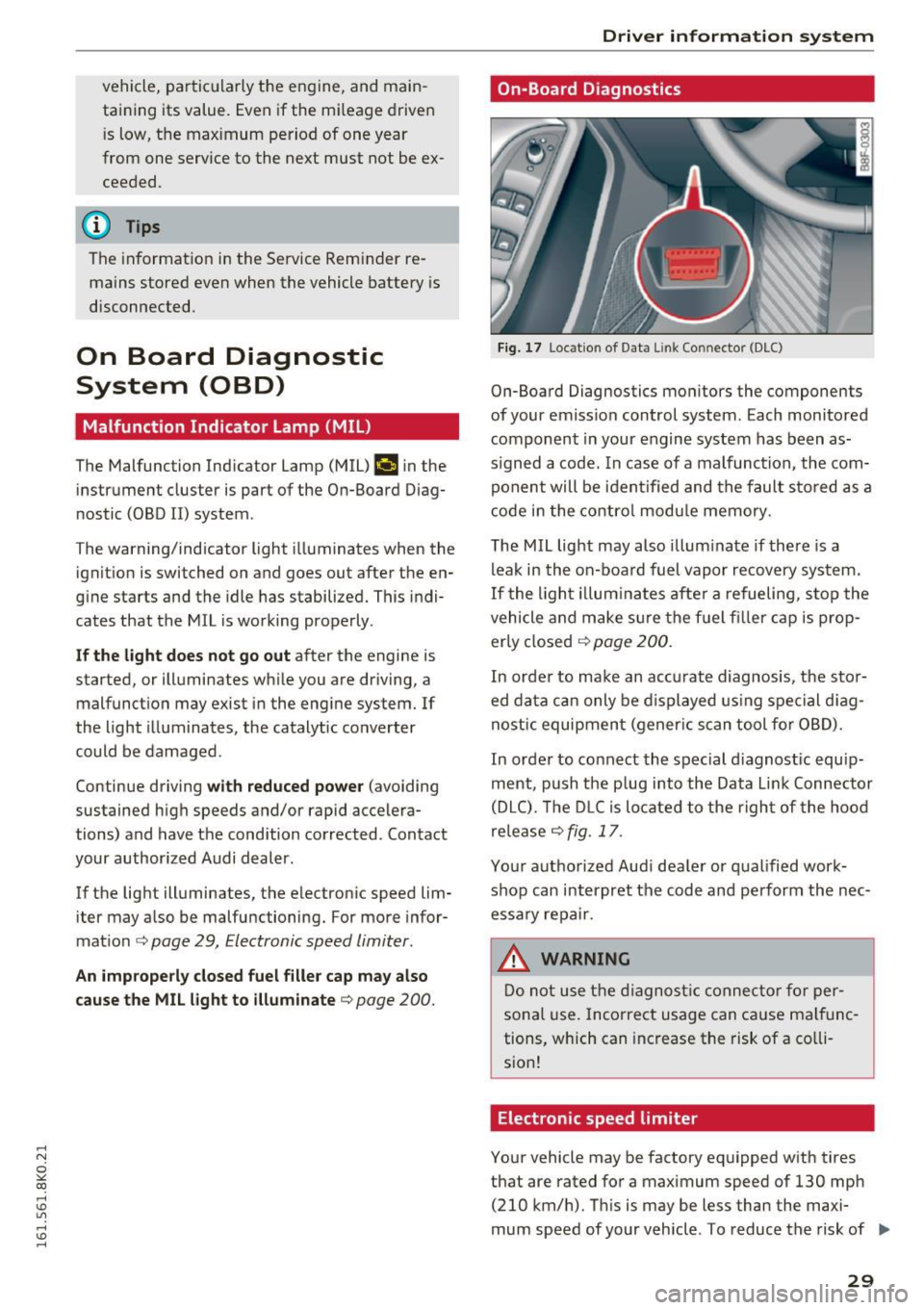
In order to connect the special d iagnost ic equip
ment, push the p lug into the Data L ink Connector
(DLC). The DLC is located to the right of the hood
release
¢ fig. 17.
Your authorized Audi dealer or qualified work
shop can interpret the code and perform the nec
essary repair.
.&, WARNING
Do not use the diagnostic connector for per
sonal use. Incorrect usage can cause malfunc
tions, which can increase the risk of a co lli
sion!
Electronic speed limiter
Your vehicle may be factory equipped with tires
that are rated for a maximum speed of 130 mph (210 km/h). This is may be less than the maxi
mum speed of your vehicle . To reduce the risk of .,.
29
Page 35 of 278
,....,
N
0
""' CX) ,....,
I.Cl U"I ,....,
I.Cl ,....,
-Do not remove the key from the ignition
lock until the vehicle has come to a com
plete stop . Otherwise the steer ing column
lock could suddenly engage -causing the
risk of an accident .
(D Tips
-The operation of the remote control key can
be temporarily d isrupted by interference
from transmitters in the vicinity of the vehi
cle work ing in the same frequency range
(e .g. a cell phone, radio equipment).
- For security reasons, replacement keys are
only available from authorized Aud i dea ler .
- For Declaration of Compliance to Un ited
States FCC and Industry Canada regulations
<::;> page 261.
Removing the mechanical key
Fig. 19 Remote master key: removing t he m ec hani ca l key
.,. Press the release button@o fig. 19.
.,. Pull the mechan ical key ® out of the master
key.
Using the mechan ical key, you can :
- lock and unlock* the glove compartment on the
passenger's side o
page 66.
-lock and unlock the lockable* rear bench seat
and pass-through* o
page 69.
-activate the child safety locks on the rear doors
o page 41.
-lock and unlock the vehicle manually
opage 36 if this should not be possible with
the master key.
- use the ign ition key emergency release
o page 34.
Open ing and closing
Check light and battery in the master key
Fig. 20 Remote master key: re moving the bat tery holder
Check light in the master key
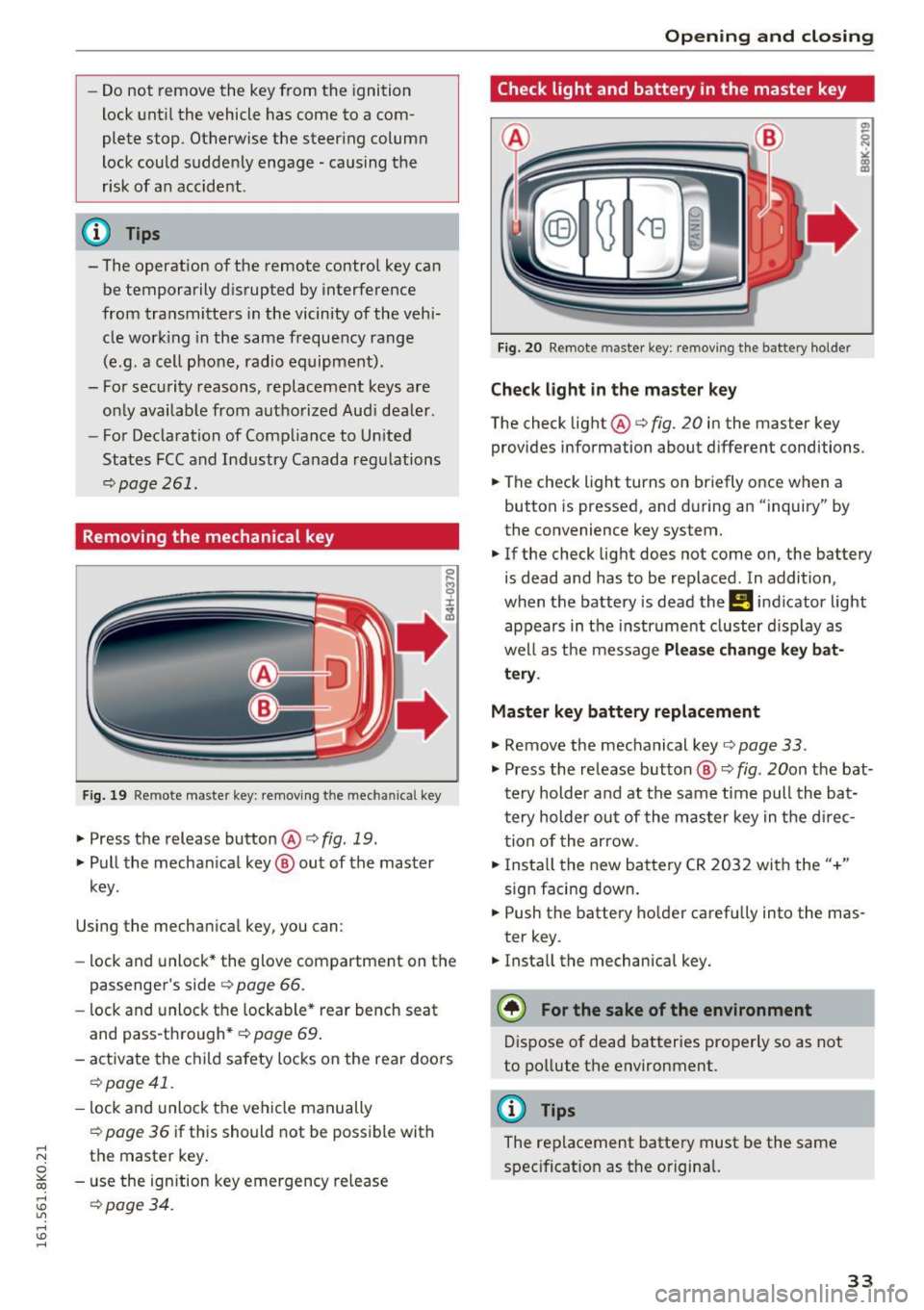
The check light@o fig. 20 in the master key
provides information about d ifferent conditions .
.,. The check light turns on briefly once when a
button is pressed, and during an "inquiry" by
the convenience key system.
.,. If the check light does not come on, the battery
is dead and has to be replaced . In addition,
when the battery is dead the
Ill indicator light
appears in the instr ument cluster display as
well as the message
Please change key bat
tery .
Master key battery replacement
.,. Remove the mechanical key o page 33 .
.,. Press the re lease button ® o fig. 20on the bat
t ery holder and at the same time pull the ba t
tery holder out of the master key in the d irec
tion of the arrow .
.,. Insta ll the new battery CR 2032 with the"+"
sign facing down .
.,. Push the battery holder carefully into the mas
ter key .
.,. Install the mechanical key.
@) For the sake of the environment
Dispose of dead batteries properly so as not
to pollute the environment.
@ Tips
The replacement battery must be the same
specificat ion as the original.
33
Page 46 of 278
Opening and clo sin g
Valet parking
Applies to vehicles: with folding and lockable rear seatbacks
The valet parking feature protects the luggage
comportment from unauthorized access .
-
Fig. 38 Glove compartment: valet park ing button
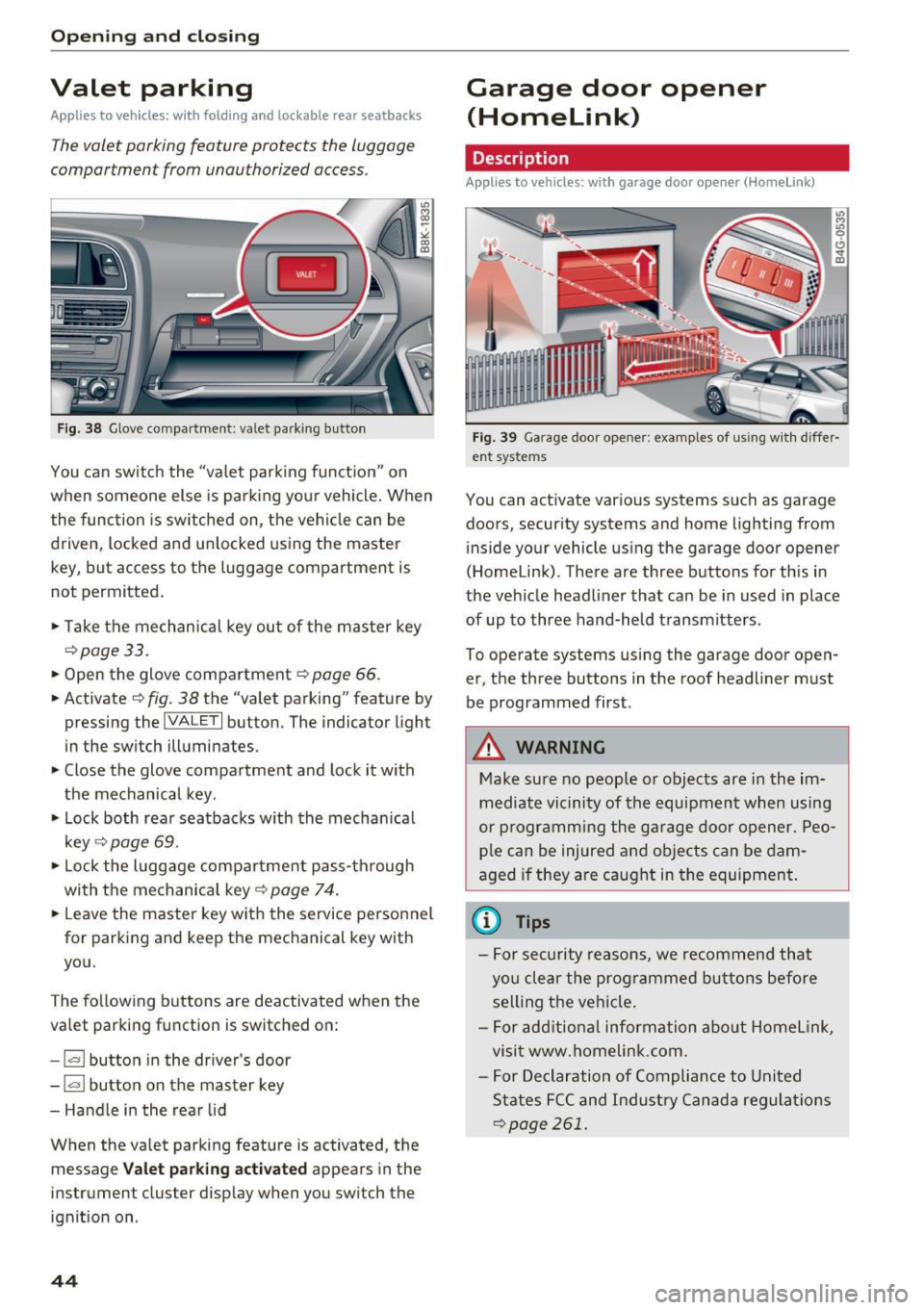
You can sw itch the "va let park ing funct ion" on
when someone else is pa rk ing you r vehicle. When
the function is sw itched on, the vehicle can be
driven, locked and un locked using the master
key, but access to the luggage compartment is
not permitted .
• Take the mechanical key ou t of the master key
<=> page 33.
• Open the glove compartment r::!> page 66 .
• Activate
¢ fig. 38 the "valet parking" feature by
pressing the
! VALET I button. The indicator light
in the switch illuminates.
• Close the glove compartment and lock it with
the mechanical key.
• Lock both rea r seatbacks w ith the mechan ica l
key
¢ page 69.
• Lock the luggage compar tment pass-through
with the mechanical key<=>
page 74 .
• Leave the master key with the service personnel
for parking and keep the mechanical key with
you.
The fo llowing buttons are deactivated when the
valet parking function is switched on:
- 1""' 1 bu tton in the dr iver's door
- I a I button on the master key
- Handle in the rear lid
When the valet parking feature is activated, the message
V alet park ing activ ated appears in the
instrument cluster display when you switch the ignit ion on .
44
Garage door opener
(Homelink)
Description
Applies to vehicles: with garage door opener (Horne Link)
Fig. 3 9 Garage doo r opene r: exa mples of using w it h d iffer·
ent syste ms
You can act ivate vario us systems suc h as garage
doors, secur ity systems and home lighting from
inside your vehicle using the garage door opener
(Homelink) . There are three buttons for th is in
the veh icle headliner that can be in used in place
of up to three hand-held transmitters.
To operate systems using the garage door open
er, the three buttons in the roof headliner must be programmed first .
A WARNING
Make sure no people or objects are in the im
mediate vi cinity of the equipment when using
or p rogramm ing the ga rage door opener. Peo
pl e can be injured and ob jects can be dam
aged i f they are caught in the equipment.
(D Tips
- For sec urity reasons, we recommend that
yo u clear the prog rammed but tons before
sell ing t he ve hicl e.
- For add itiona l information about HomeL ink,
visit www.homelink .com .
- For Declaration of Compliance to United
States FCC and Indust ry Canada regulat ions
<=>page 261.
Page 47 of 278
.... N
0
""' CX)
.... I.Cl U"I
.... I.Cl ....
Operation
Applies to vehicles: with garage door opener (Homelink)
·-
~ •• r ·O : o ··) ,,;~
®
~ (_ 0_1 J c:cc
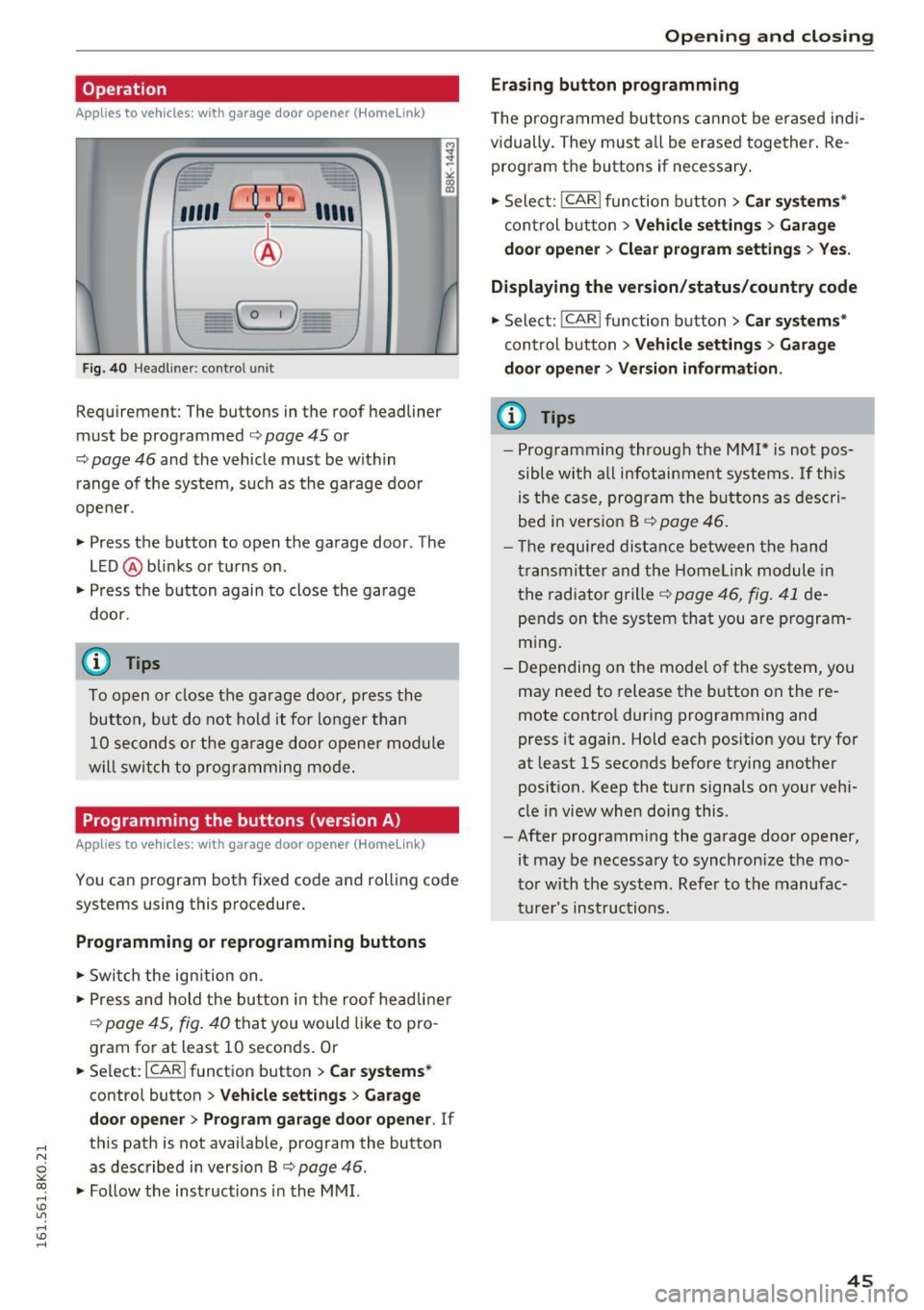
F ig. 40 Headl iner: c on tro l uni t
Requirement: The buttons in the roof headliner
must be programmed
c:> page 45 or
c::> page 46 and the vehicle must be within
range of the system, such as the garage door
opener.
" Press the button to open the garage door . The
LED @blinks or turns on .
" Press the button again to close the garage
door .
@ Tips
To open or close the garage door, press the
button, but do not hold it for longer than
10 seconds or the garage door opener module
w ill switch to programming mode.
Programming the buttons (version A )
Applies to vehicles: with garage door opener (Homelink)
You can program both fixed code and rolling code
systems using this procedure .
Programming or reprogramming buttons
"Switch the ignition on.
"P ress and hold the button in the roof headliner
c::> page 45, fig. 40 that you would like to pro
gram for at least 10 seconds. Or
.. Select:
I CAR I function button > Car systems*
contro l button > Vehicle settings > Garage
door opener> Program garage door opener . If
th is path is not available, program the button
as described in version B
c::> page 46 .
"Fol low the instructions in the MMI.
Open ing and closing
Erasing button programming
The programmed buttons can not be erased ind i
vidually . They must all be erased together. Re
program the buttons if necessary.
" Select:
!CAR ! function button> Car systems*
control button > Vehicle settings > Garage
door opener > Clear program settings > Yes.
Displaying the version/status/country code
" Select: !CAR ! function button> Car systems*
cont rol button > Vehicle settings > Garage
door opener > Version information .
(D Tips
-Programming through the MMI* is not pos
sible with all infotainment systems. If this
is the case, program the buttons as descri
bed in version B
c::> page 46.
- Th e required distance between the hand
transmitter and the Homelink module in
the radiator grille
c::> page 46, fig. 41 de
pends on the system that you are program
ming.
- Depending on the model of the system, you
may need to release the button on the re
mote control during programming and
press it again. Hold each position you try for
at least 15 seconds before trying another
posit ion . Keep the turn s ignals on your vehi
cle in view when doing this.
- After programming the garage door opener,
it may be necessary to synchronize the mo
tor with the system. Refer to the manufac
turer's instructions.
45
Page 51 of 278

.... N
0
""' CX)
.... I.Cl U"I
.... I.Cl ....
the windshield in this area in order to
prevent malfunctions or failures.
- Some exterior lighting functions can be ad
justed
c:, page 49.
- When you remove your key from the igni
tion while the vehicle's lights are turned on,
a buzzer sounds as long as the driver's door
is open.
- In cool or damp weather, the inside of the
headlights, turn signals and tail lights can
fog over due to the temperature difference
between the inside and outside. They will
clear shortly after switching them on. This does not affect the service life of the light
ing .
- In the event of a light sensor malfunction,
the driver is notified in the instrument clus
ter display
c:, page 21.
Turn signals and high beam lever
The lever operates the turn signals, the high
beams and the headlight flasher.
Fig. 43 Turn signal and high beam lever
Turn signals¢¢
g N
0
~ CD
The turn signals activate when you move the lev
er into a turn signal position when the ignition is
switched on.
@ -right turn signal
@-left turn signal
The turn signal blinks three times if you just tap
the lever.
High beams and headlight flasher ~D
Move the lever to the corresponding position:
@-high beams on
Light and Vision
@-high beams off or headlight flasher
The indicator light
II in the instrument cluster
turns on.
Notes on these features
- The turn signals only work with the ignition
turned on. The indicator lights. or
II in the
instrument cluster also blink.
- After you have turned a corner, the turn signal
switches off automatically.
- The
high beam works only when the headlights
are on. The indicator light
II in the instrument
cluster illuminates when the high beams are
on.
- The
headlight flasher works only as long as you
hold the lever -even if there are no lights
switched on . The indicator light
II in the in
strument cluster illuminates when you use the
headlight flasher.
WARNING
Do not use the high beam or headlight flasher
if you know that these could blind oncoming
traffic.
Adjusting exterior lighting
The functions are selected in the radio or MMI* .
.,. Select: !CAR I function button> Exterior light
ing .
Or
.,. Select: 1-C~A ~ R-.l function button > Car systems*
control button > Vehicle settings > Exterior
lighting.
Coming home (light when leaving car)*,
Leaving home (light when unlocking car)*
The coming home function illuminates the area
around the vehicle when the ignition is switched
off and the driver's door is opened. Depending on
vehicle equipment, the function can be switched on and off or the length of time the lights remain
on* can be adjusted .
The
leaving home function illuminates the area
around the vehicle when unlocking it. This func-
tion can be switched on and off.
ll>
49