Starting AUDI A4 2017 Owner's Manual
[x] Cancel search | Manufacturer: AUDI, Model Year: 2017, Model line: A4, Model: AUDI A4 2017Pages: 386, PDF Size: 96.32 MB
Page 94 of 386

Trailer towing
Backing up is difficult and requires practice .
Backing up with a trailer generally requires steer
ing action oppos ite to that when backing up your
veh icle w ithout a trailer .
Maintain a g reater distance between your vehicle
and the one in front of you. You w ill need more
room to stop. To compensate for the tra iler, you
will need a larger than normal turn ing radius.
When passing, remember that you cannot accel
erate as fast as you norma lly would because of
the added load. Make sure you have enough room
to pass. After passing, allow plenty of room for
your tra iler before chang ing lanes again .
Avoid jerky starts , sharp turns or rapid lane
changes .
@ Tips
- Do not tow a trailer during the break -in per i
od of your vehicle.
- If you tow a trailer, your Audi may require
more frequent maintenance d ue to the ex
tra load
~ page 363.
Parking on a slope
Do not pork on a slope with a trailer. If it cannot
be avoided, do so only o~er doing the following:
When parking:
.. Apply t he foo t brake .
.. Have someone place chocks under both t he ve
hicle and the tra ile r whee ls .
.. With chocks in p lace, slowly release t he brakes
u ntil the whee l chocks absorb the load .
.. Turn the wheels towards the curb .
.. Apply the parking brake .
.. Move the selector lever to P .
When restarting after pa rking:
.. Apply the foot brake .
.. Start the engine .
.. Move the selector lever to D/S .
.. Release the parking brake and slowly pull out
and away from the wheel chocks .
.. Stop and have someone retrieve t he wheel
chocks .
92
Page 95 of 386

Assist Electronic speed limiter
Your vehicle may be factory equipped with t ires
that are rated for a maximum speed of 130 mph (210 km/h). This is less than the maximum speed
of your vehicle. To reduce the risk of sudden tire
failure and loss of control if the vehicle is operat
ed at excessive speeds, your vehicle also has an
electronic speed limiter . The electronic speed
limiter prevents your vehicle from going faster
than the t ire speed rating. For mo re information
¢page 317.
If the engine control unit receives faulty vehicle
road speed s ignals, the Malfunction Indicator
L amp (M IL)
¢..ij will illuminate. If this occurs,
contact the nearest autho rized Audi dealer for
assistance.
_& WARNING
Always observe the posted speed limits and
adjust you r speed to suit prevailing road, traf
fic and weather condit ions. Never drive your
vehicle faster than the max imum speed rating
of the tires installed.
Speed warning system
Introduction
Applies to: vehicles with speed warning system
The speed warning system helps you to stay un
der a specified maximum speed. -
The
speed warning system warns you if you are
exceeding the maximum speed that you have
stored . You will hear a warning tone when yo ur
speed exceeds the sto red va lue by approximate ly
3 mp h (3 km/h). The indi cator light also tur ns on
in the instrument cluster display
Eel (USA mod
e ls)/
Hll (Canada mode ls) as well as the message
Manually set speed limit XXX mph (km /h ) ex
c eeded .
The ind icator light [01 / (OJ turns off
when the speed decreases below the stored max
imum speed.
Sett ing a threshold is recommended if you would
like to be reminded when you reach a certain
maximum speed. Situations where you may want
A ss ist
to do so include driving in a co untry with a gener
al speed limit or if there is a specified maximum
speed for winte r tires.
(D Tips
Regardless of t he speed warning system, you
s h ou ld always monitor your speed using the
speedometer and make s ure yo u are fo llow ing
the lega l speed limit.
Setting the warning threshold
Appl ies to : vehicles with speed warni ng system
You can set, change and delete the warning
threshold in the Infotainment system.
.,. Sele ct in the Infotai nment system: I MENU ! but
ton
> Vehicle > left control b utton > Driver as
sistance
> Speed warning > Manu al.
You can set a ny thresho ld between 20 mp h
(30 km/h) and lS0 mph (240 km/h) . Settings
can eac h be adjusted in increments of 5 mph (10
km/h).
Cruise control system
Switching on
Applies to: vehicles with cruise control system
The cruise control system makes it possible to
drive at a constant speed starting at 15 mph (20kmlh).
0
f
~
0
Fig. 88 Operating lever: cru ise control system
.,. To switch t he system on, pull the lever into po
sition
(D ¢ fig. 88.
.,. Drive at the speed to be maintained.
.,. To store the speed, press the button @.
93
Page 102 of 386
Ass is t
@ . The B indicator light also turns on when
adaptive cruise control is active and the
Ill indi
cator light turns on when adaptive cruise contro l
is not active .. In the Audi v irtual cockpit*, the
II
indicator light appears instead.
Driving in stop-and-go traffic
Applies to: vehicles with Aud i adapt ive cruise contro l
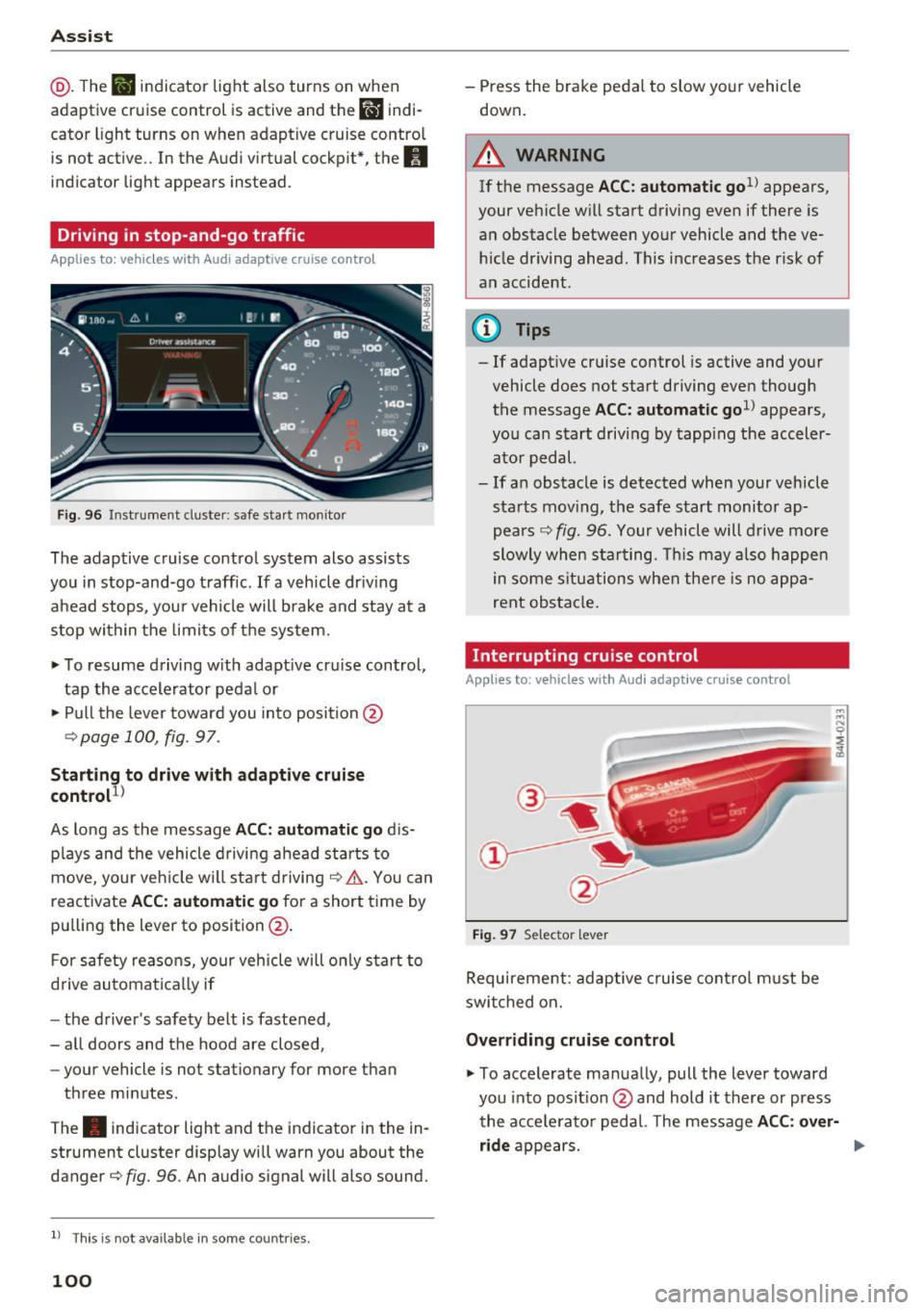
Fig. 96 Instru ment cluste r: safe sta rt mo nito r
The adaptive cruise control system also assists
you in stop-and-go traff ic.
If a vehicle dr iv ing
ahead stops, your vehicle will brake and stay at a
stop within the limits o f the system.
• To resume d riving w ith adapt ive cr uise control,
tap the accelerator peda l or
• Pull the lever toward you in to position @
¢page 100, fig . 97.
Starting to drive w ith adaptive cruise
control
1 )
As long as the message ACC: automatic go d is
p lays and the vehicle d rivi ng ahead starts to
move, your veh icle w ill sta rt driving ¢& . You can
reactivate
ACC: automatic go for a short time by
pu lling the lever to position @.
F or safety reaso ns, your vehicle will only start to
d rive automatically if
- the driver's safety belt is fastened,
- all doors and the hood are closed,
- your vehicle is not stationary for more than
three minutes .
The . indicator light and the indicator in the in
strument cluster display wi ll warn you about the
danger¢
fig. 96 . An audio signal will also sound.
l) Thi s is no t a vail able in so me c oun tries.
100
- Press the brake pedal to slow yo ur vehicle
down.
A WARNING
If the message ACC: automati c go1l appears ,
your vehicle w ill start driving even if there is
a n obstacle between your vehicle and t he ve
hi cle dr iving ahead. This increases the ris k of
an accident .
¢j) Tips
- If adaptive cruise control is active and your
vehicle does not start driving even though
the message
ACC: automatic go1> appears,
you ca n start driving by tapp ing the acceler
ato r pedal.
- If an obstacle is detected when your veh icle
sta rts mov ing, the safe s tart monitor ap
pea rs ¢
fig. 96. Yo ur vehicle will drive more
slowly when sta rting. This may a lso happe n
in some s itu ations when the re is no a ppa
rent obstacle .
Interrupting cru ise control
Applies to: vehicles wit h Audi adaptive c ruise control
Fig. 97 Selector leve r
Requirement : adaptive cruise cont rol m ust be
swi tched on.
Overriding cruise control
• To accelerate manua lly, pull the lever toward
you into posit ion @ and hold it there or press
the acce lerato r pedal. The message
ACC : over
ride
appears. ...
Page 108 of 386
Assist
Messages
Applies to: vehicles with Audi adaptive cruise control
II ACC with Conge stion assist: unavailable. See
owner 's manual
Th e system c annot guarantee that it w ill detec t
ve hicl es co rre ctly and it h as swit ched
off. T he ra
dar senso rs have s hifted o r are faul ty . D rive to an
authorized Audi dealer or authorized Audi Se rvice
Facility immediately to have t he mal function cor
rected.
II ACC with Congestion assist: currently un
available. Sensor v ision restricted due to sur
roundings. See owner 's manual
T hi s message appears if the radar sensor view is
obs truc ted, for example by leaves, snow, heavy
spray or dirt. C lean the sensors ~
page 97,
fig . 90.
IIJ ACC with Congestion assist : currently un
available. Gradient too steep
T he road exceeds the maximu m possib le grade
for safe ope ra tion. The systems c annot be swi tch
e d on.
IIJ ACC with Congestion assist: only available in
D, Sor M
Select the D/S o r M selector lever position .
Bl ACC with Congestion assist: currently un·
a vailable . Parking brake applied
The systems sw itch off if yo u set the pa rk in g
brake. The systems a re availab le again after you
release the pa rking brake .
IIJ ACC with Congestion assist : currently un
available. Stabilization control (ESC ) input
This message appea rs if the Ele ct ro nic St abiliza
tion Cont rol (ESC) is ta king a ction to s tabilize the
ve hicl e. The sys tems sw itch
o ff in this s cenar io.
IIJ ACC with Congestion assist: manual control!
This message appea rs if the veh icle rolls bac k
when starting on a slight incl ine , even thoug h the
sys tems are ac tive . P ress the b rake pedal to pre
ve nt the vehicle from rolling o r sta rting to move.
106
ilJ ACC with Congestion a ssist: currently un
available. Downhill assist activated
Y ou canno t activ ate the sys te m when hill hold as
s ist is active.
tei ACC with Congestion assist: manual control!
This message appears if the driver does not take
over steering after multiple driver i ntervention
r equests and the system sw itches
o ff . The veh icle
brakes un til it is sta tionary .
tei Congestion assist: unava ilable . See owner's
manual
The system can no longer ensu re that the vehicle
will stay in t he lane and switches
off. Have your
vehicle checked by an authorized Audi dealer o r
aut horize d Aud i Serv ice Facility if the ma lf u nc
t ion is continuous .
II Congestion assist: Please take over steering!
This message app ears as soon as t he system
stops detect ing steering act iv ity when the system
li mits a re reached . Always keep your hands o n
t h e steer ing whee l so you can be ready to steer at
any t ime.
@ Conge stion assist: currently unavailable.
Please fasten seat belt
The system swi tches off when the drive r's safety
b elt is unfas tene d.
II ACC: efficiency as sist not available in thi s
country
The adaptation to speed lim its and rou tes ahead
i s not available in this co unt ry .
ii ACC: efficiency assist currently unavailable .
See owner's manual
The adaptation to speed lim its and routes ahead
switches off at speed limits under 20 mph
(30 km/h).
The message can also appear if the adaptation to speed limits and routes ahead has a temporary
failure. Have your vehicle checked by an a uthor
i zed Audi dealer or author ized Audi Se rvice Facili
ty if the malfunction is cont inuous.
Distance warning: malfunction! Please contact
Service
...
Page 111 of 386
<( a, .... N ,....
N .... 0 0
3 a,
increasing force within the limits of the
system
l)_ This reduces the vehicle speed in the
event of a collision. At low vehicle speeds, pre
sense front can initiate a complete deceleration
shortly before a collision with a vehicle driving
ahead
1>. If pre sense front determines that you
are not braking strongly enough when a collision
is imminent, it can increase the braking force .
The following functions trigger in conjunction
with pre sense basic/rear at corresponding vehi
cle speeds :
- Reversible tensioning of the front safety belts.
- Closing the windows and sunroof*.
- Inflating the side bolsters* in the seat backrest
and seat surface.
Audi drive select*: the reversible belt tensioner,
the closing of the windows and sunroof* as well
as the inflating of the side bolste rs* on the seat
backrest and seat surface are not active depend
ing on the mode selected .
Collision avoidance assist
Collision avoidance assist helps you to steer the
vehicle around an obstacle in a critical situation.
If you avoid an obstacle after the acute warning,
then the collision avoidance supports you by ap plying slight steering adjustment to correct your
steering wheel angle as long as you are actively
steering. Collision avoidance assist is available at
speeds between approximately 20 mph (30 km/
h) and 90 mph (150 km/h).
Turn assist
When starting to drive and up to speeds of maxi
mum 6 mph (10 km/h), the turn assist uses a
braking intervention to prevent your vehicle from
colliding with an oncoming vehicle when turning left or right (available in certain countries) . The
braking intervention causes your vehicle to stay
in its lane.
.8, WARNING
-Pre sense front cannot overcome the laws of
physics.
It is a system designed to assist and
1) This is not availa ble in some co untries.
Assist
it cannot prevent a collision in every circum
stance. The driver must always intervene.
The driver is always responsible for braking
at the correct time. Do not let the increased
safety provided tempt you into taking risks .
This could increase your risk of a collis ion.
- The system can deploy incorrectly due to
system-specific limits.
- Please note that the sensors and the camera
do not always detect all objects or lane
markings . This increases the risk of an acci
dent.
- Pre sense front does not react to people, an
imals or objects that are crossing the vehi
cle 's path or that are difficult to detect
c> &..
in General information on page 97.
-Reflective objects such as guard rails or the
entrance to a tunnel, heavy rain and ice can
affect the function of the radar sensors and
the system's ability to detect a collision risk.
(D Note
The sensors can be displaced by impacts or
damage to the bumper, wheel housing and
underbody. Pre sense front can be impaired
by this. Have an authorized Audi dealer or au
thorized Audi Service Facility check their func
tion.
(D Tips
- You can cancel the braking with increasing
force that is initiated by the system by brak
ing yourself, by accelerating noticeably or
by swerving.
- Keep in mind that pre sense front can brake
unexpectedly. Always secure any cargo or
objects that you are transporting to reduce
the risk of damage or injury.
- Certain pre sense front functions are switch
ed off when the ESC is limited or switched
off
c> page 135 .
109
Page 140 of 386

Intelligent Technology
Snow chains
If there are snow chain laws, snow chains must
also be used on vehicles with a ll wheel drive
¢ page 332, Snow chains.
Replacing tires
For vehi cles w ith all whee l dr ive, only whee ls with
the same rolling circumferen ce shou ld be used .
Avoid using tires w ith different tread depths
¢ page 324, New tires or wheels .
Offroad vehicle?
Your Audi is not an offroad vehicle - the re is not
e nough g ro und clea rance. For this reason, avo id
d iffi cult terrain .
_& WARNING
-Also, in vehicles with all wheel drive, adapt
yo ur driving style to the current road and
t raffic conditions . Do not let the increased
sa fety provided tempt you into tak ing risks,
because th is increases the r isk of an acci
dent.
- The brak ing ability of your vehicle is limited
to the traction of the wheels. In this way, it
is not diffe rent from a two whee l dr ive vehi
cle . Do not be tempted to accelerate to a
high spee d when t he road is slippe ry, be
ca use this increases the risk of an accident.
- Note that on wet streets, the front wheels
can "hy droplane" if dr iving at speeds that
are too hig h. Unlike front whee l drive
vehicles, the eng ine does no t r ev highe r su d
denly when the vehicle begins hydroplaning .
For this reason, pay attention to the road
condit ions regar dless of you r speed to re
duce the r isk o f an accident.
Energy management
The starting ability is optimized
The energy management system manages the
electrical energy distribution and optimizes the
availability of electrical energy for starting the
engine.
When a ve hicle w ith a co nventional e nergy sys
tem is not driven for a long time, the battery is
138
dra ined by equipment (for examp le, the immobi l
izer) . In certain circ umstances, there could may
not be enough ene rgy to sta rt the eng ine.
Yo ur vehicle is equipped wi th an inte lligen t ener
gy management system for dist ributing elec trici
ty. This significant ly improves the starting ability
and increases the batte ry life.
The ene rgy management sys tem Is m ade up of
batte ry diagnosis , standby current manage
ment
and dynamic ene rgy management .
Battery diagnosis
The ba ttery diagnos is determines the batte ry
c ha rge level. The sensor s de ter mine the batte ry
vo ltage, the batte ry cu rrent, and the batte ry
tempera ture. The current cha rge level and the
perfo rmance of the battery a re determined base d
on this .
Idling current management
The idling cur rent m an age ment decreases the
energy used while parked . With the engine
switched off, it manages the energy distrib ution
to the different e lectr ica l components. Data from
the battery d iagnosis is taken into account for
th is.
Depend ing on the battery charge leve l, electrical
equipment is switched off one item after the oth
er, to prevent the battery from drain ing and to
maintain the sta rting ability.
Dynamic energy management
W hile driv ing, dynam ic energy man agement dis
tributes the appropr iate amo unt of energy to the
electrica l eq uipment. It contro ls t he battery
charge level so that mo re energy is not used then
i s be ing generated in order to maintain an opti
mal battery c harge level.
(D Tips
- Energy management cannot overcome the
laws of physics. Note that the charge level
and length of the battery life are limited.
- When the sta rting ability is endangered, the
(•) indicator light t urns on¢
page 31 .
Page 141 of 386
<( a, .... N ,....
N .... 0 0
3 a,
What you should know
Maintaining the starting ability is the highest
priority.
A lot of stress is placed on the battery when driv
ing short distances, in traffic, and at cold times
of the year . A lot of energy is used but little is
generated. It is also critical when the engine is not runn ing but elect rical equipment is switched
on. I n this case, ene rgy is used but none is gener
ated.
In s ituations l ike this, energy management will
actively regu late the distribution of ene rgy.
Long pe riods without use
If you do not drive your vehicle for several days or
weeks, e lectrical equipment is gradually scaled
back or switched off . This reduces energy use and
ensu res the veh icle w ill be able to start afte r long
pe riods of time. Some convenie nce functions,
such a s in te rior lighting or powe r seat adjust
men t, may not be available under certa in c ircu m
stances . These convenience functions will be
ava ilable again once you switch the ign ition on
and start the engine .
With the engine switched off
The ba tte ry will d rai n if you use Infota inment
functions s uch as listen ing to the rad io whi le the
engine is switched off .
I f t he vehi cle's ability to start may be impaired by
the energy use, a mess age will appear in the In
fotainment system disp lay . The message indi
cates that the system will sw itch off automatica l
l y soon . If you would like to continue using the
f u nctions, yo u m ust start the eng ine.
With the engine running
A lthough elec trical energy is gene ra ted wh ile
d riving, the ba ttery can drain . This can happen
when little energy is generated, and m uch is used
and the charge leve l of the battery is not optima l.
To restore the ba lance o f energy, components
that requ ire large amo unts of energy a re tempo
rari ly sca led back or switched off. Heating sys
tems in particu lar require a great deal of energy .
If you notice, for example, that the seat heating *
Intelligent Technology
or rear window defogger is not work ing, t hen it
has been temporarily limited o r switched off.
These systems are availab le aga in as soon as the
energy supply has been restored .
In add ition, yo u may notice tha t the idle speed
has slig htly increased. That is normal and no
ca use for concern . Due to the increased id ling
speed, the additional required energy will be generated and the battery will be charged .
Notice about data
recorded by the Event
Data Recorder and
vehicle control modules
E v ent Data R eco rder
This vehicle is eq uipped with an Event Data Re
corder ( EDR) . The ma in purpose of an EDR is to
record, in certain crash or near crash-like situa
t ions, such as an airbag deployme nt or hitt ing a
road obstacle, data that w ill ass ist in understand
ing how a vehicle 's systems performed . T he EDR
is des igned to record data related to vehicle dy
nam ics and safety systems for a short per io d of
t ime, typ ic all y 30 seconds or less . T he ED R in this
vehicle is designed to record such data as:
- How va rious systems in your vehicle were oper
ating;
- Whethe r or not the d rive r and passenger safety
be lts were buckled/fas tened;
- How far (if at all) the driver was depressing the
accelerator and/or bra ke pedal; a nd ,
- How fast the vehicle was traveling .
These data can help p rovide a bette r understand
ing of the circumstances in w hich crashes and in
juries occur . NOTE: EDR data are recorded by your
vehicle on ly if a non-tr ivial crash situation occurs ;
no data are reco rded by the EDR un der no rmal
driv ing cond itions and no persona l da ta (e.g.,
name, ge nder, age, and cr ash location) are re
corded. However, ot her parties, such as law en
forcement, co uld combine the EDR data with the
type of perso nally identifying data routinely ac
quired d uring a crash investigation .
T o read d ata recorded by an EDR, special eq uip
ment is required, and access to the vehicle or the ..,.
139
Page 192 of 386

Navigation
-Select and confirm an address o r a destination.
When you have selected a destination, the
route guidance can be started directly.
- Check the address input again when selecting
an address.
- Then select and confirm
Start route guidance.
Additional directory functions in the navigation
system can be foun d under
¢ page 194.
@ Tips
-Addresses that have been imported from
your cell phone into the MMI can also be
used as a destination.
- If a contact is grayed out in the directory,
this contact has neither a destination nor an
address assigned to them.
Point of interest search
Applies to: ve hicles w ith naviga tion system
Fig. 171 Searc hin g fo r po ints of interes t
.-Press the I NAV/MAPI repeatedly until the Enter
destination
menu is displayed ¢ page 187,
fig. 169 .
.. Se lect : left control button > Points of interest.
- Changing the search area:
select and confirm
Search area and then a search area from the
list .
The fo llowing search categories are avai lab le:
Nearby : points of interest can be selected from
d ifferent categories. The po ints of interest are
listed starting from the immediate vicinity of the
ve hicle up to a radius of approximately 124
mil es (200 km).
Along the route: points of interest along the
route can only be selected during active route
guidance. The points of interest are located di-
190
rectly along or in the immediate vicinity of the
ca lculated route.
Near destination /Near stopover: the points of
i nterest ca n likew ise be selected from diff erent
categories in the vic inity of the destination or
stopover. For example, you can search for a hotel
or parking lot at the destination.
In new city : select a country/state or search in a
new city. Enter the name of the desired city.
Points of interest can be selected from various
categories. This function allows you to search for
po ints of interest in any city regardless of the ac
tive route guidance or the vehicle position.
- Search for a point of interest name in these
lected search area:
enter the name of the point
of interest .
-Searching for a point of interest in a specific
category :
select Select category . Select and
confirm a category such as
Restaurants .
@ Tips
-Distances to points of interest are displayed
as a straight-line distance from your current
location. The actual distance from your cur
rent location to the point of interest is up
dated automatically. The list of found
points of interest is not resorted when this
happens.
- Th ere may be entr ies in the list that cannot
be displayed completely due to their length .
If you select these list entries using the con
trol knob, detailed information a bout the
selected list entry will be shown automati
cally after several seconds .
Online point of interest search (online
search)
Applies to : vehicles with a nav igation sys te m and Aud i co n
nect {I nfotainment)
You can search for points of interest on the In
ternet.
Requirement: the requirements for Aud i connec t
(Infotainment) must be met
¢ page 172.
.. Press the INAV/MAPI repeatedly until the Enter
destination
menu is displayed ¢ page 187,
rg. 169. ~
Page 197 of 386

<( a, .... N ,....
N .... 0 0
3 a,
Requirement: a destination must be entered and
the route guidance must be started.
.,. Press t he
I NAV/MAPI repeatedly unt il the Enter
d estination
men u is displayed ¢ page 187,
fig. 169.
... Se lect : right contro l button > Show alternat ive
route s.
Up to three route suggestions and their proper
ties are disp layed on the overview map when the
function is switched on~
¢fig. 175 .
If available, the followi ng info rmation w ill ap
pear on the route s uggestions :
- Route type (fast(!), fast a lternat ive @, eco
nomic route @)
- Distance to the destination and the ca lculated
arrival time
- T raffic congestion along the route including
t ime delays
The route that was calcu lated according to the
route criteria you selected is show n on the over
view map . The special p ropert ies of the route are
a lso displayed @~
fig. 175 and given as a spo
ken message.
Using the contro l knob, you can select the possi
b le routing for the alte rnative routes and show
them on map Selec t and confi rm the desired
ro ute that you would l ike to use for route guid
an ce.
Additional settings
Navigation settings
Appl ies to: ve hicles with navigation system
... Press t he I NAV/MAPI repeatedly unt il the Enter
d estination
menu is displayed ¢ page 187,
fig. 169.
.,. Se lect : rig ht contro l button > Navigation set-
tings .
Depending on the se lected function , the follow
in g settings can be se lected :
Show alternative routes
Up to three route suggestions are shown on the
map when this function is switched on (~)
¢page 194.
Navigation
Gas stat ion message
A message is displayed if the fue l g auge goes be
l ow the reserve marking when this function is
switched on(~). Confirming this message dis
plays a list of gas stations in the area. When a
gas station is selected, route gu idance from the
current veh icle posit io n is calculated.
Trailer mode*
Trailer mode is swi tched off at the fa ctory .
When this f unct ion is swi tched on (~), th e maxi
mum pe rm itted spee d for ve hicles w ith trailers is
i n co rpor ate d int o the ro ute guidance and the cal
c ul ated arriva l time adjus ts respec tively . Trai le r
mode is d isplayed using symbols --=" in the side
men u on the map .
Personal route assistance*
Personal rou te ass istance is swi tched off at the
f a ctory.
Yo ur trips are recorded and destina tions a re s ug
ges ted by the
M MI w hen th is func tio n i s sw itched
o n (~)
¢page 193.
Notification when nearby*
The not ificat ion when nea rby is sw itched off at
the factory .
The
MMI not ifies you when you are approaching
selected points of interest when this function is
switched on (~). Yo u can also have a
Notifica
tion tone .
Presentation mode
Pre sentation mode
helps yo u to effectively p lan
a route w ithout moving the vehicle . You can
Se
lec t starting point
when, for example, you would
lik e to calculate a route start ing from a location
othe r than the veh icle posit io n. Sta rt
Presenta
tion mode
to simu late route g uidance.
195
Page 203 of 386
Selecting the online map upd ate
- Se lect an update package from the list(~) @
~fig. 182 .
-Confirm you r se lection with the I BACK I button
and go back to the selection.
- T he number and amo unt of data fo r the select
ed upda te pac kage a re now displayed in the In
f ota inment system.
Starting the download
- Se lect and confirm Start downlo ad .
- Confirm the secur ity prompt by selecting S tart
down load
again.
The update packages begin to down load and the
status of the download progress is shown in the
Infotainment system display .
Install ation of online map upd ates
The downloaded map materia l installs after you
stop your vehicle. The new update packages in
stall only after you switch off the ignition . After
restarting the MMI, the Infota inment system dis
play ind icates if the updates installed successful
l y .
- Confirm the successful update with
OK .
The new map materia l can now be used for navi
gation.
@ Tips
- The amount of available on line map up
dates in the vehicle is lim ited . To update
more regions, use the map update via SD
card at
my.aud iusa.com .
-Always read the chapter ~ page 178, Audi
connect (Infotainment) information.
Accessing traffic
information
Traffic information (TMC)
Applies to: vehicles with navigation system
~ Press the I NAV/MAPI button repeated ly until
<( the map is disp layed. a,
;::; ~ Se lect : left control button > Traffic me ssages . ,....
N .... 0 0
3 a,
Navigation
An overview of all the traffic messages is dis
played in the Infotainment system . Traffic inci
dents on your route are shown in the upper sec
t ion of the list, sorted according to distance.
- Displaying all traffic mes sage s for a street /
highwa y:
select and confirm the [ill symbol. A
list of all the traff ic messages for the selected
street/highway is displayed.
- Opening a detailed view of traffic info rmation :
select and confirm the traffic information from
the list.
-Displ aying the sele cted tr affic information on
the map :
select the right control button >
Show on map . The shaded line shows the
street and the length of the traffic jam.
- Displ aying the n ext traffic info rmat ion on the
map :
press the control knob.
Traffic inf ormation display
Colored warn ing symbol s:
traffic incidents o n
you r route are shown in the upper section of the
list and are sorted according to d istance.
Warning symbol s with .=>: avoided t raff ic inci
dents .
Grayed out warning symbol s: traffic incidents
that are not o n your ro ute. They a re sorted ac
cording to road type (expressway, h ighway, other
road), country and name.
(D Tips
- Cr itica l t raff ic information, s uch as w arn
ings about wrong -way drivers, is automa ti
cally disp layed . To hide the traffic informa
tion, press the
I BACK ! button or the control
knob.
- TM C traffic reports are not available in Can
ada. For more informat ion, please contact
Sirius Canada.
201