phone AUDI A4 2017 Service Manual
[x] Cancel search | Manufacturer: AUDI, Model Year: 2017, Model line: A4, Model: AUDI A4 2017Pages: 386, PDF Size: 96.32 MB
Page 183 of 386

<( a, .... N ,....
N .... 0 0
3 a,
Audi connect vehicle control
Introduction
Applies to vehicles with Aud i connect vehicle control
W ith the Audi connect vehicle contro l serv ices l) ,
you can access various information or use ind iv id
ua l functions i n the
Audi MMI connect app or in
myAudi .
Aud i connect vehicle control includes the follow
in g services:
- Locking/ unloc king
¢ page 182 .
-Vehi cle sta tus report ¢ page 182.
- P ark ing loc ati on ¢ page 18 2.
- Geofencing Aler t ¢page 183.
- Speed Alert ¢ page 183.
- Valet Alert ¢ page 183 .
- Stolen Vehicle Locator ¢page 183.
(D Note
Accessing spe cific data or controllin g func
t ions remotely depen ds on t he c harge level of
the vehicle batte ry. There fore, these func
tions on ly have limited ava ilab ility after
sw itchi ng off th e ignition .
(D Tips
- The serv ices are p rovided through a SI M
ca rd insta lled in the vehicle . The cost of the
ca ll an d data con nections is included in the
pr ice for the s ervices . S er vices a re provided
ass umin g tha t the cell p ho ne ne two rk re
q uir e d fo r the i nstalled SIM c ard is function
in g a nd re ad y to ope rat e. The av ail ab le serv
ic es se t b y Au di AG are only availa ble within
t h e cell phone ne twor k cove rage area fo r
the cell p hone se rvice provide r se lected by
A udi AG .
- Fo r more information o n Aud i connect, a lso
v is it
www.audiusa .com/help/audi-connect.
l) I n pre parat io n at the time of p rinting. T he ava ilab ilit y of
th e serv ices offe red depends o n th e co untry an d may
c ha ng e over tim e.
Audi connect veh icle control
Setup
Applies to vehicles with Audi connect veh icle control
To use Aud i connec t ve hicl e con trol se rvices 1l,
p lea se note the fo llow ing:
Requirements
- You mus t regis ter an d ver ify yo ur iden tit y o n
www .audi. com/myaudi .
-You mus t en te r the ve hicle code given o n your
re mote con trol key i n the Infotain ment sy stem.
- Your mob ile dev ices must b e co mpa tible.
- The
Audi MMI connect app must be i nstalled
and ope n on yo ur mobile device .
- You must be logged into your myAudi accou nt
in th e
Audi MMI connect app and your vehicle
must b e selecte d.
Entering the vehicle code
Requirement: the ignition must be sw itched on .
Se lect:
I M ENU I but ton > Audi connect > if neces
sa ry,
Display available functions > right control
button >
Audi connect user management > Key
user > Set key user.
- En ter the user name for your ve rifie d myAudi
acco unt an d ente r the ve hicle code .
- Sele ct and confirm
Log in . You a re now set as
the pr imary user .
License subscription
The v alid ity and exp iration date of your licenses
are di sp la ye d. Wh en
Warning before license ex
pires
is a ctivat ed, a mess age w ill be disp laye d
warni ng you that yo ur license is abou t to expi re.
Se lect:
I M ENU I but to n > Audi connect > Display
available functions >
right contro l button > Li
cense subscription.
Resetting the primary user
Requireme nt: the primary user m ust be set and
t h e igni tion must be switche d on . .,.
181
Page 186 of 386
Audi connect emergen cy c all and servi ce
Audi connect emergency
call and service
Introduction
Applies to: ve hicles w ith Audi co nnect e merge ncy call a nd
service
Audi connect emergency ca ll and service includes
the following services:
- Emergency call¢
page 184.
- Online roads ide assistance~ page 185.
-Audi Service enquiry~ page 186.
@ Tips
-The services are provided through a SIM
card installed in the vehicle. The cost of the
ca ll and data connections is included in the
p rice for the se rvices. Services a re provided
assuming tha t the cell phone netwo rk re
qui red for the ins talled SIM c ard is fun ct ion
i ng and rea dy to operate . The available serv
i ces set by Aud i AG are only available within
the cell phone network cove rage area fo r
the cell phone service provider se lected by
Audi AG.
- You can read about the data that is trans
mitted at
www .audiusa .com /help/audi
connect .
-These serv ices cannot be deactivated using
the sett ings in the Infotainment system.
Emergency call
Description
Applies to: vehicles with Aud i connect emergency call and
service
You can request help whe n in an emergency or
dangerous situation using the emergency ca ll
f u nction
l) An emergency call is a combinat ion of
data transmission a nd a p ho ne c all. The da ta
tr ansmission from your veh icle forwar ds impor
tant information to the Audi emergency call cen
ter, such as the vehicle and position data.
1l Th e availab ility of the services offered depe nds on t he
c ountry and may change ove r time .
184
Making an emergency call
App lies to: vehicles with A udi connect emergency call and
serv ice
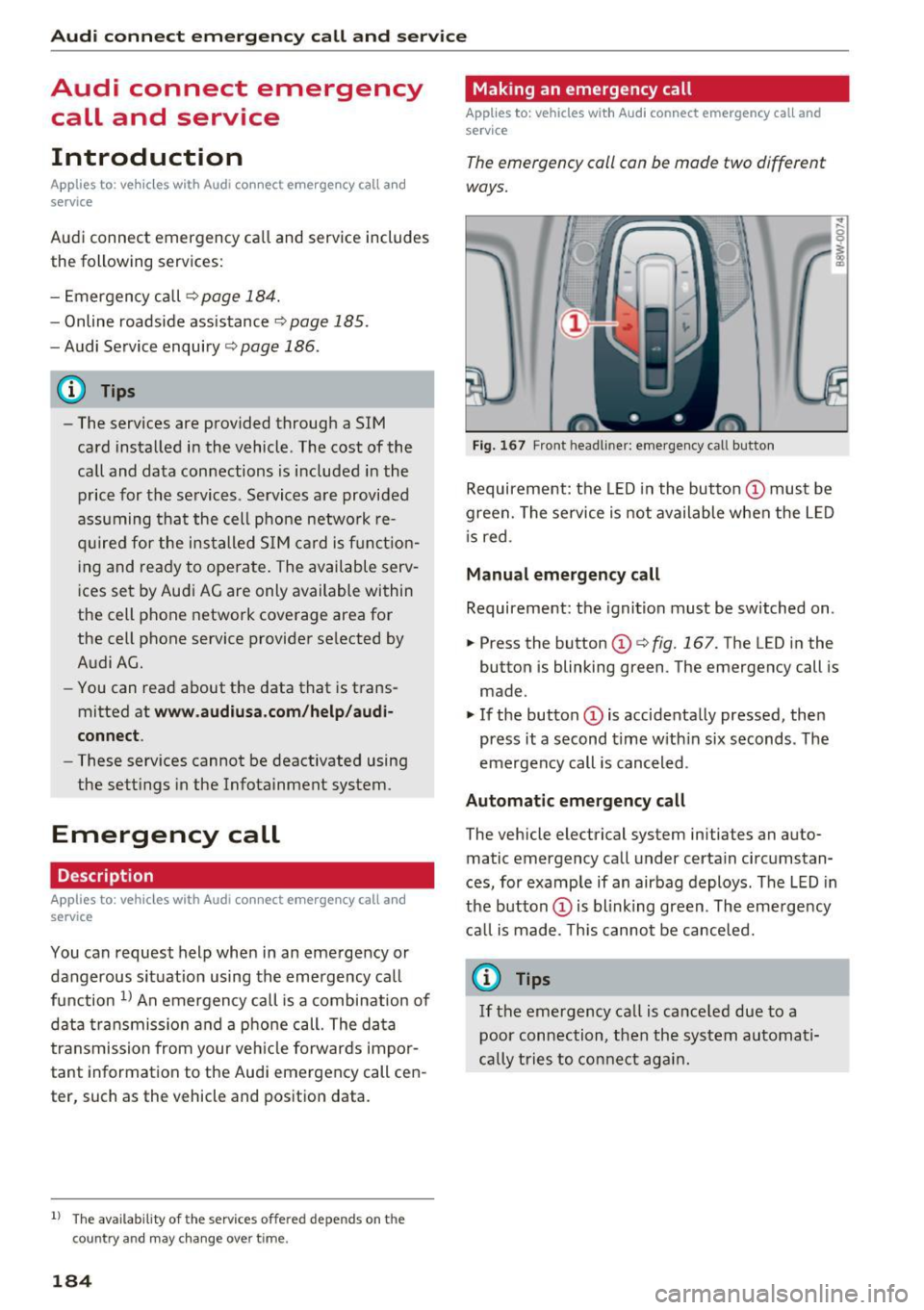
The emergency call can be made two different
ways.
Fi g. 1 67 Front head liner: emergency call butto n
Requireme nt: the LED in the button @must be
green. The se rvice is not available when the L ED
i s red.
Manual emergency call
Requireme nt: the ignition must be switched on.
.,. Press the button (D
¢fig. 167. The LED in the
button is blinking green. The emergency call is
made.
.. If the button (Dis accidenta lly pressed, then
press it a second time w ith in six seconds . The
emergency call is canceled .
Automatic emergency call
The vehicle electrical system initiates an auto
matic emergency call under certain circ umstan
ces, for example if an airbag deploys. The LED in
the button (Dis blink ing green. The eme rge ncy
ca ll is made. This cannot be canceled.
{!) Tips
If the emergency call is ca nce led due to a
poor conn ection, then th e system au toma ti
cally tries to con nect ag ain .
Page 187 of 386

Messages
Applies to: vehicl es wit h Aud i connect emergency ca ll and
service
II Em ergency call function : malfunction ! Re
s tri cted functionalit y. Please contact Service
If the indicator lig ht turns on and the message
appears, you can only make an emergency call
with restricted funct ion. For example, you cannot
call the emergency call center, but data may st ill
be transmitted under certa in circumstances/
D rive to an autho rized Aud i deale r o r a uthorized
Aud i Service Facility immediately to have t he
mal funct ion correcte d.
B Emergency call function : malfun ction! Fun c
tion unavailabl e. Plea se contact Serv ice
If the indicator light turns on and the message
appears, you cannot make an emergency call.
Drive to an authorized Aud i dea le r or authorized
Aud i Service Fac ility immediately to have the
malfunc tion cor rected.
Online roadside
assistance
Description
Appl ies to: veh icles with Audi connect emergency ca ll and
service
You can request help if you are in an accident or
breakdown situation us ing on line roadside ass is
tance
1> . A roads ide ass istance call is a comb ina
tion of data transmission and a phone call. The data transmission from your vehicle fo rwards im
portant information to the A udi service center,
such as the vehicle and position data.
1l The ava ilability of the services offered depends on the
country and may change over time.
Audi c onn ect emergency call and ser vic e
Calling online roadside assistance
Applies to: vehicles with A udi connect emergency call and
se rvic e
The roadside assistance call can be made two
different ways.
Fig . 1 68 Front headliner: roads ide assistance button
Calling roadside assistance manually
"' Press the button @ c:;, fig. 168 . The LED in the
button turns red . Roadside ass istance is ca lled .
"' If the button @ is pressed ac cidentally, the n
press the bu tton aga in. Or
"' Select and confirm
Cance l o r End call in the In-
fotainment system.
Automatic roadside assistance
A minor accident is detected by the vehicle elec
t rical system. You have the option of select ing
be twee n
Call online roads ide assist an ce or Call
emergenc y numb er.
"' Select one of the options and confirm it by
pressing the control knob.
(D Tips
If the roadside assistance ca ll is canceled due
to a poor connection, then the call must be
made aga in.
185
Page 189 of 386

Navigation
Accessing navigation
A pp lies to: ve hicles with naviga tion system
The navigation system directs you to your desti
nation, around traffic incidents and on alterna
tive routes, if desired.
Fig. 169 Example: Enter destination menu
.. Press the I NAV/MAPI button.
After opening the Navigation menu for the first
time, the
Enter dest inati on menu is displayed in
the Infotainment system display with the follow
ing information:
(D I nput field for free text search 187
@ Home address . . . . . . . . . . . . . . . . 189
@ Last dest inat ions . . . . . . . . . . . . . . 188
@ Stored favorites . . . . . . . . . . . . . . . 189
As soon as yo u select an entry from the list (de
pending on the vehicle equipment), the corre
sponding destination d isplays as a map preview*
@ r::!>fig .169.
If yo u have connec ted a ce ll phone to the MMI,
your di rectory contacts will also be listed if they
have navigation data assigned to them.
The
Fav orites @¢ fig. 169 menu item as well as
the directory/contacts are only shown in the
En
t er des tinati on
menu if you have ente red one or
more characters using the input field.
Swi tching betwe en d estinati on entr y and th e
m ap :
- Press the I NAV/MAPI button repeated ly until
the map is d isplayed .
Or: select the left contro l
button
> S wi tch to map . Na
vigat ion
A WARNING
--The demands of traffic require your full at-
tention. Always read the chapter
q page 236, Driving safety.
- Obey all traffic laws when driving.
- The route calculated by the navigation sys-
tem is a recommendation for reaching your
destination. Obey traffic lights, stopp ing re
strictions, one-way streets, lane change re
strictions, etc.
(D Note
- If the driving directions conflict with traffic
laws, obey the traffic laws.
- Adjust the volume of the navigation system
so signals from outside the vehicle, such as
police and fire sirens, can be heard clearly at
all times .
(j) Tips
-Snow and obstruct ions on the GPS antenna
or interference caused by trees and large
buildings can impair satell ite recept ion and
affect the system's ability to dete rm ine the
vehicle pos it ion. Several deactivated or mal
functioning satell ites can also inter rupt GPS
recept ion and affect the system 's abili ty to
determine the vehicle position.
- Because street names somet imes change,
the names stored in the MMI may in rare cases differ from the actual street name.
Entering a destination
Free text search for destinations
App lies to: vehicles wit h nav igat ion system
With the free text search you can enter the navi
gation destination data all at once in any order
using the MMI touch control pad* or the speller
(for example, 20 Elm Street Chicago). Likewise,
you can search for points of interest, contacts, previous destinations or favorites to navigate to
the desired address.
Press the I NAV/MAPI repeatedly unt il the En ter
d es tination
menu is displayed~ page 187,
fig. 169.
1 8 7
Page 192 of 386

Navigation
-Select and confirm an address o r a destination.
When you have selected a destination, the
route guidance can be started directly.
- Check the address input again when selecting
an address.
- Then select and confirm
Start route guidance.
Additional directory functions in the navigation
system can be foun d under
¢ page 194.
@ Tips
-Addresses that have been imported from
your cell phone into the MMI can also be
used as a destination.
- If a contact is grayed out in the directory,
this contact has neither a destination nor an
address assigned to them.
Point of interest search
Applies to: ve hicles w ith naviga tion system
Fig. 171 Searc hin g fo r po ints of interes t
.-Press the I NAV/MAPI repeatedly until the Enter
destination
menu is displayed ¢ page 187,
fig. 169 .
.. Se lect : left control button > Points of interest.
- Changing the search area:
select and confirm
Search area and then a search area from the
list .
The fo llowing search categories are avai lab le:
Nearby : points of interest can be selected from
d ifferent categories. The po ints of interest are
listed starting from the immediate vicinity of the
ve hicle up to a radius of approximately 124
mil es (200 km).
Along the route: points of interest along the
route can only be selected during active route
guidance. The points of interest are located di-
190
rectly along or in the immediate vicinity of the
ca lculated route.
Near destination /Near stopover: the points of
i nterest ca n likew ise be selected from diff erent
categories in the vic inity of the destination or
stopover. For example, you can search for a hotel
or parking lot at the destination.
In new city : select a country/state or search in a
new city. Enter the name of the desired city.
Points of interest can be selected from various
categories. This function allows you to search for
po ints of interest in any city regardless of the ac
tive route guidance or the vehicle position.
- Search for a point of interest name in these
lected search area:
enter the name of the point
of interest .
-Searching for a point of interest in a specific
category :
select Select category . Select and
confirm a category such as
Restaurants .
@ Tips
-Distances to points of interest are displayed
as a straight-line distance from your current
location. The actual distance from your cur
rent location to the point of interest is up
dated automatically. The list of found
points of interest is not resorted when this
happens.
- Th ere may be entr ies in the list that cannot
be displayed completely due to their length .
If you select these list entries using the con
trol knob, detailed information a bout the
selected list entry will be shown automati
cally after several seconds .
Online point of interest search (online
search)
Applies to : vehicles with a nav igation sys te m and Aud i co n
nect {I nfotainment)
You can search for points of interest on the In
ternet.
Requirement: the requirements for Aud i connec t
(Infotainment) must be met
¢ page 172.
.. Press the INAV/MAPI repeatedly until the Enter
destination
menu is displayed ¢ page 187,
rg. 169. ~
Page 196 of 386

Navigation
- Please note t hat pers onal ro utes t hat have
a lr eady bee n stored w ill remain stored after
the ign it ion is switc hed of f and they must
be deleted manually.
Home address
Applies to: ve hicles w ith navigation system
... Press the I NAV/MAPI repeatedly unt il the Enter
destination
menu is displayed c> page 187,
fig. 169 .
Storing a home add ress
- Se lect and confirm Home addre ss @
c> page 187, fig. 169 . After opening the home
address for the first time, you will be asked to c reate a home address.
- Se lect and co nfirm
Create now.
- Enter a destination or select a dest ination from
the list.
Or :
- S elect and confirm a destination > right control
button >
Store as home addres s.
A home ad dr ess will be s to red in the MM I rega rd
less of the co nnected ce ll phone . This home ad
d ress is alw ays ava ila ble even if a ce ll phone is
not con nected to the MMI.
Editing the home address
-Se lect t he Home addres s@ c> pag e 18 7,
fig. 169.
- Se lect the righ t control button > Edit home ad
dre ss.
-Se lect and confirm a new desti nat io n as the
home address.
The se lected destination is stored as the new
home address .
Favorites
Applies to: vehicles with navigation system
.,. Press the I N AV/MAPI repeatedly unt il the Enter
destination
menu is displayed c> page 187,
fig . 169 .
-Storing a dest inat ion as a favorite : search for
the des ired destination us ing t he i nput fie ld.
Or : select and confirm a destination from the
194
list . Select: r ight con trol b utton > Store as fa
vorite .
- Renaming a favorite :
selec t: left control but ton
>
F avorites > a favorite from the list > right
cont rol b utton >
Rename favorite .
- Move favorite :
select a favorite from the list>
right control button > Move favorite. Select
and confirm the location of the selected favor
ite .
-Deleting a favorite : select a favorite from the
list>
right control b utton> Delete fa vorite >
Delete this favorite or Delete all favorites .
Directory contacts
Applies to: vehicles wit h navigation system
Two addresses (private/business) can be as
signed as destinations for each contact in the di
rectory.
.,. Press the I NAV /MAP I repeated ly until the Enter
destination
menu is disp layed ¢ page 187,
fig . 169 .
Storing a destination as a contact in the
directory
Requireme nt: a cell phone must be connected to
the MMI
¢page 160.
-Select a destination> right control b utton>
Add destination to contact .
-Select and confirm Add business destination or
Add private destin ation .
-Enter a name . Or: select and confirm a directo
ry contact from the list.
- Select and confirm
Save bu siness card.
Alternative routes
Applies to: vehicles with navigat ion system
Fig. 175 A lte rn ative routes display
Page 198 of 386

Navigation Route criteria
Applies to: ve hicles w ith navigation system
J(
F ig . 176 Possible route criter ia
.. Press the I NAV/MAPI repeatedly until the Enter
destination
menu is displayed ¢page 187,
fig. 169.
.. Select: right control button > Route criteria .
(D HOV lanes1>: with the Avoid function, HOV
lanes are excluded when calculating routes.
When
Allow i s selected, the MMI will route you
through HOV lanes and show them on the map .
@Highways /® Toll roads/ @ Ferries : you can
set the
Avoid function if you do not want the nav
igation system to include highways, toll roads or
ferr ies when calcu lating the route, if it is possi
b le .
Navigation announcements
Applies to: ve hicles with navigation system
.. Press the I NAV/MAPI repeatedly until the Enter
destination
menu is displayed ¢ page 187,
fig. 169.
.. Select : right contro l button > Voice guidance .
Voice guidance:
voice guidance can be Complete
or Shortened. With the Traffic function, spoken
cues are only given when there are traffic inci
dents on your route. When
Off is selected, no
voice guidance is given.
Voice guidance during phone call: voice guid
ance during a phone call can be switched on or
off.
Entertainment fader : refer to¢ page 234 .
l) High occupied vehicle
196
Voice guidance volume : you can adjust the vol
ume during voice guidance using the On/Off knob
¢page 141 You can a lso find additional informa
tion under ¢
page 234.
Map
Operating the map
Applies to: vehicles wit h navigat ion system
Fig. 177 Example : 3D map with the crosshairs switc hed off
•Mifii
~
Fig. 178 Examp le : standard map with the crosshairs
switched on
.. Press the I NAV/MAPI button repeatedly until
the map is displayed ¢
fig. 177.
Zooming in/out on the map
- Turn the control knob to the left or to the right.
You can also zoom in and out on the map using
the MMI touch contro l pad*¢
page 145. Or :
turn the left thumbwheel on the multifunct ion
steering wheel*
¢page 13.
Turning the crosshairs on/off
- Switching the crosshairs on:
press the control
knob in the map view¢
fig . 177.
-Switching the crosshairs off : press the !BACKI
button.
When the crosshairs are switched off¢ fig. 177: ..,.
Page 214 of 386

Media
q page 218. The copied video files are stored in
the media center under the
Videos category.
Playing the Jukebox
Requirement: the Jukebox must contain audio/
video fi les
c;> page 211, Adding files to the Juke
box .
The Jukebox is accessed and operated through
the MMI
© c;> page 217, fig. 196.
Displaying Jukebox memory capacity
Select: right control button > Jukebo x memory
ca pacity .
Information about the Jukebox memory
capacity and the numbe r of stored tracks is dis
p layed.
Deleting tracks from the Jukebox1>
Requirement: the Jukebox must contain audio/
video files.
- Delet ing an ent ry: select an entry from the
Jukebox media center. Se lect: right contro l but
ton >
Delete from jukebo x> This entry or En
tire list .
-The status of the de leting process is shown in
the MMI. Jukebox playback stops during the de leting process and starts again automatically
once the deletion is complete .
(0 Note
Do not import aud io/video files when the en
gine is turned off because this will drain the
veh icle battery.
(D Tips
- Tracks from aud io CDs cannot be imported
to the Jukebox for legal reasons .
- Files that have already been imported are
automat ically recognized and cannot be
copied to the Jukebox again.
- It is not possible to play audio/v ideo f iles*
i n the CD/DVD* drive while importing them.
- The Jukebox does not provide an export
function due to lega l reasons.
- Files or tracks without add it iona l stored in
formation are listed as
Unknown . Audi rec-
1> Not in th e Now playing view.
212
ommends adding additional information
(such as 103 tags) to a udio fi les .
- Rese t the
Jukebox to the factory defau lt
settings when sell ing yo ur vehicle
¢page 230.
Bluetooth audio player
App lies to : vehicles wi th Blue to oth
With the Bluetooth audio player, you can play
music wirelessly from your 8/uetooth-capable
device (such as a cell phone) through the MMI.
Requirement: the vehicle m ust be stationary and
the Bluetooth function on your Bluetooth device
and the
Bluetooth audio player ¢ page 231 in
the MMI must both be sw itched on.
- Connecting a Bluetooth device: press the
!MEDIA ! button. Press the left control button
until the sources overview is disp layed. Select
and confirm
Bluetooth player@¢ page 217,
fig . 197.
- If ne cessa ry, select and confirm, Not connected
> Connect Bluetooth audio player . The Blue
tooth device search starts. Follow the instruc
tions i n the MMI.
- Select and confirm the des ired Bluetooth de
vice from the list. The MMI generates a PIN for
the connection.
- Select and confirm
Yes .
-Enter the PIN for connecting on your Bluetooth
dev ice.
Or : if the PIN is already displayed on
your Bluetooth device, confi rm it in the Blue
tooth device and in the MMI. The time allowed
for entering the PIN is lim ited to approximately
30 seconds.
The media is started and operated through the
mobile device o r th e MMI, depending on the de
vice being used.
(D Tips
- Check fo r any connection requests on your
Bluetooth device.
- You only have to pair your device one time.
Bl ue tooth devices that are already paired
Page 215 of 386

<( a, .... N ,....
N .... 0 0
3 a,
automatica lly connect to the MM I when
they are within range.
- Multiple Bluetooth audio players can be
connected to the MMI, but only one mobile
device can be active.
- Bluetooth protocols AVRCP (1.0/ 1.3/ 1.4)
and A2DP are suppo rted.
- Note the volume setting o n your Bluetooth
device. Audi recommends setting your mo
bile device to the maxim um vo lume whe n
us ing it as a Bluetooth audio player.
- The supported media functions (such as
shu ffle) depend on the Bluetooth dev ice be
ing used.
- Fo r more information on the supported de
v ices, visit
www.audiusa. com /bluetooth or
contact your author ized Audi dealer.
Wi-Fi audio player
A ppl ies to: ve hicles with Wi· Fi
Using the Wi-Fi audio player media source on the
MMI, you can connect and operate your Wi-Fi-ca
pable media player (such as a smartphone) to
wirelessly ploy music from your media player li
brary. The media player is connected through the
vehicle's Wi -Fi hotspot. A UPnP Server opp or an
integrated UPnPIDLNA server on your media
player is required to access your media player
li
brary.
Req uirement: the W i-Fi function on your media
p layer must be switched on. The
Audi MMI con
nect
app or a UPnP server app must be installed
on your med ia p layer.
O r: you must be using a
media player with an integrated UPnP/DLNA
server.
- Connecting a media pla yer: press the I MEDIA !
button. Press the left control button unt il the
sources overview ¢
page 217 is disp layed. Se
lect and confirm
Wi -F i audio playe r 0
¢page 217, fig . 197.
- If necessary, select and confirm Wi -F i off >
Turn on Wi -Fi
to activate Wi-Fi in the MMI. Se
lect
Wi-Fi options , if necessary. Select the
same settings on the wireless media player
that are used for the Wi-Fi hotspot .
Media
-Starting the W i-F i audio pla yer : start the Aud i
MMI connect
app or a UPnP server app, or set
media permissions on your media p layer.
Operating the med ia pl ayer : the med ia p layer is
operated through the MMI.
- Press the left control button repeatedly until
the
Folders menu item appears . Select and con
firm
Folder s.
- Play ing mu sic from th e m edia player :
select
and confirm
M edi a ce nt er.
,&. WARNING '--
-As the d river, do not allow usage of the Wi-
Fi hotspot to distract yo u from driv ing, as
this could increase the r is k of an accident.
- I t is o nly safe to use tablets, laptops, mo
b ile dev ices and o ther simi lar devices when
the vehicle is s tationary because, like all
loose objects, they co uld be thrown around
the inside of the vehicle in a c rash and cause
serio us inj uries. Store these types of devices
securely while driving.
- Do not use any wireless devices on the front
seats within range of the airbags while driv ing. Also read and follow the warn ings in
¢ page 257, Front airbags.
(D Note
You are responsible for all precautions taken
for data protection, anti-virus protect ion and
protection aga inst loss of data on mobi le de
v ices that are used to access the Internet
through the W i-F i hotspot.
(j) Tips
- The W i-F i aud io player only needs to be
paired one time to the MMI using the Wi-Fi
hotspot. Depend ing on the media player be
ing used, a device that was already paired
w ill connect automatically with the MMI Wi
Fi hotspot when it is within range.
- Always read the chapter ¢
page 178, Audi
connect (Infotainment) information.
- Please note that a Wi-F i connection does
not automatically make it possible to use
the Internet. For addit ional info rmation, re-
fer to¢
page 172. ""
213
Page 216 of 386

Media
-To avoid interruptions during playback, de
activate the power saving function on the
media player or connect it to a charger.
- The loading t imes for the a udio data depend
on the med ia p layer used and the number of
files that it conta ins.
- A maximum of 2,000 entries per directory
are displayed in the MMI.
- Songs down loaded for offline use using mu
sic streaming services are stored on your mobile device (such as a smartphone) and
may be DRM protected. The Wi-Fi audio
player wil l not play DRM protected files.
- Contact your authorized Aud i dea ler or au
thorized Audi Service Facility for additional
i nformat ion on the Wi-Fi audio player .
Online media
Applies to: veh icles w ith Aud i connect
You can playback and operate different online
media services using the
MMI.
F ig . 193 Online me dia
" Press the I MEDIAi button . Press the left control
button until the so urces overview ¢
fig. 193 is
displayed.
Requirement:
- The
Audi MMI connect app must be insta lled
and open on your mobile device.
- You m ust be logged into your myAudi account
in the
Aud i MMI connect app and you must
have selected your vehicle.
- The Wi-Fi function on the mobile device and on
the MMI must be switched on.
- If necessary , check in the connection manager
¢ page 230 if the mobile device you connected
is selected under the
MMI connect app (~).
-The MMI must be connected to the network.
214
- T he Online media source (!)¢ fig. 193 must be
disp layed in the MMI.
- A s upported online med ia service must be ava il
able in yo ur country.
- You must have a n acco unt wit h a supported on
line media service.
- Depe nding on the online media service, yo u
must install and open an app on your mobile
device .
Starting Online media :
Press the I MEDIAi button. Press the left control
button until the so urces overview ¢
page 217 is
displayed .
Se lect and confirm an online media service.
A WARNING
- It is only safe to use tablets, laptops, mo
bile devices and other similar devices when
the vehicl e is stat ionary because, like a ll
loose objects, they co u ld be thrown a round
the inside o f the ve hicle in a c rash and ca use
serious inju ries. Store these types of devices
secure ly while driving .
-
-Do not use any wire less devices o n the front
seats within range of the airbags while dr iv
ing . Also read and follow the warnings in
¢ page 257, Front airbags.
(D Note
P lease no te that there ge nera lly are add itio n
a l costs when using an on line media service
account, espec ia lly when it is used interna
tionally.
@ Tips
- Mobile devices only need to be paire d with
the MM I one time using the Wi -Fi hotspot *.
Depending on the mobi le dev ice be ing used,
a device that was already paired will connect
automatically to the MMI Wi-Fi hotspot*
when it is within ra nge .
- Depending on the Inte rnet connection, a
connect io n loss can occur during playback of
online med ia services.
- Onl ine media usage depends on the service
availability of the third party provider. ..,.