wheel AUDI A4 2018 User Guide
[x] Cancel search | Manufacturer: AUDI, Model Year: 2018, Model line: A4, Model: AUDI A4 2018Pages: 403, PDF Size: 66.81 MB
Page 21 of 403
Applies to: ve hicles with multifunction steering wheel plus
"Press th e l<1 1>I butto n repeated ly until the Ra -
dio/Media tab is disp layed .
" Press the left control button ¢ page 14 .
Depending on vehicle equipmen t, the following
functions may be availab le in the driver informa
tion system .
-Selecting a source : select and confi rm a source
s u ch as the SD card.
- Selecting a radio station from the source li st:
sele ct and confirm Switch to radio .
- Playing an audio /video file :
select and confi rm
a file.
- Pau sing/resuming playba ck : press the r ight
t hu mbwheel @
~page 15, fig. 11. To res ume
playb ack , p ress the r igh t thumbw heel again .
-Re starting playback of an audio file : select the
file that is curre ntly playing, if necessary. Press
the left th umbwheel.
- Opening additional track information: select:
r ig ht cont rol bu tton>
Show "Now Playing"
screen .
@ Tips
-The media drives do not play files that are
p ro te cte d by DRM and that a re identif ied
wi th the sym bol
1'.D.
- Please note t hat w ithin a media sou rce in
th e d river i nfo rm at ion s ystem, o nly pl aylis ts
tha t we re sele cted t hroug h the MMI cont rol
p anel c an be
playe d~ page 23 7.
-Pay attention to t he Infotai nmen t sys te m
display if ne cessary. Depen din g on these
l ected function, it may
be necess ary to use
t h e MM I cont rol panel.
Cockpit overview
Telephone
Applies to: vehicles with te lephone
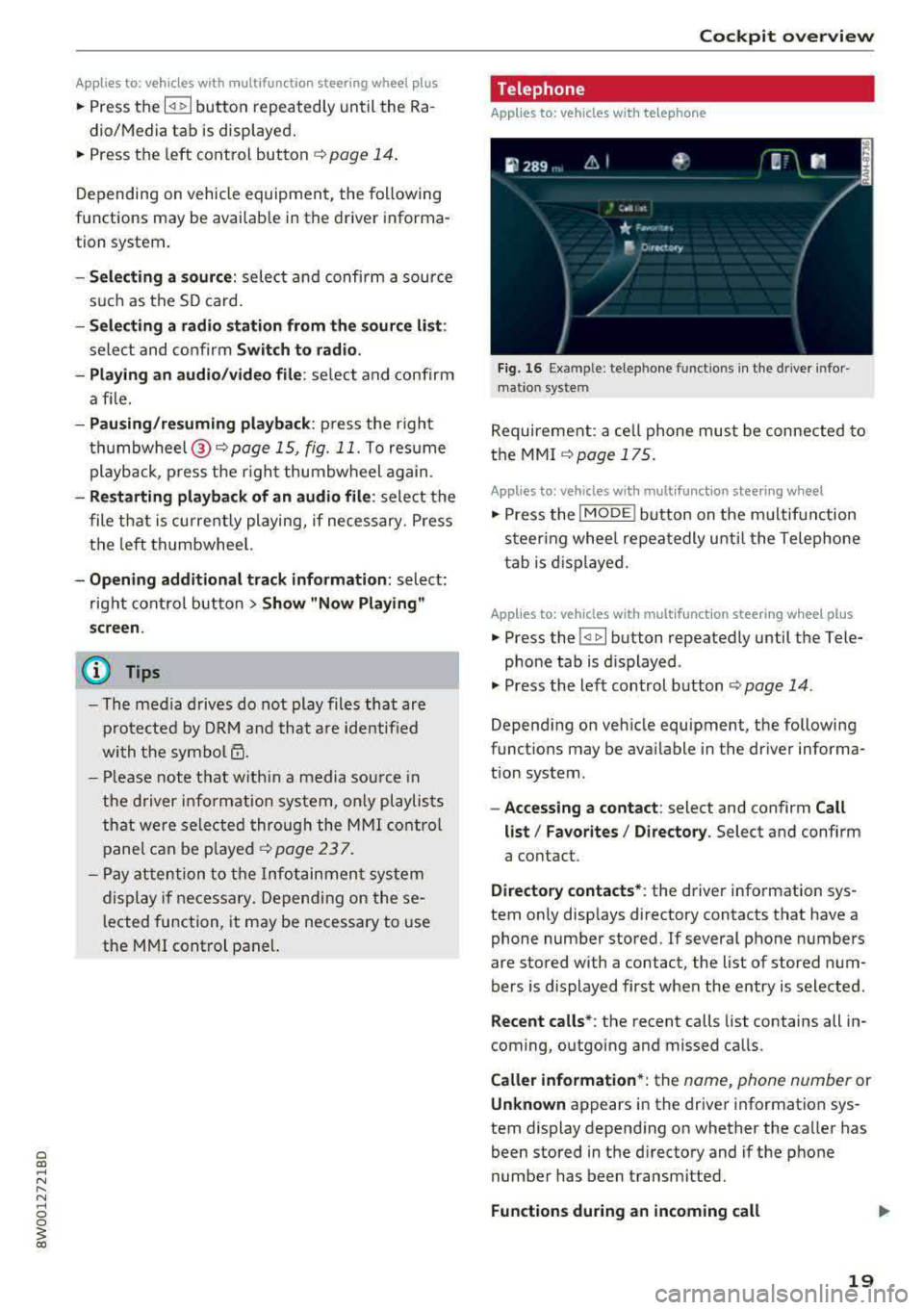
Fig . 1 6 Ex ampl e: telep hone functio ns in th e drive r info r
m ati on sys te m
Requireme nt: a ce ll phone must be connected to
the MMI
~ page 175.
Applies to: vehicles wit h mult ifunction stee ring wheel
" Press the IMODE ! button on the m ultifun ction
steer ing whee l re peat edly u ntil t he Telephone
t ab is d is pla yed .
Applies to: vehicles with mult ifunction steering wheel plus
" Press the l<1 1>I button repeatedly until the Tele-
p ho ne tab is d isplayed .
" Press the le ft con trol b utton ¢ page 14 .
Depending on veh icle equipment , the following
funct ions may be ava ilable i n the dr iver informa
t ion system .
-Accessing a contact : select and confirm Call
list / Favorites / Directory .
Select and confirm
a contact .
Directory contacts* : the driver info rmation sys
tem on ly disp lays directory contacts that have a
phone number stored .
If several phone numbers
are stored with a contact, the list of stored num
bers is d isplayed first when the entry is selected .
Recent calls*: the recent calls list contains all in
coming, o utgoing and missed ca lls.
Caller information *: the name, phone number or
Unknown ap pears in the drive r information sys
tem display depend ing on whether the ca ller has
been stored in the d irecto ry and if the phone
number has been transmitted.
Functions during an incoming call
19
Page 23 of 403
- Automatic zoom C) page 216
Navigation view with route guidance
started
App lies to: ve hicles with navigation system and Audi virtual
cockpit
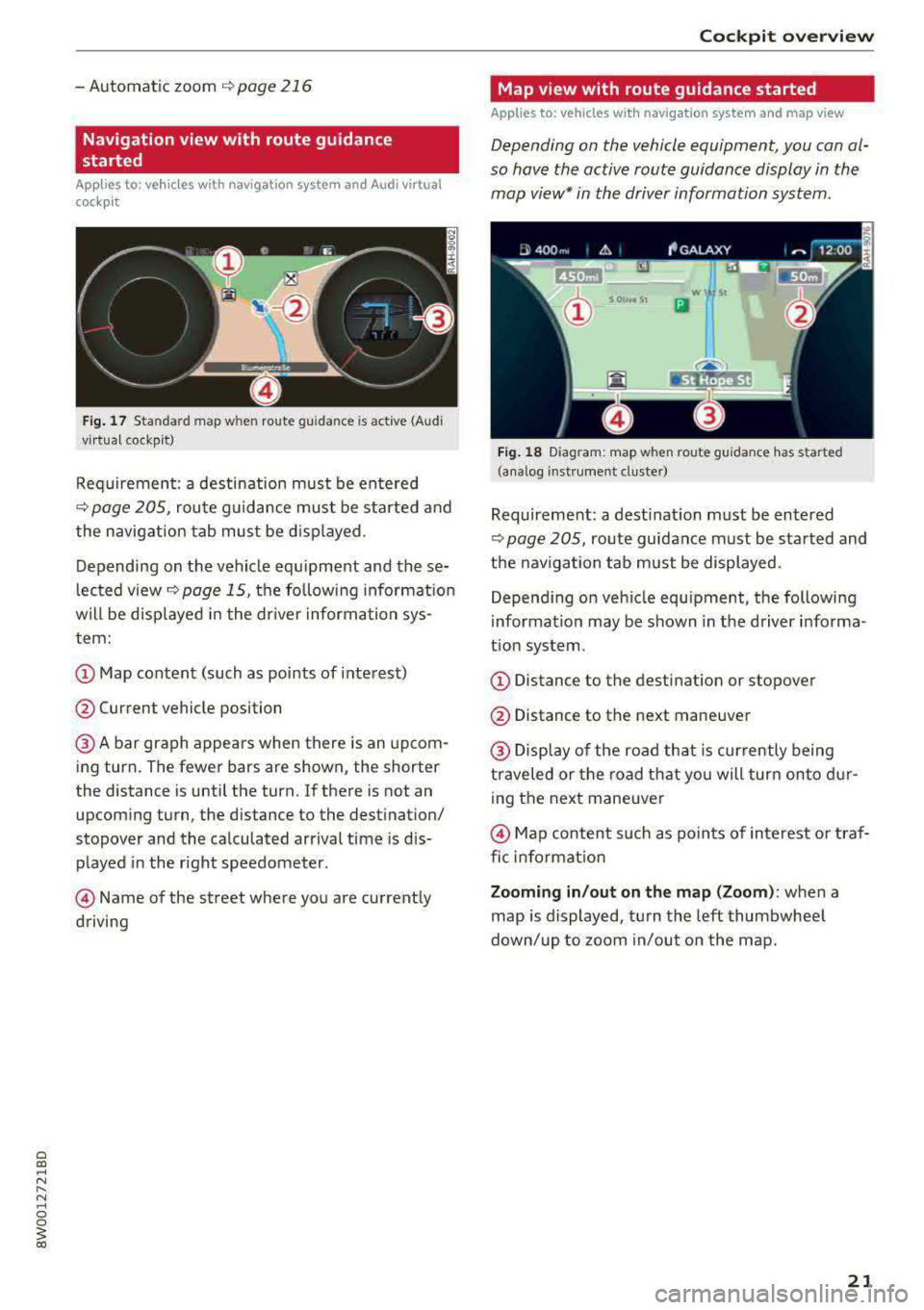
Fig. 17 Sta ndard map w hen route gu ida nce is act ive (Audi
vi rtua l cockp it)
Requirement : a destination must be entered
C) page 205, route guidance must be started and
the navigation tab must be displayed .
Depending on the vehicle equipment and these
lected view
r=;, page 15, the follow ing informat ion
will be displayed in the driver information sys
tem:
@ Map content (such as points of interest)
@ Current vehicle position
@A bar graph appears when there is an upcom
ing turn. The fewer bars are shown, the shorter
the distance is until the turn. If there is not an upcom ing turn, the distance to the destination/
stopover and the calculated arrival time is dis
p layed in the right speedometer.
@Name of the street where you are current ly
driving
Cockpit overview
Map view with route guidance started
Applies to: vehicles with navigation system and map view
Depending on the vehicle equipment, you con al
so hove the active route guidance display in the
mop view* in the driver information system.
Wl St
Iii
Fig. 18 D iagram: map when route guidance has started
(analog instrument duster)
Requireme nt: a dest inat ion must be entered
<=> page 205, route guidance must be started and
the navigation tab must be displayed.
Depend ing on veh icle equipment, the following
information may be shown in the driver in forma
t io n system .
(D Distance to the destination or stopover
@ Distance to the next maneuver
@ Display of the road that is currently being
traveled or the road that you will turn onto dur
ing the next maneuver
@Map content such as points of interest or traf
fic inform ation
Zooming in/out on the map (Zoom ): when a
map is displayed, turn the left thumbwheel
down/up to zoom in/out on the map.
21
Page 24 of 403
Cockpit overv iew
Street view with route guidance started
Applies to: ve hicles w ith navigation system and street view
Depending on the vehicle equipment , the active route guidance will be displayed in the street view* in
the driver information system .
®
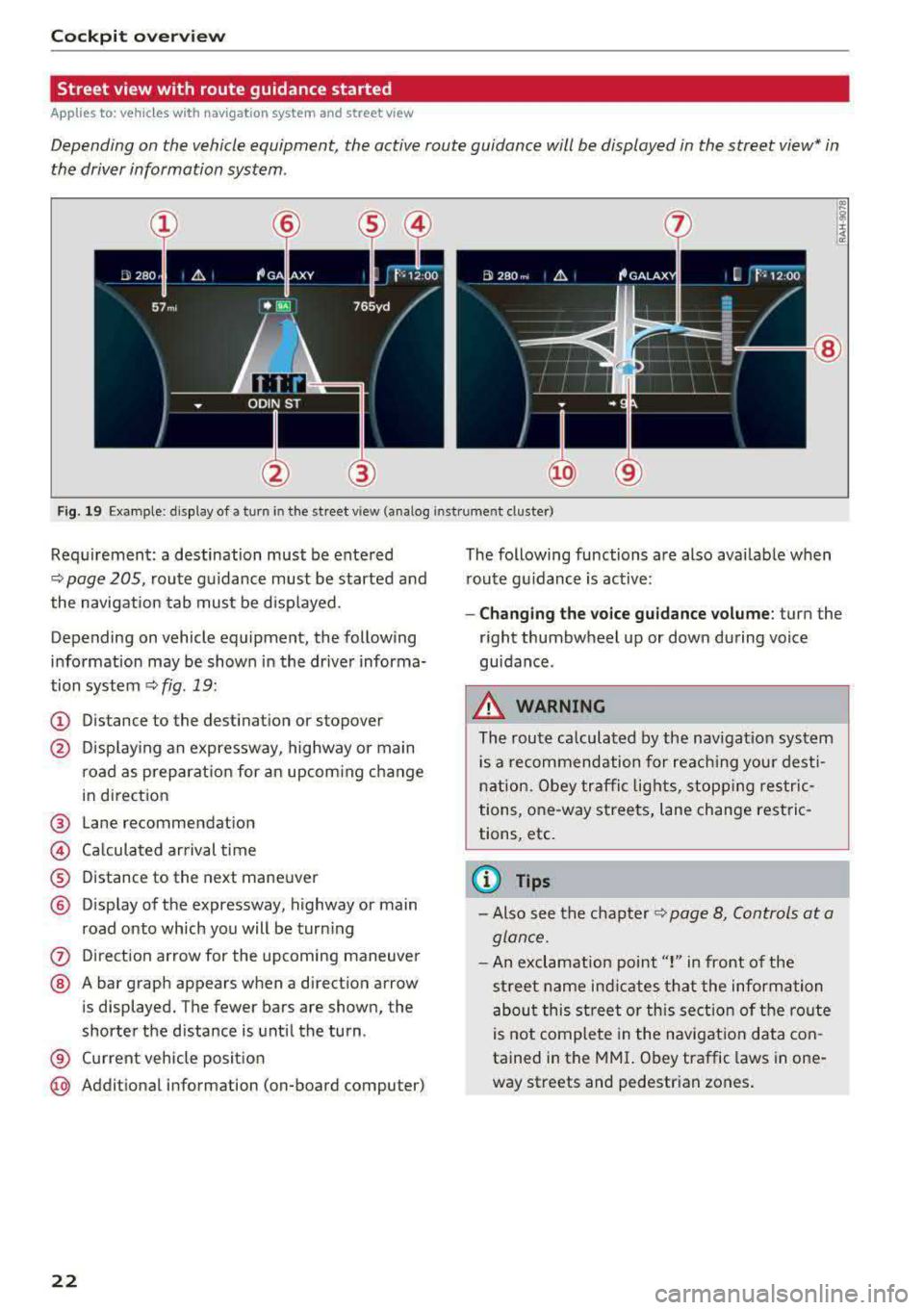
Fig. 19 Example: display of a turn in the str eet v iew (ana log inst ru ment cluster)
Req uirement: a destination must be entered
¢
page 205, route g uidance must be started and
the navigation tab mus t be disp layed.
Depending on vehicle equipment, the following
information may be shown in the dr iver informa
tion system ¢
fig. 19:
(D Distance to the destinat ion or stopover
@ Disp lay ing an expressway, highway or main
road as preparat ion for an upcom ing change
in direct ion
@ Lane recommendation
© Ca lcula ted ar rival time
® D istance to the next maneuver
@ Disp lay of the expressway, highway or main
road onto which you will be tur ning
(?) Di rect ion arrow for the upcoming maneuver
@ A bar graph appears when a direct ion arrow
is displayed. The fewer bars are shown, the
shorter the d istance is unt il the turn .
® Current veh icle pos ition
@ Addit ional information (on-board computer)
22
The following functions are also avai lab le when
r oute g uidanc e is active :
-Changing the vo ice g uidance volume : turn the
r ight thumbwheel up or dow n during voice
guidance .
_&. WARNING
The route ca lculated by the nav igat ion sy stem
is a recom mendation for reac hing your dest i
n ation. Obey tra ffic lights, stopp ing restric
tions, one-way stree ts, lane change restric
tions, etc.
(D Tips
- Also see the c hapter ¢ page 8, Controls at a
glan ce.
- An exclamation point" !" in front of the
st reet name ind icates t hat the information
abou t this st reet or this sect ion of the ro ute
is not complete in the navigat ion data co n
tained in the
M MI. Obey traffic laws in one
way streets and pedestr ian zones .
Page 27 of 403
fast acceleration) and have the malfunction corrected. See an authorized Audi dealer or
authorized Audi Service Facility .
The electronic speed limiter may be faulty if the
indicator light turns on. For additional informa
tion, see
¢ page 102, Electronic speed limiter .
The MIL indicator light may also turn on if the
fuel filler cap is not closed correctly
¢page 317.
On-Board Diagnostics
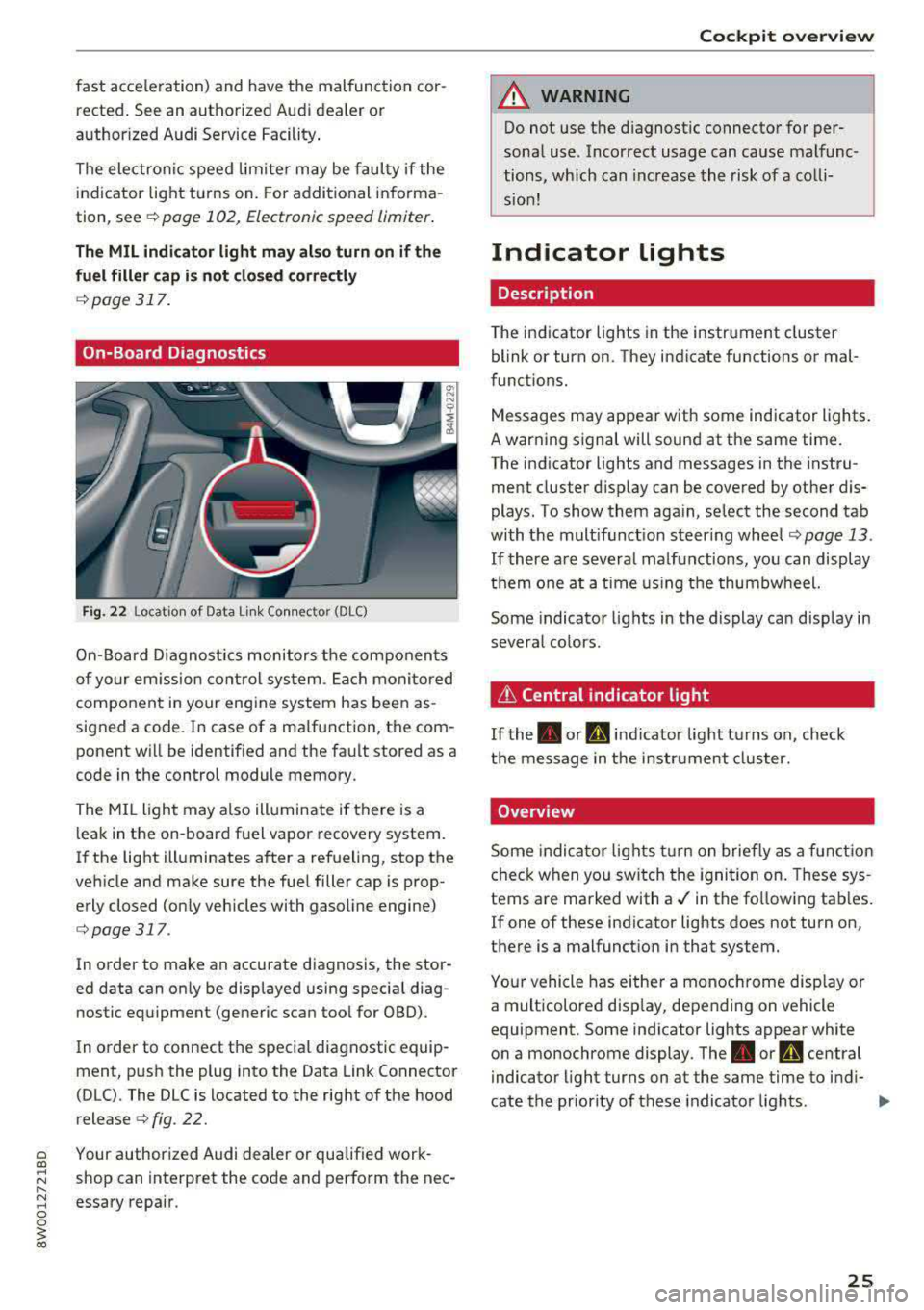
Fig. 22 Location of Data Li nk Con nec tor (DLC )
On-Board Diagnostics monitors the components
of your em ission control system. Each monitored
component in your eng ine system has been as
signed a code. In case of a ma lfunction, the com
ponent will be identified and the fault stored as a
code in the control module memory.
The MI L light may also illuminate if there is a
leak in the on -board fuel vapor recovery system.
If the light illuminates after a refueling, stop the
vehicle and make sure the fuel filler cap is prop erly closed (only vehicles with gasoline engine)
¢ page 317 .
In order to make an accurate diagnosis, the stor
ed data can only be displayed using special diag nostic equipment (generic scan tool for OBD) .
In order to connect the specia l diagnostic equip
ment, push the plug into the Data Link Connector
(DLC). The DLC is located to the right of the hood
release¢ fig. 22.
a Your authorized Audi dealer or qualif ied work-al
;:::: shop can interpret the code and perform the nee-
" ~ essary repair . 0 0
~ al
Cockpit overview
A WARNING
--
Do not use the diagnostic connector for per
sonal use. Incorrect usage can cause malfunc
tions, which can increase the risk of a colli
sion!
Indicator lights
Description
The indicator lights in the instrument cluster
blink or turn on. They indicate functions or mal
functions.
Messages may appear with some indicator lights.
A warn ing s ignal will sound at the same time.
The indicator lights and messages in the instru
ment cluster display can be covered by other dis
plays. To show them again, select the second tab
with the mult ifunct ion steer ing
wheel ¢ page 13.
If there are several malfunctions, you can display
them one at a time using the thumbwheel.
Some indicator lights in the display can display in
several co lors.
it Central indicator light
If the. or d indicator light turns on, check
the message in the instr ument cluster.
Overview
Some indicator lights turn on briefly as a function
check when you sw itch the ignition on. These sys
tems are marked with
a./ in the fo llowing tab les.
If one of these indicator lights does not turn on,
there is a malfunction in that system.
Your vehicle has either a monochrome display or
a multicolored display, depending on vehicle
equipment. Some indicator lights appear white
on a monochrome display .
The. or Q central
indicator light turns on at the same time to indi-
cate the priority of these indicator lights.
..,.
25
Page 29 of 403
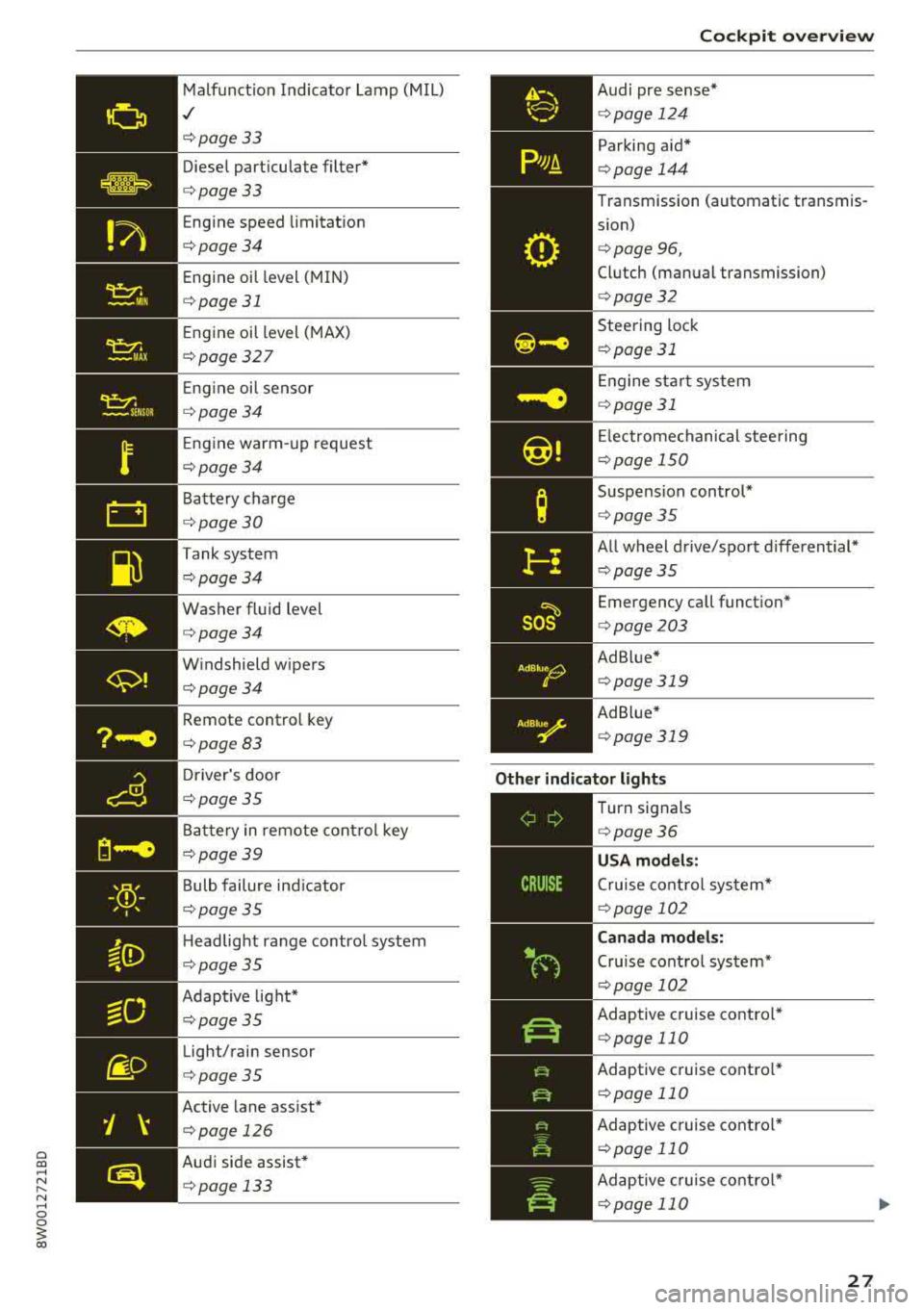
a co .... N ,....
N .... 0 0
3 co
'
-Yli-, I '
Malfunct ion Indicato r Lamp (MIL)
,/
¢page 33
Diese l part icu late filter*
¢page33
Eng ine speed limitat ion
¢page34
Eng ine oil level (MIN)
¢ page 31
Eng ine oil level ( MAX)
¢ page 327
Eng ine oi l sensor
¢ page34
Eng ine warm-up request
¢ page34
Battery charge
¢page 30
Tank system
¢page34
Washer fluid level
¢page34
W indshield w ipers
¢page34
Remote control key
¢ page83
Driver's door
¢page35
Battery in remote cont rol key
¢ page39
Bulb failure ind icator
¢ page 35
Headlight range control system
¢ page 35
Adapt ive light*
¢ page35
Light/rain sensor
¢page35
Active lane ass ist*
¢page 126
Audi side assist*
¢ pag e 133
AdBlue0
0
Coc kpit o ve rv iew
Audi pre s ense *
¢page 124
Parking aid*
¢page 144
Transmission (automatic transmis
s ion)
¢ page 96,
Clutch (manual transmission)
¢page 32
Steering lock
¢ page 31
Engine sta rt system
¢page 31
Electrome chanical steering
¢ page 150
Suspension control*
¢page 35
All wheel drive/sport differential*
¢page35
Emergency call funct ion*
¢ page 203
Ad Blue *
¢page 319
Ad B lue*
¢ page 319
Other indicator light s
--------------
Turn signals
¢ page 36
USA models :
Cruise cont rol sys tem*
¢ page 102
Canad a model s:
Cru ise control system*
¢ page 102
Adaptive c ruise contro l*
¢ page 110
Adaptive c ruise contro l*
¢ page 110
Adaptive c ruise contro l*
¢ page 110
Ad aptive c ruise contro l*
¢ page 110
27
Page 37 of 403
![AUDI A4 2018 User Guide a co .... N ,....
N .... 0 0
3 co
c::S Drivers door
II] Driver s door: malfunction! Shift to P before
l e aving vehi cle. See own ers manual
There is a malfunction in the drivers](/img/6/57559/w960_57559-36.png "AUDI A4 2018 User Guide a co .... N ,....
N .... 0 0
3 co
c::S Drivers door
II] Driver s door: malfunction! Shift to P before
l e aving vehi cle. See own ers manual
There is a malfunction in the drivers")
a co .... N ,....
N .... 0 0
3 co
c::S Driver's door
II] Driver' s door: malfunction! Shift to P before
l e aving vehi cle. See own er's manual
There is a malfunction in the driver's door. Select
the P se lector lever position (automat ic transmis
sion) to secure the vehicle.
Drive to an authori zed Aud i dealer or authorized
Aud i Service Facility immediately to have the
malfunct ion corrected .
-:
If the II indica to r li ght turns on, a b ulb has
fa iled. The message ind icates the location of the
bu lb . Rep lace the b ulb immediately .
Vehicle lights: malfunction! Please c ont ac t
Servic e
There is a malfunction in the headlights or the
light switch . Drive to an authorized Audi dealer o r
author ized Audi Se rvice Facility immed iate ly to
h ave the ma lf u nction co rre cted.
_& WARNING
- Ligh t bul bs are under pressu re and can ex
plode when bulbs are replaced, which in
creases the risk of injury.
- Wi th H ID headlights (xenon headlights), the
high -voltage component must be handled
correctly. Otherwise, there is a risk of fata l
injury.
{(D Dynamic headlight range control
II He adlight range cont rol: malfun ctio n! S ee
o w ner 's manual
There is a malfunction in the headlight range
control system, which may ca use glar e for other
drivers.
Drive to an authorized Audi dea ler o r a uthorized
Audi Servic e Facility immediately to have the
malfunct ion corr ected.
-
Coc kpit o ve rv iew
~O Audi adaptive light
Applies to: vehicles with Audi adaptive light
m;J Audi adapt ive light : malfun ction! See own
er's manual
Adaptive light is not working . The headlights still
funct ion .
Drive to an au thorized Audi dealer or authorized
Audi Service Facility immed iately to have the
malfunction corrected .
@ Light/rain sensor
!;I Automatic headlights: ma lfunction! See
o wner' s manual
!;I Automati c wipers : malfunction ! See owner' s
manual
The light/rain sensor is malfunctioning.
The low beams remain switched on at a ll times
for safety reasons when the light switch is in the
AUTO position. However, you can continue to
turn the lights on and off using the light switch.
You can still contro l all functions that a re inde
pendent of the rain sensor through the wind
shield wiper leve r.
Drive to an au thori zed Audi dealer or authori zed
Audi Service Facility immed iately to have the
malfunction corrected.
Q Suspension control
Applies to : vehicles with suspension control
II Su sp ension: malfunction! You may continue
drivin g
There is a suspension control malfunction .
Drive to an authorized Audi d eal er or authorized
Audi Service Facility immed iate ly to have the
malfunction correc ted.
r : All wheel drive/sport differential
Applies to: vehicles with all wheel drive/sport diffe rentia l
(II All-wh eel dri ve : malfun ction! You may con-
tinue driv ing. Pl ease contact Service
.,.
35
Page 40 of 403
Opening and closing
Key set
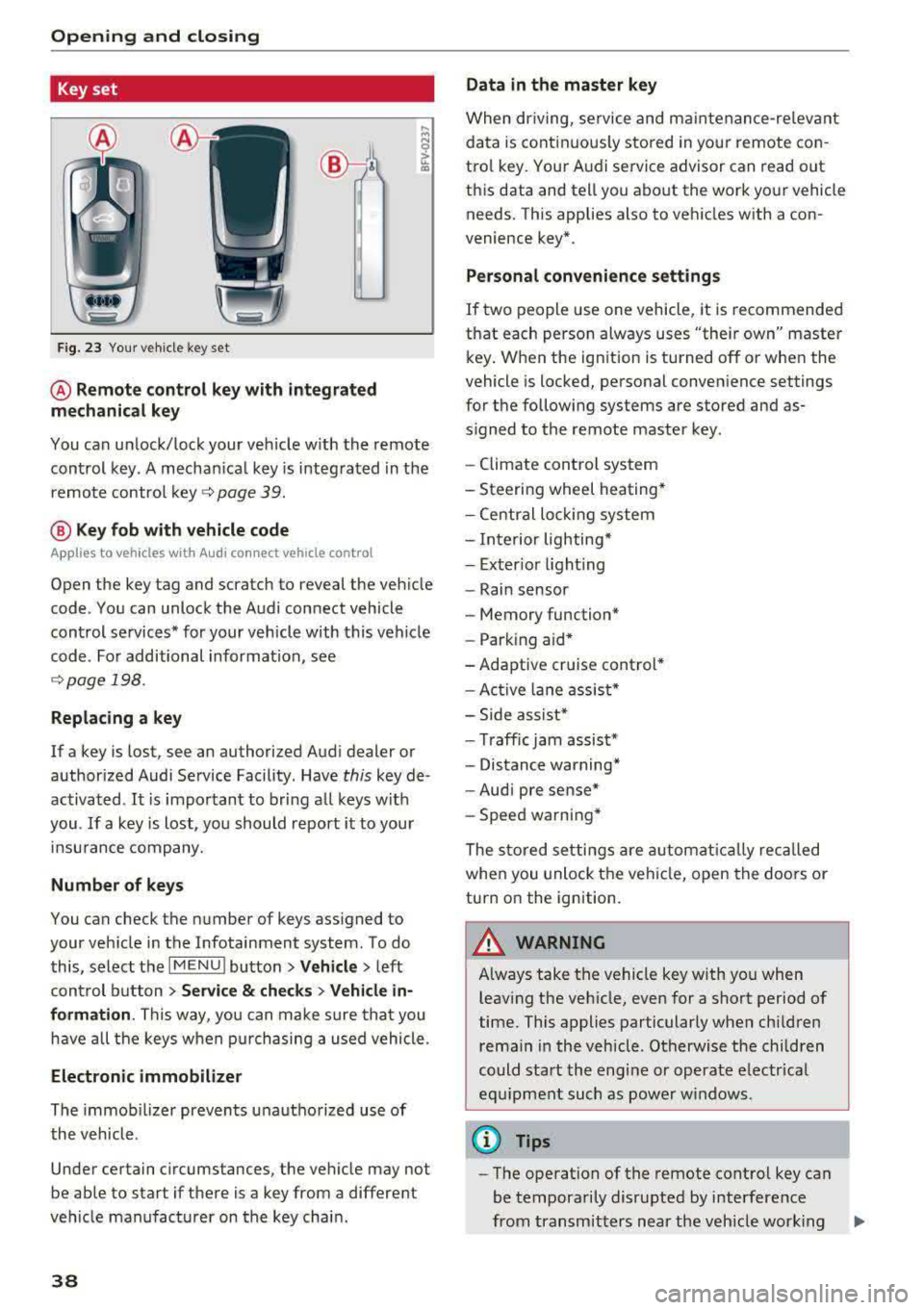
Fig. 23 Your veh icle key set
@ Remote control key with integrated
mechanical key
You can unlock/lock your veh icle w ith the remote
control key . A mechan ical key is integrated in the
remote control
key ~ page 39.
@ Key fob with vehicle code
Appl ies to veh icles with A udi co nnect vehicle con trol
Open the key tag and scratch to reveal the veh icle
code . You can unlock the Audi connect vehicle
control se rvices* for your vehicle with this vehicle
code . For additional information, see
~ page 198 .
Replacing a key
If a key is lost, see an authorized Audi dealer or
authorized Audi Service Facility. Have
this key de
activated .
It is important to bring all keys with
you .
If a key is lost, you should report it to your
insu rance company.
Number of keys
You can check the number of keys assigned to
your vehicle in the Infotainment system . To do
this, select the
IM ENU I button > Vehicle > left
control button
> Service & checks> Vehicle in·
formation . This way, you can make sure that you
have all the keys when purchasing a used vehicle.
Electronic immobilizer
The immob ilizer prevents unauthorized use of
the vehicle .
Under certain circumstances, the vehicle may not
be able to start if there is a key from a different
veh icle manufacturer on the key chain.
38
Data in the master key
When dr iving, service and maintenance-re levant
data is continuously stored in your remote con
trol key. Your A udi service advisor can read out
this data and tell you about the work your vehicle needs . This applies also to vehicles with a con
venience key*.
Personal convenience settings
If two people use one vehicle, it is recommended
that each person always uses "their own" master
key . When the ign ition is turned off or when the
vehicle is locked, personal convenience settings
for the following systems are stored and as
s igned to the remote master key.
- Climate control system
-Steering wheel heating*
-Central lockin g system
-Interior lighting*
-Exter ior lighting
- Rain sensor
- Memory function*
- Park ing a id *
-Adaptive cr uise control *
-Active lane assist*
-Side assist*
-Traff ic jam assist*
- Distance warning*
-Audi pre sense*
- Speed warning *
The stored settings are automatically recalled
when you unlock the vehicle, open the doors or
turn on the ignition .
~ WARNING
Always take the vehicle key with you when
leaving the vehicle, even for a short period of
time. This applies particularly when children
rema in in the vehicle . Otherwise the children
could start the engine or operate electrical
equipment such as power windows .
(© Tips
-
-The operation of the remote control key can
be temporarily disrupted by interference
from transmitters near the veh icle work ing
1J11,
Page 81 of 403

a co .... N ,....
N .... 0 0
3 co
20 minutes, depending on the outside
temperature.
To keep the rear window defogger on contin uous
l y, press and hold the
QWREAR button longer
than
3 seconds. This is stored unti l the ignition is
switched off .
SYNC Synchronization
Use the rocker switc h® to sele ct the funct ion.
When synch ronization is switched on, the set
tings for the driver's side are applied to the front
passenger's side and the rear (except for seat
heating/venti lation*) . When the settings on the
front passenger's side or in the rear are changed,
the synchron iz at ion is automatically sw itched off
and
3 -z one appears in the display .
SET REAR function
Use t he rocker switch ® to select the function .
When the function is switched on, you can adjust
all settings for the rear us ing the climate control
system controls in the cockpit. The rear climate
control system controls cannot be operated at
the same time . This function switches off auto
mat ically after a certain period of time or after
leaving the menu.
Vent s
You can open or close the center and rear vents in
the cockpit and the vents in the rear center con
sole us ing the r idged thumbwheels . The levers
adjust the d irection of the airflow from the vents.
The wide vent is opened and closed using the
r ocker switch
® ·
Residu al heat
You can activate the residual heat funct ion when
the ignition is switched off by pressing the knob
(D . The res idual heat from the coolant is used to
h eat the vehicle inte rior. The residual heat func
tion swi tches off automatically afte r abou t 15
minu tes .
A WARNING
- You should not use the recirculation mode for an exten ded period of time, because no
fresh a ir is drawn in and the w indows can
Warm and c old
fog when cooling mode is switched off. This
increases the r isk of an accident.
- Individuals with reduced sensitivity to pain
or temperature could develop burns when
using the seat heat ing* function. To reduce
the risk of injury, these individua ls should
not use seat heating*.
(D Note
To avoid damaging the seat heat ing* ele
ments, do not knee l on the seats or place
heavy pressure on one area of the seat.
Setup
The climate control system basic settings ore ac
cessed in the Infotainment system .
.,. Select in the Infotainment system : I MENU! but
ton
> Vehicle > l eft control button > Ai r co ndi
tioning
Auto recircu lation
When switched on, a utomat ic rec irculat ion con
trols the recircu lation mode automatically . You
must press the
®MAX button if fog forms on
the windows.
Automatic auxiliary heater*
T he aux iliary hea ter he lps to wa rm the vehicle in
terior more q uickly.
Steering wheel heating
Applies to: vehicles with steering wheel heating
The steering wheel rim con be heated.
.,. Press the bu tton on the m ultif unct ion steeri ng
wheel to switch the steering whee l heating on
and
off~ r=:> poge 15, fig . 11 . The message
Steering wheel heating : on /Steering wheel
heating: off
appears in the instrument cluster
disp lay.
The temperature is maintained at a constant lev el when steering wheel heating is switched on .
T he s teer ing whee l heating se tt ings a re stored
automat ica lly and assigned to the remo te control
key that is in use.
79
Page 84 of 403
Driving
unheeded. Extended idling also produces
heat, which could result in overheating or
other damage to the vehicle or other proper
ty.
(D Note
- Have your vehicle maintained properly and
in accordance with the service recommenda
tions in your Warranty
& Maintenance book
let . Lack of proper maintenance as well as
improper use of the vehicle will impair the
function of the emission control system and
could lead to damage.
- Do not alter or remove any component of the Emission Control System unless approved by the manufacturer .
- Do not alter or remove any device, such as
heat shields, switches, ignition wires,
valves, which are designed to protect your
vehicle's Emission Control System and other
important vehicle components.
(D Tips
The consumption estimates as published by
ENVIRONMENTAL PROTECTION AGENCY (EPA) and Transport Canada may not corre
spond to your actual consumption on the
road, which will vary depending upon vehicle
load and speed, road and weather conditions,
trip length, etc.
Steering
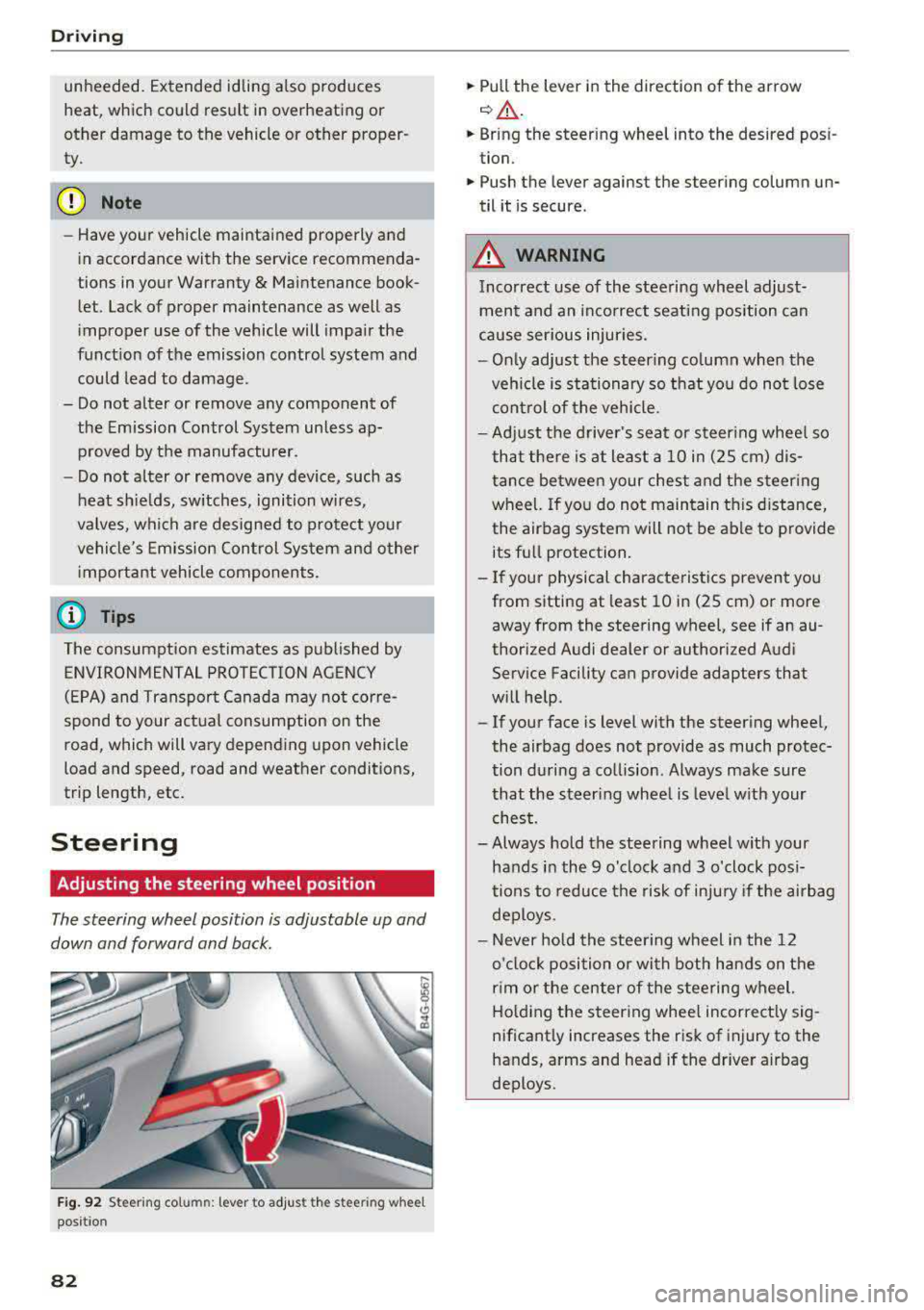
Adjusting the steering wheel position
The steering wheel position is adjustable up and
down and forward and back.
Fig. 92 S tee rin g col umn : le ver to adjus t the stee ring w heel
posit ion
82
.,. Pull the lever in the direction of the arrow
c::, A -
... Bring the steering wheel into the desired posi
tion .
.,. Push the lever against the steering column un
til it is secure .
_&. WARNING
Incorrect use of the steering wheel adjust
ment and an incorrect seating position can
cause serious injuries.
- Only adjust the steering column when the
vehicle is stationary so that you do not lose
control of the vehicle.
-
-Adjust the driver's seat or steering wheel so
that there is at least a 10 in (2S cm) dis
tance between your chest and the steering
wheel. If you do not maintain this distance,
the airbag system will not be able to provide
its full protection.
-If your physical characteristics prevent you
from sitting at least 10 in (2S cm) or more
away from the steering
wheel, see if an au
thorized Audi dealer or authorized Audi
Service Facility can provide adapters that
will help .
- If your face is level with the steering wheel,
the airbag does not provide as much protec
tion during a collision . Always make sure
that the steering wheel is level with your
chest.
- Always hold the steering wheel with your
hands in the 9 o'clock and 3 o'clock posi
tions to reduce the risk of injury if the airbag
deploys.
- Never hold the steering wheel in the 12
o'clock position or with both hands on the
rim or the center of the steering wheel.
Holding the steering wheel incorrectly sig
nificantly increases the risk of injury to the
hands, arms and head if the driver airbag
deploys .
Page 90 of 403

Driving
Messages in the instrument cluster display
Applies to: vehicles with Start/Stop system
Automatic start /stop deactivated: Please
re sta rt engin e manually
This message appea rs when specific conditions
are not met dur ing a stop phase. The Sta rt/Stop
system wi ll not be able to restart the engine . The
engine must be started with the
I S TAR T ENGINE STOP I button .
Automatic start /stop system: malfunction!
Function unavailabl e. Ple as e cont act Serv ic e
There is a malfunction in the Start/Stop system .
Drive the vehicle to an authorized Audi dealer or
author ized Service Facility as soon as poss ible to
have the ma lfunction corrected.
Electromechanical
parking brake
F ig. 97 Center console: park ing b rake
Your veh icle is equipped with an electromechani
cal parking brake
(D ¢ fig. 97. The parking brake
is designed to prevent the vehicle from rolling
un intent ionally and replaces the hand brake .
Setting/manu ally rele asing the parking
brake
~ Pull the(®) switch to set the parking brake. The
LED in the sw itch turns on . The
-(USA mod
els) ;II (Canada models) indicator light a lso
turns on in the inst rument cluste r display .
~ To release the parking brake manually, press
the brake o r accelerator pedal whi le the igni
tion is switched on and press
t h e®> switch at
the same time. The LED in the button and the indicator light in the display turn off.
88
Releasing the pa rking brake automatically
Requirement: the drive r's door must be closed.
~ To start d riving and release the pa rking brake
automatically, p ress the accelerator pedal as
usual.
In add ition to releas ing the parking brake auto
matically, other convenience and safety functions
are avai lab le w hen you sta rt
d rivi ng¢ page 89,
Starting to drive .
Preventing the automatic parking brake
release
The veh icle cou ld beg in ro lli ng u nintentionally,
depe nding on the hill o r if towing a trai le r.
~ To prevent the park ing brake from releasing au
tomatically, pull and hold
the(®) switch and
press the accele rator peda l. The pa rking brake
remai ns set a nd p revents the vehicle from roll
ing backwa rd.
~ You can release the®) switch again on ce you
are sure that you are giving enough driving
force to the wheels by pressing the accelerator
pedal.
Eme rgency braking function
You can use t he emergency b raking func tion in an
emergency situation, or i f the standard brake op
eration ma lfunctions or is disab led .
~ Pull and ho ld the(®) swi tch.
~ As soon as you re lease the®> switch or acceler -
ate, the braking stops.
P ull ing and ho ld ing
t h e®) sw itch wh ile driving
the ve hicle ac tiva tes the eme rge ncy brak ing func
tion. The ve hicle is bra ked at a ll four wheels by
activating the hydraulic b rake system . The brak
ing effect is sim ilar to heavy
braking ¢ ,A.
To reduce the risk of act ivat ing the emergency
braking by m istake, a w arning tone (buzzer)
sounds when
the© sw itch is p ulled . Emergency
braking stops as soon as
the(®) sw itch is released
o r the accelerator pedal is pressed .
Parking
~ Press the bra ke pedal to stop the veh icle.
~ Pull the®) swi tch to set the par king b rake .