instrument cluster AUDI A4 2018 Owner's Manual
[x] Cancel search | Manufacturer: AUDI, Model Year: 2018, Model line: A4, Model: AUDI A4 2018Pages: 403, PDF Size: 66.81 MB
Page 106 of 403

Assistance systems
Switching off completely
.. Press the leve r into posit ion @ (clicked into
place), or
.. Switch the ignition off.
The speed yo u sto red w ill be mainta ined if the
cru ise control has been switched off tempora rily.
To resume the stored speed, release the brake or
clutch pedal and pu ll the leve r into position
(D.
Sw itching the ign ition off will erase the stored
speed.
A WARNING
You shou ld only resume the stored speed if it
is not too high for existing traffic cond itions.
Otherwise you can increase the r isk of an acci
dent.
Camera-based traffic
sign recognition
Description
Applies to: veh icles with camera-based traffic sign recogni·
tion
Fig. 104 Inst rumen t cluster: traffic sign recognition
Fig. 105 Windsh ield: camera window fo r tra ffic sign recog
nit ion
104
Traffic sign recognition assists you when driving
by displaying detected speed limits or signs pro
hibiting passing in the instrument cluster display
¢ fig. 104. Within the limits of the system, the
legal speed limits in schoo l zones are detected
and displayed .
General information
Traffic sign recognition can detect standard
speed limit signs that are within the camera's vis
u al field. With assistance from navigation data,
detected speed limits are evaluated and shown in
the d isplay. The traffic s ign for the current de
tected speed lim it will blink in the display if you
exceed the warning threshold set in the Infota in
ment system
¢ page 1 OS.
Th e traffic sign recognition is subject to certa in
system limitat ions and may be unava ilable or on
l y part ially ava ilab le in the follow ing s ituations:
- when visibility is poor, such as in snow, rain,
fog or heavy spray
- when there is glare, for example from oncom
ing traffic or the sun
- at high speeds
- if the camera's visual
field¢ fig. 105 is covered,
for examp le by dirt or stickers. For information
on cleaning,
see¢ page 354
- if the traffic signs are completely or partially
covered, for examp le by trees, snow, dirt or
other vehicles
- if speed traffic signs do not conform to the
standards
- if traffic signs are damaged or bent
- if traffic signs are displayed on sign holders
with electronic signs
- if the traffic signs o r the config uration of the
road have changed (navigation data is no lon
ger up-to-date)
_& WARNING
Pay attention to traffic and the area around
your vehicle when traff ic sign recogn ition is
turned on . The traffic s igns installed on the
road always take precedence over the display .
The drive r is always responsible for assessing
the traffic situation.
-
Page 107 of 403

-Under some circumstances, traffic sign rec
ognition may not detect traffic s igns cor
rectly or detect them at all. As a result, the
system may not display the correct speed
limit or any speed limit.
- Traffic sign recognition does not adapt your
vehicle's speed to match the speed
limit!
-The display in the instrument cluster is
based on the units of measurement used for
speed in that country. As a result, the d is
play
50 in the instrument cluster can mean
either km/h o r mph, depending on the coun
try .
Operation
Applies to: ve hicles with camera-based traffic sign recogni
tio n
Fig . 106 In strument cluste r: add it iona l display
Accessing traffic sign recognition
• Select: the first tab > Traffic signs.
Setting a speed warning
You can set a warn ing threshold down to 10 mph
(lS km/h). The traffic sign fo r the current detect
ed speed limit w ill blink in the display if you ex
ceed the set threshold .
• Select in the Infotainment system: !MENUI but
ton
> Vehicle > left control button > Driver as
sistance
> Speed warning > Traffic sign based
warning.
Additional display
If a v iew other than the traffic sign recognition is
selected in the ins trument cluster display, the
speed limit will be shown in another display
co fig. 106 . The current applicable speed limit will
Assistance systems
be shown there, if possible within the limits of
the system.
(D Tips
- An additional indicator appea rs in the head
up display* .
- Your speed warning settings are stored au
tomatically and assigned to the remote con
trol key in use.
Messages
Appl ies to: vehicles with camera-based traff ic sig n recog ni·
tio n
f!ji Traffic sign recognition : currently unavaila
ble . Camera view restricted due to surroundings
Function currently unavailable. Camera view re
stricted due to surroundings
This message appears if the camera's visual field
is covered
<:::>page 104, fig . 105. The system w ill
switch itself off.
f!ji Traffic sign recognition: currently restricted.
See owner's manual
This message appears if there is a malfunction in
the navigation system, for examp le. The speed
limit display is limited, which increases the risk
of an incorrect d isplay .
lj Traffic sign based speed warning: currently
unavailable. See owner's manual
There is no warning when the set th reshold is ex
ceeded.
No traffic sign information available
There is no valid navigation data and do speed
li mits were detected . Or there is a recommended
speed but the re is not a speed limit (for examp le
driv ing on and off the expressway).
Malfunction! See owner's manual
The system cannot guarantee correct function
and is switched
off. See an authorized Audi deal
er or authorized Audi Service Facility for assis
tance .
Function not available in this country
105
Page 108 of 403

Assistance systems
The vehicle is in a country where the function is
not available.
Lap timer
Introduction
App lies to: ve hicles w ith la p timer
You can measure and analyze lap times with the
lap timer in the display.
Opening the lap timer
~ Open the first Vehicle tab (trip computer) using
the
l
wheel.
~ Select on the multifunction steering wheel: left
control button
> Lap times.
Operating the lap timer
~ On the multifunction steering wheel, turn the
left thumbwheel
(J) <=> page 13 until the desired
menu item is displayed in the instrument clus
ter .
~ Press the left thumbwheel to confirm the selec
tion.
_& WARNING
Your focus should always be on driving your
vehicle safely. As the drive r, you have com
plete responsibility for safety in traffic. Only
use the functions s uch as the lap timer in such
a way that you always maintain comp lete con
trol over your vehicle in all traffic situations.
@ Tips
You can retrieve information from the trip
computer while the lap timer stopwatch is running.
Lap times and timing
A ppl ies to: ve hicles w ith la p timer
Requirement: the lap timer must be open
<=> page 106.
Timing laps
~ To start timing manually, se lect Start lap 1 in
the menu.
106
~ T o start timing automatically as soon as you
begin to drive, select
Start lap 1 by driving off
or Start by driving off i n the menu.
~ To measure the lap time, select New lap in the
menu. This starts timing the next lap at the
same time.
After completing a lap, the difference between
the last lap and the previous best lap time will be
indicated with
a"-" or" +".
Pausing timing and displaying a split time
~ To insert a pause m, select Pause in the menu.
~ To resume timing, select Resume in the menu.
~ To display a split time, select Split time in the
menu. The split
time (~] appears for approxi
mately 10 seconds in the instrument cluster.
The timing of the current lap continues.
Resetting timing
~ Using the multifunction steering wheel, select
Reset times in the menu.
(D Tips
- A maximum of 99 lap times can be meas
ured.
-If timing is paused, you can continue it later
even if you switch the ignition
off.
-Saved lap times cannot be individually de
leted from the total results.
-The saved lap timer values w ill remain after
switching the ignition
off.
Lap statistics
App lies to: vehicles wi th lap t imer
Displaying lap statistics
You can display the number of laps driven, the
fastest lap" +", the slowest
lap" -", and the aver
age time
"0" in the instrument cluster.
~ On the multifunction steering wheel, select the
left control button
> Lap statistics or Statis·
tics.
~ Turn the thumbwheel down or up to d isplay the
individual lap times.
~ To return to the lap timing that was begun,
press the left thumbwheel.
Page 109 of 403

a co .... N ,....
N .... 0 0
3 co
Resetting lap statistics
"'On the mult ifunction steering whee l, select:
the right contro l button
> Reset statistics .
(D) Tips
The lap statistics list the lap times for the last
30 laps. The fastest and slowest lap time out
of up to 99 measured laps are also displayed .
Predictive efficiency
assist
Descript ion
Applies to: vehicles with predictive efficiency assist
General information
The pred ictive eff ic iency assist helps the driver to
d rive w ith anticipation and therefore helps to
save fuel. The system accesses predictive trip da
ta (including speed limits, inclines and the radius
of curves) from the navigation system*. Informa
tion from the camera-based traff ic sign recogni
tion* is also applied to recognize traffic signs
r;;:;ipage 104.
The messages displayed depend on the naviga
tion data* being up-to-date and the correct iden
tification by the traffic sign recognition*.
When adaptive cruise contro l* is switched off,
the predictive efficiency assist only provides noti
fications without controlled interventions. When
adaptive cruise control* is switched on, the sys
tem responds to upcoming situations automati
cally.
Vehicles with adaptive cruise control*
Refer to predictive control c> page 115.
Indicator in the instrument cluster display
Predictive messages appea r in the instr ument
cluster display to show the driver the appropriate
time to coast when a situation ahead requires
you to drive at a lower speed.
The messages are only shown if the cr uise control
system* or adaptive cruise control* is switched
off .
Assistance systems
An additional indicator appears in the head-up
display* .
Symbol Meaning
Remove your foot from the acceler -
"
ator pedal to slow down, because
there is a situation ahead that re- quires a lower speed.
If you see Driver assistance in the instrument
cluster disp lay, the following symbols will indi
cate which situation the system is currently re
acting to.
Symbol Meaning
MPH
USA models:
Speed limit
km/h
Canada models:
speed limiter
_J!L Intersection
1:1
w
Traffic circle
If there are multiple s ituations, then these situa
tions w ill appear in order in the display.
.&, WARNING ~ -
Pay attention to traffic and the area around
your vehicle when the efficiency assist is
switched on. The driver is always respons ible
for assessing the traffic situation.
(D Tips
- The wording of the message may vary de
pending on the driving mode set in drive se
lect* c> page 133 and the current selector
lever position (automatic transmiss ion*).
No messages are displayed when in the S
selector lever position or in
Dynamic mode.
- When a route is planned using the naviga
tion system*, then the message feed is based on this route. Without route guid
ance, the system uses an assumed route fo r
the message feed.
- There will not be a message for every s itua
tion ahead, for example if there is not
enough distance remaining to react to the
situation.
107
Page 113 of 403

a co .... N ,....
N .... 0 0
3 co
In d ic at or ligh ts and messages in the instr ument
cluster display inform you about the current sit
uation and setting.
A n ad dit iona l in di ca tor appears in the head -up
d isp lay*.
Switching adaptive cruise control on
" Pull the lever toward you in to posi tion @
¢fig. 111.
Storing the speed and activating regulation
" To store the cu rrent speed , press the ISET ! but
ton
¢ fig . 111 . The stored speed is shown in the
speedomete r in the LED
line @ and appears
br iefly i n the status
line @¢fig . 112 .
"Applies to: vehicles with automat ic transmis
s ion: To acti va te the cont ro l when st ation ary,
also press the bra ke peda l.
Switching adaptive cruise control off
" Push the lever away from you in to posi tion @
u nti l it clicks into place. The message ACC:
off
appears.
@ Indicator lights
fll-Adaptive cru ise con trol is switched on . No
ve hicles are detected ahead. The stored speed is
m ain tained .
•-A vehicle d rivi ng a head was detected. The
adapt ive cr uise control system regulates the
speed and distance to the veh icle dr iv ing ahea d
a n d accelerates/brakes automatically .
• - Automatic transmission: adaptive cruise
control must be sw itched on . A veh icle was de
tec ted ahead . Yo ur vehicle is s tat io nary and w ill
n ot sta rt driving au tomatically .
tii-Automatic transmission : adaptive cruise
control must be sw itched on . No vehicles were
detected ahead . Your veh icle is stationary a nd
w ill no t start dr iv ing automa tica lly .
• -The automatic braking is not enough to
maintain a sufficient distance to a veh icle dr iv ing
ahead . You must
in tervene ¢ page 114, Driver
intervention request .
Assistance systems
© Instrument cluster display
If the Driver assistance di spl ay is not shown in
t h e instr ument cluster d isp lay, you can open it
u sing the m ultif unct ion steering whee l buttons
¢ page 13.
Ba sed on the gr aphic dis pla y, you can dete rmine
i f th e sys tem is maintain ing a d istance to the ve
hicle d riving ahead a nd what t hat distance is .
No vehicle -no vehicle was detec ted dr iv ing
ahe ad.
Silver vehicle -a vehicle was detected driving
ahea d.
Red veh icle -request for drive r interve ntion
¢ page 114.
The five distance bars on the gauge © represent
t h e set distance (refer
to ¢ page 113 for infor
mation o n how to change the d ista nce). If you
fall be low the selected d ista nce, the distance
bars become red from the bo ttom upwa rd.
.&, WARNING
Applies to: vehicles w ith automatic transm is
sion: If you pre ss t he
I SET ! butt on whe n driv
i ng at speeds below 20 mp h (30 km /h) , the
ve hicle accelerates au toma tic ally up to 20
mph ( 30 km/h), which is the m inimum speed
that can be set.
@ Tips
- If you swit ch the ig nitio n or the ad ap tive
c ruise cont rol sys tem o ff, the set s peed is
erased fo r safety reasons .
- The e lec troni c sta biliz ation control ( ESC)
and the an ti- slip -regul ation (AS R) are auto
matically switc hed on when t he adaptive
cruise cont rol is switched on.
111
Page 115 of 403

-Press the brake pedal to slow your vehicle
down.
A WARNING
If the message ACC: automatic go1> appears,
your vehicle will start driving even if there is an obstacle between your vehicle and the ve
hicle driv ing ahead. This increases the risk of
an acc ident .
{!) Tips
If adaptive cruise control is active and your
vehicle does not start driving even though the
message
ACC: automatic go1 l appears, you
can start driving by tapping the accelerator
pedal.
Interrupting cruise control
A pplies to: ve hicles with Audi adaptive cruise contro l
Fig. 115 Selector lever
Requirement: adaptive cruise control must be
switched on.
Overriding cruise control
.. To accelerate manually, pull the lever toward
you into position @and hold it there or press
the accelerator pedal. The message
ACC: over
ride
appears .
.. To resume cruise control, release the lever or
take your foot off the acce lerator pedal.
Canceling cruise control while driving
.. Move the lever into position @. The message
ACC: standby appears . Or
.. Press the brake pedal.
ll Th is is not ava ilab le in some coun tries.
Assistance systems
.. To resume the stored speed, move the lever in-
to position @.
Automatic transmission: canceling cruise
control when stopped
.. Push the lever away from you into position @.
The message
ACC: standby appears.
.. To resume cruise control, press the brake peda l
and pull the lever toward you into position @.
A WARNING
It is dangerous to activate cruise control and
resume the stored speed when the current
road, traffic or weather cond itions do not per
mit this . This increases the risk of an accident.
Setting the distance
App lies to: vehicles wit h Audi adapt ive cr uise control
,
0
Fig. 116 Operating lever: setting the distance
.,. Tap the switch to display the current set dis
tance
qfig . 116.
.,. To increase or reduce the d istance in incre
ments, tap the switch upward/downward
again. The distance between the two vehicles
w ill change in the instrument cluster display.
When approaching a vehicle driving ahead, the
adaptive cruise control system brakes to match
that vehicle's speed and then adjusts to the set
distance. If the vehicle driving ahead accelerates,
then the adaptive cruise control will a lso acce ler
ate up to the speed that you have set .
T he higher the speed, the greater the distance
¢.& .The Distance 3 setting is recommended .
113
Page 117 of 403

Predictive control
(efficiency assist)
Description
A pp lies to: ve hicles with Audi adaptive cruise co ntro l an d pr e·
di ctive efficiency assist
Fig. 118 Instrument cluster: pred ictive control
General information
The predictive control 1l uses the map informa
tion from the navigation system in order to react
proact ively when driv ing. Information from the
camera-based traffic sign recognition* is also ap plied to recognize traffic signs
<:!)page 104.
When coming up to areas with speed limits or
changes in the course of the road (such as curves,
intersections or traffic circles), the system brakes
automatically and then accelerates back up to
the set speed .
When adaptive cruise control is switched off, the
system only provides notifications without con
trolled
interventions ¢ page 107.
The driver can override the predictive control at
any time by pressing the accelerator or brake
pedal. If the system changes the vehicle speed to
adapt to speed limits, you can change the speed
using the
lever ¢ page 112, fig. 113 .
Always switch off the predictive control in
the following situations:
- When increased attention is needed from the
driver .
- In poor weather conditions such as snow or
heavy rain.
0 -When driving on roads in poor condition . al ~ N
" N ~ 0 0
~ ll This is not ava ila ble in some co untrie s. al
Assistance systems
Indicator in the instrument cluster display
When switching on the adaptive cruise contro l
for the first time, the message
ACC: 11D + B ac
tive
in the instrument cluster indicates the avail·
ability of the predictive control.
T he symbol appears when the system
is regulating the speed to match a speed limit . If
this is the case, the system is reg ulating a speed
of 50 mph (80 km/h). The speed is then taken
over by the adaptive cruise control. The speed in
the speedometer LED ring adjusts to the speed to
be maintained
¢ page 110, fig . 112. The ..
¢ fig . 118 symbo l appears when there is an adap
tation to the route ahead .
If you are in the Driver assistance display in the
instrument cluster, then the following symbols
will indicate which occurrence the system is cur
rently responding to:
Symbol Meaning
MPH USA
models:
Speed limit
km/h
Canada models:
speed limiter
Ir
Curve
_l!L
1i1
Intersection
~ ): Traffic c ircle
A WARNING
- Read the warnings on ¢.&. in General infor
mation on page 109
and on¢ .&. in Descrip
tion on page 104 .
- Pay attention to traffic and the area around
your veh icle when predictive control is
switched on. The driver is always responsi
ble for assessing the traffic situation.
- There is an increase in the risk of an acci
dent, because the system does not consider
"right of way" rules and also does not re-
spond
to traffic lights. ._.
115
Page 123 of 403

-Activating the emergency flashers l).
The message Audi pre sense . ¢ page 121,
fig. 122 will warn you abo ut the danger.
Aud i drive select*: the trigger t imes are adjusted
depending on the mode selected.
Audi pre sense front
Description
Applies to: veh icles with Audi adaptive cruise control
Within the limits of the system, pre sense front
can warn you of impending collisions and initiate
the corresponding braking maneuvers or the sup porting measures when avoiding a collision .
If detected in time, the system can rank the dan
gerous situation as critical if a vehicle driving
ahead brakes suddenly, if your own vehicle is ap
proaching a significantly slower vehicle at high
speed or when there is an oncoming vehicle dur
in g a turning maneuver .
If detection is not possible, then pre sense front
does not react .
Warnings
Applies to: ve hicles with Audi adaptive cruise control
Fig. 122 In strument cluste r: approac h warning
General information
The system recognizes various dangerous situa
tions . The
early warning occurs if:
-a vehicle driving ahead brakes suddenly,
-your own vehicle approaches a significantly
a s lower vehicle or stationary vehicle in the direc-co
;::; tion of travel. ,....
N .... 0 0
3 1) This is not availa ble in some co untrie s. co
Assistance systems
When this warning occurs, it may only be possi
ble to avoid a collision by swerving or braking
strongly. The message
Audi pre sense.
¢ fig. 122 and a warning tone will warn you
about the danger .
If you do not react enough or not at all to a dan
gerous situation that was detected by the sys
tem, pre sense front provides assistance by ap plying the brakes .
If a collision is imminent, the system will first
provide an
acute warning by braking sharply. You
will also warned by an indicator in the instrument
cluster
display¢ fig. 122. If you do not react to
the acute warning, pre sense front can brake with i ncreasing fo rce within the limits of the
system
1>. This reduces the vehicle speed in the
event of a collision. At low vehicle speeds, pre
sense front can in itiate a complete deceleration
shortly before a collision with a vehicle driving
ahead
l). If pre sense front determines that you
are not braking strongly enough when a collision
is imminent, it can increase the braking force.
T he following functions trigger in conjunction
with pre sense basic/rear at corresponding vehi
cle speeds:
-Reversible tensioning of the front safety belts.
-Closing the windows and sunroof* .
-Inflating the side bolsters* on the seat back-
rest .
Audi drive select*: depending on the mode se lected, the reversible belt tensioner, the closing
of the w indows and sunroof*, and the inflating of
the side bolsters* on the seat backrest may not be active.
Evasive steering support
Evasive steering support helps you to steer the
vehicle around an obstacle in a critical situation .
If you avo id an obstacle after the acute warning,
then the evasive steer ing support ass ists you by
applying slight stee ring adjustment to correct
.,.
121
Page 129 of 403
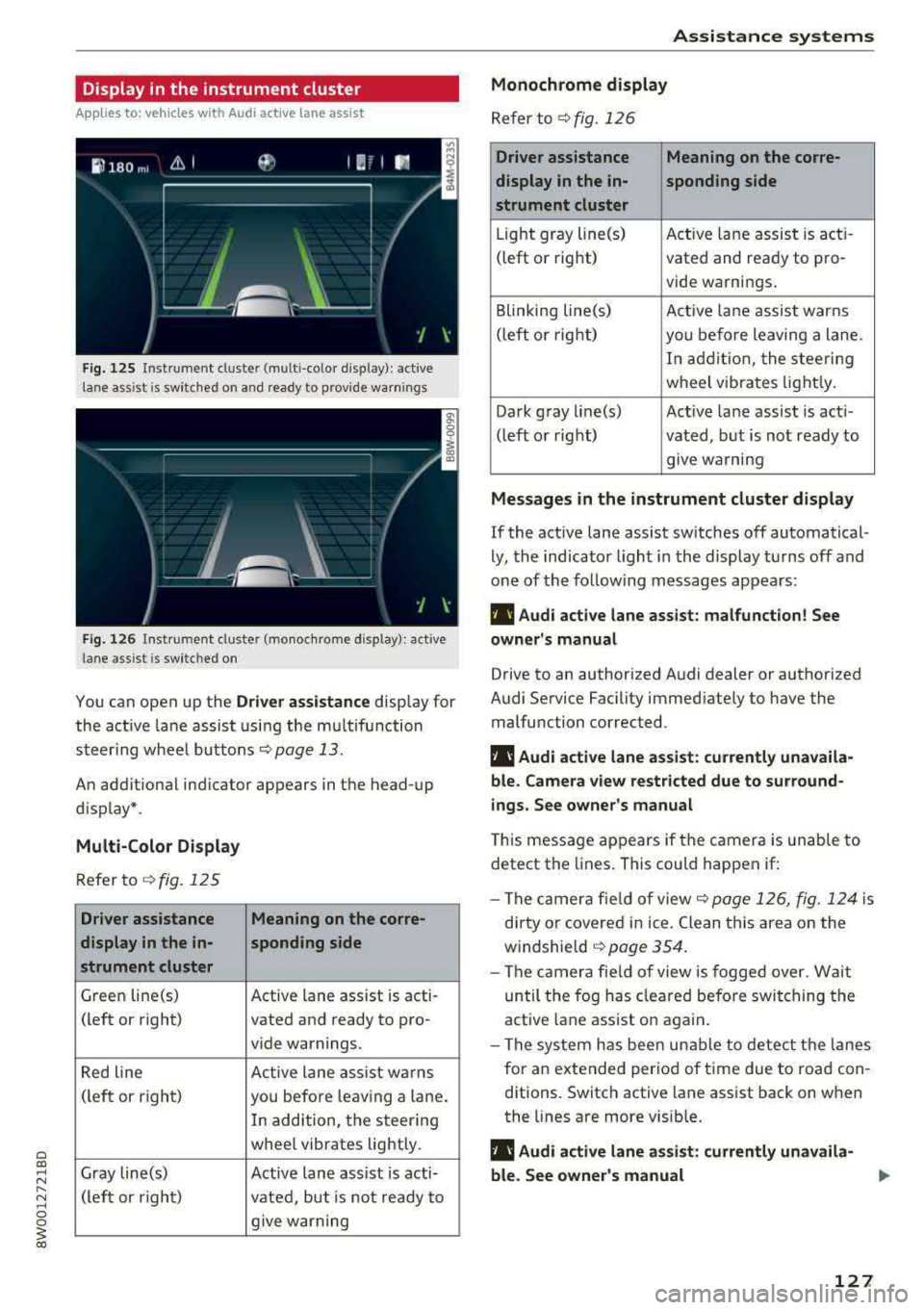
Display in the instrument cluster
App lies to: ve hicles with Audi active lane assist
Fig. 125 Instrument cluster (multi-color display): ac tive
lane ass ist is sw itched on and ready to provide warnings
Fig. 126 Instrument cl uster (monoc hrome display): active
lane ass ist is switched on
You can open up the Dr ive r assistance display for
the act ive lane assist using the multifunction
steer ing whee l buttons
c::> page 13.
An additional ind icator appears in the head-up
display*.
Multi-Color Display
Refer to¢ fig. 125
Driver assistance Meaning on the corre-
display in the in-sponding side
strument cluster
Green line(s) Active lane assist is acti -
(left or right) vated and ready to pro-
vide warnings.
Red line Active lane assist warns
(left or right) you before leav ing a lane.
In addition, the steering
whee l vibrates lightly.
Gray line(s) Active lane assist is acti-
(left or right)
vated, but is not ready to
give warning
Assistance systems
Monochrome display
Refer to¢ fig. 126
Driver assistance Meaning on the corre-
display in the in-
sponding side
strument cluster
Light gray line(s) Act ive lane assist is acti-
(left o r right) vated and ready to pro-
vide warnings .
Blinking line(s)
Active lane assist warns
(left or right)
you before leaving a lane.
In addition, the steering
wheel vibrates lightly.
Dark gray line(s) Active lane assist is acti-
(left or right) vated, but is not ready to
. . give warning
Messages in the instrument cluster display
If the active lane assist switches off automatical
ly, the indicator light in the display turns off and
one of the following messages appears:
fl! Audi active lane assist: malfunction! See
owner's manual
Drive to an authorized Audi dealer or authorized
Audi Service Facility immediately to have the
malfunction corrected.
fl! Audi active lane assist: currently unavaila
ble . Camera view restricted due to surround
ings. See owner's manual
This message appears if the camera is unable to
detect the lines. This could happen if:
- The camera fie ld of view
c::> page 126, fig. 124 is
dirty or covered in ice. Clean this area on the
windshie ld
¢ page 354.
- The camera field of view is fogged over. Wait
until the fog has cleared before switching the
active lane assist on again.
- The system has been unable to detect the lanes
for an extended period of time due to road con
ditions. Switch active lane assist back on when
the lines are more visible.
fl! Audi active lane as sist: currently unavaila
ble. See owner's manual
127
Page 135 of 403

a co .... N ..... N .... 0 0
3 co
(D Note
Also read the informat ion in c::> (D in General
information on page 130 .
@ Tips
-You can can ce l the au toma tic b rake activa
tion w ith increasing braki ng fo rce if you ap
p ly the brakes yourse lf or accelerate cons id
erab ly.
-In some situations, rea r cross-traffic assist
may warn yo u even if there is no cross t raffic
i n a cr itical area, for examp le when back ing
i nto a parki ng space or maneuver ing.
-The rea r cross-traffic ass ist also switches of f
when you switch off the ESC.
-The rea r cross traffic assist switc hes on and
off thro ugh t he pa rking aid
c::>page 136.
-The system is not available when towin g a
trailer.
Messages
App lies to: ve hicles with Audi side assist
A message appears in the instrument cluster dis
p lay if the s ide assist switches off automatically .
@t Audi side assist: malfunction! Please contact
Service
@t Audi side assist and exit warning : malfunc
tion! Please contact Service
The system c annot guarantee th at it will detec t
ve hicl es co rrectly and i t has switched off. The
sensors have been moved o r are faul ty. Have the
system checked by an a uth orized Audi dea ler or
author ized Audi Service Facility soon.
@t Audi side a ssist: currently unavailable. Sen
sor vision restricted due to surround ings . See
owner 's manual
at Audi side a ssis t and exit warning : currently
unavailable. Sensor vision restricted due to sur roundings
The rada r se nso r vis io n is impaire d. T he ar ea in
fr on t of the senso rs must no t be covered by b ike
ra ck s, st ick ers, leaves, snow or any othe r o bj ects.
C lea n the area i n front of the senso rs, if necessa
ry
c::> page 129, fig . 130 .
Assistance systems
@t Audi side assist : currently unavailable. See
owne r's manual
at Audi side assist and exit warning: currently
unavailable. See owner's manual
S id e assist ca nnot be sw itched on at this time be
c a u se the re is a ma lfun ction ( for ex ample, the
ba ttery ch arge leve l may be too low).
@t Audi side assist: unavailable in towing mode
(it Audi side assist and exit warning: currently
unavailable. Towing mode
Sid e assist switches off automatically when the
electrica l connecto r in the factory-installed t rail
er hitch is connected. There is no guarantee the
system will sw itch off when using a retrofitted
t railer h itch . Do not use side assist and the ex it
warning w hen tow ing a traile r.
111 Rear parking aid: obstacle detection restrict
ed
T he rear cross-traffic ass ist is not available. E i
t h er the ESC is sw itched off, or the rada r senso rs
may be cove red by a bike rack, sticke rs, leaves,
snow or other objects. Switc h the ESC on , or
clean the area in front of the senso rs if necessary
c::> pag e 129, fig . 130 . If thi s m essage continues
to be displayed, dr ive immedia tely to an author
i z ed Audi de aler or author ized Audi Se rvice Facili
ty to ha ve the mal fu ncti on re paire d.
Audi drive select
Introduction
Applies to : vehicles with Aud i drive se lect
Drive select makes it possib le to exper ience dif
ferent types of ve hicle sett ings in one ve hicle .
T he driver can select
Offroad *, Comfort , Auto
and Dynamic mod es in the Info tainm ent system
t o swi tch b etwee n a sp orty and a comfo rtable
dr iv ing mo de, fo r ex ample . In t he
Individual
mode, the settings can be a djusted to you r per
sona l p references . This makes it possible to com
bine settings such as a sporty engine setting with
li ght steer ing.
133