warning AUDI A4 2020 Owners Manual
[x] Cancel search | Manufacturer: AUDI, Model Year: 2020, Model line: A4, Model: AUDI A4 2020Pages: 296, PDF Size: 80.45 MB
Page 162 of 296

Telephone
Using the Audi phone
box
(eee eleurl ela)
Applies to: vehicles with Audi phone box
Fig. 137 Front center console: Audi phone box with con-
nections
Depending on vehicle equipment, you may be
able to use the following functions with the Audi
phone box:
— Make phone calls using the vehicle’s exterior
antenna
— Charge a mobile device using the USB input
— Charge a mobile device wirelessly
— Reminder signal
Limitations
In some situations, the functions of the Audi
phone box may be limited or temporarily unavail-
able. For example, this may happen if
— There is one more than mobile device in the
Audi phone box
— The mobile device is located in a bag or a pro-
tective case
— There are objects between the Audi phone box
and the mobile device
— The mobile device is not positioned in the cen-
ter of the Audi phone box
ZA WARNING
Loose objects can be thrown around the vehi-
cle interior during sudden driving or braking
maneuvers, which increases the risk of an ac-
cident. Store objects securely while driving.
160
Making phone calls using the exterior
antenna
Applies to: vehicles with Audi phone box
With the Audi phone box, you can make calls us-
ing the exterior antenna on the vehicle. Using the
external antenna helps when there is a low signal
and also provides better reception quality.
Requirement: the ignition must be switched on.
> To make phone calls through the vehicle's exte-
rior antenna using your mobile device, lay your
device on the phone symbol @) > page 160,
fig. 137 in the center of the Audi phone box
with the display facing up.
ema a mem mesma
Applies to: vehicles with Audi phone box
You can charge your mobile device using a special
USB adapter with the Audi phone box
=> page 196.
Requirement: the ignition must be switched on.
> To charge your mobile device via USB, connect it
to the USB input @ > page 160, fig. 137.
@ Tips
— You can purchase a USB adapter from an au-
thorized Audi dealer or authorized Audi
Service Facility, or at specialty stores.
— Audi recommends using Audi Genuine Ac-
cessories. Audi has verified their reliability,
safety, and suitability.
Charging a mobile device wirelessly
Applies to: vehicles with Audi phone box
You can charge your mobile device wirelessly us-
ing the Audi phone box.
Requirement: the ignition must be switched on.
Your mobile device must meet the Qi standard.
> Make sure that the wireless charging function is
switched on:
> Applies to: MMI: Select on the home screen:
SETTINGS > General > Reminder signal and
mobile device charging.
Page 163 of 296
Telephone
> Switch the Mobile device wireless charging
function on.
> To charge your mobile device wirelessly, lay it
on the @ symbol @ = page 160, fig. 137 in the
center of the Audi phone box with the display
facing up.
Z\ WARNING
— The mobile device may become hot during
wireless charging. Pay attention to the tem-
perature of your mobile device and be care-
ful when removing it from the Audi phone
box.
—An alternating magnetic field is used for
wireless charging. Maintain a minimum dis-
tance of approximately 2.4 in (6 cm) to the
Audi phone box charging plate. The thresh-
olds for prolonged exposure at this distance
comply with ICNIRP1998. Therefore, inter-
actions such as irritation of sensory organs,
malfunctions of active implants (such as
pacemakers, infusion pumps, or neurosti-
mulators) or effects on passive implants
(such as prosthetic limbs) is highly unlikely.
If you have an implant, consult a medical
specialist if you have any questions. You can
also switch the function for wireless charg-
ing in the Audi phone box on and off. You
can continue to charge your mobile device
using a cable connection.
@) Note
Applicable to U.S.A.
Operation of the Audi phone box is subject to
the following requirements of the Federal
Communications Commission:
— You MUST cease operating this device im-
mediately if requested by the FCC or a li-
censed wireless service provider.
— WARNING: E911 location information may
not be provided or may be inaccurate for
calls served by using this device.
CG) Note
Applicable to Canada
In Canada, operation of a Zone Enhancer,
such as an Audi Phone Box, is subject to the
following requirements of the Innovation,
Science and Economic Development Canada
(ISED):
— This is a CONSUMER device.
— BEFORE USE, you MUST meet all require-
ments set out in CPC-2-1-05.
— You MUST operate this device with approved
antennas
and cables as specified by the
manufacturer. Antennas MUST NOT be in-
stalled within 20 cm of any person.
— You MUST cease operating this device im-
mediately if requested by ISED or a licensed
wireless service provider.
— WARNING: £911 location information may
not be provided or may be inaccurate for
calls served by using this device.
@ Tips
—The maximum charging output is 5 W.
—The charging time and temperature will vary
depending on the mobile device being used.
Mobile device reminder signal
Applies to: vehicles with Audi phone box
When the device reminder signal is switched on,
you will be notified that your mobile device is still
in the Audi phone box when you leave the vehicle.
— This is a CONSUMER device.
— BEFORE USE, you MUST REGISTER THIS DE-
VICE with your wireless provider and have
your provider’s consent. Most wireless pro-
viders consent to the use of signal boosters.
Some providers may not consent to the use
of this device on their network. If you are
Requirement: your mobile device must be located
in the Audi phone box (if Qi capable) or connected
to the Audi music interface with a USB adapter,
and the Audi smartphone interface must be ac-
8W1012721BB
unsure, contact your service provider.
— You MUST operate this device with approved
antennas
and cables as specified by the
manufacturer. Antennas MUST be installed
at least 20 cm (8 inches) from any person.
tive or your iPhone must be connected to the
MMI via Bluetooth and charging using a USB
adapter
connected to the Audi music interface.
161
Page 167 of 296
8W1012721BB
Telephone
Additional call options
Press More.
Depending on the mobile device being used and
the type of connection, the following options
may be available:
Transfer call to mobile device
Transfer the current call to your mobile device.
Switch to hands-free mode
Transfer the current call from your mobile device
to the MMI.
Add call
You can start a new call. The current call will be
put on hold.
Remove conf. member
You can remove conference call members individ-
ually when a conference call is active.
Microphone input level
You can adjust the input level of the microphone
using the slider.
@) Tips
The call waiting function must be activated in
your mobile device to be alerted about an in-
coming call during an active call.
Making an emergency call
Applies to: vehicles with telephone
Requirement: a mobile device must be connected
to the MMI.
>» Applies to: MMI: Select on the home screen:
PHONE > Dial number > the local emergency
call number (for example, 911) > Dial.
Z\ WARNING
— Because your phone works with radio sig-
nals, a connection cannot be guaranteed un-
der all circumstances. Do not rely on only
your phone when it comes to essential com-
munication (such as during a medical emer-
gency).
— Always follow the instructions given by the
emergency personnel during an emergency
call and only end the call when they instruct
you to do so.
Settings
Phone settings
Applies to: vehicles with telephone
> Applies to: MMI: Select on the home screen:
PHONE > ©}.
The following options may be possible, depend-
ing on your mobile device:
— Decline with text message
— Edit voicemail number
Switching between two mobile devices
Requirement: phone 1 and phone 2 must be con-
nected to the MMI.
Switch telephones: the device name of the avail-
able mobile device is displayed. You can switch
the phone by pressing the button.
Ringtone and volume settings
— Ringtone and message volume: you can adjust
the volume using the slider.
— Ringtone: select a ringtone from the list.
— Microphone input level: you can adjust the in-
put level of the microphone using the slider.
Car phone or data module serial number
Applies to: vehicles with car phone/data module
The serial number (IMEI) will be displayed.
Directory settings
Applies to: vehicles with telephone
> Applies to: MMI: Select on the home screen:
PHONE > Contacts > ©.
Switching between two mobile devices
Requirement: telephone 1 and telephone 2 must
be connected.
Switch telephones: the device name of the avail-
able mobile device is displayed. You can switch
the phone by pressing the button.
165
Page 171 of 296
8W1012721BB
Audi connect
Audi connect
General information
Applies to: vehicles with Audi connect
Depending on the country and the vehicle equip-
ment, the following functions may be available:
— Audi connect Infotainment
— Audi connect vehicle control
You can also find more information on Audi con-
nect
online at www.audi.com.
ZA WARNING
—To reduce the risk of an accident, only use
Audi connect services and the Wi-Fi hotspot
only if the traffic situation permits it. Read
and follow the guidelines provided in
=> page 18, Traffic safety information.
— It is only safe to use tablets, laptops, mobile
devices and other similar devices when the
vehicle is stationary because, like all loose
objects, they could be thrown around the in-
side of the vehicle in a crash and cause seri-
ous injuries. Store these types of devices se-
curely while driving. Also read the warnings
in the chapter > page 67.
©) Note
— The connection costs of Audi connect Info-
tainment services are included in the price
of Audi connect Infotainment during the
subscription period with some exceptions.
Please note that there may be additional
charges when using some services. For ex-
ample, this applies to online radio/
podcasts, additional online data, or for In-
ternet connections and services that use the
Wi-Fi hotspot. Depending on the country,
data plans may need to be purchased for
these Internet connections and services
= page 173. For additional information, see
my.audi.com.
— In certain situations, the Wi-Fi hotspot data
connection may be established as a replace-
ment for the SIM card on your Wi-Fi device.
This feature depends on the configuration
of your Wi-Fi device and operating system.
This could result in fees depending on your
mobile phone service provider, especially if
you are using this feature while abroad. A
flat rate data plan is strongly recommend-
ed. For more information, contact your mo-
bile phone service provider or refer to the
owner's manual for your Wi-Fi device.
— You are responsible for all precautions taken
for data protection, anti-virus protection,
and protection against loss of data on mo-
bile devices that are used, for example, to
access the Internet through the Wi-Fi hot-
spot.
— In areas with poor GPS reception or outside
the coverage range of the respective mobile
phone service provider, some functions
and/or services may not be available, it may
not be possible to send or receive data, or
functionality may be limited.
@) Tips
— The availability of services depends on the
subscription.
— AUDI AG provides access to services from
third party providers. Permanent availability
cannot be guaranteed, because that de-
pends on the third party provider.
— Use of the most up-to-date mobile network
standard is not available in every country.
Contact an authorized Audi dealer or au-
thorized Audi Service Facility or your mobile
phone service provider for additional infor-
mation.
— Availability, scope, providers, screen display,
and costs of services may vary depending on
the country, model, model year, end device
and rates.
Audi connect
Infotainment
Applies to: vehicles with Audi connect Infotainment
With Audi connect Infotainment services, online
information is transmitted directly to the vehicle.
An Internet connection is required to use Audi
connect Infotainment. Depending on the country
and vehicle equipment, the Internet connection
169
>
Page 172 of 296
Audi connect
may be established using an embedded SIM card
(eSIM).
ZA\ WARNING
Always follow the information found in > AV
in General information on page 169.
@) Note
Always follow the information found in >@ in
General information on page 169.
Embedded SIM card
Applies to: vehicles with Audi connect Infotainment and an
embedded SIM card
The data connection for Audi connect Infotain-
ment services is made through an embedded SIM
card (eSIM card) that is installed in the vehicle.
You can use the Audi connect Infotainment serv-
ices immediately.
@ Note
Always follow the information found in >@ in
General information on page 169.
Using a Wi-Fi hotspot
Applies to: vehicles with Wi-Fi hotspot
You can connect up to eight Wi-Fi devices (such
as smartphones) with the MMI Wi-Fi hotspot. If
the MMI is connected to the Internet
=> page 169, the connected Wi-Fi devices can also
use the MMI’s Internet connection.
Requirement: the ignition must be switched on. A
data plan must be available > page 173.
> Applies to: MMI: Select on the home screen:
SETTINGS > Connection settings > Wi-Fi.
Switch on the Wi-Fi hotspot.
> Applies to: MMI: Select on the home screen:
SETTINGS > Connection settings > Wi-Fi > Wi-
Fi hotspot settings. The access data for the Wi-
Fi hotspot is displayed. Switch on the visibility
of the Wi-Fi hotspot if necessary.
> Switch the Wi-Fi function on in your mobile de-
vice and connect it to the MMI Wi-Fi hotspot
using the authentication data that is shown.
> Follow any additional system prompts on your
Wi-Fi device if necessary.
170
Your device is successfully connected with the
MMI's Wi-Fi hotspot.
ZX WARNING
Always follow the information found in > A\
in General information on page 169.
() Note
Always follow the information found in 9@ in
General information on page 169.
Gi) Tips
For an explanation on conformity with the
FCC regulations in the United States and the
Industry Canada regulations, see > page 275.
Audi connect
Infotainment services
Applies to: vehicles with Audi connect Infotainment
Some Audi connect Infotainment services must
be configured through your personal myAudi ac-
count at my.audi.com before using them for the
first time.
(i) Tips
—A myAudi user must be logged in for some
Audi connect Infotainment services.
— Some Audi connect Infotainment services
must be activated at my.audi.com.
— Depending on the country, you may be able
to use the myAudi app or my.audi.com.
— For detailed information on configuration,
visit my.audi.com.
SYTav fa]
Applies to: vehicles with Audi connect Infotainment
Depending on the country and the vehicle equip-
ment, the following services may be available:
Weather information
Applies to: MMI
> Press WEATHER on the home screen.
Editing settings: Select: WEATHER > Bu.
Page 173 of 296
8W1012721BB
Audi connect
Adding a location: select: In a new city > enter
the desired location.
> To permanently set weather for a location,
press on a location.
> To always show the weather based on the vehi-
cle position, press on the crosshairs.
Requirement: route guidance must be active.
> To show the weather at the destination, press
on B.
Removing a location: select: Z > one or more lo-
cations or Select all > Delete.
Online news
» Applies to: MMI: Select on the home screen:
NEWS.
ZA\ WARNING
Always follow the information found in > A\
in General information on page 169.
@) Note
Always follow the information found in >@ in
General information on page 169.
Functions on demand
Displaying purchased functions
Applies to: vehicles with functions on demand or display of
purchased functions
Depending on the country and vehicle equip-
ment, you can purchase functions through a
myAudi account using functions on demand at
any time.
The following options are available for displaying
purchased functions in the vehicle.
> Applies to: MMI: Select on the home screen:
PURCHASES.
@ Tips
— Equipment installed at the factory may be
displayed as purchased functions.
)) Depends on the country and equipment. These services
are available for a limited time.
— At the time this manual was printed, func-
tions on demand was a planned function.
Functions on demand is not available in your
vehicle.
Audi connect vehicle
control services
Applies to: vehicles with Audi connect vehicle control
With Audi connect vehicle control services )), you
can utilize various services using the myAudi app
or online at my.audi.com.
ZA WARNING
Always follow the information found in > A\
in General information on page 169.
G) Tips
— Accessing specific data or controlling func-
tions remotely depends on the charge level
of the vehicle battery. Therefore, these
functions only have limited availability after
switching off the ignition.
— An eSIM card establishes the Internet con-
nection for Audi connect vehicle control
services. The costs for this are included in
the price of Audi connect vehicle control
services. The mobile phone network, for ex-
ample, must be available to use these serv-
ices.
Applies to: vehicles with Audi connect vehicle control
> Register at my.audi.com.
> Set the key user > page 27.
> Install the myAudi app on your mobile device
and log in with your access information.
G) Tips
It may also be necessary to enter your 4-digit
PIN set at my.audi.com when accessing some
Audi connect vehicle control services.
171
Page 174 of 296
Audi connect
Applies to: vehicles with Audi connect vehicle control
Depending on the country and the vehicle equip-
ment, the following services may be available:
Locking and unlocking the vehicle by remote
control
Requirement: the vehicle must be parked and the
ignition must be switched off.
This service allows you to unlock or lock your ve-
hicle.
Vehicle status report
This service transfers driver information system
data to a server. Depending on the vehicle equip-
ment, certain data may be accessed, such as the
remaining range or mileage. The values may dif-
fer from the values displayed in the vehicle.
Car Finder
This service transmits the parking location to a
server when the ignition is switched off. The vehi-
cle location, your location, or the route to your
vehicle can be displayed. The new parking loca-
tion cannot be determined with this service if the
vehicle is moved after shutting the vehicle off
and without switching the ignition on and off
again, for example if the vehicle is towed or sto-
len.
Online Audi service request
Requirement: the service must be activated on-
line at my.audi.com and an authorized Audi deal-
er or authorized Audi service facility must be se-
lected.
This service transmits service-relevant data to
your selected authorized Audi dealer or author-
ized Audi service facility. They will contact you
before your next service appointment.
Stolen Vehicle Locator
This service assists you in locating your vehicle if
it is stolen.
— Contact the police. You receive a Case ID.
— Call the service hotline and give your Case ID.
172
The service hotline will forward the established
data to the police. You receive the Audi Service
hotline number when you purchase your vehicle.
Alert services
Requirement: a key user must be set in the vehi-
cle > page 171.
You can adjust the following services in the
myAudi app. You will be notified by a push notifi-
cation and/or e-mail if an alarm is triggered for
your vehicle.
— Geofencing Alert: a permitted/prohibited zone
was entered.
— Speed Alert: a set speed was exceeded.
— Valet Alert: a set speed was exceeded or a per-
mitted/prohibited zone was entered.
Z\ WARNING
Do not ignore messages and warning or indi-
cator lights that turn on in the vehicle be-
cause of the information in the vehicle status
report. This could lead to break downs in on
the road, accidents and serious injuries.
G) Tips
For some services, you can select if you would
like to be notified with a push notification
and/or an e-mail.
Settings
Wi-Fi settings
Applies to: vehicles with Wi-Fi hotspot
Requirement: the ignition must be switched on.
> Applies to: MMI: Select on the home screen:
SETTINGS > Connection settings > Wi-Fi.
Depending on the country and the vehicle equip-
ment, the following functions may be available:
Wi-Fi
When the function is switched on, the MMI's Wi-
Fi hotspot is active and Wi-Fi devices can be con-
nected to the hotspot.
Page 176 of 296

Emergency call
Emergency call
Overview
Applies to: vehicles with emergency call function
An emergency call is a combination of data trans-
mission and a phone call. The data transmission
from your vehicle forwards important informa-
tion, such as the vehicle and position data, to the
emergency call center.
Depending on the country and the vehicle equip-
ment, the following functions may be available:
With the emergency call, you can call for help in
dangerous situations as quickly as possible. Use
this function when emergency help is needed
=> page 174.
— Audi connect emergency call (TPS emergency
call). This eCall system uses emergency call
centers operated by third party providers.
With online roadside assistance, you can request
assistance if there is a breakdown or a minor acci-
dent > page 175.
A WARNING
In areas with poor GPS reception or outside
the coverage range of the respective mobile
phone service provider, some functions and/or
services may not be available, it may not be
possible to send or receive data, or functional-
ity may be limited.
iG) Tips
You can find what data will be transferred at
www.audi.com.
Emergency call
Applies to: vehicles with emergency call function
The services are provided through a SIM card in-
stalled in the vehicle. Services are provided as-
suming that the mobile phone network required
for the installed SIM card is functioning and
available for use. The available services set by
Audi AG are only available within the mobile
phone network coverage area for the mobile
phone service provider selected by Audi AG.
174
G) Tips
— The emergency call function cannot be deac-
tivated in the Infotainment system settings.
— The availability of the TPS emergency call is
limited to certain times.
—The costs for call and data connections for
TPS emergency calls is included in the price
of the services.
Applies to: vehicles with emergency call function
ATPS emergency call can be made manually or
automatically > page 174.
Making an emergency call
Applies to: vehicles with emergency call function
Fig. 140 Front headliner: cover for the emergency call but-
ton
Manual emergency call
Requirement: the ignition must be switched on.
> Tap the cover (@) to open it.
> Press and hold the emergency call button until
the LED @) blinks. The emergency call will be
made.
> If the emergency call button is pressed by mis-
take, then press it again immediately and hold
it until the LED stays on. The emergency call
will be canceled.
Automatic emergency call
The vehicle electrical system initiates an auto-
matic emergency call under certain circumstan-
ces, for example if an airbag deploys. The LED in
the emergency call button 2) will blink. The
emergency call will be made. It cannot be can-
celed.
Page 177 of 296

8W1012721BB
Emergency call
LED status
— Green - The emergency call function is availa-
ble.
— Red - There is a malfunction in the emergency
call function. Contact an authorized Audi dealer
or authorized Audi Service Facility. Note the
messages about the availability of the emer-
gency function > page 175.
— Off - The emergency call function is not availa-
ble, perhaps because no network is available.
Warnings
If there is a critical system failure in the emer-
gency call systems, the vehicle occupants will re-
ceive the following warning: see > page 175, LED
status and > page 175, Messages.
@) Tips
If the emergency call is canceled due to a
poor connection, then the system automati-
cally tries to connect again.
Applies to: vehicles with emergency call function
& Emergency call function: malfunction! Lim-
ited availability. Please contact Service
If this indicator light turns on and this message
appears, the emergency call function is restrict-
ed. For example, you cannot call the emergency
call center, but data may still be transmitted un-
der certain circumstances. Drive to an authorized
Audi dealer or authorized Audi Service Facility im-
mediately to have the malfunction corrected.
& Emergency call function: malfunction! Func-
tion unavailable. Please contact Service
If this indicator light turns on and this message
appears, you cannot make an emergency call.
Drive to an authorized Audi dealer or authorized
Audi Service Facility immediately to have the
malfunction corrected.
D_ The availability of the services offered depends on the
country and may change in the future.
Online roadside
assistance
Applies to: vehicles with online roadside assistance
An online roadside assistance call )) is a combina-
tion of data transmission and a phone call. The
data transmission from your vehicle forwards im-
portant information to the Audi service center,
such as the vehicle and position data.
Calling online roadside assistance
Applies to: vehicles with online roadside assistance
[RAzZ-04a3|
2
Fig. 141 Front headliner: online roadside assistance but-
ton
Calling online roadside assistance
> Press the button @). The LED in the button
turns red. The online roadside assistance call
will be made.
> If you press the button @) by mistake, then
press it again. Or
> Applies to: MMI: Press Cancel or End call.
Audi incident assistance
A minor accident may be detected by the vehicle
electrical system. You are able to select between
online roadside assistance and an emergency call
in the MMI.
(i) Tips
If the roadside assistance call is canceled due
to a poor connection, then the call must be
made again.
175
Page 178 of 296
Navigation
Navigation
Opening navigation
Applies to: vehicles with navigation system
The navigation system directs you to your desti-
nation, around traffic incidents, and on alterna-
tive routes, if desired.
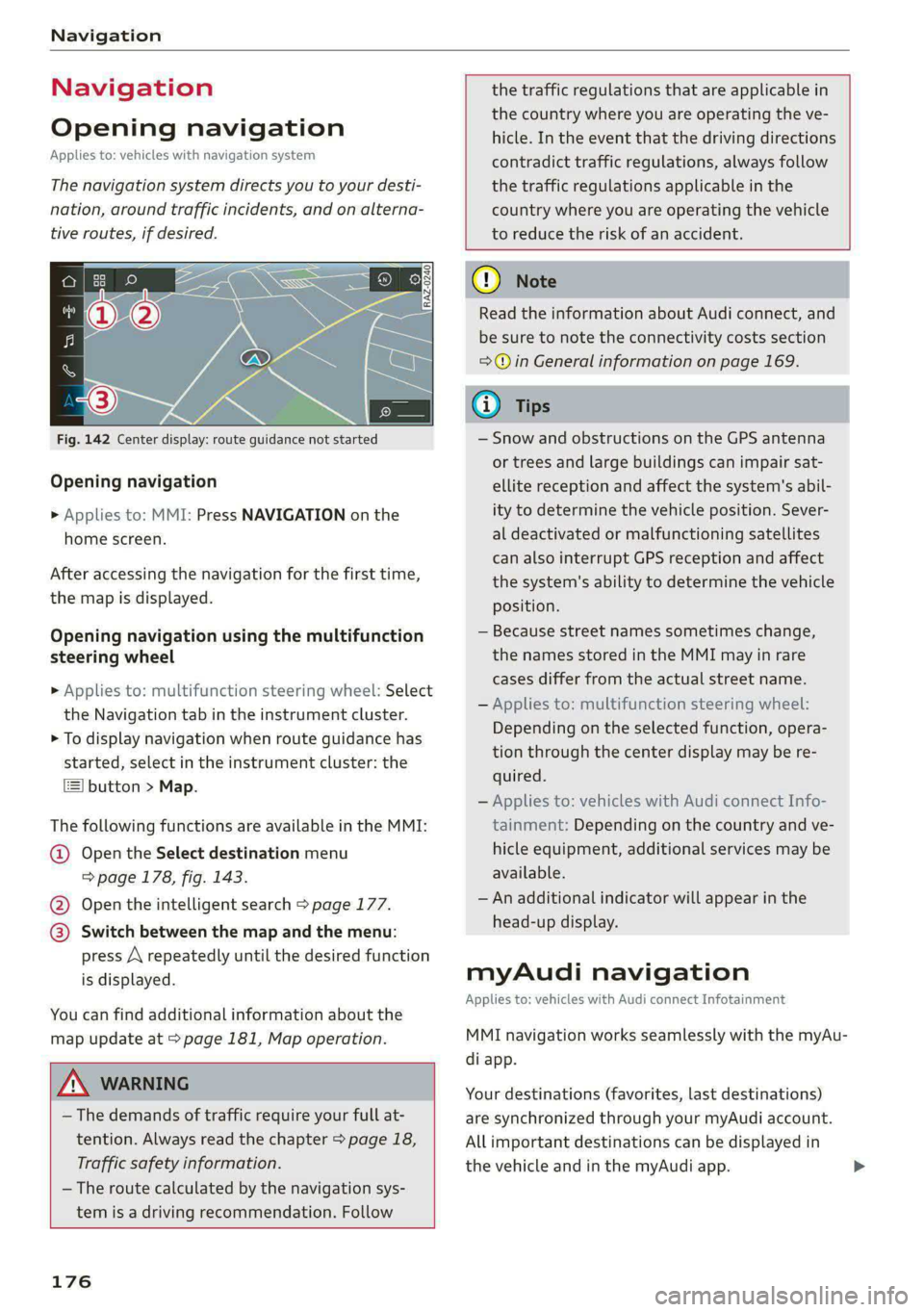
Fig. 142 Center display: route guidance not started
Opening navigation
> Applies to: MMI: Press NAVIGATION on the
home screen.
After accessing the navigation for the first time,
the map is displayed.
Opening navigation using the multifunction
steering wheel
> Applies to: multifunction steering wheel: Select
the Navigation tab in the instrument cluster.
> To display navigation when route guidance has
started, select in the instrument cluster: the
button > Map.
The following functions are available in the MMI:
@ Open the Select destination menu
=> page 178, fig. 143.
@ Open the intelligent search > page 177.
@ Switch between the map and the menu:
press A repeatedly until the desired function
is displayed.
You can find additional information about the
map update at > page 181, Map operation.
the traffic regulations that are applicable in
the country where you are operating the ve-
hicle. In the event that the driving directions
contradict traffic regulations, always follow
the traffic regulations applicable in the
country where you are operating the vehicle
to reduce the risk of an accident.
Z\ WARNING
— The demands of traffic require your full at-
tention. Always read the chapter > page 18,
Traffic safety information.
—The route calculated by the navigation sys-
tem is a driving recommendation. Follow
176
@ Note
Read the information about Audi connect, and
be sure to note the connectivity costs section
=>@ in General information on page 169.
@ Tips
— Snow and obstructions on the GPS antenna
or trees and large buildings can impair sat-
ellite reception and affect the system's abil-
ity to determine the vehicle position. Sever-
al deactivated or malfunctioning satellites
can also interrupt GPS reception and affect
the system's ability to determine the vehicle
position.
— Because street names sometimes change,
the names stored in the MMI may in rare
cases differ from the actual street name.
— Applies to: multifunction steering wheel:
Depending on the selected function, opera-
tion through the center display may be re-
quired.
— Applies to: vehicles with Audi connect Info-
tainment: Depending on the country and ve-
hicle equipment, additional services may be
available.
— An additional indicator will appear in the
head-up display.
myAudi navigation
Applies to: vehicles with Audi connect Infotainment
MMI navigation works seamlessly with the myAu-
di app.
Your destinations (favorites, last destinations)
are synchronized through your myAudi account.
All important destinations can be displayed in
the vehicle and in the myAudi app.