park assist AUDI A4 2020 User Guide
[x] Cancel search | Manufacturer: AUDI, Model Year: 2020, Model line: A4, Model: AUDI A4 2020Pages: 296, PDF Size: 80.45 MB
Page 106 of 296
Driving
If the message continues to appear, if the park-
ing brake cannot be released, or if the message
appears while driving, then stop the vehicle on
level ground and shift to “P”. Do not continue
driving. See an authorized Audi dealer or author-
ized Audi Service Facility for assistance.
ew Parking brake: malfunction! Please contact
Service
There is a malfunction in the parking brake. Drive
to an authorized Audi dealer or authorized Audi
Service Facility immediately to have the malfunc-
tion corrected. Do not park the vehicle on inclines
and shift to “P”.
f/f) Parking brake: warning! Vehicle parked
too steep
The braking force may not be enough to secure
the vehicle from rolling away. Park the vehicle in
a place with less of an incline.
| / Parking brake: applied
The parking brake is set. Press and hold the brake
pedal to release the parking brake.
Take over!
The vehicle cannot be held in place automatically.
Press the brake pedal to secure the vehicle from
rolling away unintentionally.
Special driving situations
Driving uphill and downhill
When driving uphill, downhill, or at high alti-
tudes, note the following information:
— Drive slowly and carefully.
— Do not try to turn around if you cannot safely
drive on an incline or hill. Instead, drive in re-
verse.
— When driving down hills, you can activate the
hill descent control if you press the brake pedal
while driving in “D” gear. The automatic trans-
mission will select a gear suitable for driving
down the hill and will attempt to maintain the
speed at which the vehicle was traveling at the
time the brake pedal was pressed. Press the
brake pedal if necessary. The hill descent con-
104
trol will switch off once the hill levels out or
you press the accelerator pedal.
— Utilize the engine braking effect when driving
downhill by selecting the “S” driving program
=> page 95. This especially applies when towing
a trailer. This reduces the load on the brakes.
— Brake in intervals and do not press the brake
pedal continuously.
— Use the hill hold assist > page 105.
A WARNING
— Only drive on inclines that your vehicle is de-
signed to handle. Do not exceed the hill
climbing ability of your vehicle. Your vehicle
could tip or slide.
— Do not drive at an angle on steep inclines
and hills. If your vehicle is about to tip, you
must immediately start steering in the di-
rection of the downward slope to reduce the
risk of an accident.
— Always be ready to brake when using the hill
descent control function.
Ooi LEAT)
Applies to: allroad
Your vehicle is not an offroad vehicle. Note the
following points when driving offroad:
— Drive slowly and carefully.
—To reduce the risk of underbody damage, pay
attention to the vehicle's ground clearance and
drive across raised areas of the ground with the
wheels on one side of the vehicle, instead of al-
lowing the center of the vehicle to pass over the
raised areas.
—To reduce the risk of becoming stuck, drive
through sandy or swampy areas at a steady
speed and without stopping, if possible.
If necessary, use the following functions:
— Audi drive select* mode offroad > page 106
— Hill descent assist* > page 105
— Limit ESC > page 110
ZX WARNING
Only drive in terrain that is suitable for the ve-
hicle and your driving ability. >
Page 116 of 296
Assist systems
Assist systems
General information
Safety precautions
ZA WARNING
— As the driver, you are always completely re-
sponsible for all driving tasks. The assist
systems cannot replace the driver's atten-
tion. Give your full attention to driving the
vehicle, and be ready to intervene in the
traffic situation at all times.
— Activate the assist systems only if the sur-
rounding conditions permit it. Always adapt
your driving style to the current visual,
weather, road, and traffic conditions.
— Keep in mind that Audi pre sense front can
apply the brakes unexpectedly. Always se-
cure any cargo or objects that you are trans-
porting to reduce the risk of damage or in-
jury.
— For the assist systems to be able to react
correctly, the function of the sensors and
cameras must not be restricted. Note the in-
formation on sensors and cameras
> page 115.
@ Tips
— Pay attention to applicable local regulations
relating to driving tasks, leaving space for
emergency vehicles, vehicle distance, speed,
parking location, wheel placement, etc. The
driver is always responsible for following
the laws that are applicable in the location
where the vehicle is being operated.
— You can cancel a steering or braking inter-
vention by the system, by braking or accel-
erating noticeably, steering, or deactivating
the respective assist system.
— Always check the assist systems settings be-
fore driving.
114
System limitations
ZA WARNING
— The use of an assist system cannot over-
come the natural laws of physics. A collision
cannot be prevented in certain circumstan-
ces.
— Warnings, messages, or indicator lights may
not be displayed or initiated on time or cor-
rectly, for example, if vehicles are approach-
ing very fast.
— Corrective interventions by the assist sys-
tems, such as steering or braking interven-
tions, may not be sufficient or they may not
occur. Always be ready to intervene.
G) Tips
— Due to the system limitations when detect-
ing the surrounding area, the systems may
warn or intervene unexpectedly or too late
in certain situations. The assist systems may
also interpret a driving maneuver incorrectly
and then warn the driver unexpectedly.
— The systems may not function as expected
in unusual driving situations, such as driving
offroad, on unpaved roads, on loose ground,
on inclines, or on grooves in the road.
— The systems may not function correctly in
unclear traffic situations, such as turning
lanes, exit ramps, construction zones, rises
or dips that obstruct visibility, intersections,
toll stations, or city traffic.
— The detection of the surrounding area can
be limited, for example by vehicles driving
ahead or by rain, snow, heavy spray, or light
shining into the camera.
— If accessories have been mounted on the
steering wheel, the ability for the steering
systems to react may be limited.
Page 118 of 296
Assist systems
surroundings directly and do not become dis-
tracted.
@) Note
— Obstacles may disappear from the measure-
ment range when approaching them, even if
they were already detected.
—Insome situations, the ability of the sen-
sors and cameras to detect and display cer-
tain objects may be limited.
— Objects located above the coverage area,
such as bumpers on parked cars, garage
doors that are partially open, or objects
that are hanging
— Low obstacles
— Narrow objects, such as barrier chains, fo-
liage, poles, or fences
— Projecting objects, such as trailer draw
bars
— Objects with certain surfaces and struc-
tures,
such as fabric
@) Tips
— The sensors and cameras and the areas
around them must not be obstructed be-
cause this can impair the function of the
systems that depend on them. Make sure
that the sensors and cameras are free of
snow, ice, and other deposits. Do not use
any accessories, stickers, or other objects
that extend into the range of the sensors
and cameras.
— On vehicles that have factory-installed li-
cense plate brackets on the front of the ve-
hicle, the brackets may only be replaced
with ones that are the same size and made
of the same material. Do not install any li-
cense plate brackets on the front of vehicles
that do not have factory-installed brackets.
Otherwise, the function of the system could
be impaired.
— The function of the sensors and cameras
may be limited when light and visibility con-
ditions are poor, for example when driving
into a tunnel, when there is glare, or when
there are reflective objects.
116
— External ultrasonic sensors, such as those in
other vehicles, can interfere with the sen-
sors.
— The coverage areas of the sensors > fig. 104
are diagrams and do not represent a true-
to-scale image of the sensor ranges.
— For an explanation on conformity with the
FCC regulations in the United States and the
Industry Canada regulations, see
=> page 275.
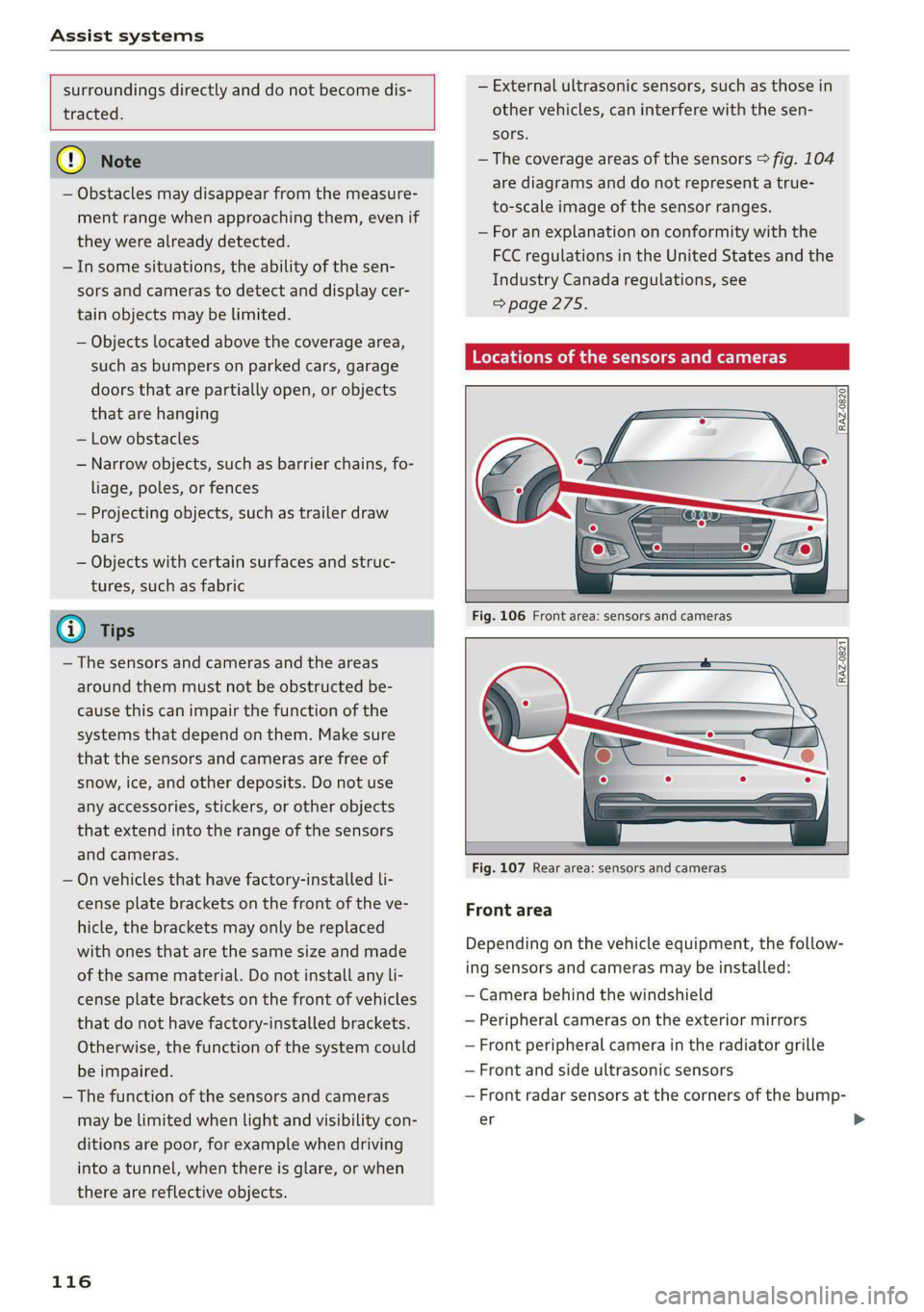
Locations of the sensors and cameras
Fig. 106 Front area: sensors and cameras
Fig. 107 Rear area: sensors and cameras
Front area
Depending on the vehicle equipment, the follow-
ing sensors and cameras may be installed:
— Camera behind the windshield
— Peripheral cameras on the exterior mirrors
— Front peripheral camera in the radiator grille
— Front and side ultrasonic sensors
— Front radar sensors at the corners of the bump-
er
Page 147 of 296

8W1012721BB
Driver assistance
— Certain settings are automatically stored
and assigned to the remote control key be-
ing used.
Messages
Applies to: vehicles with side assist
1f BW or Bis displayed when there is a malfunc-
tion, the side assist and exit warning system
functions may be unavailable or may be limited.
A message that indicates the cause and possible
solution may appear with some displays. The
weather conditions may be too poor or a sensor
may be covered. Clean the sensor area in the ve-
hicle rear and try to turn the systems on again
later.
If the malfunction remains, drive to an author-
ized Audi dealer or authorized Audi Service Facili-
ty immediately to have the malfunction correct-
ed.
Exit warning
Applies to: vehicles with exit warning system
RAZ-0168.
Fig. 128 Front door: exit warning
General information
Within system limits, the exit warning system
can detect traffic approaching from behind such
as vehicles, and provide assistance based on this
information when you are exiting the vehicle
> fig. 127. The system uses the data from the ra-
dar sensors at the rear corners of the vehicle.
Displays and warnings
If a door is opened while the vehicle is stationary,
the warning strip @ on that door and the display
@ on that side of the vehicle will blink if another
road user is detected in a critical situation, If an-
other road user that is classified as critical is ap-
proaching while a door is already open, the dis-
plays on that door will turn on.
The same messages apply for the exit warning
system and side assist > page 145.
-Z\ WARNING
— Follow the safety precautions and note the
limits of the assist systems, sensors, and
cameras > page 114.
— Always pay attention to traffic and to the
area around your vehicle. The exit warning
system does not replace the attention of the
vehicle occupants. The vehicle occupants are
always responsible for opening the doors
and exiting the vehicle.
— The exit warning system does not respond
to people and cannot warn you about every
type of approaching objects, such as cyclists.
Always monitor the traffic as well as the ve-
hicle's surroundings with direct eye contact.
— The display may not appear in time when
vehicles are approaching very quickly.
— The exit warning system does not react to
stationary objects or pedestrians.
— The exit warning system will not provide
alerts if your vehicle is pulled too far into
the parking space so that it is hidden by ad-
jacent vehicles.
iG) Tips
— The exit warning is switched on or off by the
side assist warning > page 144.
145
Page 149 of 296

8W1012721BB
Parking and maneuvering
Parking and
maneuvering
Introduction
Depending on the vehicle equipment, various
parking aids will help you when parking and ma-
neuvering.
Parking aid
The parking aid plus assists you while parking
using audio and visual signals to warn you about
objects detected in front of, behind, and next to*
the vehicle > page 147.
The rearview camera shows the area behind the
vehicle in the center display. The lines in the rear-
view camera image help you to park and maneu-
ver > page 149.
The peripheral cameras are an addition to the
rearview camera and help you to see various
areas around the vehicle while parking and ma-
neuvering > page 149.
The rear cross-traffic assist can warn you of ap-
proaching cross traffic when driving in reverse or
exiting a parking space > page 152.
Assisted parking
Park assist helps you to find suitable parking
spaces and to park in and exit these spaces while
the driver monitors the area around the vehicle
and
controls the parking process. Park assist con-
trols the steering movements when parking in
free parking spaces. The driver is still responsible
for accelerating, braking, and shifting gears
=> page 154.
Settings options
You can adjust parking aid functions individually.
The adjustment options depend on the vehicle
equipment.
— Activating automatically > page 147
— Front and rear volume > page 148
— Entertainment fader > page 148
— Clean rearview camera > page 150
— View > page 151
— Rear cross-traffic assist > page 153
ZX WARNING
Follow the safety precautions and note the
limits of the assist systems, sensors, and
cameras > page 114.
@ Tips
Practicing parking in a traffic-free location or
parking lot to become familiar with the sys-
tems is recommended. Practice parking in
good light and weather conditions.
Parking aid plus
Ne Ee st CLL]
Applies to: vehicles with parking aid plus
General information
The parking aid assists when parking and maneu-
vering by providing warnings about obstacles. If
the ultrasonic sensors on the vehicle > page 116,
fig. 107 detect an obstacle, the system will pro-
vide
audio and visual warnings.
Activating/deactivating
Requirement: the vehicle speed must be under
approximately 6 mph (10 km/h).
> Press the Pt button in the center console.
When activating, a brief tone will sound and
the LED in the button will turn on.
Automatic activation
> The system activates automatically when re-
verse gear is engaged while the engine is run-
ning. A brief tone will sound.
If Automatic activation is switched on in the
MMI and if the vehicle approaches an obstacle at
speeds below approximately 6 mph (10 km/h),
the parking aid will switch on automatically. Au-
dible signals will sound once the obstacle is with-
in the sensor detection area.
>» Applies to: MMI: To switch Automatic activa-
tion on or off, select on the home screen: VEHI-
CLE > Parking aid > Automatic activation.
Automatic deactivation
The distance indicator for the parking aid plus
will deactivate automatically when driving
147
Page 150 of 296

Parking and maneuvering
forward faster than approximately 6 mph (10
km/h).
ZA\ WARNING
Follow the safety precautions and note the
limits of the assist systems, sensors, and
cameras > page 114.
@) Note
Keep enough distance from the curb to avoid
damage to the rims.
G) Tips
— If the parking aid is switched off, it can only
be reactivated automatically when one of
the following conditions is met:
— The vehicle speed exceeds 6 mph (10 km/h)
— The ignition was switched off and back on
again
— The parking brake was set and then released
— The “P” gear was engaged and released
again
Applies to: vehicles with parking aid plus
Fig. 129 Center display: distance display
If the sensors detect an obstacle, audible and vis-
ual signals will warn you.
Visual warnings
The visual warnings in the center display help you
to detect the critical vehicle area and to estimate
the distance to an obstacle.
Red segments (2) show detected obstacles that
are in your vehicle's path. The red lines 2) mark
the expected direction of travel based on the
steering angle. A white segment (8) indicates a
detected obstacle that is outside of the vehicle's
148
path. The closer your vehicle comes to the obsta-
cle, the closer the segments will move to the ve-
hicle. The collision area has been reached when
the next to last segment is displayed. Obstacles
in the collision area, including those outside of
the vehicle's path, are shown in red. Do not con-
tinue driving farther.
Audio signals
The closer your vehicle gets to a detected obsta-
cle, the shorter the time between the audible sig-
nals. A continuous tone sounds when an obstacle
is less than approximately 1 foot (0.30 m) away
from the front or rear of the vehicle. A continu-
ous tone sounds when an obstacle is less than
approximately 0.7 feet (0.20 m) away from the
sides* of the vehicle. Do not continue driving for-
ward or in reverse >@).
> To deactivate audio signals while parking, press
(Jin the center display. The audio signals will
be automatically activated again the next time
the parking aid is activated.
Adjusting the volume
You can adjust the volume to your preferences.
The settings depend on the vehicle equipment.
> Applies to: MMI: Select on the home screen:
VEHICLE > Parking aid. Or:
> Press L-] in the center display when the parking
aid is active.
Possible settings:
Front volume - Volume for the front and side*
area.
Rear volume - Volume for the rear area.
Entertainment fader - The volume of the audio/
video source is lowered when the parking aid is
activated.
The new level is demonstrated briefly* when the
volume is adjusted.
Error messages
If P4 appears, the sensor in the respective area
or the speaker is faulty. Drive immediately to an
authorized Audi dealer or authorized Audi Service
Facility to have the malfunction repaired.
Page 151 of 296

8W1012721BB
Parking and maneuvering
iff or is displayed when there is a malfunc-
tion, the parking aid functions may be unavaila-
ble or may be limited.
A message that indicates the cause and possible
solution may appear with some displays. The
weather conditions may be too poor or a sensor
may be covered. Clean the area in front of the
sensors > page 116, fig. 106 and try to turn on
the systems again later.
If the malfunction remains, drive to an author-
ized Audi dealer or authorized Audi Service Facili-
ty immediately to have the malfunction correct-
ed.
Z\ WARNING
— Follow the safety precautions and note the
limits of the assist systems, sensors, and
cameras > page 114.
— Sensors and cameras have spots in which
the surrounding area cannot be detected.
Objects, animals, and people may only be
detected with limitations may not be detect-
ed at all. Always monitor the traffic and the
vehicle's surroundings directly and do not
become distracted.
©) Note
— Keep enough distance from the curb to
avoid damage to the rims.
— Applies to: vehicles with park assist: If you
park in short parking spaces using park as-
sist, a continuous tone will sound from the
parking aid when the distance to an object is
less than approximately 0.7 ft (0.20 m). Do
not continue driving farther.
@ Tips
— The segments in the side area* are detected
and analyzed when passing. If you switch
the ignition off and on again or open the
door, or if the vehicle is stationary for a peri-
od of time, the surrounding area may have
changed in the meantime. In this scenario,
the side area* will appear black until the
area has been detected and evaluated.
— If the distance to an obstacle remains con-
stant, the volume of the distance warning
gradually lowers after a few seconds until it
is muted (this does not apply to the continu-
ous tone). If the obstacle comes closer than
it was before the sound was muted, the
tone will sound again. If the obstacle be-
comes farther away than it was before the
sound was muted, no tone will sound. Pay
attention to the vehicle's surroundings
when you start to drive.
Rearview camera and
peripheral cameras
Introduction
Applies to: vehicles with rearview camera/peripheral cameras
B8V-0629
Fig. 130 Orientation line display when parking
Depending on the vehicle equipment, a rearview
camera or multiple peripheral cameras may be
available.
The rearview camera helps you to park or maneu-
ver using the orientation lines.
The peripheral cameras expand the vehicle over-
view to include various views around the vehicle
that can be selected.
Z\ WARNING
Follow the safety precautions and note the
limits of the assist systems, sensors, and
cameras > page 114.
Activating/deactivating
Applies to: vehicles with rearview camera/peripheral cameras
Activating/deactivating
> Press the Pt button in the center console.
When activating, a brief tone will sound and
the LED in the button will turn on. Or
149
Page 152 of 296

Parking and maneuvering
> Press bin the center display if the visual dis-
tance indicator is shown > page 148, fig. 129.
The system can be activated at low speeds, such
when maneuvering.
Automatic activation
The system activates automatically when reverse
gear is engaged while the engine is running. A
brief tone will sound.
Automatic deactivation
The system will deactivate automatically once
the vehicle exceeds a certain speed while driving
forward.
ZA\ WARNING
Follow the safety precautions and note the
limits of the assist systems, sensors, and
cameras > page 114.
Clean rearview camera
Applies to: vehicles with rearview camera/peripheral cameras
Depending on vehicle equipment, you may be
able to manually initiate rear view camera clean-
ing.
> Move the window wiper lever S7 into the posi-
tion for cleaning the rear window & & page 55.
Z\ WARNING
Follow the safety precautions and note the
limits of the assist systems, sensors, and
cameras > page 114.
Applies to: vehicles with rearview camera/peripheral cameras
Fig. 131 Center display: aiming at a parking spot
150
When parking with the rearview camera or pe-
ripheral camera, the parking aid plus audio and
visual warnings* will also assist you > page 148.
Visual orientation lines
@ The orange orientation lines show the vehi-
cle's direction of travel > @®. Turn the steer-
ing wheel until the orange orientation lines
align with the parking space.
@ Use the blue markings to help you estimate
the distance to an obstacle. Each marking
represents approximately 3 feet (1 meter).
The blue area represents an extension of the
vehicle's outline by approximately 16 feet (5
meters) to the rear.
@ You can recognize the rear bumper in the
lower display.
@® You should stop driving in reverse when the
red orientation line touches the edge of an
object, at the latest.
Symbols
Applies to: vehicles with peripheral cameras
If *2/&2/< is displayed and the display area
represented by that symbol is not available, then
the camera on the that side is not available. The
power exterior mirrors may have been folded in
or a door or the luggage compartment lid may
have been opened.
If % is displayed, there is a system malfunction
and the display area represented by that symbol
is not available. The camera is not working in this
area.
If one of the symbols continues to be displayed,
drive immediately to an authorized Audi dealer or
authorized Audi Service Facility to have the mal-
function repaired.
Z\ WARNING
— Follow the safety precautions and note the
limits of the assist systems, sensors, and
cameras > page 114.
— Sensors and cameras have spots in which
the surrounding area cannot be detected.
Objects, animals, and people may only be
detected with limitations may not be detect-
ed at all. Always monitor the trafficand the |>
Page 153 of 296

8W1012721BB
Parking and maneuvering
vehicle's surroundings directly and do not ner of the vehicle does not collide with any
become distracted. obstacles.
— Keep enough distance from the curb to
@) Note avoid damage to the rims.
— Only use the images provided by the camera
on the rear of the vehicle when the luggage
compartment lid is completely closed. Make
sure any objects you may have mounted on
the luggage compartment lid do not block
the rearview camera.
— The orange orientation lines @ show the di-
rection the rear of the vehicle will be travel-
ing, based on the steering wheel angle. The
front of the vehicle swings out more than
the rear of the vehicle. Maintain plenty of
distance so that an exterior mirror or a cor-
Operating the peripheral cameras
Applies to: vehicles with peripheral cameras
> To select a view, press (2) - %) in the center dis-
play or tap in an area to show the vehicle in the
side view )),
Selecting a view in the side area
The vehicle surroundings are shown in the side
area of the display. You can switch between a vis-
ual display (Graphic) and the vehicle surround-
ings (Camera).
Fig. 132 Center display: peripheral cameras.
On vehicles with peripheral cameras, you can se- > Select |---| > View in the center display when the
lect among different views. parking aid is active.
Selecting the views
> To display the entire selection bar, tap the cur-
rent view () or swipe at the edge of the selec-
tion bar from left to right.
Symbol/Descrip-
tion Description
Front corner This view makes it easier to drive out of tight parking spaces or areas and
or display the selec- | intersections with poor visibility. It shows an almost 180° panorama view
tion bar in front of the vehicle.
This view assists you in using the full area for maneuvering in front of the F
a vehicle.
This view helps you to maneuver and position the vehicle more precisely.
Surroundings _ |The area around the vehicle is shown using the camera images. The vehi-
cle image is shown by the system > A\.
This view assists you in using the full area for maneuvering behind the ve-
Rear
hicle. This is the rearview camera image.
®|
©
|®}]
©
D_ Requirement: The vehicle surroundings (Camera) must be
selected in the View in the side area.
151
Page 154 of 296

Parking and maneuvering
Symbol/Descrip-
Description
tion P
Rear corner
vehicle.
This view can assist you when driving out of tight parking spaces or areas
with poor visibility. It shows an almost 180° panorama view behind the
This view helps you to see the distance between the front tires and the
curb and the steering wheel angle when parking.
©
© Front tires
@ Rear tires
This view helps you to detect the distance between the rear wheels and
the curb when parking.
Steering wheel an-
The red lines represent the estimated direction of travel based on the
gle steering wheel angle > ©.
ZA WARNING
— Follow the safety precautions and note the
limits of the assist systems, sensors, and
cameras > page 114.
— The Surroundings view is created from the
individual camera images. The vehicle image
is shown by the system. Objects and obsta-
cles above the camera are not displayed.
@) Note
— Only use the images provided by the camera
on the rear of the vehicle when the luggage
compartment lid is completely closed. Make
sure any objects you may have mounted on
the luggage compartment lid do not block
the rearview camera.
— The front of the vehicle swings out more
than the rear of the vehicle. Maintain plenty
of distance so that an exterior mirror or a
corner of the vehicle does not collide with
any obstacles.
G) Tips
— Depending on the selected gear, it will auto-
matically switch between the Front and
Rear views. If you switch the view manually,
the automatic front/rear camera change will
be temporarily deactivated.
— When first activated while a forward gear is
engaged, the Front corner is displayed.
152
Rear cross-traffic assist
on
Applies to: vehicles with rear cross-traffic assist
Fig. 134 Center display: rear cross-traffic assist display
General information
The rear cross-traffic assist monitors the area be-
hind and next to the vehicle using radar sensors
at the rear corners of the vehicle. The system can
detect moving objects that are approaching, such
as vehicles > fig. 133. A display in the MMI and
various warnings provide assistance when exiting
a parking space. >