radio AUDI A4 2020 User Guide
[x] Cancel search | Manufacturer: AUDI, Model Year: 2020, Model line: A4, Model: AUDI A4 2020Pages: 296, PDF Size: 80.45 MB
Page 194 of 296
Radio
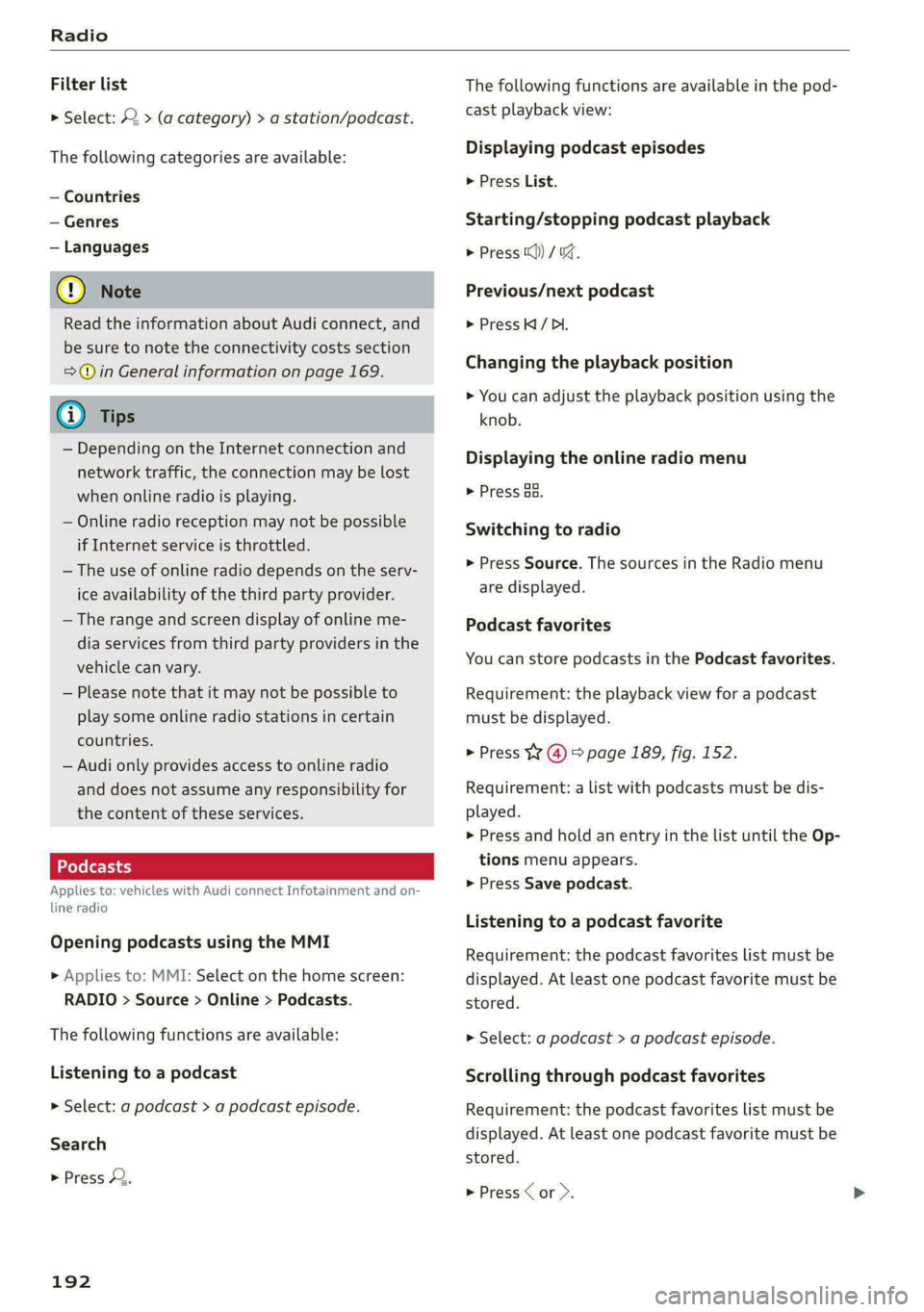
Filter list
> Select: © > (a category) > a station/podcast.
The following categories are available:
— Countries
— Genres
— Languages
@) Note
Read the information about Audi connect, and
be sure to note the connectivity costs section
=@ in General information on page 169.
G) Tips
— Depending on the Internet connection and
network traffic, the connection may be lost
when online radio is playing.
— Online radio reception may not be possible
if Internet service is throttled.
— The use of online radio depends on the serv-
ice availability of the third party provider.
— The range and screen display of online me-
dia services from third party providers in the
vehicle can vary.
— Please note that it may not be possible to
play some online radio stations in certain
countries.
— Audi only provides access to online radio
and does not assume any responsibility for
the content of these services.
Applies to: vehicles with Audi connect Infotainment and on-
line radio
Opening podcasts using the MMI
> Applies to: MMI: Select on the home screen:
RADIO > Source > Online > Podcasts.
The following functions are available:
Listening to a podcast
» Select: a podcast > a podcast episode.
Search
> Press 2.
192
The following functions are available in the pod-
cast playback view:
Displaying podcast episodes
> Press List.
Starting/stopping podcast playback
> Press ()) / 0%,
Previous/next podcast
> Press / DI.
Changing the playback position
> You can adjust the playback position using the
knob.
Displaying the online radio menu
> Press Ba.
Switching to radio
> Press Source. The sources in the Radio menu
are displayed.
Podcast favorites
You can store podcasts in the Podcast favorites.
Requirement: the playback view for a podcast
must be displayed.
> Press W @) > page 189, fig. 152.
Requirement: a list with podcasts must be dis-
played.
> Press and hold an entry in the list until the Op-
tions menu appears.
> Press Save podcast.
Listening to a podcast favorite
Requirement: the podcast favorites list must be
displayed. At least one podcast favorite must be
stored.
> Select: a podcast > a podcast episode.
Scrolling through podcast favorites
Requirement: the podcast favorites list must be
displayed. At least one podcast favorite must be
stored.
> Press Cor >.
Page 195 of 296
8W1012721BB
Radio
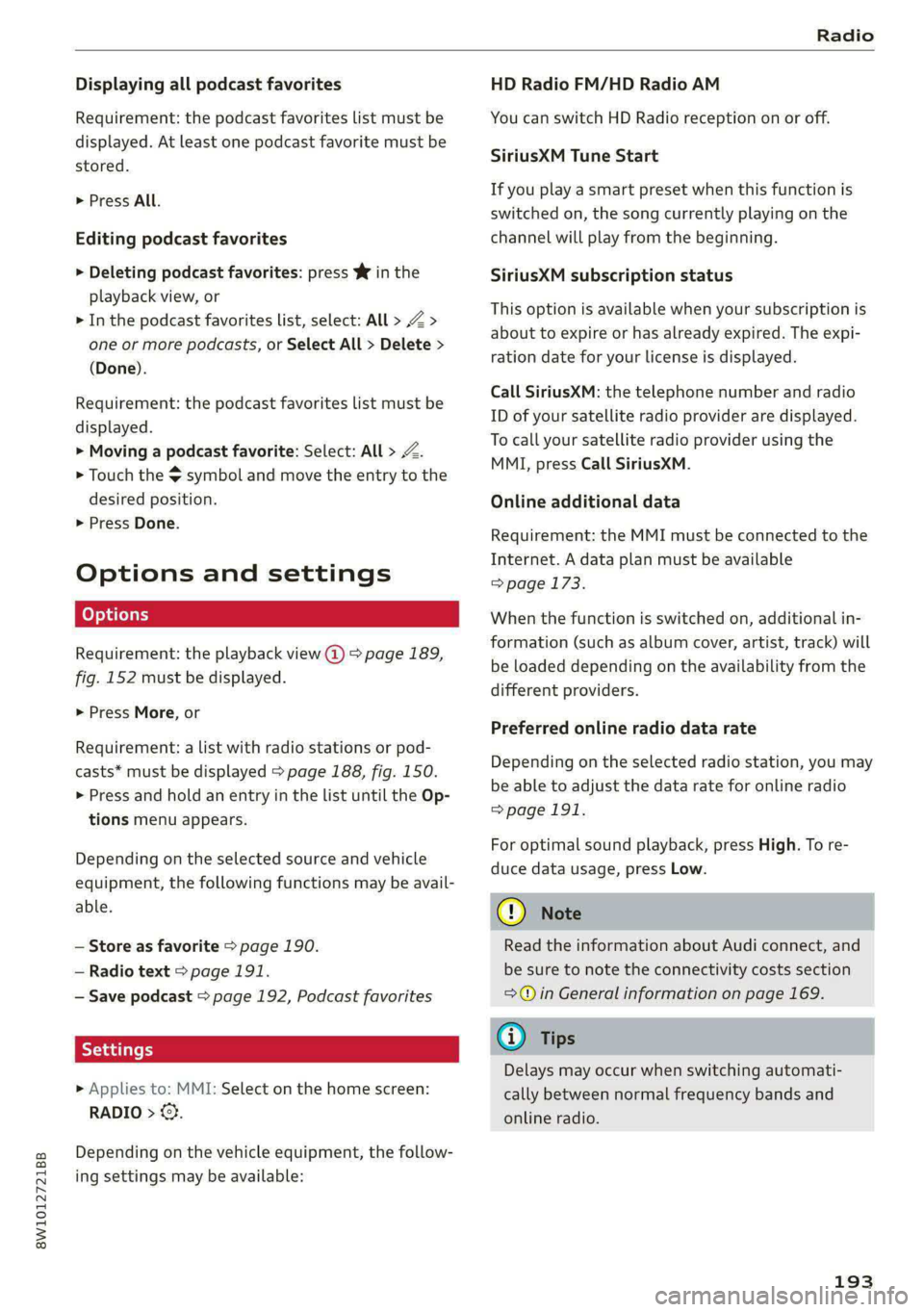
Displaying all podcast favorites
Requirement: the podcast favorites list must be
displayed. At least one podcast favorite must be
stored.
> Press All.
Editing podcast favorites
> Deleting podcast favorites: press W in the
playback view, or
> In the podcast favorites list, select: All > Z >
one or more podcasts, or Select All > Delete >
(Done).
Requirement: the podcast favorites list must be
displayed.
> Moving a podcast favorite: Select: All > Z.
> Touch the $ symbol and move the entry to the
desired position.
> Press Done.
Options and settings
Requirement: the playback view @) > page 189,
fig. 152 must be displayed.
> Press More, or
Requirement: a list with radio stations or pod-
casts* must be displayed > page 188, fig. 150.
> Press and hold an entry in the list until the Op-
tions menu appears.
Depending on the selected source and vehicle
equipment, the following functions may be avail-
able.
— Store as favorite > page 190.
— Radio text > page 191.
— Save podcast > page 192, Podcast favorites
> Applies to: MMI: Select on the home screen:
RADIO > ©.
Depending on the vehicle equipment, the follow-
ing settings may be available:
HD Radio FM/HD Radio AM
You can switch HD Radio reception on or off.
SiriusXM Tune Start
If you play a smart preset when this function is
switched on, the song currently playing on the
channel will play from the beginning.
SiriusXM subscription status
This option is available when your subscription is
about to expire or has already expired. The expi-
ration date for your license is displayed.
Call SiriusXM: the telephone number and radio
ID of your satellite radio provider are displayed.
To call your satellite radio provider using the
MMI, press Call SiriusXM.
Online additional data
Requirement: the MMI must be connected to the
Internet. A data plan must be available
=>page 173.
When the function is switched on, additional in-
formation (such as album cover, artist, track) will
be loaded depending on the availability from the
different providers.
Preferred online radio data rate
Depending on the selected radio station, you may
be able to adjust the data rate for online radio
=>page 191.
For optimal sound playback, press High. To re-
duce data usage, press Low.
@) Note
Read the information about Audi connect, and
be sure to note the connectivity costs section
=@ in General information on page 169.
G) Tips
Delays may occur when switching automati-
cally between normal frequency bands and
online radio.
193
Page 196 of 296
Radio
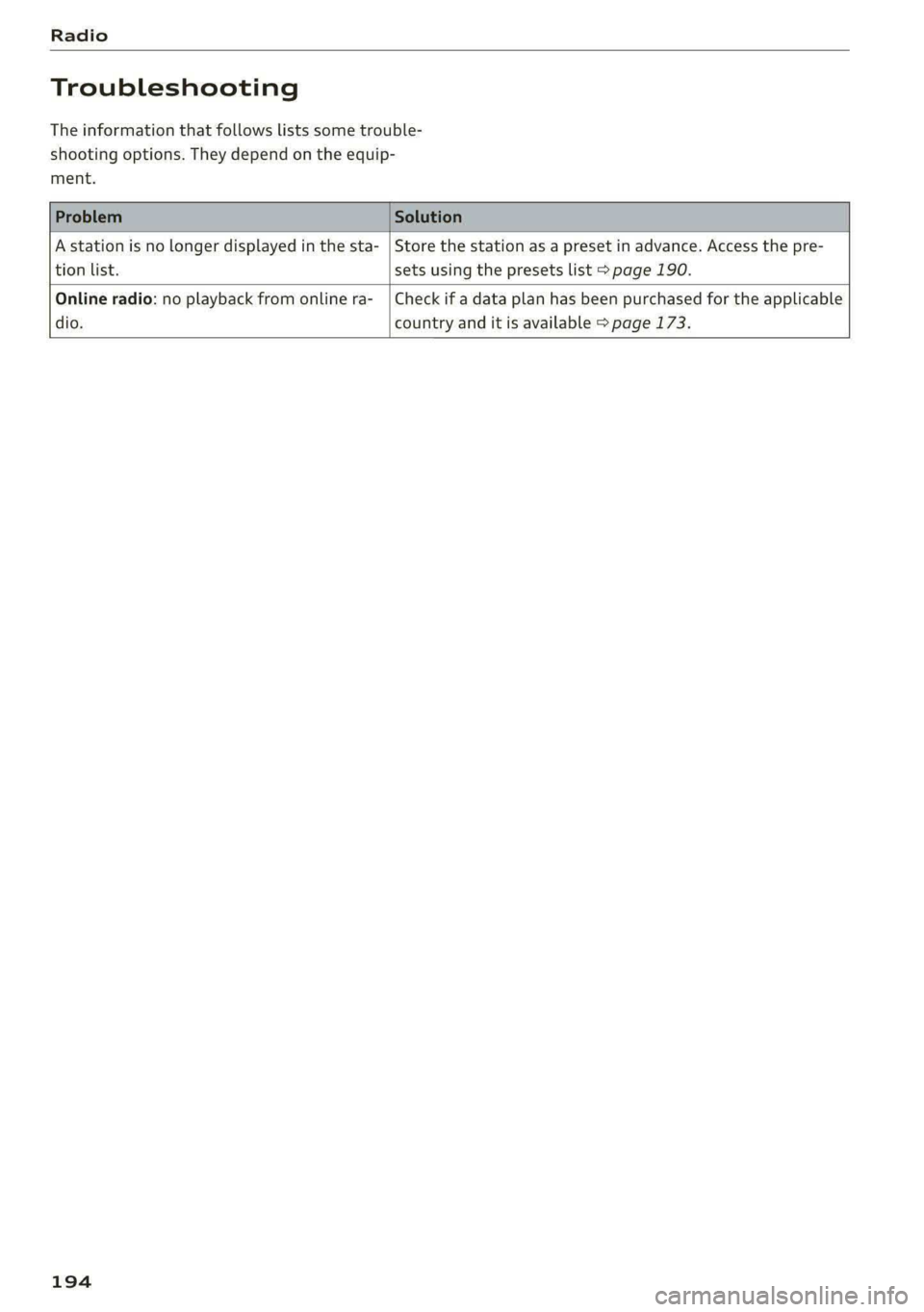
Troubleshooting
The information that follows lists some trouble-
shooting options. They depend on the equip-
ment.
A station is no longer displayed in the sta- | Store the station as a preset in advance. Access the pre-
tion
list. sets using the presets list > page 190.
Online radio: no playback from online ra-_ | Check if a data plan has been purchased for the applicable
dio. country and it is available > page 173.
194
Page 199 of 296
Media
8W1012721BB
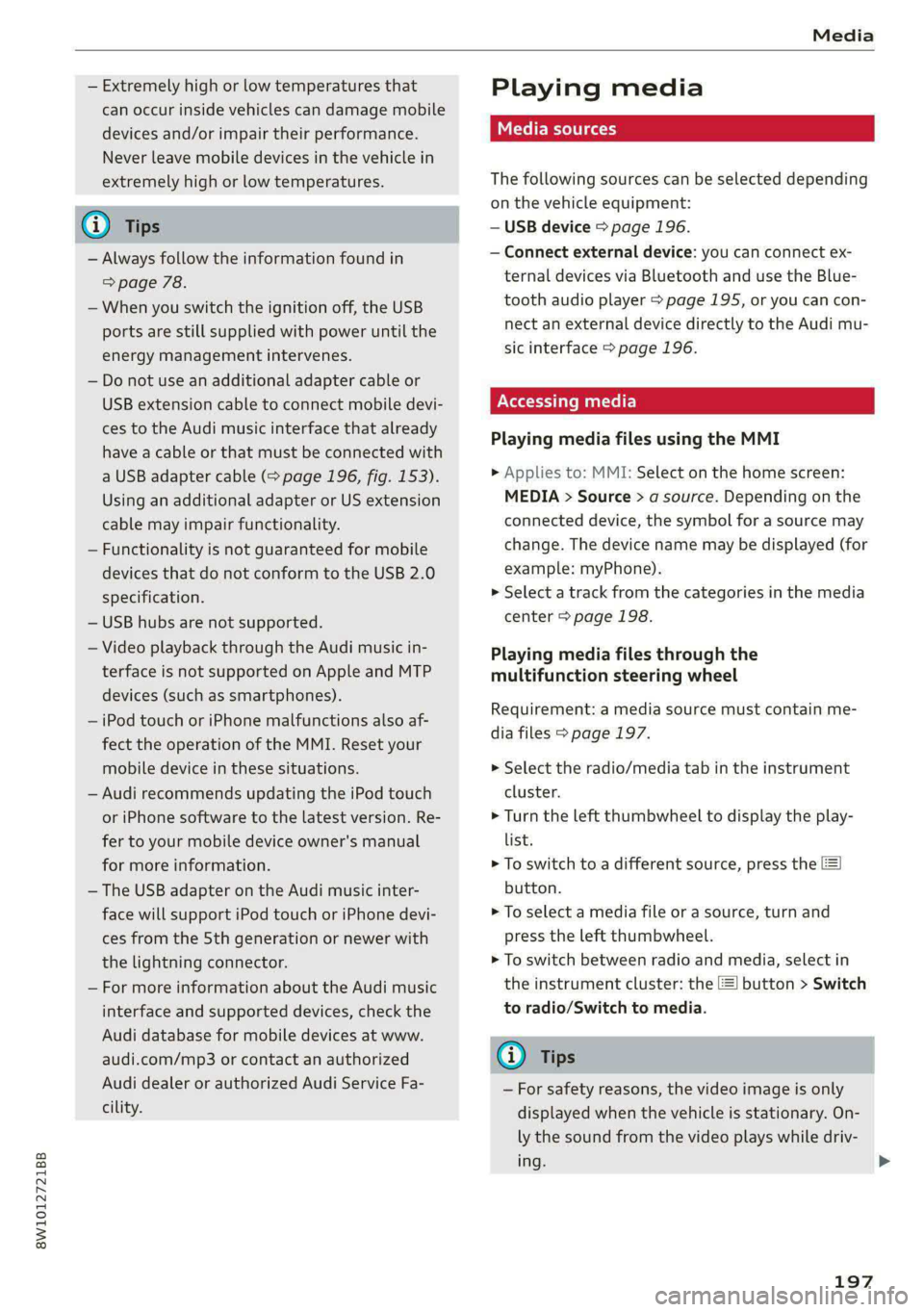
— Extremely high or low temperatures that Playi ng media
can occur inside vehicles can damage mobile
devices and/or impair their performance. SES
Never leave mobile devices in the vehicle in
extremely high or low temperatures. The following sources can be selected depending
on the vehicle equipment:
G) Tips — USB device > page 196.
— Always follow the information found in — Connect external device: you can connect ex-
> page 78. ternal devices via Bluetooth and use the Blue-
— When you switch the ignition off, the USB tooth audio player > page 195, or you can con-
nect an external device directly to the Audi mu- ports are still supplied with power until the
sic interface > page 196. energy management intervenes.
— Do not use an additional adapter cable or
USB extension cable to connect mobile devi-
ces to the Audi music interface that already Playi igs .
have a cable or that must be connected with axing rediadilesidsing/tieihanat
a USB adapter cable (> page 196, fig. 153). » Applies to: MMI: Select on the home screen:
Using an additional adapter or US extension MEDIA > Source > a source. Depending on the
cable may impair functionality. connected device, the symbol for a source may
—Functionality is not guaranteed for mobile change. The device name may be displayed (for
devices that do not conform to the USB 2.0 example: myPhone).
specification. > Select a track from the categories in the media
— USB hubs are not supported. center > page 198.
— Video playback through the Audi music in- Playing media files through the
terface is not supported on Apple and MTP multifunction steering wheel
devices (such as smartphones). . . |
Requirement: a media source must contain me-
— iPod touch or iPhone malfunctions also af- hs
dia files > page 197.
fect the operation of the MMI. Reset your
mobile device in these situations. > Select the radio/media tab in the instrument
— Audi recommends updating the iPod touch cluster.
or iPhone software to the latest version. Re- > Turn the left thumbwheel to display the play-
fer to your mobile device owner's manual list.
for more information. > To switch to a different source, press the
— The USB adapter on the Audi music inter- button.
face will support iPod touch or iPhone devi- > To select a media file or a source, turn and
ces from the 5th generation or newer with press the left thumbwheel.
the lightning connector. » To switch between radio and media, select in
— For more information about the Audi music the instrument cluster: the =] button > Switch
interface and supported devices, check the to radio/Switch to media.
Audi database for mobile devices at www. -
audi.com/mp3 or contact an authorized @ Tips
Audi dealer or authorized Audi Service Fa- — For safety reasons, the video image is only
displayed when the vehicle is stationary. On-
ly the sound from the video plays while driv-
ing. >
cility.
197
Page 200 of 296
Media
— Applies to: multifunction steering wheel:
Depending on the selected function, opera-
tion through the center display may be
required.
a a eon erence
RL
Fig. 154 Center display: media center view
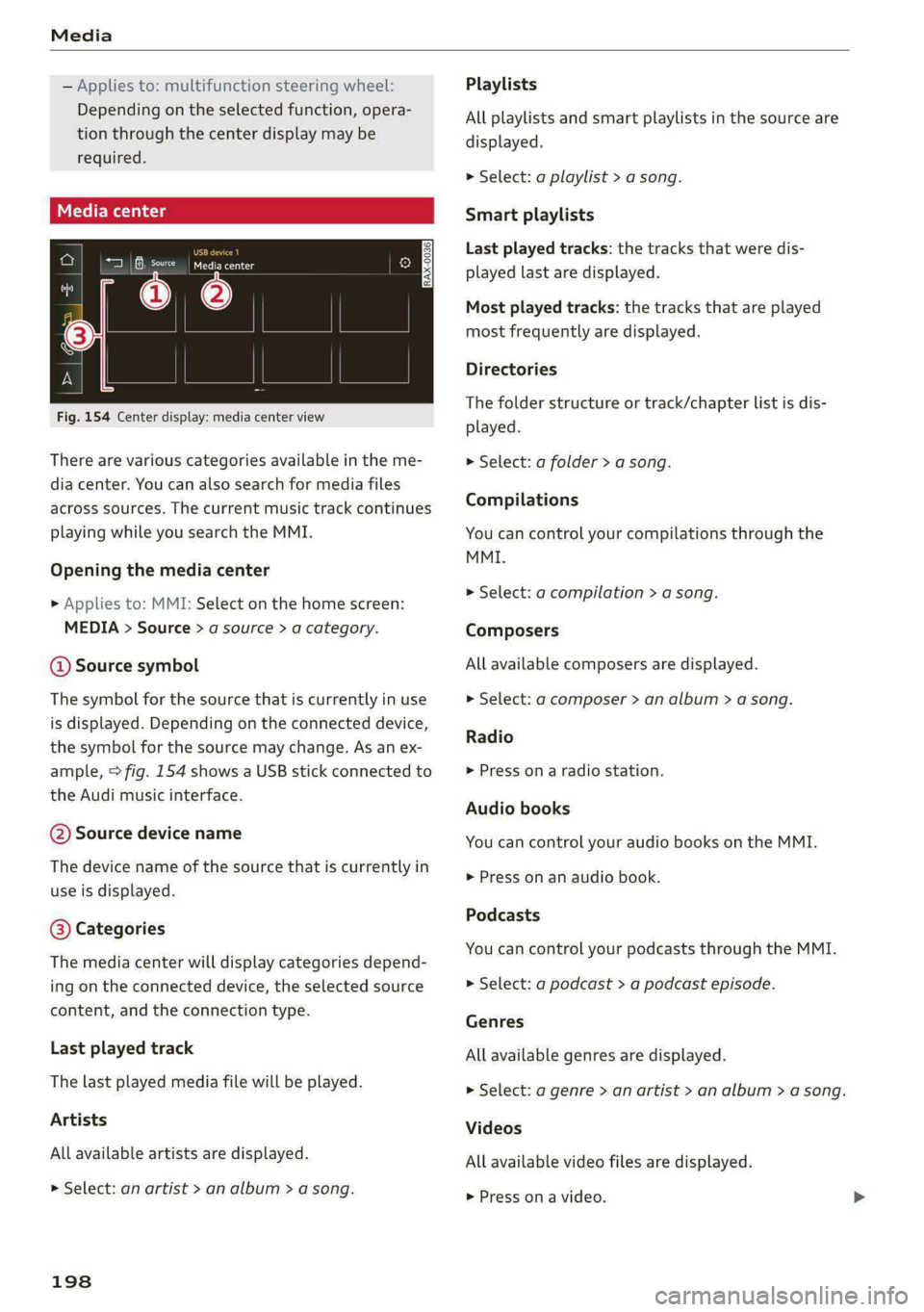
There are various categories available in the me-
dia center. You can also search for media files
across sources. The current music track continues
playing while you search the MMI.
Opening the media center
> Applies to: MMI: Select on the home screen:
MEDIA > Source > a source > a category.
@ Source symbol
The symbol for the source that is currently in use
is displayed. Depending on the connected device,
the symbol for the source may change. As an ex-
ample, > fig. 154 shows a USB stick connected to
the Audi music interface.
@ Source device name
The device name of the source that is currently in
use is displayed.
@ Categories
The media center will display categories depend-
ing on the connected device, the selected source
content, and the connection type.
Last played track
The last played media file will be played.
Artists
All available artists are displayed.
> Select: an artist > an album > a song.
198
Playlists
All playlists and smart playlists in the source are
displayed.
> Select: a playlist > a song.
Smart playlists
Last played tracks: the tracks that were dis-
played last are displayed.
Most played tracks: the tracks that are played
most frequently are displayed.
Directories
The folder structure or track/chapter list is dis-
played.
> Select: a folder > a song.
Compilations
You can control your compilations through the
MMI.
> Select: a compilation > a song.
Composers
All available composers are displayed.
> Select: gd composer > an album > a song.
Radio
>» Press on a radio station.
Audio books
You can control your audio books on the MMI.
» Press on an audio book.
Podcasts
You can control your podcasts through the MMI.
> Select: a podcast > a podcast episode.
Genres
All available genres are displayed.
» Select: a genre > an artist > an album > a song.
Videos
All available video files are displayed.
> Press on a video.
Page 201 of 296
8W1012721BB
Media
Tracks section >@ in General information on
All available tracks are displayed. page 169.
> Press ona track. @) Tips
Albums — Only the categories supported by the medi-
um are available.
— For safety reasons, the video image is only
> Select: an album > a track. displayed when the vehicle is stationary. On-
ly the sound from the video plays while driv-
@) Note ing.
Applies to: vehicles with Audi connect Infotainment — When synchronizing a portable device with
Cloud services, playlists may display incor-
rectly
in the MMI. Use the media center in
the device.
— Applies to: iPod touch/iPhone: Note the in-
formation about the Audi music interface
and the supported devices > page 196.
All available albums are displayed.
— Cloud services and category radio always re-
quire an Internet connection.
— Read the information about Audi connect,
and be sure to note the connectivity costs
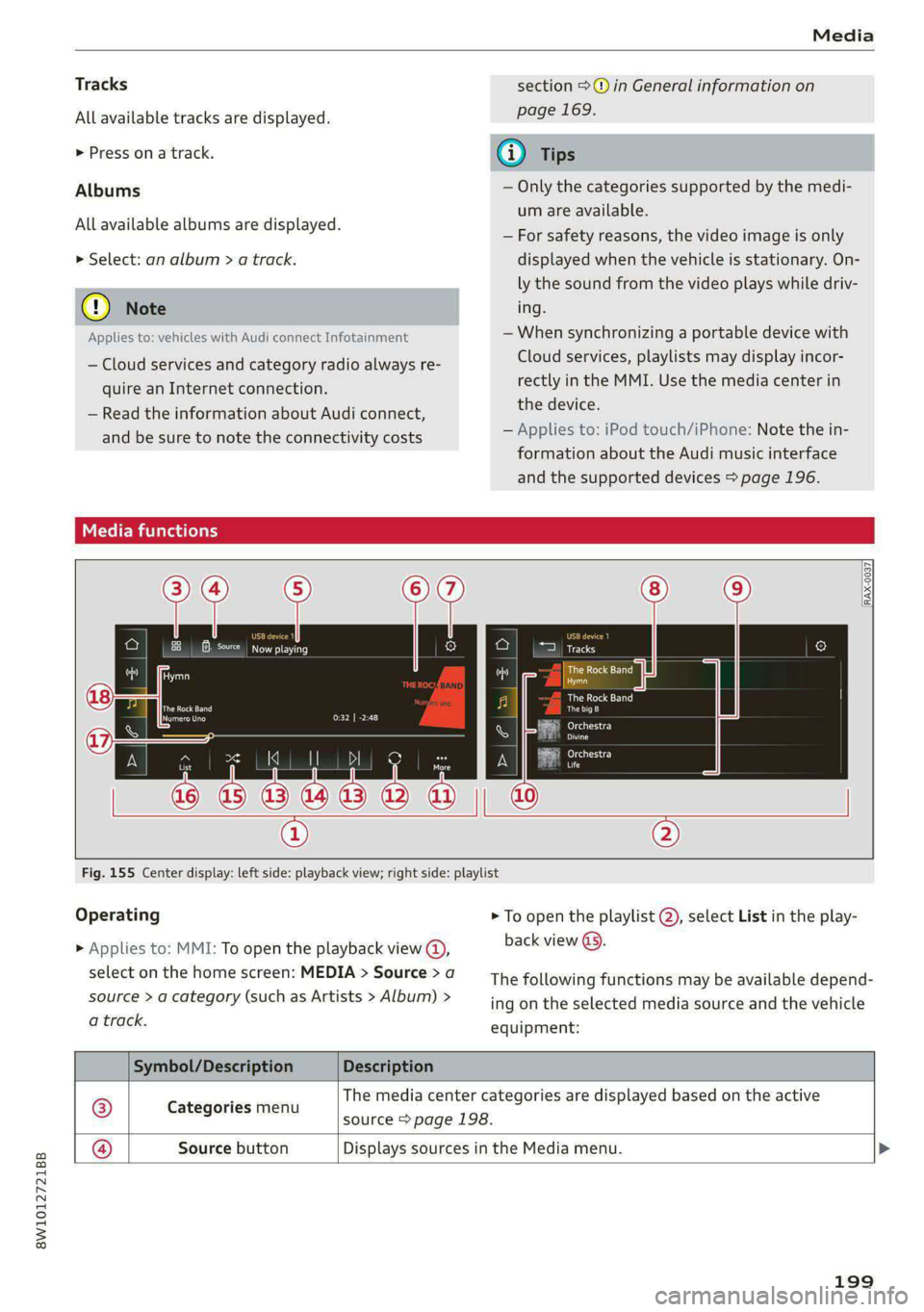
Media functions
RAX-0037
a it
ES Reena CCa OL) Tracks
Asa)
Ca)
The Rock Band
aot)
Caer) - esc)
ad
Ki \| DI As Le ratroscy
rs
a5 03,1443 42 a
® ®
Fig. 155 Center display: left side: playback view; right side: playlist
Operating > To open the playlist @), select List in the play-
> Applies to: MMI: To open the playback view @, back view @).
select on the home screen: MEDIA > Source > a The following functions may be available depend-
source > a category (such as Artists > Album) > ing on the selected media source and the vehicle
a track. equipment:
Symbol/Description Description
® Carsguries mien The media center categories are displayed based on the active
source > page 198.
@® Source button Displays sources in the Media menu. >
199
Page 214 of 296

Checking and Filling
> Turn the fuel cap clockwise until it clicks into
place.
> Close the fuel filler door and then press on the
left side until it latches.
The correct fuel type for your vehicle can be
found on a label located on the inside of the fuel
filler door. For additional information on fuel, see
=> page 210.
For the tank capacity in your vehicle, refer to the
Technical Data > page 278.
To reduce the risk of fuel leaking out or vapors
escaping, make sure that the fuel tank is closed
correctly. Otherwise the [gg indicator light will
turn on.
If the central locking system malfunctions, there
is a fuel filler door emergency release
=> page 213.
ZA\ WARNING
Improper fueling procedures and improper
handling of fuel can lead to explosions, fires,
severe burns, and other injuries.
— Do not smoke. Keep away from open flames.
— The ignition must be switched off when re-
fueling.
— Mobile devices, radio devices, and other ra-
dio equipment should always be switched
off when refueling. Electromagnetic rays
could cause sparks and start a fire.
— If you do not insert the fuel pump nozzle all
the way into the filler tube, then fuel can
leak out. Spilled fuel can ignite and start a
fire.
— Never get into the vehicle when refueling. If
there is an exceptional situation where you
must enter the vehicle, close the door and
touch a metal surface before touching the
fuel pump nozzle again. This will reduce the
risk of electrostatic discharge that can cause
flying sparks. Sparks can start a fire when
refueling.
Z\ WARNING
Transporting fuel containers inside the vehicle
is not recommended. Fuel could leak out of
the container and ignite, especially during an
accident. This can cause explosions, fires, and
injuries.
— If you must transport fuel in a fuel contain-
er, note the following:
— Always place the fuel container on the
ground before filling. Never fill the fuel
container with fuel while it is inside or on
the vehicle. Electrostatic discharge can oc-
cur while refueling and the fuel vapors
could ignite.
— When using fuel containers made of met-
al, the fuel pump nozzle must always re-
main in contact with the container to re-
duce the risk of static charge.
— Insert the fuel pump nozzle as far as pos-
sible into the filler opening while refuel-
ing.
— Follow the applicable legal regulations in
the country where you are driving when
using, storing and transporting fuel con-
tainers.
— Make sure that the fuel container meets
the industry standards, for example ANSI
or ASTM F852-86.
1) Depending on the engine and country
212
() Note
— Remove fuel that has overflowed onto any
vehicle
components immediately to reduce
the risk of damage to the vehicle.
— Never drive until the fuel tank is completely
empty. The irregular supply of fuel that re-
sults from that can cause engine misfires.
Uncombusted fuel may enter the exhaust
system and increase the risk of damage to
the catalytic converter.
@) For the sake of the environment
— Do not overfill the fuel tank, or fuel could
leak out when the vehicle is warming up.
— Fuel should never enter the sewer system or
come into contact with the ground.
Page 232 of 296

Wheels
Glossary of tire and loading
terminology
Accessory weight
means the combined weight (in
excess of those standard items
which may be replaced) of auto-
matic transmission, power steer-
ing, power brakes, power win-
dows, power seats, radio, and
heater, to the extent that these
items are available as factory-in-
stalled equipment (whether in-
stalled or not).
Aspect ratio
means the ratio of the height to
the width of the tire in percent.
Numbers of 55 or lower indicate a
low sidewall for improved steer-
ing response and better overall
handling on dry pavement.
Bead
means the part of the tire that is
made of steel wires, wrapped or
reinforced by ply cords and that is
shaped to fit the rim.
Bead separation
means a breakdown of the bond
between components in the bead.
230
Cord
means the strands forming the
plies in the tire.
Cold tire inflation pressure
means the tire pressure recom-
mended by the vehicle manufac-
turer for a tire of a designated
size that has not been driven for
more than a couple of miles (kilo-
meters) at low speeds in the three
hour period before the tire pres-
sure is measured or adjusted.
Curb weight
means the weight of a motor ve-
hicle with standard equipment in-
cluding the maximum capacity of
fuel, oil, and coolant, air condi-
tioning and additional weight of
optional equipment.
Extra load tire
means a tire designed to operate
at higher loads and at higher in-
flation pressures than the corre-
sponding standard tire. Extra load
tires may be identified as “XL”,
“xl”, “EXTRA LOAD”, or “RF” on
the sidewall.
Page 256 of 296
Emergency assistance
Using the ti
Applies to: vehicles with tire mobility kit
B8K-1475
— If an allergic reaction occurs, seek medical
attention immediately.
— Keep the tire sealant away from children.
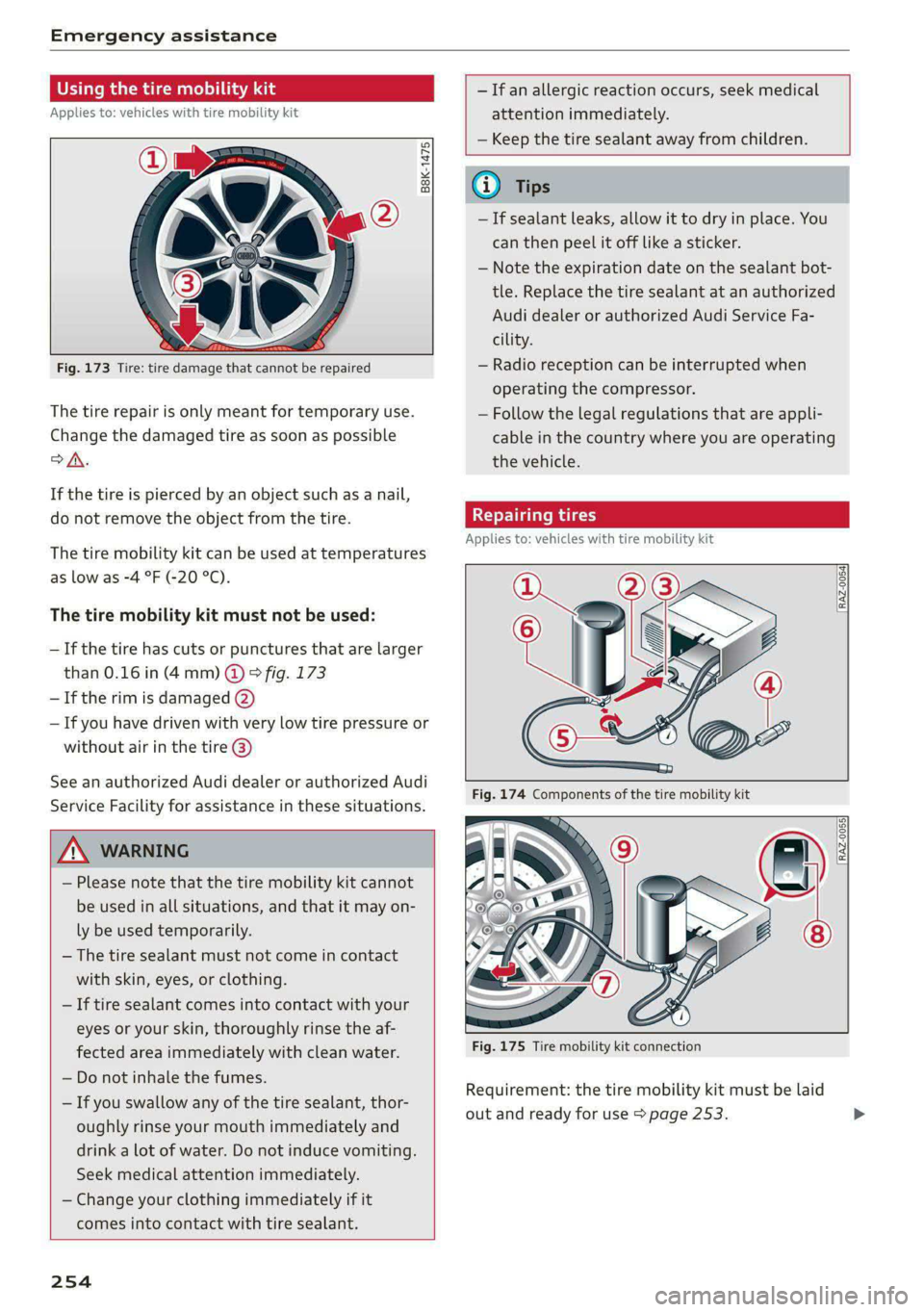
Fig. 173 Tire: tire damage that cannot be repaired
The tire repair is only meant for temporary use.
Change the damaged tire as soon as possible
oA.
If the tire is pierced by an object such as a nail,
do not remove the object from the tire.
The tire mobility kit can be used at temperatures
as low as -4 °F (-20 °C).
The tire mobility kit must not be used:
—If the tire has cuts or punctures that are larger
than 0.16 in (4mm) @ ° fig. 173
— If the rim is damaged (2)
— If you have driven with very low tire pressure or
without air in the tire @)
See an authorized Audi dealer or authorized Audi
Service Facility for assistance in these situations.
ZA\ WARNING
— Please note that the tire mobility kit cannot
be used in all situations, and that it may on-
ly be used temporarily.
— The tire sealant must not come in contact
with skin, eyes, or clothing.
— If tire sealant comes into contact with your
eyes or your skin, thoroughly rinse the af-
fected area immediately with clean water.
— Do not inhale the fumes.
— If you swallow any of the tire sealant, thor-
oughly rinse your mouth immediately and
drink a lot of water. Do not induce vomiting.
Seek medical attention immediately.
— Change your clothing immediately if it
comes into contact with tire sealant.
254
(i) Tips
— If sealant leaks, allow it to dry in place. You
can then peel it off like a sticker.
— Note the expiration date on the sealant bot-
tle. Replace the tire sealant at an authorized
Audi dealer or authorized Audi Service Fa-
cility.
— Radio reception can be interrupted when
operating the compressor.
— Follow the legal regulations that are appli-
cable in the country where you are operating
the vehicle.
Repairing tires
Applies to: vehicles with tire mobility kit
RAZ-0054)
Fig. 175 Tire mobility kit connection
Requirement: the tire mobility kit must be laid
out and ready for use > page 253.
Page 270 of 296
Fuses and bulbs
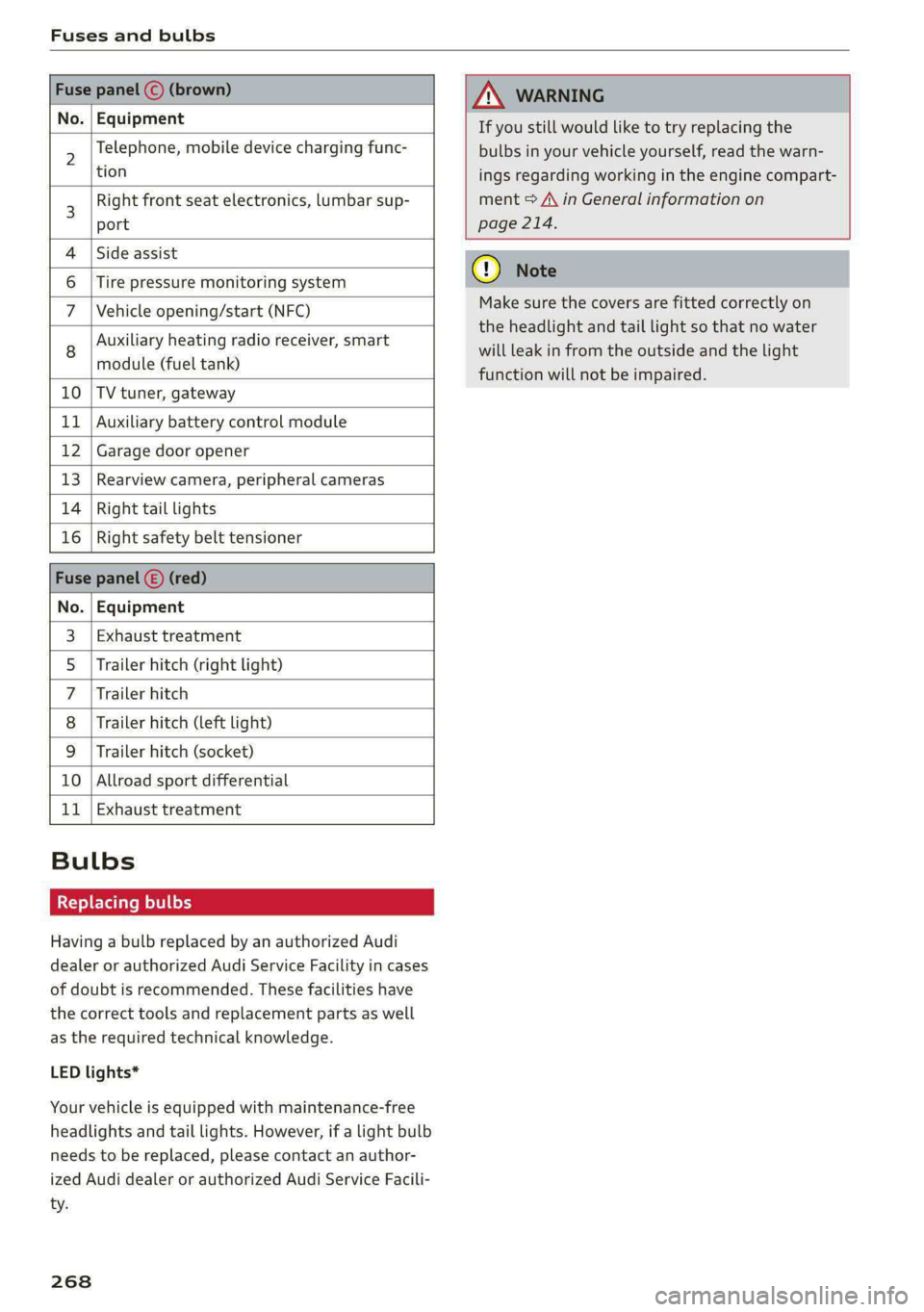
Fuse panel © (brown)
No. | Equipment
Telephone, mobile device charging func-
AN WARNING
If you still would like to try replacing the
bulbs in your vehicle yourself, read the warn-
6 |Tire pressure monitoring system
7 |Vehicle opening/start (NFC)
Auxiliary heating radio receiver, smart
module (fuel tank)
10 |TV tuner, gateway
11 | Auxiliary battery control module
12 | Garage door opener
13 | Rearview camera, peripheral cameras
14 | Right tail lights
16 | Right safety belt tensioner
Fuse panel (E) (red)
No. | Equipment
Exhaust treatment
Trailer hitch (right light)
Trailer hitch
Trailer hitch (left light)
Trailer hitch (socket)
10 |Allroad sport differential
11 | Exhaust treatment
Wl)
OIN|
Mm]
w
Bulbs
Replacing bulbs
Having a bulb replaced by an authorized Audi
dealer or authorized Audi Service Facility in cases
of doubt is recommended. These facilities have
the correct tools and replacement parts as well
as the required technical knowledge.
LED lights*
Your vehicle is equipped with maintenance-free
headlights and tail lights. However, if a light bulb
needs to be replaced, please contact an author-
ized Audi dealer or authorized Audi Service Facili-
ty.
268
2 |,
tion ings regarding working in the engine compart-
3 Right front seat electronics, lumbar sup- ment > A\ in General information on
port page 214.
4 |Side assist
@) Note
Make sure the covers are fitted correctly on
the headlight and tail light so that no water
will leak in from the outside and the light
function will not be impaired.