audio AUDI A4 2021 Owner´s Manual
[x] Cancel search | Manufacturer: AUDI, Model Year: 2021, Model line: A4, Model: AUDI A4 2021Pages: 304, PDF Size: 107.89 MB
Page 144 of 304

Driver assistance
Steering intervention request
If Audi active lane assist intervenes multiple
times when no steering activity is detected, the
steering intervention request will provide a warn-
ing using audio and visual signals, such as BE.
Take over the steering and keep your hands on
the steering wheel so that you will be ready to
steer at any time. The system may no longer be
ready to provide warnings after a short time, and
it will only become active again later.
If the driver does not take over steering, Audi ac-
tive lane assist will be switched off.
Behavior when a turn signal is active
Applies to: vehicles with side assist: The system
will not warn you if you activate a turn signal be-
fore crossing the lane marker line. In this case, it
assumes that you are changing lanes intentional-
ly.
Applies to: vehicles with side assist: If the turn
signal is activated, Audi active lane assist is
ready, and a lane change has been classified as
critical by lane assist due to vehicles traveling be-
side you or due to approaching vehicles, then a
noticeable corrective steering movement will oc-
cur briefly before exiting the lane. This will at-
tempt to keep your vehicle in the lane.
ZX WARNING
— Observe the safety precautions and note the
limits of the assist systems, sensors, and
cameras > page 117.
— The system warns the driver that the vehicle
is leaving the lane using corrective steering.
The driver is always responsible for keeping
the vehicle within the lane.
— Corrective steering may not occur at all in
certain situations, such as during heavy
braking. Always be ready to intervene.
G) Tips
— Always keep your hands on the steering
wheel so you can be ready to steer at any
time. The driver is always responsible for
adhering to the regulations applicable in
the country where the vehicle is being oper-
ated.
142
— The system does not provide any corrective
steering or steering wheel vibrations if it de-
tects that you are passing another vehicle.
— The image in the Driver assistance display
only appears if it was opened in the on-
board computer > page 16.
Scale Rie mela
Applies to: vehicles with Audi active lane assist
B8V-0692
Fig. 119 Turn signal lever: button for Audi active lane as-
sist
> To switch the system on or off, press the button
on the turn signal lever > fig. 119. The respec-
tive indicator light in the instrument cluster
will turn off or on.
ZA WARNING
Observe the safety precautions and note the
limits of the assist systems, sensors, and
cameras > page 117.
Adjusting Audi active lane assist
Applies to: vehicles with Audi active lane assist
You can adjust Audi active lane assist individually.
The settings depend on the vehicle equipment.
> Applies to: MMI: Select on the home screen:
VEHICLE > Driver assistance > Audi active lane
assist/Lane departure warning.
Possible settings:
— Steering correction - In the Late setting, the
steering correction will only occur shortly be-
fore a wheel crosses a detected lane marker
line. In the Early setting, steering correction
occurs continuously in order to help the driver
keep the vehicle in the center of the lane. If the >
Page 145 of 304

8W1012721BC
Driver assistance
steering correction cannot be set, the steering
correction will function in the Late setting.
— Vibration warning - You can select if you would
also like to be warned using a vibration in the
steering wheel.
@) Tips
Certain settings are automatically stored and
assigned to the remote control key being
used.
Applies to: vehicles with Audi active lane assist
iff or is displayed when there is a malfunc-
tion, the active lane assist functions may be un-
available or limited.
A message that indicates the cause and possible
solution may appear with some displays. The
weather conditions may be too poor or the cam-
era may be covered. Clean the area in front of the
camera > page 119 and try to turn on the sys-
tems again later.
If the malfunction remains, drive to an author-
ized Audi dealer or authorized Audi Service Facili-
ty immediately to have the malfunction correct-
ed.
Audi pre sense
Introduction
Applies to: vehicles with Audi pre sense
Within the limits of the system, the Audi pre
sense functions can initiate measures in certain
driving situations to protect the vehicle occu-
pants and other road users. Depending on the ve-
hicle equipment, various Audi pre sense systems
may
be installed:
— Audi pre sense basic can react during emergen-
cy and dangerous braking maneuvers and un-
stable driving situations (such as oversteering
or understeering).
— Audi pre sense city and Audi pre sense front
can detect an impending frontal impact and re-
act with warnings, braking interventions, and
preemptive safety measures for the vehicle oc-
cupants.
— Audi pre sense rear monitors the rear traffic
behind your vehicle and can react to an impend-
ing rear impact.
— The swerve assist can help you to steer the ve-
hicle around an obstacle during an evasive ma-
neuver that is detected as critical.
— The turn assist can detect vehicles in the oppo-
site lane as critical during a turning maneuver
and react with braking maneuvers.
Audi pre sense safety measures
Applies to: vehicles with Audi pre sense
Depending on the vehicle speed and the vehicle
equipment, the following functions may be initi-
ated in certain situations:
— Visual and audio warnings
— Reversible tensioning of safety belts
— Closing the windows and panoramic glass roof
— Adjusting the seats
— Other preemptive safety measures by individual
systems
ZA\ WARNING
Observe the safety precautions and note the
limits of the assist systems, sensors, and
cameras > page 117.
G) Tips
— Depending on the risk situation that is de-
tected and the selected Audi drive select*
mode, not all preemptive safety measures
may be initiated under certain circumstan-
ces. Certain functions can be adjusted or
skipped if necessary.
— Audi pre sense may also be limited or un-
available under certain circumstances, for
example if:
— There are passengers with unfastened
safety belts
— After turning on the ignition, as long as
the FJ or indicator light is on.
— When driving in reverse.
— The front passenger's airbag is switched
off
— There is an airbag control module mal-
function
143
Page 146 of 304

Driver assistance
— System functions may not be available if
the ESC is limited or switched off, or if
there is a malfunction.
NU ee elie
Applies to: vehicles with Audi pre sense basic
Audi pre sense basic is automatically active at
speeds of approximately 20 mph (30 km/h) and
higher. Audi pre sense basic can trigger preemp-
tive safety measures during emergency braking
and dangerous braking maneuvers as well as in
unstable driving situations, such as oversteering
or understeering > page 143, Audi pre sense
safety measures.
The message Audi pre sense Bo / (@) will warn
you about the danger.
Z\ WARNING
Observe the safety precautions and note the
limits of the assist systems, sensors, and
cameras > page 117.
ON Tee ee La)
Applies to: vehicles with Audi pre sense city
Within the limits of the system, Audi pre sense
city can warn about an impending front end colli-
sion and brake the vehicle strongly, if necessary.
The system uses the camera behind the wind-
shield and is available at speeds above approxi-
mately 6 mph (10 km/h).
Driving situations
The situations to which the system reacts de-
pends on the vehicle speed.
Automatic braking interventions are available at
vehicle speeds up to approximately 50 mph
(85 km/h).
Up to speeds of approximately 50 mph
(85 km/h), the system may react to the following
situations:
— Pedestrians are moving inside your lane
144
Up to speeds of approximately 155 mph
(250 km/h), the system may react to the follow-
ing situations:
—Avehicle driving ahead clearly applies the
brakes
— When approaching a vehicle ahead that is clear-
ly traveling more slowly
— When approaching a stationary vehicle
Prewarning
To warn about detected dangers, Audi pre
sense 1) / {@) will appear in the instrument clus-
ter and an audio signal will sound.
A brief application of the brakes
If a collision is imminent, there may be an acute
warning using a brief application of the brakes.
You
will also be warned about the danger by an
indicator in the instrument cluster display. You
may only be able to avoid a collision by swerving
or braking strongly.
Automatic braking force increase
If there is an impending collision and you are not
applying the brakes enough, the braking force
may be increased, depending on the situation.
Automatic braking
If you do not react to the acute warning, the sys-
tem may apply the brakes with strong braking
force within the limits of the system in order to
reduce the speed of impact in the event of a colli-
sion.
If the brakes are applied until the vehicle is sta-
tionary, © / Please take over! will appear in
the instrument cluster and you must take over
control of the vehicle.
ZA\ WARNING
— Observe the safety precautions and note the
limits of the assist systems, sensors, and
cameras > page 117.
— Audi pre sense cannot overcome natural
physical laws. It is a system designed to as-
sist and it cannot prevent a collision in every
circumstance. The driver must always inter-
vene. The driver is always responsible for
braking at the correct time. Do not let the >
Page 152 of 304
Parking and maneuvering
Parking and
maneuvering
Introduction
Depending on the vehicle equipment, various
parking aids will help you when parking and ma-
neuvering.
Parking aid
The parking aid plus assists you while parking
using audio and visual signals to warn you about
objects detected in front of, behind, and next to*
the vehicle > page 150.
The rearview camera shows the area behind the
vehicle in the center display. The lines in the rear-
view camera image help you to park and maneu-
ver > page 152.
The peripheral cameras are an addition to the
rearview camera and help you to see various
areas around the vehicle while parking and ma-
neuvering > page 152.
The rear cross-traffic assist can warn you of ap-
proaching cross traffic when driving in reverse or
exiting a parking space > page 156.
Assisted parking
Park assist helps you to locate suitable parking
spaces and to park in them and exit them. Park
assist controls the steering movements when
parking in free parking spaces. The driver is still
responsible for accelerating, braking, and shift-
ing gears. The driver must always monitor the
area around the vehicle and supervise the parking
Procedure > page 157.
Settings options
You can adjust parking aid functions individually.
The adjustment options depend on the vehicle
equipment.
— Automatic activation > page 150
— Front and rear volume > page 151
— Entertainment fader > page 151.
— Clean rearview camera > page 153
— View > page 154
— Rear cross-traffic assist > page 156
150
ZA WARNING
Observe the safety precautions and note the
limits of the assist systems, sensors, and
cameras > page 117.
@ Tips
Audi recommends practicing parking in a traf-
fic-free location or parking lot to become fa-
miliar with the systems. Practice parking in
good light and weather conditions.
Parking aid plus
Ne ELS EUR
Applies to: vehicles with parking aid plus
B8W-0164
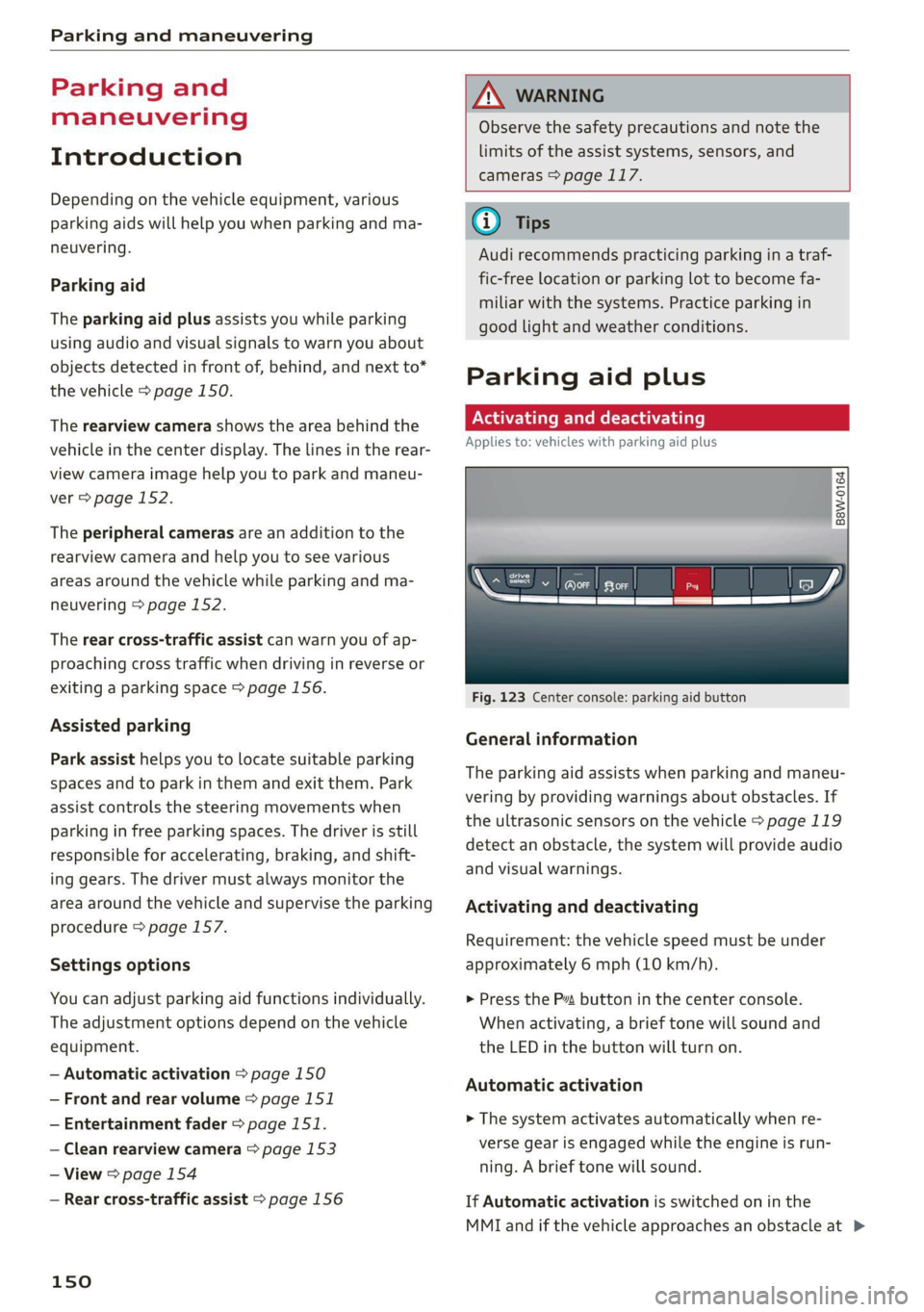
Fig. 123 Center console: parking aid button
General information
The parking aid assists when parking and maneu-
vering by providing warnings about obstacles. If
the ultrasonic sensors on the vehicle > page 119
detect an obstacle, the system will provide audio
and visual warnings.
Activating and deactivating
Requirement: the vehicle speed must be under
approximately 6 mph (10 km/h).
> Press the P” button in the center console.
When activating, a brief tone will sound and
the LED in the button will turn on.
Automatic activation
> The system activates automatically when re-
verse gear is engaged while the engine is run-
ning. A brief tone will sound.
If Automatic activation is switched on in the
MMI and if the vehicle approaches an obstacle at >
Page 153 of 304
8W1012721BC
Parking and maneuvering
speeds below approximately 6 mph (10 km/h),
the parking aid will switch on automatically. Au-
dible signals will sound once the obstacle is with-
in the sensor detection area.
» Applies to: MMI: To switch Automatic activa-
tion on or off, select on the home screen: VEHI-
CLE > Parking aid > Automatic activation.
Automatic deactivation
The distance indicator for the parking aid plus
will deactivate automatically when driving for-
ward faster than approximately 6 mph (10
km/h).
ZA\ WARNING
Observe the safety precautions and note the
limits of the assist systems, sensors, and
cameras > page 117.
©) Note
Keep enough distance from the curb to avoid
damage to the rims.
@ Tips
— If the parking aid is switched off, it can only
be reactivated automatically when one of
the following conditions is met:
— The vehicle speed exceeds 6 mph (10 km/h)
— The ignition was switched off and back on
again
— The parking brake was set and then released
— The “P” gear was engaged and released
again
Applies to: vehicles with parking aid plus
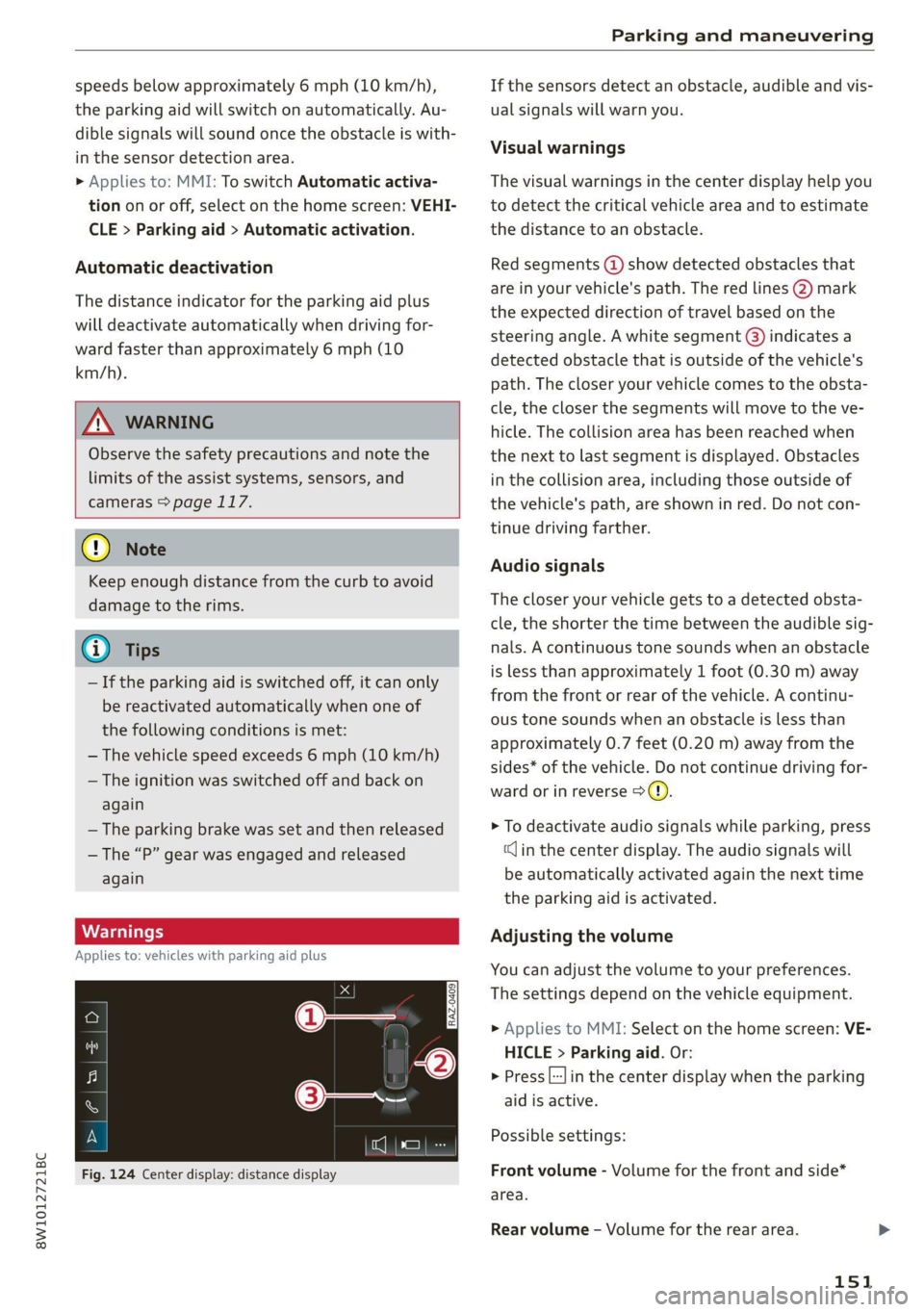
Fig. 124 Center display: distance display
If the sensors detect an obstacle, audible and vis-
ual signals will warn you.
Visual warnings
The visual warnings in the center display help you
to detect the critical vehicle area and to estimate
the distance to an obstacle.
Red segments (@) show detected obstacles that
are in your vehicle's path. The red lines @) mark
the expected direction of travel based on the
steering angle. A white segment (3) indicates a
detected obstacle that is outside of the vehicle's
path. The closer your vehicle comes to the obsta-
cle, the closer the segments will move to the ve-
hicle. The collision area has been reached when
the next to last segment is displayed. Obstacles
in the collision area, including those outside of
the vehicle's path, are shown in red. Do not con-
tinue driving farther.
Audio signals
The closer your vehicle gets to a detected obsta-
cle, the shorter the time between the audible sig-
nals. A continuous tone sounds when an obstacle
is less than approximately 1 foot (0.30 m) away
from the front or rear of the vehicle. A continu-
ous tone sounds when an obstacle is less than
approximately 0.7 feet (0.20 m) away from the
sides* of the vehicle. Do not continue driving for-
ward or in reverse >@).
> To deactivate audio signals while parking, press
«Jin the center display. The audio signals will
be automatically activated again the next time
the parking aid is activated.
Adjusting the volume
You can adjust the volume to your preferences.
The settings depend on the vehicle equipment.
> Applies to MMI: Select on the home screen: VE-
HICLE > Parking aid. Or:
> Press|] in the center display when the parking
aid is active.
Possible settings:
Front volume - Volume for the front and side*
area.
Rear volume - Volume for the rear area.
151
Page 154 of 304
Parking and maneuvering
Entertainment fader - The volume of the audio/
video source is Lowered when the parking aid is
activated.
The new level is demonstrated briefly* when the
volume is adjusted.
Error messages
If P4 appears, the sensor in the respective area
or the speaker is faulty. Drive immediately to an
authorized Audi dealer or authorized Audi Service
Facility to have the malfunction repaired.
iffy or is displayed when there is a malfunc-
tion, the parking aid functions may be unavaila-
ble or may be limited.
A message that indicates the cause and possible
solution may appear with some displays. The
weather conditions may be too poor or a sensor
may be covered. Clean the area in front of the
sensors > page 119 and try to turn on the sys-
tems again later.
If the malfunction remains, drive to an author-
ized Audi dealer or authorized Audi Service Facili-
ty immediately to have the malfunction correct-
ed.
ZA\ WARNING
— Observe the safety precautions and note the
limits of the assist systems, sensors, and
cameras > page 117.
— Sensors and cameras have spots in which
the surrounding area cannot be detected.
Objects, animals, and people may only be
detected with limitations may not be detect-
ed at all. Always monitor the traffic and the
vehicle's surroundings directly and do not
become distracted.
@) Note
— Keep enough distance from the curb to
avoid damage to the rims.
— Applies to: vehicles with park assist: If you
park in short parking spaces using park as-
sist, a continuous tone will sound from the
parking aid when the distance to an object is
less than approximately 0.7 feet (0.20 m).
Do not continue driving farther.
152
G) Tips
— The segments in the side area* are detected
and analyzed when passing. If you switch
the ignition off and on again or open the
door, or if the vehicle is stationary for a peri-
od of time, the surrounding area may have
changed in the meantime. In this scenario,
the side area* will appear black until the
area has been detected and evaluated.
— If the distance to an obstacle remains con-
stant, the volume of the distance warning
gradually lowers after a few seconds until it
is muted (this does not apply to the continu-
ous tone). If the obstacle comes closer than
it was before the sound was muted, the
tone will sound again. If the obstacle be-
comes farther away than it was before the
sound was muted, no tone will sound. Pay
attention to the vehicle's surroundings
when you start to drive.
Rearview camera and
peripheral cameras
Introduction
Applies to: vehicles with rearview camera/peripheral cameras
B8V-0629
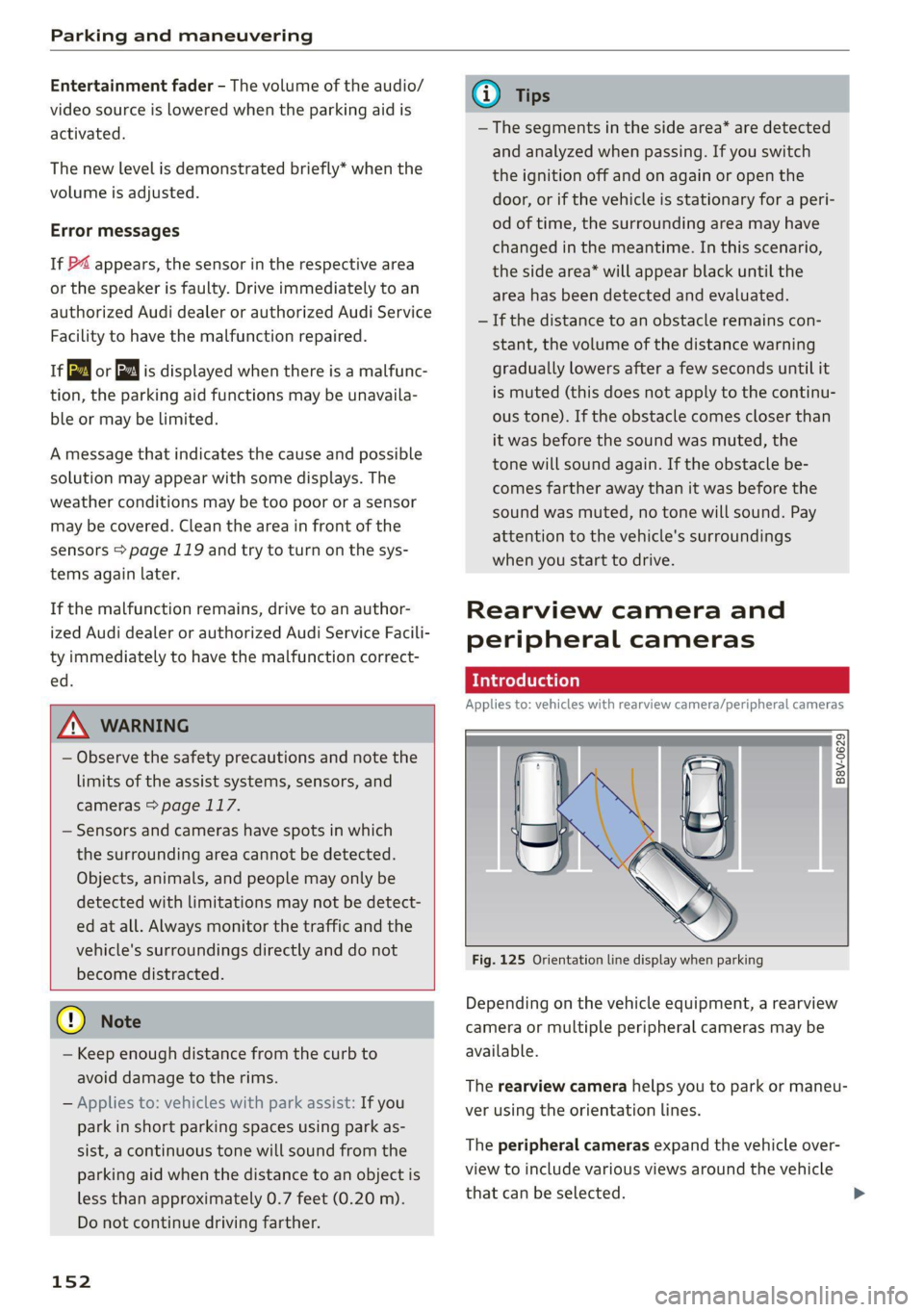
Fig. 125 Orientation line display when parking
Depending on the vehicle equipment, a rearview
camera or multiple peripheral cameras may be
available.
The rearview camera helps you to park or maneu-
ver using the orientation lines.
The peripheral cameras expand the vehicle over-
view to include various views around the vehicle
that can be selected.
Page 155 of 304
8W1012721BC
Parking and maneuvering
ZA WARNING
Observe the safety precautions and note the
limits of the assist systems, sensors, and
cameras > page 117.
Activating and deactivating
Applies to: vehicles with rearview camera/peripheral cameras
=
g
gz
= & a
Fig. 126 Center console: parking aid button
Activating and deactivating
> Press the P4 button in the center console.
When activating, a brief tone will sound and
the LED in the button will turn on. Or
> Press CJ in the center display if the visual dis-
tance indicator is shown > page 151, fig. 124.
The system can be activated at low speeds, such
when maneuvering.
Automatic activation
The system activates automatically when reverse
gear is engaged while the engine is running. A
brief tone will sound.
Automatic deactivation
The system will deactivate automatically once
the vehicle exceeds a certain speed while driving
forward.
ZA WARNING
Observe the safety precautions and note the
limits of the assist systems, sensors, and
cameras > page 117.
(ead a)
Applies to: vehicles with rearview camera/peripheral cameras
Depending on vehicle equipment, you may be
able to manually initiate rear view camera clean-
ing.
> Move the window wiper lever S7 into the posi-
tion for cleaning the rear window © & page 58.
ZA\ WARNING
Observe the safety precautions and note the
limits of the assist systems, sensors, and
cameras > page 117.
Applies to: vehicles with rearview camera/peripheral cameras
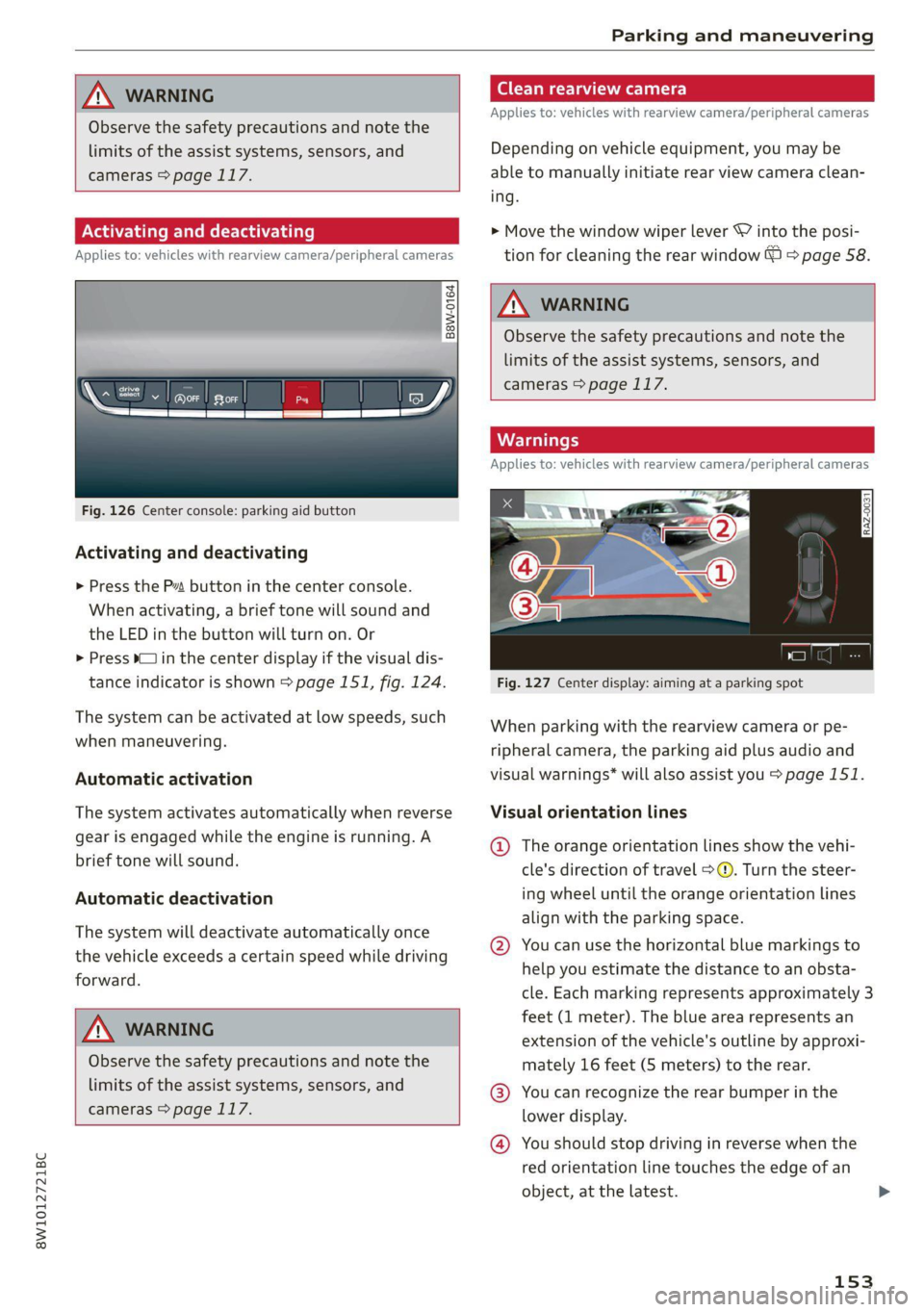
Fig. 127 Center display: aiming at a parking spot
When parking with the rearview camera or pe-
ripheral camera, the parking aid plus audio and
visual warnings* will also assist you > page 151.
Visual orientation lines
@ The orange orientation lines show the vehi-
cle's direction of travel >@. Turn the steer-
ing wheel until the orange orientation lines
align with the parking space.
@ You can use the horizontal blue markings to
help you estimate the distance to an obsta-
cle. Each marking represents approximately 3
feet (1 meter). The blue area represents an
extension of the vehicle's outline by approxi-
mately 16 feet (5 meters) to the rear.
@® You can recognize the rear bumper in the
lower display.
@ You should stop driving in reverse when the
red orientation line touches the edge of an
object, at the latest.
153
Page 159 of 304

8W1012721BC
Parking and maneuvering
parked or if your vehicle is pulled too far in-
to the parking space so that it is hidden by
adjacent vehicles.
— Once an automatic brake activation occurs,
the system cannot initiate another activa-
tion for several seconds.
— System functions may not be available if the
ESC is limited or switched off, or if there is a
malfunction.
— If there is an audio warning signal from the
rear cross-traffic assist, then the parking aid
may not be able to provide audio warnings
about detected obstacles under certain cir-
cumstances.
— The system complies with United States FCC
regulations and ISED regulations
=> page 284.
— The coverage areas of the sensors > fig. 129
are diagrams and do not represent a true-
to-scale image of the sensor ranges.
Assisted parking
(ee eile laced)
Applies to: vehicles with park assist
If your vehicle is equipped with park assist, this
system helps you find suitable parking spaces.
Parking spaces are measured using ultrasonic
sensors on the sides of the vehicle.
The system helps you to park while the driver
monitors the vehicle's surroundings with the
parking aids, cameras*, and direct eye contact.
The vehicle moves the steering wheel autono-
mously.
Observe the safety precautions and note the
limits of the assist systems, sensors, and
cameras > page 117.
ing options
Applies to: vehicles with park assist
Fig. 131 Parking options overview
Parking options
@ Backing into parallel parking spaces
@ Backing into perpendicular parking spaces
@®) Driving forward into perpendicular parking
spaces that you have already driven past
@) Driving forward into perpendicular parking
spaces if you have already driven to the space
yourself and the front of the vehicle is al-
ready in the space
Options for exiting parking spaces
@ Exiting parallel parking spaces
You can also drive into a perpendicular park-
ing space yourself and then activate the sys-
tem. If this is the case, the front of the vehi-
cle should already be in the space () so that
the sensors can measure the space.
157
Page 195 of 304

8W1012721BC
Radio
Radio
General information
Selecting the radio
ey
ney) os 2 )
\) ea
102.9 1) 2 FM-HDB
(3) OME 4)
aa
e my 106.7 ama
mee
eo £0010 0—=@)
Saray fa
RAX-0190)
ca
Fig. 148 Center display: SiriusXM station list
Depending on the vehicle equipment, the radio
may support the FM, AM, and SiriusXM (satellite
radio) frequency bands. Using the HD Radio re-
ceiver* also allows you to receive radio stations
on the FM and AM bands in digital format.
Depending on the vehicle equipment and the se-
lected station list, the following information will
be displayed:
@ Station list
Shows the stations that are currently availa-
ble. The station list updates automatically.
@ Stations
For example, the station name may be dis-
played depending on availability.
@ HD Radio technology
FM/AM stations that can be received by digi-
tal radio are marked with the HD Radio tech-
nology symbol H).
If reception quality declines, the radio auto-
matically switches to the analog FM/AM sta-
tion depending on availability.
@ Additional audio programs
Digital HD Radio stations may contain multi-
ple additional audio programs. If you lose re-
ception, the additional audio programs will
be muted since they can no longer be re-
ceived.
© Radio ID
Your radio ID and contact data for your satel-
lite radio provider are displayed.
Channel number
% No reception e®
The station cannot be received.
In addition to the symbols for the usual frequen-
cy bands, the following information may also be
available depending on vehicle equipment:
Symbol | Description
The station provides information in
the background for an online station
alternative. Online station tracking
must be switched on for this
=> page 199.
The station is received through the In-
ternet.
The system attempts to receive the
station/podcast through the Internet.
G@) Tips
— Contact the SiriusXM* provider if you would
like to receive satellite programming.
— Buildings, tunnels, bridges, open areas, oth-
er vehicles or objects on the vehicle roof can
affect reception.
— Satellite radio* is not available in all re-
gions.
Adjusting the radio using the MMI
> Applies to: MMI: To set a frequency band, select
on the home screen: RADIO > Source a catego-
ry.
> Applies to: MMI: To set a station, select on the
home screen: RADIO > Source > a category >a
station/podcast*.
> To select a frequency, follow the instructions
under > page 195, Free text search.
Adjusting the radio using the multifunction
Tare maa 118
Requirement: radio mode must be on.
193
>
Page 203 of 304
8W1012721BC
Media
Media
General information
There may be different media sources and con-
nections available depending on the vehicle
equipment. For example, you can play media files
using a connected USB drive or connect your mo-
bile devices to the Audi music interface and oper-
ate them through the MMI.
Media and format restrictions: the MMI (includ-
ing the USB storage device connection) was test-
ed with a variety of products and media on the
market. However, there may be cases where indi-
vidual devices or media and audio/video files may
not be recognized, may play only with restric-
tions, or may not play at all.
Restricted functionality: reset the MMI to the
factory default settings if functionality is restrict-
ed > page 213.
Digital Rights Management: please note that
the
audio/video files are subject to copyright pro-
tection.
Files that are protected by DRM and are identi-
fied with the symbol f@ will not play.
Data security: never store important information
on mobile devices. Audi is not responsible for
damaged or lost files and media.
Loading times: the more files/folders/playlists
there are on a storage medium, the longer it will
take to load. To reduce the amount of time it
takes the audio/video files to load, use a storage
medium that only contains audio/video files, and
create subfolders (for example, for each artist or
album).
Additional information: when playing, audio
files are automatically displayed with any addi-
tional information that is stored (such as the ar-
tist, track and album cover). If this information is
not available on the medium, the MMI will revert
to the local Gracenote metadata database or
search online if necessary. See > page 207, On-
line additional data. However, in some cases, the
additional information may not be displayed.
CG) Note
Read the information about Audi connect, and
be sure to note the connectivity costs section
=@ in General information on page 173.
Bluetooth audio player
With the Bluetooth audio player, you can play
music wirelessly through the MMI from your
Bluetooth-capable mobile device (such as a cell
phone).
Requirement: the vehicle must be stationary and
the ignition must be switched on. The Bluetooth
settings will open on your mobile device during
the connection setup. The Bluetooth function and
visibility of the MMI > page 213 and mobile de-
vice must be switched on.
Connecting a mobile device
> Applies to: MMI: Select on the home screen:
MEDIA > Source > Connect external device >
New connection. The available Bluetooth devi-
ces will be displayed after several seconds.
> Press on the desired mobile device in the list of
displayed Bluetooth devices.
> To update the list, press OQ.
A PIN for a secure Bluetooth connection will be
generated.
> Confirm the PIN on your mobile device.
After
connecting successfully, the mobile device
will be displayed in the Connected devices menu
as a Bluetooth audio player.
Playing media > page 203.
@ Tips
— Check for any connection requests on your
Bluetooth device.
— Multiple Bluetooth audio players can be
paired with the MMI, but only one at a time
can be active as a Bluetooth audio player
=> page 214.
— The supported media functions (such as
shuffle, list view, categories, search, op-
tions) depend on the Bluetooth device being
used.
201
>