center console AUDI A4 2021 Owner´s Manual
[x] Cancel search | Manufacturer: AUDI, Model Year: 2021, Model line: A4, Model: AUDI A4 2021Pages: 304, PDF Size: 107.89 MB
Page 112 of 304
Driving dynamic
Driving dynamic
Audi drive select
Introduction
Applies to: vehicles with Audi drive select
Drive select makes it possible to experience dif-
ferent types of vehicle characteristics in one vehi-
cle. With different driving modes, the driver can
switch the setting, for example from sporty to
comfortable. This allows you to adjust the set-
tings to your personal preferences. This makes it
possible to combine settings such as a sporty
drivetrain setting with comfortable steering.
Selecting an Audi drive select mode
Applies to: vehicles with Audi drive select
The sie button is located above the selector lever
in the center console.
> Press the left or right arrow key until the de-
sired mode appears in the MMI. Or:
» Applies to MMI: Select on the home screen: VE-
HICLE > Audi drive select.
You can change the driving mode when the vehi-
cle is stationary or while driving. If traffic per-
mits, briefly remove your foot from the accelera-
tor pedal after changing modes so that the mode
you have selected will be activated for the drive
system.
The following modes may be available depending
on the equipment:
Offroad - Provides assistance when driving off-
road. The ESC will be restricted and the hill de-
scent assist* will be activated. The vehicle will ex-
it this mode after the ignition is switched off.
Comfort - Provides a comfort-oriented vehicle
setup and is suited for long drives on highways.
Auto
- Provides an overall comfortable yet dy-
namic driving feel and is suited for everyday use.
Dynamic - Gives the driver a sporty driving feel
and is suited to a sporty driving style. The “S”
driving program is selected.
110
Individual - Provides the option for personalized
vehicle settings. Press &% to configure the mode
= page 110, Individual settings.
G) Tips
When the ignition is being switched on, indi-
vidual systems, such as the drive system, will
be reset to a balanced setting. Select the cur-
rent mode again to attain its full configura-
tion.
Individual settings
Applies to: vehicles with Audi drive select
The equipment in your vehicle will determine
which settings you can adjust.
Drive
The drive system will react to accelerator pedal
moves more quickly or in a more balanced man-
ner. The shift points are located in higher or low-
er engine speed ranges on vehicles with automat-
ic transmissions.
Depending on the setting, the drive power at the
rear axle will be distributed with the sport differ-
ential* to be more sporty or moderate
=> page 112.
Steering
The power steering will adapt. Light steering is
suitable for long trips on highways or smooth
driving around curves, for example.
Suspension
The suspension adjusts to be tighter or more
comfort-oriented when it comes to compensat-
ing for uneven spots on the road.
Engine sound
The engine sound adapts and can be subtle to
sporty. In the automatic setting, the engine
sound depends on the selected driving program.
Page 116 of 304

Driving dynamic
these control systems are installed and this
can affect driving stability and increase the
risk of a collision.
Gi) Tips
The ABS and ASR only function correctly when
all four wheels have a similar wear condition.
Different tire sizes can lead to a reduction in
engine power.
The So button (or 2, depending on the model)
for controlling the ESC is located in the center
console, in front of the selector lever. The ESC is
automatically switched on when the ignition is
switched on.
Limiting ESC
In some situations, it may make sense to limit
the stabilizing function of the ESC so that the
wheels can spin, for example to rock a vehicle to
free it when it is stuck or to drive with snow
chains. The ESC can also be limited to provide
more sporty driving characteristics with fewer
stabilizing corrective actions.
—To limit the ESC, press the oF button briefly.
The B indicator light will turn on.
— To completely reactivate the ESC stabilization
function, press the button again. The indicator
light turns off.
When ESC is limited, allroad models switch to
Offroad mode. All other model versions switch to
Sport mode. Sport mode is particularly suited for
driving on an even road surface. Offroad mode is
designed for uneven terrain or loose ground.
Switching off ESC
For a more active control of the vehicle where the
stabilizing functions of the ESC cannot intervene,
the ESC can be switched off.
—To switch off the ESC, press and hold the Sor
button for more than three seconds. The B
and Ea indicator lights turn on.
— To completely reactivate the ESC stabilization
function, press the button again. The indicator
lights turn off.
114
ZA\ WARNING
— When the ESC is switched off or limited,
there will be no vehicle stabilization or it will
be limited. The driving wheels could spin
and the vehicle could swerve, especially on
slick or slippery road surfaces, which in-
creases the risk of an accident.
— Because of the increased risk of an accident,
only drive with the ESC switched off or limit-
ed when it is necessary. Reactivate the ESC
as soon as possible.
(i) Tips
— If you select the Audi drive select* Offroad
mode, hill descent assist will switch on.
— If the ESC is limited, switched off, or mal-
functioning, systems with an automatic
braking intervention function may not be
fully available.
— If malfunctions occur in other systems or
certain driver assist systems are active, the
ESC must be switched on by the system. The
ESC
may switch on automatically and can-
not be operated with the button.
BB /ABS} / B © Stabilization control (ESC/
ABS): malfunction! See owner's manual
There is a malfunction in the ABS or EDL. This al-
so causes the ESC to malfunction. The brakes still
function with their normal power, but ABS is not
active.
Drive to an authorized Audi dealer or authorized
Audi Service Facility immediately to have the
malfunction corrected.
Other indicator lights
it a blinks while driving, the ESC is actively reg-
ulating. Operating noises may occur. If the indi-
cator light stays on, the ESC has been switched
off due to system needs. The indicator light turns
off when the system is fully functional.
Page 152 of 304
Parking and maneuvering
Parking and
maneuvering
Introduction
Depending on the vehicle equipment, various
parking aids will help you when parking and ma-
neuvering.
Parking aid
The parking aid plus assists you while parking
using audio and visual signals to warn you about
objects detected in front of, behind, and next to*
the vehicle > page 150.
The rearview camera shows the area behind the
vehicle in the center display. The lines in the rear-
view camera image help you to park and maneu-
ver > page 152.
The peripheral cameras are an addition to the
rearview camera and help you to see various
areas around the vehicle while parking and ma-
neuvering > page 152.
The rear cross-traffic assist can warn you of ap-
proaching cross traffic when driving in reverse or
exiting a parking space > page 156.
Assisted parking
Park assist helps you to locate suitable parking
spaces and to park in them and exit them. Park
assist controls the steering movements when
parking in free parking spaces. The driver is still
responsible for accelerating, braking, and shift-
ing gears. The driver must always monitor the
area around the vehicle and supervise the parking
Procedure > page 157.
Settings options
You can adjust parking aid functions individually.
The adjustment options depend on the vehicle
equipment.
— Automatic activation > page 150
— Front and rear volume > page 151
— Entertainment fader > page 151.
— Clean rearview camera > page 153
— View > page 154
— Rear cross-traffic assist > page 156
150
ZA WARNING
Observe the safety precautions and note the
limits of the assist systems, sensors, and
cameras > page 117.
@ Tips
Audi recommends practicing parking in a traf-
fic-free location or parking lot to become fa-
miliar with the systems. Practice parking in
good light and weather conditions.
Parking aid plus
Ne ELS EUR
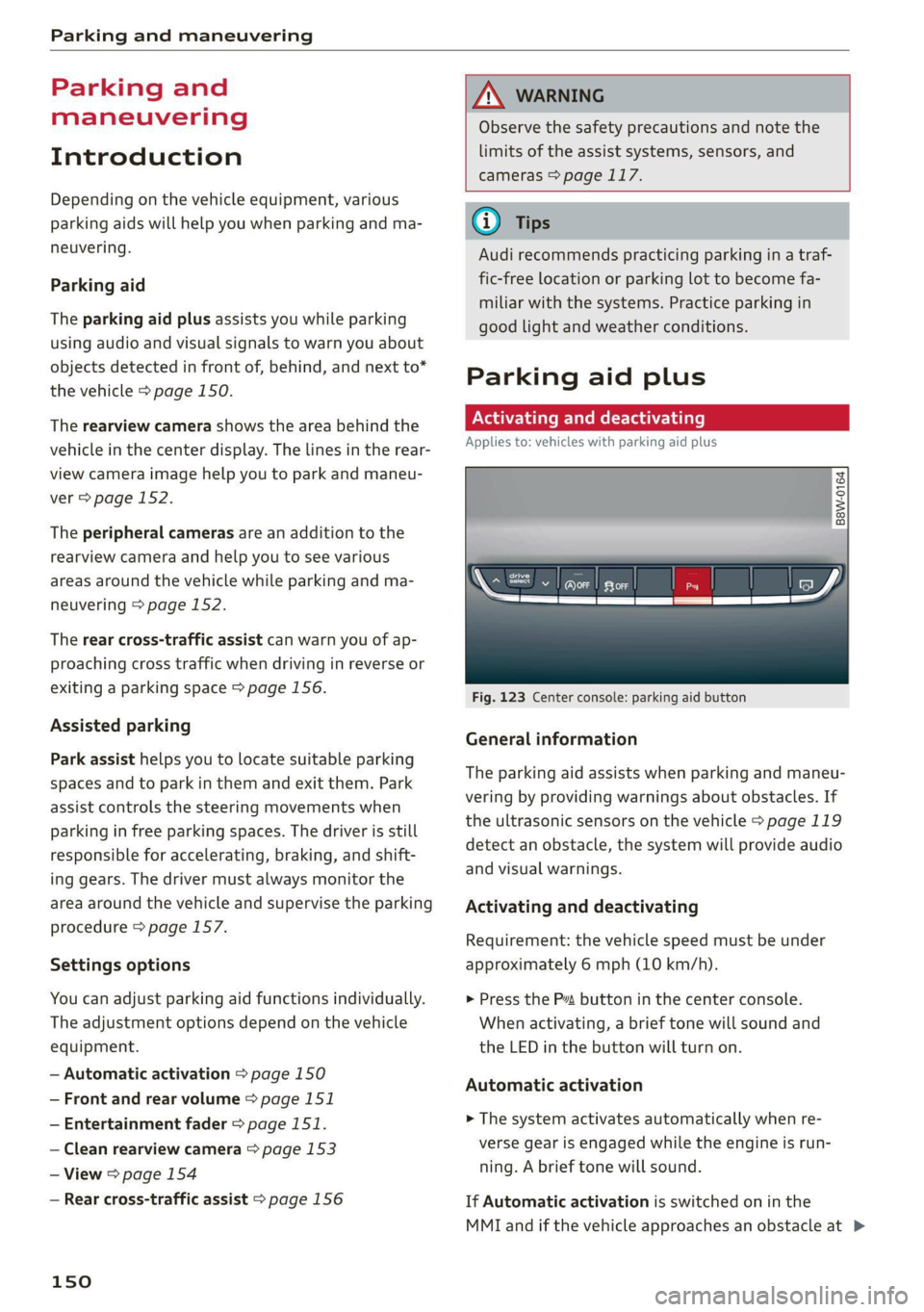
Applies to: vehicles with parking aid plus
B8W-0164
Fig. 123 Center console: parking aid button
General information
The parking aid assists when parking and maneu-
vering by providing warnings about obstacles. If
the ultrasonic sensors on the vehicle > page 119
detect an obstacle, the system will provide audio
and visual warnings.
Activating and deactivating
Requirement: the vehicle speed must be under
approximately 6 mph (10 km/h).
> Press the P” button in the center console.
When activating, a brief tone will sound and
the LED in the button will turn on.
Automatic activation
> The system activates automatically when re-
verse gear is engaged while the engine is run-
ning. A brief tone will sound.
If Automatic activation is switched on in the
MMI and if the vehicle approaches an obstacle at >
Page 155 of 304
8W1012721BC
Parking and maneuvering
ZA WARNING
Observe the safety precautions and note the
limits of the assist systems, sensors, and
cameras > page 117.
Activating and deactivating
Applies to: vehicles with rearview camera/peripheral cameras
=
g
gz
= & a
Fig. 126 Center console: parking aid button
Activating and deactivating
> Press the P4 button in the center console.
When activating, a brief tone will sound and
the LED in the button will turn on. Or
> Press CJ in the center display if the visual dis-
tance indicator is shown > page 151, fig. 124.
The system can be activated at low speeds, such
when maneuvering.
Automatic activation
The system activates automatically when reverse
gear is engaged while the engine is running. A
brief tone will sound.
Automatic deactivation
The system will deactivate automatically once
the vehicle exceeds a certain speed while driving
forward.
ZA WARNING
Observe the safety precautions and note the
limits of the assist systems, sensors, and
cameras > page 117.
(ead a)
Applies to: vehicles with rearview camera/peripheral cameras
Depending on vehicle equipment, you may be
able to manually initiate rear view camera clean-
ing.
> Move the window wiper lever S7 into the posi-
tion for cleaning the rear window © & page 58.
ZA\ WARNING
Observe the safety precautions and note the
limits of the assist systems, sensors, and
cameras > page 117.
Applies to: vehicles with rearview camera/peripheral cameras
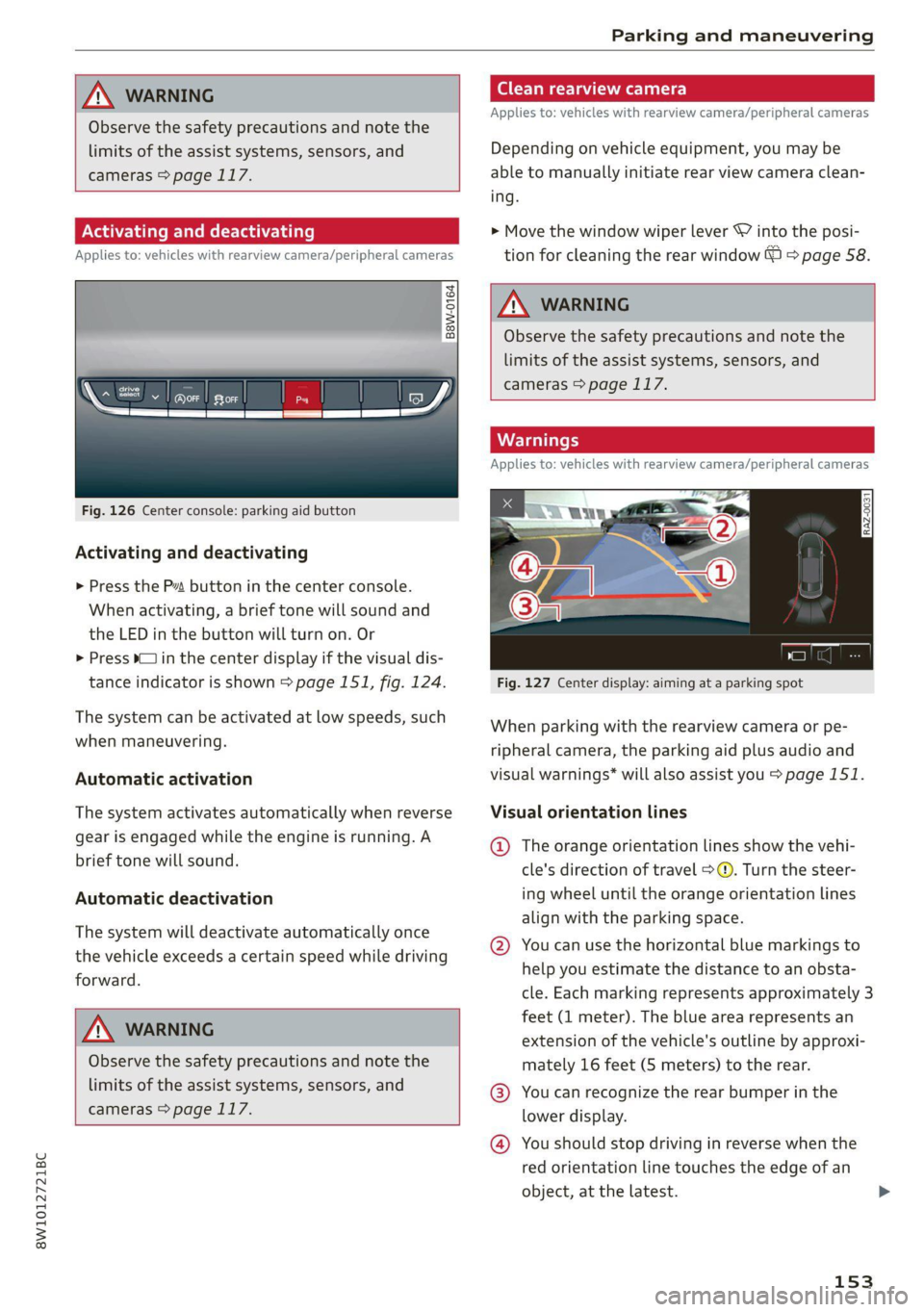
Fig. 127 Center display: aiming at a parking spot
When parking with the rearview camera or pe-
ripheral camera, the parking aid plus audio and
visual warnings* will also assist you > page 151.
Visual orientation lines
@ The orange orientation lines show the vehi-
cle's direction of travel >@. Turn the steer-
ing wheel until the orange orientation lines
align with the parking space.
@ You can use the horizontal blue markings to
help you estimate the distance to an obsta-
cle. Each marking represents approximately 3
feet (1 meter). The blue area represents an
extension of the vehicle's outline by approxi-
mately 16 feet (5 meters) to the rear.
@® You can recognize the rear bumper in the
lower display.
@ You should stop driving in reverse when the
red orientation line touches the edge of an
object, at the latest.
153
Page 160 of 304

Parking and maneuvering
Parking space search
Applies to: vehicles with park assist
a
&
g
S 3 3
Fig. 133 Center display: activated parking space search
Activating the parking space search
> To activate the parking space search, press the
Pe button in the center console, or
> To activate the parking space search when the
parking aid is switched on, press P@ in the cen-
ter display.
The LED in the button will turn on and the display
for finding a parking space will appear in the cen-
ter display > fig. 133.
Searching for parking spaces
> Drive forward to the row of parking spaces at a
low speed. For the best parking results, the ve-
hicle should be approximately 3 feet (1 m) from
the row of parking spaces.
> The parking space search is first done on the
side of your lane. To switch the side for the
parking space search, activate the turn signal
for that side. Depending on vehicle equipment,
you may also be able to press on the side next
to your vehicle in the center display.
Selecting the parking space
If the system finds a parking space that could be
suitable for the vehicle length and width, it will
158
be displayed. The system automatically suggests
a parking option @).
If the parking space allows different parking op-
tions, they can be selected manually. Press one of
the suggested parking options (@ in the center
display.
Starting the parking process
As soon as the vehicle has reached the correct po-
sition, a P will appear in the center display above
the selected parking space @). The roof in the
parking aid display @) may show the required
braking or driving direction.
> Keep the vehicle as parallel as possible to the
parked vehicles or to the side of the road.
>» Make sure that the parking space is suitable for
your vehicle >@).
> Start the assisted parking process > page 159.
Maneuvering area
The vehicle can go off course during the parking
process > A\. If there are obstacles within the
maneuvering area that block or endanger the
parking process, for example on the opposite
side of the street, a message may appear. You
may need to drive farther forward and stay closer
to the row of parking spaces.
Z\ WARNING
— Observe the safety precautions and note the
limits of the assist systems, sensors, and
cameras > page 117.
— The driver is always responsible when enter-
ing or exiting a parking space and during
similar maneuvers.
— Sensors and cameras have spots in which
the surrounding area cannot be detected.
Objects, animals, and people may only be
detected with limitations may not be detect-
ed at all. Always monitor the traffic and the
vehicle's surroundings directly and do not
become distracted.
@) Note
— Parking spaces classified as suitable by the
system may have been detected incorrectly.
>
Page 162 of 304

Parking and maneuvering
brakes or changing the direction. Park assist au-
tomatically steers the vehicle into the parking
space while the driver presses the pedals.
>» After stopping the vehicle briefly, make sure
the actual direction the vehicle is traveling
matches the direction indicated by the park as-
sist.
> Remove your hands from the steering wheel.
> Pay attention to the path of the vehicle. If the
traffic situation permits, accelerate carefully
> AX. The maximum parking speed is approxi-
mately 4 mph (7 km/h).
> Follow the visual instructions in the center dis-
play and the warning tones until the parking
process has ended.
ZX WARNING
— Observe the safety precautions and note the
limits of the assist systems, sensors, and
cameras > page 117.
— The park assist is an assist system. The driv-
er is still responsible for monitoring the ve-
hicle's surroundings and preventing colli-
sions when using the system.
— When using park assist to drive into or out
of a parking space, the steering wheel turns
quickly on its own. Reaching into the steer-
ing wheel spokes while this is happening can
result in injury.
tomatically steers the vehicle out of the parking
space while the driver presses the pedals.
> Start the engine.
> Press the Pe button in the center console.
> Wait until a message appears in the center dis-
play that specifies the direction of travel re-
quired to exit the parking space.
> Activate the turn signal on the desired side or,
depending on vehicle equipment, press that
side next to the vehicle in the center display.
» Make sure the actual direction the vehicle is
traveling matches the direction indicated by the
park assist.
> Remove your hands from the steering wheel.
> Pay attention to the path of the vehicle. If the
traffic situation permits, accelerate carefully
> AX. The maximum speed for exiting a parking
space is 3 mph (5 km/h).
> Follow the visual instructions in the display and
the warning tones until the vehicle has finished
exiting the parking space.
>» The process of exiting the parking space has
ended if additional corrective movements are
no longer necessary and the specified steering
wheel angle is sufficient to drive out of the
parking space. Resume control of the steering
wheel >@).
G) Tips
You can also cancel the driving direction set
by the system by shifting between a forward
gear and reverse gear. Based on the position
of the vehicle, the system then calculates the
additional steering and driving directions for
maneuvering.
Exiting parking spaces with park assist
Applies to: vehicles with park assist
If you parked the vehicle in a parallel parking
space, park assist can help you drive out of it.
In the center display, arrows and symbols on the
vehicle roof @) > page 158, fig. 133 indicate
what action is needed, such as applying the
brakes or changing the direction. Park assist au-
160
ZA WARNING
— Observe the safety precautions and note the
limits of the assist systems, sensors, and
cameras > page 117.
— The park assist is an assist system. The driv-
er is still responsible for monitoring the ve-
hicle's surroundings and preventing colli-
sions when using the system.
— When using park assist to drive into or out
of a parking space, the steering wheel turns
quickly on its own. Reaching into the steer-
ing wheel spokes while this is happening can
result in injury.
@) Note
Resume steering immediately after the last
corrective movement and the takeover
prompt, so that the specified steering wheel
angle is not recentered.
Page 166 of 304
Telephone
Disconnecting a mobile device
Applies to: vehicles with telephone
> To disconnect a Bluetooth device from the MMI,
use the Connected devices menu > page 214.
Using the Audi phone
box
General information
Applies to: vehicles with Audi phone box
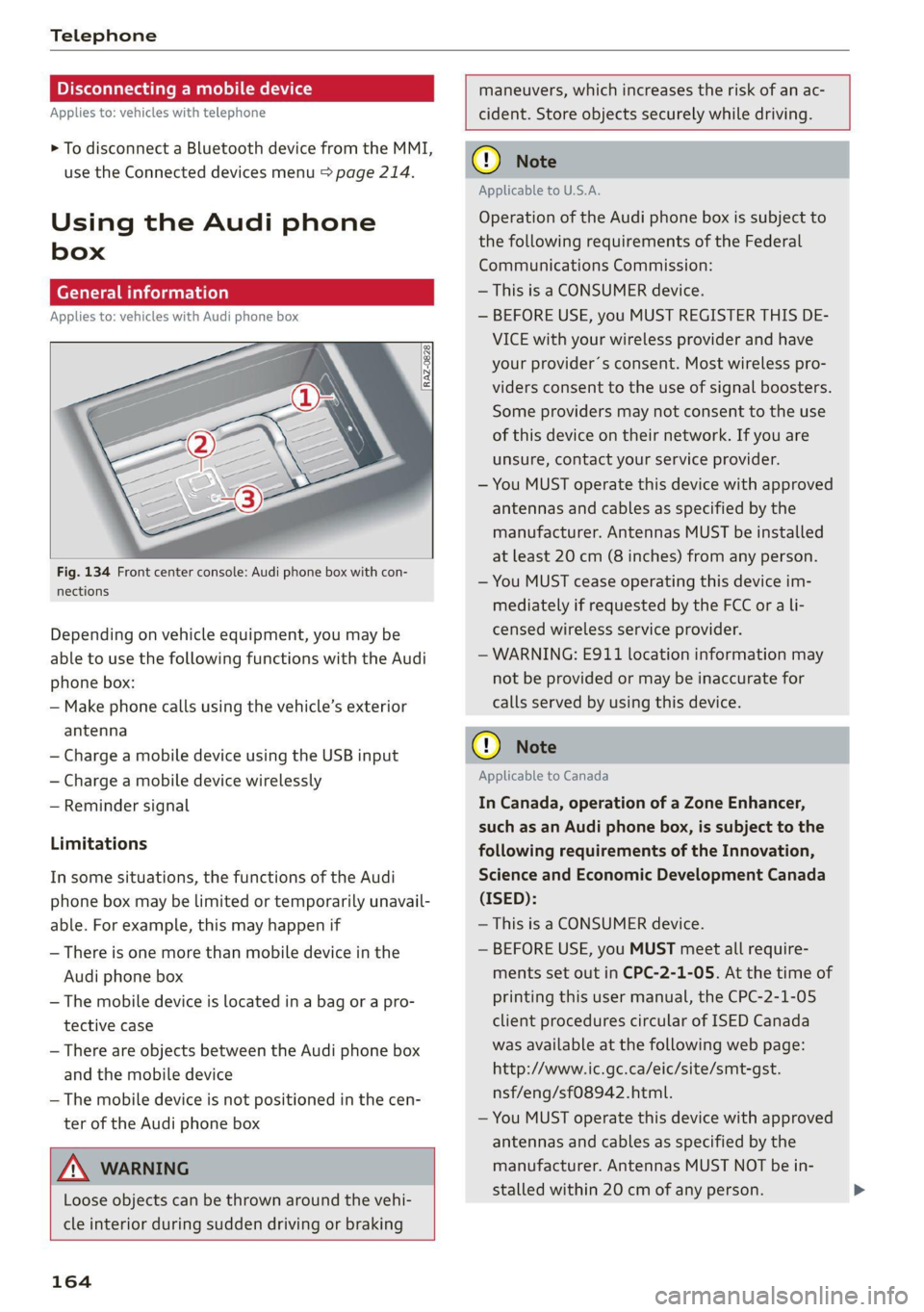
Fig. 134 Front center console: Audi phone box with con-
nections
Depending on vehicle equipment, you may be
able to use the following functions with the Audi
phone box:
— Make phone calls using the vehicle’s exterior
antenna
— Charge a mobile device using the USB input
— Charge a mobile device wirelessly
— Reminder signal
Limitations
In some situations, the functions of the Audi
phone box may be limited or temporarily unavail-
able. For example, this may happen if
— There is one more than mobile device in the
Audi phone box
— The mobile device is located in a bag or a pro-
tective case
— There are objects between the Audi phone box
and the mobile device
— The mobile device is not positioned in the cen-
ter of the Audi phone box
Z\ WARNING
Loose objects can be thrown around the vehi-
cle interior during sudden driving or braking
164
maneuvers, which increases the risk of an ac-
cident. Store objects securely while driving.
(@) Note
Applicable to U.S.A.
Operation of the Audi phone box is subject to
the following requirements of the Federal
Communications Commission:
— This is a CONSUMER device.
— BEFORE USE, you MUST REGISTER THIS DE-
VICE with your wireless provider and have
your provider’s consent. Most wireless pro-
viders consent to the use of signal boosters.
Some providers may not consent to the use
of this device on their network. If you are
unsure, contact your service provider.
— You MUST operate this device with approved
antennas
and cables as specified by the
manufacturer. Antennas MUST be installed
at least 20 cm (8 inches) from any person.
— You MUST cease operating this device im-
mediately if requested by the FCC or a li-
censed wireless service provider.
— WARNING: E911 location information may
not be provided or may be inaccurate for
calls served by using this device.
@) Note
Applicable to Canada
In Canada, operation of a Zone Enhancer,
such as an Audi phone box, is subject to the
following requirements of the Innovation,
Science and Economic Development Canada
(ISED):
— This is a CONSUMER device.
— BEFORE USE, you MUST meet all require-
ments set out in CPC-2-1-05. At the time of
printing this user manual, the CPC-2-1-05
client procedures circular of ISED Canada
was available at the following web page:
http://www.ic.gc.ca/eic/site/smt-gst.
nsf/eng/sf08942.html.
— You MUST operate this device with approved
antennas
and cables as specified by the
manufacturer. Antennas MUST NOT be in-
stalled within 20 cm of any person.
Page 204 of 304
Media
— Note the volume setting on your Bluetooth
device. Audi recommends setting your mo-
bile device to the maximum volume when
using it as a Bluetooth audio player.
—Aselection of supported Bluetooth devices
can be found in the database for tested mo-
bile devices at www.audi.com/bluetooth.
Amazon Alexa
Applies to: vehicles with Amazon Alexa Integration
You can play various Amazon Alexa content using
the MMI. The voice recognition system is used to
operate it.
Requirement: Amazon Alexa must be activated
=> page 27.
> Start Amazon Alexa using the voice recognition
system.
» Applies to: MMI: Select on the home screen:
MEDIA > Source > Amazon Alexa.
@) Note
Read the information about Audi connect, and
be sure to note the connectivity costs section
=> page 173.
Multimedia connections
USB adapter cable
[RAH-9202
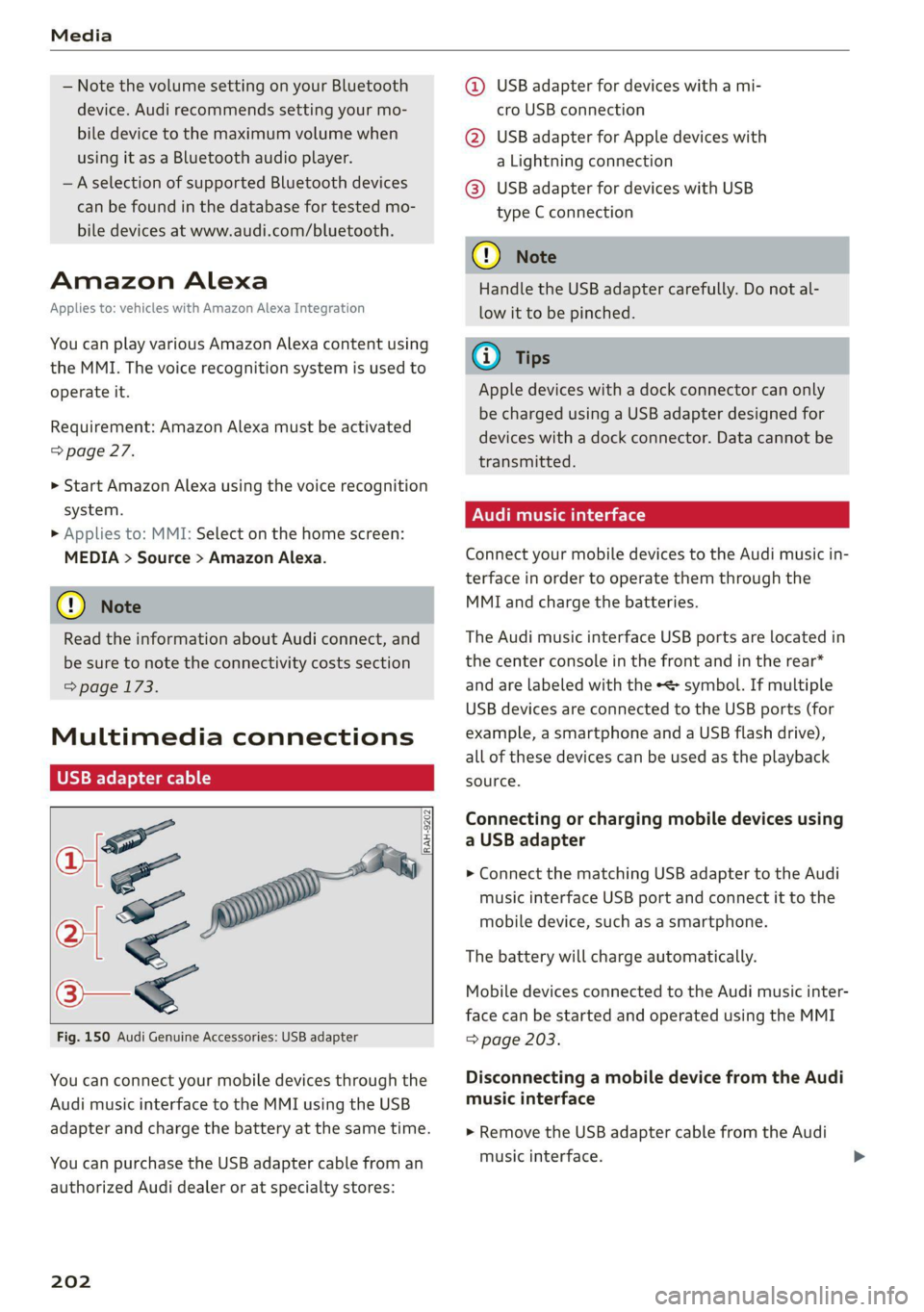
Fig. 150 Audi Genuine Accessories: USB adapter
You can connect your mobile devices through the
Audi music interface to the MMI using the USB
adapter and charge the battery at the same time.
You can purchase the USB adapter cable from an
authorized Audi dealer or at specialty stores:
202
@ USB adapter for devices with a mi-
cro USB connection
@ USB adapter for Apple devices with
a Lightning connection
@ USB adapter for devices with USB
type C connection
() Note
Handle the USB adapter carefully. Do not al-
low it to be pinched.
@ Tips
Apple devices with a dock connector can only
be charged using a USB adapter designed for
devices with a dock connector. Data cannot be
transmitted.
Audi music interface
Connect your mobile devices to the Audi music in-
terface in order to operate them through the
MMI and charge the batteries.
The Audi music interface USB ports are located in
the center console in the front and in the rear*
and are labeled with the «> symbol. If multiple
USB devices are connected to the USB ports (for
example, a smartphone and a USB flash drive),
all of these devices can be used as the playback
source.
Connecting or charging mobile devices using
a USB adapter
> Connect the matching USB adapter to the Audi
music interface USB port and connect it to the
mobile device, such as a smartphone.
The battery will charge automatically.
Mobile devices connected to the Audi music inter-
face can be started and operated using the MMI
=> page 203.
Disconnecting a mobile device from the Audi
music interface
> Remove the USB adapter cable from the Audi
music interface.