remote control AUDI A5 CABRIOLET 2013 User Guide
[x] Cancel search | Manufacturer: AUDI, Model Year: 2013, Model line: A5 CABRIOLET, Model: AUDI A5 CABRIOLET 2013Pages: 290, PDF Size: 72.35 MB
Page 101 of 290
Audi adaptive cruise control and braking guard 99
~--- ~-Di stance 3: This setting corre
sponds to a distance of 164 feet/SO meters
when traveling at 62 mph (100 km/h), or a
time interva l of 1.8 seconds .
~---- ~ Distance 4: This setting corre
sponds to a distance of 210 feet/64 meters
when traveling at 62 mph (100 km/h), or a
time interva l of 2.3 seconds .
A WARNING
Following other vehicles too closely in
creases the risk of collisions and serious
personal injury.
- Setting short distances to the traffic
ahead reduces the time and distance
available to br ing your vehicle to a safe
stop and ma kes it
even more necessary
to pay close attention to traffic.
- Always obey applicable traffic laws, use
good judgment, and select a safe follow
ing distance for the traffic, road and
weather conditions .
¢j) Tips
- Distance 3
is set automatically each time
you switch the ignition on.
- Your standa rd settings are automatically
stored and assigned to the remote con
trol key being used.
Setting the driving program
Applies to vehicles: with Audi adaptive cruise control
Depending on the se lected driv ing program
and distance, driving behavior when accelerat
ing will
vary from dynamic to comfortab le .
Setting the driving program for vehicles
without Audi drive select*
~ In the rad io/MM I*, select: I CAR ! function
button
> Adaptive cruise control > Driving
prog .
> comfort, standard or dynamic. Or
~ Select : ICARI function button > Car sys
tems *
control button > Driver assist > Adap
tive cruise control
> Driving program * >
Comfort, Standard or Dynamic. Setting the driving mode for
vehicles with
Audi drive select*
Refer to ¢ page 108.
(D Tips
Your settings are automatica lly stored and
assigned to the remote control key being
used.
Request for driver intervention
Applies to vehicles : with Audi adaptive cruise contro l
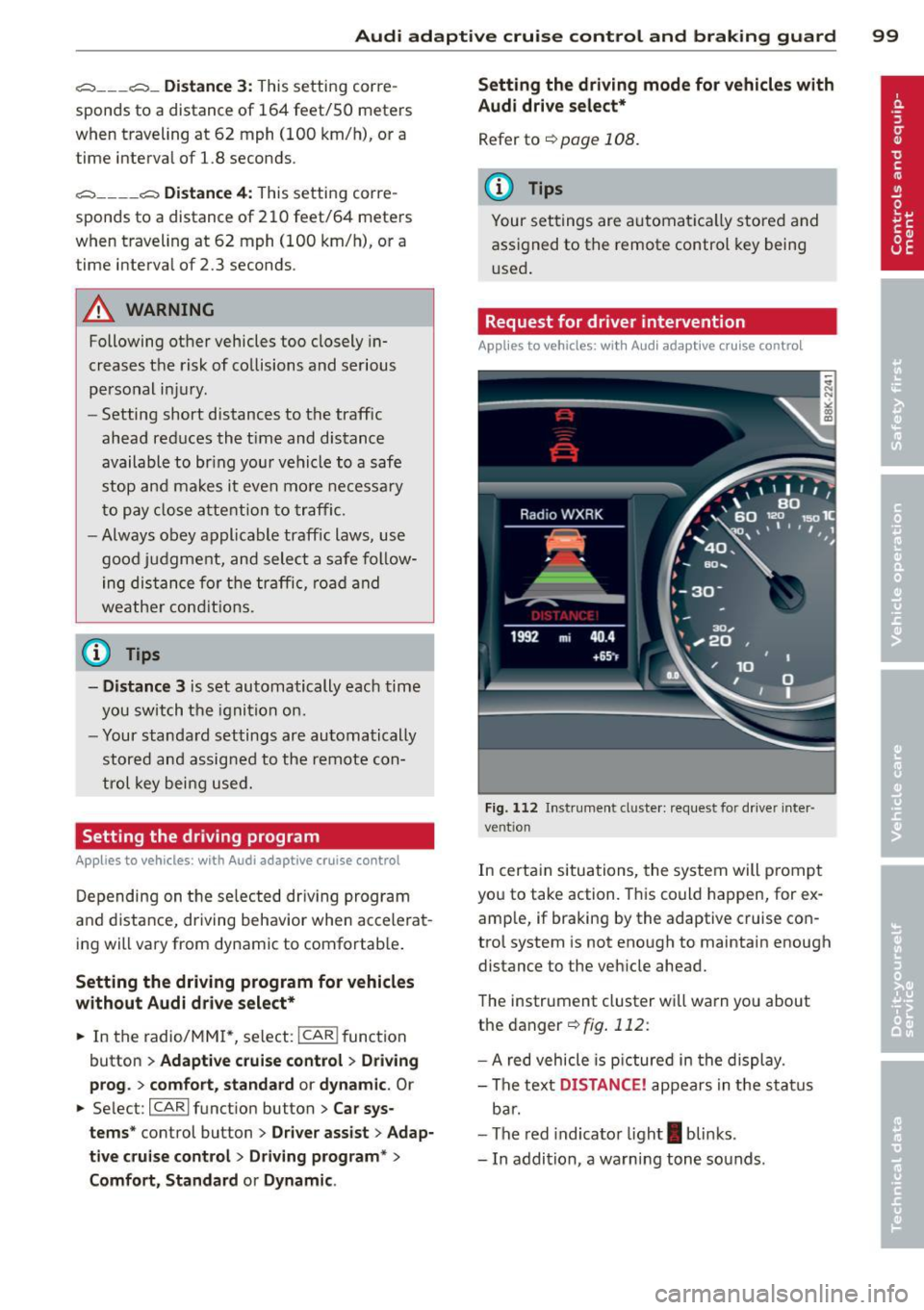
Fig. 112 Instrument d uste r: request for drive r inte r
ve ntion
In certain situations, the system will p rompt
you to take action. This could happen, for ex
amp le, if braking by the adaptive cruise con
trol system is not enough to maintain enough
distance to the vehicle ahead.
The instrument cluster will warn you about
the danger ¢
fig. 112:
-A red vehicle is pictured in the display.
- The text
DISTANCE! appears in the status
bar.
- The red indicator light
I blinks .
- In addition, a warning tone sounds .
Page 103 of 290
Audi adaptive cru ise control and brakin g guar d 101
-Always remember that the radar sensor
for the braking guard works only within
defined detection and range limits that
may prevent the proper detection of oth
er vehicles.
- The radar sensor's function and range
can be reduced by rain, snow and heavy
spray. Moving vehicles up ahead may not be promptly detected or may not be de
tected at al l.
- Reflective surfaces includ ing crash barr i
ers or tunnel ent ran ces may impair the
function of the radar sensor.
- You can cance l the braking that is initiat
ed by the system by braking yourself, by
accelerating noticeab ly or by swerving.
- Bra king guard error messages
<> page 101.
-Keep in mind that braking guard can
brake unexpectedly . Always secure any
ca rgo or objects that you are transport
i ng to reduce the risk of d amage or in
ju ry.
Settings in the radio/MM!
Applies to vehicles: with Audi adaptive cruise co ntrol
~ Se lect: I CARI f unction button > Car sys
tems*
control button > Driver assist > Audi
braking guard .
Or
~ Select: ICARlf unct ion button> Audi brak -
ing guard .
System -
Switch Audi braking g uard On and
Off . When you switch the ignition on, the
message
Aud i braking guard off appears if
the system is sw itched off .
Early warning -The distance and app roac h
warn ings in the display can be switched
On /
Off .
(D Tips
-Your settings are automatically stored
and ass igned to the remote control key
being used at the t imes the settings are
made. -
If you switch the ASR/ESC off, braking
guard switches off automatically
<> page 181.
- Switch braking guard off when you a re
loading the vehicle onto a vehicle carrier,
train, ship or other type of transporta
t ion. This can prevent undesired warn
ings from the braking gua rd system.
Messages
App lies to vehicles : wit h Aud i adapt ive c ruise contro l
Braking guard : Off
This driver message appears if the system is
turned off via the radio/MMI *. Otherwise, if
the system is turned off, the informat ion ap
pears every t ime shortly after the start of the
trip.
B raking guard : Activated
T h is dr iver message appears if sharp b rake
pressure was applied due to an acu te warning.
•••
Three white dots appear if a sett ing cannot be
selected w ith the operating lever. For exam
ple, this happens if you want to raise/lower
the speed even though there was no previous
ly saved speed.
ACC: Sensor blocked
This message appears if the sensor v iew is ob
structed, for examp le by leaves, snow, heavy
spray or d i rt . Clean the sensor<>
fig. 103.
ACC: not available
T he driver mess age appears if there is a mal
f un ction. The adapt ive cr uise con tro l tu rns off.
A chime sounds as a reminder . Have the sys
tem checked by an authorized Audi dea ler or
authorized Aud i Service Fac ility.
ACC : unavailable
The dr iver message appears if, for example,
t h e b ra ke tempe rat ure is too hig h. T he adap
t ive cr uise cont ro l is temporar ily u nava ilable.
A ch ime sounds as a remin der .
Shift lever position!
Page 108 of 290
106 Audi side assist
- Side assist is not active wh ile you are
making the adjus tment.
- Your settings are automatica lly sto red
and ass igned to the remote control key
being used.
Driver messages
App lies to vehicles: with Audi side assist
If s ide ass ist switches off by itse lf, t he LED in
the butto n tur ns off a nd a message will ap
pear in t he instr ume nt cl uster d is p lay:
Audi side assist unavailable : Sensors blocked
T he radar sensors' vision is a ffected. Do not
cover the area in front of the senso rs with bike
wheels, stickers, dirt or other objects . Clean
the area in front of the sensors, if necessary
¢fig. 117.
Audi side assist : Currently unavailable
Side assist can not be swi tched on tempora ril y
bec ause there is a mal func tio n (for ex am ple,
the ba ttery cha rge leve l may be too low) .
Audi side assist : System fault!
The system ca nnot guara ntee that it w ill de
tec t ve hicles co rrec tly and it is sw itched off .
Th e senso rs have been displaced o r are faulty .
H ave the sys tem che cked by an au thor ized
Au di d eale r or auth oriz e d Au di S ervice Fa cility
soon .
Audi side assist : Unavailable when towing
Side assist sw itches off automatically when a
factory- insta lled trailer hitch is connected to
the elec trical connector on the trailer . There is
no guarantee the system will switc h off when
usi ng a retrofitted t railer hi tch . Do not use
si de assis t when towing a tra iler .
Page 113 of 290
_& WARNING
-Sensors have dead spaces in which ob
jects cannot be detected. Be especially
alert for small children and animals,
since they are not always detected by the
sensors.
- The acoustic park ing system is not a sub
st itute for the driver 's own caution and
alertness. Ultimate responsibi lity always
remains with the driver during parking
and simi lar maneuvers . Always watch
where you are driving.
- You should always adjust the volume and
frequency of the warning tones so that
yo u can easily hear the acoustic distance
warning even if the radio is p laying, the
air-cond itioner blower is on High or there
is a high level of outside noise .
- Check the settings whenever anyone
else has driven the vehicle before you.
(D Note
-Remember that low obstacles for which
a warn ing has already been issued may
"dive" below the system's sensing zone if
the vehicle is being backed up closer. In
this case, the warning sound shutting off
does
not in dicate that you have cleared
the obstacle . Instead, impact is immi
nent.
- Objects such as trailer hitches, chains,
narrow posts or fences covered by a th in
l ayer of paint may not always be detect
ed by the system. They can still damage
your vehicle without warning .
@ Tips
Keep the sensors in the rear bumper clean
and free of snow and ice so that the acous
tic parking assist system can function
properly.
Park assist 111
Adjusting the warning tones
Applies to vehicles: with parking system (rear)
The warning tones can be adjusted in the
MM!*.
.. Select: I CAR ! function button > Parking sys
tem .
Or
.. Select:
I CAR I function button > Car sys
tems *
control button > Driver assist > Park
ing aid .
- Rear volume -
rear sensor volume
-Rear frequency -rear sensor frequency
-Music volume while parking -when the
parking system is switched on, the volume
of the active audio source is lowered.
The newly ad justed value is briefly heard from
the signal generator. The settings are auto
matically stored and assigned to the master
key with remote control.
Parking system (rear,
with rear view camera)
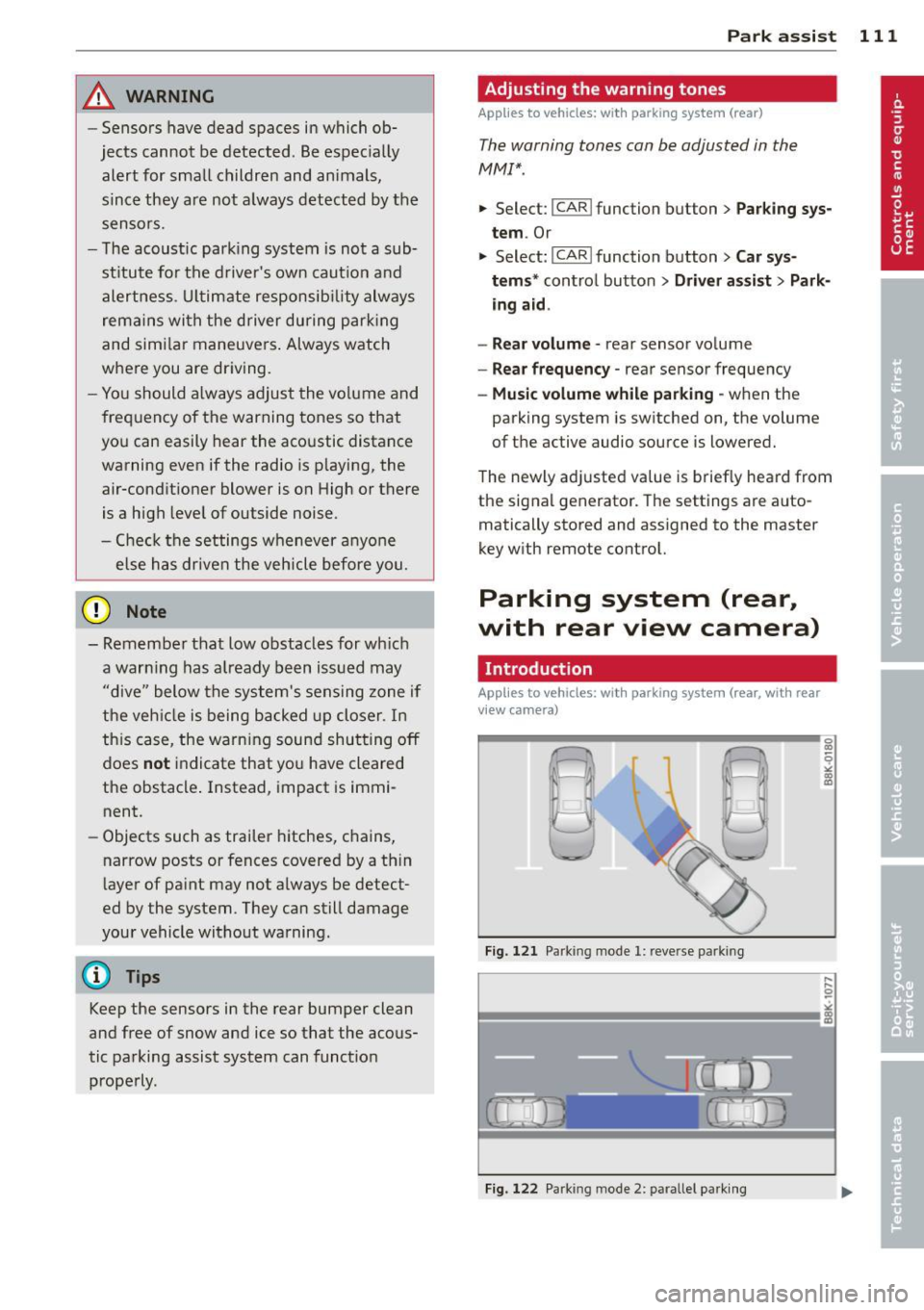
Introduction
Applies to vehicles: with parking system (rear, with rear
v iew camera}
Fig. 121 Parking mode 1: reve rse park ing
Fig. 122 Park ing mode 2: parallel parking
Page 118 of 290
116 Park assist
In the MMI display, the direction of travel
of the vehicle rear is represented depending on the steering wheel angle. The vehi
cle front swings out more than the vehicle
rear. Maintain plenty of distance from an
obstacle so that your outside mirror or a
corner of your vehicle does not collide with
any obstacles -danger of accident!
@ Tips
The left or right orientation lines and sur
faces will be displayed, depending on the turn signal being used.
Adjusting the display and warning tones
Applies to vehicles: with parking system (rear, with rear
view camera)
The display and warning tones are adjusted in
the radio or MM!*.
"' Select: I CARI function button > Parking sys·
tern.
Or
"' Select: ~I C~A~RI function button > Car sys
tems*
control button > Driver assist > Park·
ing aid.
Display
- Off -when the parking system is switched
off, only audible signals are given.
- On -when the parking system is switched
on, the picture from the rear view camera is
displayed.
Warning tones
- Rear volume -
rear sensor volume
-Rear frequency -rear sensor frequency
-Music volume while parking -when the
parking system is switched on, the volume
of the active audio source is lowered.
The newly adjusted value is briefly heard from
the signal generator. The settings are auto
matically stored and assigned to the remote
control key.
A WARNING
- Always make sure that the volume and
frequency of the warning tones is adjust
ed so that you can easily hear the acous
tic distance signal even if the radio is
playing, the air-conditioner blower is on
High or there is a high level of outside
noise.
- Check the settings whenever someone
else has driven the vehicle before you.
@ Tips
- The warning tones can also be adjusted
directly from the rear view camera im
age. Simply press the Settings* control
button.
- Changed settings are activated when
parking assist is switched on again.
Error messages
Applies to vehicles: with parking system (rear, with rear
view camera)
-
If a warning tone is audible for about five sec
onds when you turn on the ignition, there is a
malfunction in the system. Have the problem
corrected by your authorized Audi dealer.
Keep the sensors in the rear bumper clean and
free from ice so that the acoustic park assist system can function properly.
Page 119 of 290
Homelink®
Universal remote
control
Description
Applies to vehicles: with Home link
The HomeLink universal remote control con
be programmed with the remo te control for
devices that ore already present.
With Home Link, you can control devices such
as the garage door, secu rity systems, ho use
lights , etc. comfortably from the inside of you
veh icle .
H omelink makes it poss ible for you to rep lace
t hree different remote controls from dev ices
in your home with one un ive rsal remo te. Th is
featu re works for most garage door and exte
rior door motor signals. Programming the in
d ividual remote control for your remote con
trol takes p lace near the center of the radiator
grille. There is a control module attached at
this location .
A one-t ime programm ing of the sensor must
be performed before you are able to use sys
tems with Homelink. If the system does not activate after performing the one-t ime pro
gramming, check whether the system uses a rolling code
¢ page 120 for veh ides without
the MMI*.
& WARNING
-
-Never use the Homelink ® transmi tter
with any garage door opener that does have not the sa fety stop and reverse fea
ture as requ ired by federa l safety stand
ards. Th is includes any garage door open
er mode l manufactured before April 1,
1982.
- A garage door opener which cannot de
tect an object, signaling the door to stop
and reverse does not meet current feder
al safety standards . Us ing
a garage door
opener without these features increases
r isk of serious inj ury or death.
Homelink ® 11 7
-For safety reasons never re lease the
parking brake or start the eng ine while
anyone is standing in front of the vehicle .
- A garage door or an estate gate may
sometimes be set in motion when the
Homelink ® remote control is being pro
grammed. If the device is repeatedly ac
tivated, th is can overstrain motor and
damage its e lectrical compon ents -an
overheated mo to r i s
a fire hazard!
- To avo id possib le injuries or property
damage, please always make abso lutely
certa in that no person s or objects are lo
cated in the range of motion of any
equ ipment being operated .
(0 Tips
-If you would like more information on
Homelink ®, where to purchase the
Home link ® compatib le products, or
would like to purchase the Homelink ®
Home Lighting Package, please ca ll toll
free: l-800-355-3515.
- For Declaration of Compliance to United
States FCC and Industry Canada reg ula
tions ¢
page 2 72.
- For security reasons, we recommend that
you clear the programmed b uttons be
fore selling the veh icle.
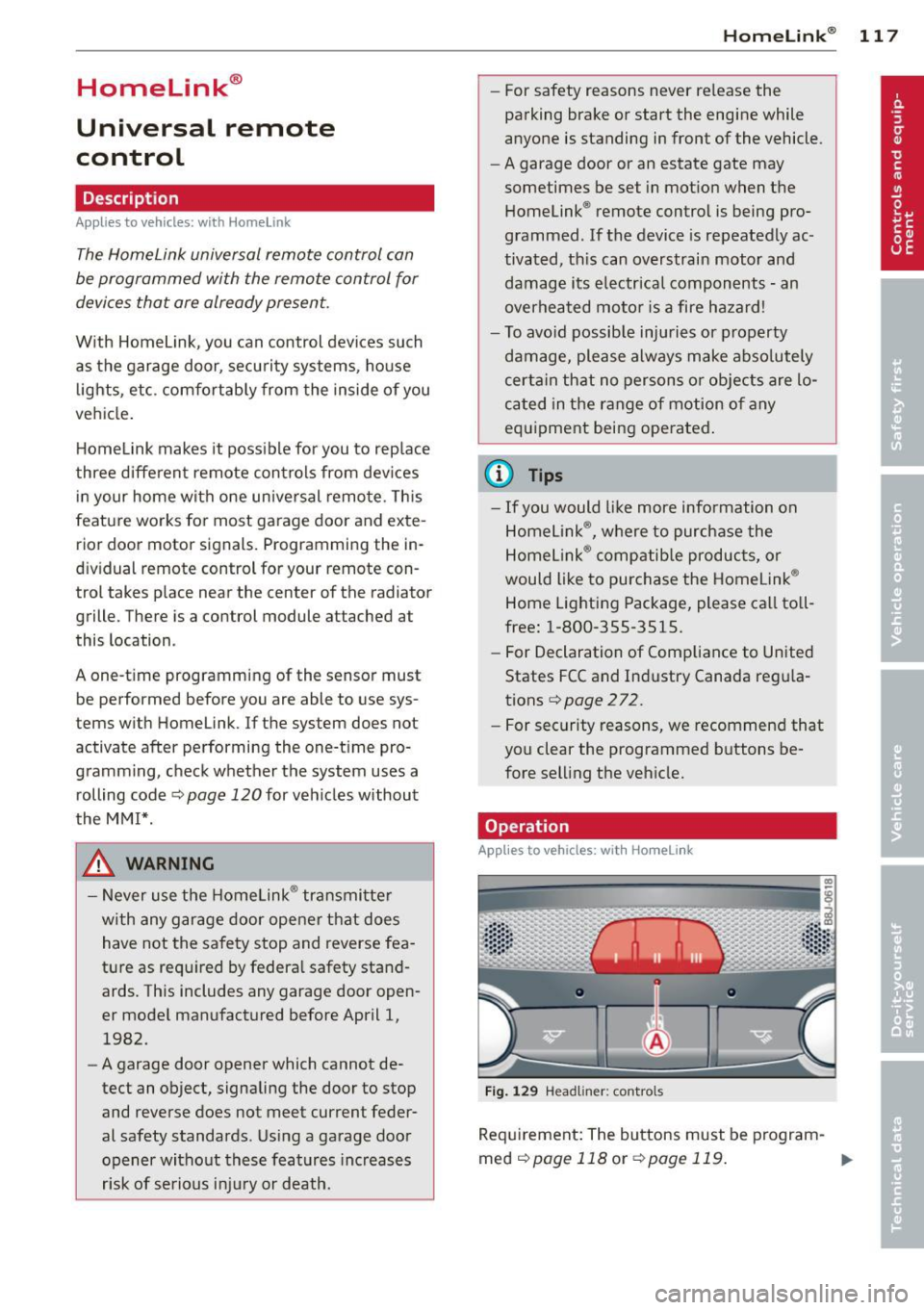
Operation
App lies to vehicles : with Homeli nk
Fig . 1 29 Head li ner: controls
Req uirement : The buttons must be program-
med
c!) page 118 or ¢ page 119. ..,_
Page 120 of 290
118 Homelink®
• To open the garage door, press the p ro
grammed button . The LED @will light up or
flash.
• To close the garage door, press the button
again.
@ Tips
To open the garage door, press the button, but do not press it for longer ten seconds
or the Homelink module w ill switch to
programming mode.
Programming the transmitter (version
A)
Appl ies to vehicles : wit h Home li nk
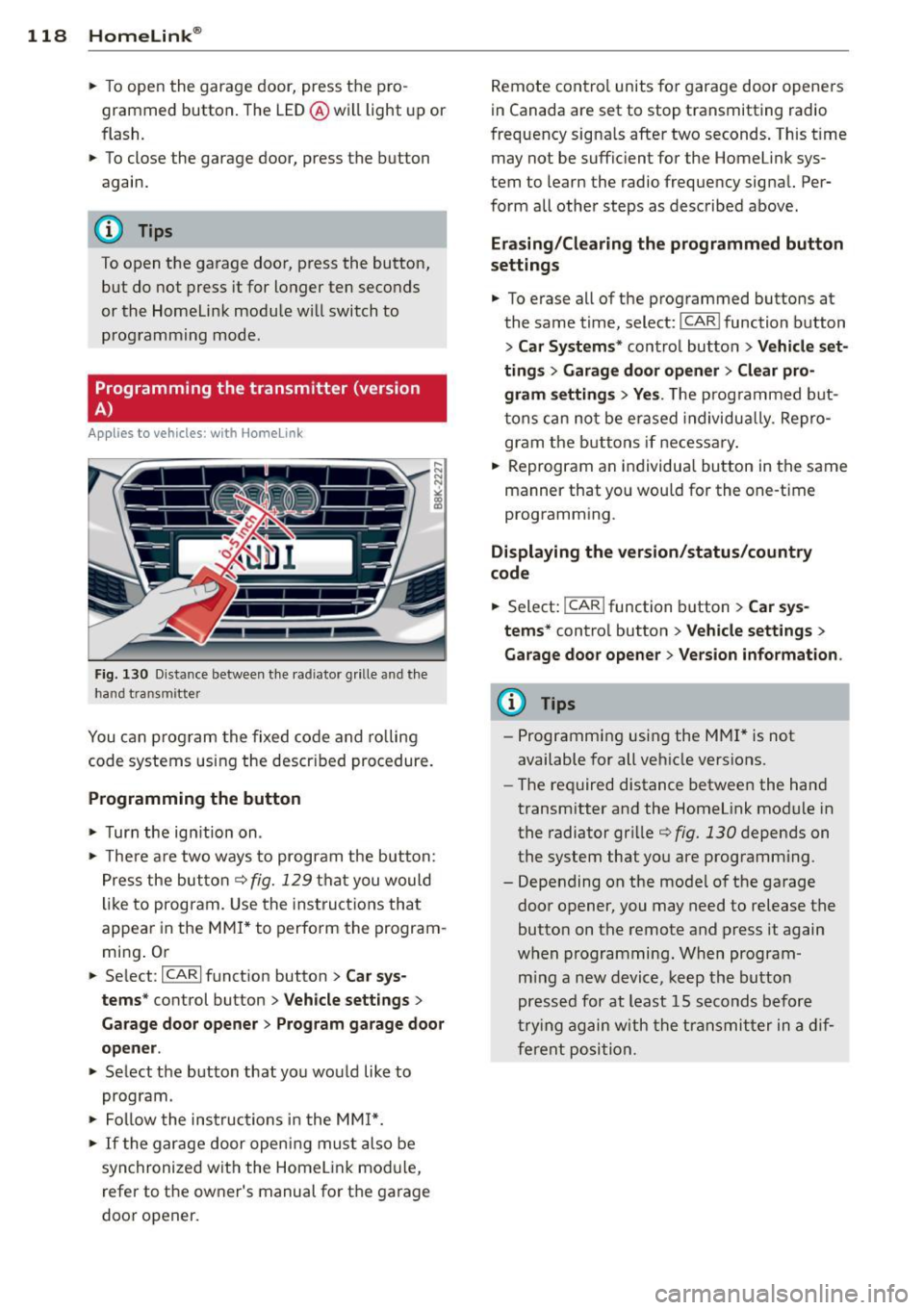
Fig . 130 D istance between t he rad iator grille and th e
hand transmitter
You can p rogram the fixed co de and ro lling
code systems using the descr ibed procedure.
Programming the button
• Turn the ig nition on .
• The re a re two ways to program the button:
P res s the but ton¢
fig. 129 tha t you would
li ke to progr am. Use the instruct io ns that
appear in the M MI* to perform the program
mi ng . Or
• Se lect:
~I C-A-R~I function button > Car sys
tems *
control button > Vehicle settings >
Garage door opener > Program garage door
opener .
• Select the button that yo u would like to
program.
• Fol low the ins truc tions in the MMI*.
• If the gar age door openi ng mus t also be
syn chronized wit h the Homel ink mod ule,
refer to the owner's manual for t he ga rage
door opener. R
emote cont ro l units fo r garage door opene rs
in Canada are set to stop transmitting radio
f requency signa ls after two seconds . This t ime
may not be suffic ient for the Homelink sys
tem to learn the radio frequency signal. Per
form all other steps as described above.
Erasing /Clearing the programmed button
settings
• To e rase all of t he programmed buttons at
the same t ime, select:
I CAR I function button
> Car Systems" contro l button > Vehicle set
ting s
> Garage doo r open er > Clear pro
gram setting s> Yes.
The prog rammed b ut
t ons can no t be erased individua lly. Re pro
gram the butt ons if necessa ry .
• Reprogram an individua l bu tton in the same
manner that you wou ld for the one-time
programm ing .
Displaying the version /status/country
code
• Select: I CAR ! function b utton > Car sy s
tems *
contro l button > Vehicle settings >
Garage door opener > Version information .
(D Tips
-Programming using the M MI* is not
available for all ve hicle vers ions.
- The required distance betwee n the hand
transm itter and the Homelink module in
the radiator gr ille¢
fig. 130 depends on
the system that you are prog ramm ing .
- Depending on the mode l of the garage
door opener, you may need to release the
butto n on t he remote and press it again
w hen programming. When program
m ing a new device, keep the button
presse d for at least 15 s econds befo re
tr ying again w ith the tra ns mit ter in a dif
ferent posi tion.
Page 121 of 290
Programming the transmitter (version
B)
Applies to vehicles: with Horne link
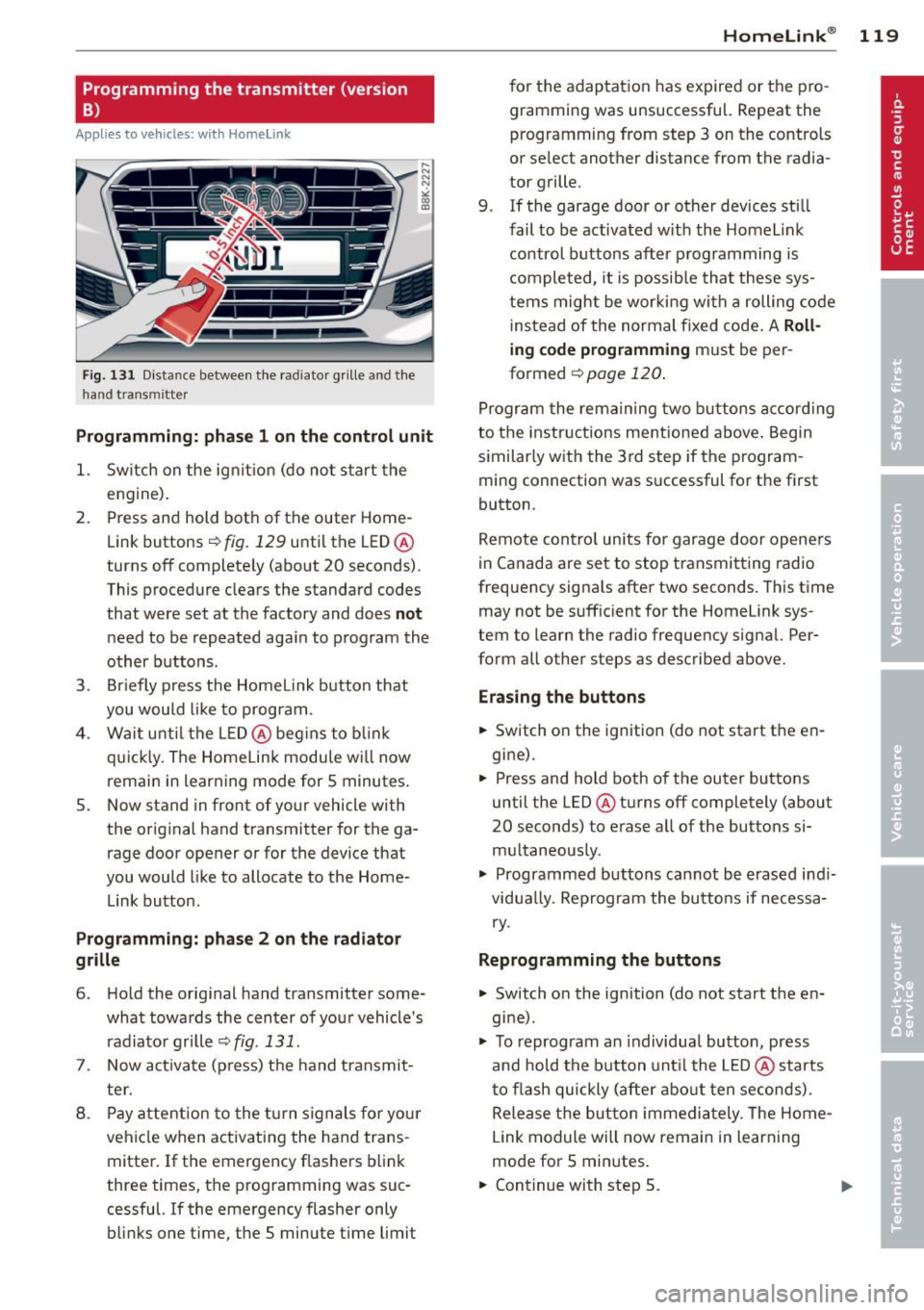
Fig. 131 D istance between t he rad ia tor grill e and t he
hand transmitte r
Programming: phase 1 on the control unit
1. Sw itch on the ig nit io n (d o n ot start the
e ngine ).
2. P ress and hold bot h of the outer Home
Link buttons
r=> fig. 129 until the LED @
turns off complete ly (about
20 seconds).
This procedure clea rs the standard c odes
that were set at the factory and does
not
n eed to be repeated aga in to program the
other b uttons.
3. Briefly press the Homelink button that
you would like to prog ram .
4 . Wai t until the LED@ beg ins to blink
q ui ckly. The Home Lin k modu le wi ll now
remai n in learning mode for
5 minutes .
5. Now stand in front of your vehicle with
the original hand transmitter for the ga rage door opener o r for the device that
you would like to allocate to the Home
Link button.
Programming: pha se 2 on the radiator
grille
6 . Hold the o rig inal hand transmitter some
what towa rds the center o f you r vehicle 's
radiato r gr ille r=>
fig. 131.
7. Now activate (p ress) t he hand transmit
ter.
8 . Pay a ttention to the t urn sign als for yo ur
vehicle when activating the ha nd trans
mitter . If t he emergency flashers b link
three times, the programming was suc
cessful. If the emergency flasher only
bli nks one time, the 5 minute t ime limit
Homelink ® 119
for the adaptat ion has expired or the pro
gram ming was unsuccessful. Repeat the
programming from step 3 on the controls
o r se lect another distance from the radia
tor grille.
9. If the garage door or other devices sti ll
fail to be activated w it h the Homelink
control buttons after p rogramming is
comple ted, it is possib le tha t these sys
tems might be wor king with a roll ing code
ins tead of the normal fixed code .
A Roll
ing code programming must be per
formed
r=> page 120 .
Program the rema ining tw o b uttons a ccord ing
to the instructions mentioned above . Beg in
similar ly w ith the 3rd step if the program
m ing connection was successful for t he first
button .
Remote con trol units fo r garage door opene rs
in Canada are set to stop transmitting radio
frequency signa ls after two seconds . This time
may not be suffic ient for the Homelink sys
tem to learn the radio frequency signa l. Per
form all other steps as described above.
Erasing the buttons
.,. Switch o n the ignition (do not start the en
gi ne).
.,. Press and hold both of the outer buttons
until the LED @tu rns off completely (about
20 seconds) to erase all of the buttons si
m ultaneously .
.,. Programmed buttons cannot be erased ind i
vidua lly. Reprogram the buttons if necessa
ry .
Reprogramming the buttons
.,. Switch on the ignition (do not start the en
gine) .
.,. To reprogram an individua l butto n, press
and hold the button unt il the L ED@ starts
to f lash quickly (after abo ut ten seconds) .
Release t he bu tton imme dia tely. The Home
L ink module will now remain in learning
mo de for 5 minutes.
.,. Continue with step 5.
Page 122 of 290
120 Homelink®
-The required dista nce between the hand
transmitter and the HomeLink module in
the radiator grille
c:> fig. 131 depends on
the system that you are programming.
- Depend ing on the model of the garage
door opener, you may need to release the
button on the remote and press it again
when programming . When p rogram
ming a new dev ice, keep the button
pressed for a t least 15 seconds befo re
trying again wi th the transmitte r in a dif
ferent pos it ion. W atch out fo r the emer
gency flasher during that time .
Programming the rolling code
Applies to vehicles: with Home link
Additionally, a rolling code programming for
the HomeLink universal remote control is re
quired for some systems .
Identifying the rolling code
.. Press the prev ious ly programmed Homelink
button aga in and hold i t down .
"' Look at the LED@ c:>
fig. 129. If the LED
blinks q uick ly, the feat ures, such as the ga
rage door opener, are equipped with the
ro lling code .
.. Program the roll ing code as fo llows:
Act ivating the garage door opener motor
unit
.. Locate the sett ing button on the garage
door opene r motor unit . The exact location
and co lor of the b utton may vary depending
on the garage door opener ma nufacturer .
.. Press the sett ing button on the garage door
opener motor unit (usually th is w ill act ivate
a "s ett ing light d isp lay" on the moto r unit).
Now you w ill have abo ut
30 se conds time to
perfo rm the Home Link button programming
on the cont ro ls.
Programming on the controls
.. Press the Home L ink button that was already
programmed and hold for two seconds . ..
To end ro lling code programm ing, p ress and
hold t he Home link button for two seconds
aga in .
.. The Homelink button may need to be press
ed a t hird t ime to end the adjus tment proce
dure for some garage door openers .
After the controls have been programmed, the garage door opener s hou ld recogni ze the
Homelink signa l and operate when the Home
Li nk button is pressed . N ow you may program
t h e other buttons as needed .
(D Tips
-Programmi ng the rolling code can be
performed quicke r and more easily with
t he help of a second person .
- If d iff iculties should ar ise when pro
gramming the rolling code, consult the
op erating instructions fo r the garage
door opener or o ther dev ices for po ssible
sol utions.
Page 274 of 290
272 Consumer Information
Technical Modifications
Our guidelines must be complied with when technical modifications are made .
Always consult an authorized Audi dealer be
fore starting work on any modifications.
This will help ensure that vehicle function,
performance and safety are not impaired
¢ &. .
Attempting to work on electronic components
and the software used with them can cause
malfunctions. Because of the way electronic
components are interconnected with each
other, such malfunctions can also have an ad
verse affect on other systems that are not di
rectly involved. This means that you risk both
a substantial reduction in the operational
safety of your vehicle and an increased wear of
ve hicle parts ¢
A:,..
Author ized Audi dealers will perform th is
wo rk in a professiona l and competent manner
or, in special cases, refer you to a professional
company that specializes in such modifica
tions .
A WARNING
-
Improper repairs and modifications can
change the way vehicle systems work and
cause serious personal injury.
(D Note
If emergency repairs must be performed
elsewhere, have the vehicle examined by
an authorized A udi dealer as soon as possi
ble.
Declaration of
Compliance, Telecom
munications and
Electronic Systems
Radio Frequency Devices and Radiocommuni
cation Equipment User Manual Notice.
The manufacturer is not responsib le for any
radio or TV interference caused by unauthor
ized modifications to this equipment.
Devices
T he following devices each comply with FCC
Part 15.19, FCC Part 15.21 and RSS-Gen Iss ue
1:
- Adapt ive cru ise control*
- Conven ience key*
- Side assist*
- Cell phone package*
- Electron ic immobilizer
- Homelink ® universal remote control*
- Remote control key
- Tire pressure monitoring system*
FCC Part 15.19
This device complies with part 15 of the FCC
Rules . Operation is subject to the follow ing
two conditions:
(1) This device may not cause harmful inter
ference, and
(2) this device must accept any interference
received, including interference that may
cause undesired operation.
FCC Part 15.21
CAU TION:
Changes or mod ifications not expressly ap
proved by the party responsible for compli
ance could void the user 's authority to operate
the equipment .
RSS-Gen Issue 1
Operation is subject to the following two con
ditions: