change time AUDI A5 COUPE 2018 Owner's Manual
[x] Cancel search | Manufacturer: AUDI, Model Year: 2018, Model line: A5 COUPE, Model: AUDI A5 COUPE 2018Pages: 409, PDF Size: 67.63 MB
Page 194 of 409
Audi connect (Infotainment)
~ Enter your myAudi user data. Or: enter your
eight-digit myAudi PIN .
~ Confirm your entry with OK.
Then you can open your persona l settings from
your myAudi account in your vehicle.
(D Tips
You can receive your myAudi P IN if you have
set up a myAudi account. For additional infor
mation, see
www.audiusa .com/myaudi .
Opening Audi connect
(Infotainment)
A pp lies to veh icles with Audi co nnect (Infotainment)
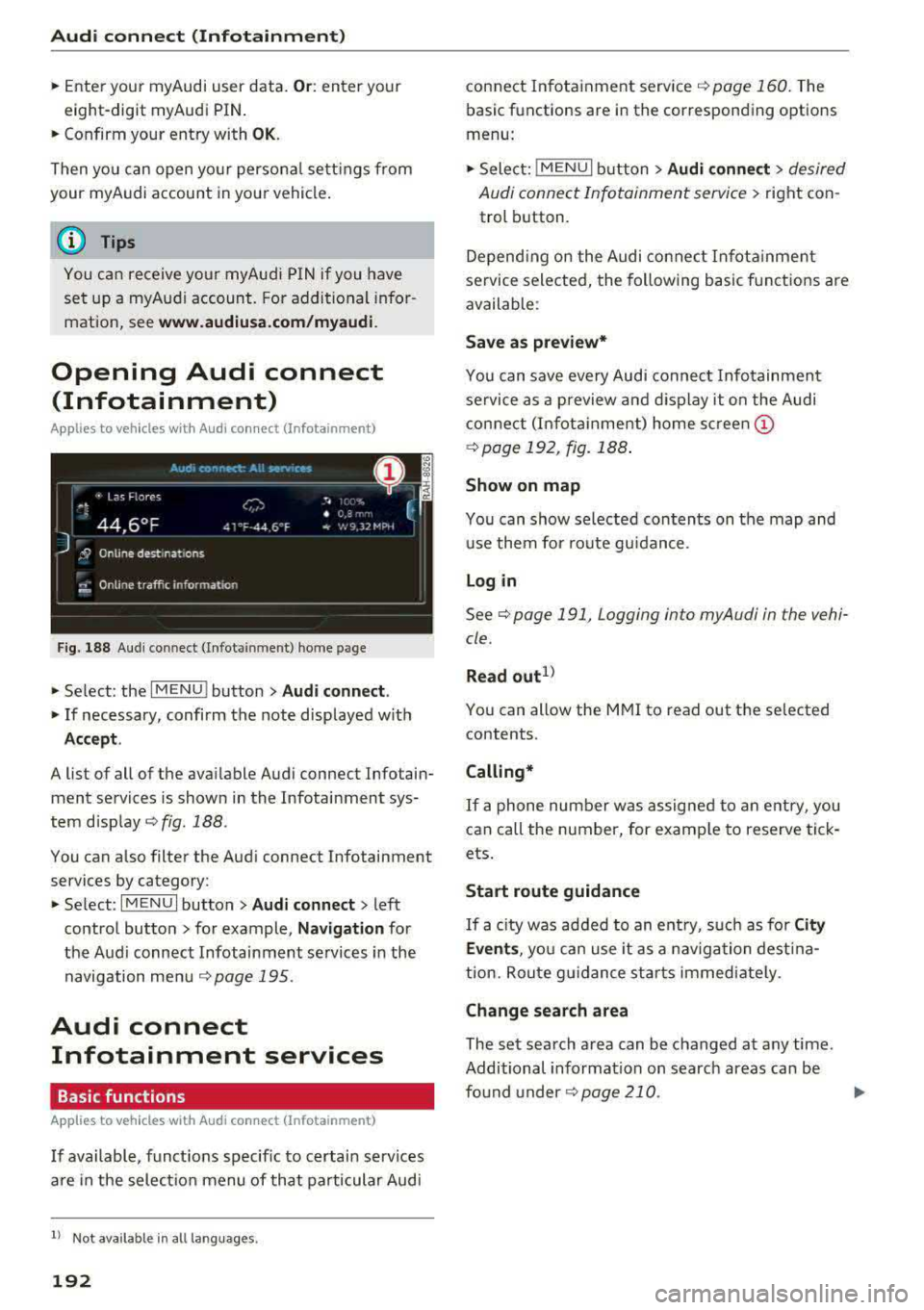
Fig. 188 Aud i connect ( Infotainmen t) ho me page
~ Select: the IMENU ! button> Audi connect .
~ If necessary, confirm the note displayed with
Accept.
A list of all of the available Audi connect Infotain
ment services is shown in the Infotainment sys
tem display
~ fig. 188.
You can also filter the Audi connect Infotainment
services by category:
~ Select: I M ENU I button > Audi connect > left
contro l button> for example,
Navigation for
the Aud i connect Infotainment services in the
navigation
menu ¢ page 195 .
Audi connect
Infotainment services
Basic functions
Applies to veh icles with Audi co nnect (Infotainment)
If available, funct ions specific to certain services
are in the selection menu of that particular Audi
l) Not available in all languages.
192
connect Infotainment service ¢ page 160. The
basic functions are in the corresponding options
menu:
~ Select: ! MENUI button> Audi connect> desired
Audi connect Infotainment service>
right con
trol button .
Depending on the Audi connect Infotainment
service selected, the following basic functions are
available :
Save as preview*
You can save every Audi connect Infotainment
service as a preview and display it on the Audi
connect (Infotainment) home screen
(D
¢ page 192, fig. 188 .
Show on map
You can show selected contents on the map and
use them for route guidance.
Log in
See¢ page 191, Logging into myAudi in the vehi
cle .
Read
out1>
You can allow the MMI to read out the selected
contents .
Calling*
If a phone number was assigned to an entry, you
can call the number, for examp le to reserve tick
ets.
Start route guidance
If a city was added to an entry, such as for City
Events ,
you can use it as a navigation destina
tion. Route gu idance starts immediate ly.
Change search area
The set search area can be changed at any time.
Additional information on search areas can be
fo und
under ¢page210 .
Page 197 of 409
<( a, .... N ,....
N .... 0 \0
3 a,
You must have connected your vehicle with myAudi
r=> page 191.
.,. Select: I MENU I button> Audi connect > Twitter
> left contro l button > desired function (for ex
amp le,
Trends ).
The follow ing categories can be selected in the
Twitter menu:
- My tweets : News Feed and the Tweets you have
posted are listed.
- Home: the Tweets for everyone you follow are
displayed.
- Trends : topics on Twitter that are currently
popular w ith in a country .
Different functions are available depending on
the Twitter category you have selected:
- New tweet : you can post a new tweet using
pre-made templates or using myAudi tem
plates that you have created yourself.
- Refresh : the selected Twitter function is re
freshed.
- Favorite: mark a Tweet as favorite to show you
liked it.
- Retweet: you can quote a Tweet to share it with
others.
@ Tips
- Other settings such as account, language,
Tweet security and location settings
cannot
be changed in the MMI. These changes must
be made on the Twitter website.
- You can only connect
one Twitter account
with your myAudi account.
- Audi connect (Infotainment) makes it possi
ble to access Twitter . Permanent avai lability
cannot be guaranteed, because that de pends on Twitter.
Travel (travel guide)
A pplies to vehicles with Aud i connect (Infotainment)
You can use the Audi MMI connect opp to store
points of interest on your mobile device (such as
a smartphone) and then use them for route
guidance in the
MMI.
Requirement:
Audi connect (Infotainment)
The Audi MMI connect app must be installed and
open on your mobile device .
You must be logged into your myAudi account in
the
Audi MMI connect app and you must have se
lected your vehicle.
T he Wi-Fi function on your mob ile device and on
the
MMI must be switched on.
The
MMI must be connected to the network.
... Press: !MENU ! button> Audi connect > left con-
trol button >
Information category> Travel.
After opening the trave l guide, trave l tips in your
area wi ll be displayed including current ratings as
well as the corresponding category.
... Press the left control button to change the cat
egory (such as bars nearby).
_& WARNING '---
-It is only safe to use tablets, laptops, mo
bi le dev ices and other similar devices when
the vehicle is stationary because, lik e all
loose objects, they could be thrown around
the inside of the vehicle in a crash and cause
serious inj uries. Store these types of devices
securely while driving.
- Do not use any wireless devices on the front
seats within range of the airbags while driv
ing. Also read the warnings in the chapter
r::> page 281, Front airbags.
(D Note
Always follow the information found in r=>(i) in
Wi-Fi hotspot on page 197.
(D Tips
Units of measurement, language setting s and
time are shown in the Infotainment system
display based on how they were set in the
MMI system settings r=> page 251.
Audi connect (Infotainment) in navigation
Applies to : vehicles wit h a navigat ion syste m and Audi co n·
nec t (I nfota inment)
... Select: !MENUI button> Audi connect > left
control button >
Navigation .
-
195
Page 209 of 409
Navigation
Opening navigation
Applies to: vehicles with navigation system
The navigation system directs you to your desti
nation, around traffic incidents and on alterna
tive routes, if desired.
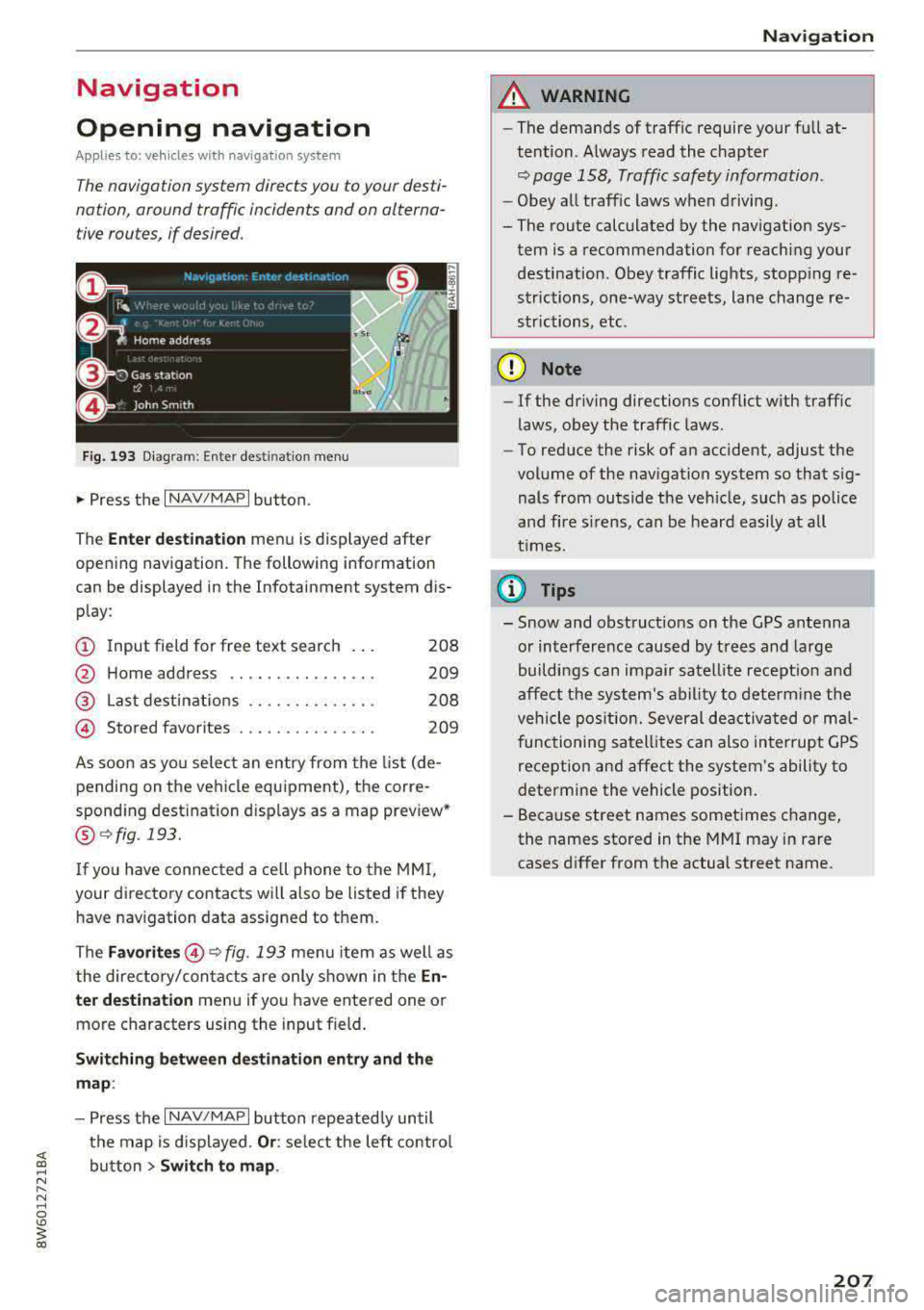
Fig. 193 Diagram : Ente r dest ination menu
.. Press the I NAV/MAPI button.
The
Ente r des tinati on menu is displayed after
opening navigation. The following information
can be displayed in the Infotainment system dis
play:
(D I nput field for free text search 208
@ Home address . . . . . . . . . . . . . . . . 209
@ Last dest inations . . . . . . . . . . . . . . 208
@ Stored favorites . . . . . . . . . . . . . . . 209
As soon as yo u select an entry from the list (de
pending on the vehicle equipment), the corre
sponding destination d isplays as a map preview*
@ r::!> fig . 193.
If
yo u have connec ted a ce ll phone to the MMI,
your di rectory contacts will also be listed if they
have navigation data assigned to them.
The
Fav orites @¢ fig. 193 menu item as well as
the directory/contacts are only shown in the
En
t er des tination
menu if you have ente red one or
more characters using the input field.
Swi tching betwe en d estination entr y and th e
m ap :
- Press the I NAV/MAPI button repeated ly until
the map is d isplayed .
Or: select the left contro l
button
> S wi tch t o map . Na
vigat ion
A WARNING
--The demands of traffic require your full at-
tention. Always read the chapter
q page 158, Traffic safety information.
- Obey all traff ic laws when driving.
- The route calculated by the navigation sys-
tem is a recommendation for reaching your
destination. Obey traffic lights, stopp ing re
strictions, one-way streets, lane change re
strictions, etc.
(D Note
- If the driving directions conflict with traffic
laws, obey the traffic laws .
- To reduce the risk of an accident, adjust the
volume of the nav igation system so that sig
nals from outside the veh icle, such as police
and f ire s irens, can be heard easily at all
times.
(i) Tips
- Snow and obstruct ions on the GPS antenna
or interference caused by trees and large
buildings can impair satell ite recept ion and
affect the system's ability to dete rm ine the
veh icle pos it ion. Several deactivated or mal
functioning satell ites can also interrupt G PS
recept ion and affect the system's ability to
determine the vehicle position.
- Because street names sometimes change,
the names stored in the MMI may in rare cases d iffer from the actual street name.
207
Page 249 of 409
<( a, .... N ,....
N .... 0 \0
3 a,
Problem
Audi music interface :
the porta-
ble device is not recogni zed as a
source.
Audi music interface : malfunc-
tions during audio playback
through an iPod/ iPhone.
Audi music interface : contents
that are changed on a mobile de-
vice connected to the Audi music
interface
a l are not displayed in
the media center.
AUX input: there is stat ic when
connecting and disconnecting the
AUX connection cable .
Bluetooth audio player* /Wi-Fi
audio player *:
aud io playback in-
terference.
Jukebox* : tracks on the imported
playlist are grayed out.
Jukebox* : imported tracks cannot
be played or found.
Online media *: connection failed
between the MMI and the
Audi
MMI connect
app.
Audi music interface: contents
that are changed on a mobile de-
vice connected to the Audi music
interface are not displayed in the
med ia center .
Bluetooth audio player *: interfer-
ence with track d isplay and audio
playback.
Media
Solution
For many ce ll phones or mobile devices, playback is not possible
when the battery level is too low (less than 5% of its capacity).
The mobile
de -vice will only be recognized as a source in the MMI
after connecting if the battery charge is sufficient .
The
Bluetooth audio player f unction is switched on. Switch this
function off
c:> page 2 54 when you a re not using the Bluetooth
audio player.
Reset the Media settings to the facto ry defau lt settings
¢ page 2 52.
When connecting a nd disconnecting, the External audio player
source is already selected. Before connecting or disconnecting the
mobile device, either mute the device (see
c:> page 255) or switch
to a different audio source (for example
c:> page 225, Opening the
radio) .
Only one interface should be act ively used at a time to ensure
problem-free playback .
When importing playlists, a ll of the fi les themselves must be im-
ported.
If yo u cannot find impor ted tracks in the media center, they may
not be supported. Only copy supported files
c:> page 245 to the
Jukebox.
To establish a connection to the MMI, the MMI connection sw itch
must be switched on in the
Audi MMI connect app status screen .
Reset the
Media settings to the factory default settings
c:> page 252.
Playback interference can occur when using the Bluetooth audio
player
if a music player app from a th ird party provider is open.
Aud i recommends using the integrated media player on your Blue-
tooth dev ice (such as a smartphone) .
247
Page 251 of 409
<( a, .... N ,....
N .... 0 \0
3 a,
Audi smartphone interface
Setup
App lies to: veh icles with Audi smartpho ne interface
You can connect your smartphone to the MMI us
ing the Audi smartphone interface . Certain con
tent on your smartphone is adapted to the Info
tainment system display while driving and can
be operated through the
MMI control panel.
R equirement
The vehicle must be stationary and the ignition
must be switched on.
iPhone generation 5 or higher with Lightning
connector and iOS 7.1.2 operating system or
h igher.
O r:
Smartphone with Android Auto app and Android
5 .0 Loll ipop operating system or higher.
.,. Connect your smar tphone to the Audi music in
te rface
c:> page 237 using a USB adapter
c:> page 236, fig. 217 .
.. Select and confirm A cti va te Apple CarPl ay or
Acti vate And roid Auto no w.
.. Follow the system instruct ions.
.,. Pay attention to any add itional system prompts
on your smartphone if applicable.
If you chose not to use Apple CarPlay or Android
Auto when connecting your smartphone for the
first time, you can start the Audi smartphone in
terface later on using the
Connection m an ager .
.. Select: I MENU I button > Audi smartphone in ·
terfa ce
> Change to connecti on manager .
.. Connect your smar tphone to the Audi music in
terface using a USB adapter
c:> page 236,
fig . 217.
.. Se lect and confirm Audi smartphone in the
Connection manager c:> page 252. You can se
lect your smartphone in the list of devices that
are already paired
c:> page 253.
.,. Follow the system instruct ions.
Always follow the informat ion found in
c:>(D in
Wi-Fi hotspot on page 197 .
Audi smartphon e int erfac e
{!) Tips
-The functions that can be used depend on
the fo llow ing factors, among others:
- the brand of your smartphone
- the vers ion of the operating system in
your smartphone
- the software ve rsion of the app used
- the USB adapter cab le and correct connec-
tion
- your cell phone se rvice provider
- the customized settings on your smart -
phone
- One of the factors
above or a combina tion
of any of them could cause your smartphone
to be incompatib le wit h the Audi smart
phone interface. Compatibility cannot be
guaranteed for all types of smartphones.
For more informat ion and assistance, refe r
to the use r guide and the manufactu rer of
your smartphone .
- If the connected smartphone has voice con
tr ol, you can operate your smartpho ne usi ng
t he external voice recognition system
c:> page 176.
- The menu language show n in the MMI is
based on the settings in you r smartphone .
- T he time d isplayed in the MMI is based o n
t he settings in your smartphone.
- Several MMI functions are not avai lab le
when Apple Car Play or Andro id Auto is ac
tive.
- You ca nnot co nnect any mob ile dev ices via
Bl uetooth when an App le CarPlay connec
tion is ac tive .
Operating
Applies to: vehicles wit h Audi smartp hone interface
Opening a menu
App le CarP lay :
you can go back to the Apple Car
Play main menu regardless of the se lec ted menu
item by p ressing and holdi ng the
I BACKI button .
Android Auto : to go back to the Android Auto
me nu bar, push the control knob down.
249
Page 255 of 409
System settings
Delete Bluetooth device*
The selected cell phone/mobile device is discon
nected from the MMI and is removed from the
list of all devices that are already paired .
Show Bluetooth profiles*
You can Connect or Disconnect the Handsfree ,
Messages *, Dire ctory/contacts
and Bluetooth
audio player
profiles separately.
Bluetooth settings*
- Bluetooth :
select and confirm a setting for the
B luetooth connection v is ibility. Select
Visible
for the MMI to be visible to other dev ices. Se
lect
Invisible for the MMI to not be vis ible to
other devices. Howeve r, it is still possib le to es
tablish a Bluetooth connection with paired de
vic es when the visibility is switched off. Select
Off to turn visibility off. Then a B luetooth con
nection is not possible .
-Bluetooth audio player: when this function is
switched
on~' the Bluetooth audio player is
available as a source in the
Media menu .
-Bluetooth name : the MMI Bluetooth name (for
example ,,AUDI MM I
2016") is displayed and
can be changed .
Online settings*
- Data usage counter :
the amount of data pack
ets that are sent and received through the MMI
is disp layed. You can reset the data usage infor
mation to zero using the
Reset data counter
option.
-Network status : the mobile network provider
for data service as well as the network status
are displayed .
Wi-Fi settings*
See <=> page 19 7, Wi-Fi hotspot.
Storing as a default telephone
Applies to: veh icles with telephone
Requirement: a cell phone must be connected to
the MMI
<=> page 178.
As soon as the cell phone is in range and the
Bluetooth function on the cell phone and in the
MMI is swit ched on, this cell phone is given pr ior
ity ove r the other Bluetooth devices and is con-
254
nected directly to the MMI. The connected ce ll
phone is displayed first in the device list .
Network settings*
- Login :
you can chose an automatic log in to
your cell phone service provider's network, or
you can choose a
manual login from the list of
avai lab le networks .
-Network selection: available networks in the
present location can be selected under network
selection . This function is on ly availab le for the
Manual l ogin setting.
Apple CarPlay sound settings/ Android Auto
sound settings
Applies to: vehicles with Audi sma rtphone interface
See ~page255.
About Apple CarPlay/ About Android Auto
Applies to: vehicles with Audi smartphone interface
Here you wi ll find legal information regarding
the use of Apple CarPlay or Andro id Auto and in
formation about device-specific data exchange.
Delete CarPlay device/Delete Android Auto
device
Applies to: vehicles with Audi smartphone interface
Requirement: your cell phone must not be con
nected to the Audi music interface with a USB
adapter .
Se lect:
Audi smartphone > a device from the list
> r ight control button.
T o remove your cell phone from the list, select
and confirm
Delete CarPlay device or Delete An
droid Auto device .
System update
"Select: !M ENUI button> Settings > left control
button >
System maintenance .
- System update:
slide the storage device with
the update data into the appropriate drive
<=> page 231 . Select and confirm the dr ive>
Start update . The length of the process de
pends on the size of the update .
-Reset driver installation: the selected media
dr iver package is reset to the settings at the
time of delivery.
Page 256 of 409
<( a, .... N ,....
N .... 0 \0
3 a,
-Version information : information on the MMI
software version and the navigation database *
software version is displayed . The
Software in
format ion
function a lso provides information
on the software contained in the MMI and the
licensing agreement .
Sound settings
The sound distribution and volume of the MMI
can be adjusted individually . The settings depend
on vehicle equipment.
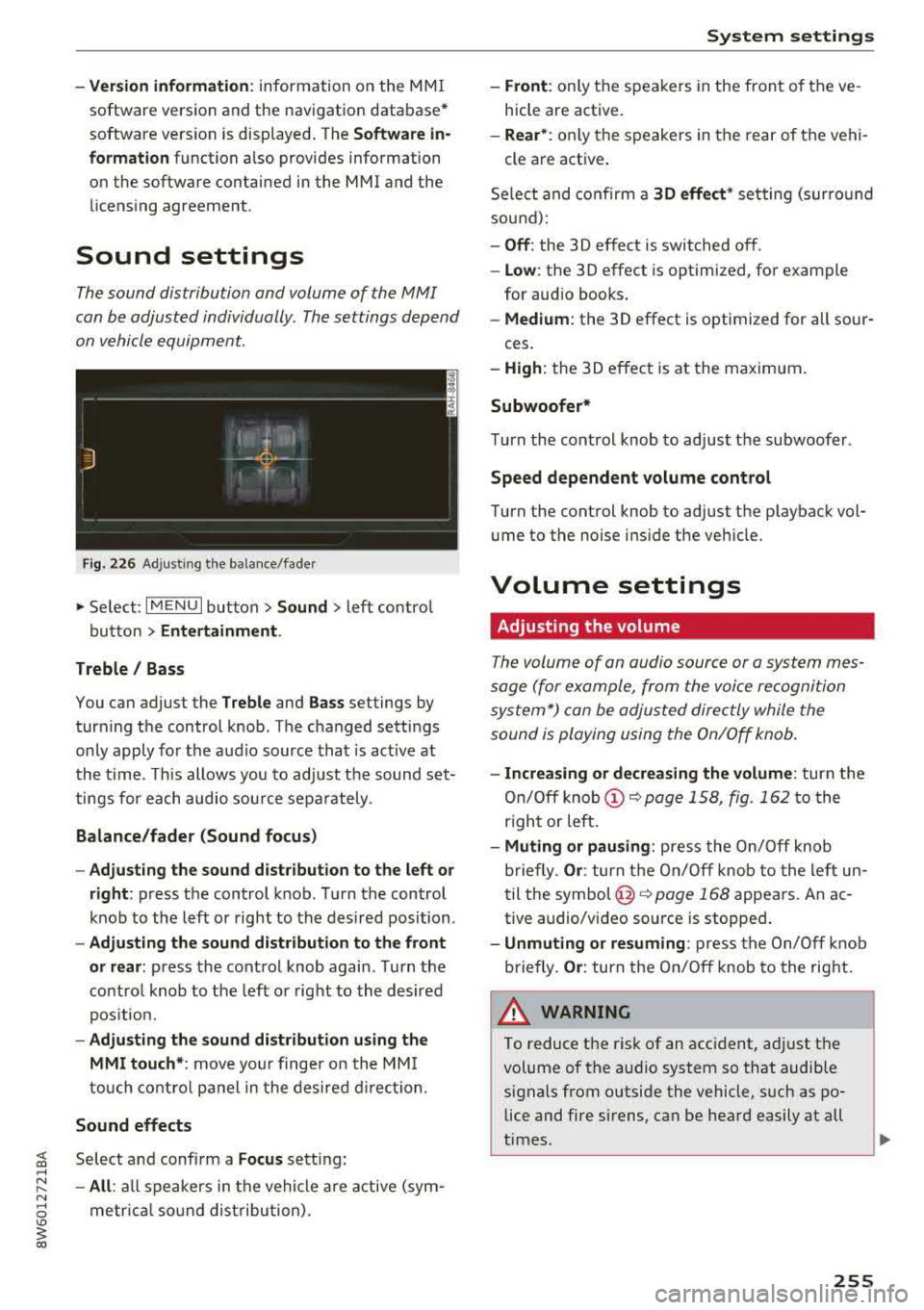
Fig. 226 Adjusti ng the balance/fader
" Se lect: I MENU I button> Sound > left contro l
button
> Entertainment .
Treble / Bass
You can adjust the Treble and Bass settings by
turning the control knob. The changed settings
only apply fo r the audio source that is act ive at
the time. This allows you to adjust the sound set
tings for each audio source separately .
Balance/fader (Sound focus)
-Adjusting the sound distribution to the left or
right :
press the control knob. Turn the control
knob to the left or right to the desired position .
-Adjusting the sound distribution to the front
or rear:
press the control knob again. Turn the
contro l knob to the left o r right to the desired
position.
-Adjusting the sound distribution using the
MMI touch* :
move your finger on the MMI
touch control panel in the desired direction.
Sound effects
Select and confirm a Focus sett ing:
-All : all speakers in the vehicle are active (sym
metr ical sound distribution) .
System settings
-Front: only the speakers in the front of the ve
hicle are active.
-Rear* : only the speakers in the rear of the vehi-
cle are active .
Select and confirm a
30 effect* setting (surro und
sound):
-Off : the 3D effect is switched off.
-Low : the 3D effect is optimized, for example
for aud io books .
-Medium : the 3D effect is optimized for all sour-
ces.
-High : the 3D effect is at the maximum .
Subwoofer*
Turn the cont rol knob to adjust the subwoofer .
Speed dependent volume control
Turn the control knob to adjust the playback vol
ume to the noise ins ide the veh icle.
Volume settings
Adjusting the volume
The volume of an audio source or a system mes
sage (for example, from the voice recognition
system*) can be adjusted directly while the
sound is playing using the On/Off knob.
-Increasing or decreasing the volume : turn the
On/Off knob
(D ~ page 158, fig. 162 to the
r ight or left.
-Muting or pausing: press the On/Off knob
briefly .
Or: turn the On/Off knob to the left un
til the
symbol @~ page 168 appears. An ac
tive audio/video source is stopped .
-Unmuting or resuming: press the On/Off knob
briefly .
Or: turn the On/Off knob to the right.
A WARNING ~
To reduce the risk of an accident, adj ust the
volume of the a udio system so that audible
signals from outside the vehicle, such as po lice and fire sirens, can be heard easily at all
times.
-
255
Page 305 of 409
Child safety
-Always make sure that the PASSENGER
AIR BAG
OFF~; light comes on and stays
on all the time whenever the ignition is
switched on .
- If the
PASSENGER AIR BAG OFF~; light
does not come on and stay on, immediate
ly install the forward-facing child seat in a
rear seating position and have the airbag
system inspected by your authorized Audi
dealer.
- Always buckle the child seat firmly in
place even if a child is not sitting in it. A
loose child seat can fly around during a
sudden stop or in a collision.
-Always read and heed all WARNINGS
whenever using a child restraint in a vehi
cle ¢
page 268, Safety belts , ~ page 2 77,
Airbag system and ~ page 302, Impor
tant information.
(D Tips
Always replace child restraints that were in
stalled in a vehicle during a crash. Damage to
a child restraint that is not visible could cause
it to fail in another collision situation.
Advanced front airbag system and children
Your vehicle is equipped with an "Advanced Air
bag System" in compliance with United St ates
Federal Motor Vehicle Safety Standard (FMVSS)
208, as well as Canada Motor Vehicle Safety
Standard (CMVSS) 208 as applicable at the time
your vehicle was manufactured.
The Advanced Airbag system in your vehicle has
been certified to meet the "low-risk " require
ments for 3- and 6-year old children on the pas
senger side and small adults on the driver side.
The low risk deployment criteria are intended to
reduce the risk of injury through interaction with
the airbag that can occur, for example, by being
too close to the steering wheel and instrument
panel when the airbag inflates. In addition, the
system has been certified to comply with the
"suppression" requirements of the Safety Stand
ard, to turn off the front airbag for infants up to 12 months who are restrained on the front pas-
304
senger seat in child restraints that are listed in
the Standard.
Even though your vehicle is equipped with an Ad
vanced Airbag system, all children, especially
those 12 years and younger, should always ride
in the back seat properly restrained for their age
and size. The airbag on the passenger side makes
the front seat a potentially dangerous place for a child to ride. The front seat is not the safest place
for a child in a forward-facing child safety seat. It
can be a very dangerous place for an infant or a
larger child in a rearward-facing seat.
The vehicle's Advanced Airbag System has a ca pacitive passenger detection system in the front
passenger seat cushion that can detect the pres
ence of a baby or a child in a child restraint sys
tem on this seat.
The capacitive passenger detection system regis
ters the changes that result in an electrical field
when a child, a child restraint , and a baby blanket
are on the front passenger seat. The change in
the measured capacitance due to the presence of
a child, a child restraint, and a baby blanket on
the front passenger seat is related to the child
restraint system resting on the seat. The meas
ured capacitance of a child restraint system var
ies depending on the type of system and specific
make and model.
The electrical capacitance of the various types, makes, and models of child restraints specified
by the U.S.National Highway Traffic Safety Ad
ministration (NHTSA) in the relevant safety
standard are stored in the Advanced Airbag Sys
tem control unit together with the capacitances
typical of infants and a 1-year old child. When a
child restraint is used on the front passenger
seat with a typical 1 year-old infant, the Ad
vanced Airbag System compares the capacitance
measured by the capacitive passenger detection
system with the data stored in the electronic con
trol unit .
Child restraints and Advanced Airbags
Regardless of the child restraint that you use,
make sure that it has been certified to meet Safe -
ty Standards and has been certified by its
..,.
Page 333 of 409
Checking and Filling
-If the hood is not latched completely, it
could fly up while you are driving and ob
struct your vision.
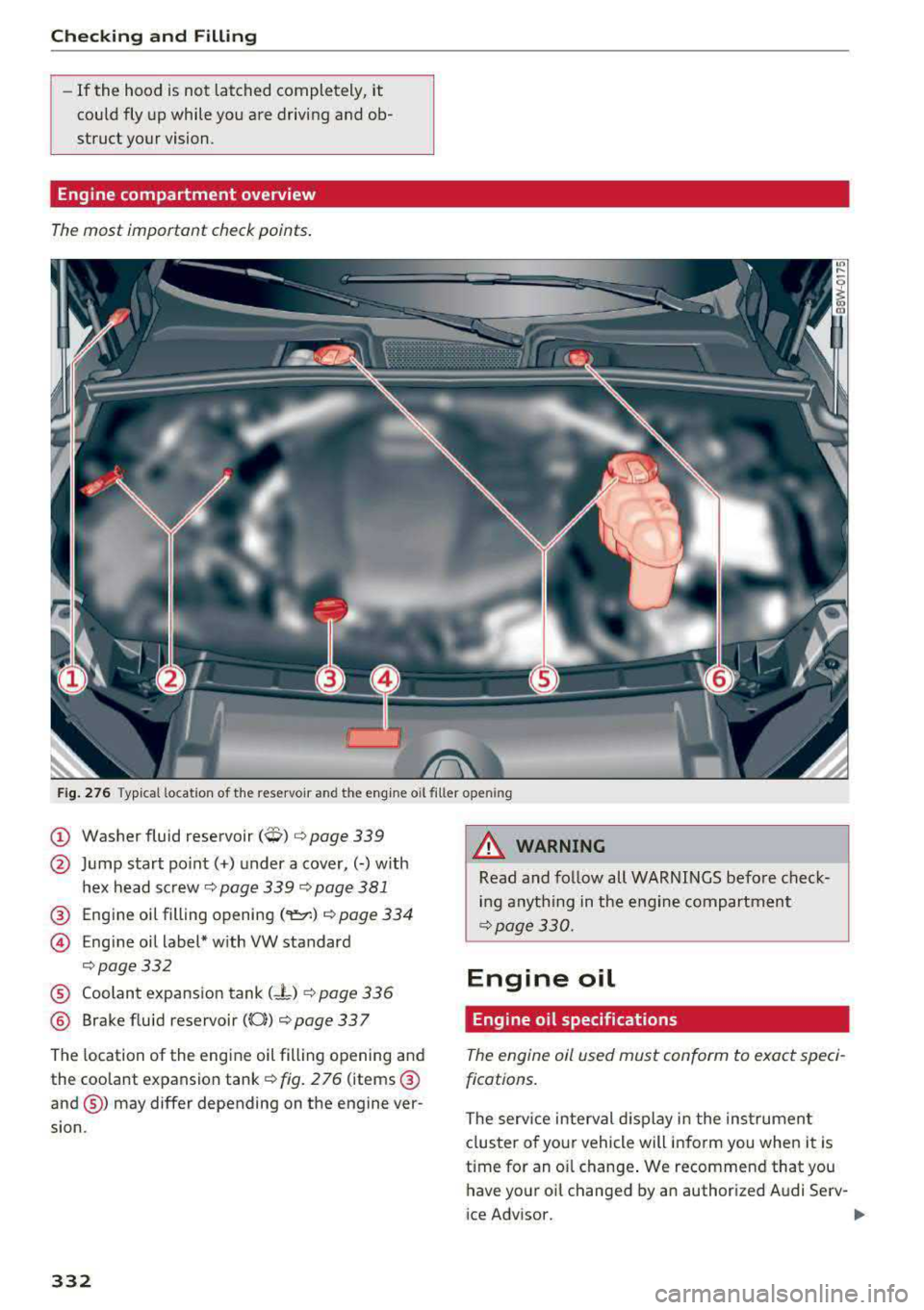
Engine compartment overview
The most important check points.
Fig. 276 Typ ical location of the reservoir and the engine o il filler o penin g
@ Washer fluid reservoir (W) c:> page 339
@ Jump start po int( +) under a cover,(-) w ith
hex head sc rew
c:> page 339 c:> page 381
@ Engine oil filling open ing (
© Eng ine oil label* w ith VW standard
c:> page332
® Coolant expansion tank (- L) c:> page 336
® Brake fluid reservoir ((0)) c:> page 33 7
The location of the engine oil fill ing opening and
the coolant expansion tank
c:> fig. 2 76 (items @
and@) may differ depending on the engine ver
sion .
332
8,_ WARNING
Read and follow all WARNINGS befo re check
ing anything in the engine compartment
c:>page330.
Engine oil
Engine oil specifications
The engine oil used must conform to exact speci
fications.
The serv ice interval d isplay i n the instrumen t
clus ter o f your veh icle will inform you when it is
time for an o il change . We recommend that you
have your oi l changed by an author ized Audi Serv-
ice Advisor.
..,_
Page 334 of 409

<( a, .... N ,....
N .... 0 \0
3 a,
If you must add oil between oil changes, use an
oil that matches the Audi oil quality standard listed on the st icker. The sticker is located at the
front of the engine compartment
c> page 332,
fig . 276.
Audi re comm end s
Ocastrot /[g/j;t{E'g Frtw.::<.. ·-:dr,,JA.L
A ud i recommends Longlife h igh perform ance
e ngin e oil from Audi Genui ne Part s
Using the proper engine oil is important for the
functionality and service life of the eng ine. Your
engine was factory -filled with a high-quality oil
which can usua lly be used throughout the entire
yea r.
Note
Your Limited New Vehicle Warranty does not
cover damage o r malfunctions due to failure
to follow recommended maintenance and use requirements as set fo rth in the Aud i Owner's
Manual and Warranty
& Maintenance booklet.
- Use only a high q ual ity eng ine oil that ex-
pressly complies with the Aud i oil q uality
standard specified for your vehi cle's engine .
Using any other oil can cause serious engine
damage .
- Do not mix any l ubricants o r other additives
into the engine oil. Doing so can cause en
gine damage.
(D Tips
If you need to add oil and there is none availa
b le that meets the Audi oil quality standard
your eng ine requires, you may add a total of
no more than 0.5 qt (0.5 l) of a h igh-quality
"synthet ic" o il that meets the following speci
fications .
- Vehicles with gasoline eng ine: ACEA A3 or
API SM with a viscosity grade of SAE OW-30,
SAE 5W -30 or SAE 5W-40 .
- Vehicles with d iesel eng ine : ACEA C3 or
API CF with a v iscosity grade of SAE OW-30
or SAE 5W -30 .
- For more information about engine o il that
has been approved for your vehicle, please
contact e ither you r authorized Audi dea le r
or A udi C ustome r Relat ions at
Ch eck ing and Filling
1 (800) 822 -2834 or visit our web site at
www.audiusa .com or www .audicanada .ca.
Engine oil consumption
The engin e in your v ehicl e dep ends on an ad e
quat e amount of oil to lubricate and cool all of
its moving parts.
In order to provide effect ive lub rication and cool
ing of inte rnal engine components, all inte rnal
combustion engines consume a certain amount
of oil. Oil consumption varies from eng ine to en
gine and may change significantly over the life of
the engine. Typ ically, engines w ith a specified
break -in period (see
c> page 86) consume more
o il dur ing the break-in per iod than they consume
after oil consumption has stabilized .
Under normal cond itions, the rate of oil con
sumption depends on the qua lity and viscos ity of
the oil, the RPM (revolutions per m inute) at
which the engine is operated, the amb ient tem
perature and road condi tions. Further facto rs a re
the amo unt of oil di lution from water co ndensa
tion or fue l resid ue a nd the oxidation level of the
oi l. As any engine is subject to wear as mileage
builds up, the oi l consumption may increase ove r
time unt il replacement of worn components may
become necessary.
With a ll these variab les coming into play, no
standard rate of oi l consumption can be estab
lished or spec ified . There is no alternative to reg
ular and frequent checking of the oi l level, see
Note .
If the y ellow engine oil leve l warning symbo l Bl
in the instrument cluster lights up, you should
check the o il level as soon as possible
c> page 334. Top off the o il at your earliest con
venience
c> page 334 .
A WARNING
--Before you check anyth ing in the eng ine com-
partment, always read and heed all WARN
I NGS
c> .&. in Working in the engine compart-
ment on
p~e 330. ~
333