navigation AUDI A5 COUPE 2018 Owner's Manual
[x] Cancel search | Manufacturer: AUDI, Model Year: 2018, Model line: A5 COUPE, Model: AUDI A5 COUPE 2018Pages: 409, PDF Size: 67.63 MB
Page 177 of 409
<( a, .... N ,....
N .... 0 \0
3 a,
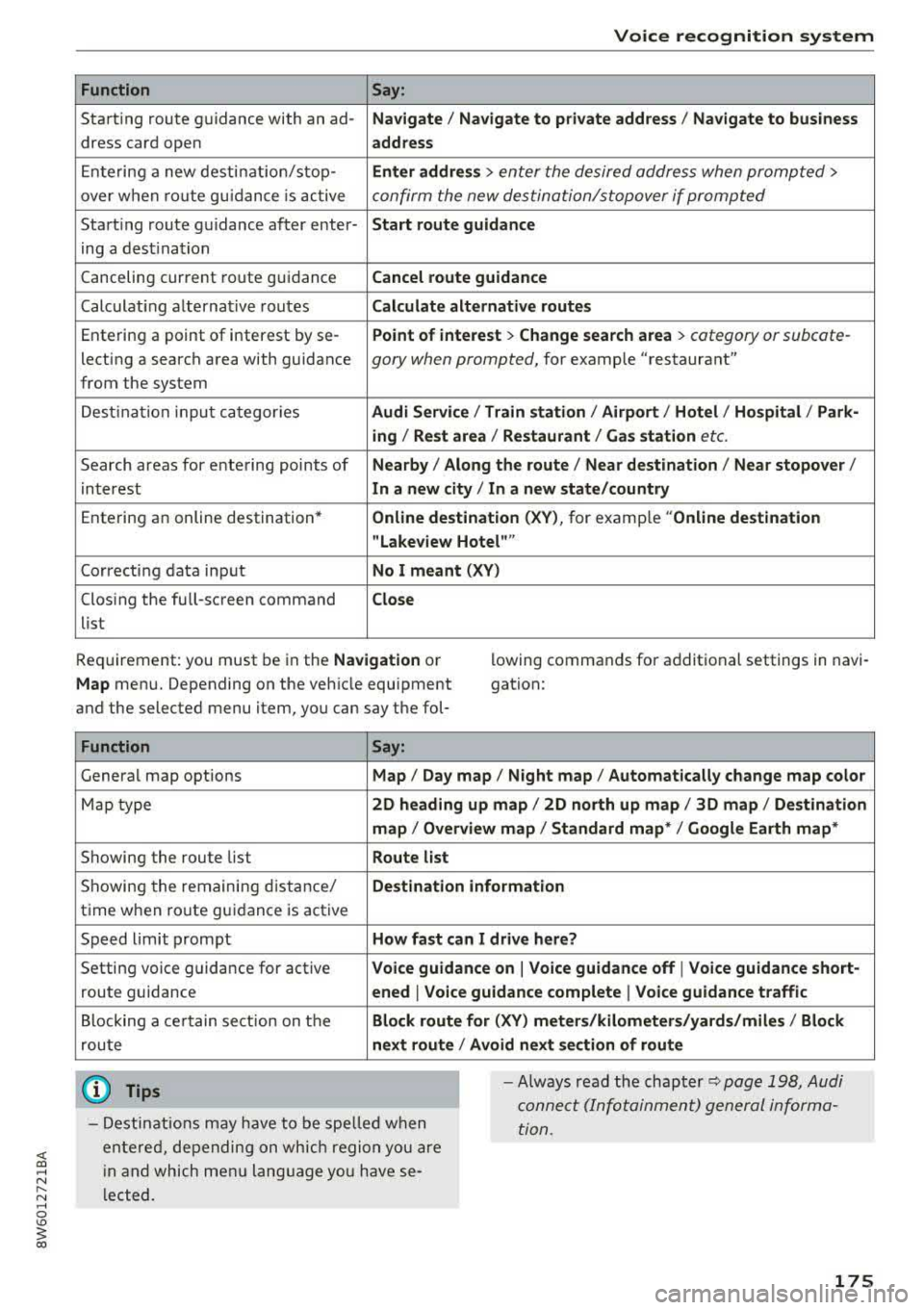
Voice recognition system
Function Say:
Starting route g uidance with an ad-Navigate / Navigate to p riv ate addre ss / Na vig ate to bu siness
dress card open address
Ente ring a new desti nat ion/stop-Enter addre ss > enter the desired address when prompted>
over when ro ute gu idance is ac tive confirm the new des tination/stopover if prompted
Start ing route guidance after enter-Start rout e guidance
ing a dest ination
Canceling current route guidance
Cancel route guidance
Calculat ing alternative routes Calculate alternative route s
Entering a point of interest by se-Point of interest > Change search area > category or subcote-
lecting a search area with guidance gory when prompted, for example "restaurant"
from the system
Dest ina tion i nput ca tegor ies
Audi Service / Train station /Airport / Hot el / Ho spita l / Park-
ing / Re st area / Restaurant / G as station
etc.
Search areas for entering points of Nearby/ Along the route I Near destination / Ne ar stopover /
interest In a new city/ In a new stat e/country
Entering an online destination* Online de stinat ion (XV), for examp le " Online de stination
" Lake view Hotel" "
Correcting data input No I meant (XV)
Clos ing the full-screen command C lo se
list
Requirement: you must be in the
Navigation or
Map menu. Depending on the vehicle equipment
and the selected menu item, you can say the fol-l
owing commands for additional settings in navi
gation:
Function Say:
General map options Map/ Da y map / N ight map / Automat icall y chang e map color
Map type 2D heading up map / 2D north up map / 3D map / De stination
map / Ov ervi ew map / Standard map* / Googl e Earth map *
Showing the route list Route list
Showing the remaining distance/ Destination information
time when route guidance is active
Speed limit prompt
How fa st can I dri ve her e?
Setting voice guidance for active Voice guidance on I Vo ice guidance off I V oice guidance short-
route guidance ened I Voi ce guidance complete I V oice guidance traffic
Blocking a ce rtain section on the Block route for (XV ) m ete rs/ kilometers /yards /mil es/ Block
route next rou te I Avoid n ext se ction of r oute
(D Tips
- Destinations may have to be spe lled when
entered, depending on which region you are
i n and which men u lang uage you have se
l ected. -
Always read the chapter
¢ pag e 198, Audi
conne ct (Infotainment) general informa
tion.
175
Page 188 of 409
Telephone
Delete this message*
The selected e -mail ca n be deleted.
Read out1
)
You can have the MMI read an open e-ma il.
E-mail settings*
To display when a new e -mail is received, activate
the
E-mail notifications . New e-mails are indicat
ed w ith an enve lope
121 in the Infotainment sys
tem display status line.
Connection manager
See ~page 252.
Wi-Fi settings
See !=)page 197.
Telephone settings
See !=)page 188.
(D Tips
-Messages that are deleted in the MMI are
also automatically deleted in the connected
cell phone.
-You cannot read any messages while driv
i ng.
Listening to voicemail
A pp lies to: ve hicles w ith tele phone
~ Se lect: I MENU I button >Telephone> left con
trol button. Select and confirm
Call list/Direc
tory /Favorites > Voicemail.
-Entering the voicemail number: enter the de
s ir ed number. Select and confirm
OK .
-Dialing the voicemail number: select and con
firm
Voicemail.
@ Tips
-This service must be set up and activated in
advance by the cell phone service provider.
You can obta in more information from your
cell phone service prov ider.
1> Not availab le in all languages.
186
-Th e voicemail number depends on the cell
phone service provider.
Directory
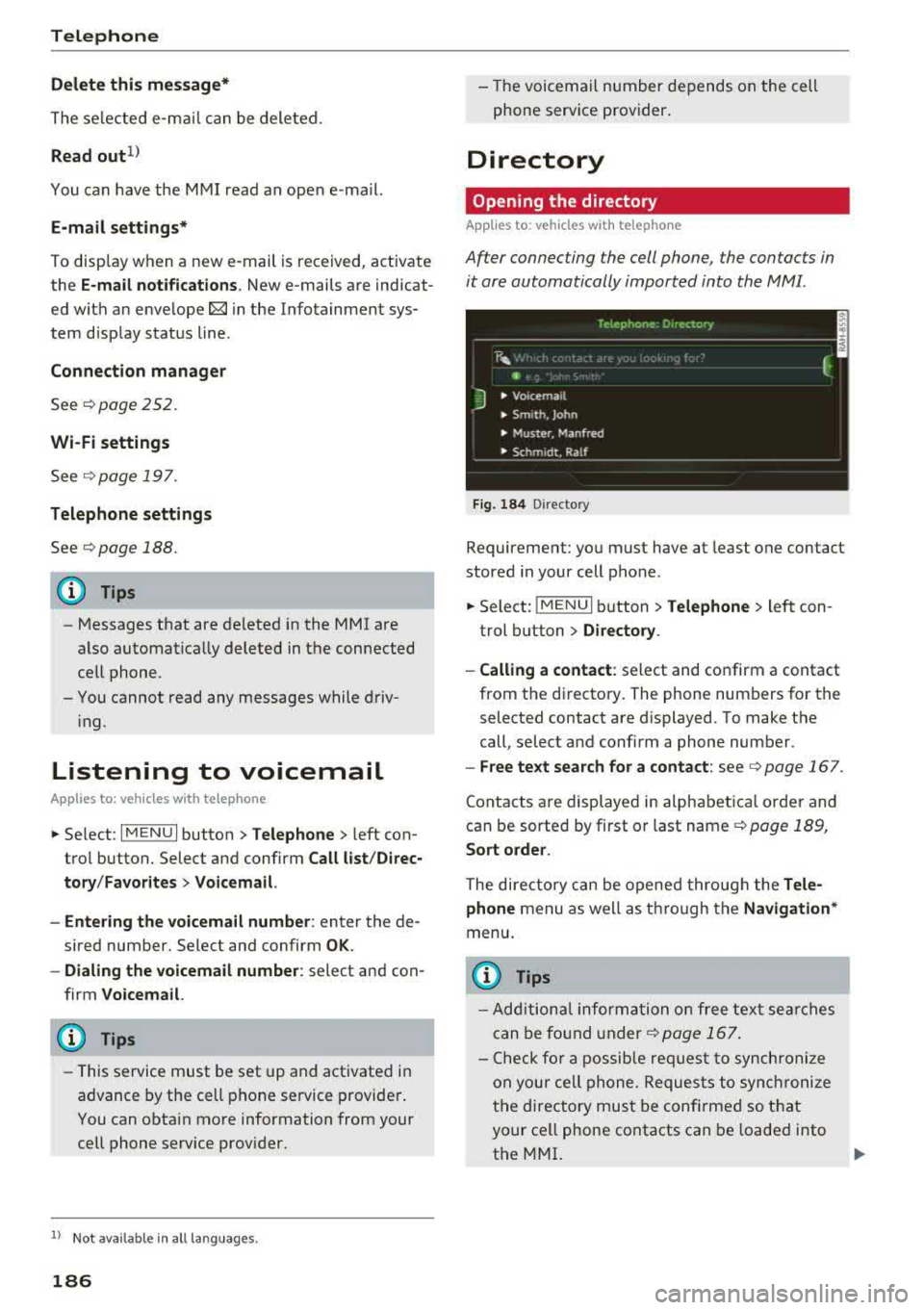
Opening the directory
Applies to : vehicles wit h te lepho ne
Af ter connecting the cell phone, the contacts in
it are automatically imported into the MMI.
__________ 1 _ e _1.e _ p_ h_o _n _e _· _D _,_
·e _c_t _o _r, _· _________ ,
~ m f
J • Voicemai l
• Sm,th. John
• Muster. Manfred
• Schmidt. Ralf
Fig . 184 D irectory
Requirement: you must have at least one contact
stored in your cell phone.
~ Select: !MENUI button> Telephone> left con
trol button >
Directory .
- Calling a contact :
select and confirm a contact
from the directory. The phone numbers for the
selected contact are displayed. To make the
call, select and confirm a phone number.
-Free text search for a contact: see Q page 167.
Contacts are displayed in alphabetical order and
can be sorted by first or last name
Q page 189,
Sort order .
The directory can be opened through the Tele·
phone
menu as well as through the Navigation*
menu .
@ Tips
-Additional informatio n on free text searches
can be found under
Q page 167.
-Check for a possible request to synchronize
on you r cell phone . Requests to synchronize
the directory must be confirmed so that
your cell phone contacts can be loaded into
the MMI.
Page 194 of 409
Audi connect (Infotainment)
~ Enter your myAudi user data. Or: enter your
eight-digit myAudi PIN .
~ Confirm your entry with OK.
Then you can open your persona l settings from
your myAudi account in your vehicle.
(D Tips
You can receive your myAudi P IN if you have
set up a myAudi account. For additional infor
mation, see
www.audiusa .com/myaudi .
Opening Audi connect
(Infotainment)
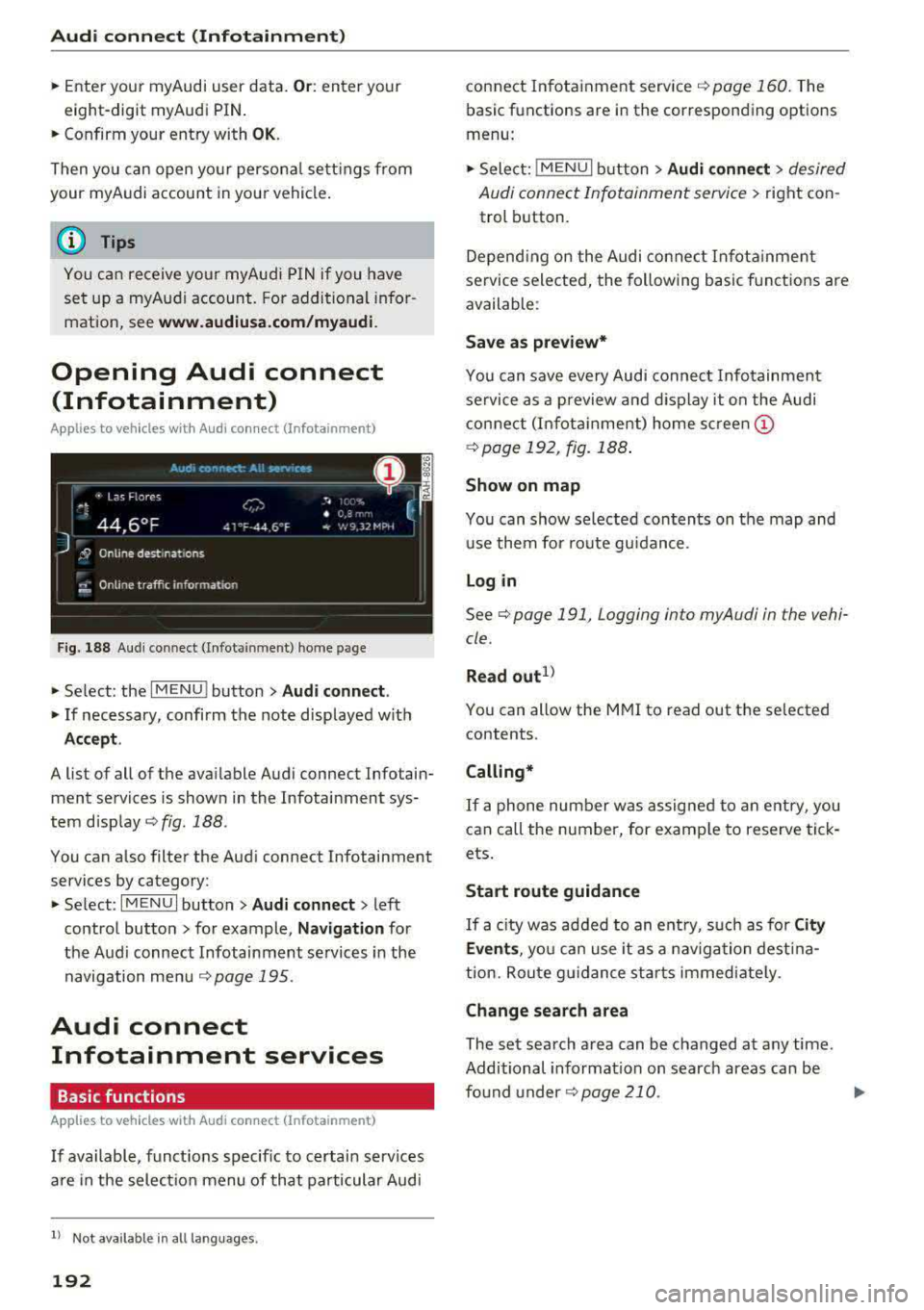
A pp lies to veh icles with Audi co nnect (Infotainment)
Fig. 188 Aud i connect ( Infotainmen t) ho me page
~ Select: the IMENU ! button> Audi connect .
~ If necessary, confirm the note displayed with
Accept.
A list of all of the available Audi connect Infotain
ment services is shown in the Infotainment sys
tem display
~ fig. 188.
You can also filter the Audi connect Infotainment
services by category:
~ Select: I M ENU I button > Audi connect > left
contro l button> for example,
Navigation for
the Aud i connect Infotainment services in the
navigation
menu ¢ page 195 .
Audi connect
Infotainment services
Basic functions
Applies to veh icles with Audi co nnect (Infotainment)
If available, funct ions specific to certain services
are in the selection menu of that particular Audi
l) Not available in all languages.
192
connect Infotainment service ¢ page 160. The
basic functions are in the corresponding options
menu:
~ Select: ! MENUI button> Audi connect> desired
Audi connect Infotainment service>
right con
trol button .
Depending on the Audi connect Infotainment
service selected, the following basic functions are
available :
Save as preview*
You can save every Audi connect Infotainment
service as a preview and display it on the Audi
connect (Infotainment) home screen
(D
¢ page 192, fig. 188 .
Show on map
You can show selected contents on the map and
use them for route guidance.
Log in
See¢ page 191, Logging into myAudi in the vehi
cle .
Read
out1>
You can allow the MMI to read out the selected
contents .
Calling*
If a phone number was assigned to an entry, you
can call the number, for examp le to reserve tick
ets.
Start route guidance
If a city was added to an entry, such as for City
Events ,
you can use it as a navigation destina
tion. Route gu idance starts immediate ly.
Change search area
The set search area can be changed at any time.
Additional information on search areas can be
fo und
under ¢page210 .
Page 197 of 409
<( a, .... N ,....
N .... 0 \0
3 a,
You must have connected your vehicle with myAudi
r=> page 191.
.,. Select: I MENU I button> Audi connect > Twitter
> left contro l button > desired function (for ex
amp le,
Trends ).
The follow ing categories can be selected in the
Twitter menu:
- My tweets : News Feed and the Tweets you have
posted are listed.
- Home: the Tweets for everyone you follow are
displayed.
- Trends : topics on Twitter that are currently
popular w ith in a country .
Different functions are available depending on
the Twitter category you have selected:
- New tweet : you can post a new tweet using
pre-made templates or using myAudi tem
plates that you have created yourself.
- Refresh : the selected Twitter function is re
freshed.
- Favorite: mark a Tweet as favorite to show you
liked it.
- Retweet: you can quote a Tweet to share it with
others.
@ Tips
- Other settings such as account, language,
Tweet security and location settings
cannot
be changed in the MMI. These changes must
be made on the Twitter website.
- You can only connect
one Twitter account
with your myAudi account.
- Audi connect (Infotainment) makes it possi
ble to access Twitter . Permanent avai lability
cannot be guaranteed, because that de pends on Twitter.
Travel (travel guide)
A pplies to vehicles with Aud i connect (Infotainment)
You can use the Audi MMI connect opp to store
points of interest on your mobile device (such as
a smartphone) and then use them for route
guidance in the
MMI.
Requirement:
Audi connect (Infotainment)
The Audi MMI connect app must be installed and
open on your mobile device .
You must be logged into your myAudi account in
the
Audi MMI connect app and you must have se
lected your vehicle.
T he Wi-Fi function on your mob ile device and on
the
MMI must be switched on.
The
MMI must be connected to the network.
... Press: !MENU ! button> Audi connect > left con-
trol button >
Information category> Travel.
After opening the trave l guide, trave l tips in your
area wi ll be displayed including current ratings as
well as the corresponding category.
... Press the left control button to change the cat
egory (such as bars nearby).
_& WARNING '---
-It is only safe to use tablets, laptops, mo
bi le dev ices and other similar devices when
the vehicle is stationary because, lik e all
loose objects, they could be thrown around
the inside of the vehicle in a crash and cause
serious inj uries. Store these types of devices
securely while driving.
- Do not use any wireless devices on the front
seats within range of the airbags while driv
ing. Also read the warnings in the chapter
r::> page 281, Front airbags.
(D Note
Always follow the information found in r=>(i) in
Wi-Fi hotspot on page 197.
(D Tips
Units of measurement, language setting s and
time are shown in the Infotainment system
display based on how they were set in the
MMI system settings r=> page 251.
Audi connect (Infotainment) in navigation
Applies to : vehicles wit h a navigat ion syste m and Audi co n·
nec t (I nfota inment)
... Select: !MENUI button> Audi connect > left
control button >
Navigation .
-
195
Page 200 of 409
Audi connect (Infotainment)
Configuring the data
connection
App lies to veh icles with Audi co nnect (Infotainment)
The data connection for Audi connect Infotain
ment services is pre-configured at the factory .
However, if a configuration should be necessary,
you can adjust the following settings.
.,. Select: I MENU I button> right control button>
Connection manager.
.,. Select: right control button > Online settings>
Data connection settings.
Using the Data connection settings menu, you
can set when an Internet connection should be
made . T he Internet connection disconnects auto
matica lly once the requested Audi connect Info
tainment service no longer requires any data.
The follow ing settings can be selected:
Audi connect (MMI)
With the Audi connect (MMI) func tion, you can
Allow or Deny the use of Audi connect Infotain
ment services if the connection is set to No re
quest or With request.
Wi-Fi devices*
Using the Wi-Fi devices function, you can Allow
or Deny a connection to the Internet.
A WARNING
-As the driver, do not allow usage of the Wi
Fi hotspot to distract you from driving, as
this could increase the risk of an accident .
-It is only safe to use tablets, laptops, mo
bile devices and other similar devices when
the vehicle is stationary because, like all
loose objects, they could be thrown around
the ins ide of the vehicle in a crash and cause
serious injuries . Store these types of devices
securely whi le driving.
-Do not use any wireless devices on the front
seats within range of the airbags while driv
ing. Also read the warnings in the chapter
cc> page 281, Front airbags.
198
(D Note
A lways follow the information found in ¢(!) in
Wi-Fi hotspot on page 197.
Audi connect
(Infotainment) general
information
Audi connect Infotainment services
Applies to vehicles w it h Aud i connect (I nfotainment)
(D Tips
-You can only use services supported by Aud i
connect (Infotainment) if you have the op
tional MMI Navigation plus equipment with
MMI touch* and Audi connect (Infotain
ment).
-Use of the L TE* mobile network standard is
not available in every country. Contact an
authorized Audi dealer or authorized Audi
Service Facility or your cell phone service
provider for additiona l information.
-Usage of Audi connect Infotainment serv
ices depends on the avai lability of services
through third party providers.
-Audi connect Infotainment services are only
available within the cell phone network cov
erage from your cell phone service provider.
-Audi connect Infotainment services are
available in the USA . Audi connect Infotain
ment services are currently not availab le in
Canada or in Mexico.
-Also read the information in the chapter
c:> page 178, Telephone.
-Availability, scope, providers, screen display
and costs of services may vary depending on
the country, model, model year, end device
and rates . For additional information, v is it
www.audiusa.com .
-An initial registration/activation on the
myAudi platform at
www.audiusa.com/
myaudi
is required to use individual serv
ices. You can contact an authorized Audi
dealer or Aud i connect (Infotainment) cus
tomer service at (877) SOS-AUDI (2834) to
Page 204 of 409
Audi connect vehicle control
-Pay attention to upper- and lower-case let
ters when entering the vehicle code.
-If you do not have the 10-digit vehicle code,
contact an authorized Audi dealer or author
ized Audi Service Facility.
Additional options
Applies to vehicles with Audi connect vehicle control
License subscription
The validity and expirat ion date of you r subscrip
tions are displayed. When
Warning before sub
scription expires
is activated, a message wi ll be
d isp layed warning you that your license is about
to expire.
Select:
! MENU ! button> Audi connect > Display
available functions >
right control button> Li
cense subscription.
Resetting the primary user
F or examp le, you ca n reset the key user when
selling your vehicle in order to deactivate these
services .
Requirement: the ignition must be switched on.
Select :
!MENU ! button> Audi connect > right
control button
> Audi connect user management
> Key user> Reset key user .
Warning levels
Requirement: the primary user must have set one
or more warning levels. Secondary users can only
see if a warning level is act ive or not .
Select:
! MENU ! button> Audi connect > right
control button
> Alerts.
Remote locking and
unlocking
Applies to vehicles with Audi connect vehicle control
You can lock and unlock your veh icle using this
service.
Requirement
-This requires the 4-dig it PIN that you specified
during the verification on www.audiusa.com/
myaudi.
-The vehicle must be stationary.
202
-T he ignition must be switched off.
Vehicle status report
Applies to vehicles w ith Audi connect vehicle control
The Driver Information System collects data un
der certain conditions and sends it to a server.
When data is stored, yo u can access va lues such
as these using the service:
-Remaining range
-Fue l tank level
-Oil level
-Vehicle doors are open/closed or locked/un-
locked
-Mi leage
-Next oil change
-Next inspection
-Warning messages
-Side marker lights/parking lights on/off
For additional information on the Driver Informa
tion System, refer to
c:> page 17, Driver informa
tion system.
A WARNING
Do not ignore messages and warning or ind i
cator lights that turn on in the vehicle be
cause of the information in the status report .
This could lead to break downs in on the road,
accidents and serious injuries.
Parking location
Applies to vehicles with Audi connect vehicle control
The vehicle collects data under certain cond it ions
and sends it to a serve r.
When data is stored, you can access values such
as these using the service :
-Vehicle location display,
-Display of one's own location,
-Route to you r vehicle .
If your mobile device also has a navigation func
tion, you ca n navigate to your last kno wn parking
lo ca tion .
Page 209 of 409
Navigation
Opening navigation
Applies to: vehicles with navigation system
The navigation system directs you to your desti
nation, around traffic incidents and on alterna
tive routes, if desired.
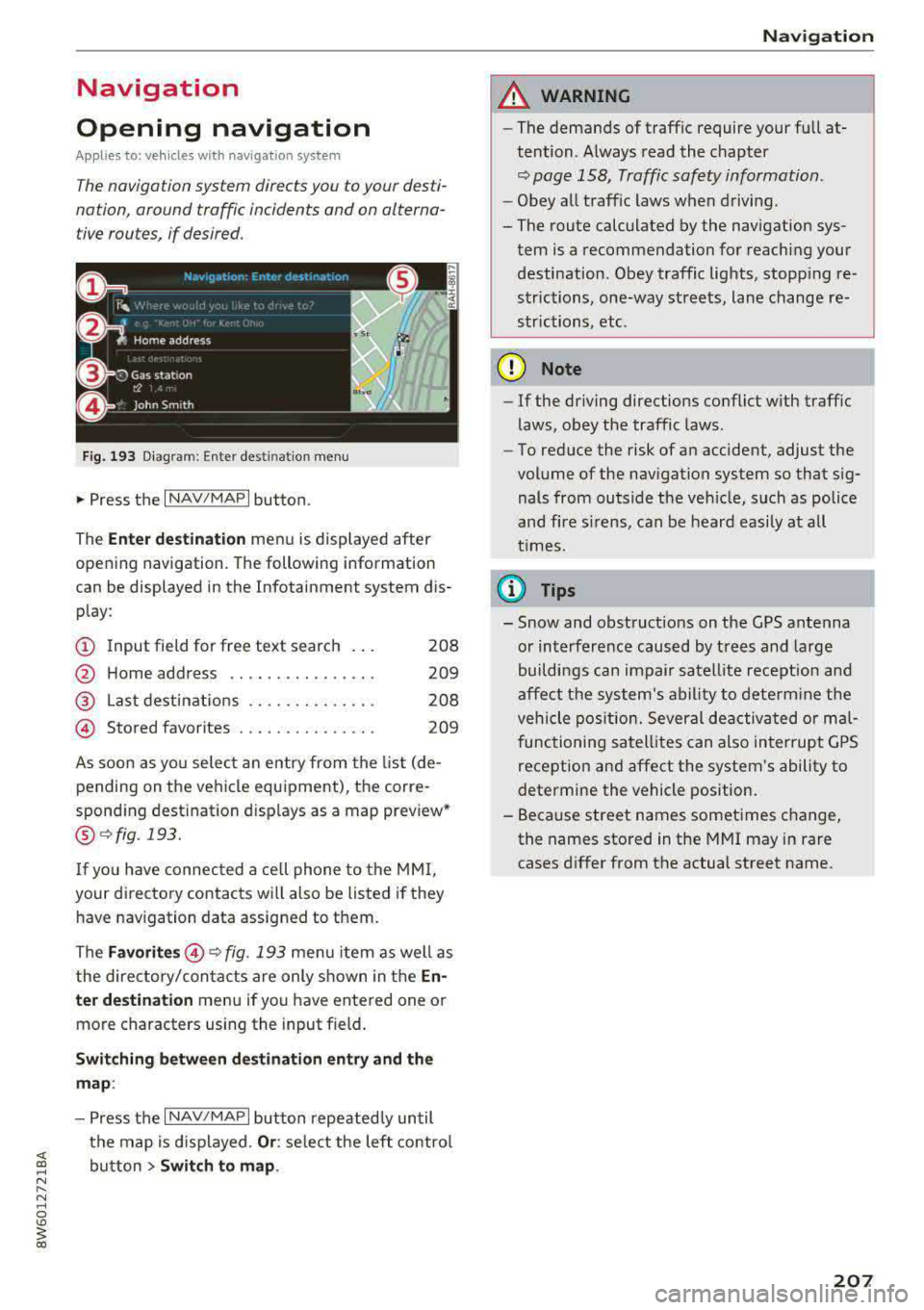
Fig. 193 Diagram : Ente r dest ination menu
.. Press the I NAV/MAPI button.
The
Ente r des tinati on menu is displayed after
opening navigation. The following information
can be displayed in the Infotainment system dis
play:
(D I nput field for free text search 208
@ Home address . . . . . . . . . . . . . . . . 209
@ Last dest inations . . . . . . . . . . . . . . 208
@ Stored favorites . . . . . . . . . . . . . . . 209
As soon as yo u select an entry from the list (de
pending on the vehicle equipment), the corre
sponding destination d isplays as a map preview*
@ r::!> fig . 193.
If
yo u have connec ted a ce ll phone to the MMI,
your di rectory contacts will also be listed if they
have navigation data assigned to them.
The
Fav orites @¢ fig. 193 menu item as well as
the directory/contacts are only shown in the
En
t er des tination
menu if you have ente red one or
more characters using the input field.
Swi tching betwe en d estination entr y and th e
m ap :
- Press the I NAV/MAPI button repeated ly until
the map is d isplayed .
Or: select the left contro l
button
> S wi tch t o map . Na
vigat ion
A WARNING
--The demands of traffic require your full at-
tention. Always read the chapter
q page 158, Traffic safety information.
- Obey all traff ic laws when driving.
- The route calculated by the navigation sys-
tem is a recommendation for reaching your
destination. Obey traffic lights, stopp ing re
strictions, one-way streets, lane change re
strictions, etc.
(D Note
- If the driving directions conflict with traffic
laws, obey the traffic laws .
- To reduce the risk of an accident, adjust the
volume of the nav igation system so that sig
nals from outside the veh icle, such as police
and f ire s irens, can be heard easily at all
times.
(i) Tips
- Snow and obstruct ions on the GPS antenna
or interference caused by trees and large
buildings can impair satell ite recept ion and
affect the system's ability to dete rm ine the
veh icle pos it ion. Several deactivated or mal
functioning satell ites can also interrupt G PS
recept ion and affect the system's ability to
determine the vehicle position.
- Because street names sometimes change,
the names stored in the MMI may in rare cases d iffer from the actual street name.
207
Page 210 of 409
Navig ation
Entering a destination
Free text search for destinations
Applies to: vehicles with navigation system
With the free te xt search, you can en ter th e navi
gation destination data all at once in any order using th e MMI touch control pad* or the letter/
nu mber speller (for example, 20 Main St., Los
Angeles). Likewise, you can search for points of interest, contacts, previous destinations or fa
vorites to navigate to the desired address.
P ress the !NAV/MAP ! button repeatedly u ntil the
Enter de stination menu is d isplayed ¢ page 207,
fig. 193 .
.,. Push the cont rol knob up . The input field is d is
played
CD ¢ page 207, fig. 193.
-Ente r one or more search terms into the input
field .
-If avai lab le, confirm the input suggestion * to
complete the entry or a word suggestion *. See
¢ page 165, Letter/number speller .
-Turn the control knob to the right to change
t h e results list .
-Select and confirm a destination from the re -
su lts list .
-Se lect and confirm Start route guidance .
The route displays as an ove rview in the map .
Route guidance is a lready act ive ..
Narrowing the search area
A ll countr ies/s tates are se lected a t th e fac to ry
for the free text search .
-Select t he right control bu tton > Country /state
selection
i n the input field CD ¢ page 207,
fig. 193 .
-Selec t th e coun try o r state( .) that shou ld be
searched for in the free text se arc h in orde r to
nar row the numbe r of res ults and increase the
search speed . The se lec ted entry in the coun
try/state se lection is stored .
Or: select All
countries / states .
@ Tips
-The MMI input suggest io ns de pend on the
l ast navigated destinations.
208
-Up to S O en tries can be stored in the last
destinations list.
-Additional informa tion on free tex t se arches
can be fo und under¢
page 167.
Loading the last destination
Appl ies to: vehicles with navigation system
Your last destinations are au tomatically stored
and can be loaded directly as a destination .
Requirement: a dest ina tion was a lready navig at
ed to .
.,. Press the I NAV/MAP! b utton repeatedly u nti l
t he
Enter destination me nu i s displayed
¢page 207, fig. 193 .
Your last dest ination is listed d irectly in the Enter
destination
menu unde r th e home address and
i dentifie d wi th the symbo l@ ¢
page 207,
fig. 193 .
-Select and confirm one of the last des tinations
from t he lis t.
-Select and confirm Start route guidance .
Deleting last dest inat ions
-Select one of the last destinations from the list .
-Select: right con trol b utton> Delete destina-
tion
> Delete this last de stination or Delete all
last destinations.
The sele cte d desti nat io n or all last d est ina tions
i s/are de leted and no longer d isp layed in the
En
ter destination
menu .
· Entering an address
Applies to: vehicles with navigat ion system
As an alternative to free text search, you can al
so enter an address in stages .
.,. Press the I NAV/MAP! bu tt on repeatedly u nti l
t he
Enter destination me nu is displayed
¢page 207, fig . 193.
.,. Select: left control button > Enter address.
-Entering a destin ation u sing a country/state :
select and confi rm Count ry /s tate . Se lect and
confirm a country/state direct ly from the list .
..,_
Page 211 of 409
<( a, .... N ..... N .... 0 \0
3 a,
Or: search for a country/state using the input
field.
- Entering a d estinati on u sing the City/ ZIP
c o de :
select and confirm City /ZIP code . Enter a
city or a ZIP code .
Or: select and confirm a city
from the list.
- Se lect and confirm additional detai ls about the
destination such as
St reet , House number or
Dow nto wn.
- Destinati on ent ry using a street inter section* :
Requirement: you must enter a street . Se lect
and confirm
Inte rsection . Select and confirm a
street d irectly from the lis t.
Or : search for a
street using the input field.
- Se le ct and confirm
S tart ro ut e guidance .
Selecting a destination from the map
A pplies to: ve hicles with navigation system and MMI touch
A point on the mop con be used as the destina
tion.
- Adju sting th e scale : turn the control knob to
the left or right .
-Activating c rosshairs : press the control knob.
The crosshairs are shown on the map.
- Mo ving the cro sshair s: move the crosshairs to
the destination using the MM I touch contro l
pad* ¢
page 162.
-Setting a s de sti nat ion : press the contro l knob
when the crosshairs ar e shown. If necessary,
select and confirm
Add as stopo ver and then
S tart rout e gu idance .
-Hiding the cro ssha irs : press the I BACK I button.
Additional information about th e lo ca tion of
the cro sshai rs:
when you select map content us
ing the crosshairs, a display of available informa
tion appears (such as street name , address or
points of
interest) @¢poge 217, fig. 201.
Na vigation
Setting a home address/favorite as the
destination
Applies to: vehicles wi th navigat ion syste m
You con quickly and easily start route guidance
to your home address using the home address
function. Favorites allow easier access to fre
quently used destinations.
"' Press the INAV/MAPI button repeatedly until
the
Ent er d estination men u is displayed
¢page 207, fig .193.
Sett ing a home address as the destination
Requirement: a home address must be stored
¢ page 215.
Your Home address is shown directly in the Ente r
d estination
menu @¢page 207 , fig . 193 .
-Select: Home address > Start route guidance .
S ett ing a favo rite as the destination
Requirement: a favorite must be s tored as a des
t ination ¢
page 215.
-Enter at least the fi rst three letters of the de
sired favo rit e in the free text sea rch input field.
The favo rites fo und are shown in the Infotain
ment system
disp lay @ ¢ page 207, fig. 193 .
-Select and confirm the des ired entry.
-Select and confirm Start route guidance .
(D Tips
-Additiona l settings for the home address
can be fo und
under ¢page215 .
-Add itiona l settings for the favorites can be
found
under ¢ page 215.
209
Page 212 of 409
Navig ation
Transferring a destination from the directory
Applies to: vehicles with navigation system
You can navigate directly to destinations in the
directory.
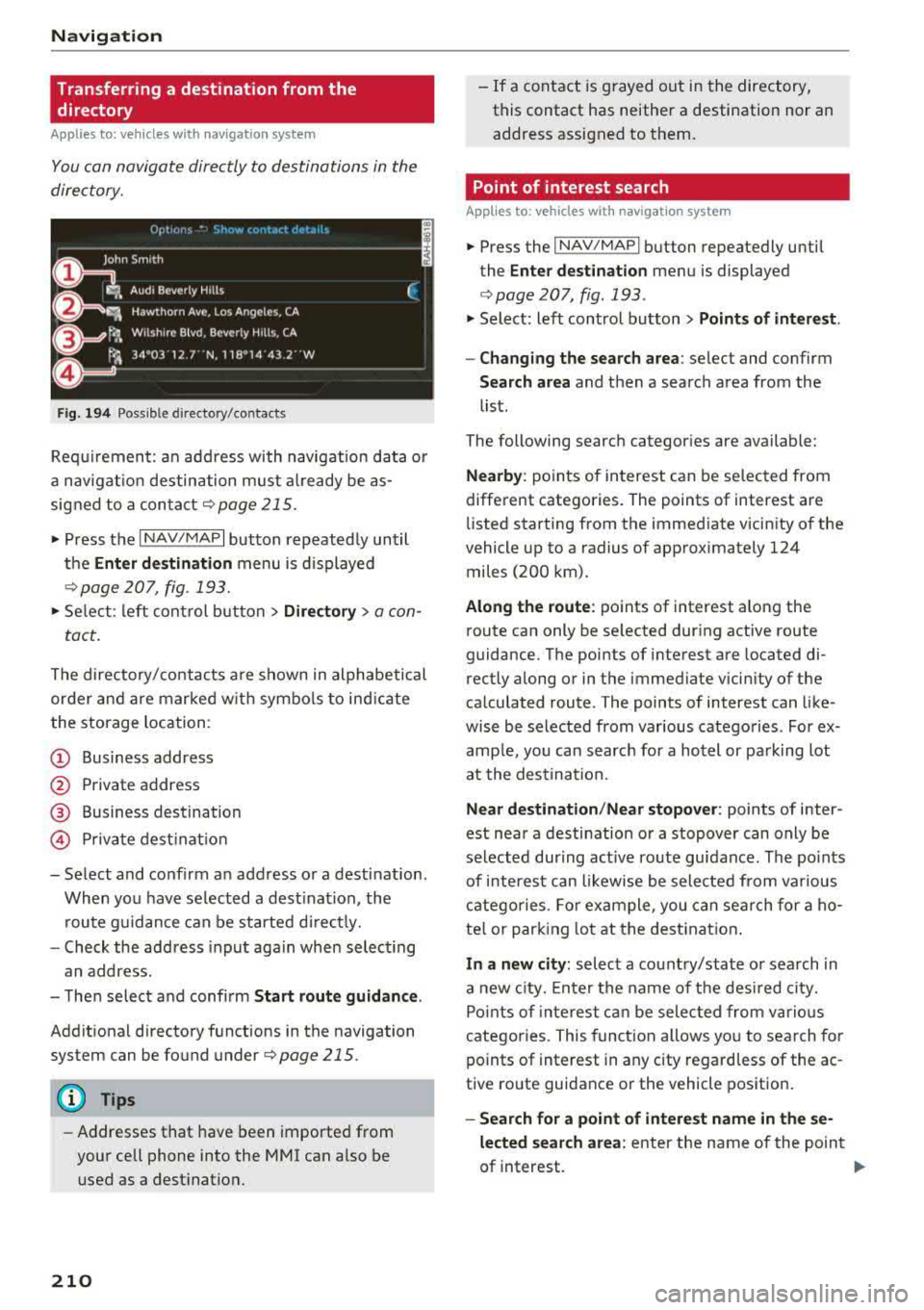
F ig . 19 4 Po ssible directory /contacts
Req uir ement: an address with navigation data o r
a nav igat ion destination must a lready be as
sig ned to a con tact
¢ page 215 .
.,. Press t he I N AV/MAPI button repeated ly until
the
Enter de stination menu is d isplayed
"* page 207, fig . 193.
.,. Se lect : left cont rol button > Director y > a con-
tact.
The d irectory/contacts a re s hown in alphabetical
order and are marked w it h symbo ls to ind ic a te
the storage location :
(D Business address
@ Private address
@ Business destination
© Private dest inat io n
-Se lect and confirm a n address or a destinat ion.
When you have se lected a dest ination , the
r ou te g uidance can be started di rect ly.
-Check the address input again when select ing
an address.
-T hen select and confirm Start route guidan ce .
Addit ional directory f unctions in the navigation
system can be found
under¢page215.
(D Tips
-Addresses that have been imported from
your cell phone into the
MMI can a lso be
used as a dest ination.
210
-If a contact is g rayed out in the directory,
this contact has neither a destination nor an address assigned to them.
Point of interest search
App lies to: vehicles with navigat ion system
.,. Press the I NAV/MAP I button repeatedly until
the
Enter des tinat ion me nu is displayed
¢ page 207, fig . 193 .
.,. Select: left control button > Points of intere st.
-Changing the search area : select and confirm
Search area and then a search area from the
list.
The following search categor ies are available:
Nearby : points of interest can be se lected from
different categories. The points of interest are
li sted starting from the immed iate vicin ity of the
vehicle up to a radius of app roximately 124
miles (200 km).
Along the route : points of interest along the
route can only be se lected dur ing active route
guidan ce. The points of interest are located di
r ectly along or in the immediate vicin ity of the
ca lculated route . The points of interest can like
wise be selected from various catego ries . Fo r ex
amp le, yo u can searc h for a hotel or pa rking lot
at the dest ina tion.
Near destination /Near stopover : points of inter
est near a destination or a stopover can only be selected dur ing act ive ro ute guidance. The po ints
of i nteres t can likewise be sele cted from var ious
c a tego ries . Fo r example , you can sea rch for a ho
te l o r par king lot at the dest inat ion .
In a new city: select a count ry/state o r sea rch in
a new c ity. En te r t he name of t he des ired city.
Po ints of inte rest ca n be selec ted from vario us
catego ries. This funct ion a llows yo u to se arch for
po ints of interest in any city regard less of the ac
tive ro ute guidance or the vehicle position.
-Search for a point of intere st name in the se
lected sear ch area :
enter the n ame of the point
of interest.
..,_