instrument cluster AUDI A6 2020 Owner's Manual
[x] Cancel search | Manufacturer: AUDI, Model Year: 2020, Model line: A6, Model: AUDI A6 2020Pages: 316, PDF Size: 86.41 MB
Page 128 of 316
Driving information
— The traffic signs on the road always take pri-
ority over the display. The driver is always
responsible for adhering to the regulations
applicable in the country where the vehicle
is being operated.
— Units of measurement and language set-
tings are displayed based on how they were
set in the MMI system settings > page 223.
Applies to: vehicles with traffic light information
Switching traffic light information on and
off
The system can be switched on and off in the
MMI page 121.
Accessing traffic light information
> Select in the instrument cluster: vehicle func-
tions tab > Traffic signs.
@) Tips
If another tab or another function is selected
in the instrument cluster, the traffic light in-
formation will appear in the status bar on the
instrument cluster.
Messages
Applies to: vehicles with traffic light information
Malfunction! See owner's manual
The system could not be configured, for example
due to a network malfunction. Switch the igni-
tion off and shut down the vehicle to restart the
system. Wait several minutes until the vehicle
has shut down completely and then switch the
ignition back on.
Function currently unavailable. See owner's
manual
There is a temporary system malfunction. Check
if one or more of the following situations applies
and correct the issue if necessary:
— Traffic light information is switched off
— Data transmission is deactivated
— The vehicle is not equipped with traffic sign rec-
ognition.
126
— There is no valid license
— Traffic light information is not available in that
area
Lap timer
Introduction
Applies to: vehicles with lap timer
You can record and evaluate lap times with the
lap timer. You can operate the lap timer using the
multifunction steering wheel > page 13.
Opening the lap timer
> Select in the instrument cluster: Vehicle func-
tions tab > [=] button > Lap times.
An additional indicator appears in the head-up
display”.
ZA\ WARNING
Your focus should always be on driving your
vehicle safely. As the driver, you have com-
plete responsibility for safety in traffic. To re-
duce the risk of an accident, only use the lap
timer functions in such a way that you always
maintain complete control over your vehicle in
all traffic situations.
Gi) Tips
You can retrieve information from the trip
computer while the lap timer stopwatch is
running.
ey R em ale)
Applies to: vehicles with lap timer
Requirement: the lap timer must be open
> page 126.
Timing laps
> To start timing manually, select Start lap 1 in
the menu.
> To start timing automatically as soon as you be-
gin
to drive, select Start lap 1 by driving off or
Start by driving off in the menu.
> To start timing a new lap after driving a lap, se-
lect New lap in the menu. This starts timing
the next lap at the same time.
Page 129 of 316
4K0012721BD
Driving information
After completing a lap, the difference between
the last lap and the previous best lap time will be
indicated with a “~” or “+”.
Pausing timing and displaying a split time
> To insert a pause @ select Pause in the menu.
> To resume timing, select Resume in the menu.
> To display a split time, select Split time in the
menu. The split time appears for approxi-
mately ten seconds in the instrument cluster.
The current lap timing will continue running.
Canceling lap timing
The timing of the current lap will stop. The lap
time will be erased and will not be included in the
statistics.
> Select Cancel lap in the menu.
Resetting the time
> Select Reset lap times in the menu.
@ Tips
—A maximum of 99 lap times can be meas-
ured.
- If timing is paused, you can continue it later
even if you switch the ignition off.
— Saved lap times cannot be individually de-
leted from the total results.
— The saved lap timer values will remain after
switching the ignition off.
Lap stati
Applies to: vehicles with lap timer
Displaying lap statistics
You can display the number of laps driven ES
the fastest lap “+”, the slowest lap “~”, and the
average time “®” in the instrument cluster.
> Select in the instrument cluster: Vehicle func-
tions tab > [=] button > Lap statistics.
> Turn the thumbwheel down or up to display the
individual lap times.
> To return to the lap timing that was started, se-
lect the [J button > Lap times.
Resetting lap statistics
Requirement: the lap statistics menu must be
displayed.
> To reset the lap statistics, press and hold the
left thumbwheel until the message No lap
times have been recorded yet. appears.
@) Tips
The lap statistics list the lap times for the last
30 laps. The fastest and slowest lap times out
of up to 99 measured laps are also displayed.
Night vision assist
Applies to: vehicles with night vision assist
Night vision assist helps you when it is dark by
using an infrared camera to monitor the area in
front of your vehicle, within the limits of the sys-
tem. It can display objects up to a distance of ap-
proximately 1000 feet (300 m).
Pedestrian and wild animals are detected by
measuring the temperature difference between
the object and the background. Pedestrians and
wild animals will not be detected if the tempera-
ture difference is too small. The pedestrian and
wild animal marking feature is deactivated at
temperatures above approximately 77 °F (25 °C)
and when it is light outside.
The thermal image detected by the camera is dis-
played in the instrument cluster. Warm areas
generally appear lighter and cold areas appear
darker.
The camera for the night vision assist is located
in the vehicle's radiator grille > page 120. Make
sure the night vision camera is not covered by
stickers, deposits, or any other obstructions be-
cause this can impair the night vision assist func-
tion. Follow the information about cleaning
=> page 266.
ZX WARNING
— Follow the safety precautions and note the
limits of the assist systems, sensors, and
cameras > page 118. >
127
Page 130 of 316
Driving information
— Night vision assist can only detect pedes-
trians and wild animals located within the
range of the infrared camera.
— Night vision assist cannot detect pedes-
trians or wild animals and mark them if:
— They are not in an upright position, for ex-
ample if they are sitting or lying down
and/or
—The silhouette in the display appears in-
complete or interrupted, for example be-
cause the pedestrian is partially behind a
vehicle or an animal is partially covered by
tall grass.
— Never attempt to swerve around animals if
doing so would endanger you or other road
users.
G@) Tips
— Even though the system evaluates the
shape and heat given off by all detected ob-
jects, there are limits to the system. There
may be false warnings.
— For technical reasons, the image pauses in
split second intervals.
Switching on and off
Applies to: vehicles with night vision assist
The system can be switched on and off in the
MMI > page 121.
> The AUTO light function must be selected for
the night vision assist to automatically activate
when it is dark.
> Switch on the low beams manually to activate
night
vision assist immediately. To do so,
press @ on the light switch module and select
Ww
When activated, the %1 tab appears in the instru-
ment cluster.
> Select in the instrument cluster: tab %
@) Tips
When the night vision assist tab is selected in
the instrument cluster and the low beams are
switched off, the thermal image display dis-
appears only after you have exited the tab.
128
Applies to: vehicles with night vision assist
Fig. 98 Instrument cluster: pedestrian marking and warn-
ing
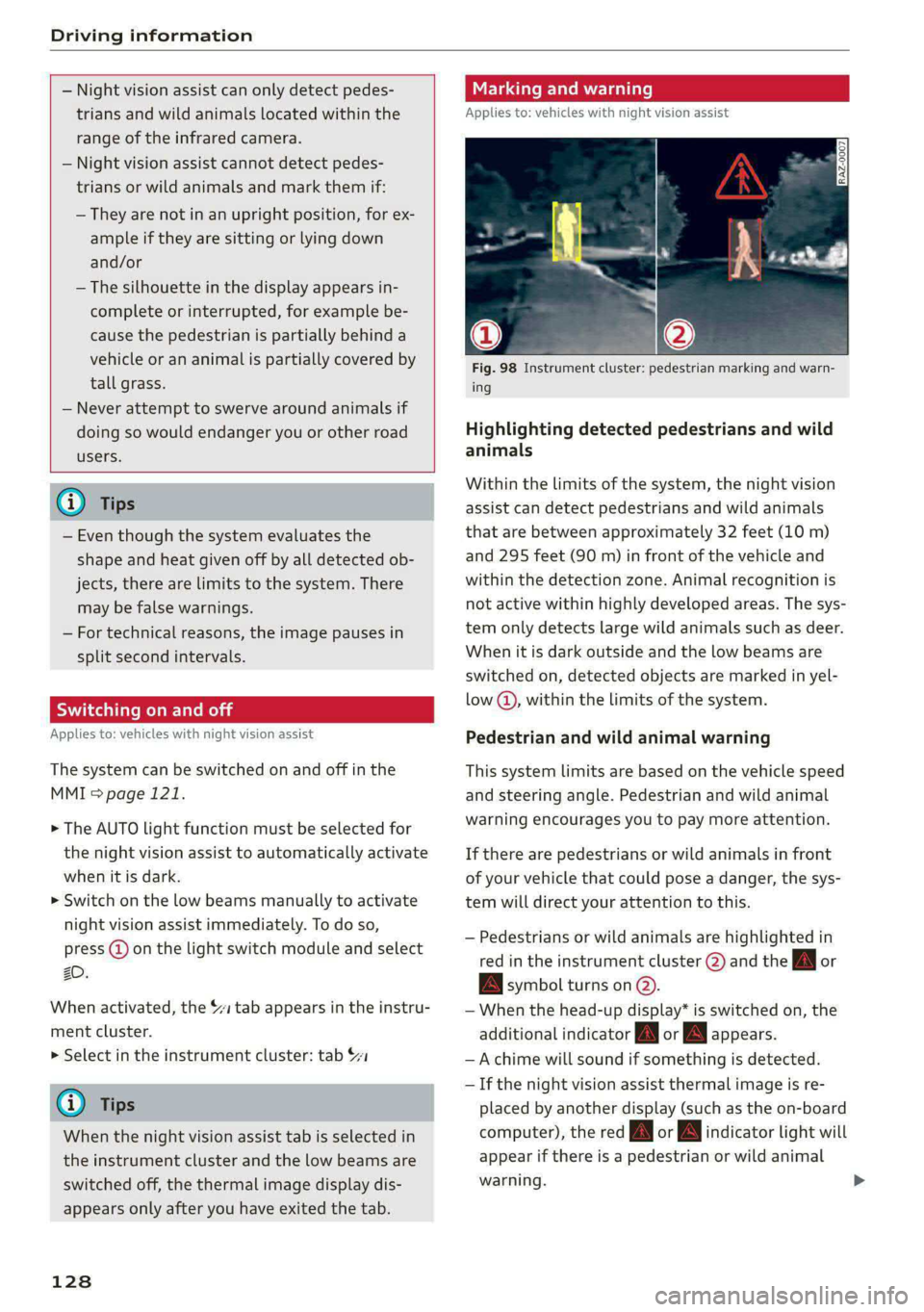
Highlighting detected pedestrians and wild
animals
Within the limits of the system, the night vision
assist can detect pedestrians and wild animals
that are between approximately 32 feet (10 m)
and 295 feet (90 m) in front of the vehicle and
within the detection zone. Animal recognition is
not active within highly developed areas. The sys-
tem only detects large wild animals such as deer.
When it is dark outside and the low beams are
switched on, detected objects are marked in yel-
low @), within the limits of the system.
Pedestrian and wild animal warning
This system limits are based on the vehicle speed
and steering angle. Pedestrian and wild animal
warning encourages you to pay more attention.
If there are pedestrians or wild animals in front
of your vehicle that could pose a danger, the sys-
tem will direct your attention to this.
— Pedestrians or wild animals are highlighted in
red in the instrument cluster (2) and the MM or
BA symbol turns on @.
— When the head-up display* is switched on, the
additional indicator [AM or EM appears.
—Achime will sound if something is detected.
—If the night vision assist thermal image is re-
placed by another display (such as the on-board
computer), the red A or A indicator light will
appear if there is a pedestrian or wild animal
warning.
Page 132 of 316
Driver assistance
Driver assistance
Cruise control system
Applies to: vehicles with cruise control system
The cruise control system assists the driver in
maintaining a constant speed above approxi-
mately 15 mph (20 km/h). The system maintains
the desired speed by braking and accelerating.
ZA WARNING
— Always pay attention to the traffic around
your vehicle when the cruise control system
is in operation. As the driver, you are always
responsible for controlling your vehicle
speed and the distance between your vehicle
and
other vehicles.
— For safety reasons, cruise control should not
be used in the city, in stop-and-go traffic, on
winding roads, and when road conditions are
poor (such as ice, fog, gravel, heavy rain,
and conditions that could lead to hydroplan-
ing), because this increases the risk of an ac-
cident.
— Switch the cruise control off temporarily
when driving in turning lanes, highway exits,
or in construction zones.
—To reduce the risk of an accident, you should
only resume the stored speed if it is suitable
for the current traffic conditions.
C) Note
Before driving downhill a long distance ona
steep hill, decrease your speed and select a
lower gear. This makes use of the engine brak-
ing effect and reduces the load placed on the
brakes.
G) Tips
The brake lights turn on when the brakes are
applied automatically.
130
Switching the system on
Applies to: vehicles with cruise control system
BFV-0220
Fig. 99 Lever: switching on the cruise control system
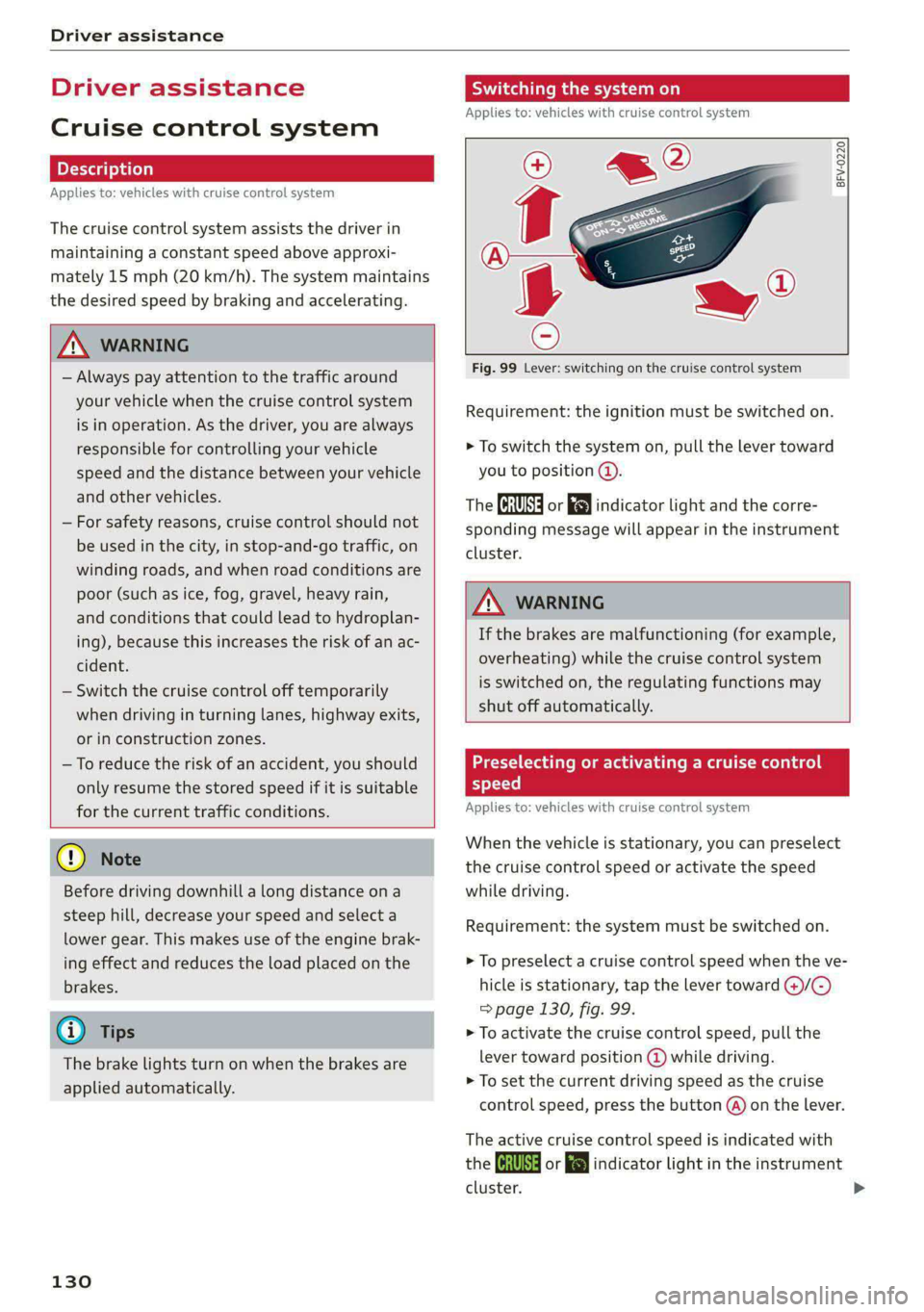
Requirement: the ignition must be switched on.
> To switch the system on, pull the lever toward
you to position @).
The Ga or 8) indicator light and the corre-
sponding message will appear in the instrument
cluster.
A WARNING
If the brakes are malfunctioning (for example,
overheating) while the cruise control system
is switched on, the regulating functions may
shut off automatically.
etal Rom lad lille Rag etna)
speed
Applies to: vehicles with cruise control system
When the vehicle is stationary, you can preselect
the cruise control speed or activate the speed
while driving.
Requirement: the system must be switched on.
> To preselect a cruise control speed when the ve-
hicle is stationary, tap the lever toward @)/G)
=> page 130, fig. 99.
> To activate the cruise control speed, pull the
lever
toward position @ while driving.
> To set the current driving speed as the cruise
control speed, press the button @) on the lever.
The active cruise control speed is indicated with
the ICRUISE| or El indicator light in the instrument
cluster.
Page 134 of 316
Driver assistance
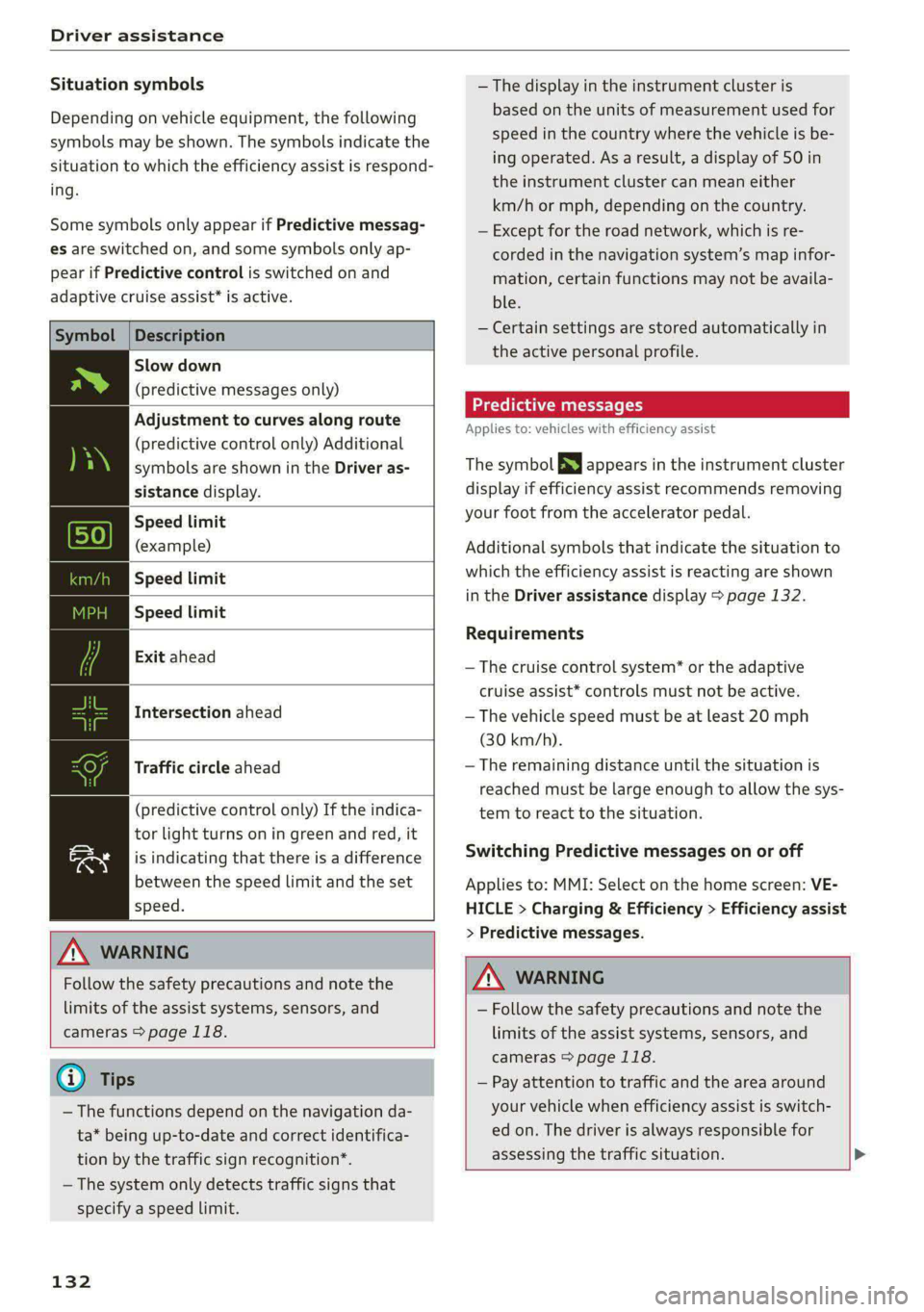
Situation symbols
Depending on vehicle equipment, the following
symbols may be shown. The symbols indicate the
situation to which the efficiency assist is respond-
ing.
Some symbols only appear if Predictive messag-
es are switched on, and some symbols only ap-
pear if Predictive control is switched on and
adaptive cruise assist* is active.
Description
Slow down
(predictive messages only)
Adjustment to curves along route
(predictive control only) Additional
symbols are shown in the Driver as-
sistance display.
Speed limit
(example)
Speed limit
Speed limit
Exit ahead
Intersection ahead
Traffic circle ahead
(predictive control only) If the indica-
tor light turns on in green and red, it
is indicating that there is a difference
between the speed limit and the set
speed.
ZA\ WARNING
Follow the safety precautions and note the
limits of the assist systems, sensors, and
cameras > page 118.
@) Tips
— The functions depend on the navigation da-
ta* being up-to-date and correct identifica-
tion by the traffic sign recognition*.
— The system only detects traffic signs that
specify a speed Limit.
132
— The display in the instrument cluster is
based on the units of measurement used for
speed in the country where the vehicle is be-
ing operated. As a result, a display of 50 in
the instrument cluster can mean either
km/h or mph, depending on the country.
— Except for the road network, which is re-
corded in the navigation system’s map infor-
mation, certain functions may not be availa-
ble.
— Certain settings are stored automatically in
the active personal profile.
Predictive messages
Applies to: vehicles with efficiency assist
The symbol BS appears in the instrument cluster
display if efficiency assist recommends removing
your foot from the accelerator pedal.
Additional symbols that indicate the situation to
which the efficiency assist is reacting are shown
in the Driver assistance display > page 132.
Requirements
— The cruise control system* or the adaptive
cruise assist* controls must not be active.
— The vehicle speed must be at least 20 mph
(30 km/h).
—The remaining distance until the situation is
reached must be large enough to allow the sys-
tem to react to the situation.
Switching Predictive messages on or off
Applies to: MMI: Select on the home screen: VE-
HICLE > Charging & Efficiency > Efficiency assist
> Predictive messages.
Z\ WARNING
— Follow the safety precautions and note the
limits of the assist systems, sensors, and
cameras > page 118.
— Pay attention to traffic and the area around
your vehicle when efficiency assist is switch-
ed on. The driver is always responsible for
assessing the traffic situation. >
Page 135 of 316
4K0012721BD
Driver assistance
@) Tips
— The traffic signs on the road always take pri-
ority over the display. The driver is always
responsible for adhering to the regulations
applicable in the country where the vehicle
is being operated.
— When a route is planned using the naviga-
tion system*, then system displays messag-
es based on an assumed route. Without
route guidance, the system displays mes-
sages based on an assumed route.
— The wording of the message may vary de-
pending on the selected Audi drive select*
mode and the selected gear. No messages
are displayed when in the "S" driving pro-
gram.
— Certain settings are stored automatically in
the active personal profile.
Predictive control
Applies to: vehicles with adaptive cruise assist and efficiency
assist
RAZ-0206 x
Applies to: vehicles with Audi virtual cockpit
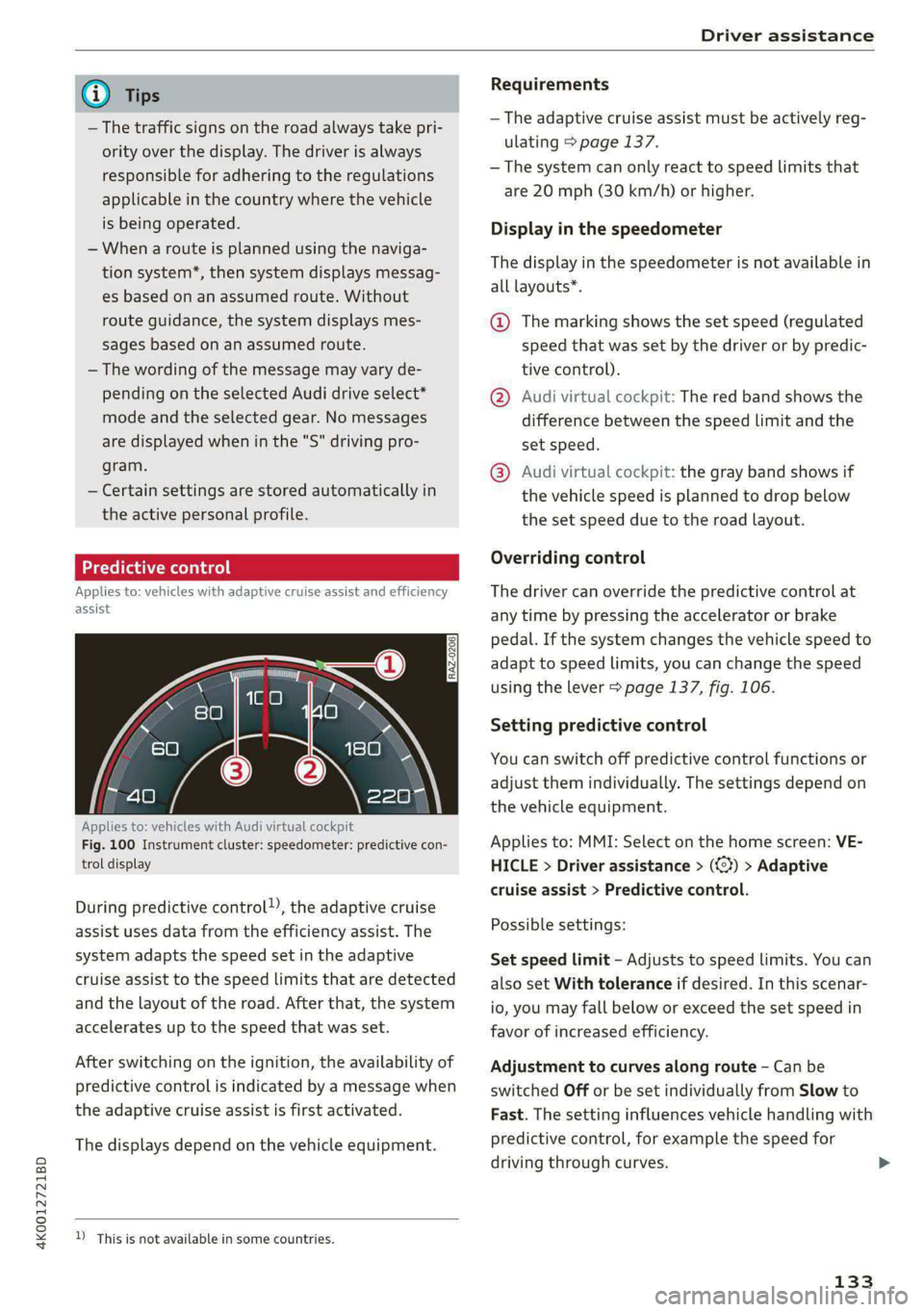
Fig. 100 Instrument cluster: speedometer: predictive con-
trol display
During predictive control), the adaptive cruise
assist uses data from the efficiency assist. The
system adapts the speed set in the adaptive
cruise assist to the speed limits that are detected
and the layout of the road. After that, the system
accelerates up to the speed that was set.
After switching on the ignition, the availability of
predictive control is indicated by a message when
the adaptive cruise assist is first activated.
The displays depend on the vehicle equipment.
D_ This is not available in some countries.
Requirements
— The adaptive cruise assist must be actively reg-
ulating > page 137.
— The system can only react to speed limits that
are 20 mph (30 km/h) or higher.
Display in the speedometer
The display in the speedometer is not available in
all layouts*.
@ The marking shows the set speed (regulated
speed that was set by the driver or by predic-
tive control).
@ Audi virtual cockpit: The red band shows the
difference between the speed limit and the
set speed.
@® Audi virtual cockpit: the gray band shows if
the vehicle speed is planned to drop below
the set speed due to the road layout.
Overriding control
The driver can override the predictive control at
any time by pressing the accelerator or brake
pedal. If the system changes the vehicle speed to
adapt to speed limits, you can change the speed
using the lever > page 137, fig. 106.
Setting predictive control
You can switch off predictive control functions or
adjust them individually. The settings depend on
the vehicle equipment.
Applies to: MMI: Select on the home screen: VE-
HICLE > Driver assistance > (<3) > Adaptive
cruise assist > Predictive control.
Possible settings:
Set speed limit - Adjusts to speed limits. You can
also set With tolerance if desired. In this scenar-
io, you may fall below or exceed the set speed in
favor of increased efficiency.
Adjustment to curves along route - Can be
switched Off or be set individually from Slow to
Fast. The setting influences vehicle handling with
predictive control, for example the speed for
driving through curves.
133
Page 138 of 316

Driver assistance
— The adaptive cruise assist does not respond to
people, animals, or objects that are crossing or
approaching from the opposite direction.
Z\ WARNING
Follow the safety precautions and note the
limits of the assist systems, sensors, and
cameras > page 118.
Display overview
Applies to: vehicles with adaptive cruise assist
3] S|
me Ny Iz G3
Fig. 104 Instrument cluster: driver assistance display
Indicator lights and messages in the speedome-
ter @ -@) inform you about the driving situation
and the settings. In the Driver assistance display
@ - @, you can find more detailed information
about the system. The displays depend on the
country and equipment.
Display in the speedometer
The display in the speedometer is not available in
all layouts*.
@ Marking for the set speed
@ Current vehicle speed
@® Available speed range for adaptive cruise as-
sist (example)
136
Image in the Driver assistance display
The display only appears when the Driver assis-
tance display is open in the on-board computer
=> page 16.
Messages and settings
Detected vehicle driving ahead
Set target distance
The set distance is not met. The distance bars
will be colored red from the bottom upward.
Your vehicle
©®
CC®
Availability of lane departure warning and
lane guidance for adaptive cruise assist
© Availability of lane guidance for adaptive
cruise assist
Indicator lights
A - The speed/distance control is active. No
vehicles were detected ahead. The stored speed
is maintained.
Ba - The speed/distance control is active. A vehi-
cle was detected ahead. The adaptive cruise as-
sist controls the speed and distance from the ve-
hicle driving ahead, and accelerates and brakes
automatically.
A - The speed/distance control is active but the
vehicle is not ready to drive. A vehicle was de-
tected ahead. Your vehicle is stationary and will
not start driving automatically.
BS - The speed/distance control is active but the
vehicle is not ready to drive. No vehicles were de-
tected ahead. Your vehicle is stationary and will
not start driving automatically.
aA - The automatic braking is not enough to
maintain a sufficient distance to a vehicle driving
ahead. You must intervene > page 141, Driver in-
tervention request.
& - The indicator light turns on if the system
does not detect enough steering activity by the
driver. Always keep your hands on the steering
wheel so you can be ready to steer at any time.
The indicator light will also turn off, for example
if the steering power from the system is not suf-
ficient and adaptive cruise assist is canceled
=> page 139, Steering intervention request.
Page 143 of 316

4K0012721BD
Driver assistance
D g in stop-and-go traffic
Applies to: vehicles with adaptive cruise assist
> Press the brake pedal to slow your vehicle
down.
RAZ-0398,
Fig. 110 Instrument cluster: safe start monitor
Stopping with adaptive cruise assist
The adaptive cruise assist also assists you in stop-
and-go traffic. Within the limits of the system,
your vehicle may brake and remain at a stop if a
vehicle driving ahead stops.
Starting to drive with adaptive cruise assist!)
As long as the message ready to drive and aA is
displayed, your vehicle will begin driving when
the vehicle ahead starts to move > /\.
If you are stopped for several seconds, your vehi-
cle will no longer drive autonomously for safety
reasons, and the message will turn off.
> To extend ready to drive for several seconds or
reactivate, pull the lever briefly towards you in
the direction of the arrow > page 140, fig. 109.
> To resume manual control of the vehicle, tap
the accelerator pedal.
Safe start monitor
The vehicle can still start to drive even if certain
obstacles are detected when starting to drive
=> /\. For example, if an obstacle is detected by
the camera behind the windshield, the a indica-
tor light will warn you of the danger.
If you are in the Driver assistance display, the
display @) © fig. 110 and the message Warning!
will also appear. An audio signal will also sound.
Your vehicle will drive more slowly when starting.
This may also occur in some situations when
there is no apparent obstacle.
D_ This is not available in some countries.
Z\ WARNING
— Follow the safety precautions and note the
limits of the assist systems, sensors, and
cameras > page 118.
— If the message ready to drive!) appears,
your vehicle will start driving even if there is
an obstacle between your vehicle and the ve-
hicle ahead. To reduce the risk of an acci-
dent, always make sure there are no obsta-
cles between your vehicle and the vehicle
driving ahead.
G) Tips
For safety reasons, adaptive cruise assist is
only active if:
— The driver's safety belt is fastened
— All doors and the hood are closed
— Your vehicle is not stopped for a long period
of time
er interv n request
Applies to: vehicles with adaptive cruise assist
Fig. 111 Instrument cluster: request for driver interven-
tion
The request for driver intervention instructs you
to resume manual control of the vehicle if the
adaptive cruise assist braking function is not able
to maintain a sufficient distance to the vehicle
ahead. The system will warn you of the hazard
with the A indicator light and the message Dis-
tance!. An audio signal will also sound.
141
>
Page 145 of 316

4K0012721BD
Driver assistance
Distance warning
Applies to: vehicles with distance warning
S| | S|
| |
Applies to: vehicles with adaptive cruise assist
Fig. 112 Instrument cluster: display of the current dis-
tance
RAZ-0400
Applies to: vehicles with adaptive cruise assist:
Fig. 113 Instrument cluster: distance warning
General information
At speeds above approximately 40 mph (65
km/h), this function measures the distance to the
vehicle ahead as time. If the distance falls below
the warning threshold, the system warns you of
the hazard with the | indicator light.
Image in the Driver assistance display
Applies to: vehicles with adaptive cruise assist
The display only appears if the Driver assistance
display is selected on the on-board computer
=> page 16 and the adaptive cruise assist is not
actively controlling the vehicle.
@) Detected vehicle driving ahead
@ Use the markings to help you estimate the
distance to an obstacle. Each marking repre-
sents approximately one second.
@) Set warning threshold. Depending on the set-
tings, the display will be colored in from the
bottom to the top.
@ The actual distance is smaller than the set
distance and you will be informed about the
danger.
Adjusting the distance warning
The system can be switched on and off in the
MMI > page 121.
You can adjust the distance warning threshold to
your preferences. The settings depend on the ve-
hicle equipment.
— Applies to: MMI: Select on the home screen:
VEHICLE > Driver assistance > (<3) > Distance
warning.
Messages
rg or 3!-| is displayed when there is a malfunc-
tion, the distance warning functions may be un-
available or may be limited.
A message that indicates the cause and possible
solution may appear with some displays. The
weather conditions may be too poor or a sensor
may be covered. Clean the area in front of the
sensors > page 120 and try to turn on the sys-
tems again later.
If the malfunction remains, drive to an author-
ized Audi dealer or authorized Audi Service Facili-
ty immediately to have the malfunction correct-
ed.
ZA WARNING
Follow the safety precautions and note the
limits of the assist systems, sensors, and
cameras > page 118.
G) Tips
— The driver is always responsible for adhering
to the regulations applicable in the country
where the vehicle is being operated.
— You may fall below the warning threshold
briefly when passing or when quickly ap-
proaching a vehicle driving ahead. There is
no warning in this scenario. A warning is giv-
en only if you fall below the warning thresh-
old for an extended period of time.
143
Page 146 of 316

Driver assistance
Lane departure warning
(erreur laced)
Applies to: vehicles with lane departure warning
The lane departure warning can detect lane
marker lines within the limits of the system. If
you are approaching a detected lane marker and
it appears likely that you will leave the lane, the
system can warn you with corrective steering and
a steering wheel vibration, if necessary.
The system functions in the speed range of ap-
proximately 40 mph - 155 mph (65 km/h -
250 km/h).
ZA\ WARNING
Follow the safety precautions and note the
limits of the assist systems, sensors, and
cameras > page 118.
Applies to: vehicles with lane departure warning
B8V-0692
Fig. 114 Turn signal lever: switching the lane departure
warning on and off
RAZ-0107
Fig. 115 Instrument cluster: driver assistance display
YD In certain countries
144
Switching the lane departure warning on and
off
The lane departure warning switches on auto-
matically once the ignition is switched on )).
> To switch the system on or off, press the button
=> fig. 114. The respective indicator light in the
instrument cluster will turn off or on.
Display and warning
The availability and readiness to provide warn-
ings will be indicated with the / | Hi indicator
lights.
Corrective steering will be indicated with the vl
indicator light. If the lane departure warning
must intervene for a long period of time, a mes-
sage will request the driver to drive in the center
of the lane.
You can also open the Driver assistance display in
the on-board computer > page 16. The display
matches the functions of the indicator lights.
Display or in- |Meaning on the corresponding
dicator light | side
@ White The lane departure warning is
lines switched on but not ready to pro-
vide warnings.
@ Green Lane departure warning is
line switched on and ready to provide
warnings on that side.
@ Red The lane departure warning will
line warn you with corrective steering
before exiting the lane.
The steering wheel can also vi-
brate to warn you if lane bounda-
ries are detected during a pass-
ing maneuver.
The lane departure warning is ready to provide
warnings if an object is detected on at least one
side of the individual lane.