service AUDI A6 2020 Manual PDF
[x] Cancel search | Manufacturer: AUDI, Model Year: 2020, Model line: A6, Model: AUDI A6 2020Pages: 316, PDF Size: 86.41 MB
Page 182 of 316

Audi connect
services. The cell phone network, for exam-
ple, must be available to use these services.
Applies to: vehicles with Audi connect vehicle control
> Register at my.audi.com.
> Set the key user > page 31.
> Install the myAudi app on your mobile device
and log in with your access information.
@ Tips
It may also be necessary to enter your 4-digit
PIN set at my.audi.com when accessing some
Audi connect vehicle control services.
Yate)
Applies to: vehicles with Audi connect vehicle control
Depending on the country and the vehicle equip-
ment, the following services may be available:
Locking and unlocking the vehicle by remote
control
Requirement: the vehicle must be parked and the
ignition must be switched off.
This service allows you to unlock or lock your ve-
hicle.
Vehicle status report
This service transfers driver information system
data to a server. Depending on the vehicle equip-
ment, certain data may be accessed, such as the
remaining range or mileage. The values may dif-
fer from the values displayed in the vehicle.
Car Finder
This service transmits the parking location to a
server when the ignition is switched off. The vehi-
cle location, your location, or the route to your
vehicle can be displayed. The new parking loca-
tion cannot be determined with this service if the
vehicle is moved after shutting the vehicle off
and without switching the ignition on and off
again, for example if the vehicle is towed or sto-
len.
180
Online Audi service request
Requirement: the service must be activated on-
line at my.audi.com and an authorized Audi deal-
er or authorized Audi service facility must be se-
lected.
This service transmits service-relevant data to
your selected authorized Audi dealer or author-
ized Audi service facility. They will contact you
before your next service appointment.
Stolen Vehicle Locator
This service assists you in locating your vehicle if
it is stolen.
— Contact the police. You receive a Case ID.
— Call the service hotline and give your Case ID.
The service hotline will forward the established
data to the police. You receive the Audi Service
hotline number when you purchase your vehicle.
Alert services
Requirement: a key user must be set in the vehi-
cle > page 180.
You can adjust the following services in the
myAudi app. You will be notified by a push notifi-
cation and/or e-mail if an alarm is triggered for
your vehicle.
— Geofencing Alert: a permitted/prohibited zone
was entered.
— Speed Alert: a set speed was exceeded.
— Valet Alert: a set speed was exceeded or a per-
mitted/prohibited zone was entered.
ZA\ WARNING
Do not ignore messages and warning or indi-
cator lights that turn on in the vehicle be-
cause of the information in the vehicle status
report. This could lead to break downs in on
the road, accidents and serious injuries.
@) Tips
For some services, you can select if you would
like to be notified with a push notification
and/or an e-mail.
Page 183 of 316
4K0012721BD
Audi connect
Settings
Ce) atelal-mariancel a4
>» Applies to: MMI: Select on the home screen:
SETTINGS > Connection settings > Mobile
phone network.
Depending on the country, vehicle equipment,
and connection type, the following functions may
be available:
Data connection settings
Using the Data connection settings menu, you
can set when the system should connect to the
Internet. The Internet connection disconnects
automatically once the requested Audi connect
Infotainment service no longer requires any data.
— Data roaming: data roaming is switched off at
the factory. To use a data connection outside of
the country, data roaming must be switched
on. The setting is stored for the current SIM
card or the mobile device that is currently con-
nected.
— Allow MMI online services: when this function
is switched on, a data connection is automati-
cally established in order to use Audi connect
Infotainment services.
— Allow Wi-Fi devices: when the function is
switched on, mobile devices can use the Inter-
net connection through the Wi-Fi hotspot.
Access point
The connection is configured automatically based
on the SIM card being used. The following values
can be changed. You can obtain more information
from your cell phone service provider.
— Access Point Name (APN): the access point de-
pends on the cell phone service provider and is
assigned automatically.
— User name: your cell phone service provider as-
signs the user name for your online profile.
— Password: your cell phone service provider as-
signs the password for your online profile.
— Apply settings: saves the changed settings.
— Reset configuration: resets the connection set-
tings.
Data usage counter
Your current data usage is displayed.
— Reset counter: you can reset your usage statis-
tics to zero.
— Warning limit: you can set a warning limit for
your data usage (GB/MB).
Z\ WARNING
Always follow the information found in > A\
in General information on page 177.
@) Note
Always follow the information found in S@ in
General information on page 177.
@) Tips
For more information on roaming charges,
contact your cell phone service provider.
Wi-Fi settings
Applies to: vehicles with Wi-Fi hotspot
Requirement: the ignition must be switched on.
> Applies to: MMI: Select on the home screen:
SETTINGS > Connection settings > Wi-Fi
Depending on the country and the vehicle equip-
ment, the following functions may be available:
Wi-Fi
When the function is switched on, the MMI's Wi-
Fi hotspot is active and Wi-Fi devices can be con-
nected to the hotspot.
Wi-Fi hotspot settings
The Wi-Fi connection between the MMI and your
Wi-Fi device is encrypted. You can change the fol-
lowing information if needed.
— Access point (SSID): name of the Wi-Fi hot-
spot.
— Password: a random password was set at the
factory in the MMI. The password can be
changed. The encryption method requires a
password to be at least eight characters long.
Choose a secure password.
— Visible to others: you can switch the visibility
of the Wi-Fi hotspot on or off.
181
>
Page 184 of 316
Audi connect
Always follow the information found in > AV
in General information on page 177.
You can purchase data plans at my.audi.com.
Always follow the information found in >@ in
General information on page 177.
Always follow the information found in > AA
Always follow the information found in >@ in
Elem) eT
Applies to: vehicles with data plans
Requirement: you must have created a myAudi Depending on the country, applicable data
account at my.audi.com. Your vehicle must be plans may need to be purchased when driving
registered in your myAudi account.
Troubleshooting
in other countries.
Applies to: vehicles with Audi connect Infotainment
The information that follows lists some trouble-
shooting options. They depend on the equip-
ment.
Audi connect Infotainment serv-
ices: individual Audi connect Info-
tainment services are grayed out or
not available.
Some Audi connect Infotainment services must be activated or
configured through your personal myAudi account before using
them for the first time. You can find detailed information online
at my.audi.com.
Wi-Fi hotspot: it is not possible to
connect through Wi-Fi.
Check if Wi-Fi is activated in the MMI > page 181.
Delete all existing Wi-Fi connections on your mobile device and
restart it.
D_ Not available in every market.
182
Page 185 of 316
4K0012721BD
Emergency call
Emergency call
Overview
Applies to: vehicles with emergency call function
An emergency call is a combination of data trans-
mission and a phone call. The data transmission
from your vehicle forwards important informa-
tion, such as the vehicle and position data, to the
emergency call center.
Depending on the country and the vehicle equip-
ment, the following functions may be available:
With the emergency call, you can call for help in
dangerous situations as quickly as possible. Use
this function when emergency help is needed
=> page 183.
— Audi connect emergency call (TPS emergency
call). This eCall system uses emergency call
centers operated by third party providers.
With online roadside assistance, you can request
assistance if there is a breakdown or a minor acci-
dent > page 184.
ZA\ WARNING
In areas with poor GPS reception or outside
the coverage range of the respective cell
phone service provider, some functions and/or
services may not be available, it may not be
possible to send or receive data, or functional-
ity may be limited.
@) Tips
You can find what data will be transferred at
www.audi.com.
Emergency call
Applies to: vehicles with emergency call function
The services are provided through a SIM card in-
stalled in the vehicle. Services are provided as-
suming that the cell phone network required for
the installed SIM card is functioning and availa-
ble for use. The available services set by Audi AG
are only available within the cell phone network
coverage area for the cell phone service provider
selected
by Audi AG.
— The emergency call function cannot be deac-
tivated in the Infotainment system settings.
—The availability of the TPS emergency call is
limited to certain times.
—The costs for call and data connections for
TPS emergency calls is included in the price
of the services.
Applies to: vehicles with emergency call function
A TPS emergency call can be made manually or
automatically > page 183.
Making an emergency call
Applies to: vehicles with emergency call function
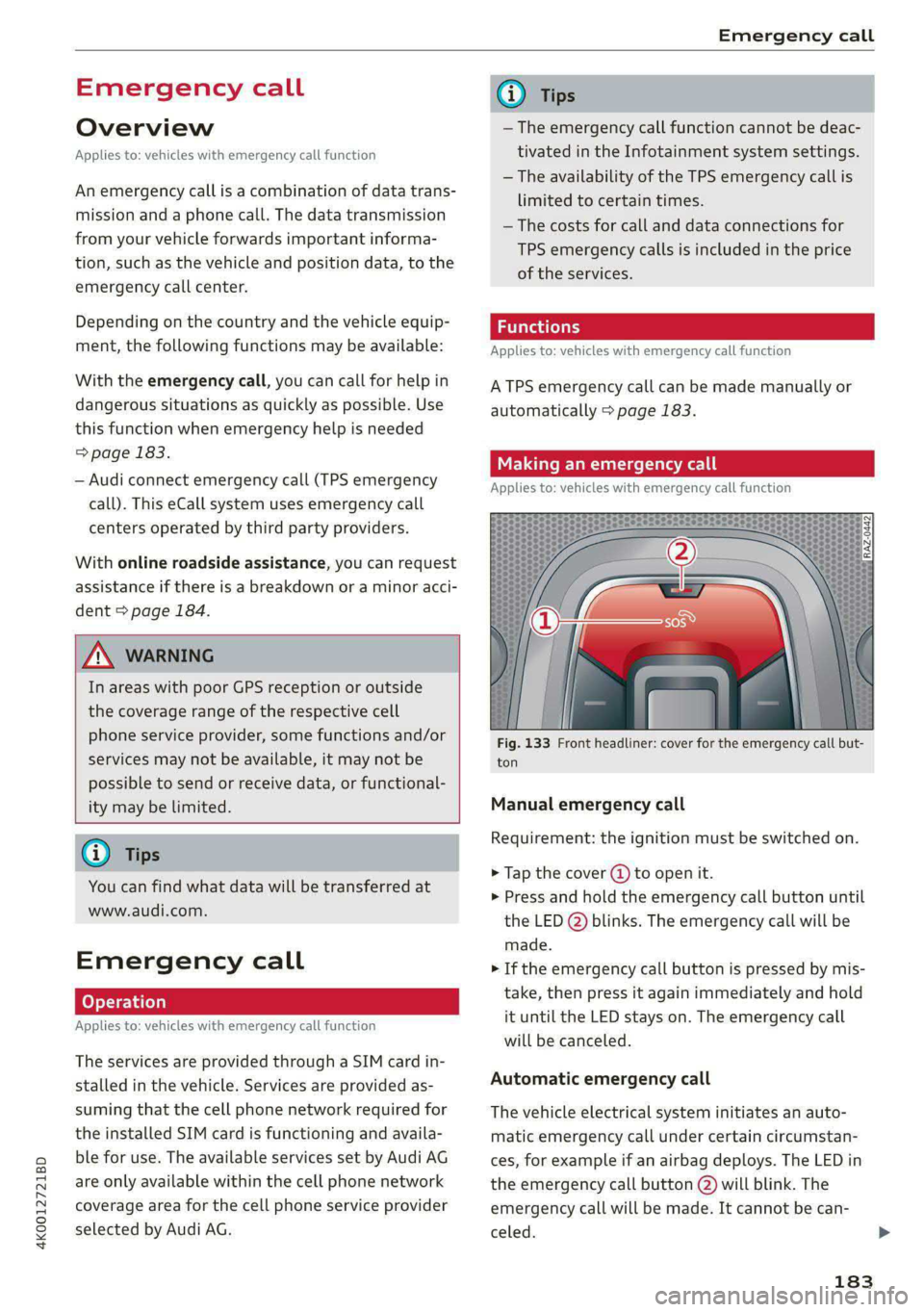
Fig. 133 Front headliner: cover for the emergency call but-
ton
Manual emergency call
Requirement: the ignition must be switched on.
> Tap the cover (4) to open it.
>» Press and hold the emergency call button until
the LED (2) blinks. The emergency call will be
made.
> If the emergency call button is pressed by mis-
take, then press it again immediately and hold
it until the LED stays on. The emergency call
will be canceled.
Automatic emergency call
The vehicle electrical system initiates an auto-
matic emergency call under certain circumstan-
ces, for example if an airbag deploys. The LED in
the emergency call button @) will blink. The
emergency call will be made. It cannot be can-
celed.
183
Page 186 of 316
Emergency call
LED status
— Green - The emergency call function is availa-
ble.
— Red - There is a malfunction in the emergency
call function. Contact an authorized Audi dealer
or authorized Audi Service Facility. Note the
messages about the availability of the emer-
gency function > page 184.
— Off - The emergency call function is not availa-
ble, perhaps because no network is available.
Warnings
If there is a critical system failure in the emer-
gency call systems, the vehicle occupants will re-
ceive the following warning: see > page 184, LED
status and > page 184, Messages.
G) Tips
If the emergency call is canceled due to a
poor connection, then the system automati-
cally tries to connect again.
Applies to: vehicles with emergency call function
BS Emergency call function: malfunction! Lim-
ited availability. Please contact Service
If this indicator light turns on and this message
appears, the emergency call function is restrict-
ed. For example, you cannot call the emergency
call center, but data may still be transmitted un-
der certain circumstances. Drive to an authorized
Audi dealer or authorized Audi Service Facility im-
mediately to have the malfunction corrected.
& Emergency call function: malfunction! Func-
tion unavailable. Please contact Service
If this indicator light turns on and this message
appears, you cannot make an emergency call.
Drive to an authorized Audi dealer or authorized
Audi Service Facility immediately to have the
malfunction corrected.
) The availability of the services offered depends on the
country and may change in the future.
184
Online roadside
assistance
Applies to: vehicles with online roadside assistance
An online roadside assistance call )) is a combina-
tion of data transmission and a phone call. The
data transmission from your vehicle forwards im-
portant information to the Audi service center,
such as the vehicle and position data.
Calling online roadside assistance
Applies to: vehicles with online roadside assistance
[RAzZ-0443)
+O
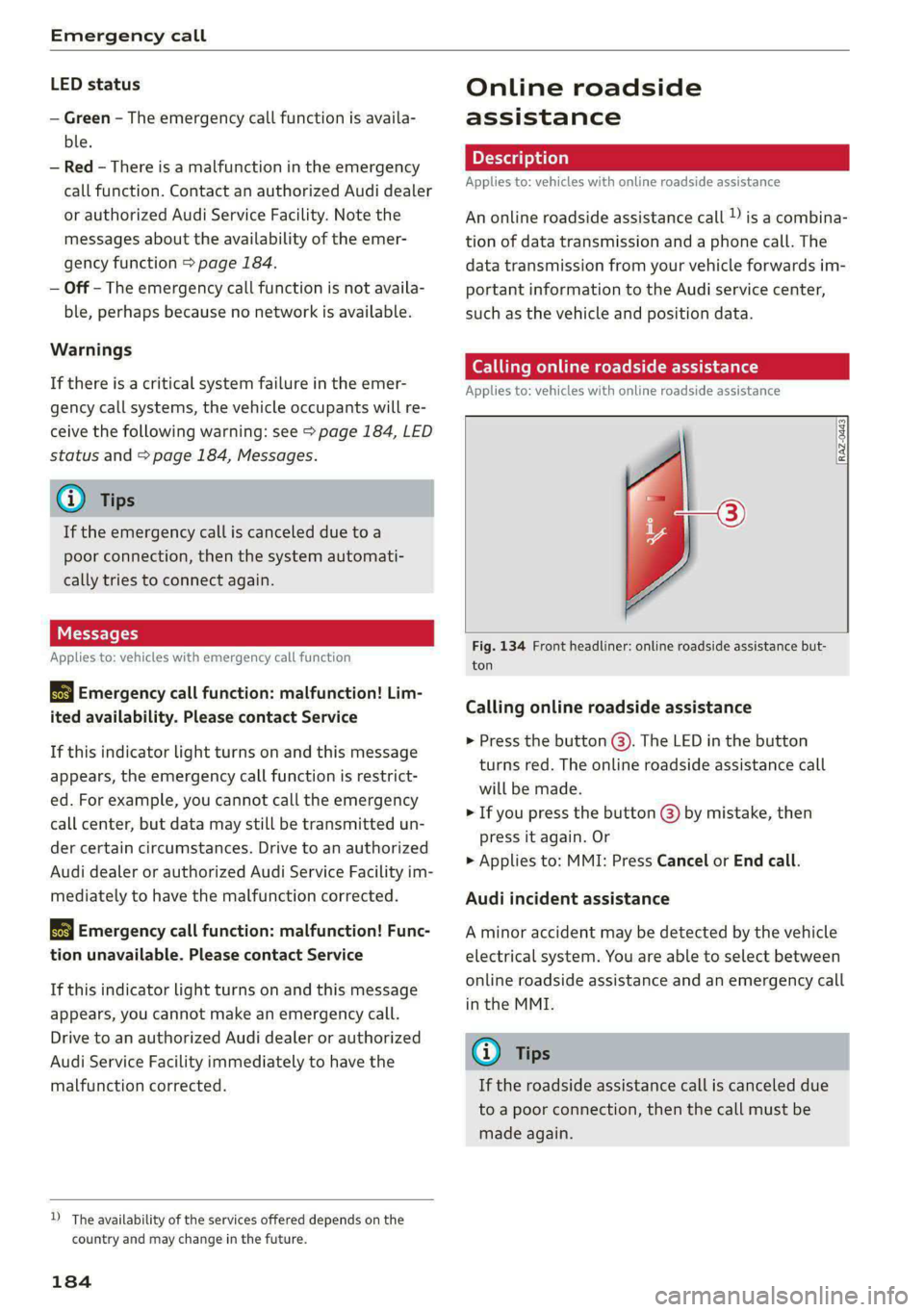
Fig. 134 Front headliner: online roadside assistance but-
ton
Calling online roadside assistance
> Press the button @). The LED in the button
turns red. The online roadside assistance call
will be made.
» If you press the button @) by mistake, then
press it again. Or
> Applies to: MMI: Press Cancel or End call.
Audi incident assistance
A minor accident may be detected by the vehicle
electrical system. You are able to select between
online roadside assistance and an emergency call
in the MMI.
G) Tips
If the roadside assistance call is canceled due
to a poor connection, then the call must be
made again.
Page 187 of 316
4K0012721BD
Navigation
Navigation
Opening navigation
Applies to: vehicles with navigation system
The navigation system directs you to your desti-
nation, around traffic incidents, and on alterna-
tive routes, if desired.
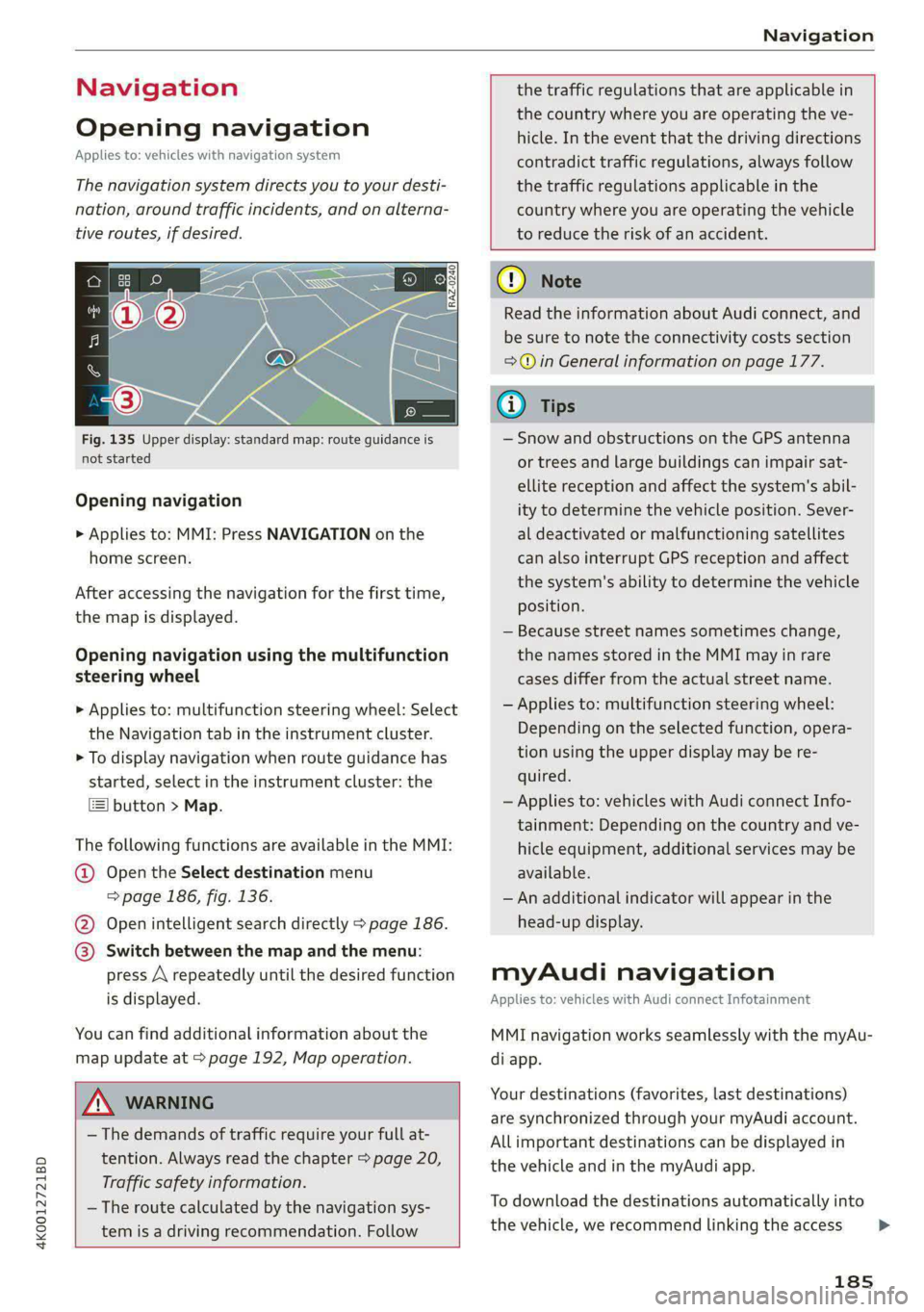
Fig. 135 Upper display: standard map: route guidance is
not started
Opening navigation
> Applies to: MMI: Press NAVIGATION on the
home screen.
After accessing the navigation for the first time,
the map is displayed.
Opening navigation using the multifunction
steering wheel
> Applies to: multifunction steering wheel: Select
the Navigation tab in the instrument cluster.
> To display navigation when route guidance has
started, select in the instrument cluster: the
button > Map.
The following functions are available in the MMI:
@ Open the Select destination menu
=> page 186, fig. 136.
@ Open intelligent search directly > page 186.
@ Switch between the map and the menu:
press A repeatedly until the desired function
is displayed.
You can find additional information about the
map update at > page 192, Map operation.
the traffic regulations that are applicable in
the country where you are operating the ve-
hicle. In the event that the driving directions
contradict traffic regulations, always follow
the traffic regulations applicable in the
country where you are operating the vehicle
to reduce the risk of an accident.
ZX WARNING
— The demands of traffic require your full at-
tention. Always read the chapter > page 20,
Traffic safety information.
— The route calculated by the navigation sys-
tem is a driving recommendation. Follow
@) Note
Read the information about Audi connect, and
be sure to note the connectivity costs section
=> in General information on page 177.
iG) Tips
— Snow and obstructions on the GPS antenna
or trees and large buildings can impair sat-
ellite reception and affect the system's abil-
ity to determine the vehicle position. Sever-
al deactivated or malfunctioning satellites
can also interrupt GPS reception and affect
the system's ability to determine the vehicle
position.
— Because street names sometimes change,
the names stored in the MMI may in rare
cases differ from the actual street name.
— Applies to: multifunction steering wheel:
Depending on the selected function, opera-
tion using the upper display may be re-
quired.
— Applies to: vehicles with Audi connect Info-
tainment: Depending on the country and ve-
hicle equipment, additional services may be
available.
— An additional indicator will appear in the
head-up display.
myAudi navigation
Applies to: vehicles with Audi connect Infotainment
MMI navigation works seamlessly with the myAu-
di app.
Your destinations (favorites, last destinations)
are synchronized through your myAudi account.
All important destinations can be displayed in
the vehicle and in the myAudi app.
To download the destinations automatically into
the vehicle, we recommend linking the access
185
>
Page 188 of 316
Navigation
data from your myAudi account to your personal
profile > page 30.
myAudi navigation functions:
— You can send destinations and routes from the
myAudi app to the vehicle > page 189.
— Active route guidance in the myAudi app can be
continued in the MMI.
— Depending on the situation, it may be possible
to continue active route guidance from the MMI
in the myAudi app to continue navigating to the
destination after leaving the vehicle.
@) Note
Read the information about Audi connect, and
be sure to note the connectivity costs section
=@ in General information on page 177.
Entering a destination
Select destination
Applies to: vehicles with navigation system
Select destination
e
|
Si
Cees
3 &routes
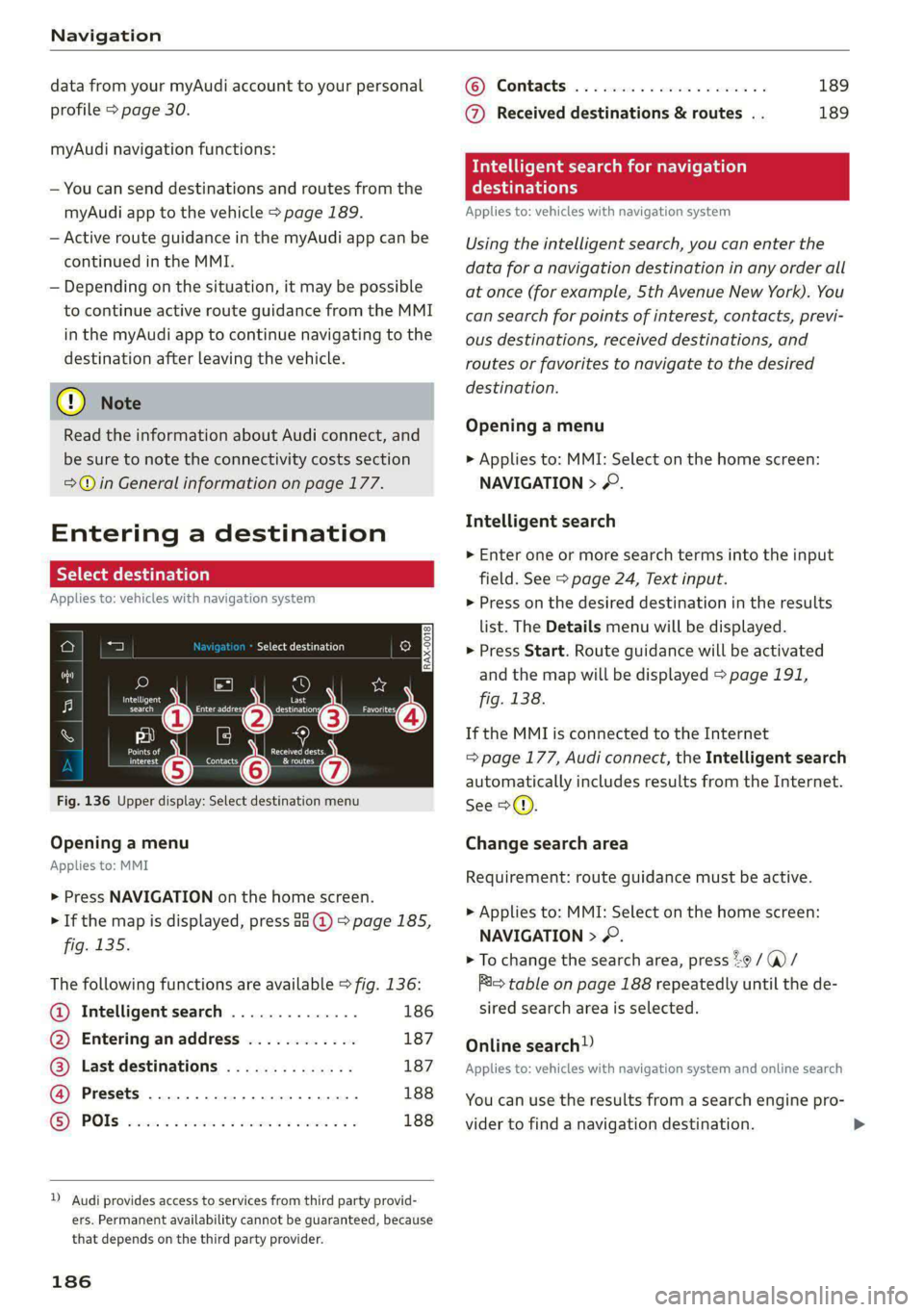
Fig. 136 Upper display: Select destination menu
Opening a menu
Applies to: MMI
> Press NAVIGATION on the home screen.
> If the map is displayed, press aa @) > page 185,
fig. 135.
The following functions are available > fig. 136:
@ Intelligent search .............. 186
@ Entering anaddress ............ 187
@ Last destinations .............. 187
@ Presets ...................004. 188
® POs 2... eee eee 188
)) Audi provides access to services from third party provid-
ers. Permanent availability cannot be guaranteed, because
that depends on the third party provider.
186
© Contacts ..................00. 189
@ Received destinations & routes . . 189
Intelligent search for navigation
Cary
Applies to: vehicles with navigation system
Using the intelligent search, you can enter the
data for a navigation destination in any order all
at once (for example, 5th Avenue New York). You
can
search for points of interest, contacts, previ-
ous destinations, received destinations, and
routes or favorites to navigate to the desired
destination.
Opening a menu
> Applies to: MMI: Select on the home screen:
NAVIGATION > &.
Intelligent search
> Enter one or more search terms into the input
field. See > page 24, Text input.
> Press on the desired destination in the results
list. The Details menu will be displayed.
> Press Start. Route guidance will be activated
and the map will be displayed > page 191,
fig. 138.
If the MMI is connected to the Internet
= page 177, Audi connect, the Intelligent search
automatically includes results from the Internet.
See >©.
Change search area
Requirement: route guidance must be active.
> Applies to: MMI: Select on the home screen:
NAVIGATION > &.
> To change the search area, press %9 /(@)/
Ris table on page 188 repeatedly until the de-
sired search area is selected.
Online search
Applies to: vehicles with navigation system and online search
You can use the results from a search engine pro-
vider to find a navigation destination.
Page 197 of 316

4K0012721BD
Navigation
> Select: a contact > |---| > Add destination.
> Follow the system instructions.
Settings
> Applies to: MMI: Select on the home screen:
NAVIGATION > (88) > Contacts > ©.
Hide grayed-out contacts
When the function is switched on, contacts that
have no address or navigation destination stored
will be hidden in navigation. You can find infor-
mation for additional settings under > page 175,
Directory settings.
G) Tips
If you add a navigation destination to a con-
tact, the destination will only be stored in the
MMI. The MMI does not change any contacts
on your phone.
oy eric] eile)
Applies to: navigation system and on-street parking
In supported areas, you can display parking
along the route.
Requirement: the Parking notification must be
switched on > page 22, Notification center. The
MMI must be connected to the Internet
=> page 177, Audi connect. Route guidance must
be active, you must be close to your destination,
and a notification must be displayed. Or: a point
is marked on the map.
> Press on the notification. Or: press on 6] on the
map.
> To navigate to a parking: space, press on a col-
ored marking on the map.
> Select: F# > Start.
Depending on availability, colored markings on
the map indicate the probability of open parking
spaces.
) Audi provides access to services from third party provid-
ers. Permanent availability cannot be guaranteed, because
that depends on the third party provider.
Color Description
Green | High probability
Orange |Medium probability
Red Low probability
@) Note
Read the information about Audi connect, and
be sure to note the connectivity costs section
=@ in General information on page 177.
Satellite map
Applies to: vehicles with navigation system and satellite map
You can display the navigation map with satel-
lite images.
Requirement: the MMI must be connected to the
Internet > page 177, Audi connect.
> Applies to: MMI: Select on the home screen:
NAVIGATION > <} > Map settings > Satellite
map).
The map view is based on data packets received
from the Internet in the form of satellite images,
which are then combined with the roadways from
the > page 191, fig. 138 standard map view.
® Note
Read the information about Audi connect, and
be sure to note the connectivity costs section
=@ in General information on page 177.
@) Tips
—The satellite map) is updated regularly
whenever the function is opened. The proc-
ess may take several seconds.
— When the satellite map display is switched
on ) with the 3D position map type, the dis-
play automatically switches to the 2D map
type when driving through tunnels.
— Depending on the Internet connection, the
standard map may also be displayed when
the satellite map is switched on )).
195
Page 198 of 316

Navigation
Map update
Applies to: vehicles with navigation system
You can update the map data in the MMI with a
map update. The functions depend on the coun-
try and vehicle equipment:
— Map updates through online map update
=> page 196.
— Import map updates from the SD card or USB
connection to your MMI & page 196.
— Map update at an authorized Audi dealer or au-
thorized Audi Service Facility. This can result in
additional costs.
Online map update
Applies to: vehicles with MMI, navigation system, and Audi
connect Infotainment
Using map update online, you can update the
map material in your navigation system directly
from your vehicle.
Using your vehicle position, the MMI identifies
regions which you are frequently in. Based on
this, update data for these regions are available
for your MMI.
Start map update
Applies to: MMI
Requirement: the MMI must be connected to the
Internet > page 177, Audi connect.
> A notification for a map update will appear in
the upper display.
> If the option Automatic online map update
=> page 197 is switched on, the MMI will start
the map update. Or:
> Press on the notification. Or: access the notifi-
cation in the notification center on > page 22
and press on the notification.
> If the Automatic online map update option
=> page 197 is switched off, press on Allow
once or Always allow.
The MMI will start the map update. The progress
of the download and installation will be shown in
the upper display.
196
When the update has ended, a notification will
be displayed.
() Note
Read the information about Audi connect, and
be sure to note the connectivity costs section
=@ in General information on page 177.
@ Tips
Because of the high volume of data, Audi rec-
ommends performing the map update using
the USB connection = page 196.
Map update using an SD card or USB
(oad (od)
Applies to: vehicles with MMI, navigation system, and Audi
connect Infotainment
With the map update, you can update the map
material in your navigation system.
Requirement: you must have created a myAudi
account at my.audi.com. Your vehicle must be
registered in your myAudi account.
Prepare map update
> Download the map update at my.audi.com and
store it on an SD card or on a USB flash drive.
For additional information, visit my.audi.com.
Start map update
> Insert the SD card in your vehicle's SD card
reader > page 209. Or: connect the USB flash
drive to the Audi music interface > page 212.A
notification for a map update will appear in the
upper display.
> Press on the notification. Or: access the notifi-
cation in the notification center on > page 22
and press on the notification. The update pack-
age is shown.
> Press Next. The installation status is shown in
the upper display.
>» When the update has ended, a notification will
be displayed.
Page 200 of 316

Navigation
Online traffic information
Applies to: vehicles with navigation system and online traffic
information
The MMI can receive real-time online traffic in-
formation about congestion, accidents, road
construction, and other incidents.
Requirement: the MMI must be connected to the
Internet > page 177, Audi connect. Traffic infor-
mation must be switched on in the MMI
=> page 198.
Traffic information will be displayed on the
standard map > page 191, fig. 138.
Online traffic information is also displayed on the
standard map > page 195.
() Note
Read the information about Audi connect, and
be sure to note the connectivity costs section
=@ in General information on page 177.
@) Tips
— Having the online traffic information func-
tion switched on provides the most accurate
reports of traffic situations and traffic fore-
casting. Your vehicle transmits and process-
es its anonymous, encrypted position infor-
mation at regular intervals to the traffic da-
ta provider. You can switch off data transfer
at any time > page 290.
— The online traffic information network is
not available in all countries, and the cover-
age is not nationwide.
Options and settings
Applies to: vehicles with navigation system
Context-specific functions and settings may be
available depending on the vehicle equipment.
> Press More, or
> Open a list with navigation destinations (such
as recent destinations) and press and hold an
item until the Options menu is displayed.
198
Storing a favorite
See > page 194.
Edit address
You can edit an address for the next destination
entry and navigate to the destination. Select: Ed-
it address > enter a street > Use address > Start.
If the address is permanently stored (for exam-
ple, in the favorites), the stored entry will not be
changed.
Change address
See > page 194, Favorites.
Entering an address
See > page 194, Contacts as navigation destina-
tions.
Change name
See > page 194, Favorites.
Weather
See > page 179, Services.
Save as a shortcut
See > page 23, Shortcuts.
Applies to: vehicles with navigation system
You can adjust the navigation system settings in
the instrument cluster and in the MMI display
separately. The settings depend on the country
and vehicle equipment.
Accessing settings
> Applies to: MMI: Select on the home screen:
NAVIGATION > ©}.
Accessing settings using the multifunction
steering wheel
> Applies to: multifunction steering wheel: Select
in the instrument cluster: Navigation tab >
button.
Please note that a setting applied to the multi-
function steering wheel is only valid for the in-
strument cluster map.