park assist AUDI A7 2013 User Guide
[x] Cancel search | Manufacturer: AUDI, Model Year: 2013, Model line: A7, Model: AUDI A7 2013Pages: 310, PDF Size: 77.45 MB
Page 82 of 310

80 On the road
Starting and automatically releasing the
par king brake
.. When you sta rt to drive as usua l, the park
ing brake is automatically re leased and your
vehicle begins to move.
When stopping at a traffic signa l or stopping
in city traffic, the parking brake can be ap
plied. The veh icle does not have to be held
with the footbrake. The parking brake elimi nates the tendency to creep with a drive range
engaged . As soon as you dr ive off as usual,
the park ing brake is released automatically
and the veh icle sta rts to move .
Starting on slopes
When starting on inclines, the starting assist
prevents the vehicle from unintentionally roll
ing back . The braking force of the parking
brake is not released until sufficient dr iving
fo rce has been bu ilt up at the whee ls.
(D Tips
For safety reasons, the park ing brake is re
leased automatically only when the dr iv
er 's safety belt is engaged in the buck le.
Starting off with a trailer
To prevent rolling back unintentionally on an
incline, do the following:
.. Keep the switch
accelerator. The park ing brake stays applied
and prevents the vehicle from rolling back
ward.
.. You can release the switch
C®l once you are
sure that you a re developing enough for
ward momentum at the wheels as you de
press the accelerator .
Depending on the weight of the rig (vehicle
and trai ler) and the seve rity of the incline, you
may roll backwards as you start. You can pre
vent rolling backwards by holding the parking brake switch(®) pulled out and accelerating -
just as you would when starting on a hill with a conventional hand brake .
Emergency braking
In the event that the conventional brake sys
tem fails or locks .
.. In an emergency, pull the switch C®l and
con tinue to pull it to slow your vehicle down
w ith the park ing brake.
.. As soon as you release the switch (®) or ac-
celerate, the brak ing process stops.
If you pull the switch C®l and hold it above a
speed of about 5 mph (8 km/h), the emergen
cy brak ing funct ion is initiated . T he vehicle is
braked at all fou r whee ls by activating the hy
draulic brake system. The brake performance
is similar to making an emergency stop~&. .
In order not to act ivate the emergency brak
ing by mis take, an audib le warning tone (buz
zer) sounds whe n the switch(®) is pulled . As
soon as the sw itch C®l is released , or the accel
erator pedal is depressed, emergency braking
stops.
_& WARNING
-Emergency braking should only be used in
an emergency, when the normal foot brake
has failed or the brake pedal is obstructed.
Using the parking brake to perform emer
gency braking will slow your veh icle down
as if you had made a full brake application .
The laws of physics cannot be suspended
even with ESC and its associated compo
nents (ABS, ASR, EDL) . In corners and
when road or weather conditions are bad,
a full brake application can cause the vehi
cle to skid or the rear end to break away -
risking an accident.
Start-Stop-System
Description
Applies to vehicles: with Start -Stop -System
T he Start -Stop-System can help increase fuel
economy and reduce CO 2 emissions.
In the Start-Stop-mode, the engine shuts off
automat ically when the veh icle is stopped,
such as at a traffic light. The ignition remains .,.
Page 109 of 310
-they are not in an upright position, for
example if they are sitting, crouching
or lying down and/or
- if the outline in the display is incom
plete or interrupted, for example be
cause the person is partially hidden by
a parked vehicle .
(D Tips
-Pedestrian detection and the pedestrian
warming are limited to objects that are
detected as pedestrians. The system
does not detect animals . Even though
the shape and warmth radiated by each
object detected is evaluated, the system
does have limitations and it can give in
correct warnings.
- For technical reasons , the image pauses
in split second intervals.
Switching on and off
Appl ies to vehicles: with night vision assistant
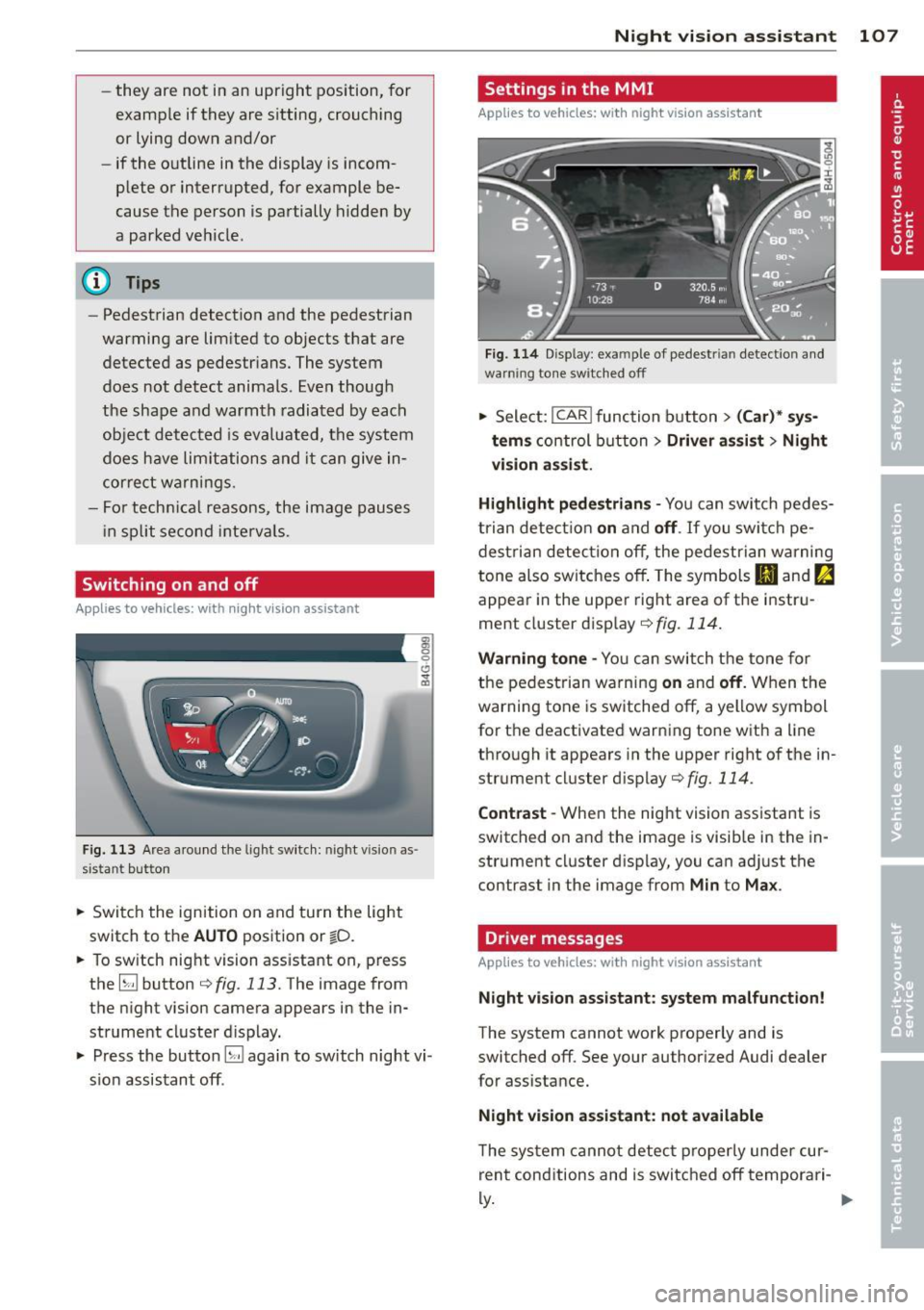
Fig. 113 Area around the lig ht switch: night vis io n as
si st ant but ton
.. Switch the ignition on and turn the light
switch to the
AUTO position or io.
.. To switch night vision assistant on, press
the
EJ button <::> fig. 113. The image from
the night vision camera appears in the in
strument cluster display.
.. Press the button
EJ again to switch night vi
sion assistant off .
Night vision assistant 107
Settings in the MMI
Applies to vehicles: with night vision assistant
Fig. 114 Disp lay : exa mple of pedest rian detect io n and
warn ing tone sw itched off
.. Select: I CAR I function button > (Car)* sys
tems
control button > Driver assist> Night
vision assist.
Highlight pedestrians -
You can switch pedes
trian detection
on and off . If you switch pe
destrian detection off, the pedestrian warning
tone also switches off. The symbols
(II and ria
appear in the upper right area of the instru
ment cluster display ¢
fig. 114.
Warning tone -You can switch the tone for
the pedestrian warning
on and off. When the
warning tone is switched off, a yellow symbol
for the deactivated warning tone with a line
through it appears in the upper right of the in
strument cluster display¢
fig. 114.
Contrast -When the night vision assistant is
switched on and the image is visible in the in
strument cluster display, you can adjust the
contrast in the image from
Min to Max .
Driver messages
Applies to vehicles: with night vision assistant
Night vision assistant: system malfunction!
The system cannot work properly and is
switched off. See your authorized Audi dealer
for assistance.
Night vision assistant: not available
The system cannot detect properly under cur
rent conditions and is switched off temporari-
~ ~
Page 114 of 310
112 Automatic Tran sm iss ion
_& WARNING
-The veh icle can also roll when the engine
is stopped .
- Unintended vehicle movement can cause
serious injury.
- Never leave your vehicle with the eng ine
running wh ile in gear. If you must leave
yo ur vehicle when the engine is running,
act ivate the parking brake and move the
selector lever to P.
- Power is sti ll transmitted to the whee ls
when the engine is running at idle. To
prevent the vehicle from "creeping", you
must keep your foot on the brake when
the engine is runn ing and the selector
lever is in D/S or R or "tiptron ic" mode is
selected.
- Do not press the accelerator pedal when
chang ing the selector lever pos ition
wh ile the vehicle is stat ionary and the
eng ine is running.
- Never shift into
R or P wh ile driving.
- Before driv ing down a steep slope, re-
duce your speed and shift into a lower
gear with "tiptronic".
- Do not ride the brakes or press the brake
peda l too often or too long when dr iving
down a hill. Constant braking causes the
brakes to ove rheat and s ubstant ially re
duces braking per formance, increases
braking distance or causes comp lete fail
ure of the brake system.
- To prevent the veh icle from rolling back
when stopping on inclines, a lways hold it
in place with the bra ke peda l or parking
brake.
- Never hold the ve hicle on an inc line with
a slipping clutch . The clutch opens auto
matically when it becomes too hot from
the overload. An indicator lamp
[O] illu
mi nates and a dr iver message appears
¢ page 114 when the clutch is overload
ed.
- If the eng ine must remain running, never
have any driv ing pos ition engaged when
c heck ing under the hood. Make sure the
selector lever has securely engaged and is locked in P w
it h the park ing brake set
¢ page 224, Engine compartment. Oth
erwise, any increase in engine speed may
set the veh icle in motion, even with the
parking brake applied.
(D Note
- When stopping on an incl ine, do not try
to hold t he vehicle in place by pressing
the acce lerator pedal while a driving gear
is se lected. This ca n cause the transmis
sion to ove rheat and can damage it . Acti
vate the pa rking brake or press the bra ke
peda l to preven t the vehicle from roll ing.
- Allowing th e vehicle to ro ll when the en
gine is stopped and the selecto r lever is
in N will d amage the tr ansmission be
cause it is not l ubricated unde r those cir
cumstances .
(D Tips
Fo r saf ety reaso ns, the pa rking br ake is re
l eased automatically on ly when the d riv
er's safety belt is engaged in the buckle.
Hill descent control
Appl ies to vehicles: wit h S t ronic/tiptro nic
The hill descent control system assists the
driver when driving down declines.
Hill des cent con trol is activated when these
lector lever is in D/S and yo u press the brake
peda l. The transmission automatica lly selects
a gear that is suitable for the incline . Hi ll de
scent contro l tries to maintain the speed ach
ieved at the time of braking, within phys ica l
and technical lim itations. If may st ill be nec
essary to adjust the speed with the brakes .
Hill descent cont ro l switches off once the de
cline leve ls out or you press the acce lerator
pedal.
On vehicles with the cruise contro l system*
¢ page 83, hill descent control is also activat-
ed when the speed is set. .,..
Page 118 of 310
116 Parking system s
Parking systems
General information
A ppl ies to vehicles: with pa rk in g system plus/ rear view
camera/peripheral cameras/par king ass istant
Depending on your vehicle's equ ipment, vari
ous parking aids will help yo u when pa rk ing
and maneuvering.
The
pa rking sy stem plu s assists you when
pa rking by audib ly and visually indicat ing ob
jects detected
in front of and behind t he vehi
cle
~ page 117.
The rear vi ew cam era shows the area behind
the vehicle in the Infotainment d isp lay. This
d isplay assis ts you when you are c ross o r par
allel parking
q page 118. In addit ion, you are
assisted by the functions from the parking
system plus
~ page 117 .
The peripheral cam era s ass ist you with park
ing and maneuvering. You are aided by var ious
cameras depending on the vehicle equipment l eve l¢
page 121. In addition, you are assist
ed by the function s from the parking sy stem
p lus ¢ page 117.
A WARNING
- Always look for traff ic and check the area
around your vehicle by looking at it di
rectly as well . The parking system cannot
replace the d rive r's attent io n. The dr iver
is a lways respo nsible for safety during
p arki ng and fo r all other maneuvers.
- Please note that some surfac es, such as
cl othing, are not detected by the system.
- Senso rs and cameras have blind spots in
w hich peop le and objects can not be de
tected. Be especially cau tious of children
a nd animals.
- T he sensors can be displaced by impacts
or d amage to t he rad ia to r grille, b umpe r,
wheel housing and the unde rbody. The
par king systems may become impaired
as a result . Have your a uthorized Audi
dealer or qua lified wor kshop check their
function. -
Make s ure the sensors are not covered by
stickers, deposits or any other obstruc
tions as it may impai r the sensor func
tion . For information on cleaning, refer
to
~ page 216 .
(D Note
- Some objects are not detected by the
system under certain c ircumstances :
- Obje cts su ch as ba rrie r ch ains, trailer
draw bars, vertic al po les or fences
- Objects above t he senso rs such as wall
ex tensions
- Objects w ith specific surfaces or st ruc
tures su ch as chain link fences or pow
der snow.
- If you conti nue d riving closer to a low- ly
ing object, it may disappea r from the
sensor range. Note th at yo u w ill no lon
ger be warned abo ut this obstacle.
(j) Tips
- T he sys tem may provide a wa rni ng even
t ho ugh the re are no obs ta cl es in the cov
erage a rea in some situa tions, such as:
- certain road surfaces or for long grass.
- externa l ult rasonic sources e.g. from
clean ing vehicles.
- heavy rain, snow or thick vehicle ex
ha ust.
- We recommend that you practice park
ing in a traff ic- free location or park ing
lot to become familiar w it h the system.
When doing this, there should be good light and weather cond itions .
- Yo u can change the volume and pitch of
the s ignals as we ll as the disp lay
¢ page 126 .
-Please refer t o the instructions for tow
ing a t railer
¢ page 127 .
-What appears in the infotainment dis
play is somewhat time-delayed .
Page 121 of 310
example, after a collision, do not contin
ue to use the system for safety reasons.
Have it checked by your authorized Audi
dealership or authorized repair facility.
- Only use the rear view camera to assist
you if it shows a good, clear picture. For
example, the image may be affected by
the sun shining into the lens, dirt on the
lens or if there is a system fault.
- Use the rear view camera only if the lug
gage compartment lid is completely
closed. Make sure any objects you may
have mounted on the luggage compart
ment lid do not block the rear view cam
era.
- The camera lens enlarges and distorts
the field of vision. The object appears
both altered and inaccurate on the
screen.
- In certain situations, people or objects in
the display appear closer or further
away:
- For objects that do not touch the
ground, such as the bumper of a
parked vehicle, a trailer hitch or the
rear of a truck. Do not use the help
lines in this case.
- If driven from a level surface onto an
incline, or a downward slope.
- If driven toward protruding objects.
- If the vehicle is carrying too much load
in the rear.
(D Note
- Always read and follow the applicable
warnings
¢ (D in General information on
page 116.
- The orange colored orientation lines in
the Infotainment display show the vehi
cle path depending on the steering
wheel angle. The front of the vehicle
front swings out more than the rear of
the vehicle. Maintain plenty of distance
so that your outside mirror or a corner of
your vehicle does not collide with any ob stacles.
Parking systems 119
Switching on/off
App lies to vehicles: wit h parking system plus w ith rear
v iew camera
Switching on
.. Shift into reverse or
.. press the
p,,1A button in the center console
¢ fig. 122 . A short confirmation tone
sounds and the LED in the button turns on .
Switching between the rear view camera
and optical display
.. Press the Graphic control button ®
¢ fig. 128 to see the optical display.
.,. Press the
Rearview control button to see
the rear view camera image.
Switching off
.. Drive forward faster than 6 mph (10 km/h),
or
.,. Press the
p,,1A button, or
.,. Switch the ignition off.
(D Tips
The visual display in the left part of the
display should help you detect the critical
vehicle areas.
Page 123 of 310
r::> & in General information on page 118,
r::> (Din General information on page 119 .
The blue area represents an extension of the
vehicle's outline by approximately 16 ft
(5 m) to the rear . The long side of the blue
area should be on the curb . The entire blue
area must fit into the parking space.
• With the vehicle stopped, turn the steering
wheel to the right as far as it will go.
• Back into the parking space until the blue
curve
r::> fig. 131 touches the curb r::> & in
General information on page 118,
r::> (D in
General information on page 119.
Stop the
vehicle.
• With the vehicle stopped, turn the steering
wheel to the left as far as it will go .
• Continue to back into the parking space un
t il the vehicle is parked parallel to the curb
r::> & in General information on page 118,
r::> (D in General information on page 119.
@ marks the rear bumper. Stop the vehicle,
at the latest, when the red orientation line
@ borders an object. Keep an eye on the
front of your vehicle while do ing th is .
Parking next to obstacles
If there is an obstacle (such as a wall) next to
the parking space, position the vehicle so
there is more space on that side. Position the
long side of the blue surface so that there is
sufficient space from the obstacle. The sur
face must not be touching . You will also need
to star t turning the steering wheel much ear
lier . The blue curve
r::>fig .131 must not touch
the obstacle and should have sufficient room.
(D Tips
The left or right orientation lines and sur
faces will be displayed, depending on the
turn signal being used .
Peripheral cameras
Introduction
Applies to vehicles: with parki ng system plus w ith periph
eral cameras
In addition to parking system plus
r::> page 117, this pa rking system contains pe-
Parking systems 121
ripheral cameras. Depending on the vehicle
equ ipment, you are assisted by various views
such as peripheral view, corner views at the
front and rear of the vehicle, and views direct
ly in front of or behind the vehicle.
General information
Applies to vehicles: with parking system plus with periph
eral cameras
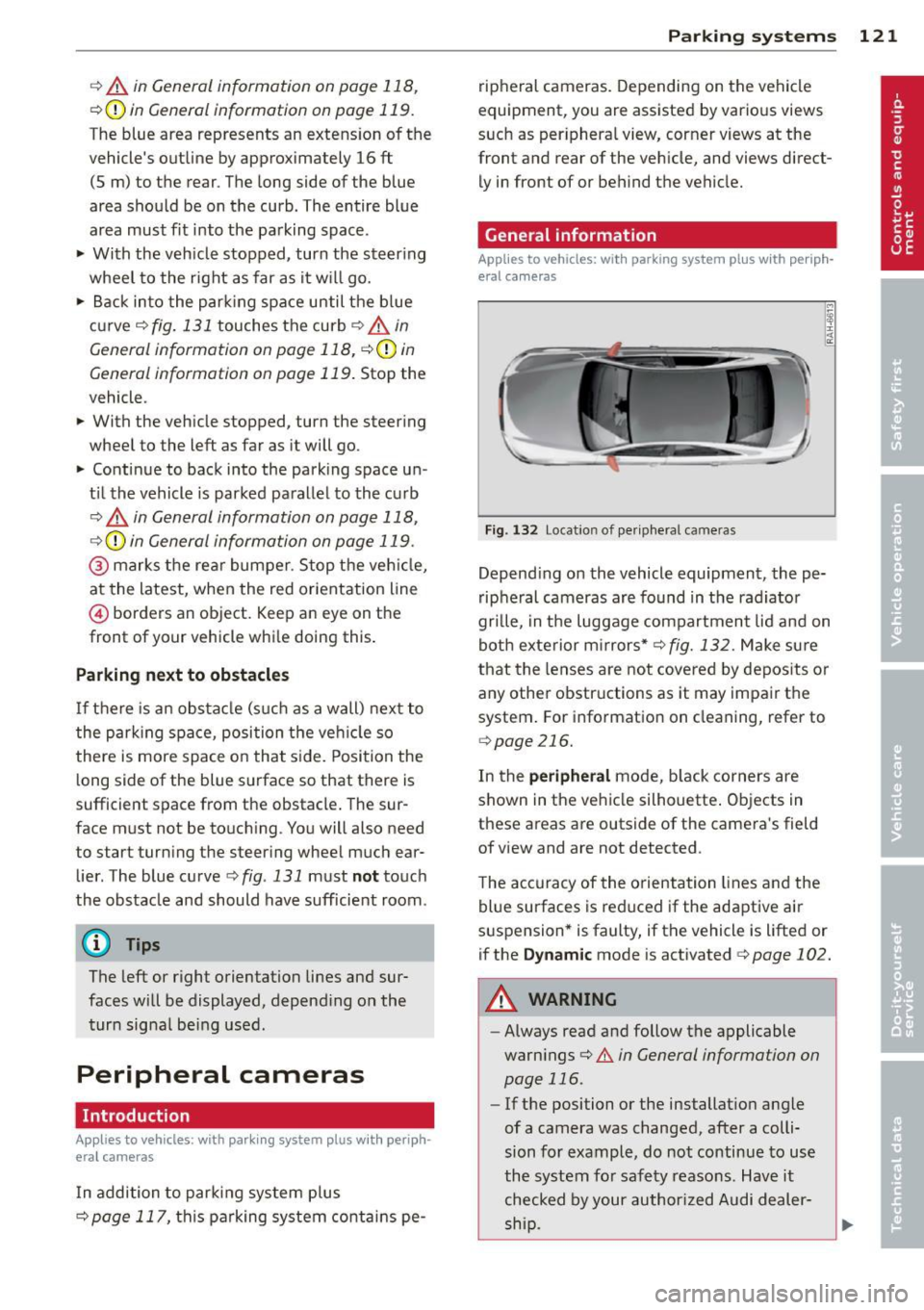
Fig. 132 Locat io n of per ipheral cameras
Depending on the vehicle equipment , the pe
ripheral cameras are found in the radiator
grille, in the luggage compartment lid and on
both exterior mirrors*
r::> fig. 132. Make sure
that the lenses are not covered by deposits or
any other obstructions as it may impair the
system. For information on cleaning, refer to
qpage 216.
In the peripheral mode, black corners are
shown in the vehicle silhouette. Objects in
these areas are outside of the camera's field
of view and are not detected .
The accuracy of the orientation lines and the
blue surfaces is reduced if the adaptive air
suspension* is faulty, if the vehicle is lifted or
if the
Dynamic mode is activated 9 page 102.
A WARNING
-Always read and follow the applicable
warnings
r::> .&. in General information on
page 116 .
-If the position or the installation angle
of a camera was changed, after a colli
sion for example, do not continue to use
the system for safety reasons. Have it checked by your author ized Audi dealer-
-
ship . ~
Page 125 of 310
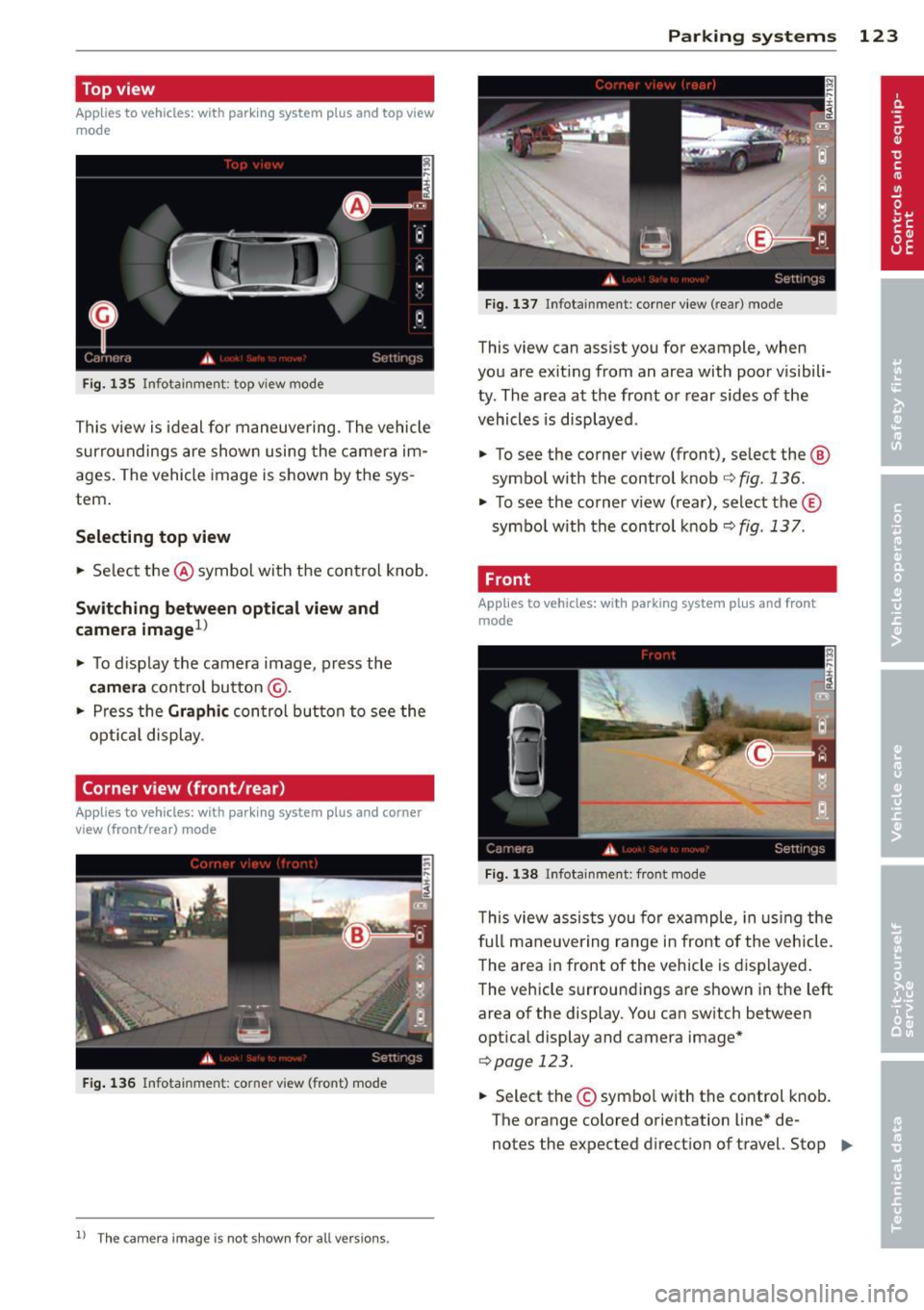
Top view
Applies to vehicles: with parking system p lus and top view
mode
Fi g. 135 Infotainment: top v iew mode
This v iew is ideal for maneuve ring. The vehicle
surro undings are show n using the c amer a im
ages. The vehicle image is shown by the sys
tem .
Selecting top view
.. Select the @symbol wi th the control knob.
Sw itching between optic al v iew and
came ra image
1>
.. To d isp lay the camera image , press the
camera cont ro l button @ .
.. Press the Gr aphic con trol but ton to see the
opt ica l display .
Corner view (front/rear)
Applies to vehicles: with parking system plus and corner
view (front/rear) mode
F ig. 136 In fo ta inm en t: c orner vie w (front) mode
1 1
The c am era im age is n ot s how n for al l ve rs ion s.
Parking sys tems 123
Fig . 1 37 Infota in m en t: corne r vie w (r ea r) mode
This view can assist you for example, when
you are exit ing from an area with poor visibili
ty . The area at the front or rear sides of the
vehicles is displayed .
.. To see the corner v iew (front), select the @
symbo l with the control knob
r::;, fig . 136 .
.. To see the co rner v iew (rear), select the ©
symbo l with the control knob
r::;, fig . 137 .
, Front
Applies to vehicles: with parking system plus and front
mode
Fi g. 1 38 ln fota inment: front mode
This view assis ts you for ex ample, in us ing the
full maneuver ing range in front of the vehicle.
The area in front of the vehicle is displayed .
The vehicle s urround ings are shown in the left
area of the display . You can sw itch between
optical display and camera image*
c:;, page 123.
.. Select the © sym bol with the control k nob.
T he o range colored orientation line* de -
notes the expected d irection of travel. Stop .,_
Page 126 of 310
124 Parking systems
the vehicle at the latest when the red orien
tation line* borders an object
c::> A in Gener
al information on page 121.
Rear
Applies to vehicles: with park ing system plus and rear
mode
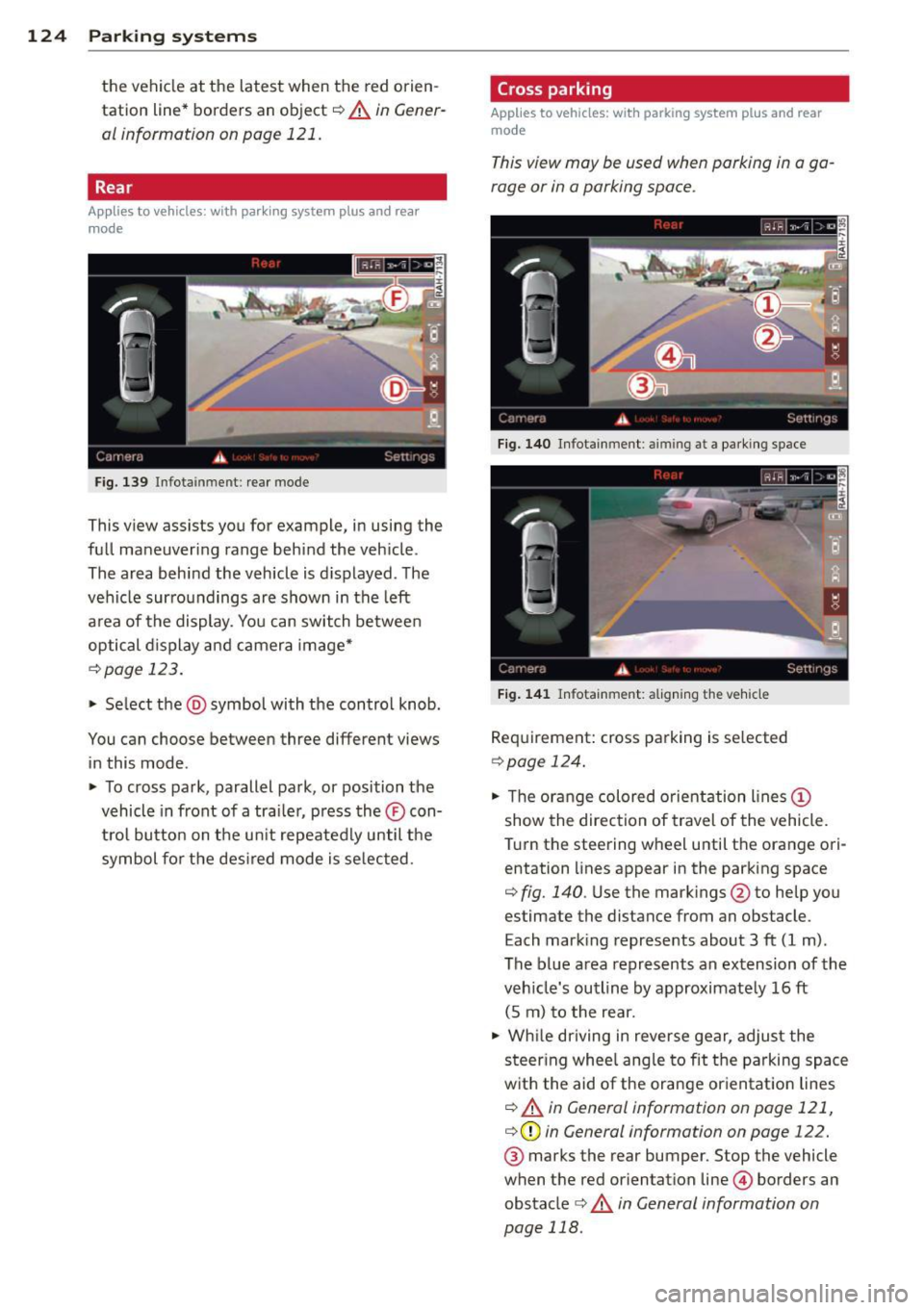
Fig. 139 Infotainment: rear mode
This view assists you for example, in using the
full maneuvering range behind the vehicle .
The area behind the vehicle is displayed. The
vehicle surroundings are shown in the left
area of the display. You can switch between
optical display and camera image*
c::>page 123.
• Se lect the @symbol with the control knob.
You can choose between three different views in this mode .
• To cross park, parallel park, or position the
vehicle in front of a tra iler, press the® con
t rol button on the unit repeatedly until the
symbol fo r the desired mode is selected.
Cross parking
Applies to vehicles: wit h parking system pl us and rear
mo de
This view may be used when parking in a ga
rage or in a parking space.
Fig . 140 Infotainment : aiming at a park ing space
Fig. 141 Infotainment: aligning the vehicle
Requirement: cross parking is se lected
c::> page 124.
• Th e orange colored orientation lines (D
show the direction of travel of the vehicle.
Turn the steering wheel until the orange ori entation lines appear in the parking space
c::> fig. 140 . Use the mark ings @to help you
estimate the distance from an obstacle.
Each marking represents about 3 ft (1 m).
The blue area represents an extension of the
veh icle's outline by approximately 16 ft
(5 m) to the rear.
• While driving in reverse gear, adjust the
steer ing whee l angle to fit the parking space
with the aid of the orange orientat ion lines
c::> A in General information on page 121,
c::>(D in General information on page 122.
® marks the rear bumper. Stop the vehicle
when the red orientation line© borders an
obstacle
c::> &. in General information on
page 118.
Page 128 of 310
126 Parking systems
Trailer view
Ap plies to vehicles: with par king system p lus and tra iler
hitch
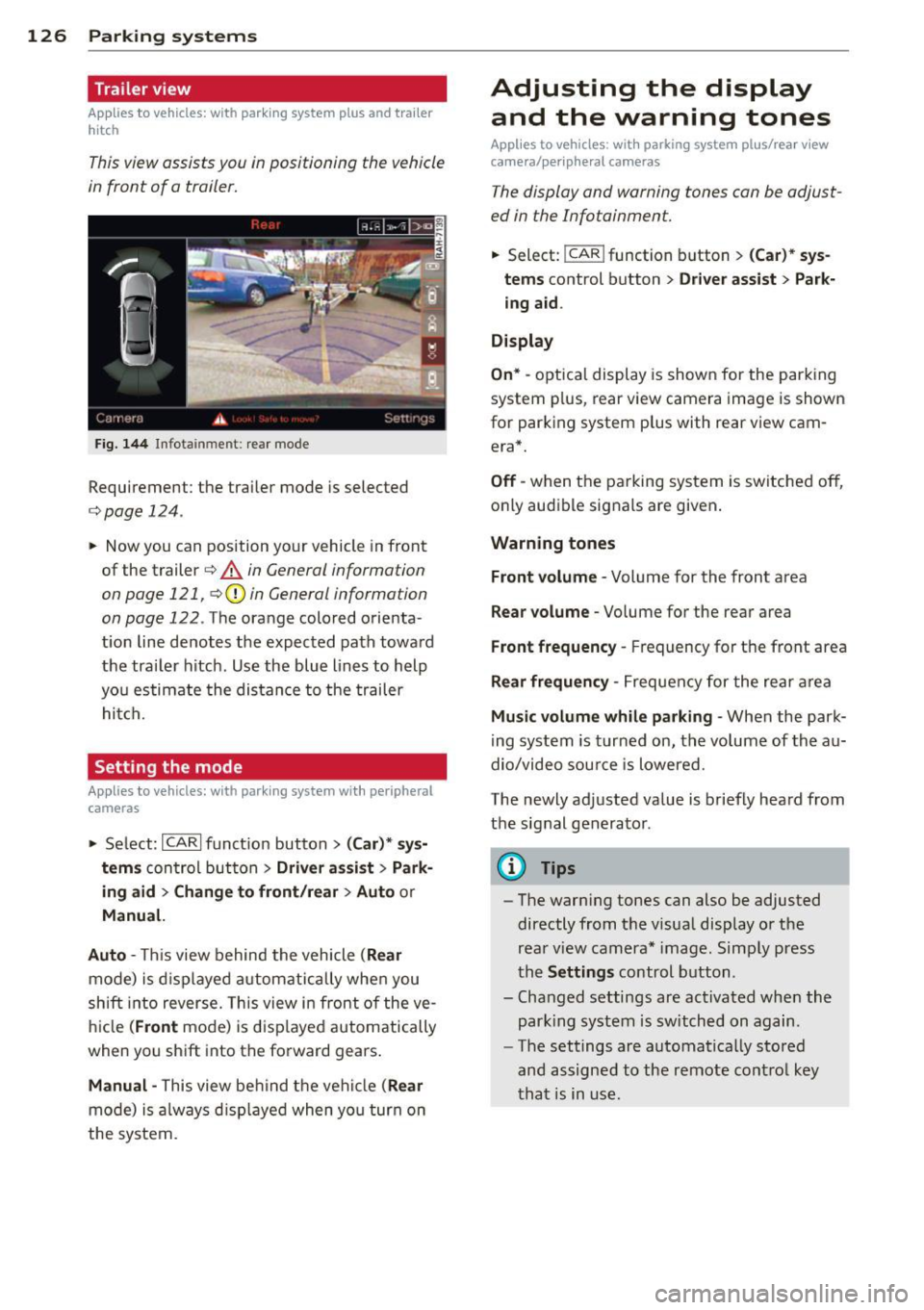
This view assists you in positioning the vehicle
in front of a trailer.
F ig. 1 44 Infotai nment: rea r mode
Requirement: the trai ler mode is selected
c:;, page 124.
.. Now you can position yo ur vehicle in front
of the trailer
c:;, .&. in General information
on page 121, c:;,(j) in General information
on page 122 .
The orange colo red orienta
t ion line denotes the expected path toward
the tra iler hitch . Use the blue lines to help
yo u estimate the distan ce to the trailer
hi tc h.
Setting the mode
Ap plies to veh icles: with par king system wi th peripheral
cameras
.. Select: ICARI funct ion button > ( Car )* sy s
tem s
control button > Driv er a ssis t > Park
ing aid > Ch ange to front /rear > Auto
or
Manual.
Auto -
This view behind the vehicle ( Rear
mode) is d isplayed a utomatically when you
shift into reverse. This view in front of the ve
h icle
(Front mode) is d isp layed automatically
when you sh ift into the forward gears .
Manual -This view be hind the vehicle (Rear
mode) is a lways d isp layed when yo u turn on
the system.
Adjusting the display and the warning tones
Applies to vehicles: wit h parking syste m plus/ rea r view
came ra/ peri pheral cameras
The display and warning tones can be adjust
ed in the Infotainment.
.. Select: !CAR ! function b utton > (Ca r) * s ys
tems
control button > Dri ver ass ist > Par k
i n g a id .
Display
On * -
optica l display is shown for the parking
system p lus, rear view camera image is shown
for parking system plus with rear view cam era*.
Off -when the parking system is switche d off,
o nly aud ible signa ls are given .
Warning tones
Front volume -
Volume for the front area
Rear volume -Volume for the rear area
Front frequency -Frequency for the front area
Rear frequen cy -Frequency for the rear area
Mu sic volum e while parking -When the park
ing system is turned on, the vo lume of the au
dio/video sou rce is lowered.
The newly adjusted value is briefly hea rd from
the signal generator .
@ Tips
-The warn ing tones can also be adjusted
directly from t he visua l display o r the
rea r view camera* image. Simp ly press
the
Setting s control button .
- Changed settings are act ivated when the
par king system is switched on again.
- The settings are automa tica lly stored
and assigned to the remote cont rol key
t ha t is in use .
Page 218 of 310
216 Cleaning and protec tio n
Apply the product using a micr ofib er cl oth. To
avoid damaging the paint surface, do not use
too m uch pressure.
R inse the vehicle t ho roughly with water . Clean
the vehicle sta rting at the top and working to
ward the bottom using a
neutra l sh ampoo
and a soft mi crofiber cloth . Stop frequently to
rinse the cloth thoroughly.
C lean the wheels and sill panels last. Use a
clean
s pon ge on these areas .
R inse the vehicle tho roughly aga in and let it
a ir dry.
If there are any wa ter spo ts, they can
be removed using a
leather cloth .
Clean again with the spe cial clean er for matt e
finish paint
if ne cessary.
Removing stubborn d irt
B ird d ropping s or tree sap are best removed
with plenty of water and a m icrofiber cloth .
You should r inse
off ga soli ne res idue immedi
ately with plenty of water.
A WARNING
- Wash your ve hicle only when the ignition
is switched
off to reduce the risk of a
crash .
- Always read and heed all WARNINGS and othe r information
c:::> page 213.
([) Note
-Do not treat vehicle parts painted w ith
matte f inish paint us ing polish ing mate
r ials or hard wax. These products could
cause damage to the appea rance or sur
face that cannot be repaired.
- Never use p rotective wax.
It can destroy
the matte fin ish effect .
- Do not p lace any st ickers or magnetic
s igns on vehicle parts painted with
matte finish paint. The pa int could be
damaged when the st ickers or magnets
a re removed.
- To preven t pa int damage, do not wash
the veh icle in direct s unl igh t. -
To prevent damage to the pa int surface,
do not use insect remova l sponges,
rough kitchen sponges or sim ilar items .
- Yo u should remove debris (such as in
sects) from the headlight lenses on a
regu lar basis, for example when refuel
ing your vehicle. Only clean the head
lights using a wet cloth or sponge, never
a dry one. Cleaning with soapy water is
recommended.
(D Tips
For more information on special cleaning
products designed for matte finish paint,
seeyourAud idea~~
Sensors and camera lenses
- Remove snow with a hand brush and remove
ice with a de -icing spray that does not con
tain so lvents.
- Clean the senso rs (adaptive c ruise control*,
park ing system*) w ith a cleaning so lution
tha t does not contain so lvents and a soft
cloth .
- The camera lens or the area in front of the
camera lens is norma lly cleaned by the
windshield wipers (Audi active lane assist*)
or head light wipers (night vision system *).
If the lens or the area is exceptionally dirty,
clean the area with glass cleaner and a soft,
dry cloth .
(D Note
-If you wash your vehicle with a pressure
washer,
- make sure there is eno ugh distance to
sensors i n the fron t and rear bumper,
- do not clean the camera lenses and the
ar ea a round them with the p ress ure
washer.
- N ever use warm or hot wate r to remove
snow or i ce from the camera lens. This
cou ld cause the lens to crack.
- Never clean the camera lens wi th abra
sive products.