wheel AUDI A7 2016 Owner's Manual
[x] Cancel search | Manufacturer: AUDI, Model Year: 2016, Model line: A7, Model: AUDI A7 2016Pages: 294, PDF Size: 73.82 MB
Page 100 of 294
Audi side assist
General information
App lies to vehicles: with sid e assist
®
@
©
Fig. 106 Driving s itua tions
~ AUD I
• 0 0 •
Fig. 107 Rear of the ve hicle: pos it io n of t he sensors
Side assist functions at speeds above approx i
mately 19 mph (30 km/h).
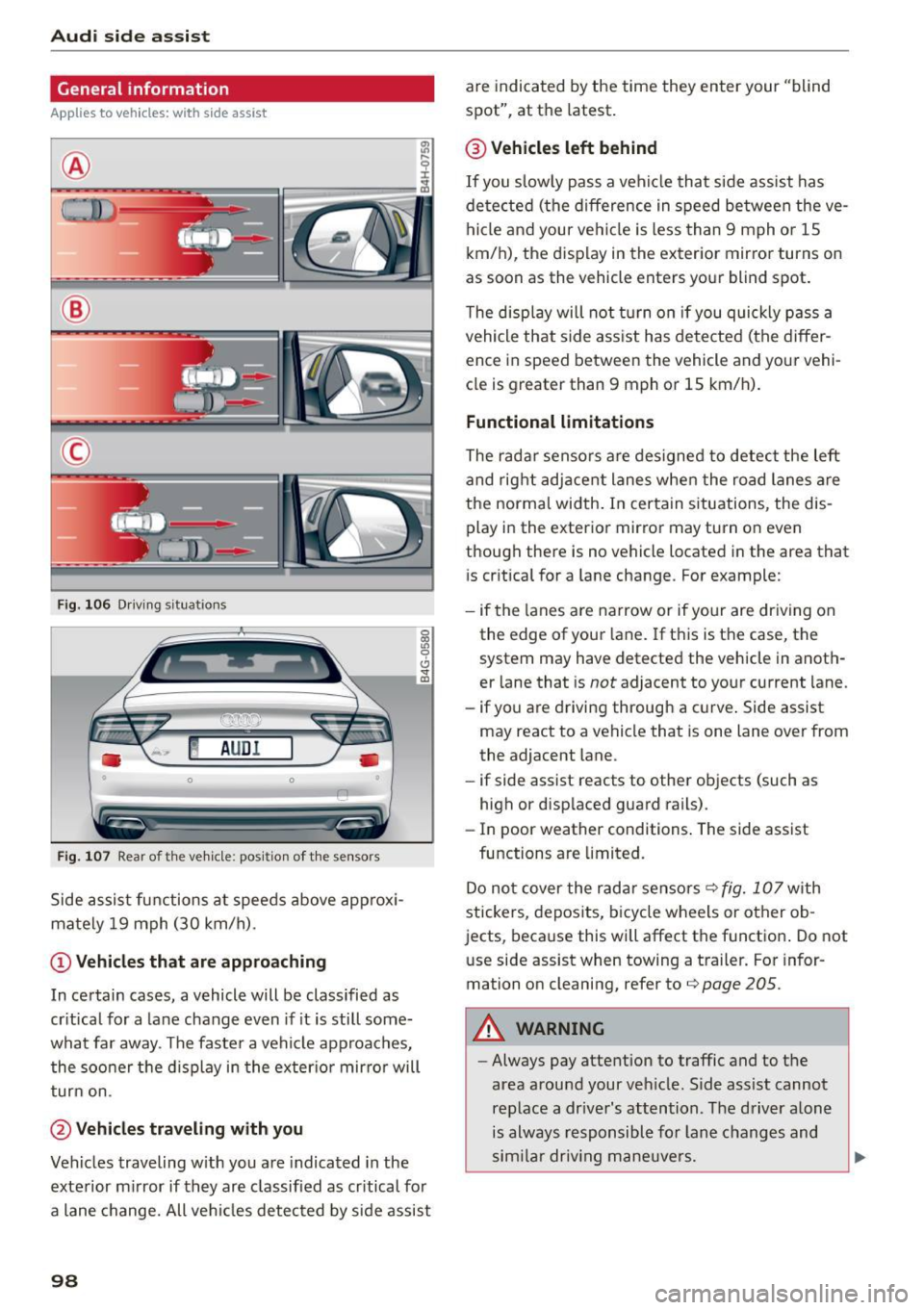
(D Vehicles that are approaching
In certain cases, a vehicle will be classified as
critical for a lane change even if it is still some
what far away . The faste r a vehicle approaches,
the sooner t he d isplay in the exter io r mirro r will
turn on.
@Vehicles traveling with you
Vehicles traveling w ith you are indicated in the
exterior mirror if they are classified as critical for
a lane change. All vehicles detected by side assist
98
are indicated by the time they enter your "blind
spot", at the latest.
@ Vehicles left behind
If you slowly pass a veh icle that side assist has
detected (the difference in speed between the ve
hicle and your vehicle is less than 9 mph or 1S
km/h), the display in the exterior mirror turns on
as soon as the vehicle enters your blind spot.
T he display will not turn on if you quickly pass a
vehicle that side ass ist has detected (the differ
ence in speed between the vehicle and your vehi
cle is greater than 9 mph or 15 km/h).
Functional limitations
The radar sensors are designed to detect the left
and right adjacent lanes when the road lanes are
the normal width. In certain s ituations, the dis
play in the exterior mirror may turn on even
though there is no vehicle located in the area that
i s cr itical for a lane change. For example:
- if the lanes are narrow or if your are dr iving on
the edge of your lane. If this is the case, the
system may have detected the vehicle in anoth
er lane that is
not adjacent to your current lane.
- if yo u are driving through a c urve . Side assist
may react to a vehicle that is one lane over from
the adjacent lane.
- if side assist reacts to other objects (such as
high or displaced guard rails).
- In poor weather conditions . The side assist
functions are limited.
Do not cover the radar sensors
q fig. 107 with
stickers, deposits, bicycle wheels or other ob
jects, because this will affect the function . Do not
use side assist when towing a trailer . For infor
mation on cleaning, refer to
q page 205 .
A WARNING
-Always pay attention to traffic and to the
area around your veh icle. S ide ass ist cannot
replace a dr iver's attention . The driver alone
is always responsible for lane changes and
sim ila r driv ing maneuvers.
Page 101 of 294

M N <( I.J "". rl I.O
"' N I.O rl
-Improper reliance on the side assist system
can cause collisions and serious personal in
jury:
- Never rely only on side assist when chang
ing lanes .
- Always check rear view mirrors to make
sure that it is safe to change lanes.
- Sid e assist cannot detect a ll vehicles under
all conditions- danger of accident!
- Please note that side assist indicates there
are approaching vehicles, or vehicles in your
blind spot, only after your vehicle has
reached a driving speed of at least 19 mph
(30 km/h).
- In certain situations, the system may not
function or its function may be limited. For
example:
- if vehicles are approaching or being left
behind very quickly. The display may not
turn on in time.
- in poor weather conditions such as heavy
rain, snow or heavy m ist .
- on very wide lanes, in tight curves or if
there is a rise in the road surface . Vehicles
in the adjacent lane may not be detected
because they are outside of the sensor
range.
(D Note
The sensors can be displaced by impacts or damage to the bumper, wheel housing and
underbody. This can affect the system . Have
your authorized Audi dealer or authorized
Audi Service Facility check their function.
(D Tips
-If the window g lass in the driver's door or
front passenger's door has been tinted, the
display in the exterior mirror may be misin
terpreted.
- For Declarat ion of Compliance to United
States FCC and Industry Canada regulations
c:>page277 .
Audi side assist
Switching on and off
Applies to vehicles: wit h Audi side ass ist
Fig. 108 Driver 's door : side assist button
" Press the c:> A in General information on
page 98
button to switch the system on and
off. The LED in the button turns on when side
assist is switched on .
Adjusting the display brightness
Applies to vehicles: wit h Audi side ass ist
The display brightness can be adjusted in the In
fotainment system .
.,. Select: the I CAR I function button > (Car)* Sys
tems
control button > Driver assistance > Audi
side assist .
The display brightness adjusts automatically to
the brightness of the surroundings, both in the
information and in the warning stage. In very
dark or very bright surroundings, the display is al
ready set to the m inimum or maximum level by
the automatic adjustment. In such cases, you
may not ice no change when adjusting the bright
ness, or the change may only be noticeable once
the surroundings change.
Adjust the br ightness to a level where the display
in the info rmation stage will not disrupt your
view forward. If you change the brightness, the
display in the exterior mirror will briefly show the
brightness level in the information stage . The
brightness of the warning stage is linked to the
brightness in the information stage and is adjust
ed along with the information stage adjustment.
Ill>
99
Page 102 of 294
Audi side assist
(D Tips
-Si de ass ist is not active wh ile you are ma k
i ng the a djustment .
- Your settings are automat ica lly stored and
assi gned to t he remote control key being
u sed.
Driver messages
Applies to veh icles: w ith Audi side assist
If s ide ass ist switches off by itse lf, t he LED in the
button turns
off and a message w ill appear in the
i n str ument cluster d isp lay:
Audi side assist not available: sensor blocked
The radar sensors' vision is affected. Do not cover
the area in fr ont of the senso rs with bike wheels,
stic kers, dirt or oth er objects. Clean the a rea in
fro nt of the sensors, if necessa ry ¢
page 98,
fig . 107 .
Audi side assist: currently unavailable
Side assist cannot be switched on tempora rily be
cause t here is a ma lf u nction (for e xamp le , th e
battery c harge level may be too l ow).
Audi side assist: System fault!
T he system can not guara ntee that it wi ll detect
ve hicl es co rrectly a nd it is switche d off . The sen
s o rs have been disp laced or are faulty. Have the
system checke d by an auth orized A udi dealer or
author ized Audi Se rv ice Facility so on .
Audi side assist: Unavailable when towing
Side as sis t sw itches off aut omatically when a fac
to ry -insta lled t railer hitch is connected to t he
e lectr ica l co nnector on t he tra ile r. T he re is n o
gua rantee t he system w ill switch
off when using
a retrofitted tra ile r hitc h. Do n ot use s ide assist
wh en t owing a t ra ile r.
100
Page 103 of 294
M N <( (.J
'SI: ,...., \!) ..,.,
N \!) ,....,
Audi drive select Driving settings
Introduction
Drive select makes it possible to experience dif
ferent types of vehicle settings in one vehicle.
The driver can select
Comfort, Auto and Dynamic
modes in the Infotainment system to switch be
tween a sporty and a comfortable driving mode.
In the
Individual mode, the settings can be ad
justed to your personal preferences. This makes it possible to combine settings such as a sporty en
g ine tun ing with light steering.
_&. WARNING
Improper use of the Audi drive select can
cause collisions, other acc idents and serious
personal injury.
Description
-
The follow ing systems are affected by drive se
lect:
Engine and transmission
Depending on the mode, the eng ine and the
transmission respond quicker or in a more bal
anced manner to acce lerator pedal movements.
I n the sporty dynamic mode, the transmission
shifts at higher RPMs.
Air suspension*
The adaptive air suspension/adaptive air suspen
sion sport*
(Air suspension in the MMI) is an
e lectronically controlled a ir suspension and
damping system. They are adjusted depending on
the selected driving mode, the driver's steering,
b raking and acce leration input and the road sur
face, vehicle speed and load. A sporty setting is generally used in vehicles with adaptive air sus
pension sport*.
The vehicle clearance varies depending on these lected mode and the speed.
The highway setting is activated automatically
when you drive above 75 mph (120 km/h) for
more than 30 seconds in the
Auto or Dynamic
Audi drive select
mode. The ground clearance is increased auto
matically if the speed drops below 44 mph (70
km/h) for more than 120 seconds.
Steering
T he steering adapts in terms of steer ing effort
and steering ratios . Indirect steering that moves
easily, like the steering in comfort mode, is best
suited to long drives on a highway. In contrast,
dynamic mode provides sporty, direct steering.
T he following applies to vehicles with dynamic
steering*: the steering ratio changes based on ve
hicle speed in order to maintain optimum steer
ing effort for the driver at all times. This sets the
steering to be less sensitive at higher speeds in
order to provide improved vehicle control. At re
duced speeds, however, steering is more direct in
order to keep the steering effort as minimal as
poss ible when the driver is maneuvering the vehi
cle. At low and average speeds, dynamic steer ing
additionally provides more responsive steering
performance.
Sport differential*
As a component of the all wheel dr ive system
(quattro)
¢ page 192, the Sport differential* dis
tributes the driving power to the rear axle de
pending on the sit uation. The distribution of
power varies depending on the selected mode,
from balanced (comfort) to agile (dynamic) . The
goal is a high level of agility and ability to accel
erate on curves. The vehicle is very responsive to
steering.
Curve light*
T he curve light adapts to driving on curves. The
pivoting action and the lighting are also adapted
to the mode.
Adaptive cruise control*
T he behav ior when accelerating can be adjusted
from comfortable to sporty, depending on the
drive select mode. Adaptive cruise control a lso
responds to the driving behavior of the vehicle
ahead in a more conservative or sporty manner. ..,_
101
Page 106 of 294

Night visio n ass is t
Night vision assist
Night vision assist with
pedestrian and wild
animal highlighting
Description
A pp lies to veh icles : w ith night v isio n ass ist
The night vision assist can detect, highlight and,
if necessary, warn about pedestrians and large
wild animals.
Night vision assistant with pedestr ian and wild
animal detection assists you in darkness by using
an infrared camera to monitor the area in front of
your vehicle, within the limits of the system.
It
can display objects up to approximately
1000 feet (300 meters) away. The heat image de
tected by the camera is shown in the instrument
cluster display. Warm areas appear lighter and
cold areas appear darker.
Highlighting detected pedestrians and wild
animals
A pplies to veh icles: w ith night v isio n ass ist
F ig. 110 Instrument cluster: Yellow pedestr ian highl ight
i ng
Fig. 111 I n st rument cluster: symbol when infrared image
i s not visib le
104
Within the limits o f the system, night vision as
sistant can detect pedestrians and wild animals
that are within the detect ion range between ap
proximately 32 feet (10 meters) and 295 feet
(90 meters) in front of the vehicle. When it is
dark outside and the headlights are switched on,
detected pedestrians and w ild an imals are
marked in yellow ¢
fig. 110 within the limits of
the system ¢
page 105 . Wild animal detection is
not act ive in bu ilt-up areas . The system only de
tects large wild anima ls such as deer.
@ Tips
I f another display such as navigation rep laces
the image from the night v is ion assist the~ .. ,
symbol appears in a tab
r::!>fig . 111. You can
access night vision assist using the buttons in
the m ultifunction steering wheel¢
page 24 .
Pedestrian and wild animal warning
Applies to vehicles: wit h night vision assist
Fig . 112 Instrument cl uster: @Pedest rian warn ing ,®
w ild animal warning
Fig. 113 Instrument cl uste r: @ Pedestr ian warn ing/ @
wild an ima l warn ing , when the image from th e n ight vis ion
assist is not selected in t he instrument cluster display
Iii-
Page 111 of 294
M N <( (.J
'SI: ,...., \!) 1.1'1
N \!) ,....,
than 2 seconds when the brake pedal is not
pressed.
Lock button
The lock button in the selector lever handle pre
vents yo u from moving the se lector lever unin
tentionally while in some se lector lever positions .
The positions that require the lock button to be
pressed are marked in color in the illustration
¢fig. 117 .
Driving the automatic transmission
Starting the engine
.. The selector lever must be in P or N.
Starting off
.. Press and hold the brake pedal.
.. Press and ho ld the release button in the selec
tor lever handle, select the desired selector lev
er position such as D/S and release the button .
.. Wait briefly until the transmission has shifted
(you will feel a slight movement).
.. Remove your foot from the brake pedal and ac
celerate .
Stopping temporarily
.. Keep the vehicle stationary using the braking
pedal, for example at traffic lights.
.. Do not press the accelerator pedal when doing
th is.
.. To prevent the veh icle from rolling when you
start driving, set the parking brake when stop
ping on steep inclines¢,& .
.. Th e parking brake will re lease automatically
and the vehicle will start moving once you press
the accelerator peda l.
Stopping/parking
If the selector lever is not in the P position when
you open the driver 's door, the veh icle could roll.
The message
Transmi ssion : Car may roll! Shift
to park!
appears.
.. Press and ho ld the brake pedal unt il the vehicle
has come to a complete stop.
.. Apply the parking brake¢
page 78, Parking.
.. Select the P selector lever position ¢ ,&.
Automatic transmission
Stopping on an incline
.. Always press the brake pedal to hold the vehi
cle in place and prevent it from "ro lling back"
c::> ,& . Do not try to prevent the vehicle from
"rolling back" when a gear is engaged by in
creasing the engine speed ¢(D .
Starting on an incline
.. Activa te the parking brake.
.. With the driving gear selected, press the acce l
erator pedal carefu lly. The parking brake will re
lease automatica lly if your seat belt is fastened.
Under certain circumstances, such as driving in
the mountains, it may be useful to switch tempo
rarily to the manual shift program in order to ad
just the gears to the dr iv ing condit ions by hand
Q ,&. .
On s lopes, activate the parking brake first and
then move the selector lever to the P position.
This prevents too much stress from being placed
on the locking mechanism.
A WARNING
- The vehicle can also roll when the engine is
stopped.
- Unintended vehicle movement can cause se
rious injury .
- Never leave your vehicle with the engine
running while in gear. If you must leave your
vehicle when the engine is running, activate
the park ing brake and move the selector lev
er to P.
- Power is still transmitted to the wheels
when the engine is running at idle. To pre
vent the vehicle from "creep ing", you must
keep yo ur foot on the brake when the engine
is running and the se lector lever is in D/S or
R or "tiptronic" mode is selected.
- Do not press the accelerator pedal when
changing the se lector lever position while
the vehicle is stationary and the engine is
running .
- Never shift into R or P while driving.
- Before driving down a steep slope, reduce
your speed and shift into a lower gear with
"ti ptronic".
109
Page 113 of 294
M N <( I.J "". rl I.O
"' N I.O rl
Manual shift program
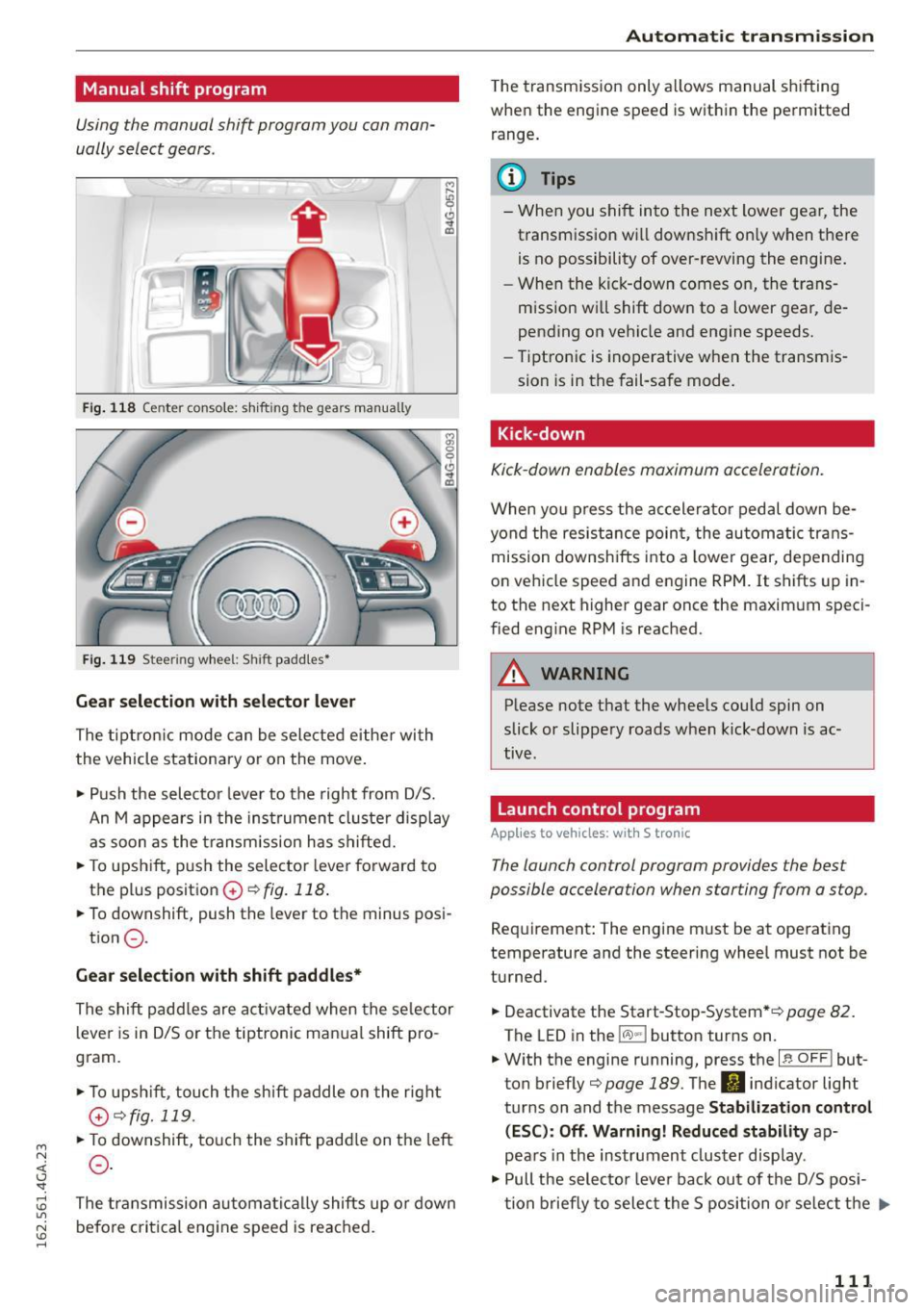
Using the manual shift program you can man
ually select gears.
)
Fig. 118 Center console: shift ing t he g ears manually
Fig. 119 Stee ring whee l: Shi ft paddles•
Gear selection with selector lever
The tiptronic mode can be selected either with
the vehicle stationary or on the move.
• Push the selector lever to the right from D/S.
An M appears in the instrument cluster display
as soon as the transm ission has shifted.
• To upshift, push the selector lever forward to
the plus position
0 ~ fig. 118 .
• To downshift, push the lever to the minus posi-
tion
0 .
Gear selection with shift paddles*
The shift padd les are activated when the selector
lever is in D/S or the tiptronic manual shift pro
gram.
• To upshift , touch the shift paddle on the right
(v¢fig.119 .
• To downshift, touch the shift paddle on the left
0 .
The transmission automatically shifts up or down
before critical engine speed is reached.
Automatic transmission
The transmission only allows manual shifting
when the engine speed is within the permitted
range .
(D Tips
-When you shift into the next lower gear, the
transmission wi ll downshift on ly when there
is no possibility of over-revving the engine.
- When the kick-down comes on, the trans
mission wi ll shift down to a lower gear, de
pending on vehicle and engine speeds.
- Tiptronic is inoperative when the transmis
sion is in the fail-safe mode.
Kick -down
Kick-down enables maximum acceleration.
When you press the accelerator pedal down be
yond the resistance point, the automatic trans
mission downshifts into a lower gear, depending
on vehicle speed and engine RPM. It shifts up in
to the next higher gear once the maximum speci
fied engine RPM is reached.
A WARNING
-Please note that the whee ls could spin on
slick or slippery roads when kick-down is ac
tive .
Launch control program
Appl ies to vehicles: with S tronic
-
The launch control program provides the best
possible accelera tion when s tarting from a s top.
Requirement: The engine must be at operating
temperature and the steering wheel must not be
turned.
• Deactivate the Start-Stop-System* ¢
page 82.
The LED in the lCA.l .. l button turns on .
• With the engine running, press the
~ l~ -0-F F~ ! but
ton briefly¢
page 189 . The II indicator light
turns on and the message
Stabilization control
(ESC): Off. Warning! Reduced stability
ap
pears in the instrument cluster display .
• Pull the selector lever back out of the D/S posi
tion briefly to select the S position or select the .,.
111
Page 116 of 294
Parkin g sys tems
Parking systems
General information
A ppl ies to veh icles: w ith pa rk in g system plus/rear v iew ca m
era/per ipheral came ras
Depending on your vehicle 's equipment, various
pa rking aids will help you when parking and ma
neuvering.
The
p ark ing syste m plu s assists you when park
ing by audibly and visua lly indicating objects de
tected
in front of and behind the vehicle
¢ page
115.
The rear v iew ca mera shows the area beh ind the
ve hicle in the Infotainment display. This display
assists you when you are c ross or parallel parking
¢ page
116. In add ition, you are ass isted by the
functions from the parking system plus
¢ page
115.
The pe riph era l cam era s assist you with parking
and maneuvering. You are aided by var ious cam
eras depending on the vehicle equipment level
¢ page
119. In addition, you are assisted by the
functions from th e parking syst em p lus
¢ page 115.
A WARNING
-Always look for traffic and check the area
around your vehicle by looking at it directly
as well. The parking system cannot rep lace
the driver's attent ion. The dr iver is a lways
responsible for safety during parking and
f or all other maneuvers.
- Please note that some surfaces, such as
clothing, are not detected by the system.
- Sensors and cameras have blind spots in
wh ich peop le and objects cannot be detect
ed . Be especia lly caut ious of ch ild ren and
animals.
- T he sensors can be displaced by impacts or
damage to the radia tor grille, bumper ,
wheel housing and the underbody . The park
ing systems may become impai red as a re
s u lt . Have yo ur autho rized Audi dealer or
qualified workshop check their function .
- Make sure the sensors are not covered by
stickers, deposits or any other obstructions
114
-
as it may impair the sensor function. For in
formation on cleaning, refer to¢ page
205 .
(D Note
- Some ob jects are not detec ted by the sys
tem under certain circumstances :
- Objects such as barrier chains, trailer draw
bars, vertical poles or fences
- Objects above the sensors such as wall ex
tensions
- Objects w ith specific surfaces or struc
tures such as chain link fences or powder
snow .
- If you continue driving closer to a low-lying
object, it may disappear from the sensor
range . Note that you w ill no longe r be
wa rned about th is obstacle.
(D Tips
- The system may provide a warning even
tho ugh there are no obstacles in the cover
age area in some situat ions, such as :
- certain road surfaces or for long grass.
- externa l ultrason ic sources e.g. from
cleaning vehicles.
- h eavy ra in, snow or thick vehicle exhaus t.
- We recommend that you practi ce parking in
a traff ic-free location or par king lo t to be
come fam iliar with the sys tem. When doing
this, there should be good light and weather conditions.
- Yo u can change the vo lume and pi tch of the
signals as well as the display¢ page
124.
-Please refer to the instr uctions for towing a
trailer ¢ page
124.
-What appea rs in the infot ainmen t display is
somewha t time-delayed.
Page 120 of 294

Parking systems
• While driving in reverse gear, adjust the steer
ing wheel angle to fit the parking space with
the a id of the orange orientation lines ~
A in
General information on page 116,
c::> (D in Gen
eral information on page 117.
® displays the
rear bumper . Stop the vehicle, at the latest,
whe n the red orientation line@ borders an ob
ject .
Parallel parking
Applies to vehicles: with rearv iew camera
This view may be used when parallel parking
along the side of a street.
F ig. 129 In fotainme nt: blue surface a lig ned w it h park ing
spot
F ig . 1 30 In fota inme nt: co nta ct of the b lue curved line w it h
the c urb
Parking on the right is described here. It is identi
cal whe n pa rking on the left.
If there is an obstacle next to the park ing space
(such as a wall), refer to "Information for pa rk ing
next to obstacles"
c::> page 118 .
• Activate the turn s ignal.
• Position your vehicle next to a parked vehicle in
front of the desired park ing space . The distance
118
to this vehicle should be approximately 3 ft (1
m).
• Turn the Infotainment on and shift into reverse
gear. The parking system is turned on and the
cross parking view is displayed .
• Press the control button on the Infota inment
un it ©
c::> fig. 129 . The parallel parking indica
tor is d isp layed .
• Backup and align your veh icle so the blue area
@ borders on the rea r end of the vehicle beh ind
you or on the parking space line
c::> A in Gener
al information on page 116,
c::> (D in General in
formation on page 117 .
The blue area repre
sents an extension of the vehicle's outline by
approx imately 16 ft (5 meters) to the rear. The
long side of the blue area should be on the
curb . The entire b lue area must fit into the
parking space.
• With the vehicle stopped, turn the steering
wheel to the right as far as it will go.
• Backup into the park ing spot. When the b lue
curve
c::> fig. 130 is near the curb c::> A in Gener
al information on page 116,
stop the vehicle
c::> Q) in General information on page 117 .
• With the vehicle stopped, turn the steering
wheel to the left as far as it w ill go.
• Continue to back into the parking space until
the vehicle is parked parallel to the curb
c::> A
in General information on page 116, c::> (D in
General information on page 117.@
disp lays
the rear bumper. Stop the vehicle, at the la test,
when the red orientat ion line @ borders an ob
ject . Keep an eye on the fron t of your vehicle
while doing this.
Parking next to obstacles
When there is an obstacle (such as a wall) next to
the parking space, choose a space with more
space on the s ides. Position the long side of the
blue surface so that there is sufficient space from
the obstacle . The surface must not be touching.
You w ill also need to start turn ing the steering
whee l much earlier . The blue curve
c::> fig. 130
must not touch the obstacle, but rather there
should be enough distance.
Page 124 of 294
Parking systems
.,. Se lect the @symbol with the control knob .
You can choose between three different views in
this mode .
.. To cross park, parallel park or position the vehi
cle in front of a trailer* , press the control but
ton ® on the cont rol panel repeatedly until the
symbol for the des ired mode is selected.
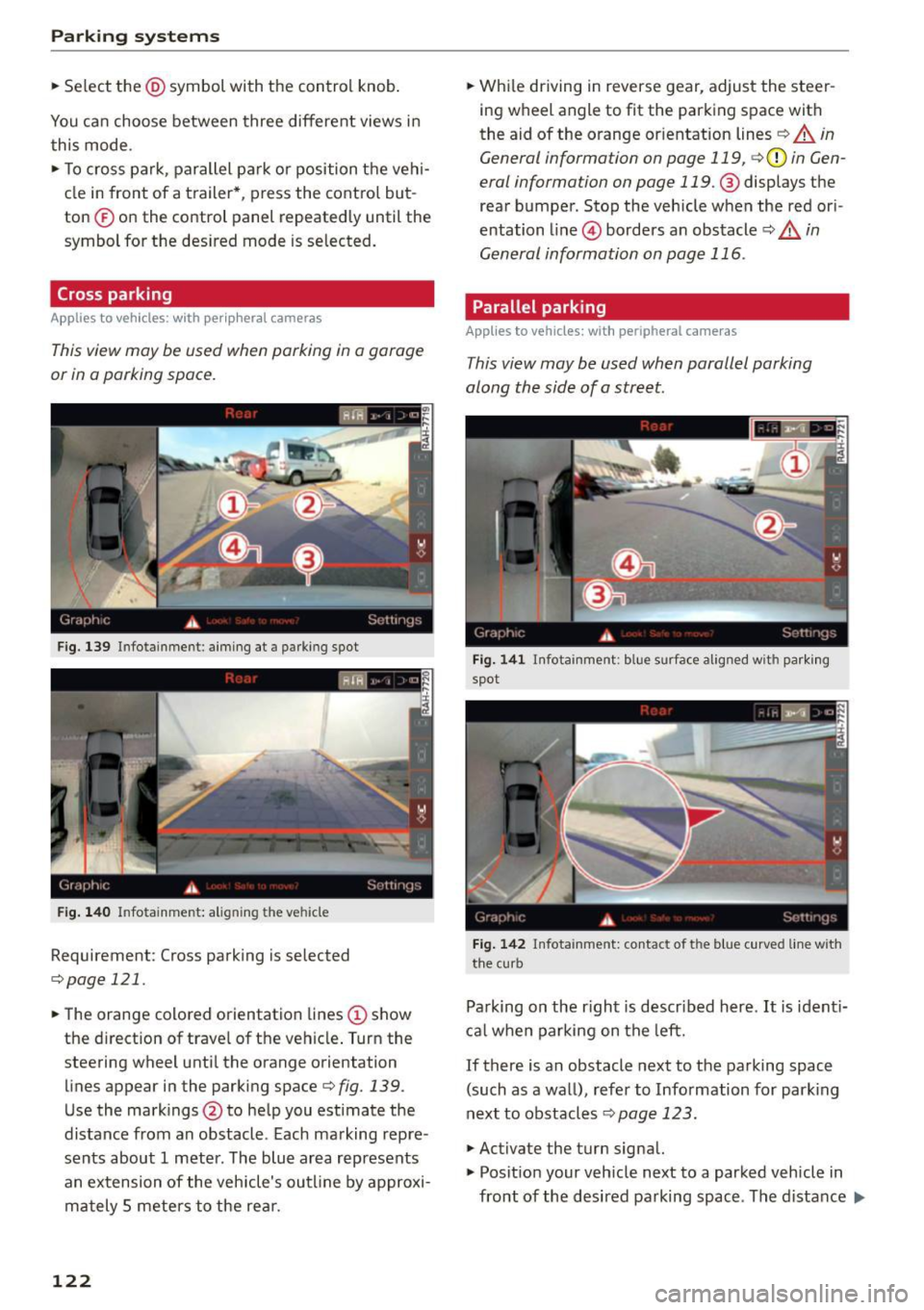
Cross parking
Applies to vehicles: w ith per ip hera l cameras
This view may be used when parking in a garage
or in a parking space.
F ig . 139 In fo tain me nt: aiming at a parking spot
Fig. 140 In fota inme nt: ali gning th e vehicle
Requirement : Cross parking is selected
c::;,page 121.
.. The orange colored orientation lines (D show
the direction of trave l of the vehicle . Turn the
steering wheel unti l the orange orientation
lines appear in the parking space
¢fig. 139.
Use the markings @to he lp you estimate the
distance from an obstacle . Each marking repre
sents about 1 meter . The blue area represents
an extension of the vehicle's outline by approxi
mately S meters to the rea r.
122
.. While driving in reverse gear, adjust the steer
ing wheel angle to fit the parking space with
the aid of the orange or ientation lines
c::;, A in
General informa tion on page 119 ,
c::;,(D in Gen
eral informa tion on page
119 .@ displays the
rear bumper . Stop the vehicle when the red ori
entation line@) borders an obstacle
c::;, &. in
General information on page 116 .
Parallel parking
Applies to vehicles: with peripheral cameras
This view may be used when parallel parking
along the side of a street.
Fig. 141 Infota in m ent : blue s urface aligned wit h park ing
spot
Fig. 142 Infota in m ent: contac t of the blu e curve d line wit h
the curb
Parking on the r ight is descr ibed here . It is ident i
cal when parking on the left.
If there is an obstacle next to the parking space
(such as a wall), refer to Information for park ing
next to obstacles
c::;, page 123.
.,. Activate the turn signal.
.,. Posit ion your vehicle next to a parked vehicle in
front of the desired parking space . The distance .,.