warning AUDI A7 2021 Owner´s Manual
[x] Cancel search | Manufacturer: AUDI, Model Year: 2021, Model line: A7, Model: AUDI A7 2021Pages: 350, PDF Size: 126.66 MB
Page 206 of 350
Telephone
Sending a tone sequence
Press Numbers. You can enter tone sequences
(DTMF) and send them to the other party on the
call.
Hold
Puts the current call on hold. To resume the call,
press Resume.
Answering an incoming call
One of these options will be available, depending
on the mobile phone service provider:
— Answer: the current phone call will be put on
hold. The incoming call will be answered.
— Replace: the active call will be replaced with
the incoming call.
Declining an incoming call
If you select Decline, the incoming call will be de-
clined.
Conference
Requirement: two phone calls must be in prog-
ress.
Depending on your mobile phone service provid-
er, you can add a call on hold and up to five active
callers to a conference call.
Swap call
Requirement: two phone calls must be in prog-
ress.
You can alternate between two phone calls.
Additional call options
Press More.
Depending on the mobile device being used and
the type of connection, the following options
may be available:
Transfer call to mobile device
Transfer the current call to your mobile device or
Bluetooth headset*.
Switch to hands-free
Transfer the current call from your mobile device
to the MMI.
204
Add call
You can start a new call. The current call will be
put on hold.
Remove conference member
You can remove conference call members individ-
ually when a conference call is active.
Microph. input
You can adjust the input level of the microphone
using the slider.
@) Tips
The call waiting function must be activated in
your mobile device to be alerted about an in-
coming call during an active call.
Making an emergency call
Applies to: vehicles with telephone
Requirement: a mobile device must be connected
to the MMI.
> Applies to: MMI: Select on the home screen:
PHONE > Dial number > the local emergency
call number (for example, 911) > Dial.
ZA\ WARNING
— Because your phone works with radio sig-
nals, a connection cannot be guaranteed un-
der all circumstances. Do not rely on only
your phone when it comes to essential com-
munication (such as during a medical emer-
gency).
— Always follow the instructions given by the
emergency personnel during an emergency
call and only end the call when they instruct
you to do so.
Settings
Phone settings
Applies to: vehicles with telephone
> Applies to: MMI: Select on the home screen:
PHONE > ©.
The following options may be possible, depend-
ing on your mobile device:
Page 210 of 350
Audi connect
Audi connect
General information
Applies to: vehicles with Audi connect
Depending on the country and the vehicle equip-
ment, the following functions may be available:
— Audi connect Infotainment
— Audi connect vehicle control
ZA WARNING
—To reduce the risk of an accident, only use
Audi connect services and the Wi-Fi hotspot
only if the traffic situation permits it. Read
and follow the guidelines provided in
= page 21, Traffic safety information.
— It is only safe to use tablets, laptops, mobile
devices and other similar devices when the
vehicle is stationary because, like all loose
objects, they could be thrown around the in-
side of the vehicle in a crash and cause seri-
ous injuries. Store these types of devices se-
curely while driving. Also read the warnings
in the chapter > page 72.
@) Note
—The connection costs of Audi connect Info-
tainment services are included in the price
of Audi connect Infotainment during the
subscription period with some exceptions.
Please note that there may be additional
charges when using some services. For ex-
ample, this applies to online radio/
podcasts, additional online data, or for In-
ternet connections and services that use the
Wi-Fi hotspot. Depending on the country,
data plans may need to be purchased for
these Internet connections and services
= page 212. For additional information, see
my.audi.com.
— In certain situations, the Wi-Fi hotspot data
connection may be established as a replace-
ment for the SIM card on your Wi-Fi device.
This feature depends on the configuration
of your Wi-Fi device and operating system.
This could result in fees depending on your
cell phone service provider, especially if you
are using this feature while abroad. A flat
208
rate data plan is strongly recommended. For
more information, contact your cell phone
service provider or refer to the owner's man-
ual for your Wi-Fi device.
— You are responsible for all precautions taken
for data protection, anti-virus protection,
and protection against loss of data on mo-
bile devices that are used, for example, to
access the Internet through the Wi-Fi hot-
spot.
— In areas with poor GPS reception or outside
the coverage range of the respective cell
phone service provider, some functions
and/or services may not be available, it may
not be possible to send or receive data, or
functionality may be limited.
@) Tips
— The availability of services depends on the
subscription.
— Audi merely provides access to third party
services through the MMI and does not as-
sume any responsibility for the content and
availability of these services.
— Use of the most up-to-date mobile network
standard is not available in every country.
Contact an authorized Audi dealer or au-
thorized Audi Service Facility or your cell
phone service provider for additional infor-
mation.
— Availability, scope, providers, screen display,
and costs of services may vary depending on
the country, model, model year, end device
and rates.
— All services can be modified, activated/deac-
tivated, renamed, and enhanced without
further notification.
Audi connect
Infotainment
Applies to: vehicles with Audi connect Infotainment
With Audi connect Infotainment services, online
information is transmitted directly to the vehicle.
An Internet connection is required to use Audi
connect Infotainment. The Internet connection is >
Page 211 of 350

4K8012721BF
Audi connect
established using the embedded SIM card
(eSIM).
ZA WARNING
Always follow the information found in > AV
in General information on page 208.
@) Note
Always follow the information found in >@ in
General information on page 208.
Embedded SIM card
Applies to: vehicles with Audi connect Infotainment and an
embedded SIM card
The data connection for Audi connect Infotain-
ment services is made through an embedded SIM
card (eSIM card) that is installed in the vehicle.
You can use the Audi connect Infotainment serv-
ices immediately.
@) Note
Always follow the information found in >@ in
General information on page 208.
Using a Wi-Fi hotspot
Applies to: vehicles with Wi-Fi hotspot
You can connect up to eight Wi-Fi devices (such
as smartphones) with the MMI Wi-Fi hotspot. If
the MMI is connected to the Internet
=> page 208, the connected Wi-Fi devices can also
use the MMI’s Internet connection.
Requirement: the ignition must be switched on. A
data plan must be available > page 212.
> Applies to: MMI: Select on the home screen:
SETTINGS > Connection settings > Wi-Fi
Switch on the Wi-Fi hotspot.
> Applies to: MMI: Select on the home screen:
SETTINGS > Connection settings > Wi-Fi > Wi-
Fi hotspot settings. The access data for the Wi-
Fi hotspot is displayed. Switch on the visibility
of the Wi-Fi hotspot if necessary.
> Switch the Wi-Fi function on in your mobile de-
vice and connect it to the MMI Wi-Fi hotspot
using the authentication data that is shown.
> Follow any additional system prompts on your
Wi-Fi device if necessary.
Your device is successfully connected with the
MMI's Wi-Fi hotspot.
Z\ WARNING
Always follow the information found in > A\
in General information on page 208.
() Note
Always follow the information found in © in
General information on page 208.
G@) Tips
The system complies with United States FCC
regulations and ISED regulations > page 329.
Audi connect
Infotainment services
Configuration
Applies to: vehicles with Audi connect Infotainment
Some Audi connect Infotainment services must
be configured through your personal myAudi ac-
count at my.audi.com before using them for the
first time.
@) Tips
—A myAudi user must be logged in for some
Audi connect Infotainment services.
— Some Audi connect Infotainment services
must be activated at my.audi.com.
— Depending on the country, you may be able
to use the myAudi app or my.audi.com.
— For detailed information on configuration,
visit my.audi.com.
Applies to: vehicles with Audi connect Infotainment
Depending on the country and the vehicle equip-
ment, the following services may be available:
Weather information
Applies to: MMI
> Press WEATHER on the home screen.
Editing settings: Select: WEATHER > Au.
> To display the weather for a location, press ona
location in the list.
209
>
Page 212 of 350
Audi connect
> To display the weather for your current loca-
tion, press on the location that is marked with
the crosshairs.
Requirement: route guidance must be active.
> To display the weather at your destination,
press on the location that is marked with the
flag PB.
Adding a location: select: WEATHER > Gu > Ina
new city > a location.
Removing a location: select: WEATHER > 44 > .Z
> one or more locations or Select all > Delete.
Online news
> Applies to: MMI: Select on the home screen:
NEWS.
Access to the calendar
Requirement: the myAudi app must be installed
and open on your mobile device. Access to your
calendar must be enabled on your mobile device.
You must be logged into the myAudi app with
your myAudi login data and you must have select-
ed your vehicle. The Wi-Fi function on your mo-
bile device and the MMI must be enabled and
your mobile device must be paired to the MMI
Wi-Fi hotspot > page 211, Wi-Fi.
You can display the your mobile device calendar
on the MMI.
> Applies to: MMI: Select on the home screen:
CALENDAR.
ZA\ WARNING
Always follow the information found in > A\
in General information on page 208.
©) Note
Always follow the information found in >@ in
General information on page 208.
Functions on demand
Displaying purchased functions
Applies to: vehicles with functions on demand
Depending on the country and vehicle equip-
ment, you can purchase functions on demand
210
through a myAudi account in the myAudi app at
any time.
The following options are available for displaying
purchased functions in the vehicle.
> Applies to: MMI: Select on the home screen:
PURCHASES.
(i) Tips
— Equipment installed at the factory may be
displayed as purchased functions.
— The availability of functions in the myAudi
app varies depending on the country. For
additional information, visit my.audi.com.
— At the time this manual was printed, func-
tions on demand was a planned function.
Functions on demand is not available in your
vehicle.
Messages
Applies to: vehicles with functions on demand
If a message about a function that requires a Li-
cense is displayed, the function is no longer avail-
able. Check the MMI Purchases menu to see if
you have a license for this function or if the li-
cense has expired. Purchase the function if neces-
sary using functions on demand.
Audi connect vehicle
control services
yaa)
Applies to: vehicles with Audi connect vehicle control
Using Audi connect vehicle control services, you
can perform tasks such as viewing data about
your vehicle or control vehicle functions remote-
ly.
You can view and use services available for your
vehicle at my.audi.com or through the myAudi
app.
Information about the services and the corre-
sponding app was accurate at the time this man-
ual was printed. The scope of services depends
on the country and equipment. There may be
changes over the service life of the vehicle. >
Page 213 of 350
4K8012721BF
Audi connect
ZA WARNING
— Always follow the information found in > AA
in General information on page 208.
— Driver messages, text messages, and illumi-
nated warning and indicator lights in the ve-
hicle always take priority over information
from the Audi connect services. The infor-
mation displayed by the Audi connect serv-
ices should not cause you to take safety
risks. This can result in the vehicle breaking
down in traffic and to serious injuries or ac-
cidents.
— Applies to: vehicles with plug-in hybrid
drive: Only perform the Audi connect cli-
mate control functions if your vehicle was
shut off correctly and the ignition is switch-
ed off.
— Applies to: vehicles with plug-in hybrid
drive: Only perform charging functions on
the high-voltage battery if the vehicle is
shut off correctly, is connected to a suitable
socket ,and if the ignition is switched off.
@ Tips
— Accessing specific data or controlling func-
tions remotely depends on the charge level
of the vehicle battery. Therefore, these
functions only have limited availability after
switching off the ignition.
— An eSIM card establishes the Internet con-
nection for Audi connect vehicle control
services. The costs for this are included in
the price of Audi connect vehicle control
services. The cell phone network, for exam-
ple, must be available to use these services.
Applies to: vehicles with Audi connect vehicle control
Create a myAudi account by registering in the
myAudi app or at my.audi.com, depending on
your country.
>» Set the key user > page 33.
> Install the myAudi app on your mobile device
and log in with your access information.
@) Tips
Some services require you to enter a 4-digit
PIN that you set up during registration.
Settings
Applies to: vehicles with Wi-Fi hotspot
Requirement: the ignition must be switched on.
> Applies to: MMI: Select on the home screen:
SETTINGS > Connection settings > Wi-Fi
Depending on the country and the vehicle equip-
ment, the following functions may be available:
Wi-Fi
When the function is switched on, the MMI's Wi-
Fi hotspot is active and Wi-Fi devices can be con-
nected to the hotspot.
Wi-Fi hotspot settings
The Wi-Fi connection between the MMI and your
Wi-Fi device is encrypted. You can change the fol-
lowing information if needed.
— Access point (SSID): name of the Wi-Fi hot-
spot.
— Password: an initial password was set at the
factory in the MMI. Audi recommends changing
the initial password. Only use secure passwords
that conform to the general guidelines for se-
cure passwords. For more information, refer to
reputable and current sources on password se-
curity.
Allow data connection through Wi-Fi
When the function is switched on, mobile devices
can use the Internet connection through the Wi-
Fi hotspot. A data plan is needed to do this.
Z\ WARNING
Always follow the information found in > AA
in General information on page 208.
@) Note
Always follow the information found in S@ in
General information on page 208.
211
Page 215 of 350
4K8012721BF
Emergency call
Emergency call
Overview
Applies to: vehicles with emergency call function
An emergency call is a combination of data trans-
mission and a phone call. The data transmission
from your vehicle forwards important informa-
tion, such as the vehicle and position data, to the
emergency call center.
Depending on the country and the vehicle equip-
ment, the following functions may be available:
With the emergency call, you can call for help in
dangerous situations as quickly as possible. Use
this function when emergency help is needed
=> page 213.
— Audi connect emergency call (TPS emergency
call). This eCall system uses emergency call
centers operated by third party providers.
With online roadside assistance, you can request
assistance if there is a breakdown or a minor acci-
dent > page 214.
ZA\ WARNING
In areas with poor GPS reception or outside
the coverage range of the respective cell
phone service provider, some functions and/or
services may not be available, it may not be
possible to send or receive data, or functional-
ity may be limited.
@) Tips
To see which data can be transmitted, visit
your Audi country or sales region website at
www.audi.com.
Emergency call
Applies to: vehicles with emergency call function
The services are provided through a SIM card in-
stalled in the vehicle. Services are provided as-
suming that the cell phone network required for
the installed SIM card is functioning and availa-
ble for use. The services made availably by Audi
are only available within the mobile phone net-
work coverage area for the mobile phone service
provider selected by Audi.
—The emergency call function cannot be deac-
tivated in the Infotainment system settings.
— The availability of the TPS emergency call is
limited to certain times.
—The costs for call and data connections for
TPS emergency calls is included in the price
of the services.
Applies to: vehicles with emergency call function
A TPS emergency call can be made manually or
automatically > page 213.
Making an emergency call
Applies to: vehicles with emergency call function
mi l
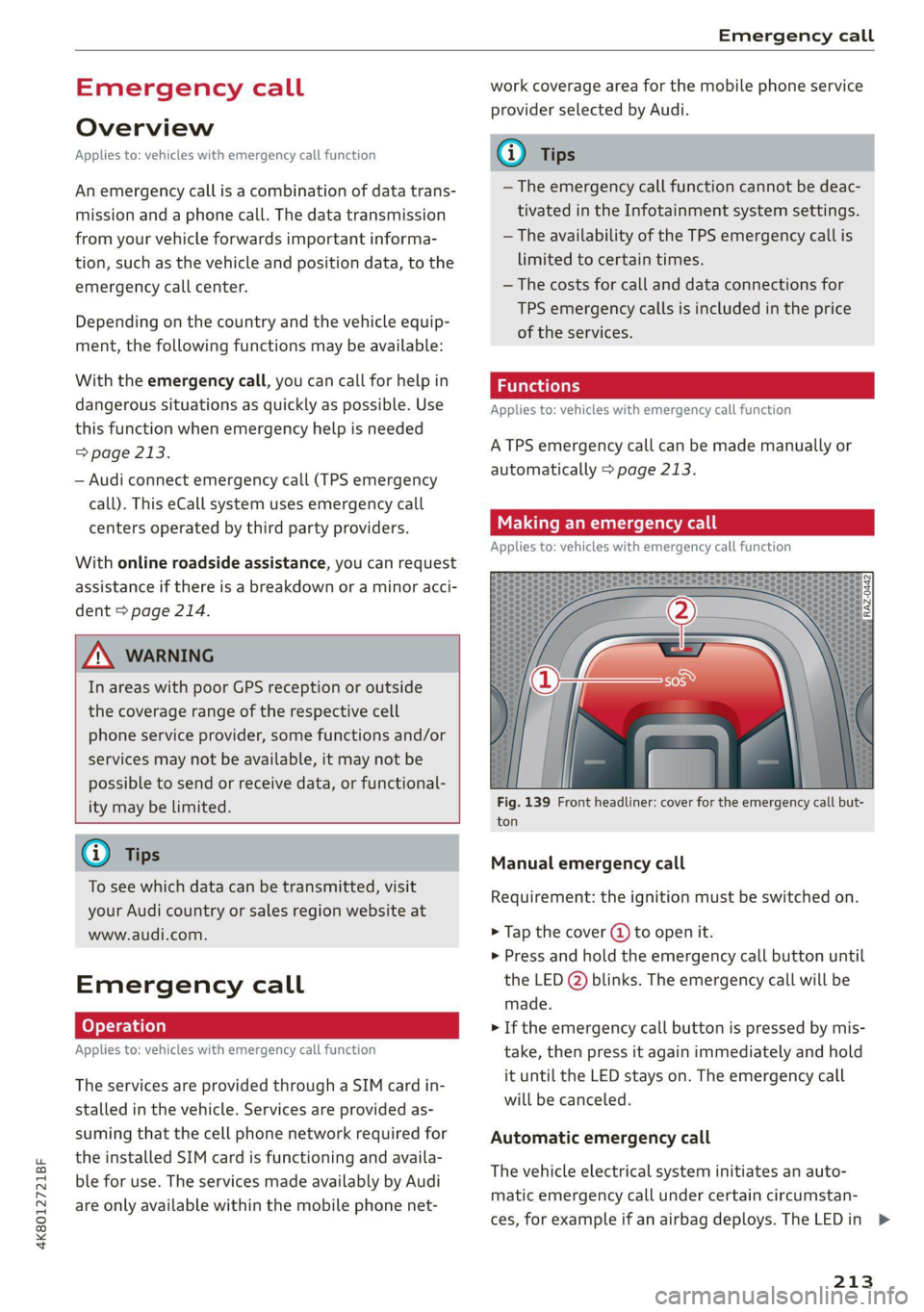
Fig. 139 Front headliner: cover for the emergency call but-
ton
Manual emergency call
Requirement: the ignition must be switched on.
> Tap the cover (@) to open it.
> Press and hold the emergency call button until
the LED () blinks. The emergency call will be
made.
> If the emergency call button is pressed by mis-
take, then press it again immediately and hold
it until the LED stays on. The emergency call
will be canceled.
Automatic emergency call
The vehicle electrical system initiates an auto-
matic emergency call under certain circumstan-
ces, for example if an airbag deploys. The LEDin >
213
Page 216 of 350

Emergency call
the emergency call button () will blink. The
emergency call will be made. The emergency call
cannot be canceled.
LED status
— Green - The emergency call function is availa-
ble.
— Red - There is a malfunction in the emergency
call function. Contact an authorized Audi dealer
or authorized Audi Service Facility. Note the
messages about the availability of the emer-
gency function > page 214.
— Off - The emergency call function is not availa-
ble, perhaps because no network is available.
Warnings
If there is a critical system failure in the emer-
gency call systems, the vehicle occupants will re-
ceive the following warning: see > page 214, LED
status and > page 214, Messages.
@) Tips
If the emergency call is canceled due toa
poor connection, then the system automati-
cally tries to connect again.
Messages
Applies to: vehicles with emergency call function
508 Emergency call function: malfunction! Lim-
ited availability. Please contact Service
If this indicator light turns on and this message
appears, the emergency call function is restrict-
ed. For example, you cannot call the emergency
call center, but data may still be transmitted un-
der certain circumstances. Drive to an authorized
Audi dealer or authorized Audi Service Facility im-
mediately to have the malfunction corrected.
BS Emergency call function: malfunction! Func-
tion unavailable. Please contact Service
If this indicator light turns on and this message
appears, you cannot make an emergency call.
Drive to an authorized Audi dealer or authorized
) The availability of the services offered depends on the
country and may change in the future.
214
Audi Service Facility immediately to have the
malfunction corrected.
Online roadside
assistance
Applies to: vehicles with online roadside assistance
An online roadside assistance call )) is a combina-
tion of data transmission and a phone call. The
data transmission from your vehicle forwards im-
portant information to the Audi service center,
such as the vehicle and position data.
Calling online roadside assistance
Applies to: vehicles with online roadside assistance
RAZ-0443
Fig. 140 Front headliner: online roadside assistance but-
ton
Calling online roadside assistance
> Press the button @). The LED in the button
turns red. The online roadside assistance call
will be made.
> If you press the button @) by mistake, then
press it again.
Audi incident assistance
A minor accident may be detected by the vehicle
electrical system. You are able to select between
online roadside assistance and an emergency call
in the MMI.
Page 218 of 350
Navigation
Navigation
Opening navigation
Applies to: vehicles with navigation system
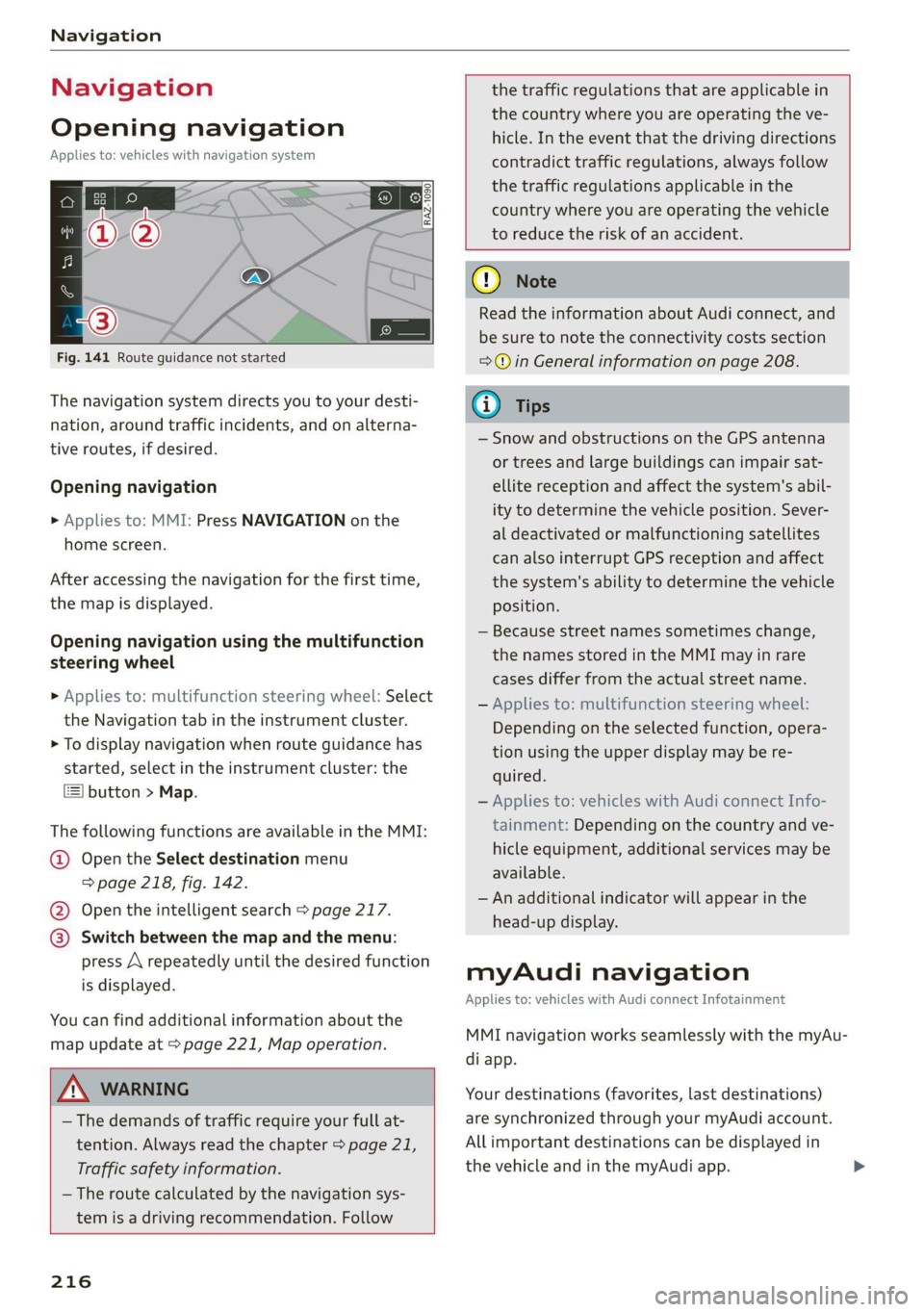
Fig. 141 Route guidance not started
The navigation system directs you to your desti-
nation, around traffic incidents, and on alterna-
tive routes, if desired.
Opening navigation
>» Applies to: MMI: Press NAVIGATION on the
home screen.
After accessing the navigation for the first time,
the map is displayed.
Opening navigation using the multifunction
steering wheel
> Applies to: multifunction steering wheel: Select
the Navigation tab in the instrument cluster.
> To display navigation when route guidance has
started, select in the instrument cluster: the
button > Map.
The following functions are available in the MMI:
@ Open the Select destination menu
=> page 218, fig. 142.
@ Open the intelligent search > page 217.
@ Switch between the map and the menu:
press A repeatedly until the desired function
is displayed.
You can find additional information about the
map update at > page 221, Map operation.
ZA\ WARNING
— The demands of traffic require your full at-
tention. Always read the chapter > page 21,
Traffic safety information.
— The route calculated by the navigation sys-
tem is a driving recommendation. Follow
216
the traffic regulations that are applicable in
the country where you are operating the ve-
hicle. In the event that the driving directions
contradict traffic regulations, always follow
the traffic regulations applicable in the
country where you are operating the vehicle
to reduce the risk of an accident.
() Note
Read the information about Audi connect, and
be sure to note the connectivity costs section
=@ in General information on page 208.
(i) Tips
— Snow and obstructions on the GPS antenna
or trees and large buildings can impair sat-
ellite reception and affect the system's abil-
ity to determine the vehicle position. Sever-
al deactivated or malfunctioning satellites
can also interrupt GPS reception and affect
the system's ability to determine the vehicle
position.
— Because street names sometimes change,
the names stored in the MMI may in rare
cases differ from the actual street name.
— Applies to: multifunction steering wheel:
Depending on the selected function, opera-
tion using the upper display may be re-
quired.
— Applies to: vehicles with Audi connect Info-
tainment: Depending on the country and ve-
hicle equipment, additional services may be
available.
— An additional indicator will appear in the
head-up display.
myAudi navigation
Applies to: vehicles with Audi connect Infotainment
MMI navigation works seamlessly with the myAu-
di app.
Your destinations (favorites, last destinations)
are synchronized through your myAudi account.
All important destinations can be displayed in
the vehicle and in the myAudi app.
Page 223 of 350
4K8012721BF
Navigation
@ Displays the maximum permitted speed): Symbol Description
within city limits, on expressways, and on se Favorites > page 222
highways. S TT :
. . Bi Previous destinations display
@) Current vehicle position
@ Route information > page 227 Traffic information
© Name of the street on which you are current- —__ Colored warning symbols: traffic incidents
ly driving ahead that are on your route.
@ Start route guidance for a marked destina- — Grayed out warning symbols: traffic incidents
tion
> page 219, Selecting a destination that are not on your route.
from the map — All traffic incidents will display in color when
@®) Display details for the destination route guidance is inactive.
=> page 219 — Warning symbols with arrow: traffic incident
Intelligent search nearb that you have been routed around, for example g y hat you have b d d, f pl
@ Adjust the map orientation. See also .
=> page 226
@ Navigation settings > page 226 Map operation
® Adjust the scale. Press the magnifying glass Applies to: vehicles with navigation system
to switch automatic zoom > page 226 on or You can operate the map > page 220, fig. 144
off directly on the map. The © symbol ap- with the movements described in the following
pears when this function is switched on. information.
® Marked destination. See > page 219, Select-
ing a destination from the map
Map contents (points of interest, favorites). > Drag your finger across the map in the desired
When there are multiple map contents in the direction.
immediate vicinity, the symbols are shown
stacked on the map. To display a list of indi-
vidual symbols, press a’; > fig. 145. Press on > Swipe your finger across the map in the desired
a POT in the list. direction and lift your finger off the map.
Moving the map
®
Moving the map quickly
@ — the map to the current vehicle posi- Zooming in on the map
ion
>» Place two fingers on the map and pull your fin-
gers apart, or
> Double-tap on the map with one finger.
@3) Traffic incidents and display of estimated
losses of time on the route.
— Green: traffic is flowing freely.
— Orange: stop-and-go traffic Zooming out on the map
Red: traffic jaitior traffic obstructions. » Place two fingers on the map and pull your fin-
Additional possible symbols on the map gers together, or
> Double-tap on the map with two fingers.
Symbol Description
@ Home address > page 222, Favor- Rotating the map
ites > Rotate the map using two fingers.
Business address = page 222, Fa-
vorites
Tilting the map
> Drag upward or downward with two fingers. >
D_ Only applies to vehicles without camera-based speed limit
display.
221
Page 227 of 350
4K8012721BF
Navigation
Map update through the myAudi App
Applies to: vehicles with map update through the myAudi app
With the map update through the myAudi app,
you can update the map material in your
navigation system.
Downloading updates
Requirement: you must have a registered myAudi
account. Your vehicle must be registered in your
myAudi account.
> Install the myAudi app on your mobile device
and log in with your login information. Use the
same myAudi account that you use in the vehi-
cle for your myAudi user.
> Download the map material in the myAudi app.
Installing updates
> Log in as a myAudi user in the vehicle
> page 33.
> Connect your smartphone to the vehicle’s Wi-Fi
hotspot = page 209. The MMI detects the map
material on your smartphone. The map update
will start automatically.
You can check the status of the installation in the
notification center > page 24.
Map update using the USB connection
Applies to: vehicle map updates using the USB connection
With the map update, you can update the map
material in your navigation system.
Requirement: you must have created a myAudi
account at my.audi.com. Your vehicle must be
registered in your myAudi account.
Downloading a map update
> Download the map update at my.audi.com and
store it on a USB flash drive. For additional in-
formation, visit my.audi.com.
Installing a map update
> Connect the USB flash drive to the Audi music
interface > page 238.
> Open the notification in the notification center
on > page 24 and press on the notification.
> Press Next. The status of the installation is
shown in the display.
Traffic incidents
Introduction
Applies to: vehicles with navigation system and online traffic
information
ae oad
Becirhaciecae Okan
(iret re es are ea
= North
ne
© North
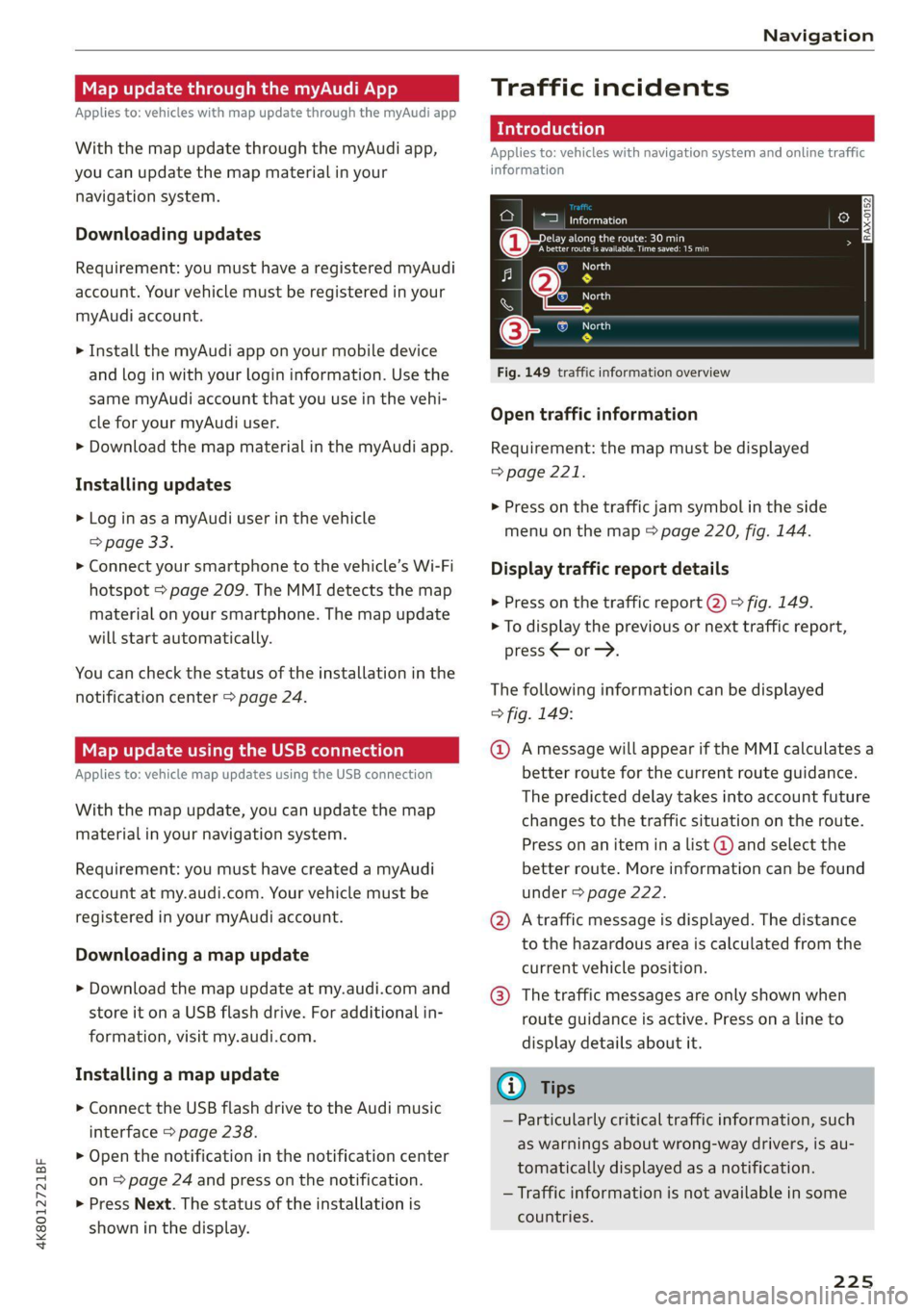
Fig. 149 traffic information overview
Open traffic information
Requirement: the map must be displayed
=> page 221.
> Press on the traffic jam symbol in the side
menu on the map © page 220, fig. 144.
Display traffic report details
> Press on the traffic report @) > fig. 149.
> To display the previous or next traffic report,
press < or.
The following information can be displayed
> fig. 149:
@ Amessage will appear if the MMI calculates a
better route for the current route guidance.
The predicted delay takes into account future
changes to the traffic situation on the route.
Press on an item ina list @ and select the
better route. More information can be found
under > page 222.
@ Atraffic message is displayed. The distance
to the hazardous area is calculated from the
current vehicle position.
@® The traffic messages are only shown when
route guidance is active. Press ona line to
display details about it.
Gi) Tips
— Particularly critical traffic information, such
as warnings about wrong-way drivers, is au-
tomatically displayed as a notification.
— Traffic information is not available in some
countries.
225