wheel AUDI A8 2011 Owner's Manual
[x] Cancel search | Manufacturer: AUDI, Model Year: 2011, Model line: A8, Model: AUDI A8 2011Pages: 302, PDF Size: 76.07 MB
Page 85 of 302
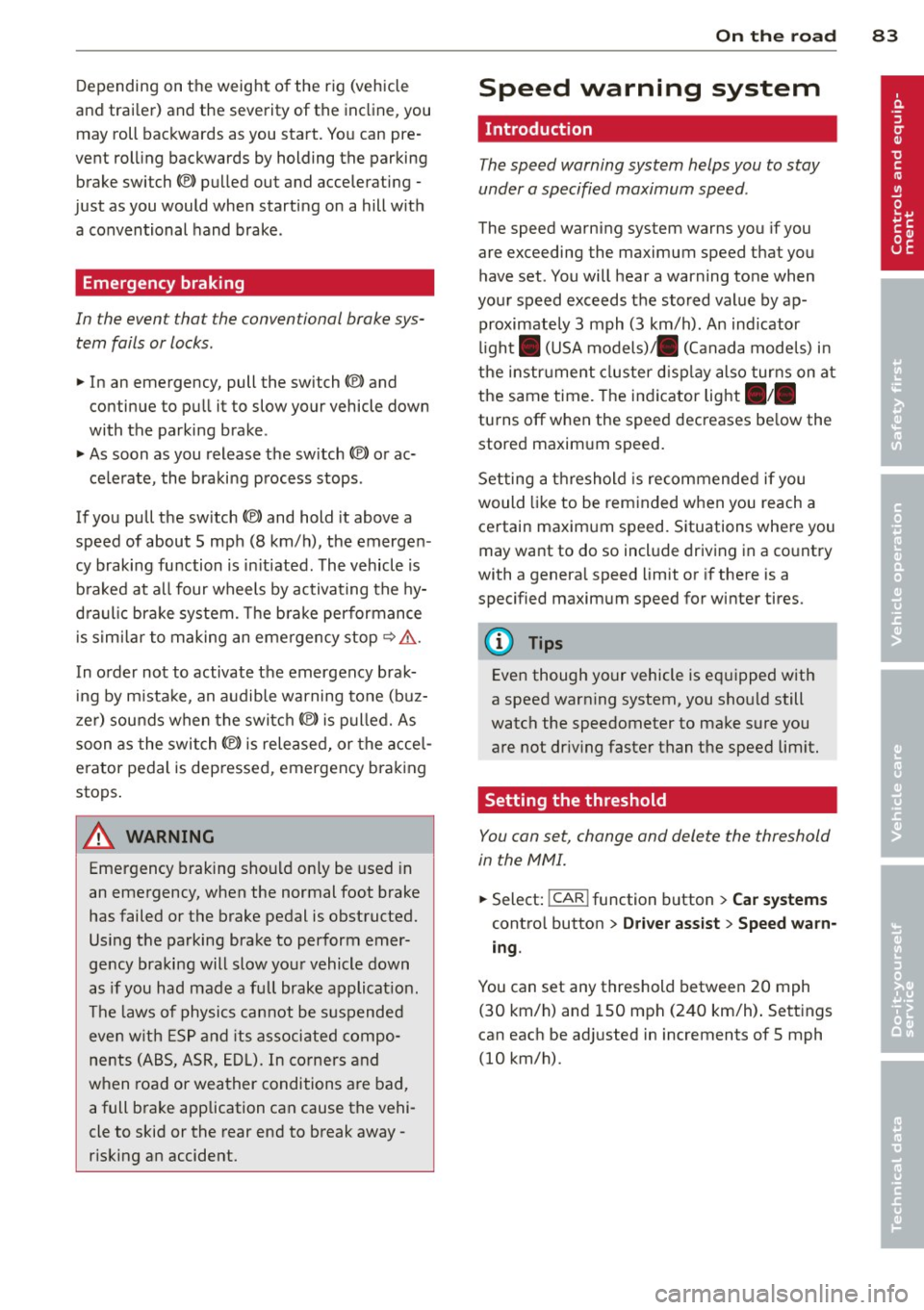
Depending on the weight of the r ig (vehicle
and trai ler) and the severity of the incline, you
may roll backwards as you start. You can pre
vent roll ing backwards by holding the parking
brake switch(®) pulled out and accelerating -
just as you would when starting on a hill with
a conventional hand brake.
Emergency braking
In the event that the conventional brake sys
tem fails or locks.
... In an emergency, pull the switch(®) and
continue to pull it to slow your vehicle down
with the parking brake.
... As soon as you release t he sw itch (®) or ac-
ce lerate, the braking p rocess stops.
If you pull the sw itch(®) and hold it above a
speed of about 5 mph (8 km/h), t he emergen
cy braking fu nction is in itiated . The vehicle is
b raked at all four wheels by activating the hy
d ra u lic bra ke system. The b rake performance
i s simi lar to making an emergency stop
c::> &. .
In order not to activate the emergency brak
ing by m ista ke, an audible warning tone (b uz
z er) sou nds when the switch®> is pulled. As
soon as the switch(®) is released, or the acce l
erator pedal is dep ressed, emergency brak ing
stops .
A WARNING
Emergency braking should only be used i n
an emergency, when the normal foot brake
has failed or the brake pedal is obstructed.
Using the parking brake to perform emer
gency braking will slow you r vehicle down
as if you had made a fu ll brake applicat ion.
T he laws of physics can not be s uspended
even w ith ESP and its associated compo
nents (ABS, ASR, EDL). In corners and
when road or weather conditions are bad,
a full brake application can cause the vehi
cle to skid or the rear end to break away -
r isking an accident.
On th e ro ad 83
Speed warning system
Introduction
The speed warning system helps you to stay
under a specified maximum speed .
The speed warning system warns you if you
are exceeding the maximum speed that you
have set. You will hear a warning tone when
you r speed exceeds the stored value by ap
proximately 3 mph (3 km/h) . An indicator
li ght . (USA
models) ;a (Canada mode ls) in
the instr ument cluster d isp lay al so tur ns on at
the same time. The indicator light . /.
turns off when the speed decreases be low the
stored maxim um speed .
Se tting a t hreshold is recommended if you
would like to be rem inded w hen you reach a
certain maximum speed. Situations where you
may want to do so incl ude driv ing in a co untry
with a genera l speed limit or if there is a
specified maximum speed for winter tires.
(D Tips
Even though your vehicle is eq uipped w ith
a speed warn ing system, you sho uld still
watch the speedometer to make sure you
are not dr iv ing faster than the speed limit.
Setting the threshold
You can set, change and delete the threshold
in the MMI.
... Select: !CAR ! function button > Car systems
contro l button > Dri ver ass ist > Speed warn
ing .
You can set any threshold between 20 mph
(30 km/h) and 150 mph (240 km/h) . Sett ings
can each be adjusted in increments of 5 mph
(10 km/h).
Page 89 of 302

Adaptive cruis e control and bra kin g guard
vehicles such as motorcycles and bicy
cles.
- The adaptive cruise control system can
not detect people, animals and cannot
detect objects or traffic that crosses your
lane of travel.
- Never drive at speeds that are too fast for traffic, road and weather conditions.
- Never use adaptive cruise control when
you cannot drive safely at a steady speed, including on wind ing roads or
when road conditions are poor (for exam
ple, in construction sites, on ice , gravel,
in fog, heavy ra in or on wet roads that in
crease the risk of hydroplan ing).
- Never follow a veh icle so closely that you
cannot stop your vehicle safely. The
adaptive cruise cont ro l cannot slow or
brake the veh icle safely when you follow
another veh icle too closely. Always re
member that the automatic braking
function cannot bring the vehicle to a
sudden or emergency stop under these
condit ions.
- Never rest your foot on the acce lerator
pedal, especially when the adaptive
cruise control is being used. Pressure on
the accelerator w ill override the adaptive
cruise control braking function and pre
vent the brakes from being applied whe n
adaptive cruise cont ro l detects a situa
t io n when the brakes must be applied.
- Never use adaptive cruise control whe n
the radar sensors cannot accurately de
t ect vehicles moving in t raff ic. The rad ar
sensor's vision can be reduced by heavy
rain, ice, snow, heavy road spray and re
flect ions from guard rails, t unnel ent ran
ces, etc. These and simi lar conditions can
prevent vehicles from being accurately
detected and in some cases they may not
be detected at all .
- Always turn off adaptive cru ise contro l
when entering turn lanes, exit lanes and
constr uction zones or in similar sit ua
t ions because the vehicle will automati
ca lly accelerate to the sto red speed when
the roa d ahead is clear. -
To prevent unintended operation, a lways
sw itch ACC off when it is not being used .
(D Note
The sensors can be moved by impac ts or
damage to the bumper, wheel housing and underbody . Damage in these areas could
change the way the adaptive cru ise control
system and Aud i brak ing guard work to
gether . Have your authorized Audi deale r
check to make s ure that the adaptive
cruise control system is wor king p roperly if
your vehicle had a m ino r frontal impact or
was damaged in the area of the sensors.
In curves
Applies to vehicles: wi th adaptive cruise control
Fi g. 86 Exa mpl e: dri vin g into a curve
When dr iving into a curve¢ fig. 86 and out of
a curve, the adaptive c ruise control may react
to a vehicle in the next lane and app ly the
brakes . You c an override or preven t the brak
ing by pressing the accelerator pedal b riefly .
Stationary objects
Applies to vehicles: wit h adaptive cruise control
Fig. 87 E xam ple: object c hanging l anes a nd s tationa ry
o ~ect
~
8 7
Page 91 of 302

Adaptive cru ise co ntrol and b rakin g guar d 89
You must also press the b rake pedal when
the vehicle is stopped.
Sw itching adapti ve cruis e co ntrol off
~ Push the lever away from you into position
@ until it clic ks into p lace. The message
A CC off appears.
I ndicator lamps and messages in the instru
ment cluster display inform you about the c ur
rent system status and settings.
@ Indic ator light s
fl-adaptive cruise control is sw itched on . No
veh icles are detected up ahead . The stored
speed is ma inta ined.
I -A moving vehicle is detected up ahead .
The adaptive cruise control system regulates
the speed and distance to the moving veh icle
ahead and accelerates/brakes automat ically.
f:i -adaptive cru ise control is switched on. A
mov ing vehicle up ahead was detected. Your
veh icle remains stopped and will not start
driving automatically.
I -When automat ic braking is not able to
keep enough distance to a previously detected
mov ing vehicle up ahead, you must take con
trol and brake¢
page 90, Prompt for driver
intervention.
© Di splay
If adaptive cruise control is not shown in the
d isplay, you can call it up with the multifunc
tion steering wheel buttons
¢ page 23 .
Based on the symbols in the display, you can
determine if the system is maintaining a dis
tance to the vehicle ahead and what that d is
tance is .
No v ehicle -No vehicle ahead was detected.
White vehicle -A vehicle ahead was detected .
Red ve hicl e -Prompt for the d river to take ac
tion
¢ page 90.
Both arr ow s on the scal e© indicate the dis
tance to the vehicle ahead . No ar row appears
when the vehicle is on an open road and there is no object ahead.
If an object is detected
ahead, the arrow moves on the scale .
T he green zone on the sca le shows the stored
distance. For informat ion on changing the
stored distance ¢
page 91. If the distance
selected is too close or may soon become too
close, the arrows move into the red zone on
the scale .
A WARNING
Improper use of the adaptive cruise con
trol can cause collisions, other accidents
and serious personal injur ies .
- Pressing the
!SET ! button when driv ing at
speeds below
20 mph (30 km/h), w ill au
tomatically accelerate the vehicle to
20
mph (30 km/h), wh ich is the minimum
speed that can be set .
(D Tips
- If you switch the ignit ion or the adaptive
cruise control off, the set speed is e rased
from the system memory.
- You cannot switch the Electron ic Stabili
zation Program (ESP) to the SPORT mode
when adaptive c ruise control is sw itched
on.
Driving in stop-and-go traffic
Appl ies to vehicles: wi th adap tive c ruise control
T he adaptive cru ise contro l system also as
sists yo u in stop-and-go traffic. If a previous
detected vehicle ahead stops, your vehicle wi ll
brake to a stop, within the limits of the sys
tem.
~ To resume driving with adaptive cruise con
trol, tap the acce lerator pedal or
~ Pull the lever toward you into position @
¢ page 88, fig. 89.
(D Tips
- If adaptive cruise control is act ive and
your vehicle does not start driving as ex pected after pu lling the lever once, you
can start out again by tapping the acce l-
erator peda l. ..,.
Page 97 of 302
Audi lane assist Lane assist
De scription
App lies to vehicles: with la ne ass ist
Lane assist helps you keep your vehicle in your
lane.
Lane assist uses a camera to detect lane boun
dary lines . If the system detects that your ve
hicle is about to cross a detected lane boun
dary line, the steering wheel
vibrates to alert
the driver . Lane assist is operable when the
line marking the lane is detected on at least
one side of the veh icle. This is ind icated by a
g reen indicator light. in the instrument
cluster.
If the system is in active standby mode and
the turn signal is activated before driving over
the bounda ry line, the warn ing does not occur
since the system allows for intentional lane
changes.
The system is designed for driv ing on free
ways and expanded highways and thus works
only at speeds of 40 mph (65 km/h) or more.
A WARNING
- Lane assist will not keep your vehicle in
your lane . The system only warns the
driver when the vehicle is leaving the
lane . The driver is always responsible for
keeping the vehicle in the lane .
- The camera is not able to detect all lane
boundary lines and in some cases might
also detect lane structures or objects as
boundary lines . This can lead to incorrect
warnings or wa rnings tha t fail to go off
at all.
- The camera's visibility can be impaired by
vehicles ahead of you, for instance, or by
rain, snow, heavy spray o r light sh in ing
into the camera lens. Th is can cause lane
assist to fa il to detect boundary lines.
Audi lane a ssis t 95
Act ivating and deactivating
App lies to vehicles: wit h lane assist
Fig. 95 Turn sign al lever: Lane assist button
Fig . 96 W inds hield: La n e ass ist camera vi ewing w in
dow
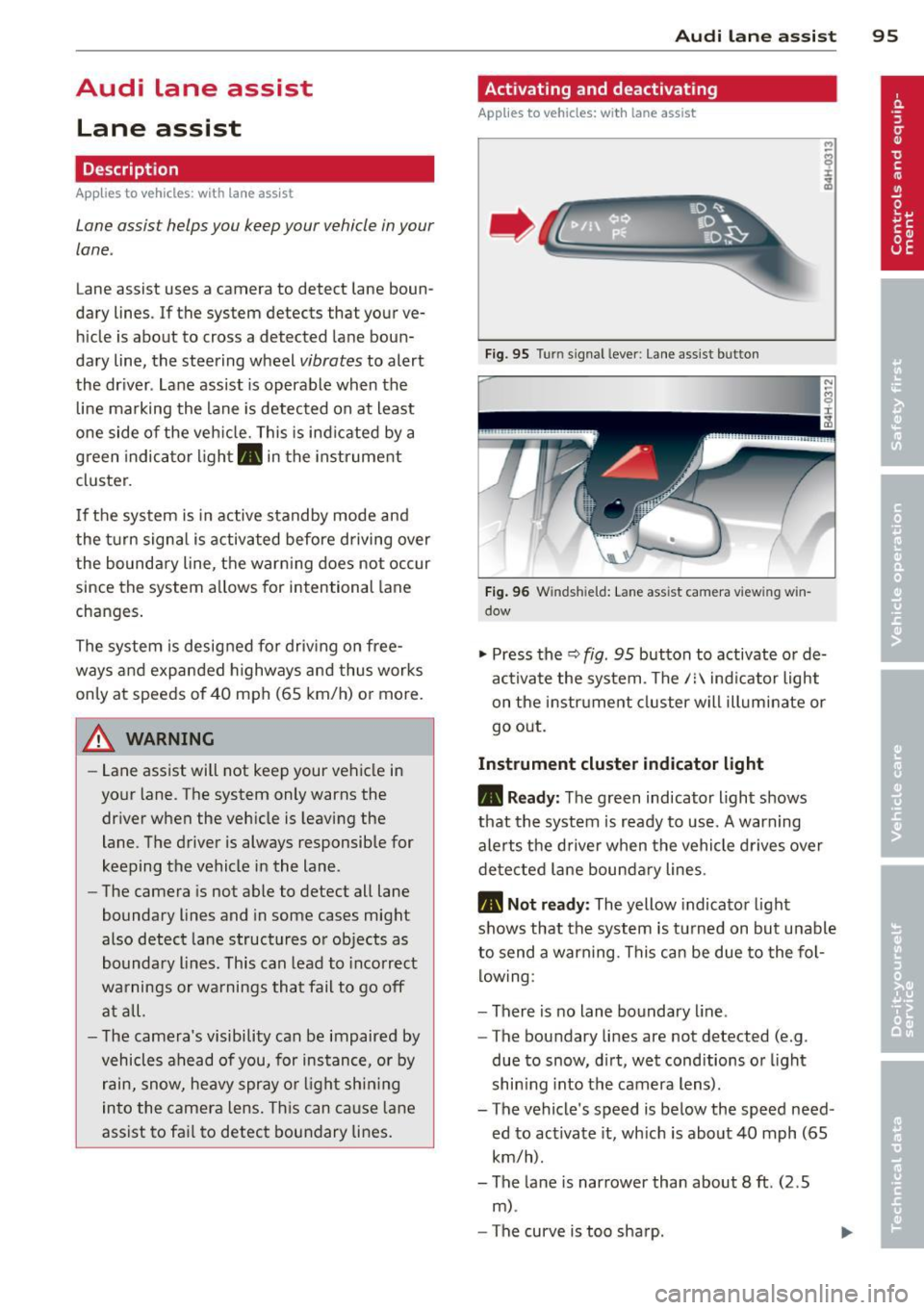
"' Press the Q fig . 95 button to activate or de
ac tivate the system . The/: indicator light
on the instr ument cluster will illuminate or
go out.
Instrum ent clu ster ind icat or light
• Rea dy:
The green indicator light shows
that the system is ready to use.
A warning
alerts the driver when the vehicle drives over
detected lane bounda ry lines.
• Not r ea dy: The yellow indicator light
shows that the system is turned on but unable
to send a warning. This can be due to the fol low ing :
- There is no lane boundary line .
- The boundary lines are not detected (e.g .
due to snow, d irt, wet conditions or l ight
shin ing into the camera lens) .
- The vehicle 's speed is below the speed need
ed to activate it, which is about 40 mph (65
km/h).
- The lane is narrower than about 8
ft. (2 .5
m) .
-The curve is too sharp .
Page 98 of 302

96 Audi lane assist
Messages in the instrument cluster
display
When the lane assist turns off automatically,
the instrument cluster indicator goes out and
one of the following messages appears on the
display:
Audi lane assist not available: Currently no
sensor vision
This message appears when the camera can
no longer function because it cannot detect
the boundary lines. This may be due to the
following:
- T he exterior side of the camera viewing win
dow
r:!:> fig. 96 is covered with dirt or ice.
Clean this part of the windshield.
- The camera viewing window is fogged up on
the inside. In this case, wait until the fog
disappears before turning lane assist on
again.
- The system was unab le to detect boundary
lines over an extended period of time due to
road conditions (such as snow-covered
lanes). Do not turn lane assist on again until
the lines can be more easily detected.
Audi lane assist not available
A temporary malfunction is preventing lane
assist from operating. Try turning on lane as
sist again at a later t ime.
Audi lane assist: system fault
The system should be checked by an author
ized Audi dealer or other qualified workshop.
(D} Tips
-Make sure that the camera v iewing win
dow
r:!:> fig. 96 is not covered by st ickers
or similar objects.
- Always keep the camera viewing window
clean . This can usually be done by oper
at ing the w indshield wipers.
Lane assist display in the instrument
cluster
Applies to vehicles: with lane assist
Fig. 97 Display: lane assist is switched on and is warn
ing
Fig. 98 Instrument cluster: lane assist is sw itc hed on
but not ready to provide warn ings
You can call up the lane assist display using
the buttons in the mu ltifunction steering
wheel
r:!:> page 2 3.
When lane assist is switched on, the system
indicates which lines are detected by display
ing solid lines on the left and/or r ight side of
you r vehicle:
- white solid line: lane assist is sw itched on
and ready to provide warnings on the side
that is ind icated
- red solid line (left or right): lane assist is
warning you that you are about to leave your lane
¢fig. 97 .
- unf illed lines: lane assist is switched on but
is not ready to provide warnings
r:!:> fig . 98.
Message s in the instrument cluster
display
When the lane assist turns off automatically,
the instrument cluster indicator goes out and
o ne of the following messages appears on the
display: ..,.
Page 99 of 302
Audi lane assist: currently not available. no
sensor vision
This message appears if the camera is unable
to detect the lines. This could happen if:
- The camera field of view
c::> page 95, fig . 96
is dirty or covered in ice. Clean the area on
the windshield.
- The camera field of view is fogged over. Wait
until the fog has cleared before switching
lane assist on.
- The system has been unable to detect the
lanes for an extended period of time due to
road conditions such as lanes covered in
snow. Switch lane assist back on when the
lines are more visible.
Audi lane assist: currently not available
There is a temporary lane assist malfunction.
Try switching lane assist on again later.
Audi lane assist: system fault
Drive to your authorized Audi dealer immedi
ately to have the malfunction corrected.
Setting the warning point and steering
wheel vibration
App lies to vehicles: with lane ass ist
You can adjust individual settings in the MMI.
~ Select : ICARI function button> Car systems
control button > Driver assist > Audi lane
assist.
Setting the warning point Early:
With this setting, a warning is provided
before a wheel touches the detected lane
boundary line. The warning depends on the
angle in which the vehicle is approaching the
line. The distance at which the warning is giv
en increases as the angle becomes sharper. If
you drive toward a boundary line at a very sharp angle, the warning will come just before
a wheel touches the line.
Medium: With this setting, the warning point
is adapted to the course of the road, the lane
width and the speed. You will still be warned
Audi lane assist 97
if you cross slightly over a dotted line when
driving on curves.
Late: This setting has the same properties as
medium. You will only be warned once a
wheel crosses a detected line.
Setting the steering wheel vibration
The steering wheel vibration can be set to
Low, Medium or Strong. Selecting each of the
settings will cause the steering wheel to vi
brate so you can check the strength of the vi
bration in that setting.
(D Tips
Your settings are automatically stored and
assigned to the remote control key being
used.
Page 117 of 302
the selector lever to the P position. This p re
vents too much stress from being placed on
the locking mechanism .
.&_ WARNING
Read and follow all WARNINGS c> .&. in Se
lecting a selector lever position on
page
114 .
-Do not press the accelerator pedal when
changing the selector lever pos ition
wh ile the vehicle is stat ionary and the
engine is running . This could result in a
crash .
- Never engage
R or P while dr iving . It
cou ld cause a crash .
- Power is still transmitted to the wheels when the eng ine is running at idle. To
prevent the vehicle from "creep ing", you
must keep your foo t on the b rake in all
selector lever positions ex cept
P and N
when the engine is running . Do not inad
vertent ly press the accelerator pedal
when the vehicle is stationary. Otherwise
the vehicle will start to move immediate
ly, even if the parking brake is set. This
cou ld result in a crash .
Kick-down
Kick-down enables maximum acceleration.
When you press the accelerator pedal down
beyond the resistance point, the automatic
transmission downshifts into a lower gear, d e
pending on vehicle speed and engine RPM. It
shift s up into the next higher gear once the
maximum specified engine RPM is reached .
.&_ WARNING
Please note that the wheels could spin on
slick or slippery roads when kick-down is
act ive .
Autom atic Tra nsmi ssi on 115
Shifting manually
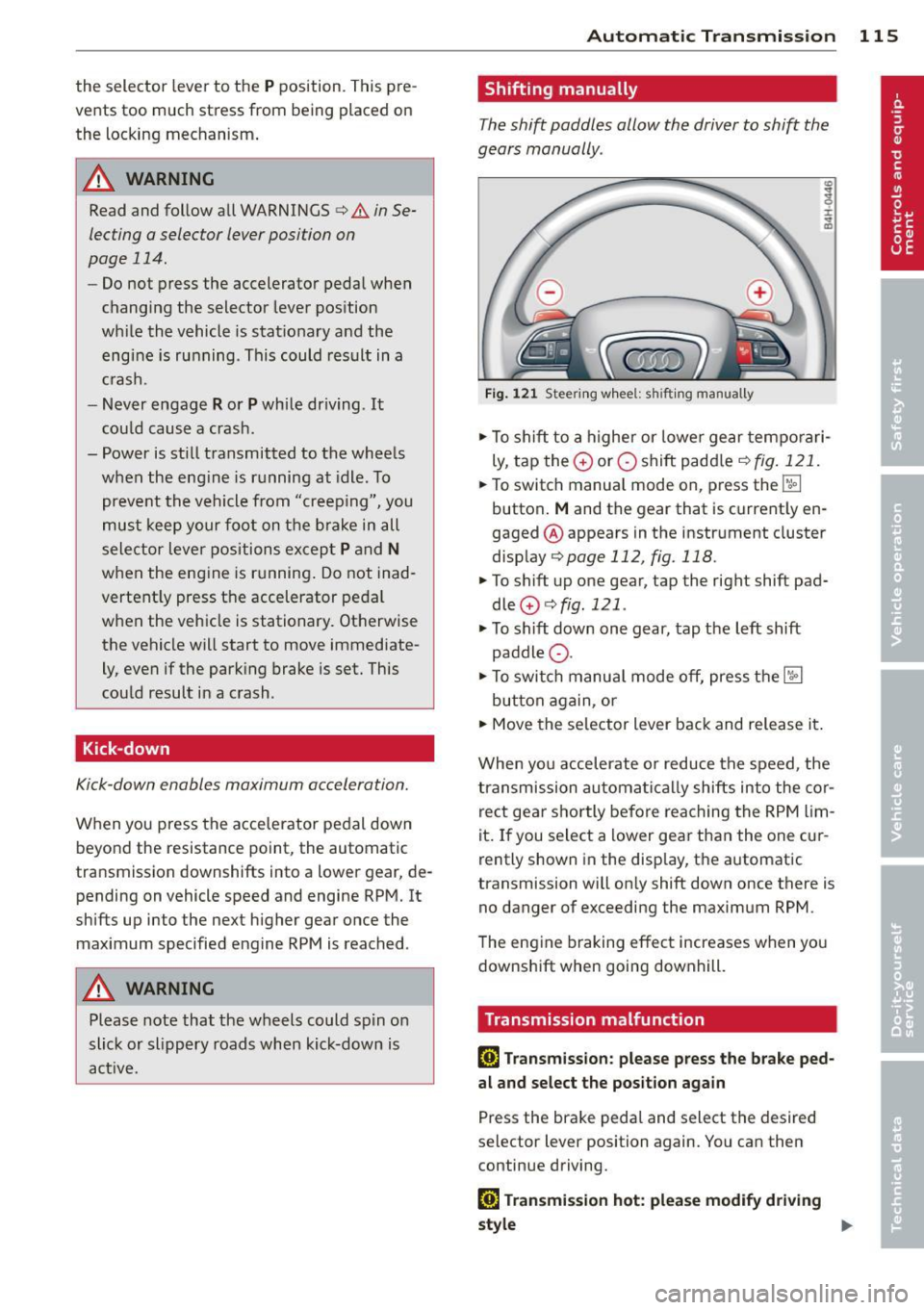
T he shift paddles allow the driver to shift the
gears manually .
Fig . 1 21 Steer ing w hee l: s hifting man ually
... To shift to a higher or lowe r gear temporari
ly , tap the
0 or O shift padd le c> fig. 121 .
... To switch manua l mode on, press the~
button .
M and the gear that is current ly en
gaged @appears in the instrument cluste r
display
c> page 112, fig. 118.
... To shift up one gear, tap the righ t shift pad
dle
0 c> fig . 121 .
... To sh ift down one gear, tap the left shift
paddle Q .
... To swi tch manua l mode off, press the~
button aga in , or
... Move the selector lever back and release it .
When you accelerate o r reduce the speed, the
transmission automa tical ly shifts into the cor
rect gear sho rtly before reaching the RPM lim
it. If you select a lower gear than the one c ur
rently shown in the display, the automatic
transmiss ion will on ly shift down once there is
no danger of exceeding the maximum RPM .
T he engine braking effect increases when yo u
downshift when going downhill.
Transmission malfunction
[G) Transmiss ion : please press the brake ped
a l and select the po sit ion again
Press the brake pedal and select the desired
selector lever position again. You can then
continue driving.
[G] Tran smi ssion h ot: plea se m odify driving
~le
~
Page 123 of 302
Reverse Parking
Applies to vehicles: with parking system advanced
Parking mode 1 can be used when parking in
a garage or into a parking space.
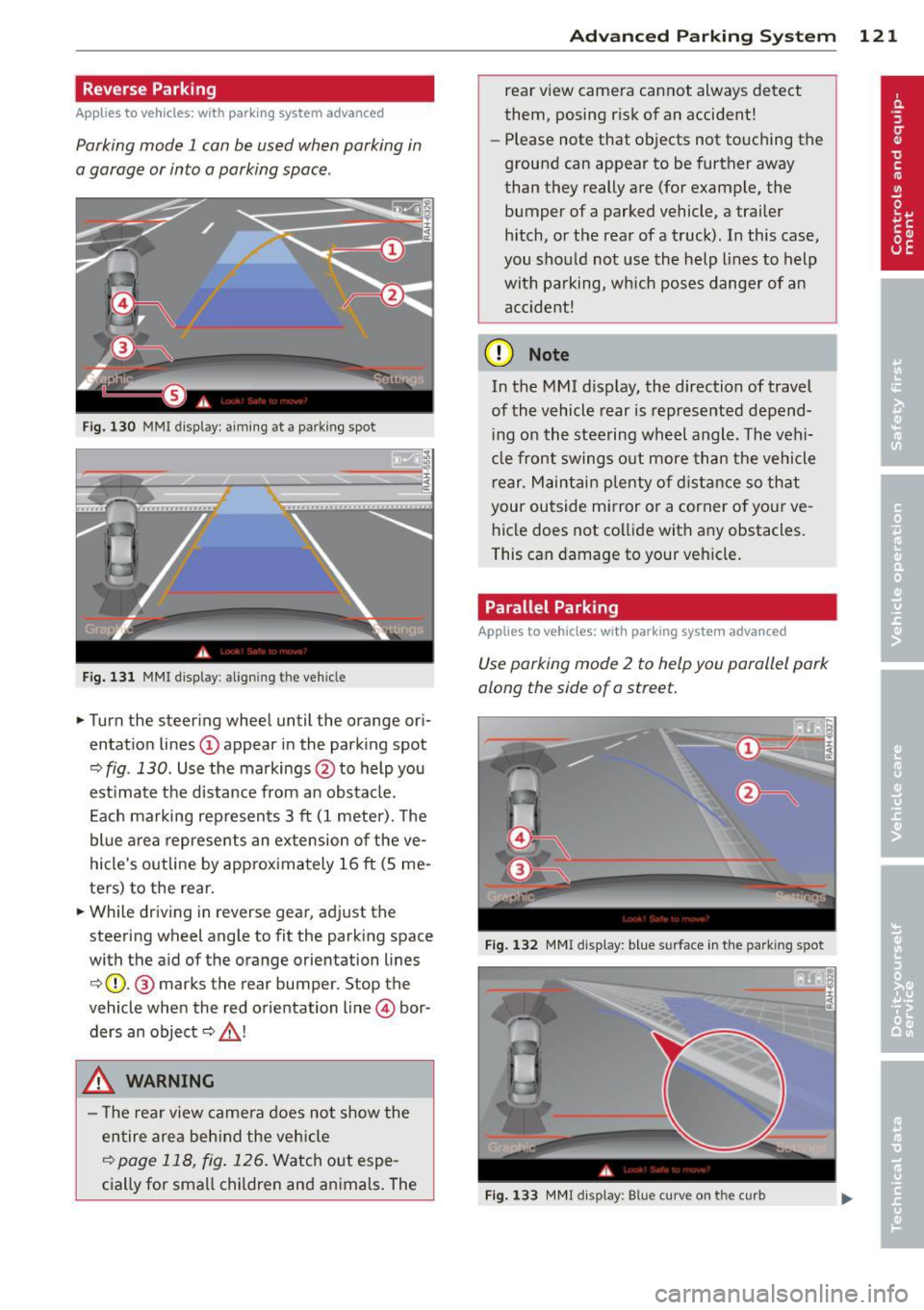
Fig. 130 MMI display: a im ing at a park ing spot
Fig. 131 MMI display : al ign ing the veh icle
... Turn the steer ing wheel until the orange ori
entat ion lines
(D appear in the park ing spot
Q fig . 130. Use the markings @to help you
est imate the distance from an obstacle.
E ach marking rep resents 3
ft (1 meter). The
blue area represents an ex tension of the ve
hicle 's outline by approx imately 16
ft (5 me
ters) to the rear .
... While driving in reverse gear, adjust the
steering wheel angle to fit the parking space
with the aid of the orange orientation lines
c>(D. @ marks the rear bumper. Stop the
vehicle when the red orientation line © bor
ders an object
c::> _& !
..&, WARNING
- The rear view came ra does not show the
entire area beh ind the veh icle
c::>page 118, fig. 126 . Watch out espe
cially for small children and animals . The
Ad vanced Parking S yste m 12 1
rear view camera cannot always detect
them, posing risk of an accident!
- Please note that objects not touching the
ground can appear to be further away
than they really are (for example, the
bumper of a parked vehicle, a trailer
hitch, or the rea r ofa truck). In this case,
you shou ld not use the help lines to help
with parking, wh ich pose s danger of an
accident!
(D Note
In the MMI d isplay, the direction of travel
of the vehicle rear is represented depend ing on the steering wheel angle. The vehi
cle front swings out more than the vehicle
r ear. Maintai n plenty of d istance so that
your outside mirror or a corner o f your ve
hicle does not co llide with any obstacles.
This can damage to your vehicle .
Parallel Parking
Applies to vehicles: with parking system advanced
Use parking mode 2 to help you parallel park
along the side of a street .
F ig . 1 32 MMI display: blue surface in the park ing spot
F ig . 1 33 MMI disp lay: Blue curve on the curb
Page 124 of 302

122 Advanc ed Parking S ystem
The following steps app ly only when there is
no obstacle such as a wall near the parking
spot. Otherwise, please read the information
prov ided in the "P arking Next to Obs tacles"
section
<=> page 122.
.. Activate the turn signal.
.. Position your vehicle parallel to the edge of
the street, approximately 3 ft (1 meter)
from a parked vehicle.
.. Switch the MMI on and se lect reverse gear .
The parking aid turns on and parking mode
1 appears on the disp lay .
.. Press the cont rol button (!)
<=>fig . 132 on
the MMI control conso le. Parki ng mode 2
appears .
.. Back up and align yo ur vehicle so the blue
area @ borders on the rear end of the vehi
cle or on the parking spot line. The bl ue area
represents an extension of the veh icle's out
line by approximately 16 ft (5 meters) to the
rear . The long side of the blue area should
be o n the curb. The entire blue area must fit
into the parking spot .
.. With the veh icle stopped, turn the s teer ing
wheel to the right as far as it w ill go.
.. Back into the par king spot until the blue
c ur ve touches the curb<=>
fig. 133. Stop the
vehicle.
.. With the vehicle stopped, turn the steering
wheel to the left as far as it will go.
.. Continue to back into the parking spot un til
the veh icle is parked parallel to the curb. @
marks the rear bumper . Stop the vehicle
when the red orientation line@ borders an
obje ct ¢
& -Keep an eye on the front of
yo ur vehicle while doing this ¢0 .
Parking n ext to obstacles
When t here is an obstacle (such as a wall)
next to the pa rk ing spot, choose a spot w ith
more space on t he sides. Pos ition the long
side of the blue area so that there is sufficie nt
space from the curb. The area m ust no t be on
the c urb. You wi ll also need to start turning
the steering wheel much earlier. There should
be a suffic ient amo unt of space between the
curb and the blue curve, and the blue c urve
c;> fig. 133 mus t not touch the curb.
A WARNING
- The rear view camera does not show the
entire area behind the vehicle
c::;, page 118, fig . 126 . Watch out espe
cially fo r small chi ldren and anima ls . The
rea r view came ra ca nnot always dete ct
them, posing ris k of an accident!
- Please note that objects not touching the
ground can appear to be further away
t han they really a re (for examp le, the
bumper of a parked vehicle, a trailer
hitch, or the rea r of a truck) . In this case,
you shou ld not use the help lines to help
with parking, which poses danger of an accident!
(D Note
In the MMI display, the direction of travel
of the vehicle rear is represented depend
i ng on the steering wheel angle . The vehi
cle front swings out more than the vehicle rear . Maintain plenty of distance so that
your outside mirror or a corner of you r ve
hicle does not collide with any obstacles.
This ca n damage to your ve hicle .
(D Tips
The left o r right orientation lines and su r
faces will be disp layed, depending on t he
tu rn s ignal being used .
Adjusting the display
and warning tones
Applies to vehicles: wi th parking system advanced
The display and warning tones can be adjust
ed in the MMI.
.. Select: !CAR I function button> Car sy stem s
cont ro l button > Driver a ssist > Parking aid
> Setting s control b utton.
Display
On -when the parking system is switched on,
either the vis ual d isp lay or the picture from
the rear view camera is disp layed .
II>-
Page 130 of 302
128 Driving S afel y
• Make sure to use the right child rest raint
correct ly to protect children <=:>
page 169,
Child Safety.
• Sit properly in your seat and make sure that
your passengers do the same
r::::> page 54,
General recommendations.
• Fasten your safety belt a nd wear it properly .
Also instruct your passengers to fasten their
safety belts proper ly
i;::;, page 13 7 .
What impairs driving safety?
Safe driving is directly related to the condi
tion of the vehicle, the driver as well as the
driver 's ability to concentrate on the road
without being distracted.
The driver is respons ible for the safety of the
vehi cle and all of its occupants.
If you r ability
to drive is impa ired, safety r isks for everybody
i n the vehicle increase and yo u also become a
hazard to everyone else on the road
i;::;, .&_ .
Therefore:
• Do no t let yourself be distracted by passe n
gers or by using a cellular telephone.
• NEV ER drive when your driving ability is im
paired (by medications, alcohol, drugs, etc.).
• Observe all traffic laws, rules of the road
and speed limits and plain common sense .
• ALWAYS adjust your speed to road, traff ic
and weather condit ions .
• Take frequent breaks on long trips . Do not
dr ive for more than two hours at a stretch.
• Do NO T drive when you are t ired, under
pressure or when you are stressed.
_8. WARNING
Impaired driving safety increases the risk
of serious personal injury and death when
ever a vehicle is being used.
Proper occupant
seating positions
Proper seating position for the driver
The proper driver seating position is impor
tant for safe, relaxed driving.
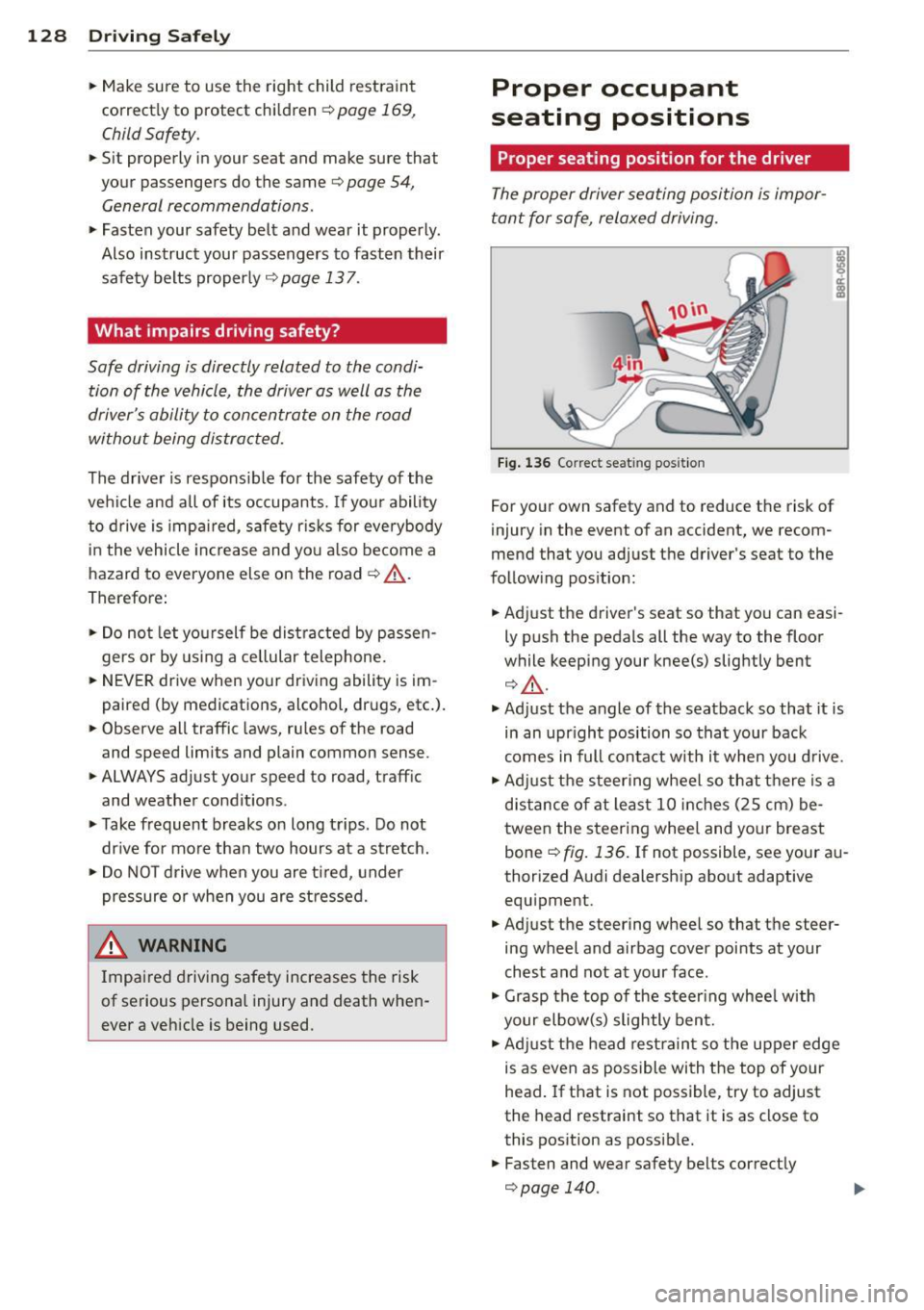
Fig. 1 36 Correct seat ing pos it ion
For your own safety and to reduce the risk of
injury in the event of an accident, we recom
mend that you adjust the driver's seat to the
follow ing pos ition:
• Adjust the driver's seat so that you can easi
ly push the pedals all the way to the floor
while keeping your knee(s) slightly bent
¢ A.
• Ad just the angle of the seatback so that it is
in an upr ight position so that your back
comes in full contact with it when you drive.
• Adj ust the steering wheel so that there is a
d istance of at least 10 inches (25 cm) be
tween the steering wheel and your breast
bone
i;::;, fig. 136. If not possible, see your au
thorized Audi dealership about adaptive equipment.
• Adjust the steering wheel so that the steer
ing wheel and airbag cover points at your
chest and not at your face .
• Grasp the top of the steer ing whee l with
your elbow(s) slightly bent.
• Adjust the head rest raint so the upper edge
is as even as possible with the top of your
head.
If that is not possible, try to adjust
the head restraint so that it is as close to
this position as possib le.
• Fasten and wear safety belts correctly
¢page 140.