wheel AUDI A8 2012 Owner's Manual
[x] Cancel search | Manufacturer: AUDI, Model Year: 2012, Model line: A8, Model: AUDI A8 2012Pages: 300, PDF Size: 75.06 MB
Page 90 of 300
88 Audi adapti ve cruise control and bra king gu ard
vehicles or obstacles that are not moving
can trigger a collision warning and if con
firmed by the v ideo camera, an acute col
lis ion warn ing .
- For safety reasons, do not use adaptive
cruise co ntrol when driving on roads with
many curves, when the road surface is in
poor condit ion and/or in bad weather
(such as ice, fog, gravel, heavy rain and
hydroplan ing) . Using the system under
these cond it ions cou ld result in a co lli
sion .
- Swi tch adap tive c ruise control off tempo
rar ily when driv ing in turning lanes, on
expressway exits or in construction
zones . This prevents the vehicle from ac
celerat ing to the set speed when in these
situations.
- The adapt ive cruise control system wi ll
not brake by itse lf if you put your foot on
the accelerator pedal. Doing so can over
ride the speed and d istance regulation .
- When approaching stationary objects such as stopped traff ic, adaptive cruise
co ntrol will not respond and braking
guard w ill have limited function.
- The adapt ive cruise control system and
braking guard do not react to people, an
imals, objects c rossing the road or on
coming objects .
- The function of the radar senso rs can be
affected by reflective objects such as
guard rai ls , the entrance to a tunnel,
heavy rain or ice.
- Never follow a ve hicle so closely that you
cannot stop your vehicle safe ly. The
adaptive cruise contro l canno t slow or
brake the vehicle safely when you follow
another vehicle too closely. Always re
member that the automatic braking
function cannot br ing the vehicle to a
sudden or emergency stop under these condit ions.
- To prevent unintended operation, always switch ACC off when it is not being used. (D Note
The sensors can be displaced by impacts or
damage to the bumper, wheel housing and
underbody. That cou ld affect the adaptive
cruise control system and brak ing guard.
Have your authorized Aud i dea ler or au
thorized Audi Service Facility check their
funct ion .
In curves
Applies to vehicles: with Audi adaptive cru ise contro l
I
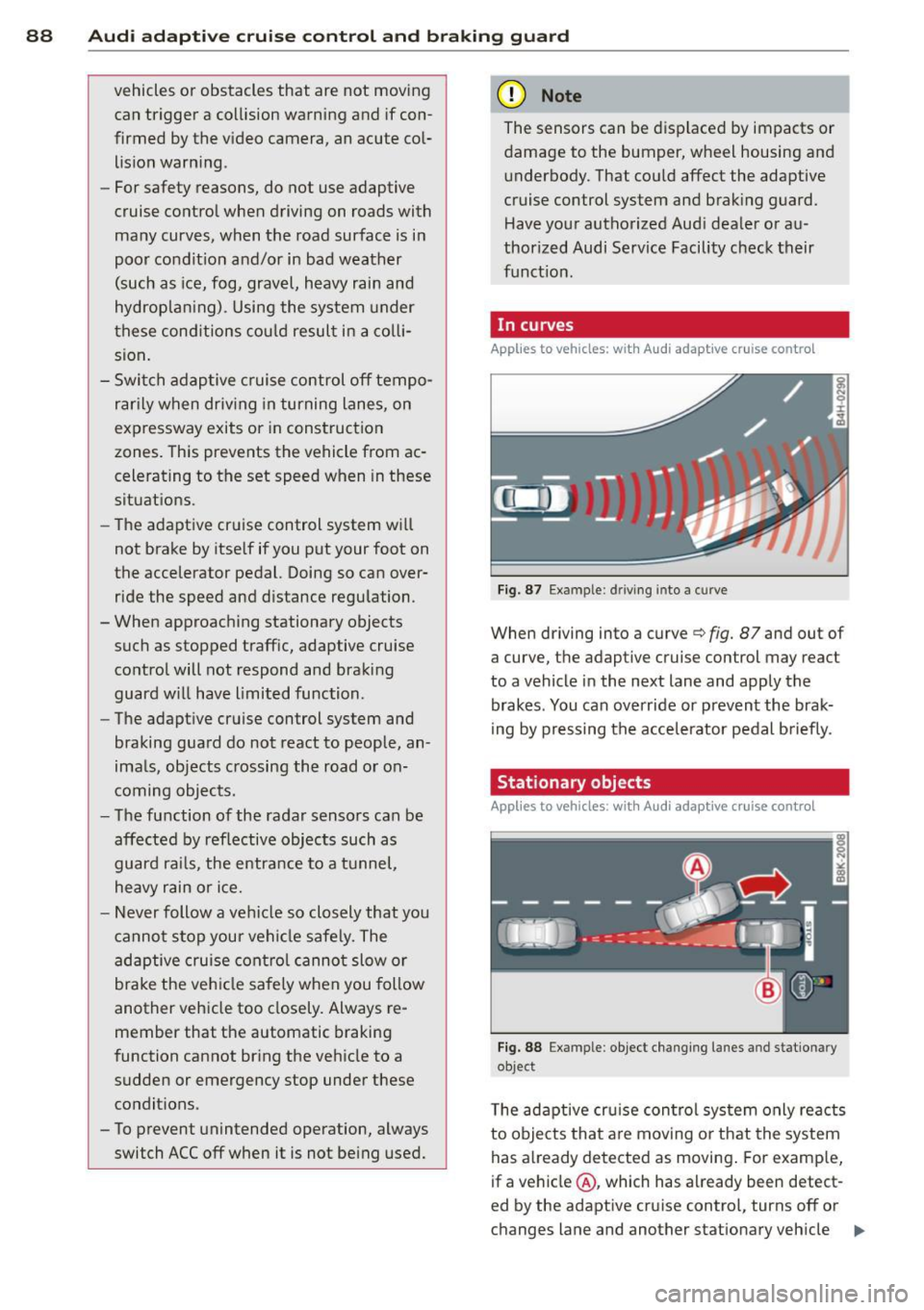
Fig. 87 Ex ampl e: dri ving in to a curve
When d riving into a curve c> fig. 87 and out of
a curve, the ad aptive cruise control may react
to a vehicle in the next lane and apply the
brakes. You can override or prevent the brak
i ng by pressing the acce lerator pedal b riefly .
' Stationary objects
Applies to vehicles: with Audi adaptive cruise control
Fig. 88 Exampl e: objec t ch anging l anes and sta tio nar y
object
T he adaptive cru ise control system only reacts
to objects that a re mov ing o r that the system
has already detected as moving . For examp le,
if a vehicle @, which has already been detect-
ed by the adaptive c ruise contro l, tu rns off o r
ch anges lane and ano ther stationary veh icle .,.
Page 92 of 300
90 Audi adaptive cruise control and braking guard
• You must also press the brake pedal when
the vehicle is stopped.
Switching adaptive cruise control off
• Push the lever away from you into position
@ until it clicks into p lace. The message
ACC off appears.
@ Indicator lights
II-Adaptive cruise control is switched on . No
vehicles are detected up ahead. The stored
speed is maintained.
I-A moving vehicle is detected up ahead .
The adaptive cruise control system regulates
the speed and d istance to the moving vehicle
ahead and acce lerates/bra kes automatica lly.
f§ . Adaptive cru ise control is switched on . A
mov ing vehicle up ahead was detected. Your
vehicle remains stopped .
I -When automatic braking is not able to
keep enough distance to a p reviously detected
mov ing vehicle up ahead, you must take con
trol and brake¢
page 92, Prompt for driver
intervention.
© Display
If adap tive cruise control is not shown in the
d isplay, you can call it up with the multifunc
tion steering wheel buttons~
page 23.
Based on the symbols in the display , you can
determ ine if the system is maintaining a dis
tance to the vehicle ahead and w hat that dis
tance is.
No vehicle -No vehicle ahead was detected.
White vehicle -A vehicle ahead was detected .
Red vehicle -Prompt for the driver to take ac
tion ¢
page 92.
Both
arrows on the scale © indicate the dis
tance to the vehicle ahead . No arrow appears
when the vehicle is on an open road and there is no object ahead. If an object is detected
ahead, the arrow moves on the scale.
The green zone on the scale shows the stored d istance. For information on changing the stored distance, refer to
¢
page 91. If the
distance se lected is too close or may soon be
come too close, the arrows move into the red
z one on the sca le.
A WARNING
Improper use of the adaptive cruise con
trol can cause collisions, other accidents
and serious personal injur ies .
- Pressing the
!SET ! button when driving at
speeds below 20 mph (30 km/h), w ill au
tomatically accelerate the vehicle to 20
mph (30 km/h), which is the minimum
speed that can be set .
(D Tips
-If you switch the ignit ion or the adaptive
cruise control off, the set speed is erased
from the system memory.
- You cannot switch the Electron ic Stabili
ty Control (ESC) to the SPORT mode
when adaptive cruise control is switched
on .
Changing the speed
Applies to vehicles: with Audi adaptive cru ise control
0
f
• 0
Fig. 92 Selecto r lever : chang ing t he spee d
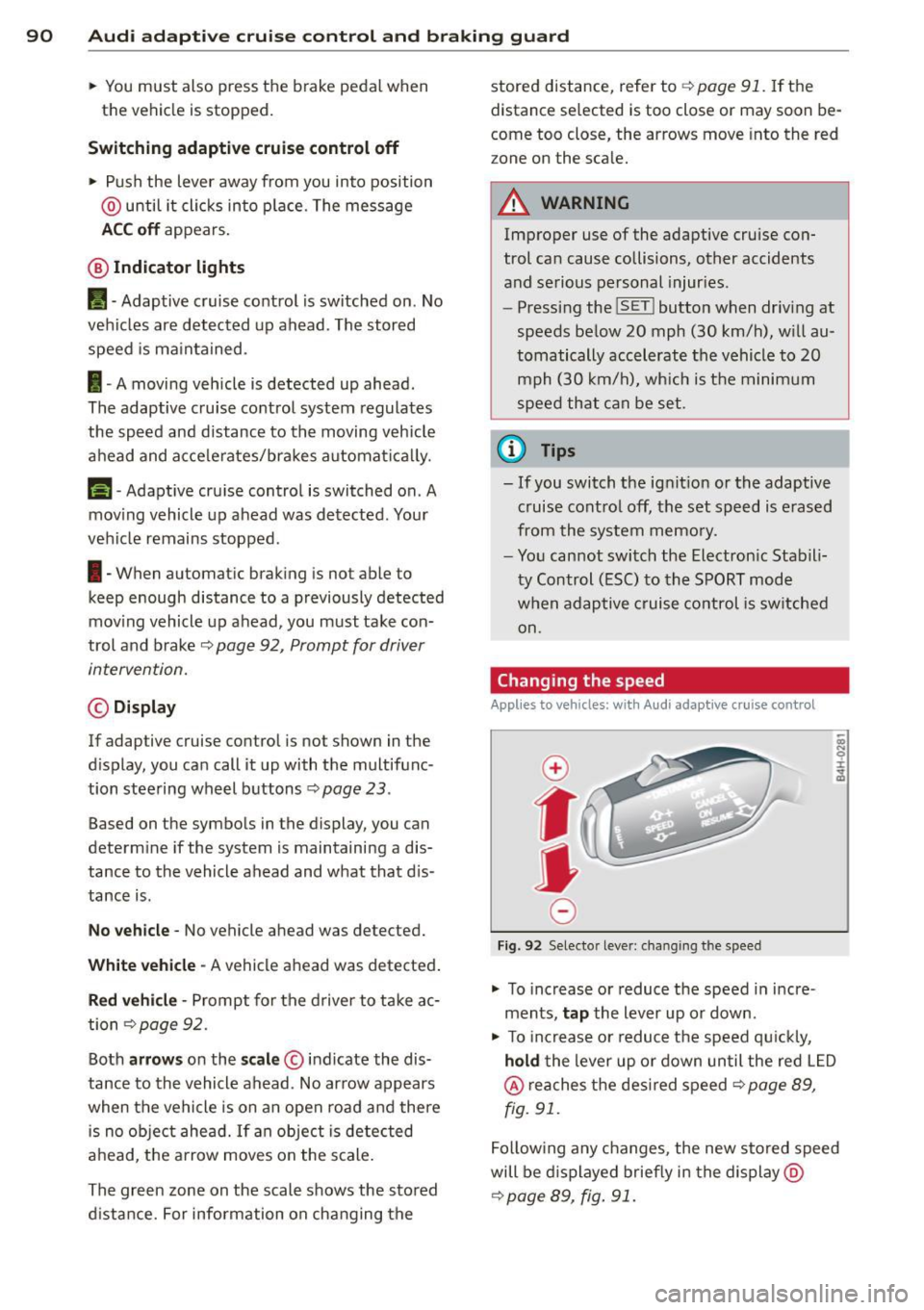
• To increase or reduce the speed in incre
ments,
tap the lever up or down.
-
-a)
N
q :r
~
"' To increase or reduce the speed qu ickly,
hold the lever up or down until the red L ED
@ reaches the desired speed ¢ page 89,
fig . 91.
Following any changes, the new stored speed
will be displayed briefly in the display @
¢page 89, fig. 91.
Page 99 of 300

-The curve is too sharp.
(0 Tips
Make sure the camera's field of view
c::> fig. 98 is not obstructed by stickers, de
posits or anything e lse . For information on
cleaning, refer to
c::> page 205.
Lane assist display in the instrument
cluster
App lies to vehicles: with la ne ass ist
Fig. 99 Instrument cluste r: lane ass ist is switched on
and is wa rning
Fig. 100 Instrument clus ter: lane assist is switched on
but not ready to provide warn ings
You can call up the lane assist display using
the buttons in the mult ifunct ion steer ing
wheel
c::> page 23.
When lane assist is switched on, the system
indicates which lines are detected by display
ing solid lines on the left and/or right side of
your vehicle:
Audi lane assist 97
White line(s) Lane assist is switched on and
ready to provide warnings on
the side that is indicated
Red line
(left or right)
c::> fig. 99.
Lane assist is warning you
that you are about to leave
your lane
c::> fig. 99 .
Gray line(s} Lane assist is switched on but
is not ready to provide warn
ings
c::> fig. 100 .
Messages in the instrument cluster
display
When the lane assist turns off automatically,
the instrument cluster indicator goes out and
one of the follow ing messages appears o n the
display:
Audi lane assist: currently unavailable. No
camera view
This message appears if the camera is no lon
ger functional after the system has continous
ly failed to detect the lane markings. This
could happen if :
- The camera field of view
c::> page 96, fig. 98
is dirty or covered in ice. Clean the area on
the windshield.
- The camera field of v iew is fogged over . Wait
until the fog has cleared before switching
lane assist on .
- The system has been unable to detect the
lanes for an extended period of time due to
road conditions such as lanes covered in
snow . Sw itch lane ass ist back on when the
lines are more visible .
Audi lane assist: Currently unavailable
A temporary malfunction is preventing lane
assist from operating. Try switching lane as
sist on again later.
Audi lane assist: System fault!
Drive to your authorized Audi dealer soon to
have the malfunctio n corrected.
Page 100 of 300

98 Audi lane assist
Setting the warning point and steering
wheel vibration
Applies to vehicles: with lane assist
You can adjust individual settings in the MMI.
.. Se lect: ICARI funct ion button> Car systems
control button > Driver assist > Audi lane
assist .
Setting the warning point
Early: With this setting, a warning is provided
before a wheel touches the detected lane
boundary line . The warning depends on the
angle in which the veh icle is approaching the
line. The distance at which the warning is giv
en increases as the angle becomes sharper. If
you dr ive towa rd a bounda ry line at a very
sha rp angle, the warning will come just before
a wheel touches the line.
Medium : With this setti ng, the warn ing po int
is adapted to the course of the road, the lane
width and the speed. You wi ll sti ll be warned
if you cross slightly over a dotted line when
driving on curves.
Late : This setting has the same properties as
medium. You will only be warned once a
wheel crosses a detected line.
Setting the steering wheel vibration
The steering wheel v ibration can be set to
Low , Medium or Strong . Selecting each of the
settings will cause the steering wheel to vi
b rate so you can check the strength of the vi
bration in that setting.
(D Tips
Your settings are automatically stored and
assigned to the remote contro l key being
used .
Page 102 of 300

100 Audi side assist
General information
App lies to vehicles: with side assist
®
©
Fig. 103 Driving s it u at ions
A U D I
• 0
Fig . 104 Rear of th e ve hicle: pos it io n of t he se nso rs
Side assis t fu nctions at speeds above ap prox i
ma tely 19 mph (30 km/h).
(D V ehicles that are approaching
In certain cases, a vehicle will be classified as
cr itical for a lane change
even if it is still
somewhat far away. The fas ter a vehicle ap
p ro aches, the sooner the disp lay in the exteri
or m irror will t urn on.
@ Vehicles traveling with you
Vehicles traveling w ith you are indicated in the
exterior m irror if they are classified as cr it ical
for a lane change. All vehicles detec ted by
side assis t are in dicated by the time they en
ter your "blind spot", at the latest.
@ Vehicles left behind
If you s low ly pass a ve hicl e tha t sid e ass ist has
dete cted ( the difference in s peed between the
vehicle and you r vehicle is less than 9 mph or
15 km/ h), the display in the exterio r mirror
turns on as soon as the vehicle enters your blind spot.
The disp lay wi ll not t urn on if you quickly pass
a vehicle that s ide assist has detected (t he d if
f erence in speed between the ve hicle and your
vehicle is greater than 9 mph or 15 km/h).
Functional limitations
T he radar senso rs are designed to detect the
left and right adjacent lanes when the road
l anes a re the normal width. In certain situa
t ions, the d isp lay in the exterior mirror may
turn on even though there is no ve hicle locat
ed in the area that is cr itical fo r a la ne cha nge.
Fo r example:
- if the lanes are narrow or if your are driving on the edge of your lane. If this is the case ,
the system may have detected the vehicle in
another lane that is
not adjacent to you r
cur rent lane .
- if you a re driving through a c urve . Side assis t
may react to a vehicle that is one lane ove r
from the adjacent lane .
- if side assist reacts to other objects (such as
high or d isp laced gua rd rails) .
- In poor weather conditions. The side assist
fu nctions are limited .
Do not cover the radar sensors
c::> fig. 104 with
stickers, depos its, bicycle wheels or other ob
jects, because this wi ll affect the funct io n. Do
not use s ide ass ist when towing a trailer . For
information on cleaning, refe r to
c::> page 205 .
&_ WARNING
-Always pay a tten tion t o traffic and to the
a rea around your ve hicl e. Side a ssist can
no t repla ce a driver's atte ntion. The driv
er a lone is always respons ible fo r lane
cha nges a nd similar driving mane uvers.
Page 103 of 300

-Improper reliance on the side assist sys
tem can cause collisions and serious
personal injury:
- Never rely only on side assist when
changing lanes.
- Always check rear view mirrors to make
sure that it is safe to change lanes.
- Side assist cannot detect all vehicles un
der all conditions- danger of accident!
- Please note that side assist indicates
there are approaching vehicles, or vehi cles in your blind spot, only after your ve
hicle has reached a driving speed of at
least 19 mph (30 km/h).
- In certain situations, the system may not
function or its function may be limited.
For example:
- if vehicles are approaching or being left
behind very quickly. The display may
not turn on in time.
- in poor weather conditions such as
heavy rain, snow or heavy mist .
- on very wide lanes, in tight curves or if
there is a rise in the road surface . Vehi
cles in the adjacent lane may not be de
tected because they are outside of the
sensor range.
(D Note
The sensors can be displaced by impacts or
damage to the bumper, wheel housing and
underbody. This can affect the system .
Have your authorized Audi dealer or au
thorized Audi Service Facility check their
function.
(D Tips
- If the window glass in the driver's door
or front passenger's door has been tint
ed, the display in the exterior mirror may be misinterpreted.
- For Declaration of Compliance to United
States FCC and Industry Canada regula
tions
c::>page 283.
Audi side assist 101
Activating and deactivating
Applies to vehicles: m it s ide ass ist
Fig. 105 Driver 's doo r: Side ass ist button
.,. Press the c::> A in General information on
page 100
button to switch the system on/
off . The LED in the button turns on when
side assist is switched on.
Adjusting the display brightness
App lies to vehicles: wit h side assist
The brightness setting can be adjusted via the
MMI.
.,. Select: I CAR I function button > Car systems
control button
> Driver assist > Audi side
assist .
The display brightness adjusts automatically
to the brightness of the surroundings, both in
the information and in the warning stage . In
very dark or very bright surroundings, the dis
play is already set to the minimum or maxi
mum level by the automatic adjustment. In
such cases, you may notice no change when
adjusting the brightness, or the change may
only be noticeable once the surroundings
change.
Adjust the brightness to a level where the dis
play in the information stage will not disrupt
your view forward.
If you change the bright
ness, the display in the exterior mirror will
briefly show the brightness leve l in the infor
mation stage. The brightness of the warning
stage is linked to the brightness in the infor
mation stage and is adjusted along with the
information stage adjustment .
Page 104 of 300

102 Audi side assist
- Side assist is not active wh ile you are
making the adjus tment.
- Your settings are automatica lly sto red
and ass igned to the remote control key
being used.
Driver messages
App lies to vehicles: with side assist
If side ass ist switches off by itse lf, t he LED in
the butto n tur ns off a nd a message will ap
pea r in the instr ume nt cl uster d is p lay:
Audi side assist : Currently unavailable. No
sensor vision
The radar se nsors' vision is affected. Do not
cover the area in front of the senso rs wi th bike
wheels, stickers, dirt or other objects. Clean
the area in front of the sensors, if necessary
c::;, page 100, fig. 104 .
Audi side assist : Currently unavailable
Side assis t ca nno t be swi tched o n tem porar ily
beca use there is a mal function (for exam ple,
the battery cha rge leve l may be too low) .
Audi side assist: System fault!
The system cannot guara ntee that it w ill de
t e ct ve hicl es co rrec tly a nd it is sw itche d off .
The senso rs have been displaced o r a re faulty.
H ave the sy stem che cke d by an au thor ized A u
di d eal er o r aut horiz ed Au di Servi ce Fa cili ty
s o on.
Audi side assist : Unavailable when towing .
Side assist switches off aut omatically whe n a
factory -insta lled trailer h itch is connected to
the el ectrical connector on the trailer. There is
no guara ntee the system will switc h off whe n
usi ng a retrofi tt ed traile r h itch . Do not use
side assis t when towing a tra iler .
Page 108 of 300

106 Night vision assistant
Night vision assistant
Description
Applies to vehicles: with night v isio n ass istant
Fig. 107 Display: n ight vis ion assistant
"Night vis ion assistant with pedestrian detec
tion" uses an infrared camera to monitor the
area in front of you r vehicle at night. Within
the limits of the system, it can display objects
up to about 1000 feet (300 meters) away. The
heat image of a pedestrian detected by the
camera is shown in the instrument cluster dis
p lay ¢
fig. 107. Warm areas appear lighter
and cold areas appear darker.
Pedestrian detection
Applies to vehicles: with nig ht v isio n ass istant
Fig. 108 Display: yellow pedestr ian marking
Fig . 109 D isplay: symbol when infrared image is not
visib le
Night vision assistant can detect pedestrians
that are between about 50 and 300 feet (15
and 90 meters) in front of the vehicle, under
ideal conditions.
If a pedestr ian is detected
when it is dark outside and the vehicle head
lights are switched on, the pedestrian is high
lighted in yellow¢
fig. 108, ¢ page 107,
General information. If another display such
as navigation replaces the image from the
night vision assistant, the symbol
~11 appea rs
in a tab
¢fig . 109.
(D Tips
If the night vision assistant image does
not appear when the system is switched
on, you can access it with the buttons on
the multifunction steering wheel
¢pa ge 24.
Pedestrian warning
Applies to vehicles: wit h night vision assistant
Fig. 110 D isp lay: pedestrian warning
Fig . 111 D isp lay: pedestr ian warning w ith another dis
play
If a pedestr ian is detected in an area in fron t
of the vehicle that the system considers criti
ca l, the pedestrian is highlighted in red
¢fig . 110 and a warning tone sounds. This
area is based on the vehicle speed and
Page 114 of 300

112 Automatic Transmission
When parking on a level surface, simply place
the selector lever in the P position. On slopes,
activate the parking brake first and then
move
the selector lever to the P position. This pre
vents too much stress from being placed on
the locking mechanism.
A WARNING
Read and follow all WARNINGS Q .&. in Se
lecting a selector lever position on
page
111.
- Do not press the accelerator pedal when
changing the selector lever position
wh ile the vehicle is stationary and the
engine is ru nn ing. This could result in a
crash .
- Never engage R or P while driving.
It
could cause a crash .
- Power is still transmit ted to the whee ls
when the engine is running at idle. To
prevent the vehicle from "creeping", you
must keep your foot on the brake in all
selector lever positions except P and N
when the engine is running. Do not inad
vertently press the accelerator pedal
when the veh icle is stationary . Otherwise
the vehicle will start to move immediate
ly, even if the parking brake is set. This
could result in a crash.
Kick-down
Kick-down enables maximum acceleration .
When you press the accelerator pedal down
beyond the resistance point , the automatic
transmission downshifts into a lower gear, de pending on vehicle speed and engine RPM.
It
shifts up into the next h igher gear once the
maximum specified engine RPM is reached .
A WARNING
Please note that the wheels could spin on
slic k or slippery roads when kick-down is
active.
Shifting manually
The shift paddles allow the driver to shift the
gears manually .
Fig. 118 Steering whee l: sh ift in g manually
" To shift to a higher or lower gear temporari
ly, tap the
0 or 0 shift paddle Q fig. 118.
" To switch manual mode on, press the~
button. M and the gear that is currently en
gaged @appears in the instrument cluster
display
Q page 109, fig. 115.
" To shift up one gear, tap the right shift pad
dle
G) ¢ fig . 118 .
" To shift down one gear, tap the left shift
paddle Q.
" To switch manual mode off, press the~
button again, or
" Move the selector lever back and release it .
When you acce lerate or reduce the speed, the
transmission automatically shifts into the cor
rect gear shortly before reaching the RPM lim
it. If you select a lower gear than the one cur
rently shown in the display, the automatic
transmission will only shift down once there is no danger of exceeding the maximum RPM .
The engine braking effect increases when you
downsh ift when going downhill.
. Transmission malfunction
[O] Transmission: please press the brake ped
al and select the position again
Press the brake pedal and select the desired
se lector lever position again. You can then
continue driving.
[O] Transmission hot: please modify driving
~le
~
Page 120 of 300

118 Advanced Parking System
Reverse Parking
Applies to vehicles: with park ing system advanced
Parking mode 1 con be used when parking in
a garage or into a parking space.
Fig. 127 MMI display: aiming at a parking spot
Fig. 128 MMI display : al igning the vehicl e
• Turn the steering wheel until the orange
orientation lines
(D appear in the parking
spot
c::> fig . 12 7 . Use the markings @to help
you estimate the distance from an obstacle. Each marking represents 3
ft (1 meter). The
blue area represents an extension of the ve
hicle's outline by approximately 16
ft (5 me
ters) to the rear.
• While driving in reverse gear, adjust the
steering wheel angle to fit the parking space
with the aid of the orange orientation lines
¢(D. @ marks the rear bumper. Stop the
vehicle when the red orientation line © bor
ders an object
c::> ,& !
_& WARNING
-The rear view camera does not show the
entire area behind the vehicle
¢page 115, fig. 123. Watch out espe
cially for small children and animals. The rear view camera cannot always detect
them, posing risk of an accident!
- Please note that objects not touching the
ground can appear to be further away
than they really are (for example, the
bumper of a parked vehicle, a trailer
hitch, or the rear of a truck). In this case,
you should not use the help lines to help
with parking, which poses danger of an accident!
(D Note
In the M MI dis play , the direction of travel
of the vehicle rear is represented depend
ing on the steering wheel angle . The vehi
cle front swings out more than the vehicle
rear. Maintain plenty of distance so that
your outside mirror or a corner of your ve
hicle does not collide with any obstacles.
This can damage to your vehicle.
Parallel Parking
Applies to vehicles: with parking system adva nced
Use parking mode 2 to help you parallel pork
along the side of a street.
Fig. 129 MMI display: blue surface in the park ing spot
Fig. 130 MMI disp lay: Blu e curve on the curb