park assist AUDI A8 2013 User Guide
[x] Cancel search | Manufacturer: AUDI, Model Year: 2013, Model line: A8, Model: AUDI A8 2013Pages: 318, PDF Size: 79.34 MB
Page 115 of 318
steering angle. The pedestrian warning prompts you to pay even closer attention to
the area in front of the vehicle and to watch
out for pedestrians.
If another display such as the trip comp uter
replaces the image from the night vision as
sistant, the indicator light turns red when
there is a pedestrian warn ing .
c:> fig. 118 .
@ Tips
The pedestrian marking and warning tone
can be adjusted in the MMI
r=>poge 114.
General information
Applies to vehicles: with night v isio n ass istant
N 0
8 :i:
~
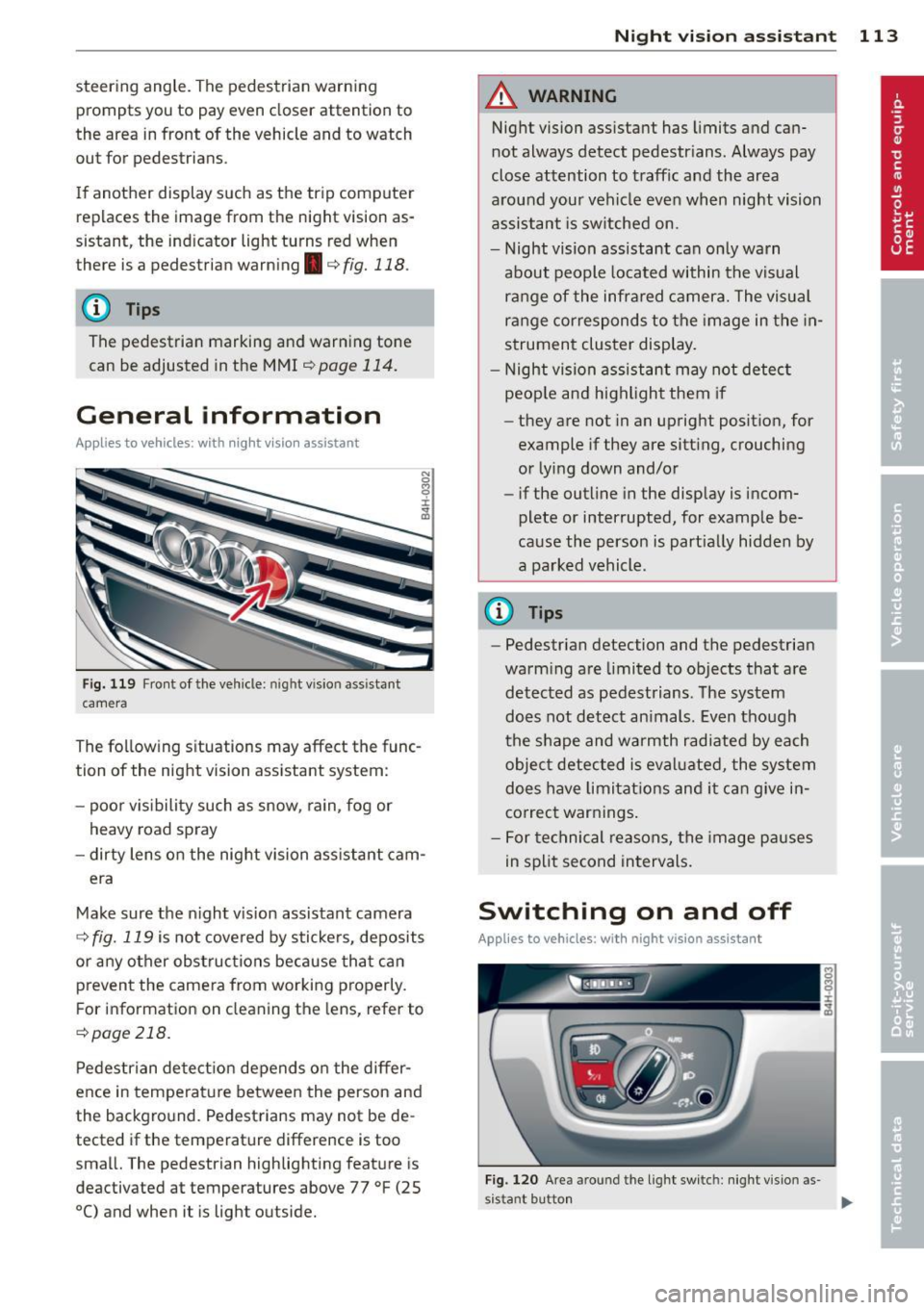
Fig. 119 Fron t of the veh icle: night vision ass istant
camera
The following situations may affect the func
tion of the night vision assistant system:
- poor v is ib ility such as snow, rain, fog or
heavy road spray
- dirty lens on the night vision assistant cam-
era
Make sure the night vision assistant camera
i::> fig. 119 is not cove red by stickers, deposits
or any other obstructions because that can
prevent the camera from working properly.
F or information on cleaning the lens, refer to
c:> page 218.
Pedestrian detection depends on the differ
ence in temperature between the person and
the background. Pedestrians may not be de
tected if the temperature difference is too
sma ll. The pedestrian highlighting feature is
deactivated at temperatures above 77 °F (25
0
() and when it is light outside.
Night vision assistant 113
A WARNING
Night vision assistant has limits and can
not always detect pedestr ians . Always pay
close attention to traffic and the area
around your vehicle even when night vision
assistant is switched on.
- Night vision assistant can only warn
about people located within the visual
range of the infrared camera. The visual
range corresponds to the image in the in
strument cluster display.
- Night vision assistant may not detect
peop le and highlight them if
- they are not in an upright posit ion, for
example if they are sitt ing, crouching
or lying down and/or
- if the outline in the display is incom
plete or interrupted, for example be
cause the person is part ially hidden by
a parked vehicle .
@ Tips
-Pedestrian detection and the pedestrian
warm ing are limited to objects that are
detected as pedestrians. The system
does not detect an imals. Even though
the shape and warmth radiated by each
object detected is evaluated, the system
does have limitations and it can give in
correct warnings .
- For technical reasons, the image pauses
in split second intervals.
Switching on and off
Applies to vehicles: wit h night vision assistant
Fig . 120 Area around th e ligh t sw itch: night vis ion as·
s istant button .,.
Page 120 of 318
118 Autom atic Tran smissi on
preve nt the vehicle from "creep ing" , you
must keep your foot on the brake in all
selector lev er positions except P and N
when the e ng ine is r unning. Do not inad
vertently press the accelerator pe dal
w hen the veh icl e is stationary . Otherwise
the vehicle will s tart to move immediate
ly, even if the park ing brake is se t. This
cou ld result in a c rash.
- Do not ride the brakes or press the brake
peda l too often or too long when dr iving
down a hill. Constant braking causes the
brakes to ove rheat and s ubstant ially re
duces braking performance, increases
braking distance or causes comp lete fail
ure of the brake system.
Hill descent control
The hill descent control system assists the
driver when driving down declines.
H ill descent control is activated when these
lector lever is in D/S and you press t he b rake
pedal. The transmission automat ically se lects
a gear that is suitab le for the incline. Hill de
scent control tries to maintain the speed ach ieved at the time of brak ing, within physical
and techn ical limitations. If may still be nec
essary to adjust the speed with the brakes .
H ill descent control switches off once the de
cline levels out or you press the accelerator
pedal.
Hill descent control is also activated when the
speed is set by starting the cruise control sys
tem c:>
page 90.
A WARNING -
Hill descent control ca nnot overcome
physical limitations, so it may not be able
t o maintain a constant speed under all
condi tion s. Alw ays be ready to ap pl y the
bra kes.
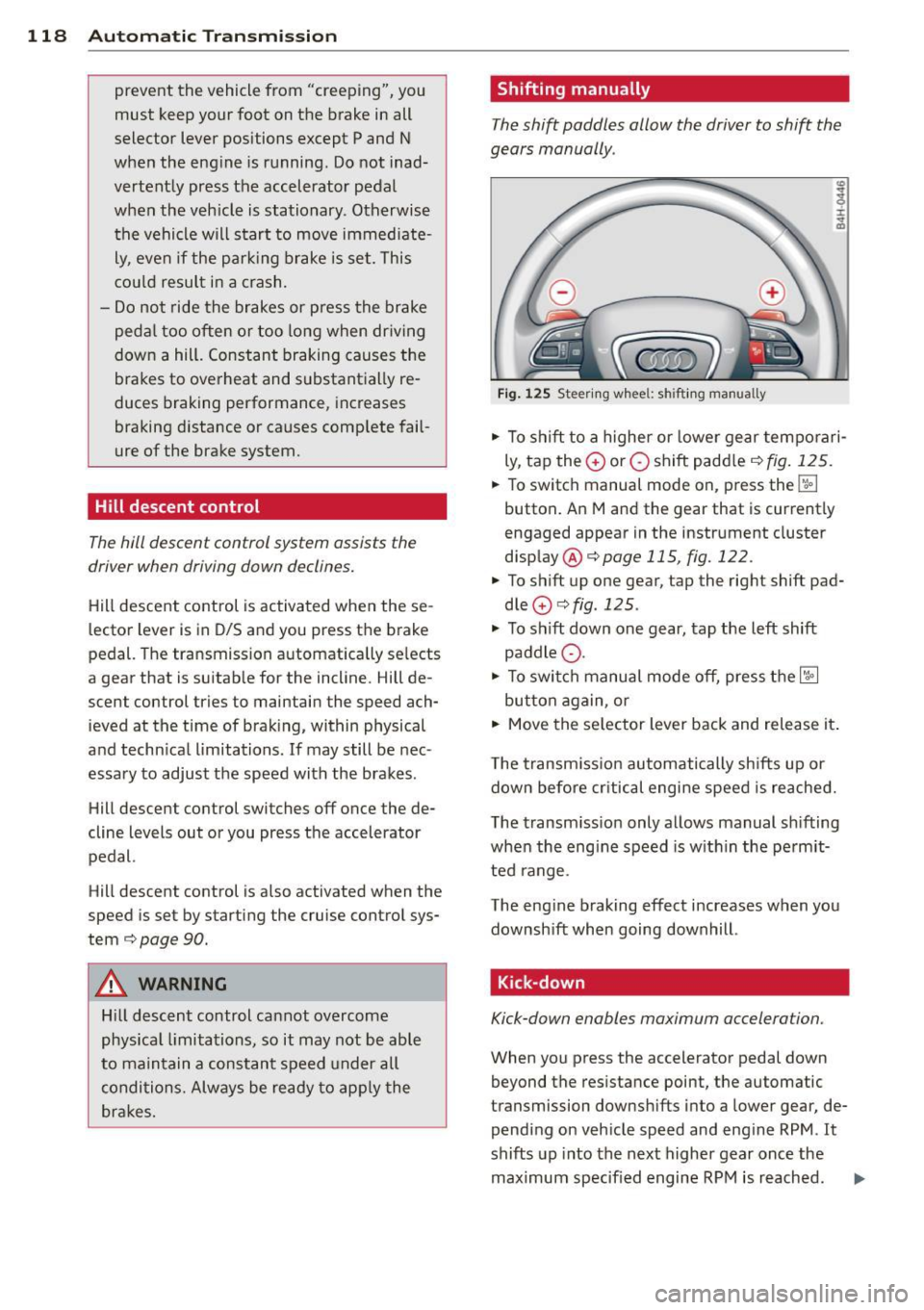
Shifting manually
The shift paddles allow the driver to shift the
gears manually .
Fig . 1 25 Steer ing whee l: sh ift in g manually
" To shift to a higher or lowe r gear tempo rari
ly, tap the
0 or 0 shift padd le c:> fig. 125.
" To switch manual mode on, press the~
button. An M and the gear that is current ly
engaged appear in the instrument cluster
disp lay @ c:>
page 115, fig. 122.
" To shift up one gear, tap the rig ht shift pad
dle
0 c:> fig . 125 .
" To s hift down one gear, tap the left shift
paddle Q.
" To swi tch manual mode off, press the~
but ton again, or
" Move the se lector lever back and release it .
T he transm iss io n automatically sh ifts up or
down before cr itical engine spee d is reached.
T he transm iss ion only allows manual sh ifting
whe n the eng ine speed is w ith in the pe rmit
ted range .
The eng ine braking effect increases when you
downsh ift when going downhill .
Kick-down
Kick-down enables maximum acceleration .
When you press the accelerator pedal down
beyond the resistance point, the automatic
transmission downsh ifts into a lower gear, de
pending on veh icle speed and eng ine RPM . It
shifts up into the next higher gear once the
max imum specified engine RP M is reached .
Iii>
Page 123 of 318
Parking systems
General information
App lies to vehicles: with park in g system plus/rear view
camera/peripheral cameras
Depending on your vehicle's equipment, vari
ous parking aids will help you when parking
and maneuvering.
The
advanced parking system with rear view
camera
ass ists you when parking by audibly
and v isua lly indicating objects detected
in
front of
and behind the vehicle . The rear view
camera shows the area behind the vehicle in
the Infotainment display. This display assists
you when you are cross or para llel parking
c:;,page 122.
The peripheral cameras assist you with park
ing and maneuvering. You are aided by various
cameras depending on the vehicle equipment level ¢
page 126. In addition, you are assist
ed by the functions from the sensors
c:;, page 122, Sensors, c:;, page 124 , Visual
display .
A WARNING
-Always look fo r traff ic and check the area
around your vehicle by looking at it di
rect ly as well. The parking system cannot
replace the driver's attention. The driver
is a lways respons ible for safety during
parking and for all other maneuvers.
- Please note that some sur faces, such as
clothing, are not detected by the system .
- Sensors and cameras have blind spots in
which peop le and objects cannot be de
tected. Be especially cautious of children
and animals.
- The sensors can be displaced by impacts
or damage to the radiator grille, bumper,
wheel housing and the underbody. The
parking systems may become impaired
as a result. Have your authorized Audi
dealer or qualified workshop check their
function.
- Make sure the sensors are not covered by
stickers, deposits or any other obstruc
t ions as it may impair the sensor func-
Parking systems 121
tion. For information on cleaning, refer
to
c:;, page 218.
(D Note
-Some objects are not detected by the
system under certain circumstances:
- Objects such as barr ier chains, trailer
draw bars, vertical poles or fences
- Objects above the sensors such as wall
extensions
- Objects w ith specific surfaces or struc
tures such as chain link fences or pow
der snow .
- If you continue driving closer to a low-ly
ing object, it may disappear from the
sensor range. Note that you w ill no lon
ger be warned about this obstacle .
(D Tips
- The system may provide a warning even
though there are no obstacles in the cov
erage area in some situations, such as:
- certain road surfaces or for long grass.
- externa l ult rason ic so urces e.g. from
cleaning vehicles.
- heavy rain, snow or thick vehicle ex
haust.
- We recommend that you practice park
ing in a traffic-free location or parking
lot to become familiar w ith the system.
When doing this, there should be good
light and weather cond itions.
- You can change the volume and pitch of
the signals as we ll as the disp lay
c:;, page 131.
-Please refer to the instructions for tow
ing a trailer
c:;, page 131.
- What appears in the infotainment dis
play is somewhat time-delayed.
Page 125 of 318
If the distance to an obstacle remains con
stant, the volume of the distance warning
gradually drops after about four seconds (this
does not apply in the continuous tone range).
Rear view camera
The rear view camera is locat ed above the rear
license plate bracket. Make sure that the lens
for the parking system
r::;, fig. 131 is not cov
ered by deposits or any other obstructions be
cause this can affect the function of the park
ing system. For information on clean ing, refer
to
c;, page 218.
The rear view camera coverage area includes
(Dr::;, fig. 130. Only this area is shown in the
Infotainment display. Objects that are outside
of this area @are not displayed.
The accuracy of the orientation lines and the
blue surfaces is reduced if the adaptive air
suspens ion* is faulty, if the veh icle is lifted or
if the
dynamic mode is activated r::;, page 109.
A WARNING
-Always read and follow the applicable
warnings
r::;, &. in General information on
page 121.
- If the position and the installation angle
of the rear view camera was changed, for
example, after a collision, do not contin
ue to use the system for safety reasons.
Have it checked by your authorized Audi
dealership or authorized repair facility.
- Only use the rear view camera to assist
you if it shows a good, clear picture. For
example, the image may be affected by
the sun shining into the lens, dirt on the
lens or if there is a system fault.
- Use the rear view camera only if the lug
gage compartment lid is comp letely
closed. Make sure any objects you may
have mounted on the luggage compart
ment lid do not block the rear view cam
era .
- The camera lens enlarges and distorts the field of vision. The object appears both altered and inaccurate on the
screen.
Parking systems 123
-In certain situations, people or objects in
the display appear closer or further
away:
- objects that do not touch the ground,
such as the bumper of a parked vehicle,
a trailer hitch or the rear of a truck. Do
not use the help lines in this case.
- If driven from a level surface onto an
inclin e, or a downward slope.
-If driven toward protruding objects.
- If the vehicle is carrying too much load
in the rear.
(D Note
-Always read and follow the applicable
warnings
r::;, (D in General information on
page 121.
- The orange colored orientation lines in
the Infotainment display show the vehi cle path depending on the steering
wheel angle. The front of the vehicle
front swings out more than the rear of
the vehicle. Maintain plenty of distance
so that your outside mirror or a corner of
your vehicle does not collide with any ob stacles.
Page 128 of 318
126 Parking systems
long side of the blue surface so that there is
sufficient space from the obstacle. The sur
face m ust not be to uchi ng. You will a lso need
to start tur ning the steer ing wheel much ear
lier. The blue curve
r:::;, fig. 13 7 must not touch
the obstacle and should have sufficient room .
@ Tips
The left or right orientation lines and sur
faces will be displayed, depending on the turn signa l be ing used .
Peripheral cameras
Introduction
Applies to vehicles: with top view camera system
In addition to the f unctions from the sensors
c::> page 122, Sensors, c::> page 124, Visual dis
play,
this parking system contains peripheral
cameras. Depending on the ve hicle equ ip
ment, you are assisted by various
views such
as periphera l view, corner views at the front
and rear of the veh icle, and views di rectly in
fro nt of o r behind the vehicle.
General information
Applies to vehicles: with top view camera system
Fig. 138 Locat io n of peripheral cameras
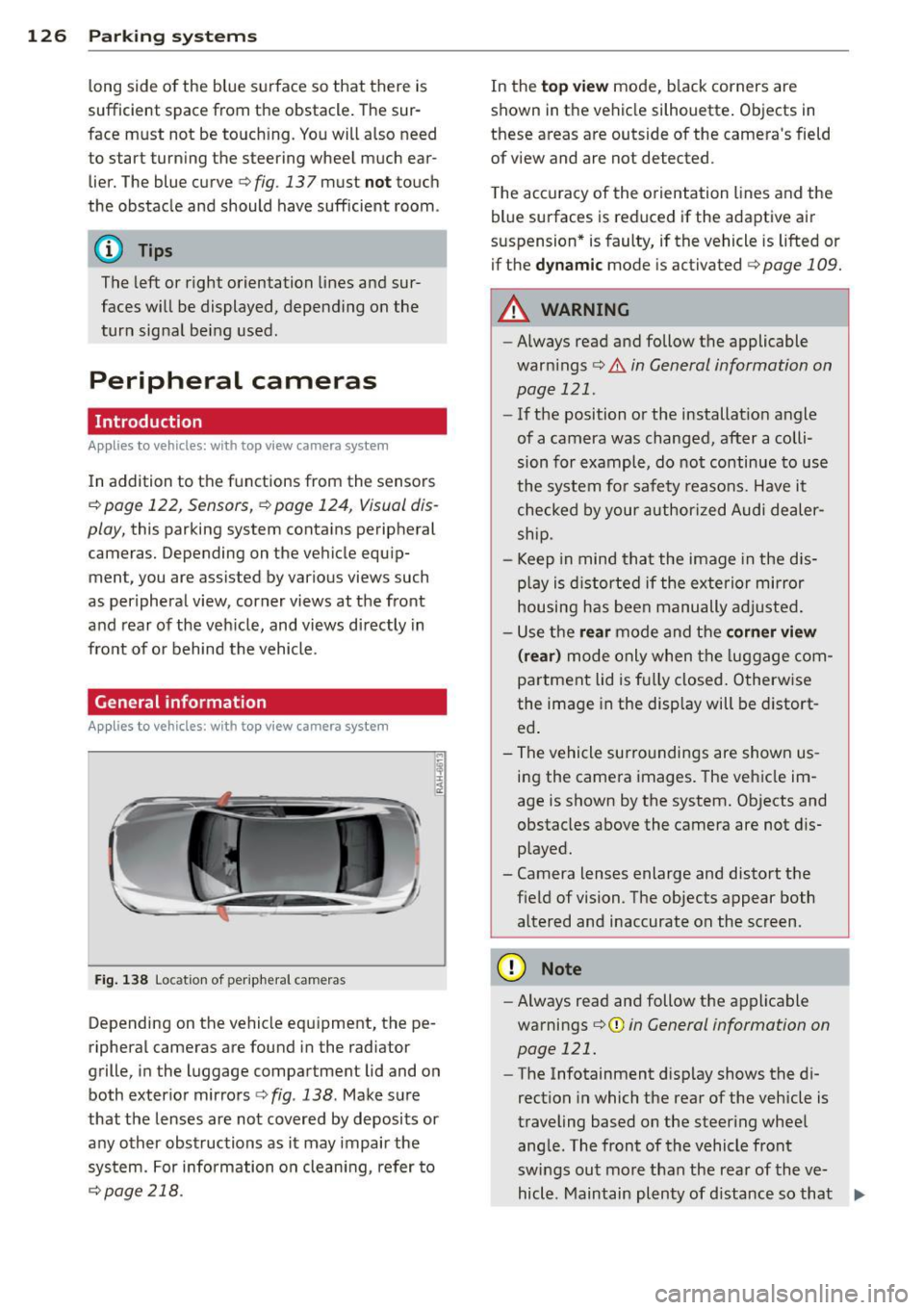
Depending on the vehicle equ ipment, the pe
ripheral cameras are found in the radiator
grille, i n the luggage compartment lid and on
both exterior mirrors
r:::;, fig . 138 . Make sure
that the lenses are not covered by deposits or
any other obstructions as it may impair the
system. For information on cleani ng, refer to
c::> page 218.
In the to p view mode, b lack corners are
shown in t he vehicle silhouette . Objects in
these areas are outside of the camera 's field
of
view and are not detected .
T he accuracy of the o rientation lines and the
blue surfaces is reduced if the adaptive air
suspension * is faulty, if the vehicle is lifted or
if the
dy namic mode is activated r:::;, page 109.
A WARNING
-- Always read and follow the applicable
warn ings
r:::;, & in General information on
page 121 .
-If the position or the installat io n angle
of a camera was changed, after a colli
sion for example, do not continue to use
the system fo r safety reasons. Have it
checked by your author ized Audi deale r
sh ip.
- Keep in mind that the image in the dis
p la y is distorted if the exterior mi rror
housing has bee n manually adjusted .
- U se the
rear mode and the corn er view
( rear)
m od e only when the luggage com
partment lid is fu lly closed . Otherw ise
the image in the display will be d istort
ed .
- The vehicle surro undings are shown us
ing the came ra images. The vehicle im
age is shown by the system. Ob jects and
obstacles above the camera are not d is
p layed.
- Camera lenses enlarge and distort the field of vision. The objects appear both
altered and inaccurate on the screen.
(D Note
- Always read and follow the applica ble
warnings
¢ (I) in General information on
page 121.
- The Infotainment d isplay shows the di
rection in which the rear of the vehicle is
traveling based on the steer ing whee l
ang le. The front of the vehicle front
sw ings out mo re than the rear of the
ve
hicl e. M aintain pl enty of d istance so that .,_
Page 130 of 318
128 Parking systems
Corner view (front/rear)
Applies to vehicles: with top view camera system and cor
ner view (front/rear) mode
Fig-142 Infotainment : corner v iew (front) mode
Fig. 143 Infota inment: corner v iew (rear) mode
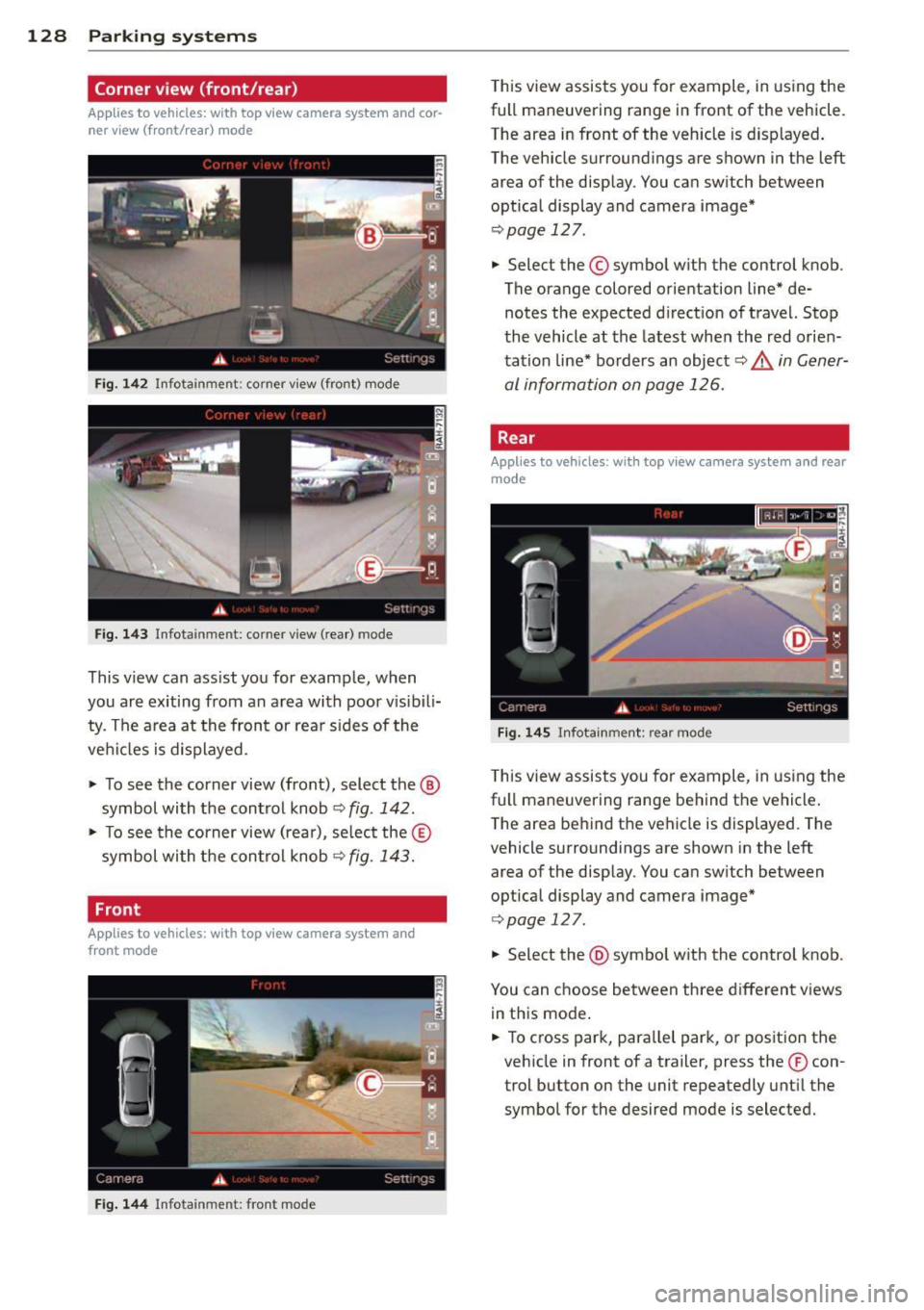
This v iew can ass ist you for example, when
you are exiting from an a rea with poor v isib ili
ty . The a rea at the front or rea r sides of the
vehi cles is d isplayed .
"' To see the corner view (front), select the @
symbol with the control knob
<=.> fig . 142 .
"' To see the corner view (rea r), se lect the ®
symbol wi th t he contro l knob
r=.> fig . 143.
Front
Appl ies to vehicles : with top view camera system and
front mode
F ig . 144 In fota inm ent: fr ont mo de
This view assists you for example, in using the
full maneuvering range in front of the vehicle.
The area in front of the vehicle is d isplayed .
The veh icle surroundings are shown in the left
area of the disp lay . You ca n sw itch between
optical display and camera image*
r=.> page 12 7 .
.. Select the © symbo l with the control knob .
The orange colored orientation line* de notes the expected direction of travel. Stop
the vehicle at the latest whe n the red orie n
tation line* bo rders an object~&.
in Gener
al information on page 126.
Rear
Applies to vehicles : w ith top view camera system and rear
mode
F ig . 14 5 Infota inm ent : re ar mode
Th is view assis ts you for example, in us ing the
full maneuvering range behind the vehicle .
T he area be hind t he vehicle is displayed. The
vehicle surroundings are shown in the left
area of the display. You can sw itch between
optical display and camera image*
¢ page 127 .
.. Select the @symbo l w ith the control knob _
You can c hoose between three d ifferent views
in th is mode .
.. To cross park, para llel park, o r position the
veh icle in front of a trailer, press the ® con
trol button on the unit repeatedly unt il the
symbol for the desired mode is selected.
Page 132 of 318
130 Park in g s ystems
vehicle or on the parking space line ¢ A in
General information on page 126, ¢(Din
General information on page 126 .
The blue
area represents an extension of the vehicle's
outline by approximately 16 ft (5 m) to the
rear . The long side of the blue area should
be o n the curb. The e ntire blue area must fit
into the parking space.
,. With the veh icle stopped, turn the steer ing
wheel to the right as far as it w ill go .
.. Back into the par king space until the b lue
curve
¢ page 125, fig . 137touches the curb
¢ A in General information on page 126,
q(D in General information on page 126.
Stop the vehicle.
,. With the vehicle stopped, turn the steering
wheel to the left as far as it will go .
,. Continue to back into the parking space un
t il the vehicle is pa rked pa ralle l to the curb
9 A in General information on page 126,
q(j) in General information on page 126.
@ marks the rear bumper. Stop the ve hicle,
at the latest, when the red orientation line
@ borders an object. Keep an eye on the
front of your vehicle wh ile doing this.
P arking ne xt to obstacles
When there is an obs tacle (such as a wall)
next to the parking space, choose a space with
more space on the sides. Position the long
side of the blue area so that there is sufficient
space from the curb. The area must not be on
the curb. You will also need to start turning
the steering wheel much earlier . There should
be a suffic ient amount of space between the
curb and the b lue curve, and the blue curve
¢ page 125, fig. 137 must not touch the cu rb.
(D Tips
The left or r ight orientation lin es and sur
faces will be displayed, depend ing on the
turn signa l being used.
Trailer view
Applies to vehicles: with top view came ra system and
tra iler hitch
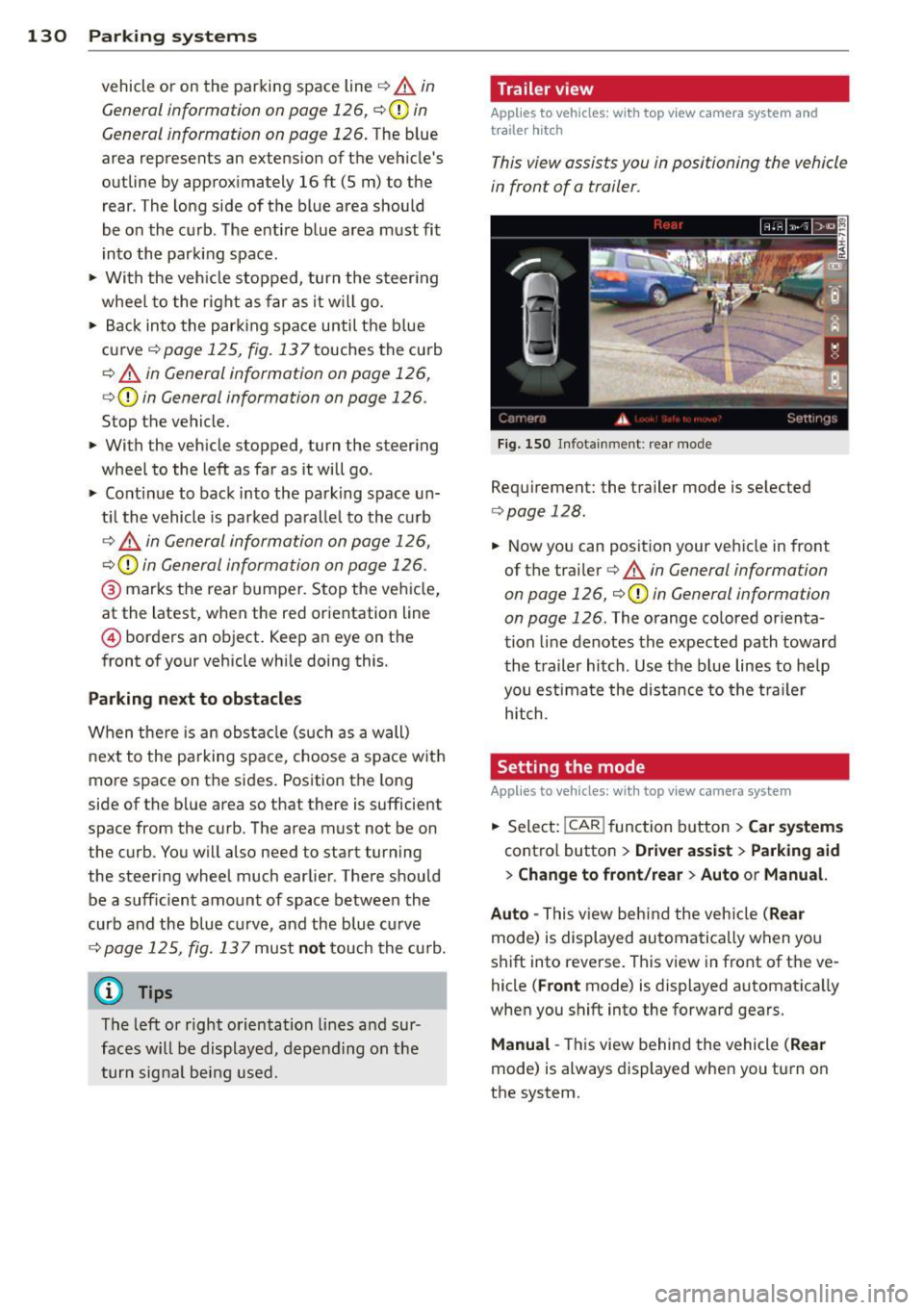
This view assists you in positioning the vehicle
in front of a trailer.
Fig . 1 50 Infotainme nt: rear mode
Requirement: the trailer mode is selected
¢ page 128.
.. Now you can posit ion your veh icle in front
of the trai ler
c> A in General information
on page 126, ¢(Din General information
on page 126.
The orange co lored orienta
tion line denotes the expected path toward
the t railer hitch . Use the b lue lines to help
you estima te the distance to the tra iler
h itch .
Setting the mode
Applies to vehicles: with top view camera system
,. Select: I CAR I func tion button > C ar sy stem s
contro l butto n > Driver a ssist > Parking aid
> Change to front /rear > Auto or Manual.
Auto -
This v iew behind the veh icle ( Rea r
mode) is displayed au toma tica lly when you
shift into reverse. This view in front of the ve
hicle
( F ront mode) is displayed automatically
whe n you sh ift into the forward gears.
Manual -This view behind the vehicle (Rear
mode) is always displayed when you turn on
the system.
Page 133 of 318
Adjusting the display and the warning tones
App lies to vehicles: with advanced park ing system wit h
rea r view camera/top v iew camera syste m
The display and warning tones can be adjust
ed in the Infotainment.
~ Se lect: ICARI f u nct io n button > Car systems
control button > Driver assist > Parking aid .
Display
On * -
opti cal d isplay is shown for the parking
sys tem plus, rea r view came ra image is shown
for parking system plus with rear view cam
e ra *.
Off -when t he par king system is sw itched off,
on ly audib le sign als are given.
Warning tones
Front volume -
Volume for the fro nt area
Rear volume -Volume for the rear area
Front frequency -Frequency for the front area
Rear frequency -Frequency for the rear area
Music volume while parking -When the park
in g system is turned on, the vol ume of t he au
d io/v ideo source is lower ed.
The new ly adjusted value is briefly heard from
the signa l generator.
@ Tips
- The warning tones ca n also be adjusted
direct ly from the visual display or the
rear view camera* image. S imply press
the
Settings cont ro l but to n.
- Changed settings are activated when the
parking system is switched on aga in.
- The settings are automatically stored
and ass igned to the remote control key
that is in use .
Error messages
Applies to vehicles: with a dvanced park ing system wit h
r ea r view camera/top v iew camera syste m
There is an error in t he system if the LED in
the
?# A button is blinking and you hear a con-
Parking systems 131
tin uous alarm fo r a few seconds after switch
ing on the par king system or when the park
ing system is already activated. If the error is
not corrected before you switc h off the ign i
tion, the LED in the
P,1 1.A button will blink the
next t ime you sw itch on the parking system by
shifting i nto reverse .
If a sensor is fa ulty, the!¾ symbol will appear
in front of/behind the vehicle in the Infota in
ment display . If a rear sensor is faulty, only
obstacles that are in the front detec tion a rea
a re shown . If a front sensor is fau lty, on ly ob
s tacles t hat are in the rear area are shown.
Peripheral cameras*
There is also a system error if:
- the
'(gl ,, symbol appears i n the display and
the corresponding d isp lay area is shown in
blue. The camera is not work ing in this area.
- all segments aro und the vehicles are red or
if no segments are displayed.
D rive to your authorized A udi dealer or au
thorized repair facility immed iate ly to have
the malfunction correcte d.
Trailer hitch
Applies to vehicles: wi th adva nced parking syste m with
rear view ca mera/top view ca mera system
Fo r vehicles using the trailer so cket, the pa rk
i ng sys tem rear sensors do not tu rn on when
you shift i nto reverse gea r or when you press
the
P,#~ button . This res ults in the following re
strictions:
T he re is no dist ance warn ing fo r th e rea r. T he
fron t sensors remain act ivated. The visua l dis
play switches to the t railer towing mode . The
rear view camera image will not show the or i
entat ion lines and the bl ue surfaces.
(D Tips
Trai ler h itches that are not insta lled at the
factory may ca use the park ing system to
malfunction or they may restr ict its func
tion.
Page 220 of 318

218 Cleaning and protection
This also applies to cleaning headlights
and painted bumpers. Remember: the
closer the nozzle is to the surface of the
material, the greater the stress on the ma
terial.
Caring for vehicles with matte finish
paint
Ap plies to vehicles: with matte fi nish pa in t
Vehicles with matte finish paint require spe
cial care due to the characteristics of the
paint.
Washing by hand
To avoid damaging the paint when washing,
first remove dust and large particles from
your vehicle. Insects, grease spots and finger
prints are best removed with a
special cleaner
for matte finish paint.
Apply the product using a microfiber cloth . To
avoid damaging the paint surface, do not use
too much pressure .
Rinse the vehicle thoroughly with water . Clean
the vehicle starting at the top and working to
ward the bottom using a
neutral shampoo
and a soft microfiber cloth . Stop frequently to
rinse the cloth thoroughly .
Clean the wheels and sill panels last. Use a
clean
sponge on these areas.
Rinse the vehicle thoroughly again and let it
air dry. If there are any water spots, they can
be removed using a
leather cloth.
Clean again with the special cleaner for matte
finish paint
if necessary.
Removing stubborn dirt
Bird droppings or tree sap
are best removed
with plenty of water and a microfiber cloth.
You should rinse off
gasoline residue immedi
ately with plenty of water.
_& WARNING
- Wash your vehicle only when the ignition
is switched off to reduce the risk of a
crash. -
Always read and heed all WARNINGS and
other information ¢
page 215.
@ Note
-Do not treat vehicle parts painted with
matte finish paint using polishing mate
rials or hard wax. These products could
cause damage to the appearance or sur
face that cannot be repaired.
- Never use protective wax. It can destroy
the matte finish effect.
- Do not place any stickers or magnetic
signs on vehicle parts painted with
matte finish paint. The paint could be
damaged when the stickers or magnets
are removed .
- To prevent paint damage, do not wash
the vehicle in direct sunlight.
- To prevent damage to the paint surface,
do not use insect removal sponges,
rough kitchen sponges or similar items.
- You should remove debris (such as in
sects) from the headlight lenses on a
regular basis, for example when refuel
ing your vehicle . Only clean the head
lights using a wet cloth or sponge, never
a dry one. Cleaning with soapy water is
recommended.
(D Tips
For more information on special cleaning
products designed for matte finish paint,
seeyourAudidea~~
' Sensors and camera lenses
- Remove snow with a hand brush and remove
ice with a de-icing spray that does not con
tain solvents.
- Clean the sensors (adaptive cruise control*,
parking system*) with a cleaning solution
that does not contain solvents and a soft
cloth.
- Dampen the camera lens with a household alcohol-based glass cleaner, and then wipe
the lens clean with a dry cloth . The area in
front of the camera lens is normally cleaned
by the windshield wipers (lane assist*) or .,.
Page 283 of 318

Fuse s and bulb s 281
Luggage compartment fuse assignment
Fig. 228 Luggage compartment: fuse pa nel with plastic bracket
Fuse panel @ (black ) Fuse panel @ (b la ck)
No . Equi pment Amps No. Equipment Amps
[ru button, data logger, diag-
11 Dynamic
steering
5
l nostic
connector, BCM -1,
5
Selector lever, BCM-2 5
adaptive light ing system
Audi side assist
5
2 Networking gateway 5
Engine control module 5
3 adaptive air suspension
5
Starter 40
4 Parking system 5
Left headlight/Headlight
16 10/5
5 Steer
ing column lever
5
range control system
6 Suspension control system
5 Fuse panel
@ (red ) sensor
Belt tensioners, airbag con-
No. Equipment Amps
7 trol module 5
l Left
reversible be lt tens ione r 25
Heated washer fluid nozzles, 2
Right reversible belt ten-
25
Homelink (garage door sioner
8 opener), night vision system 5 Starter diagnos
is, DC/DC
control module, sport differ-3 c onverter (Start-Stop-Sys-5
ential, ioni zer tern )
9
Electromechan ica l parking
5 4 DC/DC converter 7,5
brake contro l modu le 5 Image pro cessing 7 ,5 -
10
Rear seat heating, cooler, in-
5
terior rearview mirror