steering wheel AUDI A8 2016 User Guide
[x] Cancel search | Manufacturer: AUDI, Model Year: 2016, Model line: A8, Model: AUDI A8 2016Pages: 302, PDF Size: 75.68 MB
Page 87 of 302
.... N
0 J:
'SI: ....
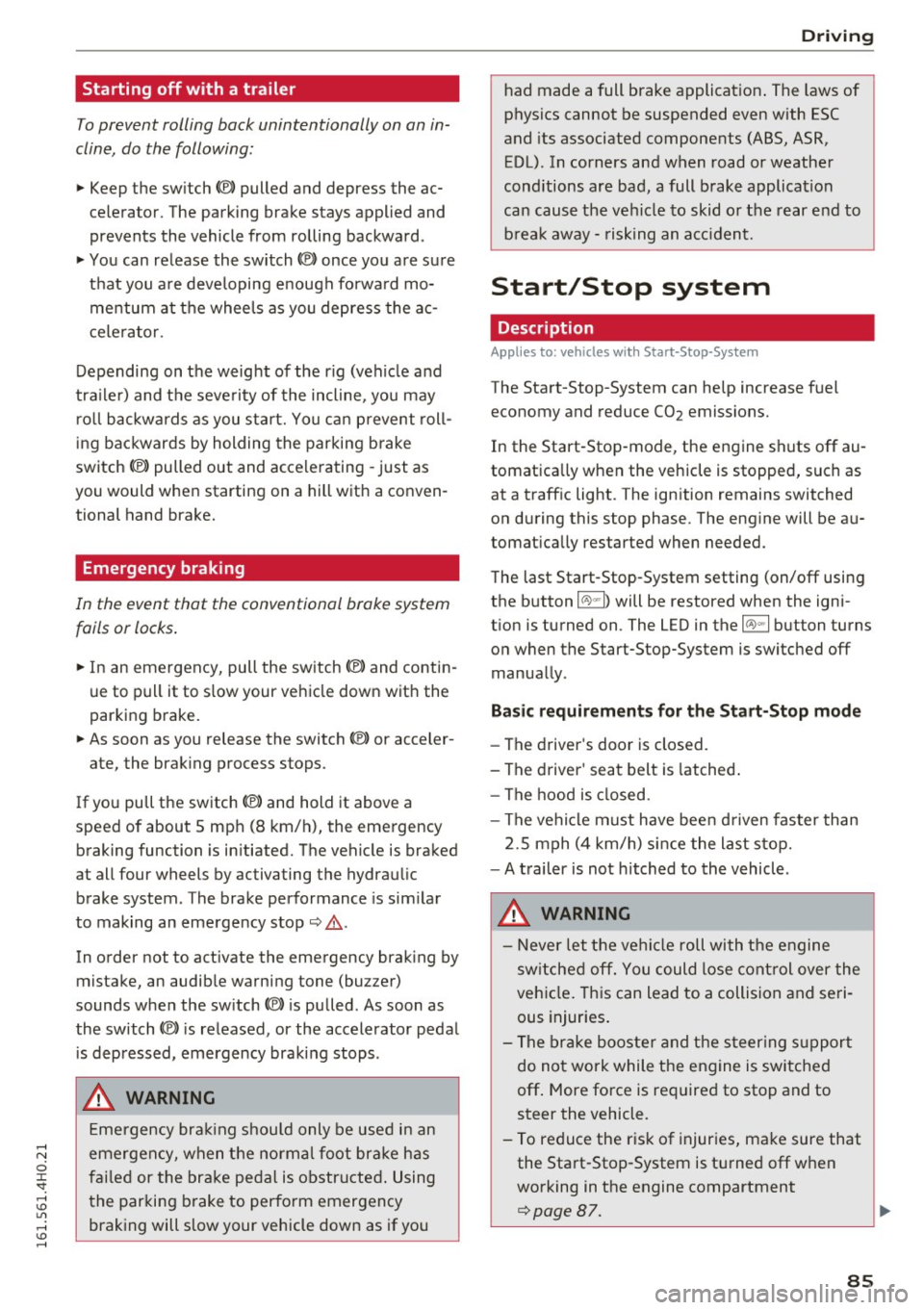
To prevent rolling back unintentionally on an in
cline, do the following:
11-Keep the sw itch<®) pulled and depress the ac
celerator. The parking brake stays applied and
prevents the vehicle from rolling backward .
11-You can release the switch© once you are su re
that you a re deve loping enough forwa rd mo
mentum at the whee ls as you depress the ac
celerator .
Depending on the weight of the rig (vehicle and
trailer) and the seve rity of the incline, you may
roll backwards as you start. You can prevent roll
ing backwards by holding the parking brake
switch C®> pulled out and accelerating -just as
you would when starting on a hill with a conven
tional hand brake.
Emergency braking
In the event that the conventional brake system
fails or locks.
11-In an emergency, pull the sw itch<®) and contin
ue to pull it to s low your vehicle down with the
parking brake.
11-As soon as you release the switch © or acceler-
ate, the brak ing process stops.
If you pull the switch<®> and hold it above a
speed of about 5 mph (8 km/h), the emergency
braking function is in itiated. The vehicle is braked
at all four wheels by activating the hydrau lic
brake system . The brake performance is sim ilar
to making an emergency stop¢,& .
In order not to activate the emergency brak ing by
mistake, an audib le warning tone (bu zzer)
sounds when the sw itch(®) is pu lled . As soon as
the switch(®) is released, or the accelerator pedal
i s depressed, emergency braking stops .
A WARNING
Emergency braking should only be used in an
emergency, when the normal foot brake has
fai led or the brake pedal is obstructed. Using
t he parking brake to perform emergency
braking will slow your vehicle down as if you
D riving
had made a full brake applicat ion . The laws of
physics cannot be suspended even with ESC
and its associated components (ABS, ASR,
EDL). In corners and when road or weather
conditions are bad, a full brake application
can cause the vehicle to skid or the rear end to
b reak away -risking an acc ident.
Start/Stop system
Description
Applies to: vehicles with Start-Stop-System
The Start-Stop -System can help increase fuel
economy and reduce CO2 emissions.
In the Start-Stop-mode, the engine shuts off au
tomatica lly when the vehicle is stopped, such as
at a traffic light . The ign ition remains switched
on during this stop phase. The eng ine will be au
tomat ically restarted when needed.
The last Start-Stop-System setting (on/off using
the b utton
10 -I) will be restored when the igni
t ion is turned on. The LED in the
10 ~1 button turns
on when the Start-Stop-System is switched off
manually .
Basic requirements for the Start-Stop mode
-The driver's door is closed.
- The driver' seat belt is latched .
- The hood is closed.
- The vehicle must have bee n driven faster than
2.5 mph (4 km/h) since the last stop.
- A trailer is not hitched to the vehicle .
A WARNING
-
-Never let the vehicle roll with the engine
switched off. You could lose contro l over the
veh icle. Th is can lead to a collision and seri
ous injuries .
- The brake booster and the steering support
do not work while the engine is switched
off . More force is required to stop and to
steer the vehicle.
- To reduce the risk of injur ies, ma ke sure that
the Sta rt-Stop-System is turned off when
working in the engine compartment
¢page 87.
85
Page 88 of 302

Driving
(D Note
Always switch off the Start-Stop-System
when driving through water
c::> page 87.
Starting/stopping the engine
A pp lies to: ve hicles w ith Sta rt-Sto p-System
Fig. 91 Instrument cluste r: engin e sw itched off (s top
ph ase)
.. Slow the vehicle to a stop using the brake and
keep pressing the brake pedal. The engine will
switch off . The
[I] indicator light appears in the
information line in the instrument cluster dis
play.
.. When you take your foot off the brake pedal,
the engine restarts. The indicator light turns
off.
Additional information
The engine will switch off in the P, D, N and S po
sitions as well as in manual mode. In the P posi
tion , the engine will also remain off if you take
your foot off the brake pedal. The eng ine starts
again when you select another selector lever po
sition and take your foot off the brake pedal.
If you select the R position during a Stop phase,
the engine will start again.
Shift from D to P quickly to prevent the engine
from starting unintentionally when shifting
through R.
You can determine for yourself if the engine will
stop or not by reducing or increasing the amount
of force you use to press the brake pedal. For ex
ample , if you only light ly press on the brake ped
al in stop-and and-go traffic or when turning, the
engine will not switch off when the vehicle is sta-
86
tionary. As soon as you press the brake down
harder, the engine will switch off.
General information
Applies to: vehicles wi th Start-S top-Sys te m
The standard Start-Stop-mode can be cancelled
for different system-related reasons.
Fig. 92 Instrumen t cluster: e ngin e-Stop temporarily un
ava ilable
Engine will not switch off
Before each stop phase, the system checks if cer
tain conditions have been met. For example, the
engine will
not be switched off in the following
situations :
- The engine has not reached the minimum re
quired temperature for Start-Stop-mode.
- The interior temperature selected by the A/C
system has not been reached .
- The outside temperature is extremely high/low.
- The windshield is being defrosted
c::> page 79 .
- The parking system* is switched on.
- The battery charge level is too low.
- The steering wheel is sharply turned or there is
a steering movement .
- After engaging the reverse gear .
- On sharp inclines.
The
llJ indicator light appears in the information
line in the instrument cluster display
c::>fig . 92.
Engine automatically restarts
The stop phase is interrupted in the following sit
uations, for example . The engine restarts without
any action by the driver .
- The interior temperature varies from the tem-
perature selected in the A/C system. ..,.
Page 101 of 302
Audi active lane assist Lane assist
Description
Applies to: veh icles with act ive lane assist
Active lane assist helps you keep your vehicle in
your lane .
Active lane assist detects lane marker lines with
in the limits
of the system using a camera in the
windshield. If you are approaching a detected lane marker line and it appears likely that you
will leave the lane , the system will warn you by
means of correct ive steering . T he dr iver can over
ride the correct ive steering at any time. If the ve
h icle crosses a line, the drive r is also warned by a
light
vibration in the steering wheel. The vibra
tion warning must be switched on in the MMI for
this to happen. Active lane assist is operable
when the line marking the lane is detected on at
least one side of the vehicle.
The system is designed for driv ing on freeways
and expanded highways and thus works only at
speeds of 40 mph (65 km/h) or more.
Applies to vehicles with side assist* : If you acti
vate your turn signal when active lane assist is
ready and when activated side assist has class i
fied a lane change as critical because of vehicles
traveling alongside you or coming closer, there
will be noticeable corrective steering just before
you leave the lane . Th is is done to try to keep
your veh icle in the lane .
Applies to vehicles without side assist*: when the
system is ready, it does not warn you if you acti
vate your turn signal before driving across a lane marker line. In th is case, it assumes that you are
changing lanes intent ionally.
If the vehicle is also equipped with Audi adaptive
cru ise control*, the corrective steering w ill be
more spec ific in regard to the driving situation .
I n addition to the lane marker lines, the system
can also take into acco unt other objects such as
guard rai ls. If they are detected in close prox imi
ty to the vehicle, Audi active lane assist helps
prevent the vehicle from driv ing too close to
them. There is also passing assistance . The sys-
Audi act ive lane ass ist
tern does not provide any corrective steering if it
detects that you are passing another vehicle .
A WARNING
--The system warns the driver that the vehicle
is leaving the lane using correct ive steering.
The driver is always responsible for keeping
the vehicle within the lane.
- The system can assist the dr iver in keeping
the vehicle in the lane, but it does not steer
by itself . Always keep your hands on the
steer ing wheel.
- Corrective steering may not occur in certain
situations, such as during heavy braking .
- The camera does not recognize all lane
marker lines. Correct ive steering can only
take place on the side of the vehicle where
lane marker lines are detected.
- Other road structures or objects could poss i
b ly be identified un intentionally as lane
marker lines. As a result, co rrective steering
may be unexpected or may not occ ur.
- The camera view can be restricted, for ex
ample
by vehicles driving ahead or by rain,
snow, heavy spray or light shining into the
camera. This can result in active lane ass ist
not detecting the lane marker lines or de
tect ing them incorrectly .
- Unde r certain condit ions such as r uts in the
road, a banked roadway or crosswinds, the
correct ive steer ing alone may not be enough
to keep the vehicle in the lane.
- For safety reasons, active lane assist must
not be used when there are poor road and/
or weather conditions such as slippery roads, fog, gravel, heavy rain, snow and the
potential for hydrop lan ing . Using active lane
assist u nder these condit ions may i ncrease
the risk of a crash.
99
Page 102 of 302
Audi active lane assist
Activating and deactivating
Applies to: vehicles with active lane assist
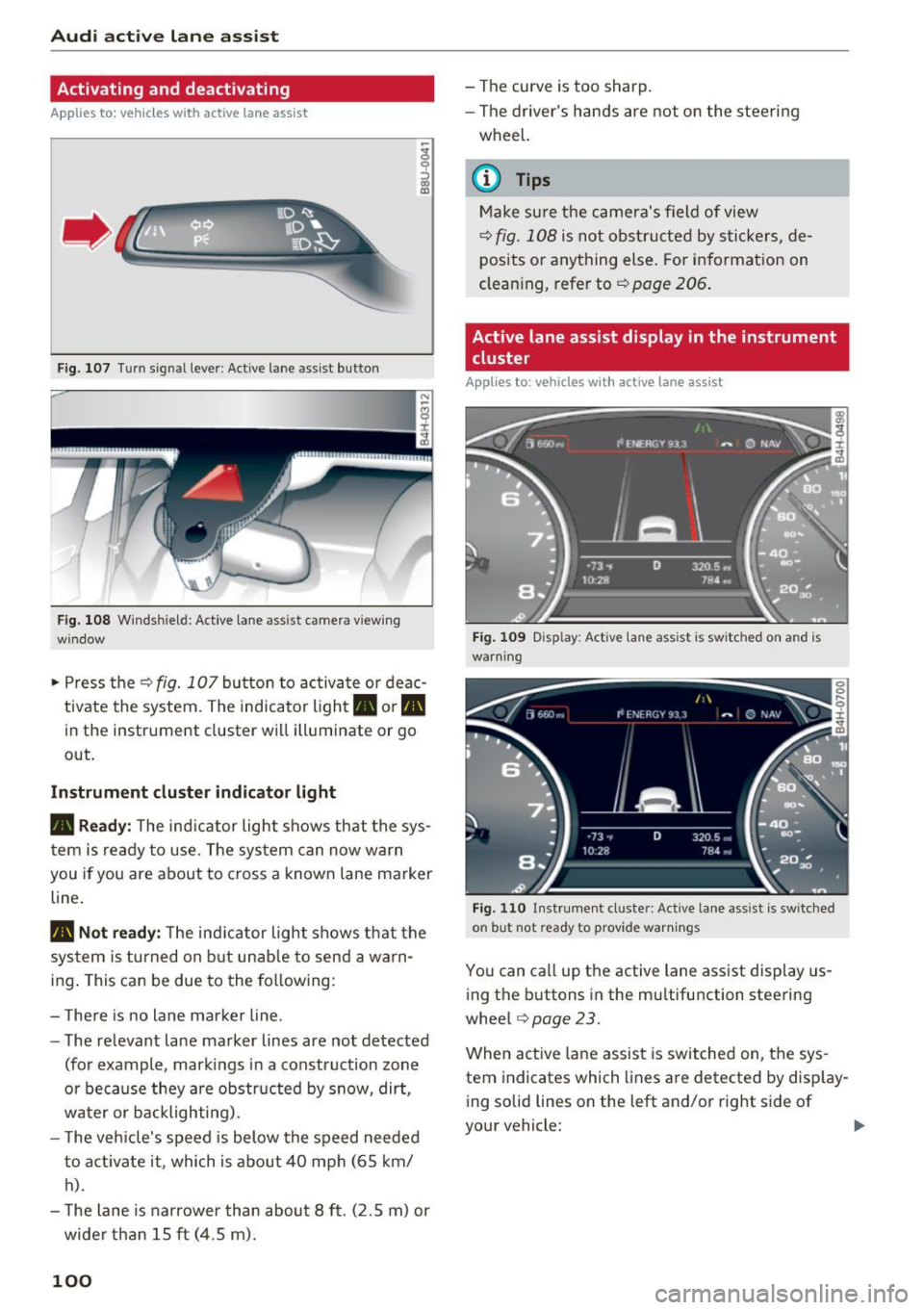
Fig. 107 Turn sign al lever : Active lane assist button
Fig. 108 Windshiel d: Active lane assist came ra viewing
window
• Press the r=;, fig. 10 7 button to activate or deac
tivate the system. The indicator light. or
Pit
in the instrument cluster will illuminate or go
out.
Instrument cluster indicator light
• Ready:
The ind icator light shows that the sys
tem is ready to use. The system can now warn
you if you are about to cross a known lane marker
line.
Pit Not ready: The ind icator light shows that the
system is turned on but unable to send a warn
ing . This can be due to the following :
- There is no lane marker line.
- The relevant lane marker lines are not detected
(for example , mark ings in a construct ion zone
o r because they are obstructed by snow, dirt,
water or backlighting).
- T he vehicle's speed is below the speed needed
to activate it , which is about 40 mph (65 km/
h).
- The lane is narrower than about 8 ft. (2.5 m) or
wide r than 15 ft (4.5 m).
100
- The curve is too sharp.
- The driver's hands are not on the steering
wheel.
{i) Tips
Make sure the camera's field of view
r=;, fig. 108 is not obstructed by stickers, de
posits or anything else. For information on
cleaning, refer to¢
page 206.
Active lane assist display in the instrument
cluster
Appl ies to : vehicles with active lane assist
Fig. 109 Disp lay : Activ e lane ass ist is switc hed on a nd is
warn ing
Fig. 110 Instrument cl uste r: Active lane as sis t is sw itched
on but hot ready to provide warnings
You can call up the active lane assist display us
i ng the buttons in the multifu nction steering
wheel
r=;, page 23.
When active lane assist is switched on, the sys
tem indicates which lines are detected by display
i ng solid lines on the left and/or right side of
your vehicle:
Page 103 of 302
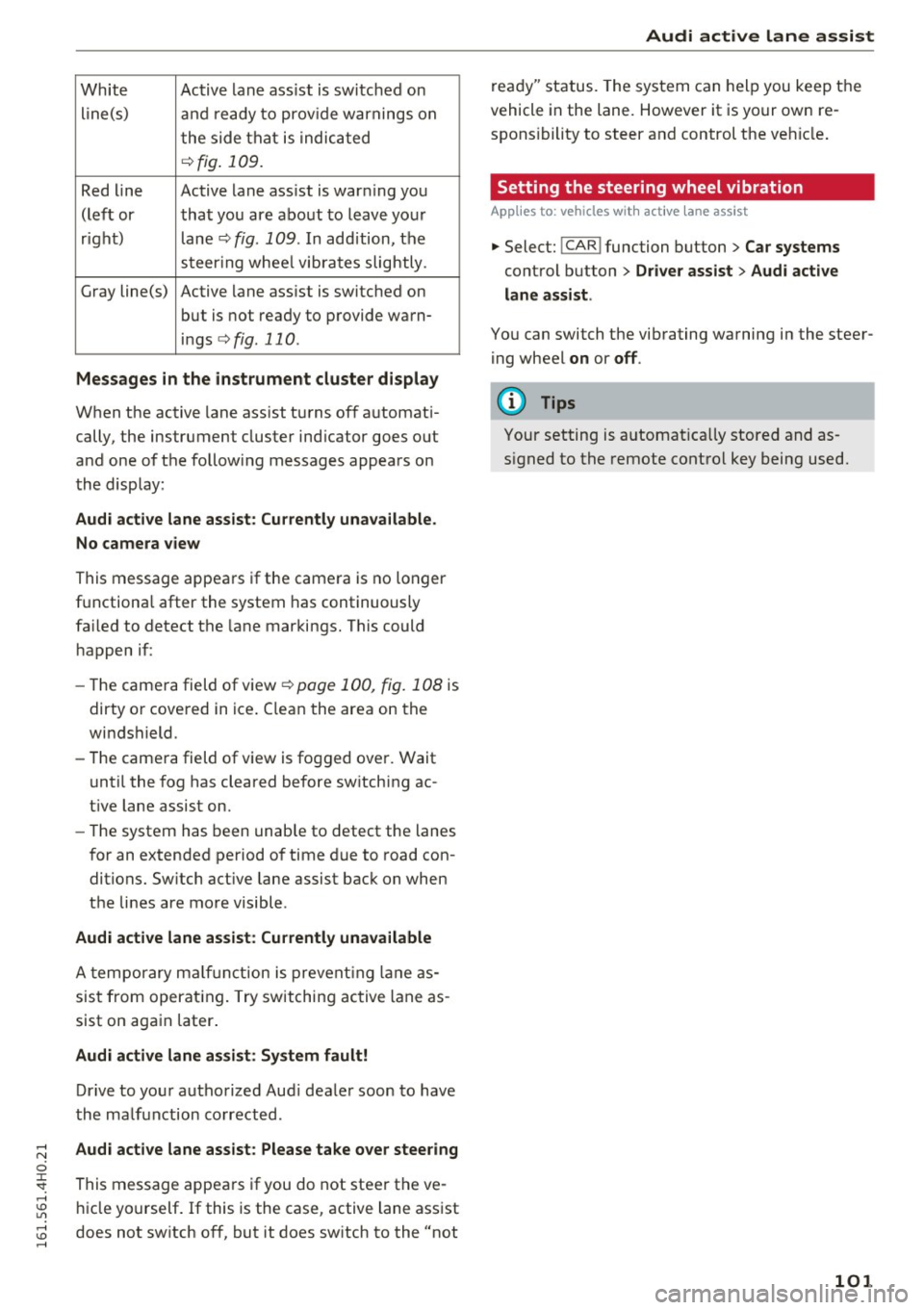
White Active lane ass ist is sw itched on
line(s) and ready to prov ide warnings on
t he side that i s indic ated
¢fig . 109.
Red line Active lane ass ist is war ning yo u
(lef t or that you are about to leave yo ur
r igh t) lane¢
fig. 109 . In add ition, the
st eer ing w hee l vib ra tes slightly .
G ray line(s) Active lane ass ist is switched on
but is not ready to p rovide wa rn-
i n gs
¢ fig. 110.
Messages in the instrument cluster display
When the active lane ass ist t urns of f automat i
cally, the instrument cluster ind icator goes out
and one of t he follow ing messages appears on
the disp lay:
Audi active lane assist : Currently unavailable .
No camera view
This message appears if the camera is no longer
f u nctiona l after the system has continuously
fa iled to detect the lane mar kings . This could
h appen if :
- Th e came ra field of view ¢
page 100, fig. 108 is
dirty o r cove red in ice . C lea n the area on the
wi ndshield.
- The came ra field of v iew is fo gged over . Wait
u nti l the fog has cleared before sw itching ac
t ive lane assist on.
- The system has been unab le to detect the lanes
f or an extended pe riod of time due to road con
ditions. Sw itch act ive lane assist bac k on when
the lines are mo re visible .
Audi active lane assist: Currently unavailable
A tempo rary m alfu nc tion is prevent ing lane as
sis t from operat ing . Try switching ac tive lane as
sist on aga in later.
Audi active lane assist: System fault!
Dr ive to yo ur autho rized Aud i dea le r soon to have
the ma lf u nction co rrected .
Audi active lane assist: Please take over steering
This message appea rs if you do not steer the ve
hi cle yo urself . If this is the case, active lane ass ist
does not sw itch off, but it does sw itch to the "not
Audi active lane assist
r e ad y" status. The system can hel p you keep the
vehicle in the lane. However it is your own re
spons ibility to steer and control the ve hicle .
Setting the steering wheel vibration
App lies to : vehicles wit h act ive lane assist
.,. Select: !C A R! function button > Car systems
control button > Driver assist > Audi active
lane assist.
Yo u can switch the vib rating wa rning in the stee r
i ng wheel
on or off .
(D Tips
Your setting is a utomat ica lly stored and as
s igned to the remote control key being used.
101
Page 111 of 302

Night vision assistant
Night vision assistant
with pedestrian and wild animal marking
Description
Applies to: vehicles with night visio n ass istant
Night vision assistant with pedestrian and wild
animal detection assists you in darkness by using
an infrared camera to monitor the area in front of
your veh icle , w ith in the limits of the system .
It
can display objects up to app roximately
1000 feet (300 meters) away. The hea t image
detected by the camera is shown in the instr u
ment cluster display. Warm areas appea r lighter
and cold areas appear darker.
Pedestrian and wild animal detection
Applies to: vehicles with night vision assistant
Fi g. 117 D is play: ye ll ow pede strian mark ing
Fi g. 118 D is p lay : symbo l w hen infrared ima ge is not vi sible
W ith in the limits of the system, n igh t vis io n as
sistant can detect pedestrians and wild animals
that are w ithin the detection range between ap
proximate ly 32 feet (10 meters) and 295 feet
(90 meters) in front of the vehicle. When it is
dark outside and the headlights are sw it ched on,
Night visi on assis tant
detected pedestrians and w ild animals a re
marked in ye llow ¢
fig. 117 with in the limits of
the system
¢ page 110 . Wild anima l detect ion is
not act ive in bu ilt-up areas. The system only de
tects large wi ld animals such as deer .
(!_) Tips
-If another display such as navigation rep la
ces the image from the night vision assis
tant, the~,, symbol appears in the tab
¢
fig . 118. You can call up n ight v is ion as
sistant using the buttons on the m ultifunc
tion steering wheel¢
page 24 .
Pedestr ian and wild animal warning
Applies to: vehicles with nigh t vision assistant
Fi g. 119 In strument cl uste r: @ pedes trian w arnin g, @
w ild a nima l warn ing
F ig . 1 20 In strum en t cluste r: @ ped estr ian wa rnin g/ @
w ild an ima l warn ing w hen the n ig ht v is ion ass istant image
i s not se lected in the instr um ent cl uste r d isp lay
Instrument cluster display /Head-up Display*
If pedestrians o r wild animals are detected in an
area in front of your vehicle th at is considered
critical, the system will attempt to draw your at-
tention to this by :
Ill-
109
Page 124 of 302
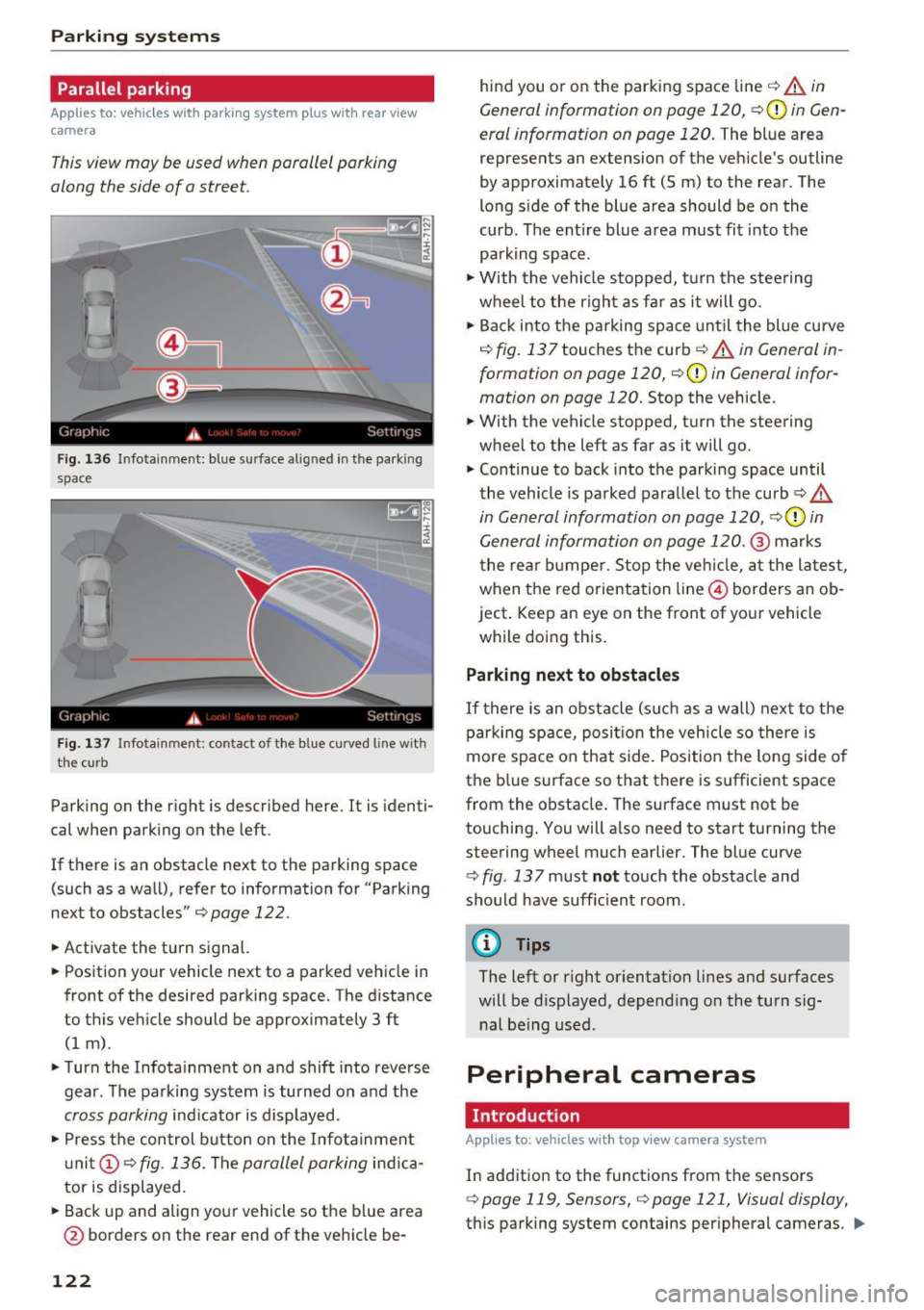
Parking systems
Parallel parking
Applies to: vehicles with parking system p lus with rear view
camera
This view may be used when parallel parking
along the side of a street.
Fig. 136 Infotainment: blue surface aligned in the pa rking
space
F ig . 1 37 Infotainment: contact of the blue curved line with
the curb
Parking on the right is described here. It is identi
cal when parking on the left.
If there is an obstacle next to the parking space
(such as a wall), refer to information for "Parking
next to obstacles"¢
page 122.
.,. Activate the turn signal.
.,. Position your vehicle next to a parked vehicle in
front of the desired parking space. The d istance
to this vehicle should be approximately 3 ft
(1 m) .
.,. Turn the Infota inment on and shift into reverse
gear. The parking system is turned on and the
cross parking indicator is displayed .
.,. Press the con trol button on the Infotainment
un it (!)
c::> fig. 136. The parallel parking indica
tor is displayed.
.,. Back up and align your vehicle so the blue area
@ borders on the rear end of the vehicle be-
122
hind you or on the parking space line c::> .&. in
General information on page 120,
c:,(D in Gen
eral information on page 120.
The blue area
represents an extension of the veh icle's outline
by approximate ly 16 ft (5 m) to the rear. The
long side of the blue area should be on the
curb . The ent ire blue area must fit into the
parking space .
.,. With the vehicle stopped, turn the stee ring
wheel to the right as far as it will go .
.,. Back into the parking space unt il the blue curve
c::> fig. 137 touches the curb c:> .&. in General in
formation on page 120,
c:, (D in General infor
mation on page 120.
Stop the vehicle .
.,. With the vehicle stopped, turn the steering
wheel to the left as far as it will go.
.,. Continue to back into the parking space until
the vehicle is parked parallel to the curb
c:> .&.
in General information on page 120, c::>(D in
General information on page 120.@
marks
t he rear bumper . Stop the vehicle, at the latest,
when the red orientation line@ borders an ob
ject . Keep an eye on the front of your vehicle
while doing this.
Parking next to obstacles
If there is an obstacle (such as a wall) next to the
parking space, posit ion the vehicle so there is
more space on that side. Position the long side of
the blue surface so that there is sufficient space
from the obstacle. The surface must not be
touching. You will a lso need to start turning the
steering wheel much earlier. The blue curve
c::> fig. 13 7 must not touch the obstacle and
sho uld have suff ic ient room .
@ Tips
The left or right orientation lines and surfaces
will be disp layed, depending on the turn s ig
nal being used .
Peripheral cameras
Introduction
Applies to : vehicles with top v iew camera system
In addition to the functions from the sensors
c:, page 119, Sensors, c:, page 121, Visual display,
this parking system contains peripheral cameras . ..,_
Page 125 of 302
Depending on the vehicle equipment, you are as
sisted by various views such as peripheral view,
corner views at the front and rear of the veh icle,
and v iews directly in front of or behind the vehi
cle.
General information
App lies to: veh icles with top view camera system
e
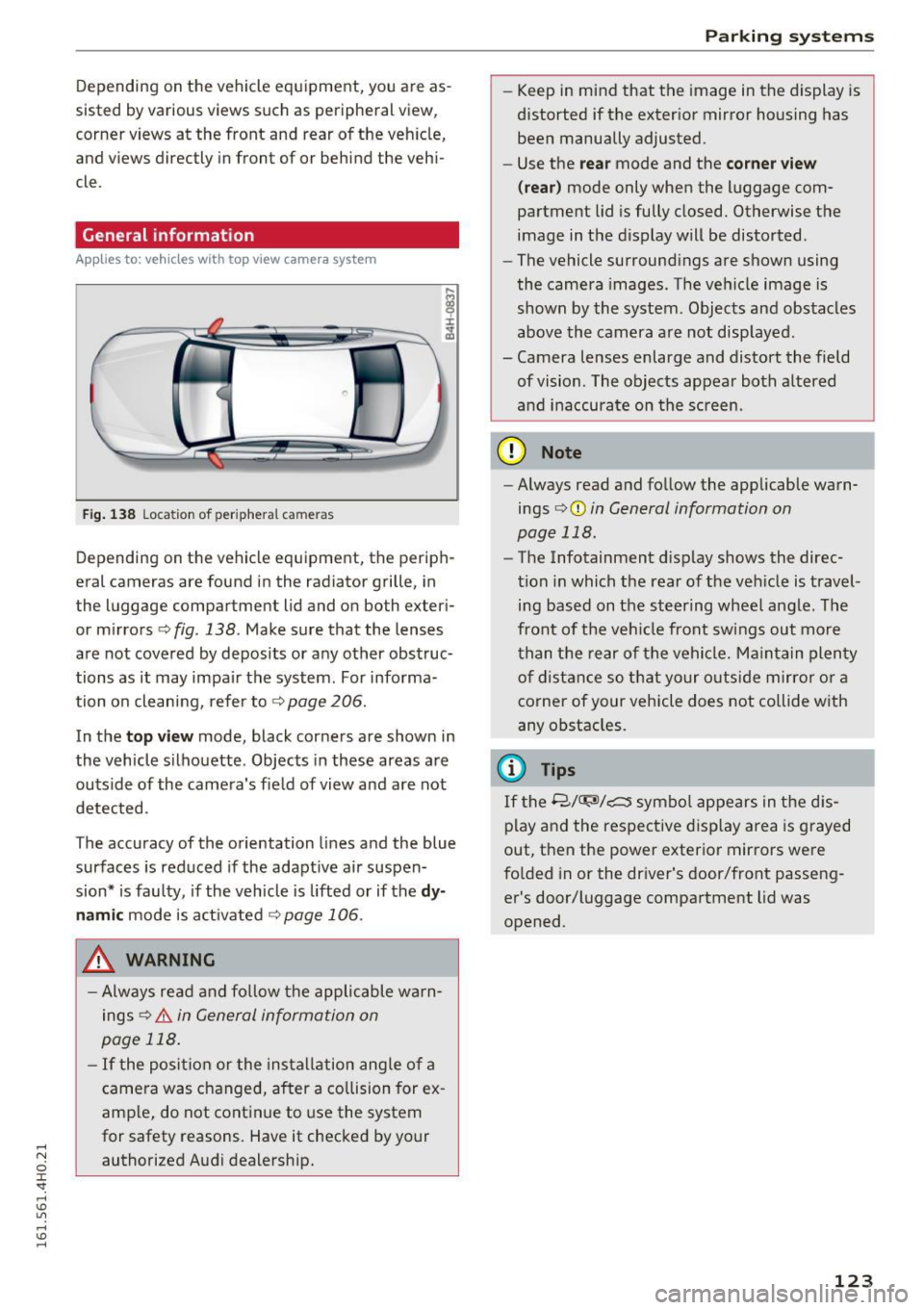
Fig. 138 Location of periphera l came ras
Depending on the vehicle equipment, the periph
eral cameras are found in the radiator grille, in
the luggage compartment lid and on both exter i
or mirrors ¢
fig. 138. Make sure that the lenses
are not covered by deposits or any other obstruc
tions as it may impair the system . For informa
tion on cleaning, refer to¢
page 206.
In the top vi ew mode, black corners are shown in
the vehicle silhouette . Objects in these areas are
outside of the camera's fie ld of view and are not
detected.
The accuracy of the orientation lines and the blue
surfaces is reduced if the adaptive air suspen
sion* is faulty, if the vehicle is lifted or if the
d y
namic mode is act ivated ¢ page 106.
.&, WARNING
-Always read and fo llow the applicable wa rn
ings
¢ & in General information on
page 118 .
-If the posit ion or the insta llation angle of a
camera was changed, after a co llision for ex
amp le, do not cont inue to use the system
for safety reasons. Have it checked by your
authorized Audi dealership.
Parking systems
-Keep in mind that the image in the display is
distorted if the exter ior mirror housing has
been manually adjusted.
- Use the
rear mode and the co rner view
( rear )
mode only when the luggage com
partment lid is fully closed. Otherwise the
image in the d isplay will be distorted.
- The vehicle surround ings are shown using
the camera images. The vehicle image is
shown by the system . Objects and obstacles
above the camera a re not disp layed .
- Camera lenses enlarge and distort the field of vision . The objects appear both a ltered
an d inaccurate on the screen.
(D Note
-Always read and fo llow the applicable warn
ings
o (D in General information on
page 118.
- The Infotainment display shows the direc
tion in which the rear of the veh icle is travel
ing based on the steering wheel ang le. The
front of t he veh icle front sw ings out more
t han t he re ar of the vehicle . M ai nta in plenty
o f distance so that your o uts ide mirro r or a
corner of your vehicle does not collide with
any obstacles.
(D Tips
If t he 8/<:r;si/c:::::::5 symbo l appears in the d is
play and the respective d isp lay area is grayed
out, then the power exterior mirrors we re
fo lded in or the dr iver's door/front passeng
er's door/luggage compa rtment lid was
opened .
123
Page 128 of 302
Parking system s
.,. Se lect the @symbol with the control knob and
press the control knob.
You can choose between three d ifferent v iews in
this mode .
.,. To cross park, parallel park, or position the ve
hicle in front of a trailer* , press the ® contro l
button on the unit repeatedly unti l the symbol
for the desired mode is selected.
Cross parking
A ppl ies to: ve hicles w ith to p view camera system
This view may be used when parking in a garage
or in a parking space .
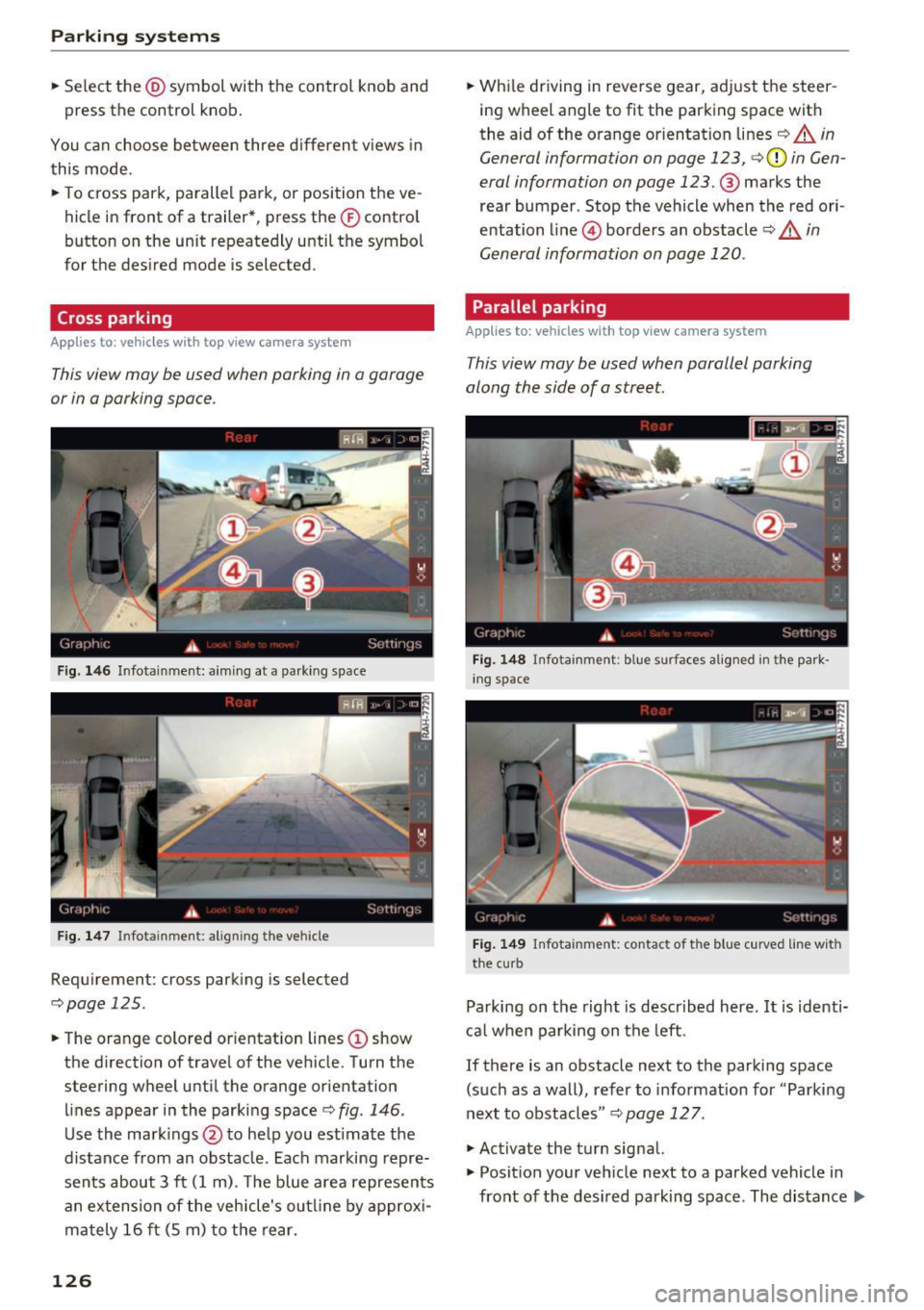
Fig . 14 6 Info tainme nt: aim ing at a parking space
Fig. 147 In fo tai nme nt: al ig nin g th e vehicle
Requirement: cross parking is selected
c::> page 125.
.,. The orange colored or ientat ion lines (!) show
the d irection of travel of the vehicle. Turn the
steering wheel until the orange orientation lines appear in the parking space
c::> fig . 146 .
Use the mark ings @to help you est imate the
distance from an obstacle . Each marking repre
sents about 3
ft (1 m) . T he blue area represents
an ex tension of the veh icle's outline by approx i
ma tely 16 ft (S m) to the rear.
126
.,. Wh ile driving in reverse gear, adjust the steer
ing wheel angle to fit the parking space with
the aid of the orange orientat ion lines
c::> A in
General informa tion on page 123 ,
c::>(D in Gen
eral informa tion on page 123.@
marks the
rear bumper . Stop the vehicle when the red ori
entation line @) borders an obstacle
c::> .&. in
General information on page 120 .
Parallel parking
Applies to: vehicles with top vi ew camera system
This view may be used when parallel parking
along the side of a street.
Fi g. 14 8 Infota in m ent : blue s urfaces alig ned in the park
in g space
Fig . 1 49 Infot ainment: contac t of t he b lue curve d line w ith
the curb
Parking on the right is described here . It is identi
ca l w hen parking on the left .
If there is an obstacle next to the parki ng space
(such as a wall), refer to information for "Parking
next to obstacles "
c::> page 127.
.,. Activate the turn signal.
.,. Posit ion your veh icle next to a parked vehicle in
front of the des ired parking space . The distance
Iii>
Page 129 of 302
to this vehicle should be approximately 3 ft
(1 m).
.. Turn the Infotainment on and shift into reverse
gear. The parking system is turned on and the
cross parking indicator is displayed .
.. Press the
(D Q page 122, fig . 136 control but
ton on the Infotainment un it repeatedly until
the
parallel parking v iew is displayed .
.. Back up and align yo ur vehicle so the blue area
@ borders on the rear end of the vehicle or on
the parking space line
Q .&. in General infor
mation on page 123,
Q (D in General informa
tion on page 123 .
The blue area represents an
extension of the veh icle's outline by approxi
mately
16 ft (5 m) to the rear. The long side of
the blue area should be on the curb. The entire
blue area must fit into the parking space .
.. With the ve hicle stopped, turn the steer ing
wheel to the right as far as it will go .
.. Back into the park ing space until the b lue curve
Q page 122, fig . 13 7 tou ches the curb Q .&. in
General information on pag e 123,
Q (D in Gen
eral information on page 123 .
Stop the vehicle .
.. With the vehicle stopped, tu rn the steering
whee l to the left as far as it will go .
.. Cont inue to back into the parking space unt il
the vehicle is parked parallel to the curb
Q .&.
in General information on page 123, Q (D in
General information on page 123.@
marks
the rear bumper. Stop the vehicle, at the latest,
when the red or ien tat ion line @ borders a n ob
ject. Keep an eye on the front of your ve hicle
wh ile doing this.
Parking next to obstacles
When there is an obstacle (such as a wal l) next to
the parking space, choose a space w ith more
space on the sides. Posit ion the long side of the
b lue area so that there is sufficient space from
the obstacle . The a rea must not be o n the obsta
cle. You wi ll also need to start turning the steer
ing wheel much earlie r. T here shou ld be a suffi
cient amount of space between the obstacle and
the blue curve, and the b lue curve
Q page 122,
fig . 13
7 must not touch the obstacle .
Parking systems
(D Tips
The left or right orientation lines and surfaces
will be d isp layed, depend ing on the turn sig
nal be ing used.
Trailer view
Appl ies to : veh icles w ith top view camera system and trailer
h itch
This view assists you in p ositioning the vehicle in
fron t of a trailer.
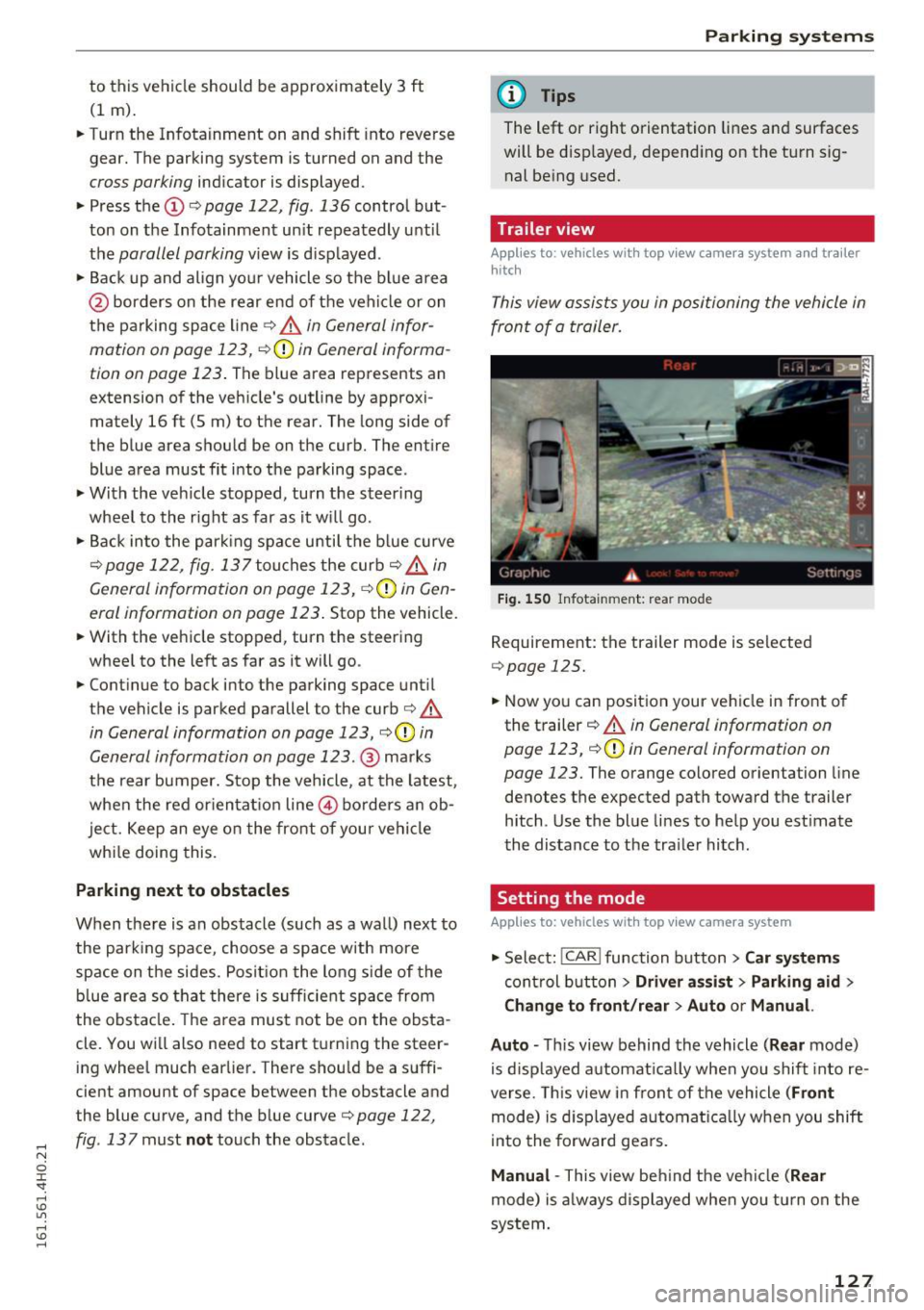
Fig . 1 50 Infota in m ent : rea r mode
R equirement: the trailer mode is selected
Q page 125 .
.. Now you can position your veh icle in front o f
the t railer
Q .&. in General information on
page 123,
Q (y in General information on
page 123.
The orange colored orientation l ine
denotes the expected path toward the trailer h itch . Use the blue li nes to help you est imate
the distance to the tra iler hitch.
Setting the mode
Applies to: veh icles w ith top view camera system
.., Select: !CAR ! function button> Car sy stem s
cont rol b utton > Dri ver a ssi st > Parking aid >
Change to front /rear > Auto or Manual.
Auto -
This view behind the vehicle ( Rear mode)
is d isp layed a utomat ica lly when you shift into re
verse. This view i n fron t of the vehicle
(Front
mode) is d isp layed automat ica lly when you shift
i nto the forward gea rs.
Manual -This view beh ind the veh icle (Rear
mode) is a lways displayed when you t urn on the
system .
127