park assist AUDI A8 2018 User Guide
[x] Cancel search | Manufacturer: AUDI, Model Year: 2018, Model line: A8, Model: AUDI A8 2018Pages: 356, PDF Size: 54.71 MB
Page 90 of 356
Driving
-The park ing lock can no longer be engaged.
Drive to an authorized Audi dealer or author
ized Audi Service Facility immed iately to have
the malfunction corrected.
rm Transmission malfunction: Stop vehicle and
shift to park.
Do not continue driving. Select the P selec tor lev
er position and contact an authorized Audi dea ler
or authorized Audi Service Facility for assistance.
Parking lock emergency release
The parking lock must be released using the
emergency release before towing the vehicle.
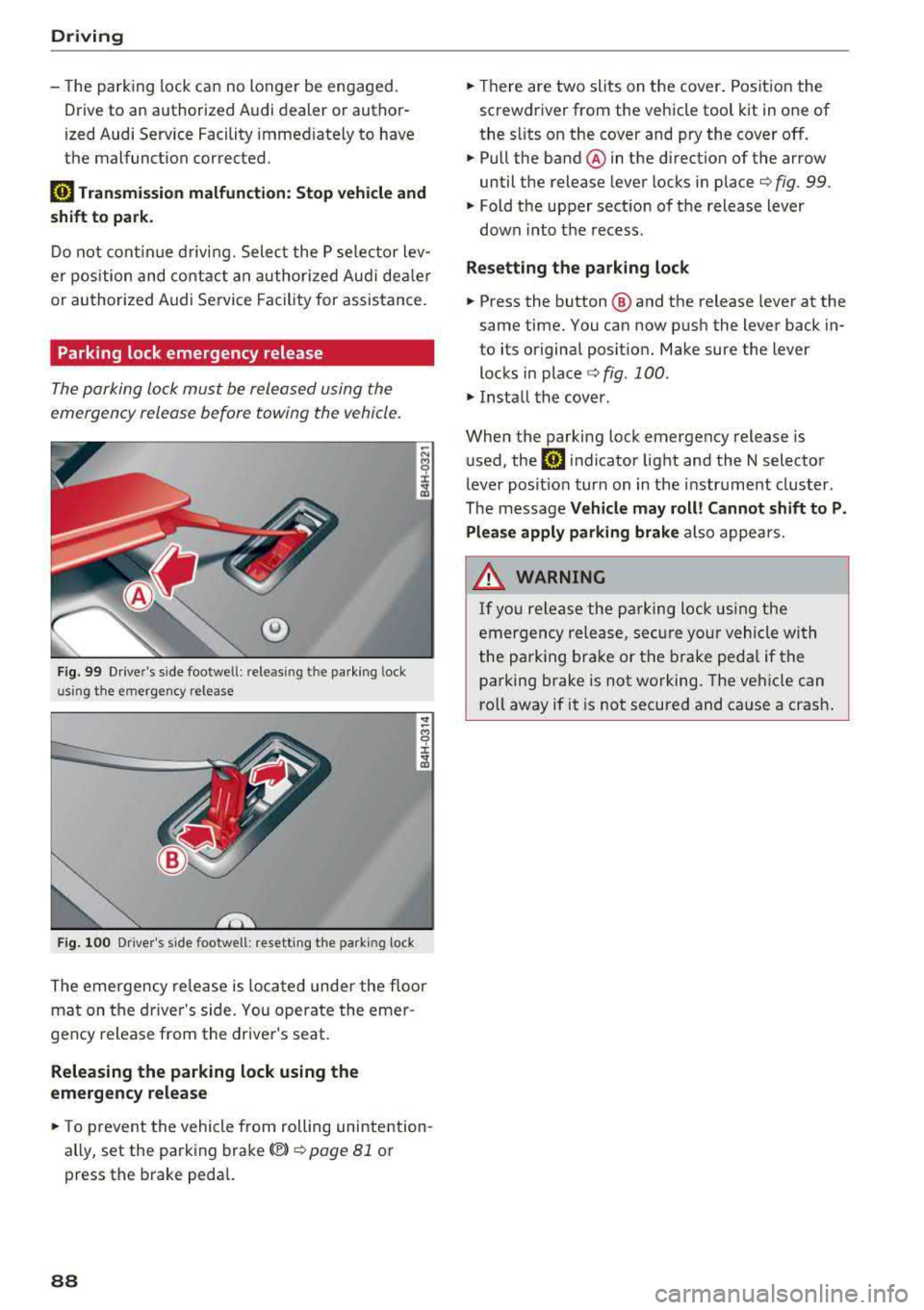
®
Fig. 99 Drive r's side footwe ll: releasin g t he parking lock
u sin g th e emergency release
Fig . 100 Dr iver's s ide footwell: resett ing the park ing lock
The emergency re lease is located under the floor
mat on the driver 's side. You operate the emer
gency release from the driver's seat.
Releasing the parking lock using the
emergency release
.,. To prevent the vehicle from rolling unintention
ally, set the parking brake(®)
¢ page 81 or
press the brake pedal.
88
.,. Th ere are two slits on the cover. Position the
screwdriver from the vehicle tool kit in one of
the s lits on the cover and pry the cover off.
.,. Pull the band ® in the direction of the arrow
until the release lever locks in place
¢ fig. 99 .
.,. Fold the upper sect ion of the release lever
down into th e recess.
Resetting the parking lock
.,. Press the button @ and the release lever at the
same time. You can now push the lever back in
to its original posit ion. Make sure the lever
locks in
place ¢ fig. 100 .
.,. Install the cover .
When the parking lock emergency release is
used, the
rm indicator light and the N selector
lever posit ion turn on in the instrument cluster.
The message
Vehicle may roll! Cannot shift to P.
Please apply parking brake
also appears .
.&, WARNING
-
If you release the parking lock using the
emergency release, secure your vehicle with
the pa rking brake or the brake pedal if the
parking brake is not working. The vehicle can
ro ll away if it is not secured and cause a crash.
Page 117 of 356
u. co .... N
" N .... 0 0 :c '
General information
A pp lies to: ve hicles with pa rk in g system p lus/rearview cam
era/peripheral camera
Depending on your vehicle 's equipment, various
pa rking aids wi ll help you when parking and ma
ne uvering.
The
p arki ng sys tem plu s assists you when park
ing by aud ibly and visua lly indicating objects de
tected in front of and behind the vehicle
¢ page 116.
The re arv ie w ca mer a shows the area beh ind the
veh icle in the Infotainment system d isplay. This
d isplay assists you when you are cross or parallel
pa rking
¢ page 117 . The park ing system p lus
functions are also available
¢ page 116.
The periph eral ca mera s give var ious views to
h e lp you whe n pa rking or maneuver ing
¢ page 120. T he pa rking system pl us functions
are also availab le
¢ page 116.
& WARNING
-Always look for traffic and check the area
around your vehicle by looking at it direct ly
as well. The parking system cannot replace
the driver's attent ion. The driver is always
responsible when enter ing or leav ing a park
ing space and during similar maneuvers.
- Please note that some surfaces, such as
clothing, are not detected by the system .
-
-Sensors and cameras have blind spots in
wh ich people and objects cannot be detect
ed . Be especially caut ious of small children
and animals .
- The sensors can be displaced by impacts or
damage to the radiator gr ille, bumper,
wheel housing and the underbody . The park
ing system may be impa ired as a result.
Have a n author ized A udi dealer or author
ized Audi Serv ice Facility check their func
tion .
- Make s ure the senso rs a re not obstructed by
stickers, deposits o r other materia ls. If they
are, the sensor function could be impaired.
For additiona l information on cleaning, see
¢ page 306.
Parking syste m s
@ Note
-Some objects are not detected or disp layed
by the system under certain circumstances:
- objects such as barrier cha ins, tra iler draw
bars, vertical po les or fences
- objects above the sensors such as wall ex
tensions
- objects with certain surfaces or structures
such as cha in link fences or powder snow
- If you continue driving closer to a low ob
ject, it may disappear from the sensor range . Note that you will no longer be
wa rned about t his obstacle.
(D Tips
-The system may provide a warning even
tho ugh the re are no obstacles in the cover
age area in some situations, such as:
- certain road surfaces or when there is tall
grass
- externa l ultrasonic sources such as from
cleaning vehicles
- in heavy rain, snow, or th ick vehicle ex
haust
- We recommend tha t you practice par king in
a traffic-free location or parking lot to be
come fami liar with the system . W hen doing
this, there sho uld be good light and weath
er conditions.
- You can change the volume and pitch of the
signa ls as well as the
display ¢ page 125.
-Please refer to the instructions for towing a
trai ler located in
r:!:> page 125 .
-What appears in the infotainment display is
somewhat time-delayed .
- T he sensors m ust be kept clean and free of
snow and ice for the parking aid to operate .
115
Page 119 of 356
lL t:0 ....
'"" " '"" .... 0 0 :c '
Introduction
Applies to: vehicles with rearv iew camera
t --...
...
~
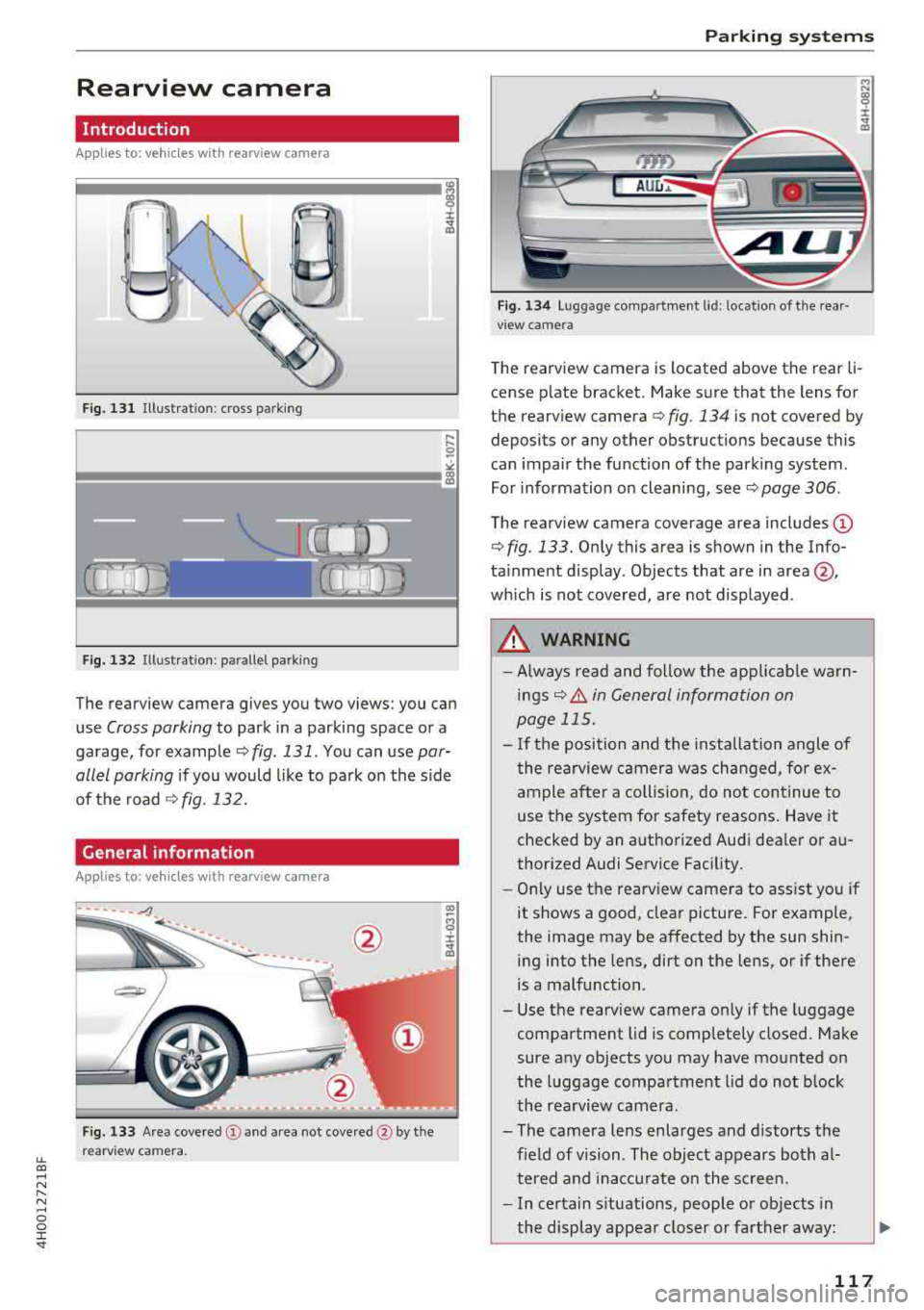
Fig. 131 Illustration: cross parking
Fig. 132 Illustrat ion: parallel parking
The rearview camera gives you two views: you can
use
Cross parking to park in a parking space or a
garage, for example
qfig . 131. You can use par
allel parking
if you would like to park on the side
of the road
¢fig. 132.
General information
Appl ies to : vehicles wit h rearv iew camera
Fig. 133 Area covered @ and area not covered @by the
rearv iew camera.
Parking systems
'YID
AUu ..
Fig. 134 Luggage compartment lid: location of the rear·
view camera
"' N
~
:i: .. Q)
Th e rearview camera is located above the rear li·
cense plate bracket. Make sure that the lens for
the rearview camera¢
fig. 134 is not covered by
deposits or any other obstructions because this
can impai r the function of the parking system.
For information on cleaning, see
q page 306.
The rearview camera coverage area includes @
¢ fig. 133. Only this area is shown in the Info
tainment display. Objects that are in
area @,
which is not covered, are not displayed.
A WARNING
--Always read and follow the applicable warn-
ings
q .& in General information on
page 115.
- If the position and the installation angle of
the rearview camera was changed, for ex ample after a collision, do not continue to
use the system for safety reasons . Have it
checked by an authorized Audi dealer or au
thorized Audi Service Facility.
- Only use the rearview camera to assist you if
it shows a good, clear picture. For example,
the image may be affected by the sun shin·
ing into the lens, dirt on the lens, or if there
is a malfunction.
- Use the rearview camera only if the luggage
compartment lid is completely closed. Make
sure any objects you may have mounted on
the luggage compartment lid do not block
the rearview camera.
- The camera lens enlarges and distorts the field of vision. The object appears both al·
tered and inaccurate on the screen .
- In certain situations, people or objects in
the display appear closer or farther away:
117
Page 121 of 356
lL t:0 ....
"' ......
"' .... 0 0 :c '
¢ A in General information on page 117, ¢(D
in General information on page 118 .@ repre
sents the rear bumper . At the very latest, stop
the vehicle when the red orientation
line @
borders an object .
Parallel parking
Applies to: veh icles with rearview camera
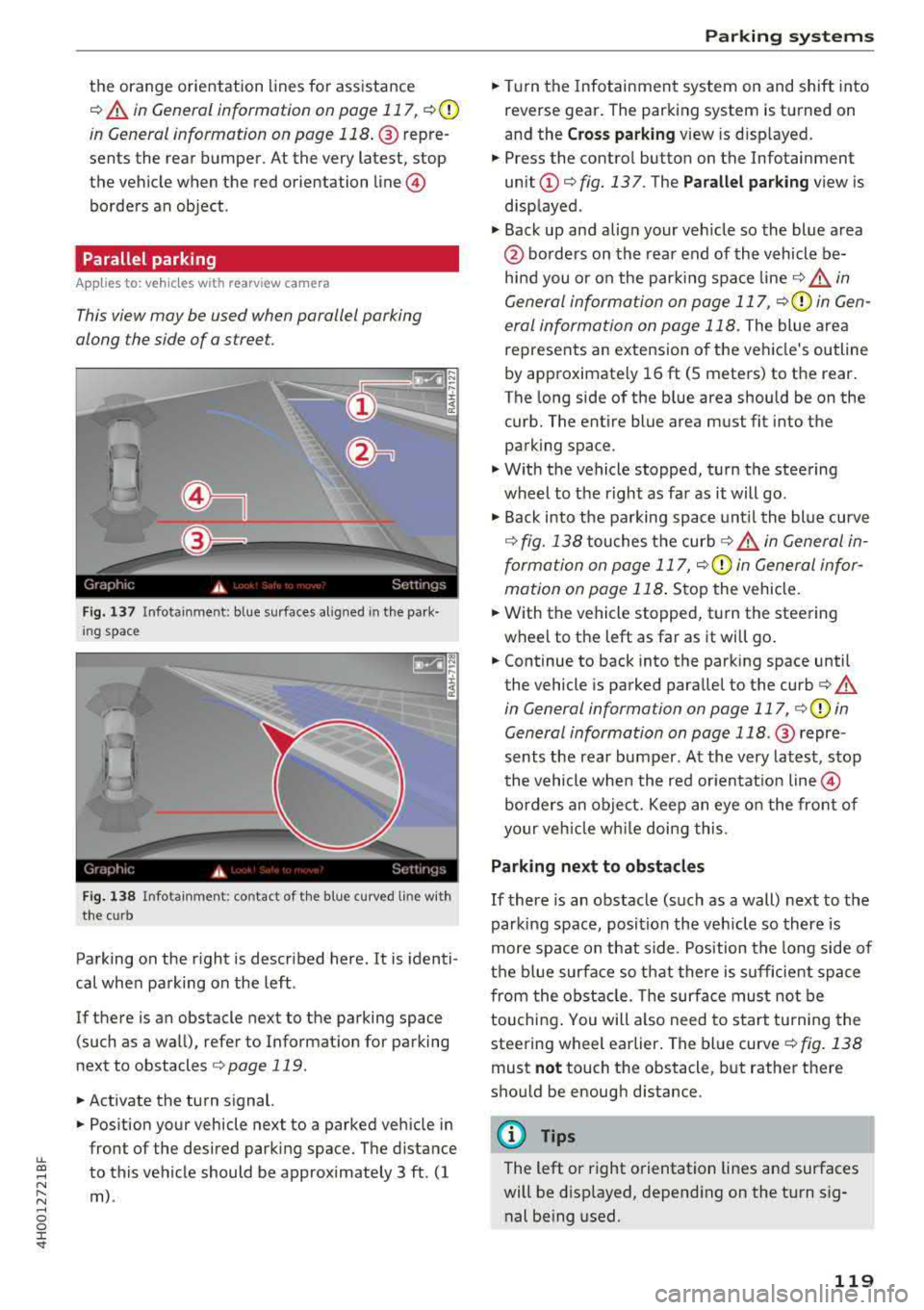
This view may be used when parallel parking
along the side of a stree t.
Fig . 137 In fota inment : blue surfaces alig ned in the pa rk ·
i ng space
Fi g. 138 In fo ta inm ent: c onta ct of the blue curv ed li ne with
the curb
Parking on the r ight is described here. It is identi
cal when parking on the left .
If there is an obstacle next to the parking space (such as a wall), refer to Informat ion for parking
next to obstacles
¢ page 119 .
.. Activate the turn signal.
.. Position your vehicle next to a parked veh icle in
front of the desired parking space. The d istance
to this vehicle should be approximately 3 ft . (1
m) .
Parking systems
.. T urn the Infotainment system on and shift into
reverse gear. The parking system is turned on
and the
C ros s parking view is d isp layed .
.. Press the contro l button on the Infotainment
unit @¢ fig. 137 . The Parallel parking view is
disp layed .
.. Back up and alig n your veh icle so the blue area
@ bo rders on the rear end of the vehicle be
hind you o r on the park ing spa ce
line ¢&_ in
General information on page 117,
¢ (Din Gen
eral information on page 118.
The blue area
represents an extension o f the vehicle's outline
by approximate ly 16 ft (5 meters) to the rear.
T he long side of the b lue area s hou ld be on the
curb. The entire blue area must fit into the
parking space .
.,. With the vehicle stopped, turn the steering
wheel to t he right as far as it will go .
.,. Back into the parking space unt il the blue curve
¢ fig. 138 touches the curb ¢&_ in General in
formation on page 117,
¢ (Din General infor
mation on page 118 .
Stop the vehicle .
.. With the vehicle stopped, t urn the steering
wheel to the left as far as it wi ll go .
.. Continue to back into the parking space until
the vehicle is parked parallel to the
curb ¢ A
in General informa tion on page 117, ¢ @ in
General information on page 118 .@ repre ·
sents the rear bumper. At the very latest, stop
the vehicle when the red or ien tat io n line
@
borders an object. Keep an eye o n the front of
your veh icle w hile doing this.
Parking next to obstacles
If there is an obstacle (such as a wall) next to the
parking space, position the veh icle so there is
more space on that side . Position the long side of
the b lue surfa ce so t hat there is sufficient spa ce
from the obstacle . T he su rface must not be
touchi ng . You will a lso need to s tart tu rning the
steering wheel earlier . The blue curve
¢ fig . 138
must not touch the obstacl e, b ut rather there
should be enough d istance .
(D Tips
The left or right orientation lines an d surfaces
will be disp layed, depend ing on the turn sig
nal be ing used.
119
Page 124 of 356
Parking systems
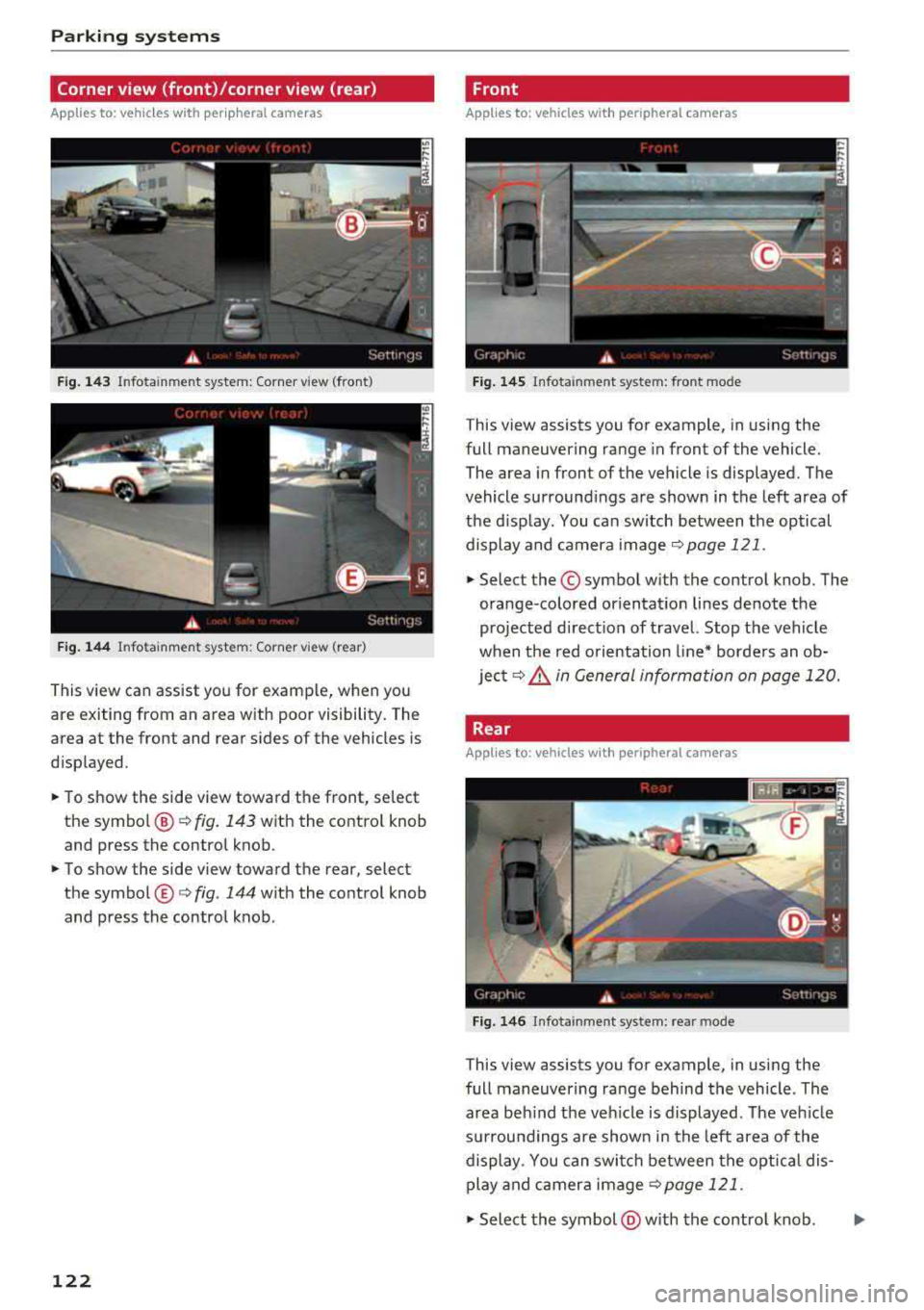
Corner view (front)/corner view (rear)
Applies to: vehicles with peripheral cameras
F ig . 143 Infotainment system: Corner view (front)
F ig. 144 Infotainment system: Corner view (rear)
This view can assist you for examp le, when you
are exiting from an area with poor visibility. The
area at the front and rear sides of the vehicles is
d isplayed .
.,. To show the side view toward the front, select
the symbo l@ ¢
fig. 143 with the contro l knob
and press the control knob .
.,. To show the side view toward the rear, select
the symbol ®¢
fig. 144 with the control knob
and press the control knob.
122
Front
Applies to: vehicles with peripheral cameras
Fig. 145 Infot ainment system: front mode
This view assists you for example, in using the
full maneuvering range in front of the vehicle.
The area in front of the vehicle is displayed. The
vehicle surround ings are shown in the left area of
the display . You can switch between the optical
display and camera image
¢page 121 .
.,. Select the© symbol with the control knob. The
orange-colored or ientat ion lines denote the
projected direct ion of travel. Stop the vehicle
when the red o rientation line* borders an ob
ject¢
8. in General information on page 120.
Rear
Applies to: vehicles with peripheral cameras
Fig. 146 Infota inmen t system: rear mode
This view assists you for example, in using the
full maneuvering range behind the vehicle. The
area beh ind t he veh icle is displayed. The veh icle
s ur roundings are shown in the left area of the
display . You can switch between the optical dis
play and camera image
¢page 121 .
.,. Select the symbol @with the contro l knob. ..,.
Page 125 of 356
lL t:0 ....
"" ......
"" .... 0 0 :c '
this mode.
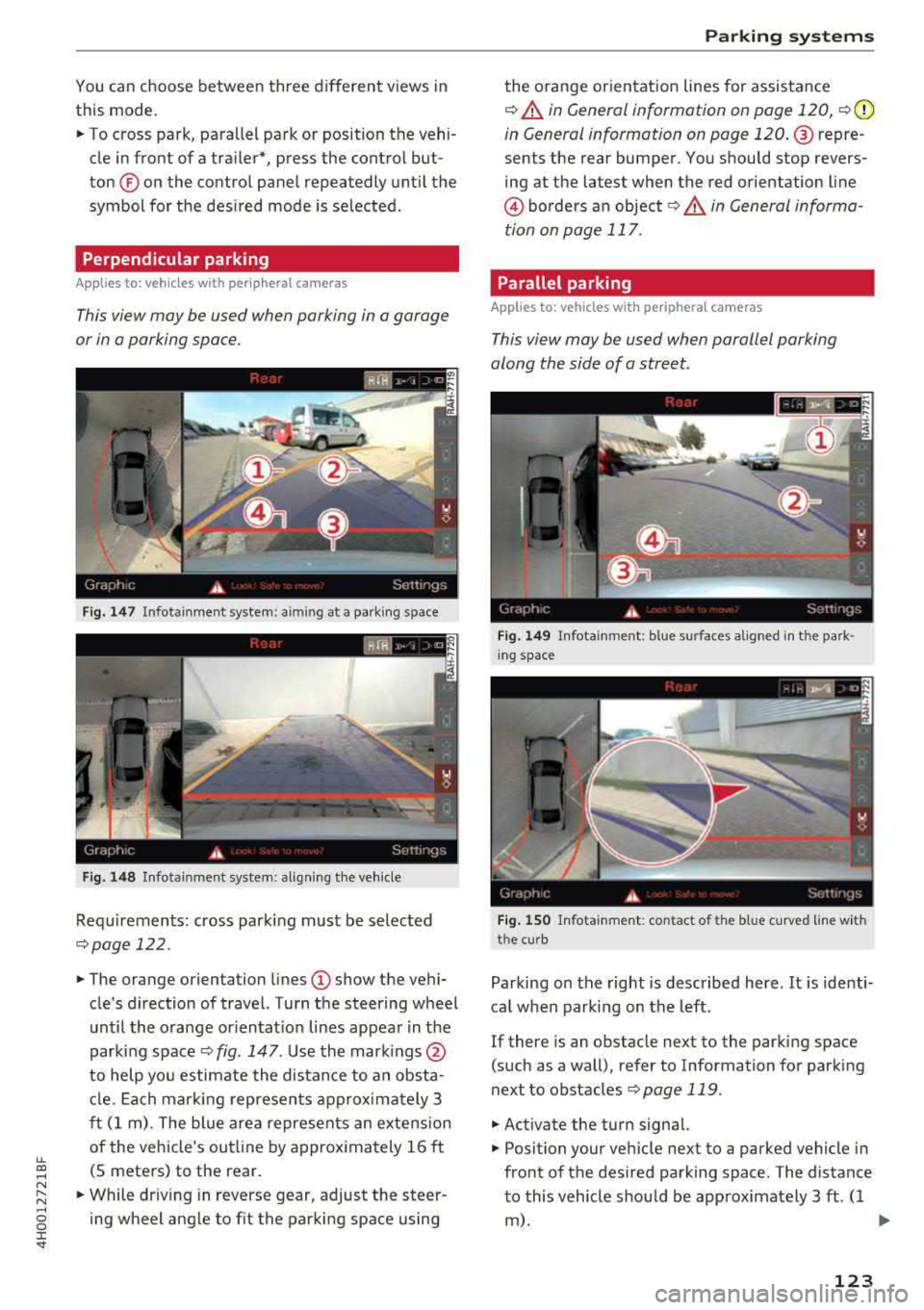
.,. To cross park, parallel park or position the vehi
cle in front of a tra iler*, press the control but
ton ® on the control panel repeatedly unt il the
symbol for the des ired mode is selected .
Perpendicular parking
Applies to: vehicles with peripheral cameras
This view may be used when parking in a garage
or in a parking space .
Fig . 1 47 In fota inmen t system: aiming at a pa rking s pace
Fig. 1 48 In fot ainm en t system : align ing t he vehicle
Requ irements: cross park ing must be selected
q page 122 .
.,. The orange orientation lines (I) show the vehi
cle's direction of travel. Turn the steering wheel
unt il the orange or ientat io n lines appear in t he
parking space
q fig . 147 . Use the mark ings @
to help yo u estimate the distance to an obsta
cl e. Ea ch mar king represen ts approx imately 3
ft (1 m) . The blue are a represents an extens ion
of the vehicle's outl ine by approx imately 16 ft
(S meters) to the rear.
.,. While dr iv ing in reverse gear, adjust the steer
ing wheel ang le to fit the parking space using
Parking systems
the orange orientat ion lines for assistance
q &. in General information on page 120, q (D
in G eneral information on page 120 . @repre
sents the rear bumper. You should stop revers
ing at the la test when the red orientation line
@ borders an object ¢&. in General informa
tion on page 117 .
Parallel parking
Applies to: vehicles with peripheral cameras
This view may be used when parallel parking
along the side of a street.
F ig. 149 In fota inment : blue s urfaces a lig ned i n th e pa rk ·
i ng space
Fi g. 1 50 Info tainment: con tac t of th e blu e curved line w ith
t he cu rb
Parking on the right is described here . It is identi·
ca l when parking on the left.
If there is an obstacle next to the parking space
(such as a wall), refer to Information for parking
next to obstacles
q page 119 .
.,. Activate the turn signal.
.,. Position your vehicle next to a parked vehicle in
front of the des ired parking space. The distance
to this vehicle shou ld be approximately 3 ft . (1
m). ..,.
123
Page 126 of 356
Parking systems
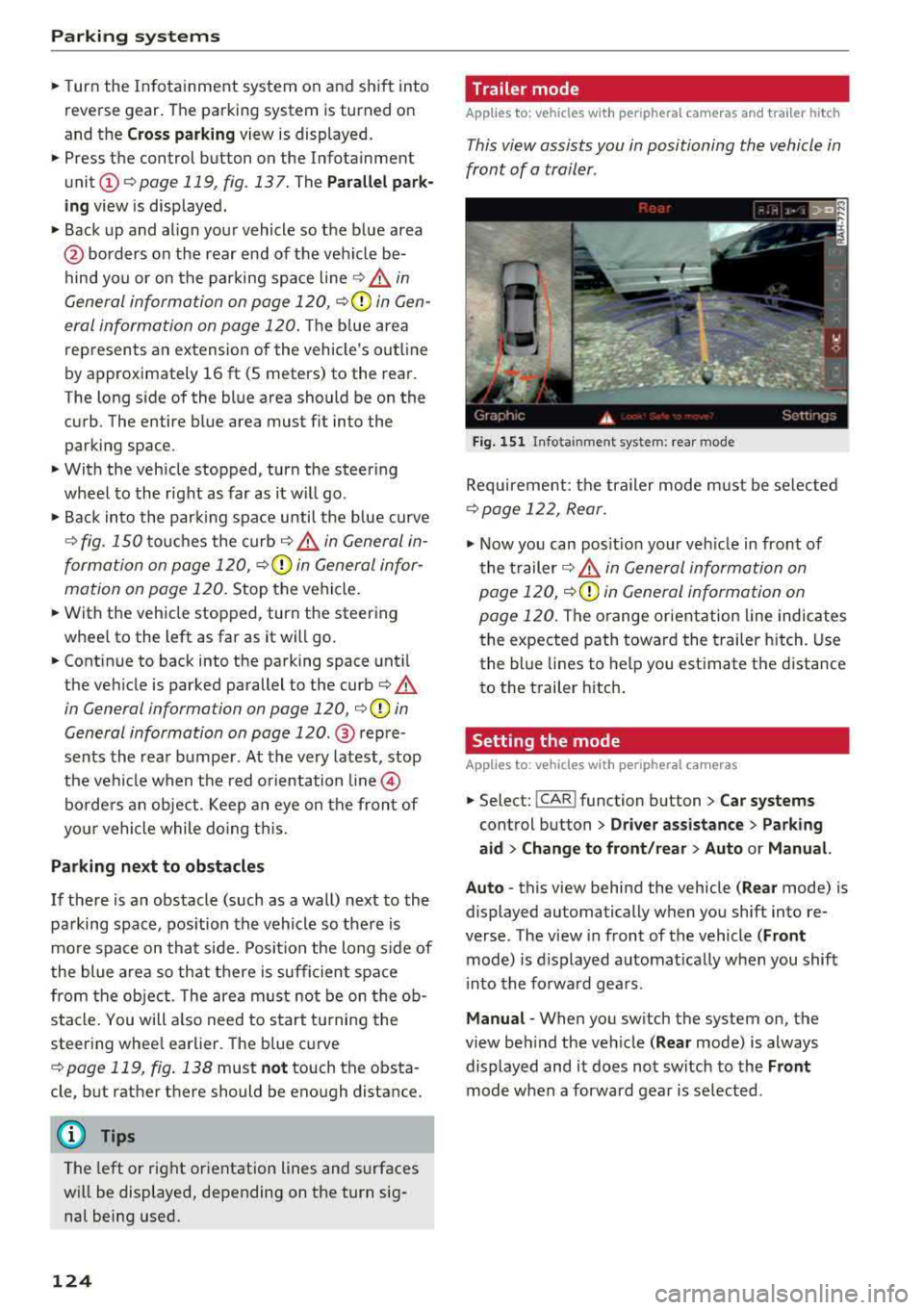
,.. Turn the Infotainment system on and shift into
reverse gear. The parking system is turned on
and the
Cross parking view is displayed.
,.. Press the control button on the Infotainment
unit @ Q page 119, fig . 13 7. The Parallel park
ing
view is displayed .
,.. Back up and align your vehicle so the blue area
@ borders on the rear end of the vehicle be
hind yo u or on the parking space line
Q .&. in
General information on page 120,
Q (Q) in Gen
eral information on page 120 .
The blue area
rep resents an extension of the vehicle's out line
by approximately 16 ft (5 meters) to the rear.
The long s ide of the blue area should be on the
curb . The entire blue area must f it into the
parking space.
,.. With the vehicle stopped, turn the steering
wheel to the right as far as it w ill go .
,.. Back into the parking space until the b lue curve
Q fig. 150 touches the curb-=?.&. in General in
formation on page 120, ¢@ in General infor
mation on page 120.
Stop the vehicle .
,.. With the vehicle stopped, turn the steering
whee l to the left as far as it will go.
,.. Continue to back into the parking space until
the vehicle is parked parallel to the
curb¢ &.
in General information on page 120, ¢@ in
General information on page 120 .
® repre
sents the rear bumper. At the very latest, stop
the vehicle when the red orientation
line ©
borde rs an object . Keep an eye on the front of
your vehicle while doing this.
Parking next to obstacles
If there is an obstacle (such as a wall) next to the
parking space, position the vehicle so there is
mo re space on that side. Position the long side of
the blue area so that there is sufficient space
from the object. The area must not be on the
ob
stacle. You will a lso need to start turning the
steering whee l earlier. The blue curve
¢ page 119, fig . 138 must not touch the obsta
cle , but rather there should be enough distance.
@ Tips
The left or right orientation lines and surfaces
will be displayed, depending on the turn
sig
nal being used.
124
Trailer mode
Applies to: vehicles with peripheral cameras and trailer hitch
This view assists you in positioning the vehicle in
front of a trailer .
Fig. 151 In fota inment system: rear mode
Requirement: the trailer mode must be selected
¢ page 122, Rear.
.,. Now you can posit ion your veh icle in front of
the trailer
c::;, .&. in General information on
page 120,
c::;, (Q) in General information on
page 120.
The orange or ientation line indicates
the expected path toward the trailer hitch. Use
the blue lines to help you estimate the d istance
to the trailer hitch.
Setting the mode
Applies to : vehicles with peripheral cameras
,.. Select: !CAR ! function button> Car systems
control button > Driver assistance > Parking
aid > Change to front/rear > Auto or Manual.
Auto
-this view behind the vehicle ( Rear mode) is
displayed automatically when you shift into re
verse. The view in front of the vehicle
(Front
mode) is d isplayed automat ically when you shift
i nto the forward gears .
Manual -When you switch the system on, the
view beh ind the veh icle
( Rear mode) is always
displayed and it does not switch to the
Front
mode when a forward gear is se lected.
Page 127 of 356
u. co .... N
" N .... 0 0 :c '
A ppl ies to : ve hicles w ith parkin g system plus/rearv iew cam
era/peripheral ca mera
The display and warning tones can be adjusted in
the Infotainment.
~ Se lect : the ICARI fu nction button > Car systems
contro l button > Driver assistance > Parking
aid .
Display
On * -
an op tical d isp lay is shown for the par kin g
system plus, a rearv iew camera image is s hown
for the rearview camera *.
Off -when the p arking sys tem is sw itche d off,
on ly audib le sign als are give n.
Signal tones
Front volume -
volume for the front area
Rear volume -volume for the rear area
Front frequency -frequency for the front area
Rear frequency -frequen cy fo r the rea r area
Music volume during nav . prompts -the volume
of the a udio/video so urce is lowe red when t he
pa rking system is turned o n
The new ly selected leve l is demonstrated briefly
by the sound generator .
(D Tips
-The wa rning tones ca n also be ad justed d i
r ectly by the vis ual d isp lay or the pictu re
from the camera. Simply p ress the
Settings
control bu tton.
- Changed sett ings are ac tivated whe n the
p arking system is switched o n aga in.
- The settings for volume and frequency are
a utomat ica lly saved and ass igned to the re
mo te con trol key be ing used.
Error messages
A pp lies to: ve hicles with parking system plus/rearview cam
era/per ipheral ca mera
There is an erro r in the system if the LED in the
Pw , button is b link ing and yo u hear a continuous
Parking systems
alarm for a few seconds after sw itch ing on the
par king system or w hen the pa rking system is a l
r eady activated. If the erro r is not cor rected be
fo re you switch off the ignition, the
LED in the Pw ,
button w ill blink the next time you switch on the
park ing system by shifting into reverse.
Parking system plus*
If a senso r is fa ulty, the~ symbo l will appear i n
front of/beh ind the vehicle in the Infotainment
display. If a rear sensor is faulty, on ly obstacles
t h at are i n areas @and @ are shown
Q page 116, fig . 129 . If a front se nsor is faulty,
o n ly obs tacles tha t are in a reas © and @are
shown. The re is a lso a sys tem ma lf u nct ion if all
seg ments arou nd the veh icle are red or if no seg
me nts are disp laye d.
Peripheral cameras*
The re is a system malfu nction if t he 00 • symbol
appea rs and the co rresponding d isp lay area is
s h own in bl ue. The camera is not wo rking in t his
are a.
Drive to an authorized A udi dealer or authorized
Audi Se rvice Facility immed iate ly to have the
malfu nction corrected.
Trailer hitch
App lies to: vehicles wit h parking system pl us/rea rv iew cam
e ra/peri phe ra l cameras an d tra ile r hitc h
When the trailer socket is in use, the par king sys
tem rear sensors are not act ivated when you sh ift
into reverse gear or when yo u press t he
p, ,1 A but
ton. This res ults in the following rest rict ions.
Parking system plus*
The re is no distance warning for the rear. The
front senso rs remain activated. T he v isua l disp lay
switches to trailer mode.
Rearview camera*/peripheral cameras*
T he re is no distance warning for the rea r. The
front senso rs remain activated . The visua l disp lay
switches to trailer mode. The rearview came ra
i mage will not s how the orie ntation lines and t he
bl ue surfaces.
IJJ,-
125
Page 314 of 356
Emergency assistance
Emergency assistance
General information
.,. Park the vehicle as far as possible from moving
traffic in the event of a breakdown. In the event
of a flat tire, park the vehicle on a level surface .
It you are on a steep hill, be especially careful.
.,. Set the parking brake .
.,. Switch the emergency flashers on .
.,. Set up the warning triangle r=;,page 312 .
.,. Have the passengers exit the vehicle . They
should move to a safe place, for example be
hind a guard rail.
A WARNING
Follow the steps given above. This is for your
protection and the for the safety of other driv
ers.
Equipment
Warning triangle
Applies to: vehicles with warning triangle
Fig. 270 L uggage co mpartm ent lid : w arnin g triangle
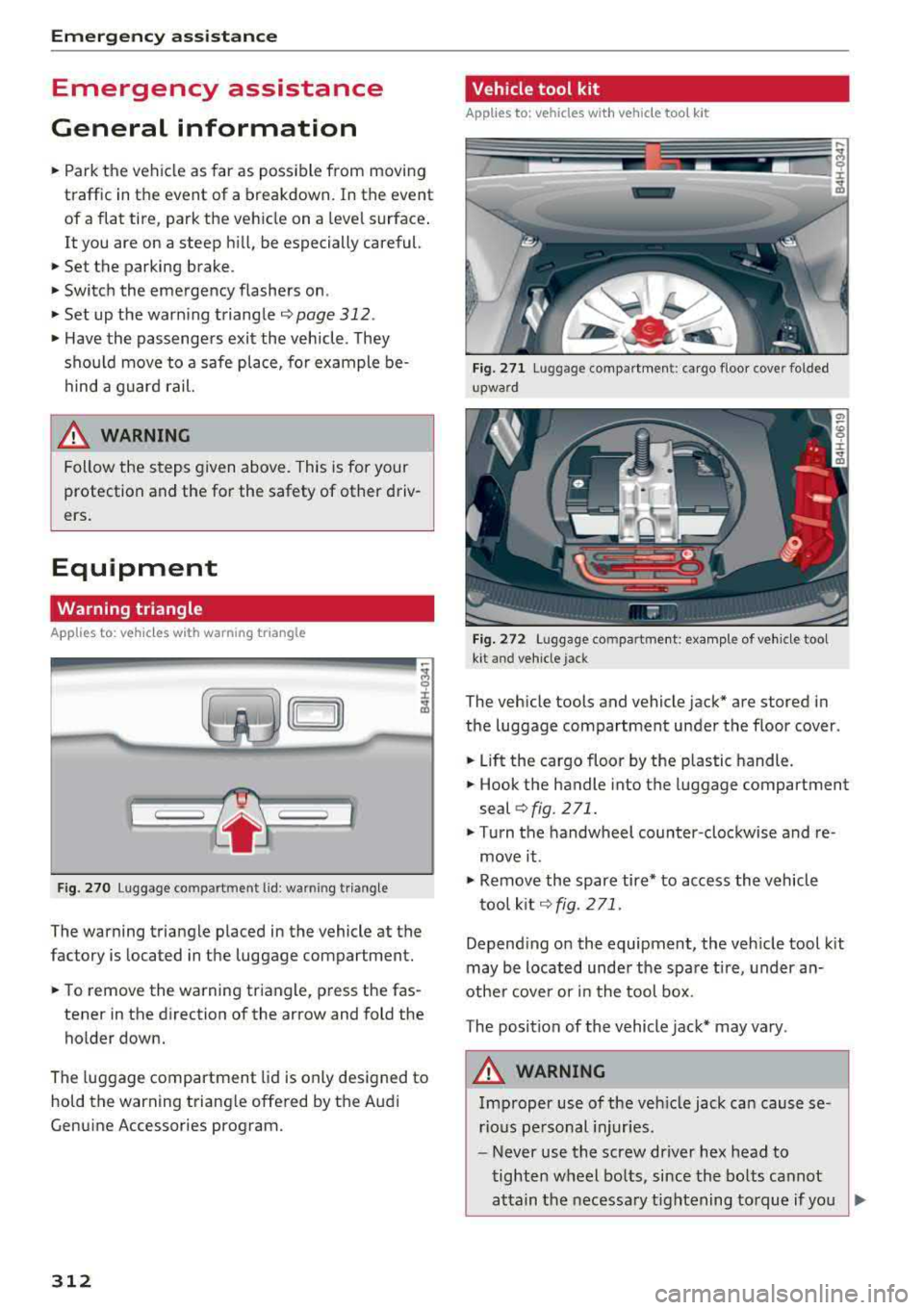
The warning triangle placed in the vehicle at the
factory is located in the luggage compartment.
.,. To remove the warning triangle, press the fas-
tener in the direction of the arrow and fold the
holder down.
The luggage compartment lid is only designed to
hold the warning triangle offered by the Audi
Genuine Accessories program.
312
Vehicle tool kit
Applies to: vehicles with vehicle toot kit
Fig. 271 Lu gg age compartment : cargo floor cove r folded
upward
Fig. 272 Luggage compartment: examp le of vehicle toot
kit and vehicle j ack
The vehicle tools and vehicle jack* are stored in
the luggage compartment under the floor cover .
.,. Lift the cargo floor by the plastic handle .
.,. Hook the handle into the luggage compartment
seal
r:;, fig. 2 71 .
.,. Turn the handwheel counter-clockwise and re
move it .
.,. Remove the spare tire* to access the vehicle
tool kit
~ fig. 271 .
Depending on the equipment , the veh icle tool kit
may be located under the spare tire, under an
other cover or in the tool box.
The position of the vehicle jack* may vary .
A WARNING
Improper use of the veh icle jack can cause se
rious personal injuries.
-Never use the screw driver hex head to
tighten wheel bolts, since the bolts cannot
attain the necessary tightening torque if you
..,.
Page 318 of 356
Emergency assistance
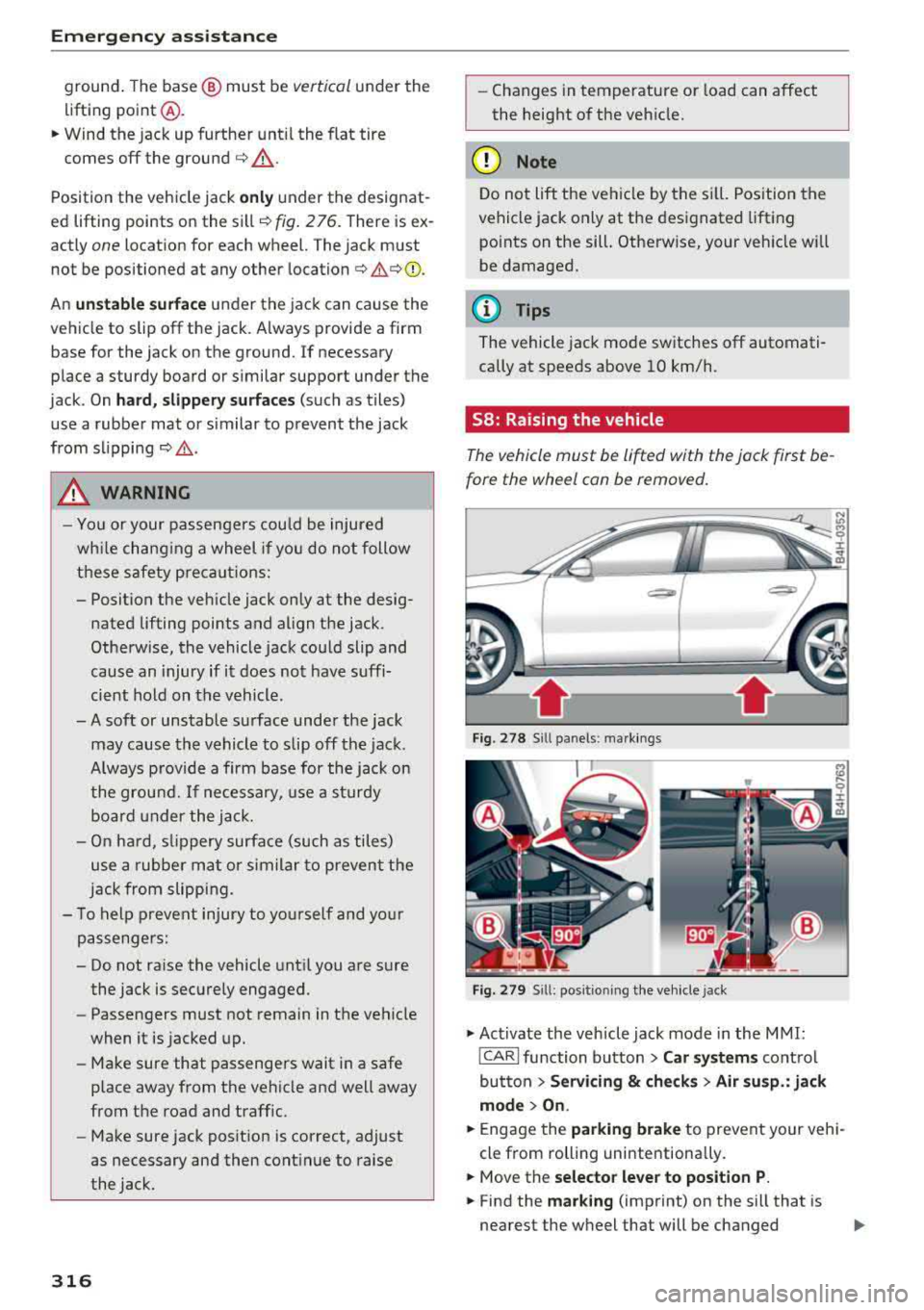
ground. The base @ must be vertical under the
lifting point@.
"'"Wind the jack up further until the flat tire
comes off the ground
c::> &, .
Position the vehicle jack only under the designat
ed lifting points on the sill
c::> fig. 2 76. There is ex
actly
one location for each wheel. The jack must
not be positioned at any other location
c::> .,&.c::>(!) .
An unstable surface under the jack can cause the
vehicle to slip off the jack. Always provide a firm
base for the jack on the ground. If necessary
place a sturdy board or similar support under the
jack . On
hard, slippery surfaces (such as tiles)
use a rubber mat or similar to prevent the jack
from slipping
c::> &. .
,& WARNING
-
-Yo u or your passengers could be injured
wh ile chang ing a wheel if you do not follow
these safety precautions:
- Position the vehicle jack only at the desig nated lifting points and align the jack .
Otherwise, the vehicle jack could slip and
cause an injury if it does not have suffi
cient hold on the vehicle.
- A soft or unstable surface under the jack may cause the vehicle to slip off the jack.
Always provide a firm base for the jack on
the ground.
If necessary, use a sturdy
board under the jack.
-On hard, s lippery surface (such as tiles)
use a rubber mat or similar to prevent the
jack from slipping.
- To help prevent injury to yourself and yo ur
passengers:
- Do not raise the vehicle until you are sure
the jack is securely engaged.
- Passengers must not remain in the vehicle
when it is jacked up.
- Make sure that passengers wait in a safe
place away from the vehicle and well away
from the road and traff ic.
- Make sure jack position is correct, adjust
as necessary and then continue to raise
the jack.
316
- Changes in temperature or load can affect
the height of the vehicle.
(D Note
Do not lift the veh icle by the si ll. Pos ition the
vehicle jack only at the designated lifting
points on the sill. Otherwise, your vehicle will
be damaged.
(D Tips
The vehicle jack mode switches off automati
cally at speeds above 10 km/h .
58: Raising the vehicle
The vehicle must be lifted with the jack first be
fore the wheel can be removed.
Fig . 278 Sill panels : ma rkings
Fig. 279 Sill : posi tioning the vehicle jack
.,. Activate the vehicle jack mode in the MMI:
!CARI function button> Car systems control
button >
Servicing & checks > Air susp.: jack
mode > On .
.,. Engage the parking brake to prevent your vehi
cle from rolling unintentiona lly.
.,. Move the selector lever to position P.
"'" Find the marking (imprint) on the sill that is
nearest the wheel that will be changed
..,.