radio AUDI A8 2018 User Guide
[x] Cancel search | Manufacturer: AUDI, Model Year: 2018, Model line: A8, Model: AUDI A8 2018Pages: 356, PDF Size: 54.71 MB
Page 139 of 356
lL t:0 ....
"" ......
"" .... 0 0 :c '
Selecting the previous /next function (for exam
ple, a radio st a tion/track) :
briefly press the On/
Off knob @
c::> page 135, fig . 153 toward the left
l
Fast forw arding/rewinding (for example
songs ):
press and hold the On/Off knob @
c::> page 135, fig. 153 toward the left l
MMI touch
Applies to: vehicles with MMI touch control pad
The MMI touch allows you to enter data on the
MMI touch control pad using handwriting recog
nition.
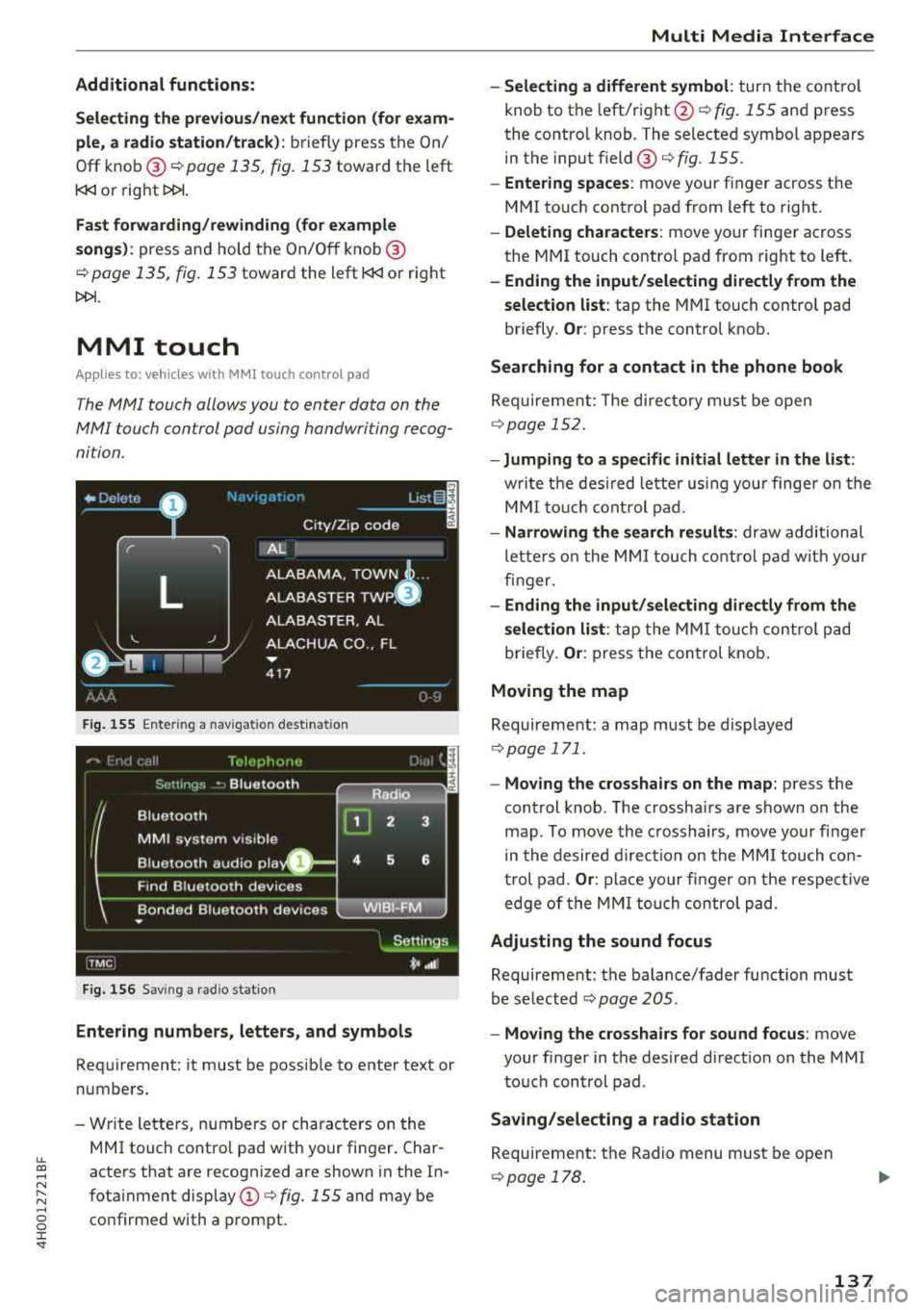
F ig. 155 Ente ring a nav igat ion dest inat io n
Fig. 156 Sav ing a rad io stat io n
Entering numbers, letters, and symbol s
Requirement: it must be possib le to enter text or
numbers .
- Wr ite lette rs, numbers or characte rs on the
MMI touch co ntro l pad with your finger. Char
acters that are recognized are shown i n the In
fota inment display
(D <=> fig. 155 and may be
co nfirmed with a prompt.
Multi Media Inte rface
- Selecting a different symbol : turn the co ntro l
knob to the left/right @<=>
fig. 155 and press
the contro l knob. The selected symbol appears
in the input field @<=>
fig. 155.
-Entering spaces : move your finger across t he
MMI touch control pad from left to right .
-Delet ing characters : move your finger across
the MMI touch contro l pad from right to left.
- Ending the input /selecting directl y from the
selection list :
tap the MMI touch contro l pad
briefly.
Or : press the control knob.
Searching for a contact in the phone book
Requireme nt: The d irecto ry must be open
c::> page 152 .
-Jumping to a specifi c initial letter in the list :
writ e t he des ired lette r using your finge r on the
M MI to uch cont rol pad.
- Narrowing the search results : draw additional
le tte rs o n the MMI touch co ntro l pad w it h your
fin ger.
- Ending the input /sele cting directl y from the
selection list :
ta p the MM I tou ch co ntrol pad
briefly.
Or : press the con trol knob .
Moving the map
Requireme nt: a map must be d isplayed
c::> page 171.
- Moving the crosshairs on the map: press the
cont rol knob . T he crossha irs are shown on the
map . To move the crosshairs, move your fi nger
in the desired d irec tion on the MM I touch con
t rol pad .
Or : place your fi nger o n the respec tive
edge of the MM I tou ch contro l pad.
Adjusting the sound focus
Requireme nt: the balance/fader fu nction must
be se lected
c::> page 205.
- Moving the crosshairs for sound focus : move
your finger in the desired direct io n on the MMI
to uch con trol pad .
Saving /selecting a radio station
Requirement: the Radio menu must be open
c::> page 178 .
137
Page 140 of 356
Multi Media Interface
-Storing the radio station currently set: hold
your finger on a number (1 to 6) on the MMI
touch contro l pane l until you hear a signal
tone. The radio station will be stored on these
lected number in the list .
-Selecting a stored radio station: tap a number
(1 to 6) on the MMI touch control pad briefly.
The preset buttons (1-6) appear in the Infotain ment
display @¢ fig. 156 .
-Moving a stored radio station: move your fin
ger on the MMI touch control pad to the left/
right until the preset buttons (1-6) appear in
the Infotainment
d isplay @.
Browsing/selecting album covers
Requirement: the Media menu must be open and
a source must be
selected ¢ page 190.
-Browsing through album cove rs: move your
finger across the MMI touch contro l pad from
Letter/number speller
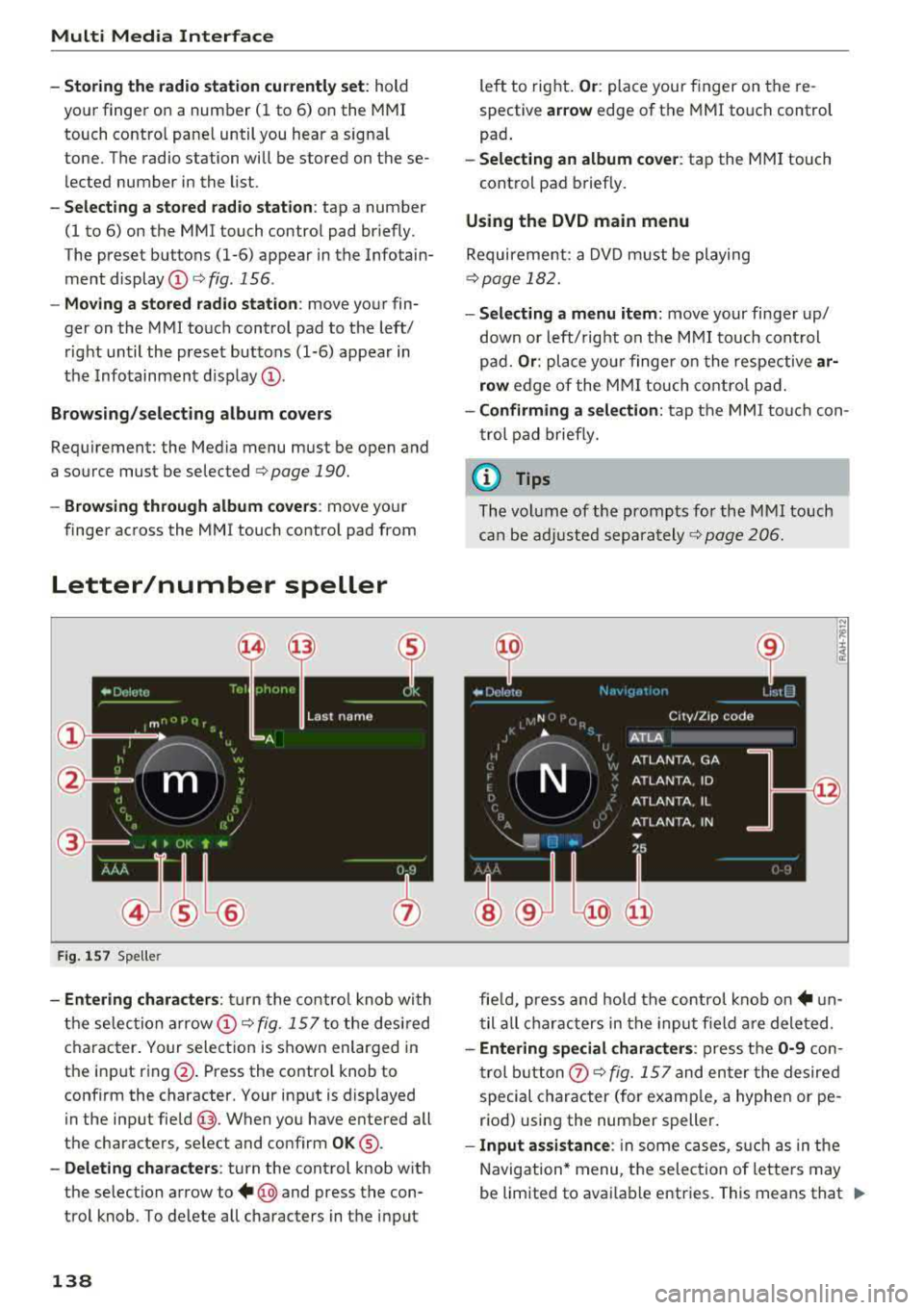
Fig. 157 Spe ller
-Entering characters : turn the control knob with
the selec tion
arrow @¢ fig. 157 to the desired
character. Your selection is shown enlarged in
the input ring @. Press the contro l knob to
confirm the character. Your input is displayed
in the input
field @. When you have entered all
the characters, select and confirm
OK ®·
-Deleting characters: turn the control knob with
the selection arrow to
+ @ and press the con
trol knob . To delete all characters in the input
138
left to right. Or: place your finger on the re
spective
ar row edge of the MMI touch control
pad .
-Selecting an album cover: tap the MMI touch
cont rol pad briefly.
Using the DVD main menu
Requirement: a DVD must be playing
¢page 182.
- Selecting a menu item: move your finger up/
down or left/ right on the MMI touch control
pad.
Or : place your finge r on the respective ar
row
edge of the MMI touch control pad.
-Confirming a selection: tap the MMI touch con
trol pad briefly.
(D Tips
The volume of the prompts for the M MI touch
can be adjusted
separately ¢ page 206.
fie ld, press and hold the control knob
on+ un
til all characters in the input f ield are deleted.
-Entering special characters : press the 0-9 con
trol button
0 ¢ fig. 157 and enter the desired
special character (for examp le, a hyphen or pe
riod) using the number speller.
- Input assistance : in some cases, such as in the
Navigation* menu, the selection of letters may
be limited to avai lable entries. This means that
.,..
Page 143 of 356
LL
"' .... N ,.._ N .... g :r st
• TELEPHONE
• NAVIGATION
• INFO
• RADIO
• MEDIA
• HELP
•
HELP VOICE RECOGNmON
• HELP TELEPHONE
• HELP NAVIGATION
• HELP MAP
• HELP INFO
•
HELP RADIO
• HELP MEDIA
TELE ~HONE
• ENTER NUMBER
• DIAL
• REPEAT
• CORRECTION
• DELETE NUMBER
• REDIAL
• CALL (XV)
(BUSINESS/ PRIVATE/ LANO LINE/ CELL)
NAVI GAT:ION
• ENTER ADDRESS
• ENTER COUNTRY
• ENTER ZIP CODE/ CITY
• ENTER STREET
• ENTER HOUSE NUMBER
• ENTER DOWNTOWN
• START/ CANCEL ROUTE GUIDANCE
• NAVIGATE TO
(XV)
• LAST DESTINATIONS
• FAVORITES
• HOME ADDRESS
• SHORT / FAST/ ECONOMY ROUTE
• DYNAMIC ROUTE ON/ OFF
• ROUTE UST
• VOICE GU I DANCE ON/ OFF
• ROUTE INFO ON/ OFF
• SCALE (XV) MILES / VAROS
• READ TRAFFIC REPORTS
RADIO
• SET STATION
• STATION (XY)
• SET FREQUENCY
• SET BAND
• FM/ AM/ SIRIUS
• STATION LIST
• READ STA
TYON LIST
• PRESETS
• READ PRESETS
• UPDATE STATION LIST
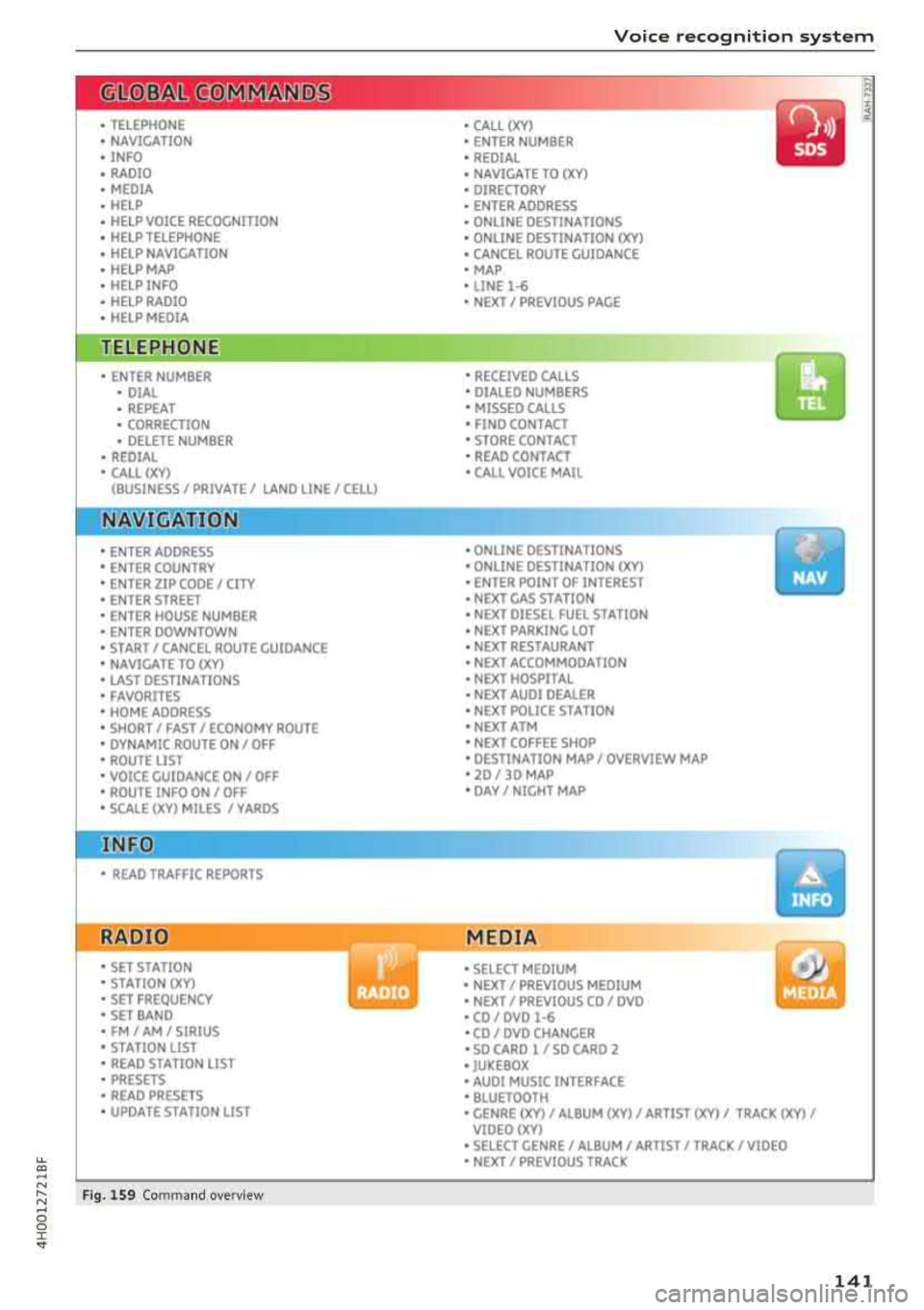
Fig. 1S9 Com mand o verv iew
Voice recognition system
• CALL (XV)
• ENTER NUMBER
• REDIAL
• NAVIGATE TO
(XV)
• DIRECTORY
• ENTER ADDRESS
• ONLINE DESTINATIONS
• ONLINE DESTINATION
(XV)
• CANCEL ROUTE GUIDANCE
• MAP
• LINE
1·6
• NEXT/ PREVIOUS PAGE
•
RECEIVED CALLS
• DIALED NUMBERS
• MISSED CAll5
• FINO CONTACT
• STORE CONTACT
• READ CONTACT
•
CALL VOICE MAIL
• ONLINE DESTINATIONS
• ONLINE DESTINATION (XV)
• ENTER POINT OF INTEREST
• NEXT GAS STATION
• NEXT DIESEL FUEL STATION
• NEXT PARKING LOT
• NEXT RESTAURANT
• NEXT ACCOMMOOA TION
• NEXT HOSPITAL
• NEXT AUDI DEALER
• NEXT POLICE ST A TION
• NEXT ATM
• NEXT COFFEE SHOP
• DESTINATION MAP/ OVERVIEW MAP
• 20 / 30 MAP
• DAY/ NIGHT MAP
MEDIA
• SELECT MEDIUM
• NEXT/ PREVIOUS MEDIUM
• NEXT/ PREVIOUS CO/ DVD
• CO/ DVD
1·6
•CO/ DVD CHANGER
• SO CARO l / SO CARO 2
• JUKEBOX
• AUDI MUSIC INTERFACE
• BLUETOOTH
y
• GENRE (XV)/ ALBUM (XV)/ ARTIST (XV)/ TRACK (XV)/
VIOEO()(Y)
• SELECT GENRE/ ALBUM/ ARTIST/ TRACK/ VIDEO
• NEXT/ PREVIOUS TRACK
141
Page 145 of 356
u. co .... N
" N .... 0 0 :c '
Sequences of commands used to perform an ac
tion are identified with
a" >", for examp le say: es
. Fo r examp le, for
business address, you can
also say
business , work, office or job.
Enter destination
> (then) Enter country .
The majority shown are main commands. This
system also recognizes synonyms in certain cas-
Global commands
App lies to: ve hicles with vo ice recogni tion sys te m
You can always use th e global commands, re
gardless of the menu selected.
Function Say:
Opening a menu Telephone* I Directory* I Navigation* I Map* I Radio I Media I
Info
Having the possible commands Help I Help speech dialog system I Help Telephone* I Help Nav-
read aloud igation* I Help Map * I Help Radio I Help Media I Help Info
Telephone functions* Call (XV), for example Call John Smith I
Enter number I Redial I Directory
Navigation functions* Navigate to (XV), for examp le Navigate to John Smith I
Enter address I Cancel route guidance I Map
Selecting an entry from a list Line (XV)
Scrolling through a list Next page I Previous page
Switching the voice recognition sys-Cancel
tern off
Telephone
App lies to: ve hicles with vo ice recognition system and telep hone
Requirement: a cell phone must be connected to
the MMI
~ page 147 and the Telephone menu
must be open
~ page 148.
Function Say:
Call contact from directory Call (XV), for example Call John Smith
Selecting a specific contact number Call (XV) business I private I land line I cell,
for example, Call John Smith private
Selecting a phone number with an Call I Call business I Call private I Call landline I Call business
address card open cell phone
Showing contact information Directory I Find contact > the desired contact when prompted,
such as John Smith
Personalizing a contact with a Find contact> the desired contact when prompted, such as John
name tag Smith > Name contact> the personal name tog, su ch as Uncle
John
Dialing a phone number Enter number > after being prompted, say the telephone num-
ber in groups of individual numbers,
for example. 888 555
1212 > Dial
143
Page 147 of 356
u. co .... N
" N .... 0 0 :c '
Function Say:
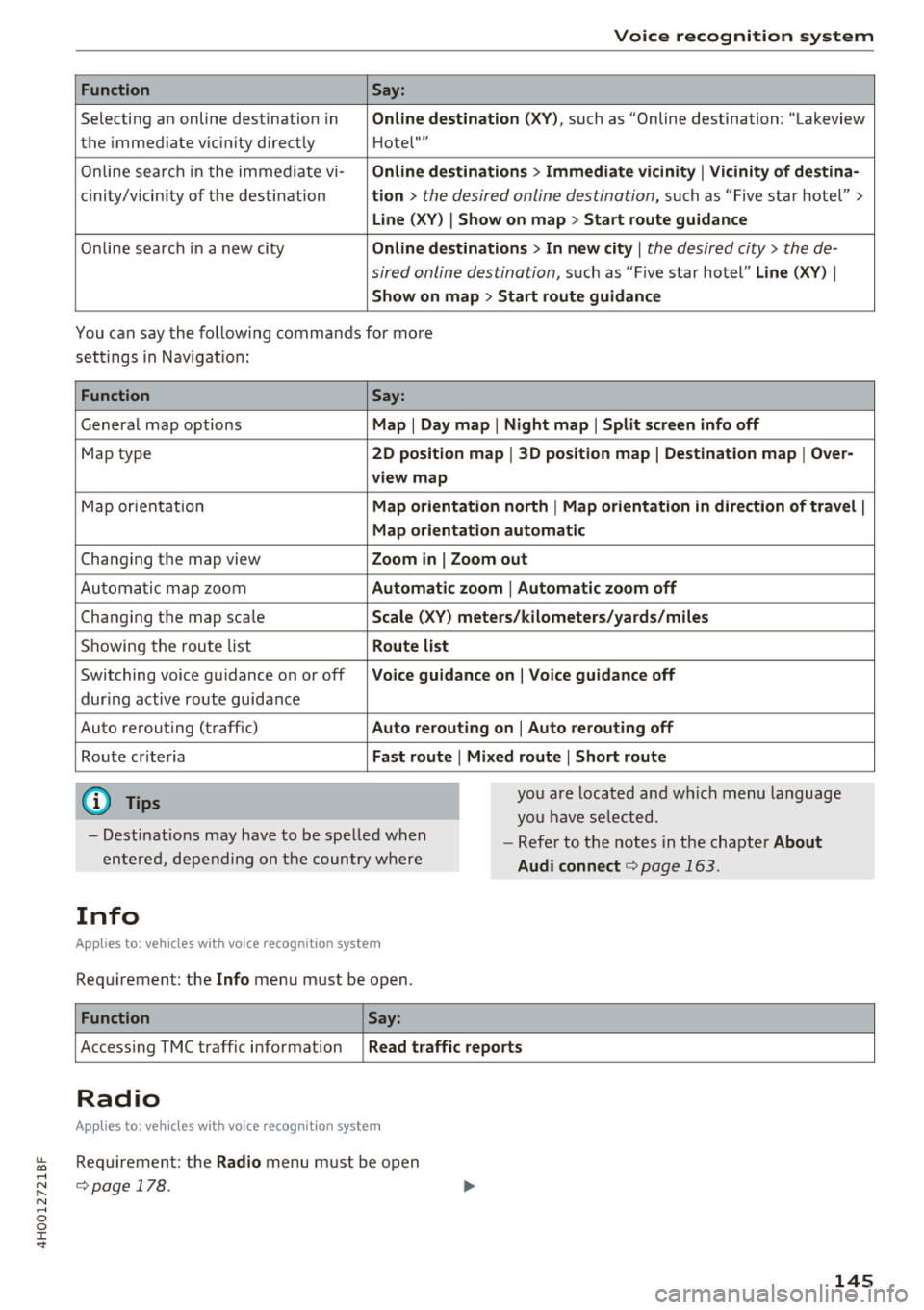
Selecting an online destination in Online destination (XV) , such as "Online destination: "Lakeview
the immediate v ic ini ty direct ly Hotel'"'
Online search in the immediate vi-
Online dest inations > Immediate vicinity I Vicinity of destina-
cin ity/vic inity of the destination tion > the desired online destination, such as "F ive star hotel">
Line (XV) I Show on map > Start route guidance
Online search in a new city Online dest inations > In new city I the desired city> the de-
sired online destination,
such as "Five star hotel" Line (XV) I
Show on map > Start route guidance
You can say the following commands for more
settings in Navigation:
Function Say:
General map options Map I Day map I Night map I Split screen info off
Map type 2D position map I 3D position map I Destination map I Over-
view map
Map orientation Map orientation north I Map orientation in direction of travel I
Map orientation automatic
Changing the map view Zoom in I Zoom out
Automatic map zoom Automatic zoom I Automatic zoom off
Changing the map scale Scale (XV) meters/kilometers/yards/miles
Showing the route list Route list
Switching voice guidance on or off Voice guidance on I Voice guidance off
during active route guidance
Auto rerouting (traffic)
Auto rerouting on I Auto rerouting off
Route criteria Fast route I Mixed route I Short route
(0 Tips you are located and which menu language
you have selected.
- Destinations may have to be spelled when
entered, depending on the country where
Info
A ppl ies to : ve hicl es w ith vo ice recogni tion sys te m
Requirement: the Info menu must be open.
Function Say:
-Refer to the notes in the chapter About
Audi connect
c::> page 163.
Accessing TMC traffic information Read traffic reports
Radio
Appl ies to : ve hicl es w ith vo ice recogni tion sys te m
Requirement: the Radio menu must be open
c::> page 178.
145
Page 153 of 356
u. co .... N
" N .... 0 0 :c '
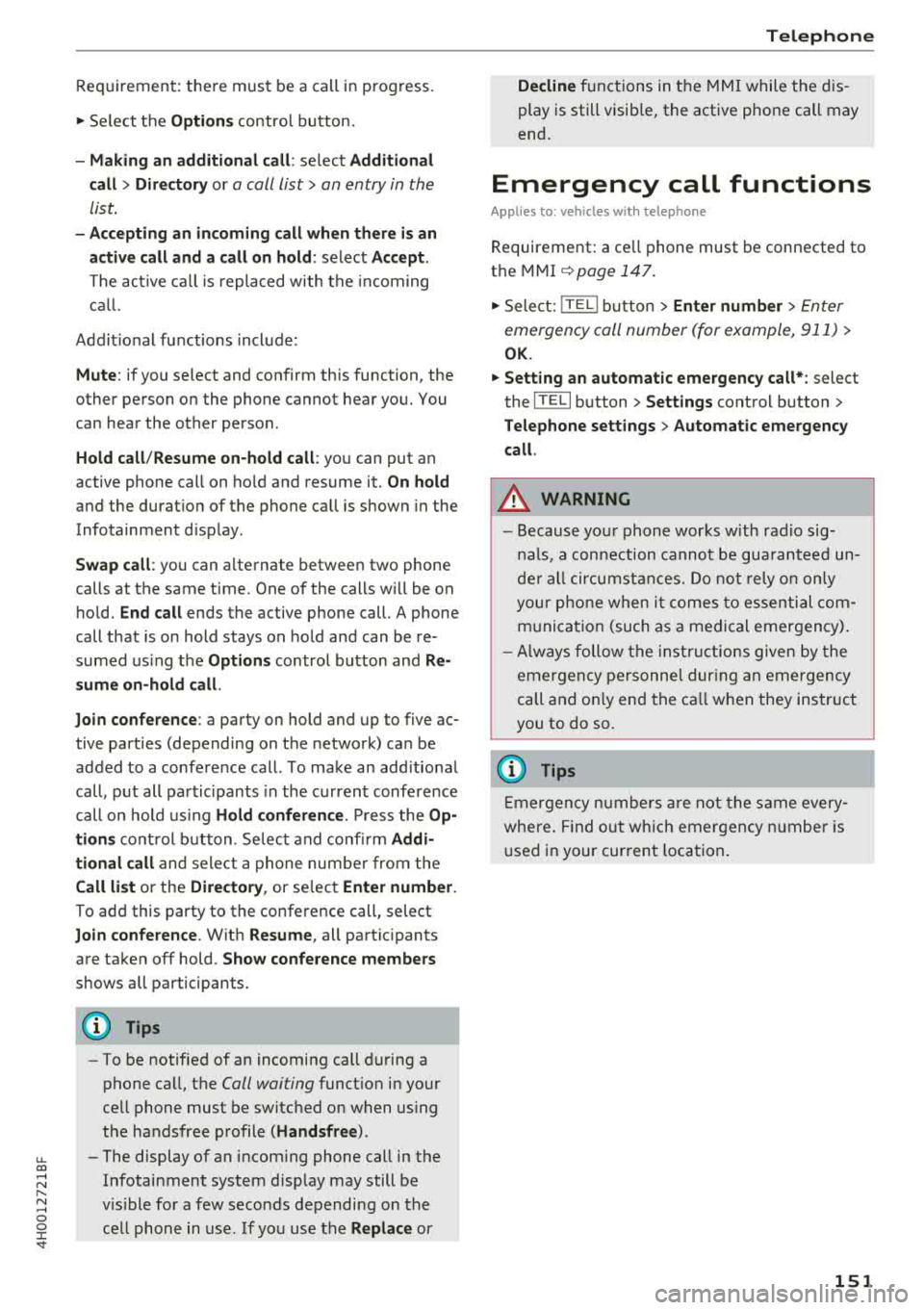
.,. Select t he Options contro l button.
-Making an additional call : select Additional
call > Directory
or a call list> an entry in th e
list.
-Accepting an incoming call when there is an
active call and a call on hold :
select Accept.
T he act ive ca ll is replaced with the incoming
call.
Addit ional functions incl ude:
Mute : if you se lect and confirm this function, the
other person on the phone cannot hea r you. You
can hear the other person .
Hold call/Resume on-hold call : you can put an
active phone call on ho ld and resume it.
On hold
a n d the durat io n of the phone ca ll is shown in the
Infotainment d isp lay .
Swap call : you can alte rnate betwee n two phone
calls at the same time . One of the calls w ill be on
h o ld.
End call ends the active phone call. A phone
call that is on hold stays on ho ld and can be re
sumed using t he
Options control button and Re
sume on-hold call .
Join conference :
a party on hold and up to five ac
tive parties (depending on t he network) ca n be
added to a confe re nce cal l. To make an add itiona l
call , put all pa rticipan ts in the c urren t confe rence
call on hold using
Hold conference . Press the Op ·
tions
con trol butt on. Se lec t a nd confi rm Addi·
tional call
and sele ct a phone numbe r from the
Call list or the Directory , or selec t Enter number.
To add this party to the confe re nce call, select
Join conference . With Resume , all pa rtic ipants
a re ta ke n off hold .
Show conference members
shows all participants .
(D Tips
-To be notified of an incoming call during a
phone ca ll, the Call waiting function in y our
cell phone must be switched on when us ing
the handsfree p rofile
( Handsfree ).
- The display of an incoming phone call in the
Infotainment system d isp lay may still be
v is ibl e fo r a few seconds de pending on the
cell phone in use. I f you use the
Replace or
Telephone
Decline fu nctions in the MMI while the dis
play is still visib le, the active phone call may
end .
Emergency call functions
Applies to: vehicles with telephone
Requirement: a cell phone must be connected to
t h e M MI
¢ page 147.
.,. Sele ct: !T EL! bu tton > Enter number > En ter
emergency call number (for example, 911)
>
OK.
.,. Setting an automatic emergency call* : select
the
!TEL! button> Settings cont rol button >
Telephone settings > Automatic emergency
call .
A WARNING
-
-Becaus e you r phone wor ks with radio sig
n al s, a con nection cannot be gua ranteed un
de r all circumst ances. Do not rely o n only
your ph one when i t co me s to e ssen tia l com
m unicat ion (such as a medi cal emergen cy) .
- Always f ollow t he in stru ctions given by the
emergen cy personnel dur ing an emergency
call and on ly end the ca ll when they instruct
you to do so .
{D Tips
Emer gen cy n umb ers are not the same every
where . Find out wh ich emer gen cy number is
used in your cur rent loca tion .
151
Page 178 of 356
Navigation
specified, if possible. The navigation system cal
culates an a lternative route.
The route to be avoided that you ha ve ente red
applies only to the current route and must be set
again, if needed.
The areas you have se lected to avoid w ill appear
with red and white shading on the map.
0) Tips
If the MMI does not calculate an alternative
route, that means there is none available.
Accessing traffic
information
Auto rerouting (traffic)
A pp lies to: ve hicles w ith navigation system an d Sirius (satel
li te radi o)
By receiving traffic information from the TMC or
satellite - depend ing on ava ilability -the MMI cal
culates an optim ized route and the possible t ime
saved for the current route guidance. You can de
cide yourse lf wh ich route you would like to use.
Traffic information (TMC)
App lies to: ve hicles w ith naviga tion system and Sirius (satel
li te ra dio)
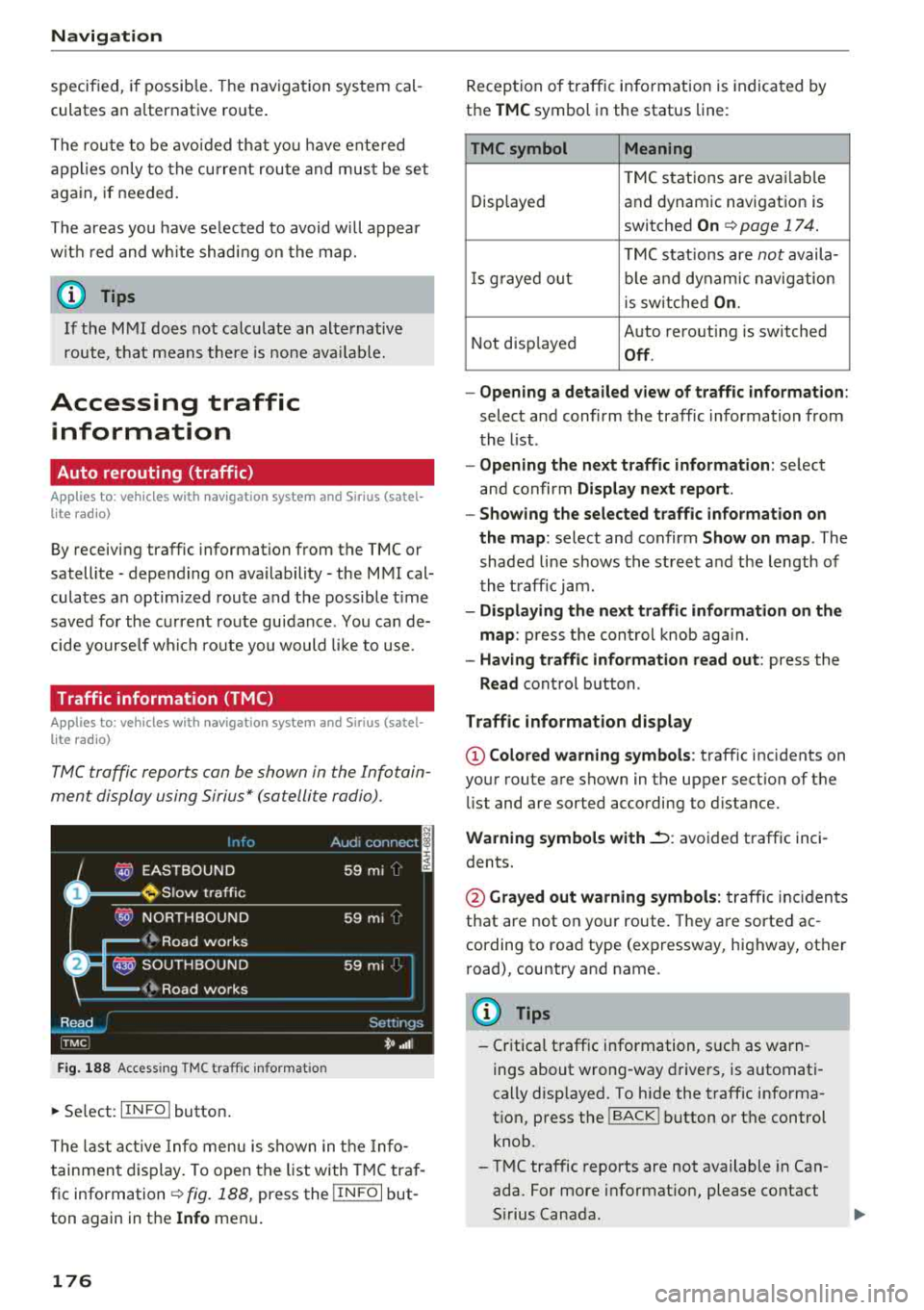
TMC traffic reports can be shown in the Infotain
ment display using Sirius* (satellite radio).
Fig. 188 Access ing TMC traff ic informa tion
~ Se lect: IIN FOI button .
The last active Info menu is shown in the Info
tainment display. To open the list with TMC traf
fic information
c:tv fig. 188, press the I IN FO I but
ton again in the
Info menu .
176
Reception of traffic information is indicated by
the
TMC symbol in the status line:
TMC symbol Meaning
TMC stations are avai lable
Displayed and dynamic navigation is
switched
On c:tv page 17 4.
TMC stations are not availa-
Is gra yed o ut ble and dynamic navig ation
i s sw itched
On.
Not disp layed Auto
rerouting is switched
Off.
- Opening a detailed view of traffic information :
select and confirm the traffic information from
the list .
- Opening the next traffic information : select
and confirm
Display next report.
- Showing the selected traffic information on
the map :
select and confirm Show on map . The
shaded line shows the street and the length of
the traff ic jam .
-Displaying the next traffic information on the
map :
press the cont rol knob aga in.
- Having traffic information read out : press the
Read control button.
Traffic information display
@Colored warning symbols: traffic incidents on
your route are shown in the upper sect ion of the
li st and are sorted according to distance.
Warning symbols with.::->: avoided traffic inci
dents.
@ Grayed out warning symbols: traffic incidents
that are not on your route. They are sorted ac
cording to road type (expressway, highway, other
road), country and name.
(D Tips
-Critical traffic information, s uch as warn
ings about wrong -way drivers, is automati
cally disp layed. To hide the traffic informa
t ion, press the
I BACK I button or the control
knob.
- TMC traffic reports are not available in Can
ada. For more information, please contact
S ir ius Canada .
Page 180 of 356
Radio
Radio
Accessing the radio
The radio supports the FM, AM and Sirius* (satel
lite radio) bands. By means of an HD Radio re
ceiver, you also receive radio stations on the FM
and AM band in digital format.
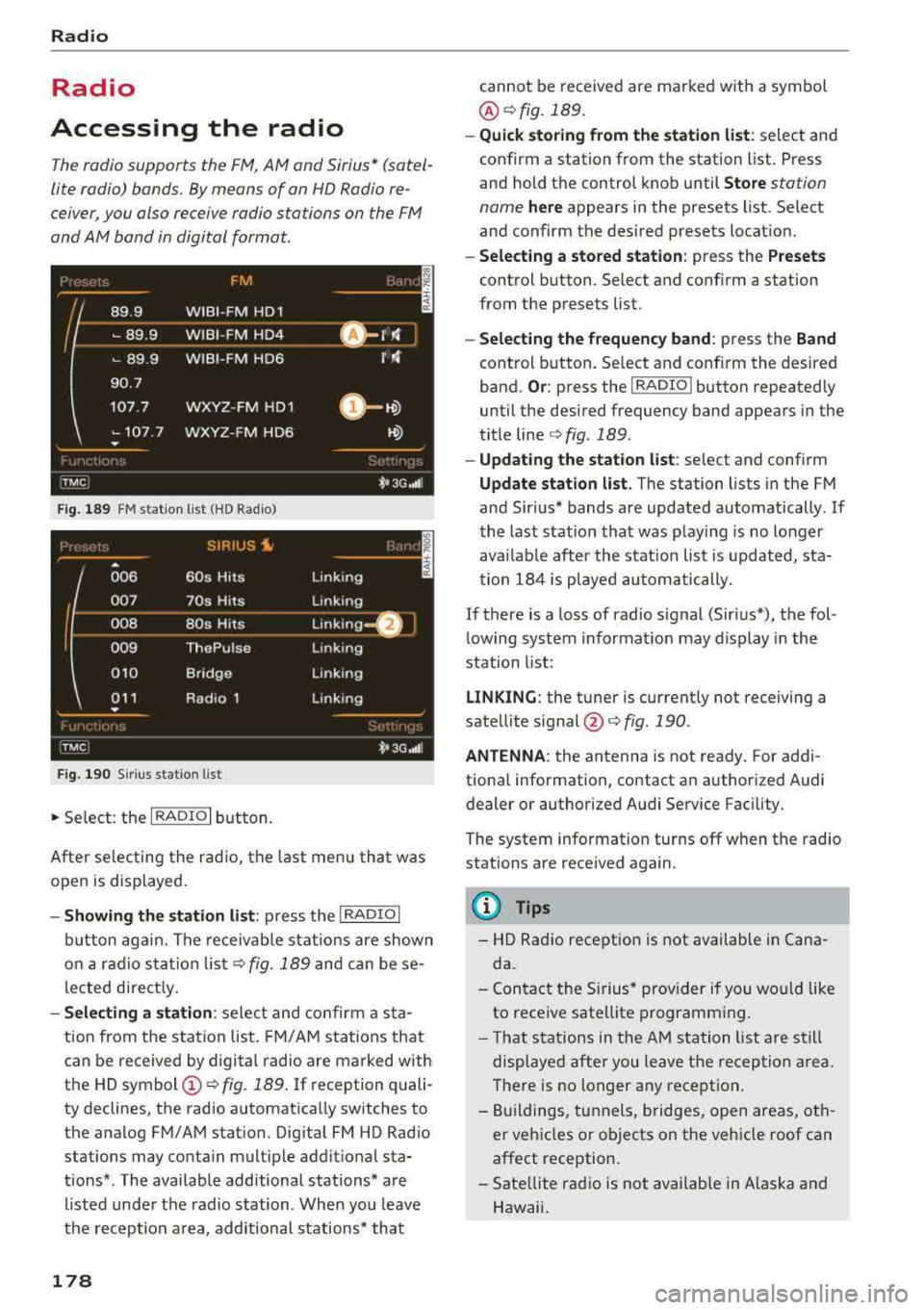
F ig. 1 89 FM stat ion lis t (H D Ra dio)
SIR IUS ~ ..
A
006 60s Hits Linking
(
007
70s Hits Linking ----~-- ---·
Linking _
008 80s Hits
009 ThePulse Linking
010 Bridge Linking
011 Radio 1 Linking
•
:fiv,cJ t• 3G,t1l l
F ig . 19 0
Sir iu s st ati on l ist
.,. Se lect: the I RADIO I button.
After se lecting the r ad io, the last menu th at was
open is displayed.
- Showing the station li st : p ress the I RADIO I
button aga in. The receivab le s tat ions are shown
o n a ra d io s ta tion lis t
c:> fig. 189 and can be se
lected direct ly.
- Selecting a station : select and confirm a sta
tion from the s tation list. FM/ A M stations that
can be received by digital radio are marked with
the HD
symbol @ c:> fig. 189 . If reception quali
ty declines, the radio automat ica lly switches to
the analog FM/AM stat ion. Dig ital FM HD Rad io
stations may contain multiple additional sta
tions* . The available additional stations* are
listed unde r the radio station . When you leave
the reception a rea, additional stations* that
178
cannot be received are marked w ith a symbol
@ c:>fig.189 .
-Quick storing from the station list : select and
confirm a station from the station list. Press
and hold the control knob until
Store station
name
here appears in the presets list. Select
and confirm the des ired presets location.
- Select ing a stored station : press the Presets
control b utton . Select and conf irm a station
from the presets list.
- Select ing the frequen cy band : press the Band
control button. Select and conf irm the desired
band.
Or : press the !RADIO I button repeated ly
until the des ired frequency band appears in the
tit le line
c:> fig . 189 .
-Updating the station list : select and confirm
Update station list . The station lists in the FM
and Sir ius* bands are updated automatically . If
the last station that was play ing is no longer
avai lab le after the stat ion list is updated, sta
t ion 18 4 is played au tomatically.
If there is a loss of radio signal (Sir ius*), t he fol
lowing system informat ion may display in the
station list:
LINKING : the tuner is current ly not receiving a
sate llite
s ignal @<=:> fig. 190.
ANTENNA : the antenna is not ready. For addi
tional information, contact an author iz ed Audi
dealer or authorized Audi Service Fac il ity .
The system information turns off when the radio
stations are rece ived again .
@ Tips
- HD Radio reception is not available in Cana
da.
- Con tact the Sirius * prov ider if you wo uld like
to receive satellite p rogramm ing .
- T hat stations in the AM station list are s till
displayed after you leave t he reception area.
There is no longer any reception .
- B uildings, tunnels, bridges, open areas, oth
er veh icles or objects on the veh icle roof can
affect reception.
- Sate llite radio is not availab le in Alaska and
Hawaii.
Page 181 of 356
u. co .... N
" N .... 0 0 :c '
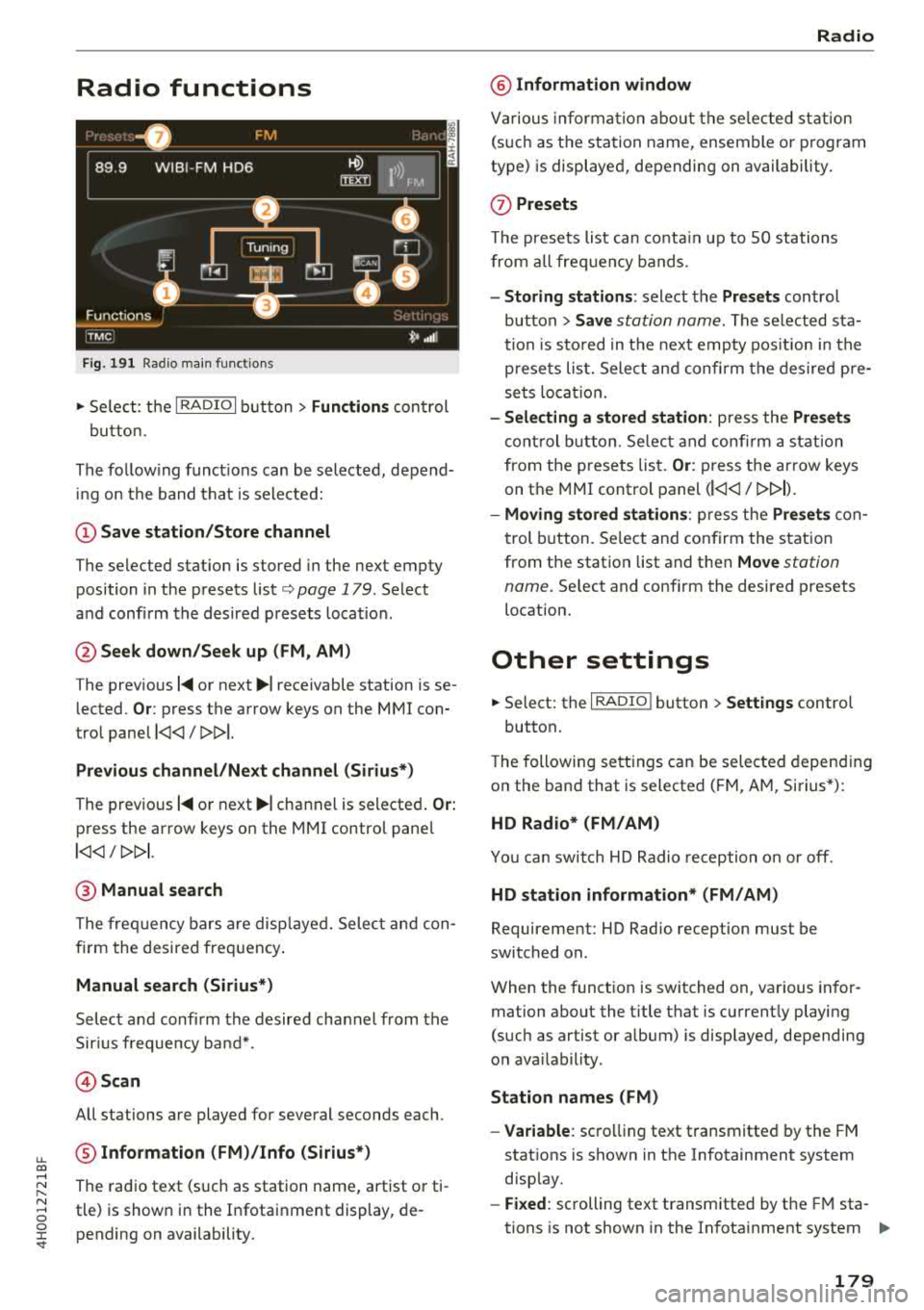
Fig . 19 1 Radio mai n fu nctio ns
.,. Se lect: t he I RADIO I b utt on> Functions con trol
bu tton.
The fo llow ing funct io ns can be selected, depend
in g o n the band that is selected:
(D Save station /Store channel
The selected stat ion is stored in the next empty
position in the presets list
c::> page 179 . Select
a n d confi rm the desired p resets loca tion.
@ Seek down /Seek up (FM , AM)
The prev ious 1<111 or next ~I receivable station is se
lected .
Or: press the arrow keys on the MMI con
tro l pane l
l
Previous channel /N ex t channel (Siriu s*)
The prev ious 1<111 o r next ~I channel is selecte d. Or:
press the ar row keys on the MMI contro l pane l
l
@ Manual search
The fre quency bars are disp laye d. Select and con
firm the desired freq uency .
Manual search (Sirius*)
Select a nd confi rm the desired cha nnel from the
Sir ius frequen cy ba nd* .
@ Scan
All stations are played for several seconds each .
® Information (FM)/Info (Sirius*)
The rad io text (such as station name, art ist o r ti
tle) is show n in the I nfotai nment display, de
pending on availability.
Radio
@ Information window
Va rious informa tion about the se lec ted stat ion
(s uch as t he s ta tion name, ensemble o r program
type) is displaye d, depending on availability.
(j) Presets
T he presets list can co nta in up to SO stations
from all fre quency bands .
-Storing stations : select the Presets control
button >
Save station name . The selected sta
t ion is s to red in t he nex t emp ty pos it ion in the
p rese ts lis t. Sele ct an d confi rm the des ire d pre
se ts lo cati on .
-Selecting a stored station : press the Presets
cont rol b utt on . Se lec t a nd con firm a stat ion
from t he p rese ts lis t.
Or : press the ar row keys
on the MMI cont rol panel
(l
-Moving stored stations : press the Presets con
t rol button. Se lect and confirm the s tat ion
from the station list and then
Move station
name .
Select and confi rm the desired presets
location.
Other settings
.,. Select: the I RADIO I button > Settings control
button.
T he following se tt ings ca n be selected depend ing
on the band that is selected ( FM, AM, Si rius *):
HD Radio* (FM/AM )
You can swi tch HD Radio reception o n or off.
HD station information* (FM /AM)
Requirement: HD Radio reception must be
switched on.
When the funct io n is switched on, va rious in fo r
mation about the t itle that is c urrent ly playing
(such as artist or a lbum) is disp layed, depending
o n ava ilab ility.
Station names (FM )
-Variable : scro lli ng text t ransmitte d by the FM
stat ions is shown in the Infotainment system
disp lay .
-Fixed : scrolling text transmitted by the FM sta
tions is not shown in the Infota inment system
.,..
179
Page 182 of 356
Radio
display. Only the curren t sec tion of the sc roll
ing text is displayed .
-Off : scr oll ing text tra nsmi tte d b y the F M sta
tions is not shown in the Infotainment display .
Scro lling text from HD stations is shown in the
Infotainment display.
Show channel information (Sirius*)
If tr ack info rm at ion is ava ilable fo r the cur rent ti
t le (such as a rtist or album), i t will be d isp layed
i n a pop -up win dow if this function is act ivated .
Station sorting (Sirius*)
- Channel number:
the sta tio ns are sorted in as
c ending ord er acc ording to their ch annel num
b er.
- Channel name : the stations a re listed in alpha
be tica l o rd er.
- Category and channel number: the stations are
so rted acc ordin g to their ca tegory a nd then ac
cordi ng to their ch annel number.
-Category and channel name : the sta tions are
sor ted a cco rdin g to their ca tegory a nd then ac
cording to their s ta tion name .
Troubleshooting
Problem Solution Category filter (Sirius*)
The s
tations shown in the st ation list c an be fil
te red by yo ur persona l pre ferences and b y pro
g ram type . The program cate gories that you can
se lect depen d on w hat is offere d by your provid
e r. Se lect the
Deact ivate category filter option to
deact ivate all filte r opt ions and disp lay all ava ila
ble stations in the sate llite station list.
Receiver serial number (Sirius*)
The elect ronic se rial num ber (ES N) is disp layed .
The number is requ ired w hen logg ing in to Si r
i us *.
Deleting presets
Require ment: a sta tion mus t be s to re d in th e
p resets list ¢ page
179 .
Store d sta ti ons can be dele ted Individually or All
at once .
A station with poo r reception is no Sto
re the station ahead of time and then se lect it from the pre -
longer disp laye d in the station list
sets list
later (z) <=>page 179, fig. 191 .
once you switch to a diff erent sta-
t io n.
180