trailer AUDI A8 2018 User Guide
[x] Cancel search | Manufacturer: AUDI, Model Year: 2018, Model line: A8, Model: AUDI A8 2018Pages: 356, PDF Size: 54.71 MB
Page 110 of 356
Assistance systems
Switching on/off
Applies to: ve hicles w ith Aud i side ass ist
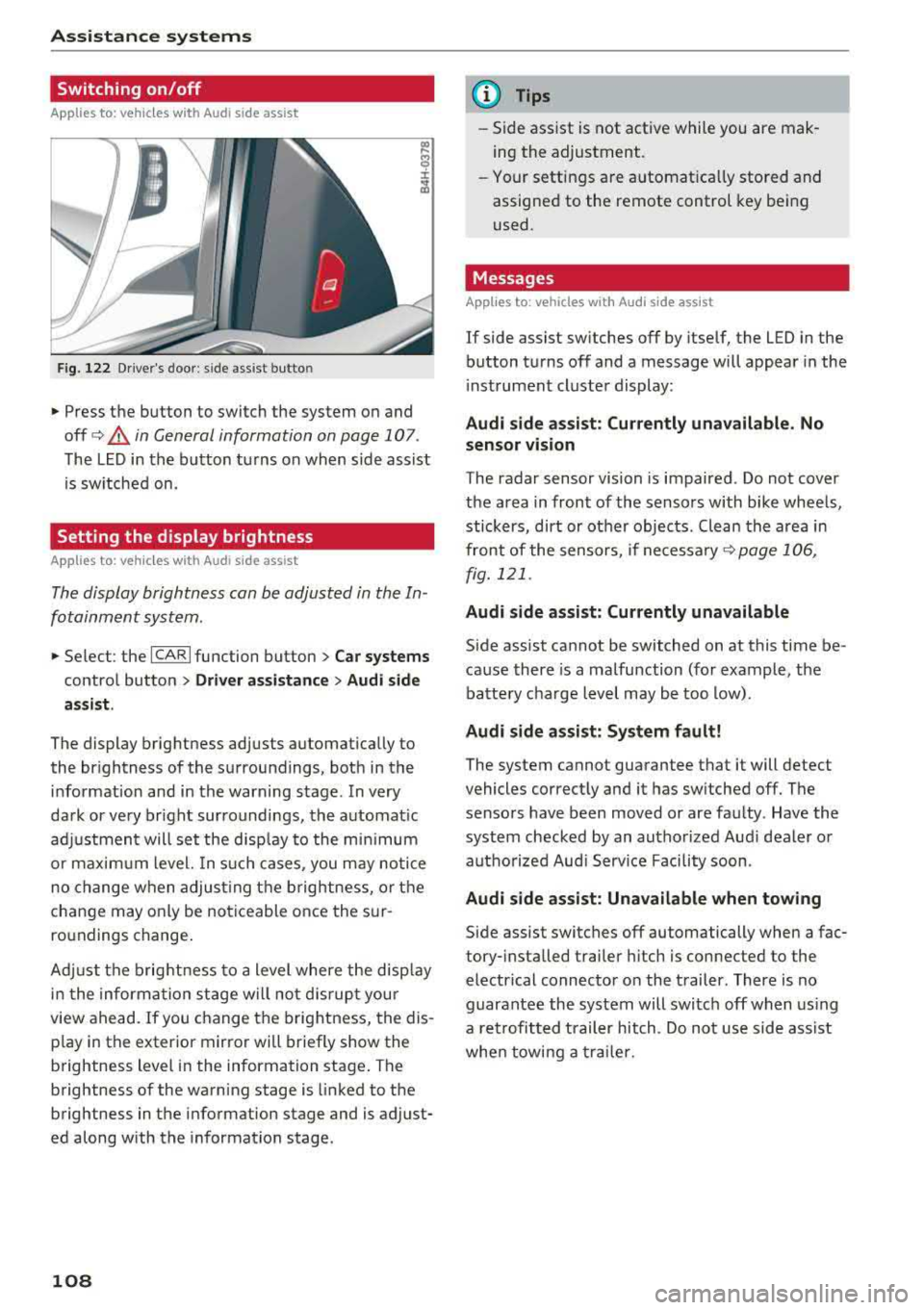
F ig. 122 Driver's door : side ass ist butto n
• Press the button to switch the system on and
off
c> .&, in General information on page 107 .
The LED in the button turns on when side assist
is sw itched on.
Setting the display brightness
App lies to: ve hicles with Aud i side ass is t
The display brightness can be adjusted in the In
fotainment system .
• Select : the ICARI function button > Car systems
control button > Driver assistance > Audi side
assist .
The display brightness adjusts automatically to
the br ightness of the surroundings, both in the
information and in the warning stage . In very
dark or very br ight surroundings, the automat ic
adj ustment will set the disp lay to the minim um
or maximum level. In such cases , you may notic e
no change when adjust ing the brightness, or the
change may only be noticeable once the sur
ro undings change .
Adj ust the brightness to a level where the disp lay
i n the information stage will no t disrupt your
view ahead.
If you change the brightness, the dis
p lay in the exter ior mirror wi ll briefly show the
brightness lev el in the information stage . T he
brightness of the warning stage is linked to the
brightness in the information stage and is adjust
ed along with the information stage.
108
@ Tips
-Side assist is not active while you are mak
ing the adjustment .
- Your settings are automat ica lly stored and
assigned to the remote control key being
used .
Messages
Applies to : vehicles wi th Audi side ass ist
If side assist switches off by itself, the LED in the
button turns off and a message will appear in the
i nstrument cluster display:
Audi side assist: Currently unavailable. No
sensor vision
The radar sensor vision is impaired . Do not cover
the area in front of the sensors with bike wheels,
stickers, dirt or ot her objects . Clean the area in
front of the sensors, if
necessary ¢ page 106,
fig. 121 .
Audi side assist: Currently unavailable
Side assist cannot be switched on at this time be
cause there is a malfunction (for example, the
battery charge level may be too low).
Audi side assist: System fault!
The system cannot guarantee that it will detect
vehicles correctly and it has switched off. The
sensors have been moved or are faulty . Have the
system checked by an authorized Audi dealer or
autho rized Aud i Serv ice Facility soon.
Audi side assist: Unavailable when towing
Side assist switches off automatically when a fac
tory- installed trailer hitch is connected to the
electrical connector on the trailer. There is no
guarantee the system will switch off when using
a retrofitted trailer hitch. Do not use side ass ist
when towing a trailer.
Page 120 of 356
Parking syste m s
-For objects that do not touch the ground,
such as the bumper of a parked vehicle, a
trailer hitch or the rear of a truck. Do not
use the orientation lines in this case.
- If driven from a level surface onto an in
cline, or a downward slope.
- If driven toward protruding objects.
- If the vehicle is carrying too much load in
the rear.
- The accuracy of the orientation lines and
blue surfaces decreases when the vehicle is
raised/lowered
¢ page 111.
(D Note
-Always read and follow the applicable warn
ings
¢ (D in General information on
page 115.
- The orange -colored or ientation lines in the
Infotainment display show the vehicle path based on the steering wheel angle. The
front of the vehicle swings out more than
the rear of the veh icle. Maintain p lenty of
distance so that an exterior mirror or a cor ner of the veh icle does not co llide w ith any
obstacles.
Switching on/off
Ap plies to: ve hicles w ith rearview camera
Switching on
~ Sh ift i nto reverse, or
~ P ress the p, qA bu tton in the cente r console
¢ page 116, fig . 130. A sho rt confirmat io n
tone sounds and the LED in the but ton turns
on .
Switching between the rearview camera and
optical display
~ Press t he Graphic contro l but ton ®
¢ page 118, fig. 135 to see the optica l disp lay.
~ Press the Rear view contro l button to see the
rearview camera image.
Sw itch ing off
~ D rive faster than 6 mph (10 km/h), or
~ Press the p, qA bu tton, or
~ Switch the ignition off.
118
@ Tips
- The visua l display in the left part of the dis
play should he lp you detect the crit ica l vehi-
cle areas.
- You can change the vol ume and pitch of the
signals as well as the display¢
page 125.
Perpendicular parking
App lies to : vehicles wi th rearv iew camera
This view may be used when parking in a garage
or in
a parking space.
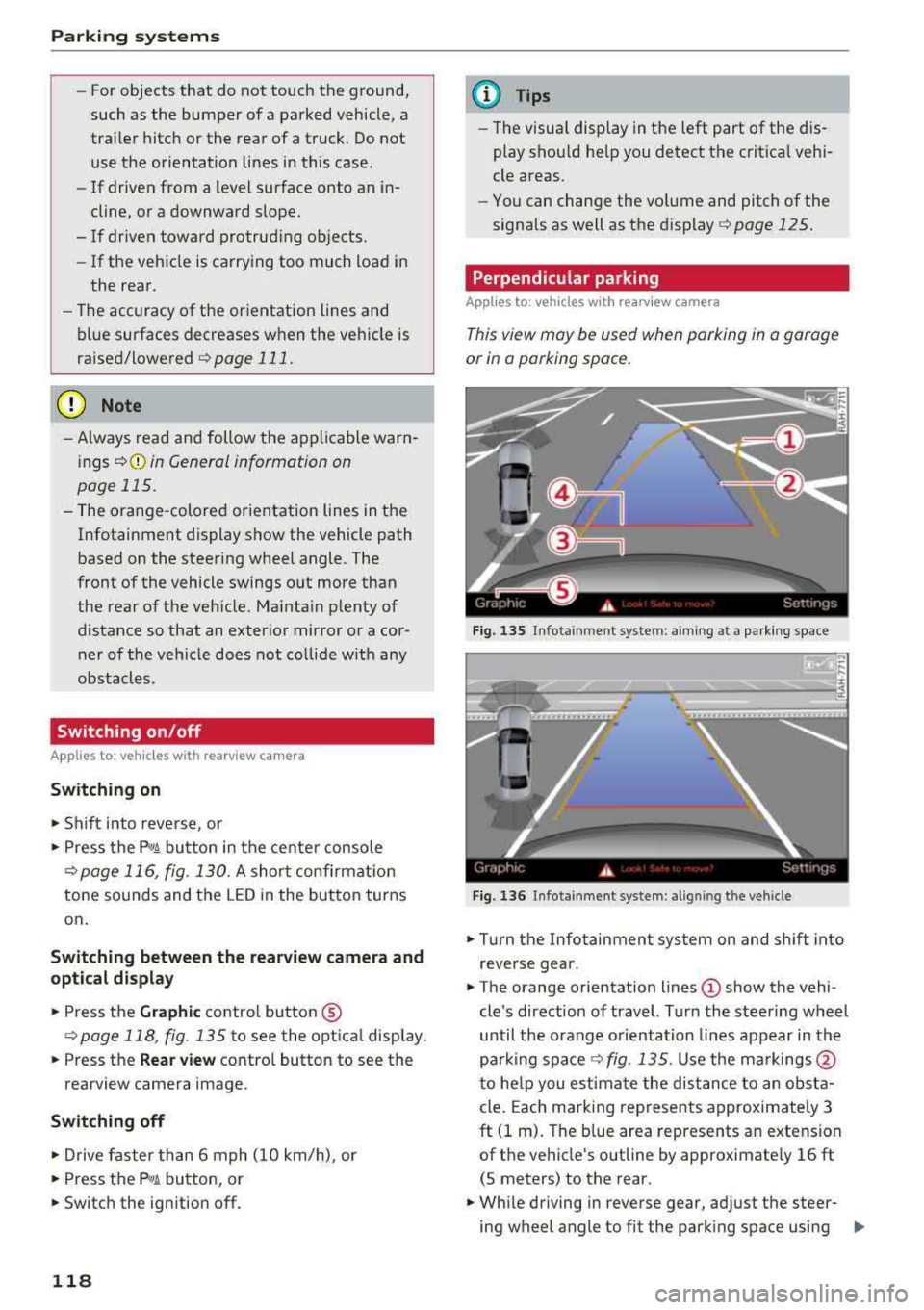
F ig. 13 S Infota inment system: aim ing at a pa rk in g space
Fig. 1 36 Infota inment system : alig ning the vehicle
~ Turn the Infotainment system on and shift into
reverse gear.
~ The orange orie ntation lines (!) show the vehi
cle 's direction of travel. Turn the steering wheel
until the orange o rientation lines appear in th e
parking
space ¢ fig. 135. Use the ma rkings @
t o he lp you estima te the dist ance to an obsta
cle . Each marking represents approximate ly 3
ft (1 m). The b lue area represents an extension
of the vehicle's outline by approximate ly 16 ft
(5 meters) to the rear.
~ Wh ile driving in reverse gear, ad just the steer-
ing wheel angle to fit the park ing space using
..,.
Page 126 of 356
Parking systems
,.. Turn the Infotainment system on and shift into
reverse gear. The parking system is turned on
and the
Cross parking view is displayed.
,.. Press the control button on the Infotainment
unit @ Q page 119, fig . 13 7. The Parallel park
ing
view is displayed .
,.. Back up and align your vehicle so the blue area
@ borders on the rear end of the vehicle be
hind yo u or on the parking space line
Q .&. in
General information on page 120,
Q (Q) in Gen
eral information on page 120 .
The blue area
rep resents an extension of the vehicle's out line
by approximately 16 ft (5 meters) to the rear.
The long s ide of the blue area should be on the
curb . The entire blue area must f it into the
parking space.
,.. With the vehicle stopped, turn the steering
wheel to the right as far as it w ill go .
,.. Back into the parking space until the b lue curve
Q fig. 150 touches the curb-=?.&. in General in
formation on page 120, ¢@ in General infor
mation on page 120.
Stop the vehicle .
,.. With the vehicle stopped, turn the steering
whee l to the left as far as it will go.
,.. Continue to back into the parking space until
the vehicle is parked parallel to the
curb¢ &.
in General information on page 120, ¢@ in
General information on page 120 .
® repre
sents the rear bumper. At the very latest, stop
the vehicle when the red orientation
line ©
borde rs an object . Keep an eye on the front of
your vehicle while doing this.
Parking next to obstacles
If there is an obstacle (such as a wall) next to the
parking space, position the vehicle so there is
mo re space on that side. Position the long side of
the blue area so that there is sufficient space
from the object. The area must not be on the
ob
stacle. You will a lso need to start turning the
steering whee l earlier. The blue curve
¢ page 119, fig . 138 must not touch the obsta
cle , but rather there should be enough distance.
@ Tips
The left or right orientation lines and surfaces
will be displayed, depending on the turn
sig
nal being used.
124
Trailer mode
Applies to: vehicles with peripheral cameras and trailer hitch
This view assists you in positioning the vehicle in
front of a trailer .
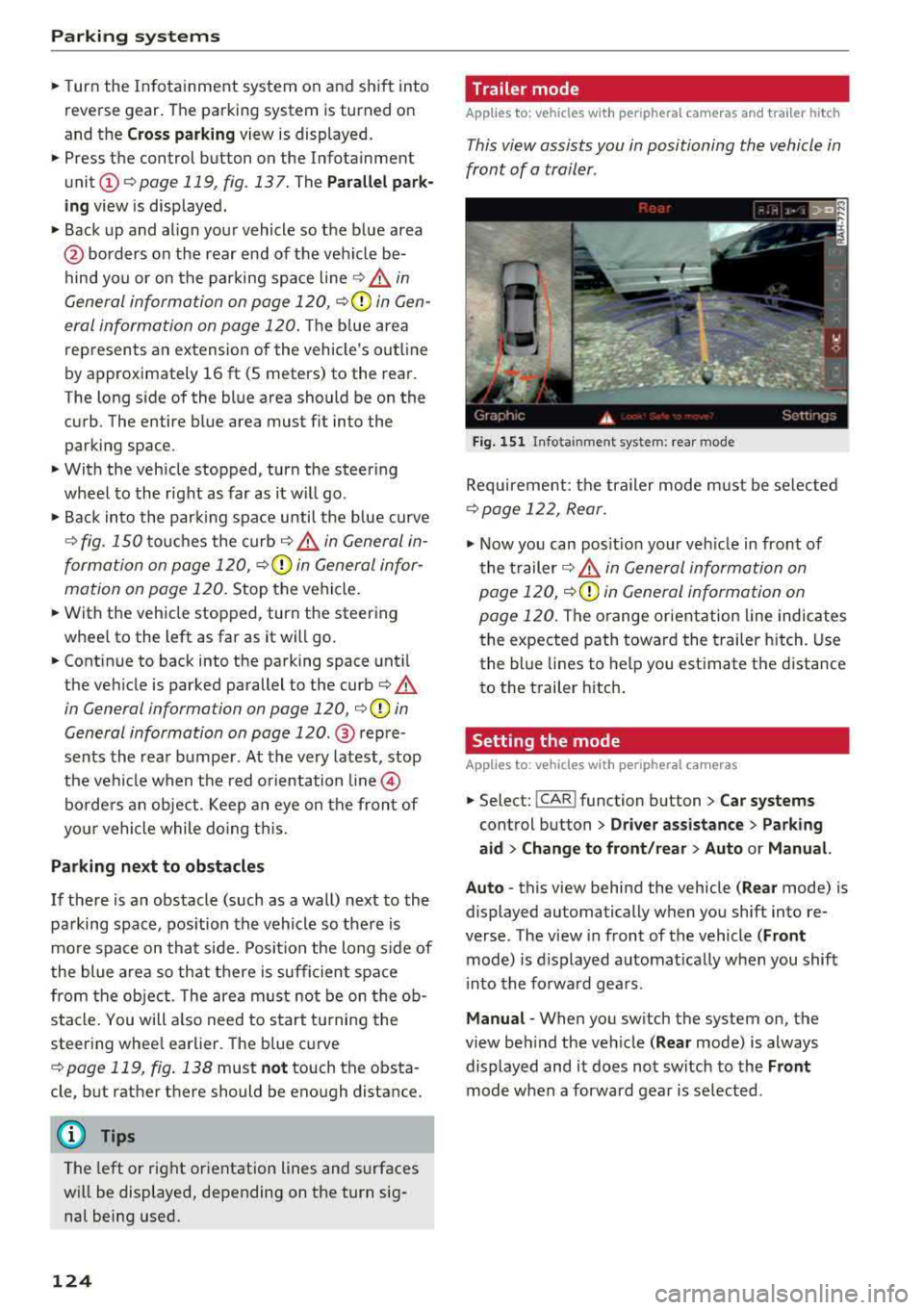
Fig. 151 In fota inment system: rear mode
Requirement: the trailer mode must be selected
¢ page 122, Rear.
.,. Now you can posit ion your veh icle in front of
the trailer
c::;, .&. in General information on
page 120,
c::;, (Q) in General information on
page 120.
The orange or ientation line indicates
the expected path toward the trailer hitch. Use
the blue lines to help you estimate the d istance
to the trailer hitch.
Setting the mode
Applies to : vehicles with peripheral cameras
,.. Select: !CAR ! function button> Car systems
control button > Driver assistance > Parking
aid > Change to front/rear > Auto or Manual.
Auto
-this view behind the vehicle ( Rear mode) is
displayed automatically when you shift into re
verse. The view in front of the vehicle
(Front
mode) is d isplayed automat ically when you shift
i nto the forward gears .
Manual -When you switch the system on, the
view beh ind the veh icle
( Rear mode) is always
displayed and it does not switch to the
Front
mode when a forward gear is se lected.
Page 127 of 356
u. co .... N
" N .... 0 0 :c '
A ppl ies to : ve hicles w ith parkin g system plus/rearv iew cam
era/peripheral ca mera
The display and warning tones can be adjusted in
the Infotainment.
~ Se lect : the ICARI fu nction button > Car systems
contro l button > Driver assistance > Parking
aid .
Display
On * -
an op tical d isp lay is shown for the par kin g
system plus, a rearv iew camera image is s hown
for the rearview camera *.
Off -when the p arking sys tem is sw itche d off,
on ly audib le sign als are give n.
Signal tones
Front volume -
volume for the front area
Rear volume -volume for the rear area
Front frequency -frequency for the front area
Rear frequency -frequen cy fo r the rea r area
Music volume during nav . prompts -the volume
of the a udio/video so urce is lowe red when t he
pa rking system is turned o n
The new ly selected leve l is demonstrated briefly
by the sound generator .
(D Tips
-The wa rning tones ca n also be ad justed d i
r ectly by the vis ual d isp lay or the pictu re
from the camera. Simply p ress the
Settings
control bu tton.
- Changed sett ings are ac tivated whe n the
p arking system is switched o n aga in.
- The settings for volume and frequency are
a utomat ica lly saved and ass igned to the re
mo te con trol key be ing used.
Error messages
A pp lies to: ve hicles with parking system plus/rearview cam
era/per ipheral ca mera
There is an erro r in the system if the LED in the
Pw , button is b link ing and yo u hear a continuous
Parking systems
alarm for a few seconds after sw itch ing on the
par king system or w hen the pa rking system is a l
r eady activated. If the erro r is not cor rected be
fo re you switch off the ignition, the
LED in the Pw ,
button w ill blink the next time you switch on the
park ing system by shifting into reverse.
Parking system plus*
If a senso r is fa ulty, the~ symbo l will appear i n
front of/beh ind the vehicle in the Infotainment
display. If a rear sensor is faulty, on ly obstacles
t h at are i n areas @and @ are shown
Q page 116, fig . 129 . If a front se nsor is faulty,
o n ly obs tacles tha t are in a reas © and @are
shown. The re is a lso a sys tem ma lf u nct ion if all
seg ments arou nd the veh icle are red or if no seg
me nts are disp laye d.
Peripheral cameras*
The re is a system malfu nction if t he 00 • symbol
appea rs and the co rresponding d isp lay area is
s h own in bl ue. The camera is not wo rking in t his
are a.
Drive to an authorized A udi dealer or authorized
Audi Se rvice Facility immed iate ly to have the
malfu nction corrected.
Trailer hitch
App lies to: vehicles wit h parking system pl us/rea rv iew cam
e ra/peri phe ra l cameras an d tra ile r hitc h
When the trailer socket is in use, the par king sys
tem rear sensors are not act ivated when you sh ift
into reverse gear or when yo u press t he
p, ,1 A but
ton. This res ults in the following rest rict ions.
Parking system plus*
The re is no distance warning for the rear. The
front senso rs remain activated. T he v isua l disp lay
switches to trailer mode.
Rearview camera*/peripheral cameras*
T he re is no distance warning for the rea r. The
front senso rs remain activated . The visua l disp lay
switches to trailer mode. The rearview came ra
i mage will not s how the orie ntation lines and t he
bl ue surfaces.
IJJ,-
125
Page 128 of 356
Parking systems
(D Tips
Trailer h itches t hat are not i nsta lled at t he
factory may cause the pa rking system to mal
functi on o r they may restrict its funct ion .
126
Page 298 of 356
Wheels
sure that load limits are not ex
ceeded. Vehicle load includes ev
erybody and everything in and on
the vehicle. These load limits are
technically referred to as the vehi
cle's
Gross Vehicle Weight Rat
ing
("GVWR").
The "GVWR" includes the weight
of the basic vehicle, all factory in
stalled accessories, a full tank of
fuel, oil, coolant and other fluids plus maximum load. The maxi
mum load includes the number of
passengers that the vehicle is in
tended to carry ("seating capaci
ty") with an assumed weight of
150 lbs. (68 kg) for each passen
ger at a designated seating posi
tion and the total weight of any
l uggage in the vehicle. If you tow
a trailer, the weight of the trailer
hitch and the tongue weight of
the loaded trailer must be includ
ed as part of the vehicle load.
The
Gross Axle Weight Rating
("GAWR") is the maximum load
that can be applied at each of the
vehicle's two axles.
The fact that there is an upper
limit to your vehicle's Gross Vehi
cle Weight Rating means that the
total weight of whatever is being
296
carried in the vehicle (including
the weight of a trailer hitch and the tongue weight of the loaded
trailer) is limited. The more pas
sengers in the vehicle or passen
gers who are heavier than the
standard weights assumed mean
that less weight can be carried as l uggage .
The Gross Vehicle Weight Rating
and the Gross Axle Weight Rating
are listed on the safety compli
ance sticker label located on the
driver's side B-pillar
¢ page 293,
fig. 266.
_& WARNING ~
Overloading a vehicle can cause
loss of vehicle control, a crash
or other accident, serious per
sonal injury, and even death.
-Carrying more weight than
your vehicle was designed to
carry will prevent the vehicle
from handling properly and increase the risk of the loss of
vehicle control.
-The brakes on a vehicle that
has been overloaded may not
be able to stop the vehicle
within a safe distance.
Page 299 of 356
....
"' -N .... N
-0
0
J: ..
-Tires on a vehicle that has
been overloaded can fail sud
denly, including a blowout and
sudden deflation, causing loss
of control and a crash.
-Always make sure that the to
tal load being transported -
including the weight of a trail
er hitch and the tongue
weight of a loaded trailer -
does not make the vehicle
heavier than the vehicle's
Gross Vehicle Weight Rating.
Determining correct load
limit
Use the example below to calcu
late the total weight of the pas
sengers and luggage or other
things that you plan to transport so that you can make sure that
your vehicle will not be overload ed.
Steps for Determining Correct Load Limit
1. Locate the statement "THE
COMBINED WEIGHT OF OCCU
PANTS AND CARGO SHOULD
NEVER EXCEED XXX KG OR XXX
LBS " on your vehic le 's placard
(tire inflation pressure label)
¢ page 293, fig. 266 .
Wheels
2. Determine the combined
weight of the driver and passengers that will be riding in
your vehicle.
3. Subtract the combined weight of the driver and passengers
from "XXX" kilograms or "XXX"
pounds shown on the sticker
¢ page 293, fig . 266 .
4. The resulting figure equals the
available amount of cargo and luggage load capacity. For ex
ample, if the
"XXX" amount
equals
1400 lbs. and there wil l
be five
150 lbs . passengers in
your vehicle, the amount of
available cargo and luggage
load capacity is 650 lbs.
(1400-750 (5 X 150) = 650
lbs .)
5. Determine the combined
weight of luggage and cargo
being loaded on the vehicle.
That weight may not safely ex
ceed the available cargo and
luggage load capacity calculat
ed in Step 4.
6. If your vehicle will be towing a trailer, load from your trailer
will be transferred to your ve
hicle. Consult this manual to
determine how this reduces
.,.
297
Page 315 of 356
u. co .... N
" N .... 0 0 :c '
c ident.
- The factory-supplied jack is intended on ly
for your vehicle m odel. Under no circum
stances should it be used to lift heavy
vehicles or other loads; you r isk injuring
yourself .
- Never start the en gine when the vehicle is
ra ised, which could cause an accident .
- Support the veh icle secure ly w ith appropr i
ate stands if work is to be performed under
neath the vehicle; otherwise, there is a po
tent ial risk for in ju ry .
- Never use the jack supplied with your Audi
on another vehicle, particularly on a heav ier
one . The jack is only suitable for use on the
vehicle it came w it h .
(D Tips
The vehicle jack* in your vehicle is mainte
na nee -free .
Replacing wheels
Before changing a wheel
Observe the following precautions for your own
and your passenger's safety when changing a
wheel.
.,. After yo u experience a tire fail ure, pull the car
we ll away from moving t raffic and t ry to rea ch
level g round before you s top ¢&, .
.,. All passengers sho uld lea ve the ca r and move
to a saf e location (for instance, be hind t he
guardrai l) ¢ &, .
.,. Engage the parking brake to prevent you r vehi
cle from rol ling
unintentionally ¢ A_.
.,. Move selector lever to position P ¢ A_.
.,. If you a re towing a trailer, unh itch the trailer
from your ve hicle.
.,. Take the jack and the spare tire ou t of the lug
gage compa rtment
¢ page 312.
A WARNING
You or your passengers cou ld be inju red wh ile
chang ing a wheel if you do not follow these
safety precautions :
Emergenc y ass is tanc e
-If you have a flat tire, move a safe distance
off the road. Turn off the eng ine, turn the
emergency flashers on and use other warn ing dev ices to alert other motorists .
- Make sure that passengers wait in a safe
p lace away from the vehicle and well away
from the road and traff ic .
- To help prevent the veh icle from moving
suddenly and possib ly slipping off the jack ,
always fu lly set the par king brake and block
the front and back of the wheel diagonally
opposite the wheel being changed. W hen
one front w heel is li fted off the gro und,
p lacing the Au tom atic Transmi ssion in P
(Park) will
not p revent the vehicle from
mov ing.
- Before you change a wheel, be sure the
g ro u nd is leve l and firm. If necessary, use a
sturdy board under the jack .
- Always s tore the vehicle tool ki t, the jack
an d the replaced tire in the luggage com
pa rtment ¢
page 213 .
(D Tips
Befo re c hangin g the wheel, you mus t activ ate
the jacking mode, so that the a utomat ic con
tro ls for the Adaptive Air Suspension do not
make it more di fficult to lift the vehicle with
the jack
¢ page 315 .
Changing a wheel
When you change a wheel , follow the sequence
described below step -by-step and in exactly that
order .
1. Activate the vehicle jack mode ¢ page 315 .
2. Remove the de corative wheel cover *. For
more detai ls see
a lso ¢ page 314, Decora
tive wheel covers
or ¢ page 314, Wheels
with wheel bolt caps .
3. Loosen the wheel bolts ¢ page 315 .
4. Loca te t he p roper mount ing point for the
jac k and alig n the jack be low that po int
¢page 315 or ¢ page 316.
S. Rai se the ca r wi th the jack ¢ page 315 or
¢page 316 .
313
Page 327 of 356
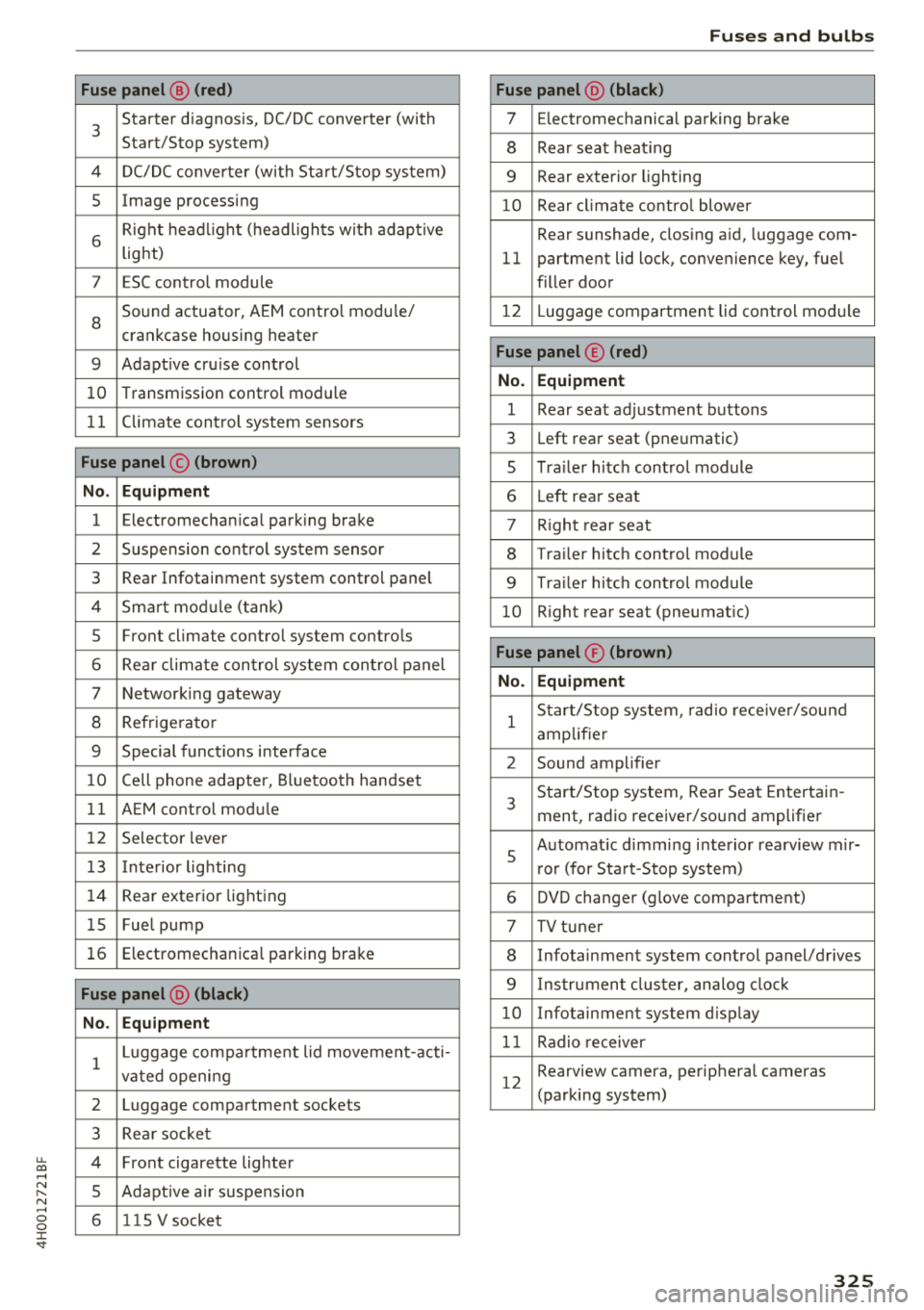
u. co .... N
" N .... 0 0 :c '
3
Starter diagnosis, DC/DC converter (with
Start/Stop system)
4 DC/DC converter (with Start/Stop system)
5 Image processing
6
Right headlight (headlights with adaptive
light)
7 ESC control module
8
Sound actuator, AEM control module/
crankcase housing heater
9 Adapt ive cru ise control
10 Transmission control module
11 Climate control system sensors
Fuse panel © (brown)
No. Equipment
1 Electromechan ica l park ing brake
2 Suspension control system sensor
3 Rear Infotainment system control panel
4 Smart module ( tan k)
5 Front climate control system controls
6 Rea r climate control system control panel
7 Networking gateway
8 Refrigerator
9 Special functions interface
10 Cell phone adapter, Bluetooth handset
11 AEM control module
12 Selector lever
1 3 Inte rior lighting
14 Rear exterior lighting
15 Fue l pump
16 Electromechanica l parking brake
Fuse panel @ (black)
No. Equipment
1
Luggage compa rtment lid movement-acti-
vated opening
2 Luggage compartment sockets
3 Rear socket
4 Fro nt cigarette lighter
5 Adaptive air su spension
6 115 V socket
Fuses and bulbs
Fuse panel @ (black)
7 Electromechanical parking brake
8 Rear seat heat ing
9 Rear exterior lighting
10 Rear climate control blower
Rear sunshade, closing a id, luggage com-
11 partment lid lock, convenience key, fue l
filler door
12 L uggage compartment lid control module
Fuse panel © (red)
No. Equipment
1 Rear seat adjustment buttons
3 Left rear seat (pne umatic)
5 Tra iler hitch control module
6 Left rea r seat
7 Right rear seat
8 Trailer hitch control module
9 Trailer hitch control module
10 Right rear seat (pneumat ic)
Fuse panel ® (brown)
No. Equipment
1
Start/Stop system , radio receiver/sound
amplifier
2 Sound amplifier
3
Start/Stop system, Rear Seat Entertain -
ment, radio receiver/sound amplifier
5
Automat ic dimming interior rea rview mir-
r or (for Start-Stop system)
6 DVD changer (glove compartment)
7 TV tuner
8 Infotainment system control panel/drives
9 Instrument cluster, analog clock
10 Infotainment system d isp lay
11 Radio receiver
12
Rearview camera, perip heral cameras
(parking system)
325
Page 338 of 356
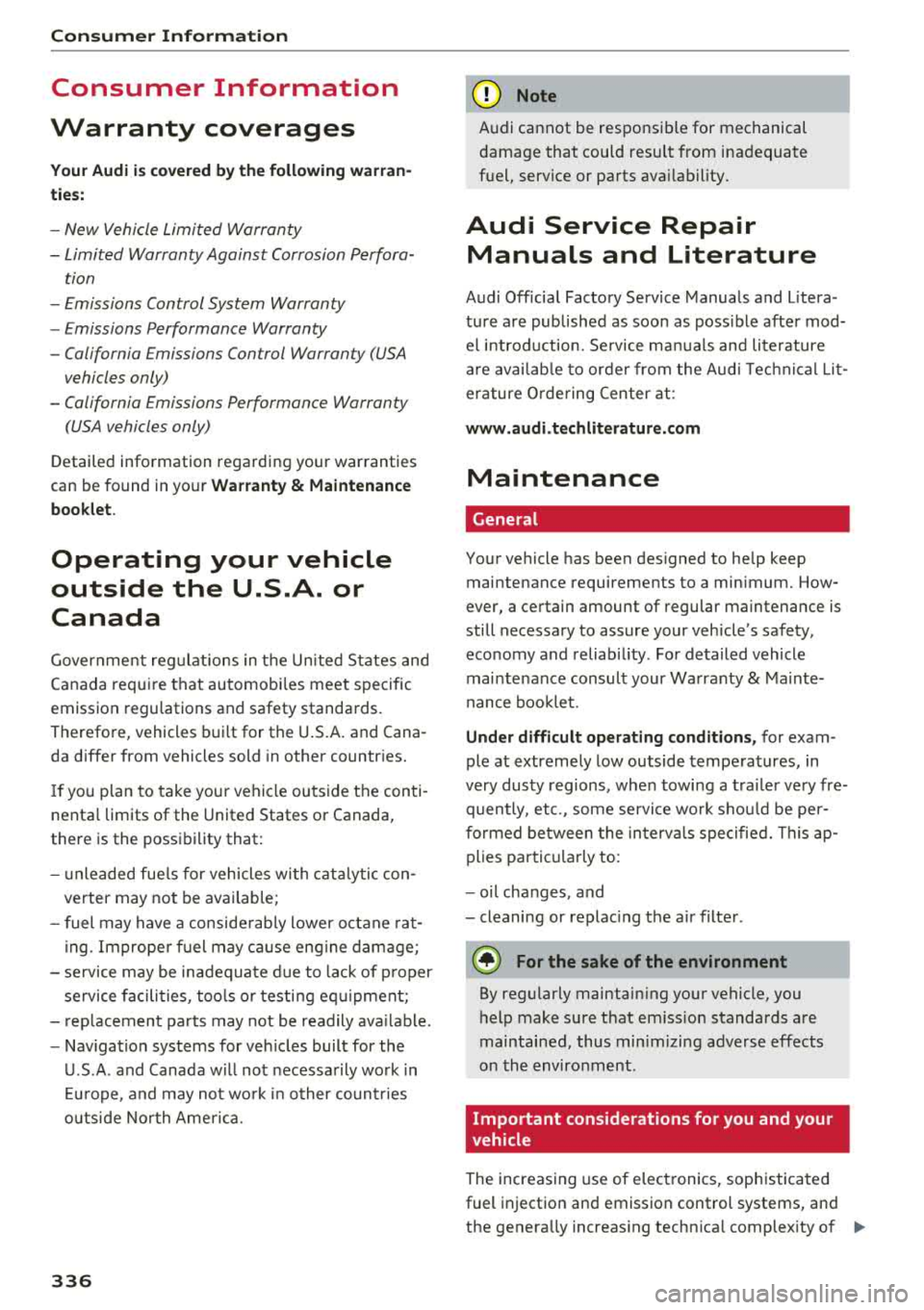
Consumer Information
Consumer Information
Warranty coverages
Your Audi is covered by the following warran
tie s:
- New Vehicle Limited Warranty
- Limited Warranty Against Corrosion Perfora-
tion
- Emissions Control System Warranty
- Emissions Performance Warranty
- California Emissions Con trol Warranty (USA
vehicles only)
- California Emissions Performance Warranty
(USA vehicles only)
Detailed information regarding your warranties
can be found in your
Warranty & Maintenance
booklet .
Operating your vehicle
outside the U.S.A. or
Canada
Government regulati ons in the United States and
Canada require that automobi les meet specific
emission regulations and safety standards.
Therefore, vehicles built for the U.S.A. and Cana
da differ from vehicles sold in other countries.
If you plan to take your vehicle outside the conti
nenta l limits of the United States or Canada,
there is the possibility that:
- un leaded fue ls for vehicles with catalytic con
verter may not be available;
- fuel may have a conside rably lower octane rat
ing . Improper fuel may cause engine damage;
- se rvice may be inadequate due to lack of proper
service facilities, tools or testing equipment;
- r eplacement parts may not be readily available.
- Nav igat ion systems for veh icles built for the
U .S .A . and Canada w ill not necessarily work in
Europe, and may not wo rk in other count ries
outside North America.
336
@ Note
Audi cannot be responsib le for mechanical
damage that could resu lt from inadequate
fuel, service or parts ava ilability.
Audi Service Repair
Manuals and Literature
Audi Official Factory Service Manuals and Litera
ture are published as soon as poss ible after mod
el introduction. Se rvice manuals and literature
are available to order from the Audi Technical Lit
erature Ordering Center at:
www.audi.techliterature.com
Maintenance
General
Your vehicle has been designed to help keep
maintenance requirements to a minimum. How
ever, a certain amount of regular maintenance is
still necessary to assure your vehicle's safety,
economy and reliability . For detailed vehicle
maintenance consult your Warranty & Mainte
nance booklet .
Under difficult operating conditions, for exam
ple at extremely low outside temperatures, in
very dusty regions, when towing a trailer very fre
quently, etc. , some service wo rk shou ld be per
fo rm ed between the intervals specified. This ap
plies particularly to:
- oil changes , and
- cleaning or replac ing the a ir filter .
@ For the sake of the environment
By regularly maintain ing your vehicle, you
help make sure that em iss ion standards are
maintained, thus minimizing adverse effects
on the enviro nment .
Important considerations for you and your
vehicle
The increasing use of electronics, sophisticated
fuel injection and emission control systems, and
the generally increasing technica l complexity of
.,,.