steering AUDI A8 2018 Owner's Manual
[x] Cancel search | Manufacturer: AUDI, Model Year: 2018, Model line: A8, Model: AUDI A8 2018Pages: 356, PDF Size: 54.71 MB
Page 92 of 356
Trailer towing
Trailer load distribution
Be sure the load in the trailer is held securely in
p la ce to prevent it from shifting forward, back
ward or sideways .
Never allow a passenger to ride in a trailer~&.
in Driving instructions on page 91.
Engine cooling system
Towing a trailer makes the engine work harder . It
is important that the coo ling system's perform
ance is up to t he additional load. Make sure that
the cooling system has eno ugh fluid .
Tire pressure
When tow ing a tra iler, inflate the tires of your
veh icle to the tire pressure listed under "Full
load " on the label
~ page 293. Inflate trailer
tires to trailer and tir e ma nufactu rers' specifica
tions.
Lights
Check to make sure both vehicle and trailer lights
are working properly .
Safety chains
Be sure trailer safety chains are proper ly connect
ed from the trailer to the hitch on the vehicle.
Leave enough slack in the chains to permit turn
ing corners . When you install safety cha ins, make
sure they w ill not drag on the road when you are
driving.
The chains should cross under the trailer tongue
to prevent it from dropping in case of separation
from the hitch .
Adjusting the Audi drive select
Make sure the vehicle is on a level surface before
hitching up the trailer and before adjust ing the
tongue we ight. The vehicle must be in
auto or
comfort driving mode and not ra ised
~ page 111, ~0 .
Make sure that the vehicle is lowered. In Info
tainment, select:
ICARI function butto n> Lower
control button.
90
If you must drive under poor road conditions, you
can raise the ve hicle
after coupling the trailer or
after adjust ing the tongue we ight ~ page 113.
@ Note
-Changes in temperature or load can aff ect
the height of the vehicle .
-Always select auto or comfort mode. Other
wise, the tong ue load specified for your ve
hicle will no longer be applicab le .
Driving instructions
Driving with a trailer always requires extra care
and consideration.
Weight distribution
Towing a loaded trailer with an empty car results
in a hig hly unstable distribution of we ight. If th is
cannot be avoided, drive at very low speeds only
to avoid t he risk of losing steering contro l.
A "balanced" rig is eas ier to operate and control.
This means that the tow vehicle s hould be loaded
to
the extent possible and permissib le, w hil e
keeping the trailer as light as possible under the
circumstances. Whenever possible, transfer
some cargo to the luggage compartment of the
tow veh icle while observing tongue load require
ments and vehicle loading considerations.
Speed
The higher the speed, the more difficu lt it be
comes for the driver to control the rig . Do not
drive at the maximum permissible speed. Reduce
your speed even more if load, weather or wind cond it ions are unfavorable - particularly whe n
go ing down hill.
Reduce vehicle speed
immediately if the trailer
shows the slightest sign of sway ing.
Do not try
to stop the swaying by accelerating.
Observe speed limits. In some areas, speeds for
vehicles towing trailers are lower than for regular
vehicles.
A lways apply brakes early. When driving down
hill, shift into a lower gear to use the engine
braking effect to slow the vehicle. Use of the
brakes alone can cause them to overheat and fail.
ll-
Page 105 of 356
u. co .... N
" N .... 0 0 :c '
l ected with the operating lever. For examp le, this
h appens if adaptive cruise contro l cannot start
driving automatically in stop-and-go traffic be
cause the driver has not fastened their safety belt .
Door open
The adap tive c ruise co ntro l system cannot sw itch
on w hen a door is open.
Stationary object ah ead
This message appears if you would like to switc h
adapt ive cruise control on and there is a station
ary object o r obstacle directly ahead of you r vehi
cle .
Audi active lane assist
(lane departure assist)
Description
Applies to: vehicles with Audi active lane assist
Active lane ass ist detects lane marker lines with
in the limits of the system us ing a came ra in t he
w indsh ie ld. If you are app roaching a de tected
l ane marker line and it appea rs likely t hat you
will leave the lane, the system wi ll warn you with
corrective steering. Yo u can override t his steering
at any time . If you pass over a line, the steer ing
wheel will v ibrate lightly. In order for this warn
i n g vibration to occur, it must f irst be sw itched
on in the Infotainment system . Active lane assist
i s ready for operation whe n the lane marke r line
i s detected on at least one s ide of the vehicle .
The system is designed for driv ing on express
ways and highways and therefore only activates
at speeds above approximate ly 40 mph (65 km/
h).
Applies to vehicles with side assist
If you activate a tur n signa l when active lane as
sist is ready and it class ifies a la ne cha nge as cr it
i cal because of ve hicles t raveli ng a longs ide you o r
approaching you, the re w ill be not iceab le correc
tive stee rin g short ly before you leave t he lane.
This will attempt to keep yo ur vehicle in t he lane.
A ss istance systems
Applies to vehicles w it h out side assist
T he system wi ll not warn yo u before c ross ing a
l ane marker line if you have activated the t urn
s ignal. In this case, it assumes that you are
changing lanes intentionally.
Appl ies to: vehicles with adaptive c ruise control
The co rrective steer ing is targeted based o n the
dr iv ing s itu ation . In add it ion to the lane mar ker
li nes, the system can al so t ake into accoun t other
objects s uch as gua rd rai ls. If they a re detected in
close proximity to t he vehicle, active lane assist
helps p reve nt the vehicle from driving too close
to them. The re is a lso pass ing ass istance. The
system does not provide any corrective steering if it detects that you are pass ing anot her vehicle .
A WARNING
-
-The system warns the drive r that the vehicle
is leaving the lane using corrective steering.
T he drive r is always responsible fo r keeping
the vehicle within the lane.
- T he system can assist the dr iver in keeping
the vehicle in the l ane, but it does not dr ive
by i tsel f. Always keep your hands on the
s teer ing whee l.
- Cor rec tive stee ring may not occur in cert ain
situa tions, such as during he avy b raking .
- T here may be cases whe re t he came ra does
not recogni ze all lane mar ker lines . Cor re c
tive steering can only take pla ce on the s ide
of the vehicle where lane marker lines are
detected.
- Other road structu res or objects could poss i
b ly be identified un intentionally as lane
marker lines. As a result, co rrective steering
may be unexpected or may not occ ur.
- The camera view can be rest ricted, for ex
ample by vehicles driving ahead or by ra in,
snow, heavy spray or light shining into the
camera. Th is can result in active lane ass ist
not detecting the lane marker lines o r de
tect ing them inco rrectly .
- Unde r ce rtain condit ions such as r uts in the
road, a ban ked roadway or crosswinds, the
correct ive steer ing alone may not be enough
to keep the vehicle in the middle of the lane.
~
103
Page 106 of 356
Ass is tance sy stem s
-For safety reasons, active lane assist must
not be used when there are poor road and/
or weather cond itions such as slippery
roads, fog, gravel, heavy rain, snow and the
potent ial for hydroplaning. Using act ive lane
assist under these conditions may increase
the risk of a crash .
Switching on/off
Applies to: veh icles with Audi active lane assist
•
Fig. 114 Turn sig nal leve r: b utto n fo r active lane ass ist
F ig . 11 5 Wind sh iel d: came ra win d ow fo r active lane ass ist
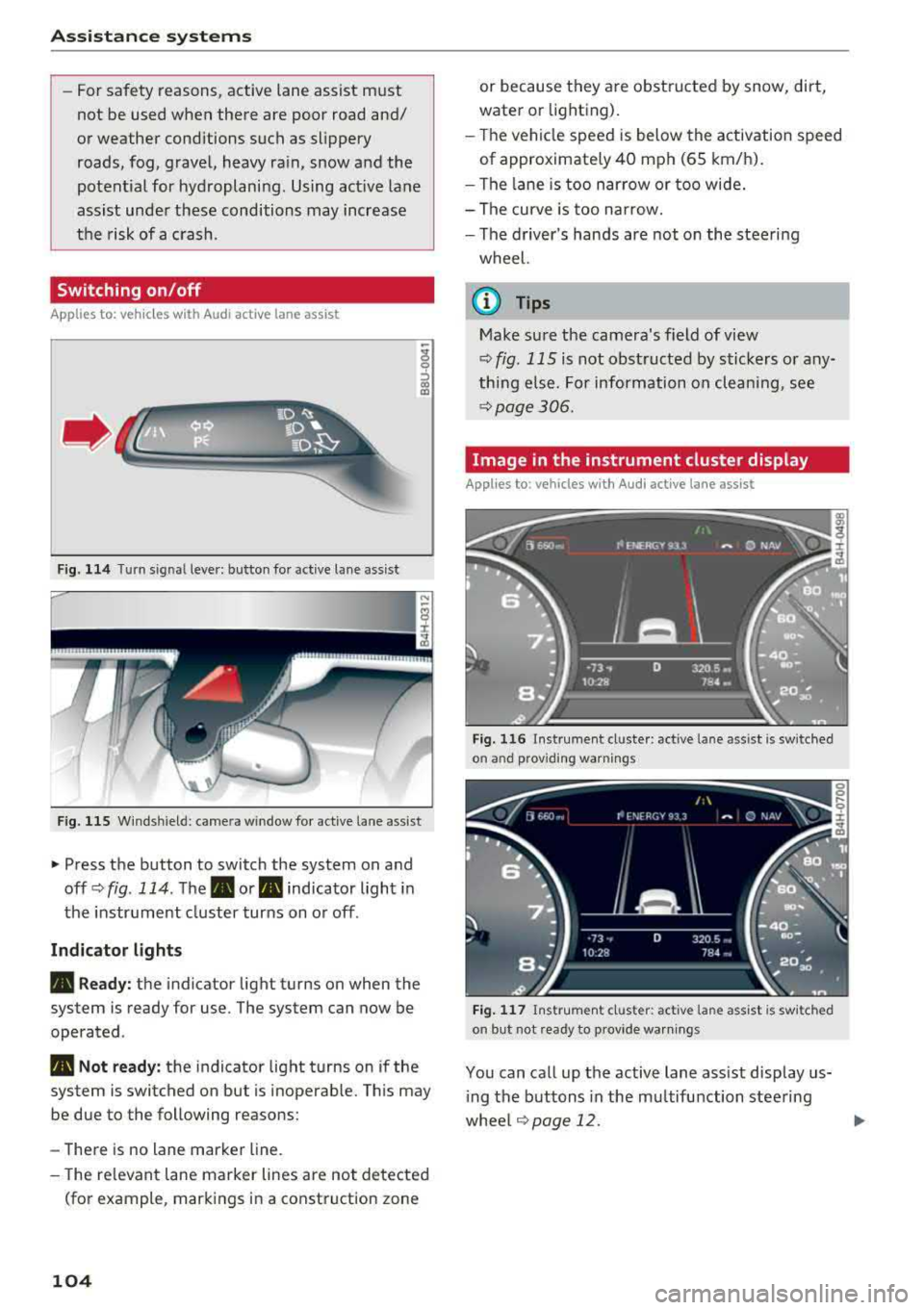
"' Press the button to switch the system on and
off <=>
fig. 114 . The . or. indicator light in
the instr ument cluster turns on o r off .
Indicator light s
• Read y: the indicator light turns on when the
system is ready for use. The system can now be
operated .
• Not ready: the indicator light turns on if the
system is switched on but is inoperab le. Th is m ay
be due to the following reasons:
-There is no lane marker line.
- The re levant lane marker lines are not detected
(fo r example , mark ings in a construction zone
104
or because they are obstru cted by snow, dirt,
water or lighting).
- T he vehicle speed is below the activation speed
of approximate ly 40 mph (65 km/h).
- The lane is too narrow or too wide.
- The curve is too narrow.
- The d river's hands are not on the steering
wheel.
@ Tips
Make sure the camera's field of view
<=>
fig. 115 is not obst ructed by sticke rs or any
thing e lse. For information on cleaning, see
<=> page 306 .
Image in the instrument cluster display
Applies to: vehicles with Audi active lane assist
Fig. 11 6 Instrumen t cl uster: act ive la n e as sist is sw it ched
o n an d provid ing warn ings
Fig . 117 Ins trume nt cl ust er: act iv e l ane ass ist is sw it ched
on but not ready to p rov ide warn ings
You can call up the active lane ass ist display us
i ng the buttons in the mu ltifunction steering
whee l¢
page 12. .,..
Page 107 of 356
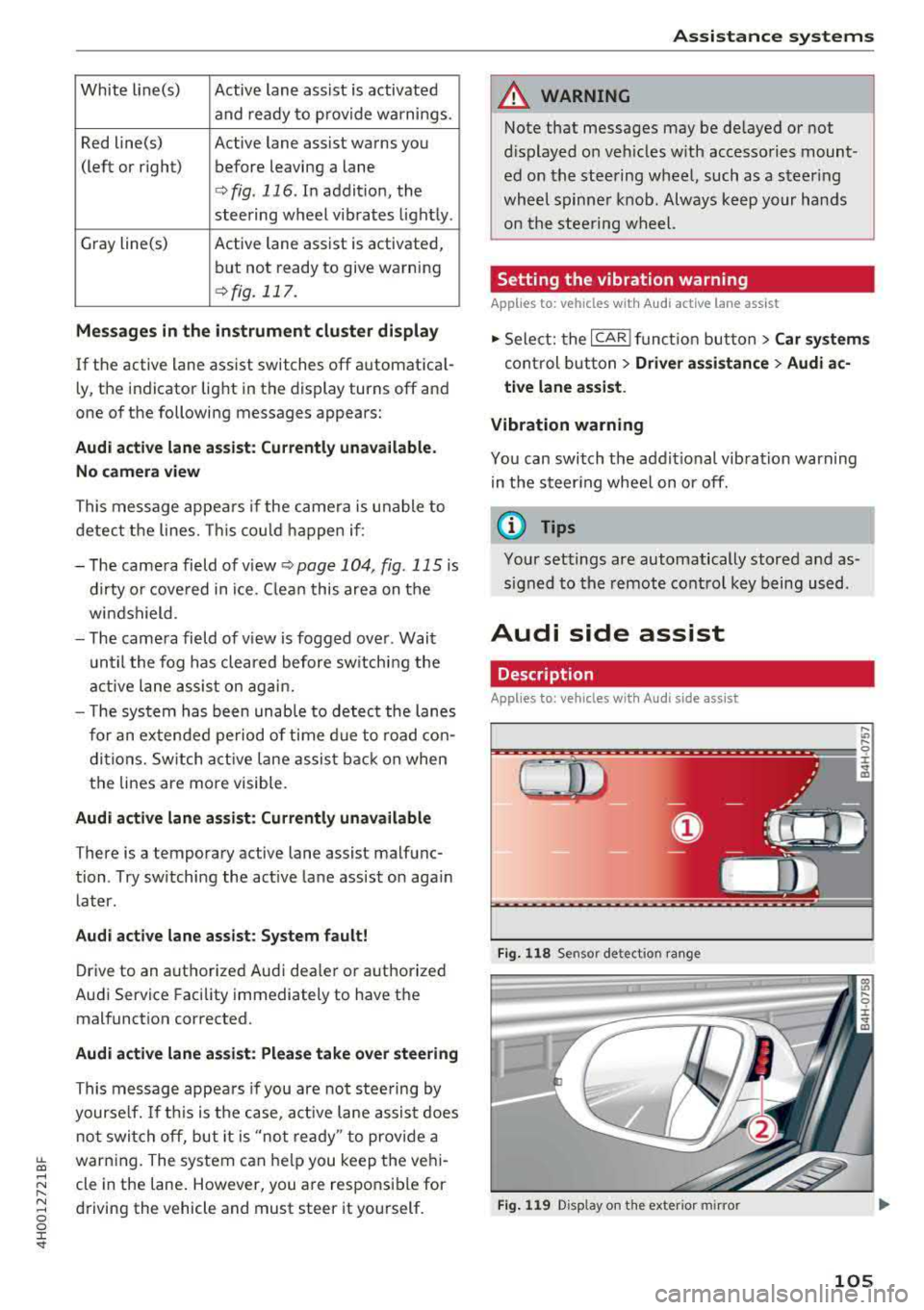
White line(s) Active lane assist is activated
and ready to provide warnings.
Red line(s) Active lane assist warns you
(left or right) before leaving a lane
¢ fig. 116. In addit ion, the
steering wheel vibrates light ly .
Gray line(s) Active lane assist is activated,
but not ready to give warning
¢ fig. 117.
Me ssages in the in strum ent clu ster di splay
If the active lane ass ist switches off automat ica l
l y, the indicator light in the display turns off and
one of the following messages appears:
Audi active lane a ssist: Cu rrentl y un available.
N o ca mera view
This message appea rs if the came ra is u nable to
detect the lines. This co uld happen if :
- The came ra field of v iew
<;;) page 104, fig. 115 is
dirty o r cove red in ice. C lean this area on the
wi ndshield .
- The came ra field of v iew is fogged over . Wait
u ntil the fog has cleared before sw itching the
active lane assis t on agai n.
- T he system has been unab le to detec t the lanes
for an extended period of time d ue to road con
di tions. Sw itch act ive lane assis t back on when
the lines are more visible.
Audi active lane a ssis t: Currently una vailabl e
There is a temporary active lane assist malfunc
tion . Try sw itch ing the active la ne assist on aga in
later.
Audi acti ve lane assist : Syste m f ault!
Drive to an authorized Audi dealer or a uthorized
Audi Service Facility immediately to have the
malfunct ion corrected.
Audi acti ve lane a ssis t: Pl ease take over steering
This message appea rs if you are not stee ring by
yourse lf. If th is is the case, act ive lane assis t does
not switch off, but it is
"not ready " to provide a
~ warn ing. The system can he lp you keep the veh i-...,
~ cle in the lane . However, you a re responsible for
~ driving the vehicle and must steer it yourself . 0 0 :c "
A WARNING
Note that messages may be de layed or not
d isplayed o n veh icles w ith accesso ries mount
ed on the stee ring wheel, such as a steer ing
whee l spinne r knob. Always keep your hands
on the s tee ring wheel.
Setting the vibration warning
App lies to : veh icles w ith Aud i act ive lane ass ist
11> Select: the ICAR I func tion but ton> C ar sy stem s
control b utt on > Driver assi stance > Audi a c
ti ve lane as sist .
Vibration warning
You can switch the addit io nal vibration warn ing
in the steer ing wheel on or off.
(D Tips
Your settings are automatically stored and as
s igned to the remote control key being used.
Audi side assist
Description
Applies to: vehicles w ith Audi s ide ass ist
Fi g. 1 18 Sensor detect ion ra n ge
F ig . 119 Disp lay on the exterio r m irror
,... .,,
9 ::c
"' co
105
Page 112 of 356
Assistance systems
critical, the system will direct your attention to
this :
- Pedestrians or wild animals are highlighted in
red and the corresponding
symbol . or.
turns on c::> fig. 125.
- There is also an audible signal.
The area classified as critical is based on the vehi
cle speed and the steering wheel angle. Pedes
trian and wild animal warning encourages you to pay more attention.
If the night vision assist image is replaced by an
other display (such as the on-board computer),
the
red . or. indicator light c::> fig. 126 will
appear if there is a pedestrian or wild animal
warning.
If the head-up display* is switched on and the
night vision assist content is activated, .
or.
will appear in the head-up display*.
Marking light*
To direct the driver's attention to a pedestrian,
the headlights can flash on the pedestrian three
times in a row when there is a pedestrian warn
ing.
This occurs at speeds above approximately 35 mph (60 km/h) if you are outside of illuminat
ed areas and no detected vehicles are shown . The
high beam assistant* controls the marking light*
c::> page 44, High beam assistant .
The marking light is not used for wild animals .
General information
Applies to: vehicles with night vision ass ist
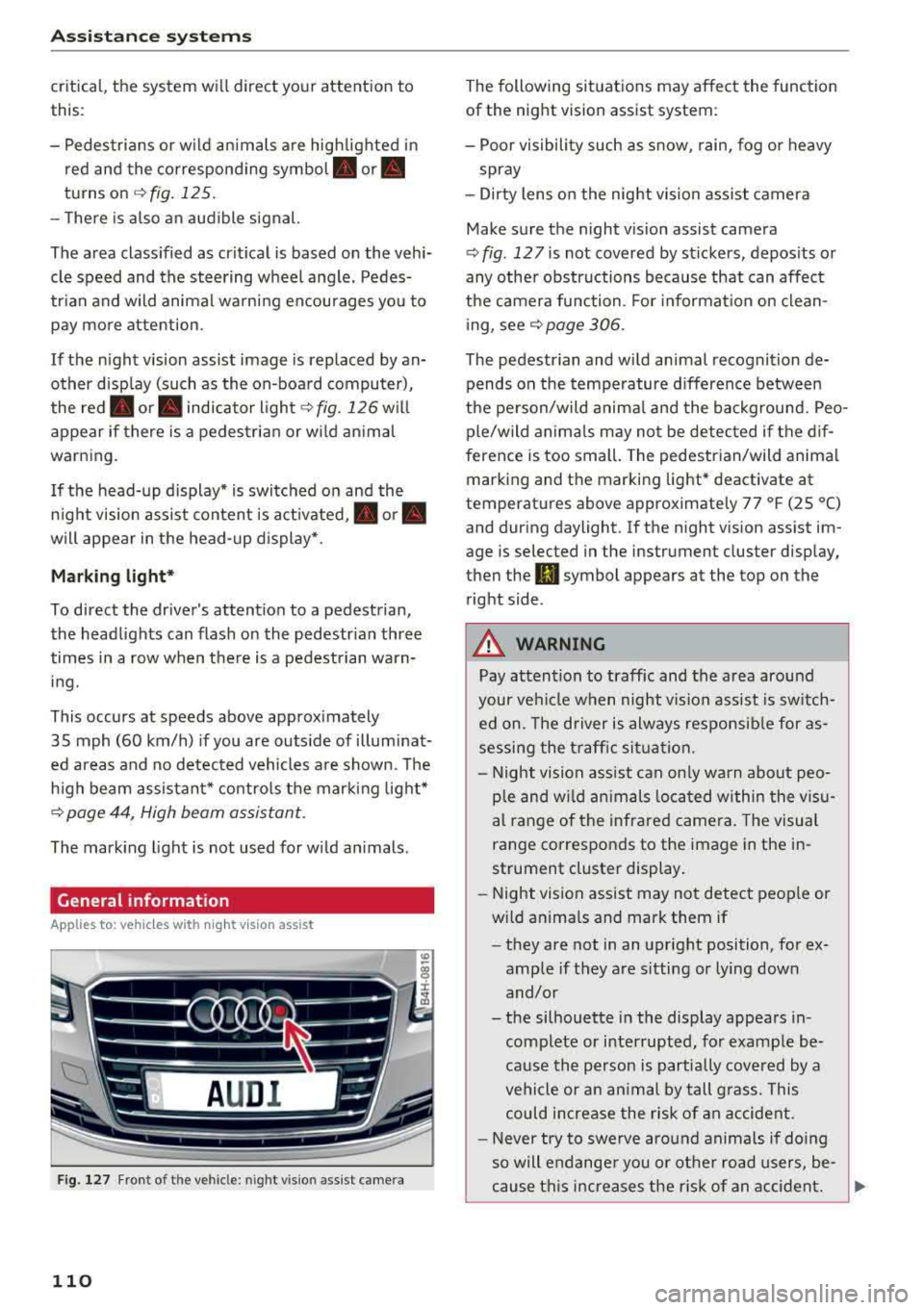
Fig. 127 F ront of th e vehicl e: nigh t visio n as sist c amer a
110
The following situations may affect the function
of the night vision assist system:
- Poor visibility such as snow , rain, fog or heavy
spray
- Dirty lens on the night vision assist camera
Make sure the night vision assist camera
c::> fig . 12 7 is not covered by stickers , deposits or
any other obstructions because that can affect
the camera function . For information on clean
ing, see
c::> page 306.
The pedestrian and wild animal recognition de
pends on the temperature difference between
the person/wild animal and the background. Peo
ple/wild animals may not be detected if the dif
ference is too small. The pedestrian/wild animal
marking and the marking light* deactivate at
temperatures above approximately 77 °F (25 °C)
and during daylight . If the night vision assist im
age is selected in the inst rument cluster display,
then the
II symbol appears a t the top on the
right side .
,& WARNING
,-
Pay attention to traffic and the area around
your vehicle when night vision assist is switch
ed on. The driver is always responsible for as
sessing the traffic situation.
- Night vision assist can only warn about peo
ple and wild animals located within the visu
al range of the infrared camera. The visual
range corresponds to the image in the in
strument cluster display .
- Night vision assist may not detect people or
wild animals and mark them if
- they are not in an upright position, for ex
ample if they are sitting or lying down
and/or
- the silhouette in the display appears in
complete or interrupted, for example be
cause the person is partially covered by a
vehicle or an animal by tall grass . This
could increase the risk of an accident.
- Never try to swerve around animals if doing
so will endanger you or other road users, be
cause this increases the risk of an accident.
Page 114 of 356
Ass is tanc e system s
In the sporty dynamic mode, the transmission
shifts at higher speed ranges.
Air su spen sion
The adaptive air suspension/adaptive air suspen
sion spo rt* is an e lectron ica lly contro lled a ir sus
pens ion and damping system . The adjustment
depends on the driving mode selected, steering movements, the driver's braking and accelera
tion , and as the road surface, vehicle speed and
load . A sporty sett ing is generally used in vehicles
with adap tive a ir suspension sport*.
The vehicle ground clearance depends on the mode se lected and the speed . When you are in
the auto or dynamic mode, the h ighway sett ing is
activated when you dr ive above 75 mph (120 km/
h) for more than 30 seconds . The ground clear
ance is increased automatically if the speed
drops below 44 mph (70 km/h) for more than 120 seconds .
Stee ring
The power steer ing adap ts . Indirect steer ing that
moves easily as in comfort mode is especially
suited to long drives on a h ighway . The dynam ic
mode p rovides spo rty , d irect steering.
Applies to: vehicles with dynamic steering
The steering ratio changes based on vehicle
speed in order to ma intain optimum steering ef
fort for the dr ive r at all times . This sets the steer
i n g to be less sensit ive at hig he r speeds in o rder
to p rovide imp roved vehicle contro l. At reduced
speeds, steer ing is more direct in order to keep
the steering effort as minima l as possib le when
the driv er is maneuvering the v ehicl e. At low and
average speeds, dynamic steering* addit ionally
provides more responsive steering performance.
Sport diff ere ntial *
As a component of the all wheel drive system (quattro)
¢ page 131, the sport differential dis
tributes the driving power to the rear axle de
pending on the situation. The distribution of
power va ries from balanced (comfort) to sporty
(dynamic) depending on the selec ted mode . The
goal is a high level of agility and ab il ity to accel
erate on curves . The ve hicle is very respons ive to
steer ing .
112 Corn
ering light *
The co rnering ligh t adapts the hig h beams to the
direction of the curve depending on the speed.
The pivoting action and the lighting also adapt to
the mode.
Adaptive cruise cont rol*
The be hav io r whe n accelerat ing ca n be adjusted
from comfortable to sporty, depending on the drive select mode. Adaptive cruise control also
responds to the driving behavior of the vehicle
ahead in a more cons ervative or sporty manner.
Engine sound *
The eng ine sound adapts to the c urrent mode
and can be subtle to spo rty.
{[» Note
- Make s ure there is enough clearance above
and be low the vehicle when pa rk ing . T he
heig ht of t he ve hicle can change on ce it is
parked d ue to temperature fluctuations,
changes to the load conditions and changes
to the driv ing modes, which can affect clear
ance .
- When transporting the vehicle on a car car
rier, train, ship or by other means, on ly tie
the vehicle down at the runn ing surface of
the tires, which is the outer c ircumference.
Securing the vehicle at the axle compo
nents, suspens ion struts o r tow ing eyes is
not pe rm itted because the p ressure i n the
air suspe nsion s truts ca n change d uring
t ra nspo rt. The vehi cle may not be secu red
sufficiently i f th i s happens.
(D Tips
- In some mo dels, the max imum ve hicle
speed can only be reached in t he auto and
dynamic modes.
- Th e S se lector lever posi tion a utomat ic all y
engages if the dynami c mode is selected.
- In ve hicl es tha t h ave dynam ic stee rin g*, op
erat ing no ise is he ard when sta rting o r stop
ping the engine . This does no t indi ca te a
prob lem.
Page 115 of 356
u. co ..... N
" N ..... 0 0 :c '
.,. To se lect t he mode , se lect the following in the
Infota inment : ICAR !f u nct io n button>
Comfort ,
Auto , D ynami c or Individual.
You can change t he d riving mode when the vehi
cle is stat ionary o r w hil e d riving. If traffic per
m its, after cha ng ing modes, br iefly take yo ur
foot off the accelerator peda l so that t he recen tly
se lected mode is a lso activated for the engine.
Comfort -provides a comfort-o rie nted ve hicle
setup and is su ited for long dr ives on hig hways .
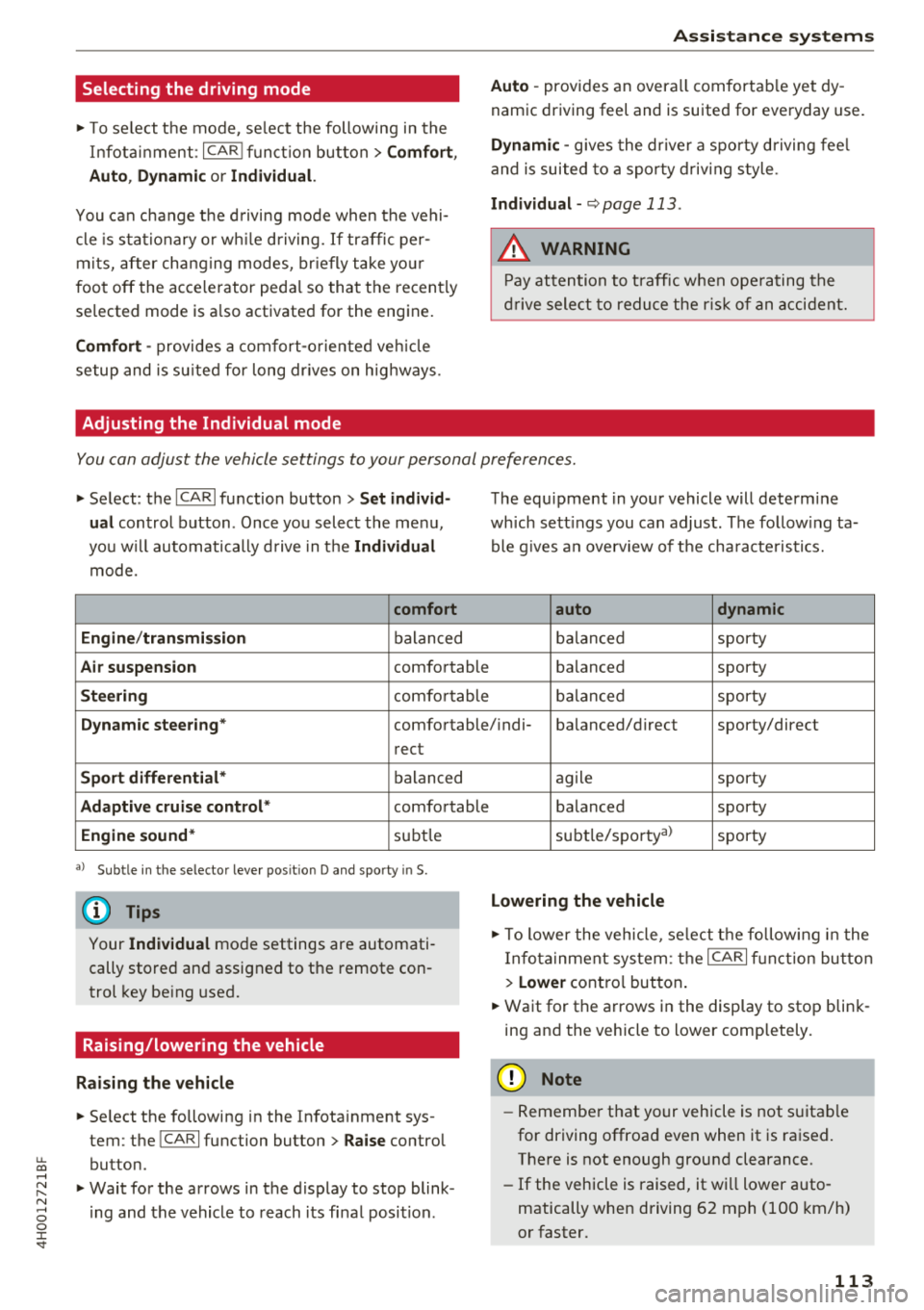
Adjusting the Individual mode
Ass istance systems
Auto -provides an overa ll comfortab le yet dy
namic driving feel and is suited for everyday use .
Dynamic -gives the dr ive r a spo rty d riving fee l
and is suited to a sporty driv ing style .
Individual -~page 113 .
A WARNING
Pay attention to t raff ic w hen ope rating the
dr ive sele ct to redu ce the r is k of a n accident.
-
You can adjust the vehicle settings to your personal preferences .
.,. Select : the !CA RI fu nction button > Set individ
ual
control button . Once you select the me nu,
you w ill automatically d rive in t he
Individual
mode.
comfort
Engine /transmission
balan ced
Air suspension comfortable
Steering co mfo rtable The equ
ipment in you r vehicle will determ ine
wh ich sett ings you can adjust . The follow ing ta
ble g ives a n overv iew of t he cha racte ristics.
auto dynamic
balan ced sporty
b alanced sporty
ba lan ced sporty
Dynamic steering * comfortable/ ind i- balanced/direc t sporty/direct
rect
Sport differential * balanced
Adaptive cruise control * comfortable
Engine sound* subtle
a> Sub tle in t he se lector leve r po sit io n D and sporty in S.
(D Tips
Your Individual mode settings are automati
cally stored an d assigned to the remote con
trol key be ing used.
Raising/lowering the vehicle
Raising the vehicle
.,. Se lect the following in the Infota inment sys
tem : the
!CAR! function button> Raise control
button .
.,. Wait for the arrows in the display to stop blink
i ng and the vehicle to reach its fi nal posit ion . ag
ile sporty
balanced sporty
subt le/spor ty al
sporty
Lowering the vehicle
.,. To lower the vehicle, se lect t he follow ing in the
I nfota inment system: the
ICAR! f u nct ion bu tto n
>
Lower cont ro l button .
.,. Wait for the a rrows i n the display to stop blink
ing and the veh icle to lower comp letely .
@ Note
-Remember t hat yo ur vehicle is not s uitab le
for driving offroa d eve n when it is ra ised.
There is not enough ground clearance.
- If the vehicle is raised, it wi ll lower auto
matically when driving 62 mph (100 km/h)
o r faster.
113
Page 118 of 356
Parking systems
Parking system plus
Description
Applies to: ve hicles with park ing system p lus
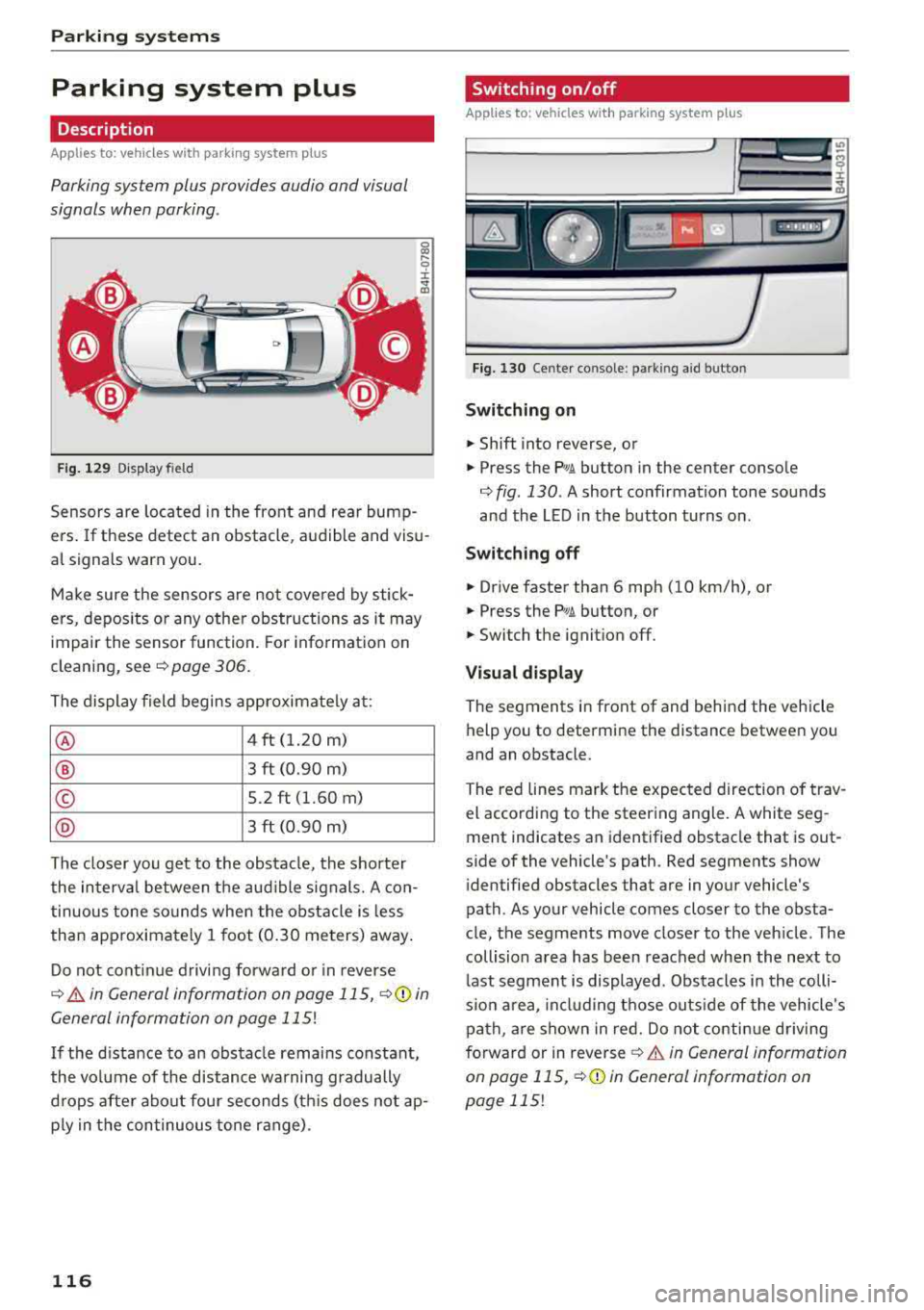
Parking system plus provides audio and v isual
signals when parking .
C>
Fig. 129 Displa y fi eld
Sensors are located in the front and rear bump
ers. If these detect an obstacle , audible and visu
al signals warn you.
Make sure the sensors are not covered by stick
ers, depos its or any other obstructions as it may
impair the sensor function. For information on
cleaning, see
c::> page 306.
The display field begins approximately at:
® 4 ft (1.20 m)
® 3 ft (0.90 m)
© 5.2 ft (1.60 m)
@ 3 ft (0.90 m)
The closer you get to the obstacle, the shorter
the interval between the audible signals. A con
tinuous tone sounds when the obstacle is less
than approximately 1 foot (0.30 meters) away.
Do not continue driving forward or in reverse
c::> & in General information on page 115, c::> ([) in
General information on page
115!
If the distance to an obstacle remains constant,
the volume of the distance warning gradually
drops after about four seconds (th is does not ap
p ly in the continuous tone range) .
116
Switching on/off
Applies to : vehicles with parking system plus
Fig. 130 Center console : par kin g aid b utto n
Switching on
.. Shift into reverse, or
.. Press the PwA button in the center console
c::> fig. 130 . A short confirmation tone sounds
and the LED in the button turns on .
Switching off
.. Drive faster than 6 mph (10 km/h), or
.. Press the PwA button, or
.. Switch the ignition off.
Visual display
The segments in front of and behind the vehicle
help you to determine the distance between you
and an obstacle .
The red lines mark the expected direction of trav
el according to the steering angle. A white seg
ment indicates an identified obstacle that is out
side of the vehicle's path . Red segments show
identified obstacles that are in your vehicle's
path. As your vehicle comes closer to the obsta
cle, the segments move closer to the vehicle . The
collision area has been reached when the next to
last segment is displayed . Obstacles in the colli
s io n area, including those outside of the vehicle 's
path , are shown in red. Do not continue driving
forward or in
reverse ¢ & in General information
on pag e 115 ,
c::>(D in General information on
page
115!
Page 120 of 356
Parking syste m s
-For objects that do not touch the ground,
such as the bumper of a parked vehicle, a
trailer hitch or the rear of a truck. Do not
use the orientation lines in this case.
- If driven from a level surface onto an in
cline, or a downward slope.
- If driven toward protruding objects.
- If the vehicle is carrying too much load in
the rear.
- The accuracy of the orientation lines and
blue surfaces decreases when the vehicle is
raised/lowered
¢ page 111.
(D Note
-Always read and follow the applicable warn
ings
¢ (D in General information on
page 115.
- The orange -colored or ientation lines in the
Infotainment display show the vehicle path based on the steering wheel angle. The
front of the vehicle swings out more than
the rear of the veh icle. Maintain p lenty of
distance so that an exterior mirror or a cor ner of the veh icle does not co llide w ith any
obstacles.
Switching on/off
Ap plies to: ve hicles w ith rearview camera
Switching on
~ Sh ift i nto reverse, or
~ P ress the p, qA bu tton in the cente r console
¢ page 116, fig . 130. A sho rt confirmat io n
tone sounds and the LED in the but ton turns
on .
Switching between the rearview camera and
optical display
~ Press t he Graphic contro l but ton ®
¢ page 118, fig. 135 to see the optica l disp lay.
~ Press the Rear view contro l button to see the
rearview camera image.
Sw itch ing off
~ D rive faster than 6 mph (10 km/h), or
~ Press the p, qA bu tton, or
~ Switch the ignition off.
118
@ Tips
- The visua l display in the left part of the dis
play should he lp you detect the crit ica l vehi-
cle areas.
- You can change the vol ume and pitch of the
signals as well as the display¢
page 125.
Perpendicular parking
App lies to : vehicles wi th rearv iew camera
This view may be used when parking in a garage
or in
a parking space.
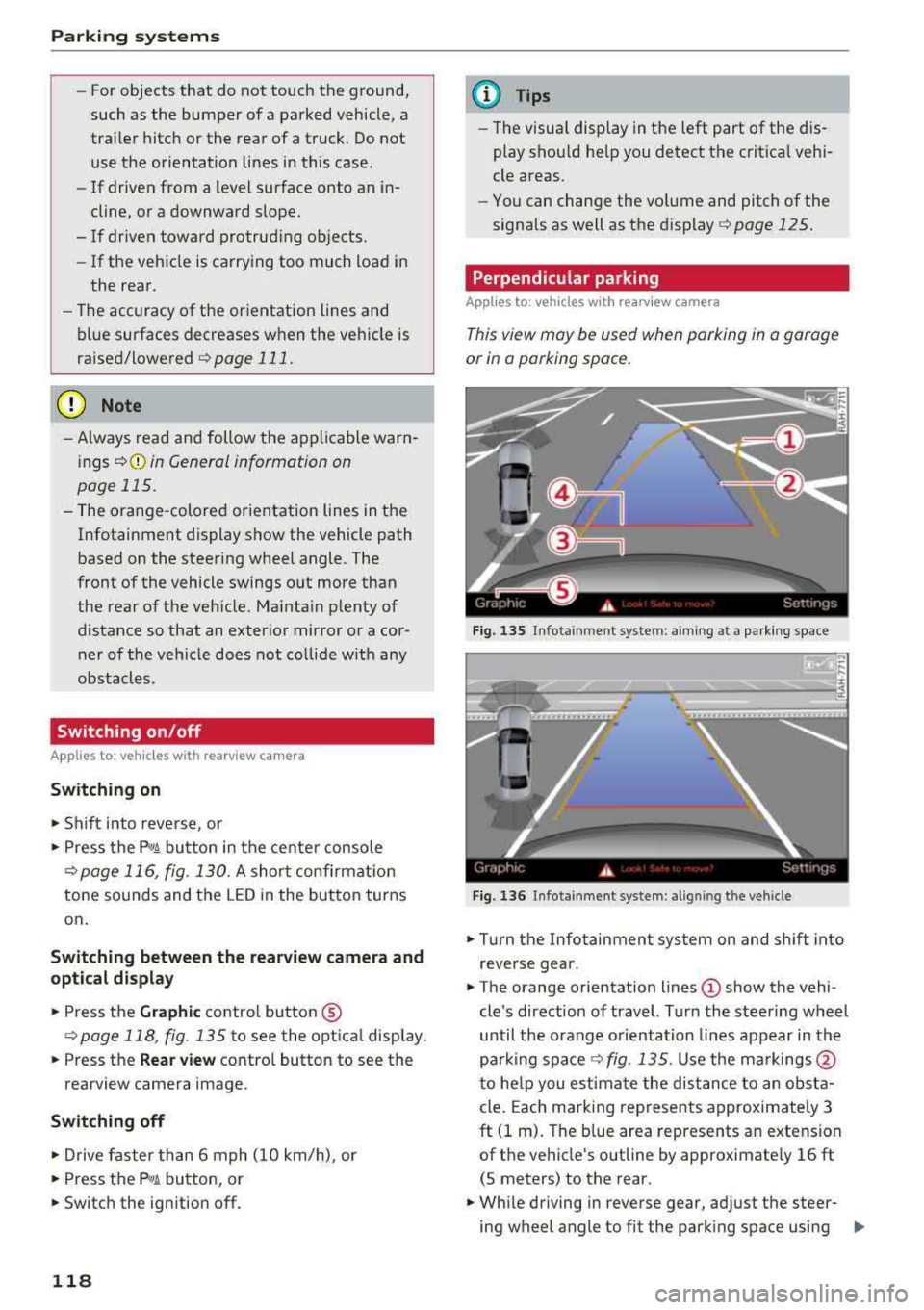
F ig. 13 S Infota inment system: aim ing at a pa rk in g space
Fig. 1 36 Infota inment system : alig ning the vehicle
~ Turn the Infotainment system on and shift into
reverse gear.
~ The orange orie ntation lines (!) show the vehi
cle 's direction of travel. Turn the steering wheel
until the orange o rientation lines appear in th e
parking
space ¢ fig. 135. Use the ma rkings @
t o he lp you estima te the dist ance to an obsta
cle . Each marking represents approximate ly 3
ft (1 m). The b lue area represents an extension
of the vehicle's outline by approximate ly 16 ft
(5 meters) to the rear.
~ Wh ile driving in reverse gear, ad just the steer-
ing wheel angle to fit the park ing space using
..,.
Page 121 of 356
lL t:0 ....
"' ......
"' .... 0 0 :c '
¢ A in General information on page 117, ¢(D
in General information on page 118 .@ repre
sents the rear bumper . At the very latest, stop
the vehicle when the red orientation
line @
borders an object .
Parallel parking
Applies to: veh icles with rearview camera
This view may be used when parallel parking
along the side of a stree t.
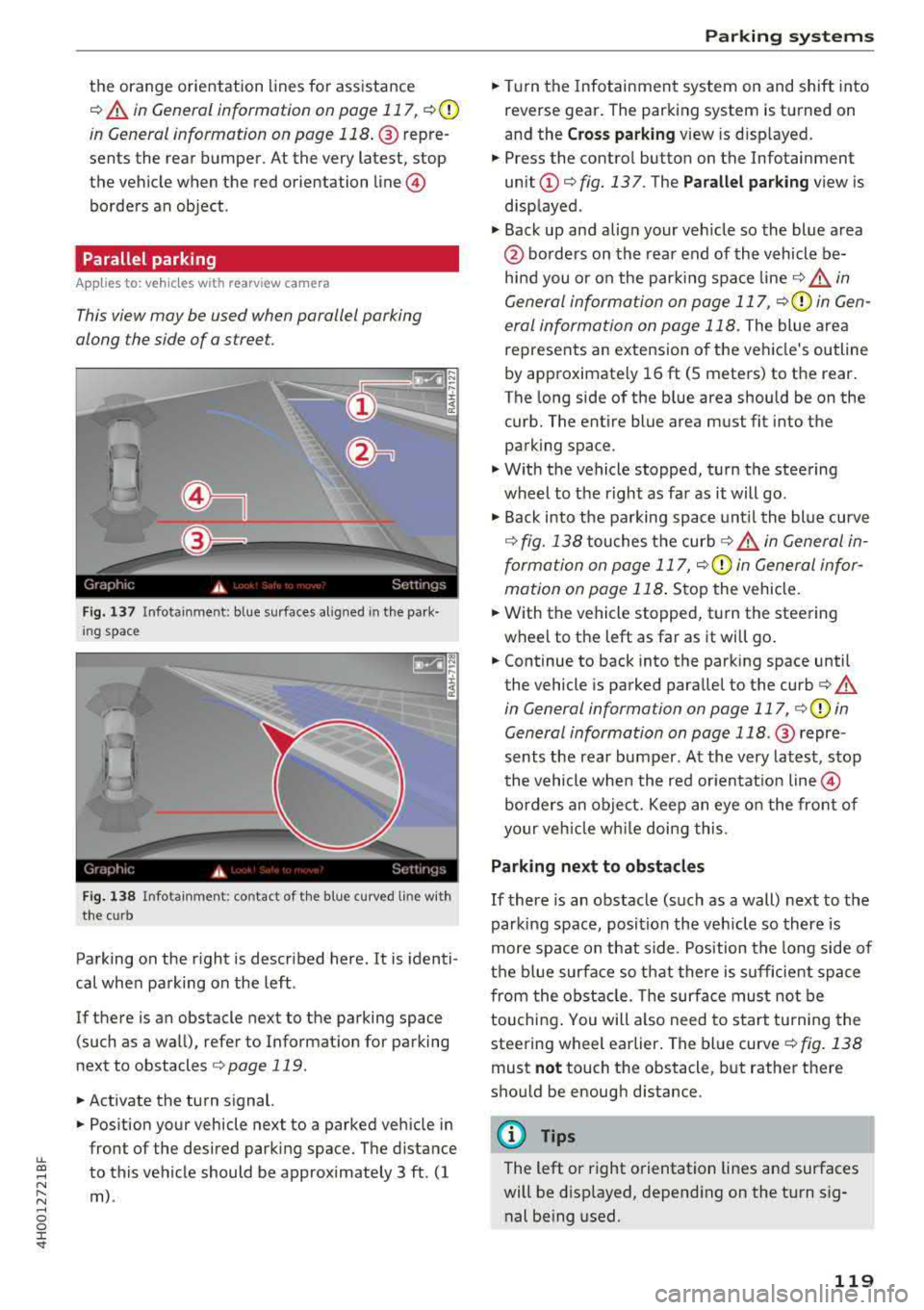
Fig . 137 In fota inment : blue surfaces alig ned in the pa rk ·
i ng space
Fi g. 138 In fo ta inm ent: c onta ct of the blue curv ed li ne with
the curb
Parking on the r ight is described here. It is identi
cal when parking on the left .
If there is an obstacle next to the parking space (such as a wall), refer to Informat ion for parking
next to obstacles
¢ page 119 .
.. Activate the turn signal.
.. Position your vehicle next to a parked veh icle in
front of the desired parking space. The d istance
to this vehicle should be approximately 3 ft . (1
m) .
Parking systems
.. T urn the Infotainment system on and shift into
reverse gear. The parking system is turned on
and the
C ros s parking view is d isp layed .
.. Press the contro l button on the Infotainment
unit @¢ fig. 137 . The Parallel parking view is
disp layed .
.. Back up and alig n your veh icle so the blue area
@ bo rders on the rear end of the vehicle be
hind you o r on the park ing spa ce
line ¢&_ in
General information on page 117,
¢ (Din Gen
eral information on page 118.
The blue area
represents an extension o f the vehicle's outline
by approximate ly 16 ft (5 meters) to the rear.
T he long side of the b lue area s hou ld be on the
curb. The entire blue area must fit into the
parking space .
.,. With the vehicle stopped, turn the steering
wheel to t he right as far as it will go .
.,. Back into the parking space unt il the blue curve
¢ fig. 138 touches the curb ¢&_ in General in
formation on page 117,
¢ (Din General infor
mation on page 118 .
Stop the vehicle .
.. With the vehicle stopped, t urn the steering
wheel to the left as far as it wi ll go .
.. Continue to back into the parking space until
the vehicle is parked parallel to the
curb ¢ A
in General informa tion on page 117, ¢ @ in
General information on page 118 .@ repre ·
sents the rear bumper. At the very latest, stop
the vehicle when the red or ien tat io n line
@
borders an object. Keep an eye o n the front of
your veh icle w hile doing this.
Parking next to obstacles
If there is an obstacle (such as a wall) next to the
parking space, position the veh icle so there is
more space on that side . Position the long side of
the b lue surfa ce so t hat there is sufficient spa ce
from the obstacle . T he su rface must not be
touchi ng . You will a lso need to s tart tu rning the
steering wheel earlier . The blue curve
¢ fig . 138
must not touch the obstacl e, b ut rather there
should be enough d istance .
(D Tips
The left or right orientation lines an d surfaces
will be disp layed, depend ing on the turn sig
nal be ing used.
119