USB AUDI A8 2021 User Guide
[x] Cancel search | Manufacturer: AUDI, Model Year: 2021, Model line: A8, Model: AUDI A8 2021Pages: 362, PDF Size: 99.29 MB
Page 255 of 362
4N0012721BF
Media
Never leave mobile devices in the vehicle in
extremely high or low temperatures.
@ Tips
— Always follow the information found in
=> page 94.
— When you switch the ignition off, the USB
ports are still supplied with power until the
energy management intervenes.
— Do not use an additional adapter cable or
USB extension cable to connect mobile devi-
ces to the Audi music interface that already
have a cable or that must be connected with
a USB adapter cable (> page 252, fig. 172).
Using an additional adapter or US extension
cable may impair functionality.
— Functionality is not guaranteed for mobile
devices that do not conform to the USB 2.0
specification.
— USB hubs are not supported.
— Video playback through the Audi music in-
terface is not supported on Apple devices
and MTP devices (such as smartphones).
— iPod touch or iPhone malfunctions also af-
fect the operation of the MMI. Reset your
mobile device in these situations.
— Audi recommends updating the iPod touch
or iPhone software to the latest version. Re-
fer to your mobile device owner's manual
for more information.
— The USB adapter on the Audi music inter-
face will support iPod touch or iPhone devi-
ces from the 5th generation or newer with
the lightning connector.
—Aselection of supported devices can be
found in the database for tested mobile de-
vices at www.audi.com/mp3.
Playing media
The following sources can be selected depending
on the vehicle equipment:
— Amazon Alexa > page 251.
— USB device > page 252.
— DVD © page 251.
— External device: you can connect external devi-
ces via Bluetooth and use the Bluetooth audio
player > page 251, or you can connect an exter-
nal device directly to the Audi music interface
=> page 252.
Accessing media
Playing media files using the MMI
> Applies to: MMI: Select on the home screen:
MEDIA > Source > a source. Depending on the
connected device, the symbol for a source may
change. The device name may be displayed (for
example: myPhone).
> Select a track from the categories in the media
center > page 254.
Playing media files using the multifunction
steering wheel
Requirement: a media source must contain me-
dia files > page 253.
> Select the radio/media tab in the instrument
cluster.
> Turn the left thumbwheel to display the play-
list.
> To switch to a different source, press the
button.
> To select a media file or a source, turn and
press the left thumbwheel.
> To switch between radio and media, select in
the instrument cluster: the LE] button > Switch
to radio/Switch to media.
Playing media files using the Rear Seat
Remote
Applies to: vehicles with Rear Seat Remote
Requirement: the Rear Seat Remote must be con-
nected to the MMI > page 28.
> Applies to: Rear Seat Remote: Press MEDIA on
the home screen.
Operation of the available media functions with
the Rear Seat Remote is very similar to operation
in the MMI > page 255.
Z\ WARNING
Observe the safety precautions > page 26,
Rear Seat Remote. >
253
Page 256 of 362
— For safety reasons, the video image is only
displayed when the vehicle is stationary. On-
ly the sound from the video plays while driv-
ing.
— Applies to: multifunction steering wheel:
Depending on the selected function, opera-
tion through the MMI may be required.
Sone
fe
S| x Ea ee
Fig. 173 Upper display: media center
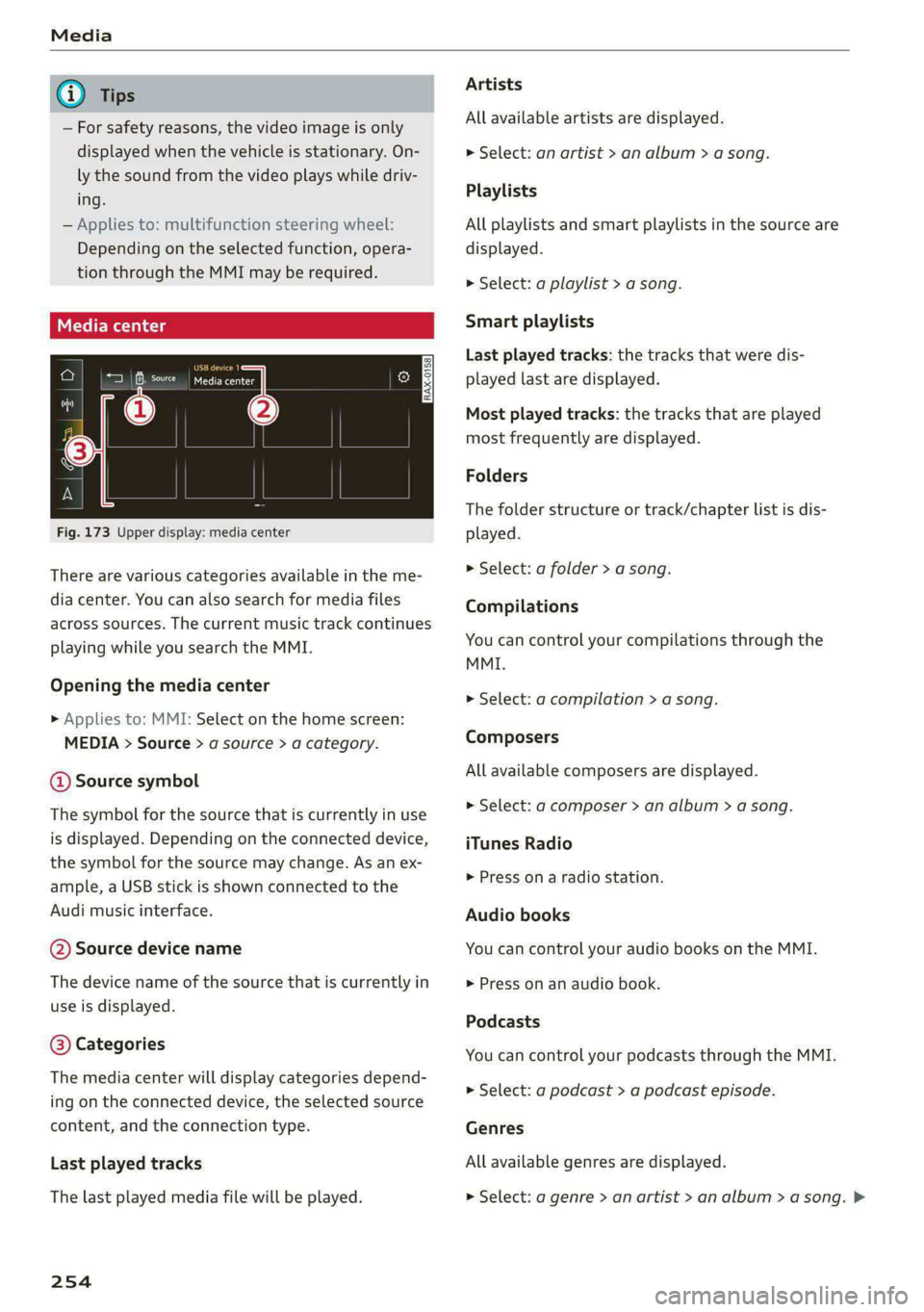
There are various categories available in the me-
dia center. You can also search for media files
across sources. The current music track continues
playing while you search the MMI.
Opening the media center
> Applies to: MMI: Select on the home screen:
MEDIA > Source > a source > a category.
@ Source symbol
The symbol for the source that is currently in use
is displayed. Depending on the connected device,
the symbol for the source may change. As an ex-
ample, a USB stick is shown connected to the
Audi music interface.
@ Source device name
The device name of the source that is currently in
use is displayed.
@ Categories
The media center will display categories depend-
ing on the connected device, the selected source
content, and the connection type.
Last played tracks
The last played media file will be played.
254
Artists
All available artists are displayed.
> Select: an artist > an album > a song.
Playlists
All playlists and smart playlists in the source are
displayed.
> Select: a playlist > a song.
Smart playlists
Last played tracks: the tracks that were dis-
played last are displayed.
Most played tracks: the tracks that are played
most frequently are displayed.
Folders
The folder structure or track/chapter list is dis-
played.
> Select: a folder > a song.
Compilations
You can control your compilations through the
MMI.
> Select: a compilation > a song.
Composers
All available composers are displayed.
> Select: ad composer > an album > a song.
iTunes Radio
> Press on a radio station.
Audio books
You can control your audio books on the MMI.
» Press on an audio book.
Podcasts
You can control your podcasts through the MMI.
> Select: a podcast > a podcast episode.
Genres
All available genres are displayed.
> Select: a genre > an artist > an album > a song. >
Page 260 of 362

Media
Online additional data
Requirement: the MMI must be connected to the
Internet. A data plan must be available
=> page 225.
When the function is switched on, additional in-
formation (such as album cover, artist, track) will
be loaded depending on the availability from the
different providers.
DVD playback parental cntrl.
Playback of video DVDs can be restricted based
on age restrictions using parental control.
Displaying the DVD parental control menu
> Applies to: MMI: Select on the home screen:
MEDIA > ©} > DVD playback parental cntrl..
> Enter the PIN for parental control. The PIN set
at the factory is 1234.
> Press OK.
Switching the rating level on and off
Requirement: the DVD parental control menu
must be displayed.
> Select: DVD playback parental cntrl. > a rating
level (for example, level 5) > *, or
> To remove all restrictions, press Off.
Eight different protection levels can be set for
parental control. If you set the parental control
level at level 5, all DVDs from levels 1 - 5 can be
played. Video DVDs with a higher level will not
play.
Changing the PIN
Requirement: the DVD parental control menu
must be displayed.
> Select: Change PIN > enter a new PIN for pa-
rental control > OK.
> Repeat the entry and press OK.
G) Tips
— Not all video DVDs have parental control.
— The protection levels for the parental con-
trol are based on the US standards from the
Motion Picture Association of America
(MPAA). Note that the age levels for video
DVDs in European countries may differ.
— PIN entry for parental control will be locked
for approximately one minute if you enter
the incorrect PIN three times in a row. The
PIN can only be reset by an authorized Audi
dealer.
Supported media and file formats
OTe TN]
Depending on the vehicle equipment, the follow-
ing properties for media files may be supported
by the DVD drive and the connection for USB stor-
age devices:
Audio/video files
DVD drive: audio CDs (up to 80 min) with CD text (artist, album,
Supported media
song)*, CD-ROMs with a capacity of up to 700 MB; DVD+R/RW; DVD
video; DVD audio with audio tracks that are compatible with a DVD
video player;
Audi music interface: mobile devices > page 252 (such as an iPhone,
MTP player, USB storage device in “USB Device Subclass 1 and 6” that
conforms to USB 2.0: USB sticks, USB MP3 players (Plug-and-Play-ca-
pable), external USB flash drives and hard drives
File system
USB storage device: exFAT, FAT, FAT32, NTFS
USB storage device partitions (primary/logical*): 2 per USB connec-
tion
CD/DVD file systems: ISO9660, Joliet, UDF
258
Page 261 of 362

4N0012721BF
Media
Album cover: GIF, JPG, PNG with max. 800x800 px. The album cover
Metadata from the medium or from Gracenote®* is displayed, depending on
availability.
Playlists -M3U; .PLS; .WPL; .M3U8; .ASX
Number of files
DVD drive: max. 1,000 files per medium
USB mass storage device: max. 50,000 files per medium; max. 1,000
files per playlist/folder
Format File extension
MPEG 1/2 Layer 3 -mp3
Windows Media Audio 9/10 .wma
Up to maximum 320 kbit/s
48 kHz sampling frequencies
MPEG 2/4 .m4a; .m4b; .aac
Opus Opus; .0gg; .oga
FLAC flac
ALAC -m4a 48 kHz sampling frequency
Monkey's Audio -ape
Format File extension
MPEG 1/2 -mpg; .mpeg
MPEG4 AVC (H.264) .mp4; .m4v; .mov; .avi
up to maximum 15 Mbit/s and
1920x1080 px at maximum 30 fps
Windows Media Video 9 .wmv; .asf
MPEG-H (H.265/HEVC) -mp4; .mov
VP8/VP9 .webm
Flash video flv; .f4v
— The media sources do not support the Win-
dows Media Audio 9 Voice format.
— For compressing MP3 files, Audi recom-
mends a bit rate of at least 160 kbit/s. The
display showing the remaining play time
may differ for audio files with variable bit
rate.
— Special characters (such as those in ID3 tag
information) may display differently or may
Troubleshooting
The information that follows lists some trouble-
shooting options. They depend on the equip-
ment. >
not always display, depending on the sys-
tem language.
— The manufacturer of the storage device can
provide information about its “USB Device
Subclass”.
—Some MTP player functions are not support-
ed, such as rating music tracks and video
playback.
259
Page 262 of 362

Media
Problem Solution
Audi music interface/Bluetooth
audio player: the mobile device is
not supported.
Read the instructions in the chapter > page 252, Multimedia
connections/> page 251, Bluetooth audio player.
Audi music interface: the mobile
device is not recognized as a
source.
For many mobile phones or mobile devices, playback is not possi-
ble when the battery level is too low (less than 5% charge level).
The mobile device will only be recognized as a media source in
the MMI after connecting if the battery charge level is sufficient.
Audi music interface: malfunc-
tions during audio playback
through an iPod touch/iPhone.
The Bluetooth audio player function is switched on. Switch this
function off > page 264 when you are not using the Bluetooth
audio player.
Audi music interface: audio play-
back through the connected mo-
bile device is not possible.
Make sure the USB mode MTP is selected in the settings on your
mobile device.
Bluetooth audio player: interfer-
ence with track display and audio
playback.
Playback interference can occur when using the Bluetooth audio
player if a music player app from a third party provider is open.
Audi recommends using the integrated media player on your
Bluetooth device (such as a smartphone).
260
Page 263 of 362
4N0012721BF
Audi smartphone interface
Audi smartphone
interface
Setup
Applies to: vehicles with Audi smartphone interface
You can connect your smartphone to the MMI
with a cable or wirelessly* using the Audi smart-
phone interface. Certain content on your smart-
phone is adapted in the MMI while driving and
can be operated through the MMI.
Requirement: the vehicle must be stationary and
the ignition must be switched on. iPhone genera-
tion 5 or higher with Lightning connector and iOS
7.1.2 operating system or higher, or smartphone
with Android Auto app and Android 5.0 Lollipop
operating system or higher.
> Applies to: MMI: Select on the home screen:
SETTINGS > Connected devices > Audi smart-
phone interface > New connection.
> Connect your smartphone to the Audi music in-
terface > page 252 using a USB adapter
=> page 252, fig. 172, or
> To connect your iPhone wireless*, switch on the
Bluetooth function and Wi-Fi on your iPhone.
Open the Apple CarPlay settings in your iPhone.
In the MMI, press on your iPhone in the list of
displayed devices.
> To update the list, press O.
> Follow the system instructions.
> Pay attention to any additional system prompts
on your smartphone, if applicable.
> Applies to: MMI: If you declined use of Apple
CarPlay or Android Auto the first time you con-
nected your smartphone, then select on the
home screen: SETTINGS > Connected devices >
Audi smartphone interface > a smartphone.
> Follow the system instructions.
Z\ WARNING
Driving requires your complete and undivided
attention. As the driver, you have complete re-
sponsibility for safety in traffic. Never operate
mobile devices while driving, because this in-
creases the risk of an accident.
CG) Note
Read the information about Audi connect, and
be sure to note the connectivity costs section
=> page 222.
G@) Tips
— The functions that can be used depend on
the following factors, among others:
— The brand of your smartphone
— The version of the operating system in
your smartphone
— The software version of the app used
— The USB adapter cable and correct connec-
tion
— Your cell phone service provider
— The customized settings on your smart-
phone
— One of the factors above or a combination
of any of them could cause your smart-
phone to be incompatible with the Audi
smartphone interface. Compatibility cannot
be guaranteed for all types of smartphones.
For more information and assistance, refer
to the user guide and the manufacturer of
your smartphone.
— Please note that you can only connect your
smartphone via the front Audi music inter-
face in order to use the Audi smartphone
terface.
in-
— Wireless Apple CarPlay* is not available in
all countries.
— Wireless Apple CarPlay* was a planned func-
tion at the time this manual was printed.
Wireless Apple CarPlay* is not available in
your vehicle.
— Wireless Apple CarPlay* is only possible i
vehicles without a navigation system or
without a detected vehicle position (GPS
n
da-
ta) if the following requirement is met: the
embedded SIM card for the vehicle must
logged into the mobile phone network
=> page 222.
be
— If the connected smartphone has voice con-
trol, you can operate your smartphone using
the external voice recognition system
=> page 35.
261
Page 264 of 362

Audi smartphone interface
— The menu language shown in the MMIis
based on the settings in your smartphone.
— Some MMI functions are not available when
there is an active Audi smartphone interface
connection.
— You cannot connect any mobile devices via
Bluetooth when an Audi smartphone inter-
face connection is active.
Troubleshooting
Applies to: vehicles with Audi smartphone interface
The information that follows lists some trouble-
shooting options. They depend on the equip-
ment.
— Usage of the Audi smartphone interface de-
pends on the availability of services through
third party providers.
— Audi merely provides access to third party
services through the MMI and does not as-
sume any responsibility for the content of
these services.
Problem Solution
Audi smartphone Check the battery charge level on your smartphone.
interface cannot be | Check the USB cable and use a different one if necessary.
opened.
cle is being operated.
Check if Android Auto or Apple CarPlay is available in the country where the vehi-
Android Auto: check if the Android Auto app is installed on your smartphone.
Connecting the Make sure that you are using the correct USB adapter and check if the USB
smartphone to the | adapter is connected correctly to your smartphone and the Audi music interface
MMI failed. = page 252.
Apple CarPlay: check if Apple CarPlay is activated on your iPhone.
vehicles.
Android Auto: check in the Android Auto app if Android Auto permits new
start your iPhone.
Wireless connection: open the settings for Bluetooth and Apple CarPlay on your
iPhone. Remove your vehicle. Open the connection manager in the MMI
= page 265. Delete your iPhone in the Telephone 1 and Audi smartphone inter-
face submenus. Repeat the connection process. Restart the MMI > page 20. Re-
The smartphone is | Make sure that you are using the correct USB adapter and check if the USB
not automatically
detected. => page 252.
adapter is connected correctly to your smartphone and the Audi music interface
Check if the requirements needed to connect a smartphone have been met.
262
Page 332 of 362

Fuses and bulbs
Fuse assignment - left side of cockpit
RAZ-0202
Fig. 210 Left side of the cockpit: fuse panel with plastic
clip
Fig. 211 Left side of the luggage compartment: fuse panel
with plastic clip
2 | Engine components 10 | Volume control
3 | Engine components 11 | Light switch, switch panels
4 |Engine components 12 | Steering column electronics
5 | Brake light sensor 14 | MMI Infotainment system control module
6 | Engine components 15 |Steering column adjustment
7 |Engine components 16 | Steering wheel heating
8 | Engine components
9 | Engine components ae ft side of the luggage
10 | Oil pressure sensor, oil temperature sensor (eelar|PEINE Ee
11 | Engine components g
12 | Engine components
13 | Engine cooling
14 | Engine control module, fuel injectors
15 | Engine sensors
16 | Fuel pump
330
No. Equipment No. | Equipment
Climate control system, interior air sensor 1_| Thermal management
2 | Audi phone box 5 |Air suspension/suspension control
Climate control system, fragrance system, 6 |Automatic transmission control module
3 particulate matter sensor 7 |Right rear seat adjustment
4 |Head-up display 8 | Rear seat heating
S_ |Audi music interface, USB input 9 |
Left tail light
6 |Instrument panel 10 | Front belt tensioner on driver's side
7 | Steering column lock
8 |Upper/lower display
9 |Instrument cluster
Page 333 of 362

4N0012721BF
Fuses and bulbs
Fuse panel () (black) Fuse panel @) (brown)
Luggage compartment lid central locking, 15 |Left rear seat adjustment
11 | fuel filler door, sunshade, luggage com- Front belt tensioner on front passenger's
partment cover 16 side
12 | Luggage compartment lid control module
— Fuse panel (4) (black)
Fuse panel (2) (red) No. | Equipment
No. | Equipment Seat ventilation, rear seat heating, rear-
1 | Rear climate control system blower 1 |view mirror, refrigerator, diagnostic con-
2 | Exterior antenna nection
3 | Exhaust treatment, sound actuator 2 | Gateway control module (communication)
4 |Rear climate control system control panel 3 [Sound actuator
5 | Right trailer hitch light 4 |Transmission heating valve
6 |Trailer hitch positioning motor 5 |Engine start, electric drive
7 |Trailer hitch release 7 |Active accelerator pedal
8 | Left trailer hitch light 8 | Night vision assist, active suspension
9 |Trailer hitch socket 9 _|Adaptive cruise assist
10 |Allroad sport differential 1 Intersection assistant, driver assist sys-
11 | Exhaust treatment tems, radar systems, camera systems
12 |48 V drivetrain generator 2 || Exteriorsoundigenerator
13 | USB input
Fuse panel (3) (brown) 14 [Right headlight
No. | Equipment 15 |Left headlight
1 |Driver assistance systems control module :
2 |Rear Audi phone box Fuse panel () (red)
3 | Rear seat adjustment No:.| Equipment
4 |Side assist 1 | Active suspension
5 |Sereensinthe rear 2 |Service disconnect switch
6 |Tire pressure monitoring system 3_|Refrigerator
7 [Emergency call system 4 | Electric drive system
Auxiliary heating radio receiver, tank mod- 5 |/Brake-system
8 ule 6 | High-voltage battery water pump
9 | Automatic transmission selector lever 7 |Auxiliary climate control
0 TV tuner, data exchange and telematics 8 |Climate control system compressor
control module 9 |Auxiliary battery control module
rT Convenience access and start authoriza- 10 | High-voltage battery
tion control module 11 | High-voltage charger
12 | Garage door opener 14 | Thermal management
13 | Rearview camera, peripheral cameras 15 | Thermomanagement control module
Convenience system control module, right -
14 | Vil light Fuse panel 6) (white)
No. | Equipment
1 |Rear center armrest heating
331
Page 337 of 362
4N0012721BF
Data privacy
Exporting data
You can read out the data memory for autono-
mous driving and export this data to a USB stick.
The settings depend on the vehicle equipment.
Requirement: the vehicle must be stationary, the
automated systems must not be active, and the
ignition must be switched on. A USB stick must
be connected to the USB input.
» Applies to: MMI: Select on the home screen:
SETTINGS > Data management > Statistics.
> Follow the instructions in the MMI.
The export will be canceled if you switch menus,
for example.
Recorded data
— Driver interactions (such as the driver pressing
the brake pedal)
— Vehicle dynamics (such as speed)
— Status of automated systems
— Control requests
— Relevant measurements from monitoring the
surroundings
— Image data from monitoring the surroundings
— System status, timestamp, and vehicle location
when deactivating/activating park assist plus
You can find additional information in the MMI:
— Applies to: MMI: Select on the home screen:
SETTINGS > General > Legal notes > About the
data memory.
@) Tips
— The data is processed and stored locally in
the vehicle. It is not automatically transmit-
ted to Audi or other third parties, for exam-
ple through the cloud. The owner or driver is
responsible for the data. Audi does not have
access to it.
— For additional information and the evalua-
tion of data, please contact Audi Customer
Care.
Transmitted information
Data collection
Applies to: vehicles with data collection
Depending on the country, Audi may collect data
for the following purposes, for example: offer
and product optimization, public safety, provision
of Audi connect remote vehicle services, and
adaptation to customer expectations. For exam-
ple, various technical function data, environmen-
tal data, driving data, and usage data will be col-
lected for a specific purpose and forwarded to
Audi. The data will be sent from the vehicle at
the time the data was collected.
Applies to: MMI: You can find additional informa-
tion about data collection in the MMI. Select on
the home screen: SETTINGS > General > Legal
notes > About Audi connect.
If you would like to deny data transmission to
Audi, contact an authorized Audi dealer or au-
thorized Audi Service Facility for more informa-
tion. You also have the option to deactivate data
transmission within the privacy settings.
Privacy settings
Applies to: vehicles with Audi connect
> Applies to MMI: Select on the home screen:
SETTINGS > Privacy settings.
When using Audi connect services or during data
collection, data will be transmitted from the ve-
hicle.
> To display additional information about the pri-
vacy settings and the associated symbols in the
status bar, press @ in the MMI.
Requirement: the ignition must be switched on.
Setting the maximum privacy settings
When the Activate privacy mode function is
switched on, the data connection is deactivated
or sending of data is restricted, but all safety-re-
lated, legal, or contractually required Audi con-
nect
services remain activated. The majority of
the Audi connect services are deactivated.
335