audio AUDI E-TRON 2019 User Guide
[x] Cancel search | Manufacturer: AUDI, Model Year: 2019, Model line: E-TRON, Model: AUDI E-TRON 2019Pages: 310, PDF Size: 81.91 MB
Page 152 of 310
Driver assistance
@ Tips
Always keep your hands on the steering
wheel. The driver is always responsible for ad-
hering to the regulations applicable in the
country where the vehicle is being operated.
Audi pre sense
Introduction
Applies to: vehicles with Audi pre sense
Within the limits of the system, the Audi pre
sense functions can initiate measures in certain
driving situations to protect the vehicle occu-
pants and other road users. Depending on the ve-
hicle equipment, various Audi pre sense systems
may
be installed:
— Audi pre sense basic can react during emergen-
cy and dangerous braking maneuvers and un-
stable driving situations (such as oversteering
or understeering).
— Audi pre sense front!) can detect an impending
frontal impact and react with warnings, braking
interventions, and preemptive safety measures
for the vehicle occupants.
— Audi pre sense rear monitors the rear traffic
behind your vehicle and can react to an impend-
ing rear impact.
— Audi pre sense side can detect an impending
side impact from cross-traffic and vehicles com-
ing from the side, and can initiate preemptive
safety measures.
— The swerve assist can assist you during a
swerving maneuver if it is detected as critical
based on the steering movements.
— The turn assist can detect vehicles in the oppo-
site lane and react with braking maneuvers.
ONT ole eam Leta Leh
Applies to: vehicles with Audi pre sense
Depending on the vehicle speed and the vehicle
equipment, the following functions may be initi-
ated in certain situations:
— Visual and audio warnings
D_ This is not available in some countries.
150
— Activation of the emergency flashers»)
— Reversible tensioning of safety belts
— Closing the windows and panoramic glass roof
— Adjusting the seats
— Other preemptive safety measures by individual
systems
Z\ WARNING
Follow the safety precautions and note the
limits of the assist systems, sensors, and
cameras > page 123.
(i) Tips
— Depending on the risk situation that is de-
tected and the selected Audi drive select*
mode, not all preemptive safety measures
may be initiated under certain circumstan-
ces. Certain functions can be adjusted or
skipped if necessary.
— Audi pre sense may be restricted or unavail-
able under certain circumstances, for exam-
ple if:
— There are passengers with unfastened
safety belts
— It has only been several seconds since the
ignition was switched on The fq indicator
light turns on
— When driving in reverse
— There is an airbag control module mal-
function
— The ESC is limited, switched off, or mal-
functioning > page 102
Audi pre sense basic
Applies to: vehicles with Audi pre sense basic
Audi pre sense basic is automatically active at
speeds of approximately 20 mph (30 km/h) and
higher. Audi pre sense basic can trigger the Audi
pre sense preemptive safety measures during
emergency braking and dangerous braking ma-
neuvers as well as in unstable driving situations,
such as oversteering or understeering.
Page 162 of 310
Parking and maneuvering
Parking and
maneuvering
Introduction
Depending on the vehicle equipment, various
parking aids will help you when parking and ma-
neuvering.
The parking system plus assists you while park-
ing using audio and visual signals to warn you
about objects detected in front of, behind, and at
the sides* of the vehicle > page 160.
The rearview camera shows the area behind the
vehicle in the MMI display. The lines in the rear-
view camera image help you to park and maneu-
ver > page 162.
The peripheral cameras are an addition to the
rearview camera and help you to see various
areas around the vehicle while parking and ma-
neuvering > page 162.
The rear cross-traffic assist can warn you of ap-
proaching cross traffic when driving in reverse or
exiting a parking space > page 166.
Z\ WARNING
Follow the safety precautions and note the
limits of the assist systems, sensors, and
cameras > page 123.
@® Tips
Practicing parking in a traffic-free location or
parking lot to become familiar with the sys-
tems is recommended. Practice parking in
good light and weather conditions.
160
Parking system plus
Scale Rie Rela
Applies to: vehicles with parking system plus
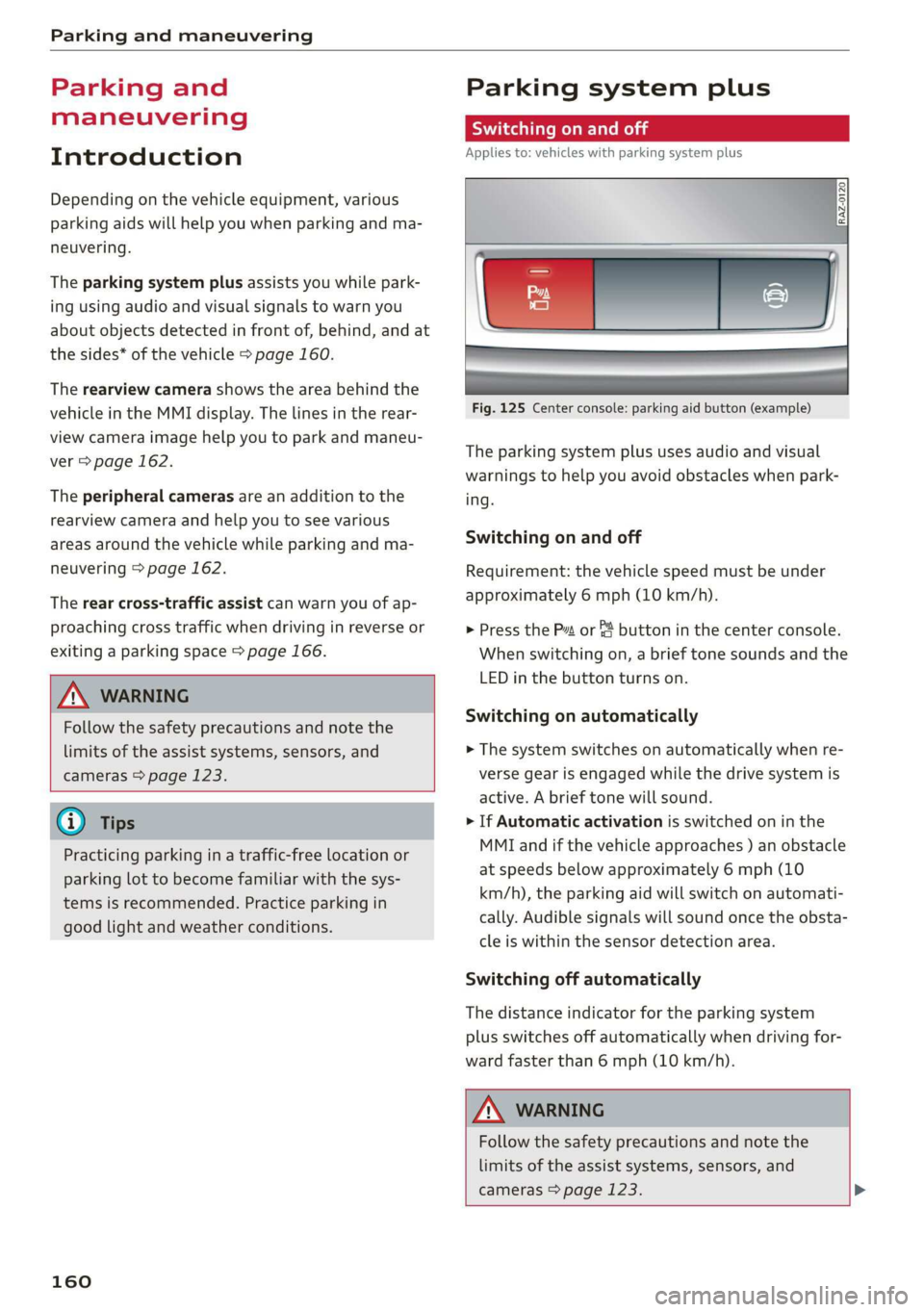
Fig. 125 Center console: parking aid button (example)
The parking system plus uses audio and visual
warnings to help you avoid obstacles when park-
ing.
Switching on and off
Requirement: the vehicle speed must be under
approximately 6 mph (10 km/h).
> Press the Pt or % button in the center console.
When switching on, a brief tone sounds and the
LED in the button turns on.
Switching on automatically
> The system switches on automatically when re-
verse gear is engaged while the drive system is
active. A brief tone will sound.
> If Automatic activation is switched on in the
MMI and if the vehicle approaches ) an obstacle
at speeds below approximately 6 mph (10
km/h), the parking aid will switch on automati-
cally. Audible signals will sound once the obsta-
cle is within the sensor detection area.
Switching off automatically
The distance indicator for the parking system
plus switches off automatically when driving for-
ward faster than 6 mph (10 km/h).
Z\ WARNING
Follow the safety precautions and note the
limits of the assist systems, sensors, and
cameras > page 123. >
Page 163 of 310
4KE012721BB
Parking and maneuvering
@) Note
Keep enough distance from the curb to avoid
damage to the rims.
G) Tips
If the parking aid is switched off, it can only
be reactivated automatically when one of the
following conditions is met:
— The vehicle speed exceeds 6 mph (10 km/h)
— The ignition is switched off and back on
again
— The parking brake is set and then released
—The “P” gear is engaged and released again
Applies to: vehicles with parking system plus
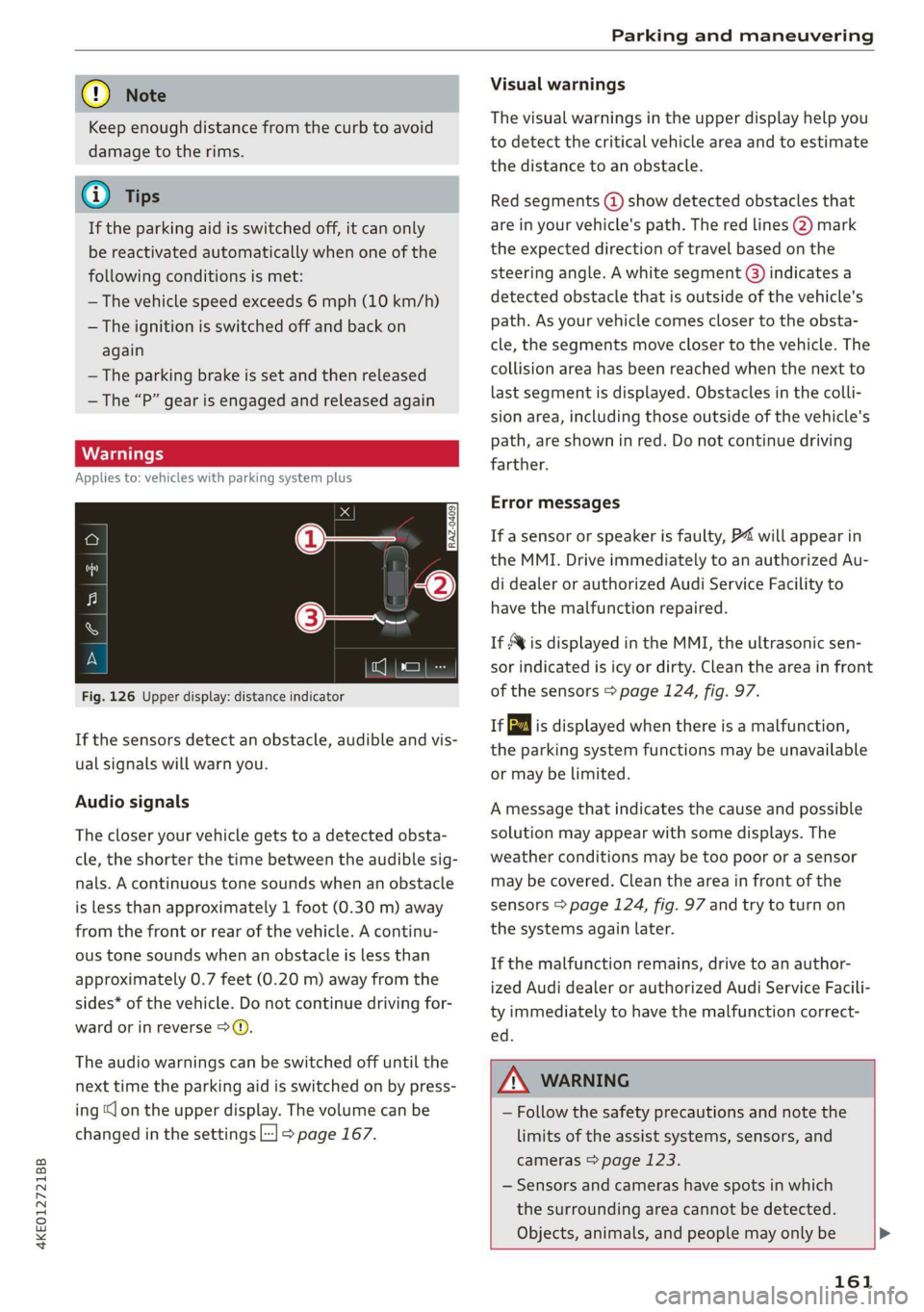
Fig. 126 Upper display: distance indicator
If the sensors detect an obstacle, audible and vis-
ual signals will warn you.
Audio signals
The closer your vehicle gets to a detected obsta-
cle, the shorter the time between the audible sig-
nals. A continuous tone sounds when an obstacle
is less than approximately 1 foot (0.30 m) away
from the front or rear of the vehicle. A continu-
ous tone sounds when an obstacle is less than
approximately 0.7 feet (0.20 m) away from the
sides* of the vehicle. Do not continue driving for-
ward or in reverse 9>Q.
The audio warnings can be switched off until the
next time the parking aid is switched on by press-
ing “lon the upper display. The volume can be
changed in the settings L-] > page 167.
Visual warnings
The visual warnings in the upper display help you
to detect the critical vehicle area and to estimate
the distance to an obstacle.
Red segments (@) show detected obstacles that
are in your vehicle's path. The red lines 2) mark
the expected direction of travel based on the
steering angle. A white segment (8) indicates a
detected obstacle that is outside of the vehicle's
path. As your vehicle comes closer to the obsta-
cle, the segments move closer to the vehicle. The
collision area has been reached when the next to
last segment is displayed. Obstacles in the colli-
sion area, including those outside of the vehicle's
path, are shown in red. Do not continue driving
farther.
Error messages
If a sensor or speaker is faulty, P4 will appear in
the MMI. Drive immediately to an authorized Au-
di dealer or authorized Audi Service Facility to
have the malfunction repaired.
If Avis displayed in the MMI, the ultrasonic sen-
sor indicated is icy or dirty. Clean the area in front
of the sensors > page 124, fig. 97.
iff is displayed when there is a malfunction,
the parking system functions may be unavailable
or may be limited.
A message that indicates the cause and possible
solution may appear with some displays. The
weather conditions may be too poor or a sensor
may be covered. Clean the area in front of the
sensors > page 124, fig. 97 and try to turn on
the systems again later.
If the malfunction remains, drive to an author-
ized Audi dealer or authorized Audi Service Facili-
ty immediately to have the malfunction correct-
ed.
ZA\ WARNING
— Follow the safety precautions and note the
limits of the assist systems, sensors, and
cameras > page 123.
— Sensors and cameras have spots in which
the surrounding area cannot be detected.
Objects, animals, and people may only be >
161
Page 165 of 310
4KE012721BB
Parking and maneuvering
> Press the & button in the center console. When
switching on, a brief tone sounds and the LED
in the button turns on. Or
> Select 1 on the upper display if the visual dis-
tance indicator is shown > page 161, fig. 126.
Switching on automatically
The system switches on automatically when re-
verse gear is engaged while the drive system is
active. A brief tone will sound.
Switching off automatically
The system switches off automatically when driv-
ing forward faster than 6 mph (10 km/h).
ZA WARNING
Follow the safety precautions and note the
limits of the assist systems, sensors, and
cameras > page 123.
Warnings
Applies to: vehicles with rearview camera/peripheral cameras
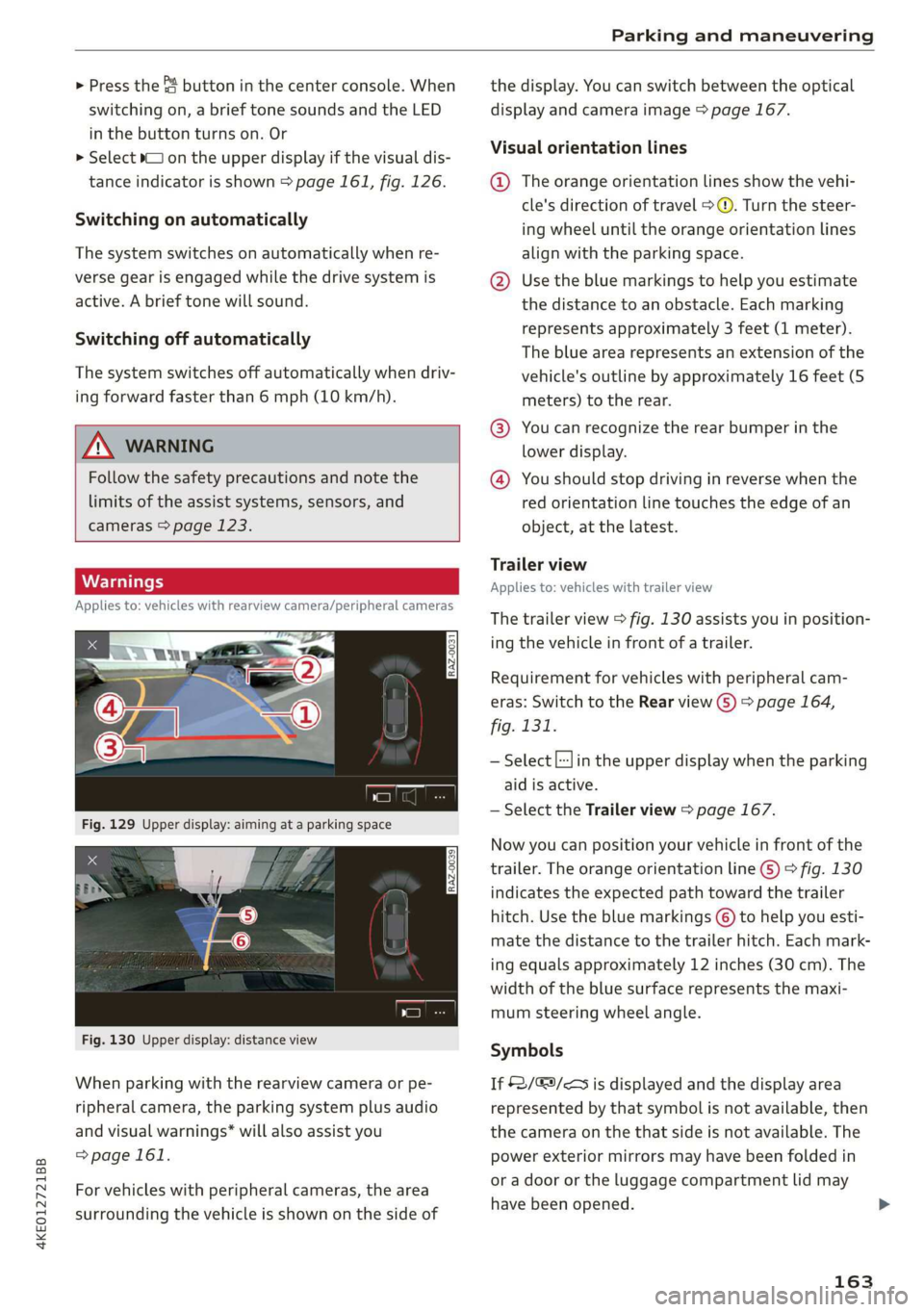
Fig. 130 Upper display: distance view
When parking with the rearview camera or pe-
ripheral camera, the parking system plus audio
and visual warnings* will also assist you
=>page 161.
For vehicles with peripheral cameras, the area
surrounding the vehicle is shown on the side of
the display. You can switch between the optical
display and camera image > page 167.
Visual orientation lines
@ The orange orientation lines show the vehi-
cle's direction of travel > ©. Turn the steer-
ing wheel until the orange orientation lines
align with the parking space.
@ Use the blue markings to help you estimate
the distance to an obstacle. Each marking
represents approximately 3 feet (1 meter).
The blue area represents an extension of the
vehicle's
outline by approximately 16 feet (5
meters) to the rear.
@® You can recognize the rear bumper in the
lower display.
@ You should stop driving in reverse when the
red orientation line touches the edge of an
object, at the latest.
Trailer view
Applies to: vehicles with trailer view
The
trailer view > fig. 130 assists you in position-
ing the vehicle in front of a trailer.
Requirement for vehicles with peripheral cam-
eras: Switch to the Rear view G) > page 164,
fig. 131.
— Select |:-}in the upper display when the parking
aid is active.
— Select the Trailer view > page 167.
Now you can position your vehicle in front of the
trailer. The orange orientation line ©) > fig. 130
indicates the expected path toward the trailer
hitch. Use the blue markings © to help you esti-
mate the distance to the trailer hitch. Each mark-
ing equals approximately 12 inches (30 cm). The
width of the blue surface represents the maxi-
mum steering wheel angle.
Symbols
If $2/&9/< is displayed and the display area
represented by that symbol is not available, then
the camera on the that side is not available. The
power exterior mirrors may have been folded in
or a door or the luggage compartment lid may
have been opened.
163
Page 169 of 310
4KE012721BB
Parking and maneuvering
Displays, warnings, and braking
— Display: the indicator @ in the upper display
only appears when the parking aid is activated.
For vehicles with peripheral cameras, this only
happens in the Rear and Corner view (rear)
camera views. Arrows show the direction from
which the cross traffic is approaching.
— Audible warnings: an audio signal may sound
as an additional warning when driving in re-
verse.
— Automatic brake activation: if you do not react
to a warning, a brief braking by the system can
warn you of a potential collision with an ap-
proaching object.
The audible warning signal and the automatic
brake activation occur only when driving in re-
verse.
Messages
1f EM, Bg or > is displayed when there is a mal-
function, the rear cross traffic assist functions
may be unavailable or may be limited.
A message that indicates the cause and possible
solution may appear with some displays. The
weather conditions may be too poor or a sensor
may be covered. Clean the sensor area in the ve-
hicle rear and try to turn the systems on again
later.
If the malfunction remains, drive to an author-
ized Audi dealer or authorized Audi Service Facili-
ty immediately to have the malfunction correct-
ed.
ZA WARNING
— Follow the safety precautions and note the
limits of the assist systems, sensors, and
cameras > page 123.
— The rear cross-traffic assist will not provide
alerts about people and cannot warn you
about every type of approaching objects,
such as cyclists. Always monitor the traffic
as well as the vehicle's surroundings with di-
rect eye contact.
— The system may not react if objects are ap-
proaching very quickly.
— The rear cross-traffic assist will not provide
alerts if your vehicle is parallel parked or if
your vehicle is pulled too far into the park-
ing space so that it is hidden by adjacent ve-
hicles.
(i) Tips
— Once an automatic brake activation occurs,
the system cannot initiate another activa-
tion for several seconds.
—If there is an acoustic warning signal from
the rear cross-traffic assist, then the park-
ing system may not warn you of detected
obstacles under certain circumstances.
— The system is not available when the vehicle
detects that you are towing a trailer. There
is no guarantee the functions will switch off
when using a retrofitted trailer hitch. Do not
use
these functions when towing a trailer.
— For an explanation on conformity with the
FCC regulations in the United States and the
Industry Canada regulations, see
=> page 289.
Adjusting the parking
aids
You can adjust the parking aid to your preferen-
ces. The settings depend on the vehicle equip-
ment.
> Applies to: MMI: Select on the home screen:
VEHICLE > Parking aid.
> Applies to: MMI: Select L-] on the upper display
when the parking aid is active.
Possible settings:
Activating automatically
Trailer view - Shows the trailer view. In vehicles
with peripheral cameras, this can only be opened
in the Rear view.
View - Switches between the visual display
(Graphic) and vehicle surroundings (Camera) in
the side view on the screen.
Clean rearview camera - Starts cleaning the rear-
view camera.
167
Page 170 of 310
Parking and maneuvering
Front volume - Volume for the front and side*
area.
Rear volume - Volume for the rear area.
Entertainment fader - The volume of the audio/
video source is Lowered when the parking system
is turned on.
Rear cross-traffic assist
G) Tips
— Specific settings are stored automatically in
the active personal profile.
— The new level is demonstrated briefly* when
the volume is adjusted.
168
Page 219 of 310
4KE012721BB
Media
Media
General information
There are various media drives and connections
available in the MMI. For example, you can play
media files using the SD card reader or connect
your mobile devices to the Audi music interface
and operate them through the MMI.
Media and format restrictions: the MMI (includ-
ing the SD card reader and the USB storage de-
vice connection*) was tested with a variety of
products and media available in the market.
However, there may be cases where individual de-
vices or media and audio/video files may not be
recognized, may play only with restrictions, or
may not play at all.
Restricted functionality: reset the Media to the
factory default settings if functionality is restrict-
ed.
Digital Rights Management: please note that
the
audio/video files are subject to copyright pro-
tection.
The media drives do not play files that are pro-
tected by DRM and are identified with the symbol
&.
Data security: never store important data on SD
cards, CDs/DVDs, or mobile devices. Audi AG is
not responsible for damaged or lost files and me-
dia.
Loading times: the more files/folders/playlists
there are on a storage medium, the longer it will
take to load. To reduce the amount of time it
takes the audio/video files to load, use a storage
medium that only contains audio/video files, and
create subfolders (for example, for each artist or
album).
Additional information: when playing, audio
files are automatically displayed with any addi-
tional information that is stored (such as the ar-
tist, track and album cover). If this information is
not available on the storage medium, the MMI
will check the Gracenote metadata database.
However, in some cases, the additional informa-
tion may not be displayed.
CG) Note
Read the information about Audi connect, and
be sure to note the connectivity costs section
=@ in General information on page 184.
SD card reader
The SD card reader is in the storage compartment
under the front center armrest.
Inserting the SD card
> The angled corner of the SD card must face to-
ward the right front side when being inserted.
>» Slide the SD card into the card reader slot until
the SD card clicks into place.
The SD card reader is accessed and operated
through the MMI = page 221.
® Note
— Only use one-piece SD cards. If adapter
cards (SD cards with more than one piece)
are used, the card could fall out of the
adapter when driving because of vibrations.
Individual pieces could then become stuck
in the drive and impair the functionality.
—To reduce the risk of damaging drives and
data carriers, always keep data carriers ina
sleeve and never expose them to direct sun-
light.
DVD drive
General information
The functionality of individual storage mediums
may be limited due to the variety of blank CDs/
DVDs available and the various capacities. Audio
CDs or video DVDs with copy protection, CDs/
DVDs that do not conform to the standard, and
multisession CDs may have limited playback or
may not play at all. AUDI AG recommends finaliz-
ing the recording process when creating multi-
session CDs. Multisession DVDs are not support-
ed.
217
>
Page 220 of 310
To reduce the risk of damaging the drive and
data carriers:
— Always store data carriers in a protective
sleeve and do not expose them to direct
sunlight
— Do not use damaged, dirty, or laminated da-
ta carriers
— Do not use single CDs/DVDs with an 8 cm
diameter, non-circular CDs/DVDs (shaped
CDs), cleaning CDs, and protective rings
— Never force CDs/DVDs into the drive. Discs
are pulled in automatically.
@ Tips
The thermal protection switch stops playback
temporarily when outside temperatures are
too high.
peel)
Applies to: vehicles with a DVD drive
RAH-9153
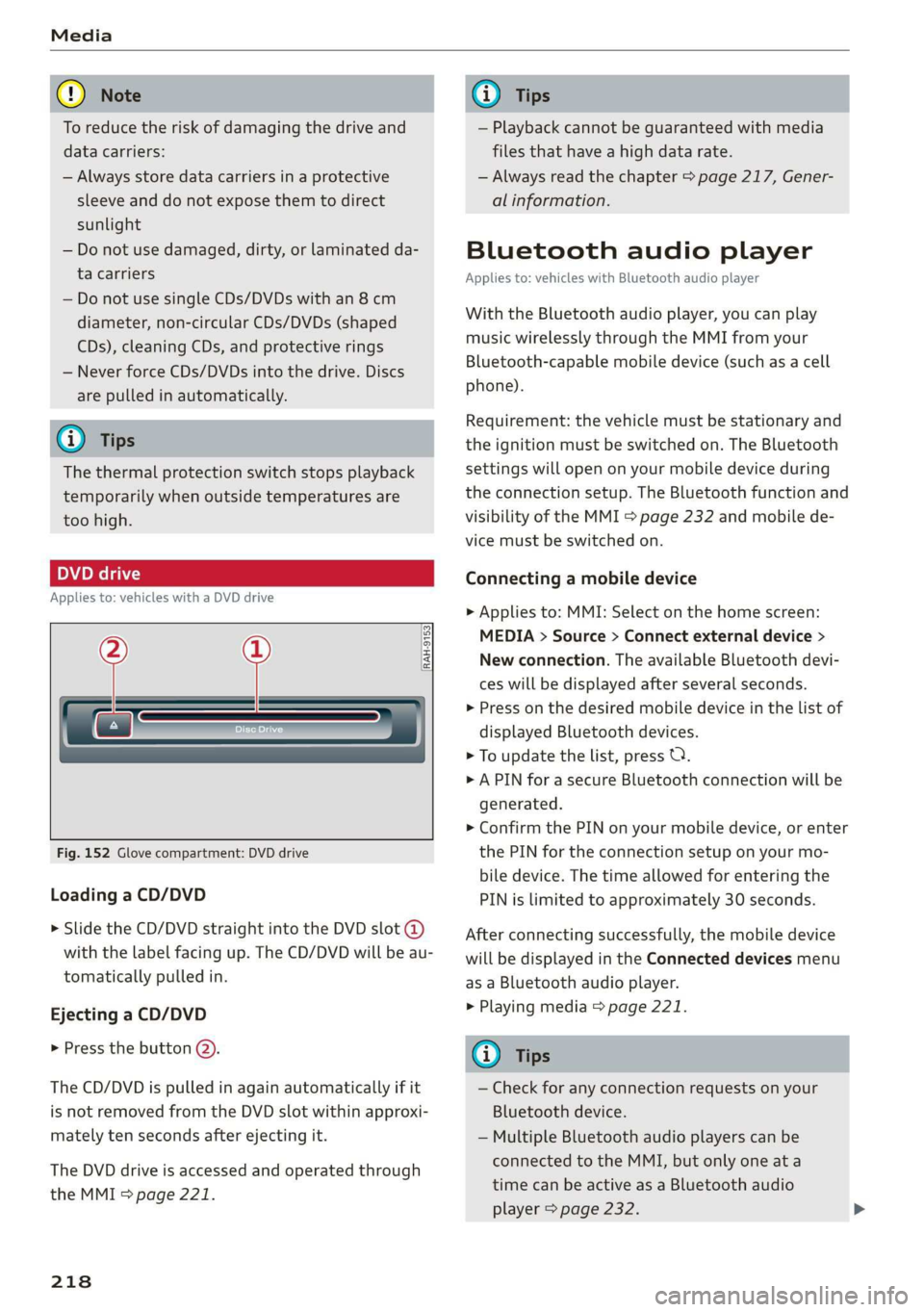
Fig. 152 Glove compartment: DVD drive
Loading a CD/DVD
> Slide the CD/DVD straight into the DVD slot @
with the label facing up. The CD/DVD will be au-
tomatically pulled in.
Ejecting a CD/DVD
> Press the button @).
The CD/DVD is pulled in again automatically if it
is not removed from the DVD slot within approxi-
mately ten seconds after ejecting it.
The DVD drive is accessed and operated through
the MMI > page 221.
218
G) Tips
— Playback cannot be guaranteed with media
files that have a high data rate.
— Always read the chapter > page 217, Gener-
al information.
Bluetooth audio player
Applies to: vehicles with Bluetooth audio player
With the Bluetooth audio player, you can play
music wirelessly through the MMI from your
Bluetooth-capable mobile device (such as a cell
phone).
Requirement: the vehicle must be stationary and
the ignition must be switched on. The Bluetooth
settings will open on your mobile device during
the connection setup. The Bluetooth function and
visibility of the MMI = page 232 and mobile de-
vice must be switched on.
Connecting a mobile device
> Applies to: MMI: Select on the home screen:
MEDIA > Source > Connect external device >
New connection. The available Bluetooth devi-
ces will be displayed after several seconds.
> Press on the desired mobile device in the list of
displayed Bluetooth devices.
> To update the list, press OQ.
> A PIN for a secure Bluetooth connection will be
generated.
> Confirm the PIN on your mobile device, or enter
the PIN for the connection setup on your mo-
bile device. The time allowed for entering the
PIN is limited to approximately 30 seconds.
After connecting successfully, the mobile device
will be displayed in the Connected devices menu
as a Bluetooth audio player.
> Playing media > page 221.
G) Tips
— Check for any connection requests on your
Bluetooth device.
— Multiple Bluetooth audio players can be
connected to the MMI, but only one ata
time can be active as a Bluetooth audio
player > page 232.
Page 221 of 310
4KE012721BB
Media
— The supported media functions (such as
shuffle, list view, categories, search, op-
tions) depend on the Bluetooth device being
used.
— Note the volume setting on your Bluetooth
device. AUDI AG recommends setting your
mobile device to the maximum volume
when using it as a Bluetooth audio player.
— For more information on supported devices,
visit www.audiusa.com/bluetooth or con-
tact an authorized Audi dealer or authorized
Audi Service Facility.
Online media
Applies to: vehicles with Audi connect Infotainment and on-
line media
You can play and operate various online media
services, such as music streaming services, using
the MMI.
Requirement: a supported online media service
must be available in the country where the vehi-
cle is being operated.
Connecting online media:
> Connect the MMI to the Internet > page 184.
> Switch on the Wi-Fi hotspot in the MMI
> page 189.
> Applies to: MMI: Select on the home screen:
MEDIA > Source > Connect online media.
> Switch the Wi-Fi function on in your mobile de-
vice and connect it to the MMI Wi-Fi hotspot
=> page 185.
> Install and start the myAudi app on your mo-
bile device.
> Log in to your myAudi account in the myAudi
app and select your vehicle.
Your mobile device must be connected to the
MMI and must be highlighted. When you press
the highlighted device, it will be disconnected.
Starting online media:
> Applies to: MMI: Select on the home screen:
MEDIA > Source. All online media services sup-
ported in your country will be displayed.
> Press on the desired online media service and
follow the system instructions.
ZA WARNING
— It is only safe to use tablets, laptops, mobile
devices and other similar devices when the
vehicle is stationary because, like all loose
objects, they could be thrown around the in-
side of the vehicle in a crash and cause seri-
ous injuries. Store these types of devices se-
curely while driving.
— Do not use any wireless devices on the front
seats within range of the airbags while driv-
ing. Also read and follow the warnings in
=> page 64, Airbag system.
() Note
— Read the information about Audi connect,
and be sure to note the connectivity costs
section >@ in General information on
page 184.
— There generally are additional costs when
using an online media service account, espe-
cially when it is used internationally.
@ Tips
— Depending on the Internet connection and
network traffic, the connection may discon-
nected when online media sources are play-
ing.
— Online media usage depends on the service
availability of the third party provider.
— Audi AG simply makes the access to online
media services possible through the MMI
and does not take any responsibility for the
contents of the online media services.
— Always read the chapter > page 184.
— Depending on the mobile device being used,
there may be interruptions during media
playback and when using the myAudi app.
To avoid interruptions when using a mobile
device, do not lock the screen on your mo-
bile device and keep the myAudi app in the
foreground.
219
Page 223 of 310
4KE012721BB
Media
@) Note
— Pull the cable out of the Audi music inter-
face carefully so that the USB ports are not
damaged.
— Use a USB extension cable to connect devi-
ces that have an integrated USB connector
(such as a USB stick) to reduce the risk of
damage to your USB device and the Audi
music interface.
— Extremely high or low temperatures that
can occur inside vehicles can damage mobile
devices and/or impair their performance.
Never leave mobile devices in the vehicle in
extremely high or low temperatures.
@ Tips
— Always follow the information found in
=> page 75.
— When you switch the ignition off, the USB
ports are still supplied with power until the
energy management intervenes.
— Do not use an additional adapter cable or
USB extension cable to connect mobile devi-
ces to the Audi music interface that already
have a cable or that must be connected with
a USB adapter cable (> page 220, fig. 153).
Using an additional adapter or US extension
cable may impair functionality.
— Functionality is not guaranteed for mobile
devices that do not conform to the USB 2.0
specification.
— USB hubs are not supported.
— Video playback through the Audi music in-
terface is not supported on Apple and MTP
devices (such as smartphones).
— iPod or iPhone malfunctions also affect the
operation of the MMI. Reset your mobile de-
vice in these situations.
— Audi recommends updating the iPod or
iPhone software to the latest version. Refer
to your mobile device owner's manual for
more information.
— The USB adapter on the Audi music inter-
face will support iPod touch or iPhone devi-
ces from the 5th generation or newer with
the lightning connector.
— For more information about the Audi music
interface and supported devices, check the
Audi database for mobile devices at www.
audiusa.com/mp3 or contact an authorized
Audi dealer or authorized Audi Service Fa-
cility.
Playing media
The following sources can be selected depending
on the vehicle equipment:
— Amazon Alexa > page 220
—SD card > page 217.
— USB © page 220.
— DVD drive > page 218
— Connect external device: you can connect ex-
ternal devices via Bluetooth and use the Blue-
tooth audio player > page 218, or you can con-
nect an external device directly to the Audi mu-
sic interface > page 220.
— Connect online media > page 219.
Accessing media
Playing media files using the MMI
> Applies to: MMI: Select on the home screen:
MEDIA > Source > a source. Depending on the
connected device or online media service”, the
symbol for a source may change. The device
name may be displayed (for example: my-
Phone).
> Select a track from the categories in the media
center > page 222.
Playing media files using the multifunction
steering wheel
Requirement: a media drive must contain media
files > page 221.
> Select the Radio/Media tab using the multi-
function steering wheel.
> Turn the left thumbwheel to display the play-
list.
> To switch to a different source, press the [=|
button.
> To select a media file or a source, turn and
press the left thumbwheel.
221