change time AUDI E-TRON 2019 User Guide
[x] Cancel search | Manufacturer: AUDI, Model Year: 2019, Model line: E-TRON, Model: AUDI E-TRON 2019Pages: 310, PDF Size: 81.91 MB
Page 145 of 310
4KE012721BB
Driver assistance
lane guidance is not active. This may be due to
the following reasons:
— The necessary lane marker lines have not been
detected (for example, in a construction zone
or because the lines are obstructed by snow,
dirt, water, or lighting)
— The lane is too narrow or too wide
— The curve is too narrow
— Visibility is obstructed by a rise or dip.
— The driver's hands are not on the steering
wheel
ZA WARNING
Follow the safety precautions and note the
limits of the assist systems, sensors, and
cameras > page 123.
@ Tips
— Always keep your hands on the steering
wheel. The driver is always responsible for
adhering to the regulations applicable in
the country where the vehicle is being oper-
ated.
— It is recommended to only switch on lane
guidance on well-constructed roads.
— Specific settings are stored automatically in
the active personal profile.
— The button -arrow- switches lane guidance
availability and the lane departure warning
on or off simultaneously, if lane guidance is
selected in the adaptive cruise assist set-
tings.
Setting the distance
Applies to: vehicles with adaptive cruise assist
B4M-0234
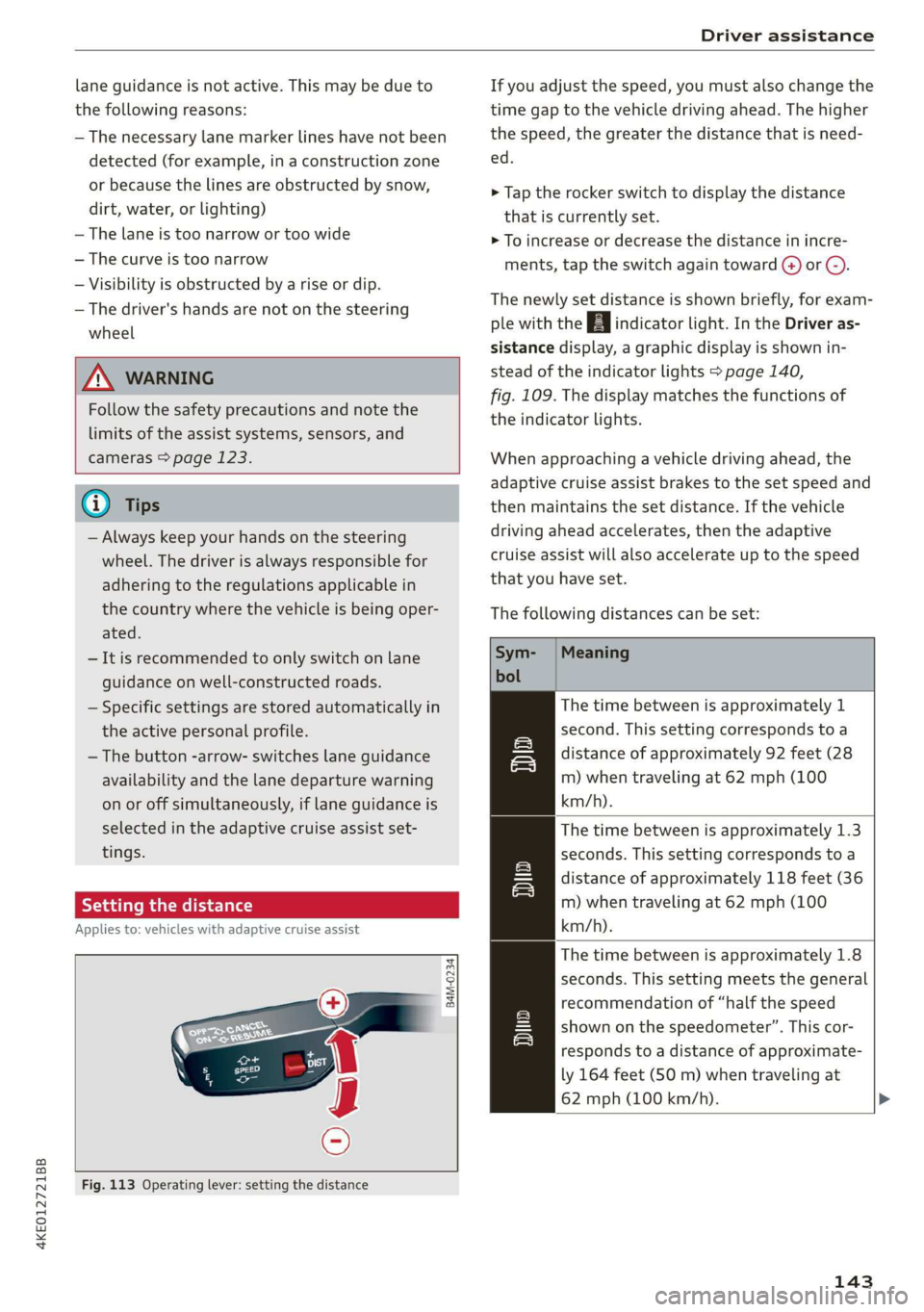
Fig. 113 Operating lever: setting the distance
If you adjust the speed, you must also change the
time gap to the vehicle driving ahead. The higher
the speed, the greater the distance that is need-
ed.
> Tap the rocker switch to display the distance
that is currently set.
> To increase or decrease the distance in incre-
ments, tap the switch again toward (4) or @).
The newly set distance is shown briefly, for exam-
ple with the indicator light. In the Driver as-
sistance display, a graphic display is shown in-
stead of the indicator lights > page 140,
fig. 109. The display matches the functions of
the indicator lights.
When approaching a vehicle driving ahead, the
adaptive cruise assist brakes to the set speed and
then maintains the set distance. If the vehicle
driving ahead accelerates, then the adaptive
cruise assist will also accelerate up to the speed
that you have set.
The following distances can be set:
Meaning
The time between is approximately 1
second. This setting corresponds to a
distance of approximately 92 feet (28
m) when traveling at 62 mph (100
km/h).
The time between is approximately 1.3
seconds. This setting corresponds toa
distance of approximately 118 feet (36
m) when traveling at 62 mph (100
km/h).
The time between is approximately 1.8
seconds. This setting meets the general
recommendation of “half the speed
shown on the speedometer”. This cor-
responds to a distance of approximate-
ly 164 feet (SO m) when traveling at
62 mph (100 km/h).
wT
143
Page 157 of 310
4KE012721BB
Driver assistance
— If the lanes are narrow or if you are driving on
the edge of your lane. If this is the case, the
system may have detected a vehicle in another
lane that is not adjacent to your current lane.
— If you are driving through a curve. Side assist
may react to a vehicle that is in the same lane
or one lane over from the adjacent lane.
—If side assist reacts to other objects (such as
roadside structures like guard rails).
ZA WARNING
— Follow the safety precautions and note the
limits of the assist systems, sensors, and
cameras © page 123.
— The display may not appear on time when
vehicles are approaching or being passed
very quickly.
G) Tips
— If the window glass in the driver's door or
front passenger's door has been tinted, the
display in the exterior mirror may be incor-
fects
— These systems are not available in trailer
towing mode. There is no guarantee the sys-
tems will switch off when using a retrofitted
trailer hitch. Do not use these functions
when towing a trailer.
— For an explanation on conformity with the
FCC regulations in the United States and the
Industry Canada regulations, see
=> page 289.
Adjusting side assist
Applies to: vehicles with side assist
The system can be switched on and off in the
MMI = page 126. If the system is activated, the
displays will turn on briefly when the ignition is
switched on.
Adjusting the brightness
You can adjust the brightness of the display in
the exterior mirror. The settings depend on the
vehicle equipment.
> Applies to: MMI: Select on the home screen:
VEHICLE > Driver assistance > (<23) > Side as-
sist > Brightness.
The display brightness is automatically adapted
to the ambient light. If the automatic adaptation
has already reached the upper or lower limit, no
change will be apparent when the setting is
changed, or it will only become visible when the
ambient light changes. Adjust the brightness to a
level where the display in the information stage
will not disrupt your view ahead. If you change
the brightness, the display will briefly show the
brightness level in the information stage.
Messages
Applies to: vehicles with side assist
rig or fii is displayed when there is a malfunc-
tion, the side assist and exit warning system
functions may be unavailable or may be limited.
A message that indicates the cause and possible
solution may appear with some displays. The
weather conditions may be too poor or a sensor
may be covered. Clean the sensor area in the ve-
hicle rear and try to turn the systems on again
later.
If the malfunction remains, drive to an author-
ized Audi dealer or authorized Audi Service Facili-
ty immediately to have the malfunction correct-
ed.
155
Page 163 of 310
4KE012721BB
Parking and maneuvering
@) Note
Keep enough distance from the curb to avoid
damage to the rims.
G) Tips
If the parking aid is switched off, it can only
be reactivated automatically when one of the
following conditions is met:
— The vehicle speed exceeds 6 mph (10 km/h)
— The ignition is switched off and back on
again
— The parking brake is set and then released
—The “P” gear is engaged and released again
Applies to: vehicles with parking system plus
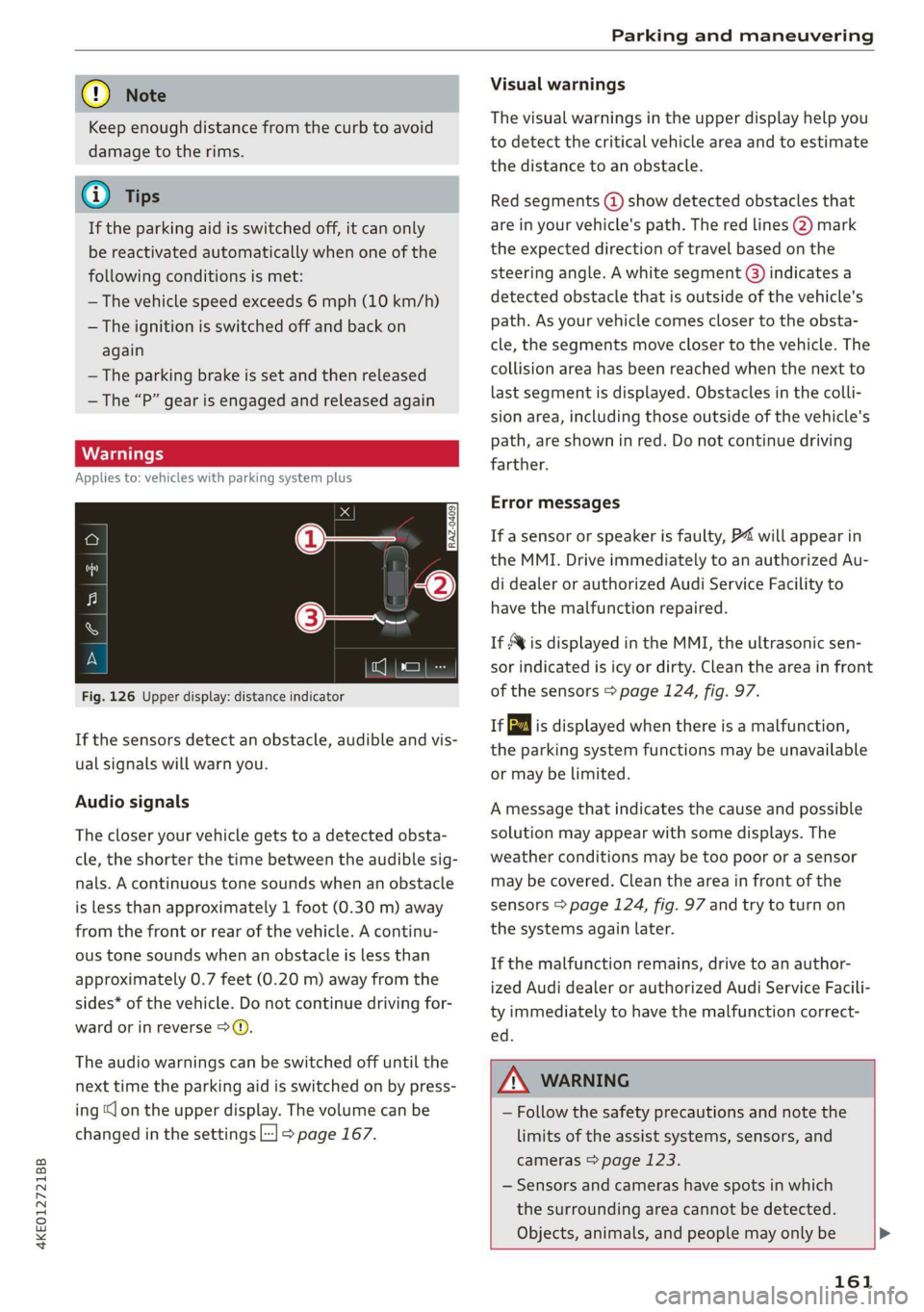
Fig. 126 Upper display: distance indicator
If the sensors detect an obstacle, audible and vis-
ual signals will warn you.
Audio signals
The closer your vehicle gets to a detected obsta-
cle, the shorter the time between the audible sig-
nals. A continuous tone sounds when an obstacle
is less than approximately 1 foot (0.30 m) away
from the front or rear of the vehicle. A continu-
ous tone sounds when an obstacle is less than
approximately 0.7 feet (0.20 m) away from the
sides* of the vehicle. Do not continue driving for-
ward or in reverse 9>Q.
The audio warnings can be switched off until the
next time the parking aid is switched on by press-
ing “lon the upper display. The volume can be
changed in the settings L-] > page 167.
Visual warnings
The visual warnings in the upper display help you
to detect the critical vehicle area and to estimate
the distance to an obstacle.
Red segments (@) show detected obstacles that
are in your vehicle's path. The red lines 2) mark
the expected direction of travel based on the
steering angle. A white segment (8) indicates a
detected obstacle that is outside of the vehicle's
path. As your vehicle comes closer to the obsta-
cle, the segments move closer to the vehicle. The
collision area has been reached when the next to
last segment is displayed. Obstacles in the colli-
sion area, including those outside of the vehicle's
path, are shown in red. Do not continue driving
farther.
Error messages
If a sensor or speaker is faulty, P4 will appear in
the MMI. Drive immediately to an authorized Au-
di dealer or authorized Audi Service Facility to
have the malfunction repaired.
If Avis displayed in the MMI, the ultrasonic sen-
sor indicated is icy or dirty. Clean the area in front
of the sensors > page 124, fig. 97.
iff is displayed when there is a malfunction,
the parking system functions may be unavailable
or may be limited.
A message that indicates the cause and possible
solution may appear with some displays. The
weather conditions may be too poor or a sensor
may be covered. Clean the area in front of the
sensors > page 124, fig. 97 and try to turn on
the systems again later.
If the malfunction remains, drive to an author-
ized Audi dealer or authorized Audi Service Facili-
ty immediately to have the malfunction correct-
ed.
ZA\ WARNING
— Follow the safety precautions and note the
limits of the assist systems, sensors, and
cameras > page 123.
— Sensors and cameras have spots in which
the surrounding area cannot be detected.
Objects, animals, and people may only be >
161
Page 164 of 310
Parking and maneuvering
detected with limitations may not be detect-
ed at all. Always monitor the traffic and the
vehicle's surroundings directly and do not
become distracted.
® Note
Keep enough distance from the curb to avoid
damage to the rims.
G) Tips
—The side area * > page 124, fig. 96 is de-
tected and evaluated when passing. There
may have been changes to the surrounding
area after switching the ignition off and on
again, after opening the doors, or if the ve-
hicle is left stationary for a period of time.
In this case, the area will appear black until
the area has been detected and evaluated.
— If the distance to an obstacle remains con-
stant, the volume of the distance warning
gradually lowers after a few seconds until it
is muted (this does not apply to the continu-
ous tone). If the obstacle comes closer than
it was before the sound was muted, the
tone will sound again. If the obstacle be-
comes farther away than it was before the
sound was muted, no tone will sound. Pay
attention to the vehicle's surroundings
when you start to drive.
— There is no distance warning for the rear
and the sides* when trailer towing mode is
detected. The front sensors remain activat-
ed. The visual display switches to trailer
mode. There is no guarantee the functions
will switch off when using a retrofitted trail-
er hitch.
162
Rearview camera and
peripheral cameras
Introduction
Applies to: vehicles with rearview camera/peripheral cameras
B8V-0629
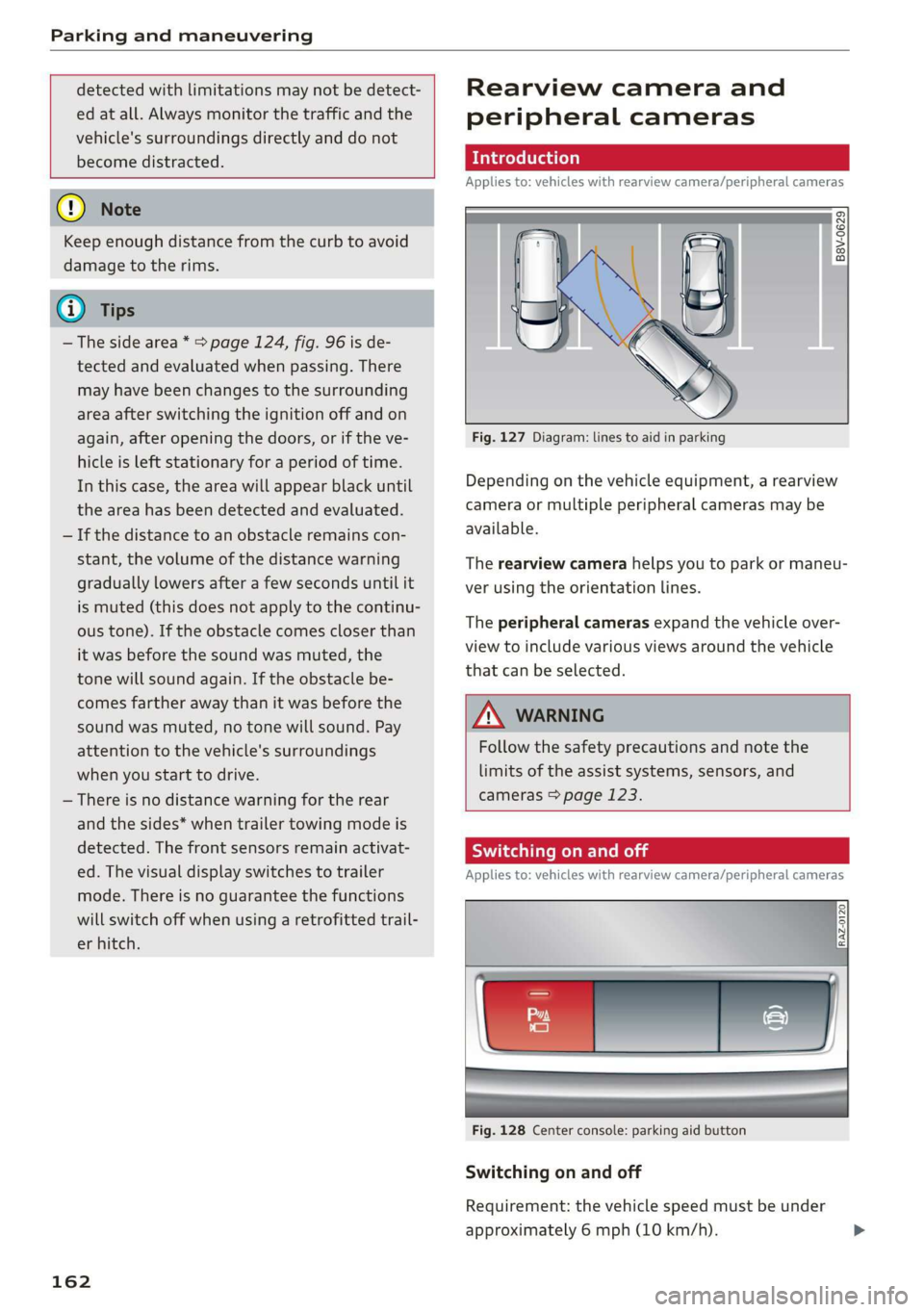
Fig. 127 Diagram: lines to aid in parking
Depending on the vehicle equipment, a rearview
camera or multiple peripheral cameras may be
available.
The rearview camera helps you to park or maneu-
ver using the orientation lines.
The peripheral cameras expand the vehicle over-
view to include various views around the vehicle
that can be selected.
Z\ WARNING
Follow the safety precautions and note the
limits of the assist systems, sensors, and
cameras > page 123.
Sica Re meal
Applies to: vehicles with rearview camera/peripheral cameras
Fig. 128 Center console: parking aid button
Switching on and off
Requirement: the vehicle speed must be under
approximately 6 mph (10 km/h).
Page 172 of 310
Telephone
Setup
Connecting a mobile device to the MMI
Applies to: vehicles with telephone
Requirement
The vehicle must be stationary and the ignition
must be switched on.
The Bluetooth settings must be open on your
mobile device during the connection setup.
The Bluetooth function and visibility of the MMI
= page 233 and mobile device must be switched
on.
The mobile device that will be connected must
not be connected to any other Bluetooth device.
The MMI must only be connected to one mobile
device.
Connecting a cell phone using Bluetooth
> Select PHONE on the home screen.
> Follow the system instructions. The available
Bluetooth devices will be displayed after sever-
al seconds.
> Press on the desired mobile device in the list of
displayed Bluetooth devices.
> To update the list, press O.
> A PIN for a secure Bluetooth connection will be
generated.
> Confirm the PIN on your mobile device, or
> Enter the PIN for connecting on your cell
phone. The time allowed for entering the PIN is
limited to approximately 30 seconds.
> If necessary, enter your SIM card PIN in the
MMI.
> Pay attention to any additional system prompts
displayed on your mobile device or the MMI, for
example if the system should connect automat-
ically in the future. Depending on the mobile
device, you may also need to download con-
tacts and confirm access to your messages sep-
arately.
Connecting a mobile device via USB
> Select PHONE on the home screen.
> Follow the system instructions.
170
After connecting successfully
After connecting successfully, information about
the connected profiles will appear. You can also
change the profiles later > page 233.
In addition, the mobile device contacts will be
automatically loaded into the MMI. This process
can take several minutes, depending on the num-
ber of contacts.
You can also access the telephone functions in
the instrument cluster > page 182.
@) Note
Always follow the information found in
=> page 184.
(i) Tips
— You can apply additional settings to con-
nected mobile devices under Connected de-
vices > page 232.
— You can also search for the MMI on your mo-
bile device using the Bluetooth device
search.
— You only have to pair your device one time.
Bluetooth devices that are already paired
automatically connect to the MMI when the
Bluetooth function is switched on, when
they are within range, and when the ignition
is switched on. The last connected mobile
device is given first priority.
— Authorizing the MMI connection on your
mobile device will make it possible to con-
nect automatically.
— Pay attention to any system prompts dis-
played on your mobile device or the MMI,
for example if the system should connect
automatically in the future. Depending on
the mobile device, you may also need to
download contacts and confirm access to
your messages separately.
— You will receive the PIN (SIM) and the PUK
(Personal Unlocking Key) along with the SIM
card from your cell phone service provider.
If you enter a PIN (SIM) incorrectly three >
Page 183 of 310
4KE012721BB
Telephone
— Ringtone”: available ringtones are played using
the Ringtone function. Press on an entry in the
list.
— Microphone input level: you can adjust the mi-
crophone input level using the slider.
Turn on car phone or data module
Applies to: vehicles with car phone/data module
When this function is switched on, you can use
the car phone or data module.
As long as the car phone was not turned off sepa-
rately the last time it was used, it will turn on au-
tomatically when the ignition is switched on.
Edit voicemail number
You can change your voicemail number.
Enable VoLTE
When this function is switched on, Voice over
LTE* will be supported.
Network settings
— Login to mobile phone network: select to log
into your cell phone service provider network
automatically or manually.
— Manual network selection: Requirement: the
data module must be switched on and Login to
mobile phone network must be set to Manual.
Select a network manually from the list of
available networks at the present location.
Car phone serial number (IMEI):
Applies to: vehicles with car phone
The serial number (IMEI) of your car phone is dis-
played.
@ Tips
— Several mobile devices can be paired with
the MMI, but only two* mobile devices can
be actively connected.
—To delete all paired Bluetooth devices, the
Bluetooth function can be reset to the fac-
tory default settings > page 232.
Directory settings
Applies
to: vehicles with telephone
> Applies to: MMI: Select on the home screen:
PHONE > Contacts > <2.
Switching between two mobile devices
Requirement: telephone 1 and telephone 2 must
be connected.
Switch telephones: the device name of your ac-
tive mobile device is displayed. You can switch
the phone by pressing the button.
The directory for the selected phone will be dis-
played.
Hide grayed-out contacts
When this function is switched on, contacts that
have no phone numbers stored for them will be
hidden.
Sort order
You can sort the contacts in alphabetical order by
Last name or First name.
Download contacts
Requirement: a mobile device must be connected
to the MMI.
To update the contacts in the MMI, you can man-
ually download your mobile device contacts. De-
pending on the mobile device, you may need to
disconnect and reconnect the Bluetooth connec-
tion to update the contacts.
Memory capacity
You can manage up to 23,000 contacts. You can
also download up to 5,000 contacts from maxi-
mum four mobile devices. You can also import up
to 3,000 contacts from a storage medium.
Importing and exporting contacts
Requirement: an SD card must be in the SD card
reader* = page 217 or a USB storage device must
be connected to the Audi music interface
=> page 220.
181
Page 190 of 310
Audi connect
— Start or stop climate control
— Program the timer
— Deactivate or activate the timer
For additional information, see > page 84.
Geofencing Alert
Requirement: a key user must be set in the vehi-
cle > page 28.
This service allows you to set permitted and for-
bidden zones for your vehicle as well as set time
limits for these zones. If your vehicle leaves a
permitted zone or enters a forbidden zone, you
will be notified with a push notification and/or an
e-mail.
Speed Alert
Requirement: a key user must be set in the vehi-
cle > page 28.
You can set up to two speed limits for your vehi-
cle using this service. If your vehicle exceeds a set
speed limit, you will be notified with a push noti-
fication and/or e-mail.
Valet Alert
Requirement: a key user must be set in the vehi-
cle > page 187.
If you give your vehicle to a parking service, you
can set a zone and a speed limit using the myAu-
di app. If the vehicle leaves the zone or exceeds
the speed limit, you will be notified with a push
notification and/or e-mail.
ZA WARNING
— Do not ignore messages and warning or indi-
cator lights that turn on in the vehicle be-
cause of the information in the vehicle sta-
tus report. This could lead to break downs in
on the road, accidents and serious injuries.
— Only perform charging functions on the
high-voltage battery if the vehicle is shut off
correctly, is connected to a suitable socket
and if the ignition is switched off.
188
G) Tips
For some services, you can select if you would
like to be notified with a push notification
and/or an e-mail.
Settings
(et) telat -Matian celia
> Applies to: MMI: Select on the home screen:
SETTINGS > Connection settings > Mobile
phone network.
Depending on the country, vehicle equipment,
and connection type, the following functions may
be available:
Data connection settings
Using the Data connection settings menu, you
can set when the system should connect to the
Internet. The Internet connection disconnects
automatically once the requested Audi connect
Infotainment service no longer requires any data.
— Data roaming: data roaming is switched off at
the factory. To use a data connection outside of
the country, data roaming must be switched
on. The setting is stored for the current SIM
card or the mobile device that is currently con-
nected.
— Allow MMI online services: when this function
is switched on, a data connection is automati-
cally established in order to use Audi connect
Infotainment services.
— Allow Wi-Fi devices: when this function is
switched on, you can allow or deny Internet
connections.
Access point
The connection is configured automatically based
on the SIM card being used. The following values
can be changed. You can obtain more information
from your cell phone service provider.
— Access Point Name (APN): the access point de-
pends on the cell phone service provider and is
assigned automatically.
— User name: your cell phone service provider as-
signs the user name for your online profile. >
Page 195 of 310
4KE012721BB
Navigation
Navigation
Opening navigation
Applies to: vehicles with navigation system
The navigation system directs you to your desti-
nation, around traffic incidents, and on alterna-
tive routes, if desired.
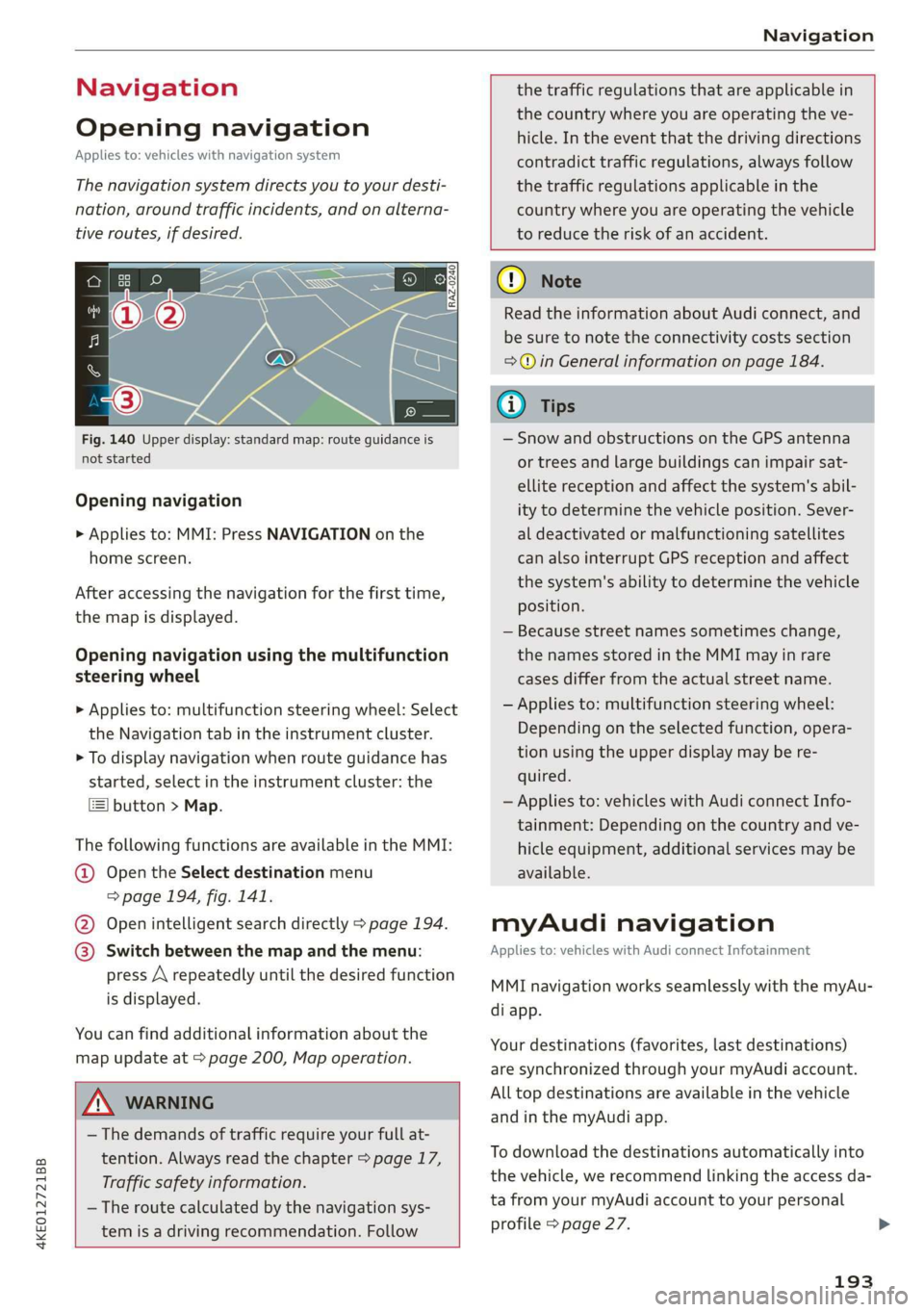
Fig. 140 Upper display: standard map: route guidance is
not started
Opening navigation
> Applies to: MMI: Press NAVIGATION on the
home screen.
After accessing the navigation for the first time,
the map is displayed.
Opening navigation using the multifunction
steering wheel
> Applies to: multifunction steering wheel: Select
the Navigation tab in the instrument cluster.
> To display navigation when route guidance has
started, select in the instrument cluster: the
button > Map.
The following functions are available in the MMI:
@ Open the Select destination menu
=> page 194, fig. 141.
@ Open intelligent search directly > page 194.
@ Switch between the map and the menu:
press A repeatedly until the desired function
is displayed.
You can find additional information about the
map update at > page 200, Map operation.
the traffic regulations that are applicable in
the country where you are operating the ve-
hicle. In the event that the driving directions
contradict traffic regulations, always follow
the traffic regulations applicable in the
country where you are operating the vehicle
to reduce the risk of an accident.
ZX WARNING
— The demands of traffic require your full at-
tention. Always read the chapter > page 17,
Traffic safety information.
— The route calculated by the navigation sys-
tem is a driving recommendation. Follow
@) Note
Read the information about Audi connect, and
be sure to note the connectivity costs section
=> in General information on page 184.
iG) Tips
— Snow and obstructions on the GPS antenna
or trees and large buildings can impair sat-
ellite reception and affect the system's abil-
ity to determine the vehicle position. Sever-
al deactivated or malfunctioning satellites
can also interrupt GPS reception and affect
the system's ability to determine the vehicle
position.
— Because street names sometimes change,
the names stored in the MMI may in rare
cases differ from the actual street name.
— Applies to: multifunction steering wheel:
Depending on the selected function, opera-
tion using the upper display may be re-
quired.
— Applies to: vehicles with Audi connect Info-
tainment: Depending on the country and ve-
hicle equipment, additional services may be
available.
myAudi navigation
Applies to: vehicles with Audi connect Infotainment
MMI navigation works seamlessly with the myAu-
di app.
Your destinations (favorites, last destinations)
are synchronized through your myAudi account.
All top destinations are available in the vehicle
and
in the myAudi app.
To download the destinations automatically into
the vehicle, we recommend linking the access da-
ta from your myAudi account to your personal
profile > page 27.
193
Page 209 of 310
4KE012721BB
Navigation
Traffic information will be displayed on the
standard map > page 199, fig. 143.
Online traffic information is also displayed on the
standard map > page 204.
) Note
Read the information about Audi connect, and
be sure to note the connectivity costs section
=@ in General information on page 184.
@ Tips
— Having the Online traffic information func-
tion switched on provides the most accurate
reports of traffic situations and traffic fore-
casting. Your vehicle transmits and process-
es its anonymous, encrypted position infor-
mation at regular intervals to the traffic da-
ta provider. You can switch off data transfer
at any time > page 284.
— The online traffic information network is
not available in all countries, and the cover-
age is not nationwide.
Options and settings
Applies to: vehicles with navigation system
Context-specific functions and settings may be
available depending on the vehicle equipment.
Requirement: a list with navigation destinations
(such as last destinations) must be displayed.
> Press and hold an element until the Options
menu is displayed.
Store as favorite
See > page 202.
Edit address
You can edit an address for the next destination
entry and navigate to the destination. Select: Ed-
it address > enter a street > Use address > Start.
If the address is permanently stored (for exam-
ple, in the favorites), the stored entry will not be
changed.
Change address
See > page 202, Favorites.
Entering an address
See > page 203, Contacts as navigation destina-
tions.
Change name
See > page 202, Favorites.
Save as a shortcut
See > page 20, Shortcuts.
Settings
Applies to: vehicles with navigation system
You can adjust the navigation system settings in
the instrument cluster and in the MMI display
separately. The settings depend on the country
and vehicle equipment.
Accessing settings
> Applies to: MMI: Select on the home screen:
NAVIGATION > ©}.
Accessing settings using the multifunction
steering wheel
> Applies to: multifunction steering wheel: Select
in the instrument cluster: Navigation tab >
button.
Please note that a setting applied to the multi-
function steering wheel is only valid for the in-
strument cluster map.
Map settings
Satellite map: see > page 204.
Show range: see > page 204.
Traffic: you can display current traffic informa-
tion on the map. See > page 200, Traffic infor-
mation display on the map or map preview
— Free flow of traffic
— Traffic obstructions
— Traffic information
207
Page 233 of 310
4KE012721BB
Additional settings
Additional settings
System settings
Introduction
General settings are described in this chapter.
You can find specific settings in the chapters
about
those settings. The available settings de-
pend on the vehicle equipment.
Date and time
> Applies to: MMI: Select on the home screen:
SETTINGS > General > Date & time.
Possible settings:
— Set date and time automatically
— Date format
— Use 24h time format
— Automatic time zone
— Time zone
— Automatic daylight saving time
— Manual daylight saving time
CERT Taal lat ae ay
> Applies to: MMI: Select on the home screen:
SETTINGS > General > Measurement units.
Possible settings:
— Speed
— Distance
— Temperature
— Pressure
— Consumption (electric motor)
— Volume
Language and keyboard
> Applies to MMI: Select on the home screen:
SETTINGS > Language & keyboard.
Language
You can change the languages for the display,
navigation announcements, and the voice recog-
nition system.
Keyboard
See > page 21.
Requirement: an audio source must be selected.
> Applies to MMI: Select on the home screen:
SETTINGS > Sound.
Possible settings:
— Treble
— Bass
— Balance/fader
— Speed-dependent volume control
— Subwoofer
— Surround Level
Focus
You can optimize the sound distribution for vari-
ous locations in the vehicle.
3D effect
You can adjust the intensity of the 3D effect.
With the Medium setting, you will hear an opti-
mal 3D effect for all sources.
Announcements and tones
> Applies to: MMI: Select on the home screen:
SETTINGS > Announcements & tone.
Possible settings:
— Volume of announcements
— Welcome sound
ZA\ WARNING
Adjust the volume of the audio system so that
signals from outside the vehicle, such as po-
lice and fire sirens, can be heard easily at all
times.
G@) Tips
The volume is automatically adjusted to a pre-
set level when the MMI is switched on.
231