diagram AUDI E-TRON 2019 User Guide
[x] Cancel search | Manufacturer: AUDI, Model Year: 2019, Model line: E-TRON, Model: AUDI E-TRON 2019Pages: 310, PDF Size: 81.91 MB
Page 134 of 310
Driving information
objects, there are limits to the system.
There may be false warnings.
— For technical reasons, the image pauses in
split second intervals.
Wiser mea ile Kel ai
Applies to: vehicles with night vision assist
The system can be switched on and off in the
MMI > page 126.
> The AUTO light function must be selected for
the night vision assist to automatically activate
when it is dark.
> Switch on the low beams manually to activate
night
vision assist immediately. To do so,
press @) on the light switch module and select
Ww
When activated, the {1 tab appears in the instru-
ment cluster.
> Select in the instrument cluster: tab %
@ Tips
When the night vision assist tab is selected in
the instrument cluster and the low beams are
switched off, the thermal image display dis-
appears only after you have exited the tab.
Marking and warning
Applies to: vehicles with night vision assist
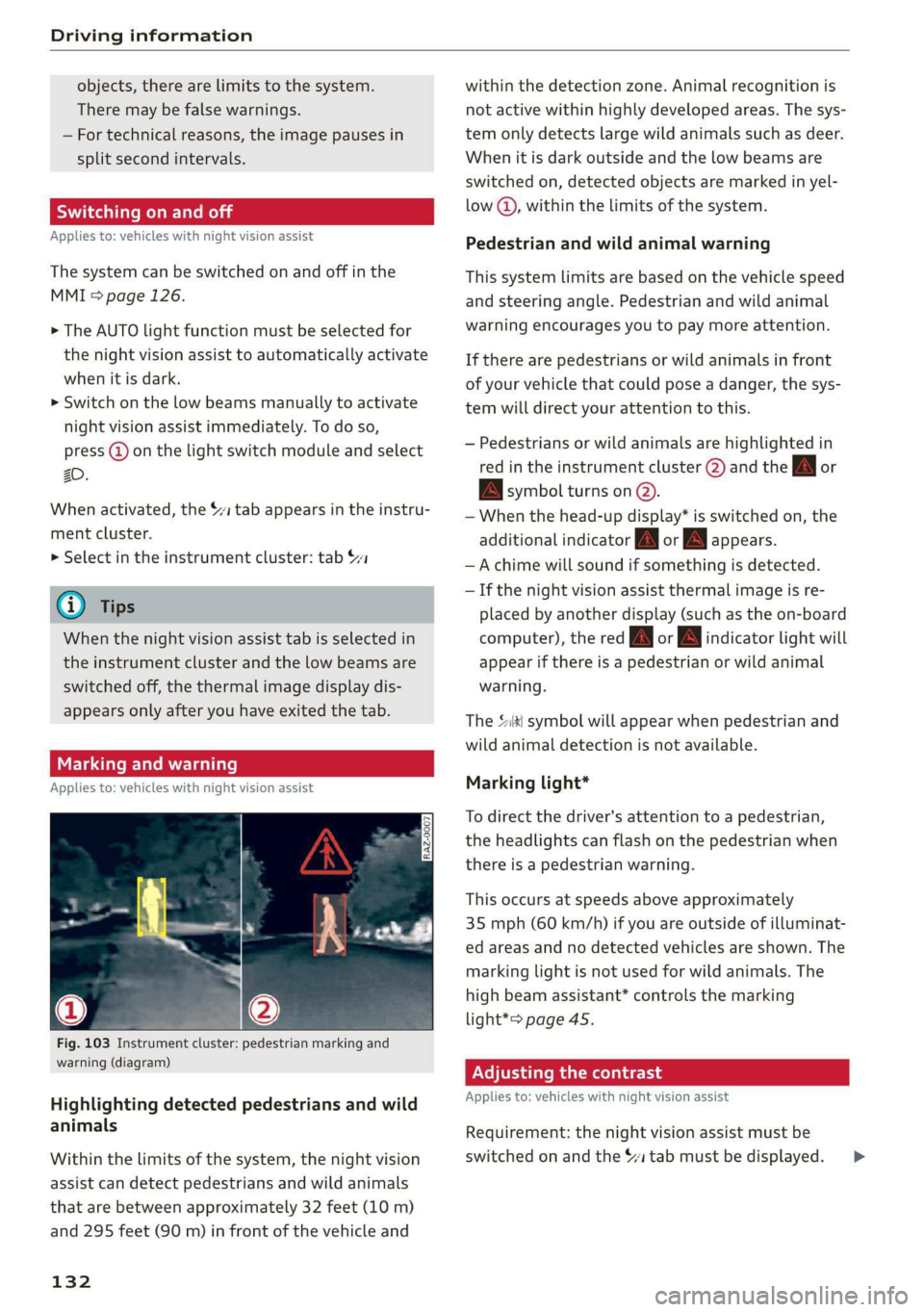
Fig. 103 Instrument cluster: pedestrian marking and
warning (diagram)
Highlighting detected pedestrians and wild
animals
Within the limits of the system, the night vision
assist can detect pedestrians and wild animals
that are between approximately 32 feet (10 m)
and 295 feet (90 m) in front of the vehicle and
132
within the detection zone. Animal recognition is
not active within highly developed areas. The sys-
tem only detects large wild animals such as deer.
When it is dark outside and the low beams are
switched on, detected objects are marked in yel-
low @), within the limits of the system.
Pedestrian and wild animal warning
This system limits are based on the vehicle speed
and steering angle. Pedestrian and wild animal
warning encourages you to pay more attention.
If there are pedestrians or wild animals in front
of your vehicle that could pose a danger, the sys-
tem will direct your attention to this.
— Pedestrians or wild animals are highlighted in
red in the instrument cluster (2) and the J or
BAN symbol turns on @.
— When the head-up display* is switched on, the
additional indicator [AM or EM appears.
—Achime will sound if something is detected.
— If the night vision assist thermal image is re-
placed by another display (such as the on-board
computer), the red A or wA indicator light will
appear if there is a pedestrian or wild animal
warning.
The Ski symbol will appear when pedestrian and
wild animal detection is not available.
Marking light*
To direct the driver's attention to a pedestrian,
the headlights can flash on the pedestrian when
there is a pedestrian warning.
This occurs at speeds above approximately
35 mph (60 km/h) if you are outside of illuminat-
ed areas and no detected vehicles are shown. The
marking light is not used for wild animals. The
high beam assistant* controls the marking
light*> page 45.
Adjusting the contrast
Applies to: vehicles with night vision assist
Requirement: the night vision assist must be
switched on and the $1 tab must be displayed. >
Page 156 of 310
Driver assistance
Side assist
Description
Applies to: vehicles with side assist
al 3 3 q
e|
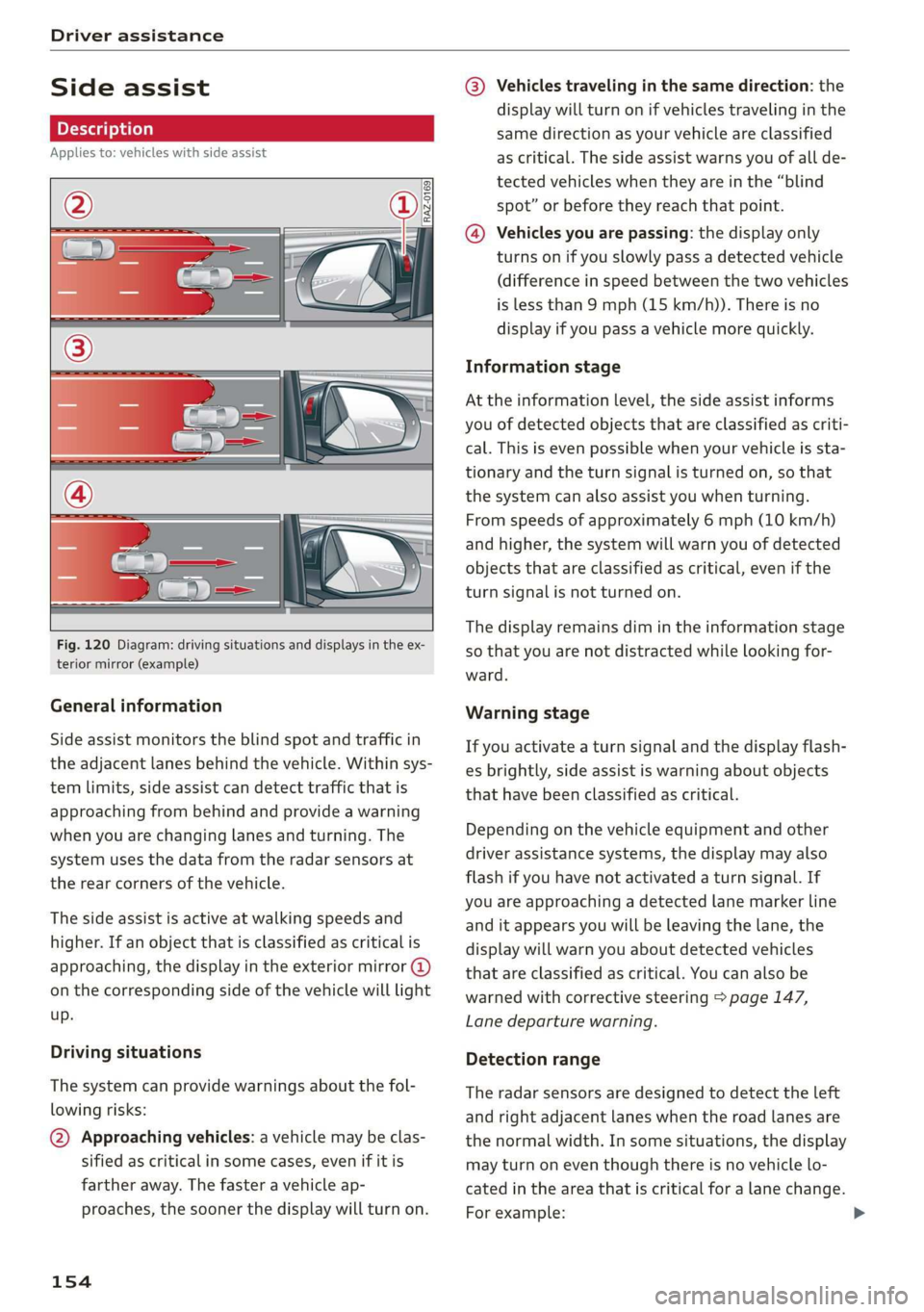
Fig. 120 Diagram: driving situations and displays in the ex-
terior mirror (example)
General information
Side assist monitors the blind spot and traffic in
the adjacent lanes behind the vehicle. Within sys-
tem limits, side assist can detect traffic that is
approaching from behind and provide a warning
when you are changing lanes and turning. The
system uses the data from the radar sensors at
the rear corners of the vehicle.
The side assist is active at walking speeds and
higher. If an object that is classified as critical is
approaching, the display in the exterior mirror @)
on the corresponding side of the vehicle will light
up.
Driving situations
The system can provide warnings about the fol-
lowing risks:
@ Approaching vehicles: a vehicle may be clas-
sified as critical in some cases, even if it is
farther away. The faster a vehicle ap-
proaches, the sooner the display will turn on.
154
@ Vehicles traveling in the same direction: the
display will turn on if vehicles traveling in the
same direction as your vehicle are classified
as critical. The side assist warns you of all de-
tected vehicles when they are in the “blind
spot” or before they reach that point.
@® Vehicles you are passing: the display only
turns on if you slowly pass a detected vehicle
(difference in speed between the two vehicles
is less than 9 mph (15 km/h)). There is no
display if you pass a vehicle more quickly.
Information stage
At the information level, the side assist informs
you of detected objects that are classified as criti-
cal. This is even possible when your vehicle is sta-
tionary and the turn signal is turned on, so that
the system can also assist you when turning.
From speeds of approximately 6 mph (10 km/h)
and higher, the system will warn you of detected
objects that are classified as critical, even if the
turn signal is not turned on.
The display remains dim in the information stage
so that you are not distracted while looking for-
ward.
Warning stage
If you activate a turn signal and the display flash-
es brightly, side assist is warning about objects
that have been classified as critical.
Depending on the vehicle equipment and other
driver assistance systems, the display may also
flash if you have not activated a turn signal. If
you are approaching a detected lane marker line
and it appears you will be leaving the lane, the
display will warn you about detected vehicles
that are classified as critical. You can also be
warned with corrective steering > page 147,
Lane departure warning.
Detection range
The radar sensors are designed to detect the left
and right adjacent lanes when the road lanes are
the normal width. In some situations, the display
may turn on even though there is no vehicle lo-
cated in the area that is critical for a lane change.
For example:
Page 158 of 310
Driver assistance
Exit warning
Applies to: vehicles with exit warning system
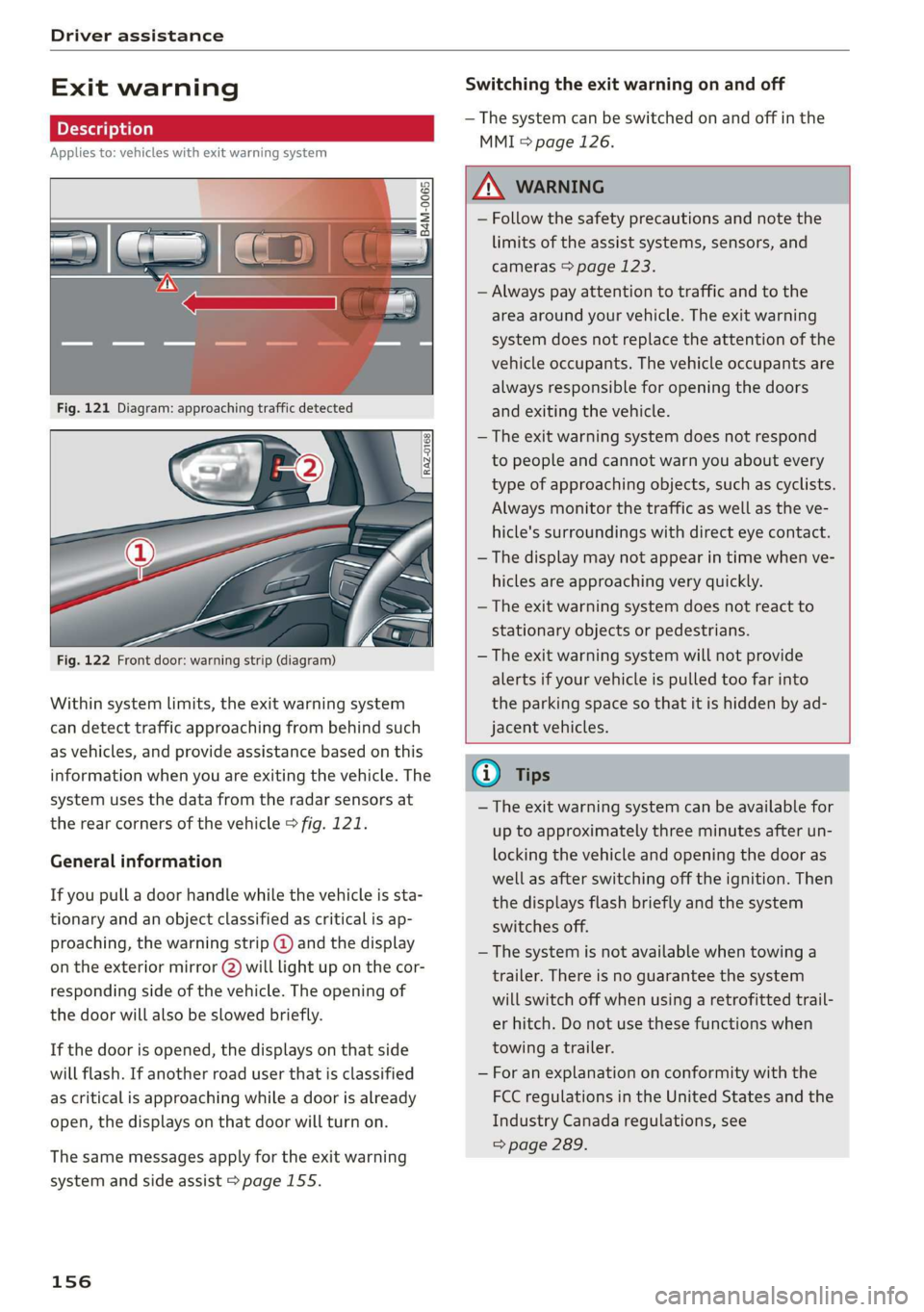
Fig. 122 Front door: warning strip (diagram)
Within system limits, the exit warning system
can detect traffic approaching from behind such
as vehicles, and provide assistance based on this
information when you are exiting the vehicle. The
system uses the data from the radar sensors at
the rear corners of the vehicle > fig. 121.
General information
If you pull a door handle while the vehicle is sta-
tionary and an object classified as critical is ap-
proaching, the warning strip @ and the display
on the exterior mirror (2) will light up on the cor-
responding side of the vehicle. The opening of
the door will also be slowed briefly.
If the door is opened, the displays on that side
will flash. If another road user that is classified
as critical is approaching while a door is already
open, the displays on that door will turn on.
The same messages apply for the exit warning
system and side assist > page 155.
156
Switching the exit warning on and off
— The system can be switched on and off in the
MMI & page 126.
A WARNING
— Follow the safety precautions and note the
limits of the assist systems, sensors, and
cameras > page 123.
— Always pay attention to traffic and to the
area around your vehicle. The exit warning
system does not replace the attention of the
vehicle occupants. The vehicle occupants are
always responsible for opening the doors
and exiting the vehicle.
— The exit warning system does not respond
to people and cannot warn you about every
type of approaching objects, such as cyclists.
Always monitor the traffic as well as the ve-
hicle's surroundings with direct eye contact.
— The display may not appear in time when ve-
hicles are approaching very quickly.
— The exit warning system does not react to
stationary objects or pedestrians.
— The exit warning system will not provide
alerts if your vehicle is pulled too far into
the parking space so that it is hidden by ad-
jacent vehicles.
@ Tips
— The exit warning system can be available for
up to approximately three minutes after un-
locking the vehicle and opening the door as
well as after switching off the ignition. Then
the displays flash briefly and the system
switches off.
— The system is not available when towing a
trailer. There is no guarantee the system
will switch off when using a retrofitted trail-
er hitch. Do not use these functions when
towing a trailer.
— For an explanation on conformity with the
FCC regulations in the United States and the
Industry Canada regulations, see
=> page 289.
Page 159 of 310
4KE012721BB
Driver assistance
Intersection assistant
Applies to: vehicles with intersection assistant
So 2 Ss
g > %
oO
| _
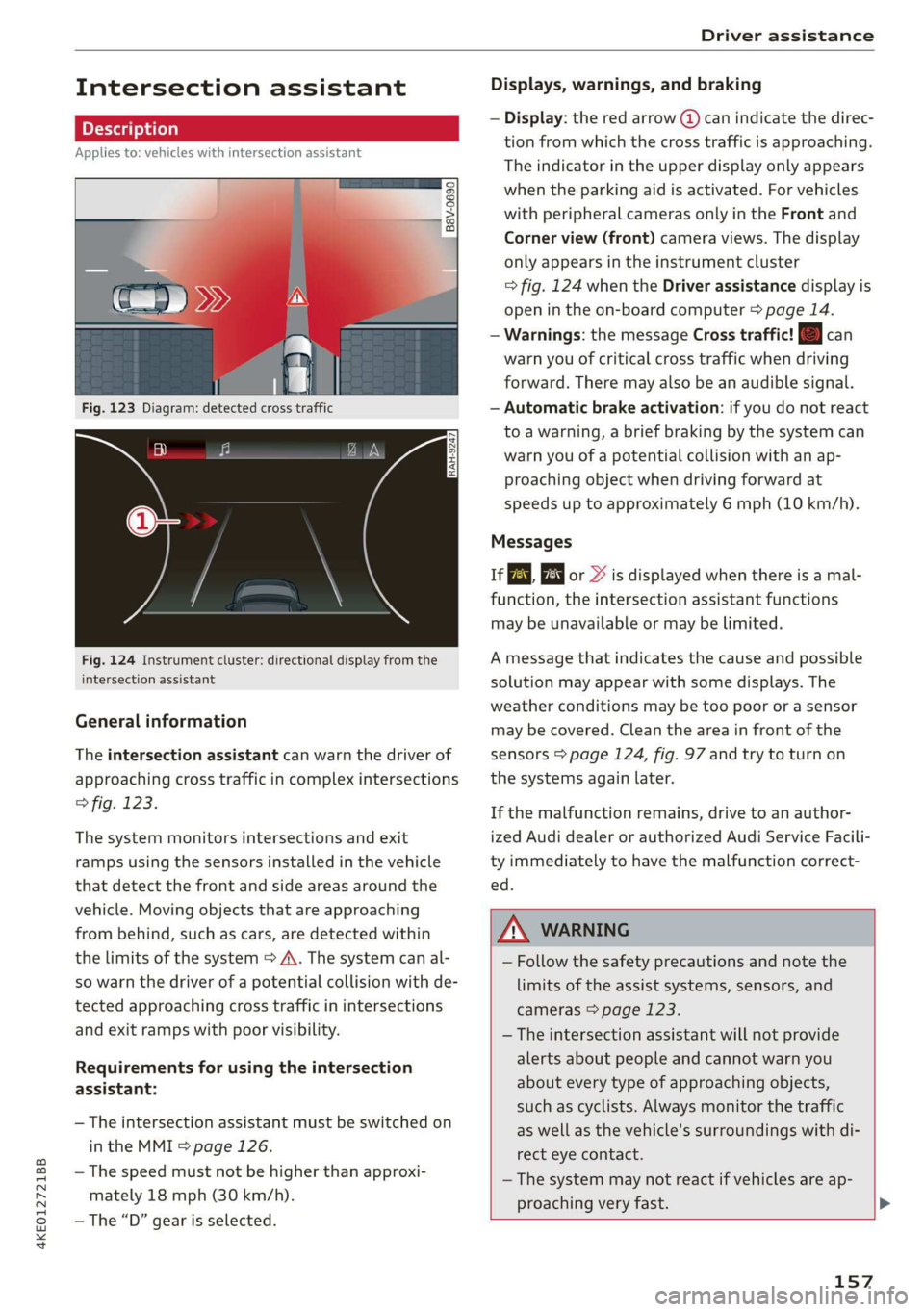
Fig. 123 Diagram: detected cross traffic
Fig. 124 Instrument cluster: directional display from the
intersection assistant
General information
The intersection assistant can warn the driver of
approaching cross traffic in complex intersections
> fig. 123.
The system monitors intersections and exit
ramps using the sensors installed in the vehicle
that detect the front and side areas around the
vehicle. Moving objects that are approaching
from behind, such as cars, are detected within
the limits of the system > A\. The system can al-
so warn the driver of a potential collision with de-
tected approaching cross traffic in intersections
and exit ramps with poor visibility.
Requirements for using the intersection
assistant:
— The intersection assistant must be switched on
in the MMI = page 126.
— The speed must not be higher than approxi-
mately 18 mph (30 km/h).
— The “D” gear is selected.
Displays, warnings, and braking
— Display: the red arrow (@) can indicate the direc-
tion from which the cross traffic is approaching.
The indicator in the upper display only appears
when the parking aid is activated. For vehicles
with peripheral cameras only in the Front and
Corner view (front) camera views. The display
only appears in the instrument cluster
=> fig. 124 when the Driver assistance display is
open in the on-board computer > page 14.
— Warnings: the message Cross traffic! © can
warn you of critical cross traffic when driving
forward. There may also be an audible signal.
— Automatic brake activation: if you do not react
to a warning, a brief braking by the system can
warn you of a potential collision with an ap-
proaching object when driving forward at
speeds up to approximately 6 mph (10 km/h).
Messages
If or » is displayed when there is a mal-
function, the intersection assistant functions
may be unavailable or may be limited.
A message that indicates the cause and possible
solution
may appear with some displays. The
weather conditions may be too poor or a sensor
may be covered. Clean the area in front of the
sensors > page 124, fig. 97 and try to turn on
the systems again later.
If the malfunction remains, drive to an author-
ized Audi dealer or authorized Audi Service Facili-
ty immediately to have the malfunction correct-
ed.
ZA WARNING
— Follow the safety precautions and note the
limits of the assist systems, sensors, and
cameras > page 123.
— The intersection assistant will not provide
alerts about people and cannot warn you
about every type of approaching objects,
such as cyclists. Always monitor the traffic
as well as the vehicle's surroundings with di-
rect eye contact.
—The system may not react if vehicles are ap-
proaching very fast. >
157
Page 164 of 310
Parking and maneuvering
detected with limitations may not be detect-
ed at all. Always monitor the traffic and the
vehicle's surroundings directly and do not
become distracted.
® Note
Keep enough distance from the curb to avoid
damage to the rims.
G) Tips
—The side area * > page 124, fig. 96 is de-
tected and evaluated when passing. There
may have been changes to the surrounding
area after switching the ignition off and on
again, after opening the doors, or if the ve-
hicle is left stationary for a period of time.
In this case, the area will appear black until
the area has been detected and evaluated.
— If the distance to an obstacle remains con-
stant, the volume of the distance warning
gradually lowers after a few seconds until it
is muted (this does not apply to the continu-
ous tone). If the obstacle comes closer than
it was before the sound was muted, the
tone will sound again. If the obstacle be-
comes farther away than it was before the
sound was muted, no tone will sound. Pay
attention to the vehicle's surroundings
when you start to drive.
— There is no distance warning for the rear
and the sides* when trailer towing mode is
detected. The front sensors remain activat-
ed. The visual display switches to trailer
mode. There is no guarantee the functions
will switch off when using a retrofitted trail-
er hitch.
162
Rearview camera and
peripheral cameras
Introduction
Applies to: vehicles with rearview camera/peripheral cameras
B8V-0629
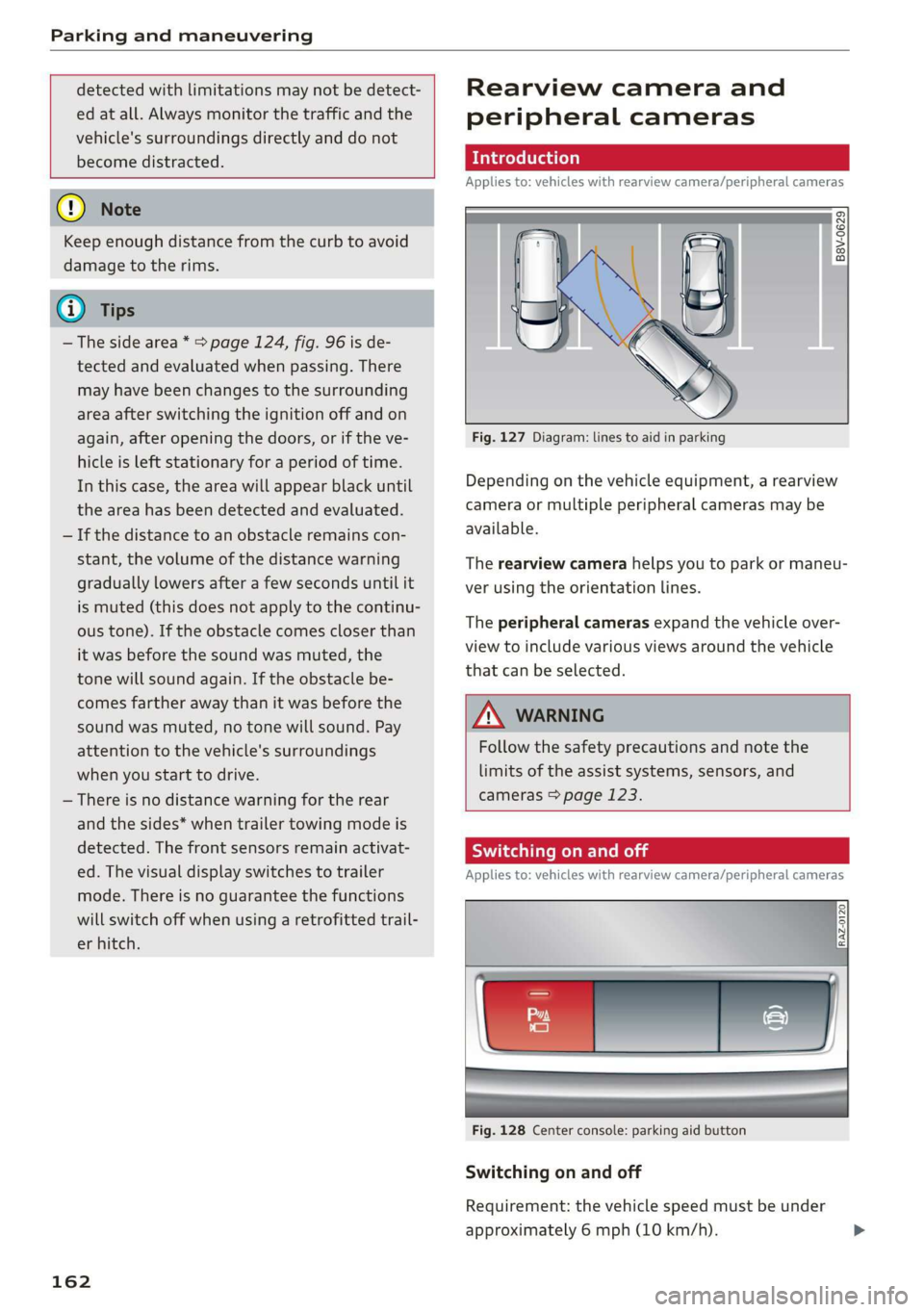
Fig. 127 Diagram: lines to aid in parking
Depending on the vehicle equipment, a rearview
camera or multiple peripheral cameras may be
available.
The rearview camera helps you to park or maneu-
ver using the orientation lines.
The peripheral cameras expand the vehicle over-
view to include various views around the vehicle
that can be selected.
Z\ WARNING
Follow the safety precautions and note the
limits of the assist systems, sensors, and
cameras > page 123.
Sica Re meal
Applies to: vehicles with rearview camera/peripheral cameras
Fig. 128 Center console: parking aid button
Switching on and off
Requirement: the vehicle speed must be under
approximately 6 mph (10 km/h).
Page 173 of 310
4KE012721BB
Telephone
times!) in a row, the SIM card will be locked
and must be unlocked by entering the PUK.
— When leaving the vehicle, the Bluetooth
connection to the mobile device will auto-
matically disconnect. Depending on your
mobile device, phone calls in progress may
be automatically redirected from the MMI
to your mobile device so that you can con-
tinue the call on your phone.
— You can obtain more information from your
mobile device service provider or from your
mobile device user guide. For information
on using the telephone, visit www.audiusa.
com/bluetooth or contact an authorized Au-
di dealer or authorized Audi Service Facility.
Operating two mobile devices through the
EE
Applies to: vehicles with telephone, and Audi phone box
You can connect two mobile devices to the MMI,
for example your business and your personal mo-
bile device. You can use both mobile devices to
make calls in the vehicle.
Connecting another mobile device
Requirement: a mobile device must be connected
to the MMI.
> Applies to: MMI: Select on the home screen:
PHONE > [?. Follow the system instructions, or
> Applies to: MMI: Select on the home screen:
SETTINGS > Connected devices > Telephone 1
or Telephone 2 > New connection.
See = page 170, Connecting a mobile device to
the MMI.
Switching between two mobile devices
Requirement: phone 1 and phone 2 must be con-
nected to the MMI.
> Applies to: MMI: Select on the home screen:
PHONE > ¢] > Switch telephones: the device
name of your active mobile device will be dis-
played.
2) The number of attempts depends on the SIM card.
iG) Tips
— The device name of the active mobile device
(such as myPhone) will be displayed in the
PHONE menu.
—If telephone 1 does not connect automati-
cally to the MMI when the ignition is switch-
ed on, you can use a previously-connected
telephone 2 in the PHONE menu via 1.
— You can send and receive messages on
phone 1 and on phone 2 > page 178.
— On mobile devices with multi-SIM function-
ality, the MMI only accesses one SIM card.
You can switch between SIM cards using the
mobile device.
Disconnecting a mobile
device
The mobile device will be disconnected from the
MMI and removed from the list of paired devices.
> To disconnect a connected device, use the con-
nection manager > page 233.
Using the Audi phone
box
Applies to: vehicles with Audi phone box
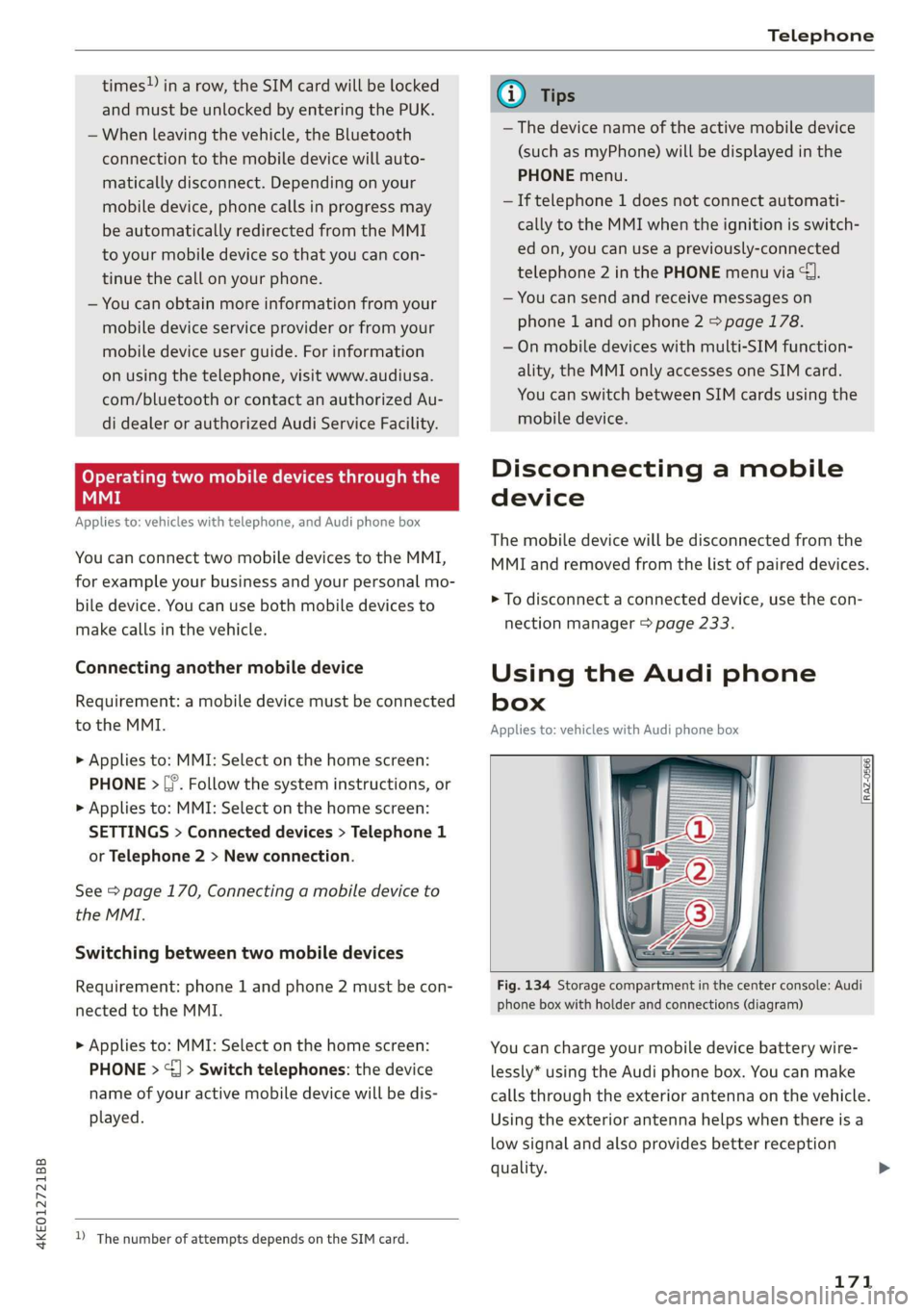
Fig. 134 Storage compartment in the center console: Audi
phone box with holder and connections (diagram)
You can charge your mobile device battery wire-
lessly* using the Audi phone box. You can make
calls through the exterior antenna on the vehicle.
Using the exterior antenna helps when there is a
low signal and also provides better reception
quality.
171
Page 199 of 310
4KE012721BB
Navigation
Selecting contacts as destinations
Applies to: vehicles with MMI and navigation system
You can navigate directly to contacts.
Requirement: an address with navigation data or
a navigation destination must already be as-
signed to a contact > page 203.
> Applies to: MMI: Select on the home screen:
NAVIGATION > (8) > Contacts > a contact.
> Press on an address.
> Check the address and change it, if necessary.
Start navigation > page 195, Entering an ad-
dress.
Route guidance will be activated and the map will
be displayed > page 199, fig. 143.
Additional functions for contacts in navigation
can be found under > page 203.
@ Tips
— Addresses that have been imported from
your mobile device into the MMI can also be
used as a destination.
— Ifa contact is grayed out in the directory,
this contact has neither a destination nor an
address assigned to it.
Loading received destinations and routes
Applies to: vehicles with a navigation system and Audi con-
nect Infotainment
You can search for destinations or routes in the
myAudi app and send to the vehicle.
Requirement: the MMI and the mobile device
must be connected to the Internet > page 184,
Audi connect. You must have the myAudi app in-
stalled on your mobile device.
» Send a destination or route in the myAudi app
to the vehicle.
> Applies to: MMI: Select on the home screen:
NAVIGATION > (Ga) > Received dests. & routes.
> Make sure you are logged into the vehicle and
the myAudi app with the same myAudi account.
The received destination and routes will be
loaded automatically.
> Navigating to a destination: press on a desti-
nation.
> Deleting destinations: select: Z > one or more
entries or Select all > Delete > (Done).
@) Note
Read the information about Audi connect, and
be sure to note the connectivity costs section
=@ in General information on page 184.
Destination details
Applies to: vehicles with navigation system
72.
Seu & a
l erty
Rate)
s | Parking avers
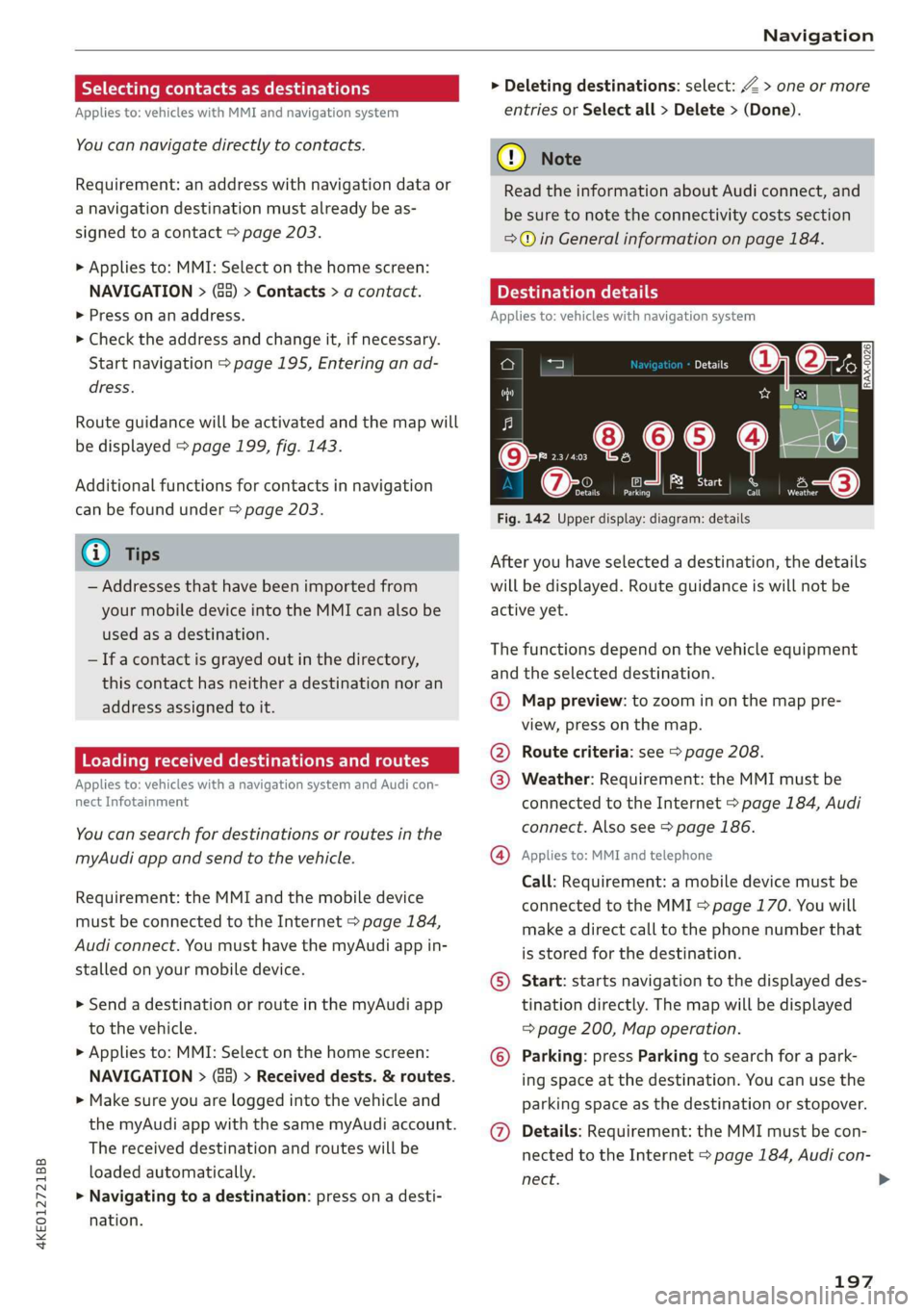
Fig. 142 Upper display: diagram: details
After you have selected a destination, the details
will be displayed. Route guidance is will not be
active yet.
The functions depend on the vehicle equipment
and the selected destination.
@ Map preview: to zoom in on the map pre-
view, press on the map.
@ Route criteria: see page 208.
@ Weather: Requirement: the MMI must be
connected to the Internet > page 184, Audi
connect. Also see > page 186.
@® Applies to: MMI and telephone
Call: Requirement: a mobile device must be
connected to the MMI > page 170. You will
make a direct call to the phone number that
is stored for the destination.
©) Start: starts navigation to the displayed des-
tination directly. The map will be displayed
= page 200, Map operation.
© Parking: press Parking to search for a park-
ing space at the destination. You can use the
parking space as the destination or stopover.
@ Details: Requirement: the MMI must be con-
nected to the Internet > page 184, Audi con-
nect.
197
>
Page 201 of 310
4KE012721BB
Navigation
=> page 199, fig. 143. The route plan will be
displayed. Press e-tron route planner.
The calculated arrival time, the estimated bat-
tery charge level (4, the suggested charging dura-
tion sG, and the distance from the current loca-
tion are displayed in the e-tron route planner for
the respective destination.
— The calculated arrival time incorporates the
suggested time for charging at the stop-
overs.
— If the charging target is set under 80%,
then the charging process will be canceled
prematurely and the charging time required
at the stopover will not be reached.
— Depending on the country, the information
for charging stations may not be available
nationwide at the time this manual was
printed. If this is the case, the e-tron route
planner may not be able to calculate any
routes. Check if there is a map update in the
MMI and start the map update, if necessary.
Enter your destination again in the e-tron
route planner. You can also turn off the e-
tron route planner > page 208 and open
navigation. Plan your route using familiar
charging stations as stopovers.
Stopping route guidance
Applies to: vehicles with navigation system
Requirement: route guidance must be active and
the map must be displayed.
> Applies to: MMI: Press & @ = page 199,
fig. 143. Or:
> Applies to: multifunction steering wheel: Select
in the instrument cluster: Navigation tab >
button > Cancel route guidance.
Map
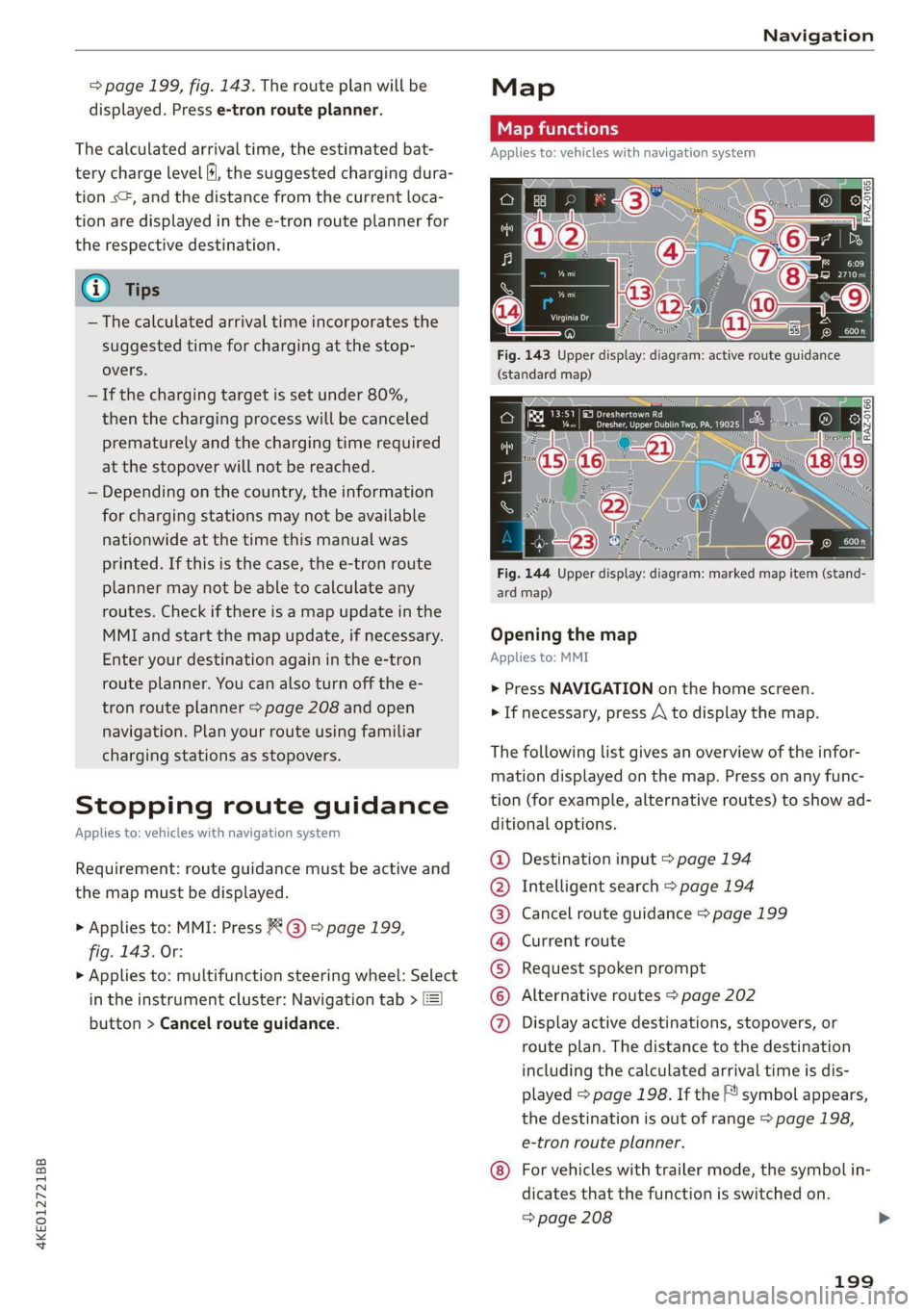
Map functions
Applies to: vehicles with navigation system
eo -
Fig. 144 Upper display: diagram: marked map item (stand-
ard map)
Opening the map
Applies to: MMI
> Press NAVIGATION on the home screen.
> If necessary, press /\ to display the map.
The following list gives an overview of the infor-
mation displayed on the map. Press on any func-
tion (for example, alternative routes) to show ad-
ditional options.
Destination input > page 194
Intelligent search > page 194
Cancel route guidance > page 199
Current route
Request spoken prompt
Alternative routes > page 202
QOOOOOHO Display active destinations, stopovers, or
route plan. The distance to the destination
including the calculated arrival time is dis-
played = page 198. If the F! symbol appears,
the destination is out of range > page 198,
e-tron route planner.
For vehicles with trailer mode, the symbol in-
dicates that the function is switched on.
=> page 208
199
Page 204 of 310
Navigation
@ Tips,
If personal route assistance is switched off
and you press F&, the personal route assis-
tance settings will be displayed > page 208.
Alternative routes
Applies to: vehicles with navigation system
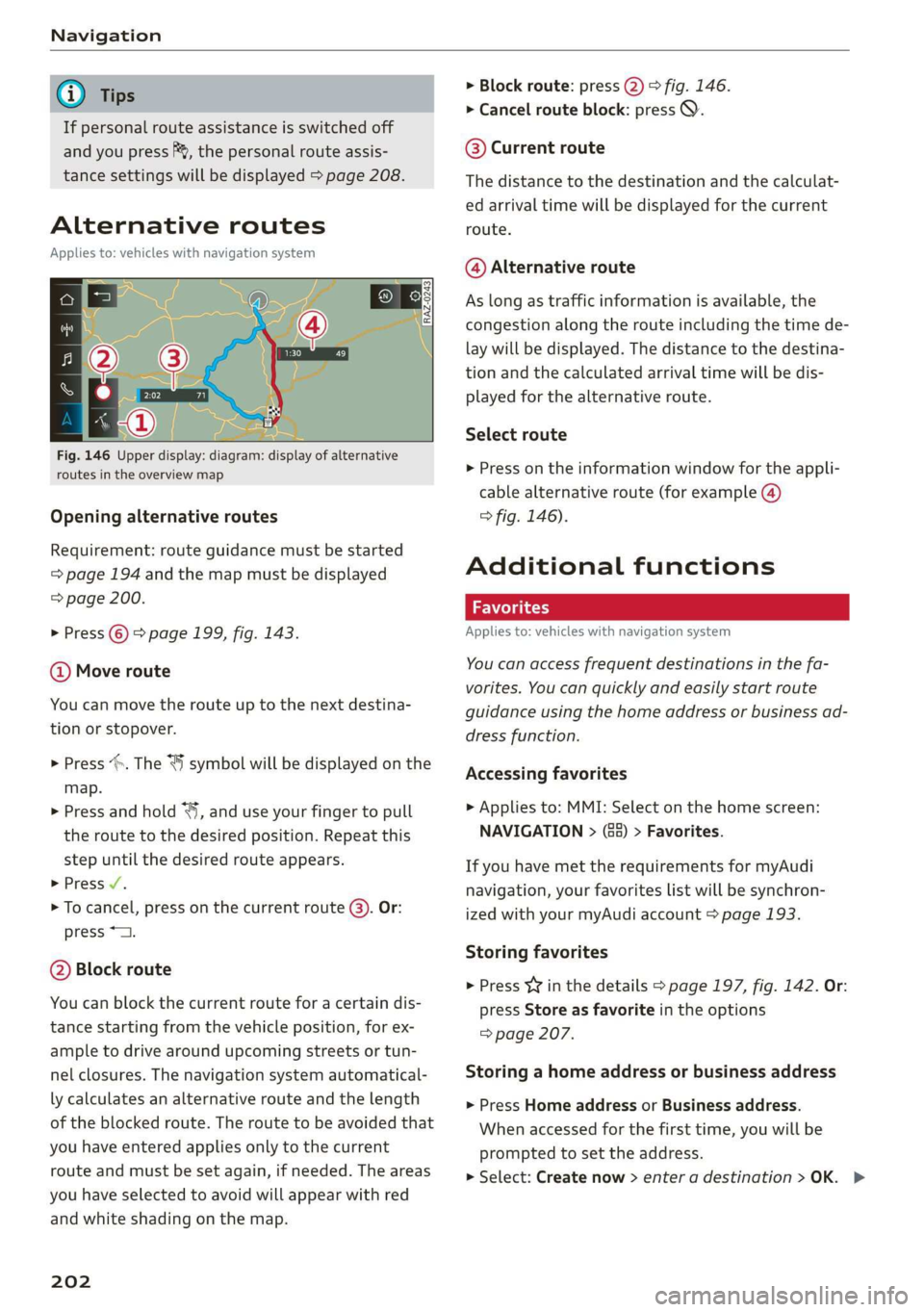
Fig. 146 Upper display: diagram: display of alternative
routes in the overview map
Opening alternative routes
Requirement: route guidance must be started
=> page 194 and the map must be displayed
=> page 200.
> Press © > page 199, fig. 143.
@ Move route
You can move the route up to the next destina-
tion or stopover.
> Press >. The “J symbol will be displayed on the
map.
> Press and hold “, and use your finger to pull
the route to the desired position. Repeat this
step until the desired route appears.
> Press /.
> To cancel, press on the current route (3). Or:
press *2.
@ Block route
You can block the current route for a certain dis-
tance starting from the vehicle position, for ex-
ample to drive around upcoming streets or tun-
nel closures. The navigation system automatical-
ly calculates an alternative route and the length
of the blocked route. The route to be avoided that
you have entered applies only to the current
route and must be set again, if needed. The areas
you have selected to avoid will appear with red
and white shading on the map.
202
> Block route: press 2) > fig. 146.
> Cancel route block: press Q.
@ Current route
The distance to the destination and the calculat-
ed arrival time will be displayed for the current
route.
@ Alternative route
As long as traffic information is available, the
congestion along the route including the time de-
lay will be displayed. The distance to the destina-
tion and the calculated arrival time will be dis-
played for the alternative route.
Select route
> Press on the information window for the appli-
cable alternative route (for example @)
> fig. 146).
Additional functions
wel a ie)
Applies to: vehicles with navigation system
You can access frequent destinations in the fa-
vorites. You can quickly and easily start route
guidance using the home address or business ad-
dress function.
Accessing favorites
> Applies to: MMI: Select on the home screen:
NAVIGATION > (68) > Favorites.
If you have met the requirements for myAudi
navigation, your favorites list will be synchron-
ized with your myAudi account > page 193.
Storing favorites
> Press v¥ in the details > page 197, fig. 142. Or:
press Store as favorite in the options
=> page 207.
Storing a home address or business address
> Press Home address or Business address.
When accessed for the first time, you will be
prompted to set the address.
> Select: Create now > enter a destination >OK. >
Page 208 of 310
Navigation
Traffic information
Introduction
Applies to: vehicles with navigation system
PRO Cie Racn seh
eee eon
Ome
a ae
Co
A|
(3) coe}
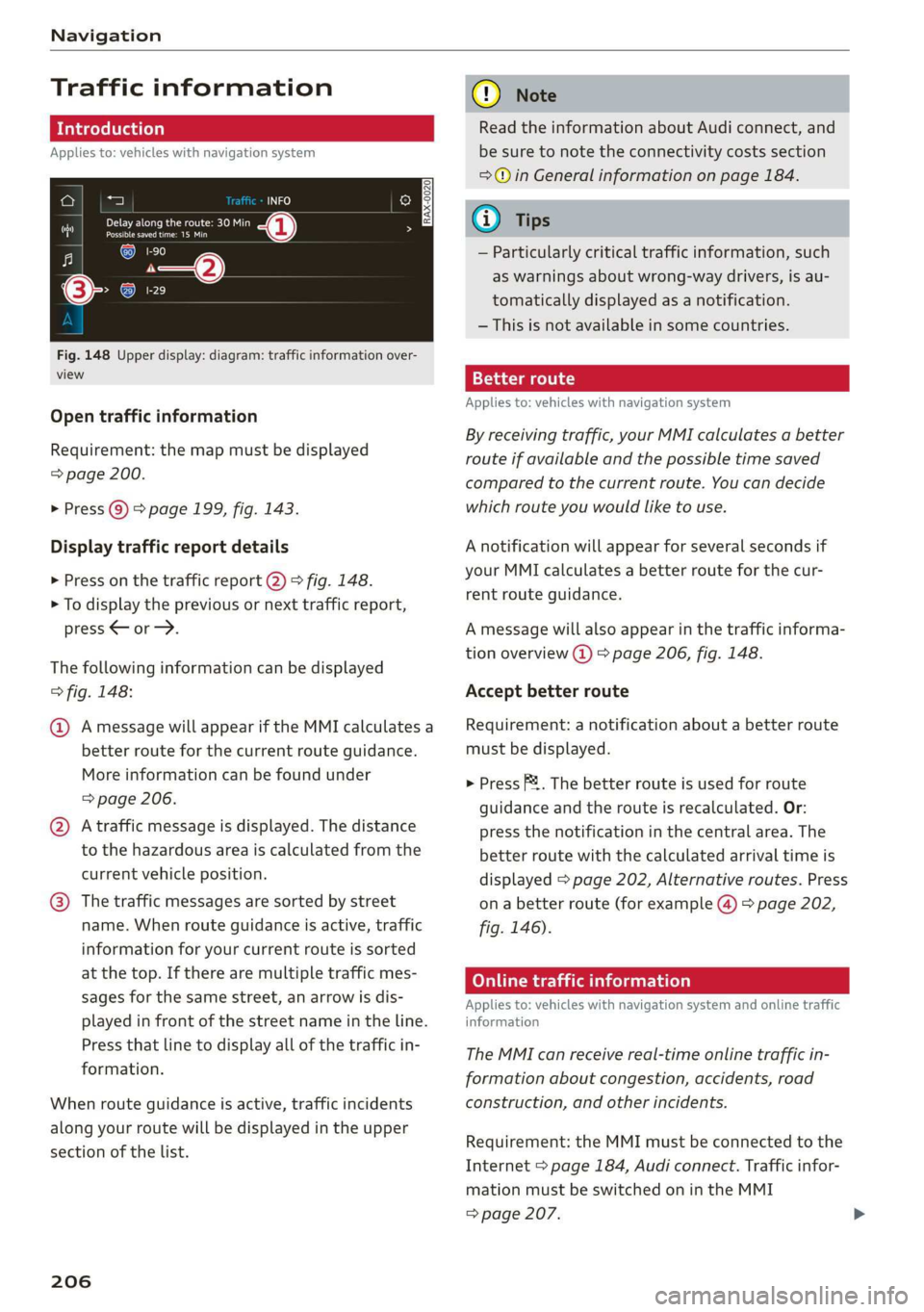
Fig. 148 Upper display: diagram: traffic information over-
view
Open traffic information
Requirement: the map must be displayed
= page 200.
> Press ©) > page 199, fig. 143.
Display traffic report details
> Press on the traffic report 2) > fig. 148.
> To display the previous or next traffic report,
press © or.
The following information can be displayed
> fig. 148:
@ Amessage will appear if the MMI calculates a
better route for the current route guidance.
More information can be found under
= page 206.
@ Atraffic message is displayed. The distance
to the hazardous area is calculated from the
current vehicle position.
@® The traffic messages are sorted by street
name. When route guidance is active, traffic
information for your current route is sorted
at the top. If there are multiple traffic mes-
sages for the same street, an arrow is dis-
played in front of the street name in the line.
Press that line to display all of the traffic in-
formation.
When route guidance is active, traffic incidents
along your route will be displayed in the upper
section of the list.
206
@) Note
Read the information about Audi connect, and
be sure to note the connectivity costs section
=@ in General information on page 184.
@) Tips
— Particularly critical traffic information, such
as warnings about wrong-way drivers, is au-
tomatically displayed as a notification.
— This is not available in some countries.
Better route
Applies to: vehicles with navigation system
By receiving traffic, your MMI calculates a better
route if available and the possible time saved
compared to the current route. You can decide
which route you would like to use.
A notification will appear for several seconds if
your MMI calculates a better route for the cur-
rent route guidance.
A message will also appear in the traffic informa-
tion overview @) > page 206, fig. 148.
Accept better route
Requirement: a notification about a better route
must be displayed.
> Press F&. The better route is used for route
guidance and the route is recalculated. Or:
press the notification in the central area. The
better route with the calculated arrival time is
displayed > page 202, Alternative routes. Press
on a better route (for example @) > page 202,
fig. 146).
Colmer lated)
Applies to: vehicles with navigation system and online traffic
information
The MMI can receive real-time online traffic in-
formation about congestion, accidents, road
construction, and other incidents.
Requirement: the MMI must be connected to the
Internet > page 184, Audi connect. Traffic infor-
mation must be switched on in the MMI
=> page 207.