power steering AUDI E-TRON 2019 User Guide
[x] Cancel search | Manufacturer: AUDI, Model Year: 2019, Model line: E-TRON, Model: AUDI E-TRON 2019Pages: 310, PDF Size: 81.91 MB
Page 104 of 310
Driving dynamic
Noises will indicate when the system is working.
Brake assist
The brake assist system can decrease braking dis-
tance. It increases braking power when the driver
presses the brake pedal quickly in emergency sit-
uations. You must press and hold the brake pedal
until the dangerous situation is over. Depending
on the activated driver assistance systems, the
brake assist system may react with increased sen-
sitivity.
Anti-Slip Regulation (ASR)
ASR reduces drive power when the drive wheels
begin spinning and adapts the power to the road
conditions. This makes it easier to start, acceler-
ate and drive up hills.
Electronic Differential Lock (EDL)
The EDL applies the brakes to wheels that are
slipping and transfers the drive power to the oth-
er wheels. This function is not available at higher
speeds.
In extreme cases, EDL automatically switches off
to keep the brake on the braked wheel from over-
heating. The vehicle is still functioning correctly.
EDL will switch on again automatically when con-
ditions have returned to normal.
Power steering
The ESC can also support vehicle stability
through steering.
Selective wheel torque control
Selective wheel torque control is used when driv-
ing on curves. Braking is targeted toward the
wheels on the inside of the curve as needed. This
allows more precise driving in curves.
Automatic post-collision braking system
The automatic post-collision braking system can
help to reduce the risk of sliding and of addition-
al collisions after an accident. If the airbag con-
trol module detects a collision, the vehicle is
braked by the ESC.
The vehicle does not brake automatically if one of
the following occurs:
102
— The driver presses the accelerator pedal, or
— The braking force generated by the pressed
brake pedal is greater than the braking force
that would be initiated by the system
— The ESC, the brake system, or the vehicle elec-
trical system is not functioning
ZA\ WARNING
— The ESC and its integrated systems cannot
overcome the limits imposed by natural
physical laws. This is especially important on
slippery or wet roads. If the systems begin
acting to stabilize your vehicle, you should
immediately alter your speed to match the
road
and traffic conditions. Do not let the in-
creased safety provided tempt you into tak-
ing risks. This could increase your risk of a
collision.
— Please note the risk of a collision increases
when driving fast, especially through curves
and on slippery or wet roads, and when driv-
ing too close to objects ahead. There is still
a risk of accidents because the ESC and its
integrated systems cannot always prevent
collisions.
— Accelerate carefully when driving on
smooth, slippery surfaces such as ice and
snow. The drive wheels can spin even when
these control systems are installed and this
can affect driving stability and increase the
risk of a collision.
(i) Tips
— The ABS and ASR only function correctly
when all four wheels have a similar wear
condition. Different tire sizes can lead toa
reduction in motor power.
— You may hear noises when the systems de-
scribed are working.
The 0 button is located above the selector lev-
er in the center console.
The ESC is automatically switched on when the
ignition is switched on. It may make sense in >
Page 165 of 310
4KE012721BB
Parking and maneuvering
> Press the & button in the center console. When
switching on, a brief tone sounds and the LED
in the button turns on. Or
> Select 1 on the upper display if the visual dis-
tance indicator is shown > page 161, fig. 126.
Switching on automatically
The system switches on automatically when re-
verse gear is engaged while the drive system is
active. A brief tone will sound.
Switching off automatically
The system switches off automatically when driv-
ing forward faster than 6 mph (10 km/h).
ZA WARNING
Follow the safety precautions and note the
limits of the assist systems, sensors, and
cameras > page 123.
Warnings
Applies to: vehicles with rearview camera/peripheral cameras
Fig. 130 Upper display: distance view
When parking with the rearview camera or pe-
ripheral camera, the parking system plus audio
and visual warnings* will also assist you
=>page 161.
For vehicles with peripheral cameras, the area
surrounding the vehicle is shown on the side of
the display. You can switch between the optical
display and camera image > page 167.
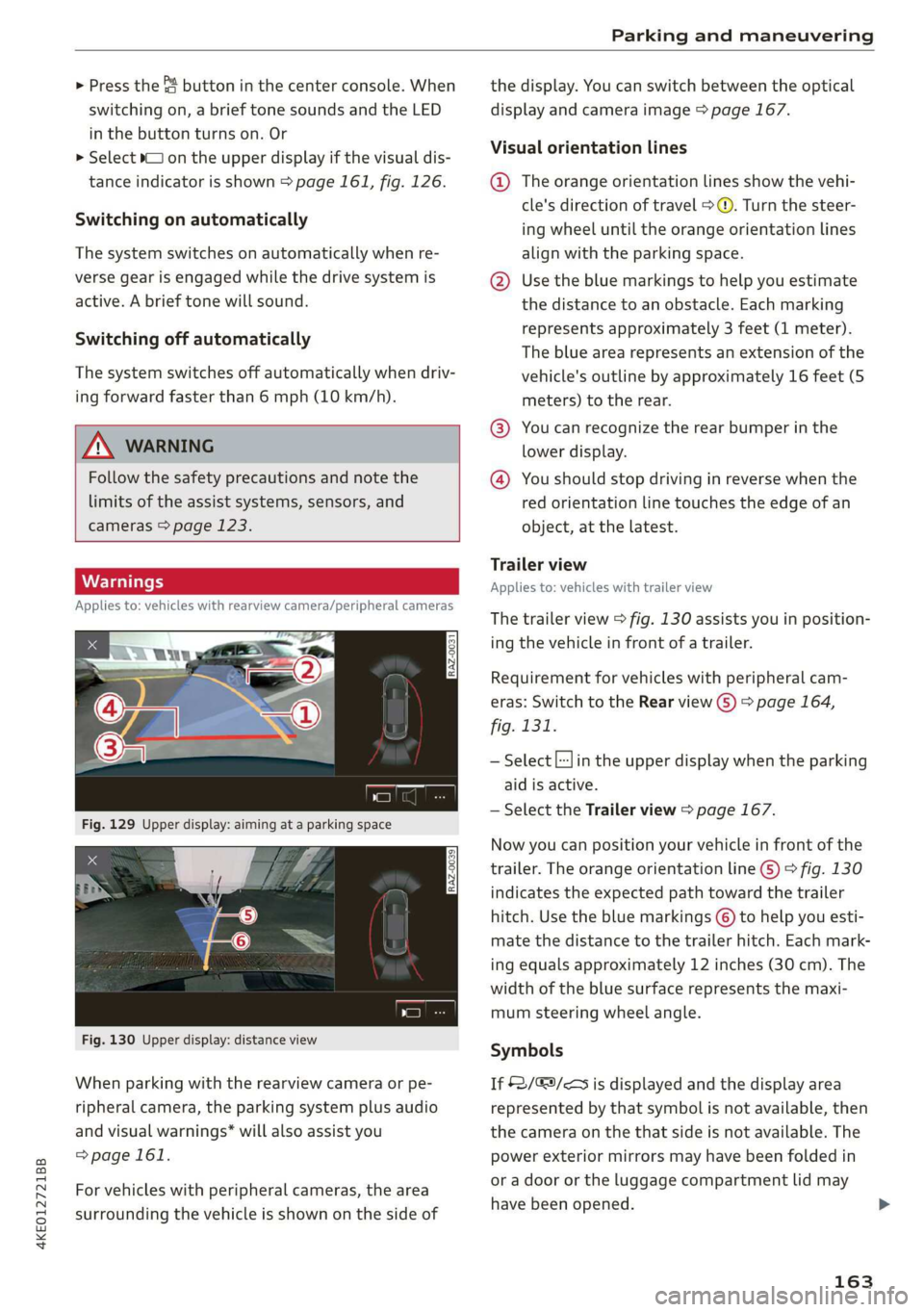
Visual orientation lines
@ The orange orientation lines show the vehi-
cle's direction of travel > ©. Turn the steer-
ing wheel until the orange orientation lines
align with the parking space.
@ Use the blue markings to help you estimate
the distance to an obstacle. Each marking
represents approximately 3 feet (1 meter).
The blue area represents an extension of the
vehicle's
outline by approximately 16 feet (5
meters) to the rear.
@® You can recognize the rear bumper in the
lower display.
@ You should stop driving in reverse when the
red orientation line touches the edge of an
object, at the latest.
Trailer view
Applies to: vehicles with trailer view
The
trailer view > fig. 130 assists you in position-
ing the vehicle in front of a trailer.
Requirement for vehicles with peripheral cam-
eras: Switch to the Rear view G) > page 164,
fig. 131.
— Select |:-}in the upper display when the parking
aid is active.
— Select the Trailer view > page 167.
Now you can position your vehicle in front of the
trailer. The orange orientation line ©) > fig. 130
indicates the expected path toward the trailer
hitch. Use the blue markings © to help you esti-
mate the distance to the trailer hitch. Each mark-
ing equals approximately 12 inches (30 cm). The
width of the blue surface represents the maxi-
mum steering wheel angle.
Symbols
If $2/&9/< is displayed and the display area
represented by that symbol is not available, then
the camera on the that side is not available. The
power exterior mirrors may have been folded in
or a door or the luggage compartment lid may
have been opened.
163
Page 223 of 310
4KE012721BB
Media
@) Note
— Pull the cable out of the Audi music inter-
face carefully so that the USB ports are not
damaged.
— Use a USB extension cable to connect devi-
ces that have an integrated USB connector
(such as a USB stick) to reduce the risk of
damage to your USB device and the Audi
music interface.
— Extremely high or low temperatures that
can occur inside vehicles can damage mobile
devices and/or impair their performance.
Never leave mobile devices in the vehicle in
extremely high or low temperatures.
@ Tips
— Always follow the information found in
=> page 75.
— When you switch the ignition off, the USB
ports are still supplied with power until the
energy management intervenes.
— Do not use an additional adapter cable or
USB extension cable to connect mobile devi-
ces to the Audi music interface that already
have a cable or that must be connected with
a USB adapter cable (> page 220, fig. 153).
Using an additional adapter or US extension
cable may impair functionality.
— Functionality is not guaranteed for mobile
devices that do not conform to the USB 2.0
specification.
— USB hubs are not supported.
— Video playback through the Audi music in-
terface is not supported on Apple and MTP
devices (such as smartphones).
— iPod or iPhone malfunctions also affect the
operation of the MMI. Reset your mobile de-
vice in these situations.
— Audi recommends updating the iPod or
iPhone software to the latest version. Refer
to your mobile device owner's manual for
more information.
— The USB adapter on the Audi music inter-
face will support iPod touch or iPhone devi-
ces from the 5th generation or newer with
the lightning connector.
— For more information about the Audi music
interface and supported devices, check the
Audi database for mobile devices at www.
audiusa.com/mp3 or contact an authorized
Audi dealer or authorized Audi Service Fa-
cility.
Playing media
The following sources can be selected depending
on the vehicle equipment:
— Amazon Alexa > page 220
—SD card > page 217.
— USB © page 220.
— DVD drive > page 218
— Connect external device: you can connect ex-
ternal devices via Bluetooth and use the Blue-
tooth audio player > page 218, or you can con-
nect an external device directly to the Audi mu-
sic interface > page 220.
— Connect online media > page 219.
Accessing media
Playing media files using the MMI
> Applies to: MMI: Select on the home screen:
MEDIA > Source > a source. Depending on the
connected device or online media service”, the
symbol for a source may change. The device
name may be displayed (for example: my-
Phone).
> Select a track from the categories in the media
center > page 222.
Playing media files using the multifunction
steering wheel
Requirement: a media drive must contain media
files > page 221.
> Select the Radio/Media tab using the multi-
function steering wheel.
> Turn the left thumbwheel to display the play-
list.
> To switch to a different source, press the [=|
button.
> To select a media file or a source, turn and
press the left thumbwheel.
221
Page 279 of 310
4KE012721BB
Emergency assistance
— The vehicle must not be tow started for
technical reasons.
@ Tips
— Switch Audi pre sense* off > page 153 when
loading the vehicle onto a vehicle carrier,
train, ship,
or other type of transportation,
or when towing the vehicle. This can prevent
an undesired intervention from the pre
sense* system.
— Follow the local legal regulations for tow-
ing.
Read and follow the important information under
=> page 276.
Preparations
> Only secure the towing cable or tow bar at the
designated towing loops > page 277,
=> page 278.
> Make sure the towing cable is not twisted. Oth-
erwise it could disconnect from the towing loop
while towing.
> Switch the emergency flashers on in both vehi-
cles > page 46. However, do not do this if it
prohibited by law.
Towing vehicle (front)
> Only start to drive when the towing cable is
taut.
> Press the brake pedal very carefully.
> Avoid sudden braking or driving maneuvers.
Vehicle being towed (rear)
> Make sure the ignition is switched on so that
the steering wheel is not locked and so that you
can use the turn signals, the horn, and the
windshield wipers if needed > A\.
> The brake booster only operates when the igni-
tion is switched on. Power steering only works
when the ignition is switched on and the vehicle
is rolling ). If the brake booster and power
steering are not functioning, you must press
D_ Requirement: the vehicle battery must have a sufficient
charge level.
the brake pedal much harder and use more
force to steer.
> Release the parking brake > page 93.
> Select the “N” selector lever position.
> Make sure the towing cable is always taut.
ZA\ WARNING
Never tow a vehicle using a tow bar or towing
cable if the vehicle does not have electrical
power.
Front towing loop
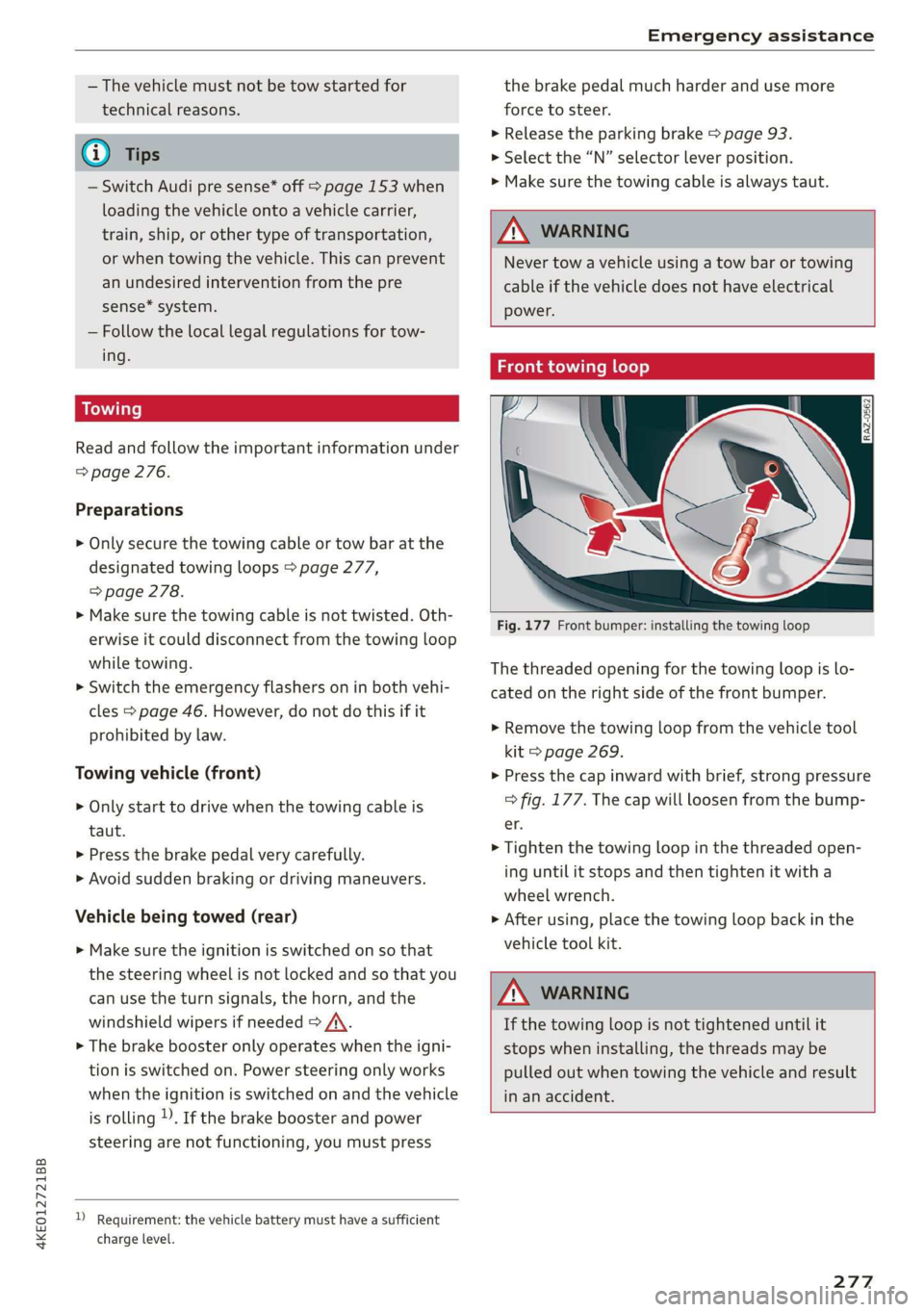
Fig. 177 Front bumper: installing the towing loop
The threaded opening for the towing loop is lo-
cated on the right side of the front bumper.
> Remove the towing loop from the vehicle tool
kit > page 269.
> Press the cap inward with brief, strong pressure
=> fig. 177. The cap will loosen from the bump-
er.
> Tighten the towing loop in the threaded open-
ing until it stops and then tighten it with a
wheel wrench.
> After using, place the towing loop back in the
vehicle tool kit.
ZA WARNING
If the towing loop is not tightened until it
stops when installing, the threads may be
pulled out when towing the vehicle and result
in an accident.
277
Page 301 of 310
4KE012721BB
Index
Mechanically unlocking
Opening and closing.................0.
Opening and closing with foot motion..... 37
Power opening and closing.............. 36
Lumbar'support waco: 2s ees ev wees ee eerwe as 56
M
Maintenance « sige a + cewe «2 cee ge ewe a es 286
Maintenance intervals « nw. 6 i gic ae cere a 242
Manually releasing the charging connector. 111
Manually releasing the charging unit cover. 111
Map
Changing the scale...........00.e eee 198
Display cosee + a ssowsoe = semais 2 4 onaesms x aerate & 200
Operating ........ 0... ce eee eee eee 199
Setting the destination................ 198
Map preview.............-.0 2000-0 eee 197
Map update................ 020. e ee eee 204
QNUIME seers « « seers & e eee 5 2 eS & HEE FS 205
SD card/USB connection............... 205
Massage TUNCtiON. « ssa ss esi se owe ¥ 6 orem 56
Front... 2... eee eee eee eee 57
Matrix LED headlights.................-. 45
Mechanical:-key’. « « esscos ss caune oo aware © v cere 33
Medicis: 2 = acess: a © vonses a @ mewn 2 © cose 217,221.
Drives... ee 217
Supported formats...............0005 227
Media
center................ eee eee ee 222
Memory card
SD card reader (MMI) « « ewes sc ees an es 217
Supported types and formats........... 227
Mennory functioniie: « 2 sews x ¢ amen 5 meee eo: 63
Menu language
refer to Setting the language........... 231
Messagesi. « eciis + wean a 6 mans w 6 aaa oo we 178
Mirror cOMpaSS « wes + ¢ esas so sees eo eee vs 53
Mirrors
Adjusting exterior mirrors............0-. 48
Dimming................0 00002 e eee 49
Nanlity MUFROT sxc 2 = mown 2 seers « o eeoes gee 50
MMI
refer to Multi Media Interface........... 17
Mobile device
refer to Telephone...........-.0eee ee 169
Mobile phone network
Connection settings.................. 182
Motor compartment
Opening and closing the hood.......... 236
OVERVIEW eeu 3 2 soupy < @ emiees ¢ esate Go ee 237
Safety precautions: . sicsc. sven 2s wen ae 235
Storage compartment..............-... 76
Mountain passes... 0... ... eee eee eee 96
Mountaininoads:. « « secs « « erence» 2 sestane » 6 soene 96
Multifunction steering wheel
Buttons... ..... cee ee ee 12,26
Operating: < = ssn < : seen es sonnet dome s ee 12
Programming buttons.................. 26
Voice recognition system............... 24
Multi Media Interface................085 17
Menus and symbols.............00+-00- 18
Operating’s « « wss6 s secu = s sees & & wens 2 15,18
Switching the displays on or off.......... 17
Mutting (Mute) secs se ences oe ences oo cena oo eee 26
MYAUGI s « scimvs «6 eens 2s ents 2 & eee 2 weceale 27
myAudi navigation................. 193, 197
N
NarrOW APES s « eewn ss weue swoon as wee ae 146
Natural
leather care and cleaning......... 266
Navigation ....... 66... cee cece eee eee 193
Better rout@scs << sews eo es do eg e cae 206
Calli gprs so meena « i soieasen © o onewowe mraten wo 197
Changing the scale................0-. 197
also:referto Map: « wim + x wows 2 neee se ne 199
Navigation database
Version'information . . . ico ce caren so ens 233
Navigation (instrument cluster).......... 201
NHTSAc: = swiss « = seu = ¢ sous 4 x teats & Sees g 288
Night vision aSsist'; « sean 5 «wean ss ween avi 13)
Cleaning the camera...............00. 264
Notification:center’s ¢ sas 3 ¢ caw 2s gauss wars 19
O
OdOMCters cacy « & cees 5 o exw 5 ¢ eee 7 e ews 13
RESCUING fests 6 & srecine 6 o aiorsus 6 @ nureons wo eaNUEDK 13
Office address
refer to Business address.............. 202
Offroad
refer to Offroad driving...............+- 96
Offroad driving...............e eee e eee 96
OFF (climate control system) .............. 82
299