reset AUDI E-TRON 2019 User Guide
[x] Cancel search | Manufacturer: AUDI, Model Year: 2019, Model line: E-TRON, Model: AUDI E-TRON 2019Pages: 310, PDF Size: 81.91 MB
Page 148 of 310
Driver assistance
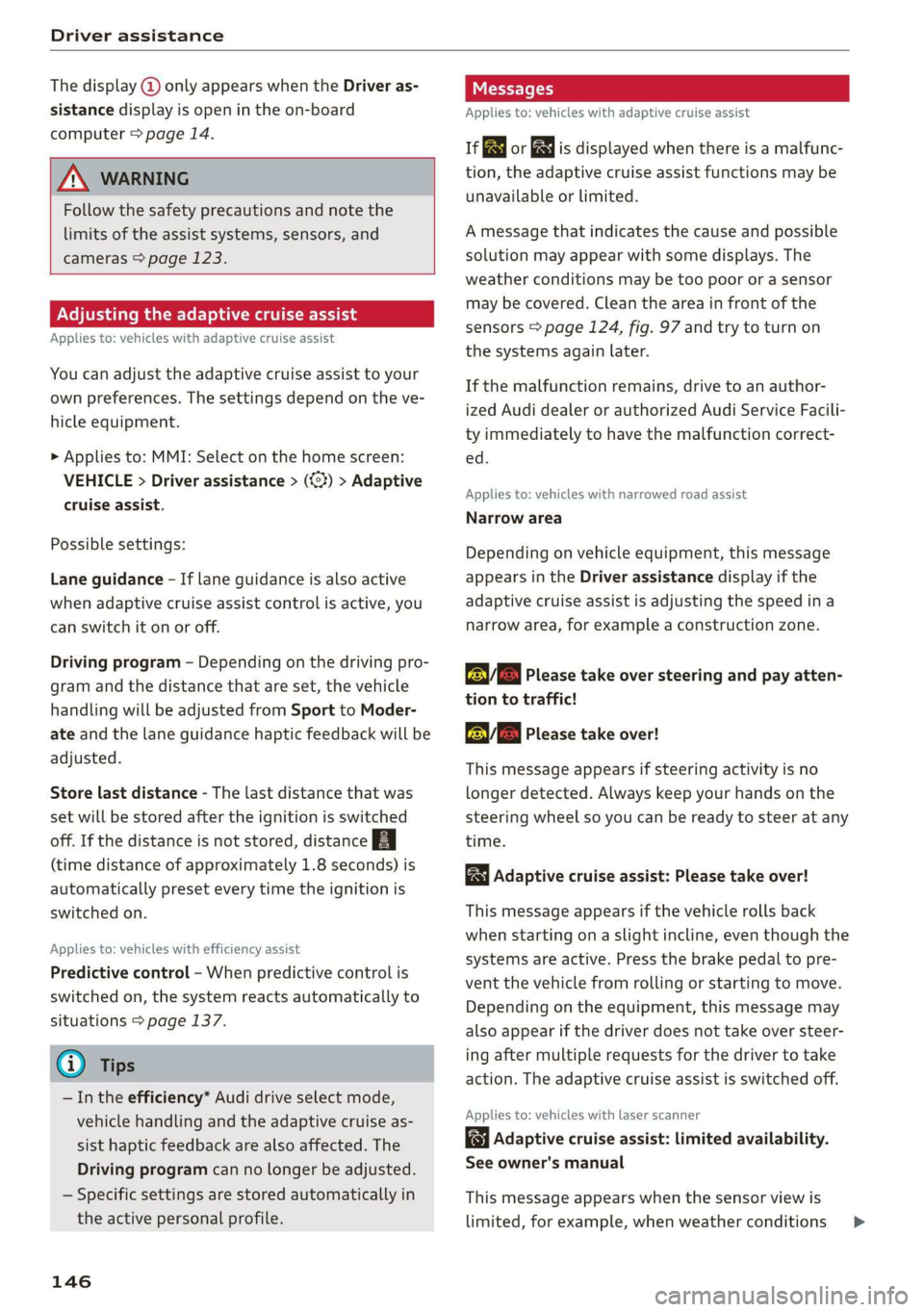
The display @ only appears when the Driver as-
sistance display is open in the on-board
computer > page 14.
ZA WARNING
Follow the safety precautions and note the
limits of the assist systems, sensors, and
cameras > page 123.
Adjusting the adaptive cruise assist
Applies to: vehicles with adaptive cruise assist
You can adjust the adaptive cruise assist to your
own preferences. The settings depend on the ve-
hicle equipment.
> Applies to: MMI: Select on the home screen:
VEHICLE > Driver assistance > (<3) > Adaptive
cruise assist.
Possible settings:
Lane guidance - If lane guidance is also active
when adaptive cruise assist control is active, you
can switch it on or off.
Driving program - Depending on the driving pro-
gram and the distance that are set, the vehicle
handling will be adjusted from Sport to Moder-
ate and the lane guidance haptic feedback will be
adjusted.
Store last distance - The last distance that was
set will be stored after the ignition is switched
off. If the distance is not stored, distance
(time distance of approximately 1.8 seconds) is
automatically preset every time the ignition is
switched on.
Applies to: vehicles with efficiency assist
Predictive control - When predictive control is
switched on, the system reacts automatically to
situations > page 137.
G) Tips
— In the efficiency* Audi drive select mode,
vehicle handling and the adaptive cruise as-
sist haptic feedback are also affected. The
Driving program can no longer be adjusted.
— Specific settings are stored automatically in
the active personal profile.
146
Messages
Applies to: vehicles with adaptive cruise assist
a | or is displayed when there is a malfunc-
tion, the adaptive cruise assist functions may be
unavailable or limited.
A message that indicates the cause and possible
solution may appear with some displays. The
weather conditions may be too poor or a sensor
may be covered. Clean the area in front of the
sensors > page 124, fig. 97 and try to turn on
the systems again later.
If the malfunction remains, drive to an author-
ized Audi dealer or authorized Audi Service Facili-
ty immediately to have the malfunction correct-
ed.
Applies to: vehicles with narrowed road assist
Narrow area
Depending on vehicle equipment, this message
appears in the Driver assistance display if the
adaptive cruise assist is adjusting the speed ina
narrow area, for example a construction zone.
ae Please take over steering and pay atten-
tion to traffic!
Be Please take over!
This message appears if steering activity is no
longer detected. Always keep your hands on the
steering wheel so you can be ready to steer at any
time.
Adaptive cruise assist: Please take over!
This message appears if the vehicle rolls back
when starting on a slight incline, even though the
systems are active. Press the brake pedal to pre-
vent the vehicle from rolling or starting to move.
Depending on the equipment, this message may
also appear if the driver does not take over steer-
ing after multiple requests for the driver to take
action. The adaptive cruise assist is switched off.
Applies to: vehicles with laser scanner
3] Adaptive cruise assist: limited availability.
See owner's manual
This message appears when the sensor view is
limited, for example, when weather conditions >
Page 183 of 310
4KE012721BB
Telephone
— Ringtone”: available ringtones are played using
the Ringtone function. Press on an entry in the
list.
— Microphone input level: you can adjust the mi-
crophone input level using the slider.
Turn on car phone or data module
Applies to: vehicles with car phone/data module
When this function is switched on, you can use
the car phone or data module.
As long as the car phone was not turned off sepa-
rately the last time it was used, it will turn on au-
tomatically when the ignition is switched on.
Edit voicemail number
You can change your voicemail number.
Enable VoLTE
When this function is switched on, Voice over
LTE* will be supported.
Network settings
— Login to mobile phone network: select to log
into your cell phone service provider network
automatically or manually.
— Manual network selection: Requirement: the
data module must be switched on and Login to
mobile phone network must be set to Manual.
Select a network manually from the list of
available networks at the present location.
Car phone serial number (IMEI):
Applies to: vehicles with car phone
The serial number (IMEI) of your car phone is dis-
played.
@ Tips
— Several mobile devices can be paired with
the MMI, but only two* mobile devices can
be actively connected.
—To delete all paired Bluetooth devices, the
Bluetooth function can be reset to the fac-
tory default settings > page 232.
Directory settings
Applies
to: vehicles with telephone
> Applies to: MMI: Select on the home screen:
PHONE > Contacts > <2.
Switching between two mobile devices
Requirement: telephone 1 and telephone 2 must
be connected.
Switch telephones: the device name of your ac-
tive mobile device is displayed. You can switch
the phone by pressing the button.
The directory for the selected phone will be dis-
played.
Hide grayed-out contacts
When this function is switched on, contacts that
have no phone numbers stored for them will be
hidden.
Sort order
You can sort the contacts in alphabetical order by
Last name or First name.
Download contacts
Requirement: a mobile device must be connected
to the MMI.
To update the contacts in the MMI, you can man-
ually download your mobile device contacts. De-
pending on the mobile device, you may need to
disconnect and reconnect the Bluetooth connec-
tion to update the contacts.
Memory capacity
You can manage up to 23,000 contacts. You can
also download up to 5,000 contacts from maxi-
mum four mobile devices. You can also import up
to 3,000 contacts from a storage medium.
Importing and exporting contacts
Requirement: an SD card must be in the SD card
reader* = page 217 or a USB storage device must
be connected to the Audi music interface
=> page 220.
181
Page 191 of 310
4KE012721BB
Audi connect
— Password: your cell phone service provider as-
signs the password for your online profile.
— Apply settings: saves the changed settings.
— Reset configuration: resets the connection set-
tings.
Data usage counter
Your current data usage is displayed.
— Reset counter: you can reset your usage statis-
tics to zero.
— Warning limit: you can set a warning limit for
your data usage (GB/MB).
Always follow the information found in > AV
in General information on page 184.
Always follow the information found in >@® in
General information on page 184.
For more information on roaming charges,
contact your cell phone service provider.
Wi-Fi settings
Applies to: vehicles with Wi-Fi hotspot
Requirement: the ignition must be switched on.
» Applies to: MMI: Select on the home screen:
SETTINGS > Connection settings > Wi-Fi
Depending on the country and the vehicle equip-
ment, the following functions may be available:
Wi-Fi
When the function is switched on, the MMI's Wi-
Fi hotspot is active and Wi-Fi devices can be con-
nected to the hotspot.
Wi-Fi hotspot settings
The Wi-Fi connection between the MMI and your
Wi-Fi device is encrypted. You can change the fol-
lowing information if needed.
D_ Not available in every market.
— Access point (SSID): name of the Wi-Fi hot-
spot.
— Password: a random password was set at the
factory in the MMI. The password can be
changed. The encryption method requires a
password to be at least eight characters long.
Choose a secure password.
— Visible to others: you can switch the visibility
of the Wi-Fi hotspot on or off.
Always follow the information found in > A\
in General information on page 184.
Always follow the information found in >@® in
General information on page 184.
Data plans)
Applies to: vehicles with data plans
Requirement: you must have created a myAudi
account at my.audi.com. Your vehicle must be
registered in your myAudi account.
You can purchase data plans at my.audi.com.
Always follow the information found in > A\
in General information on page 184.
Always follow the information found in >@ in
General information on page 184.
If driving out of the country, applicable data
plans must be purchased.
189
Page 213 of 310
4KE012721BB
Radio
Radio functions
aA
st
RAX-0097
Oo we
eer
eet) Last stations fee nrc
red
| 20 || |
®
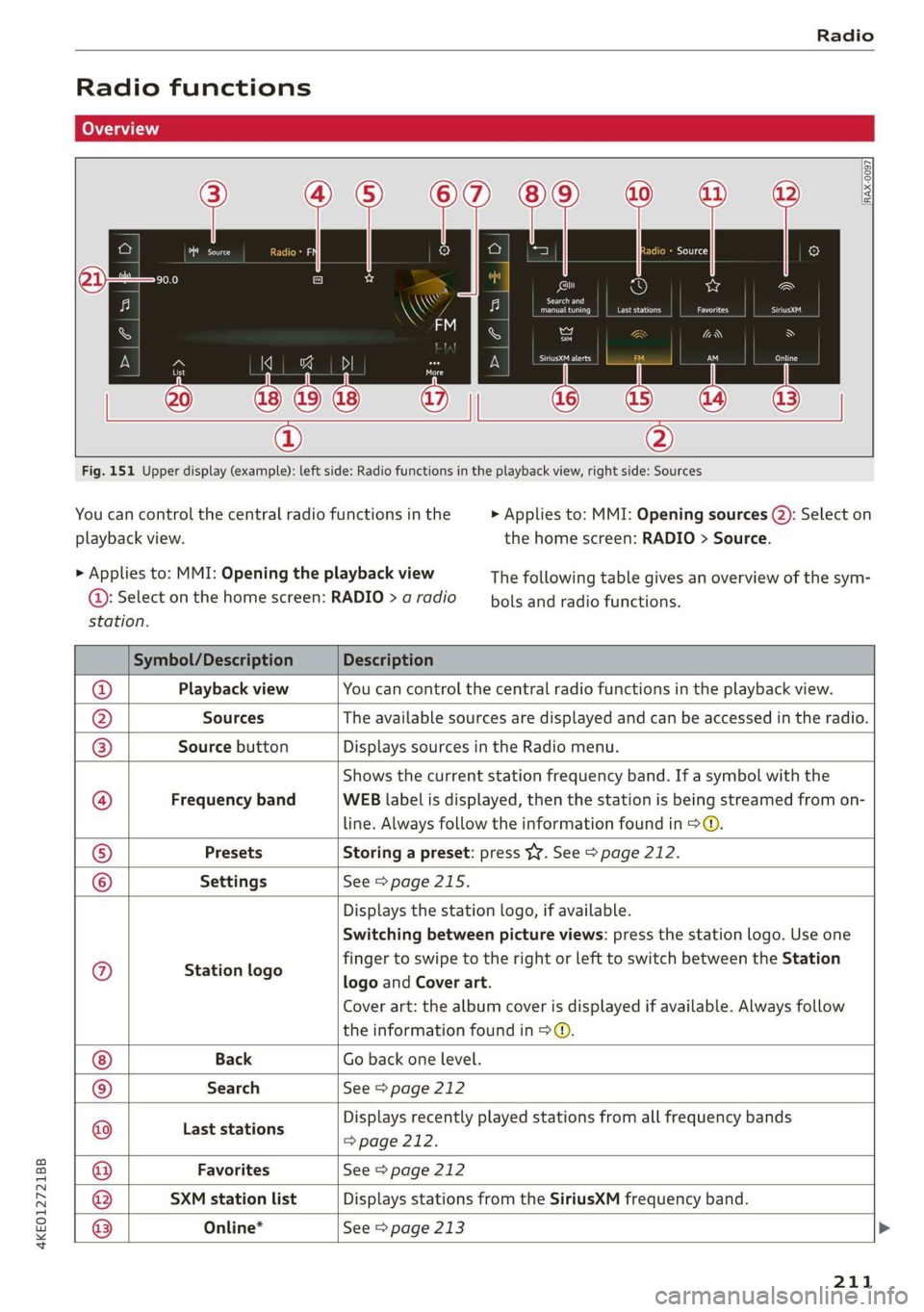
Fig. 151 Upper display (example): left side: Radio functions in the playback view, right side: Sources
You can control the central radio functions in the > Applies to: MMI: Opening sources (2): Select on
playback view. the home screen: RADIO > Source.
> Applies to: MMI: Opening the playback view The following table gives an overview of the sym-
@: Select on the home screen: RADIO > aradio _ hols and radio functions.
station.
Symbol/Description Description
Playback view You can control the central radio functions in the playback view.
Sources The available sources are displayed and can be accessed in the radio.
Source button Displays sources in the Radio menu.
Shows the current station frequency band. If a symbol with the
Q/©|
©
j/O|E|O
Frequency band WEB label is displayed, then the station is being streamed from on-
line. Always follow the information found in ©.
Presets Storing a preset: press Y¥. See > page 212.
Settings See > page 215.
© Station logo
Displays the station logo, if available.
Switching between picture views: press the station logo. Use one
finger to swipe to the right or left to switch between the Station
logo and Cover art.
Cover art: the album cover is displayed if available. Always follow
the information found in > ©.
Back Go back one level.
Search See > page 212
©
|©O|©
Last stations
Displays recently played stations from all frequency bands
> page 212.
@ Favorites See > page 212
® SXM station list Displays stations from the SiriusXM frequency band.
® Online* See > page 213
211
Page 214 of 310
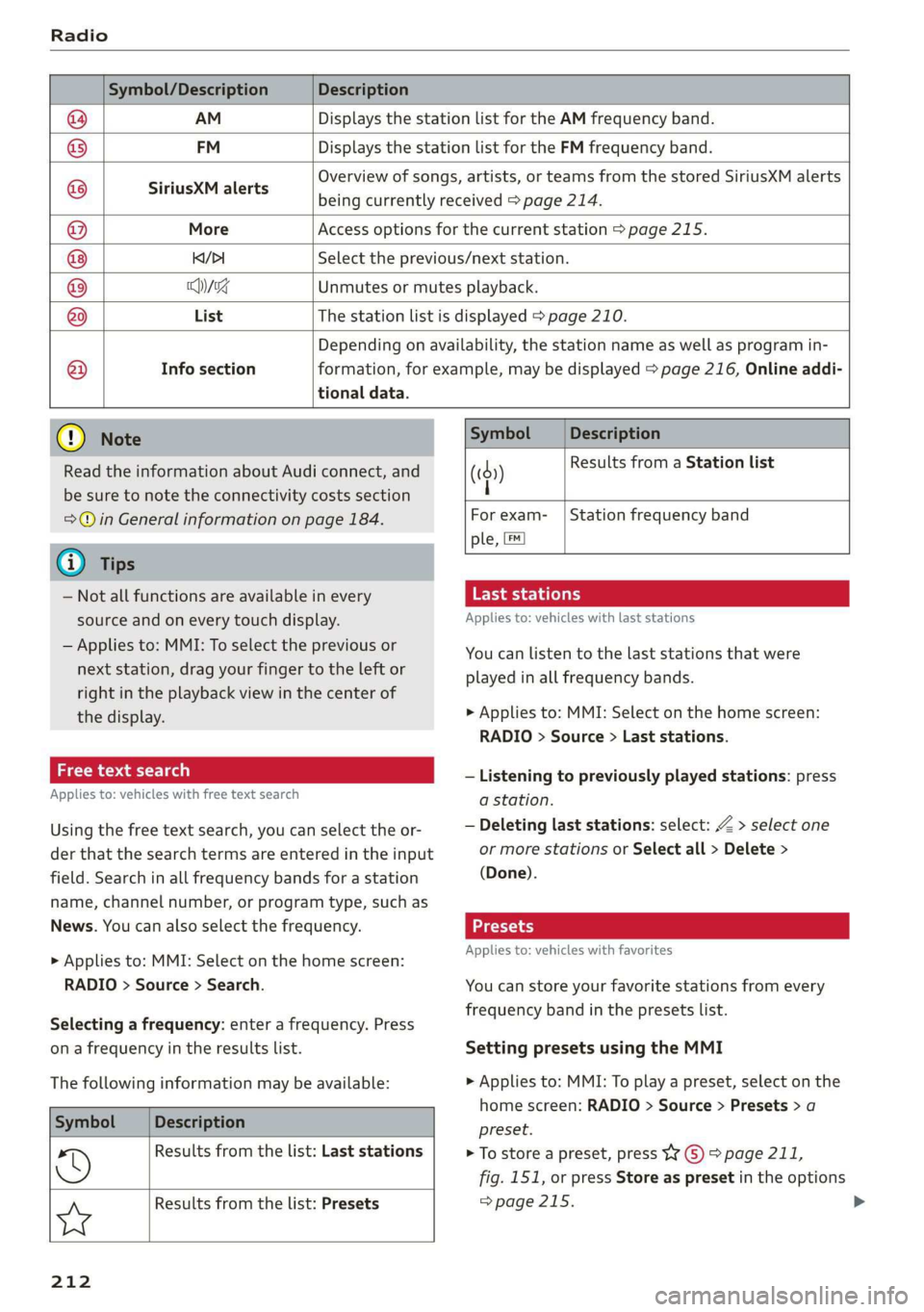
Radio
Symbol/Description Description
AM Displays the station list for the AM frequency band.
FM Displays the station list for the FM frequency band.
SiriusXM alerts
Overview of songs, artists, or teams from the stored SiriusXM alerts
being currently received > page 214.
More Access options for the current station > page 215.
KY/PI Select the previous/next station.
yng Unmutes or mutes playback.
List The station list is displayed > page 210.
Info section ®
|O/O/S|O|
©
|O|®
tional data.
Depending on availability, the station name as well as program in-
formation, for example, may be displayed > page 216, Online addi-
C) Note
Read the information about Audi connect, and
be sure to note the connectivity costs section
=@ in General information on page 184.
Gy Tips
— Not all functions are available in every
source and on every touch display.
— Applies to: MMI: To select the previous or
next station, drag your finger to the left or
right in the playback view in the center of
the display.
a i-\x-yaaey-t laa)
Applies to: vehicles with free text search
Using the free text search, you can select the or-
der that the search terms are entered in the input
field. Search in all frequency bands for a station
name, channel number, or program type, such as
News. You can also select the frequency.
> Applies to: MMI: Select on the home screen:
RADIO > Source > Search.
Selecting a frequency: enter a frequency. Press
on a frequency in the results list.
The following information may be available:
Symbol
Oo
4
212
Description
Results from the list: Last stations
Results from the list: Presets
Symbol Description
5) Results from a Station list
|
For exam- | Station frequency band
ple, [™]
Last stations
Applies to: vehicles with last stations
You can listen to the last stations that were
played in all frequency bands.
> Applies to: MMI: Select on the home screen:
RADIO > Source > Last stations.
— Listening to previously played stations: press
a station.
— Deleting last stations: select: Z > select one
or more stations or Select all > Delete >
(Done).
Applies to: vehicles with favorites
You can store your favorite stations from every
frequency band in the presets list.
Setting presets using the MMI
> Applies to: MMI: To play a preset, select on the
home screen: RADIO > Source > Presets > a
preset.
> To store a preset, press W © > page 211,
fig. 151, or press Store as preset in the options
= page 215.
Page 215 of 310
4KE012721BB
Radio
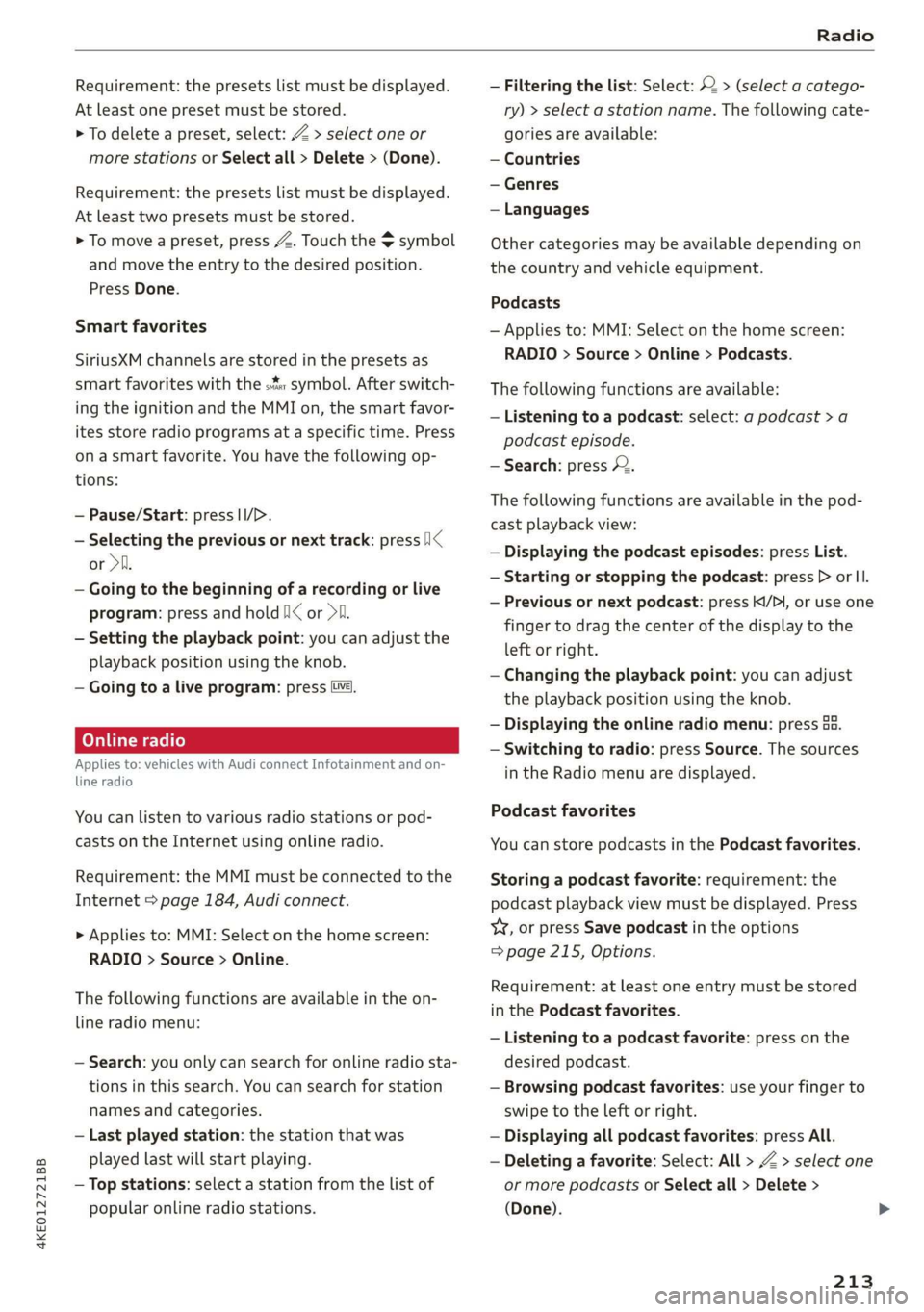
Requirement: the presets list must be displayed.
At least one preset must be stored.
> To delete a preset, select: Z > select one or
more stations or Select all > Delete > (Done).
Requirement: the presets list must be displayed.
At least two presets must be stored.
> To move a preset, press Z. Touch the $ symbol
and move the entry to the desired position.
Press Done.
Smart favorites
SiriusXM channels are stored in the presets as
smart favorites with the s% symbol. After switch-
ing the ignition and the MMI on, the smart favor-
ites store radio programs at a specific time. Press
ona smart favorite. You have the following op-
tions:
— Pause/Start: press I/D.
— Selecting the previous or next track: press !I<
or >i.
— Going to the beginning of a recording or live
program: press and hold !I< or >i.
— Setting the playback point: you can adjust the
playback position using the knob.
— Going to a live program: press [vé).
Applies to: vehicles with Audi connect Infotainment and on-
line radio
You can listen to various radio stations or pod-
casts on the Internet using online radio.
Requirement: the MMI must be connected to the
Internet > page 184, Audi connect.
> Applies to: MMI: Select on the home screen:
RADIO > Source > Online.
The following functions are available in the on-
line radio menu:
— Search: you only can search for online radio sta-
tions in this search. You can search for station
names and categories.
— Last played station: the station that was
played last will start playing.
— Top stations: select a station from the list of
popular online radio stations.
— Filtering the list: Select: © > (select a catego-
ry) > select a station name. The following cate-
gories are available:
— Countries
— Genres
— Languages
Other categories may be available depending on
the country and vehicle equipment.
Podcasts
— Applies to: MMI: Select on the home screen:
RADIO > Source > Online > Podcasts.
The following functions are available:
— Listening to a podcast: select: a podcast > a
podcast episode.
— Search: press 2.
The following functions are available in the pod-
cast playback view:
— Displaying the podcast episodes: press List.
— Starting or stopping the podcast: press P orl.
— Previous or next podcast: press K/D|, or use one
finger to drag the center of the display to the
left or right.
— Changing the playback point: you can adjust
the playback position using the knob.
— Displaying the online radio menu: press 5a.
— Switching to radio: press Source. The sources
in the Radio menu are displayed.
Podcast favorites
You can store podcasts in the Podcast favorites.
Storing a podcast favorite: requirement: the
podcast playback view must be displayed. Press
YX, or press Save podcast in the options
=> page 215, Options.
Requirement: at least one entry must be stored
in the Podcast favorites.
— Listening to a podcast favorite: press on the
desired podcast.
— Browsing podcast favorites: use your finger to
swipe to the Left or right.
— Displaying all podcast favorites: press All.
— Deleting a favorite: Select: All > Z > select one
or more podcasts or Select all > Delete >
(Done).
213
Page 218 of 310
Radio
— First category, then channel name: the chan-
nels are sorted by their category and then by
their channel names.
SiriusXM category filter*
The stations shown in the station list can be fil-
tered by your personal preferences and by pro-
gram type. The program categories that you can
select depend on what is offered by your provid-
er. When the Unsubscribed channels function is
switched off, unsubscribed channels will be hid-
den.
SiriusXM subscription status*
This option is available when your subscription is
about to expire or has already expired. The expi-
ration date for your license is displayed.
Call SiriusXM: the telephone number and radio
ID of your satellite radio provider are displayed.
To call your satellite radio provider using the
MMI, press Call SiriusXM.
Troubleshooting
The information that follows lists some trouble-
shooting options. They depend on the equip-
ment.
Online additional data
Applies to: vehicles with Audi connect Infotainment
Requirement: the MMI must be connected to the
Internet > page 185.
When the function is switched on, additional in-
formation (such as station logos, cover, artist,
track) will be loaded depending on the availabili-
ty from the different providers.
Preferred online radio data rate
Applies to: vehicles with Audi connect Infotainment and on-
line radio
You can set the data rate for online radio
> page 213.
For optimal sound playback, press High. To re-
duce data usage, press Low.
@) Note
Read the information about Audi connect, and
be sure to note the connectivity costs section
=>@ in General information on page 184.
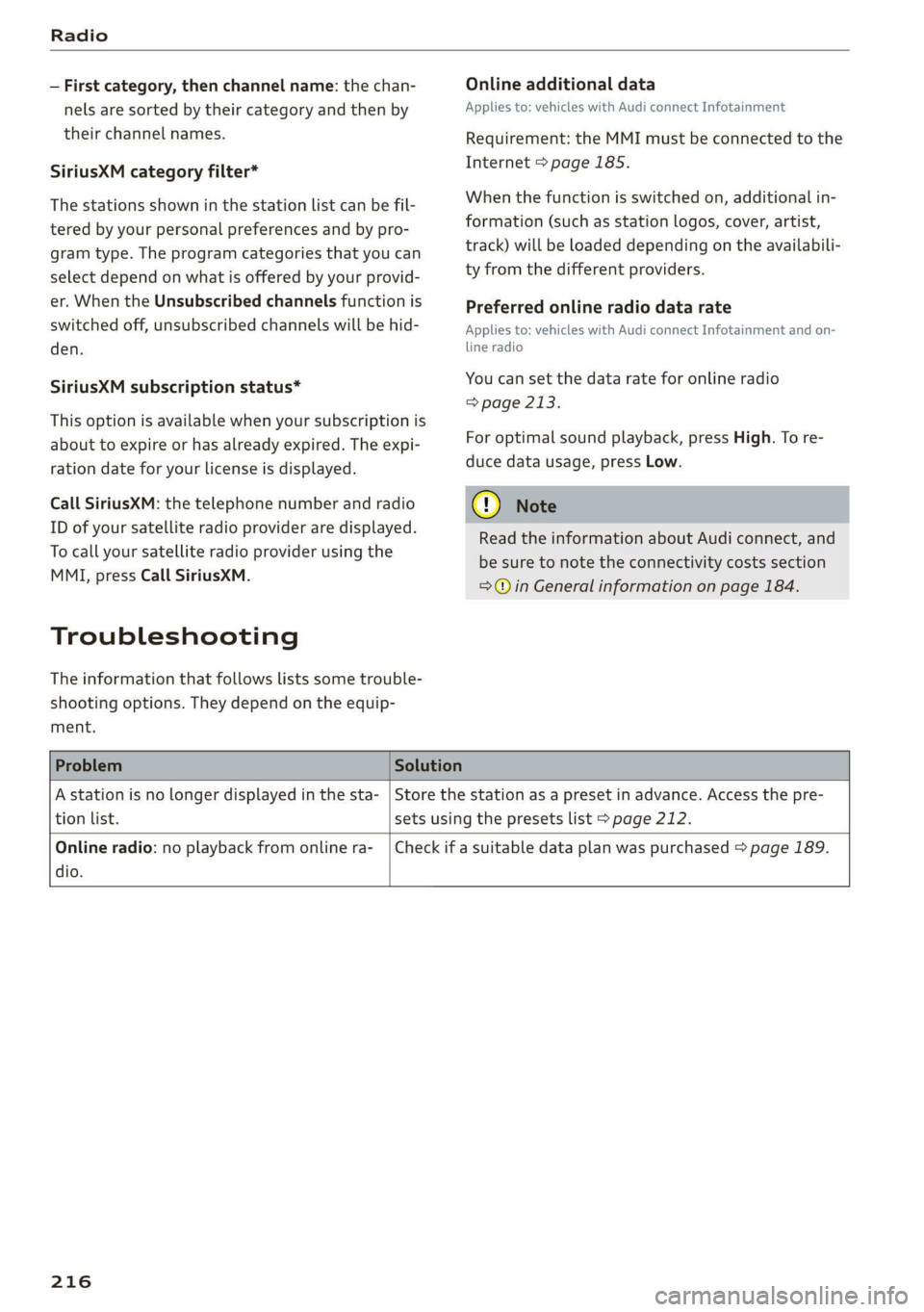
Problem Solution
A station is no longer displayed in the sta- | Store the station as a preset in advance. Access the pre-
tion
list. sets using the presets list > page 212.
Online radio: no playback from online ra-
dio.
Check if a suitable data plan was purchased > page 189.
216
Page 219 of 310
4KE012721BB
Media
Media
General information
There are various media drives and connections
available in the MMI. For example, you can play
media files using the SD card reader or connect
your mobile devices to the Audi music interface
and operate them through the MMI.
Media and format restrictions: the MMI (includ-
ing the SD card reader and the USB storage de-
vice connection*) was tested with a variety of
products and media available in the market.
However, there may be cases where individual de-
vices or media and audio/video files may not be
recognized, may play only with restrictions, or
may not play at all.
Restricted functionality: reset the Media to the
factory default settings if functionality is restrict-
ed.
Digital Rights Management: please note that
the
audio/video files are subject to copyright pro-
tection.
The media drives do not play files that are pro-
tected by DRM and are identified with the symbol
&.
Data security: never store important data on SD
cards, CDs/DVDs, or mobile devices. Audi AG is
not responsible for damaged or lost files and me-
dia.
Loading times: the more files/folders/playlists
there are on a storage medium, the longer it will
take to load. To reduce the amount of time it
takes the audio/video files to load, use a storage
medium that only contains audio/video files, and
create subfolders (for example, for each artist or
album).
Additional information: when playing, audio
files are automatically displayed with any addi-
tional information that is stored (such as the ar-
tist, track and album cover). If this information is
not available on the storage medium, the MMI
will check the Gracenote metadata database.
However, in some cases, the additional informa-
tion may not be displayed.
CG) Note
Read the information about Audi connect, and
be sure to note the connectivity costs section
=@ in General information on page 184.
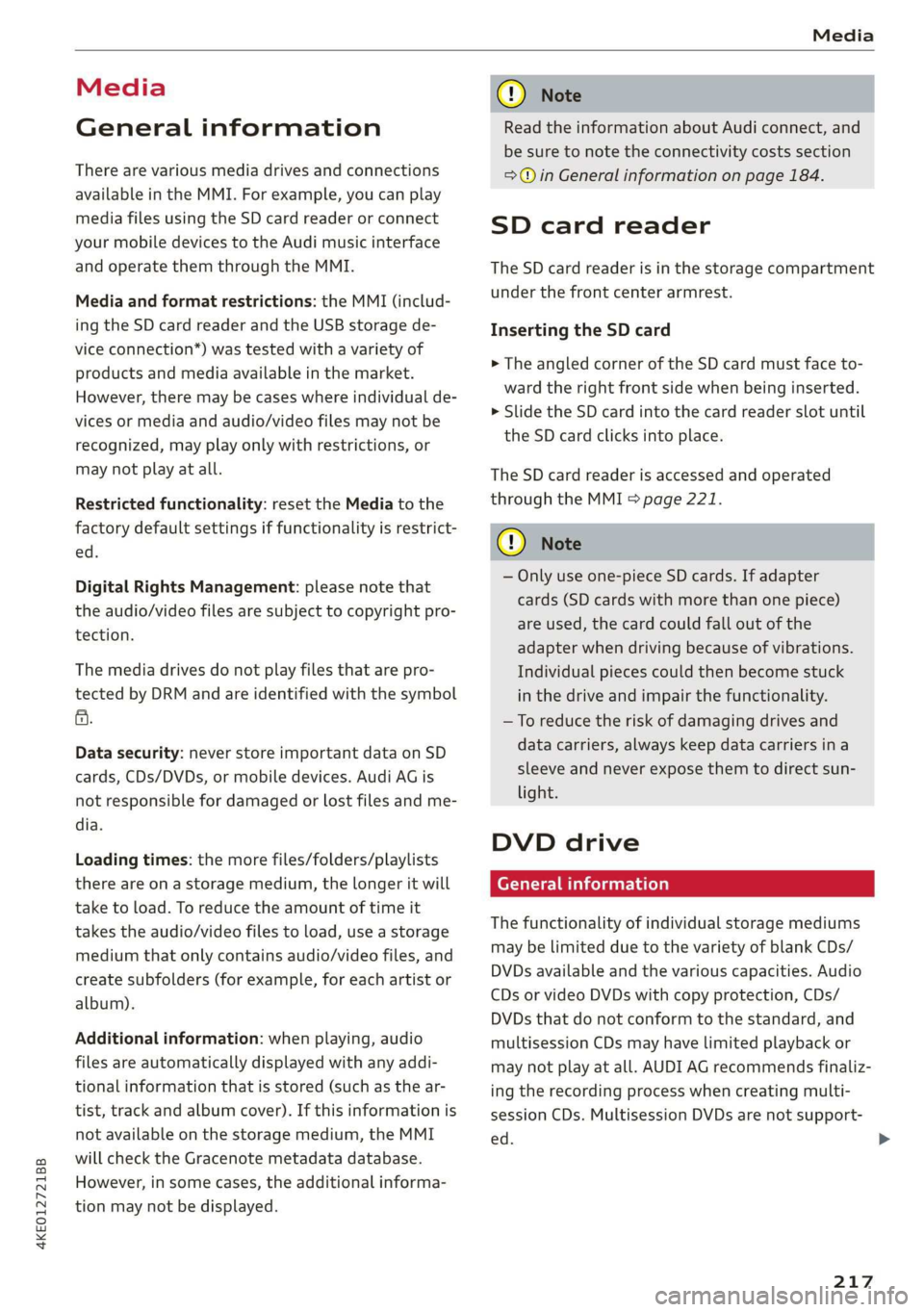
SD card reader
The SD card reader is in the storage compartment
under the front center armrest.
Inserting the SD card
> The angled corner of the SD card must face to-
ward the right front side when being inserted.
>» Slide the SD card into the card reader slot until
the SD card clicks into place.
The SD card reader is accessed and operated
through the MMI = page 221.
® Note
— Only use one-piece SD cards. If adapter
cards (SD cards with more than one piece)
are used, the card could fall out of the
adapter when driving because of vibrations.
Individual pieces could then become stuck
in the drive and impair the functionality.
—To reduce the risk of damaging drives and
data carriers, always keep data carriers ina
sleeve and never expose them to direct sun-
light.
DVD drive
General information
The functionality of individual storage mediums
may be limited due to the variety of blank CDs/
DVDs available and the various capacities. Audio
CDs or video DVDs with copy protection, CDs/
DVDs that do not conform to the standard, and
multisession CDs may have limited playback or
may not play at all. AUDI AG recommends finaliz-
ing the recording process when creating multi-
session CDs. Multisession DVDs are not support-
ed.
217
>
Page 223 of 310
4KE012721BB
Media
@) Note
— Pull the cable out of the Audi music inter-
face carefully so that the USB ports are not
damaged.
— Use a USB extension cable to connect devi-
ces that have an integrated USB connector
(such as a USB stick) to reduce the risk of
damage to your USB device and the Audi
music interface.
— Extremely high or low temperatures that
can occur inside vehicles can damage mobile
devices and/or impair their performance.
Never leave mobile devices in the vehicle in
extremely high or low temperatures.
@ Tips
— Always follow the information found in
=> page 75.
— When you switch the ignition off, the USB
ports are still supplied with power until the
energy management intervenes.
— Do not use an additional adapter cable or
USB extension cable to connect mobile devi-
ces to the Audi music interface that already
have a cable or that must be connected with
a USB adapter cable (> page 220, fig. 153).
Using an additional adapter or US extension
cable may impair functionality.
— Functionality is not guaranteed for mobile
devices that do not conform to the USB 2.0
specification.
— USB hubs are not supported.
— Video playback through the Audi music in-
terface is not supported on Apple and MTP
devices (such as smartphones).
— iPod or iPhone malfunctions also affect the
operation of the MMI. Reset your mobile de-
vice in these situations.
— Audi recommends updating the iPod or
iPhone software to the latest version. Refer
to your mobile device owner's manual for
more information.
— The USB adapter on the Audi music inter-
face will support iPod touch or iPhone devi-
ces from the 5th generation or newer with
the lightning connector.
— For more information about the Audi music
interface and supported devices, check the
Audi database for mobile devices at www.
audiusa.com/mp3 or contact an authorized
Audi dealer or authorized Audi Service Fa-
cility.
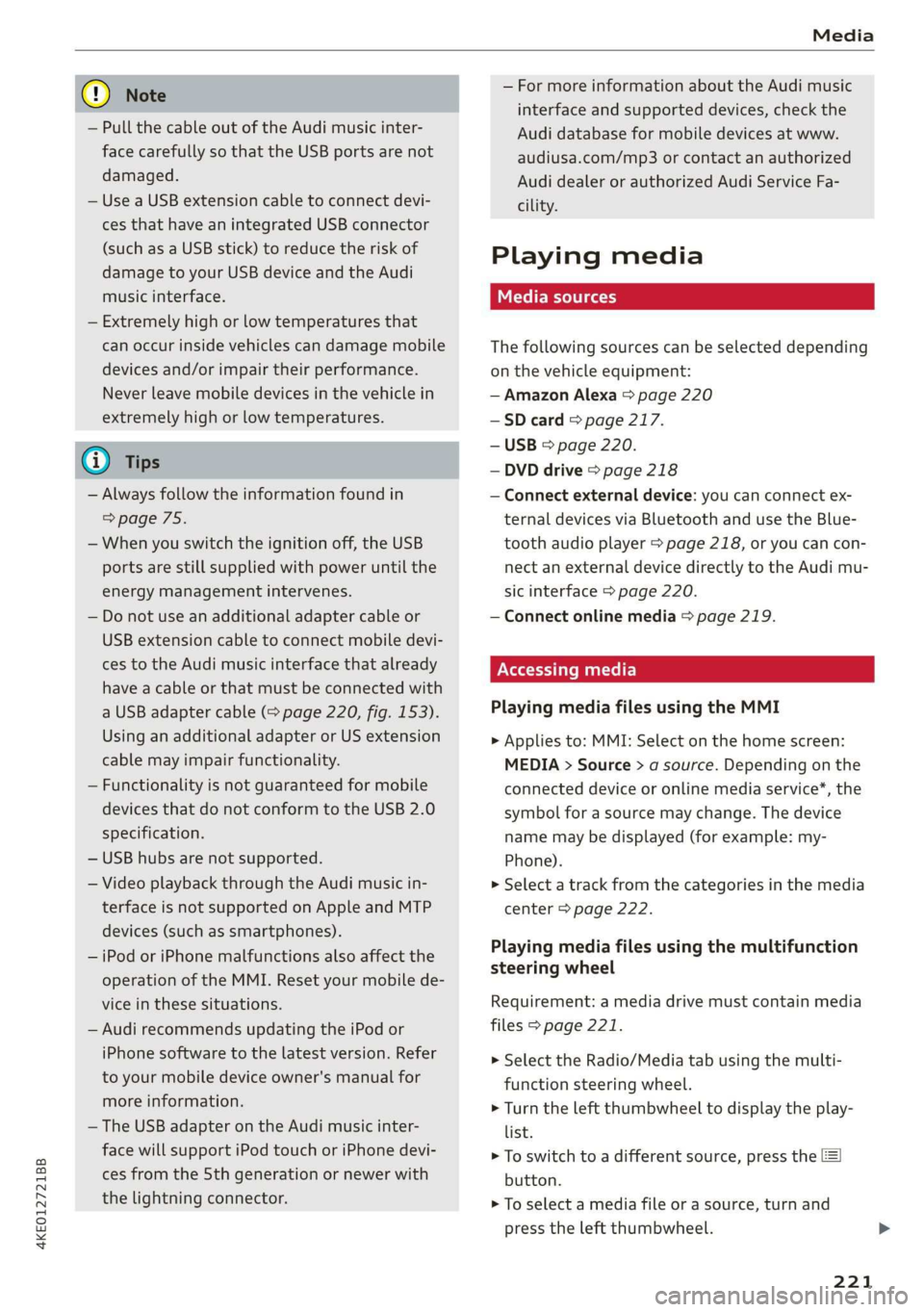
Playing media
The following sources can be selected depending
on the vehicle equipment:
— Amazon Alexa > page 220
—SD card > page 217.
— USB © page 220.
— DVD drive > page 218
— Connect external device: you can connect ex-
ternal devices via Bluetooth and use the Blue-
tooth audio player > page 218, or you can con-
nect an external device directly to the Audi mu-
sic interface > page 220.
— Connect online media > page 219.
Accessing media
Playing media files using the MMI
> Applies to: MMI: Select on the home screen:
MEDIA > Source > a source. Depending on the
connected device or online media service”, the
symbol for a source may change. The device
name may be displayed (for example: my-
Phone).
> Select a track from the categories in the media
center > page 222.
Playing media files using the multifunction
steering wheel
Requirement: a media drive must contain media
files > page 221.
> Select the Radio/Media tab using the multi-
function steering wheel.
> Turn the left thumbwheel to display the play-
list.
> To switch to a different source, press the [=|
button.
> To select a media file or a source, turn and
press the left thumbwheel.
221
Page 229 of 310
4KE012721BB
Media
— PIN entry for parental control will be locked PIN can only be reset by an authorized Audi
for approximately one minute if you enter dealer.
the incorrect PIN three times in a row. The
Supported media and file formats
CONTA
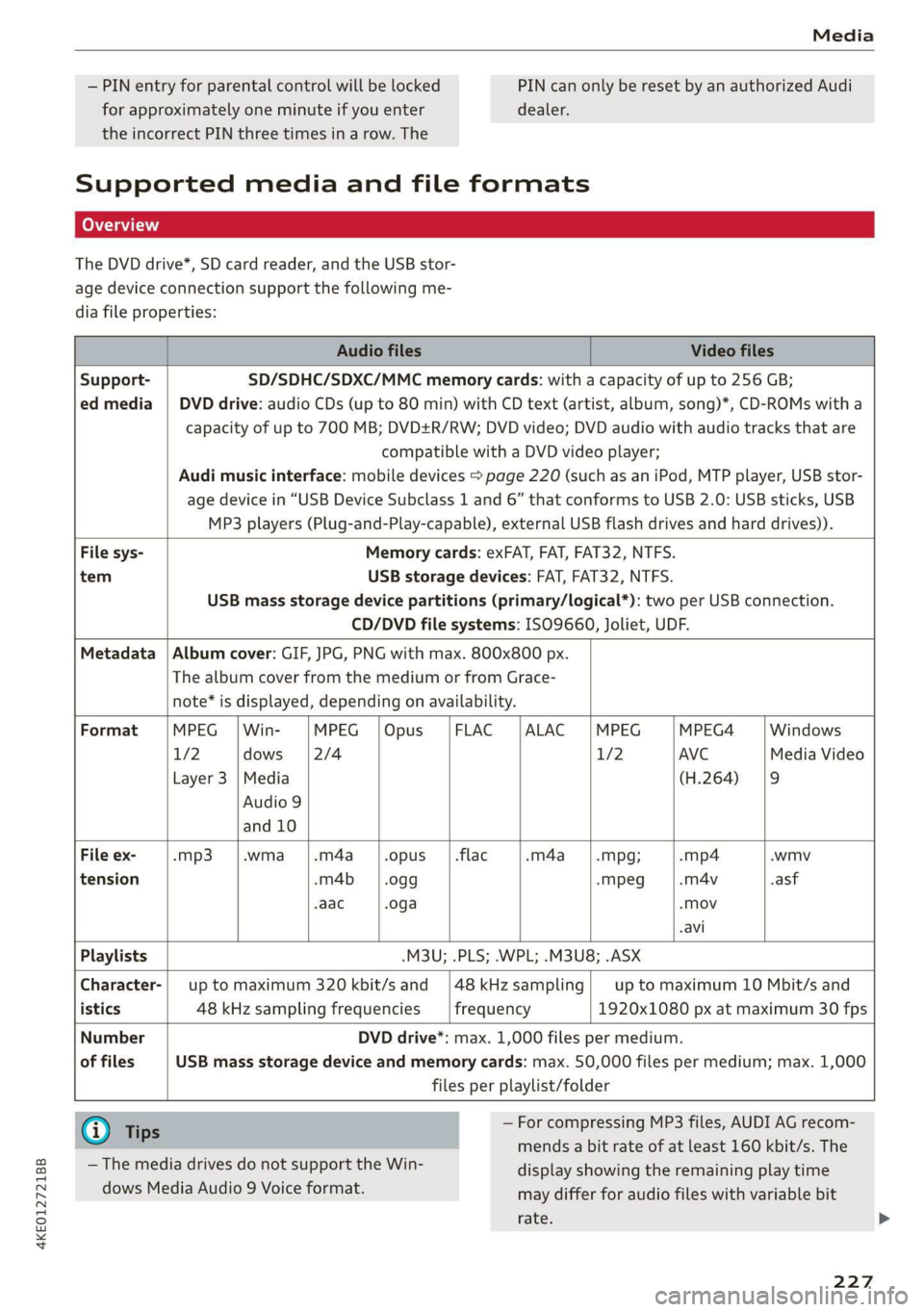
The DVD drive*, SD card reader, and the USB stor-
age device connection support the following me-
dia file properties:
Audio files Video files
Support- SD/SDHC/SDXC/MMC memory cards: with a capacity of up to 256 GB;
ed media | DVD drive: audio CDs (up to 80 min) with CD text (artist, album, song)*, CD-ROMs with a
capacity of up to 700 MB; DVD+R/RW; DVD video; DVD audio with audio tracks that are
compatible with a DVD video player;
Audi music interface: mobile devices > page 220 (such as an iPod, MTP player, USB stor-
age device in “USB Device Subclass 1 and 6” that conforms to USB 2.0: USB sticks, USB
MP3 players (Plug-and-Play-capable), external USB flash drives and hard drives)).
File sys- Memory cards: exFAT, FAT, FAT32, NTFS.
tem USB storage devices: FAT, FAT32, NTFS.
USB mass storage device partitions (primary/logical*): two per USB connection.
CD/DVD file systems: ISO9660, Joliet, UDF.
Metadata | Album cover: GIF, JPG, PNG with max. 800x800 px.
The album cover from the medium or from Grace-
note* is displayed, depending on availability.
Format MPEG | Win- MPEG |Opus |FLAC |ALAC |MPEG MPEG4 Windows
1/2 dows [2/4 1/2 AVC Media Video
Layer 3 |Media (H.264) |9
Audio 9
and 10
File ex- -mp3 |.wma |.m4a_|.opus __|.flac -m4a_——|.mpg; -mp4 .wmv
tension -m4b | .ogg -Mpeg -m4v asf
-aac .oga -Mov
-avi
Playlists .M3U; .PLS; .WPL; .M3U8; .ASX
Character-| up to maximum 320 kbit/s and |48kHzsampling| up to maximum 10 Mbit/s and
istics 48 kHz sampling frequencies frequency 1920x1080 px at maximum 30 fps
Number DVD drive*: max. 1,000 files per medium.
of files USB mass storage device and memory cards: max. 50,000 files per medium; max. 1,000
files per playlist/folder
@) Tips — For compressing MP3 files, AUDI AG recom-
mends a bit rate of at least 160 kbit/s. The
display showing the remaining play time
may differ for audio files with variable bit
rate.
— The media drives do not support the Win-
dows Media Audio 9 Voice format.
227