start stop button AUDI E-TRON 2019 User Guide
[x] Cancel search | Manufacturer: AUDI, Model Year: 2019, Model line: E-TRON, Model: AUDI E-TRON 2019Pages: 310, PDF Size: 81.91 MB
Page 201 of 310
4KE012721BB
Navigation
=> page 199, fig. 143. The route plan will be
displayed. Press e-tron route planner.
The calculated arrival time, the estimated bat-
tery charge level (4, the suggested charging dura-
tion sG, and the distance from the current loca-
tion are displayed in the e-tron route planner for
the respective destination.
— The calculated arrival time incorporates the
suggested time for charging at the stop-
overs.
— If the charging target is set under 80%,
then the charging process will be canceled
prematurely and the charging time required
at the stopover will not be reached.
— Depending on the country, the information
for charging stations may not be available
nationwide at the time this manual was
printed. If this is the case, the e-tron route
planner may not be able to calculate any
routes. Check if there is a map update in the
MMI and start the map update, if necessary.
Enter your destination again in the e-tron
route planner. You can also turn off the e-
tron route planner > page 208 and open
navigation. Plan your route using familiar
charging stations as stopovers.
Stopping route guidance
Applies to: vehicles with navigation system
Requirement: route guidance must be active and
the map must be displayed.
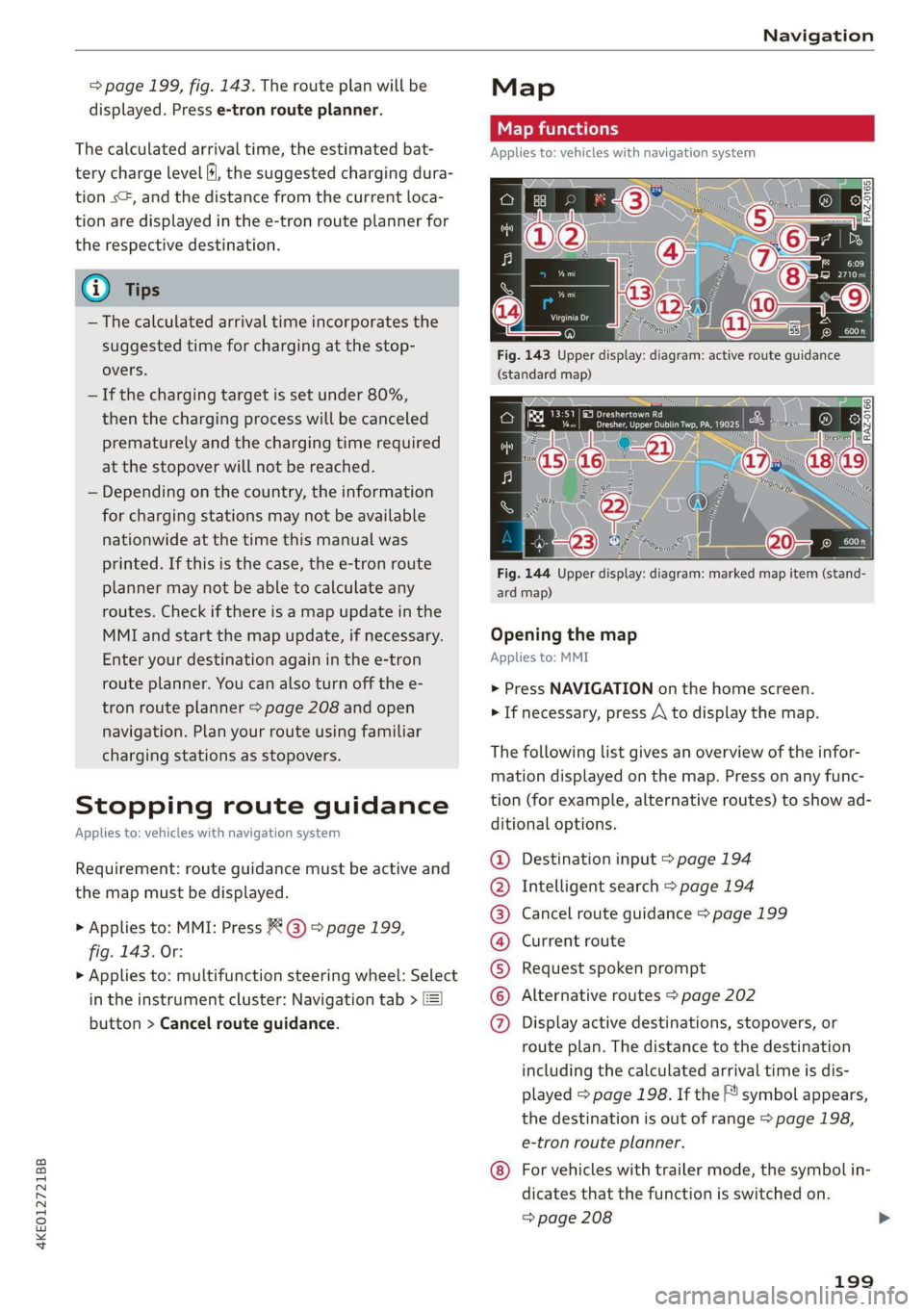
> Applies to: MMI: Press & @ = page 199,
fig. 143. Or:
> Applies to: multifunction steering wheel: Select
in the instrument cluster: Navigation tab >
button > Cancel route guidance.
Map
Map functions
Applies to: vehicles with navigation system
eo -
Fig. 144 Upper display: diagram: marked map item (stand-
ard map)
Opening the map
Applies to: MMI
> Press NAVIGATION on the home screen.
> If necessary, press /\ to display the map.
The following list gives an overview of the infor-
mation displayed on the map. Press on any func-
tion (for example, alternative routes) to show ad-
ditional options.
Destination input > page 194
Intelligent search > page 194
Cancel route guidance > page 199
Current route
Request spoken prompt
Alternative routes > page 202
QOOOOOHO Display active destinations, stopovers, or
route plan. The distance to the destination
including the calculated arrival time is dis-
played = page 198. If the F! symbol appears,
the destination is out of range > page 198,
e-tron route planner.
For vehicles with trailer mode, the symbol in-
dicates that the function is switched on.
=> page 208
199
Page 226 of 310
Media
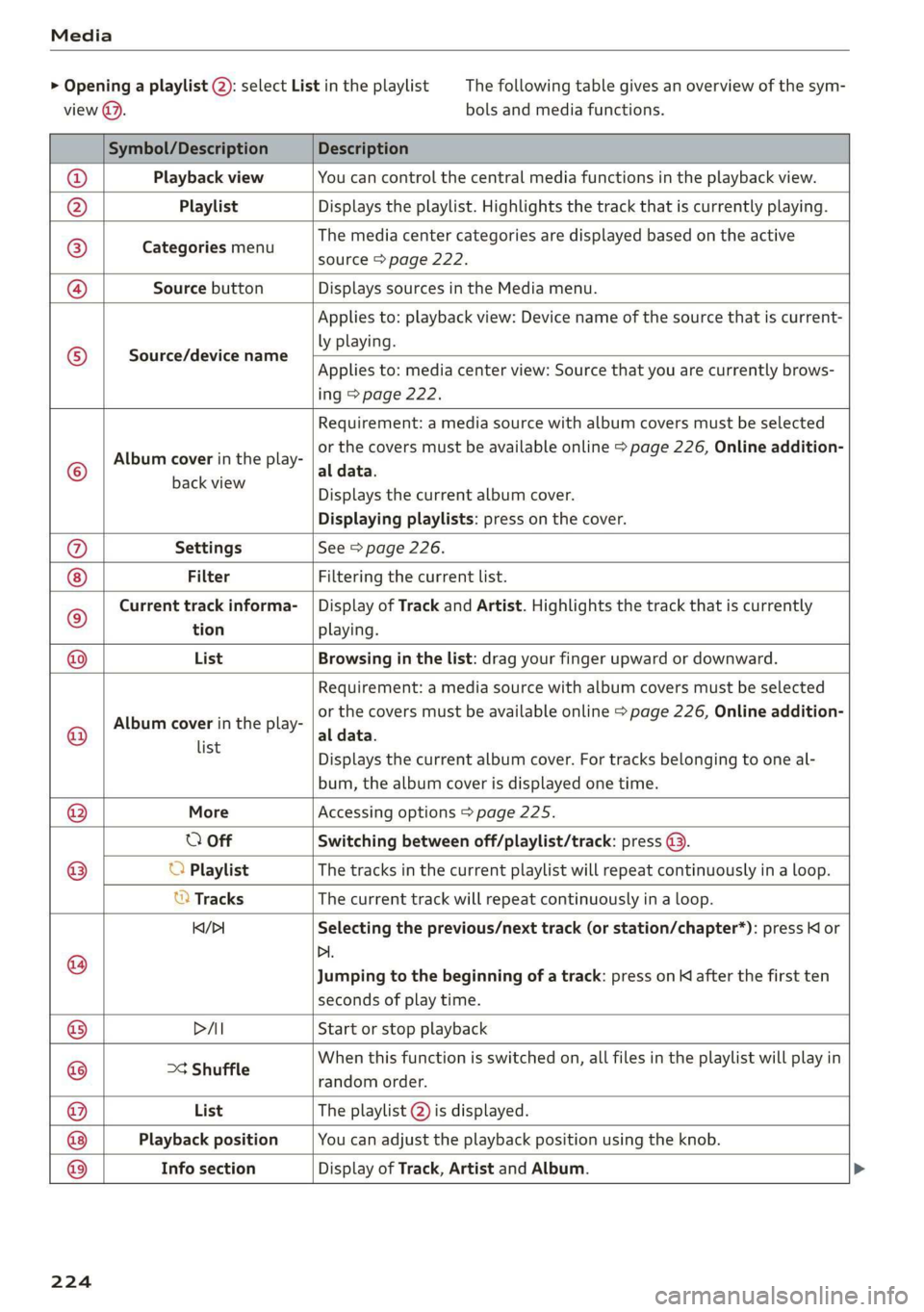
> Opening a playlist (2): select List in the playlist
view @.
The following table gives an overview of the sym-
bols and media functions.
Symbol/Description Description
Playback view You can control the central media functions in the playback view.
Playlist Displays the playlist. Highlights the track that is currently playing.
Categories menu
The media center categories are displayed based on the active
source > page 222.
Source button Displays sources in the Media menu.
Source/device name
Applies to: playback view: Device name of the source that is current-
ly playing.
Applies to: media center view: Source that you are currently brows-
ing > page 222.
©
Album cover in the play-
Requirement: a media source with album covers must be selected
or the covers must be available online > page 226, Online addition-
al data.
backwiew Displays the current album cover.
Displaying playlists: press on the cover.
@ Settings See > page 226.
Filter Filtering the current list.
© Current track informa- | Display of Track and Artist. Highlights the track that is currently
tion playing.
@ List Browsing in the list: drag your finger upward or downward.
©
Album cover in the play-
Requirement: a media source with album covers must be selected
or the covers must be available online > page 226, Online addition-
al data.
Playback position You can adjust the playback position using the knob.
Info section
list
= Displays the current album cover. For tracks belonging to one al-
bum, the album cover is displayed one time.
@ More Accessing options > page 225.
O Off Switching between off/playlist/track: press (9.
® O Playlist The tracks in the current playlist will repeat continuously in a loop.
© Tracks The current track will repeat continuously in a loop.
Kq/>1 Selecting the previous/next track (or station/chapter*): press Kl or
@ Di.
Jumping to the beginning of a track: press on K after the first ten
seconds of play time.
® PAI Start or stop playback
@ >¢ Shuffle When this function is switched on, all files in the playlist will play in
random order.
@ List The playlist @) is displayed.
® ®
Display of Track, Artist and Album.
224